
PIXMA TS7740i - Printer CANON - Free user manual and instructions
Find the device manual for free PIXMA TS7740i CANON in PDF.



| Product Type | Inkjet multifunction printer (print, copy, scan) |
| Brand | Canon |
| Model | PIXMA TS7740i |
| Main functions | Print, copy, scan, wireless connection |
| Dimensions (W x D x H) | Approx. 45 x 36 x 15 cm |
| Weight | Approx. 7 kg |
| Power supply | 100-240 V, 50/60 Hz |
| Connectivity | Wi-Fi, USB, direct access via touch screen |
| Display | Color touch screen |
| Ink cartridges | Replaceable ink cartridges (series PG-560/CL-561) |
| Maintenance and cleaning | Print head cleaning via software or printer menu |
| Safety | Configurable auto shut-off, CE certification |
| Spare parts and repairability | Ink cartridges, power cord, parts available |
| General information | Brand: Canon, Model: PIXMA TS7740i, category: printer |
Frequently Asked Questions - PIXMA TS7740i CANON
User questions about PIXMA TS7740i CANON
0 question about this device. Answer the ones you know or ask your own.
Ask a new question about this device
Download the instructions for your Printer in PDF format for free! Find your manual PIXMA TS7740i - CANON and take your electronic device back in hand. On this page are published all the documents necessary for the use of your device. PIXMA TS7740i by CANON.
USER MANUAL PIXMA TS7740i CANON
Read Safety and Important Information (addendum) first.
Printer Setup
Printer Setup


Copying

![graph TD A["Do you want to connect a computer or smartphone to the printer?"] --> B{Yes} A --> C{No} B --> D["Install the app to continue. Enter the following URL in the browser's address bar, and then follow the instructions displayed on the page. https://ij.start.canor/connect"] C --> E["Standard"…](/content/2026/04/666783/images/b8ccf8a4a938041f86dd3033c084ba8ce5630e36cb8c4005d8d4847d0f88ea65.jpg)


Copying
Setting Up the Printer
1. Box Contents
- Ink Cartridges


Power Cord - Setup CD-ROM • Safety and Important Information • Getting Started (this manual)
2. Turning on the Printer
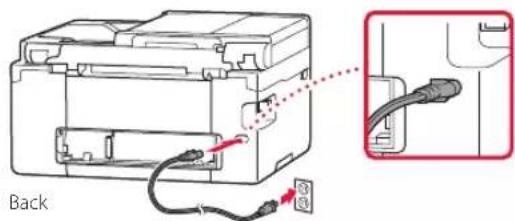
1 Connect the power cord.
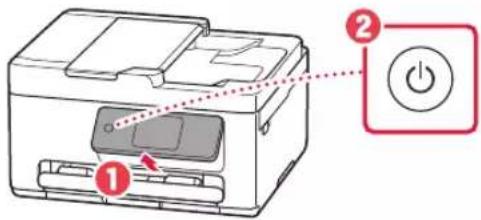
2 Open the operation panel and press the ON button.
3. Follow the Instructions on the Printer's Screen to Complete Setup
Follow the on-screen instructions to install ink and load paper. Continue until you reach the final screen.


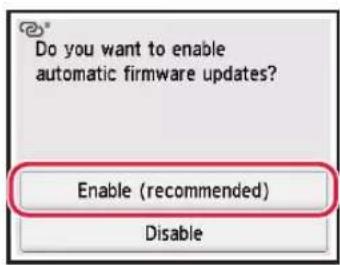

![graph TD A["Do you want to connect a computer or smartphone to the printer?"] --> B{Yes} A --> C{No} B --> D["Install the app to continue. Enter the following URL in the browser's address bar, and then follow the instructions displayed on the page. https://ij.start.canor/connect"] C --> E["Standard"…](/content/2026/04/666783/images/503418b89203bf73b54035fc32671155a4c2026ea89d09c46348191d76193438.jpg)
Setting Up the Printer
4. Connecting to a Computer or Smartphone
If you are using multiple computers/smartphones, perform these steps on each device. Also perform these steps to add a new computer/smartphone or replace your current one.
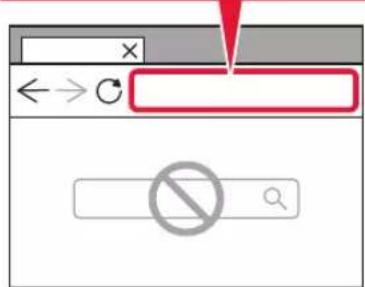
1 Access the Canon website directly. No need to search.
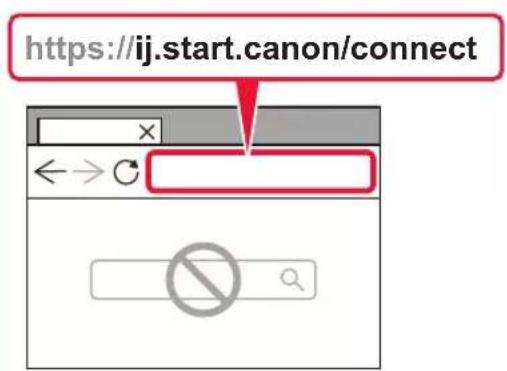

2 Enter your printer's model name and click Go. 3 Follow the on-screen instructions.

Note
Refer to the Online Manual if you cannot connect the printer to your computer or smartphone (network trouble).

Using the Setup CD-ROM
- Double click EasySetup.exe on the screen that appears.
- If the printer selection screen appears, select TS7740i. If the installation screen appears, click Next.
- Follow the on-screen instructions.
If nothing appears, start Explorer and then run EasySetup.exe in the CD-ROM.
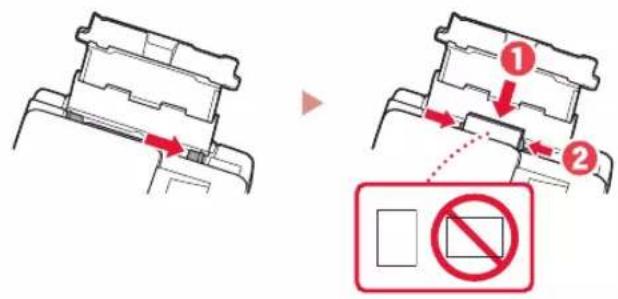
Loading Photo Paper
1 Open the rear tray cover and extend the paper support.
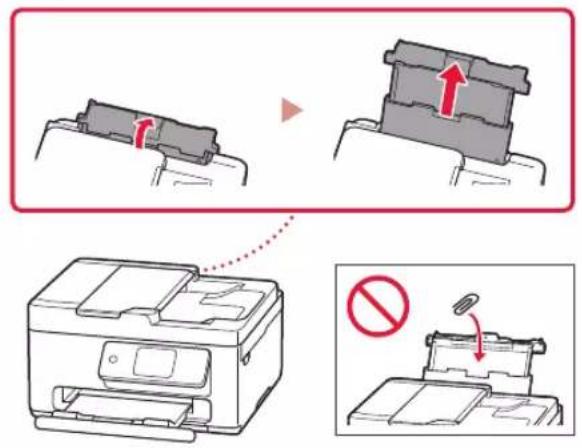
2 Slide the right-hand side paper guide to the far right. 3 Load several sheets of paper with the print side facing up and slide the side paper guide against the edge of the paper stack.
Copying
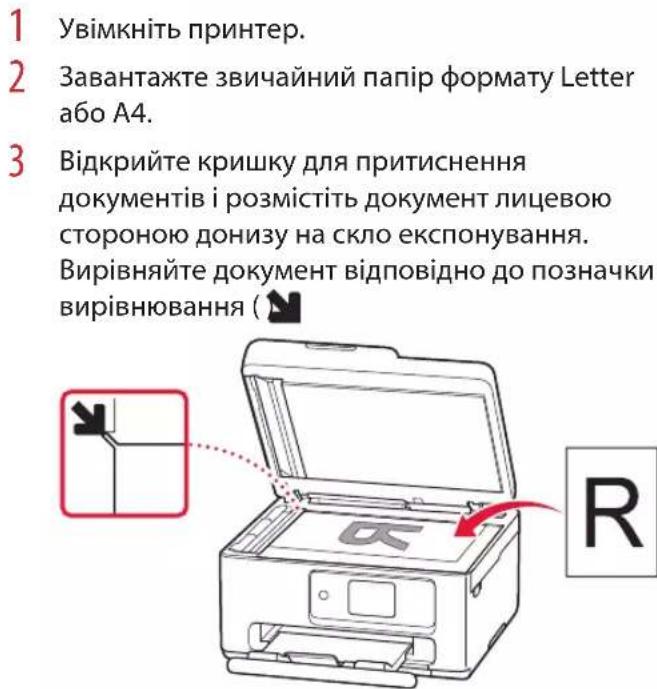
1 Turn on the printer. 2 Load Letter or A4 sized plain paper. 3 Open the document cover and place the document face down on the platen. Align the document with the alignment mark ( )
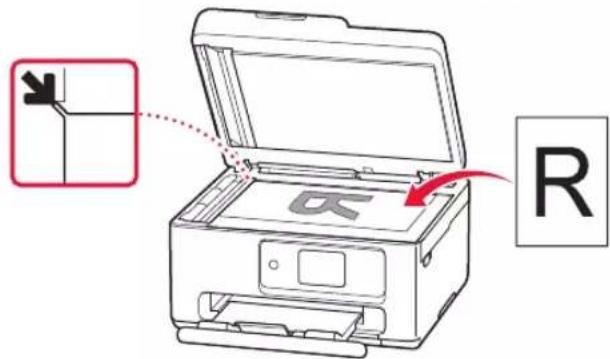
4 Close the document cover.
5 Tap Copy on the HOME screen. 6 Specify print settings.

7 Press the Color button to start color copying. Or, press the Black button to start black & white copying.
Printer Setup


Copy
https://ij.start.canon/connect


![graph TD A["Canon"] --> B{Do you want to enable automatic firmware updates?} B -->|Yes| C["Enable (recommended)"] B -->|No| D["Disable"] C --> E{Do you want to connect a computer or smartphone to the printer?} E -->|Yes| F["Install the app to continue. Enter the following URL in the browser's addres…](/content/2026/04/666783/images/2ae0f2afd9600e8fffafd774a2a0d228a7289a734714a4f135555c7b7deb46e4.jpg)





Frequently Asked Questions
Frequently Asked Questions
Brand : CANON
Model : PIXMA TS7740i
Category : Printer