
i-SENSYS MF4430 - Printer CANON - Free user manual and instructions
Find the device manual for free i-SENSYS MF4430 CANON in PDF.
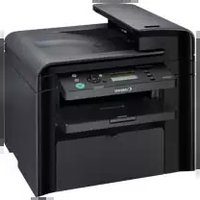


| Product Type | Monochrome Laser Multifunction Printer |
| Functions | Print, copy, scan |
| Maximum Paper Size | A4 |
| Print Speed | Up to 23 pages per minute (A4) |
| Print Resolution | 600 x 600 dpi |
| Paper Tray Capacity | 250 sheets (main tray), 1 sheet (multipurpose tray) |
| Connectivity | USB 2.0 High Speed |
| Memory | 64 MB |
| Display | 2-line LCD |
| Dimensions (W x D x H) | 390 x 442 x 456 mm |
| Weight | Approx. 11.5 kg |
| Power Supply | 220-240 V, 50/60 Hz |
| Power Consumption | Printing: approx. 500 W, Standby: 10 W, Off: 0.5 W |
| Monthly Duty Cycle | Up to 8,000 pages |
| Toner Cartridge | Cartridge 118 black (approx. 1,400 pages) |
| Maintenance and Cleaning | Clean the rollers and scanner glass with a damp cloth. Use a recommended cleaning kit. |
| Safety | Auto shut-off after adjustable period of inactivity |
| Spare Parts and Repairability | Parts available via Canon authorized service. Repairability index: 7.5/10 |
| General Information | 1-year warranty, Canon online support |
Frequently Asked Questions - i-SENSYS MF4430 CANON
User questions about i-SENSYS MF4430 CANON
0 question about this device. Answer the ones you know or ask your own.
Ask a new question about this device
Download the instructions for your Printer in PDF format for free! Find your manual i-SENSYS MF4430 - CANON and take your electronic device back in hand. On this page are published all the documents necessary for the use of your device. i-SENSYS MF4430 by CANON.
USER MANUAL i-SENSYS MF4430 CANON
Read this guide first.
Please read this guide before operating this product.
After you finish reading this guide, store it in a safe
place for future reference.
English
Basic Guide
2017
January 1, 2017
Swedish
(1) This manual is for reference only.
last den.
Greek
5 TOV
you
SITE VA
(5) This description is for reference only.
Check!
Check!
MF4580dn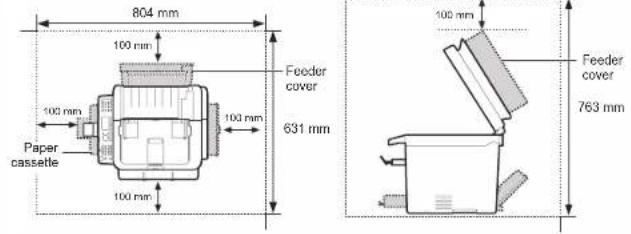
MF4570dn/MF4550d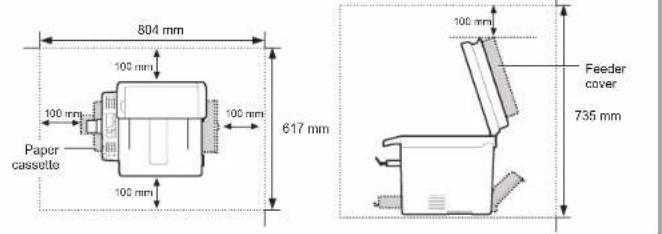
MF4450/MF4430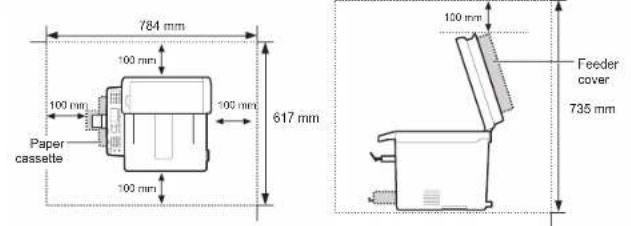
MF4410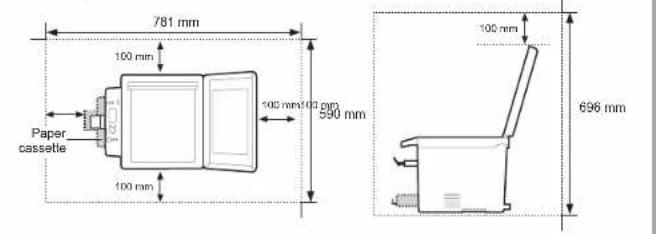
MF4580dn 1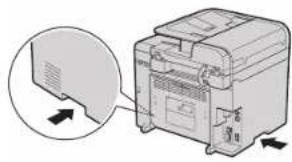
2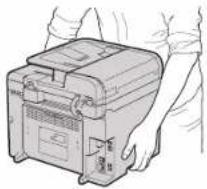
3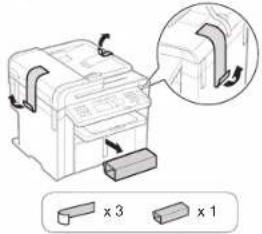
4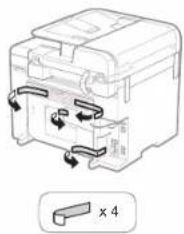
5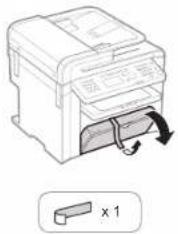
MF4570dn/MF4550d/MF4450/MF4430 1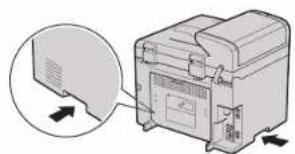
2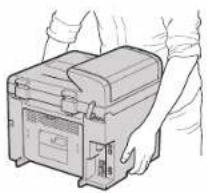
3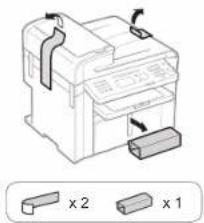
4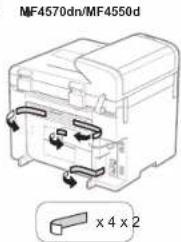
MF4450/MF4430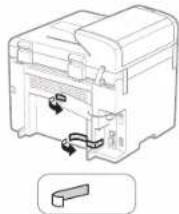
MF4410 1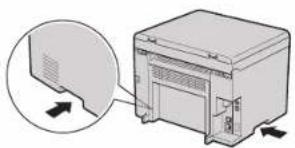
2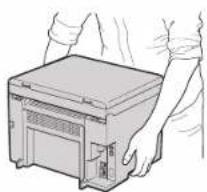
3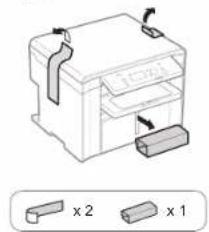
4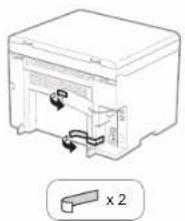
5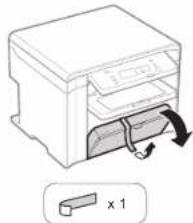
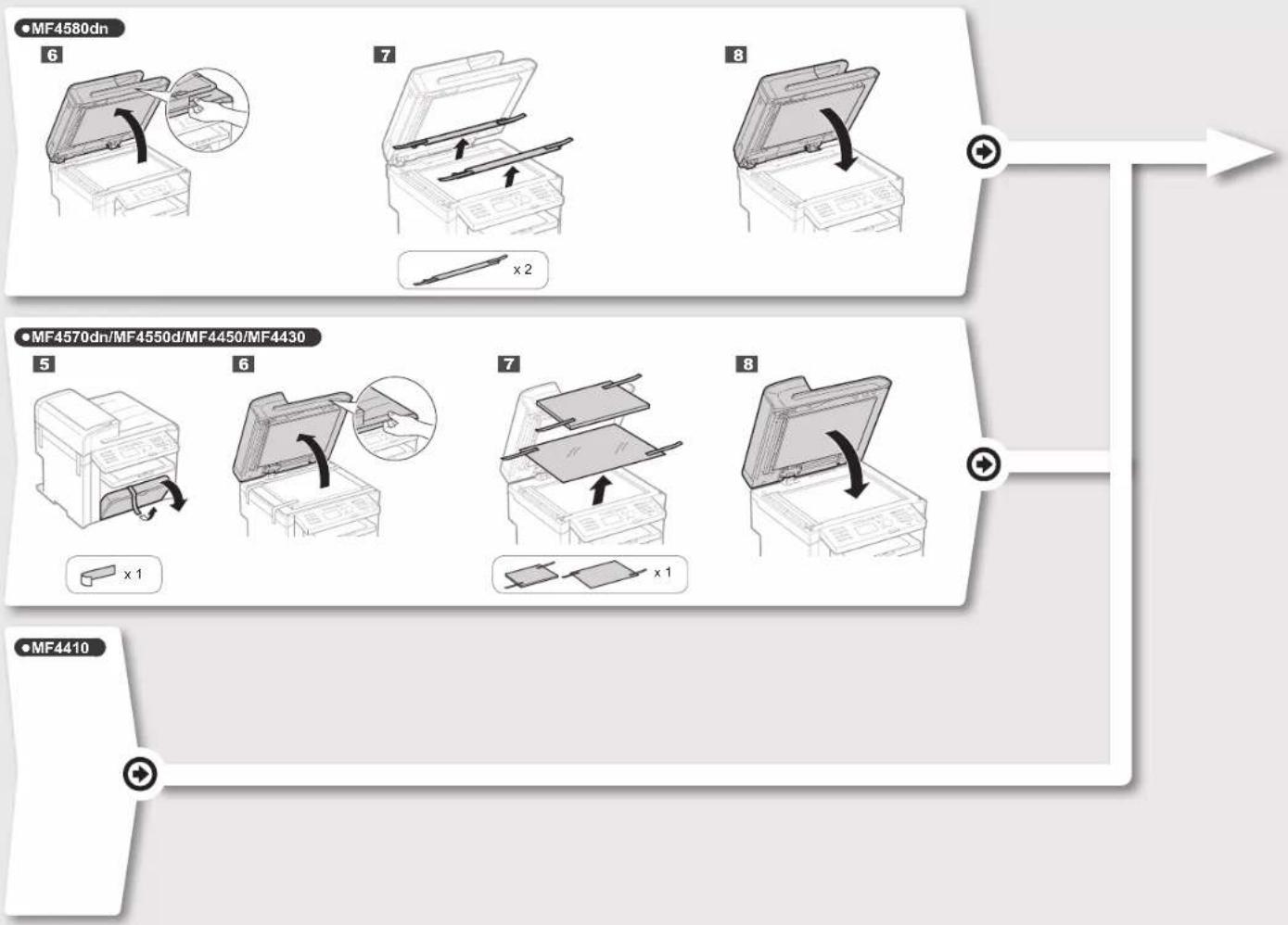
- MF4580dn/MF4570dn/MF4550d/MF4450/MF4430/MF4410
1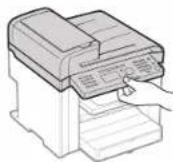
2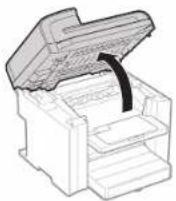
3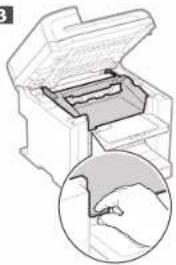
4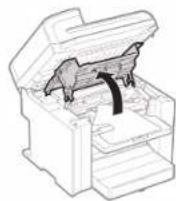
5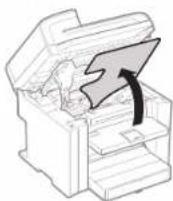
6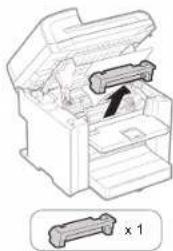
7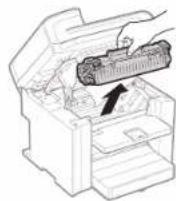
8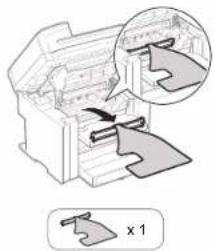
9
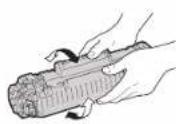
10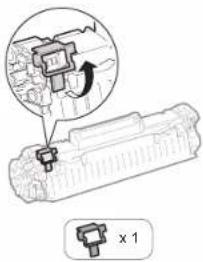
11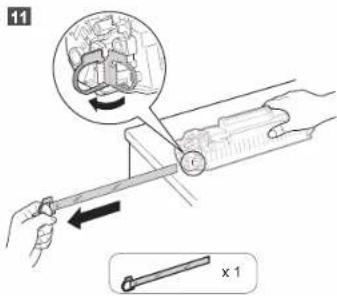
12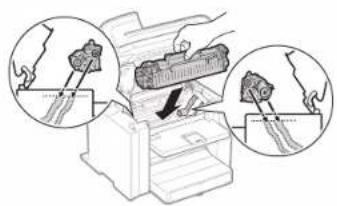
13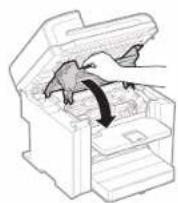
14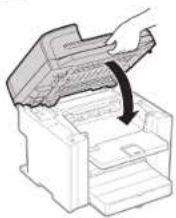
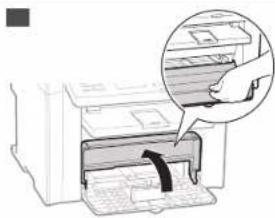
16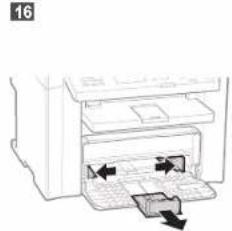
18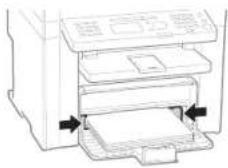
19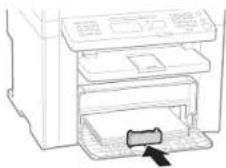
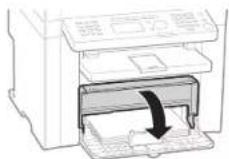
21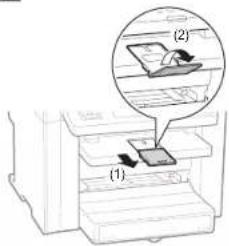
MF4570dn/MF4550d/MF4450/MF4430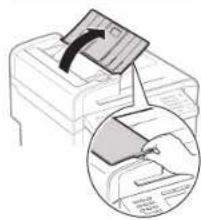
Option
Installing the Handset 1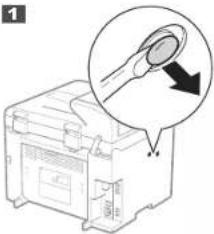
2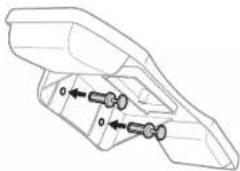
3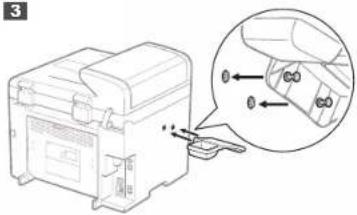
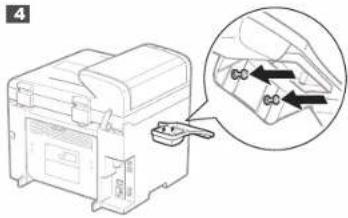
5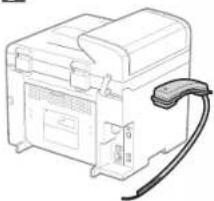
| English | Settings for the Machine and Software Installation | Next, specify the settings for the machine and install software. See the language tab page on the right. | English | Français |
| Français | Paramètres pour l'installation de la machine et du logiciel | Spécifiez ensuite les paramètres de la machine et installez le logiciel. Reportez-vous à l'onglet de langue, à droite. | Italiano Deutsch | |
| Italiano | Impostazioni della macchina e installazione del software | Selezionare le impostazioni della macchina e installare il software. Vedere la pagina a destra corrispondente alla scheda della lingua. | ||
| Deutsch | Einstellungen für das Gerät und Softwareinstallation | Geben Sie als nächsties die Einstellungen für das Gerät an, und installieren Sie die Software. Sie finden das Spracherregister auf der rechten Seite. | ||
| Česky | Nastavení zařízení a instalace softwaru | Poté zvolte nastavení zařízení a nainstalujte software. Stránka karty s jazykom je umístěna vpravo. | Česky | Magyar Polski Slovensky |
| Magyar | A készülék beállitásainak megadása és szoftvertelepítés | A következő lépésben adja meg a készülék beállitásalt és telepitse a szoftvert. Tekintse meg a jobó oldalon található nyelvi cimke oidalát. | ||
| Polski | Ustawienia urządzenia oraz instalacja oprogramowania | Następnie określ ustawienia urządzenia i zainstaluj oprogramowanie. Patrz odpowiednia karta języka po prawej stronie. | ||
| Slovensky | Nastavenie zarladenia a inštalácla softvéru | Potom zvoňe nastavenie zarladenia a nainštalujte softvér. Stránka karty s jazykom je umiestnená vpravo. | ||
| Hrvatski | Postavke za uredaj i instaliranje softvera | Zatım odredite postavke za uređaj, a potom instalirajte softver. Pogledajte stranicu kartice jazika na desnoj strani. | Übrkataltivškumná | |
| Română | Setâri pentru aparat și instalarea software-ului | În continuare, specificaij setârile pentru aparat și instalají software-ul. Vezi pagina cu etichete de limbi din partea dreaplă. | ||
| Slovensčina | Nastavitve za namestitev naprave in programske opreme | Nato določite nastavitve za napravo in namestite programsko opremo. Oglejte si stran zavihka z jeziki na desni. | ||
| Български | Настройки на устройството и инсталиране на софтуера | След това задайте настройките за устройството и инсталирайте софтуера. Вж. страницата с раздела за език дясно. | ||
| Русский | Настройки для аппарата и установка программного обеспечения | Далее задайте настройки для аппарата и установите программное обеспечение. См. вкладку для вашего языка справа. | Русский Украївська | |
| Українська | Параметри для встановлення программного забезпечення та аппарата | Потім вкажіть параметри для аппарата та встановить программне забезпечення. Див. вкладку зі сторінкою мови з правого боку. | ||
| العربية | اعادات لل其他国家. وثَبْتِ الْمُرْمَاج | يَعَدَّاكَهُ حَنْدَ إِنْتَاتِ الْجَهِزُ وَقِمْ بِشْتِبِتِ الْرِّامِجَ. تَنْظْرِ صُحْتَة عَلَلَةٍ تُفَرِبِ الْعَمْهُ الْمُرْحَرِدَةٍ عَلَى الْمُهِينَ. | ||
| فرسي | تَظْطِاتِ دُستَكَاهِ و نَصْبُ نَمْ رَقْرَار | سَابِسِ، كَطْلِيمَاتِ دُستَكَاهِ وَا لَجَامِنَانِهِ وَنَرْمُ الْوَلَرِ وَانَنَصْبُ كَيْنِ. Îِهُيَهُيُيُيُيُيُيُيُيُيُيُيُيُيُيُيُيُيُيُيُيُيُيُيُيُيُيُيُيُيُيُيُيُيُيُيُيُيُيُيُيُيُيُيُيُيُيُيُيُيُيُи | ||
| Türkçe | Makine Ayarlan ve Yazılım Kurulumu | Ardindan, makine ayarlarını belirleyin ve yazılımı kurun. Sağ taraftaki dil sekmesine bakın. | Lietuvlăkal Eestl | |
| Latviešu | Iekārtas iestatījumi un programmatūras instalēśana | Tālāk norādiet iekārtas iestatījumus un instalējjiet programmatūru. Skatiet valodu cilnes lapu, kas atrodas labajā pusē. | ||
| Lietuviškai | Aparato ir programinês jrangos diegimo parametrai | Nurodykite aparato parametrus ir jdiekite programinę jrangą. Žr. kalbų skirtuko puslapą ciśinėje. | ||
| Eesti | Seadme ja tarkvara installisätted | Järgmisena määrake seadme ja tarkvara installisätted Vaadake paremal asuvat keelte loendit. | ||
| Dansk | Maskinindstillinger og softwareinstallation | Angiv derefter maskinindstillingerne, og installer software. Se fanesiden for sprog i højre side. | Dansk | Norsk |
| Norsk | Innstillinger for maskin- og programvareinstallasjon | Angi deretter innstillinger for maskinen, og installer programvaren. Se kategorisiden for språk til høyre. | Svenska | |
| Suomi | Laitteen asetukset ja ohjelmiston asentaminen | Mäläntä seuraavaksi laitteen asetukset ja asenna ohjelmisto. Katso kielivälilehtisivu oikealla. | ||
| Svenska | Inställningar för enheten och installation av programvaran | Ange sedan inställningarna för enheten och installera programvaran. Se sidan med sprákfikar till höger. | ||
| Español | Configuración para la máquina e instalación del software | A continuación, especifique la configuración para la máquina e instale el software. Vea la página de la ficha de idioma en el lado derecho. | Español | Nederlands Português Élémyká |
| Nederlands | Instellingen voor het apparaat en software-installatie | Geef vervolgens de instillingen voor het apparaat op en insteller de software. Zie het tabblad van uw taal aan de rechterkant. | ||
| Português | Defi nições da máquina e instalação do software | A seguir, especifi que as defi nições da máquina e instale o software. Consulte a página do separador do idioma, do lado direito. | ||
| Еллнікá | Рубýσεις συσκευής και εγκατάστοση λογισμικού | Στη συνίχεια, καβορίστε τις ρυθμίσεις συσκευής και εγκαταστήστε το λογισμικό. Ανατρέξτε στη αελίδια καρτέλας γιλώσασας στα δεξά. | ||
Contents
Table of Contents
Table of Contents
Table of Contents
| English | 1 About the Supplied Manuals....P.22 Navigating the Menu and Text Input Method....P.33 Connecting the Power Cord and Turning ON the Power....P.44 Specifying the Initial Settings....P.55 Setting a Paper Size and Type....P.5 | 6 Specifying Initial Fax Settings and Connecting a Telephone Cable....P.67 Network Connection and Configuration....P.88 Installing the Driver/Software....P.99 Perform Useful Tasks....P.10 |
| Français | 1 A propos des manuels fournis....P.22 Navigation dans le menu et méthode de saisie de texte....P.33 Branchement du cordon d'alimentation et allumage de la machine....P.44 Spécification des paramètres initiaux....P.55 Réglage du format et du type de papier....P.5 | 6 Spécification des paramètres de fax initiaux et connexion du câble téléphonique....P.67 Connexion et configuration réseau....P.88 Installation du pilote/logiciel....P.99 Exécution de tâches utiles....P.11 |
| Italiano | 1 Informazioni sui manuali forniti a corredo con il prodotto....Pag.22 Navigazione del menu e metodo di input del testo....Pag.33 Collegamento del cavo di alimentazione e accensione della macchina....Pag.44 Selezione delle impostazioni iniziali....Pag.55 Impostazione di un formato e di un tipo di carta....Pag.5 | 6 Impostazioni iniziali del fax e collegamento di un cavo telefonico....Pag.67 Collegamento di rete e configurazione....Pag.88 Installazione di driver/software....Pag.99 Attività utili....Pag.12 |
| Deutsch | 1 Informationen zu den mitgelieferten Handbüchern....S.22 Navigieren durch das Menü und Texteingabemethode....S.33 Anschließen des Netzkabels und Einschalten des Geräts....S.44 Angeben der Anfangseinstellungen....S.55 Einstellen eines Papierformats und Papiertyps....S.5 | 6 Angeben der Anfangsfaxinstellungen und Anschließen eines Telefonkabels....S.67 Netzwerkverbindung und -konfiguration....S.88 Installieren des Treibers bzw. der Software....S.99 Hilfreiche Funktionen....S.13 |
1
About the Supplied Manuals
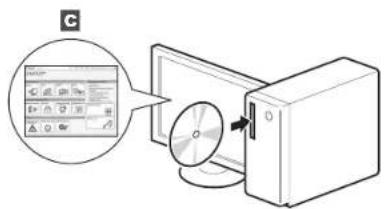
| English | A Starter Guide (This manual):Read this manual first.This manual describes the installation of the machine, the settings, and a caution. Be sure to read this manual before using the machine. | B MF Driver Installation Guide(User Software CD-ROM):Read this manual next.This manual describes software installation. | C e-Manual (User Manual CD-ROM): Read the desired chapter to suit your needs.The e-Manual is categorized by subject to find desired information easily.Viewing the e-Manual from the CD-ROM1. Insert the User Software CD-ROM in your computer.2. Click [Display Manuals].3. Click the [ [ [ ] button in [e-Manual].]* Depending on the operating system you are using, a security protection message appears. Allow the contents to be displayed. |
| Français | A Guide de démarrage (ce manuel) :Lisez ce manuel en premier.Ce manuel décrit l'installation de la machina, les paramètres et les précautions à prendre.Veillez à lire attentivement ce manuel avant d'utiliser la machine. | B Guide d'installation des pilotes MF(CD-ROM "User Software CD-ROM") :Lisez ensuite ce manuel.Ce manuel décrit l'installation du logiciel. | C Manuel électronique (CD-ROM "User Manual CD-ROM") : Lisez le chapitre qui répond à vos besoins.Le manuel électronique est divisé en catégories par sujet, ce qui permet de trouver facilement les informations voulues.Affichage du manuel électronique directement depuis le CD-ROM1. Inseez le CD-ROM "User Software CD-ROM" dans votre ordinateur.2. Cliquez sur [Afficher manuel].3. Cliquez sur le bouton [ [ [ ] sous [Manuel électronique].]* Salon votre système d'exploitation, un massage de protection de la sécurité peut s'afficher. Autorisez l'affichage du contentu. |
| Italiano | A Guida all'avvio (questo manuale):Leggere prima questo manuale.In questo manuale vengono descritti l'installazione della macchina, le impostazioni e le avvertenze da osservare. Leggere attentamente il manuale prima di utilizzare la macchina. | B Guida di Installazione del Driver MF(User Software CD-ROM):Leggere dopo questo manuale.Questa manuale descrive l'installazione del software. | C e-Manual (User Manual CD-ROM): Leggere il capitolo desiderato in base alle proprie esigenze.L'e-Manual è suddiviso in una serie di categorie per argomento che consentono di trovare le informazioni desiderate più facimentàs. Visualizzazione dell'e-Manual dal CD-ROM1. Insertire l'User Software CD-ROM nel computer.2. Fare clic sui [Visual-manuel].3. Fare clic sul pulsante [ [ [ ] ] in [e-Manual].]* A seconda dei sistemi operativo in uso, è possibile che venga visualizzato un messaggio di protezione. Consentire la visualizzazione del contenti. |
| Deutsch | A Handbuch für Starter (dieses Handbuch):Lesen Sie zuerst dieses Handbuch.In diesem Handbuch werden die Geräteinstallation, die Einstellungen und Vorsichtshinweise beschrieben. Lesen Sie dieses Handbuch vor Inbetriebnahme des Geräts unbedingt durch. | B Installationshandbuch zum MF-Treiber(User Software CD-ROM):Lesen Sie dieses Handbuch als nächstes.In diesem Handbuch wird die Softwareinstallation beschrieben. | C e-Anleitung (User Manual CD-ROM): Lesen Sie das gewünschte Kapitel entsprechend Ihren Anforderungen.Die e-Anleitung ist thematisch gegliedert, sodass Sie die gewünschten Informationen problemlos finden.Anzeigen der e-Anleitung von der CD-ROM1. Legen Sie die User Software CD-ROM in Ihren Computer stir.2. Klicken Sie auf [Zeige Handbuch].3. Klicken Sie in [e-Handbuch] auf die Schafffläche [ [ [ ] ].]* Abhängig von dem von diese verwendeten Berichtsystem wird eine Sicherheitswarming angezeigt. Lesson Sie bis Anzeige des Inhalts zu. |
2
Navigating the Menu and Text Input Method
English Entering text, symbols, and numbers
| Key Entry mode: | ||
| 1 | @ : _ / 1 | |
| 2 | ABCatic 2 | |
| 3 | DEF def 3 | |
| 4 | CHighi 4 | |
| 5 | JKL pc 5 | |
| 6 | MNCmmo 6 | |
| 7 | PORSpags 7 | |
| 8 | TUWtiv 8 | |
| 9 | WXYZzysz 9 | |
| 0 | (Not available) 0 | |
| 1 | @ : / - | 7 & $ % # | [ ]()<=*+=*,::^;1 | (Not available) |
Changing entry mode
| Entry mode Available text | |
| Alphabet (capital and small letters) and symbols | |
| Numbers | |
English
Follow the instructions on the screen, set the language and time.
For details on navigating the menu and how to input the numbers, see 2 "Navigating the Menu and Text Input Method" (P.3).
Français
Setting a Paper Size and Type
Setting the paper size and type Setting the paper size and type Setting the paper size and type
• N
●MF4580dn/MF4570dn/MF4550d/MF4450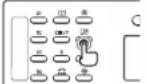
MF4430/MF4410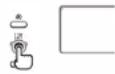
English
Follow the instructions on the screen, set the paper size and type.
After completing the setting, specify the following settings.

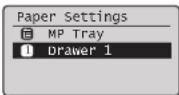

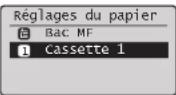
Settings applied.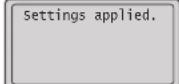
MF4580dn/MF4570dn/MF4550d/MF4460
6 "Specifying Initial Fax Settings and Connecting a Telephone Cable" (P.6)
MF4430/MF4410
8 "Installing the Driver/Software" (P.9)
French
Follow the "Fax Setup Guide" to specify a fax number, a unit name, and a receive mode. For more details on the receive mode, see the e-Manual.
e-Manual -> "Fax" -> "Using Fax" -> "Receiving Faxes" -> "RX Mode."
How to use a username
When you send a document, the sender information that you registered is printed on the recipient's paper.
6-2 Connect a telephone cable.
When appears on the display, connect the telephone cable by referring to the illustration.
When installing the optional handset
For more details, see the supplied manual with the handset.
6-3 Exit the Fax Setup Guide, and then restart the machine.
Turn OFF the machine and wait for at least 10 seconds before turning it ON again.
The telephone line types are not detected automatically. See the e-Manual and set a telephone line manually.
e-Manual -> "Fax" -> "Using Fax" -> "Changing Settings for Fax Sending (Items Specified Using the [Menu] Button)" -> "Specifying Fax Sending
Settings" -> "Select Line Type
For Network Connection (MF4580dn/MF4570d Only)
7 "Network Connection and Configuration" (P.8)
For USB Connection
8 "Installing the Driver/Software" (P.9)
Network Connection and Configuration
Connect the LAN cable.
About the LAN cable
Use a Category 5 or higher twisted pair cable for the LAN.
The machine sets the IP address automatically. Wait approximately two minutes.
About obtaining the IP address automatically (Auto IP)
DHCP or Auto IP is enabled in the default setting. Even if you do not set the IP address manually, this machine can obtain it automatically. • The IP address can be automatically assigned with or without a DHCP server.
- The setting is prioritized over
If a fixed IP address is set as the IP address of the computer, set the fixed IP address also for this machine manually.
If you want to set the IP address manually, see the following items. e-Manual -> "Network Settings" -> "Basic Network Settings" -> "Setting IPv4 Address" or "Setting IPv6 Address."

LASER KLASSE 1
APPAREIL À LASER DE CLASSE 1
APPARECCHIO LASER DI CLASSE 1
PRODUCTO LASER DE CLASE 1
APARELHO A LASER DE CLASSE 1
LUOKAN 1 LASER-TOOTE
LASERPRODUKT KCLASS 1
CLASS 1 LASER PRODUCT
LASER KLASSE 1
APPAREIL À LASER DE CLASSE 1
APPARECCHIO LASER DI CLASSE 1
PRODUCTO LASER DE CLASE 1
APARELHO A LASER DE CLASSE 1
LUOKAN 1 LASER-TUOTE
LASER PRODUCT CLASS 1
ATTENTION
NOTE!
www.canon-europe.com/weee, or www.canon-europe.com/battery.
R&TTE Directive

LASER PRODUCT CLASS 1
NOTE!
- If the laser beam enters your eyes, it may damage them.
CLASS 1 LASER PRODUCT
LASER CLASS 1
CLASS 1 LASER APPARATUS
CLASS 1 LASER DEVICE
CLASS 1 LASER PRODUCT
CLASS 1 LASER EQUIPMENT
CLASS 1 LASER PRODUCT
LASER PRODUCT CLASS 1
DÉMESIO
LASER PRODUCT CLASS 1
CAUTION
www.canon-europe.com/weee or www.canon-europe.com/battery
LASER PRODUCT CLASS 1
CAUTION
- Deposit receipts
- Passport
- Immigration papers
www.canon-europe.com/weee or www.canon-europe.com/battery.
R & TTE Directive

CLASS 1 LASER PRODUCT
LASER CLASS
CLASS 1 LASER PRODUCT
CLASS 1 LASER DEVICE
CLASS 1 LASER PRODUCT
CLASS 1 LASER APPARATUS LUOKAN 1 LASER TUOTE
LASEBPRODUKT KCLASS 1
CAUTION
www.canon-europe.com/weee. or www.canon-europe.com/battery.
R & TTE DIRECTIVE
CE
LASER PRODUCT CLASS 1
WARNING
www.canon-europe.com/weee, or www.canon-europe.com/battery
R & TTE DIRECTIVE

LASER PRODUCT CLASS 1
BE CAREFUL!
CLASS 1 LASER PRODUCT
LASER KLASSE 1
APPAREIL À LASER DE CLASSE 1
APPARECCHIO LASER DI CLASSE 1
PRODUCTO LÁSER DE CLASE 1
APARELHO A LASER DE CLASSE 1
LUOKAN 1 LASER-TUOTE
LASERPRODUKT KLASS 1
ATENCIÓN
www.canon-europe.com/webe, of www.canon-europe.com/battery.
R&TTE-richtlijn

CLASS 1 LASER PRODUCT
LASER KLASSE 1
APPAREIL À LASER DE CLASSE 1
APPARECCHIO LASER DI CLASSE 1
CLASS 1 LASER PRODUCT
CLASS 1 LASER PRODUCT
CLASS 1 LASER PRODUCT
CLASS 1 LASER PRODUCT
CAUTION
www.canon-europe.com/weee, or www.canon-europe.com/battery.
R&TTE Directive

CLASS 1 LASER PRODUCT
CLASS 1 LASER PRODUCT
CLASS 1 LASER PRODUCT
CLASS 1 LASER PRODUCT
CLASS 1 LASER PRODUCT
CLASS 1 LASER PRODUCT
CLASS 1 LASER PRODUCT
CLASS 1 LASER PRODUCT
CAUTION
⚠️ CAUTION
www.canon-europe.com/veee ¤ www.canon-europe.com/battery.
LASER PRODUCT CLASS 1
CAUTION
30-2, Shimomaruko 3-chome, Ohta-ku, Tokyo 146-8501, Japan
One Canon Park, Melville, NY 11747, U.S.A.
CANON EUROPA N.V.
Bovenkerkerweg 59, 1185 XB Amstelveen, The Netherlands
15F Jinbao Building No.89, Jinbao Street, Dongcheng District, Beijing 100005, PRC
CANON SINGAPORE PTE LTD
1 HarbourFront Avenue, #04-01 Keppel Bay Tower, Singapore 098632
CANON AUSTRALIA PTY LTD
1 Thomas Holt Drive, North Ryde, Sydney NSW 2113, Australia
CANON GLOBAL WORLDWIDE SITES
http://www.canon.com/
- BASIC GUIDE
- MF4580DN/MF4570DN/MF4550D/MF4450/MF4430/MF
- OPTION
- CONTENTS
- TABLE OF CONTENTS
- ABOUT THE SUPPLIED MANUALS
- NAVIGATING THE MENU AND TEXT INPUT METHOD
- ENGLISH
- FRANÇAIS
- SETTING A PAPER SIZE AND TYPE
- N
- MF4580DN/MF4570DN/MF4550D/MF
- MF4430/MF
- FRENCH
- HOW TO USE A USERNAME
- CONNECT A TELEPHONE CABLE
- WHEN INSTALLING THE OPTIONAL HANDSET
- EXIT THE FAX SETUP GUIDE, AND THEN RESTART THE MACHINE
- FOR NETWORK CONNECTION (MF4580DN/MF4570D ONLY)
- NETWORK CONNECTION AND CONFIGURATION
- ATTENTION
- NOTE
- R&TTE DIRECTIVE
- DÉMESIO
- CAUTION
- R & TTE DIRECTIVE
- WARNING
- BE CAREFUL
- ATENCIÓN
- R&TTE-RICHTLIJN
- ⚠️ CAUTION
Brand : CANON
Model : i-SENSYS MF4430
Category : Printer