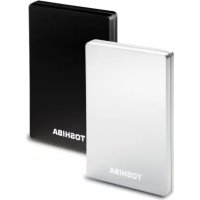
USER MANUAL StorE Alu 2 TOSHIBA
Check the Components. 4
Safety Instructions 5
System requirements. 7
Installing the drive 8
Connecting the drive to your computer . .9
Dismount and disconnect the drive .... 10
Further Advise. 11
Frequently Asked Questions 12
Troubleshooting 14
TOSHIBA Support 16
Regulatory Information 16
Notices 18
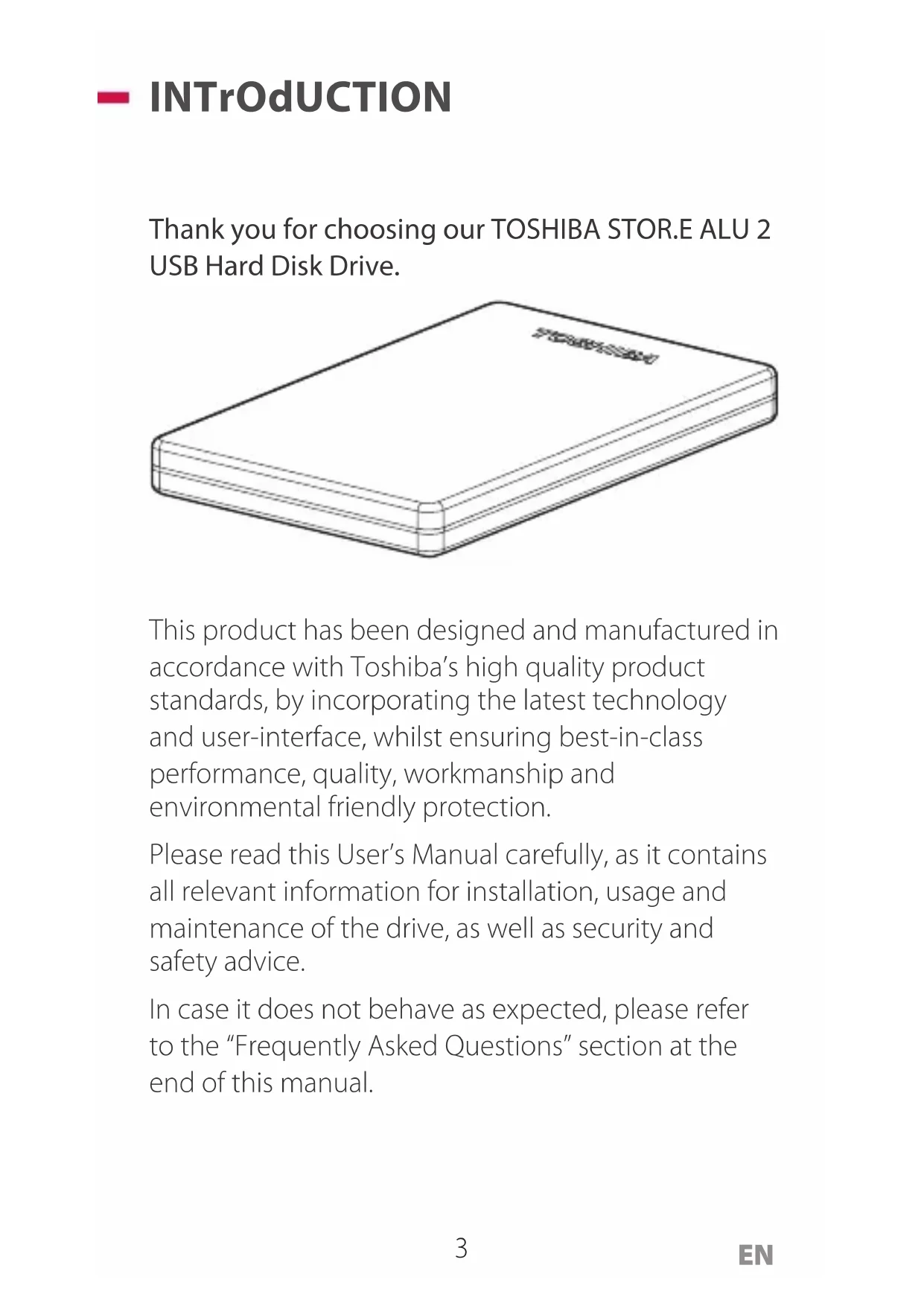
Thank you for choosing our TOSHIBA STORE.E ALU 2 USB Hard Disk Drive.
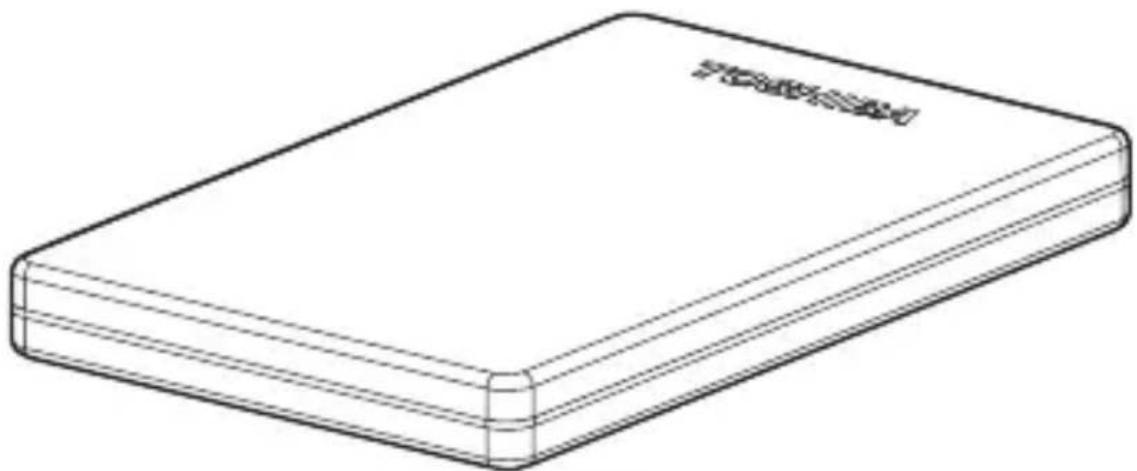
This product has been designed and manufactured in accordance with Toshiba's high quality product standards, by incorporating the latest technology and user-interface, whilst ensuring best-in-class performance, quality, workmanship and environmental friendly protection.
Please read this User's Manual carefully, as it contains all relevant information for installation, usage and maintenance of the drive, as well as security and safety advice.
In case it does not behave as expected, please refer to the "Frequently Asked Questions" section at the end of this manual.
- Check The Component

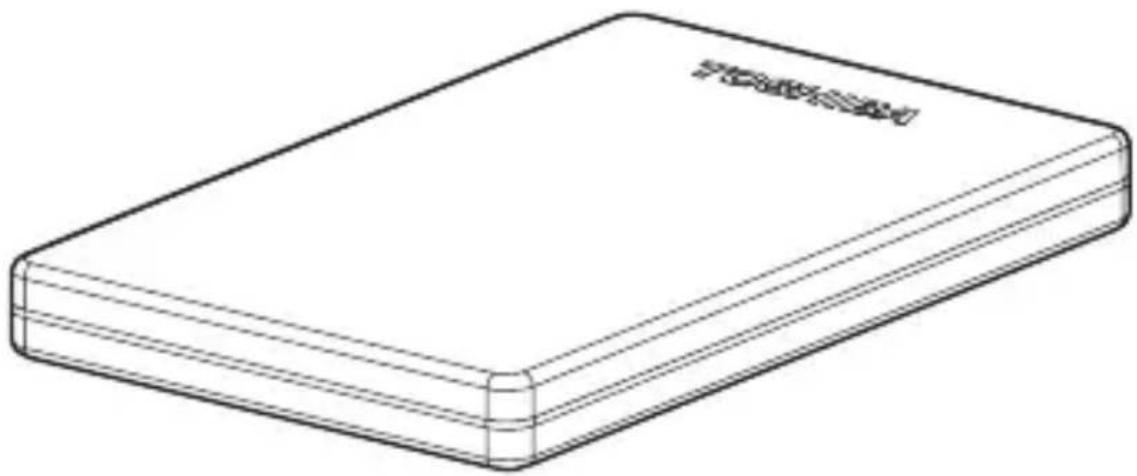
2.5" STORE.E ALU 2
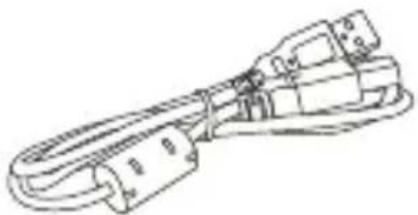
USB CABLE
QUICK START GUIDE
WARRANTY LEAFLET
This User's Manual is uploaded on the drive itself. We recommend to backup the User's Manual onto a CD or your local hard disk drive, directly after the drive being installed.
In order to avoid malfunction or damage of the drive, please carefully follow the precautions listed below.
- Make sure that you backup all your data on the drive, as Toshiba is not responsible for data corruption or data loss. Toshiba will not cover any data recovery cost.
- Do not
- open the enclosure or drive
disassemble the drive or parts of it
- place liquids near or on the drive, as it may damage the drive, cause personal injury or may result in an electrical shock or fire
- bump, drop or jar the drive
- move the drive while operating, as data damage may happen
- use other connectors than USB 2.0 bus powered types
- disconnect cables while operating. Please dismount the drive first!
- expose the drive to temperatures outside the range of 5^ - 40^ C while operating, and temperatures of -20^ - 60^ C while switched off
- expose the drive to wet or damp conditions
- cover the drive during operation, as it may become overheated
-
place the drive close to hot appliances
-
Immediately disconnect the drive if
-
smoke or an unusual smell is coming from the drive enclosure
water has entered the drive enclosure or if it becomes wet
- an object has entered the drive enclosure
- the cable has been damaged (in such case replace the cable with a new one)
If the drive behaves not as expected or you have doubts about the electrical safety, please contact immediately the TOSHIBA hotline or an authorised reseller!
- SySTEM rEQUIrEMENTS
Powered by USB bus power.
By default only one USB port (5 V, 500 mA).
INSTALLING ThE drlvE
- Your drive is bus-powered. Therefore, there is no need to connect an external power supply as all needed current will be supplied by the connected USB port.
Passive USB hubs or USB connectors like keyboards, mice or similar products cannot be used or connected to the drive.
- Make sure that the connectors will be inserted correctly.
- Never use pressure for connecting the cables. Check the polarity before connecting!
- CONNECTING The drive TO yOUR COMputer
mini-USB connector
USB type A connector (plug into your computer)
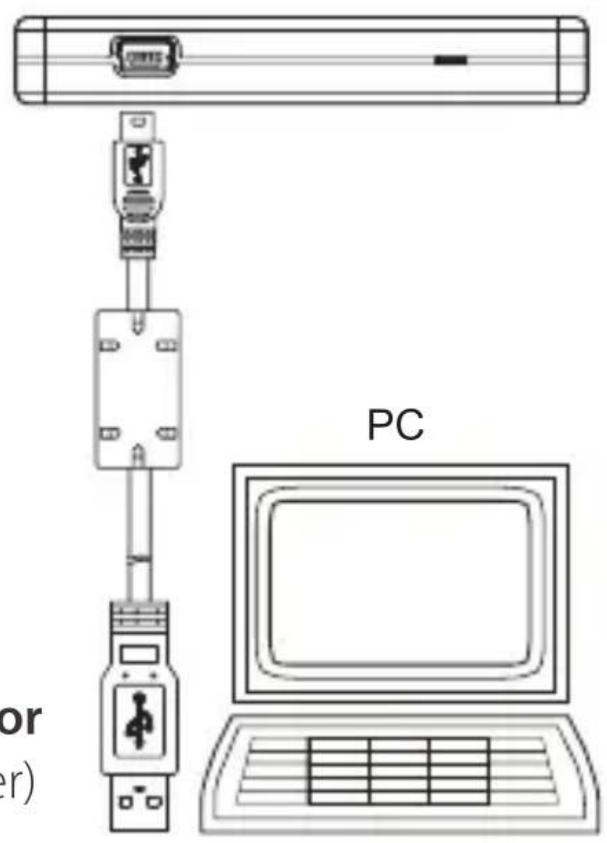
- With your computer powered on and fully booted up, plug the primary USB type A connector into a USB port of your host system, or an active USB HUB.
- Now, plug in the mini-USB connector into the corresponding port of the drive itself.
Immediately,
- the Power/Data indicator light will illuminate
the drive will power up
- the drive should mount and a new drive icon should appear in "My Computer"
DISMOUNT AND DISCONNECT The drive
It is strongly recommended not to unplug the drive by just unplugging the cable connection as it may be that data is written to the drive at that time.
Such data will be lost and the drive may be damaged physically!
Please follow the steps below for a safe dismount of the drive:
- Click the "Safely Remove - icon"
A pop-up message box will appear listing the external devices connected to your computer.
- Select the TOSHIBA drive.
After a few seconds, you will get the notification that it is now safe to remove the device.
- Click "OK" and you can unplug the drive now.
Cleaning the drive case / enclosure
Before cleaning the drive, make sure that it's physically disconnected from the computer. We suggest to use standard products for cleaning it and to make sure that possible remaining liquid on the surface will be wiped off.
FUrThEr AdvISE
For any further action of normal operation such as renaming the drive, backup data, or file management, we suggest to read your operation system user's manual.
Also for maintenance tasks such as defragmenting and optimisation we suggest to refer to the operating system user's manual.
We also strongly suggest having anti-virus software installed to protect your data against intended damage caused by virus or Trojan programs.
- Frequently ASkEd Questions
Q: Do I need to format my drive after installation?
A: No, as the drive is already formatted during the manufacturing process
Q: Do I need USB drivers for Microsoft® Windows® XP or higher?
A: No, they are already available with your operating system.
Q: Can I boot my system from the drive?
A: No, because Windows does not support booting from external hard disk drives.
Q: Why doesn't the drive need a fan?
A: The drives are designed to have optimal heat dissipation, and therefore no fan is required. This results in a near silent operation.
Q: Why is the capacity of my drive (as shown in Windows) lower than the drives actual stated capacity?
A: This difference can be explained because of the different methods of calculating the capacity. Hard drive manufacturers calculate on the decimal system, while the operating system calculates in the binary system. Example decimal:
1GB = 1.000MB = 1.000.000KB = 1.000.000.000 bytes
Example binary:
1GB = 1.024MB = 1.048.576KB = 1.073.741.824 bytes.
As a result, a 120GB (decimal) hard disk appears in Windows to have just 112GB (binary)
Q: Can I use my drive to copy an operating system from one computer to another?
A: No, you must follow the operating system supplier instructions for installation. A simple copy does not work.
Q: Does Toshiba offer Data Recovery Service?
A: Yes, Toshiba offers a Data Recovery Service for external hard drives. Please check our website www.toshiba-europe.com/services for further information about this service.
Q: My Drive does not power up even though the cables are connected properly.
A: Try another USB port at your host system or Please check if a so called "Y-cable" solves the problem, as some USB ports may not supply sufficient power. Cables can be purchased at electronic parts shops.
- TrOUBLESHOOTING
My computer does not recognize the disk drive at all.
Make sure all of your connections are secure.
- If your drive is connected via a USB hub, make sure that it has its own power supply.
- If using an add-on card, make sure it is working properly and update the software/firmware. If using Windows XP make sure you have Service Pack 1 or later.
Is it dangerous if the drive feels warm whilst in operation?
A: This is normal, and therefore not dangerous.
The drive gives me a "Device cannot start.
A: Two possible reasons. It is either a power problem and you should check the connections, or the drive has a malfunction and requires service.
I cannot see my drive in "My Computer", but it does appear in the Device Manager.
A: Follow these instructions:
- Right click on "My Computer".
- Select "Manage" in the pop-up menu.
-
Select "Disk Management". You should see a list of available storage devices.
-
Check, whether your drive is listed.
-
Right click on the right hand box and select "Delete Partition" in the pop-up menu.
-
Right click on the box and select "Create New Partition" in the pop-up menu.
-
Then select "Primary Partition" in the partition wizard window. Click next.
-
A drive letter will be displayed, which you can change. Click next.
-
Confirm to format the drive.
A: This can be caused by formatting the drive with FAT file system.
Try "NTFS" file system. This should solve the problem.
The drive seems to be operating slower than 480 Mbps (USB 2.0 specification).
A: Make sure that you are using a USB 2.0 port, and not the old V1.1 standard.
There are some possibilities, like available CPU resources, other connected USB devices at the same time which may cause some slower operation than the ideal 480Mbps/s.
TOSHIBASUppOrT
Need help?
For the latest driver updates, User's Manuals & FAQs please have a look at the
TOSHIBA options & services support page: computers.toshiba.eu/options-support
Please see computers.toshiba.eu/options-warranty for the TOSHIBA hotline numbers.
CE compliance
CE
This product is CE marked in accordance with the requirements of the applicable EU Directives. Responsible for CE marking is Toshiba Europe GmbH, Hammfelddamm 8, 41460 Neuss, Germany. A copy of the official Declaration of Conformity can be obtained from following website: http://epps.toshiba-teg.com.
Working Environment
The Electromagnetic Compliance (EMC) of this product has been verified typically for this product category for a so called Residential, Commercial & Light Industry Environment. Any other working environment has not been verified by Toshiba and the use of this product in these working environments is maybe restricted or cannot be recommended. Possible consequences of the use of this product in non verified working environments can be: Disturbances of other products or of this product in the nearby surrounding area with temporarily malfunction or data loss/corruption as result. Example of non verified working environments and related advices:
Industrial environment (e. g. where 3-phase mains is being used mainly): Danger of disturbances of this product due to possible strong electromagnetic fields especially near to big machinery or power units.
Medical environment: The compliance to the Medical Product Directive has not been verified by Toshiba; therefore this product cannot be used as a medical product without further verification. The use in usual office environments e.g. in hospitals should be no problem if there is no restriction by the responsible administration.
Automotive environment: Please search the owner instructions of the related vehicle for advices regarding the use of this product (category).
Aviation environment: Please follow the instructions of the flight personnel regarding restrictions of use.
Outdoor use: As a typical home/office equipment this product has no special resistance against ingress of moisture and is not strong shock proofed.
- Explosive atmosphere: The use of this product in such special working environment (Ex) is not allowed.
REACH — Compliance Statement
The new European Union (EU) chemical regulation, REACH (Registration, Evaluation, Authorization and Restriction of Chemicals), entered into force on 1 June 2007.
Toshiba will meet all REACH requirements and is committed to provide our customers with information about the chemical substances in our products according to REACH regulation.
Please consult the following website www.toshiba-europe.com/ computers/info/reach for information about the presence in our articles of substances included on the candidate list according to article 59(1) of Regulation (EC) No 1907/2006 ("REACH") in a concentration above 0.1% weight by weight.
Disposal of products
The crossed out wheeled dust bin symbol indicates that products must be collected and disposed of separately from household waste.
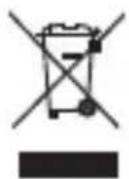
The black bar indicates that the product was placed on the market after August 13, 2005.
By participating in separate collection of products, you will help to assure the proper disposal of products and thus help to prevent potential negative consequences for the environment and human health.
For more detailed information about the collection and recycling programmes available in your country, please visit our website (http://eu.computers.toshiba-europe.com) or contact your local city office or the shop where you purchased the product.
NOTICES
© 2009 TOSHIBA Europe GmbH. All rights reserved.
TOSHIBA reserves the right to make technical changes. TOSHIBA assumes no liability for damages incurred directly or indirectly from errors, omissions or discrepancies between this product and the documentation.
The Toshiba name and its logos are registered trademarks of Toshiba. Other trademarks mentioned or appearing in this document are the property of their respective owners. Errors and omissions excepted.
StoreAlu2_2.5-UM-V1/1009
#
STORE.E ALU 2
USB 2.5" プーヒス
PT GR AR
RU HR CZ
RS HU DE
SE IT DK
SK NL ES
NO FI
TR PL FR
#
51
55 ...Lg<0Jn
1
50
11 1
V
A
59
. .
15 25
1
42 40
1
.STOR.E ALU 2 USB
1 1 1 1 1 1 1 1 1 1 1 1 1 1 1 1 1 1 1 1 1 1 1 1 1 1 1 1 1 1 1 1 1
J 1 J 1 J 1 J 1 J 1 J 1 J 1 J 1 J 1 J 1 J 1 J 1 J 1 J 1 J 1 J 1 J 1 J 1 J 1 J 1 J 1 J 1 J 1 J 1 J 1 J 1 J 1 J 1 J 1 J 1 J 1 J 1 J 1 J 1 J
J 1
Jg.
.
L
aio 1jg
Jg 1 g
olggl aeg5 ao
4glaaw! g Cuiuur
JLi pss s ggs
USB 2.0
!g
sLijg 2-0 CjJrJrJrJrJrJrJrJrJrJr
Lihogagagc01-0f--aJgCJg.
aBglgAALLgJgJLU
i
aLwJgJgJgJgJgJgJgJgJgJgJgJgJgJgJgJgJgJgJgJgJgJgJgJgJgJgJgJgJgJgJgJgJgJgJgJgJgJgJgJgJgJg
J 1
AALLgI LJIILJLgLJg
LgJg
()
Lg Lg g g Ls
Lg h c Jg JLa 1 y jy: a g s Jd A L
1
$$
\left(\downarrow \downarrow \downarrow \downarrow\right) 1 1. 7 0 \times \left(\downarrow \downarrow \downarrow \downarrow\right) 7 6. 9 9 \times \left(\downarrow \downarrow \downarrow \downarrow\right) 1 2 0. 5 3:
$$
$$
1 4 0: \dots
$$
$$
\left. \right.\left. \right.\left. \right.\left. \right.\left. \right.\left. \right.\left. \right.\left. \right.\left. \right.\left. \right.\left. \right.\left.\left.\left.\left.\left.\left.\left.\left.\left.\left.\left.\left.\left.\left.\left.\left.\left.\left.\left.\left.\left.\left.\left. \text {一} 5 : (\right)\right)\right)\right)\right)\right)\right)\right)\right)\right)\right)\right)\right)\right)\right)\right)\right)\right)\right)\right)\right)\right)\right)
$$
$$
. U S B \quad J _ {J} \text {d i s n o n} \quad \text {d i s d i s} \quad \text {d i s} \quad \text {d i s} \quad \text {d i s} \quad \text {d i s} \quad \text {d i s} \quad \text {d i s} \quad \text {d i s} \quad \text {d i s} \quad \text {d i s} \quad \text {d i s}
$$
$$
\therefore \dot {1} \dot {2} \dot {3} \dot {4} 1 \dot {5} \dot {6} \dot {7} \dot {8} \dot {9} \dot {1 0} \dot {1} g U S B \dot {1} \dot {2} \dot {3} \dot {4} \dot {5}
$$
$$
. (r _ {1} \text {i} 5 0 0, \dots , 5)
$$
USB 5g
:
JL JI JI JI JI JI JI JI JI JI JI JI JI JI JI JI JI JI JI JI JI JI JI JI JI JI JI JI JI JI JI JI JI JI JI JI JI JI JI JI JI JI JI JI JI JI JI JI JI JI JI J1
Jgolal Jgolal
.
Jg q 11 JyI LkL Jg g Jg W 8 . !
J
USB

PC
A g USB
()
USB JgogJg:aljg jg 1JlqS1 .
I 1
LJI/laI Jg
L
My Computer
Jg
J 2
Ae 1111
1
J 1
Safely Remove
aaii i 1
L
TOSHIBA drive 1
jIgJl! j! 21 Jn 21 Jn n nn Jn Jn Jn
.
J 1 J 1 J 1 J 1 J 1 J 1 J 1 J 1 J 1 J 1 J 1 J 1 J 1 J 1 J 1 J 1 J 1 J 1 J 1 J 1 J 1 J 1 J 1 J 1 J 1 J 1 J 1 J 1 J 1 J 1
bWJ 1c g a b d JlWg
Lalalall aasw Jyssll pdsx wI yafaloc 8 Llsolg Jd sgrz c:laLall oJg. liluul bI g
J 1 J 1 J 1 J 1 J 1 J 1 J 1 J 1 J 1 J 1 J 1 J 1 J 1
$$
\left. \right.\left. \right.\left. \right.\left. \right.\left.\left.\left.\left.\left.\left.\left.\left.\left.\left.\left.\left.\left.\left.\left.\left.\left.\left.\left.\left.\left.\left.\left.\left.\left.\left.\left.\left.\left.\left.\right.\right.\right.\right.\right.\right.\right.\right.\right.\right.\right.\right.\right.\right.\right.\right.\right.\right.\right.\right.\right.\right.\right.\right.\right.\right.\right.\right.\right.\right.
$$
$$
\therefore \mathrm {J} _ {1} \dot {\mathrm {e}} \dot {\mathrm {i}} \dot {\mathrm {u}} \dot {\mathrm {i}} \mathrm {j} \rho \left[ \mathrm {b i} _ {2} \right] \dot {\mathrm {g}} \left[ \mathrm {l a} _ {1} \right] \dot {\mathrm {o}} \left[ \mathrm {g} _ {2} \right] \dot {\mathrm {x}}.
$$
$$
? \text {l} _ {\text {l}} \text {l} _ {\text {l}} \text {l} _ {\text {l}} \text {l} _ {\text {l}} \text {l} _ {\text {l}} \text {l} _ {\text {l}} \text {l} _ {\text {l}} \text {l} _ {\text {l}} \text {l} _ {\text {l}} \text {l} _ {\text {l}}
$$
$$
\text {d i s t a n t} \quad \text {d i s t a n t} \quad \text {d i s t a n t} \quad \text {d i s t a n t} \quad \text {d i s t a n t} \quad \text {d i s t a n t} \quad \text {d i s t a n t} \quad \text {d i s t a n t} \quad \text {d i s t a n c e} \quad \text {d i s t a n c e} \quad \text {d i s t a n c e} \quad \text {d i s t a n c e} \quad \text {d i s t a n c e} \quad \text {d i s t a n c e} \quad \text {d i s t a n c e} \quad \text {d i s t a n c e}
$$
$$
. \dot {A} _ {1} > 1, \dot {L} = 1
$$
$$
\therefore \text {d} \text {g} \text {g} \text {g} \text {g} \text {g} \text {g} \text {g} \text {g} \text {g} \text {g} \text {g} \text {g} \text {g} \text {g} \text {g} \text {g} \text {g} \text {g} \text {g} \text {g} \text {f} \text {f} \text {f} \text {f} \text {f} \text {f} \text {f} \text {f} \text {f} \text {f} \text {f} \text {f} \text {f} \text {f} \text {f} \text {f} \text {f} \text {f} \text {f} \text {f} \text {g} \text {g} \text {g} \text {g} \text {g} \text {g} \text {g} \text {g} \text {g} \text {g} \text {g} \text {g} \text {g} \text {g} \text {g} \text {g} \text {g} \text {g} \text {g} \text a l l f f f f f f f f f f f f f f f f f f f f f f f f f f f f f f f f f f f f f f f f f f f f f f f f f f f f f f f f f f f f f f f f f f f f f f f f f f f f f f f f f f f f f f f f f f f f f f f f f f f f
$$
$$
\therefore \Delta_ {a} = \frac {\Delta_ {b}}{2} \cdot \frac {\Delta_ {c}}{2} \cdot \frac {\Delta_ {d}}{2}
$$
$$
\rho_ {i} \rho_ {j} \dots \rho_ {k} \dots \rho_ {l} \dots \rho_ {m} \dots \rho_ {n} \dots \rho_ {o} \dots \rho_ {p} \dots \rho_ {q} \dots \rho_ {r} \dots \rho_ {s} \dots \rho_ {t} \dots \rho_ {u} \dots \rho_ {v} \dots \rho_ {w} \dots
$$
$$
\dots \cos \Delta + \dot {\sin}
$$
$$
\left(W i n d o w s \quad \text {t} \text {p} \text {g} \text {f} \text {e} \quad L a S\right) \text {t} \text {c} \text {a} \text {s} \text {l} \text {i} \text {a} \text {b} \text {t} \text {c} \text {a} \text {s} \text {w} \text {s} \text {o} \text {g} \text {n} \text {o} \text {s} \text {l} \text {a} \text {d} \text {L a}
$$
$$
\therefore \text {L} _ {\text {L}} \text {L} _ {\text {L}} \text {L} _ {\text {L}} \text {L} _ {\text {L}} \text {L} _ {\text {L}} \text {L} _ {\text {L}} \text {L} _ {\text {L}} \text {L} _ {\text {L}} \text {L} _ {\text {L}} \text {L} _ {\text {L}}
$$
$$
\dot {g} \dot {a} \dot {a} \dot {a} \dot {a} \dot {a} \dot {a} \dot {a} \dot {a} \dot {a} \dot {a} \dot {a} \dot {a} \dot {a} \dot {a} \dot {a} \dot {a} \dot {a} \dot {a} \dot {a} \dot {a} \dot {b} \dots < a: c
$$
$$
\rho_ {L} \rho_ {L} \rho_ {L} \rho_ {L} \rho_ {L} \rho_ {L} \rho_ {L} \rho_ {L} \rho_ {L} \rho_ {L} \rho_ {L} \rho_ {L} \rho_ {L} \rho_ {L} \rho_ {L} \rho_ {L} \rho_ {L} \rho_ {L}.
$$
$$
\cdot \mathrm {g l i} \cdot \mathrm {l} \cdot \mathrm {p} \cdot \mathrm {l} \cdot \mathrm {l} \cdot \mathrm {l} \cdot \mathrm {l} \cdot \mathrm {l} \cdot \mathrm {l} \cdot \mathrm {l} \cdot \mathrm {l} \cdot \mathrm {l} \cdot \mathrm {l} \cdot \mathrm {l} \cdot \mathrm {l} \cdot \mathrm {l} \cdot \mathrm {l}
$$
$$
\therefore s _ {i} = \dot {s} _ {i}
$$
$$
= \dots \left. \left\lfloor \log \left\lfloor \cdot \right\rfloor \leq 1, \dots , \dots = \dots \right\rfloor \left\lfloor \cdot \right\rfloor \right.
$$
$$
\left. \dots , \dots , \dots , \dots \right.
$$
$$
: \mathrm {i} \dot {s} \dot {s} \dot {s} J \dot {L} \dot {L}
$$
$$
= \dots \left. \right.\left. \right.\left. \right.\left. \right.\left. \right.\left. \right.\left. \right.\left. \right.\left. \right.\left. \right.\left. \right.\left. \right.\left. \right.\left. \right.\left. \right.\left. \right.\left.\left.\left.\left.\left.\left.\left.\left.\left.\left.\left.\left.\left.\left.\left.\left.\left.\left. 1, 2, 3, 4, 5, 6, 7, 8, 9, 10, 11, 12, 13, 14, 15, 16, 17, 18, 19, 20\right)\right]\right]\right]\right]\right]\right]\right]\right]\right]\right]\right]\right]\right]\right]\right]\right]\right]
$$
$$
\left. \cdot \vee \right\rvert , \cdot \vee \left. \cdot \vee \right\rvert , \wedge \left. \cdot \right\rvert
$$
$$
\left(\mathcal {S} \dot {\bar {c}} c\right) \quad \text {J i j} \quad 1 5 \cdot \quad \text {a s} \quad \text {i t} \quad \text {i t} \quad \text {i t} \quad \text {i t} \quad \text {i t} \quad \text {i t} \quad \text {i t} \quad \text {i t} \quad \text {i t} \quad \text {i t} \quad \text {i t}
$$
$$
\left. \frac {1}{2} \frac {1}{2} \frac {1}{2} \frac {1}{2} \frac {1}{2} \frac {1}{2} \frac {1}{2} \frac {1}{2} \frac {1}{2} \frac {1}{2} \frac {1}{2} \frac {1}{2} \frac {1}{2} \frac {1}{2} \frac {1}{2} \right] 1 7 D i J W i n d o w s
$$
J 1
8005 0
aJ 1
Joo 2 Joo
Toshiba
Toshiba 2
J www.toshiba-europe.com/services
.
a 8 :w
S APQ = S AQP + S_ PQR
J 1
"Y-cable"
J 11
a
11
.
J:USB 1
.
J5jLgjSli:aaol aolbpaai J
[Device cannot start.]
.1·j0JlJg
g 11111111111111111111111111
.
y
My Computer Device Manager
:
My Computer
.aa:al aolal Manage .
.Disk Management
a
.2
1gJnJnJnJnJnJnJnJnJnJnJnJnJnJnJnJnJnJnJnJnJnJnJnJnJnJnJnJnJnJnJn
Delete Partition
Create New
.aaaii aaii i"du jL" Partition
Primary Partition .v
Next
.
Next
= 75^
LJwJyRg: 10000000000000000000000000000000000000000000000
. (i,j^cj0sj^c,_j) Could not complete format
.FAT 1
.
()/pEJ·JJ
.USB 2.0
V1.1 LJLJLJLJLJLJLJLJL
J 21 Jg. aaiiiaai i j gao g q gaaa aaii I aaii I aaii I aaii I aaii I aaii I aaii I aaii I aaii I aaii I aaii I aaii I aaii I aaii I aaii I aaii I aaii I aaii I aaii I aaii I aaii I aaii I aaii I aaii I aaii I aaii
gaii jiaai i aieaai aiSall llllalai Lw! gaiy yjai Sall ai. (aiajg) ciil1io psiwi
a
yblgglb
J 1000000000000000000000000000000000000000000000000
Ex 10
:ba 1 JgJgJgJgJgJgJgJgJgJgJgJgJgJgJgJgJgJgJgJgJgJgJgJgJgJgJgJgJgJgJgJgJgJgJgJgJgJgJgJgJgJgJgJgJgJgJgJgJgJgJg
LALKgREACH. gRg yRestriction of Chemicals, Authorization Evaluation Registration
J 100000000000000000000000000000000000000000000000000000
- SySTEMANFORDErUNgEN
AFBryd FOrBINdELSEN TIL hArddISkEN, Og FjErN hArddISkEN
1 Gt = 1000 Mt = 1000000 kt =
1 000 000 000 tessua
A MEghAjTo TELEpiTeSE
AvINSTALLLERE Og kOBLE FrA hArddISkEN
PykoBoDCTBO NOIb3OBaTeJa
STORE.E ALU 2
KPATKOE PYKOBOIDCTBO
TAPAHNTINHbI TAOH
Данhoe руховдъв Рользоватя 3aгружени Ha cam Диск. Pekomeндуетс 3aпись peЗерВни КОПИО руховдъв Рользоватя Ha KOMпаКТ-диСК ИИ Na Лokальнь яжecTkий ДиSC кразу посе yCTаНовки ДиSCа.
Инhoeчкции NO TEXHnke ьзОпАСноCTN
Bo n36eXaHne HeNCpPaBHOCTn IJI INOBpeJdeHnA dNcKa co6IouaTe MepbI npEdoCTOpOxHOCHTn, pINBeDeHHbIe HIXKe.
- 063aTeIbHcO3daIte pe3epBHyU KOJIIO BCex DaHHbIX Ha IINCK, NockoJIbKU KOMpaHnA Toshiba He HecET OTBeTCTBENHOCTN 3a NOBpeJKeHne IINI Notepu DaHHbIX. KompaHnA Toshiba He KOMpeHCnpyeT 3aTpaTbI, CBraHHbIe C BOCCTaHOBJIeHnEM DaHHbIX.
3aPepaetc
CoOTBeTCTBnE Tpe6ObaHnIe M CE
Данhoe устюпоство Имeel OTMeTKy CEВ COOTBeTCTBиN C Tpe6OBaHЯМN COOTBeTCTByUOuXДиpeKTHB EC. OTBeTCTBeHHo3a МарКИРовky «CE» YIJIeTcя komпань TOSHIBA Europe GmbH, Hammfelddamm 8, 41460 Neuss, Germany. KonnIO oФиц�льно 3aЯВленя O COOTBeTCTBиN CE можно пolyntь на седуншем Be6-y3ne: http://epps.toshiba-tek.com.
Pa6o7a cpea
3JIeKTpOMaHTHnA COBMeCTNMOCTb DaHHoro yCTpoiCTBa 6blIa npOBepHa B CTaNdapTHbIX YCNOBnJx Dnla DaHHoN KaTeOpnI PPOdyKTOB, Dnla TaK Ha3bIBaEMOro «DOMaShHeRo, KOMMepueCKOrO NcNoJIb3OBAHnI INpIMeHEnr B JERKO IpOMbIshJeHHocTn>. Pa60Ta B dpyroI cpeIe He npOBepaIacb KompaHnei TOSHIBA, no3ToMy nCNoJIb3OBAHne DaHHoro yCTpoiCTBa B dpyrIx CpeIax MoKeT 6bITb OgranHueHO I He peKOMeHNyETcR. Bo3MoXhIe NOCLeIDCTBnI NCNoJIb3OBAHnI DaHHoro yCTpoiCTBa B HnPobEpeHHbIX pa6OuHX CpeIax: Pomexn Dnla DpyrIX yCTpoiCTB IIN DaHHoro yCTpoiCTBa B 6blIzHexaIe IobIaCTn, C BpeMeHHoN HenpaBnJIbHOJ pa6OTOI IINI pOTepe/NOBpeJdeHnEM daHHbIX. PpIMep HeNPobEpeHHbIX pa6OuHX CpeI N COOTBeTCTByIOUx PEKOMeHdaIcN:
Ipn3BOCTBHeHna Cpea (Haepnmep, TaM, rDe B OCHOBHom NcNoJIb3yeTc Tpexfa3Hna CeTB c HapjKeHem 380 B): Onacnoctb hapuWeHna pa6Otbl DaHHoro yCTPOINCTBa BCJeCDTBVe BO3MOXHO BO3DeiCTBnA CNJbHbIX 3JIeKTPOMaHHTNbIX NOle, OCObEHNO pAnOM C KpyHbIMn aRperaTaMI ININ CNIIOBbIMN yCTaHOBkAMN.
Meiuncka cpea. CootBeTcBne Tpe6oHaJm DnpeKtBbI no Meiunckm npOyKTam He npOBepaocb KomnaHne TOSHIBA, noToMuy DaHHoe yCTPOIcTBO HeIb3a IcNoJIb3OBAbB KaueCTBe Meiunckoro UcpoIcTBa 6e3 DoONHntelbHO npOBepKn. IcNoJIb3OBAHne B Heo6bUHoi CpeDe uYpeXdEHN, HapPIMep B 60JIbHuaX, He DoJxHO Bbl3BaTb np6JeM, eCIn OTBeTcBENHO aDMHNCTpaCneH He yCTaHOBHeHO HnKaKnx OprAHueHn.
IcnoJIb3OBaHne B aBTOMo6nHe. NaIInTe B INHCTpyKUnx DJIaJeNbca COOTBETCTByIOSeIro TpaHCnOpTHOro CpeIcTBA yKa3aHnIy OTHOCITeNBHO IcNoJIb3OBaHnI DaHHOrO yCTpOiCtBA (IIIN KaTeROpN yCTpOiCTB).
IcnoJIb3OBAHnE B camoJeTe. CneIyIe Te HNCTpyKzIyM 3KInpaJa caMOJeTa, KaCaIOUImMCr OgraHnueHn B 3KcPnyaTaun.
Другп среды, He CBЯЗаHHьe CBONpOCamN эЛеКТpOMaTHHToH COBMECTUMOCTN
IcnoJb3OBAHnE BHe NOMEeHn: NocKoJIbKy 3TO yCTpOiCTBO YBJIaETCt
CTaHdApTHbIM DJIa NCNoJIb3OBAHnA DOMa IIN B OΦNCE, B HEm He
IpeDyCSMOTpeHa CneZnaJIbHnA 3aUNTa OT NOnaDaHnBlaRn I 3aUNTa
OT CInJbHbIX yDapOB.
B3pbIbOONaChn aTMocfepa: NcNoJIb3OBaHne daHHoro yCTpoiCTBa B noIO6HO nCpeuaJIbHO npooye cpee 3anpeuEHO.
CneyuouaHnOopMaun npedHa3NaueHa TOnbKO dIra CtpaHyuaCTHnKOB EC
3aBHeHne o COOTBeTCTBn REACH
Hobii pernaent Ebponeckoro Co103a (EC) B o6nactn xmmn REACH («O pernctpaun, ouenke, pa3pewehen n orpaunuehen xmmuecknx BeueCTB») Bctynl B cnly 1 nioh 2007 r.
Kopnpaia Toshiba 6ydt BbIOpHnTb BCE Tpe6oBaHna REACH n ob3yeTc npedocTabnTb NOTpe6nteJm CBOe npOdyKuIN HΦopMaunIO o6 nCNoJIb3yEmblx B Hei XIMnuecknx BeueCTbax B COOTBeTCTBnC perJaMeHTom REACH.
Информацию O писутCTВИ B Наших TOВараз ВешистВ, BKлоченьВ CBNCOK KaHДиадOTВ B COOTВЕТСВИ CO StaTbei 59 (1) HopMaTINBaEC № 1907/2006 (REACH) в КОнцентраци CBblse 0,1% по BEcy CMOTpinteHa Be6-caite www.toshiba-europe.com/computers/info/reach.
yTnIn3aun yctpoiCTB
3нauokперецкунтогуctановлен HoroHaKoneca KOHTeHepaДЯМсopaOЗнayaet,чTo DaHHoe yCTpoIcTBO He06xODIMO yTININ3NPOBaTb OTdJIbHOOT 6bITOBbIX OTXODOB.
Uepnna noloca 03NauaeT, yTO yCTpOiCTBO noCTyNilIO B npodaJy nocIe 13 abructa 2005 r.
Coptipobka yctpoiCTB OTdIbHO OT dpyrO Mycopa cnooc6tByeT IN npabnblhoYtunnauIN. 3TO nOMoAET ppeoTbpaTb BO3MOxHbIe HeaTINbHbIe NocJeDCTBnIy IJIg OkpJkaUoIe Cpebl I 3OpOBbIy YelOBeka.
INNEhÄLLSForTECKNING
Introduktion 343
Veri yolu®,®,®,®,®,®,®,®,®,®,®,®,®,®,®,®,®,®,®,®,®,®,®,®,®,®,®,®,®,®,®,®,®,®,®,®,®,®,®,®,®,®,®,®,®,®,®,®,®,®,®,®,®,®,®,®,®,®,®,®,®,®,®,®,®,®,®,®,®,®,®,®,®,®,®,®,®,®,®,®,®,®,®,®,®,®,®,®,®,®,®,®,®,®,®,®,®,®,®,®,®. Kablosu hakkinda bazı bilgiler: