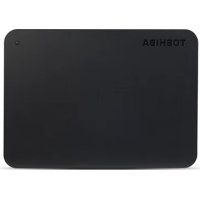
Canvio Basics USBC - External hard drive TOSHIBA - Free user manual and instructions
Find the device manual for free Canvio Basics USBC TOSHIBA in PDF.



| Product Type | External Hard Drive |
| Brand | Toshiba |
| Model | Canvio Basics USBC |
| Interface | USB 3.0 (backward compatible with USB 2.0) |
| Power Supply | USB Bus (self-powered) |
| Default File Format | NTFS |
| Compatible Operating Systems | Windows 10, Windows 8.1, macOS v10.15 / v10.14 / v10.13 |
| Box Contents | Hard drive, USB 3.0 Micro-B cable, support document |
| Connectors | USB 3.0 Standard-A (host), USB 3.0 Micro-B (drive) |
| Indicator Light | Power/Data Indicator |
| Installation | Plug and Play, no driver required |
| Ejection Safety | Use the operating system's "Safely Remove Hardware" function |
| Cleaning the Enclosure | Disconnect the device, use standard products, avoid any liquid |
| Recommended Maintenance | Regularly back up data, use antivirus software |
| Cooling | Passive, fanless |
| Internal Drive Type | 2.5-inch Hard Drive |
| Technical Support | www.toshiba-storage.com/support |
| Warranty | www.toshiba-storage.com/warranty-claims |
| Regulations | CE marking, REACH compliant |
| Recycling | Do not dispose with household waste, follow local regulations |
Frequently Asked Questions - Canvio Basics USBC TOSHIBA
User questions about Canvio Basics USBC TOSHIBA
0 question about this device. Answer the ones you know or ask your own.
Ask a new question about this device
Download the instructions for your External hard drive in PDF format for free! Find your manual Canvio Basics USBC - TOSHIBA and take your electronic device back in hand. On this page are published all the documents necessary for the use of your device. Canvio Basics USBC by TOSHIBA.
USER MANUAL Canvio Basics USBC TOSHIBA
Introduction 3
Check the Components 3
System Requirements 3
Installing the drive. 3
Connecting the drive to your computer 4
Dismount and disconnect the drive. 5
Cleaning the drive case / enclosure. 5
Further Advise 5
Frequently Asked Questions 6
Troubleshooting 6
TOSHIBA Support 7
Regulatory statements. 7
Introduction
Thank you for choosing our TOSHIBA Canvio Basics Hard Drive.
Please read this User's Manual carefully, as it contains all relevant information for installation, usage and maintenance of the drive, as well as security and safety advice.
In case it does not behave as expected, please refer to the "Frequently Asked Questions" section at the end of this manual.
Check the Components
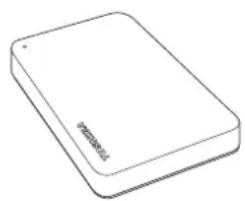
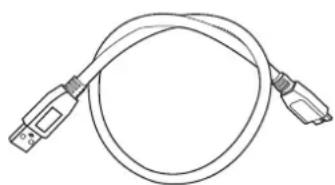

Canvio Basics USB 3.0 Micro-B cable Support document
This User's Manual is also available for download: www.toshiba-storage.com/downloads/
Please refer to "Instruction Manual for Safety and Comfort" that is preloaded on this external hard drive.
System Requirements
- Formatted NTFS for Windows 10 and Windows 8.1
Requires reformatting for macOS v10.15/v10.14/v10.13
One free port of USB 3.0 or USB 2.0
NOTE
USB 3.0 is backward compatible with USB 2.0.
Installing the drive
Some information about bus-powered operation and the supplied USB cable:
- Your drive is bus-powered. Therefore, there is no need to connect an external power supply as all needed current will be supplied by the connected USB port(s).
Passive USB hubs or USB connectors like keyboards, mice or similar products cannot be used or connected to the drive.
Make sure that the connectors will be inserted correctly. - Never use pressure for connecting the cables. Check the polarity before connecting!
Connecting the drive to your computer
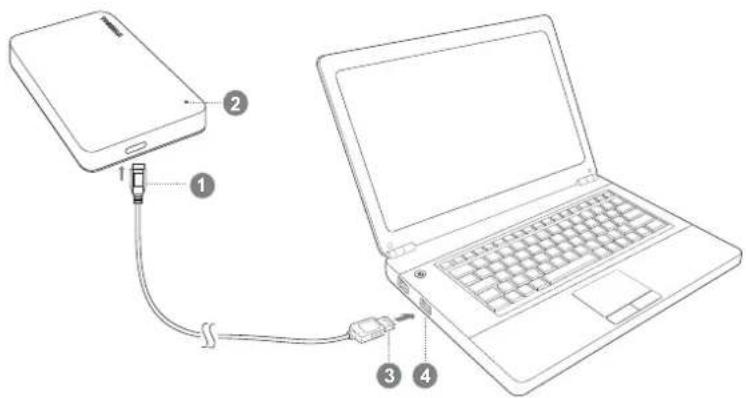
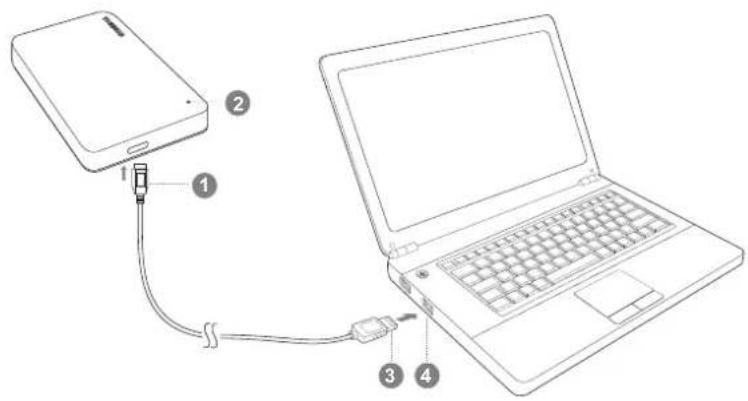
USB 3.0 Micro-B connector
USB 3.0 Standard-A connector
Power/Data indicator light 4
USB 3.0 host
backward compatible to USB 2.0
- With your computer powered on and fully booted up, plug the USB 3.0 Standard-A connector into a USB port of your host system, or an active USB HUB.
NOTE
You may need USB 3.0 Express Card Host Controller for your computer if the computer doesn't have USB 3.0 port. You also can connect the device to USB 2.0 port of your computer, However the transfer rate will be downgraded to that of USB 2.0.
- Now, plug the USB 3.0 micro-B connector into the corresponding port of the drive itself.
Immediately,
the Power/Data indicator light will illuminate
the drive will power up
the drive should mount and a new drive icon should appear in "My Computer"
Immediately,
the Power/Data indicator light will illuminate
the drive will power up and is ready to use
Dismount and disconnect the drive
It is strongly recommended not to unplug the drive by just unplugging the cable connection as it may be that data is written to the drive at that time. Such data will be lost and the drive may be damaged physically!
Please follow the steps below for a safe dismount of the drive.
- Click the "Hardware and Eject Media - icon".
A pop-up message box will appear listing the external devices connected to your computer.
- Select the TOSHIBA drive to eject.
After a few seconds, you will get the notification that it is now safe to remove the device.
- Click "OK" and you can unplug the drive now.
- Ctrl-click on the hard disk icon and choose "Eject".
OR
Drag the hard disk icon to the trashcan.
You can unplug the drive now.
Cleaning the drive case / enclosure
Before cleaning the drive, make sure that it's physically disconnected from the computer. We suggest to use standard products for cleaning it and to make sure that possible remaining liquid on the surface will be wiped off.
Further Advise
For any further action of normal operation such as renaming the drive, backup data, or file management, we suggest to read your operation system user's manual.
Also for maintenance tasks such as defragmenting and optimisation we suggest to refer to the operating system user's manual.
We also strongly suggest having anti-virus software installed to protect your data against intended damage caused by virus or Trojan programs.
Frequently Asked Questions
Q: Do I need USB drivers for Windows?
A: No, they are already available with your operating system.
Q: Can I boot my system from the drive?
A: No, because Windows does not support booting from external hard drives.
Q: Why doesn't the drive need a fan?
A: The drives are designed to have optimal heat dissipation, and therefore no fan is required. This results in a near silent operation.
Q: Why is the capacity of my drive (as shown in Windows) lower than the drives actual stated capacity?
A: This difference can be explained because of the different methods of calculating the capacity. Hard drive manufacturers calculate on the decimal system, while the operating system calculates in the binary system.
Example decimal:
1TB=1,000GB
[ 1GB = 1,000MB = 1,000,000KB = 1,000,000,000 bytes ]
Example binary:
[ 1GB = 1,024MB = 1,048,576KB = 1,073,741,824 bytes ]
As a result, a 1TB (decimal) hard disk appears in Windows to have just 931GB (binary).
Q: Can I use my drive to copy an operating system from one computer to another?
A: No, you must follow the operating system supplier instructions for installation. A simple copy does not work.
Troubleshooting
My computer does not recognize the disk drive at all.
Make sure all of your connections are secure.
If your drive is connected via a USB hub, make sure that it has its own power supply.
If using an add-on card, make sure it is working properly and update the software/firmware.
Is it dangerous if the drive feels warm whilst in operation?
A: This is normal, and therefore not dangerous.
The drive gives me a "Device cannot start."
A: Two possible reasons. It is either a power problem and you should check the connections, or the drive has a malfunction and requires service.
I cannot see my drive in "My Computer", but it does appear in the Device Manager.
A: Follow these instructions:
- Right-click "My Computer".
- Select "Manage" in the pop-up menu.
- Select "Disk Management".
You should see a list of available storage devices.
- Check whether your drive is listed.
- Right-click the right hand box and select "Delete Partition" in the pop-up menu.
- Right-click the box and select "Create New Partition" in the pop-up menu.
- Then select "Primary Partition" in the partition wizard window. Click next.
- A drive letter will be displayed, which you can change. Click next.
- Confirm to format the drive.
NOTE
When you format the drive all the data on your drive will be deleted.
As I try to format the drive, I receive the message "Could not complete format".
A: This can be caused by formatting the drive with FAT file system. Try "NTFS" file system. This should solve the problem.
TOSHIBA Support
Need help?
Please contact TOSHIBA's hard drive and storage products support page:
www.toshiba-storage.com/support
For warranty claims, please check:
www.toshiba-storage.com/warranty-claims
Regulatory statements
CE Compliance

This product is CE marked in accordance with the requirements of the applicable EU Directives. Responsible for CE marking is Toshiba Electronics Europe GmbH, Hansaallee 181, 40549 Düsseldorf, Germany.
Working Environment
The Electromagnetic Compliance (EMC) of this product has been verified typically for this product category for a so called Residential, Commercial & Light Industry Environment. Any other working environment has not been verified by Toshiba and the use of this product in these working environments is maybe restricted or cannot be recommended. Possible consequences of the use of this product in non verified working environments can be: Disturbances of other products or of this product in the nearby surrounding area with temporarily malfunction or data loss/ corruption as result. Example of non verified working environments and related advices:
- Industrial environment (e.g. where 3-phase 380V mains is being used mainly): Danger of disturbances of this product due to possible strong electromagnetic fields especially near to big machinery or power units.
Medical environment: The compliance to the Medical Product Directive has not been verified by Toshiba, therefore this product cannot be used as a medical product without further verification. The use in usual office environments e.g. in hospitals should be no problem if there is no restriction by the responsible administration
Automotive environment: Please search the owner instructions of the related vehicle for advices regarding the use of this product (category).
Aviation environment: Please follow the instructions of the flight personnel regarding restrictions of use.
Additional Environments not Related to EMC
- Outdoor use: As a typical home/office equipment this product has no special resistance against ingress of moisture and is not strong shock proofed.
- Explosive atmosphere: The use of this product in such special working environment (Ex) is not allowed.
Following information is only valid for EU-member States:
REACH - Compliance Statement
Toshiba will meet all REACH (Registration, Evaluation, Authorization and Restriction of Chemicals) requirements and is committed to provide customers with information about the chemical substances in our products according to REACH regulation.
Disposal of products
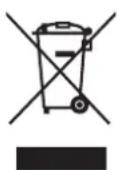
The use of the symbol indicates that this product may not be treated as household waste. By ensuring this product is disposed of correctly, you will help prevent potential negative consequences for the environment and human health, which could otherwise be caused by inappropriate waste handling of this product. For more detailed information about recycling of this product, please contact your local city office, your household waste disposal service or the shop where you purchased the product.
The following information is valid only for Turkey:
Compliant with IEEE Regulation.
Notices
©2020 TOSHIBA Electronics Europe GmbH. All rights reserved.
TOSHIBA reserves the right to make technical changes. TOSHIBA assumes no liability for damages incurred directly or indirectly from errors, omissions or discrepancies between this product and the documentation. The Toshiba name and its logos are registered trademarks of Toshiba.
macOS is a trademark of Apple Inc.
Other company names, product names, and service names may be trademarks of their respective companies.
Product specifications, configurations, colours, components and service are subject to change without notice.
One Gigabyte (GB) means one billion bytes and one Terabyte (TB) means one trillion bytes. Total available capacity will vary based on operating environment, and your results and storage capacity will vary accordingly. A computer operating system, however, reports storage capacity using powers of 2 for the definition of 1TB = 2^40 = 1099511627776 bytes and therefore shows less storage capacity.
NOTE
- When using this product, use the provided USB cable to connect it directly to the USB port.
If sufficient power is not supplied via the USB port, the product will not function.
Depending on the specifications of the device you are connecting to, the transfer speed may be that of USB 2.0. For details, refer to the manual of the device you are connecting to.
As a precaution against losing data stored on this product, be sure to regularly back up as much of your data as possible on another storage device.
Obsah
www.toshiba-storage.com/warranty-claims
Installation of dewet
www.toshiba-storage.com/support
www.toshiba-storage.com/warranty-claims
Regelerklæringer
CE-overensstemmelse
No veo la unidad en "Mi PC", except that he is not allowed to use a computer.
www.toshiba-storage.com/warranty-claims
1 Go = 1000 Mo = 1000000 Ko = 100000000 octets
Example binaire :
1 Go = 1024 Mo = 1048576 Ko = 1073741824 octets
Bucua micro-B USB 3.0
Tutiko USB 3.0 A
Ev8ekikn luxviaaetoupyia/cδεoévw
4 Kεvτρικό USB 3.0
www.toshiba-storage.com/support
Tia axiowoeic eyyunonc, eniokephiite tn sieuovon:
www.toshiba-storage.com/warranty-claims
KavovioTikec i
Σuμópφωη κατá CE

To npoiov auto fepei onmuovn CE oouphiwa u Tc aaiinoeic twv oxetikwv O8nyiw tnc EE. Yt60uvn yia tn onmuovn CE elvai n Toshiba Electronics Europe GmbH, Hansaallee 181, 40549 Dusseldorf, epuavia.
περιβαλλον εργασιας
www.toshiba-storage.com/support
U vezi popravaka u jamstvenom roku potražite:
www.toshiba-storage.com/warranty-claims
Regulativne izjave
CE sukladnost

Ovaj proizvod nosi CE oznaku sukladno zahtjevima važecih direktiva EZ. Toshiba Electronics Europe GmbH, Hansaallee 181, 40549 Düsseldorf, Njemačka odgovorna je za CE oznake.
Radno okruženje
2 Indikator for strøm/data
USB3.0-vert
Feilmeldingen Device cannot start (Kan/DD) vises.
www.toshiba-storage.com/support
For garantikrav, se
www.toshiba-storage.com/warranty-claims
www.toshiba-storage.com/support
www.toshiba-storage.com/warranty-claims
Przepisy
[ 1GB = 1.024MB = 1.048.576KB = 1.073.741.824 bytes ]
www.toshiba-storage.com/support
www.toshiba-storage.com/warranty-claims
Declaracoes regulamentees
www.toshiba-storage.com/warranty-claims
Regulativne izjave
Usaglašenost sa oznakom CE

Ovaj proizvod nosi oznaku CE u skladu sa zahtevima primenljivih Direktiva EU. Odgovorna za oznaku CE je kompanija Toshiba Electronics Europe GmbH, Hansaallee 181, 40549 Dusseldorf, Nemačka.
Radno okruženje
Elektromagnetna usaglasenost (EMC) ovog proizvoda odobrena je tipično za ovu kategoriju uredaja, za takozvano stambeno, komercijalno i neintezivno industrijsko okruženje. Svako drugo radno okruženje kompanija Toshiba ne odobrava, a upotreba ovog proizvoda u takvim radnim okruženjima要去 biti ogranicena il se ne要去 preporuciti. Moguce posledice upotrebe ovog proizvoda u neodobrenim radnim okruženjima mogu biti ometanja drugih proizvoda ili ovog proizvoda u okolnoj oblasti uz privremeni otkaz ili gubitak/ostećenje podataka kao rezultat. Primer neodobrenih radnih okruženja i saveta vezanih za njih:
- Industrijsko okrużenje (npr. gde se uglavnom koristi trofazno napajanje od 380 V): opasnost od smetnji kod ovog proizvoda usled moguciḥ snažniḥ elektromagnetniḥ polja, posebno u blizini velikih masina ili strujnih uredaja.
- Medicinsko okruženje: usaglasenost sa Direktivom za medicinske proizvode nije potvrde na od strane kompanije Toshiba, stoga se ovaj proizvod ne moze koristiti u medicinske svrhe bez dodatne potvrde. Upotreba u uobicajenim kancelarijskim okruženjima, nthu bolnicama, ne bi trebalo da predstavlja problem,ukoliko ne postoje ograničenja od strane odgovorne administracije.
Automobilsko okruzenje: pogledajte korisnicka uputstva za doticno vozilo za savete koji se odnose na upotrebu ovog proizvoda (kategorija).
Vazdušno okruženje: sledite savete letačkog osoblja koji se odnose na ograničenja upotrebe.
Ostala okrużenja koja nisu vezana za EMC
- Upotreba na otvorenom: kao tipicno kuca/nkancelarijska oprema, ovaj proizvod nema posebnu otpornost na prodor vlage i nije otporan na jak udar.
Eksplozivna atmosfera: upotreba ovog proizvoda u takvom specijalnom radnom okruzenju (Ex) nije dozvoljena.
Informacione koje slede vaze isključivo za korisnike u državama-članicama EU:
REACH - Izjava o usaglašenosti
Toshiba ispunjava sve zahtve uredebe REACH (registracija, evaluacija, autorizacija i restrikcija hemikalija) i pruza kupcima informacije o hemijskim supstancama u svojim proizvodima u skladu sa uredbom REACH.
Odlaganje proizvoda na otpad
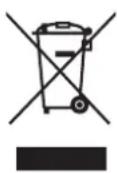
Upotreba ovog symbola ukazuje na to da se ovaj proizvod ne sme smatrati opadom domacinstva. Starajuci se da se ovaj proizvod pravilno odloži na opad, pomociće t e u sprečavanju moguciñ negativnih posledica po prirodnu sredinu i ljudsko zdravlje, do kojih bi u suprotnom moglo doci nepravilnim rukovanjem opadom ovog proizvoda. Vise informacija u vezi s recikliranjem ovog proizvoda možete dobiti ukoliko se obratite lokalnej upravi, preduzeću koje odnosi vaš domaci opad ili prodavnici u kojoj ste kupili ovaj proizvod.
Sledece informacione vaze samo za Tursku:
Usaglašeno sa propisom AEEE.
Napomene
©2020 TOSHIBA Electronics Europe GmbH. Sva prava zadržana.
Kompanija TOSHIBA zadržava pravo da izvrši tehnicike izmene. Kompanija TOSHIBA ne preuzima nikakvu odgovornost za štetu koja direktno ili posredno moze nastati zbog grešaka, omaski ili neslaganja izmedu proizvoda i dokumentacije. Naziv Toshiba i njegovi logotipi su registrovani zašitni znaci kompanije Toshiba.
macOS je zaštinji znak kompanije Apple Inc.
Drugi nazivi kompanija, nazivi proizvoda i nazivi servisa mogu da budu zašitni znakovi njihovih respektivnich kompanija.
Specifikacione proizvoda, konfiguracione, boje, componente i usluga podlozni su promenama bez obavestanja.
Jedan gigabajt (GB) je Jedna milijarda bajtova, a jegan terabajt (TB) je jegan bilion bajtova. Ukupni raspoloživi kapacitet varira zavisno od radnog okruženja, i u skladu sa tim ce varirati i vaši rezultati i kapacitet skladištenja. Medutim, računarski operativni systemdPokazuje kapacitet skladištenja koristeći stepenovanje dvojke za definiciju 1 TB = 40 = 1 099 511 627 776 bajtova i takovskaze manji kapacitet skladištenja.
NAPOMENA
Kada koristite ovaj proizvod, koristite prilozeni USB kabl za direktno povezivanje na USB priključak.
- Ako se preko USB priključka ne dobija dovoljno napajanje, proizvod nece funkcionisati.
Zavisno od specifikacja uredaja na koji vrsite povezivanje, brzina prenosa moze da bude brzina koju ima USB 2.0. Detalje potražite u priručniku za uredaj na koji vrsite povezivanje.
Kao meru opreza od gubljenja podataka sačuvanih na ovom proizvodu, redovno morate da pravite rezervnu kopiju što više vaših podataka na drugom uredaju za skladištenje.
Copepkanne
Bveidenie 2
Поверка наличая komноентов 2
Tpe6obHnK CnCTeme. 2
IoproToBka nscKa K pa6ote 2
IopknueHne nscKa K KomnbTepy 3
Pa3moHTnpOBaHne n OTKJIIOUeHne nncka. 4
Hicntka Kopnyca dnucka 4
IOnonHntelbna HOpMaun 4
7acto3aabaembEBOnpocbl 5
Bo3MoKhBie npo6JIeMbI n cnoCo6bI ux peuHnra 5
Iopdepkka TOSHIBA. 6
3aBHeHnO COOTBeTCTBn HOpMaTHBbIM Tpe6oBaHnA M 6
В级以上
Bnaorapm Bac 3a Bb6op B noIb3y Haewero JecTKoro Dncka TOSHIBA Canvio Basics!
IpocnBac BnImaTeNbHO npOuecTb HactoJee PykoBOdCTBO noJIb3OBaTeJRA. B hem coepKntcBcR Heo6xOIMa INΦOpMaURO NOIroTOBKe IuCKa K pa6OTe, NcNoJIb3OBaHIn N O6CnyKbAHN NDCKa, a TaKKe peKOMeHdaUIN No 3aUnTE daHHbIX IN pabVlna TexHKn 6e3OnaChOCTN.
EcnnoBedeHnue Hne COOTBeCTByeT OxuHaHnM IOnb3OBaTeJI, CM. pa3JeI 《AcTo 3aDaBaemble BONPOcBi》B KOHc He HaTcOJrero pyKOBODCTBa.
- Bb6epntye yctpoCTBO TOSHIBA n3BneHn.
Yepe3 HeckoIbKO CeKHyD Bbl NOLyHTE yBeDMJIeHne O TOM, YTO TeNepb ycTPOJCTBO MOxHO 6e3ONaCHO ydaIITb.
- Haxmnte KhoNky OK. Tenepb DnCK MoXHO OTOeHNHTb.
LJIKNHTe 3Haoyok XeCTKOrO DnUcka N BbI6epNTe KOMaHny «N3BNeYb」.
NIM
- NepetaunTe 3NaOH KecTKoro DnCKa B Kop3nHy.
Tenepb DnCK MOKHO OTCOeINHHTb.
YncTkKa Kopnyca dincka
Ipeen uNCTKo IINCK Heo6xOIMMO fH3nueckn OTOeHNrTb OT KOMnbOTepa. JnueCTKn peKomeHnyETcNcNoJIb3OBaTb CTAndapTHbIe CpeDCTBa. OctatKn UNTAeJxNkOCTn CneJeT CTnpaTb C nobepxHOCTn.
YacTo 3aDaBaemble BOpocbl
B:HyxHbIINdpaBepbUSBnWindows?
O:HeT,Ohn yKe IMeIOCTB OnepaUHOHNO CnCTeme.
B:MoKHO Jn 3aRpyKaTb CnCTeMy cTTO DnCKa?
O: Het, Notomy uTO cIcTeMa Windows He noIepeXnBaet 3aRpy3ky C BHeuHx JKeCTKnx DnCKOB.
B:ПочемуэтOMуДИСКУнHyЖeнВeHTиЯТОр?
O:KoHCTpykqIy IINCKa OBeCneYBaET ONTmAlbHoe paccenBaHne TENla, NO3OMy BeHTnJIrTOP He Tpe6yeTcBpe3yIbTaTe N3dEIne pa60Taet NoTuN 6ecWymHo.
B:Почему emkocьдинда (оТбрахаemв Windows) Mehble ergoФakTчecко 3aRbIeHHO emKocTN?
O:Pa3nue o6brcraTc npImeHHeHm pa3hbx cnocoob paueTa emkoctn.
Ipn3BovnteJn JecTKnx DnCKOB BbINOJIHrOt paCHTB DecaTNUHOcCTEme, a OepaunOHna CnCTema-B DBOUHNo.
Ppimep paueTa BdecaTnHOn cncTeMe:
1TB=1000ΓB
[ 1\text{GB} = 1000\text{MB} = 1000000\text{KB} = 10000000006 \text{auiT} ]
Ppimep paueTa B DBOUHOn CnCTeMe:
[ 1\text{Γ} = 1024\text{M} = 1048576\text{K} = 1073741824\text{sa} ]
B pe3yIbTaTe EMKoCTb 1-Tepa6aHTHOr (no DecaTnHOn CnCTeMe) JecTKOrO DnCKa B CnCTeMe Windows oTo6paKaTcra paBHOB BCero 931 TB (no DBOuHOn CnCTeMe).
B: MoKHO JI INCNOJbOBAbT DnCK DnJI KONNPOBaHnO nepaunOHn CnCTembl C OndHOro KOMNbOTepa Ha npyro?
O: Het, onepaunohnycncTeMy Heo6xOIMO yCTAHOBNTB CootBeTCTBUN C INHCTpyKqIyMaN ee nocTabuKa. IpocToe konnpobahne He oecneuT ee pa60tocnoc6Hoctb.
Bo3MOxHbIe npo6JIeMbI n cnoCo6bI nx peWeHnA
ДиСн He paCNo3HaeTcK KOMIbIOTepOM.
Y6eTeB HaeKHOCTN BCex CoeHHeHn.
EcnI NnCK NoKJIoueH uepe3 KOHcHTpaTOp USB,y6eNTecb B TOM,TO KOHcHTpaTOp IMeET CO6CTBeHHbI nCTOuHN KITAHIA.
Ecnncnolb3yETcnaIpaacuHpeHn, y6eNTecb B TOM, 7TO OHa cyHKUHOHPyET HndJekauM o6pa3OM, n npn Heo6xOIMOCHTn 6hOBITE ee nporpamMHoe oecneueHne, B TOM uNCJI BCTpoEHoe.
OnaceHnn HarpB DnCKa BO Bpempa60tbi?
O:TO HOpMaJIbHO I N03TOMy He ONaCHO.
Dnck coo6uaet o6 ownske «3anyck ycTroponCTBa HeBO3MOxEN>.
O: Bo3MOKHbI DBe npuHHbI. JIo6 UMeetc npo6JIeMa C nHTaHHeM N Heo6xOJMo npOBepNTb CoeHNHeHn, JIo6 OINCK HEnCnpaBEN I Tpe6yeT peMOHTa.
JONKeH OTKpbITbcra CNUCOIOCTyNHbIX yCTPOINCTBXpaHeHnA.
4.Поверпг,псутСТВуЕТЛВСИСКЕВАWДИСК.
5. Μεικητη παρού Κλόνηκου ΒΟΚΑ ΑΝΑ ΕΟβα Α ΒΟ ΒΑ ΑΙΒΑ ΣΕΜ ΜΕΗ ΒΑ ΑΠι έρητης «Υαπιντήν ραδην»。
6. ⅢeKNHTe npaBoi KhoNkoB OKHe. Bo BCnIbBAIOJem MeHIO BbIbepuTe «Co3daTb HObBi pa3dEn
7. 3aTeM BOKHe MacTepe pa3dEnOB Bb6epnTe «OChOBHoi pa3dEn». HaxmTe KhoNkU «Iaenee
8. Byet OTo6paKeHa 6yKa, KOtopyMOxHO N3MeHHTb. HaxMnte KOnKy «Jaeee'.
9.ПоДТВердпTeформатиpoBaHNeДИСКА.
PIMMEYAHNE
Korda nck 6ydt OTfOpMaTupoBaH, BCE haxOdBwneCHa HEM daHbIe 6ydyT ydaJIeHbI.
Pn nonbItke OTopMaTnpoBaT bIck BbIaTeCs coo6eHne «He ydaIocB bIIOJIHTb fOpMaTnpoBaHne».
O:Bo3MOxHNO, npuHnHa 3aKlUoHaETcB TOM, yTO npednpHHMaetc NObITKa OTOpMaTnpOBaTB nCK B anIOBOI cncTe ME FAT. Ioppo6yIte NcnoJIb3OBaTB anIOByIO CnCTeMy NTFS. B pe3yIbTaTe npo6JeMa DOJHKHa peWntbcra.
Подержka TOSHIBA
Hyxha nomooub?
Dpyrue yCIOBn, He CBr3aHHbIe C 3JIeKTPOMaHHTHO COBMeCTMOCCTbIO
IcnoIb3OBAHnE 3a npedeIamN NOMEeHnR: DaHHoe n3dene OTHOCITcK TINOBOMy 6bITOBOMy/oCHOMy o6OpUIOBAAHIO I KaTakOBoe He IMeET CneuaJIbHOJ 3aunTbI OT pOnHKOBeHnR BlaI, a TaKKe OT CNJIbHbIX yIapOB.
B3pbboonacnhaatmocepa:ncnoIb3ObaHne daHHoro n3dennBa TaKnx Oco6bix ycIOBnax (Ex) He donyckaeTcra.
I3noxehnnaanee HOpmaun aKtyaBbHbTObko BcTpaHax-Hehax EC
REACH-3aBHeHcOcooTBcTcBn
KopnpaTia Toshiba 6ydt BbIOnnIbBcTepe6oBaHnpeIamEnTa REACH (O perntpaun, ouenke, pa3peuHn n orpaHnueHn xMmuecknx BeueCTB) n o63yeTc npedocTabn notpe6nten m CBOe npdykun nHΦopMaunIO bncnoJIb3yeMbIX B HeynxMmuecknx BeueCTBax B COOTBeTCTBN c peIamentom REACH.
Ytunu3aunu3deenn
PnBedeHbI 3decb CmBOJyKa3bIbAeT Ha TO, YTO C HAcToaUM N3dennem HeIb3o6paTaBcKAK c 6bIToBbIMN OTxOamn. ObecneHHe npabInbHOYtIN3aunn N3dennn CnOCobCTBye TpeD0BpaSeHIO OTPuataBbIX NocLeCTBm IIN OKpykaUoJe CpeBn 3DopOBbI JIODei, KOToBle MOrTy 6bITb Bb3BaHbI HeHaJIeKaUmm UdaJIeHMe HAcToaero N3dennn B OTxOdbI. 3a NoDp6HoN INΦOpMaUne O nopAKe BTOpNUHO NpepaBOTKn HAcToaero N3dennn ObaaTecb K MeCTbIM BlaCTaM, B MyHNzPiNbHyO Cnyk6y, OTBeCTBeHHyO 3a LNIKBVaCIO OTxODOB, INo Mo MeCy npo6peTeHry HAcToaero N3dennn.
I3nojKeHHa daane uHΦopMaζη aKtYaIbHa TOnbko B Typζu
CoOTBeTCTByeT npaBnlaam 06 Otpa6oTabwem 3neKtpnuyeckOM n 3neKtpoHHom o6OpydoBaHH.
yBcDomJIeHnIa
©2020 TOSHIBA Electronics Europe GmbH. Bce npaba zaunienbl.
KopnpaTn TOSHIBA ocTabIeT 3a co6o npaBO Ha BHeCHeN TeXHueCKnx N3MeHEn. KopnpaTn TOSHIBA He HecET HnKaKoI OTBeTCTBHeHOctn Hn 3a IprMo, Hn 3a KocBeHHbYuep6, Bo3HnKuBn B pe3yIbTaTe NorpeShOcTe, yNuSeHn IN HeCOOTBeTCTBn MExdHaCToRiUm N3DeJIeM n DOKymEHTaUne. HanMeHOBaHne n IJorOTnbl KOpnpaTn Toshiba RaJIOTcE ee 3apeHCTpnpOBaHHbIMTOBapHbIM 3HaKaMn.
macOS RNAIeTcTOBapHbIM 3HaKOM Apple Inc.
Ipynne HauMeHOBAHNA KOMNaHn, npOyKTOB u yCnyr MOryT RbJIaTbcra TOBaPbIMn 3HaKaMn COOTBeTCTByIOUHX KOMnAHn.
B Texnueckne xapakTeepntK, KOHpyaun, ZBeTa, KOMnoHeNTbI yCIOBna cepBnca n3dJIy MOrTy BHOCITbcra N3MeHeHn 6e3 yBeDomJeHn.
Odnrna6aT (ΓB) npHnmaeTc paNBbIM OndHomy mllnapdy 6aNT, a Ond Tepa6aNT (TB) npHnmaeTc paNBbIM OndHomy TpUInnoHy 6aNT. Ob7a JocTyHnA emKOCTb 3aBNCIT OT onepaunHOHcpebl, BaIN pe3yIbTaTbI n EMKoCTb xpaHnHn 6yDyT BapbnpOBaTc COOTBeTCTBeHHO. Ondako onepaunHOHnCnCTema KOMNIOTepa ONpeJenReT EMKOCTb HAKONITeNe C NcNoJIb3OBAHNem CTeneHeu YncJa 2, To ecTb 1 TB = 240= 109951162776 6aHTam, IOnToMcy CNCTema NOKa3bBaet MehSyUo EMKOCTb XpaHnHn.
ПОНМЕЧАНЕ
- Ppi nCnoJb3OBAHnn daHHoro n3dennn cneIyET npImeHrTb npJIraembI Ka6eIb USB n cero nOMoUIO noDKNouTaB n3dennHeNoocpeDCTBeHHO K nopTy USB.
Ecnupe3 nopT USB He 6ydt noaBaTcra DocTaTOHoe nITAHne, n3dJIne He 6ydt cyHKnOHOPOBaTb. - CkopoocTb nepeaun daHHbIX MOKeT COOTBeTCTBOBaT b cTaHapTy USB 2.0 -3TO 3aBnCt OT TexHnuecknx xapaKTePncTnK yCTpOcTBA, K KOToPOMy BblONHeTcN OndKnUeHne. NopDpo6HyIO INΦOpMauIcM. BpyKOBoDCTBe No yCTpOcTBy, K KOToPOMy BblONHeTcN OndKnUeHne.
B kaueCTBe MEPbI npedocTopoJHcTn, HnpaBneHHoHa npedotbpaueHne notepn daHHbIX, KOtOpbIe xpaHrTcRa Ha daHHOM 3dEINN, Heo6xOIMO peyraPHO c03daBaTb Ha pyrom yctpoiCTBe XpaHeHnpe3epBHie KOnN KaK MoKHO 60JIbWeFo KOnUeCTBa DaHHbIX.
Lampa for strom/data
4 USB 3.0-vard
bakatkompatibel med USB 2.0
www.toshiba-storage.com/support
www.toshiba-storage.com/warranty-claims
Bestämmelser
CE-markning

Produkten ar CE-märkt i enlighet med tillampliga EU-direktiv. Ansvarig for CE-markning ar Toshiba Electronics Europe GmbH, Hansaallee 181, 40549 Düsseldorf, Tyskland.
Arbetsmiljö
www.toshiba-storage.com/support
www.toshiba-storage.com/warranty-claims
www.toshiba-storage.com/support
Garanti talepleri ici nulten s u adresi ziyaret edin:
www.toshiba-storage.com/warranty-claims
:bllll 100000000000000000000000000000000000000000000000000000000000000000000
138 1
piliil ciibio
Windows 8.1 Windows 10 NTFS
10.13 10.14 10.15 macOSJy
USB2.0 USB3.0
USB 2.0 USB 3.0
:JSSUBS, g jy Jlll j 100
Aaasususususususususususususususususususususususususususususususususususususususususususususususususususus
aJrally aillaa 1gall alal 1gul USB 1s USB
J 1
1
jss
USB 3.0 Standard-A ③ USB 3.0 ④ USB 2.0
USB 3.0 Micro-B
I 3.0 Standard Aol Jusy y jssy
U 3.0 Express Card Host Controller .USB 2.0
4
3.0 micro-BJySb 3.2
Window
$$ (1) \frac {1}{2} x - 1 > 0, $$
$$ \therefore \angle A B C = 1 8 0 ^ {\circ} $$
$$ = c l _ {2} x \leq 5 ^ {2} l _ {2} = $$
My Compute
(1) = 1 ; = - 1
11/1111 1
jol jol jol jol jol jol jol jol jol jol jol jol jol jol jol jol jol jol jol jol jol jol jol jol jol jol jol jol jol jol jol jol jol jol jol jol jol jol jol jol jol jol jol jol jol jol jol jol jol jol
aX
i 1
1
y
>Window
1.>>
y
2.
j 1
J1J 3
Eect CTRe
9
y
1
#
y 1
aai
y 1
111 111 111 111 111 111 111 111 111
aag aagaaagaaagaaagaaagaaagaaagaaagaaagaaagaaagaaagaaagaaagaaagaaagaaagaaagaaagaaagaaagaaagaaagaaagaaagaaagaaagaaagaaagaaagaaagaaagaaagaaagaaagaaagaaagaaagaaagaaagaaagaaagaaagaaagaaagaaagaaagaaagaaagaaagaaagaaa
00sina 21 xlin
?Windows USB
:
:
Ae 1
9a
Calea 1
jwns
aallll 1
iillll llll lalbi yaiy sall pbllll aill al jaiiaa all
s jwaiil
1,000=1
1,000,000,000=1,000,000=1,000=1
iuliluiuJit
1,073,741,824=1,048,576=1,024=1
931 91 Windows (s) 1 1
j 1
Aaagaae aae aee aee aee aee aee aee aee aee aee
y
12
《421 jg31 1x
a 1
Device Manager My Computer
:艾
1.>>
Aaalalalal «Manage» jsl .2
.3
Aee aee aee aee aee aee aee aee aee aee aee aee aee aee aee aee aee aee aee aee aee aee aee aee aee aee aee aee aee aee aee aee aee aee aee aee aee aee aee aee aee aee aee aee aee aee aee aee aee aee aee
Primary Partition> 7
8.
a 9
Aie 0gall aal lal s iia y jai al al gai lii
A
NTFSFAT
ooLua yji Jia
y
www.toshiba-storage.com/support
iJy j yjiaaiy jlaiba 1
www.toshiba-storage.com/warranty-claims
aaii
CE
TOSHIBA 1,234567890000000000000000000000000000000000000000000000000000000000000000000000000000000000000000

a1 = 2 ,a2 = 4
Residential yiey yiy yiy yiy yiy yuy Luy 150000000000000000000000000000000000000000000000000000000000000000000000000000000000
y 1380 y
a a a a a a a a a a a a a a a a a a a a a a a a a a a a a a a a a
Caiyio 1jao
J 100000000000000000000000000000000000000000000000000000
:JooLgJyAaJyAaJyIcIoo
.AEEE 2
TOSHIBA Electronics Europe GmbH 2020
TOSHIBA 1500000000000000000000000000000000000000000000000000000000
macOS
LsIa 1
1 1
a 12 2 1 1 1 1 1 1 1 1 1 1 1 1 1 1 1 1 1 1 1 1 1 1 1 1 1 1 1 1 1
a b
.USB 1
JLJU.USB 1
BiNobib: Hi, BOHn Bxke BCTaHOBJIeHi B onepauiHi cnCTemI.
3aHTaHn: Mu MoXHa 3aBaHTaKyBaTn CnCTeMy 3bOro DnCKa?
BiNbOIB: Hi, ockiBKn Windows He niTpymy 3aBaTaKeHH i3 3OBHihx JOpCTKnx DnCKIB.
3aHTaH: Homy uei DnCK He nOtpe6ye BEHTnIaTopa?
Bidnoib: KOHCTpykui dncka nepe6aue ONTmamJIbHe PO3cIOBaHHr TEIIa, TOMy BeHTnJIaTOp He nOtpi6eH. 3aBdAnu cybomy npncptpi npauoe MaJke 6e3UymHo.
3aHHTAA: YoMy eMHICTb MORO dNcKa, Ra NOKa3yE Windows, HxKya 3a aKaTHuHy 3a3HaueHy eMHICTb?
Bipnoib: Lpi3HnIg NOcHIOETbC 3aCTocyBaHHm pi3Hnx MeTodIB po3paxyBaHHЯ EMHOCTi. Bnpo6HnKJxopctKnx dNcKIB po3paxOByOTb EMHICTb y DecaTKOBi CnCTeMI YNCNeHHa cnCTema - y DBIKOBI.
PnKlaD po3paxyBaHHB DecaTKOBi CNTeMI:
1TB=1000ΓB
[ 1\text{GB} = 1000\text{MB} = 1000000\text{KB} = 1000000006 \text{aaiTib} ]
Pnuklaad po3paxyBaHHy y dBiIKOBi ciCTeMi:
[ 1\text{Γ} = 1024\text{M} = 1048576\text{K} = 1073741824\text{a} ]
Ype3yIbTaTI EMHICTb KOpCTKOrO DnCKa 1 TB (3a DecrTKOBIO CnCTeMoHO) BiO6paKaTmMetbcry Windows 931 T6 (3a DiBkiKOBOIO CnCTeMoIO).
3aHTHn: MuKHa BnKOpncTOBbATn cei dNcK, 0o6 cKoPiBaTn OepauiHy cnCTemy 3 oDHorO KOMn'IOTepa Ha iHw?
Bidnoib: Hi, onepauiHy cnCTemy Heo6xioHO BCTaHOBIOBaTN 3riHNO 3 iHCTpyKizMn II NOCTaHaJIbHka. Ipocte konioBaHHNe 3a6e3neuHTb II pOboTy.
UcynenHnHeNoJaOK
Komn'IOTeP He po3ni3Hae dNCK.
- PepekoHaItecA, 10 BcI 3'EDHaHHaHdIiHi.
YKIO DnCK NIDKIIUOeHO 3a DonomoroTO USB-KOHcHTpaTopa, nepeKoHaTecra, 00 ue KOncHTpaTop MaBlaache DKepeIoo KINBLeHHra. - RaKIO BnKOpNCTOByeTbCkapTa po3wnpeHHn, nepeKoHaITeCra, 0BOHa cyHKioHyE HaleKHM YHOM, i OHOBITb nporpaMHe 3a6e3neueHHn a6o npouWBky.
Jkuo ducknHarpiBaetbcn iud yac po60Tu,ue He6e3neuHo?
BiNobiBb: He HopMaIbHo He cTaHOBtB 3aRpo3n.
ДиСК NOВIDOMЛЕnpО NOMUNKу“He bdaeTbcaZaNYCTHTn npICCTPI”.
BiNobIb: IChyE Dbi MoKJNBI npuHn. Nepa -e npo6JeMa 3 KINBHeHHaM, i ToDi Heo6xIdHO npeBipNTn 3'EDHaHHa. Dpyra -DnCK HecnpaBn i Notpe6ye pemOHTy.
DnCK BiCyTHiY BiKHi "MiN KOMN'IOTeP", aIe BiO6paKaεTbcra B DnCneTpepi npicTpoIB.
BIDNOIBb:BnKoHaIte TaKi ii.
- KnaHtB npaBOIO KhoNkoMmIi“MiKOMn'ioTeP".
- Bn6epiTb nyHKT "KepyBaHHa" B KOHTeKCTHOMy MeHIO.
- Bùnbié“KepybaHnǎnckam”。
BiDkpneTbcraCnOCOKdoCTynHnxnpicTpoIB36epiraHHa.
- NpepeBipTe, uE B cnNcKy BaW dnck.
- Klaunitb npaboi KhoNkoMnwi y BIKHi cnpaba Nbi6epiB nyHKT "BuaanTpuo3in"y KOHTKCTHOMy MeHO.
- Knauchitb npaBOKHOKNKOIO Mmui y BIKHI Bu6epiTb nyHKT "CTBOpHTn po3Jin" y KOHTeKTHOMy MeHIO.
- Notim y Bikhima CTBopeHHn po3diin BV6epiTb "PepBHHHn po3diN. HatncHiTb "Dani".
- 3'ABNTbcraJItepaДИСКа,ЯкВиМожTe 3MiHHTu.HaTnCHITb"ДaJI".
9.ПiДТВердьTeФОмATУВаHHЯДИСКА.
NPUMITKA
PiJvacΦopMaTyBaHHaNcKa Bci DaHi Ha HbOMy BuaJaIyOTbcra.
Kolny Hamaraiocb BIDOpMaTyBaTn DnCK, 3'YBIAETbCn NobiOJMeHn "He BdaIOc BkOHaTu OpMaTyBaHHa".
Bidnoi: MoKInBO, Bn fOpMaTyE Te DnCK y faJIoBi nCnTeMi FAT. Cnpo6yIe BnKOpNCTaTn NTFS. Ce ma BCpiiHTn npo6nemy.
Підтprимka TOSHIBA
Notpi6Ha donomora?
BiBbIaTe cTopiHKy nIDTpMKN KOpCTKnx DnCKi I npncTpoiB 36epiraHH TOSHIBA:
www.toshiba-storage.com/support
3BepHyTnCn no rapaHtiHe 06cIyroByBaHHaMOKHa TyT:
www.toshiba-storage.com/warranty-claims
3aBn npo BiDIOBIDHicTB HOpMaTINBHNm BIMOram
BidnoibHictb BmormC
LcE Bnpi6 Mae MapkyBaHHa CE 3rIHO 3 BmOrAmu YHHnx DnpeKTHB EC. BiNoBiaac 3a
MapkyBaHHa CE: KOMnai Toshiba Electronics Europe GmbH, Hansaallee 181, 40549 Dusseldorf,
Germany (HimeyuHa).
PoboecepeoBnuie
EneKtpomarHHTHa Cymichictb (EMC) Bnpo6y nepeBipena CTaHapTHm dIa ciEi KaTERopii TOBAPIB cnoco6om, 103acTOcOByETbcra Do TaK 3BaHnx "No6yTOBHX i KOMepuiHHx cepeOBnUa, a TAKoX JERKOII npomncIOBOCTi. Kopnpaia Toshiba He npoBoHnla nepeBipKn eNEKtpomarHHTHOi CymichocTl B INHX po6OuNX cepeOBnuax, TOMBYNKOPINCTAHNBA HnO6y B HnX MoKe 6yTu O6MeKeHe, He peKomeHDOBaHE abo MaTI TaKI HACLIkN: pepeWKODn Bpo60ti cboRo a6o IHnIX BnPo6iB No6n3y, kki MOKyTB pIn3BeCTn Do TImuCAOBHX HeIOJaOK, BTPATN YI noHKoJKeHHaDnHX. HnKue HaBeNeHO npKnaDN HepeBipEnHX po6OuNX cepeOBnUa i BiINOBIHI peKOMeHNdaui.
- Ipnomnclobi cepedobuia (HapnKlaad, de Bnkopucctobyetbcra Hnpyra 380 By trpa3hi Mepeki): He6e3neka nepekoJy po6oTi cboRo Bnp6y chee3 moJIbci cnIbHi eKeTpmaHITHi nOla, oO6nBO npaI i3 BeNkMm 6bnHaHHam a6o ehepreTnuHmU yCTaHOBkAm.
- Medunhi cepenobu: Kopnpaia Toshiba He npoBouna nepebipky BiinobiHocti NipeKtubnpo MeunHi npictpoi, TOMy ue Bnpi6 He moXHa BnKopncTOByBaTu B MeunHnx zlnx 6e3 doataKOBoi nepebipkn. Bnkopnctahny y 3BnuaynHex ophiHnx cepenobuax, kOT y likapnax, He mac BnKniKaTu npo6neMn, kUIO BIDNOBdaIbHa admiHicTpaia He BCTaHOBua obmexehnn.
- AbyotpaHcnpT: peKomeHaaui 0do BnKOpncTaHHa bOToBnpo6y (a6o KaTeoropii Bnpo6iB) nBiTBcBnoci6Nky BnaCHnka BiDnOBiDHoro TpaHCnpTHoro 3ac06y.
IobitprHn TpaHcnpot:doTpmyntecpekomehdauii eKInaKy 0oO o6MeKeHb BnKOpncTaHHy 0b0rO Bnpo6y.
Ihui yMOBN, He NOB'z3aHI 3 eJIeKTPOMaHITHO CymichictO
BnKOpncTahHnO3a npmIeHHM: cEi Bnp6 E TINOBnIM NO6yTOBnM a6o OphiCHN M OblaHaHHM i TOMy He MaocO6bNoBOi CTiIKoCTI DO npOHnKHeHH BONrA60 3axnty BiD CInbHex ydapIB.
Bn6yxoHe6e3neuHi yMOBn: BnKOpncTaHHaBIO Bnpo6bY TaKnx Oco6bnBx yMOBaX (Ex) He dOnyckaETbcra.
InopmaizjIiWeJnIepeKab-HeHbEC
REACH -ДeКларачи npo BiNobiHicTb
Kompania Toshiba 3a6e3neue BiINOBiHicb CBOe npOyKuBCIM BmOram REACH (peecpaia, ouHHoBaHHa, cAHKIOHyBaHHa Ta oMEXeHHB NIKOpNCaHH XIMUHNX peOBUH) i 306OB'3yEcTbc HadaBaTN KIeHTa m inΦopMaio npo ximuiH peOBUH y CBOi npOyKuBiNobIDHO do Hopm REACH.
YtuniazaBupo6ib
CnBnO3Naue, 0o Bnpi6 He MoXHa yTnI3yBaTu nK NobyToBi bIXoN. DToPmUOChc npabn yTnI3aui Bnpo6y, BN dONOMoKeTe yHnKHyTu IkoN IOBkiIIO Ta 3dopOB'IO IIOe, 0o MoKe cTaNC B pa3i HeNaLeXHoI yTnI3aui. DoknaHluy iHOpMaIIO npo yTnI3aIIO cboro Bnpo6y MOKeTe OTPMaTI BLOkAblHomy PpeCTABHnTBI y CBOcMy MICTI, MyHicnAhlbHi CnyK6i yTnI3aui BiXODIB a6o B MaRa3HHi, De 6yIo npuD6aHO Bnpi6.
Ihopmaizj nIwe np TypequHH
BidnoibaA Dnpektnbi AEEE.
PnmiTkn
© TOSHIBA Electronics Europe GmbH, 2020 p. Yci npaba zaxiuneho.
TOSHIBA 3aIIuae 3a co6oI npabO ha texHui 3miHn. Kopnpaia TOSHIBA He Hece BiIOBiaJbHocTi 3a 3bNTK, 6e3nocepEnbO yI onocepEkoBaHO IOB'raHI 3 NOMIKAMN, yNyueHHaMn a6o po36iXHOCrMM MIX CIMM BInp6om i DOKyMeHTaIeIO. HaimeHyBaHHY ILOOTINN KOpnpaJI Toshiba e 3apeecTpOBaHmN TOBAPHMN 3HaKaMn Toshiba.
macOS ∈ ToBapHIM 3HaKOM Apple Inc.
IHsiHa3BnKOMnahHni, npodykTIB i cnyk6 MoKyTb 6yTu TOBaPnMn 3HaKaMn BiIDNoBiDnX BnaChNKiB.
XapakTepeNCTKNI, KOHphiirypaui, KOBOpN, KOMnoHeHTNa 06cnyroByBaHH npOdyKTIB MOKyTB 3MiHOBaTnC 6e3 nonepedkeHH.
1 rira6aT (ΓB) = 1 mnpd 6aTIB, a 1 Tepa6aT (TB) = 1 TpHn 6aTIB. 3araIbHa DOCTyHnHa EMHICTb 3aJIeKNTb BiD pOboQOro cepedOBu7a, TOM y OocTyHnBa Bam EMHICTb dIy 36epirAHn DaHnx BIDpi3HrTmEbCBAIIOBIDHM CHHOM. Ondak onepauiHa cncTeMa KOMN'OTepa 3acTOCOBy DEBIKOBy CnCTeMy YNCLeHH, De 1 TB = 240 = 109951162776 6aTIB, i TOMy BIDOppaKaETCB MeH7a EMHICTb HAKONUvBa7a.
ПРИМITKA
- PIIKIIouaIte uei Bpi6 6e3nocepHbO do USB-po3'Emy 3a Donomoro IO USB-Ka6eJIIO 3 KOMnIeKTy NOCTaHaHH.
KUpe3 USB-po3EM He HAdxOuNTb DOCTaTHc KINBHeHH, npncTpIe H cyHKioHyBaTmE.
3aIeKHO BiXapaKTepnCTNK npncTPOIO,do koro Bn iKIOUaTeCra,WBnKicTB npeDaBaHHaMOKe BiIOBiaATn WbNkOcTi USB 2.0.DoklaHb IIOOMoCTi DnBiTbcB Noci6Hky dIy npncTPOIO,do koro Bn NiKnIOuAcTeCra. - 306 3anobirn Btpati daHnx, 0o 36epiraotbcra Ha cBomv Bnpo6i, peryIaRHO CTbOpOte ix pe3epBHi konii ha iHwomy npicrpoi 36epirahnn.


- Introduction
- Check the Components
- System Requirements
- Installing the drive
- Connecting the drive to your computer
- NOTE
- Dismount and disconnect the drive
- Cleaning the drive case / enclosure
- Further Advise
- Frequently Asked Questions
- Troubleshooting
- TOSHIBA Support
- Need help?
- Regulatory statements
- CE Compliance
- Working Environment
- Additional Environments not Related to EMC
- REACH - Compliance Statement
- Disposal of products
- Notices
- Obsah
- Installation of dewet
- Regelerklæringer
- KavovioTikec i
- Σuμópφωη κατá CE
- περιβαλλον εργασιας
- Regulativne izjave
- CE sukladnost
- Radno okruženje
- Feilmeldingen Device cannot start (Kan/DD) vises.
- Przepisy
- Declaracoes regulamentees
- Ostala okrużenja koja nisu vezana za EMC
- REACH - Izjava o usaglašenosti
- Odlaganje proizvoda na otpad
- Sledece informacione vaze samo za Tursku:
- Napomene
- NAPOMENA
- Copepkanne
- В级以上
- YncTkKa Kopnyca dincka
- YacTo 3aDaBaemble BOpocbl
- Bo3MOxHbIe npo6JIeMbI n cnoCo6bI nx peWeHnA
- ДиСн He paCNo3HaeTcK KOMIbIOTepOM.
- OnaceHnn HarpB DnCKa BO Bpempa60tbi?
- Dnck coo6uaet o6 ownske «3anyck ycTroponCTBa HeBO3MOxEN>.
- Подержka TOSHIBA
- Hyxha nomooub?
- Dpyrue yCIOBn, He CBr3aHHbIe C 3JIeKTPOMaHHTHO COBMeCTMOCCTbIO
- I3noxehnnaanee HOpmaun aKtyaBbHbTObko BcTpaHax-Hehax EC
- REACH-3aBHeHcOcooTBcTcBn
- Ytunu3aunu3deenn
- I3nojKeHHa daane uHΦopMaζη aKtYaIbHa TOnbko B Typζu
- yBcDomJIeHnIa
- ПОНМЕЧАНЕ
- Bestämmelser
- Arbetsmiljö
- aX
- >Window
- #
- aai
- 00sina 21 xlin
- Device Manager My Computer
- UcynenHnHeNoJaOK
- Komn'IOTeP He po3ni3Hae dNCK.
- Підтprимka TOSHIBA
- 3aBn npo BiDIOBIDHicTB HOpMaTINBHNm BIMOram
- PoboecepeoBnuie
- Ihui yMOBN, He NOB'z3aHI 3 eJIeKTPOMaHITHO CymichictO
- InopmaizjIiWeJnIepeKab-HeHbEC
- REACH -ДeКларачи npo BiNobiHicTb
- YtuniazaBupo6ib
- Ihopmaizj nIwe np TypequHH
- PnmiTkn
- ПРИМITKA
Brand : TOSHIBA
Model : Canvio Basics USBC
Category : External hard drive