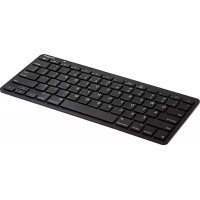
iPad Bluetooth Keyboard AKB32PT - Keyboard TARGUS - Free user manual and instructions
Find the device manual for free iPad Bluetooth Keyboard AKB32PT TARGUS in PDF.

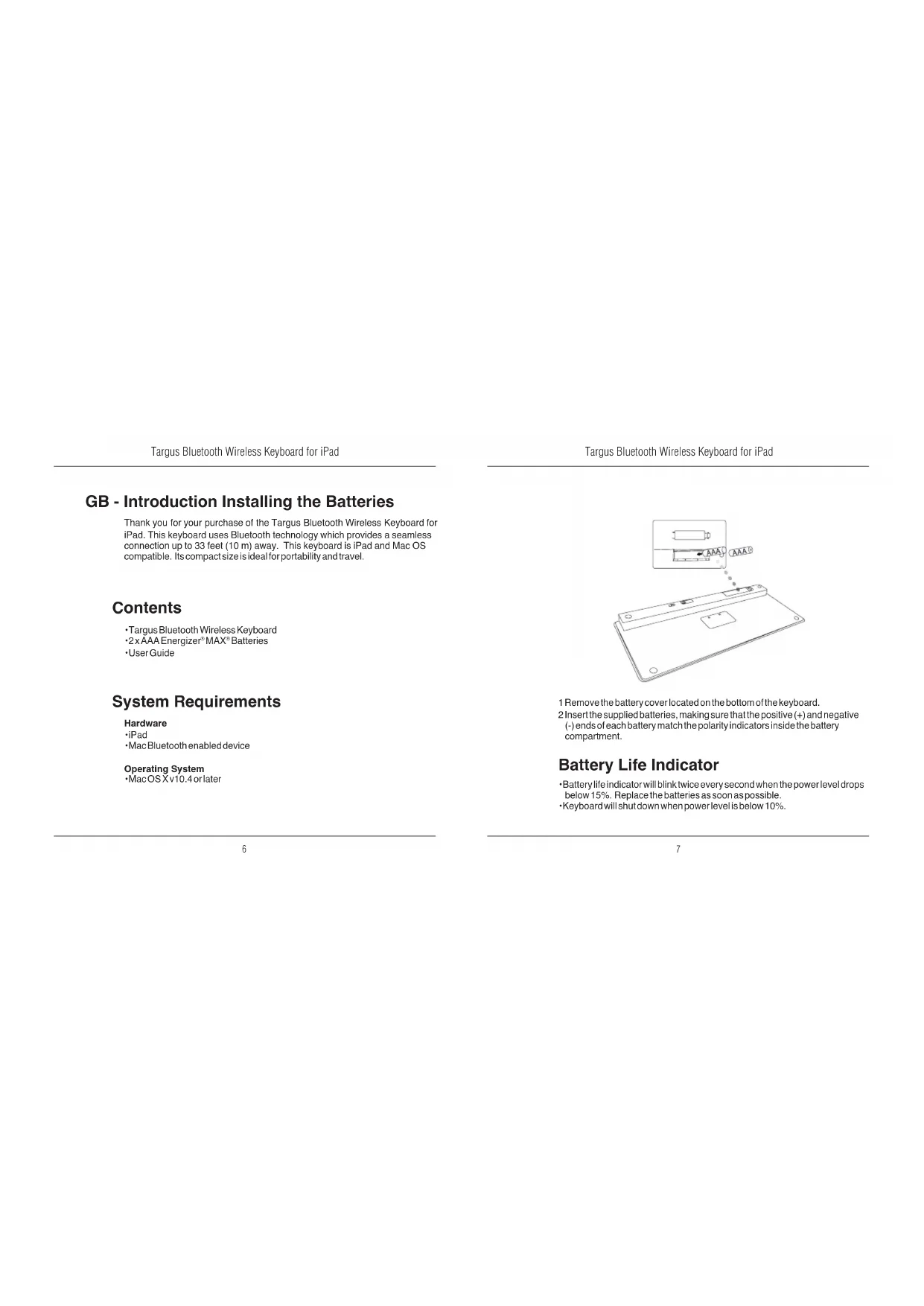


| Product Type | Bluetooth Wireless Keyboard for iPad |
| Brand | Targus |
| Model | AKB32PT |
| Dimensions (L x W x H) | 24.5 x 18.5 x 0.6 cm (estimated) |
| Weight | 250 g (estimated) |
| Power Supply | 2 AAA batteries (included) |
| Battery Life | Up to several months depending on usage |
| Connectivity | Wireless Bluetooth, range up to 10 m |
| Compatibility | iPad, Mac OS X 10.4 or later |
| Function Keys | Home, search, media control (play/pause, next/previous), volume, screen lock |
| Box Contents | Keyboard, 2 Energizer MAX AAA batteries, user manual |
| Care and Cleaning | Clean with a soft, dry cloth. Do not use abrasive cleaners. |
| Safety Precautions | Avoid moisture and extreme temperatures. Do not disassemble. |
| Spare Parts and Repairability | User-replaceable batteries. No other spare parts provided. In case of failure, contact Targus support. |
Frequently Asked Questions - iPad Bluetooth Keyboard AKB32PT TARGUS
User questions about iPad Bluetooth Keyboard AKB32PT TARGUS
0 question about this device. Answer the ones you know or ask your own.
Ask a new question about this device
Download the instructions for your Keyboard in PDF format for free! Find your manual iPad Bluetooth Keyboard AKB32PT - TARGUS and take your electronic device back in hand. On this page are published all the documents necessary for the use of your device. iPad Bluetooth Keyboard AKB32PT by TARGUS.
USER MANUAL iPad Bluetooth Keyboard AKB32PT TARGUS
K2011 Manufactured or imported by Targus Europe Ltd, Fethern, Middlesex TW14 8HA, UK. All rights reserved. Targus is either a registered trademark or trademark of Targus Group International, Inc. in the United States and/or other countries. Features and specifications are subject to change without notice. All trademarks and registered trademarks are the property of their respective owners.

N2953


Bluetooth
QDII:B015144
User Guide
Targus Bluetooth Wireless Keyboard for iPad
Table of Contents
GB-English
BLUETOOTH WIRELESS KEYBOARD for iPad 6
BG-Блгарский (e3nK)
EN3KNUHA BLUETOOTH KNABNATyPA 3a iPad 12
CZ-Cestina
BEZDRATOVÁ BLUETOOTH KLAVESNICE PRO iPad 18
DE-Deutsch
KABELLOSE BLUETOOTH-TASTATUR fur iPad 24
DK - Dansk
Bluetooth tradlost tastatur til iPad 30
EE-Eesti
JUHTMETA BLUETOOTH KLAVIATUUR iPadi-ile 36
ES-Espanol
TECLADO INALÁMBRICO BLUETOOTH para iPad 42
Targus Bluetooth Wireless Keyboard for iPad
FI-Suomi
BLUETOOTH LANGATON NAPPAIMISTO iPadille 48
Targus Bluetooth Wireless Keyboard for iPad
Targus Bluetooth Wireless Keyboard for iPad
NL - Nederlands
Thank you for your purchase of the Targus Bluetooth Wireless Keyboard for iPad. This keyboard uses Bluetooth technology which provides a seamless connection up to 33 feet (10 m) away. This keyboard is iPad and Mac OS compatible. Its compact size is ideal for portability and travel.
Contents
Targus Bluetooth Wireless Keyboard
-2x AAA Energizer MAX Batteries
-User Guide
System Requirements
Hardware
-iPad
Mac Bluetooth enabled device
Operating System
MacOSXv10.4or later
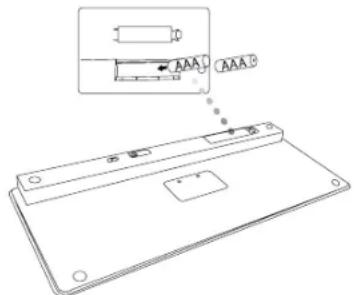
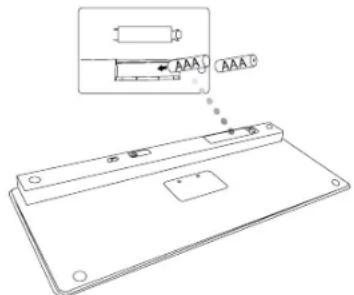
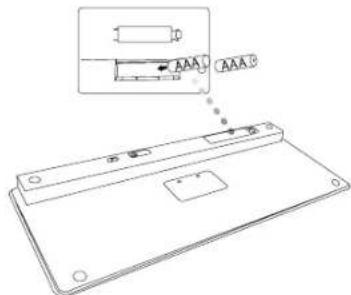
1 Remove the battery cover located on the bottom of the keyboard.
2 Insert the supplied batteries, making sure that the positive (+) and negative
(-) ends of each battery match the polarity indicators inside the battery compartment.
Battery Life Indicator
Battery life indicator will blink twice every second when the power level drops
below 15% .Replace the batteries as soon as possible.
-Keyboard will shut down when power level is below 10%
Targus Bluetooth Wireless Keyboard for iPad
Targus Bluetooth Wireless Keyboard for iPad
Establishing the Connection
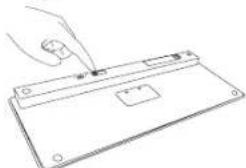
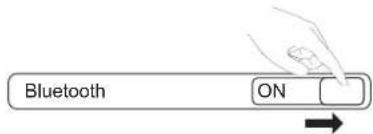
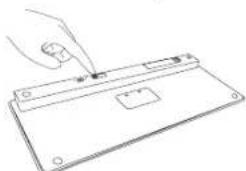
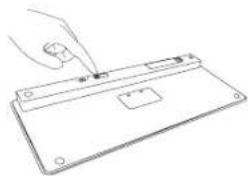
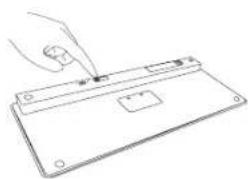
- Turn on the keyboard by sliding the power button to the ON position.
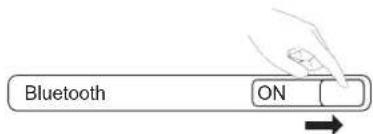
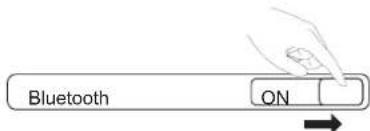
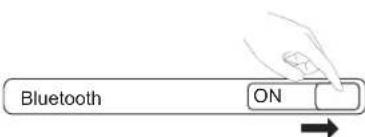
- Switch ON the Bluetooth function of your iPad.
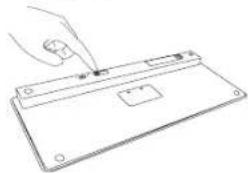
- Press the Connect button on the back of your Targus Bluetooth Wireless Keyboard to enable discovery mode. The low power indicator light will flash blue when the keyboard is in discovery mode.
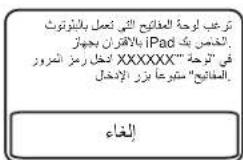
- Once the Bluetooth keyboard is listed as a found device in the bluetooth menu on the iPad, tap on the name and you will be prompted to enter a pass key as shown.
"Bluetooth Keyboard" would like to pair with your iPad. Enter the passkeyXXXXXX on "Bluetooth Keyboard", followed by the return or enter Key.
Cancel
- Enter the passkey shown on the pop up message, followed by the enter key.
- Bluetooth Keyboard is now connected with your iPad and the blue light will stop flashing.
Using the Hot Keys
| Key | Function |
| □ | Home Screen |
| Q | Search |
| I | iPad will enter Photo Frame mode |
| ... | Show and hide the Keyboard on your display |
| ← | Rewind or go to previous song, movie, or slideshow |
| II | Play or pause songs, movies, or slideshows |
| → | Fast Forward or go to next song, movie, or slideshow |
| < | Mute the sound on the iPad |
| < | Decrease the volume on the iPad |
| < | Increase the volume on the iPad |
| Lock your display |

FOR MAC USER, PLEASE SET UP YOUR OWN HOT KEYS INSIDE "KEYBOARD SHORTCUT" OF "SYSTEM PREFERENCES".
Bluetooth Connection: Mac
- Go to the Bluetooth icon located on your desktop or in the system bar and click the icon to begin setup. Select "Turn Bluetooth On" to activate the Bluetooth function on your Mac.
- Scroll down the list and select "Setup Bluetooth Device...
- The Bluetooth Setup Assistant will begin. Please follow the on-screen instructions.
- Select "keyboard" and click continue to proceed with setup. Your keyboard will need to be in "discovery" mode to connect.
- Press the Connect button on the back of your Targus Bluetooth Wireless Keyboard to enable discovery mode. The low power indicator light will flash blue when the keyboard is in discovery mode.
- Your computer will begin to search for the keyboard. Once the keyboard is found, it will show up in the list. Highlight "Bluetooth Keyboard" and press continue.
- The Bluetooth keyboard will now begin pairing. Click continue to proceed.
- Congratulations. Your Bluetooth keyboard is setup and ready to use. You can choose to set up another device or click Quit to exit setup.
BG-BbBedeHne MoHTnpaHne Ha 6aTepuNTe
5narqapmm, Ye 3akynnxTe 6e3xHnata Bluoteoth knaBnatypa 3a iPd Targus. KnaBnatypa nIcN3Ba BLuoteoth texHOJrnn, OcnpyBaUaTa 6e3np6nemha Bp3ka na pa3ctonne do 10m (33 pyta). CbMeTtma e c iPd n Mac OS. KomnakTHnT aM3peM e Ieanei 3a nbTyBaHe n pheoc.
CbDpbXaHne
- 5e3xuHa Bluetooth knabnTypa Targus
- Batepnu 2 x AAA Energizer® MAX®
PbkoBOCTBO Ha NotpeBnten
CnCTeMHN 3nCKBaHn
Xapnyep
·iPad
- Bluetooth yctpoin3a Mac
OnepaHnHa CnCTema
Mac OS X v10.4 no no-hoBa
- Otrctpahete Kanakaa Ha otTeJeHHeMo 3a 6atepnn OT doHnata CTpaHa Na KnaBauTpyta.
- Noctabete Noctabehnite 6bepnn, Kato ce ybepeitne, He nnonokntenHnrt (+) n OTPuataeHNHT (-) kpana c bbnadat CnHdknatopht 3a nonprrer T BOTDEHeHneto 3a 6bepnn.
HdkaTop 3a 3apnHa 6atepuTe
ИндikatopbTаЗэрдНБаTePnrta ппmRBAДВа bTиBceKHyIa
пriи падане НИНБОТ ИЗрахпаньeroю 15%.Смeнeteбatepnte
ВьзмокHoHai-bp3o.
- KnaBnAtypata npeycTaHOBBa pa6Ota, KORAto HNBOTo Ha 3axpaHbHeTo naHne noD 10%
YctaHOBaHe Ha Bpb3Ka
1.Bknoyete KnaBnatypata Kato NnB3Hete 6yToHa Ha 3axpaHbAHeTo B no3nur ON (BKJ).
2.BknoHcyTe dyHKmra Ta Bluetooth Ha iPad.

- Hatichete 6ytoHa Connect (Cbbp3aHe) ot DOnHata cTpaHa Ha 6eKnnHata Bluetooth knabatypa Targus, 3a da aktbnpate pexHM ha pa3no3HabaHe. INdkaTOpb73 a HCKO HMO b HaxpaHBAHO To pinnmTa B CnHo, KOrTo kNaBnatpya e B pexHM paan03HabaHe.
4.CnE BKNIOBAAHOTa HbLuteoth knaBnatypata B cnCbKa HA OTKPBAHHTe yCTPOIcTBa B MEKHO T3a Bluteoth Ha iPad,doKoChTe HMeTO N, KAKTo e NOKaHaO,Je nOlyNt e NpckBaAuaO cbo6ueHne Da bBeDeTe npona.
"Bluetooth KeyBoard" Tbocn Bpksa
c iPad.
Bleedora naponara "XXXXXX" 3a
"Bluetooth KeyBoard" HnHnchete
return and pyr knnauu.
Otka3
5.BbBedeTe nponata, KToTo ce nok3Ba B mckauoTo cbo6eHne HATNCHE TEKnabMa ent.
6.Проб Тoba Bluetooth knablatypaTe сEbpl3Ba KM iPd u 3anovya Da npmraBc HINH CBeTINHeH INHkATOpT.
N3noJ3BaHe Ha 6bP3n KnaBnWn
Targus Bluetooth Wireless Keyboard for iPad
Targus Bluetooth Wireless Keyboard for iPad
Vytvořeni pripojení
Targus Bluetooth Wireless Keyboard for iPad
Targus Bluetooth Wireless Keyboard for iPad
Targus Bluetooth Wireless Keyboard for iPad
Targus Bluetooth Wireless Keyboard for iPad
Targus Bluetooth Wireless Keyboard for iPad
Targus Bluetooth Wireless Keyboard for iPad
Uhenduse loomine
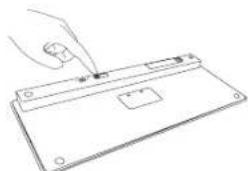
- ToitelulitON (SEES) asendisse lukateslilitageklaviatuur sisse.
- Lültage sisse omaiPad-i Bluetooth Funktsoon.
Bluetooth
ON
Targus Bluetooth Wireless Keyboard for iPad
Targus Bluetooth Wireless Keyboard for iPad
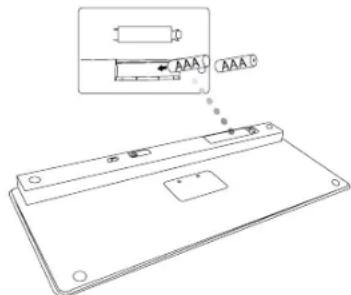
Targus Bluetooth Wireless Keyboard for iPad
Targus Bluetooth Wireless Keyboard for iPad
Targus Bluetooth Wireless Keyboard for iPad
Targus Bluetooth Wireless Keyboard for iPad
Yhteyden luominen
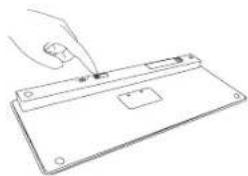
Targus Bluetooth Wireless Keyboard for iPad
Targus Bluetooth Wireless Keyboard for iPad
Targus Bluetooth Wireless Keyboard for iPad
Targus Bluetooth Wireless Keyboard for iPad
Anioupyia nts ouvdeltaonc
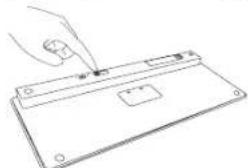
Targus Bluetooth Wireless Keyboard for iPad
Targus Bluetooth Wireless Keyboard for iPad
Targus Bluetooth Wireless Keyboard for iPad
Targus Bluetooth Wireless Keyboard for iPad
Targus Bluetooth Wireless Keyboard for iPad
Targus Bluetooth Wireless Keyboard for iPad
Targus Bluetooth Wireless Keyboard for iPad
Targus Bluetooth Wireless Keyboard for iPad
Rysio uzmezgimas
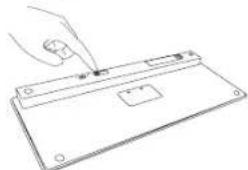
- Junkite klaviatura, pastumdami jungikli padeti ON (jungla).
- Junkite savo "iPad" prietaiso ,Bluetooth" funkcija.
Bluetooth
ON

- Paspauskite mygtuka, Connect (prisijungti) savo, Targus Bluetooth bealides klavatiros galinje puseje, kad [sijungtu aptikimo rezimas. Zemo maitinimo lygio indicatorius mirks melynai, kai bus jungtas aptikimo rezimas.
- Kai „Bluetooth“ klaviatura pateikiama kaip aptiktas prietaisas „iPad Bluetooth" menui, bakstelékite pavadinimir pamatomysite paraginimj vesti koda (kaip paavizduota).
"Bluetooth Keyboard" (Bluetooth:klavittra) les superouliou JSS, preteissai sui PAd. Ivskille koda XXXXX [Bluetooth Keypad] (Kapital Kuppaissaki klawka, Return (gr) 201a, Enter (west).
Atsaukti
Targus Bluetooth Wireless Keyboard for iPad
Targus Bluetooth Wireless Keyboard for iPad
Targus Bluetooth Wireless Keyboard for iPad
Targus Bluetooth Wireless Keyboard for iPad
Apprette forbindelse
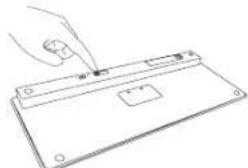
Targus Bluetooth Wireless Keyboard for iPad
Targus Bluetooth Wireless Keyboard for iPad
Targus Bluetooth Wireless Keyboard for iPad
Targus Bluetooth Wireless Keyboard for iPad
Targus Bluetooth Wireless Keyboard for iPad
Targus Bluetooth Wireless Keyboard for iPad
Stabilirea conexiunii
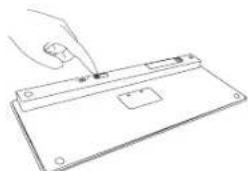
Targus Bluetooth Wireless Keyboard for iPad
Targus Bluetooth Wireless Keyboard for iPad
YcTaHOBka CoeMHHeHnA
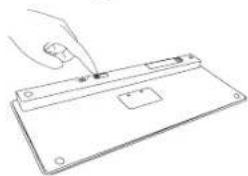
1.BknOHTe KnaBnAtpy, CdBHyB nepeKnIOvateB nITaHnB nNOKeHHe ON(BkN).
2. BkIIOHTe cyHKUIO Bluetooth Ha cBcOe iPad.
- Haxmnte KhoNky Connect (CoeHHeHne) Ha 6oPaTHO CTOpOHe 6ecnpoBDOH KOaHbAHTypB Targus c KaHAnOM Bluteoth, 406bl aTNIBHPoBaTb peKIM NOIcKA. Korda KnaHbAHTypa pa6oTaet B peKIMNE IOINCKA, CEBTOB NHINKATOP Hn3KO 3apJaMaPeJAE CNHM UBTOM.
- Kaonko Knaaatypac Kaanom Bluetooth noBnTcB cnCkE 06banyKeHHy xctpoHb T MeIO iPad, HaxMITE Ha NMR, N BAM bdyet npdIoKHeBbceTnpalOB, KaokN33AHO HA pCyrHke
YerpoiOcrao"Bluetooth-Knainatypa"
bTaTeEc yraHOBHT coeMHINHe O BauHH mPad.
Bévrière nap百合 "XXXXXX" Ha cytoprolécteur "Bluetooth-knaβaHTypa", a 3atem Hακεπίτe Kληνιψγ ΜεθαβρΑΙ Μικον Μεδα.
OTMeHa
5.BBeHnTe npoIb b nok3aHHOM Ha pucyHke BCnblBaIOeM OKHe HaxMMTE KnaBnWBy BBOda.
6. Tenepb KnaBbAtypa c KaHANl Blouetto hnoKnOHeMa K bauemy iPad. CnHHnHnKATOp nepeCTan MepuTb.
IcnoJb3ObaHne yHKUHOHaBbHbIX KJIaBnW
"Bluetooth KeyBoard" [Bluetooth Tangentboard] kelsei vila foremen as didin iPad. Siia in Rosenordet "XXXXXX" p"Bluetooth KeyBoard" [Bluetooth Tangentboard], f@ta at aldu yuckr on reit-eler enteenknappen.
Avbryt
Establishing the Connection
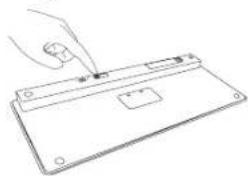
- Vklopite tipkovnico, takao gumb za vklopizklop potisnete v polozaj ON (vklučeno).
- Vklopite fungcjo bluetooth na vašem iPad-u.
- Pritisinite gumb Connect (Povezi) na hbrtni strani bluetooth brezǐne tipkovnice Targus, da omogóčite nacin odkrivanja. Indikator napoljenosti baterijbe ou utripil modro, ko je tipkovnica v nacinu odkrivanja.
- Ko je bluetooth naprava v bluetooth meniju na iPadu navedena kot njadena naprava, tapnite na ime in pozvani boste, da vnesete geselski kjuč, kot je prikazano.
"Bluetooth Keyboard" would like to pair with your iPad. Enter the passkeyXXXXXX on "Bluetooth Keyboard", followed by the return or enter Key.
Preklici
- Vnesite geselski ključ, ki je prikazan na povajnem sporošilu, in pritisnite tipko enter.
- Bluetooth tipkovica je zdaj povezana za vasim iPadom in modra lučka bo prenehala utripati.
Targus Bluetooth Wireless Keyboard for iPad
Targus Bluetooth Wireless Keyboard for iPad
Nadviazanie spojenia
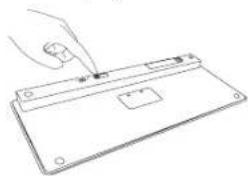
- Zapnite klávesnicu posunutim tlacidla napajania do polohy ON (Zap.).
- Zapnite fungkciu Bluetooth na vasom iPad-e.
Bluetooth
ON
- Stäcle tläidlo Connect (Pripojt) na zadnej strane bezdrotovej Bluetooth klávesnice Targus pre zapnutie rezimu zistovica. Ke je klávesnica v rezime zistovania, indikator nizkeho stavu napajania blika namadro.
- Ked' sa Bluetooth klávesnica zobrazdi medzi najdenymi zariadieniami v menu bluetooth na iPad-e, tuknite na nazov a zariadienie vás vyzve, aby steradali pristupové heslo ako je zobraněne na obrázku.
"Bluetooth Keyboard" sa chce sndovat's vajim iPad
Zadajte heslo "XXXXXX" pre
Juethooh Keypad", a stlaht
tlacidlo return alebo enter.
Zrusit
- Zadajte heslo zobrazené v správe a stlače tlacidlo enter (vstup).
- Bluetooth klávesnica je teraz pripojena k vašmu iPad-u a modrý indicator prestane bilkaf.
Targus Bluetooth Wireless Keyboard for iPad
Targus Bluetooth Wireless Keyboard for iPad
Baglanti Kullanma
Targus Bluetooth Wireless Keyboard for iPad
Targus Bluetooth Wireless Keyboard for iPad
AR
gaiy 152 Targus jay aalld, yj gaiy iipd. piai 33 Jaua Jaua Jaua Jaua Jaua Jaua Jaua Jaua Jaua Jaua Jaua Jaua Jaua Jaua Jaua Jaua Jaua Jaua Jaua Jaua Jaua Jaua Jaua Jaua Jaua Jaua Jaua Jaua Jaua Jaua Jaua Jaua Jaua Jaua
#
Targus AAA E Energizer MAX
pBlll C
3
·iPad
JMac
Mac OS X v10.4
y
- 2.
yj
15% 2
Saa 8
10% 1
Targus Bluetooth Wireless Keyboard for iPad
Targus Bluetooth Wireless Keyboard for iPad
Juiy juii
- 1234567890123456789012345678901234567890123456789012345678901234567890123456789012345678901234567890123456789
- jaii iol Connect 124 5jag Targus jay jay jay jay jay jay jay jay jay jay jay jay jay jay jay jay jay jay jay jay jay jay jay jay jay jay jay jay jay jay jay jay jay jay jay jay jay jay jay jay jay jay jay jay jay jay jay jay jay jay jjay jay jay jay jay jay jay jay jay jay jay jay jay jay jay jay jay jay jay jay jay jay jay jay jay jay jay
- 1234567890123456789012345678901234567890123456789012345678901234567890123456789012345678901234567890123456789
Targus Bluetooth Wireless Keyboard for iPad
Targus Bluetooth Wireless Keyboard for iPad


- Table of Contents
- NL - Nederlands
- Contents
- System Requirements
- Battery Life Indicator
- Establishing the Connection
- Bluetooth Connection: Mac
- BG-BbBedeHne MoHTnpaHne Ha 6aTepuNTe
- CbDpbXaHne
- CnCTeMHN 3nCKBaHn
- Xapnyep
- OnepaHnHa CnCTema
- HdkaTop 3a 3apnHa 6atepuTe
- YctaHOBaHe Ha Bpb3Ka
- Vytvořeni pripojení
- Uhenduse loomine
- Yhteyden luominen
- Anioupyia nts ouvdeltaonc
- Rysio uzmezgimas
- Apprette forbindelse
- Stabilirea conexiunii
- YcTaHOBka CoeMHHeHnA
- OTMeHa
- Nadviazanie spojenia
- Baglanti Kullanma
- AR
- #
- pBlll C
- y
- yj
Brand : TARGUS
Model : iPad Bluetooth Keyboard AKB32PT
Category : Keyboard