AKB24US - Keyboard TARGUS - Free user manual and instructions
Find the device manual for free AKB24US TARGUS in PDF.


| Product Type | Keyboard |
| Brand | Targus |
| Model | AKB24US |
| Interface | USB (wired) |
| Number of Keys | 104 (full-size) |
| Layout | US English |
| Dimensions (L x W x H) | 17.5 x 6.5 x 1.2 inches |
| Weight | 1.2 lbs |
| Cable Length | 6 ft |
| Compatibility | Windows, Mac, Linux |
| Power Source | USB bus powered |
| Color | Black |
| Material | Plastic |
| Multimedia Keys | Yes (play/pause, volume, mute) |
| Warranty | 1 year limited |
| Country of Origin | China |
| Cleaning | Wipe with a soft, damp cloth; do not use solvents |
| Safety Precautions | Avoid liquids; use on a flat, stable surface |
| Spare Parts & Repairability | Not available; non-repairable |
| Environmental Compliance | RoHS |
Frequently Asked Questions - AKB24US TARGUS
User questions about AKB24US TARGUS
0 question about this device. Answer the ones you know or ask your own.
Ask a new question about this device
Download the instructions for your Keyboard in PDF format for free! Find your manual AKB24US - TARGUS and take your electronic device back in hand. On this page are published all the documents necessary for the use of your device. AKB24US by TARGUS.
USER MANUAL AKB24US TARGUS
text_image
Wireless 2.4GHz Keyboard Targus® USER GUIDE PMS Black 30% PMS Black 100% Targus® Visit our website at www.targus.com Features and specifications subjected to change without notice. © 2008 Targus Group International, Inc. and Targus, Inc. AKB24US / 410-1478-001A CE FC N7953TARGUS WIRELESS 2.4 GHz KEYBOARD
Introduction
Congratulations on your purchase of the Targus Wireless 2.4 GHz keyboard. This keyboard utilizes the latest wireless technology to eliminate interference. Additionally, Free Smart Link technology provides a plug-n-play experience.
Contents
• Targus Wireless Keyboard
- USB Receiver
• 2 AAA Batteries (included)
- Software Driver CD
- User Guide
System Requirements
Hardware
- PC with an Intel® Pentium® processor or equivalent
- USB port
Operating System
- Windows® 2000/XP
- Windows Vista™
Installing the Batteries
Wireless Keyboard
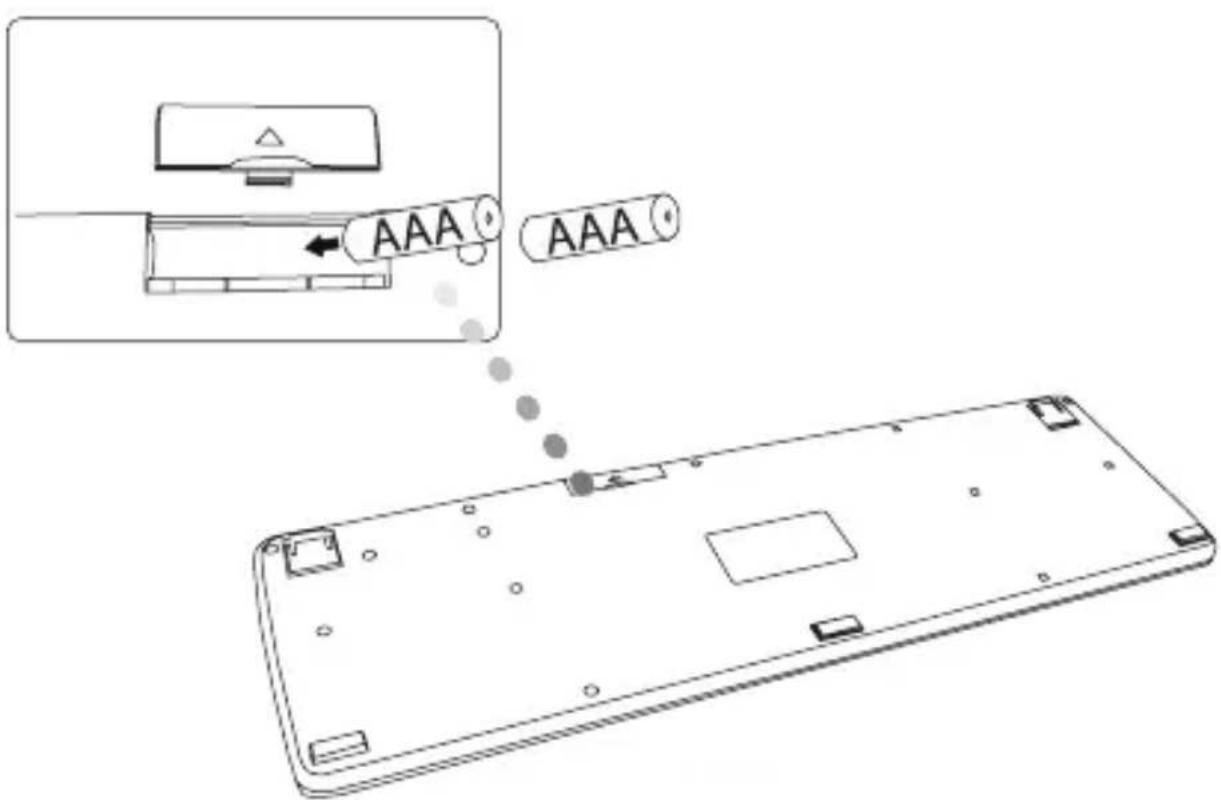
Removing the battery cover
text_image
AAA AAA1 Remove the battery cover located on the bottom of the keyboard.
2 Insert the supplied batteries, making sure that the positive (+) and negative (-) ends of each battery match the polarity indicators inside the battery compartment.
Establishing a Communications Link
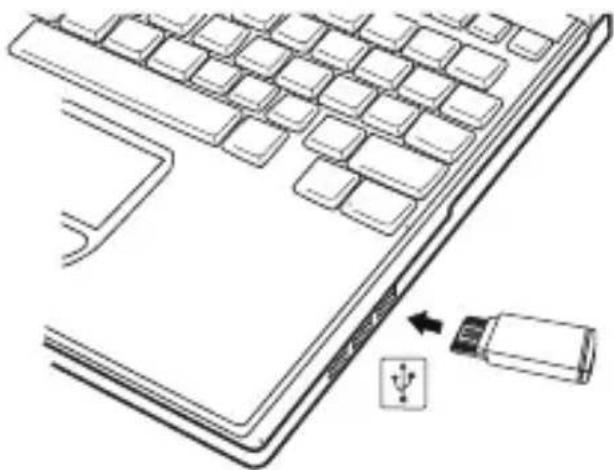
Plug the USB receiver into an available USB port on your computer.
natural_image
Line drawing of a laptop keyboard with an attached USB flash drive (no text or symbols)- Press any key on the keyboard to connect.

NOTE: IT IS RECOMMENDED TO KEEP THE KEYBOARD AT A DISTANCE OF LESS THAN (6 FEET / 2 METERS) TO THE RECEIVER AT THE INITIAL CONNECTION.
Installing the Software driver
The driver can be found on the CD-ROM (included)
or
Download the software driver (Model # AKB24) from the official Targus web site: http://www.targus.com
Save the setup file to your computer and double click on the icon to launch the installation process.

natural_image
Abstract 3D rendering of a white sailboat against a blue sky background (no text or symbols)Autorun.exe
NOTE: THE KEYBOARD CAN WORK WITHOUT INSTALLING THE SOFTWARE DRIVER; HOWEVER, NOT ALL FUNCTIONS WILL BE AVAILABLE.
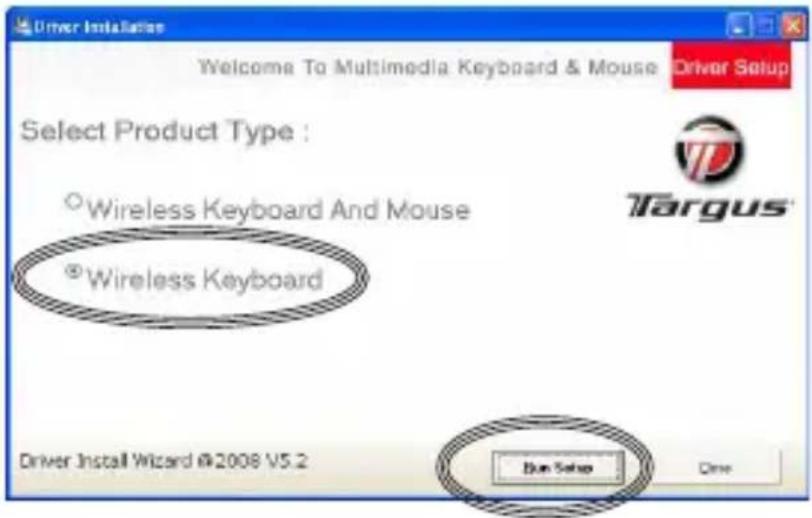
The Installation Wizard window will prompt.
Follow the on-screen instructions to complete the installation.
Choose "Wireless Keyboard" and click "Run Setup"
text_image
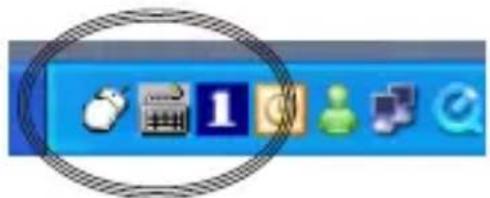
Driver Installation Welcome To Multimedia Keyboard & Mouse Driver Setup Select Product Type : ○ Wireless Keyboard And Mouse ® Wireless Keyboard Driver Install Wizard @2008 V5.2 Run Setup DriveAfter the software driver is successfully installed, new icons will show in the taskbar.
natural_image
Blue toolbar with icons for computer, phone, document, person, and gear (no text or symbols)
Scroll LOCK - ON

CAP-LOCK - ON

Number LOCK - ON
Keyboard Setup

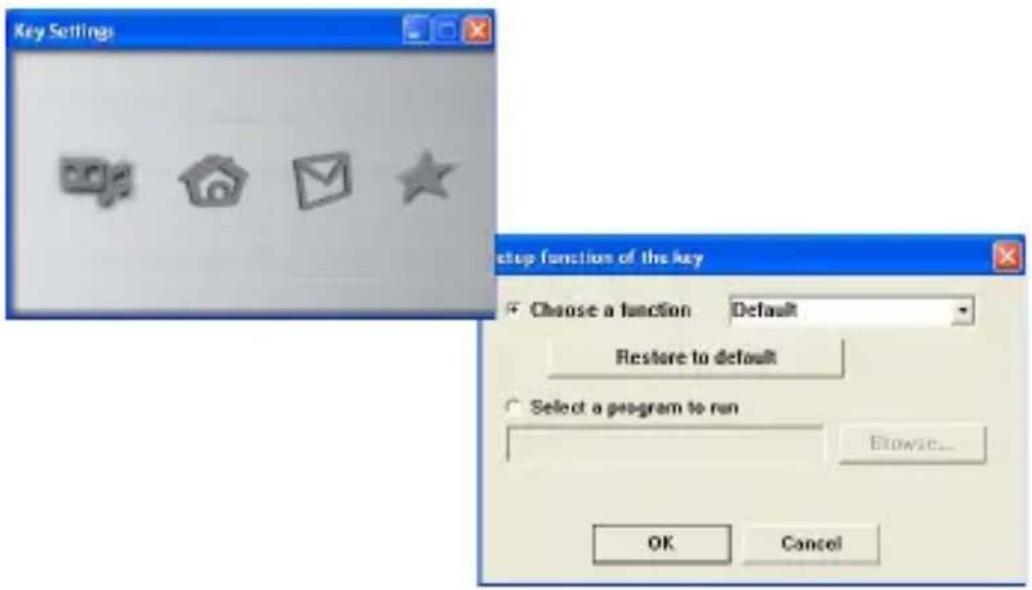
Double click on the "Keyboard Icon" to launch the key configuration screen
text_image
Key Settings Setup function of the key Choose a function Default Restore to default Select a program to run Browse... OK CancelThere are 4 programmable "Hot Keys". Click on the icons to assign the new short-cut function.
Follow the on-screen instructions to setup the short-cut keys.
Using the Hot keys

NOTE: BY DEFAULT, THE HOT KEYS ARE PRESET AS FOLLOWS:
Media keys
| Key Function | ||
 | Launch Default Media Program | |
 | Mute | |
 | Volume Up | |
 | Volume Down | |
 | Play / Pause | |
 | Stop | |
Internet and System keys
| Key Function | |
 | Sleep |
 | Default Internet browser |
 | Default E-mail Program |
 | Favorite |
 | Calculator |
 | My Computer |
Troubleshooting
- Check the receiver connection; try inserting the receiver to another USB port on your computer.
- No connection between the device(s) and the receiver. Re-insert the receiver. Remove and reinstall batteries.
Specifications
| Operation Frequency | 2.4 GHz |
| Operating Distance | Up to 10m |
| Operating Voltage | Keyboard: 3V |
| Receiver: 5V | |
| Operating Current | Keyboard: 3mA maximum |
| Receiver: 30mA maximum | |
| Suspend Mode | Keyboard: Below 300 uA |
| Dimensions | Keyboard: 470 x 147.5 x 22 mm |
| Receiver: 42 x 14.5 x 7 mm | |
| Weight | Keyboard: 70.4g |
| Receiver: 1g |
Technical Support
For technical questions, please visit:
US Internet: www.targus.com/support.asp
Australia Internet: www.targus.com/au
Email: infoaust@targus.com
Telephone: 1800-641-645
New Zealand Telephone: 0800-633-222
Product Registration
Targus recommends that you register your Targus accessory shortly after purchasing it. Go to:
http://www.targus.com/registration.asp.
You will need to provide your full name, email address, country of residence and product information.
Warranty
Targus warrants this product to be free from defects in materials and workmanship for one year. If your Targus accessory is found to be defective within that time, we will promptly repair or replace it. This warranty does not cover accidental damage, wear and tear, or consequential or incidental loss. Under no conditions is Targus liable for loss of, or damage to devices; nor loss of, or damage to, programs, records, or data; nor any consequential or incidental damages, even if Targus has been informed of their possibility. This warranty does not affect your statutory rights.
Regulatory Compliance
This device complies with Part 15 of the FCC Rules. Operation is subject to the following two conditions: (1) This device may not cause harmful interference, and (2) This device must accept any interference received, including interference that may cause undesired operation.
FCC Statement Tested to Comply
This equipment has been tested and found to comply with the limits of a Class B digital device, pursuant to Part 15 of the FCC Rules. These limits are designed to provide reasonable protection against harmful interference in a residential installation. This equipment generates, uses, and can radiate radio frequency energy and if not installed and used in accordance with the instructions, may cause harmful interference to radio communications. However, there is no guarantee that interference will not occur in a particular installation. If this equipment does cause harmful interference to radio or television reception, which can be determined by turning the equipment off and on, the user is encouraged to try to correct the interference by one or more of the following measures:
- Reorient or relocate the receiving antenna;
- Increase the separation between the equipment and receiver;
- Connect the equipment into an outlet on a circuit different from that to which the receiver is connected;
- Consult the dealer or an experienced radio/TV technician for help.
Changes or modifications not authorized by the party responsible for compliance could void the user's authority to operate this product.
Declaration of Conformity
Hereby, Targus, declares that this device is in compliance with the essential requirements and other relevant provisions of Directive 1999/5/EC.
Microsoft, Windows, and Windows Vista are either registered trademarks or trademarks of Microsoft Corporation in the United States and/or other countries. All trademarks and registered trademarks are the property of their respective owners. All rights reserved. Features and specifications are subject to change without notice. © 2008. Targus Group International, Inc. and Targus, Inc., Anaheim, CA 92806 USA
