
AKB33US - Keyboard TARGUS - Free user manual and instructions
Find the device manual for free AKB33US TARGUS in PDF.


| Product Type | Bluetooth Keyboard for Tablets |
| Brand | Targus |
| Model | AKB33US |
| Dimensions (approx.) | 11 x 4.7 x 0.8 inches (28 x 12 x 2 cm) |
| Weight (with batteries) | Approximately 14.1 oz (400 g) |
| Power Source | 2 x AAA batteries (included) |
| Battery Life Indicator | Blinking LED when below 15% charge; auto shutdown below 10% |
| Connectivity | Bluetooth up to 33 ft (10 m) |
| Compatible Operating Systems | Windows 2000/XP/Vista/7, macOS X 10.4+, Android, iOS 4+, HP webOS |
| Connection Method | Bluetooth pairing with PIN code (e.g., 1234) |
| Function Keys | Standard function keys with tablet-specific controls (e.g., Home, Search) |
| Included Accessories | 2x AAA batteries, User Guide |
| Warranty | 1 year limited warranty |
| FCC Compliance | Part 15 compliant; Class B digital device |
| Regulatory | CE, Directive 1999/5/EC |
| Maintenance & Cleaning | Wipe with a soft, dry cloth; avoid liquids |
| Safety Precautions | Do not expose to moisture or extreme temperatures |
| Spare Parts & Repairability | Batteries are user-replaceable; other parts not serviceable |
Frequently Asked Questions - AKB33US TARGUS
User questions about AKB33US TARGUS
0 question about this device. Answer the ones you know or ask your own.
Ask a new question about this device
Download the instructions for your Keyboard in PDF format for free! Find your manual AKB33US - TARGUS and take your electronic device back in hand. On this page are published all the documents necessary for the use of your device. AKB33US by TARGUS.
USER MANUAL AKB33US TARGUS
I YEAR LIMITED WARRANTY: We pride
to be a great deal of our problem. For the time antry, death and a bit of our
Australia 27:00, please call www.longu.com. Features are modifications are applied.
cove wheel nola Novei window x
KONI 503 at 10000
82.10% of Microsoft Corporation in the UK 87.0% of its share, 75% and 65%
of 7 Apr 19, 2015, was also in the U.S. and other
unidizi. Englofia o u rupuzioj kalkasak lava, zhuuqai a. In light. Nora
dome surabio. A zosterato and nigata
Incarious and the property of that owned,
Technical specifications are subject to change actual results. The result is based on the significance of data
since 2014, we will have approved the first of Apple Inc., registered in the U.S. and other provisions. Android
and the Android Robot are incertaro of Google, Inc.
interacts or licenses of Microsoft Corporation in the
(1) 2017, 2018, 2019 (2017), 2018, 2019
10.62.34.18.1.8 Kett, 2015 (Shen) 19(2)
© 2025.8.3 in Jc Unid Stosis e bactuari o the
Shakai and van de koy avvemely (in Baskar).
2013, the project of a 40% project by the P. Bank
property of their respective owners, 62011 Tarpas Group

235
The image is too blurry to recognize any text content.
C
The image is too blurry to recognize any text content.
Q
B
0515
Q10
User Guide
Targus Bluetooth Keyboard for Tablets
Targus Bluetooth Keyboard for Tablets
Introduction
Thank you for your purchase of the Targus Bluetooth Keyboard for Tablets. This keyboard uses Bluetooth technology which provides a seamless connection up to 33 feet (10 m) away. This keyboard is compatible with tablet devices. Its compact size is ideal for portability and travel.
Contents
• Targus Bluetooth Keyboard
-2xAAA Energizer MAX Batteries
-User Guide
System Requirements
Operating System
- Microsoft Windows 2000
• Microsoft Windows® XP
• Microsoft Windows Vista ^®
- Microsoft Windows 7
-MacOS® X 10.4 or later
•Androlo OS
• iOS® or later
-HPwebOS
Installing the Batteries
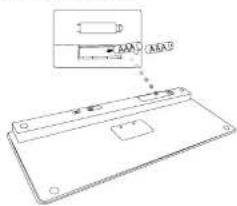
1 Remove the battery cover located on the bottom of the keyboard. 2 Insert the supplied batteries, making sure that the positive (+) and negative (-) ends of each battery match the polarity indicators inside the battery compartment.
Battery Life Indicator
- Battery life indicator will blink twice every second when the power level drops below 15%. Replace the batteries as soon as possible. - Keyboard will shutdown when power level is below 10%.
Targus Bluetooth Keyboard for Tablets
Bluetooth Connection: iPad
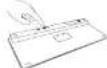
- Turn on the keyboard by sliding the power button to the ON position.
-
Turn 10 instructions shown on a computer PiD, Top 1/Bluetooth®
-
Tap Settings and choose General on your iPad. Tap Bluetooth and switch ON the Bluetooth function of your device.

-
Press the Connect button on the back of your Targus Bluetooth Keyboard to enable discovery mode. The low power indicator light will flash blue when the keyboards in discovery mode.
-
Once the Bluetooth Keyboard is listed as a found device in the Bluetooth menu on the iPad, Japan on the name and you will be prompted to enter a PIN code as shown.
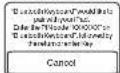
- Enter the PINcode shown on the pop-up message, followed by the enter
Koy.
- After pairing, the iPad will show the status "Connected".
- Bluetooth Keyboard is now connected with your tablet device and the blue light will stop flashing
Targus Bluetooth Keyboard for Tablets
Bluetooth Connection: Windows
-
Go to the Bluetooth Places icon located on your desktop or in the system tray and double click, then click Add a Bluetooth Device.
-
The Bluetooth Wizard screen will appear. Please follow the onscreen instructions.
-
Power on the keyboard and it will automatically go into discovery mode. Click Next to continue pairing and the computer will search for the keyboard.
-
The confirmation window will appear after the computer finishes detecting the Bluetooth devices. Select the Bluetooth Keyboard and click Next to continue. (There may be more than one Bluetooth device detected) If the keyboard is not detected, please make sure the power is on and it is in discovery mode. Press Search Again to re-pair the device.
-
After selecting the correct device, the computer will finish establishing the connection. Please wait until the setup is completed.

The function keys on the keyboard may operate differently depending on the tablet that you are using
Targus Bluetooth Keyboard for Tablets
Targus Bluetooth Keyboard for Tablets
Bluetooth Connection: Mac
- Go to the Bluetooth icon located on your desktop or in the system bar and click the icon to begin setup. Select "Turn Bluetooth On" to activate the Bluetooth function on your Mac.
- Scroll down the list and select "Setup-Bluetooth Device..."
- The Bluetooth Setup Assistant will begin. Please follow the on-screen instructions.
- Select "keyboard" and click continue to proceed with setup. Your keyboard will need to be in "discovery" mode to connect.
- Press the Connect button on the back of your Targus Bluetooth Keyboard to enable discovery mode. The low power indicator light will flash blue when the keyboard is in discovery mode.
- Your computer will begin to search for the keyboard. Once the keyboard is found, it will show up in the list. Highlight "Bluetooth Keyboard" and press continue.
- The Bluetooth keyboard will now begin pairing. Click continue to proceed.
- Congratulations. Your Bluetooth keyboard is setup and ready to use. You can choose to set up another device or click Quit to exit setup.
Bluetooth Connection: HP Touchpad
- Open the Bluetooth Manager on the Touchpad.
- Tap "Add Device".
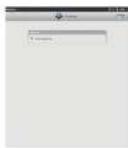
- Change the type of device to "Keyboard" to begin the searching mode.
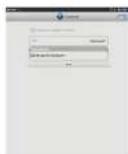
Targus Bluetooth Keyboard for Tablets
- Press the "Connect" button on the back of the Targus Bluetooth Keyboard.
- When the Touchpad prompts for a passkey, enter 1234 and tap "Next".
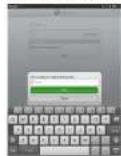
- On the Targus Bluetooth Keyboard type 1234 and press "Enter".
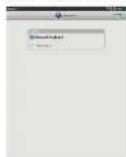
- Congratulations. Your Bluetooth Keyboard is setup and ready to use.
Targus Bluetooth Keyboard for Tablets
Technical Support
For technical questions, please visit
US Internet: www.largus.com/support.asp
Australia Internet: www.largus.com.au
Email: https://orgluk.com
New Zealand Telephone: 0800-633-222
Product Registration
Targus recommends that you register your Targus accessory shortly after purchasing
II. Go to
http://www.bargus.com/registration.asp
You will need to provide your full name, email address, country of residence and product information.
Warranty
Targus warrants this product to be free from contracts in materials and workmanship for one year. If your Targus accessory is found to be defective within that time, we will promptly repair or replace it. This warranty does not cover accidental damage, wear and tear, or consequential or incidental losses. Under no conditions is Targus liable for loss of, or damage to, nor loss of, or damage to, programs, records, or date nor any consequential or incidental damages, even if Targus has been informed of their possibility. This warranty does not effect your statutory rights.
Regulatory Compliance
This device complies with Part 15 of the FCC Rules. Operation is subject to the following two conditions: (1) This device may not cause hermitic interference, and (2) This device must accept any interference received, including interference that may cause undesired operation.
Targus Bluetooth Keyboard for Tablets
FCC Statement
Tested to Comply
This equipment has been tested and found to comply with the limits of a Class B digital device, pursuant to Part 15 of the FCC Rules. These limits are designed to provide reasonable protection against harmful interference in a residential installation. This equipment generates, uses, and can radiate radio frequency energy and if not installed and used in accordance with the instructions, may cause harmful interference to radio communications. However, there is no guarantee that interference will not occur in a particular installation. If this equipment does cause harmful interference to radio or television reception, which can be determined by turning the equipment off and on, the user is encouraged to try to correct the interference by one or more of the following measures:
- Increase the separation between the equipment and receiver;
- Connect the equipment into an outlet on a circuit different from that to which the reservoir is contracted;
- Consult the dealer or an experienced radio/TV technician for help.
Changes or modifications not authorized by the party responsible for compliance could void the user's authority to operate this product.
Compliance with 21 CFR 1040.10 and 1040.11 except for deviations pursuant to Laser Notice No. 50, dated June 24, 2007
Declaration of Conformity
Heraby, Targus, declares that this device is in compliance with the essential requirements and other relevant provisions of Directive 1999/5/EC.

- User Guide
- Introduction
- Contents
- System Requirements
- Installing the Batteries
- Battery Life Indicator
- Bluetooth Connection: iPad
- Bluetooth Connection: Windows
- Bluetooth Connection: Mac
- Bluetooth Connection: HP Touchpad
- Technical Support
- Product Registration
- Warranty
- Regulatory Compliance
- FCC Statement
- Tested to Comply
- Declaration of Conformity
Brand : TARGUS
Model : AKB33US
Category : Keyboard