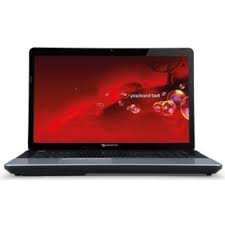
MAESTRO 230 - Laptop PACKARD BELL - Free user manual and instructions
Find the device manual for free MAESTRO 230 PACKARD BELL in PDF.



| Product Type | Laptop |
| Brand | Packard Bell |
| Model | MAESTRO 230 |
| Screen Size | 23 inches (58 cm) diagonal |
| Screen Technology | LCD TFT (active matrix) |
| Maximum Resolution | 1920 x 1080 pixels at 60 Hz |
| Response Time | 5 ms |
| Static Contrast | 1000:1 |
| Dynamic Contrast (DCR) | 12 000 000:1 |
| Brightness | 250 cd/m² |
| Power Supply | 19 V == 2.1 A |
| Power Consumption (Operating) | < 33 W |
| Power Consumption (Standby) | < 1 W |
| Video Connectors | VGA, DVI (optional), HDMI (optional) |
| Plug & Play | DDC1/2B |
| Safety Standards | CE, CB, Energy Star, MPRII, TUV-Buart, ISO 9241-307 |
| Maintenance | Clean with a soft cloth, avoid liquids |
| Safety Precautions | Do not expose to moisture, do not open the cover, unplug if damaged |
| Environment | Suitable temperature and humidity, good ventilation |
| Recycling | Compliant with WEEE directive (2002/96/EC) |
Frequently Asked Questions - MAESTRO 230 PACKARD BELL
User questions about MAESTRO 230 PACKARD BELL
0 question about this device. Answer the ones you know or ask your own.
Ask a new question about this device
Download the instructions for your Laptop in PDF format for free! Find your manual MAESTRO 230 - PACKARD BELL and take your electronic device back in hand. On this page are published all the documents necessary for the use of your device. MAESTRO 230 by PACKARD BELL.
USER MANUAL MAESTRO 230 PACKARD BELL
Items reproduced are for illustration purposes only. Pictures are not contractual. The characteristics of this product are subject to change without notice.
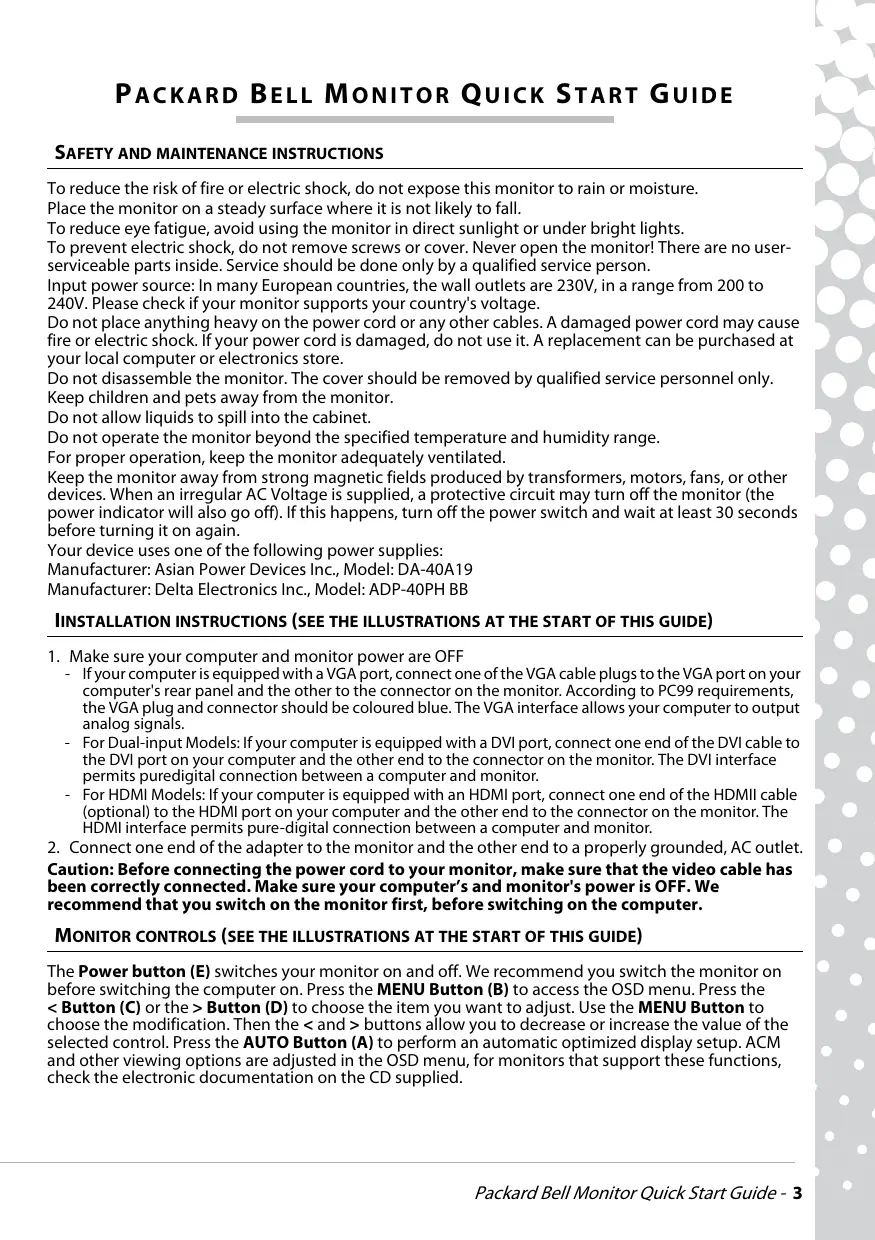
To reduce the risk of fire or electric shock, do not expose this monitor to rain or moisture.
Place the monitor on a steady surface where it is not likely to fall.
To reduce eye fatigue, avoid using the monitor in direct sunlight or under bright lights.
To prevent electric shock, do not remove screws or cover. Never open the monitor! There are no user-serviceable parts inside. Service should be done only by a qualified service person.
Input power source: In many European countries, the wall outlets are 230V, in a range from 200 to 240V. Please check if your monitor supports your country's voltage.
Do not place anything heavy on the power cord or any other cables. A damaged power cord may cause fire or electric shock. If your power cord is damaged, do not use it. A replacement can be purchased at your local computer or electronics store.
Do not disassemble the monitor. The cover should be removed by qualified service personnel only.
Keep children and pets away from the monitor.
Do not allow liquids to spill into the cabinet.
Do not operate the monitor beyond the specified temperature and humidity range.
For proper operation, keep the monitor adequately ventilated.
Keep the monitor away from strong magnetic fields produced by transformers, motors, fans, or other devices. When an irregular AC Voltage is supplied, a protective circuit may turn off the monitor (the power indicator will also go off). If this happens, turn off the power switch and wait at least 30 seconds before turning it on again.
Your device uses one of the following power supplies:
Manufacturer: Asian Power Devices Inc., Model: DA-40A19
Manufacturer: Delta Electronics Inc., Model: ADP-40PH BB
INSTALLATION INSTRUCTIONS (SEE THE ILLUSTRATIONS AT THE START OF THIS GUIDE)
-
Make sure your computer and monitor power are OFF
-
If your computer is equipped with a VGA port, connect one of the VGA cable plugs to the VGA port on your computer's rear panel and the other to the connector on the monitor. According to PC99 requirements, the VGA plug and connector should be coloured blue. The VGA interface allows your computer to output analog signals.
- For Dual-input Models: If your computer is equipped with a DVI port, connect one end of the DVI cable to the DVI port on your computer and the other end to the connector on the monitor. The DVI interface permits puredigital connection between a computer and monitor.
-
For HDMI Models: If your computer is equipped with an HDMI port, connect one end of the HDMI cable (optional) to the HDMI port on your computer and the other end to the connector on the monitor. The HDMI interface permits pure-digital connection between a computer and monitor.
-
Connect one end of the adapter to the monitor and the other end to a properly grounded, AC outlet.
Caution: Before connecting the power cord to your monitor, make sure that the video cable has been correctly connected. Make sure your computer's and monitor's power is OFF. We recommend that you switch on the monitor first, before switching on the computer.
MONITOR CONTROLS (SEE THE ILLUSTRATIONS AT THE START OF THIS GUIDE)
The Power button (E) switches your monitor on and off. We recommend you switch the monitor on before switching the computer on. Press the MENU Button (B) to access the OSD menu. Press the
FURTHER INFORMATION
For further information, a fully comprehensive guide is available from the Packard Bell InfoCentre or on the Internet from the support section of the Packard Bell website at www.packardbell.com Available for monitors purchased as part of a complete Packard Bell computer system only.
DRIVERS
Under normal circumstances your computer will be equipped with the necessary drivers for the Packard Bell monitor. However if your computer does not already have these drivers you may download them from the support section of the Packard Bell website at www.packardbell.com
TROUBLE SHOOTING
Immediately unplug the monitor from the wall outlet and refer servicing to qualified service personnel under the following conditions:
If the power supply cord or plug is damaged
If liquid has been spilled or objects have fallen into the monitor
If the monitor has been exposed to rain or water
If the monitor has been dropped or the cabinet is damaged
Before you call a Packard Bell Authorized Service Provider, please check the following items:
I have no picture and the power indicator is not lit.
Check if the AC Power Cord is plugged in correctly on both ends and the power switch is on.
Check if the signal cable is plugged correctly into the computer and if the cable is not damaged.
I have no picture and the power indicator is lit.
Your computer may be in Power Down or Sleep mode. This is a temporary status in which your computer and monitor reduce power consumption. Try moving the mouse a little bit, or press the space key on your keyboard and wait for a few seconds.
It is also possible that the Brightness of your monitor has been set too high or too low.
Check if you are using a display mode that is supported by the monitor.
Turn the monitor off and back on to see if this resolves the problem.
Make sure that the computer is switched on.
The image is unstable.
Isolate and eliminate nearby sources of electric or magnetic fields.
Set your computer to a supported video mode; see the documentation included on the supplied CD for more information.
Try plugging the monitor into a different, earthed, power outlet, preferably on a different circuit.
Check the display settings of your computer. Make sure that a supported mode is selected.
The message "Check Cable" appears on the screen.
Make sure that the analogue video cable is correctly plugged into the Analogue Video port on the back of the monitor.
Make sure that the other end is correctly plugged into the VGA connector of your computer.
PRODUCT DISPOSAL

The 2002/96/EC Directive, known as Waste Electrical and Electronic Equipment (WEEE) Directive, requires that used electrical and electronic products must be disposed of separately from normal household waste in order to promote reuse, recycling and other forms of recovery and to reduce the quantity of waste to be eliminated with a view to reducing landfill and incineration.
The crossed-out dustbin logo is there to remind you that these products must be sorted separately for disposal. These rules concern all your Packard Bell products (computer, monitor, GPS, MP3 player, external hard drive) and also all accessories, such as keyboard, mouse, speakers, remote control, etc.
When you have to dispose of such products, make sure that they are correctly recycled by checking with your local authority, or by returning the old equipment to your retailer when you replace it.
For information, visit
http://www.acer-group.com/public/Sustainability/sustainability01.htm
http://www.acer-group.com/public/Sustainability/sustainability04.htm
This product, with the CE marking, complies with the:
- Electromagnetic Compatibility Directive 2004/108/EC
- Low Voltage Directive 2006/95/EC
- RoHS Directive 2002/95/EC
Directive 2009/125/EC with regard to establishing a framework for the setting of ecodesign requirement for energy-related product.
For specific information regarding the European Standards this product complies with, please refer to your electronic user's guide.
PACKAGING
The packaging of this product complies with the:
- Packaging and packaging waste Directive 94/62/EC
Maestro 230 LED HD MONITOR SPECIFICATION
| Input voltage | 19V==2.1A |
| Picture | 23" (58cm) viewable (diagonal) |
| Display | Active matrix, Thin Film Transistor (TFT), Liquid Crystal Display (LCD) |
| Maximum resolution | 1920x1080 at 60Hz |
| Input sign | Analogue RGB positive 0.7Vp-p, 75 Ohm, separate and composite TTL level sync signals, through 15-pin D-sub connector • Digital (DVI): 24-pin DVI with HDCP support (option) • HDMI with HDCP support (option) |
| Response time | 5 msec |
| Power consumption | Normal operation: < 33W Sleep mode: < 1 W Off: < 1 W |
| Contrast | 1000 :1 |
| DCR | 12,000,000:1 (dynamic) |
| Brightness | 250 cd/m2 |
| Plug & Play | According to DDC1/2B (Display Data Channel 1/2B) protocol |
| Safety & EMC | Complies to: MPRII, TUV-Buart, ISO 9241-307, CE, CB, Energy Star |
GUIDE DE PRESE EN MAIN DU MONITEUR PACKARD BELL
INSTRUCTIONS DE SECURITE ET DE MAINTENANCE
http://www.acer-group.com/public/Sustainability/sustainability01.htm
http://www.acer-group.com/public/Sustainability/sustainability04.htm
CONFORMITA CE
http://www.acer-group.com/public/Sustainability/sustainability01.htm
http://www.acer-group.com/public/Sustainability/sustainability04.htm
CE-KOMPATIBILITÄT
http://www.acer-group.com/public/Sustainability/sustainability01.htm
http://www.acer-group.com/public/Sustainability/sustainability04.htm
VOLDOET AAN CE
Produce: Asian Power Devices Inc., Model: DA-40A19
Producent: Delta Electronics Inc., Model: ADP-40PH BB
INSTALLATIONSVEJLEDNING (SE ILLUSTRATIONERNE I STARTEN AF DENNE VEJLEDNING)
Directive 2009/125/EC with regard to establishing a framework for the setting of ecodesign requirement for energy-related product.
Specifik information om de europeiska standarderna somenna produit uppyller finns i den elektroniska anvandarhandboken.
FORPACKING
Emballaget fordenna Produkt uppfyller kraven i:
Under normal circumstances your computer will be equipped with the necessary drivers for the Packard Bell monitor. However if your computer does not already have these drivers you may download them from the support section of the Packard Bell website at www.packardbell.com
Para mais informações, visite http://www.acer-group.com/public/Sustainability/sustainability01.htm http://www.acer-group.com/public/Sustainability/sustainability04.htm
CONFORMIDADE CE
Este produit com a marca CE está em conformidade com:
- Directiva sobre Competibilidade Electromagnética 2004/108/CE
- Directa de Baixa Tensao 2006/95/CE
- Directa RoHS 2002/95/CE
OaHRIeI NEPI AzAAnEIAKAI SYNTHPHEHE
Ia va o KivduvoC Tpoknonc Tupkayiac n NktpoTnEia, mV EKtETe Tnv Oovn autn otN Bpox n Tnv upaia.
TOnToTeTnV Oboyn TavwOe Otaepn EtniPaveia, Otnv Otoia 0uApXei KivDuvoc TTwns Tns.
Tia va Tpiepiopiot e n katatovn an twv maivw oac, attofpuyte va xpnoiotoeite tnv oovn katw atto to ae so naikoc 0e ouvthke duvatou wtiou.
Under normal circumstances your computer will be equipped with the necessary drivers for the Packard Bell monitor. However if your computer does not already have these drivers you may download them from the support section of the Packard Bell website at www.packardbell.com
ANTIMETΩΠΕH ΠPOBAHMATΩN
ByaTe aouos TnV oovn ato TnV piaKa avaote Tnv EIOKEUn OE EeiokeuEvo TExvko TPOOWTIKO,OTi AkolouEs TEPIITWoei:
Eav to kaawio pEuupato n To Qic Tou eivai kateopapuévo
:aylllalllllllllllllllllllllllllllllllllllllllllllllllllllllllllllllllllllllllllllllllllllllllllllllllllllllllllllllllllllllllllll
ailll lalolll 00000000
aaiiie 1
1
C. · 都是零, · s 只是正, · s 只是负
a 1
aai jbi jbi jbi jbi jbi jbi jbi jbi jbi jbi jbi jbi jbi jbi jbi jbi jbi jbi jbi jbi jbi jbi jbi jbi jbi jbi jbi jbi jbi jbi jbi jbi jbi jbi jbi jbi jbi jbi jbi jbi jbi jbi jbi jbi jbi jbi jbi jbi jbi jbi j bi
.
gshll a jnaii iagll jiaisip j gall g s iup g l aioaie aall e g hss
A
Aikaiill yjlll jil 1p aie jaei lssy gaoe i aaiill Jue
jssll jss
a
aaii iip aiee aiee eae eae eae eae eae eae eae eae eae eae eae eae eae eae eae eae eae eae eae eae eae eae eae eae eae eae eae eae eae eae eae eae eae eae eae eae eae eae eae eae eae
g 1234567890
joll jiaiail
A. "Check Cable"
a 1
yVGA 1
iiill u walsill
a 2002/96/EC
Jie Jiai, Kiyu Yi, Xiaodai, Yi, Ji, Li, Y, Li, Li, Li, Li, Li, Li, Li, Li, Li, Li, Li, Li, Li, Li, Li, Li, Li, Li, Li, Li, Li, Li, Li, Li, Li, Li, Li, Li, Li, Li, Li, Li, Li, Li, Li, Li, Li, Li, Li, Li, Li, Li, Li, Li, Li, Li, Li, Li, Li, Li, L
i 1
yip 1i jie i jie jie jie jie jie jie jie jie jie jie jie jie jie jie jie jie jie jie jie jie jie jie jie jie jie jie jie jie jie jie jie jie jie jie jie jie jie jie jie jie
cslslllg 1
Jiai jai kui ci iialo gao gao yjai jai jai jai jai jai jai jai jai jai jai jai jai jai jai jai jai jai jai jai jai jai jai jai jai jai jai jai jai jai jai jai jai jai jai jai jai jai jai jai jai jai jai jai jai jai jai jai jai jai jai
e j 1) Packard Bell 1j 10000000000000000000000000000000000000000000
Calealllgssallglslalllg 111111111111111111111111111111111111111111
http://www.acer-group.com/public/Sustainability/sustainability01.htm
http://www.acer-group.com/public/Sustainability/sustainability04.htm
a 1
a a a a a a a a a a a a a a a a a a a a a
2004/108/EC.
2006/95/EC aiaiiaaiiaaiiaaiiaai
(RoHS) 2002/95/EC
ailllll llll llll llll llll llll 2009/125/EC4
aalall cllllall
Maestro 230 LED HD
Producent: Asian Power Devices Inc., Model: DA-40A19
Produce: Delta Electronics Inc., Model: ADP-40PH BB
Informação tlatogassa meg az alabbi cimeket http://www.acer-group.com/public/Sustainability/sustainability01.htm http://www.acer-group.com/public/Sustainability/sustainability04.htm
CE MEGFELELES
Vyrobce: Asian Power Devices Inc., Model: DA-40A19
Vyrobce: Manufacturer: Delta Electronics Inc., Model: ADP-40PH BB
POKNY PRO INSTALLACI (VIZ OBRAZKY NA ZACATKU TÉTO PRIRUCKY)
http://www.acer-group.com/public/Sustainability/sustainability01.htm
http://www.acer-group.com/public/Sustainability/sustainability04.htm
Vyrobca: Asian Power Devices Inc., Model: DA-40A19.
Vyrobca: Delta Electronics Inc., Model: ADP-40PH BB.
POKNY NA INSTALÁCIU (POZRITE SI OBRÁZKY NA ZACIATKU TOHTO NÁVODU)
-
Presvedčte sa,Že počitač a monitor sú VYPNUTE.
-
Pokial je vás počítač vybavený portom VGA, pripoje jeder koniec kábla VGA k portu VGA na zadnom paneli počítača a druhy ku konektoru monitora. Podla požiadaviek PC99, zástrčka a konektor VGA by mali byt' oznacné modrou farbou. Rozhranie VGA umozhůje počítaču vysielat' analogógové signály.
- Modely iba s dualnym vystupom: Pokial je vás počitačy vybavený portom DVI, pripoje jedem koniec DVI kábla k portu DVI na počitača a druhý koniekuc ku konektoru na monitore. Rozhranie DVI umožnjučesto digitálné prepojenie medzi počitačom a monitorom.
-
Modely's HDMI: Pokial' je vás počítač vybavený portom HDMI, pripoje jedem koniec HDMI kábla (volitefný) k portu HDMI na počítači a druhý koniec ku konektoru na monitore. Rozhranie HDMI umoznjuce c Isto digitalne prepojenie medzi počítačom a monitorom.
-
Pripojte jeder koniec adaptera k monitoru a druhý koniec k správné uzemnenej zásuvke privodu striedavého prúdu.
Ecnn n3o6paXeHne OTCyTCTByeT, INNdkaTOP NtAHH He CBETNTc:
COOTBETCTBNE TPEBOAHmCE
Данhoeизделс Маркіровков СЕ COOTBETCTByeT:
-Директуве 2004/108/EC ob злесьгоманншою COBmecTUMOCTN;
-Директува2006/95/ECоннковьтHomоборудован;
-ДиpeктNBe 2004/108/EC o6 эл ektpomarHnTHoN COBmecTmOCTn;
-Директува2006/95/ECоннзковьтHomоборудан;
-Ди配电TиBa 2002/95/EC o6 orpaHnueHn nCNoJb3OBAHnЯ ONaChbIX BeIeCTB.
-Директibe 2009/125/ECВ OTHOшЕнИОprанH3aцINСИCTeMbI Tpe6oBaHnK 3KOKONUYeCKOMY
пpoEkTIPOBaHnIO pOduyKUn, CB7aHnOHc C 3HeprOInOTpe6JIeHnEM.
Bolnee noDpo6Hyo HnΦopMaunO eBponecknx cTaNdapTx, KOtOpbIM COOTBeCTByeT daHHeu3deIne, Bby moKete haHTN B BaWeM 3NeKToPHHom cnpaBOHHke nOJIb3OBaTeIy.
YnaKOBka
Ynakobka HactoIeero I3dEInna COOTBcTCTByeT:
-ДиpeктNBe 94/62/EC o5 ynaKOBKe n ynaKOBOHybIX OTxOdaX.
Maestro 230 LED HD MONITOR SPECIFICATION