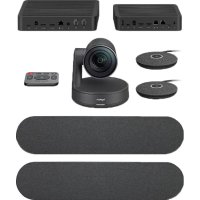
Rally Plus - Video conferencing system LOGITECH - Free user manual and instructions
Find the device manual for free Rally Plus LOGITECH in PDF.



| Product type | Video conferencing system for meeting rooms |
| Brand | Logitech |
| Model | Rally Plus |
| Camera dimensions | 190 x 152 x 187 mm |
| Speaker dimensions | 186 x 186 x 90 mm |
| Camera weight | 1.74 kg |
| Speaker weight | 1.2 kg |
| Power supply | 100-240 V AC, 50/60 Hz (via power adapter) |
| Power consumption | 30 W max |
| Video resolution | 4K Ultra HD (3840x2160) at 30 fps |
| Field of view | 90° (diagonal) |
| Built-in microphone | Yes, far-field sensors |
| Microphone range | Up to 6 m |
| Connectivity | USB-C, HDMI, Bluetooth 5.0 |
| Remote control | Yes, with zoom, volume, mute, presets control |
| Camera functions | Motorized Pan/Tilt/Zoom, presets, automatic tracking |
| Audio functions | Echo cancellation, noise reduction, spatial filtering |
| Included accessories | Display hub, table hub, cables, remote control |
| Expansion options | Additional audio modules (up to 7), wall mount kit, TV mount, audio module hub |
| Maintenance and cleaning | Wipe with a soft, dry cloth. Do not use abrasive products or liquids. |
| Security | Kensington security slot (camera, display hub, table hub) |
| Spare parts and repairability | Contact Logitech support for spare parts. |
| General information | 2-year warranty, compatible with Zoom, Teams, etc. Manual downloadable at logitech.com/support/Rally |
Frequently Asked Questions - Rally Plus LOGITECH
User questions about Rally Plus LOGITECH
0 question about this device. Answer the ones you know or ask your own.
Ask a new question about this device
Download the instructions for your Video conferencing system in PDF format for free! Find your manual Rally Plus - LOGITECH and take your electronic device back in hand. On this page are published all the documents necessary for the use of your device. Rally Plus by LOGITECH.
USER MANUAL Rally Plus LOGITECH
natural_image
Line drawing of a portable electronic device connected to two speakers and a control panel (no text or symbols)logitech®
English 3
Deutsch .....10
Français ..... 17
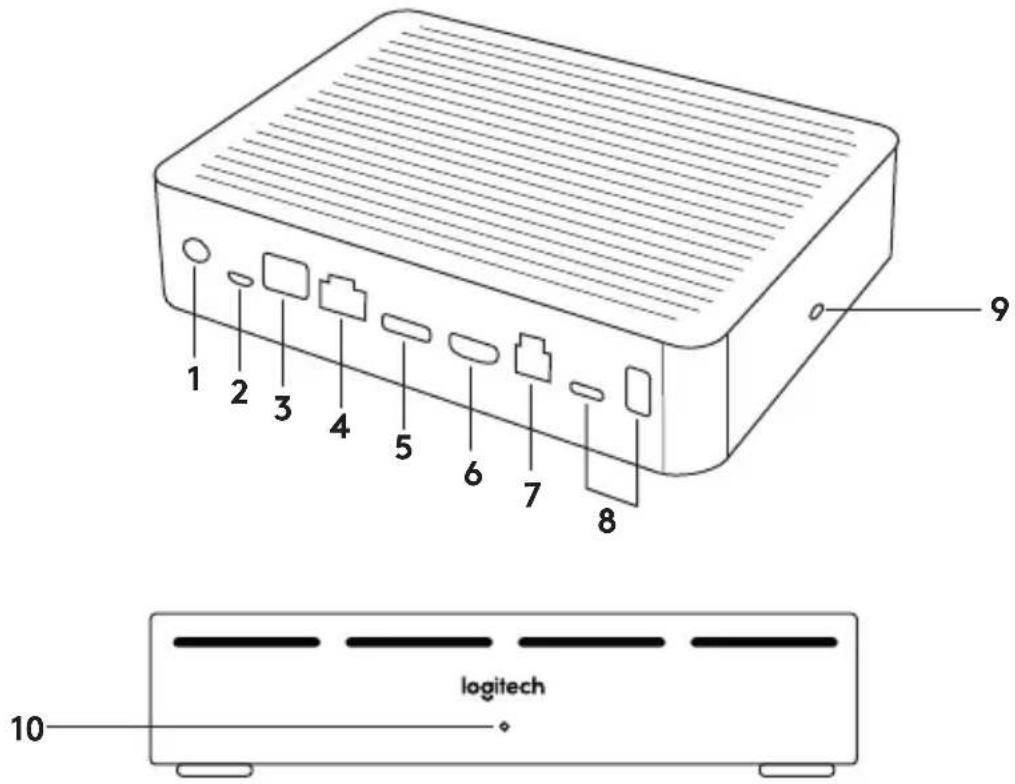
- Remote control pairing button
- USB
-
Status LED
-
Security slot
- MIPI
- Tripod Thread
- Expansion Slot
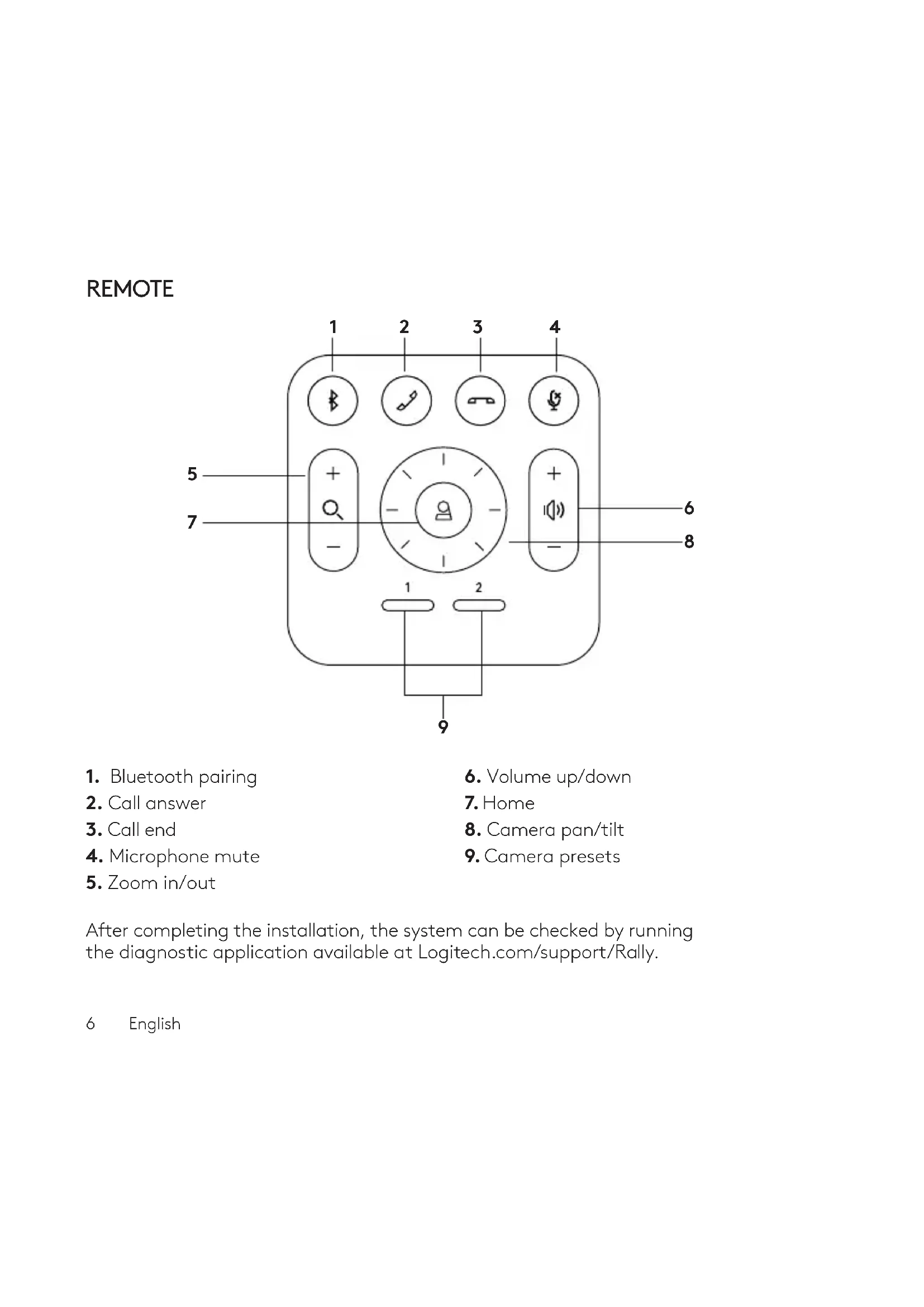
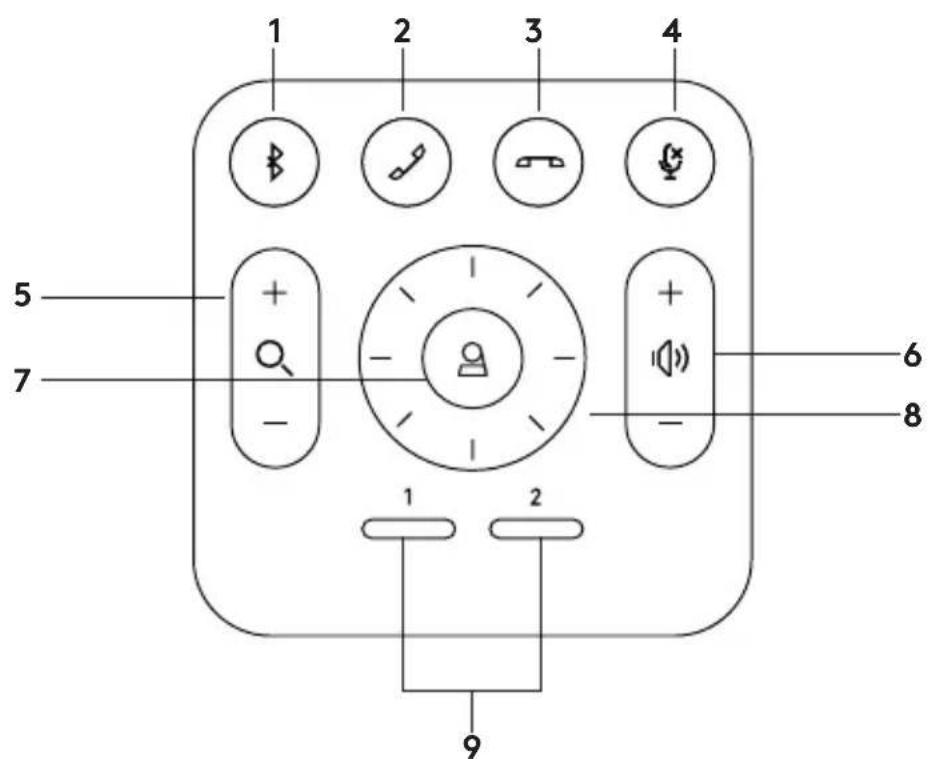
REMOTE
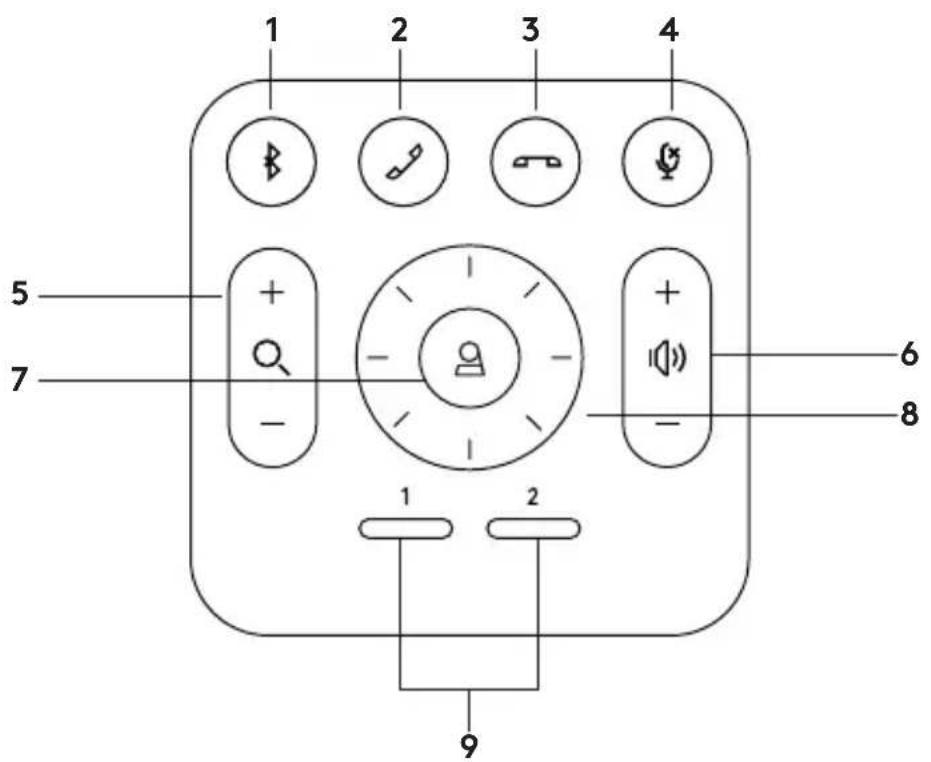
- Bluetooth pairing
- Call answer
- Call end
- Microphone mute
-
Zoom in/out
-
Volume up/down
- Home
- Camera pan/tilt
- Camera presets
After completing the installation, the system can be checked by running the diagnostic application available at Logitech.com/support/Rally.
MAKE RALLY PLUS THE DEFAULT DEVICE
Ensure that R ALLY PLUS is chosen as the camera, speaker and microphone in your video conferencing applications. Please consult the application documentation for further instructions on how to do this.
STARTING A VIDEO CALL
After installing RALLY PLUS and ensuring it is the default device in your video conferencing application, simply start the application in the normal manner and enjoy the benefits of improved audio and video.
PAIRING RALLY PLUS TO A BLUETOOTH DEVICE
You can use RALLY PLUS for audio calls when paired to a Bluetooth device. To pair your Bluetooth device to RALLY PLUS, follow these simple step:
-
Press and hold the Bluetooth button on the remote control until you see a flashing blue light on the camera and microphones.
-
Place your mobile device in Bluetooth pairing mode and select "Logitech Rally".
-
You are now ready to use RALLY PLUS for audio calls.
PAIRING A REMOTE CONTROL TO RALLY PLUS
RALLY PLUS and the remote control are paired at the factory. You can pair up to 5 remote controls to RALLY PLUS to make it easier to control the system in larger rooms. Or, if you need to pair a remote to the camera, such as when replacing a lost remote, do the following:
- Press and hold the button on the camera until the LED flashes.
- Press and hold the button on the Display Hub until the LED flashes.
- Press and hold the Bluetooth button on the remote control until the LEDs on both the camera and Display Hub stop flashing.
- If the pairing fails, repeat from step 1.
CAMERA SETTINGS APPLICATION
Use this program to control the camera pan, tilt, zoom, focus, and image quality (like brightness and contrast) from your computer. The software can be downloaded from www.logitech.com/support/Rally.
ENHANCING RALLY
There are several optional accessories that ease installation and allow RALLY PLUS to be used in larger rooms:
- Rally Mounting Kit: Mounting brackets for the Table Hub, Display Hub, Camera and Speakers.
- Extra Mic Pods: RALLY PLUS can support up to 7 Mic Pods allowing great flexibility in room size and configuration.
- Mic Pod Hub: Used to branch microphone routing and run most of the Mic Pod cabling is below the table. The Mic Pod Hub has 3 jacks that can be connected to a combination of Mic Pods or other Mic Pod Hubs.
- TV mount: Works with one of either the Camera or Speaker mounting brackets. The TV Mount can be used in pairs to mount the Camera and Speaker above and below the TV.
FOR MORE INFORMATION
You can find additional information on RALLY PLUS including:
-FAQs
- Software to enable functions in various application
- How to order replacement parts and more at
www.logitech.com/support/Rally
WAS IST WAS
TISCH-HUB
VOOR MEER INFORMATIE
- Fjärrstyrd parningskontrollknapp
- USB
-
Statusindikatorlampa
-
Säkerhetslucka
- MIPI
- Stativgänga
- Expansionslucka
FJÄRRKONTROLL
- Dugme za uparivanje daljinskog upravljača
- USB
-
LED indikator za status
-
Bezbednosni otvor
- MIPI
- Kačenje na stativ
- Priključak za proširenje
DALJINSKI UPRAVLJAČ
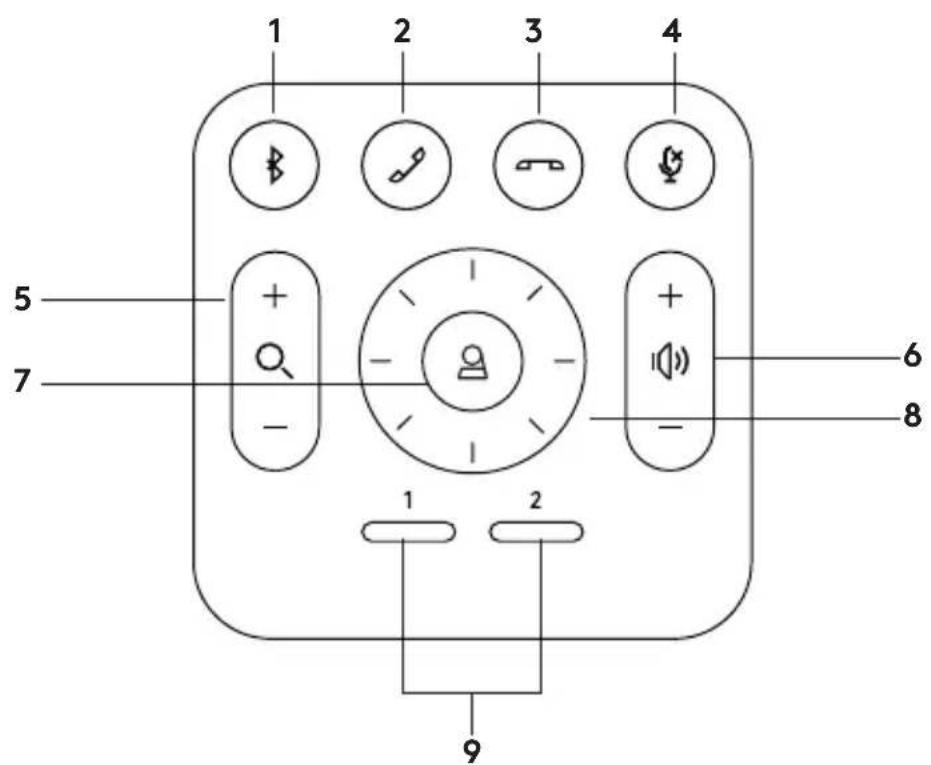
- Bluetooth uparivanje
- Odgovaranje na poziv
- Prekidanje poziva
- Isključivanje mikrofona
-
Uvećavanje/umanjivanje
-
Povećavanje/smanjivanje jačine zvuka
- Funkcija tastera Home
- Horizontalno/vertikalno pomeranje kamere
- Početne postavke kamere
Po završetku instalacije, sistem je moguće proveriti pokretanjem dijagnostičke aplikacije dostupne na adresi Logitech.com/support/Rally.
POSTAVITE RALLY PLUS KAO PODRAZUMEVANI UREĐAJ
Proverite da li je RALLY PLUS odabran kao kamera, zvučnik i mikrofon u aplikacijama za video konferencije. Pogledajte dokumentaciju aplikacije za dodatna uputstva u vezi sa ovim.
POKRETANJE VIDEO POZIVA
Nakon što instalirate RALLY PLUS i proverite da li je podrazumevani uređaj u aplikaciji za video konferencije, samo pokrenite aplikaciju na uobičajeni način i uživajte u prednostima poboljšanog zvuka i video.
UPARIVANJE RALLY PLUS SA BLUETOOTH UREĐAJEM
PENTRU MAI MULTE INFORMATII
V-R0010 TRA / TA-R/8109/19
© 2020 Logitech, Logi and the Logitech Logo are trademarks or registered trademarks of Logitech Europe S.A. and/or its a liates in the U.S. and other countries. All other trademarks are the property of their respective owners. Logitech assumes no responsibility for any errors that may appear in this manual. Information contained herein is subject to change without notice.
WEB-621-001783.002
- REMOTE
- MAKE RALLY PLUS THE DEFAULT DEVICE
- STARTING A VIDEO CALL
- PAIRING RALLY PLUS TO A BLUETOOTH DEVICE
- PAIRING A REMOTE CONTROL TO RALLY PLUS
- CAMERA SETTINGS APPLICATION
- ENHANCING RALLY
- FOR MORE INFORMATION
- WAS IST WAS
- TISCH-HUB
- VOOR MEER INFORMATIE
- FJÄRRKONTROLL
- DALJINSKI UPRAVLJAČ
- POSTAVITE RALLY PLUS KAO PODRAZUMEVANI UREĐAJ
- POKRETANJE VIDEO POZIVA
- UPARIVANJE RALLY PLUS SA BLUETOOTH UREĐAJEM
- PENTRU MAI MULTE INFORMATII
Brand : LOGITECH
Model : Rally Plus
Category : Video conferencing system