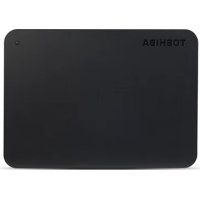
HDWC340EK3JB - External hard drive TOSHIBA - Free user manual and instructions
Find the device manual for free HDWC340EK3JB TOSHIBA in PDF.



User questions about HDWC340EK3JB TOSHIBA
0 question about this device. Answer the ones you know or ask your own.
Ask a new question about this device
Download the instructions for your External hard drive in PDF format for free! Find your manual HDWC340EK3JB - TOSHIBA and take your electronic device back in hand. On this page are published all the documents necessary for the use of your device. HDWC340EK3JB by TOSHIBA.
USER MANUAL HDWC340EK3JB TOSHIBA
Introduction 3
Check the Components. 3
System Requirements 3
3
4
Connecting the drive to your computer 4
Dismount and disconnect the drive. 5
Cleaning the drive case / enclosure. 5
Further Advise 6
Frequently Asked Questions 6
Troubleshooting 7
TOSHIBA Support 7
Regulatory statements. 8
Introduction
Thank you for choosing our TOSHIBA Canvio for Desktop hard drive.
Please read this User's Manual carefully, as it contains all relevant information for installation, usage and maintenance of the drive, as well as security and safety advice.
In case it does not behave as expected, please refer to the "Frequently Asked Questions" section at the end of this manual.
Check the Components
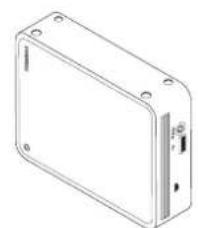
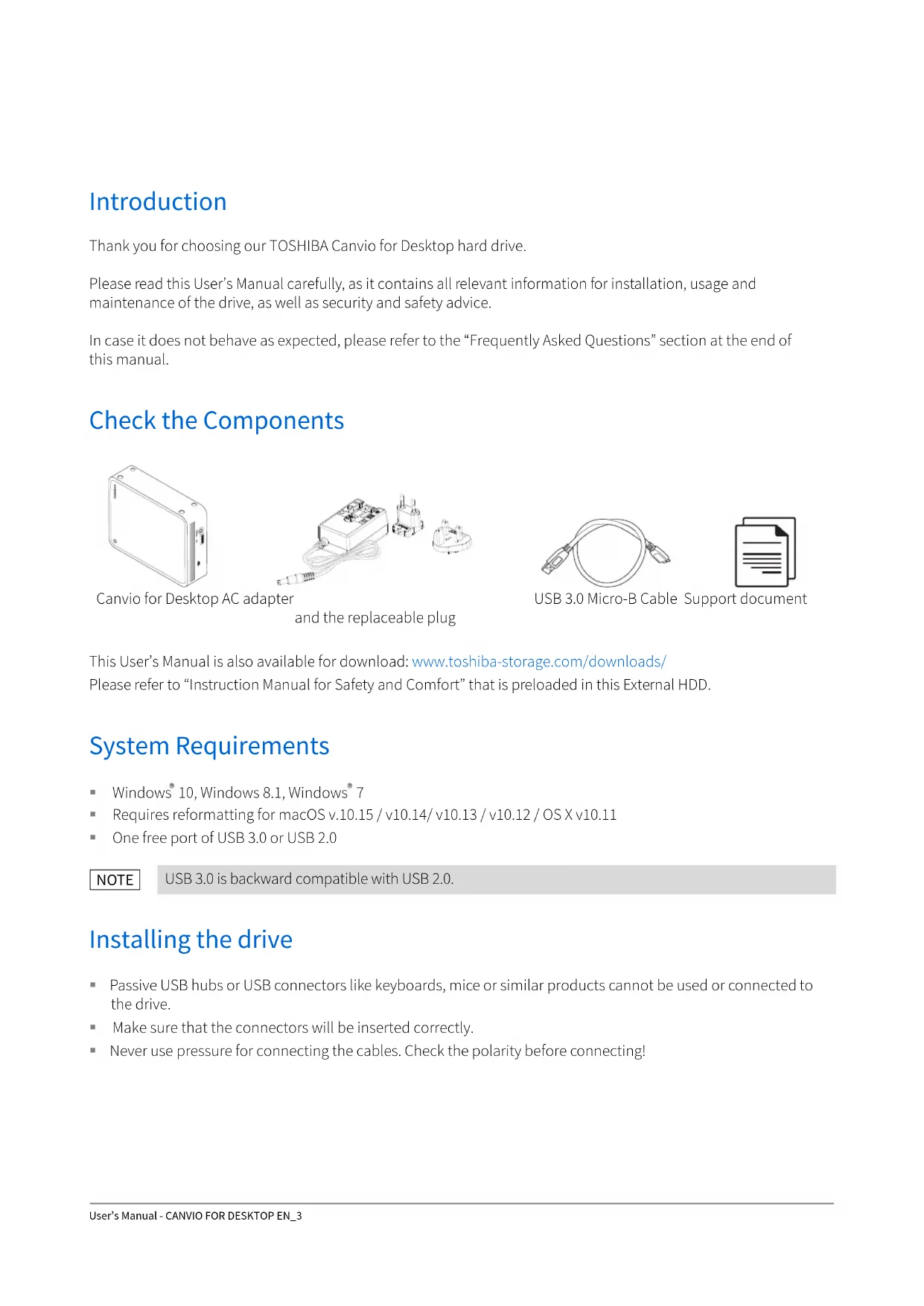
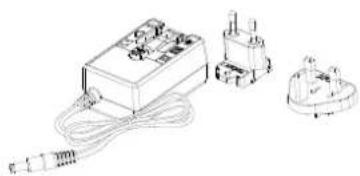
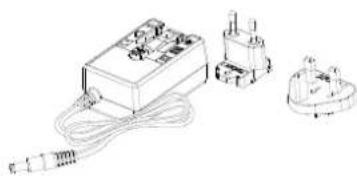
Canvio for Desktop AC adapter
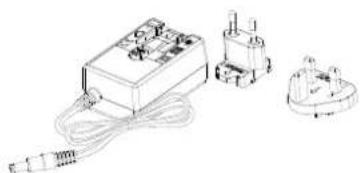
and the replaceable plug
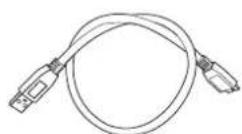
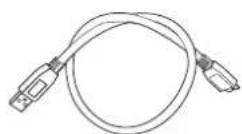
USB 3.0 Micro-B Cable Support document
This User's Manual is also available for download: www.toshiba-storage.com/download
Please refer to "Instruction Manual for Safety and Comfort" that is preloaded in this External HDD.
System Requirements
Windows 10, Windows 8.1, Windows 7
Requires reformatting for macOS v.10.15/v10.14/v10.13/v10.12/OSXv10.11
One free port of USB 3.0 or USB 2.0
NOTE
USB 3.0 is backward compatible with USB 2.0.
Installing the drive
Passive USB hubs or USB connectors like keyboards, mice or similar products cannot be used or connected to the drive.
Make sure that the connectors will be inserted correctly.
- Never use pressure for connecting the cables. Check the polarity before connecting!
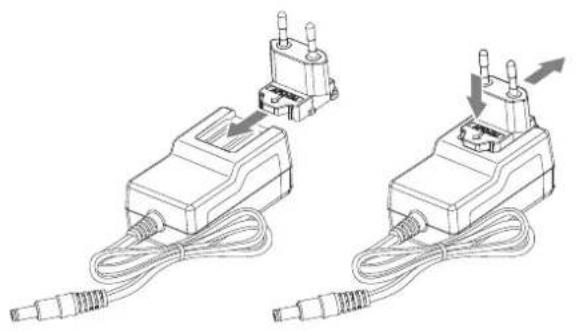
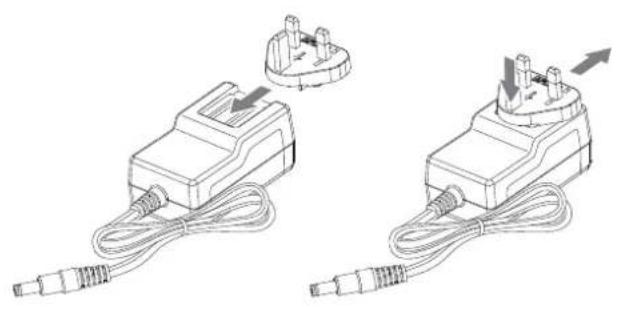
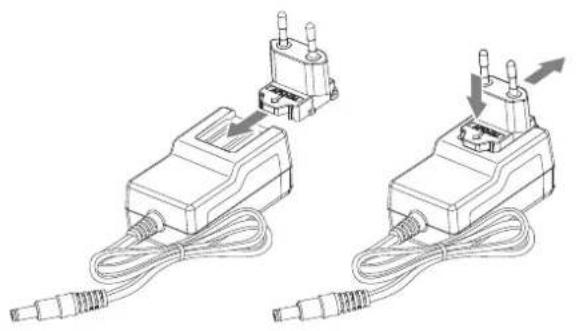
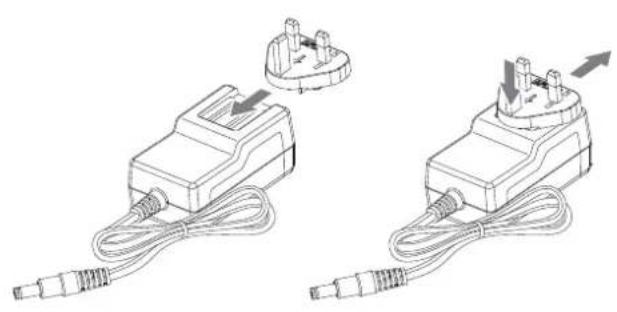
Installing and Removing the Replaceable Plugs
To install and remove the AC adapter replaceable plugs, see the illustrations below.
Connecting the drive to your computer
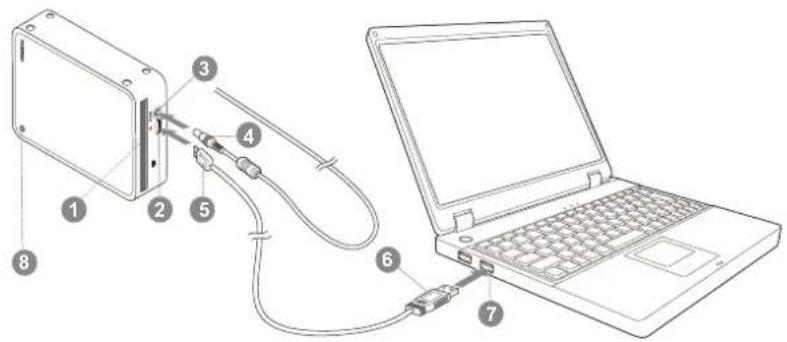
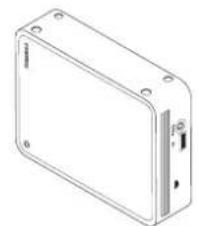
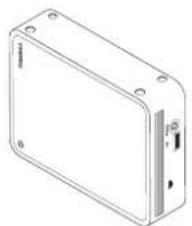
Air Vent USB 3.0 Type B micro connector
USB3.0 port
USB 3.0 standard Type A connector
DCIN12VJack
USB 3.0 host port, backward compatible with USB 2.0
4 DC output plug
Power/Data indicator light
- Turn off your computer.
- Plug the AC adapter's DC output plug into the DC IN 12V jack of the drive and the power cord into a live wall outlet.
- Plug the USB 3.0 Standard-A connector into a USB port of your host system or an active USB HUB.
NOTE
You may need USB 3.0 Express Card Host Controller for your computer if the computer doesn't have USB 3.0 port. You also can connect the device to USB 2.0 port of your computer, However the transfer rate will be downgraded to that of USB 2.0.
- Now, plug the USB 3.0 Type B connector into the corresponding port of the drive itself.
Immediately,
the Power/Data indicator light will illuminate
the drive will power up
the drive should mount and a new drive icon should appear in "My Computer"
Immediately,
the Power/Data indicator light will illuminate
the drive will power up and is ready to use
Dismount and disconnect the drive
It is strongly recommended not to unplug the drive by just unplugging the cable connection as it may be that data is written to the drive at that time. Such data will be lost and the drive may be damaged physically!
Please follow the steps below for a safe dismount of the drive.
- Click the "Hardware and Eject Media - icon"
A pop-up message box will appear listing the external devices connected to your computer.
- Select the TOSHIBA drive to eject.
After a few seconds, you will get the notification that it is now safe to remove the device.
- Click "OK" and you can unplug the drive now.
Ctrl-click on the hard disk icon and choose "Eject".
OR
Drag the hard disk icon to the trashcan.
- You can unplug the drive now.
Cleaning the drive case / enclosure
Before cleaning the drive, make sure that it's physically disconnected from the computer. We suggest to use standard products for cleaning it and to make sure that possible remaining liquid on the surface will be wiped off.
Further Advise
For any further action of normal operation such as renaming the drive, backup data, or file management, we suggest to read your computer's operation system user's manual.
Also for maintenance tasks such as defragmenting and optimisation we suggest to refer to the operating system user's manual.
We also strongly suggest having anti-virus software installed to protect your data against intended damage caused by virus or Trojan programs.
Frequently Asked Questions
Q: Do I need USB drivers for Windows?
A: No, they are already available with your operating system.
Q: Can I boot my system from the drive?
A: No, because Windows does not support booting from external hard disk drives.
Q: Why doesn't the drive need a fan?
A: The drives are designed to have optimal heat dissipation, and therefore no fan is required. This results in a near silent operation.
Q: Why is the capacity of my drive (as shown in Windows®) lower than the drives actual stated capacity?
A: This difference can be explained because of the different methods of calculating the capacity.
Hard drive manufacturers calculate on the decimal system, while the operating system calculates in the binary system.
Example decimal:
1TB=1,000GB
[ 1GB = 1,000MB = 1,000,000KB = 1,000,000,000 bytes ]
Example binary:
1GB=1,024MB=1,048,576KB=1,073,741,824 bytes
As a result, a 1TB (decimal) hard disk appears in Windows® to have just 931GB (binary).
Q: Can I use my drive to copy an operating system from one computer to another?
A: No, you must follow the operating system supplier instructions for installation. A simple copy does not work.
Troubleshooting
My computer does not recognize the disk drive at all.
Make sure all of your connections are secure.
If using an add-on card, make sure it is working properly and update the software/firmware.
Is it dangerous if the drive feels warm whilst in operation?
A: This is normal, and therefore not dangerous.
The drive gives me a "Device cannot start."
A: Two possible reasons. It is either a power problem and you should check the connections, or the drive has a malfunction and requires service.
I cannot see my drive in "My Computer", but it does appear in the Device Manager.
A: Follow these instructions:
- Right-click "My Computer".
- Select "Manage" in the pop-up menu.
- Select "Disk Management".
You should see a list of available storage devices.
- Check whether your drive is listed.
- Right-click the right hand box and select "Delete Partition" in the pop-up menu.
- Right-click the box and select "Create New Partition" in the pop-up menu.
- Then select "Primary Partition" in the partition wizard window. Click next.
- A drive letter will be displayed, which you can change. Click next.
- Confirm to format the drive.
NOTE
When you format the drive all the data on your drive will be deleted.
As I try to format the drive, I receive the message "Could not complete format".
A: This can be caused by formatting the drive with FAT file system. Try "NTFS" file system. This should solve the problem.
TOSHIBA Support
Need help?
Please contact TOSHIBA's hard drive and storage products support page:
www.toshiba-storage.com/support
For warranty claims, please check:
www.toshiba-storage.com/warranty-claims
Regulatory statements
CE Compliance
This product is CE marked in accordance with the requirements of the applicable EU Directives. Responsible for CE marking is Toshiba Electronics Europe GmbH, Hansaallee 181, 40549 Düsseldorf, Germany.
Working Environment
The Electromagnetic Compliance (EMC) of this product has been verified typically for this product category for a so called Residential, Commercial & Light Industry Environment. Any other working environment has not been verified by Toshiba and the use of this product in these working environments is maybe restricted or cannot be recommended. Possible consequences of the use of this product in non verified working environments can be: Disturbances of other products or of this product in the nearby surrounding area with temporarily malfunction or data loss/ corruption as result. Example of non verified working environments and related advices:
Industrial environment (e.g. where 3-phase 380V mains is being used mainly): Danger of disturbances of this product due to possible strong electromagnetic fields especially near to big machinery or power units.
Medical environment: The compliance to the Medical Product Directive has not been verified by Toshiba, therefore this product cannot be used as a medical product without further verification. The use in usual office environments e.g. in hospitals should be no problem if there is no restriction by the responsible administration.
Automotive environment: Please search the owner instructions of the related vehicle for advices regarding the use of this product (category).
Aviation environment: Please follow the instructions of the flight personnel regarding restrictions of use.
Additional Environments not Related to EMC
- Outdoor use: As a typical home/office equipment this product has no special resistance against ingress of moisture and is not strong shock proofed.
- Explosive atmosphere: The use of this product in such special working environment (Ex) is not allowed.
Following information is only valid for EU-member States:
REACH - Compliance Statement
Toshiba will meet all REACH requirements and is committed to provide our customers with information about the chemical substances in our products according to REACH regulation.
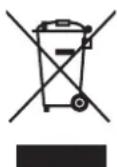
Disposal of products
The use of the symbol indicates that this product may not be treated as household waste. By ensuring this product is disposed of correctly, you will help prevent potential negative consequences for the environment and human health, which could otherwise be caused by inappropriate waste handling of this product. For more detailed information about recycling of this product, please contact your local city office, your household waste disposal service or the shop where you purchased the product.
The following information is valid only for Turkey:
Compliant with AEEE Regulation.
Notices
©2020 TOSHIBA Electronics Europe GmbH. All rights reserved.
TOSHIBA reserves the right to make technical changes. TOSHIBA assumes no liability for damages incurred directly or indirectly from errors, omissions or discrepancies between this product and the documentation. The Toshiba name and its logos are registered trademarks of Toshiba.
macOS is a trademark of Apple Inc.
Other company names, product names, and service names may be trademarks of their respective companies.
Product specifications, configurations, colours, components and service are subject to change without notice.
One Gigabyte (GB) means one billion bytes and one Terabyte (TB) means one trillion bytes. Total available capacity will vary based on operating environment, and your results and storage capacity will vary accordingly. A computer operating system, however, reports storage capacity using powers of 2 for the definition of 1TB = 2^40 = 1099511627776 bytes and therefore shows less storage capacity.
NOTE
- When using this product, use the provided USB cable to connect it directly to the USB port.
If sufficient power is not supplied via the USB port, the product will not function.
Depending on the specifications of the device you are connecting to, the transfer speed may be that of USB 2.0. For details, refer to the manual of the device you are connecting to. - As a precaution against losing data stored on this product, be sure to regularly back up as much of your data as possible on another storage device.
Obsah
Canvio for Desktop AC adaptor
a vymenna zastrcka
www.toshiba-storage.com/support
www.toshiba-storage.com/warranty-claims
Regulačné opatřeni
Splněni CE
www.toshiba-storage.com/support
www.toshiba-storage.com/warranty-claims
Installation of dewet
www.toshiba-storage.com/support
www.toshiba-storage.com/warranty-claims
Regelerklæringer
CE-overensstemmelse
Dette produit er CE-maerket i overensstemmelse med de relevente EU-direktivers krav. Ansvarlig for CE-maerkningen er Toshiba Electronics Europe GmbH, Hansaallee 181, 40549 Dusseldorf, Tyskland.
Arbejdsmiljo
www.toshiba-storage.com/support
www.toshiba-storage.com/warranty-claims
www.toshiba-storage.com/support
www.toshiba-storage.com/warranty-claims
1 Go = 1000 Mo = 1000000 Ko = 100000000 octets
Exemple binaire:
1 Go = 1024 Mo = 1048576 Ko = 1073741824 octets
www.toshiba-storage.com/support
www.toshiba-storage.com/warranty-claims
Règlements
Homologation CE
[ 1GB = 1.024MB = 1.048.576KB = 1.073.741.824 bytes ]
www.toshiba-storage.com/warranty-claims
KavovioTikéç δηλωσεις
Συμόρφωη κατά CE
www.toshiba-storage.com/support
U vezi popravaka u jamstvenom roku potražite:
www.toshiba-storage.com/warranty-claims
Regulativne izjave
CE sukladnost
Ovaj proizvod nosi CE oznaku sukladno zahtjevima važecih direktiva EZ. Toshiba Electronics Europe GmbH, Hansaallee 181, 40549 Düsseldorf, Njemačka odgovorna je za CE oznake.
Radno okruzenje
www.toshiba-storage.com/support
www.toshiba-storage.com/warranty-claims
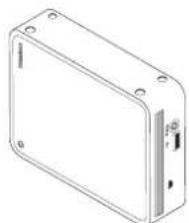
Canvio for Desktop Netadapter
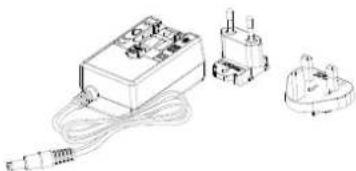
en verrangende stekker
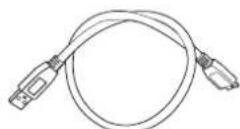
USB 3.0 Micro-B-kabel
www.toshiba-storage.com/support
www.toshiba-storage.com/warranty-claims
Voorschriften
Indikator for strøm/data
- Slå av datamaskinen.
- Sett likestromskontakten fra stramadapteren inn i DC INN 12 V-kontakten pa stasjonen, og plugg strmledningen inn i en strormferende stikkontakt.
- Plugg USB 3.0 Standard-A-kontakten inn i en USB-kontakt pa vertssystemet ell er i en aktiv USB-hub.
MERK
Det kan hende du ma ha en USB 3.0-vertskontroller for Express Card for datamaskinen his datamaskinen,. ikke har en USB 3.0-port.Du kan ogsa koble encheten til en USB 2.0-port pa datamaskinen, men overf.orgingshastigheten vil da bl redusert til a samsvare med USB 2.0-standarden.
Feilmeldingen Device cannot start (Kan/DD) vises.
www.toshiba-storage.com/support
For garantikrav, se
www.toshiba-storage.com/warranty-claims
www.toshiba-storage.com/support
Este manual do utilizes特别是在 this section, the following are the most important ones:
Requisitos do Sistema
www.toshiba-storage.com/support
www.toshiba-storage.com/warranty-claims
www.toshiba-storage.com/support
Za zahtve u vezi garancije pogledajte stranu:
www.toshiba-storage.com/warranty-claims
Regulativne izjave
Usaglasenost sa oznakom CE
Ovaj proizvod nosi oznaku CE u skladu sa zahtevima primenljivih Direktiva EU. Odgovorna za oznaku CE je kompanija Toshiba Electronics Europe GmbH, Hansaallee 181, 40549 Dusseldorf, Nemačka.
Radno okruzenje
Elektromagnetna usaglasenost (EMC) ovog proizvoda odobrena je tipicno za ovu kategoriju uredaja, za takozvano stambeno, komercijalno i neintezivno industrijsko okruzenje. Svako drugo radno okruzenje kompanija Toshiba ne odobrava, a upotreba ovog proizvoda u takvim radnim okruzenjima moze biti ogranicena ili se ne moze preporuciti. Moguce posledice upotrebe ovog proizvoda u neodobrenim radnim okruzenjima mogu biti ometanja drugih proizvoda ili ovog proizvoda u okolnoj oblasti uz privremeni otkaz ili gubitak/ostećenje podataka kao rezultat.
www.toshiba-storage.com/support
INHOpmauO npedbAbeHn npTeH3n IopraHTN cM. nO aDpecy:
www.toshiba-storage.com/warranty-claims
3aBHeHIO COOTBeTCTBn HOpMaTINBHyIM Tpe6OBaHnA
CoOTBeTCTBnE Tpe6oBaHnM CE
Данhoe Идени Имeel Маркирьку CE, OTbeauIoу Tpe6ObaHЯm COOTBeTCTByIOux ДИпeКТИB EC.ОТВeTCTBeHHocTh 3a aTy Маркирьку Hecet KOMnaHЯr Toshiba Electronics Europe GmbH, Hansaallee 181,40549 Dusseldorf, Germany (FepmaHЯ).
YcnoBnaKcnnyaTaun
CoOTBeCTBn DaHHORo 3dEINr Tpe6OBaHnM B OTHOeHN 3NEKTPOMaHTHOJ COBMeCTUMOCTN pOBepraIOCB TINOBbIM dAHHoN KaTeOpn N3dEINr CnOCOBm PnpMeHnteNbHO K TaK Ha3bIBaEBMbIM 6bITOBbIM, KOMMepueckn M MeNKoIPomblIeHHbIM ycNOBnM. PpOBepKa H BA3MOXHOCTb INcNoJIb3OBaHnR B DpyrNX ycNOBnIX KopnpopauNei Toshiba He npBODnacb. IcNoJIb3OBaHne daHHoro IN3dEINr B DpyrNX ycNOBnIX MOKeT 6bITb ORpaHnueHo HpeKOMeHdyETcR. Bo3MOxHbI cJeIyUOIIe NocIeCTBnR INcNoJIb3OBaHnR daHHoro IN3dEINr B HEPPOBepEHbIX ycNOBnX: HApUeHHe HOPMaJIbHOJ pa6ToI dpYrNX HaxOJaIxxCnO6NI3OCTN IN3dEINr INI daHHoro IN3dEINr C nocJeIyUOIIm BixOdom IN 3 CTpoA II6 OTopeR INI NOBpeJDeHnEM daHHbIX. PpIMepbl HeNPoBepEHbIX ycNOBn INcNoJIb3OBaHnR IN COOTBeCTByIOUIne peKOMeHdaUN:
IpomblneHHbyeCIOBnHaHnpMep,MeCTa,1pePneMMyeCTBeHNoNCNoJIb3yETc3-4a3HbTOK C HapraKeHem 380 B):onachoctb HApyuHnBpa6Ote daHHoro n3dennn 13-3a BO3MOKbIX CNbHBIX 3JIeKtpomarHHTbIX noJe,OC6eHNO pAdom CKpyHbIM O6OpyOBaHHeM N3HEpreTueCEKmN yCTaHOBkAmN.
MeiunHckne ycIOBn: KopnpaTna Toshiba He npoBOINI npOBepky daHHoro n3dennHa COOTBeTCTBne DnpeKInBe O MeiunHcKnx n3dennx, IOnToMy dAHHOe n3dennHe hlb3r NcNoJIb3OBAtB MmeuHcKnx ceJAX 6e3 COOTBeTCTByIOUeI npOBepKn. IcNoJIb3OBAHne B O6bIyHbIX oFncbIX ycIOBnax, HapnPmep, B BoJIbHuaqax, He doJIxNpnuBecTI K BO3HnKHObeHnIO npoblem npn OTCyTCTBnN ORpaHueHn CO CTOpOHbI OTBeTCTBeHHoJ adMNHNCTpaCnn.
- ABTOpaHcnpOT: peKOMeHdaaun B OTHoWeHHN NcNoJIb3OBaHn JaHHOrO n3dJIy (nni KaTeOpn n3dJIy) CMOTpNTe B pyKOBoODCTBe NoJIb3OBaTeJn COOTBeTCTByIOUe TpaHCnopTHORo CpeDCTBa.
Bo3dyhbl TpaHcnpT:co6nOdaIte yka3aHnaJeTHoro nepcoHaIaNo orpaHnueHHIO nCNOb3OBaHHN 3deJIy.
Pyrue yCIOBnA, He CBA3aHHbIe C 3JIeKTPOMaHHTHOJ COBMecTUMOCTbIO
IcnoJb3OBAHHe 3a npedeJaMn NOMEeHn: daHHoe n3dene OTHOCITcK TINIOBOMy 6bITOBOMy/OFNCHOMy o6OpUOBAHnIO u KaK TaKOBoe He IMeet CneuaJIbHOJ 3aunTbI OT pOHUKHOBeHn BnA, a TaKKe OT CNJIbHbIX ynapOB.
B3pbboonacnhaatmocepa:ncnoIb3oBaHne daHHoro n3dennBa TaKnx OcO6bIX ycIOBnax (Ex) He donyckaeTcra.
I3noXeHHa danee HOpMaun aKtyaBHa TOnbko BCTpaHax-Hehax EC
REACH-3aBHeHneO COOTBeTCTBnN
KopnpaToshiba 6ytdBbIOnHbBcTepe6oBaHnREACH n o63yeTc npedocTabnTNotpe6ntenm CBoe npdykun HOpmauO6 NCIOJIb3yEmbIX B HeynxMnuecknx BeueCTBax B COOTBeTCTBNC perrJamehTom REACH.
Ytunnaua n3deenn
PnBedeHHbI 3decb CMBON yKa3bIAeT Ha TO, YTO C HAcToaUM N3dennm Heh38 ObaaTbc KaC 6bIbOMn OTxOamn. ObecneHene npabNbHOyTNIN3aunn N3dennn CnocobCTByET
npoTbpaueHHIO OTPuataTeNbHbIX NOcNEcTBn IJRA OKpykaIOUe Cpebl N3DopOBbAIODei, KOtOpBle MOrT 6bIT BbIBaHBHeHaJIeKaUIm ydaJIeHEm HactOaero N3dEInB BOTXoBl.
3a noPpO6HOH INΦOpMaUeN O nopRdKe BTOPNUHO npepa60TKn HactOaero N3dEInN
ObaaauTECB K MeCTbIM BlaCTM, B MyNuIIaJIbHyO cIyK6y, OTBeTCTBeHHyO 3a JIKBuaqHO
OTxoOB, INo BO No MeCy T npno6peTeHna HactOaero N3dEInN.
I3nojKeHHa daane uHΦopMaζη aKtuaNbHa TOnbKO bTypu
CoOTBeTCTByeT npaBnIam 06 Otpa6oTabwem 3neKtpuueckOM n 3neKtpoHHOM o6OpydoBaHn.
yBcDomJIeHnIa
©2020 TOSHIBA Electronics Europe GmbH. Bcnpaba zaunieNbI.
KopnpaTn TOSHIBA octabIeT 3a c6oB npABo Ha BHeceHne TexHuecknx N3MeHEn. KopnpaTn TOSHIBA He HecET HnKaKoI OTBeTCTBeHHocTN Hn 3a npAOM, Hn 3a KocBeHHbI yUep6, Bo3HKnWn B pe3yIbTaTe NorpeHooCTe, yNUpEHN n HecOoTBETCTBm MExdY hAcToaUM N3DeJIeM n DOKymeHTaune. HanMeHOBaHne n IorOTnblk KopnpaTn Toshiba ABLIOrCE ee 3apeRNCtppOBaHHbIM TOBapHbIM 3HaKaMn.
macOS RNAIeTcTOBAPHbIM 3HaKOM Apple Inc.
Ipyne HaimeHOBAHnKOMnAHn, npOyKTOB uCnyrMOryT RbJIaTBcra TOBaPbIMn 3HaKaMn COOTBETCTBYOUx KOMnAHn.
B Texnueckne xapakTepcntkN, KOHpyaun, UBeTa, KOMnoHeHTbI uCIOBna cepBnca n3dJIy MOrTy BHOCTbcr N3MeHeHn 6e3 yBeDOMJIeHn.
Odnrna6aT(ΓB)npHnMaetcpaBbIM OndHomMy mllnapdy 6aHT,a Ond Hepa6aT(TB) npHnMaetc paBbIM OndHomy TpnnnoHy 6aHT.ObuaDocTyHnA emKoCTb 3aBncIT OT onepaunHOH cpebl, BaIN pe3yIbTaTbI n EMKoCTb XpaHEnH 6ydt BapbIpOBaTc COOTBeTCTBeHHO. Ondako onepaunoHHa cnTeMa KOMnbTOpeAp ONpeJenEeT EMKOCTb HAKONITeN CnCnOLb3OBaHNem CTeneHe Nucla2,To eTb1 TB=240= 1099511627776BaTAM, NOtOMy CNCTema NOKa3bBAe TMbUyo EMKOCTxbxpanHnra.
ПОНМЕЧАНЕ
- Ppi nCnOJIb3OBaHnn daHHoro n3dEJIy CneIeYET npImeHrTb npNJraeMbI Ka6eJb USB n cero nOMoUIO noDknIOuATb n3dEJIne HENOCpeCDtBeHHO K nopTy USB.
EcnupeepnT USB He 6ydt noaBaTbca DocTaTOHoe nITAHne, n3dene He 6ydt cyHKUHOHPOBA Tb.
Ckopoocb nepepaHdHbIX moHcT COOTBeCTBOBaT bCTaHapTy USB 2.0-3TO 3aBnCIT OT TexHnuecknx xapaKtepncTnK yCTpoNCTBa, K KOtOpOMy BblONHeTcN OKnIouHeH. NopO6HyIO HΦOpMaUIO CM. BpyKOBoDCTBe IIOYCTPONCTBy, K KOtOpOMy BblONHeTcN OKnIouHeH.
B kaueCTBe MEPbI ppeOCTOpOXHOCn, HApBaJIeHHoH Na IpeODTbpaUeHne NOTeepu daHHbIX, KOtOpbIe XpaHrTcR Ha DaHHOM N3dJIIN, Heo6XoJIMo peYJRAHO Co3DaBaTb Ha dpyrom yCTpOnCTBe xpaHeHnpe3epBHie KONN KaK MoJHo 60nbJero KOnNUeCTBa daHHbIX.
www.toshiba-storage.com/support
www.toshiba-storage.com/warranty-claims
Bestammelser
CE-märkning
Produkten ar CE-märkt i enlighet med tillampliga EU-direktiv. Ansvarig for CE-markning ar Toshiba Electronics Europe GmbH, Hansaallee 181, 40549 Dusseldorf, Tyskland.
Arbetsmiljo
www.toshiba-storage.com/support
www.toshiba-storage.com/warranty-claims
www.toshiba-storage.com/support
www.toshiba-storage.com/warranty-claims
www.toshiba-storage.com/support
Garanti talepleri ici nltfen 山 adresi ziyaret edin:
www.toshiba-storage.com/warranty-claims
Cullll/ailbll jsoa 8
aannnll 1
- ( 2x - 6) = 1
12 12 12 12
bilar
USB USB 3.0 Standard-A
L 3.0 Express Card Host Controller 2.0 USB 2.0
四点共线 严
USB 3.0 micro-B
Window
$$ \begin{array}{l} (1) \frac {1}{2} x - 1 = \frac {1}{2} x - 3 \ = \frac {1}{2} L _ {1} L _ {2} = 1 / 4 \Omega \ = 0. 4 2 8 \leq y \leq 1 0 \ \end{array} $$
«My Computer» 4
Mac<
$$ \begin{array}{l} \therefore \sin \angle 1 = \frac {1}{2} \ = C l _ {2} + N a O H \ i j a l e = \text {c o n s t} \text {a d} \text {j a n a l} \text {l i g h t i n t y} = \text {p r i n c i t y} \ \end{array} $$
4
a 1
y
Window
.«Hardware and Eject Media 1
y
TOSHIBA 2
1,000,000,000=1,000,000=1,000=1
1,073,741,824= 1,048,576 = 1,024 = 1
931 94
j j j j j j j j j j j j j j j j j j j j j j j j j j j j j j j j j j j j j j j j j j j j j j j j j j j j j j j j j j j
Jy 2 yj
y
A
(add-on card)
94
jbs jss glllglgol
1
a 1111111111111111111111111111111111
Device Manager My Computer
ylll
.1
Aaalalalll 1111111111111111111111111111
.3
aill jjil o jy iil jii
aJ 1
Ae 154 155 .5
.8
aJ 9
Aie 0gall aill 5
四边形 AOBC 为正方形
Lgol (sll) Coud not complete format
www.toshiba-storage.com/support
iJy j yjaiiaai Jy
www.toshiba-storage.com/warranty-claims
TOSHIBA
GEle jy yssnnsaallee 181, 40549 Dusseldorf, Europe GmbH
a_n + 1 = 2a_n3 + 2a_n
Residenl lal y aayy jny Luy 1000 (d) 1000 1000 1000 1000 1000 1000 1000 1000 1000 1000 1000 1000 1000 1000 1000 1000 1000 1000 1000 1000 100
y
auii i 100
IpeBipKa HaeBHOCTi KOMNoHeHTiB
Canvio for Desktop
AanTep 3MHHORO CTPMy N 3MiHb BNkA
Ka6eJb USB 3.0 Micro-B CynpoBiHn DOKyMeHT
CenPiOcHnK KopNCTyBaHa TaKoX MoXHa 3aBaHTaXuTn 3a NocuHaM: www.toshiba-storage.com/downloads/ DnBItbcra "PiOciHnK i3 6e3neUHOi Ta 3pyuHOi pOboTn", NonepeHbO 3aBaHTaXeHn Ha ceN 3OBHiHn JopctKn I nCK.
BnMOrn do cnCTeMn
Windows 10, Windows 8.1, Windows 7
ΦopMaTyBaHnHaImaOSBepciu10.15,10.14,10.13,10.12iOSXBepciu10.11
OdH BilbHn po3'EM USB 3.0 a6o USB 2.0
PIMITKA
USB 3.0 zBopToHcymichn i3 USB 2.0.
YCTaHOBJIeHHaNCKa
3 INCKOM He MoXHa BnKOpNCToBbATn nacNBHI USB-KoHcHTpaTOpn a6o USB-npncTpoi, k-OT KlaBiaTyPi, MNIWI TOIO.
- IpekehoHaTeCra, 10 wTeKeep npaBnBHO BXOJaTb y po3'EM.
He 3actocobyTe cnly, niknouaoyu Ka6eni. Npeep niKnOeyHnM nepebipe noIapHicTb!
YcTaHOBLeHnBnBnDaJIeHHa3MiHHOI BnIKN
Ha 3o6paXeHHx HnKye noka3aHO, k yCTaHOBbOBAuN BnJaTn BNkky aanTepa 3mHoro ctpmy.
3aHTaHn: Yomy uei nck He noTpe6ye BeHTnIaTopa?
Bidnoib: KOnctpykui Dncka nepei6aue onTmuaJIbHe po3ciOBaHHaTeIIa, TOMy BeHTIJIaTOp He notpi6eH. 3aBdAnu CbOMy npncptpi npauoMaJke 6e3UymHO.
3aHtAnH: YoMy eMHicThb MOrO nIcka, kN oKa3yE Windows, HxKHa 3a aKaTHHy 3a3HaueHy cMHiCTb?
Bipnoib: Lpi3Hnua nOaCHIOCTbca 3actocyBaHHam pi3Hnx MeToiB po3paxyBaHHa MHOCTI. Bnpo6HnKJxopctkNxDnCKIB po3paxOByOTb EMHICTb y DecaTKOBi CnCTeMi YnCJIeHHa cnCTema - y DnIKOBi.
PnKlaad po3paxyBaHnB DeCayTkoBi CnCTeMi:
1TB=1000ΓB
[ 1\text{GB} = 1000\text{MB} = 1000000\text{KB} = 1000000006\text{auiB} ]
PnKnaD po3paxyBaHHy dBiNKoBi cntemI:
1ΓB=1024MB=1048576KB=1073741824aaiTIB
Ype3yIbTaTI EMHICTb JOpCTKOrO DnCKa 1 TB (3a DecrTKOBIO CnCTeMOIO) BiO6paKaTmEtbcry y Windows *k 931 T6 (3a DnBiKOBOIO CnCTeMOIO).
3aHTH: Mu MoKHa BnKOpNCToBbATn cei dNCK, 0o6 cKoPiHbATn OepauiHy CnCTeMy 3 OJHO KOMI'IOTepa Ha iHs?
BiNobib: Hi, onepauiHy ciTemy Heo6xioHO BCTaHOBIOBaTu 3riIO 3 iHCTpyKciAMy II nOCTaUbHnka. IpoCe koniIOBaHHHe 3a6e3neuHTb II po6OtY.
YcynHnHeNoJaOk
KoMn'IOTeP He po3ni3Hae dNcK.
- IpepeKoHaItec, uO BcI 3'eHaHnHa HajiHi.
- RaKIO BnKOpNCToBcTa KaP Ta po3wnpeHHa, nepeKoHaIeCra, 0 BOHa cyHKioHyc HaneKHM YHOM, i OHOBIT nporpamHe 3a6e3neueHHa a6o npOuNBky.
JaKIO duCK HarpiBaTbcra iD yac po6oTu, ue He6e3neuHo?
BiINOBiB: LcHOPMaJIbHO He CTAHOBnTb 3aIpO3N.
ДиСК NOВIDOMЯнЕ npo nomnky“He bdaeTbca 3anyctntnpictpi”.
Bidnoib: Icnye dBi moKJIbI npuHn. Nepa - ce npo6Iema 3 JINBHeHHam, i Todi Heo6xIDHO npeBipHTN 3'edHaHHa. Dpyra - dNCK HeCnpabHni i Notpe6y e pemOnTy.
DnCK BiDcyTHi y BiKHi "MiN KOMn'IOTeP", aIe BiO6paKaεTbcra B DnCneTpei npucTpoiB.
BiinobiB: BnKoHaTe TaKi dii.
- KnaichiTb npaBOIO KHONKOIO MmIi "MiN KOm'IOTeP".
- Bn6epitb nyHKT "KepyBaHHB KOHTeKCTHOMy MeHIO.
- Bn6epiB "KepyBaHHaNCKaMn".
BiDkpneTbcra CnCOK DoCTynHnx npncTpoIB 36epiraHHa.
- NpeBipTe, uE B cnNcKy BaW dnck.
- Knaichi Tnpaio KhoNkoMnwi y BiKhi cnpaba BnBepiTb nyHKT "BuaanTu po3di"y KOHTeKCTHomy MeHIO.
- Knauchitb npaBOKHOKNKOIO MHI y BIKHI BN6epiTb nyHKT "CTBOpTN po3in" y KOHTeKTHOMy MEHIO.
- Iotim y BiKhi MaNCTpa CTBOpENHn po3diJIB Bn6epiTb "IpeBHHn po3diJ."HaTnciTb "DiJI".
- 3'YBnTbcraJItepaДИСКа,ЯKуВиМожete3MiHHTu.HaTnCHITb"ДaJI".
9.ПiДТВердTeформTuBaHHЯДИСКА.
NPNMITKA
PiuaacΦopMaTyBaHHaNcKa Bci DaHI Ha HbOMy BuJaIIOBcA.
Kolny Hamaraoc BIDOpMaTyBaTu NcK, 3'YBnEbCn NobiOMJeHHN "He BdaIoc BkOHaTu OpMaTyBaHHN".
BiDnoBb: MoJINBO, Bu foOpMaTyEe dNcK y faIIOBI cNCTeMI FAT. Cnpo6yIne BnKOpncTaTI NTFS. Lc Mae BnpiUnTI npO6nemy.
Підтprимka TOSHIBA
Notpi6Ha donomora?
BiBidaTe cToPiHKy NiTpumKx JOpCTKx INCKi I npCtpoIB 36epiraHH TOSHIBA:
www.toshiba-storage.com/support
3BepHyTcN no rapaHTiHHe 06CnyrObyBaHHaMOKHa TyT:
www.toshiba-storage.com/warranty-claims
3aBn npo BiDIOBIDHicThb HOpMaTINBHNm BnMOram
BiDnOBiDnHicThBmOram CE
Ley Bupi6 Maé MapkyBaHHa CE 3rIHO 3 BmOrAmu YHHnx DnpeKTHB EC. BiNobiae 3a MapkyBaHHa CE: kompania Toshiba Electronics Europe GmbH, Hansaallee 181, 40549 Dusseldorf, Germany (HimeyuHa).
PoboecepeoBnue
EneKtpomarHITHa Cymichictb (EMC) Bnpo6y nepebipeHa cTaNapTHm dIa ciEi KaTERopii TOBAPIB CNOCOBOM, 30 3actocobyeTcra Do TaK 3BaHnx "No6byTOBHX i KOMEpuHNX cepeOBOu, a TAKoK JERKO IpOMNCIOBOCT". Kopnpaia Toshiba He npoBoDnla nepeBipKn eNEKtpomarHITHOi Cymichocti B IHnx po6OuX cepeOBOuax, TOMBy BNkOpncTahHn Bnpo6y B Hnx MoKe 6bTu O6MeKeHe, He peKomeHDoBAHe abo MaTu TaKi HaCIIKn: pepeKoDn Bpo6To bOro a6o IHnx Bnp6iB no6In3y, kI MOKytB pni3BeCTn DO TImuaCOBHX HeNoladok, BtpaTu nnoKoJKeHH daHnx. Hxue HabeJeH npNKlaDN HepeBipEnHX po6OuX cepeOBOu i BiNobDiHi peKomeHdaui.
- Ipnomnclobi cepedobueta (hanpukna, de BnKOpucToByetbcra Hanpyra 380 By trpa3hi Mepeki): He6e3neka nepekoj y po6oTi cboRo Bnp6y cheep3 moJInBi CunbHi eNeKTpOMaHITHi nOJI, Oc6nBO npaI i3 BeNkMm o6laHaHHa 60 eHeprTeuHMM uCTaHOBKaMn.
- Medunhi cepenobu: Kopnpaia Toshiba He npoBOnla nepebipky BiNobIHocTi DnpeKTNBi npo MeunHi npicptoi, TOMy ue Bnpi6 He moKHa BnKOpncTOByBaTN B MeunHnx ciJx 6e3 DoaTKOBO' nepebipKn. Bnkopnstahny y 3BnuaynHex ophiinx cepenobuax, k-OT y liKapnX, He MaE BuKNkNaTn npoBeMn, kso BiNnoBidaNbHa admiHictpaig He BCTaHOBUNa obMekeHH.
- ABTOpaHcnpT: peKOMeHdauii 10oBnKOpncTaHHa boro Bnpo6y (a6o KaTeoropii Bnpo6ib) nBiTBcBn oci6Hnky BnaChnka BiNobiHoro TpaHCnOpTHoro 3ac06y.
IobitpHn TpaHcnpT:doTpmyntecpekomeHdaui ekinay yo do oMeKeHB BuKOpncTaHHaBoro Bnpo6y.
Ihwi yMOBn, He noB'3aHi 3 eJekpomarHITHO CymichictIO
BnKOpncTaHH na pumiueHHm: ceu Bpi6 e TnIOBm no6yTOBm a6o ophiHm 6naHaHHm i TOMy He Mae Oco6bNBOI CTIKOCTI DO npOHKnHeHHa BOIOrn a6o 3axnCTy BiD CInbHx ydapIB.
Bn6yxoHe6e3neuHi yMOBn: BnKOpncTahHn 乙bOro Bnpo6y B TaKnx OcO6lnBnX yMOBaX (Ex) He donyckaetbcra.
InopmaizjlinweJn depkaB-uehieC
REACH -ДeКлараця npo BiDnOBiDnicTb
KomnaHia Toshiba doTpmycBix BmOr cTahapTy REACH i 3o6ob'3yetybCn HadaBAtn CBOIM KJIeHTam BiDOMOCTI np HAIBHCt bixiHnx peOBHy npodykTx BiINOBiHO do HopM REACH.
YtunizajBnpo6iB
Cenmbol 03haue, 0o Bnpi6 He moxHa ytni3yBaTn JIK NObyOBI BiXoH. DoTPmyuocnb npabn ytni3aui Bnpoby,Bn donomoxete yHnKHyTN uKOIN DOBkiIIO Ta 3DopOB'IO IIOe, 0o MoKe cTATNC B pazi HehaleKHOY tynl3aui. DoklaHsiy iHOpmaio npo ytni3auio cboro Bnpoby MOKeTe OTpMaTu BLOkAhlOMy npedCTaBHnTBI y CBOEMy MICTI, MyHicnnaIbHi CNyK6i ytni3aui BiXODIB a6o B Maar3HHi, de byo npnd6aHo Bnpi6.