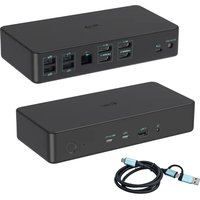
INTGWINDOCKLICSMB - Docking station i-TEC - Free user manual and instructions
Find the device manual for free INTGWINDOCKLICSMB i-TEC in PDF.


User questions about INTGWINDOCKLICSMB i-TEC
0 question about this device. Answer the ones you know or ask your own.
Ask a new question about this device
Download the instructions for your Docking station in PDF format for free! Find your manual INTGWINDOCKLICSMB - i-TEC and take your electronic device back in hand. On this page are published all the documents necessary for the use of your device. INTGWINDOCKLICSMB by i-TEC.
USER MANUAL INTGWINDOCKLICSMB i-TEC
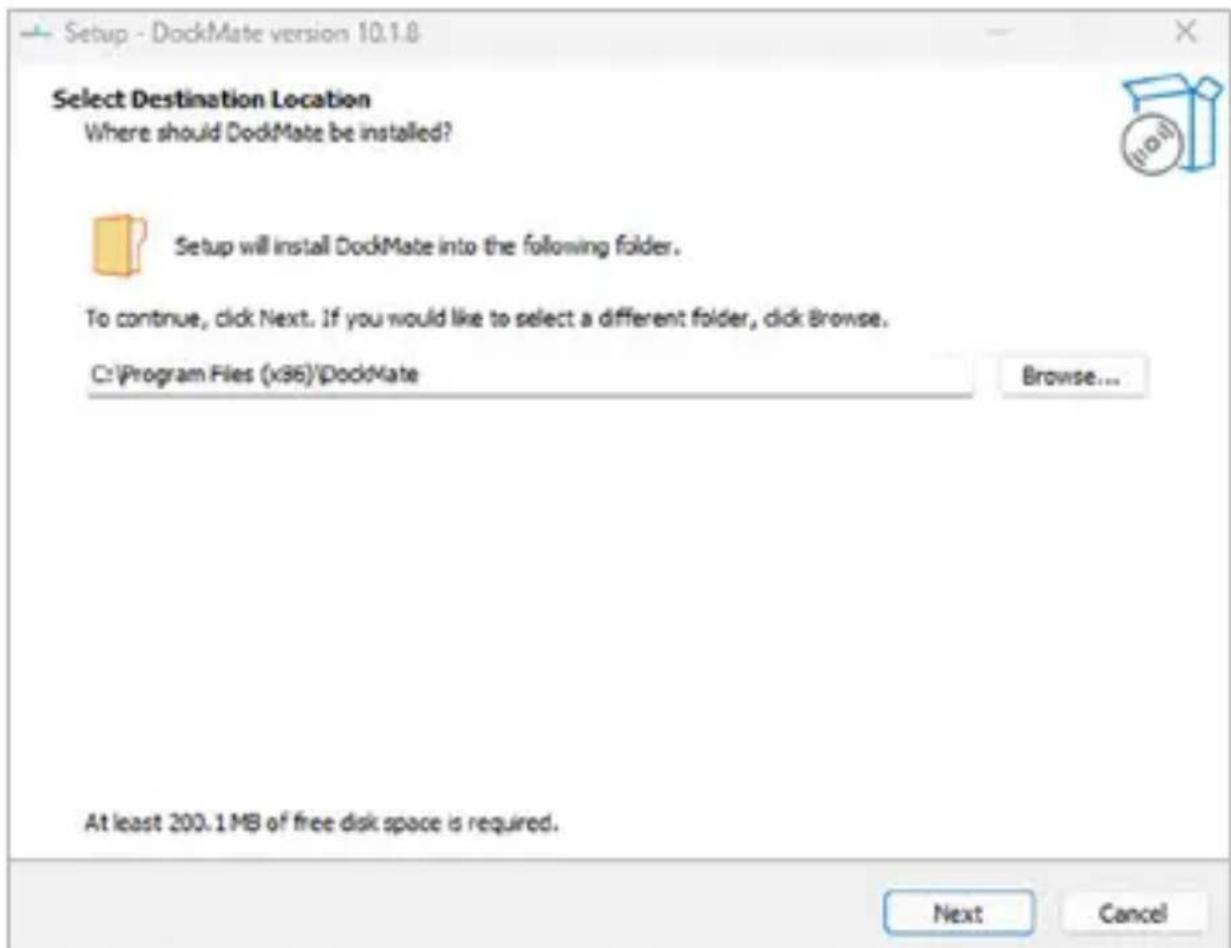
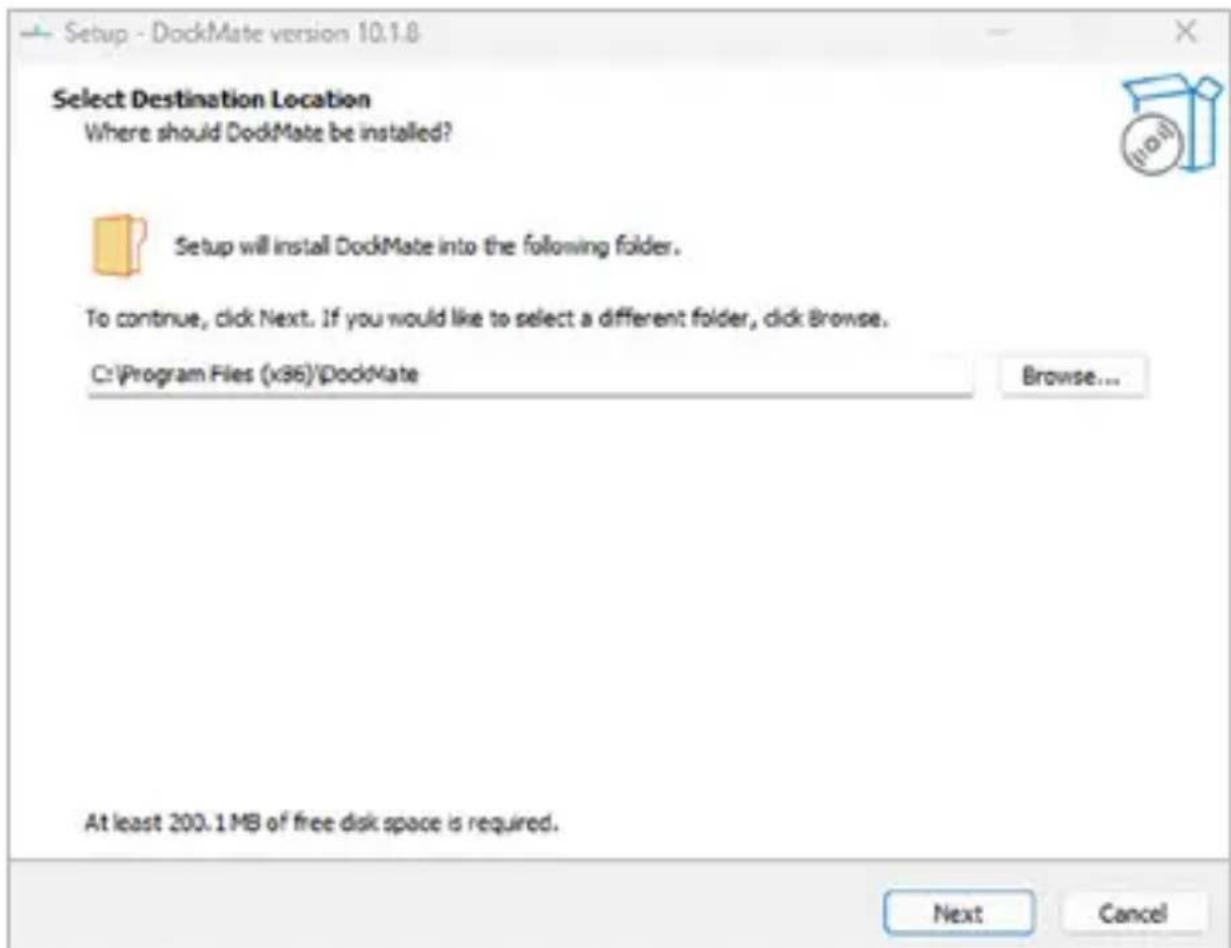
- Launch the DockMate.exe
Browse: Change installation folder
Continue with Next
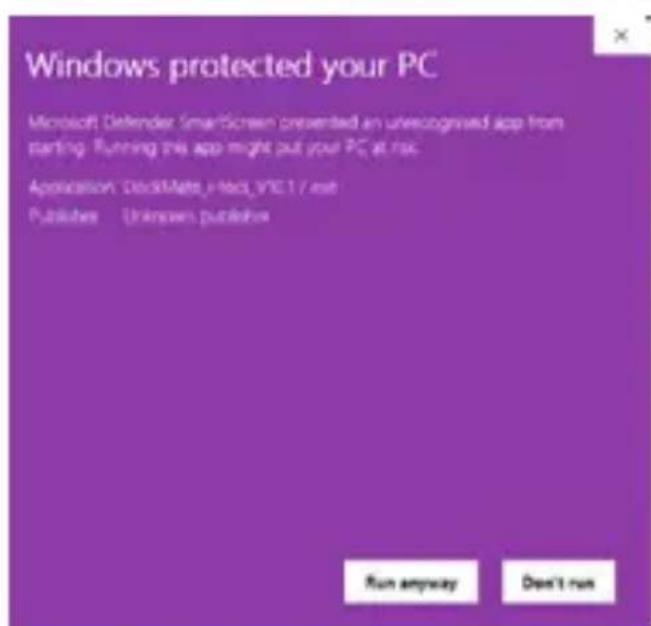
- When starting the installation, the following warning may appear on some computers:
In such a case, click "Run anyway."
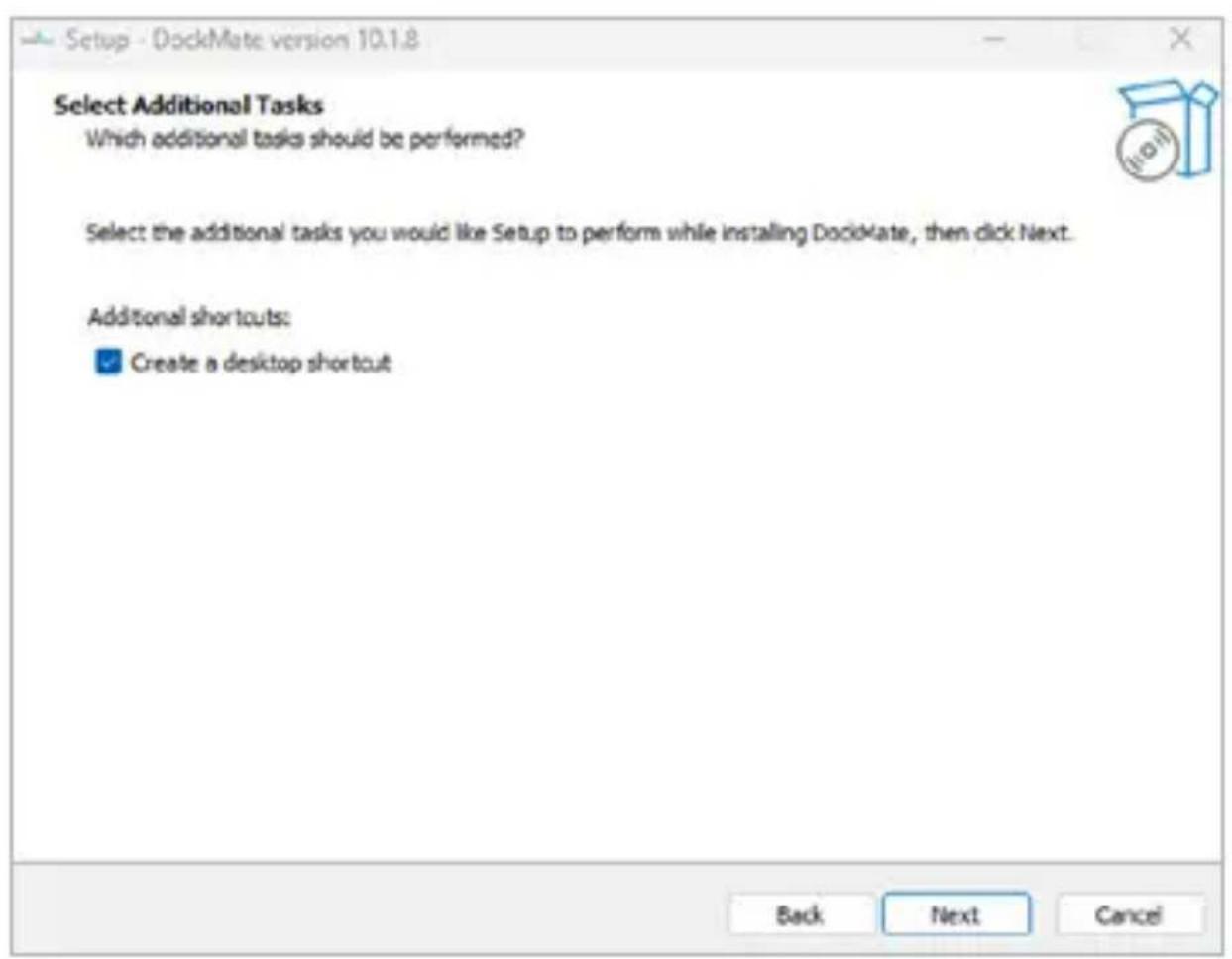
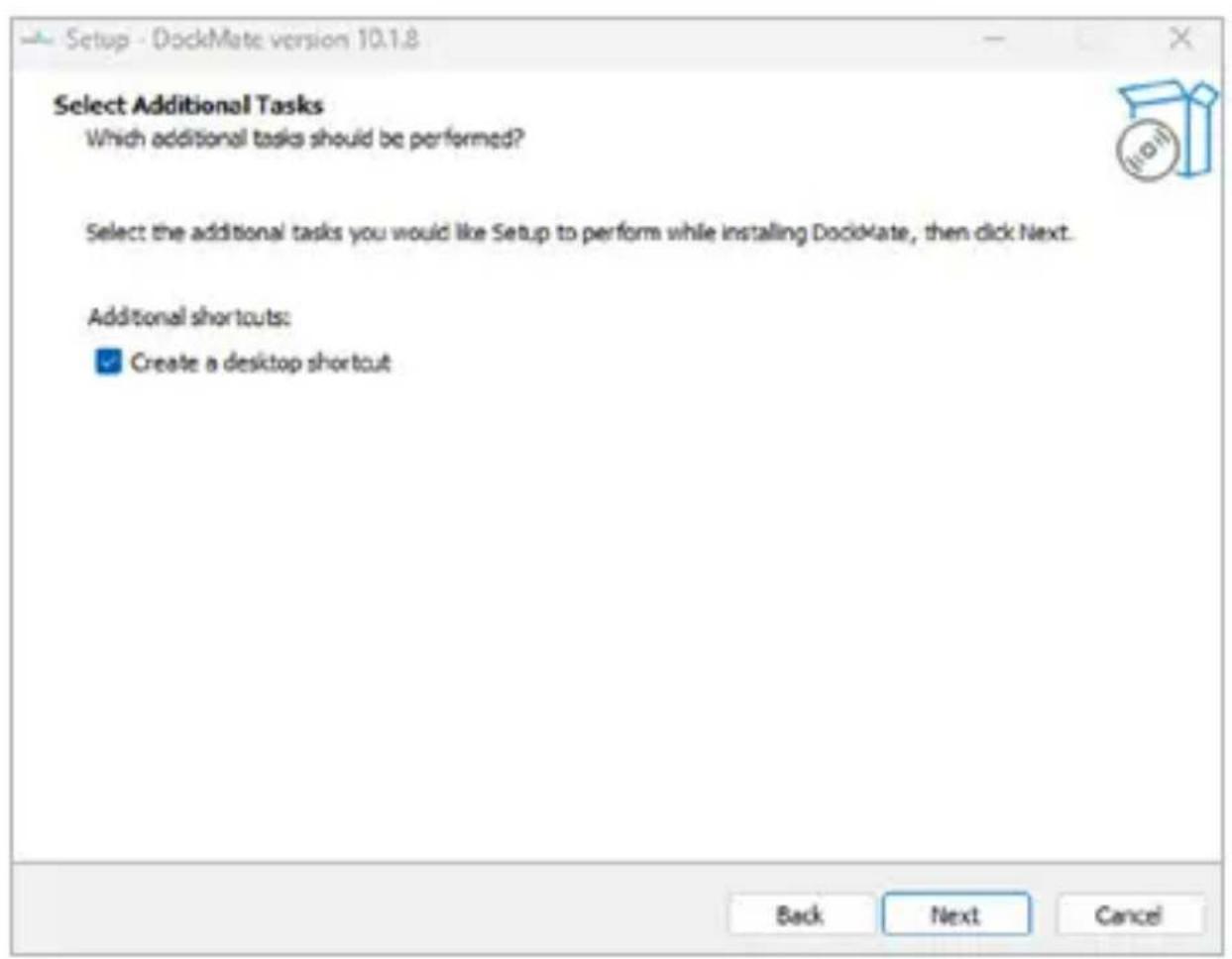
- To create a shortcut on your desktop, check the box next to Create a desktop shortcut.
Continue with Next
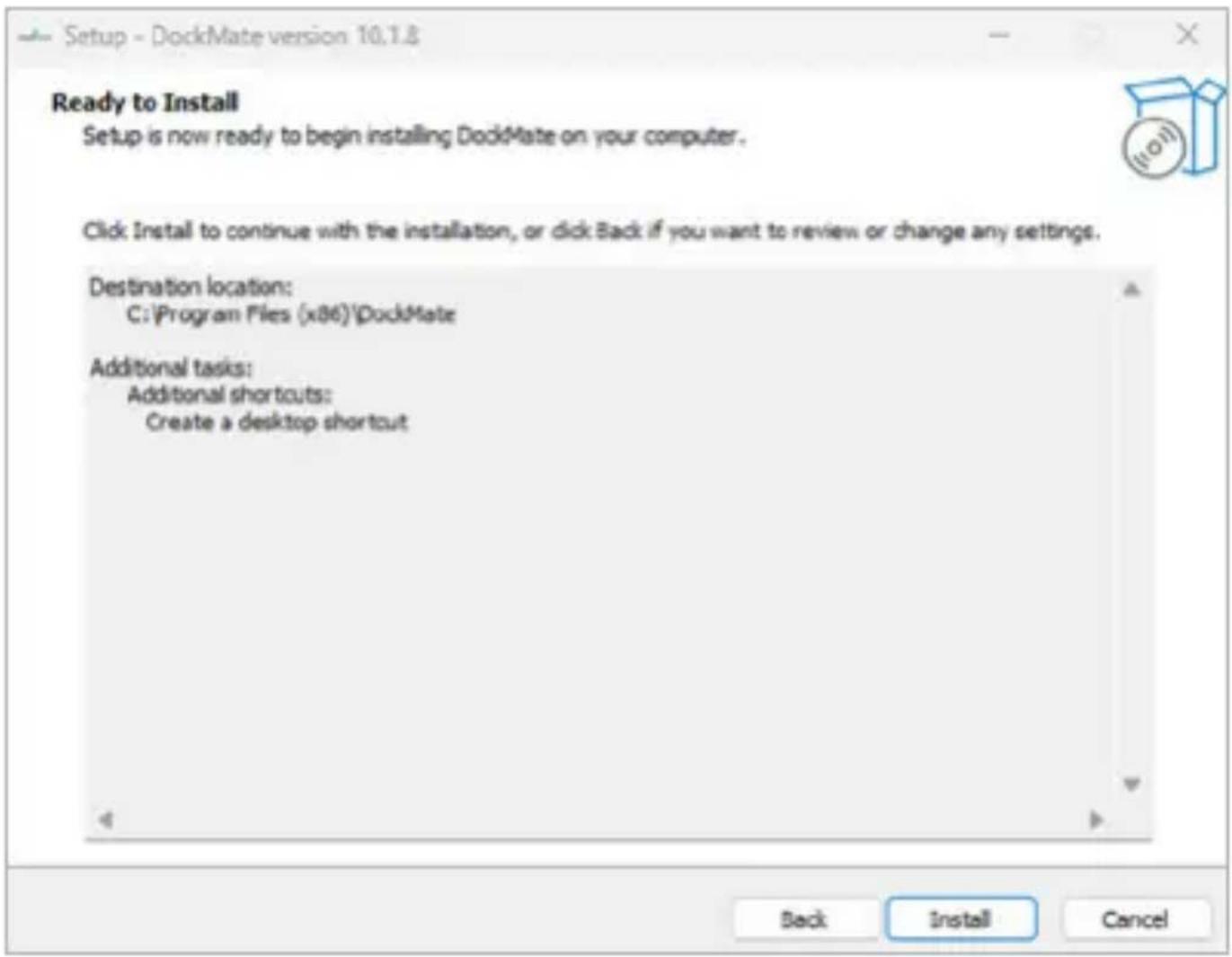
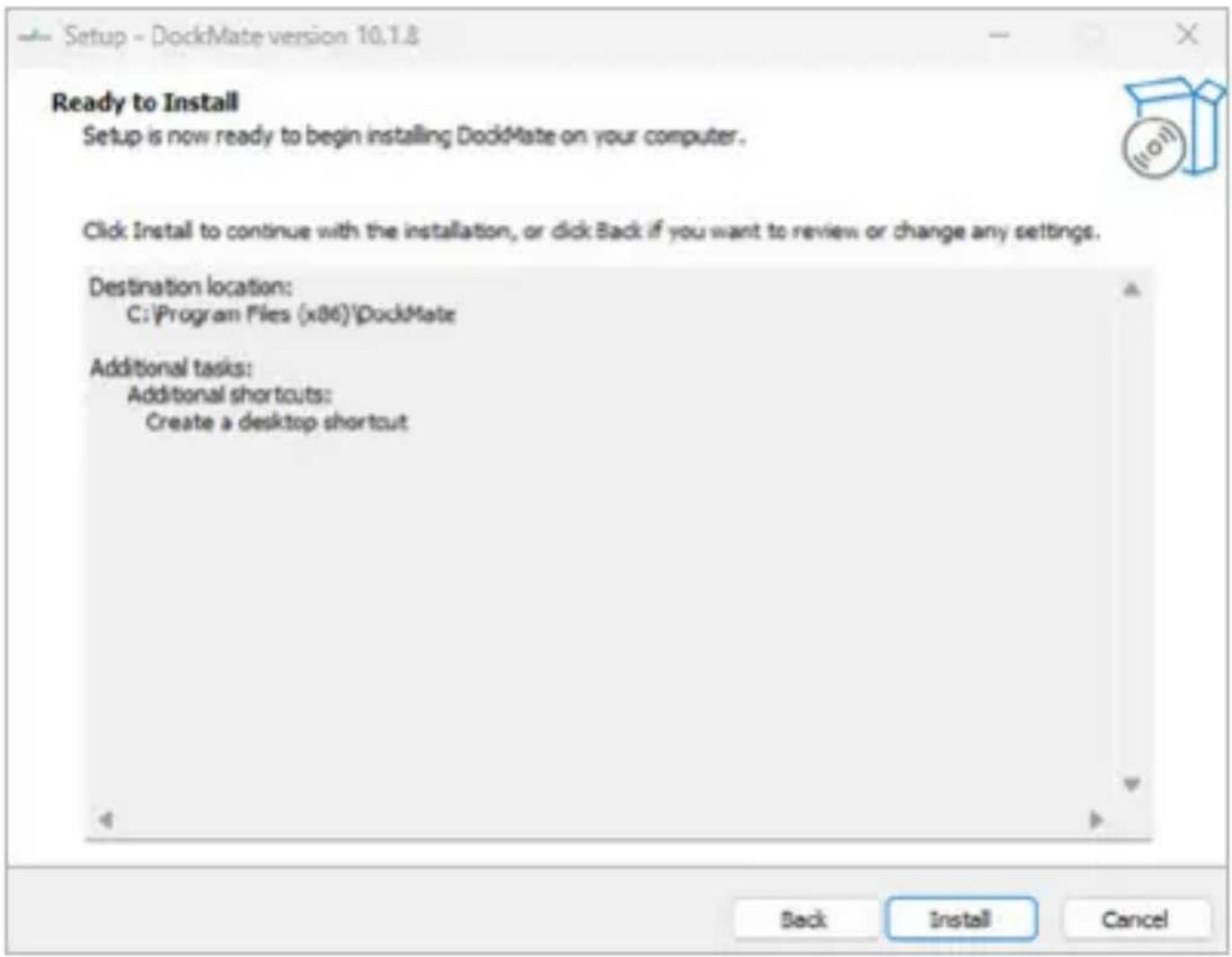
3. Confirm installation by clicking Install
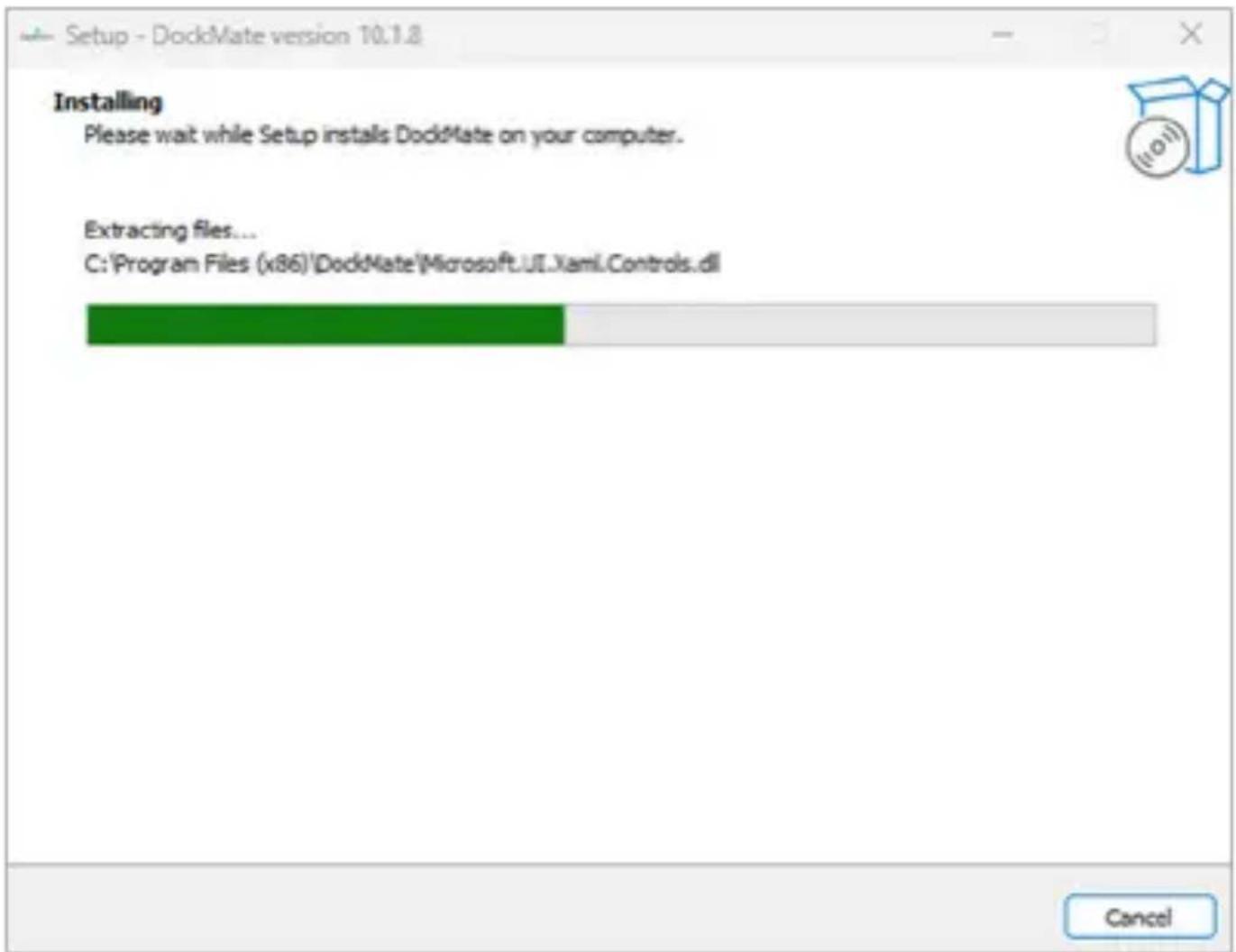
- Wait for the installation to complete and click on finish
Setup - DockMate version 10.1.8

Completing the DockMate Setup Wizard
Setup has finished installing DodiMate on your computer. The application may be launched by selecting the installed shortcuts.
ClickFinishtoexitSetup.
First Launch of DockMate
- If the .NET Desktop Runtime is not installed, a message will appear. Click "Download it now."
- When prompted by User Account Control (twice), click "Yes."
- Click "Start."
- Select the IP address from which you plan to manage the docking stations.
WINDOW DESCRIPTIONS
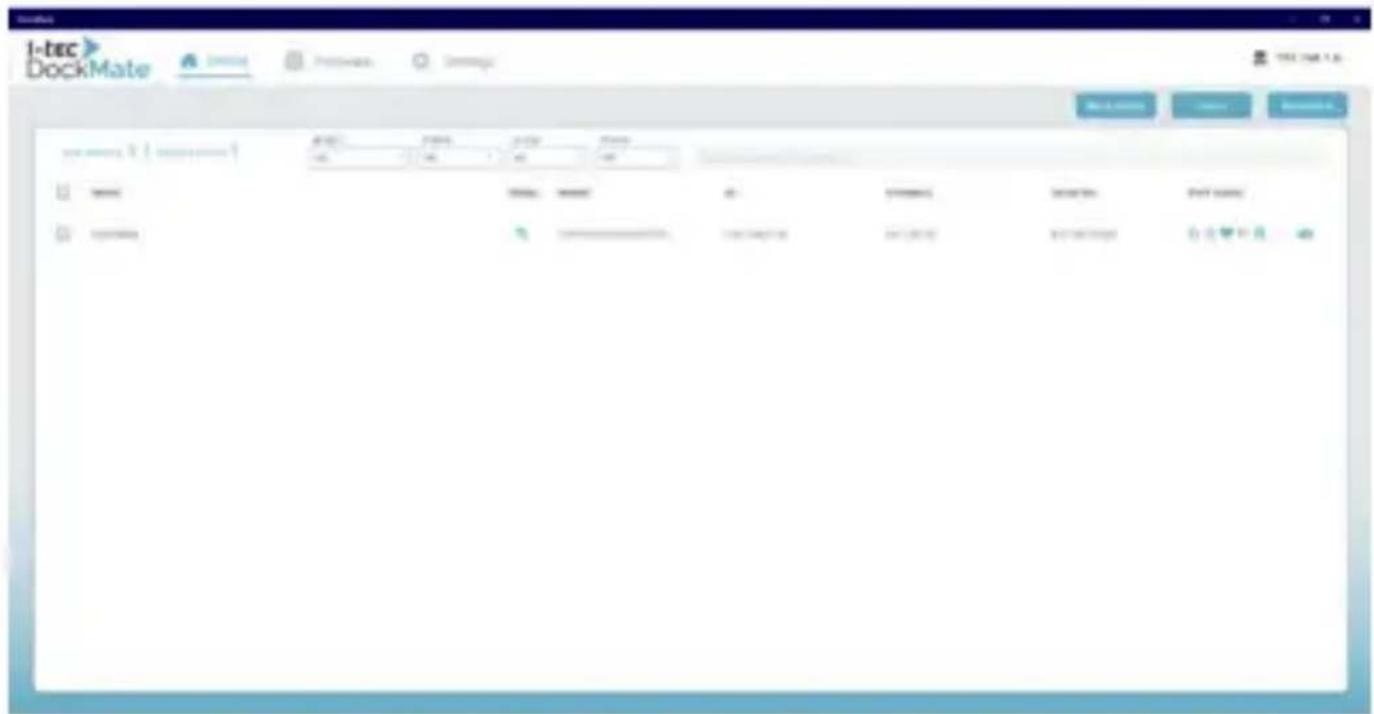
Device window allows of binding, deleting, and managing of intelligent docking stations.
Batch Control - Power ON/OFF and enable or disable ports for multiple devices simultaneously.
Delete Device - Remove a device from the DockMate software.
Bind Device - Add a new device to the DockMate software.
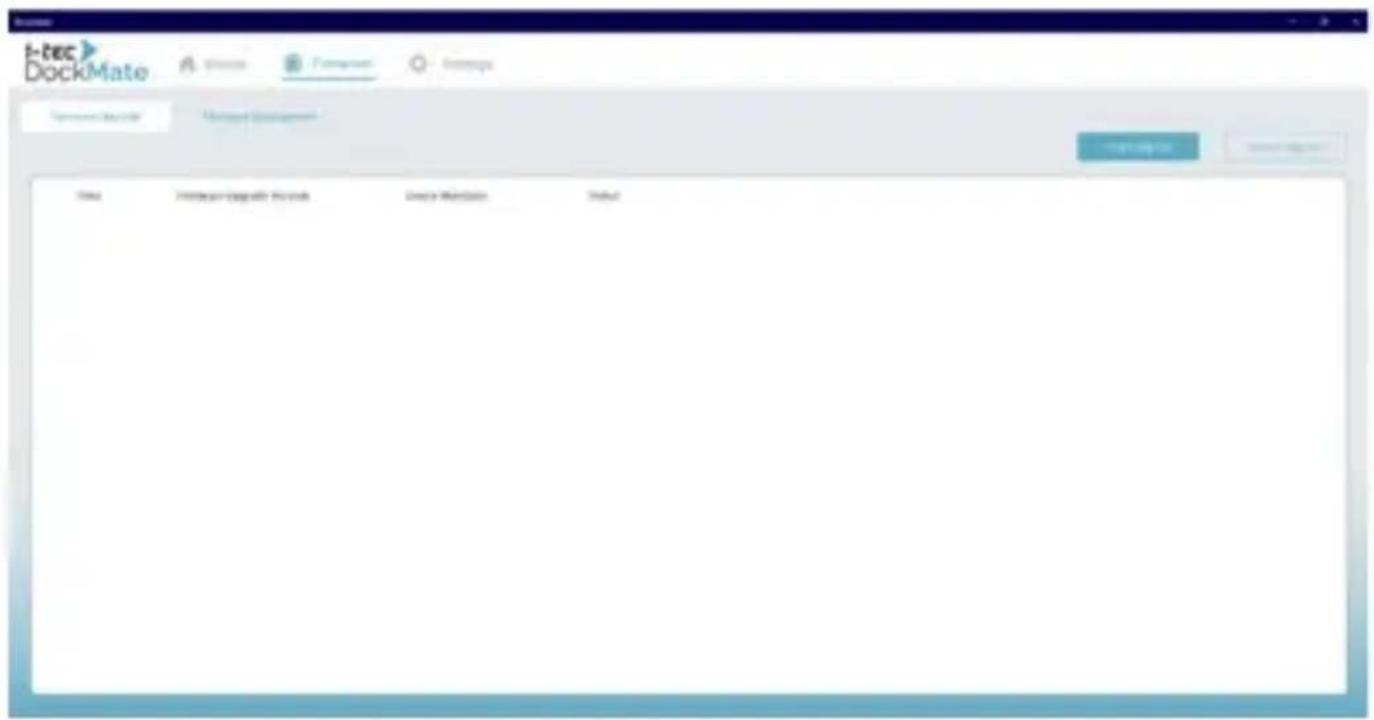
FIRMAWARE WINDOW
The Firmware Upgrade section is used to update device firmware and monitor the upgrade process.
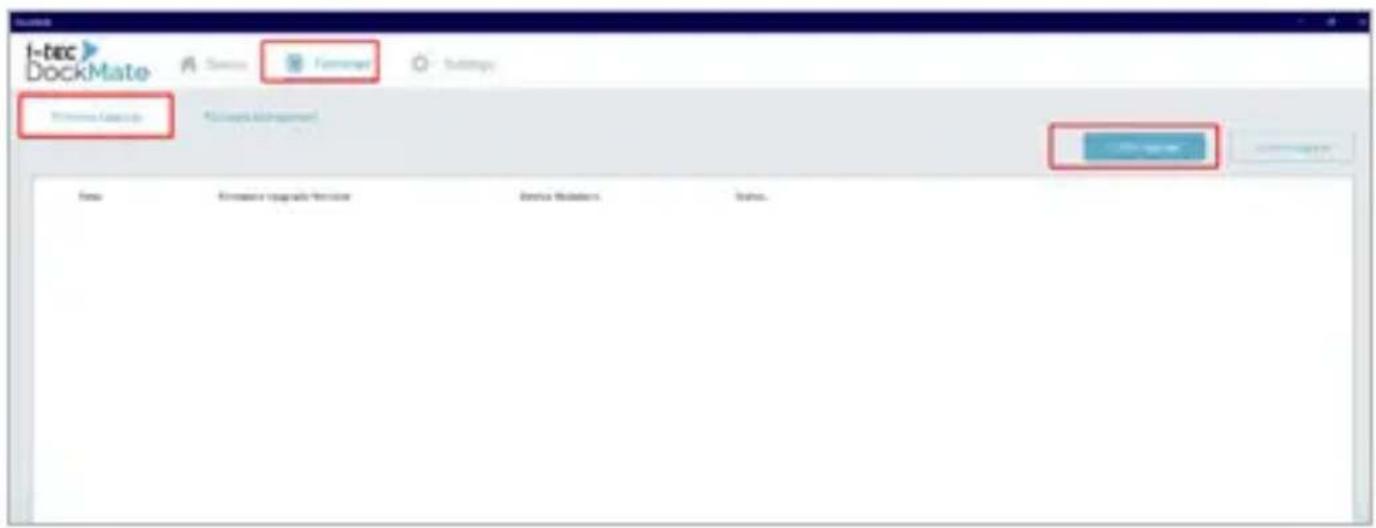
1-Click Upgrade - Quickly update all bound devices to the latest firmware release uploaded.
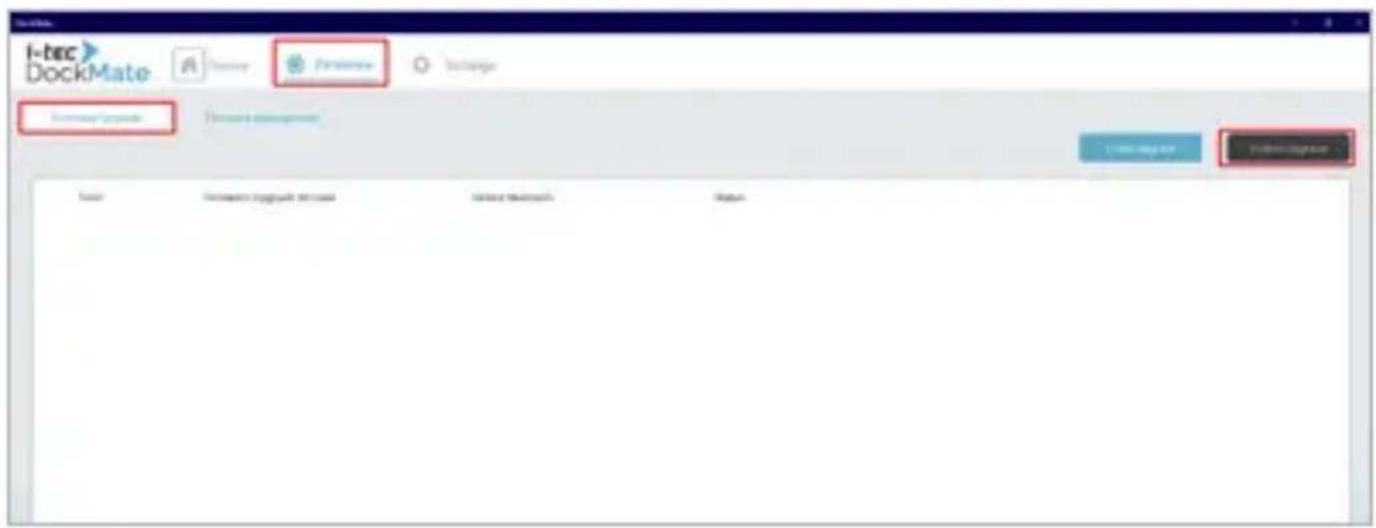
Custom Upgrade - Update specific firmware versions on selected devices.
Firmware Management - Import or delete firmware files from the system.
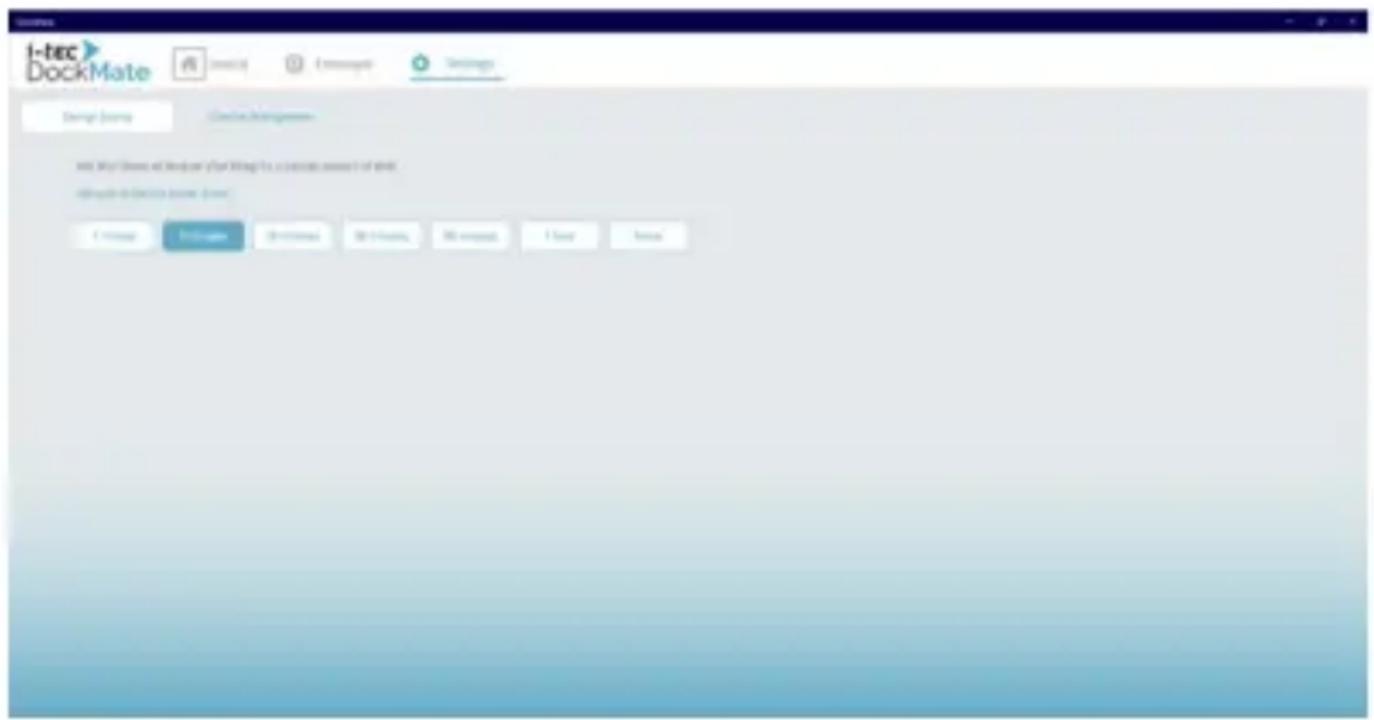
SETTINGS WINDOW
The Settings Window allows configuration of general DockMate options.
Energy Saving - Enable or disable power-saving features on intelligent docking stations.
License Management
- Update Request - Request a license update.
- Transfer Request - Request to transfer a license to another system.
DISCOVER AND BIND DEVICE
To discover and bind new devices in DockMate, follow these steps:
- In the Device window click on Bind device
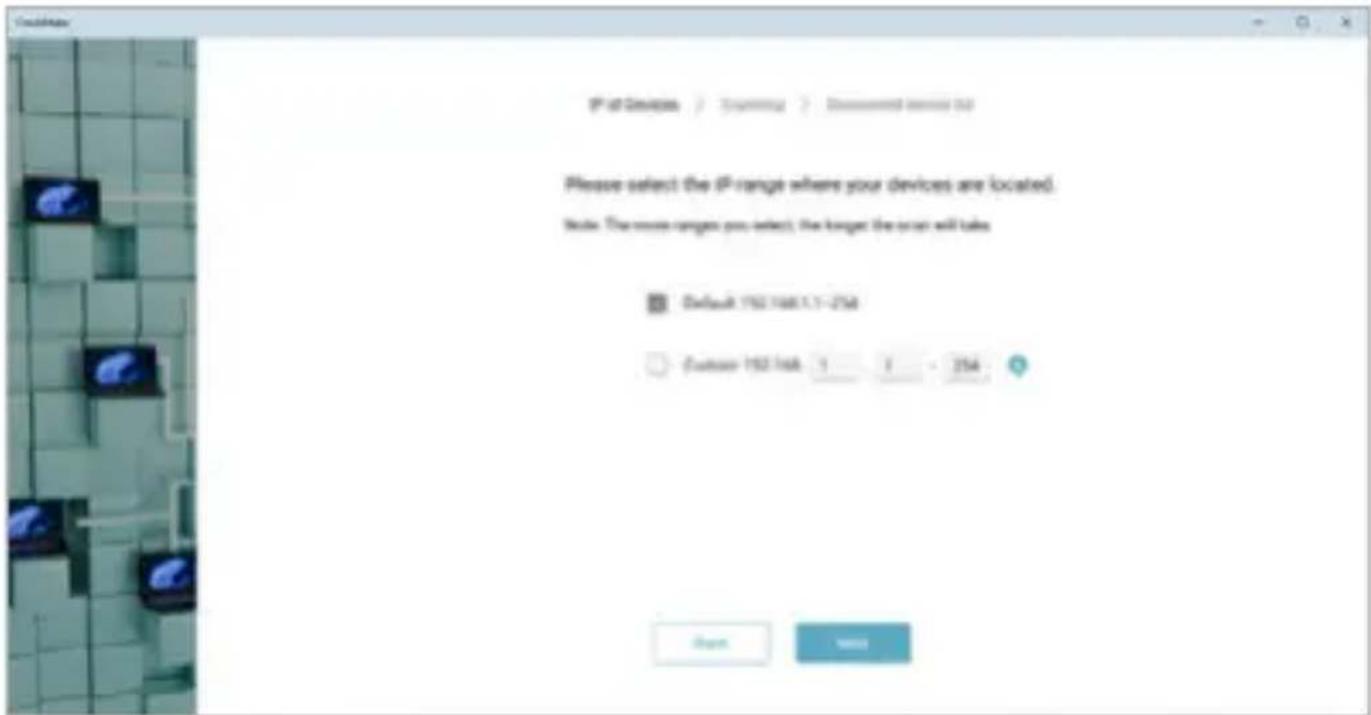
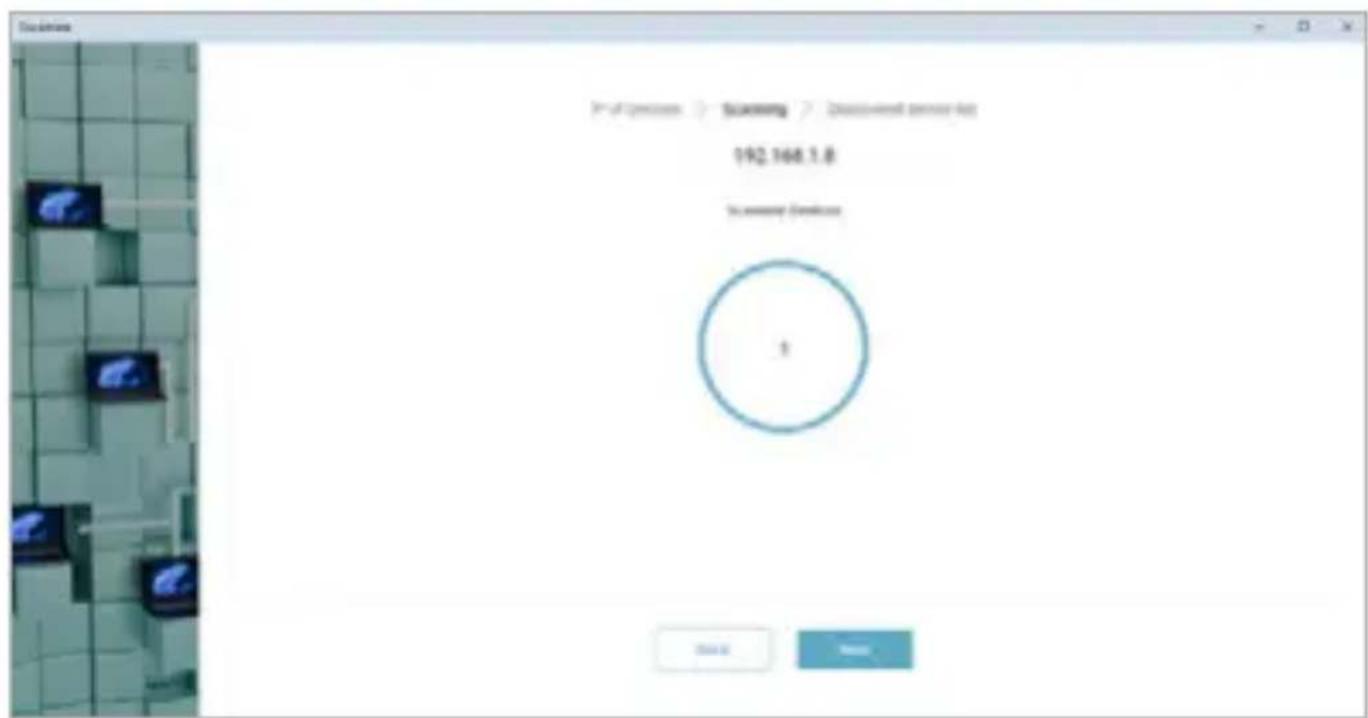
- Choose either the default IP address range or set a custom IP range for faster detection. Click Next to proceed
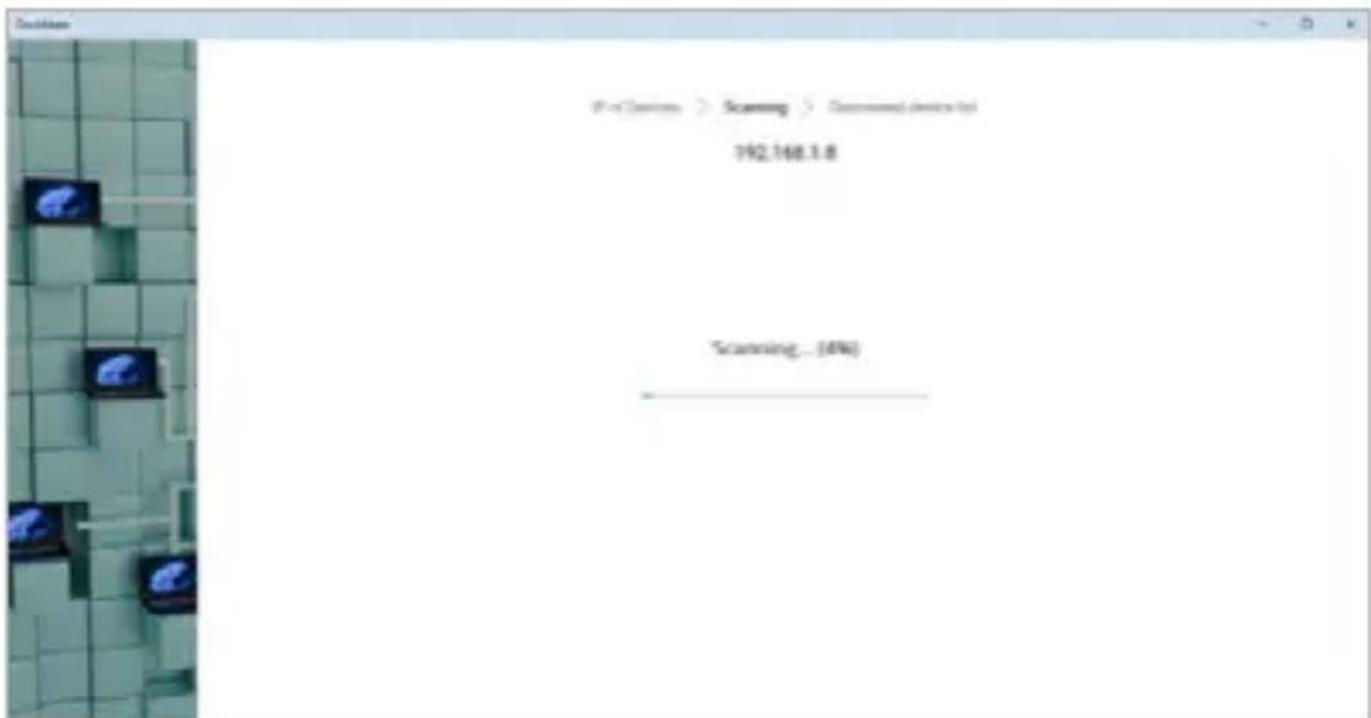
- Wait for the scanning process to complete
- Number of detected device will be displayed. Proceed with Next
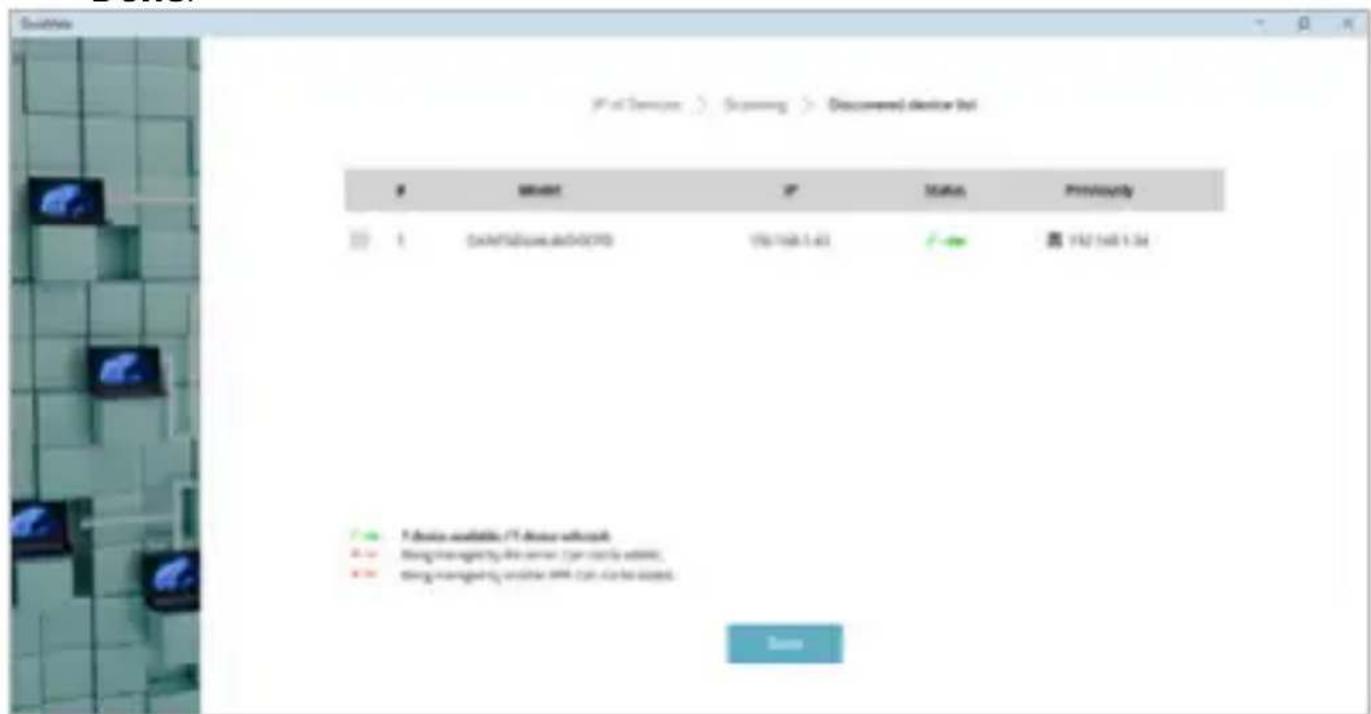
- Select the devices you want to add to the DockMate software, then click Done.
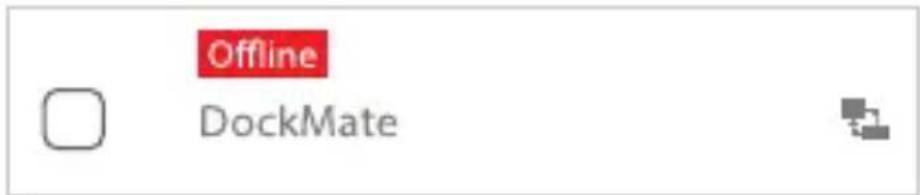
- Select the deviAfter selection, a red "Offline and connecting" message will appear. Please wait approximately 10 seconds for the connection to complete.
DELETE DEVICE
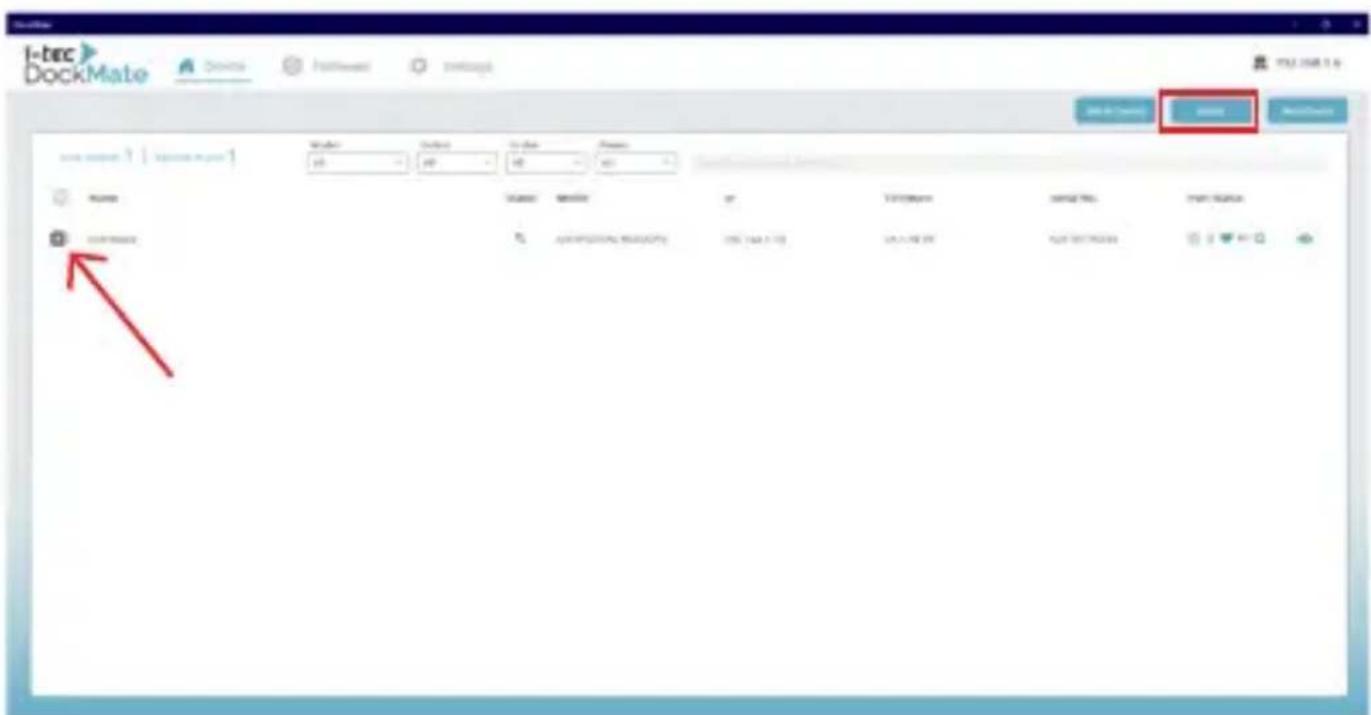
To delete a docking station, follow these steps:
- In the Device window, select the docking station you want to delete and click on Delete
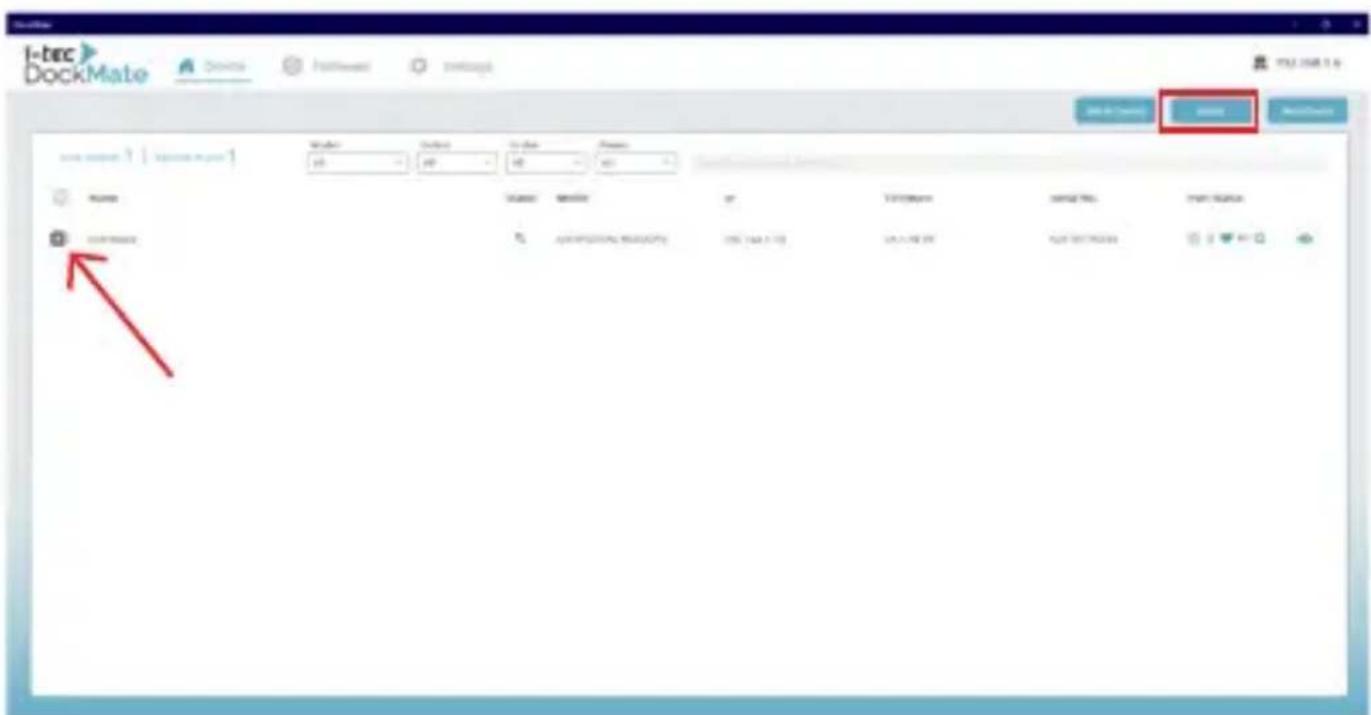
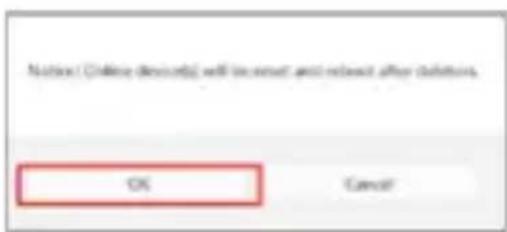
- Devices that are currently online and in use will reboot upon deletion. Confirm by clicking OK to proceed.
DEVICEDETAIL MENU
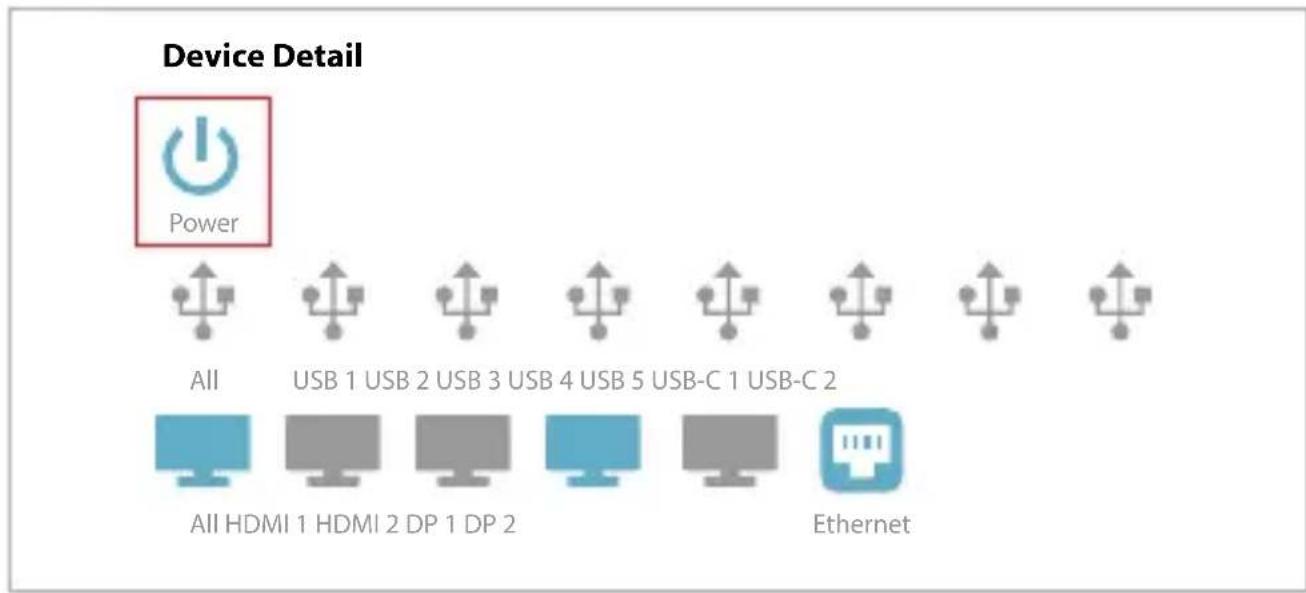
To access the Device Detail menu, click the eye icon.

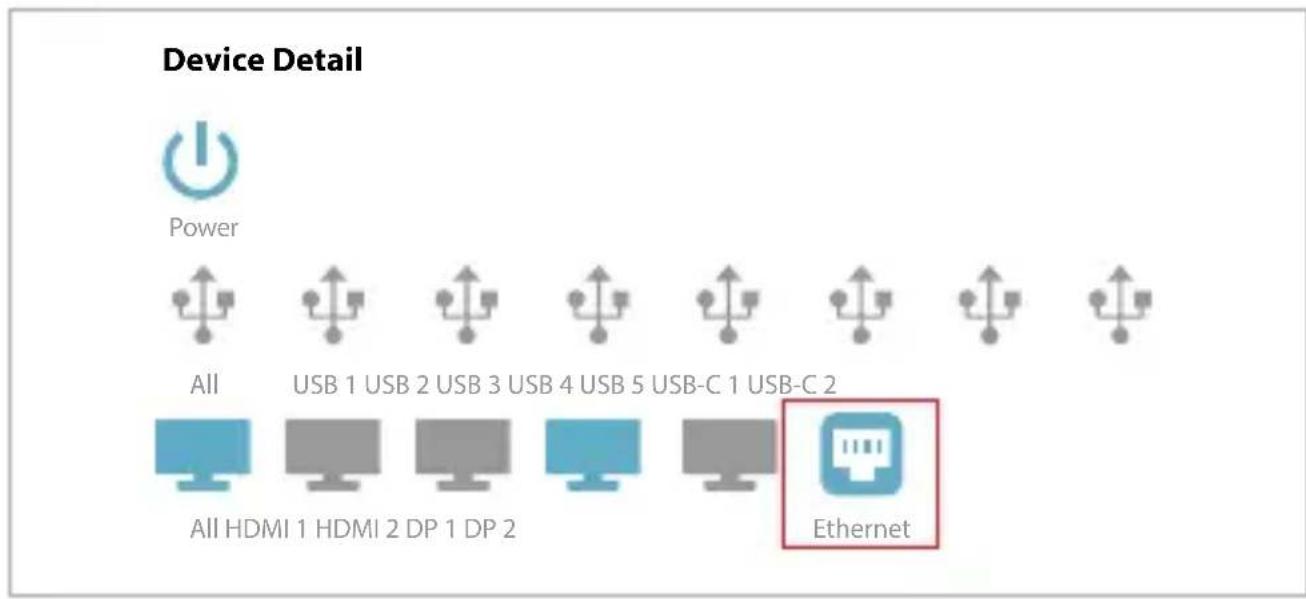
The Device Detail menu provides the following features:
- Turn the docking station ON or OFF
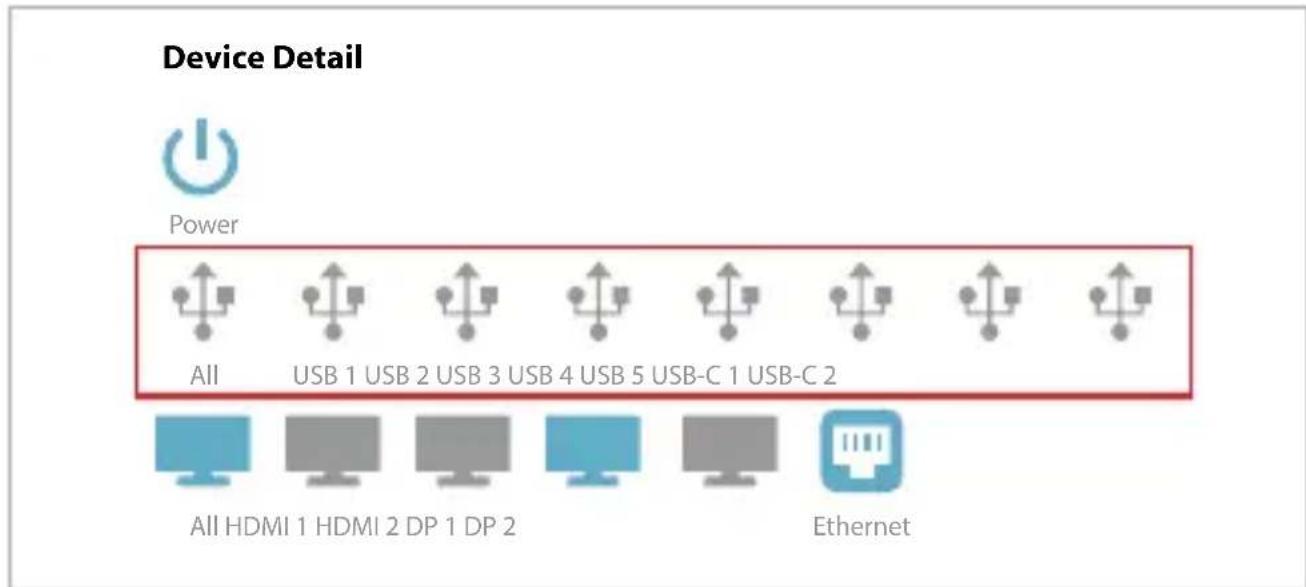
- Enable or disable specific USB ports
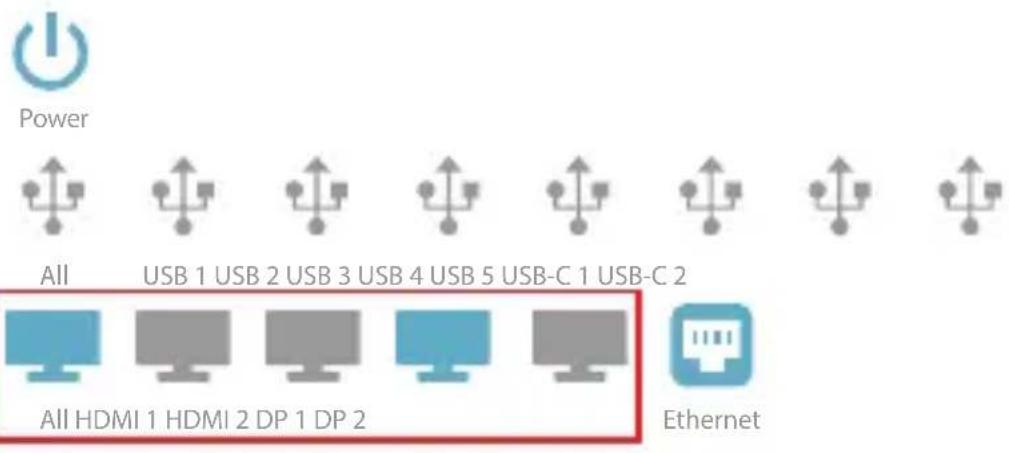
- Enable or disable specific video ports
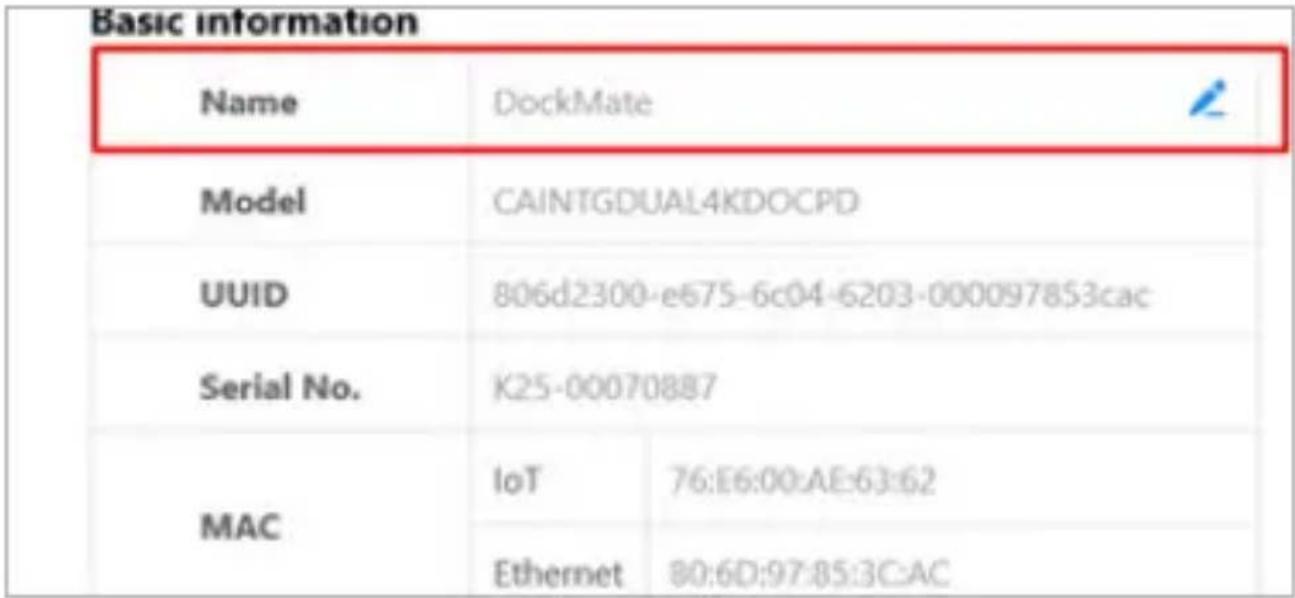
Device Detail
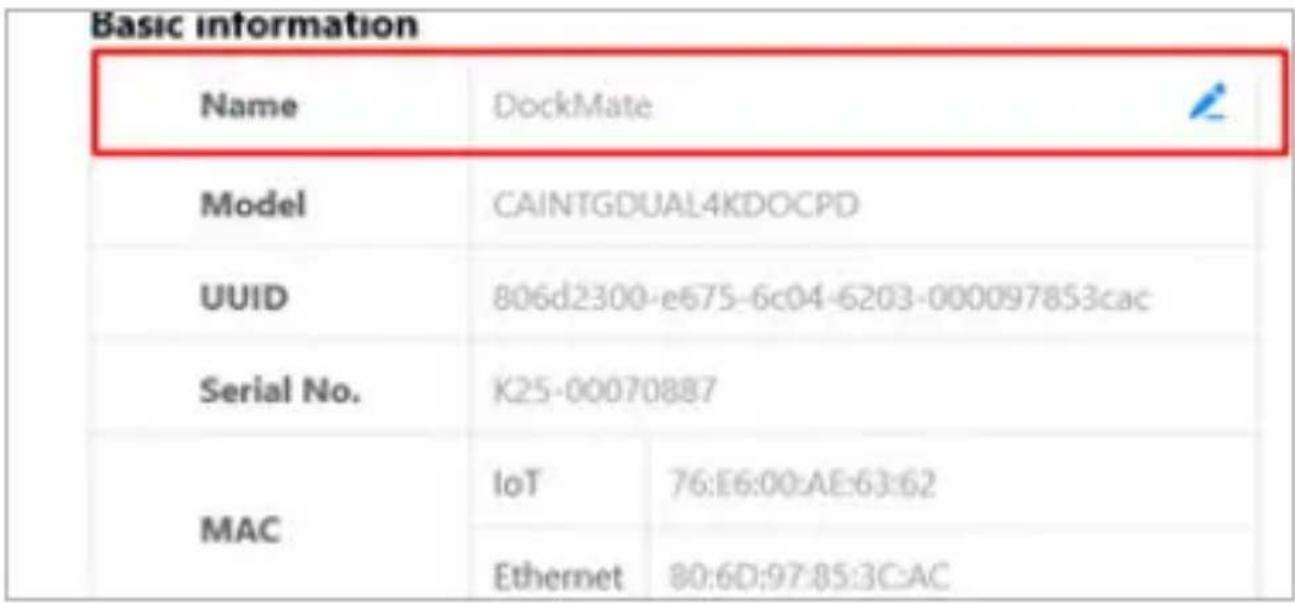
- Rename the docking station
- Enable or disable the LAN connection
The Device Detail menu also displays detailed information about the device.
| Name | Cockatade | |
| Model | CAINTIGDUAL4DOCPD | |
| UUID | 805d2300-6675-6c94-6203-000097B53cac | |
| Serial No. | K25-00070037 | |
| MAC | rot1 76E600AE862 | |
| Ethernet 80GDP7853ACAC | ||
| Firmware | ||
| Firmware Version | v4.1.10.30 | |
| Firmware Model | CAINTIGDUAL4DOCPD | |
| Chips | MCU | 4.1.99 |
| PD | a1.06.12.46 | |
| USB HUB 1 | b234 | |
BATCH CONTROL
Batch Control allows you to manage multiple devices simultaneously.
To open Batch Control, first select the devices you wish to control. Once opened, the following actions are available:
- Power Button Icon - Turn all selected devices ON or OFF.
- USB Port Icon - Enable or disable all USB ports on the selected devices.
- Monitor Icon - Enable or disable all video output ports.
- LAN Icon - Enable or disable LAN connections for all selected devices.
Batch Control
You have selected 5 Devices.

Power On: 5
Power Off: 0

Enable:5
Disable: 0
Enable: 5
Disable:0

Enable:5
Disable: 0
Cancel
Confirm
FIRMAWARE UPGLOADING
To upload firmware in DockMate, follow these steps:
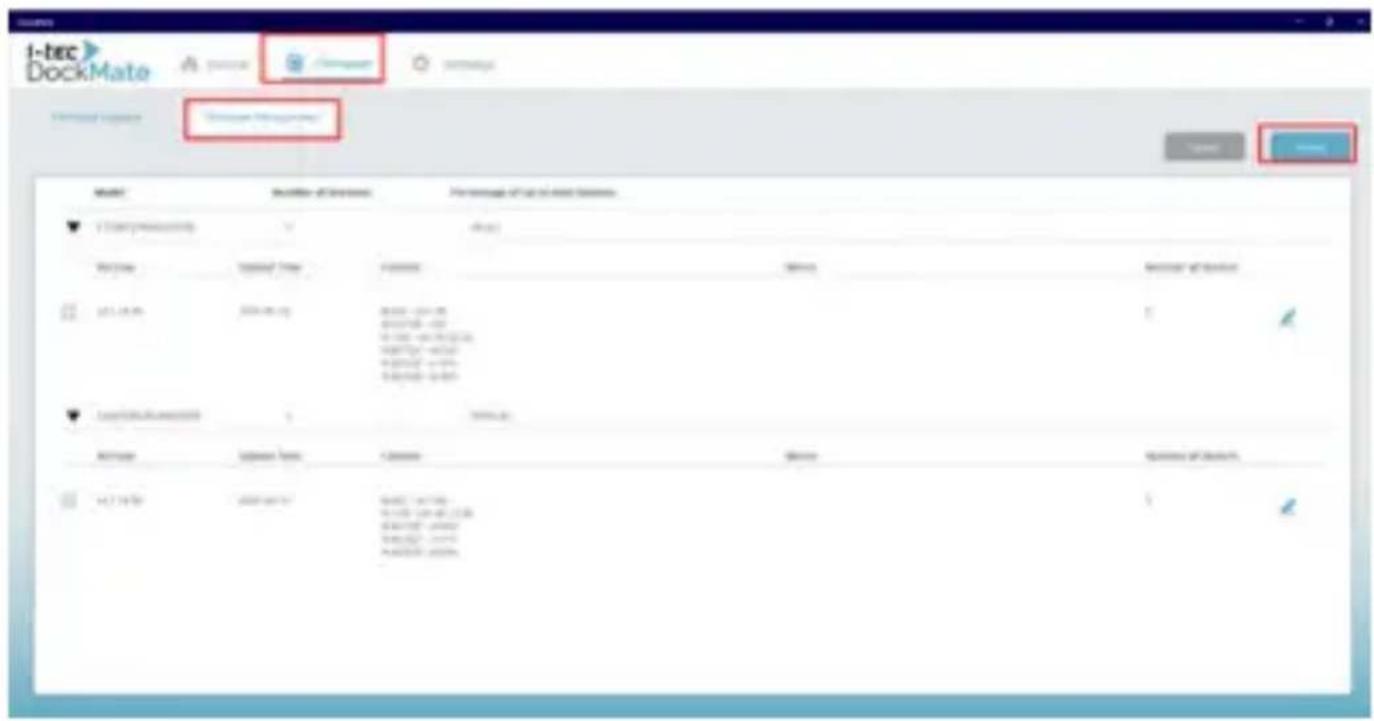
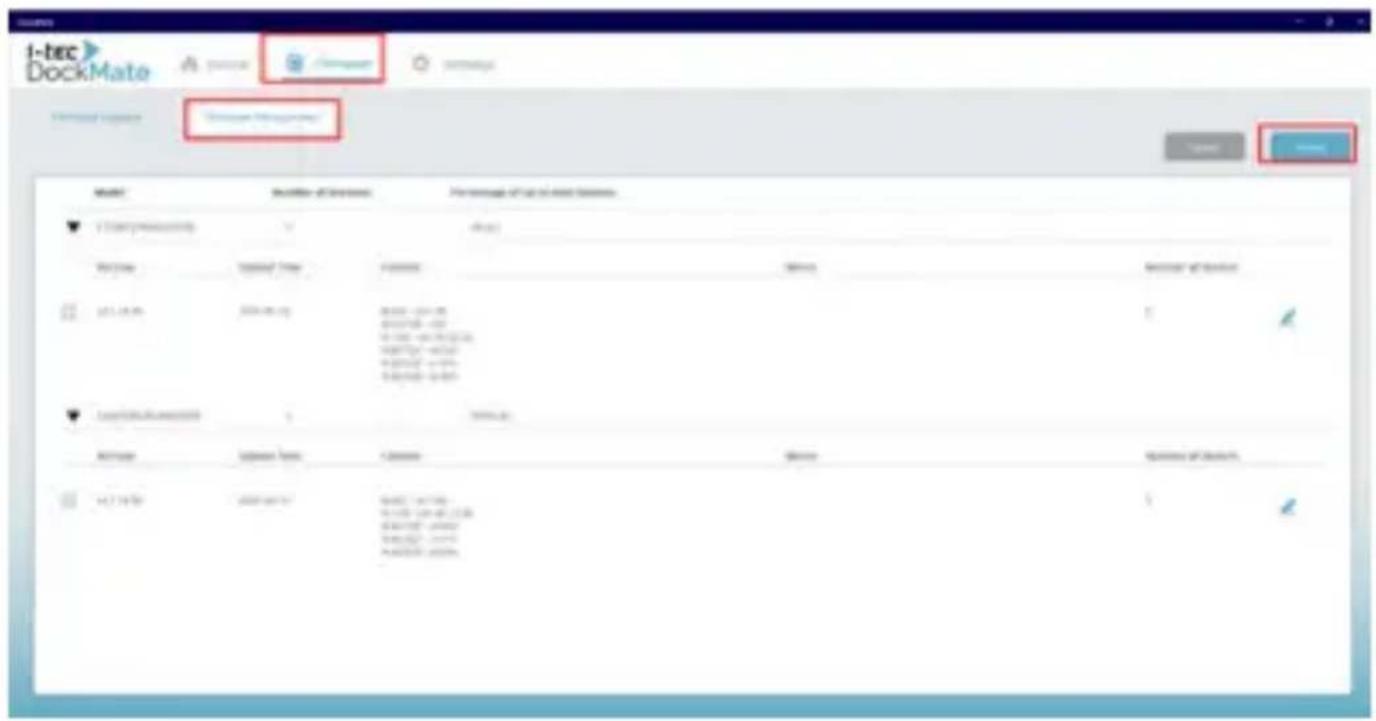
- In the Firmware window, navigate to Firmware Management.
- Click on Import.
- Select and upload the firmware file in .zip format.
Firmware Upgrade
To upgrade firmware please follow one of two following methods.
1-Click Upgrade
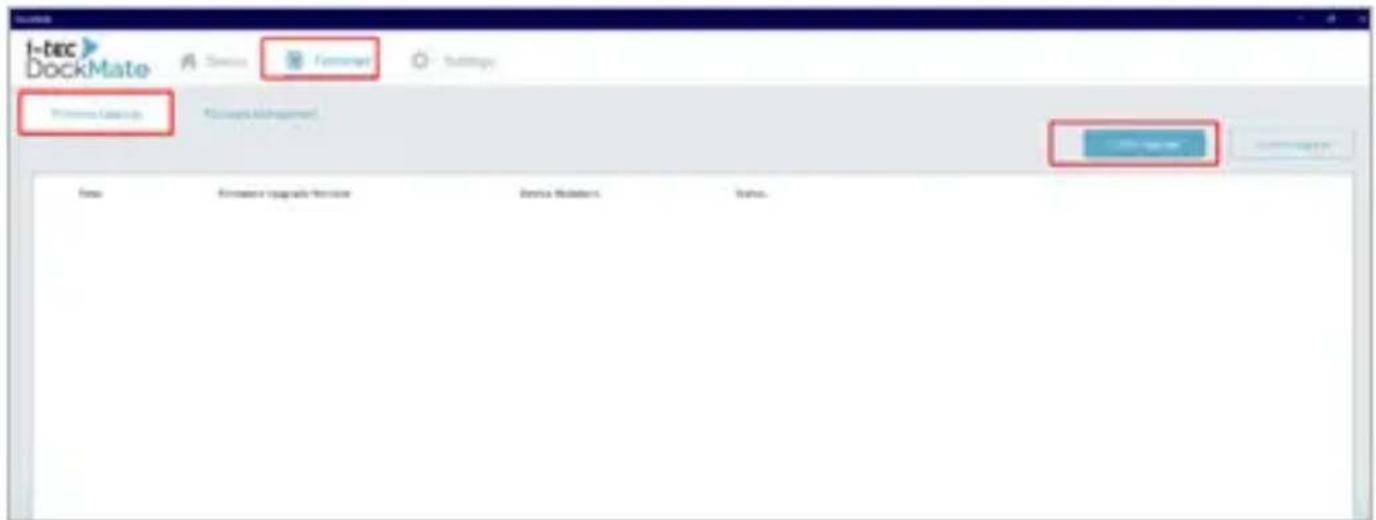
- Go to the Firmware window.
- Navigate to the Firmware Upgrade section.
- Click 1-Click Upgrade.
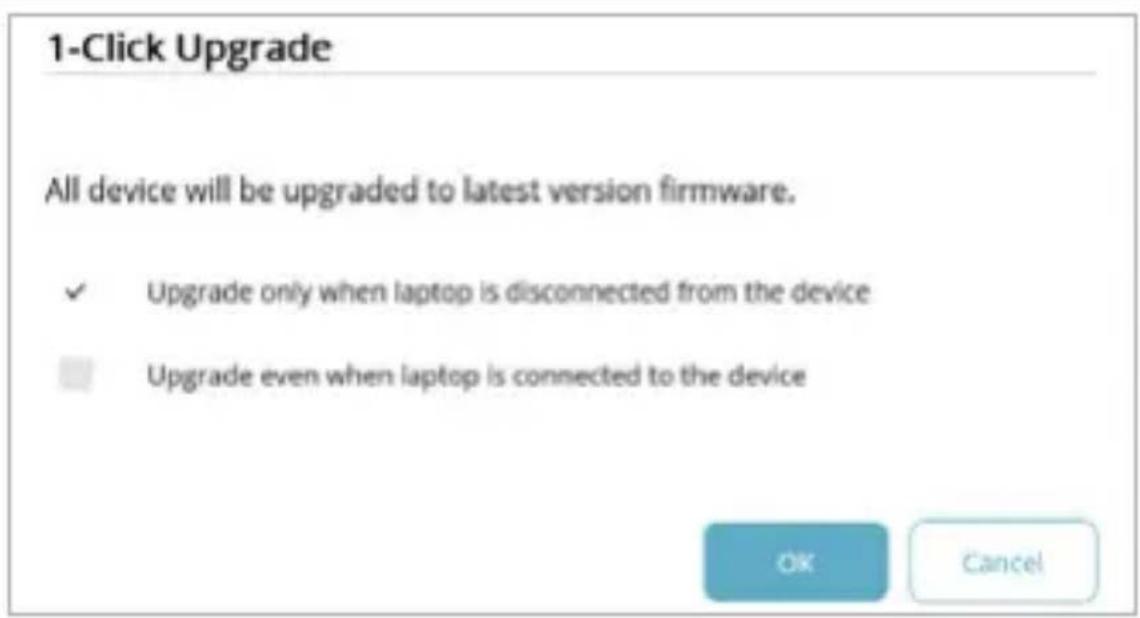
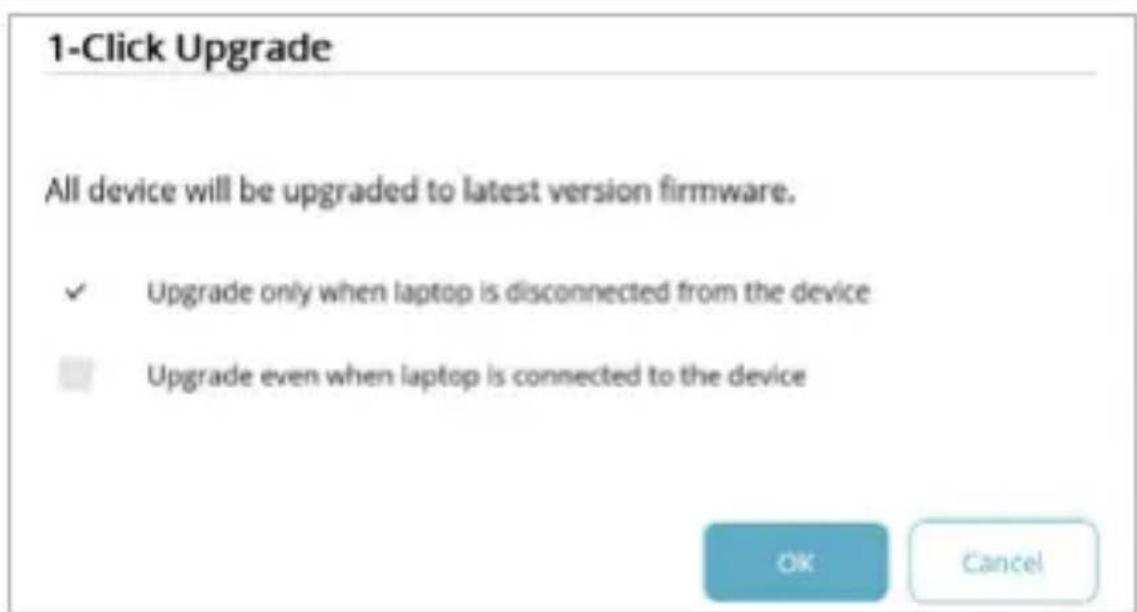
- All connected docking stations will automatically be updated to the latest firmware version.
-
Select the device status in which the update should occur:
-
While the docking station is connected to a laptop
- While the docking station is disconnected
Custom Upgrade
- Go to the Firmware window.
- Navigate to the Custom Upgrade section.
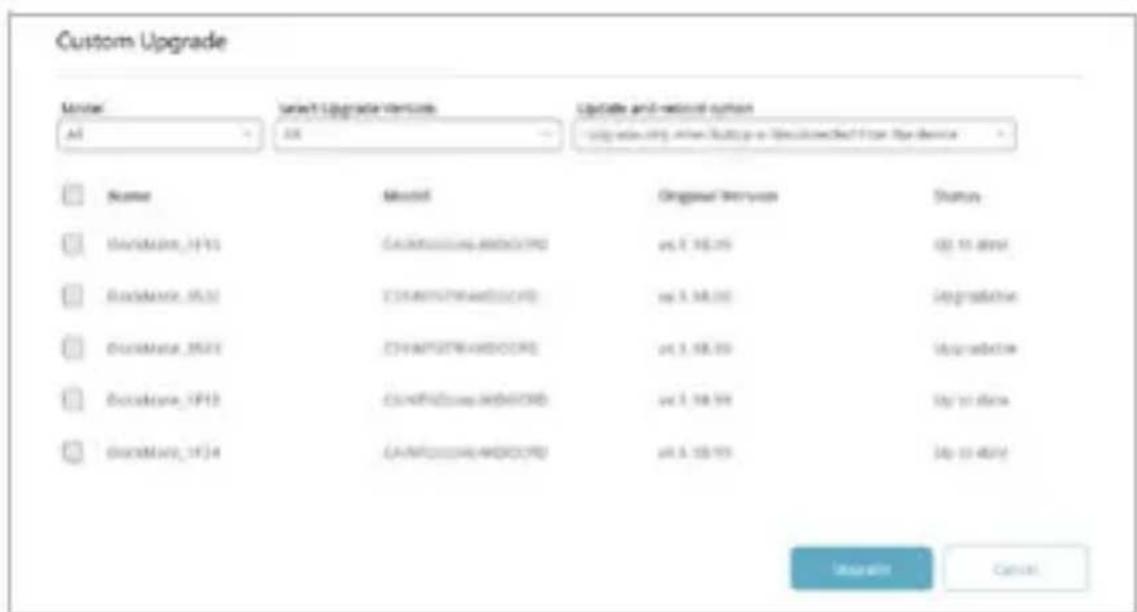
- In the opened window, select the models and specific units you want to upgrade.
- Choose the firmware version to be installed.
-
Select when the upgrade should take place:
-
While the docking station is connected to a laptop
-
While the docking station is disconnected
ENERGY SAVING
To configure energy-saving settings:
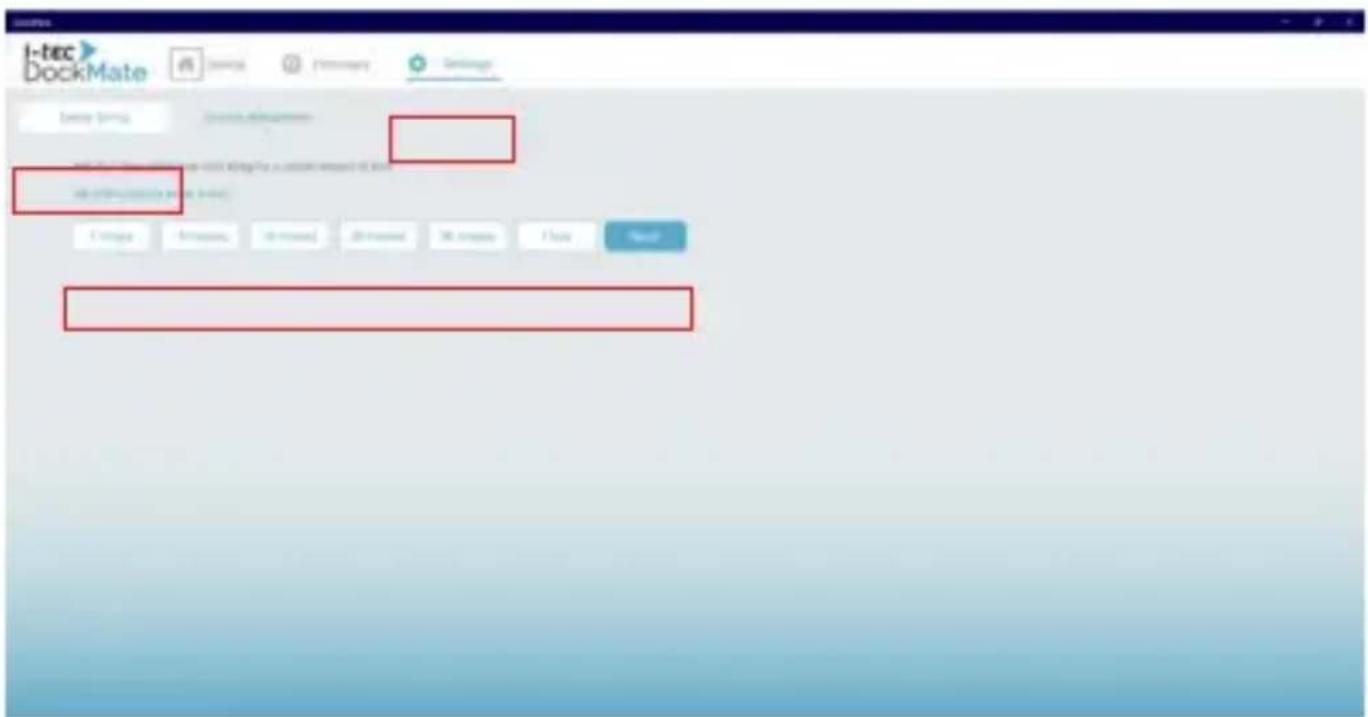
- Navigate to Settings, then go to Energy Saving.
- Select a time period after which the docking stations will automatically power off if they are not connected to a laptop.
LICENSE MANAGEMENT
The software allows free management of typically two docking stations in the trial version. If you wish to manage more docking stations, you can purchase licenses (one license per docking station). To buy licenses, please contact your professional IT solutions and services provider, or reach out to i-tec Technologies (www.i-tec.pro dockmate).
Note: The minimum number of licenses that can be purchased is 10.
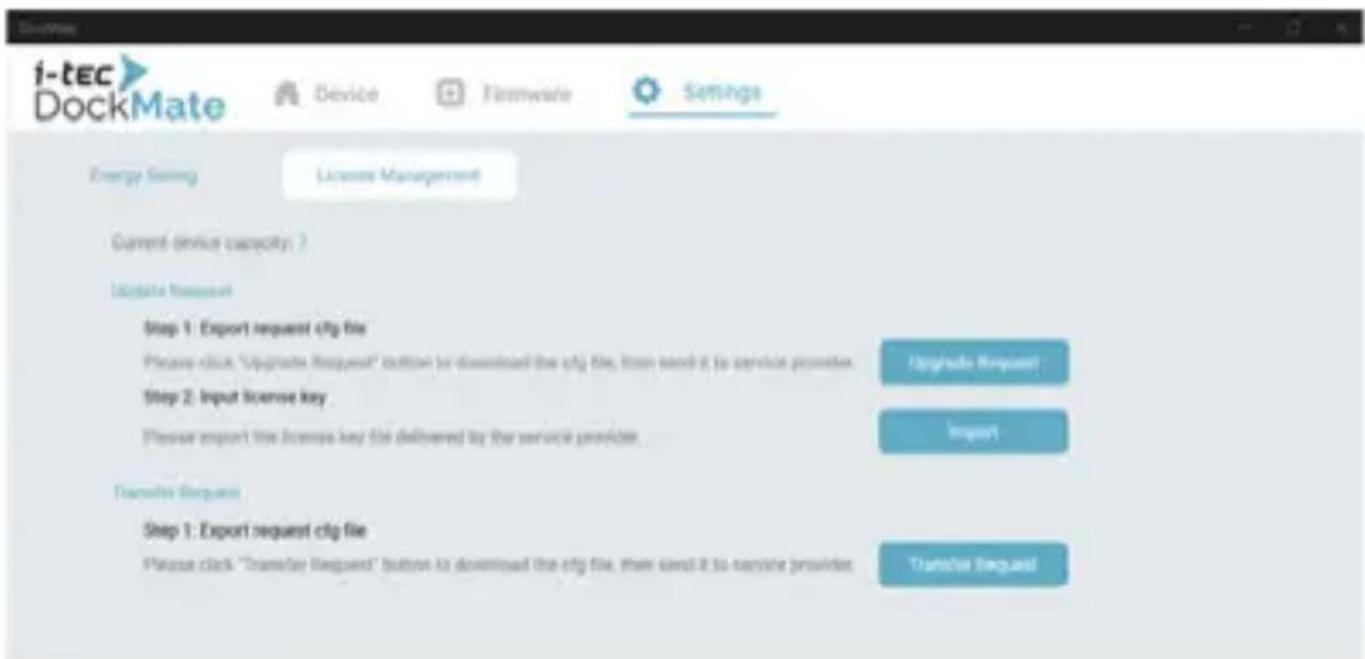
Current device capacity
Indicates the maximum number of docking stations that can be added to DockMate.
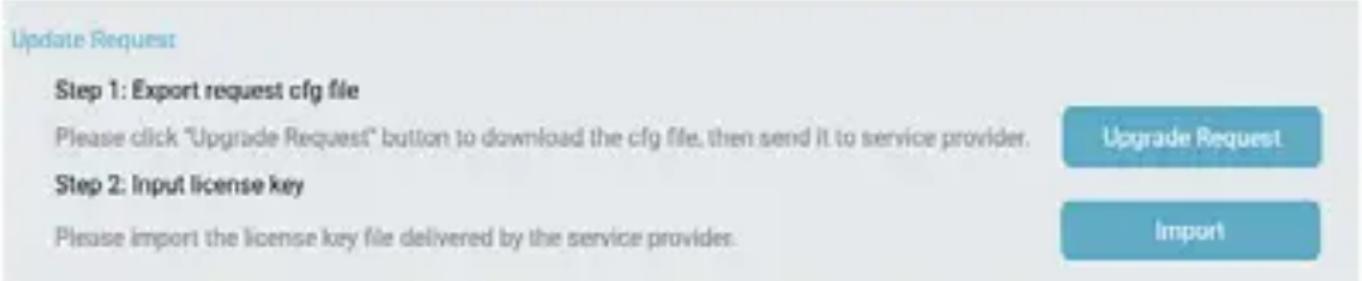
Update Request
Enables you to increase the number of devices managed by DockMate. To complete the upgrade, you must first purchase an expanded license package and then follow these steps:
- Click the "Upgrade Request" button
- Save the generated .cfg file
- Send the file to your IT solutions provider or contact i-tec Technologies at support@itecproduct.com
- You will receive an electronic key file
- Import the provided key file by clicking the "Import" button
- Restart the DockMate software. The maximum number of manageable devices should now be increased
Transfer Request
Allows you to transfer purchased licenses from one laptop to another. Please note that the process may take up to 24 hours, during which the licenses will be temporarily deactivated. To complete the transfer, follow these steps
- Install the DockMate software on your new laptop
- In the new installation, click the "Upgrade Request" button.
- Save the generated UpgradeRequestLicense.cfg file.
- In the old installation, click the "Transfer Request" button.
Note: This action will remove all purchased licenses from the old installation
- Save the generated TransferRequestLicense.cfg file.
- Send both files to support@itecproduct.com.
- You will receive a license key from i-tec Technologies.
- In the new DockMate installation, go to License Management and import the key using the "Import" button.
i-tec DockMate
i-tec DockMate:
Intelligente
Completing the DockMate Setup Wizard
Setup has finished installing DoodMate on your computer. The application may be launched by selecting the installed shortcuts.
ClickFinishtoexitSetu.
To discover and bind new devices in DockMate, follow these steps:
You have selected 5 Devices.

Power On: 5
Power Off: 0

Enable:5 Disable:0

Enable:5 Disable:0

Enable:5 Disable:0
FIRMWARE-Upload
Current device capacity: 7
Update-Anforderung
Step 1: Export request cfg file
Please click "Upgrade Request" button to download the cfg file, then send it to service provider.
Step 2. Input license key
Please import the license key file delivered by the service provider.
Upgrade Request
import
Completing the DockMate Setup Wizard
Setup has finished installing DoodMate on your computer. The application may be launched by selecting the installed shortcuts.
ClickFinishtoexitSetu.
DESCRIPTIONS DES FENÊTURE
You have selected 5 Devices.

Power On: 5
Power Off: 0

Enable:5 Disable:0

Enable:5 Disable:0

Enable:5 Disable:0
FIRMWARE-Upload
Current device capacity: 7
Completing the DockMate Setup Wizard
Setup has finished installing DodiMate on your computer. The application may be launched by selecting the installed shortcuts.
ClickFinishtoexitSetup.
You have selected 5 Devices.

Power On: 5
Power Off: 0

Enable:5 Disable:0

Enable:5 Disable:0

Enable:5 Disable:0
Cancel
Confirm
CARGA DE FIRMWARE
Current device capacity: 7
Completing the DockMate Setup Wizard
Setup has finished installing DodiMate on your computer. The application may be launched by selecting the installed shortcuts.
ClickFinishtoexitSetup.
- Rinominare la docking station
You have selected 5 Devices.

Power On: 5
Power Off: 0

Enable:5
Disable:0
Enable: 5
Disable:0

Enable: 5
Disable: 0
Cancel
Confirm
CARICAMENTO DEL FIRMWARE
1- Con 1 clic Upgrade
Completing the DockMate Setup Wizard
Setup has finished installing DodiMate on your computer. The application may be launched by selecting the installed shortcuts.
ClickFinishtoexitSetup.
You have selected 5 Devices.

Power On: 5
Power Off: 0

Enable:5 Disable:0
Enable:5 Disable:0

Enable:5 Disable:0
Cancel
Confirm
NAHRÁVÁNÍ FIRMWARE
Step 1: Export request cfg file
Please click "Upgrade Request" button to download the cfg file, then send it to service provider.
Step 2. Input license key
Please import the license key file delivered by the service provider.
Upgrade Request
Import
Zádost o prévod
Completing the DockMate Setup Wizard
Setup has finished installing DodiMate on your computer. The application may be launched by selecting the installed shortcuts.
ClickFinishtoexitSetup.
You have selected 5 Devices.

Power On: 5
Power Off: 0

Enable:5 Disable:0
Enable:5 Disable:0

Enable:5 Disable:0

FIRMWARE PRZESYLANIE
Completing the DockMate Setup Wizard
Setup has finished installing DodiMate on your computer. The application may be launched by selecting the installed shortcuts.
ClickFinishtoexitSetup.
Préspustenie DockMate
- Ak nie je nainstalovaný .NET Desktop Runtime, zobrazí sa správa. Kliknite na "Download it now."
- Ked' sa zobrazi vyzva User Account Control (dvakrát), kliknite na "Yes."
- kliknite na "Start."
- Vyberte IP address z ktrej planujete spravovat dokovacie stanice.
POPIS OKIEN
- In the Device window, select the docking station you want to delete and click on Delete
You have selected 5 Devices.

Power On: 5
Power Off: 0

Enable:5 Disable:0
Enable:5 Disable:0

Enable:5 Disable:0
Cancel
Confirm
NAHRÁVANIE FIRMWARE
Na nahratie firmwaru do DockMate postupujte takto:
- Vokne Firmware, prejdite na Firmware Management
- Kliknite na Import.
- Vyberte a nahrajte SUBOR firmwaru vo formáte .zip.
Firmware Upgrade
Naactualizaciufirmwaru postupujtejidnymzdvoch nasledujucich sposobov.
1-Click Upgrade
- Prejdite do okna Firmware.
- Prejdite do sekcie Firmware Upgrade.
- Kliknite na 1-Click Upgrade.
- Vsetky pripojené dokovacie stanice sa automaticicky aktualizuji na latest firmware version.
-
Select the device status in which the update should occur:
-
Ked' je dokovacia stanica pripojená k notebooku
- Ked' je dokovacia stanica odpojená
Vlastnáactualizácia
Current device capacity: 7
Ziadost'oactualizaciu
Step 1: Export request cfg file
Please click "Upgrade Request" button to download the cfg file, then send it to service provider.
Step 2. Input license key
Please import the license key file delivered by the service provider.
Ucgrade Requst
Import
Ziadost' o prenos
Teskite spausdami Next
Teskite spausdami Next
3. Patvirtinkite instaliavima spausdamiInstall
Completing the DockMate Setup Wizard
Setup has finished installing DodiMate on your computer. The application may be launched by selecting the installed shortcuts.
ClickFinishtoexitSetup.
Pirmasis DockMate paleidimas
- Jei .NET Desktop Runtime néra jdiegta, pasirodys pranesimas. Spustelèkite "Download it now."
- Kai bus paklausta User Account Control (du kartus), spustelekite "Yes."
- spustelekite "Start."
- Pasirinkite IP address is kurio ketinate valdyti doko stolis
LANGUAPRAŠYMAI
You have selected 5 Devices.

Power On: 5
Power Off: 0

Enable:5 Disable:0
Enable:5 Disable:0

Enable:5 Disable:0
Cancel
Confirm
FIRMWARE JKÉLIMAS
To upgrade firmware please follow one of two following methods.
1-Click Upgrade
Step 1: Export request cfg file
Please click "Upgrade Request" button to download thecfg file. Then send it to service provider.
Step 2. Input license key
Please import the license key file delivered by the service provider.
Upgrade Request
Import
Perkëlimo prasymas
Completing the DockMate Setup Wizard
Setup has finished installing DodiMate on your computer. The application may be launched by selecting the installed shortcuts.
ClickFinishtoexitSetup.
Aangepaste upgrade - Update specific firmware versions on selected devices.
You have selected 5 Devices.

Power On: 5
Power Off: 0

Enable:5 Disable:0
Enable:5 Disable:0

Enable:5 Disable:0
Cancel
Confirm
FIRMWARE UPGADEN
Volg besteht stappen om firmware te uploaden in DockMate:
Step 1: Export request cfg file
Please click "Upgrade Request" button to download the cfg file, then send it to service provider.
Step 2: Input license key
Please import the license key file delivered by the service provider.
Upgrade Request
Import
Overdrachtsaanvraag
Completing the DockMate Setup Wizard
Setup has finished installing DodiMate on your computer. The application may be launched by selecting the installed shortcuts.
ClickFinishtoexitSetup.
You have selected 5 Devices.

Power On: 5
Power Off: 0

Enable:5
Disable: 0
Enable: 5
Disable:0

Enable:5
Disable: 0
Cancel
Confirm
UPPLADDNING AV FIRMWARE
Anpassad uppgradering
Completing the DockMate Setup Wizard
Setup has finished installing DodiMate on your computer. The application may be launched by selecting the installed shortcuts.
ClickFinishtoexitSetup.
You have selected 5 Devices.

Power On: 5
Power Off: 0

Enable:5
Disable: 0
Enable:5
Disable:0

Enable:5
Disable:0
Cancel
Confirm
Current device capacity: 7
This equipment is marked with the above recycling symbol It means that at the end of the life of the equipment you must dispose of it separately at an appropriate collection point and not place it in the normal domestic unsorted waste stream This wil benefit the environment for all (European Union only)