CAINTGDUAL4KDOCPD - Docking station i-TEC - Free user manual and instructions
Find the device manual for free CAINTGDUAL4KDOCPD i-TEC in PDF.


| Product Type | Universal Docking Station |
| Brand | i-TEC |
| Model | CAINTGDUAL4KDOCPD |
| Dimensions (L × W × H) | 202.8 × 95 × 32.6 mm |
| Weight | 357 g |
| Power Supply | 135 W adapter (20 V / 6.75 A); supplied power 100 W |
| Video Ports | 2 × HDMI, 2 × DisplayPort |
| Supported Video Resolutions | 1 monitor: up to 5K/60 Hz (DP); 2 monitors: up to 2 × 4K/60 Hz |
| USB Ports | 3 × USB-A 3.2 Gen 2 (10 Gbps), 2 × USB-A 3.2 Gen 1 (5 Gbps), 2 × USB-C 3.2 Gen 2 (10 Gbps) |
| Ethernet Port | RJ-45 Gigabit (1 Gbps) |
| Audio Jack | 1 × 3.5 mm combo jack |
| Host Connectivity | USB-C (cable included with USB-C to USB-A adapter) |
| Remote Management Functions | Detection, control, remote firmware update (Windows 10/11) |
| Supported Operating Systems | Windows 10/11, macOS, Linux Ubuntu, Android 5+, Chrome OS R51+ |
| Security | Kensington lock, power button, recommended to turn off after use |
| Maintenance and Cleaning | Clean with a soft, dry cloth. Do not use liquids. Avoid moisture and extreme temperatures. |
| Spare Parts and Repairability | No user-serviceable parts. Contact technical support for assistance. |
| General Information | Manual available online. Support: support@itecproduct.com. Website: www.i-tec.pro |
Frequently Asked Questions - CAINTGDUAL4KDOCPD i-TEC
User questions about CAINTGDUAL4KDOCPD i-TEC
0 question about this device. Answer the ones you know or ask your own.
Ask a new question about this device
Download the instructions for your Docking station in PDF format for free! Find your manual CAINTGDUAL4KDOCPD - i-TEC and take your electronic device back in hand. On this page are published all the documents necessary for the use of your device. CAINTGDUAL4KDOCPD by i-TEC.
USER MANUAL CAINTGDUAL4KDOCPD i-TEC
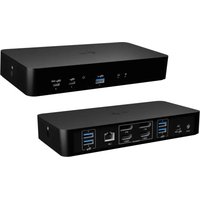
i-tec USB-C Intelligent 2 Display Docking Station + Power Delivery 100W
natural_image
Two black rectangular electronic devices with ports and indicator lights, no visible text or symbols on the devices themselves.User guide • Gebrauchsanweisung • Mode d'emploi Manual de instrucciones • Manuale • Uživatelská príručka Instrukcje obsługi • Užívatel'ská príručka
• Vartotojo vadovas Handleiding • Användarhandbok • Guia do utilizador
EN Please read the entire instruction manual carefully. Detailed manual is available on our website www.i-tec.pro/en/ in the tab „Manuals, drivers“. In case of any issues, please contact our technical support at: support@itecproduct.com
ENGLISH 06-10
DEUTSCH....11-15
FRANÇAIS....16-20
ESPAÑOL 21-25
ITALIANO 26-30
ČESKY....31–35
POLSKI....36-40
SLOVENSKY....41-45
LIETUVOS 46-50
NEDERLANDS....51-55
SVENSKA....56-70
PORTUGUÊS....71-75
WEEE....76-77
Declaration of Conformity ....78–79
FCC....80
DESCRIPTION
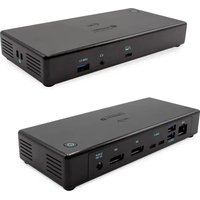
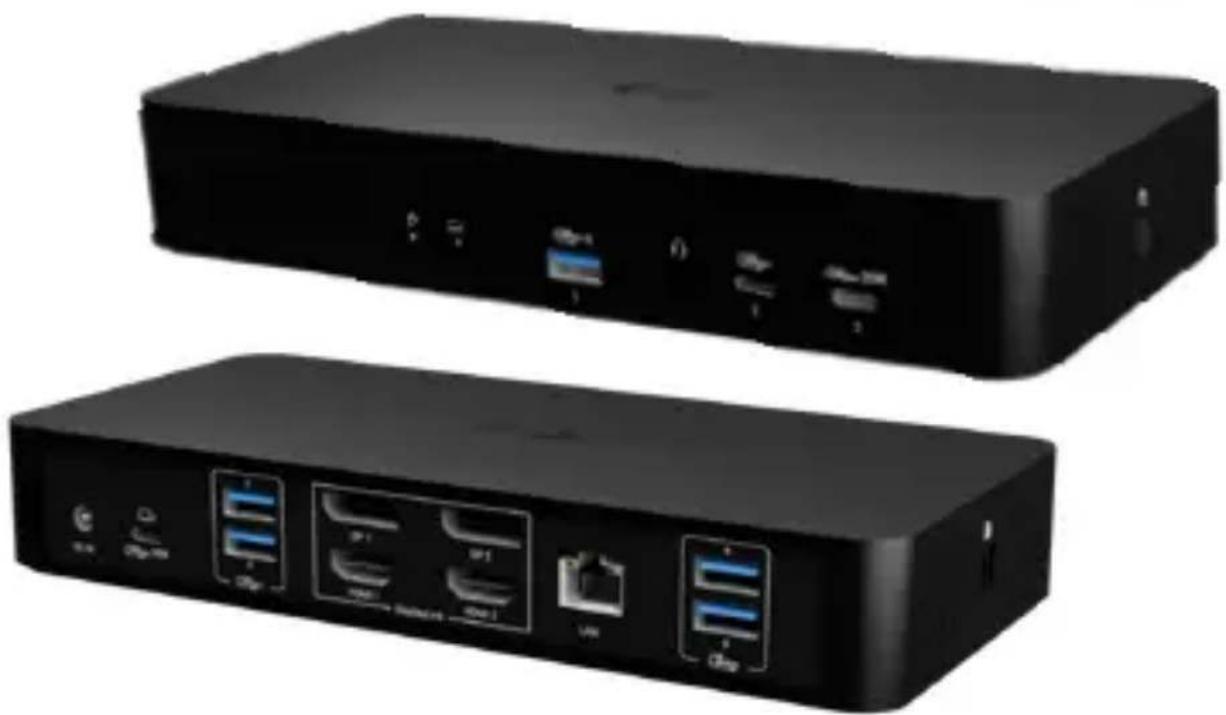
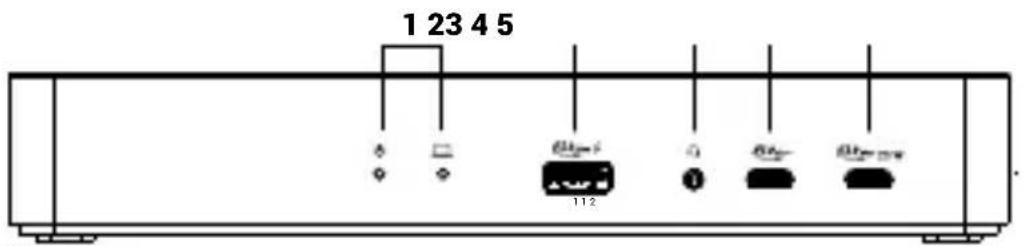
Front panel:
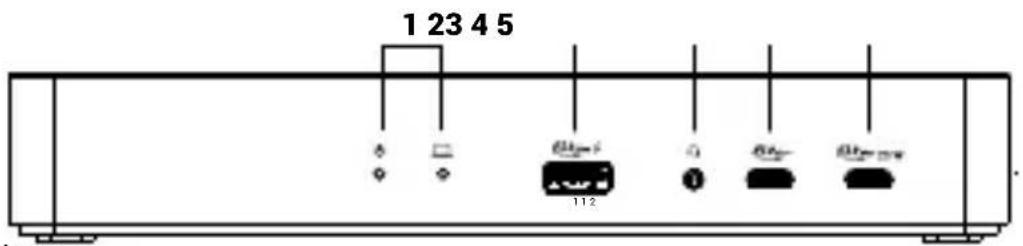
- LED indicators
- 1x combined 3.5 mm audio jack
- 1x USB-A 3.2 Gen 2 (10 Gbps) with fast charging support (BC 1.2)
- 1x USB-C 3.2 Gen 2 (10 Gbps) with fast charging support (BC 1.2)
- 1x USB-C 3.2 Gen 2 (10 Gbps) with Power Delivery support up to 20 W
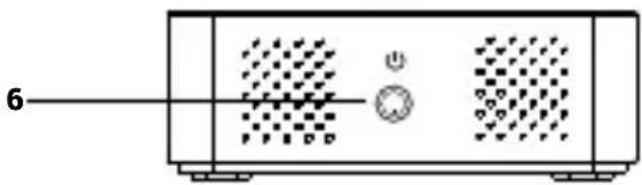
Side panel:
- ON/OFF button
natural_image
Front view of a portable electronic device with ventilation grilles and control buttons (no text or symbols visible)Back panel:
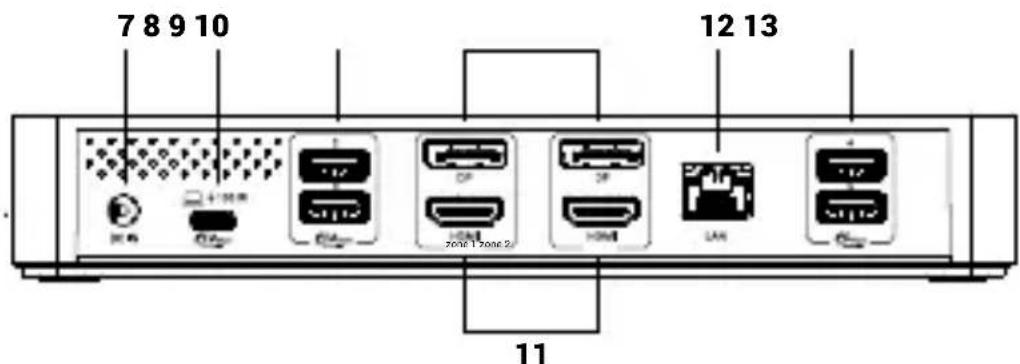
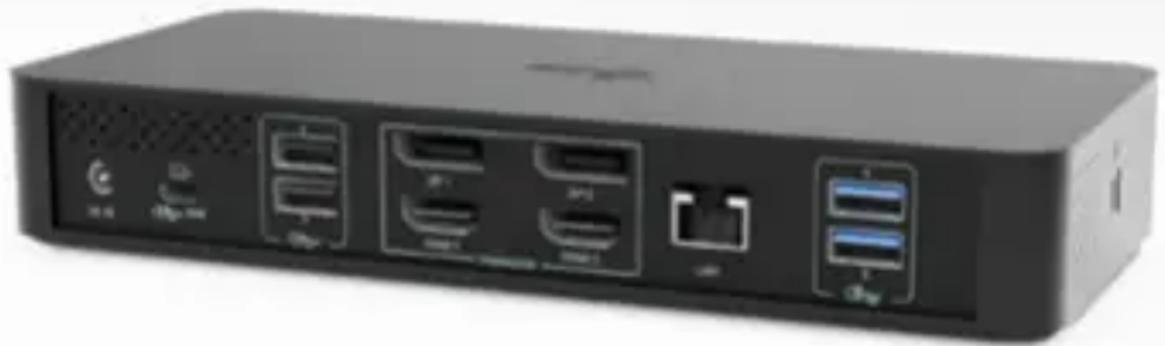
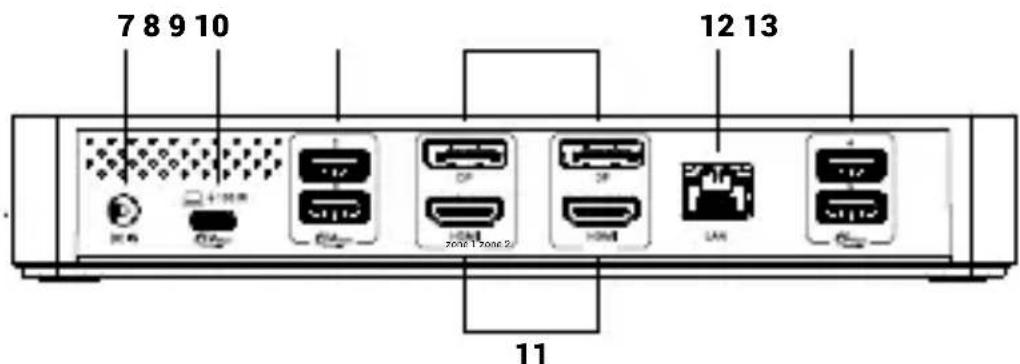
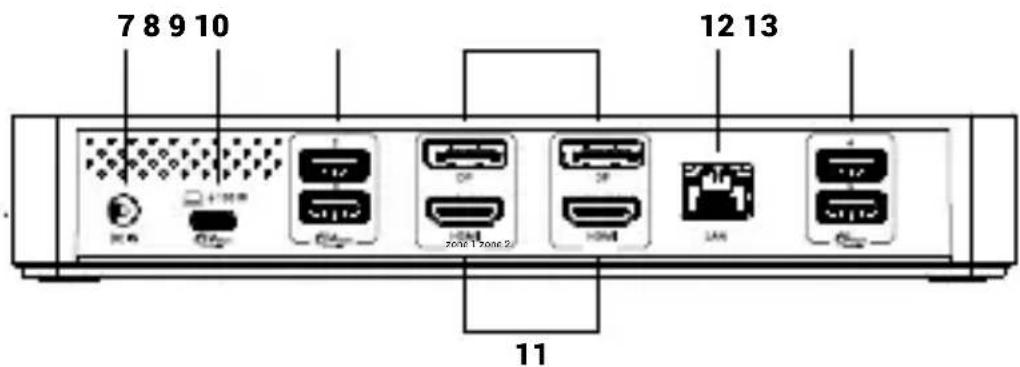
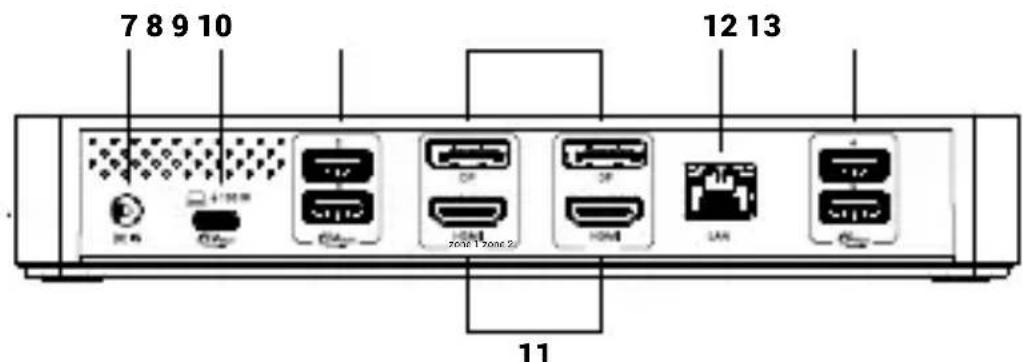
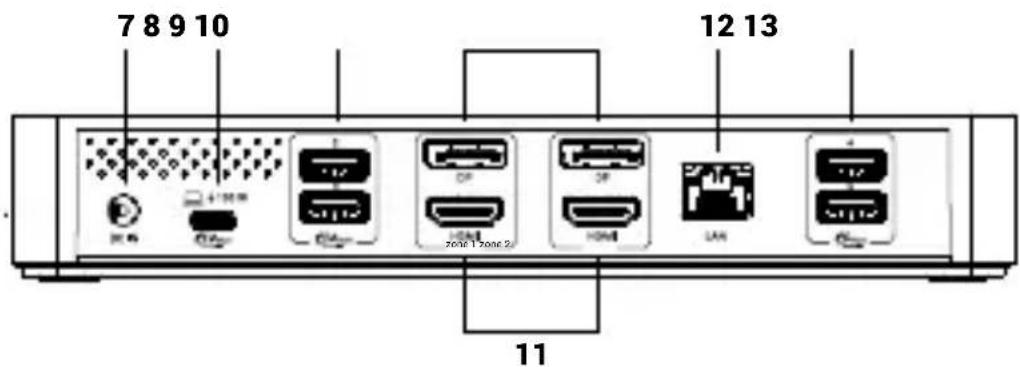
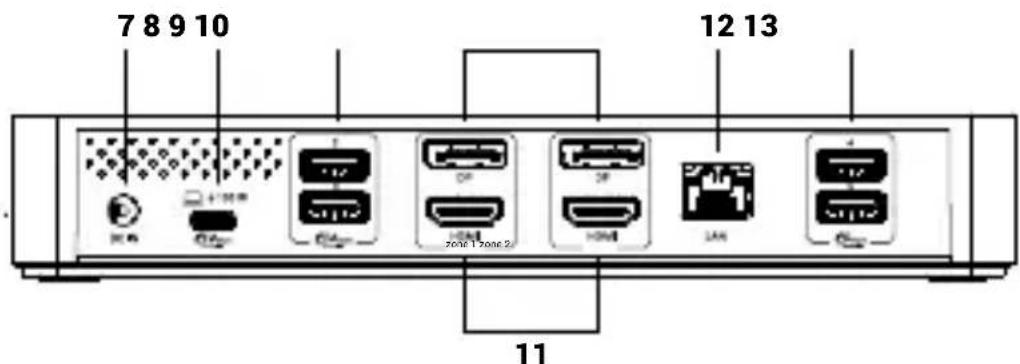
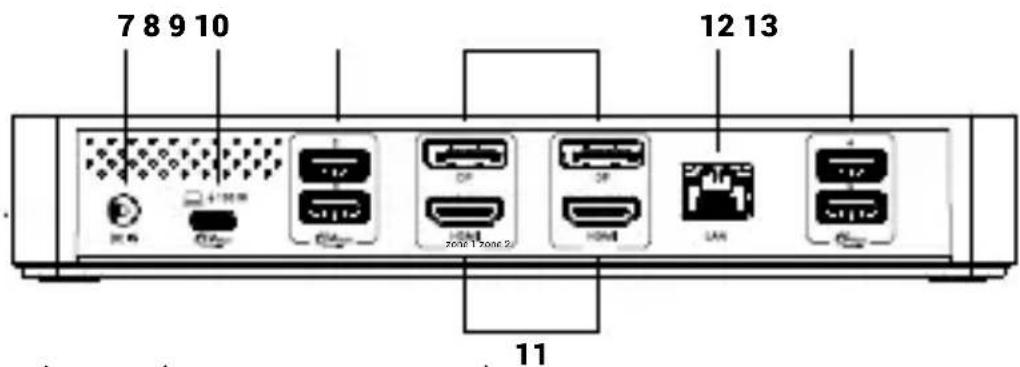
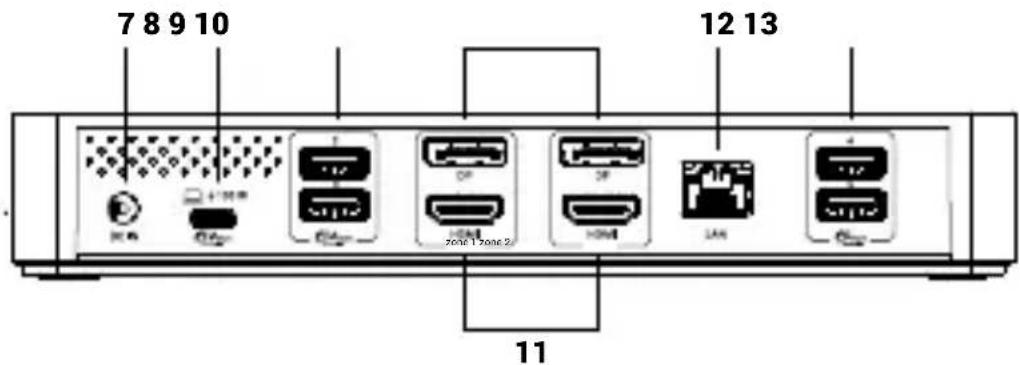
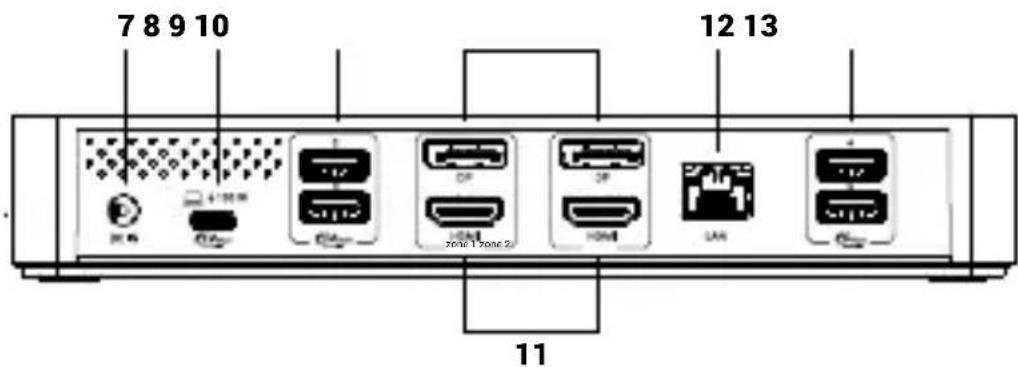
- 1x power input (DC 20V/6.75A, 135W)
- 1x USB-C port for connecting to a host device via USB-C or USB-A port
- 2x USB-A 3.2 Gen 2 (10 Gbps)
- 2x DisplayPort
- 2x HDMI
- 1x Ethernet port RJ-45 (1 Gbps)
- 2x USB-A 3.2 Gen 1 (5 Gbps)
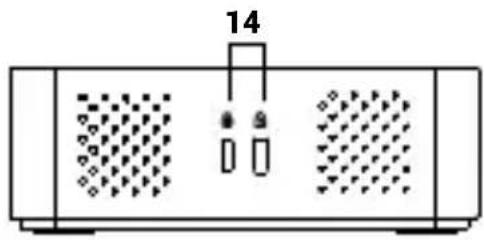
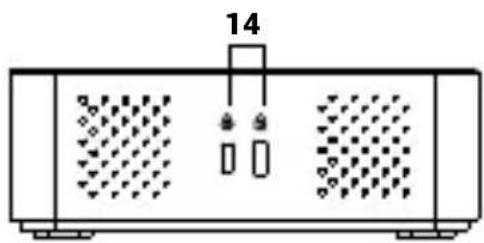
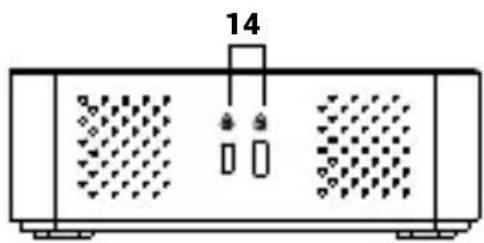
Side panel:
- Kensington lock
natural_image
Simple line drawing of a device with three panels and a labeled component (no text or symbols)SPECIFICATIONS
- 1x USB-C port for connection to a host device via USB-C or USB-A port (USB-C cable and USB-C to USB-A adapter included)
-
Optional remote management features:
-
Easy and automatic detection of docking stations in the same LAN segment
- Clear overview of all docking stations and their current status
- Full control down to the individual port level
- Remote installation and firmware updates
- Option to automatically shut down the docking station when disconnected from the host device
-
The software is compatible with any computer running Windows 10/11
-
Docking station technology: DisplayLink + USB-C Power Delivery
• Power Delivery: 100 W
• Video outputs: 2x HDMI, 2x DisplayPort
• Supported resolutions: -
1 monitor - 1x DP → up to 4K/60 Hz
- 1 monitor - 1x HDMI → up to 4K/60 Hz
- 1 monitor - 2x DP → up to 5K/60 Hz*
- 2 monitors - 1x DP + 1x DP → up to 2x 4K/60 Hz
- 2 monitors - 1x DP + 1x HDMI → up to 2x 4K/60 Hz
- 2 monitors - 1x HDMI + 1x HDMI → up to 2x 4K/60 Hz
• 1x USB-A 3.2 Gen 2 (10 Gbps) with fast charging support (BC 1.2)
• 2x USB-A 3.2 Gen 2 (10 Gbps)
• 2x USB-A 3.2 Gen 1 (5 Gbps)
• 1x USB-C 3.2 Gen 2 (10 Gbps) with Power Delivery support up to 20 W
• 1x USB-C 3.2 Gen 2 (10 Gbps) with fast charging support (BC 1.2)
• 1x RJ-45 Ethernet port (1 Gbps)
• 1x combined 3.5 mm audio jack
• 1x power input (DC 20V / 6.75A, 135W)
- LED indicator
- Docking station on/off button
- Kensington security lock support
• VESA mounting support
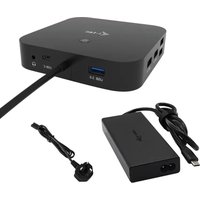
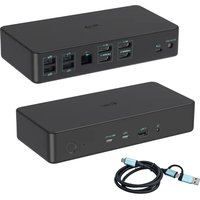
- USB-C cable with USB-C to USB-A adapter (length 100 cm)
- Operating systems: Windows 10/11, macOS, Linux Ubuntu, Android 5 and later, Chrome OS R51 and later
- Easy driver installation (Windows, MacOS, Ubuntu, Android (external link))
• Product dimensions: 202.8 x 95 x 32.6 mm
• Product weight: 357 g
Hardware requirements:
- Device with a free USB-A, USB-C, or Thunderbolt™ 3/4 port
Power Delivery requirements:
- Device with a free USB-C, USB4, or Thunderbolt™ 3/4 port with Power Delivery support
Operating system:
- Windows 10/11, macOS, Linux Ubuntu, Android 5 and later, Chrome OS R51 and later
If the docking station is connected via USB-A, charging of laptops and tablets is not supported.
NOTE: Charging external devices via USB ports is only possible when the docking station is connected to the host device.
DRIVER INSTALLATION
Windows:
1) Download and run DisplayLink Cleaner:
https://www.synaptics.com/products/displaylink-installation-cleaner-windows
2) Restart your laptop
3) Download and install the DisplayLink driver::
https://www.synaptics.com/products/displaylink-graphics/downloads/windows
4) Restart your laptop
5) Connect the docking station
macOS:
1) Download and install the DisplayLink Manager application: https://www.synaptics.com/products/displaylink-graphics/downloads/macos
2) The installation will prompt you to allow Screen Recording
a. Go to APPLE / System Preferences / Security & Privacy / Privacy
b. Find Screen Recording in the Privacy tab
c. Click on the lock in the lower left corner
d. Enter your password
e. Check the box next to DisplayLink Manager
3) After installation, open DisplayLink Manager from Launchpad
4) Find the DisplayLink icon in the top menu bar and open it
5) Select "Start application automatically after login"
6) Connect the docking station
Hardware installation (Connecting the docking station to a laptop)
- Turn on the laptop and connect the power adapter to the docking station.
- Plug the docking station's power adapter into a 110 V / 230 V AC power outlet and press the ON button.
- Plug the USB-C cable into the USB-C port (marked with the laptop logo) on the rear panel of the docking station.
- Plug the other end into an available USB-C, Thunderbolt 3/4/5, USB4, or USB-A port on your device.
SAFETY INSTRUCTIONS FOR USE OF THE DOCKING STATION
- Do not expose to extreme temperatures or humidity.
- Use the device on flat surfaces to prevent it from slipping and falling onto the floor.
- Keep the remote control and manual for future reference.
- Avoid straining the USB-C port or cable.
- Restart the product regularly using the ON/OFF button or by unplugging it from the power supply.
- Do not connect USB-C PD adapters to USB-C ports that are not marked as ports for connecting a USB-C PD power adapter.
- It is recommended to turn off the docking station at the end of the day.
In cooperation with the service department:
- Check functionality after dropping into water or on the ground.
- Check functionality if the cover is cracked.
- Report any device that does not function according to the manual.
natural_image
Back view of a black rectangular electronic device with ports and connectors (no visible text or symbols)GLOSSARY OF TERMS
Interface / port / connector / input / slot - the place where two devices are physically connected.
Controller - a semiconductor component (so-called chipset) in a notebook / tablet, ensuring the operation of one of the ports.
Thunderbolt™ - is a fast hardware interface that allows you to connect devices (peripherals) to your computer via an expansion bus. Thunderbolt combines PCI-Express and DisplayPort into a serial data interface. It allows for up to 6 additional Thunderbolt™ devices, and the transfer rate for Thunderbolt™ 3/4 is up to 40Gbit/s.
USB-C / USB Type-C / USB4 / Thunderbolt™ 3/4 - is a symmetrical connector Allows faster charging, power, dual-role (not only host but also guest), support for Alt Mode (DisplayPort, MHL, Thunderbolt 3, Power Delivery) and error notification via Billboard device.
USB-C Power Delivery (USB-C PD) - an optional feature of the USB-C connector. A connector with this support can both charge and be charged, and supports loads from 10W to 240W
USB 3.2 / 3.1 / 3.0 / 2.0 - standard for USB interface / port for connecting various USB devices. Various USB devices can be connected to the docking station or adapter using the USB Type-A interface. The USB type B port is used to connect the docking station or adapter to a laptop/tablet.
HDMI/Display Port - A standard for a digital graphics interface/port used to connect monitors and other graphic display devices.
LAN (Local Area Network) - local area network, now the most common is the so-called Ethernet, which reaches theoretical transfer speeds of up to 2.5 Gbit/s at the docking station.
Audio - a term for an audio input (microphone) or output device (headphones/speakers).
BESCHREIBUNG
Vorderseite:
natural_image
Front view of a portable electronic device with ventilation grilles and control buttons (no text or symbols visible)Rückseite:
natural_image
Simple line drawing of a rectangular container with two side panels, one containing patterned patterns and the other with two small objects, labeled '14' at top (no text or symbols on the diagram itself)SPEZIFIKATIONEN
natural_image
Back view of a black network device with ports and connectors (no visible text or symbols)GLOSSAR DER BEGRIFFE
natural_image
Diagram of a device with two panels, one containing patterned patterns and the other with a circular button (no text or symbols)Panneau arrière :
natural_image
Simple line drawing of a rectangular device with two side panels and a labeled top section (14), containing no text or symbols.SPÉCIFICATIONS
natural_image
Back view of a black rectangular electronic device with ports and indicator lights (no visible text or symbols)QUESTIONS FRÉQUEMMENT POSÉES
natural_image
Diagram of a device with patterned front panel and control buttons (no text or symbols)Panel trasero:
- 1 entrada de alimentación (CC 20 V/6,75 A, 135 W)
- 1 puerto USB-C para conectar al dispositivo host a través de un puerto USB-C o USB-A
- 2x USB-A 3.2 Gen 2 (10 Gbps)
- 2x DisplayPort
- 2x HDMI
- 1x puerto Ethernet RJ-45 (1 Gbps)
- 2x USB-A 3.2 Gen 1 (5 Gbps)
Panel lateral:
- Bloqueo Kensington
natural_image
Technical line drawing of a rectangular device with three side panels and a labeled component (14), no readable text or symbols present.ESPECIFICACIONES
natural_image
Back view of a black network device with ports and connectors (no visible text or symbols)GLOSARIO DE TÉRMINOS
natural_image
Diagram of a device with patterned panels and control buttons (no text or symbols)natural_image
Simple line drawing of a device with two panels, one containing patterned surfaces and the other with dots (no text or symbols)SPECIFICHE
1) Scaricare e avviare DisplayLink Cleaner:
https://www.synaptics.com/products/displaylink-installation-cleaner-windows
2) Riavviare il notebook
3) Scaricare e installare il driver DisplayLink:
https://www.synaptics.com/products/displaylink-graphics/downloads/windows
4) Riavviare il notebook
5) Collegare la docking station
macOS:
natural_image
Front view of a black wireless device with ports and connectors (no visible text or symbols)GLOSSARIO DEI TERMINI
natural_image
Diagram of a portable electronic device with two patterned panels and a control knob (no text or symbols)Zadní panel:
natural_image
Technical line drawing of a rectangular device with three side panels and a labeled component (14), no readable text or symbols present.SPECIFIKACE
natural_image
Front view of a black network device with ports and connectors (no visible text or symbols)SLOVNÍK POJMŮ
natural_image
Diagram of a device with two patterned panels and a control panel, labeled with number 6 (no text or symbols on the main components)Panel tylny:
natural_image
Simple line drawing of a rectangular container with two patterned compartments and a labeled top section (14), no text or symbols present.SPECYFIKACJA
natural_image
Front view of a black network device with ports and connectors (no visible text or symbols)CZESTO ZADAWANE PYTANIA
natural_image
Diagram of a device with patterned panels and a control knob, labeled '6' (no text or symbols on the device itself)Zadný panel:
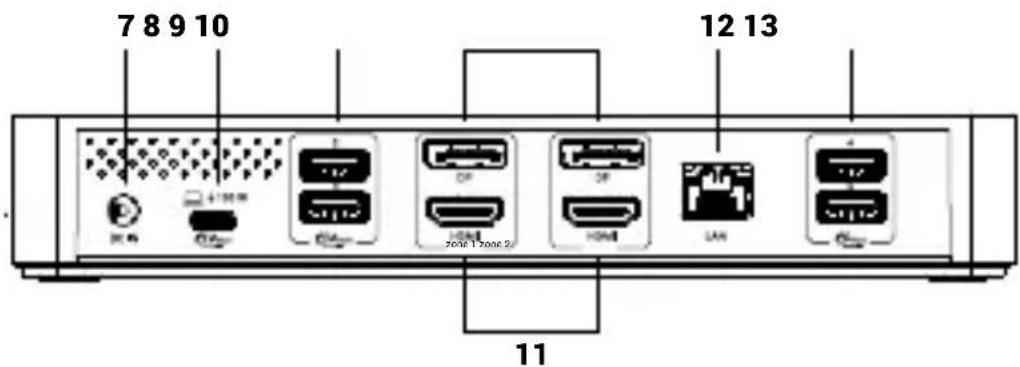
- 1x vstup pre napájanie (DC 20 V/6,75 A, 135 W)
- 1x port USB-C na pripojenie k hostitel'skému zariadeniu cez port USB-C alebo USB-A
- 2x USB-A 3.2 Gen 2 (10 Gbps)
- 2x DisplayPort
- 2x HDMI
- 1x Ethernet port RJ-45 (1 Gbps)
- 2x USB-A 3.2 Gen 1 (5 Gbps)
Bočný panel:
- Kensington lock
natural_image
Technical line drawing of a rectangular device with three side panels and a labeled component (14), no readable text or symbols present.ŠPECIFIKÁCIE
- 1× USB-C port na pripojenie k hostitel'skému zariadeniu cez USB-C alebo USB-A port (súčastou balenia je USB-C kábel a adaptér z USB-C na USB-A)
-
Volitelné funkcie vzdialenej správy:
-
L'ahká a automatická detekcia dokovacej stanice v rovnakom LAN segmente
- Prehl'adný náhl'ad všetkých dokovacích staníc a ich aktuálneho stavu
- Plná kontrola až na úroveň jednotlivých portov
- Dial'ková inštalácia a aktualizácia firmvéru
- Možnosť automatického vypnutia dokovacej stanice po odpojení od hostitel'ského zariadenia
-
Softvér je kompatibilný s akýmkol'vek počítačom s operačným systémom Windows 10/11
-
Technológia dokovacej stanice: DisplayLink + USB-C Power Delivery
- Napájanie: 100 W
• Video výstupy: 2× HDMI, 2× DisplayPort -
Podporované rozlíšenie:
-
1 monitor - 1× DP → až 4K/60 Hz
- 1 monitor - 1× HDMI → až 4K/60 Hz
- 1 monitor - 2× DP → až 5K/60 Hz*
- 2 monitory - 1× DP + 1× DP → až 2× 4K/60 Hz
- 2 monitory - 1× DP + 1× HDMI → až 2× 4K/60 Hz
-
2 monitory - 1× HDMI + 1× HDMI → až 2× 4K/60 Hz
-
1× USB-A 3.2 Gen 2 (10 Gbps) s podporou rýchleho nabíjania (BC 1.2)
• 2× USB-A 3.2 Gen 2 (10 Gbps)
• 2× USB-A 3.2 Gen 1 (5 Gbps) - 1× USB-C 3.2 Gen 2 (10 Gbps) s podporou Power Delivery až 20 W
- 1× USB-C 3.2 Gen 2 (10 Gbps) s podporou rýchleho nabíjania (BC 1.2)
• 1× Ethernet port RJ-45 (1 Gbps) - 1× kombinovaný 3,5 mm audio jack
- 1× napájací vstup (DC 20 V / 6,75 A, 135 W)
- LED indikátor
- Tlačidlo na zapnutie/vypnutie dokovacej stanice
- Podpora bezpečnostného zámku Kensington
- Podpora montáže VESA
- USB-C kábel s adaptérom USB-C na USB-A (dlžka 100 cm)
- Operačné systémy: Windows 10/11, macOS, Linux Ubuntu, Android 5 a novšie, Chrome OS R51 a novšie
- Jednoduchá inštalácia ovládačov (Windows, MacOS, Ubuntu, Android (externý odkaz))
- Rozmery produktu: 202,8 × 95 × 32,6 mm
• Hmotnost produktu: 357 g
natural_image
Front view of a black wireless device with ports and connectors (no visible text or symbols)SLOVNÍK POJMOV
natural_image
Front view of a portable electronic device with two panels and a control panel (no visible text or symbols)Galinis skydelis:
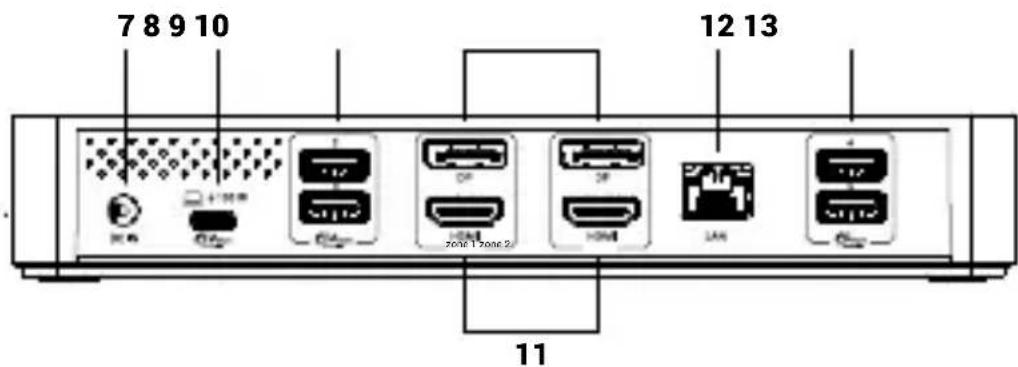
- 1x maitinimo jėjimas (DC 20V/6,75A, 135W)
- 1x USB-C prievadas prijungimui prie pagrindinio jrenginio per USB-C arba USB-A prievada
- 2x USB-A 3.2 Gen 2 (10 Gbps)
- 2x DisplayPort
- 2x HDMI
- 1x Ethernet prievadas RJ-45 (1 Gbps)
- 2x USB-A 3.2 Gen 1 (5 Gbps)
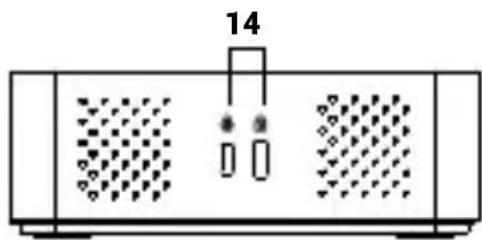
Šoninis skydelis:
- Kensington užraktas
natural_image
Diagram of a device with two panels, one containing patterned surfaces and the other showing internal components (no text or symbols)SPECIFIKACIJOS
natural_image
Front view of a black rectangular electronic device with ports and connectors (no visible text or symbols)TERMINŲ ŽODYNĖLIS
natural_image
Diagram of a device with patterned panels and control buttons (no text or symbols)Achterpaneel:
natural_image
Technical line drawing of a rectangular device with three side panels and a labeled component (14), no readable text or symbols present.SPECIFICATIES
natural_image
Front view of a black wireless device with ports and connectors (no visible text or symbols)VERKLARENDE WOORDENLIJST
natural_image
Diagram of a device with two panels, one containing patterned patterns and the other with a circular button (no text or symbols)Bakpanel:
natural_image
Simple diagram of a device with two panels, one containing patterned surfaces and the other with dots and rectangles, labeled '14' (no text or symbols beyond label)SPECIFICATIONER
natural_image
Back panel of a black network device showing ports, connectors, and ports (no visible text or symbols)ORDLISTA ÖVER TERMER
natural_image
Diagram of a device with patterned panels and control buttons (no text or symbols)Painel traseiro:
natural_image
Pure technical diagram of a rectangular device with internal compartments and no visible text or symbolsESPECIFICAÇÕES
natural_image
Back view of a black rectangular electronic device with ports and connectors (no visible text or symbols)GLOSSÁRIO DE TERMOS
We declare under our sole responsibility that the above named product is in conformity with the following European Union directives:
IEC 61000-4-2: 2008 / EN 61000-4-2: 2009; IEC 61000-4-3: 2020 (Ed. 4.0) / EN IEC 61000-4-3: 2020;
IEC 61000-4-4: 2012 / EN 61000-4-4: 2012; IEC 61000-4-5: 2014 + A1: 2017 / EN 61000-4-5: 2014 + A1: 2017;
IEC 61000-4-6: 2023 / EN IEC 61000-4-6: 2023; IEC 61000-4-8: 2009 / EN 61000-4-8: 2010;
IEC 61000-4-11: 2020 + COR1: 2020 + COR2: 2022 (Ed. 3.0) / EN IEC 61000-4-11: 2020 + AC: 2022-10
For Electrical Safety, Für die elektrische Sicherheit, Pour la sécurité électrique, Para la seguridad eléctrica, Per la sicurezza elettrica, Pro Elektrickou bezpečnost, pre Elektrickú bezpečnost', dla Bezpieczeństwa, Elektros saugai, Voor elektrische veiligheid, För elsäkerhet, Para segurança eléctrica:
EN IEC 62368-1:2020+A11:2020
RoHS:
2011/65/EU; EU 2015/863
and it is safety under conditions of standard application / und ist sicher bei standardmäßiger Nuttzung / et c'est la sécurité dans des conditions d'application standard / y es seguridad bajo condiciones de aplicación estándar / ed è sicuro in condizioni d'uso normali / a je bezpečný za podmínek obvyklého použití / a je bezpečný za podmienok obvyklého použitia / oraz jest produktem bezpiecznym przy standardowym wykorzystywaniu / ir naudojant įprastomis sąlygomis yra saugus /en is veilig onder de omstandigheden van normaal gebruik / och det är säkerhet under förhållanden med standardtillämpning. / e é a segurança em condições de aplicação normal
Signed for and on behalf of: / Unterzeichnet für und im Namen von: / Signé pour et au nom de: / Firmado por y en nombre de: / Firmato in nome e per conto di: / Podepsáno za a jménem: / Podpísané za a v mene: / Podpisano w imieniu i na rzecz: / Pasirašyta už ir vardu: / Ondertekend voor en namens: / Undertecknat för och på uppdrag av: / Assinado por e em nome de:

Ostrava 06.04.2025

Ing. Lumír Kraina
Executive Name and Signature, Geschäftsführer, Exécutif et signature, Nombre y firma del gerente, Amministratore, Jednatel, Konatel, Nazwisko osoby upowaznionej, Vadovas, Zaakvoerder, Chefens namn och underskrift, Nome e assinatura do executivo
FCC COMPLIANCE STATEMENT
This equipment has been tested and found to comply within the limits of a Class B digital device pursuant to Part 15 of the FCC Rules. These limits are designed to provide reasonable protection against harmful interference in a residential installation.