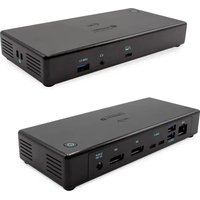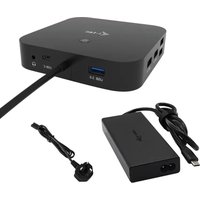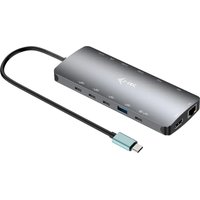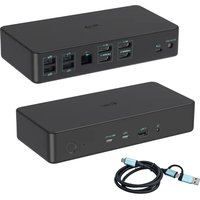
C31TRAVELEASYDOCKPD - Docking station i-TEC - Free user manual and instructions
Find the device manual for free C31TRAVELEASYDOCKPD i-TEC in PDF.
User questions about C31TRAVELEASYDOCKPD i-TEC
0 question about this device. Answer the ones you know or ask your own.
Ask a new question about this device
Download the instructions for your Docking station in PDF format for free! Find your manual C31TRAVELEASYDOCKPD - i-TEC and take your electronic device back in hand. On this page are published all the documents necessary for the use of your device. C31TRAVELEASYDOCKPD by i-TEC.
USER MANUAL C31TRAVELEASYDOCKPD i-TEC
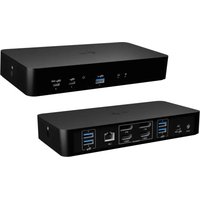
USB-C Travel Easy Docking Station 4K HDMI +Power Delivery 60W
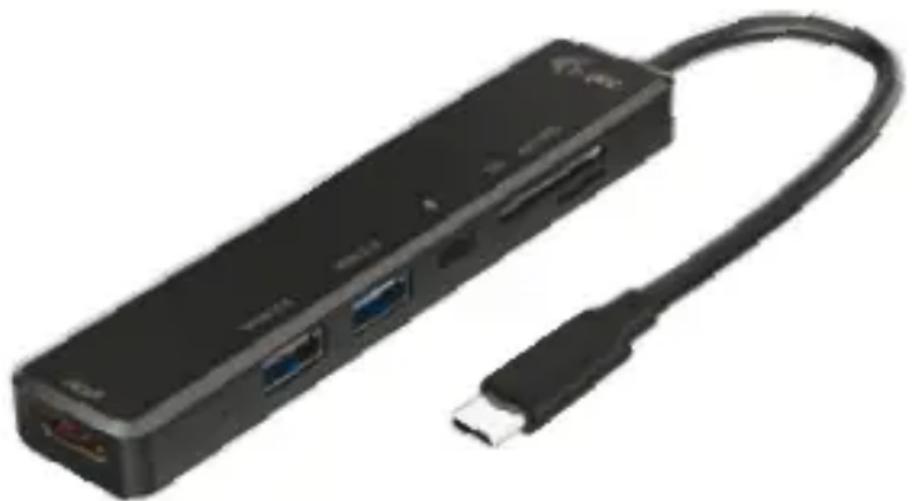
natural_image
Black USB device with attached cable, showing ports and connectors (no visible text or symbols)User guide • Gebrauchsanweisung • Mode d'emploi Manual de instrucciones • Manuale • Uživatelská příručka Instrukcje obsługi • Užívatel'ská príručka • Vartotojo vadovas Handleiding • Användarhandbok • Guia do utilizador
EN Please read the entire instruction manual carefully. Detailed manual is available on our website www.i-tec.cz/en/ in the tab „Manuals, drivers“. In case of any issues, please contact our technical support at: support@itecproduct.com
DECLARATION OF CONFORMITY.....98-99
FCC 100

text_image
QR code image containing encoded data, no visible human-readable textwww.i-tec.pro
USB-C Travel Easy Docking Station 4K HDMI + PD 60W
GLOSSARY
- Interface / port / connector / input / slot – a place where two devices physically interconnect.
- Controller – a semi-conductor component (so-called chipset) in a laptop, tablet, PC etc. ensuring the operation of a port.
- USB-C – is a new symmetrical connector which allows faster charging, energizing, double-function (a host and a guest), support for alternative modes (DisplayPort, MHL and Thunderbolt).
- Alternate modes (Alt modes) – special modes for the USB-C connector that can be supported. Currently the most popular modes are DisplayPort / DockPort, MHL, Thunderbolt. A device with this capability on the port and cable allows video transmission while also retaining other port functionalities (for data transfer and charging via Power Delivery).
- DisplayPort / DockPort Alt mode – this mode allows video transmission via the USB-C port and cable.
- USB-C Power Delivery / Data (USB-C PD) – optional feature of the USB-C connector. A connector with this support can both charge and be charged and supports loads from 10W to 100W (depending on profiles 1-5).
- USB 3.1 / 3.0 / 2.0 – standard for USB interface/port for connecting various USB devices. Various USB devices can be connected to the docking station or adapter using USB
- HDMI – A digital graphics interface/port standard used to connect monitors and other graphic display devices.
SPECIFICATIONS
- 1x integrated USB-C cable for connecting to a device (18 cm)
- Docking station technology: USB-C (SST)
• Power Delivery: 60 W
• Video Port: 1x HDMI - Resolution:
1 monitor – up to 4K/30Hz
1 monitor - up to 1080p/120Hz
• 1x USB-C port (Power Delivery only)
• 1x USB 3.0 port (5Gbps)
- 1x USB 2.0 port
- LED indication
- 1x SD/ microSD slot
HW: Requires USB-C interface with "DisplayPort Alternate Mode" and "Power Delivery" support (not all USB-C devices/systems have this standard) or Thunderbolt 3/ Thunderbolt 4 port
- OS: Windows 8/10 32/64bit, macOS X, Chrome OS, Linux and Android 6 and higher
• Product dimensions: 112 x 25 x 12 mm - Weight: 35 g
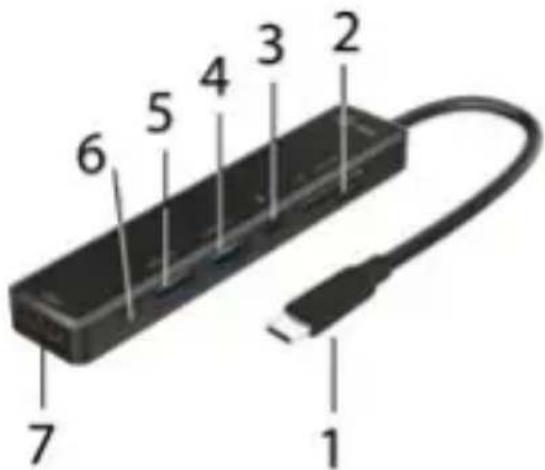
DESCRIPTION
- 1x integrated USB-C cable for connecting to a device (18 cm)
- 1x SD / microSD card reader
- USB-C PD port (for charging only)
- 1x USB 3.0 port (5Gbps)
- 1x USB 2.0 port
- LED indication
- 1x HDMI port
text_image
1 2 3 4 5 6 7SYSTEM REQUIREMENTS
Hardware requirements: laptop, tablet, smartphone running Windows, macOS X, ChromeOS, or Linux with USB-C interface and „DisplayPort Alternate Mode“ and „Power Delivery“ support (not all devices / systems with USB-C interface support this as standard) or Thunderbolt 3/ Thunderbolt 4 port
Operating system: Windows 8/10 32/64bit, macOS X, Google ChromeOS, Linux and Android 6 and higher with latest updates
DRIVER INSTALLATION
Windows 10 32/64bit: After connection, the drivers for the docking station are installed automatically on the system. Before installation make sure that your system has installed the latest drivers for your device and updated BIOS.
macOS X: Installation of the drivers in macOS X is automatic. Before installation make sure that your Mac has installed the latest OS for your device.
CONNECTING A HDMI MONITOR
The docking station is equipped with 1x HDMI 4K Ultra HD port for the connection of an external monitor or beamer with a HDMI interface. For displaying your images you can use a modern plazma or LCD monitors and TVs. The graphic chip, which is the heart of the docking station, supports up to 4K resolution 3840x2160/30Hz. Connect the monitor to the docking station using a highquality HDMI cable. During installation of an additional monitor the screen of the notebook or tablet can flicker which is a standard condition.
CONNECTING TO THE LAN
You can use the GLAN RJ-45 port for connecting the Ethernet to a router/ switch and to the internet, it supports speeds of 10 / 100 / 1000 Mbps.
CONNECTING USB DEVICES
You can use USB 3.0 ports for connecting your keyboard, mouse, external hard drive, printer and other devices or you can use it for connecting a USB HUB, which will give you more free USB ports.
CHARGING
The docking station supports charging of USB mobile devices, such as smart phones, e-book readers, multimedia players, navigation devices, and tablets. Simply connect the device that you want to charge using the original cable to the USB port of the docking station. If the device is not charged, connect the original USB-C power adapter to the USB-C Power Delivery port of the docking station.
CHARGING THROUGH POWER DELIVERY
The dock offers USB-C Power Delivery, which is designed to power a connected “parent” device using an original or universal AC adapter with a USB-C connector.
Important: Disconnecting the USB-C adapter will restart the docking station and will disconnect and reconnect all connected devices.
USE IN WINDOWS
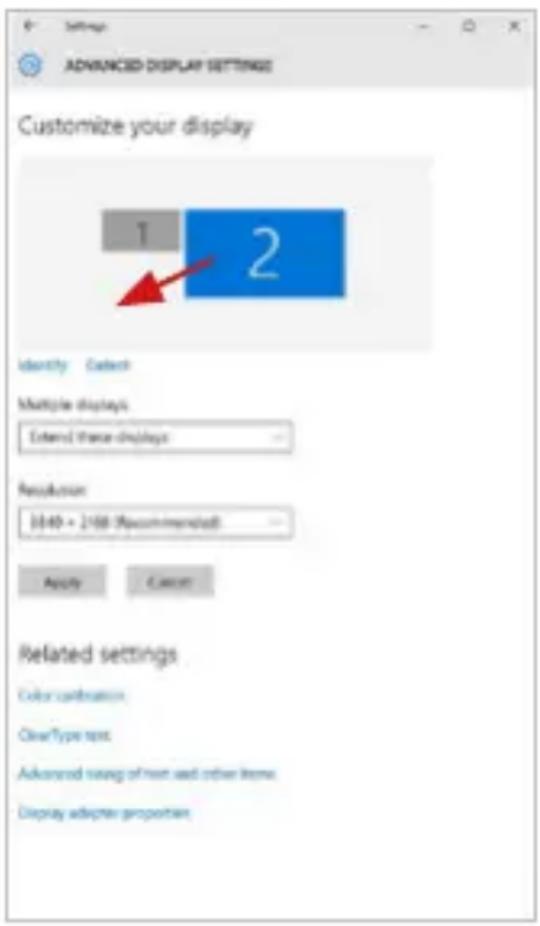
Advanced configuration for graphic output - after connecting the monitor, right click on the Desktop and select "Display Settings". Here you can select the monitor usage, as well as the monitor resolution and frequency.
text_image
ADANCED DISPLAY SETTINGS Customize your display 1 2 Identity Select Multiple displays Extend three displays Resolution (049 - 248 - Recommended) Apply Cancel Related settings Color calibration ClearType text Advanced view of text and other items Display adapter proportionBy clicking on the second monitor and moving it you can position this monitor as required relative to the original monitor of your laptop / tablet
Now you can set Extend and Mirror mode:
- Mirror mode: on the monitor select the 2 ^nd Monitor, select Several monitors → Mirror this display → OK.
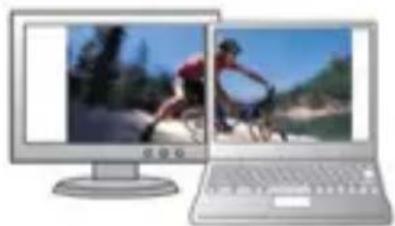
- Extend mode: on the monitor select the 2 ^nd Monitor,
text_image
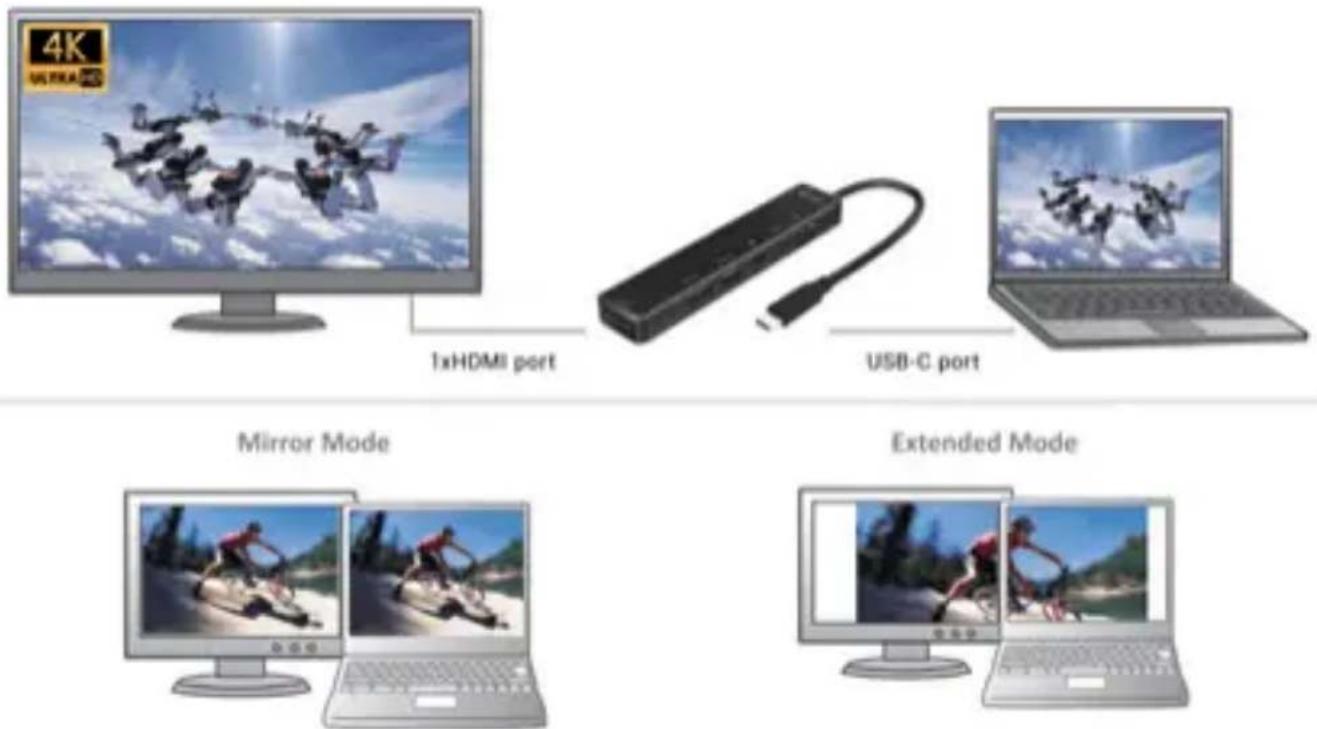
4K ULTRA 1xHDMI port USB-C port Mirror Mode Extended ModeMirror and Extended mode
The Standby / Hibernate mode and the Video port – after the activation of the laptop / tablet from the Standby / Hibernate mode the primary (original) monitor is displayed, for this reason we recommend using the monitor that is integrated with the laptop / tablet as the primary monitor, so that you can log on to the system again.
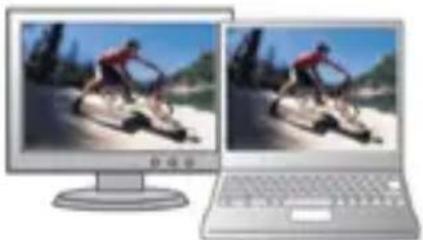
The Mirror mode – the additional monitor takes on the parameters of the original monitor in the system, i.e., if you select the Mirror mode and the original monitor resolution is e.g. 1280x1024 then the screen will be displayed on the additional monitor with a resolution of max. 1280x1024 (even if you set a higher resolution).
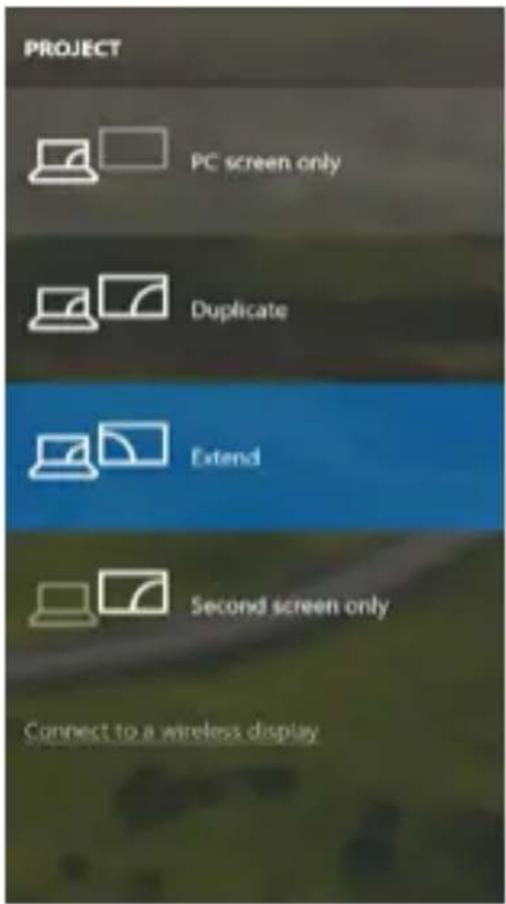
Pressing the keys „Windows“ + P you can also easily control the monitors – for using a monitor in Win 10 you can select: Computer screen only, Mirror, Extend, Second screen only.
USB-C Travel Easy Docking Station 4K HDMI + PD 60W
text_image
PROJECT PC screen only Duplicate Extend Second screen only Connect to a wireless displayControl the monitor in Windows 10
USING IN MACOS X
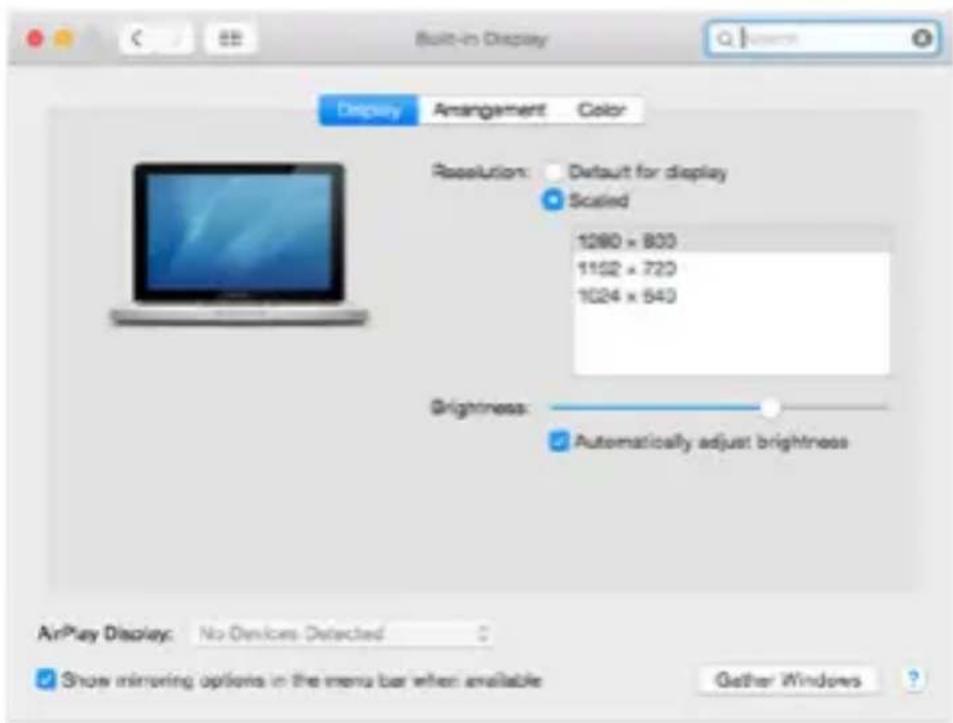
After connecting the monitor, the screen on your Mac will glimmer, which is a standard condition, after stabilization it is possible to perform standard setting of the monitor here: System Preferences-Displays:
text_image
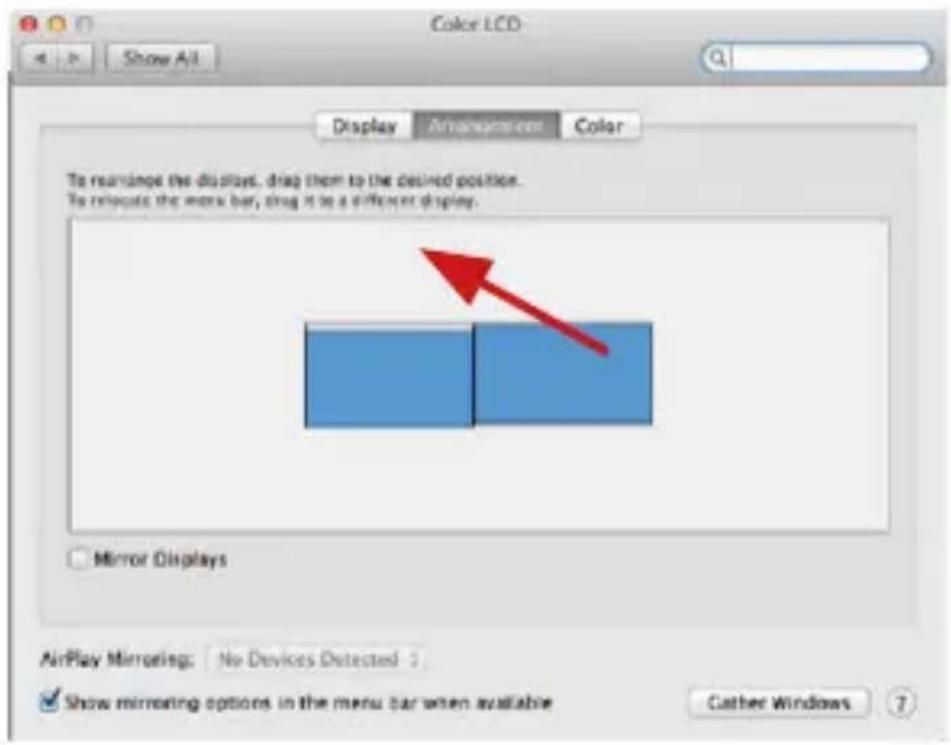
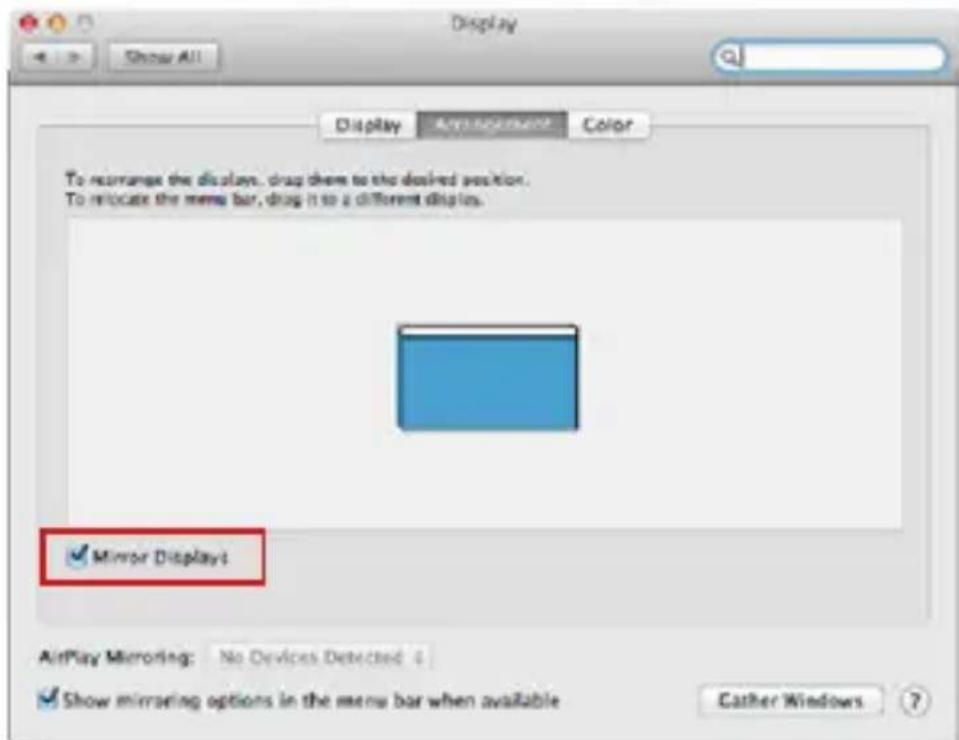
Built-in Display Display Amangement Color Resolution: Default for display Scaled 1280 x 800 1152 x 723 1024 x 543 Brightness: Automatically adjust brightness AirPlay Display: No Devices Detected Show mirroring options in the menu bar when available Gather WindowsClick on Arrangement and in the default mode (Extended desktop) click on the new monitor and drag it as necessary vis-à-vis the Mac monitor. If you select Mirror displays the mode will change to Mirror (the resolution of the monitors will be automatically adjusted according to their parameters and the highest possible resolution will be set on both monitors). By cancelling the Mirror displays option you will return to the Extended desktop mode.
text_image
Color LCD Show All Display Arrangements Color To rearrange the displays, drag them to the desired position. To relocate the menu bar, drag it to a different display. Mirror Displays AirPlay Mirroring: No Devices Detected ✓ Show mirroring options in the menu bar when available Cather Windows 7Extended mode: The arrow indicates the possible position of the connected monitor vis-à-vis the Mac monitor.
USB-C Travel Easy Docking Station 4K HDMI + PD 60W
text_image
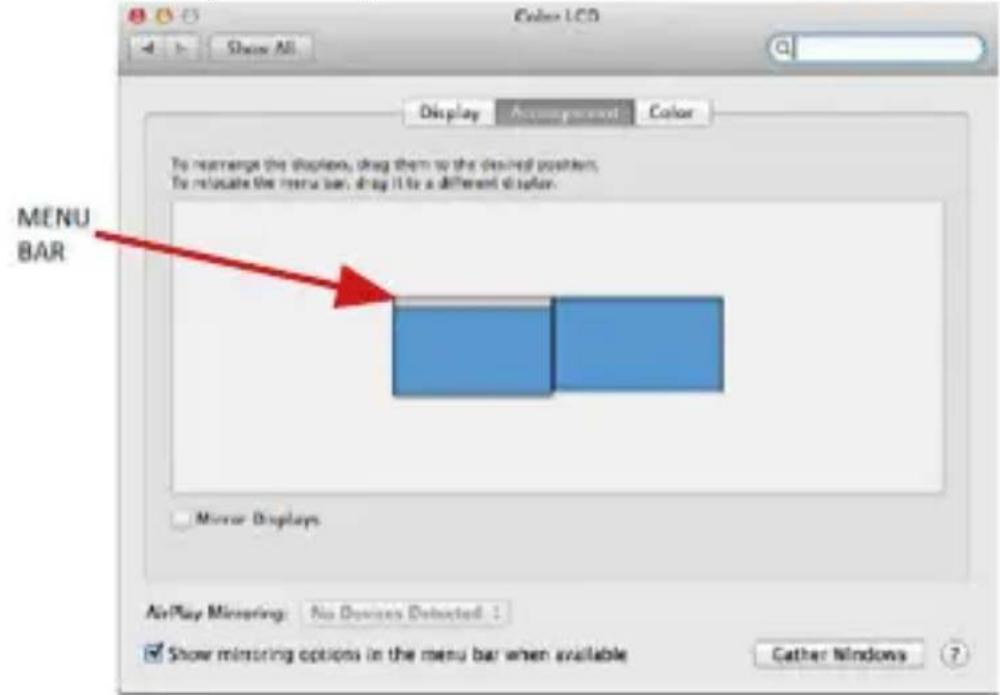
Color LCD Show All Display Accounts Color To rearrange the displayed, drag them to the desired position. To relocate the menu bar, drag it to a different display. MENU BAR Mirror Displays AirPlay Minroring: No Devices Detected Show mirroring options in the menu bar when available Cather WindowsExtended mode: In this mode you can choose the Main monitor by dragging the Menu Bar.
text_image
Display Show All Display Any non-remed Color To rearrange the displays. drag them to the desired position. To relocate the menu bar, drag it to a different display. ✓ Mirror Display AirPlay Mirroring: No Devices Detected 0 ✓ Show mirroring options in the menu bar when available Cather WindowsMirror mode: This mode can only be used if supported by the Mac.
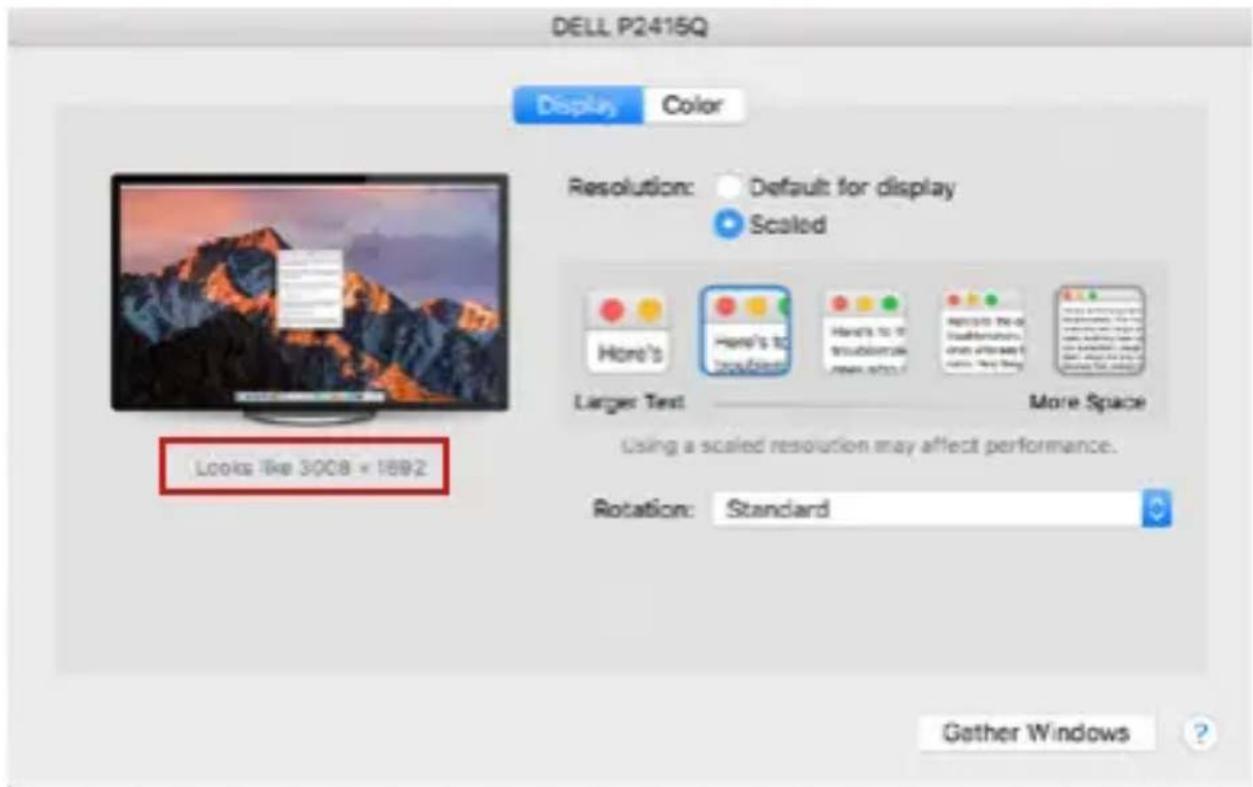
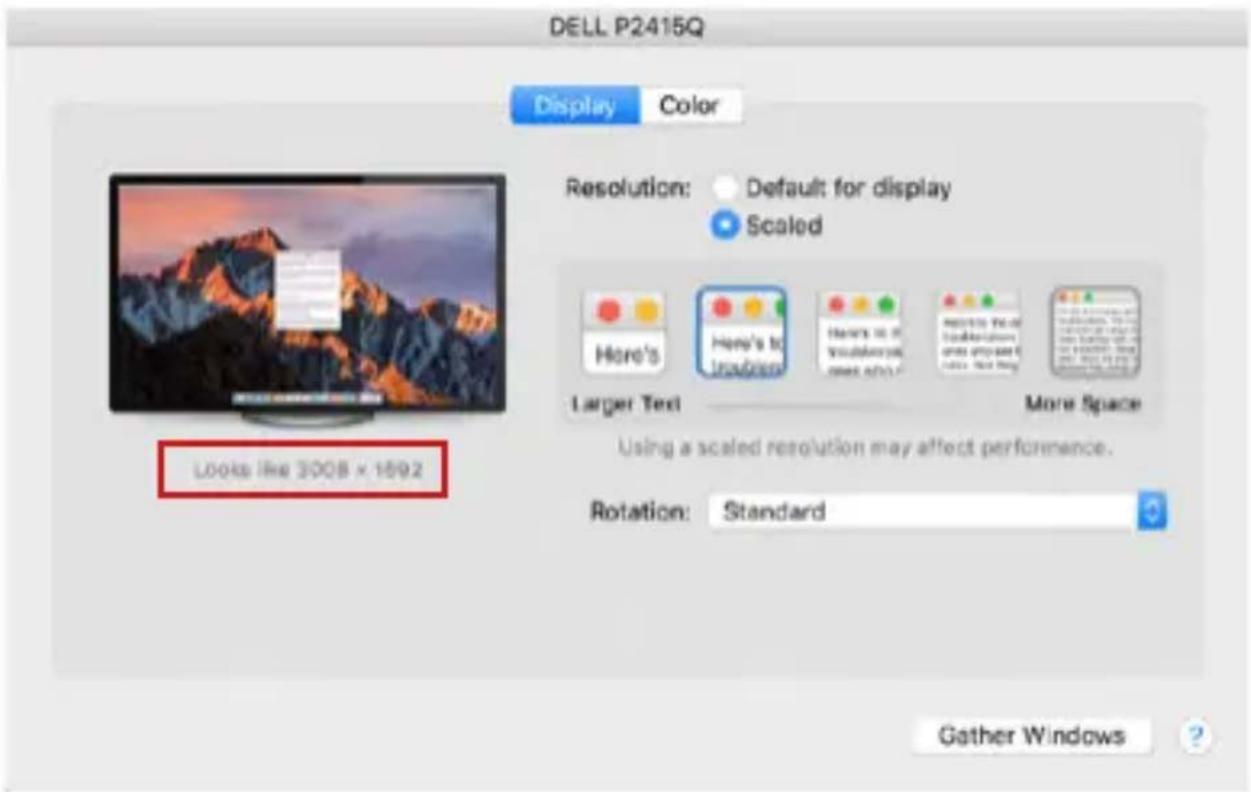
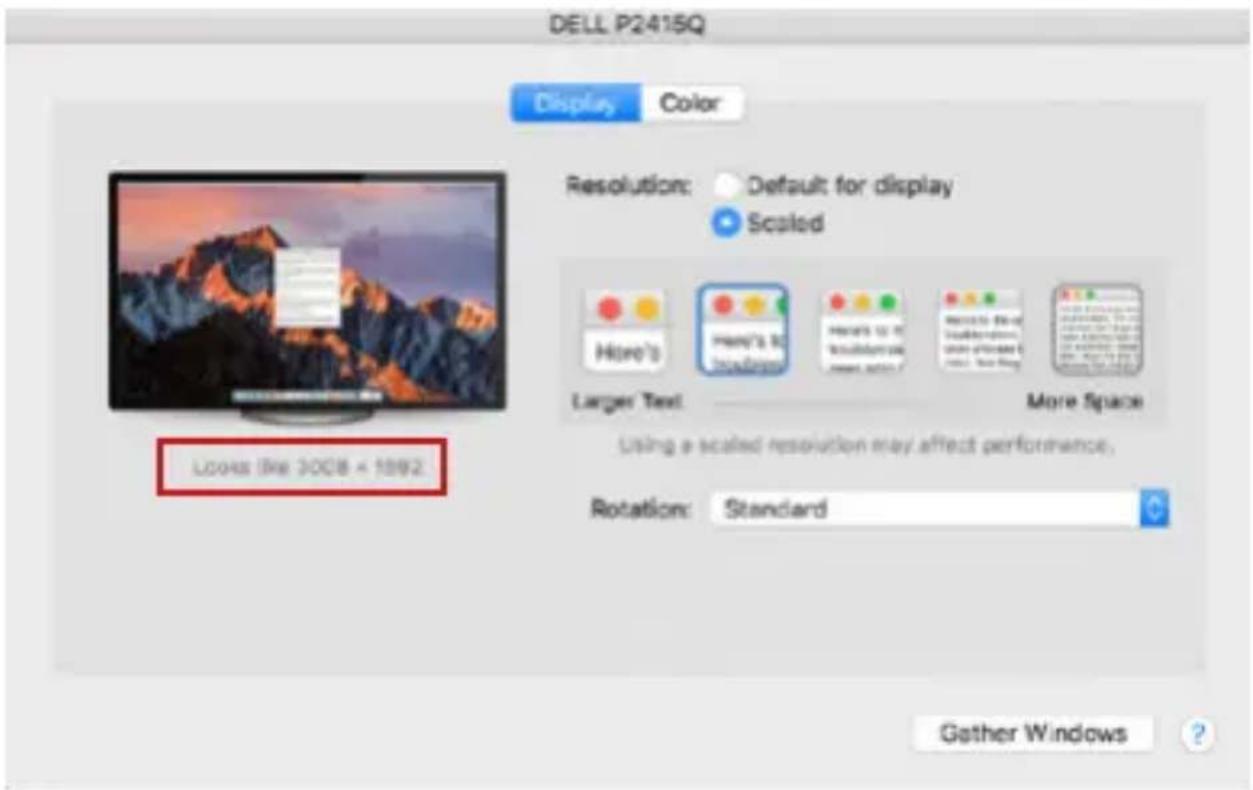
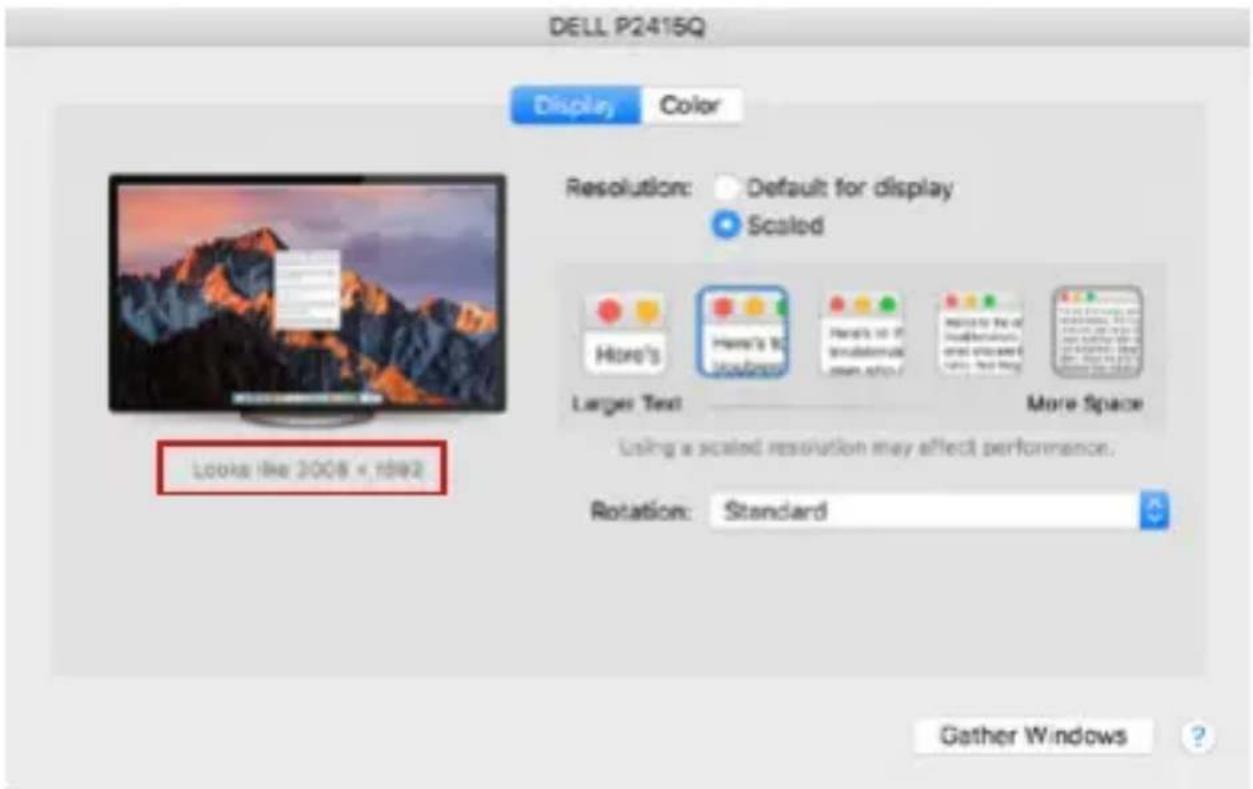
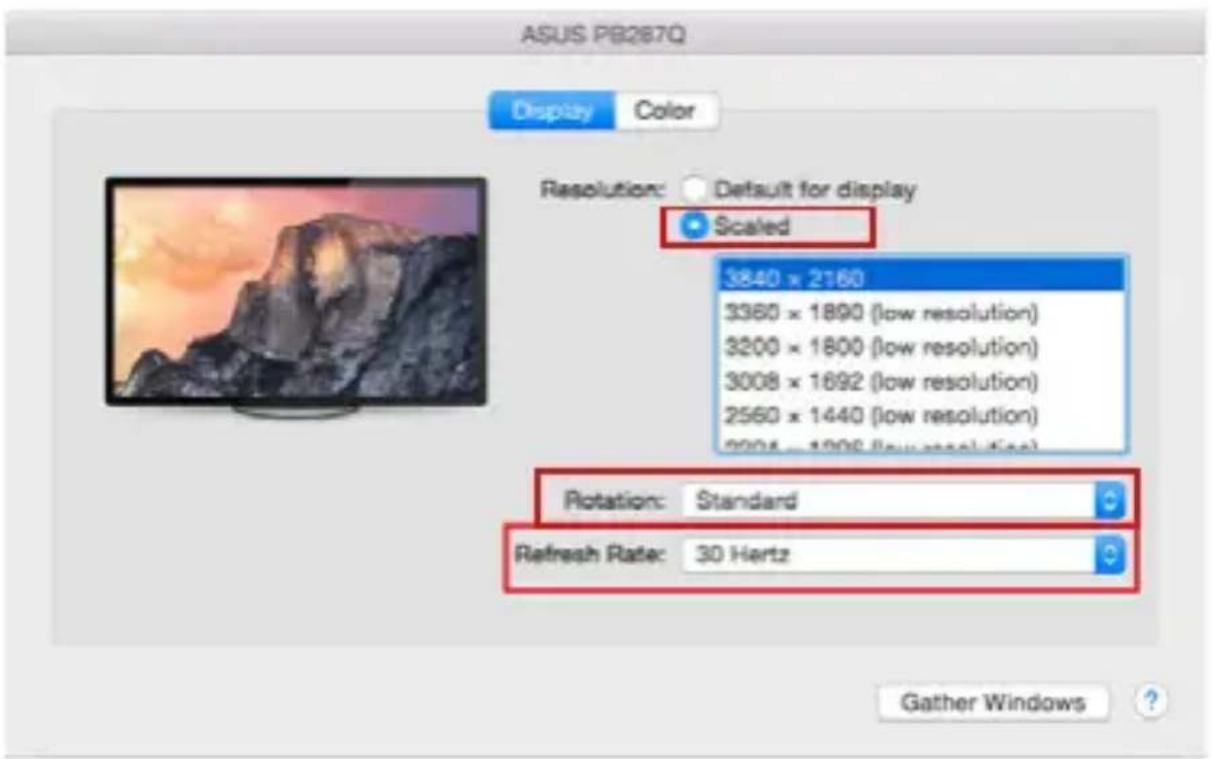
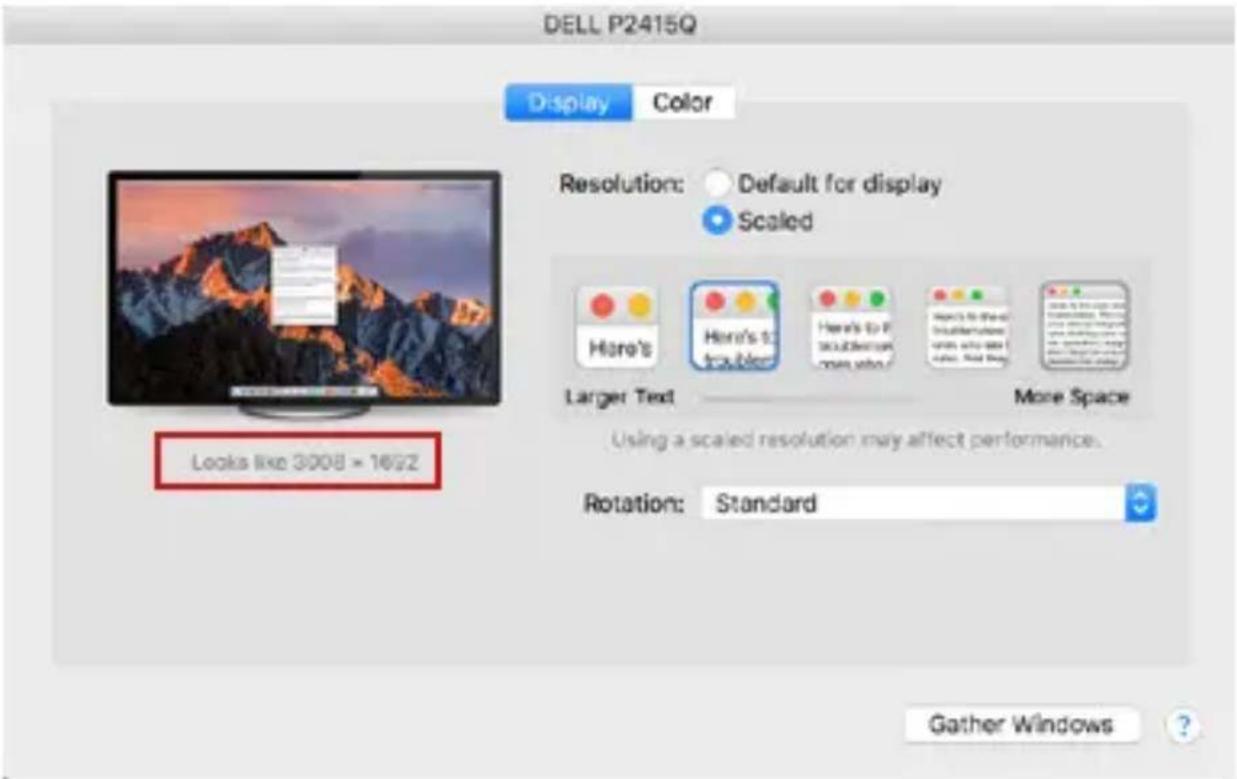
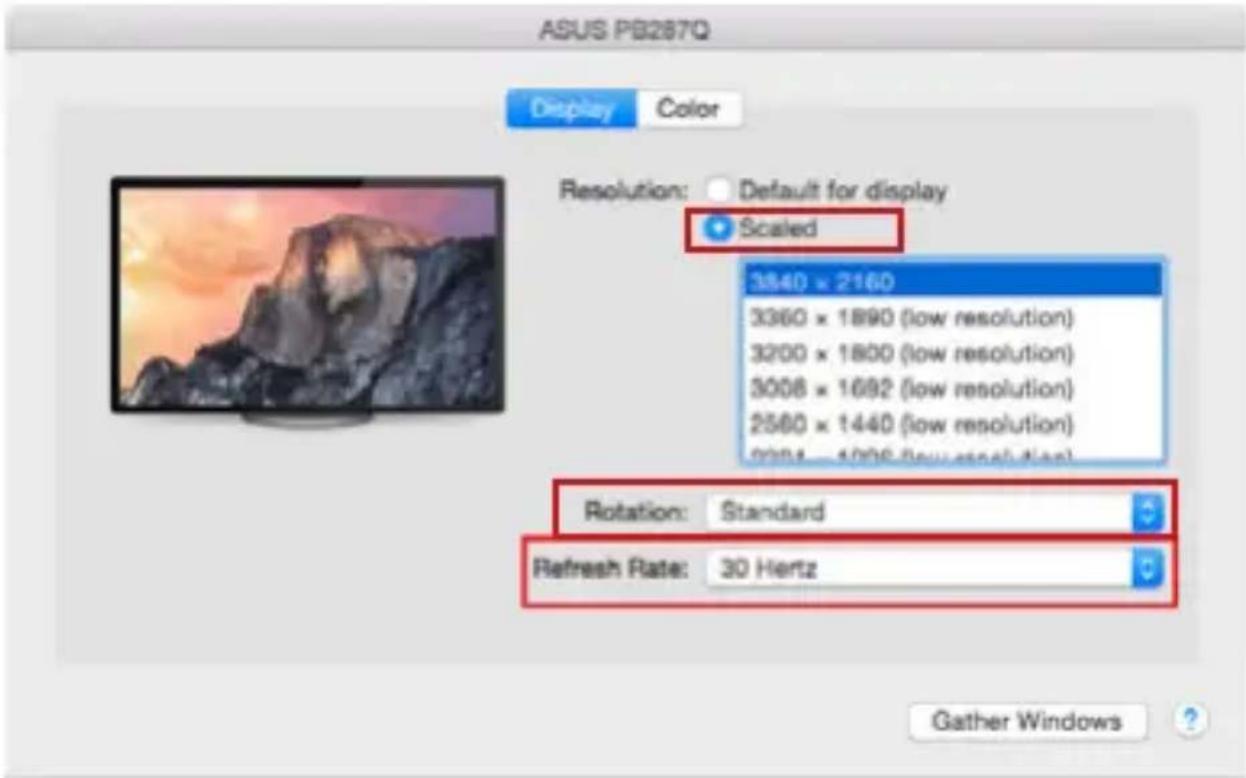
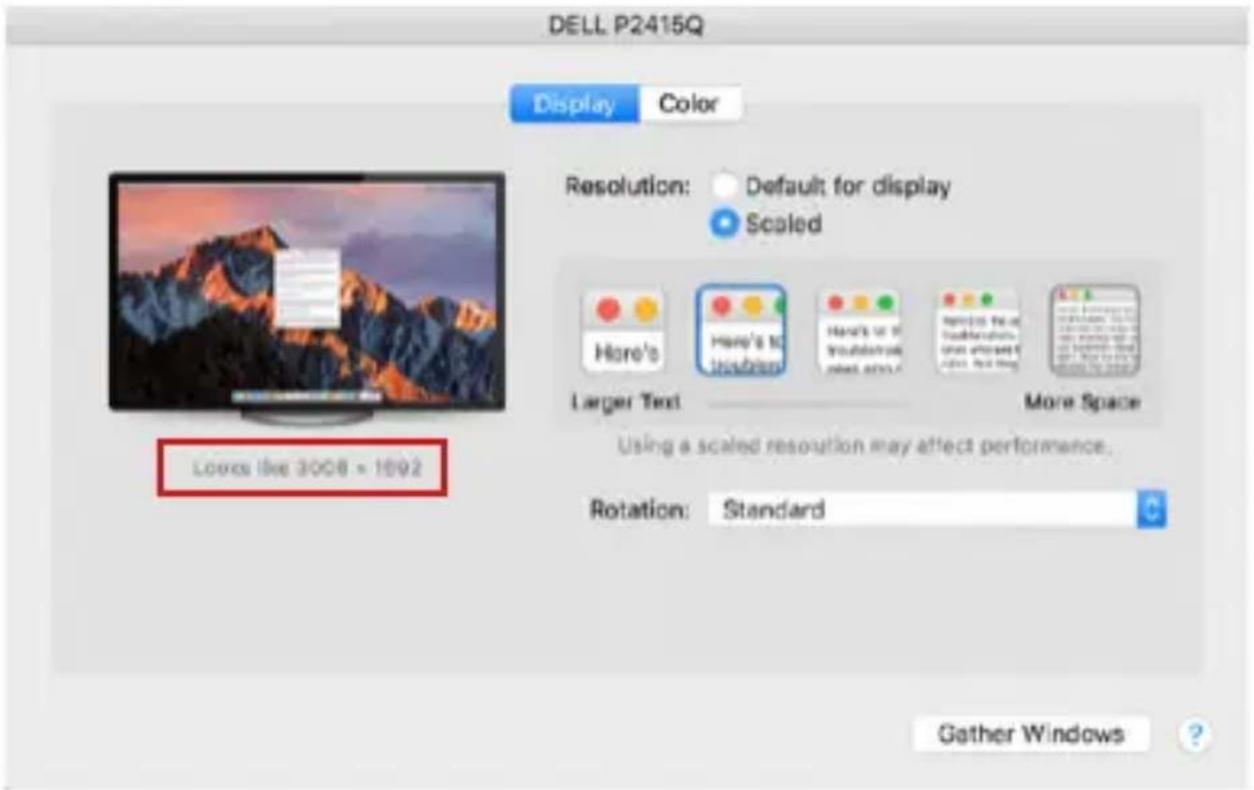
Click on Gather Windows: using this option you can choose the settings of the corresponding monitor – Scaled (offers available resolutions), Rotation (Standard, 90°, 180° and 270°) and Refresh rate (if offered). Below the following setting options are displayed. This may vary, depending on your monitor.
text_image
ASUS PS287Q Display Color Resolution: Default for display Scaled 3840 x 2160 3360 x 1890 (low resolution) 3200 x 1800 (low resolution) 3008 x 1692 (low resolution) 2560 x 1440 (low resolution) 3004 - 1006 (low resolution) Rotation: Standard Refresh Rate: 30 Hertz Gather Windows ?Display option 1

text_image
DELL P2415Q Display Color Resolution: Default for display Scaled Here's Here's to It's How's to it It's to it It's to it It's to it Larger Text: More Space Using a scaled resolution may affect performance. Rotation: Standard Looks like 3008 × 1892 Rotation: Standard Gather Windows ?Display option 2
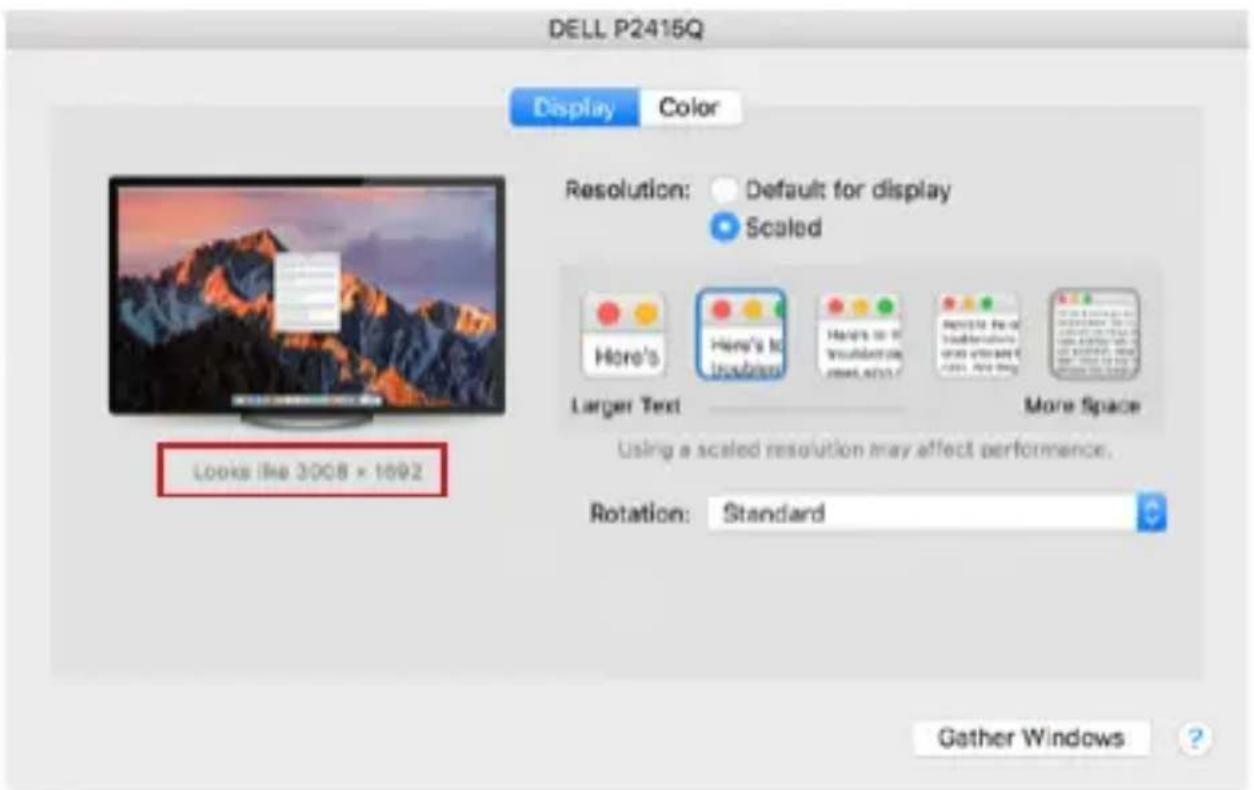
In Customized mode, click on the icon of your choice, the resolution will be described below the screen (here visually 3008x1692 = 4K@30Hz)
USB-C Travel Easy Docking Station 4K HDMI + PD 60W
Closed display mode - Working on a connected external monitor when the Mac monitor is tilted is only possible when the Mac is powered on and the mouse and keyboard are connected. More information here:
https://support.apple.com/cs-cz/HT201834
When the power supply is ensured from the battery, the use of a HDMI monitor is limited by the Mac. In some situations in case of problems with displaying it is possible to solve it by disconnecting the USB-C cable of the docking station from the USB-C port on the Mac and reconnecting it after approximately 10 s. Please wait for completion of connection of all peripherals. Most problems with renewing the screen on the connected monitor after hibernation of the Mac, after using screensaver, after restarting the Mac, after turning the Mac OFF / ON can be solved by the same way.
SAFETY INSTRUCTIONS
- Do not expose to extreme temperatures and air humidity.
- Use the device on flat surfaces – you will prevent it from slipping and falling to the ground.
- Save the user manual for a possible use later.
In cooperation with the service department:
- Check functionality after falling to water or to the ground.
- Check functionality when the cover is broken.
- Send the device back if it does not work in accordance with the user manual.
FREQUENTLY ASKED QUESTIONS
Available on our website www.i-tec.pro on the "FAQ" tab of this product.
BEGRIFFSWÖRTERBUCH
text_image
Settings ADVANCED DISPLAY SETTINGS Customize your display 1 2 Identity Detect Multiple displays External these displays - Resolution 3640 x 2160 (Be recommended) - Apply Cancel Related settings Cover calibration OverType rot Advanced saving of text and other items Display adapter propertiestext_image
PROJECT PC screen only Duplicate Extend Second screen only Connect to a wireless displaytext_image
Built-in Display Display Arrangement Color Resolution: Default for display Scaled 1280 x 800 1152 x 720 1024 x 640 Brightness: Automatically adjust brightness AirPlay Display: No Devices Detected Show mirroring options in the menu bar when available Gather Windowstext_image
Color LCD Show All Display Arrangement Color To rearrange the displays, drag them to the desired position. To relocate the menu bar, drag it to a different display. Mirror Displays AirPlay Mirroring: No Devices Detected Show mirroring options in the menu bar when available Cather Windowstext_image
Color LCD Show All Display Analoggment Color To rearrange the display, drag them to the desired position. To minimize the menu bar, drag it to a different display. MENU BAR Mirror Displays AirPlay Mirroring: No Devices Detected Show mirroring options in the menu bar when available Cather Windowstext_image
Display Show All Display Aboutness Color To rearrange the display, drop them to the desired position. To relocate the menu bar, drag it to a different display. ✓ Mirror Display1 AirPlay Mirroring: No Devices Detected 3 ✓ Show mirroring options in the menu bar when available Cather Windows ?text_image
ASUS PSB267Q Display Color Resolution: Default for display Scaled 3840 x 2160 3360 x 1890 (low resolution) 3200 x 1800 (low resolution) 3008 x 1692 (low resolution) 2560 x 1440 (low resolution) Rotation: Standard Refresh Rate: 30 Hertz Gather Windows ?Abbildung 1

text_image
DELL P2415Q Display Color Resolution: Default for display Scaled Here's Here's to Inbound Here's to it Inbound now Next 2007 Reversible to the Background and present Next Next Day Larger Text More Space Using a scaled resolution may affect performance. Rotation: Standard Gather Windows ?text_image
Settings ADVANCED DISPLAY SETTINGS Customize your display 1 2 Identify Direct Multiple displays Extend Text displays Resolution Shab + 2/48 (Recommended) Apply Cancel Related settings Color calibration CloseType Not Advanced String of Text and other items. Display adjuster propertiestext_image
4K Ultra-DC 1xHDMI port USB-C port Mirror Mode Extended Modetext_image
PROJECT PC screen only Duplicate Extend Second screen only Connect to a wireless displaytext_image
Built-in Display Display Arrangement Color Resolution: Default for display Scaled 1280 x 800 1152 x 720 1024 x 640 Brightness: Automatically adjust brightness AirPlay Display: No Devices Detected Show mirroring options in the menu bar when available Gather Windowstext_image
Color LCD Show All Display Arrangement Color To rearrange the displays, drag them to the desired position. To release the more bar, drag it to a different display: Mirror Displays AirPlay Mirroring: No Devices Detected : Show mirroring options in the menu bar when available Cather Windowstext_image
Color LCD Show All Display Arrangement Color To rearrange the discolor, drag them to the desired position. To relocate the menu bar, drag it to a different display. MENU BAR Mirror Displays AirPlay Mirrorings: No Devices Detected Show mirroring options in the menu bar when available Cather Windowstext_image
Display Show All Display Active Content Color To rearrange the display, drop there to the desired position. To relocate the menu bar, drag it to a different display. ✓ Mirror Displays AirPlay Mirroring: No Devices Detected # ✓ Show mirroring options in the menu bar when available Cather Windows ?text_image
ASUS PB287Q Display Color Resolution: Default for display Scaled 3840 x 2160 3360 x 1890 (low resolution) 3200 x 1800 (low resolution) 3008 x 1692 (low resolution) 2560 x 1440 (low resolution) 2004 x 1298 (low resolution) Rotation: Standard Refresh Rate: 30 Hertz Gather Windows ?
text_image
DELL P2415Q Display Color Resolution: Default for display Scaled Here's Here's to In Progress Here's to it Solution as Next available More Space Larger Text More Space Using a scaled resolution may affect performance. Rotation: Standard Look in like 3008 - 1992 Gather Windows ?Vue option 2
INSTRUCTIONS DE SÛRETÉ
text_image
Settings ADVANCED DISPLAY SETTINGS Customize your display 1 2 Identify Detect Multiple displays Extend these displays Resolution: [0/40 + 2/40 (Recommended)] Apply Cancel Related settings Color calibration Clear Type text Advanced zoom of text and other items Display adapter propertiesnatural_image
Computer monitor displaying a group of parachutists flying over clouds against a blue sky (no text or symbols visible)1xHOMI port
natural_image
Illustration of a black USB drive connected to a laptop displaying a snowy landscape (no text or symbols visible)USB-C port
Mirror Mode
natural_image
Two computer monitors displaying a snowy landscape image, one with red motion blur and the other with blue sky (no text or symbols visible)Extended Mode
natural_image
Two computer monitors displaying outdoor scenes: one with a person climbing a rock, the other with a laptop showing a landscape (no visible text or symbols)text_image
PROJECT PC screen only Duplicate Extend Second screen only Connect to a wireless displaytext_image
Built-in Display Display Amangement Color Resolution: Default for display Scaled 1280 x 800 1152 x 723 1024 x 643 Brightness: Automatically adjust brightness AirPlay Display: No Devices Detected Show mirroring options in the menu bar when available Gather WindowsUSB-C Travel Easy Docking Station 4K HDMI + PD 60W
text_image
Color LCD Show All Display Arrangement Color To rearrange the disofed, drag them to the desired position. To relocate the menu bar, drag it to a different display. Mirror Displays AirPlay Mirroring: No Devices Detected : ? Show mirroring options in the menu bar when available Cather Windowstext_image
Color LCD Show All Display Arrangement Color To rearrange the displays, drag them to the desired position. To relocate the menu bar, drag it to a different display. MENU BAR Mirror Displays AirPlay Mirroring: No Devices Detected Show mirroring options in the menu bar when available Cather Windowstext_image
Display Show All Display Appearance Color To rearrange the display, drag them to the desired position. To relocate the menu bar, drag it to a different display. ✓ Mirror Displays AirPlay Mirroring: No Devices Detected 0 ✓ Show mirroring options in the menu bar when available Cather Windowstext_image
ASUS PS287Q Display Color Resolution: Default for display Scaled 3840 x 2160 3360 x 1890 (low resolution) 3200 x 1800 (low resolution) 3008 x 1692 (low resolution) 2560 x 1440 (low resolution) 2004 - 1206 (low resolution) Rotation: Standard Refresh Rate: 30 Hertz Gather Windows ?
text_image
DELL P2415Q Display Color Resolution: Default for display Scaled Here's Here's to Thompson Here's to it Thompson, 80%? Remove the Thompson then offers it color, but they More Space Larger Text Using a scaled resolution may affect performance. Rotation: Standard Gather Windows ?• 1 porta USB 3.0 (5Gbps)
- 1 porta USB 2.0
- Indicatore LED
text_image
Settings ADVANCED DISPLAY SETTINGS Customize your display 1 2 Identify Detect Multiplier displays Extend these displays Resolution [140 - 2100 (Recommended) Apply Cancel Related settings Color calibration ClearType text Advanced rating of text and other items Display adapter propertiestext_image
PROJECT PC screen only Duplicate Extend Second screen only Connect to a wireless displaytext_image
Built-in Display Display Arrangement Color Resolution: Default for display Scaled 1280 x 800 1102 x 720 1024 x 643 Brightness: Automatically adjust brightness AirPlay Display: No Devices Detected Show mirroring options in the menu bar when available Goher Windowstext_image
Color LCD Show All Display Appearance Color To rearrange the displays, drag them to the desired position. To relocate the menu bar, drag it as a different display. Mirror Displays AirPlay Mirroring: No Devices Detected Show mirroring options in the menu bar when available Cather Windowstext_image
Color LCD Show All Display Arrangement Color To rearrange the disorders, drag them to the desired position. To rereplace the menu bar, drag it by a different color. MENU BAR Mirror Displays AirPlay Mirroring: No Devices Detected Show mirroring options in the menu bar when available Cather Windowstext_image
Display To rearrange the display, drag them to the desired position. To relocate the menu bar, drag it to a different display. ✓ Mirror Display AirPlay Mirroring: No Devices Detected 1 ✓ Show mirroring options in the menu bar when available Cather Windowstext_image
ASUS PB287Q Display Color Resolution: Default for display Scaled 3840 x 2160 3360 x 1890 (low resolution) 3200 x 1800 (low resolution) 3008 x 1692 (low resolution) 2560 x 1440 (low resolution) Rotation: Standard Refresh Rate: 30 Hertz Gather Windows ?text_image
DELL P2415Q Display Color Resolution: Default for display Scaled Here's Here's to Insubmax Here's to 30 Insubmax 2000 ADO? Refining the Insubmax using any text More Space Larger Text More Space Using a scaled resolution may affect performance. Rotation: Standard Gather Windows ?text_image
Settings ADVANCED DISPLAY SETTINGS Customize your display 1 2 Parameters Correct Multiple Displays Extend these displays Resolution: 2040 x 2100 (Recommended) Apply Cancel Related settings Color calibration ClearType text Advanced strip of text and other items Display adapter propertiesUSB-C Travel Easy Docking Station 4K HDMI + PD 60W
natural_image
Computer monitor displaying a group of parachutes flying above clouds, with a '4K ULTRA' logo in the corner (no readable text on main subject)1xHDMI port
natural_image
Black rectangular electronic device with a USB cable, no visible text or symbolsUSB-C port
natural_image
Laptop displaying a snowy landscape with figures in motion (no visible text or symbols)Mirror Mode
natural_image
Two computer monitors displaying a racing scene with mountain scenery and trees (no visible text or symbols)Extended Mode
natural_image
Two computer monitors displaying a landscape photo: one with a cyclist and the other with a bicycle (no text or symbols visible)text_image
PROJECT PC screen only Duplicate Extend Second screen only Connect to a wireless displayPOUŽITÍ V MACOS X
text_image
Build-in Display Display Amangement Color Resolution: Default for display Scaled 1280 x 800 1152 x 723 1024 x 643 Brightness: Automatically adjust brightness AirPlay Display: No Devices Detected Show mirroring options in the menu bar when available Gather Windowstext_image
Color LCD Show All Display Antimagnation Color To rearrange the displays, drag them to the desired position. To relocate the menu bar, drag it as a different display. Mirror Displays AirPlay Mirroring: No Devices Detected : ✓ Show mirroring options in the menu bar when available Cather Windows 7text_image
Color LCD Show All Display Color To rearrange the discolors, drag them to the desired position. To relocate the menu bar, drag it to a different display. MENU BAR Mirror Displays AirPlay Mirroring: No Devices Detected Show mirroring options in the menu bar when available Catter Windowstext_image
Display Show All Display Environment Color To rearrange the displays, drop them to the desired position. To relocate the menu bar, drag it to a different display. Mirror Displays AirPlay Mirroring: No Devices Detected 1 Show mirroring options in the menu bar when available Cather Windows- ?text_image
ASUS PB267Q Display Color Resolution: Default for display Scaled 3840 x 2160 3360 x 1890 (low resolution) 3200 x 1800 (low resolution) 3008 x 1692 (low resolution) 2560 x 1440 (low resolution) 2004 x 1206 (low resolution) Rotation: Standard Refresh Rate: 30 Hertz Gather Windowstext_image
DELL P2415Q Display Color Resolution: Default for display Scaled Here's Here's 30 Guidance Manage its all Insulation see what? Remove the off Insulation press how to use it click, return Larger Text More Space Using a scaled resolution may affect performance. Rotation: Standard Gather Windows ?text_image
PROJECT PC screen only Duplicate Extend Second screen only Connect to a wireless displaytext_image
Built-in Display Display Amanglement Color Resolution: Default for display Scaled 1280 x 800 1152 x 723 1024 x 643 Brightness: Automatically adjust brightness AirPlay Display: No Devices Detected Show mirroring options in the menu bar when available Gather Windowstext_image
Color LCD Show All Display Arrangement Color To rearrange the displays, drag them to the desired position. To relocate the menu bar, drag it to a different display. Mirror Displays AirPlay Mirroring: No Devices Detected : Show mirroring options in the menu bar when available Cather Windowstext_image
Color LCD Show All Display Color To rearrange the discolors, drag them to the desired position. To allocate the menu bar, drag it to a different selection. MENU BAR Mirror Displays AirPlay Mirroring: No Odrows Detected Show mirroring options in the menu bar when available Cather Windowstext_image
Display Show All Display Arrangement Color To rearrange the displays, drag them to the desired position. To relocate the menu bar, drag it to a different display. ✓ Mirror Display1 AirPlay Mirroring: No Devices Detected 4 ✓ Show mirroring options in the menu bar when available Cather Windowstext_image
ASUS PB287Q Display Color Resolution: Default for display Scaled 3840 x 2160 3380 x 1890 (low resolution) 3200 x 1800 (low resolution) 3008 x 1892 (low resolution) 2560 x 1440 (low resolution) Rotation: Standard Refresh Rate: 30 Hertz Gather Windows ?Display opcja 1

text_image
DELL P2415Q Display Color Resolution: Default for display Scaled Here's Here's 3D Hoburn Here's 3D Simulateral Hoburn More Space Larger Text More Space Using a scaled resolution may affect performance. Rotation: Standard Gather Windows ?text_image
ADANCED DISPLAY SETTINGS Customize your display 1 2 Identify Detect Multiple displays Extend these displays Resolution 0.649 - 2168 Recommendation Apply Cancel Related settings Color verification ClearType text Advanced rating of text and other items Display adapter propertiestext_image
PROJECT PC screen only Duplicate Extend Second screen only Connect to a wireless displaytext_image
Built-in Display Display Arrangement Color Resolution: Default for display Scaled 1280 x 800 1152 x 720 1024 x 643 Brightness: Automatically adjust brightness AirPlay Display: No Devices Detected Show mirroring options in the menu bar when available Gather Windowstext_image
Color LED Show All Display Arrangement Color To rearrange the disclen, drag them to the desired position. To relocate the menu bar, drag it to a different display. MENU BAR Mirror Displays AirPlay Mismatch: No Devices Detected Show mirroring options in the menu bar when available Catcher Windowstext_image
Color LCD Show All Display Accession Color To rearrange the displays, drag them to the desired position. To rearrue the menu bar, drag it to a flower display. Mirror Displays AirPlay Mirroring: No Devices Detected : Show mirroring options in the menu bar when available Cather Windowstext_image
Display Show All Display Addition here Color To rearrange the display, drop them to the desired position. To relocate the menu bar, drop it to a different display. ✓ Mirror Displays AirPlay Mirroring: No Devices Detected 3 ✓ Show mirroring options in the menu bar when available Cather Windows ?text_image
DELL P2415Q Display Color Resolution: Default for display Scaled Here's Here's to troubler Here's to the troubler More Space Larger Text More Space Using a scaled resolution may affect performance. Rotation: Standard Gather Windows ?Variant zobrazenia 1

text_image
ASUS PB287Q Display Color Resolution: Default for display Scaled 3840 x 2160 3360 x 1890 (low resolution) 3200 x 1800 (low resolution) 3008 x 1692 (low resolution) 2560 x 1440 (low resolution) 2004 x 1896 (low resolution) Rotation: Standard Refresh Rate: 30 Hertz Gather Windows ?Variant zobrazenia 2
https://support.apple.com/cs-cz/HT201834
text_image
Diagram of a USB drive with numbered components for identificationSISTEMOS REIKALAVIMAI
text_image
Settings ADVANCED DISPLAY SETTINGS Customize your display 1 2 Identity Direct Multiple displays Extend these displays Resolution 3540 = 2760 (Recommended) Apply Cancel Related settings Color calibration ClearType text Advanced size of text and other items Display adapter propertiestext_image
PROJECT PC screen only Duplicate Extend Second screen only Connect to a wireless displaytext_image
Color LCD Show All Display Color To rearrange the displays, drag them to the desired position. To reiterate the menu bar, drag it as a different display: Mirror Displays AirPlay Mirroring: No Devices Detected : Show mirroring options in the menu bar when available Cather Windowstext_image
Color LCD Show All Display Attribute Color To rearrange the displays, drag them to the desired positions. To relocate the menu bar, drag it to a different color. MENU BAR Mirror Displays AirPlay Mirroring: No Devices Detected Show mirroring options in the menu bar when available Catcher Windowstext_image
Display Show All Display Arrangement Color To rearrange the display, drag them to the desired position. To relocate the menu bar, drag it to a different display. ✓ Mirror Display1 AirPlay Mirroring: No Devices Detected # ✓ Show mirroring options in the menu bar when available Cather Windows ?text_image
ASUS PB2870 Display Color Resolution: Default for display Scaled 3540 x 2160 3360 x 1890 (low resolution) 3200 x 1800 (low resolution) 3008 x 1692 (low resolution) 2560 x 1440 (low resolution) 3784 x 1208 (low resolution) Rotation: Standard Refresh Rate: 30 Hertz Gather WindowsVaizdo variantas 1

text_image
DELL P2415Q Display Color Resolution: Default for display Scaled Here's Here's to Insubbing Here's to P Solutions you who? Here's to share Insubbing you who have is also, find it? More Space Larger Text Using a scaled resolution may affect performance. Rotation: Standard Gather Windows ?Vaizdo variantas 2
Pritaikytame režime paspauskite ties pasirinkta
piktograma, po ekranu bus nurodoma raiška
text_image
Diagram of a USB drive with numbered components for identificationSYSTEEMVEREISTEN
text_image
Settings ADANCED DISPLAY SETTINGS Customize your display 1 2 Identity Detect Multiple Displays Extend these displays Resolution 3540 + 2160 (Recommended) Apply Cancel Related settings Color calibration ClearType trial Advanced setup of text and other items Display adapter propertiestext_image
PROJECT PC screen only Duplicate Extend Second screen only Connect to a wireless displayMonitorbediening in Windows 10
GEBRUIK IN MACOS X
text_image
Built-in Display Display Arrangement Color Resolution: Default for display Scaled 1280 x 800 1152 x 720 1024 x 640 Brightness: Automatically adjust brightness AirPlay Display: No Devices Detected Show mirroring options in the menu bar when available Gather Windowstext_image
Color LCD Show All Display Arrangement Color To rearrange the displays, drag them to the desired position. To relocate the menu bar, drag it to a different display. Mirror Displays AirPlay Mirroring: No Devices Detected : ✓ Show mirroring options in the menu bar when available Cather Windows ?text_image
Color LCD Show All Display Arrangement Color To rearrange the displays, drag them to the desired positions. To relocate the menu bar, drag it to a different color. MENU BAR Mirror Displays AirPlay Mirroring: No Devices Detected Show mirroring options in the menu bar when available Cather Windowstext_image
Display Show All Display Arrangement Color To rearrange the display, drag them to the desired position. To relocate the menu bar, drag it to a different display. ✓ Mirror Display1 AirPlay Mirroring: No Devices Detected 5 ✓ Show mirroring options in the menu bar when available Cather Windowstext_image
ASUS PB287Q Display Color Resolution: Default for display Scaled 3840 x 2160 3360 x 1890 (low resolution) 3200 x 1800 (low resolution) 3008 x 1692 (low resolution) 2560 x 1440 (low resolution) 3004 x 1908 (low resolution) Rotation: Standard Refresh Rate: 30 Hertz Gather Windows ?Weergavevariant 1

text_image
DELL P2415Q Display Color Resolution: Default for display Scaled Here's Here's to troubler Here's to the troubler. You can use it More Space Larger Text More Space Using a scaled resolution may affect performance. Rotation: Standard Looks like 3008 × 1692 Gather Windows ?This equipment is marked with the above recycling symbol. It means that at the end of the life of the equipment you must dispose of it separately at an appropriate collection point and not place it in the normal domestic unsorted waste stream. This wil benefit the environment for all. (European Union only)
DEUTSCH
We declare under our sole responsibility that the above named product is in conformity with the following European Union directives:
This equipment has been tested and found to comply within the limits of a Class B digital device pursuant to Part 15 of the FCC Rules. These limits are designed to provide reasonable protection against harmful interference in a residential installation.
www.i-tec.pro