Panorama 3 - Soundbar BOWERS & WILKINS - Free user manual and instructions
Find the device manual for free Panorama 3 BOWERS & WILKINS in PDF.



| Product type | Connected soundbar |
| Brand | Bowers & Wilkins |
| Model | Panorama 3 |
| Dimensions (H x W x D) | 65 mm x 1210 mm x 140 mm |
| Weight | 6.5 kg |
| Power supply | 100-240 V, 50/60 Hz |
| Amplifier power | 400 W |
| Speakers | 3 x 19 mm titanium dome tweeters, 6 x 50 mm (fiberglass) midrange/woofers, 2 x 50 mm Atmos drivers, 2 x 100 mm woofers |
| Frequency response | 43 Hz - 48 kHz |
| Network connectivity | Wi-Fi, Ethernet RJ45 |
| HDMI connectivity | 1 x HDMI ARC/eARC |
| Digital audio connectivity | 1 x optical audio input (Toslink) |
| Bluetooth | Bluetooth 5.0, class 2, codecs aptX Adaptive, AAC, SBC |
| Supported audio formats | Dolby Atmos, Dolby Digital Plus, Dolby TrueHD, LPCM |
| Main features | Streaming via Bowers & Wilkins Music app, Spotify Connect, AirPlay 2, Bluetooth, built-in Amazon Alexa voice assistant, IR control, OTA firmware update |
| Standby power consumption | Less than 2 W |
| Maintenance and cleaning | Clean with a slightly dampened lint-free cloth; brush the grille with a soft brush; avoid abrasive products |
| Safety | Automatic power management; RoHS, REACH, WEEE compliance |
| Reset | Reset button on the back: short press = reboot, hold 5 seconds = factory reset |
| Box contents | Soundbar, power cable, HDMI cable, wall mount, documentation |
Frequently Asked Questions - Panorama 3 BOWERS & WILKINS
User questions about Panorama 3 BOWERS & WILKINS
0 question about this device. Answer the ones you know or ask your own.
Ask a new question about this device
Download the instructions for your Soundbar in PDF format for free! Find your manual Panorama 3 - BOWERS & WILKINS and take your electronic device back in hand. On this page are published all the documents necessary for the use of your device. Panorama 3 by BOWERS & WILKINS.
USER MANUAL Panorama 3 BOWERS & WILKINS
Welcome to Bowers & Wilkins and Panorama 3
When John Bowers first established Bowers & Wilkins he did so in the belief that imaginative design, innovative engineering and advanced technology were keys that could unlock the enjoyment of audio in the home. That belief continues to inspire every product we design.
Panorama 3 is a network-connected, wireless active speaker that provides extremely high performance. Panorama 3 is primarily intended to be configured and controlled using the Bowers & Wilkins Music App. The app is available for both iOS and Android™ devices. Some commonly used control functions are also available via hidden-until-lit buttons on the Panorama 3's top panel. It is only possible to install and configure a Panorama 3 using the Bowers & Wilkins Music App.
Panorama 3 will enable you to:
- Listen to audio from TVs via an HDMI® ARC/eARC connection.
- Listen to audio from TVs via a digital audio optical connection.
- Listen to audio from streaming services like Tidal, Qobuz, Deezer, Spotify®, Apple Music and many others.
- Listen to audio over Bluetooth® from appropriately enabled Bluetooth source devices.
- Listen to audio playing anywhere in your home on any compatible Bowers & Wilkins wireless speaker connected to your home network.*
The Bowers & Wilkins Music App is required to connect your Panorama 3 to your home network and establish connection with other products in your home. The Bowers & Wilkins Music App also provides some control and configuration functions during use. Before you begin your Panorama 3 installation, please download and install the Bowers & Wilkins Music App on your iOS or Android device. The Bowers & Wilkins Music App requires iOS 11.4 or later, or Android V8.1 or later. Bluetooth and WiFi services must be enabled on your iOS or Android device. You will also need to know your WiFi network password.
Note: Location Services must be enabled on Android devices during the setup process. This is because compatible Bowers & Wilkins products use a low power form of Bluetooth (BT-LE) for service communication, which on Android devices is only enabled when Location Services are allowed. Bowers & Wilkins does not use any location services data for marketing purposes.
1. Carton Contents
Panorama 3
Power cable
HDMI cable
Wall bracket
Literature pack
2. Installing Your Panorama 3
Your Panorama 3 is designed to work with your TV and therefore needs to be located close to it. When connected to the TV, the Panorama 3 requires both an HDMI connection and a mains power supply to operate, so it must be located within reach of a mains socket and HDMI connection. If your Panorama 3 is to use a wired connection to your home network, it will need to be located within reach of an appropriate network (Ethernet) cable.
Your Panorama 3 can be placed on a shelf, table or furniture unit, or it can be wall-mounted on the dedicated wall bracket which is included with the Panorama 3. If you decide to place your Panorama 3 on a shelf, ensure that the shelf is easily able to support the weight. The audio performance may be diminished if mounting furniture or shelf panels are flimsy or resonant.
Note: If your Panorama 3 is to be mounted on a wall bracket, be sure to install the bracket in line with its included instructions. If you are unsure of the suitability of a wall, or of your ability to install the wall bracket, you should engage specialist help.
Like the vast majority of speakers, your Panorama 3 radiates sound energy not only forward but also to the top, side and rear. Consequently, if your Panorama 3 is positioned close to room boundaries, or particularly in a corner, bass may become over-emphasised. If you find that bass from your Panorama 3 is too prominent, moving it to an alternative position may be beneficial, or you can lower the bass level via the Bowers & Wilkins Music App Settings menu.
2.1 Connections
In addition to a mains power socket, your Panorama 3 speaker also has an HDMI ARC/eARC connection, optical audio connection and a USB-C connection for service. It is possible to connect the Panorama 3 to a wired (Ethernet) connection using the Ethernet port.
Note: Please connect your WiFi or wired LAN to a commercially available router that is certified as telecommunications terminal equipment.
The primary recommended connection to a TV is with the HDMI connection, and we recommend that you connect the Panorama 3 to your TV's ARC socket. If your TV does not have an ARC or eARC enabled HDMI connection, then you can connect the Panorama 3 to the TV with the optical digital audio connection.
Note: To get the best functionality and performance from your Panorama 3 with your TV, we recommend that you enable ARC (and eARC if available on your TV) and CEC. Every TV brand will have a different way to enable these features, and we recommend referring to your TV manual for more information. We also recommend setting the TV to pass-through or bypass mode to enjoy the best audio performance from Dolby®
Atmos®-enabled content from other devices connected to your TV.
2.2 Initial Connection
With all connections made, the Bowers & Wilkins Music App installed on your mobile device and your TV configured to work with the selected connection method, your Panorama 3 is ready to be set up.
Your Panorama 3 has no mains power switch and once connected to mains will run a short start-up routine before being ready to use. The start-up routine includes booting up the speaker, connecting to the network and establishing a link to any streaming services and, therefore, can take some time to complete. During this time the Multifunction button will flash white during boot up and amber when establishing a network connection. An audio prompt will play when the start-up routine is complete.
When a Panorama 3 that has not been previously used is first switched on, it will automatically enter setup mode to enable its connection to your home network. Setup mode is indicated by a slow amber pulse illumination of the Multifunction button (see Diagram 1). The Panorama 3 will also appear in the Bowers & Wilkins Music App as available for set-up, either as a pop-up or after selecting 'Add Product' from the app settings page.
Your Panorama 3 manages its operational state and power consumption entirely automatically and will switch to a power saving mode after twenty minutes of inactivity. There is no need to ever switch off your Panorama 3; however, should you wish to do so, simply disconnect it from mains power. Your Panorama 3 will retain its settings without mains power.
3. Restarting / Rebooting
You can restart a Panorama 3 speaker with a short press and release of the Reset button located on its rear panel (see Diagram 1). Pressing the button will reboot the Panorama 3 off and on again. All settings will be retained when your Panorama 3 restarts. You can also restart your Panorama 3 via the Bowers & Wilkins Music App settings page.
4. Factory Reset
If you wish to reset your Panorama 3 to its factory default settings, press and hold the Reset button for five seconds. The Reset button location can be seen in Diagram 1. The reset process will be indicated by a red Multifunction button and an audio cue; this process will shut down the Panorama 3. On restart, your Panorama 3 will enter setup mode. All settings will be deleted when your Panorama 3 resets. You can also reset your Panorama 3 via the Bowers & Wilkins Music App Settings menu.
5. Setting up on a Network
With your Panorama 3 in setup mode and with its Multifunction button pulsing slowly amber, launch the Bowers & Wilkins Music App on your iOS or Android device. The app will guide you with prompts through the setup process.
Note: Panorama 3 employs a Bluetooth connection to the device running the Bowers & Wilkins Music App during the setup process. Bluetooth signals have a relatively short range and can be interrupted by room boundaries, so we recommend that your Panorama 3 and Bowers & Wilkins Music App device remain close to the product during the setup process.
The Bowers & Wilkins Music App requires you to create a user account. When you first download the app, you will be asked to sign into your account if you already have one or create an account. You will need to input a username and password. You can also modify the notifications for your account before setting up. Once you have created an account, you will need to validate the email address by clicking the link that will have been sent to your email address.
The Bowers & Wilkins Music App will first search for any products in setup mode and then will automatically prompt you to start the setup process. Alternatively, you can set up a new product from the settings menu by selecting 'Add product' under the 'Your devices' section.
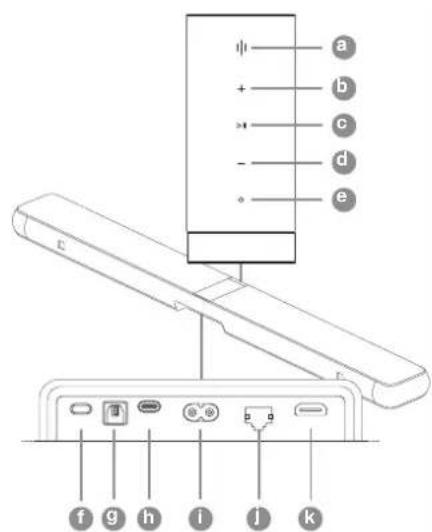
Diagram 1
Panorama 3 control panel and connectors
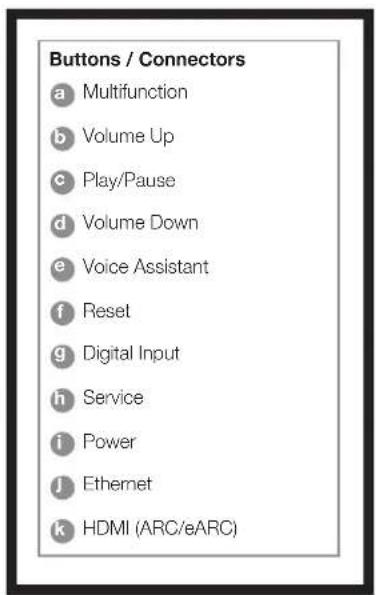
The setup process in the Bowers & Wilkins Music App will ask you to name the 'Space' in which your Panorama 3 is to be used. A list of suggested space names is provided but you can also create your own. When you have selected or created a space name, the app will ask you to press the Multifunction button on the top of your Panorama 3 to confirm the selection.
If a wireless network connection for your Panorama 3 is to be used, the next setup stage is to connect your Panorama 3 to your home WiFi network. The app will ask you to confirm the correct WiFi network and ask you to input its password. Alternatively, if your Panorama 3 is connected to your network router using an Ethernet cable, this stage of the setup process will be bypassed.
Note: If you already have other Bowers & Wilkins-compatible products connected to your WiFi network, the Panorama 3 will not require you to input your WiFi password as this will be shared securely via the Quick Connect function.
With WiFi network configuration and space selection complete, you will need to configure the input you have selected for the connection to the TV. The app will step you through setting up your TV. If you have connected to the TV with HDMI ARC/eARC, the Bowers & Wilkins Music App will show you how to connect the Panorama 3 to the TV and enable CEC. This allows you to control the audio on the Panorama 3 with your TV or set-top box remote control. If you have connected the TV with the optical connector, the Bowers & Wilkins Music App will show you how to connect the Panorama 3 to the TV and disable the TV's internal speakers. You will next be asked if you want the Panorama 3 to learn the IR commands of your TV remote, allowing you to control the Panorama 3 with this remote.
Note: If the Panorama 3 does not receive IR commands during the setup process, you may need to enable IR support on external devices on your TV. Please refer to your TV manual for further information.
6. Standalone Bluetooth Setup
It is possible to use your Panorama 3 over Bluetooth without the need to connect the product to a network. With your Panorama 3 in setup mode - indicated by the Multifunction button pulsing slowly amber - press and hold the Multifunction button for 5 seconds. The Panorama 3 will play an audio prompt and the Multifunction button will flash blue. This indicates that the Panorama 3 is in Bluetooth pairing mode and can be connected to via your source device's Bluetooth menu. The Panorama 3 will be available in the Bluetooth menu under the name 'Panorama 3'.
Note: In this configuration, the product can no longer be set up onto a network. To connect the Panorama 3 onto a network when in Standalone Bluetooth mode, you will need to perform a factory reset of the product via the Reset button on the rear of the product (see section 4).
The Panorama 3 can be paired with multiple devices by pressing and holding the Multifunction button for 5 seconds to enter pairing mode. The Panorama 3 can support pairing with up to eight devices.
Note: The Panorama 3 will remain in pairing mode for 2 minutes and time out if no device is paired within that time. To re-enter pairing mode
press and hold the Multifunction button.
7. Using Your Panorama 3
7.1 Spaces
Spaces are a core concept of the Bowers & Wilkins Music App and compatible products. A 'Space' is a room or a specific area in your home in which you listen to music. It is not possible to use the Panorama 3 with any other device in the same space.
7.2 Dolby Support
The Panorama 3 will support Dolby Digital audio in the following formats:
- Dolby Digital
- Dolby Digital PlusTM
Dolby Atmos
Dolby TrueHD
For all of these audio formats, the Panorama 3 will automatically optimise playback and provide the best audio performance possible.
7.3 Streaming Music
You can use your Panorama 3 to play audio from streaming services such as Spotify, Apple Music, Qobuz and Tidal. These can be streamed directly from the Bowers & Wilkins Music App, Spotify Connect®, AirPlay® 2 or Bluetooth.
7.4 Playing Audio via the Bowers & Wilkins Music App
Once you have connected to your product and enabled a music streaming service in the Bowers & Wilkins Music App, you can browse music from your streaming service. Once you have selected the track you want to play, simply click the 'Play' button. If you only have a single space, the music will automatically play in that space. If you have multiple spaces, clicking 'Play' will display a list of the available spaces in your home, and selecting a space will play the audio through the selected space.
7.5 Playing Audio via Spotify Connect
Use your phone, tablet or computer as a remote control for Spotify. Go to https://www).(https://www).(https://www).(https://www).
7.6 Playing Audio via AirPlay
AirPlay enables apps on Apple mobile, laptop or desktop devices to stream audio over a network to any AirPlay-compatible speakers, such as Panorama 3. AirPlay-enabled apps will display the AirPlay icon.
To use AirPlay, open the app you wish to use and select the content you wish to play. Tap on the AirPlay icon to display a list of available devices followed by the space name you wish to use.
7.7 Playing Audio via Bluetooth
Bluetooth enables audio apps on mobile, laptop or desktop devices to stream material over a wireless connection to your Panorama 3.
To use Bluetooth, you will first need to pair your device to the Panorama 3. On the Bowers & Wilkins Music App, select Settings and then select the space that contains the device you want to pair with. Selecting 'Pair new device' will put the Panorama 3 into Bluetooth pairing mode. Go to the Bluetooth menu of your device and pair it with the Panorama 3. The Panorama 3 will use the space name in the Bluetooth pairing menu. Once paired, you can play audio via any app on your source device. You can see a list of the devices paired to your Panorama 3 in the Bowers & Wilkins Music App.
Note: The Panorama 3 will remain in pairing mode for 2 minutes and time out if no device is paired within that time. To re-enter pairing mode, repeat the steps above.
8. Bowers & Wilkins Music App
The Bowers & Wilkins Music App opens on the main page. At the bottom of the page are four navigation icons for the main sections of the app: browse, library, search and settings. The icon illuminated in yellow indicates which page you are on.
8.1 Browse
The browse page of the Bowers & Wilkins Music App has content arranged in multiple rows in a ribbon view that you can search through by swiping right and left. The browse page shows recommended playlists that are generated based on your musical taste, your recently played music and some recommended playlists curated by Bowers & Wilkins. You can also scroll down and browse music from any specific streaming services you have linked to your app.
Note: The recommendations are based on the genres, artists, albums and tracks that you have liked. To like any material, simply click the heart symbol. The more you like, the better the recommendations will be. Your recommendations will stay with you and your Bowers & Wilkins account and are not linked to your music streaming service.
8.2 Library
The library page groups together all the material that you have liked either in the Bowers & Wilkins Music App or in any of your streaming services. You can search content here by music, podcasts and radio. If you have liked material in a streaming service native app, it may not appear in the Bowers & Wilkins Music App Library straight away.
8.3 Search
You can search for any music via the search function in the Bowers & Wilkins Music App. The app will search for results from all your linked streaming services.
8.4 Settings
The settings pages allow you to configure multiple products within your home. The settings page is split into different sections:
- Your Spaces
This section lists all the spaces within your home and from this you can configure individual devices. - Your Account
This section allows you to modify your account details and link any music services to your app. - Your Products
This is where you can trigger any updates that are available for any of your products in your home.
8.5 Linking Streaming Services
The Bowers & Wilkins Music App enables you to select and play music from a number of streaming services, such as Qobuz, Tidal, Deezer and many more. To do this, the Bowers & Wilkins Music App needs to be linked to your music streaming service. This can be done in settings via the 'Link Services' button in 'Your Account'. Simply tap and follow the on-screen instructions.
8.6 Player View
When audio is playing on the Panorama 3, you can control the volume, play/pause the audio, skip forward and skip back. The Player view can be minimised by pressing the down arrow on the top left of the screen. This minimises the player view to the bottom of the main screen. This can be maximised by tapping on the mini player view at any time.
9. Software Update
Panorama 3 is a network-connected speaker and, as such, reliability improvements, new functions and new features can be enabled via software updates. When a software update is available for any product on your network, a tag is marked on the settings icon. Going to the settings page will display the available update. Tapping this will trigger an update for all the products on the network that require an update.
10. Audio Adjustments
The placement of any speaker can have an impact on the audio. Placing a speaker close to a wall can over-emphasize the bass, and if the speaker is not facing you, the high frequency content can be lowered. Therefore, it is possible to adjust the bass and treble settings of your Panorama 3 to allow greater flexibility in positioning within your room. To access these settings, select Settings and then the name of the space with the product you wish to adjust, then select the device. You can then adjust the bass and treble from -6dB to +6dB. The settings will be stored by the Panorama 3 when the power is disconnected but will be reset after a factory reset.
11. Amazon Alexa
The Panorama 3 is a smart speaker with the Amazon Alexa voice assistant inbuilt. To enable this feature, go to the device level settings page within the
Bowers & Wilkins Music App. Select Settings and then choose the space containing the Panorama 3 on which you wish to enable the voice assistant. Next, select the device. The device settings page will be displayed. You can enable Amazon Alexa here by linking to your Amazon account: simply click the link and follow the instructions. You can unlink your Panorama 3 from your Alexa account at any time.
To talk to Alexa, simply say the trigger word, 'Alexa' or press the Voice Assistant button on the Panorama 3. Pressing and holding the Voice Assistant button will mute the Alexa microphones.
12. Panorama 3 Controls
Your Panorama 3 has buttons on the upper rear panel that provide play/pause control, volume adjustment and voice assistant - see Diagram 1.
Pressing Play/Pause will alternately stop and restart audio playback.
Pressing Volume Up (+) or Volume Down (-) will adjust the volume of any audio that is being played. Pressing and holding the + and - buttons will continuously increase or decrease volume.
Touching the Multifunction button will cycle through and play the active streams and sources available to the Panorama 3. The Panorama 3 Multifunction button illumination changes to indicate a variety of operational states. The illuminations are displayed in Diagram 2.
Pressing the Voice Assistant button allows you to talk to the voice assistant without needing to say the trigger word. This functionality requires a voice service to be enabled on your Panorama 3.
13. Cleaning
Should your Panorama 3 need cleaning, you can wipe its top surface with a clean, lint-free cloth and brush its grille with a soft brush. If you wish to use any cleaning fluid, apply it onto the cleaning cloth and not directly onto the Panorama 3. Test a small area first, as some cleaning products may damage some of the surfaces. Avoid products that are abrasive, or contain acid, alkali or antibacterial agents.
14. Support
Should you require further help or advice regarding your product, please visit the support site: www. bowerswilkins.com/support.
15. Environmental Information
This product automatically manages its power state without the need for any interaction. When connected to a network and not in use, power consumption is automatically reduced below 2 watts.
This product complies with international directives, including but not limited to the Restriction of Hazardous Substances (RoHS) in electrical and electronic equipment, the Registration, Evaluation, Authorisation and restriction of Chemicals (REACH) and the disposal of Waste Electrical and Electronic Equipment (WEEE). Consult your local waste disposal authority for guidance on how properly to recycle or dispose of this product.
Illumination Operational state
| Flashing white Start-up in progress |
| Pulsing amber Ready-for-setup |
| Flashing amber Firmware update in progress |
| Pulsing white Audio pull in progress |
| Pulsing red Error - contact support |
| Solid red Error - contact support |
| Flashing red Factory reset in progress |
| Flashing blue Bluetooth pairing mode |
| Solid blue Bluetooth connection established |
Diagram 2
Multifunction indicator illuminations
Specifications
Technical Features Compatible with Bowers & Wilkins Music App
Apple AirPlay 2
Spotify Connect
Bluetooth
Alexa enabled
Dolby TrueHD
Discrete Dolby Atmos 3.1.2
HDMIARC
Audio Format Support Dolby Atmos
Dolby Digital True HD
Dolby Digital Plus
LPCM
Bluetooth 5.0, class 2
Bluetooth Codes apxtAdaptive
AAC SBC
AirPlay 2 Compatibility iPhone, iPad, and iPod touch with iOS 11.4 or later, Apple TV 4K or Apple TV
(4th Generation) with tvOS 11.4 or later, Mac or PC with iTunes 12.8 or later
Amplifier Power Output 400W
Drive Units 3x 19mm (0.75") Titanium dome tweeter
6x 50mm (2") Woven glass fibre cone bass/midrange
2x 50mm (2") Woven glass fibre cone Atmos drive unit
2x 100mm (4") Low profile bass unit
Frequency Response 43Hz-48kHz
1x USB-C (service only)
Input Voltage 100V-240V, 50/60Hz
Standby Power Consumption Below 2 watts
The terms HDMI and HDMI High-Definition Multimedia Interface, and the HDMI Logo are trademarks or registered trademarks of HDMI Licensing Administrator, Inc. in the United States and other countries. Dolby, Dolby Atmos and Dolby Digital Plus are registered trademarks of Dolby Laboratories. Apple, AirPlay, Apple Music, iOS, iPhone, iPad, iPod touch, iTunes, Apple TV, Mac, macOS, OS X, and tvOS are registered trademarks of Apple Inc., registered in the U.S. and other countries. The trademark "iPhone" is used in Japan with a license from Aiphone KK. Spotify and Spotify Connect are trademarks of Spotify AB. Spotify Connect availability may depend on your region, please check www.spotify.com for more details. Amazon, Alexa, and all related logos are trademarks of Amazon.com, Inc. or its affiliates. Android is a trademark of Google LLC. aptX is a product of Qualcomm Technologies, Inc. and/or its subsidiaries. aptX is a trademark of Qualcomm Technologies International, Ltd., registered in the United States and other countries. The Bluetooth word mark and logos are registered trademarks owned by the Bluetooth SIG, Inc. and any use of such marks by Bowers & Wilkins is under license. Other trademarks and trade names are those of their respective owners.
Codes Bluetooth aptXTM Adaptative
AAC
SBC
Dimensions 65mm (h) x 1210mm (l) x 140mm (p)
Poids
6.5kg
Connexions
Bluetooth 5.0, Class 2
Bluetooth Codes apxtAdaptive
AAC
SBC
8. Bowers & Wilkins Music App
Codes Bluetooth aptX Adaptive
AAC
SBC
Compatible AirPlay 2 iPhone, iPad, e iPod touch con iOS 11.4 o posterior, Apple TV 4K o Apple TV
8. App Bowers & Wilkins Music
Drivers, 3x 19mm (0.75 inch) Titanium dome-tweeter
6x 50mm (2 inch) Geweven glasvezel conus woofer/middentoner
2x 50mm (2 inch) Geweven glasvezel conus Atmos-driver
2x 100mm (4 inch) Bas-eenheid met laag profiel
Frequentriespons 43 Hz - 48 kHz
Stroomyerbruk in stand-by
Minder dan 2 Watt
4. EnavaopapepyooataaikwpuOuaewv
Av e va enaepere to Panorama 3 otc epnoataiaek, Tou npoeAeyEe, pubieae, kpahtote tntnevo to koumi enaadopoc y a neve deupeoAetta. Mropeite vseite n theou koumou enaapodoc o st dypma1 H sdiakiaotnnaedopac uotkekuiutai atov fupio tou koumou noAanawv Aetoupyuvu EKKKw xmu Ka evnntko oua.Aun h diakiaotba atevyomtoTao Panorama 3 Apou etavakknEy to Panorama 3 Ta oAeOAtn aeTuaypuoyu puoioc OAc o pubiueic bndpovtovr atav enaepepete To Panorama 3. Mropeite ention va enaepepete to Panorama 3 mau Tou evou pduieuw Tepaoyh Bowers & Wilkins Music.
5.Puθμσησδiktro
Me To Panorama 3 cm Aetoupya pu Emuoc ka Me To
koumi nolAarukv Aetoupyuiv Tou va ovaBocBrive.
aypa me npotokai xpua, kekivote tv Ev epapuyi
Bowers & Wilks Music otn oukeun oac me iOS Android.
H epapuyi Wbic Kaobodnye ie mnuVata poptom
otn diabukacia pu Emuoc.
Lneiwn To Panorama 3 xonouotoi oubean Bluetooth me t uovkounn ovektie tnv eapuoy Bowers & Wilkins Music kata n ti diakeya tni diaikaacpuqy Ta ojata Bluetooth eyouv oxetikmuip iueleia kai mnpovnu v uurooiouv ao tou toxouc tuv duatow, orote ouwatooue To Panorama 3 kai n oovkui nev eapuoy Bowers & Wilkins Music va npaquevouv Kovta oTo npovnu kata n diakkeia tnc diaikaidiacpuqy
Tia va xanapomontane Tnv eapoy Bowers & Wilkins Music, amatetra va dbnoupyoae evav loayapao o xpiotn. Tnv npnn fopd nro Ta kavete Anmtn
epaoyoc, Oa aac nntelva uovsebeite atov loyapao oac, av diaobetene hon evav, na bouupoyoae evav
layapaoo, Oa tnpetra va bdoye tva ovua xoiin
kai evav kwdkipno paoaoc. Mtopeite enoic va
tpanoianoe tic iboortnoe vao tv oayapaoo oac, piv an to mpuian. Apou dnuupoyae evav
layapaoo, Oa npertra va emkpuiape tme diubuvon
nlektpwokau Toxupouiou Kavovtan, kuk otov ouvseao
tou Bo axe atalei on ti duBuvon nLektpwokau ToxupouieoL
H epapoy Bowers & Wilkins Music Ba avaonnepi pui tuxov npoiovra oe letoupyia pubuongk kal on ouveexia, Ba oac nqntautuata va EekwioeTe Tsiabkaotia pubuync. EvallakTuKa, uptopelte va pubuigerte eva veo npoiov an to pevoupuieow enEyovTac Add product (NpooBnKn npoiovtc) ony evotnta 'Your devices' (O ouokuec oac).
Boutjous//Coudecphos
a Khutnirnntanwovlambdaouyaw
Aeon Evraon
Avanapaywyn/Naon
Meiun envaan
ΦwπTkocβonOc
Etnavapopd
9 Yphakicioooc
Σερβις
Koumi Aetocopyiac
EthereNet
HDMI (ARC/eARC)
H diaikia pueiane oyn epapoy Bowers & Wilkins Music 0a aac nnoe va ovuaede Toov npo 0to ono 0a xonpaunoe to Panorama 3. Napexetua iia Aata poteauveuvuovouauv uawu,aaIupotepe erianc va dnauyetae To bo kao Aao eaiEeTe n dnuuuynene Eva ovoa xuoo, n epapoy 0a cac cnna va natae To coumtl noanauw Aantoupyuav ot eradw mepoc Tou Panorama 3 vla v embebaowote Tny enayni.
Av ba xpanaonrnnnei ma aoupuatn ouvbean siktouva to Panorama 3, to erouw o strio tnc iiaikaiaocpuuanei wnt ouvsean Tou Panorama 3 0to ukiakocac kktuo WiFi.H eapayoy hao cntjnei va erbaiaowte to auotod kktuo Wif Kai Ba oac Tmoei va eiaayetov kuibokno paoaagctou. EaAakrtka, av ouvdeoeote to Panorama 3 otov dpoucayytnkdtukou oacxpaiaoovtac ev KaLsIO Eternet, auto to atdio nqdeltaacic,puuucnccn ta napakqaeel
Enneiwn Av exte ouvdoen noa ouaBata patoivora Bowers & Wilkins sto ktwu Wi, dev 8a xoeiaote va eioyete to kwdko npocbaonc tou biktuow Fi yto Panorama 3, kauc autoc 8a kovotanqei me aopdaia uou wnc teauoyiac yprjopyoc ouvdecon.
Apoou oaknpoei n diuoppwn tou kdtou Wifikai n erouy xupou, Oe npetie va diuoppuote tv uonooyn iiaouou nou exete enaie vi ta uovbe anmTv aeopaen H epapoyo yaaac kaobnyoe tni daidkaocia oupaucn Tnc Tne apopocn. Av exete auvbaea nvi Tne apopom nauoTNC uTOBOXHC HDMI ARC/eARC, n epapoyn Bowers & Wilkins Music 0aac de5a nuc va ouvboe To Panorama 3 atyu Tne apopocn kai va evpyoontene Tnu duwatotnta CEC.Autn hduvatotnta oac entpeire va exyeTe TO vnoTo Panorama 3 m To Tne apopocn pio TNC Tne apopocn n Tou atokwkoTOnnnr Aav Exete uovbce Ta uTne Tne uOBOxnc, n epapoyn Bowers & Wilkins Music 0aac de5a nuc va ouvboe To Panorama 3 atyu Tne apopocn kai va atevpyoontae ta ouwtepkna xieia nC Tne apopocn, 2tn uovexua, 0epumBeTe av bEte To Panorama 3 vgaTaeTic eVtoLc e utepowu To Tne apopocn nTu Tne apopocn, wote va exyeTe To Panorama 3 m auTo Tne apopocn.
Enelwn Av to Panorama 3 dev lauabvevoloec uepuovkata nd idakkaTc daadkaoiaocpuoan, evexetai va xpeaoetva eevoyonoiote tvn unoptnenupuoynu eefapokoc oakeuc, anv Tnaeopaan. Ta neipaaotepacnnpopoea, aatpeltto oEvpeioio nTneopaoc
6. Autovoun pθμon Bluetooth
Mtopeite va xpojouofoe to Panorama 3 eowu Bluetooth, xupic va xpeidctai va uovdoote to npioov oe eva SIO. Me To Panorama 3 oT Aetoupya pueucn - n oiaountoakvotarito koupiitnoAanAov Aetoupyov ou avoaoBpivayapeo npokokai xpua - kpatjote tantjevo To koupiitnoAanAov Aetoupyov yia 5 deutepolerrta.To Panorama 3 8a avanapoyea vya nynkoi Oma ka to koupiitnoAanAov Aetoupyov ia avoaoBpivye me ptxpuva.Auro toonoekvot ot to Panorama 3 Bpicketei ot Aetoupyia ouzneq Bluetooth ka npotepie va uovsbete cre auo eawou Tou evou Bluetooth Tc ouekuric mtnoc oac.To Panorama 3 8a elwsi daleziopto evou Bluetooth te to ovua "Panorama 3."
Enseiwom: Zs autm diqioofo,To npoiov Se
unoei va puuotei rbov o eva sktuo. Tva va
auvbsote to Panorama 3 ce vda sktuo stav bpaketai
oe autovoun Aetoupyia Bluetooth, Oa penei va
exteaeets eravaopopa epoyotaanakuvpuoiow Tou
npoiovtc peow tou koumou entawaopoc ot mow
peoc Tou npoiovtoc (avatpeTe omv evonta4)
To Panorama 3 μntopel va oukeyθe iμ noλaattacocuokuec, kpatuvta nattjveto to koumti noλaanauivAatoupyuvi y5 deutapolamra wote va ealBet omAstoupyia oukeNc. To Panorama 3 μntopel va uototnpieoukeyjμ euckai oxtu oukuec.
Enueiwn; To Panorama 3 napaeve otn aeoupyia oukeynic y2 aenrta kai eepyetai autuota ano autn, av dev oueuxtheta kajua ouokeun evtoc autou tou xpovkow diaotnatos. Ia va eioleEgava otn aeoupyia oueync, kaonote nainjevo tokuni nnwiv enoupyiwv.
7. Xpion tou Panorama 3
7.1 Xwpo
Oxipai evai ma faikn ewoia Tc epapoync Bowers & Wilkins Music kai twu oupatuv npovtwv. Oxipoc Evai eva Swiato n eva oukykepuie oepoc oto anac, oto oioakote poukki, dve mnpotet va xipoiortoe to Panorama 3 e oioaodntote aan ouakeun oov io xipo.
7.2 YnooHpEn Dolby
To Panorama 3 umoortpctjxO Dolby Digital onc; napakatw mopfec;
Dolby Digital
Dolby Digital PlusTM
- Dolby Atmos
Dolby TrueHD
Ia dae autc tuc pphi xou to Panorama 3
Baiotonoi autoqata mvaavapaywn kai npex ta nvy
kaupeyn duwath nyukn anoocn.
7.3 Euveixn po noukns
Mrtopette va xpnauonouoer to Panorama 3 yia va
avantapadye nxo and uinpeoc; porc hxou, dnuus
ot Spotiy, Apple Music, Qobuz kal Tidal. Mrtopette va
mpayatotnooae porn hxou artuegeic; aro tv npauoyh Bowers & Wilkins Music, to Spotify Connect, to AirPlay2 nmuu Bluetooth.
7.4 Avanapaywn iou ou nnc eoapoynic Bowers & Wilkins Music
Afoouwseote Tpoioov ackai evpyoionae Tmu Umpedaa porocuucncnmyeapauynBowers & Wilkins Music, uortpelte va nepinyene t onmuokn o an ty Umpedaa porocac Afoou euaee to koumniou
Eeacte va avantapayetecn aKavte KauK OTO couknt avanatapayyic. Av exete mvo evav xuO, n ouukn avanatapayetai autouata o aurov tvxuO. Av exete
maaataouc xuwouc, otav kavete KauO tO coumni avanatapayyic Ba eupawate iia Alota TuV biadoeuvxuwvto OTt cKa,otav emueeEvav xuO, o hxc
Ba avanatapaxei otov enueyevoxuO.
7.5 Avantapaywyn jxou meow tou Spotify Connect
XpouoTOnTo TnEepuvo, To tablet n ToVoAoyon
Oac wTneXepiopno y to Sotfly. MetaBste om
SduBuovn https://www.spotfly.com/connect yva maBete
mucmupeetva to kdvte.
7.6 Avanapaywn nyou nou AirPlay
To AirPlay emtpente e efapayoyec nou evai.
eykateotmevece o depontc ouokuec, popyntouc
utolayotocn t emptatncuoc uolayotec Tc Apple va
avantapayou por hou meow dktoue o oroiahnote
yela evai oubeta ta AirPlay, atw to Panorama 3. Oi
epapayoyoc nou utormpovuavl AirPlay 8a diaetouv to
ekovio AirPlay.
Tva xpanoantoe To AirPlay, avolte Tny eapoyn Tou EeTe Vxpanoantoe KAI emEte To
Tepexpevo To Tou EeTe Vv avarapdye. Pntote
To EKVDiao AirPVA vuaupavioTe pia LIOA Tou
BIOeovu ookoeuvkai kdoAouOuO To OVOJa Tou Xwpuo Tou EeTe Vxpanoantoe.
7.7 Avanapaywyn hyou meow Bluetooth
To Bluetooth entpente e epapoyec hou rou elvai
yakoteimuee oe dpontec uokuec,dpontouc
uOAnOyIeTn nntpanctouuOnuOAtayec va atavapdyou
poec paoaounatnc ouveoic oTo Panorama 3.
Tia va xonaiomotjote To Bluetooth, npeta npwta va oukege Tn oukeun oac me To Panorama 3.2iny eapuy Bowers & Wilkins Music, emaEte Tc uopuaic kai, otouveix, enuAeTe To vXupo Npupexntu oukeun me tvn otoia thee vao to aucege.Av maeEte Pair new devices (Ucv) VAC oukeun),To Panorama 3 Oa aoealot nT Aetuayvi oukeucn Bluetooth, Metabeite oTo neovou Bluetooth nC oukeun; ackui oukeetme t peo Panorama 3 To Panorama 30 XpohmooiOei To ovua xupou oTo neuvou ouKeEn; Bluetooth. Apou oukeux, utopele va ovatapayete xo jauo otoiaodhmoe eapuynic nOn ouakeur nTmyocac Mtopeite va deite ia Iota TuV oukeukivou Evou oukeuxBie Me To Panorama 3 otivy eepuyh Bowers & Wilkins Music.
Enneiwo To Panorama 3 npapeveoi om Leiouyia oueynic yaa 2 eanai kai eepexetai autouata anot au, av dev ouceuxei kaia oukeun evtoc autou taovoukoudeltaaattuoc. nva enoelefaova onn leiouyia oueynic enavaalabe te npapannw
8. Eφαμογή Bowers & Wilkins Music
H epapuy Bowers & Wilkins Music aovyei oyn Kupia aeia 2to kawepoc nce aeiaac unapoxou Taeepa eoviaia anyynaric yia kupc evotntes Tnc epaooyne pnyan, Biuaenm, avchman kat pubuio. To eoviaio nou eauvaiatrae iekiwo xpuuma unoekivoi t aeia 0nnoia biokoe
8.1 Nepunynon
To Tepiexevo am aeiaa Tepinomnnc efapauynic Bowers & Wilkins Music sivai xupaevo a noaaartac oiepe, oe ia npoaoh kop6eaoc, anv otola mapeite va kaote avanlntou opovraTacpo Ta deEka Ka npoc ta apotetoe. H aelaiae peynane eudavane duwotueve c Atoec avanapayuync nou 5nmuoyuovtae me faon to ouukocac youtato, tounoukniou exete avanapayeynpodata kai opuuevec Atoec avanapayuync nou ouuvwvtai ant To Bowers & Wilkins. Mtopelte enianc va kaote kuaen troa ta kawu vna pnyneetre oe uoukki atto oiaaohnrouyekpuev utnpedona porh xou exete ouvbeoe: ne Tnv epapauynr ca
Jnuswn. Ououtaeic baoivotra oia idn, toun kaaIaIeyvoc ta dauouy ka ta koujtdiaou nol anepaeovn. Ia va nlaowte otac apoeo oniooiote npieoyoevo, ata Kavte Kuk 0to aUbaO kaipdiac. 0oo npiaoTeo pieiyoevo nlaVwet ono aoei, todo KAUTepeo Ba eiva o ouoatac. Ooutaeic oac npaueovuv anoNkuevoc OTov Loayapuaq Bowers &Wilkins KaI dev ouvdeovtai me Tny unnpcepaormuovkiocac
8.2 Biβλuθη|kη
H aiaia biiaioe ncaa oao to npexxoevo
ou exete bnao oat oaepeel ete onv eoapoy
Bowers & Wilkins Music eite ooreiahntote an to
unpaepepepepepepepepepepepepepepepepepepepepepepepepepepepepepepepepepepepepepepepepepepepepepepepepepepepepepepepepepepepepepepepepepepe peepayom uy unpaieac pooh yov, evbexetai va my
epavietai qauoc at BiaioeKn Tc epapoyn
Bowers & Wilkins Music.
8.3 Avzimn
Mroepte va aovnntote oioohtne tepiexoevo
ouokncnpoi Tc Aetoupyiaavocnnont,otnv
epapuyh Bowers & Wilkins Music. H apapuyh Ea
aovtnoe artoeAouata de dAcTc ouvssesve
uippeicp oici xou oac
8.4 Puθμioεις
H aiaia puboivoua oue eritertie va diaapipoeote raanatnpoiovta oea oto ottnac H aiaia pubiouowxuiicr e aiadopetikc evotTec
- Your Spaces (Oi xipoi oac)
Autn n evotma eupavciE 6ouc touc xwpouc sto
onti cac kai ane 6wmuopeite va diajoppoee
peuovwueve ocukuec. - Your Account (O loyapiaouc oac)
Autn en ovmtta cac etirpeta va tportononctetra atoayieia loyapiaouc tacau vouwedeetereonaiobniote utpeoeicouoviknc, me Tnv expapoyi ncc. - Your Products (Ta npoiovta cac) Esu npoeite va eapuoote tuxov evnuepwoe, nou elva diaeaqic yia otofoihtote a to npoiovta oto entaoc.
8.5 2uv6eun umpeauw poic jxou
H epapuy Bowers & Wilkins Music aoc erpertet va
tAEETe KA vovatapayete ooukn arto dafopec
urpeiaoc porc hxou, ootc oQobuz, Tidal, Deezer
kai nAae cAAec, tva to kavete auto, nepapuy
Bowers & Wilkins Music npertea va ouvdebe ie tvr umptpeia
ponc oounc ocac Auto utapei va yive otic publaieic,
muow tau coukouna Link Services (Sigmaen untpaeuw)
tny evotta Your Account (O Oayapiaoioacac).AnAd
tantjate to kouint kakokauohote tic onyilec otyn ooydn.
8.6 PpOBoAn npoypaMuatoa avartapaywyn
Oav avanapadyetai nxc oT Panorama 3, mtopeite va eEyEETe TIV EVAaON Tou hou,va EINAEETe avanapayuy/ Taonou Tou hou,va metarnjoeTE npoc ta empoc ka va metarnjoeTE npoc ta iaw. Mtopeite va Exaotontoae TIV npoAoN npoyadmuOC AvatapanaywyA, naivatac to katoBekoc, oTo eravw apotepo npoc,nc obovn. Me autov Tov TPOTA, nTpoAoN npoydpuAtoc Avatapanaywyh, elaxotontai tO cKtau npoc nC kupc,obovn. Mnopoite va Tne poyatomoe OTOAEBNTOE OTOAUYNC. natvuc,tni npoAoN npoypduAtoc avatapanayuyic
9. Evnepwn loyoukou
To Panorama 3 eivv evuovseve ce kioe kai, etouvuc, uipovv va ivuvov beAtowae otiv aotiotia kal v evpyoanbov veac leatouyickau duvatntec neuvepoeovuyovayukou Otev avla diaqunna iuaevnpuoyanoyauokovya otnoiobnntate npiov ov stiktu, eupavctetia ma etekta oto ekovlidia pubiaew. Av metabeite ont aolida puquieuw, oea eupavctetai n diabqunny evnpuoyan. Av tvn pntaee, Ta epapucpui ma enqvpewn yda ta npovtva oto kiou Tn anatotuv enqvpeon.
10. Ppooapmuoyc stov nxo
H gean tonotheqnnc oonoudnntne nyeiou mutopeia va
eymedeao tov hxo.H tonotheqnnc evoc nyeiou kovda e
evav toxO mutopeia va avadekvuei utepkoikata u maia cai,
av to nyelo deiv aiva otpauevo npoc topec oac, mutopeia
va meuwei ng attoaodn rav uynauv ouuvyuvu. uveituc,
mutopeia vtpoapuoote tic puubieicic muaowkai
tpiuwou Tou Panorama 3 vla va exete meyautepn ueAia
doa apopa Tnu totoenotn mea oto duuatio. Ta va
tpoatae autec tic puogiaeic, etalete tic puogiaeaic
ka meta To ovoua xouipoi me To pioovou To heaeve
tpoapooote kai, om ouweia, etilete tn ouakeun.
Mtopeite katortiv va npoapuoote ta undaoa kai ta toia
anto-8 dB EUC +6 dB. O paupuiaic antohkeiovvat anto to
Panorama 3 otav aouuudetai anty napoxn peuutatcc,
aAia dyapovotai meta anto entavaopopa epoyoctaikuv
puuuaew.
11. Amazon Alexa
To Panorama 3 eivv eva EvTuV npEio,ue evowuatauEvo To. pfwnik oBnO Amazon Alexa. ia va evpyonionte aut
TduVATOMTa, metaeite ot aeiaBpuuauw emieou
oukunuc nvm epapuy Bowers & Wilkins Music. EuaTe
tic puuucac KAI, otu ouvea, emiaTe To xuo TIO
tpexei To Panorama 3 oto otoio thee VveyopounaTe
Tov vnuTuK BoJngo, Tzu ouveia, emiaTe Tn oukeur.
Oa epaavotoei ne aiaBpuuauw ouakeuric, Mtopeite va
eveyoytaIaTe To Amazon Alexa ebu, auveovtac Tov dko
ao LyayapauoAmazon: atla kdvte kAkr otov uysaequ
kai kakouhote n ic obnyie, Mtopeite va anooovseTe to
Panorama 3 aToTov skdo ac LyayapauoAlexa orouabntote
otyur.
Tia va ma hae ste vAlexa, atA d te Tn AeE
evepytoianc «Alexa» n patote To koumti duvtikou
bonBou oTo Panorama 3. Me to npataetao wntua tou
koumti duvtikou BonBou npayatatoieitai atyaen Tou
muipooivouu tnc utnpedac Alexa.
12. Xeipotripa tou Panorama 3
To Panorama 3 diahe ta koumtia oto awu kiow poc Tou, ta onoia napexyov Exyyo avatapayuync/naovnc, puon evaontn xoyu kat fuwntko bonBo -avatpeTe oto diaypaumia 1.
Me To nTnua Tou Koumou avatapayuyync/taounc,
biakotntai kalavapxie evaaaktkna n avatapaywnxou.
Me to matma tou koumou ouenong evtaon (+) n meiwoe
evtaon(-), pubuqetan yvadam onouaountote
nepexouovouavarapayetal Me to napateapevo
matma tuv koumiov + kal - auvevat n eiuvotai ouvexoc
n evtaon tou hcvo.
Me To ptnu Tou koumtou nolamwav Leioupyuw, VvTea KukuaevaalnKai avatapaywn Tuv evpyu poukai Tnyuou Tou ealdioueoc oTo Panorama 3. O ptoiooc Tou koumtou nolamwav Leioupyuw oTo Panorama 3 aAAdcya va urtoidei diaodopc kataotdacie leioupyiac O ptoiooc npypdpctai oTo diypauma2.
Me to nataou koumoufowntikou Bonbo, uropeite va uAneote otov fowntkoBonBoxuicva xpeiacta va neite m Aen evytooinanc. Ia autn t aeitoukykantra, anateita v eivv evytoinmev nTo Panorama 3 ia fowntuk urnpeda.
13. Kaθαριμος
Se nepittwnn to Panorama 3 npetra va kaabapotai,
mupeite va akouritete nTv erdvw etipavaeiaou me eva
kaepo navi tvu dev afnvye xvovdi kai va kaepicote
tn ypiuva tuo me ia maakoh boptoo. Av tee va
xynaiotnoiote otofohtote uypo kaepiaqou, atauote
to oTo navi kaepiaqou koi kateueiv anrav zuo
Panorama 3. Dokaipote nputa oe ia ikpkrnpexh, KaBuc
katoia ppoivta kaepiaqou evbexetai va tpokalaoov
zna ou opievees antt ctepaevees, Atopeyeyte
ta aotepaia npoiovta h ta pioovtauou Tneipieoxuov
OeEiwikuaoc, dAkaikouc h avntaktpisikacoc tapayoytc
14. Ynootipxi
Av xpeiaotite tpiiaootepn Bonthea n oubetaoulc oxetka me toptocv dac, tniokoeptte Tnv tomotoeia utooohpiieh, otn diuuvomw bowerswilkins.com/support.
4.C6pocK3aBODCKnM HAcTpOyKaM
EcnBbXOTNEc6pOHTbHactPONKPanorama 3
DIO 38BOOCKIN NOYMOTAHNO,HAXMNTE IN
yEDPKBauTe KHOKNKc6pOCA BTEEHNPTAECKYND
PaONoXeHNKHOKNKc6pOCA MOHO yBNIDETb HA
dAnrpaMMe I.PnoceCc6pOca ByET HnHUNUPOBAH
KpaCHBM CBeTOM MHOFOFHyHKUHOHbHONKNI
38kOBbIM CNHANOM, INaTO BbIKNHT Panorama 3.
Pi npere3pAryKeBaWAna PBAI3npoeiTeB
peXIM HAcTPOKn, BCE HAcTPOKn Bydy UdaJIeHI
np c6pOce Baew Panorama 3. Bt KaTKe MoXeTe
c6pOcntCBQoPanorama 3. nOMouKMeHKO
HaCTPOeK npINOxOeHNB Bowers & Wilkins Music.
5. HacpoKa no cetu
Korda Bawa Panorama 3 HaxoNTcB Pekmme
HACTpOKn N ee MHOrOpyHKUOnHbHaR KHOPIKa
MeIeHHO PyIeCnpyet XeNtBm UBeTOM, 3aYcHTte
npnoXeHne Bowers & Wilkins Music Ha BaWem
yctpoTBe I OS mN Android. PnpNoXeHne Nomoxet
BAM C NoDcKa3kAM B IpocceCec HAcTPOKn
PnpueHne. B npoece HacrpoKn
Panorama 3 nonobayet Bluetooth coednene c
ycptohm, HA KOtOpom 2aetae npnojoxHe
Bowers & Wilkins Home. CnHaJIb Bluetooth
mEOT OTocntelho HeobloWOn PAuYC CB3N
mMory TpepbBaTc rpaHnCaAM NMOeUeHnA
noTOMy Mbl peKoMeHdyEM, TTObI Bawa
Panorama 3 nycptoRcBO Bowers & Wilkins
Home App octabainbc prdOm BO BPem npoecca
hactpoKn.
PnpnoKHe Bowers & Wilkins Music tpe6yET, T06bI bCOSaDnYueTHy 3aNcB (AKKayH) NcB3oBATEe. Pnp npso3 aRpy3e npnoKHeBAM yBdET npENoBDIOBnBvyeTHy3aNcB,ecnO OHa y RAC yXe ECTb,IMn COsTaB HOyO yEthy3aNcB. BAM HyxHO bEyET BBCTn IMN POb3oBATEe n napoi.Bb TaXKe MoXeTe NmEHHT yBeDMeHn Dn CBOeN yUeTHo 3aNcN IpeD hAcPOHo KAK ToNtBko Bb Co3DaNTe AKKayHT,AM HyxHO ByET noTtBepDntB aAdpoc 3JeKTPoHNO NOuTb,nepeJr No CcBIO, KOTOPA BYET OTIPABInHe H BAaAadpc 3JeKTPoHHo NOuTb.
PpnoKeHne Bowers & Wilkins Music chayana
BbONHNT Nnck NKbIXb npOyKTOB B pexmme
HactPOKNI, a 3aTe AMOTAMHeCNEK npeDNOXtBAM
HaHbTcam IpoceeC HactPOKNI. KpOMe TOrO, bbl
MOxete HACTPOINb HOBb INpOyKT B MEHO HAcTPOE,
Bb6paB Add product'--"OobabNb npOyKT B
pa3epe 'Your Devices'--"Baun yctpoiCTBa."
Bubalus / Coepneabous
a MultifunctioneropdyhncuHnBnBnBn
Volume Up (vynne-ine rpoomkct)
Play/Pause(30pnpohaeene/paay)
d Volume Down (YMeHaeHeR pOckn)
Voice Assistant (Tonoocsoa oocoteht)
Reset (C6poc)
Digital Inpu [Udppoe kxan]
h Service (Capsa)
Power (Punjab)
Etherea:
HDMI (ARC/eARC)
PpocccnactpoKBNpnoKeHN Bowers & Wilkins nonpocntBaHnBbTb"Space" "PpocpTaHCTBO, B KOTOPOMbyETNCNb3oBAtcBaWpaPanorama 3. PnpOBDTcRcNPOCKnpdAeMIXMHE PpocpTaHCTBHO Bt TaKke MOKTe CCsDaTB CCB0 cO6CbTeHNbHeBJe. KOrda BblBbPaNNuCoaDnIM NpOpcTaHCTBa, pnpioKeHMe nnonpocntBa Haxatb MHOROQyHKUChHbHyKONkY BepxHen qACTn Baew Panorama 3, UTO6bNoNDtBepntbBbOp
Ecnn nbaen Panorama 3 bdyet nnonbataoc
becpnooboe cote BoNDKIOHEne, CEDyouuim
aTaNOM HactpoKn bdyet NOKIOHEne Panorama 3
Kdmaunie cTeN Wi-Fi, PnpnoKeHne nonpocnt
Bac noTBeepnt bpabnHocTB cTeN Wi-Fi BBeCTn
napoB. Ecnx xe Baua Panorama 3 noKIOHcHa K
cTeBOmy pOtepy c NoMOUb KaBena Ethernet, To sOT
tAn npocceca HactpoKn bdyet npocyuen.
PIMMEAHNE'ECN yBACYKCTbDyTME COBMECTMNBIOPOKTBI BOWERS &Wilkins, NOKNOCHENHIE K AATIN CETNI Wi-Fi, Panorama 3 He notpe6yET or BA BDOA npoJn Wi-Fi, TAK kAK OH BYET BeONrAncho Nepedan hepe3 dyHKmIO BbCTPoro NOKNOCHENH.
IIOoe 3aepenHn KOHNpynpOBANcETNI WFiN Bb6opa IpOCTpaHCTBaBn HxHo BydEt HAcPToNTB BXOD, KOTOpBn Bbl Bb6PAn DnIPOKHeH N TELEBN3Opy. PInnoXeHne NOMOXET Bam HAcPToNT BaaTTEBn3Ope. Ecln Bbl NOKIOHINHCb K TELEBN3Opy C nOmoUbHDMARC/eNPOXeHne BOWERS &WilKng Music NOKAKET Bam, KAK NOKIOHHTB Panorama 3 K TELEBN3Opy N BkIOHHTb CEC. 3TO noBOBtET Bam ynpAABNT bBykOM Panorama 3 C NOMOuBNoIyTA DnCTAHNOHORo YnpAABHnE TELEBN3Oporm INI TELENPNCtAkoK. Ecln Bbl NOKIOHHTB TELEBN3Opy K OTNUECKOMy pa3bEMy, npINOXeHne BOWERS &WilKng Music NOKAKET Bam, KAK NOKIOHHTB Panorama 3 K TELEBN3Opy N OTKIOHHTB BCTPCehHbIe DnHAMNKI TELEBN3Opa. 3aTeM Bac cnpocrt, XOTeJIM Bbl, 406bPaPanorama 3 BbyHnla NKOMAHDb BaWero pnyTA ot TELEBN3Opa, NoBOLrBA Bam ynpAABHTB Panorama 3 c NOMIOUkToTOro Nylta.
PIMMEHNE: Ecn Panorama 3 He nOyaeT
NK-KOMHN BO BWM npoucea HcTPONnBAM
MOKET NTOpeBOBATB KINHOHT NKIOUDEpKJY
BHEWHX YCTPOIcTB Ha BAeM TeLEBIsOpe.
TOxAynCTa, Obpatntecb K PkyoBodCTBy BAeero
TcENBnOpa JINI NOYeHn DIOIOHNTENHoi
HnΦopMaun.
6. HactpoikKa Bluetooth aBTOHOMHom pexnme
BbMoKeTe NcNoIb3oBaTcbOo Panorama 3
dAnPnMa My3bKnNo Bluteoth 6ea
He0xDmMocTn NoKIOHNe Hn e K cTn. Korda
BaAa Panorama 3 HaxoJITcB PexMe HacrpoKn
mMHOrOpyHKUOnHbHaB KHONKa MeJeNHO
nybcpyet KeJIbIMuCTOM, HaxMMte N yDcPbXBAIe
ee B TceHne5 CekYHd Panorama 3 6dyet
BOcPcN3BODHT n BbBODHT 3ByKOBBe NpckCaKn
a MHOrOpyHKUOnHbHaB KHONKa 6dyet MMrTaB
CINHM UeTOM. 3To yKa3BbAeT Ha To, YTo Panorama 3
hAXoJITcB a PexKMme copraKeHn no Bluteoth n
MOxET 6bItb NoKlKHeHa ueE3 MeHo Bluteoth
ycPoTbCT-NCTOHKnOB. Panorama 3 6dyet DCtCyTHa B
MeHIO Bluteoth no HaBaHMe "Panorama 3".
PnmeHHe: B 3toi KOhpyrpaun npdykT
bOle He MoKet 6Bt HAcTPOeN NO COTn.
NOKTHEN PAnorama 3 K cTe N ABOTHOMHOM
peMIXe Bluteoth Bam NotpEbycBnONHTB
COpO HAcTPOeYCTPOINCTBA C NOMUeIO KHONK
cbPOca Ha 3aedne Naehy yctpoHCTBA (CM.
Paed 4).
Panorama 3 MOXHO NOKNIQUHTB K
HECKOJIbKM YCTOPOYCTBAM, HOKAB N UEPKAB
MHOROFOyHKUHONAHbHyKOHNKY BTEeueHnE 5 cekHyD,
TTOBOBNTB PEXOMCOPRJCHNHA. Panorama 3 MOXET
NOIDcPbBAbTB COnpRJCHNE DO BOcMbN yCtPOICTB.
PpmeHaeHae: Panorama 3 dyjET octabtbcraB pexnme cnpkexHb TceHne 2 MHTN NOTOM BbiJed N Hcero, eCmB TceHne STO TBPeMeHn H OHOYCTPOECTBO He dyjET cnpkexHo, DnOBTOPHORo BXOa B PEXM CnpkexHae HxKMte IN yDpeKMBTHe MHOFyHKMOHAIbHy HO KHONK.
7.5 Bocnpoun3BedeHne aydno yepe3 Spotify Connect
IcnoIbayntcBcO mApTcH,IIaHwETnnn KOMbIbKTeB KaecTe BnyTa DcTAHIOHOY npAbeHnD nSpoty.3aIInTe Ha caat https://www.spotfly.com/connect,HTo6byy3HaTb,Ka 3TOJenatb.
7.6 Bocnpoun3BedeHne ayduo uepe3 AirPlay
AirPlay no3B0nRE npINOxHnM Ha MObIbHix
ycTPOINCTBAX Apple, HOY5yKAX NIN HAcToNbHbx
ycTOPOINCTBAX npePabTa ayNDIO NO cEtN HA NoBle
KOLOHKn, COMBeMTMbte C AirPlay, TAKNE KAK
Panorama 3. PnIOXeHHc nOdoepKKoAirPlay dyDyT
OTb6pKaTH bnaOK AirPlay
T06bI NcNtB30aBt AiPlay,OTKpOte npnIOKeHHe, KOTOPe BbXOTNE ACNtB30aBt, N Bb6peTe KOHTENT, KOTOpBb XOTNE BCNPOMBCTEn. HAKMNTe Ha 3HaOK AirPlay, T06bI OToPbAaNTb CnCOK DOCTyINbIX yCpOeTB, 3a KOTOpBm NocNdyET MM PPOCTPAHCTBa, KOTOpBb XOTNE ACNtB30aBt.
7.7 Bocnpon3BedeHne 3Bykapees Bluetooth
Bluetooth no3B0nnet aydno npnloXeHnMa H
MObMbHbX yCTPOICTBAX, HOYTOkXmN HAcToJIbHbIX
yCTPOICTBAX nepeBaabTa paBnNo beCpPBOGHOmy
coeHNHNO c Baeu Pe Panorama 3.
Troblonb0BtBluTooth, Bam ChauHa HyxHo BInonHbntcompexHeBaWero yctpOCTBa C Panorama 3. B npnloXeHN Bowers & Wilkins Music Bb6epmt Settings-HactpoKn, a 3aTeM B6epmt IpocPAnCTBO, cOpEpaueyEcTpoNCTBO, cKOTopBM BBy XoTne BbONHbT compxKeHne.Bb6op CTPOKn 'Pair new device" -ConpExeHne HOBorOy eTpoNCTBa" nepeBET Panorama 3 B pEkmCmpxKeHne no Bluetooth. PepeIITBE MeHIO BluTooth BaWero yctpoNTBa, N BcCMoKTe BbONHbT coPcxKeHne C Panorama 3. OH 6ydtncnlo3CBaTB MM PocptanCTBA M MeHO compxKeHne BLuTooth. Nocie conpexHernBbl MoKTe BoCnpOImBdOHTb AymoNope3 LIOoe npnloXeHne Ha BaWem yctpoTBe-NCTOHNKE. Bbl moKTe nccmOTpet cbncok conpexHeHHx yctpoTcB C Bwaei Panorama 3 B npnloXeHN Bowers & Wilkins.
PpMMeAHME: Panorama 36bET octabTBCR 69XME COPIJIXH H B TcEHHE 2 MHTY N IOTOM BBJETN H ERO, ECNN B TcEHHE 3TO R BoMeHN H ODOHYCPOIcTeBO He bET COPIJEXHO.1TOBbI CHOBBA BOIN B PcXMM COPIJEXH, NOBTOPTNE INONCAHHBO BIIJIIE DECTMNR.
tvOS 11.4 nnn HOBee, Mac nn PC ciTunes 12.8 nn HOBee
BbIXoHnMoHocTb yCunntene 400BT
HAMK3X19MM(0.75")TBNTAHOBBIM KYNOJOM
6x50MM(2")HH/CH-dnHaMKc C nneTeHbIMC TKeNBOJOKOHbIMn DnΦy3OpAMN
2x50MM(2")DINHAMMKn Dn Dolby Atmos C nIeHbIMn CTKIOBOKOHHbIMn dNΦdy3cpaMn
2x100MM(4")H-panBepbcTOHKmnpoФnIeM
Dmaa3OHyactOT43u-48K
TnTaHHe 100B-240B,50/60r
Tpe6JeHne
Mehee 2 BT
TepMHbHDMI HDMI High-Definition Multimedia Interface, a Takke noromn HDMI - 30 Toprobble MapKn mnn zapeinctpupobahhhe Toprobble MapKn HDMI Licensing Administrator, Inc. B CUSA n Dpynx ctpanax.Dolby, Dolby Atmos n Dolby Digital Plus - 30 zapeinctpupobahhhe Toprobie MapKn Dolby Laboratories. Apple, AirPlay, Apple Music, iOS, iPhone, iPad, iPod touch, iTunes, Apple TV, Mac, macOS, OS X, n tvOS - 30 zapeinctpupobahhhe Toprobie MapKn Apple Inc., zapeinctpupobahhhe B CUSA n Dpynx ctpanax. Toproba Mapka "Phone" nnonbsyetc B noHOnn no NienHsma Aiphone KK. Spotfly n Spotfly Connect - 30 Toprobble MapKn Spotfly AB. DocTynoctb Spotfly Connect 30nTO TROBAA MAPKa Qualcomm Technologies International, Ltd., zapeinctpupobahhna B CUSA n Dpynx ctpanax. CNoeCha Mapka Bluetooth n Iorotnbl - 30 30 Tropobla Mapkn, npnaednaxne Blueoth StGic, Inc. n nooex nx nonb2oahme KomnHm Bowers & Wilkins nuehnpoBaHO.Bce octalnbte TROPOBLE MAPKn HAMMOHOBAHN IN PNDLEXKAT IN COOTBETCTBYUIM BlaDEnbLaM
Vitejte u Bowers & Wilkins s pristrojem Panorama 3
8. Bowers & Wilkins Music App
Apilkace Bowers & Wilkins Music po otevifen zobrazi havnir stranku v jeiz spodni cistijsou cyfn naviga cnikony: Browse (prochazel), Library (knihovna), Search (vyhledavat) a Settings (nastaven), priemz zlute zvryznéika nkina indikujke, na ktere stranc preva jste.
50mmGralsFaiyBauon·Bss/3ddLx6
50mmGraSFAIVAH-DolbyAtmosNE-PLDStv一力一×2
100mm薄型U一F一×2
周波数特性43Hz-48kHz
哉樂樂藥對歌樂樂樂樂樂樂樂樂樂樂樂樂樂樂樂樂樂樂樂樂樂樂樂樂樂樂樂樂樂樂樂樂樂樂樂樂樂樂樂樂樂樂樂樂樂樂樂樂樂樂樂樂樂樂樂樂樂樂樂樂樂樂樂樂樂樂樂樂樂樂樂樂樂樂樂樂樂樂樂樂樂樂樂樂樂樂樂樂樂樂樂樂樂樂樂樂
7.5 Spotify Connect将通过O2O网
携,,,,,,,,Spotify
LMOEORO 100000000000000000000000000000000000000000000000000000000000000000000
7.6 AirPlay将通过更改游戏
AirPlay 服用AppleMoBil.不电
用一Dss3d在AipPlayHsHsTcRoOo
Panorama3d在AirPlayHsHsTcRoOo
SdsTfRnMgL 有
AirPlay
Bowers & Wilkins Music
Apple AirPlay 2
Spotify Connect
Bluetooth
Alexa 费
Dolby TrueHD
Discrete Dolby Atmos 3.1.2
HDMI Earc
OdiO 0
Dolby Digital True HD
Dolby Digital Plus
LPCM
5.0, class 2
龍早操士克apxTMAdaptive
AAC
SBC
6x50mm(2") 6x50mm(2")
2x50mm(2") 附式用L形同AtmosDraaiB异
2x100mm(4")原无扎罗码贝H
孕半半 43Hz-48kHz