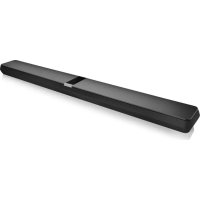
Formation Bar - Soundbar BOWERS & WILKINS - Free user manual and instructions
Find the device manual for free Formation Bar BOWERS & WILKINS in PDF.



| Product type | Soundbar |
| Brand | Bowers & Wilkins |
| Model | Formation Bar |
| Dimensions (L x D x H) | 1200 x 100 x 60 mm |
| Weight | 5 kg |
| Power supply | Mains 100-240 V, 50/60 Hz |
| Power consumption | 50 W in operation, <0.5 W in standby |
| Wireless connectivity | WiFi 802.11 a/b/g/n/ac, Bluetooth 4.2 |
| Wired connectivity | Toslink optical input, RJ45 Ethernet port |
| Audio formats | Dolby Surround, PCM |
| Streaming services | Spotify Connect, Apple AirPlay, Roon, Bluetooth |
| Control | Bowers & Wilkins Home app, touch buttons, programmable TV remote |
| Mounting | Wall mount included, tabletop placement |
| Maintenance | Soft lint-free cloth, soft brush for the grille |
| Safety | Compliant with RoHS, REACH, WEEE |
| Repairability | Technical support at www.bowerswilkins.com/support |
| Color | Black |
| Compatible subwoofer | Formation Bass (optional) |
| Multiroom | Yes, via Formation ecosystem |
Frequently Asked Questions - Formation Bar BOWERS & WILKINS
User questions about Formation Bar BOWERS & WILKINS
0 question about this device. Answer the ones you know or ask your own.
Ask a new question about this device
Download the instructions for your Soundbar in PDF format for free! Find your manual Formation Bar - BOWERS & WILKINS and take your electronic device back in hand. On this page are published all the documents necessary for the use of your device. Formation Bar by BOWERS & WILKINS.
USER MANUAL Formation Bar BOWERS & WILKINS
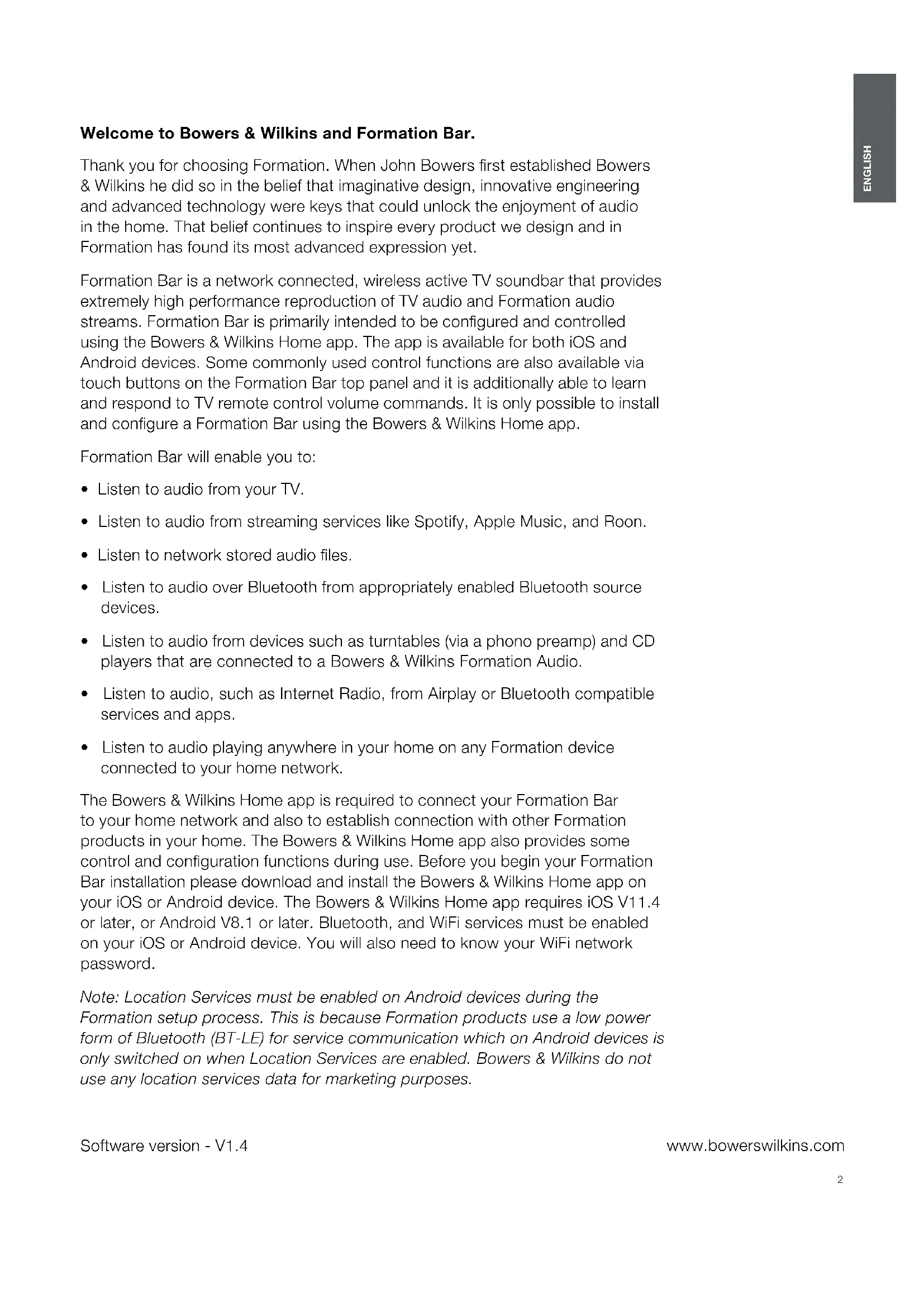
Welcome to Bowers & Wilkins and Formation Bar.
Thank you for choosing Formation. When John Bowers first established Bowers & Wilkins he did so in the belief that imaginative design, innovative engineering and advanced technology were keys that could unlock the enjoyment of audio in the home. That belief continues to inspire every product we design and in Formation has found its most advanced expression yet.
Formation Bar is a network connected, wireless active TV soundbar that provides extremely high performance reproduction of TV audio and Formation audio streams. Formation Bar is primarily intended to be configured and controlled using the Bowers & Wilkins Home app. The app is available for both iOS and Android devices. Some commonly used control functions are also available via touch buttons on the Formation Bar top panel and it is additionally able to learn and respond to TV remote control volume commands. It is only possible to install and configure a Formation Bar using the Bowers & Wilkins Home app.
Formation Bar will enable you to:
- Listen to audio from your TV.
- Listen to audio from streaming services like Spotify, Apple Music, and Roon.
- Listen to network stored audio files.
- Listen to audio over Bluetooth from appropriately enabled Bluetooth source devices.
- Listen to audio from devices such as turntables (via a phono preamp) and CD players that are connected to a Bowers & Wilkins Formation Audio.
- Listen to audio, such as Internet Radio, from Airplay or Bluetooth compatible services and apps.
- Listen to audio playing anywhere in your home on any Formation device connected to your home network.
The Bowers & Wilkins Home app is required to connect your Formation Bar to your home network and also to establish connection with other Formation products in your home. The Bowers & Wilkins Home app also provides some control and configuration functions during use. Before you begin your Formation Bar installation please download and install the Bowers & Wilkins Home app on your iOS or Android device. The Bowers & Wilkins Home app requires iOS V11.4 or later, or Android V8.1 or later. Bluetooth, and WiFi services must be enabled on your iOS or Android device. You will also need to know your WiFi network password.
Note: Location Services must be enabled on Android devices during the Formation setup process. This is because Formation products use a low power form of Bluetooth (BT-LE) for service communication which on Android devices is only switched on when Location Services are enabled. Bowers & Wilkins do not use any location services data for marketing purposes.
1. Formation Bar Carton Contents
Formation Bar
TOSLINK optical digital connection cable
Mains power cable set appropriate for your territory
Wall bracket
Document pack
2. Installing Your Formation Bar
Your Formation Bar requires a mains power supply to operate so must be located within reach of a mains socket. If your Formation Bar is to use a wired connection to your home network it will need to be located within reach of an appropriate network (Ethernet) cable.
Your Formation Bar is intended to be positioned directly below your TV screen and can be placed on a shelf, table or furniture unit, but can also be wall-mounted on a dedicated wall bracket.
If you decide to place your Formation Bar on a shelf, ensure that the shelf is easily able to support the weight. Furthermore, Formation Bar audio performance may be diminished if mounting furniture or shelf panels are flimsy or resonant.
Note: If your Formation Bar is to be mounted on a wall bracket, be sure to install the bracket in line with its included instructions. If you are unsure of the suitability of a wall, or of your ability to install the wall bracket, you should engage specialist help. Stud-work and plasterboard walls are unlikely to provide adequate strength or rigidity to support a Formation Bar and bracket.
Connections
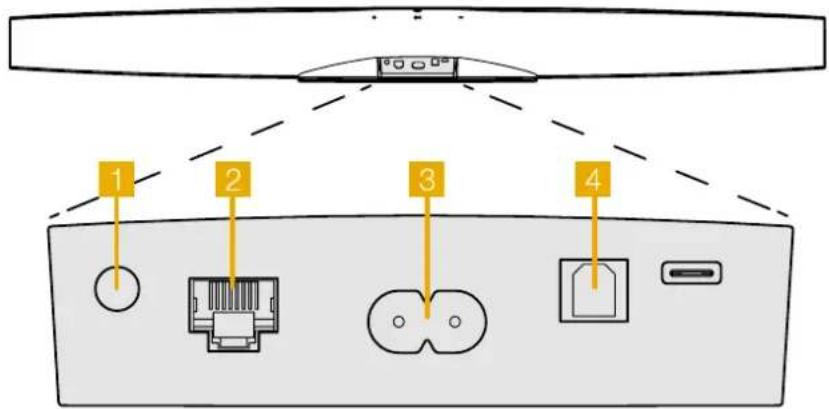
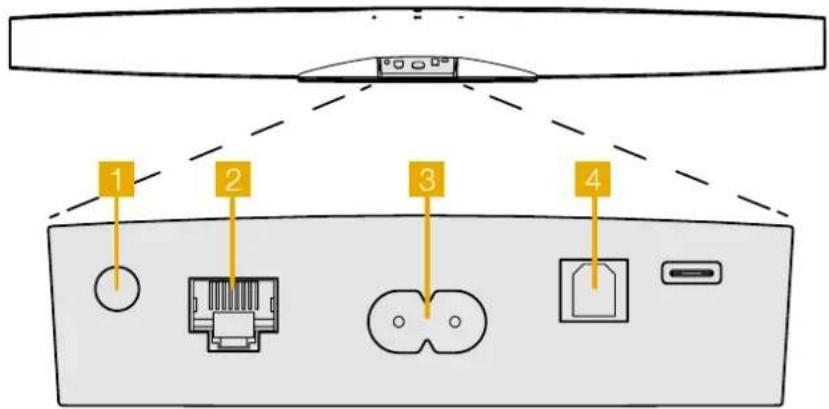
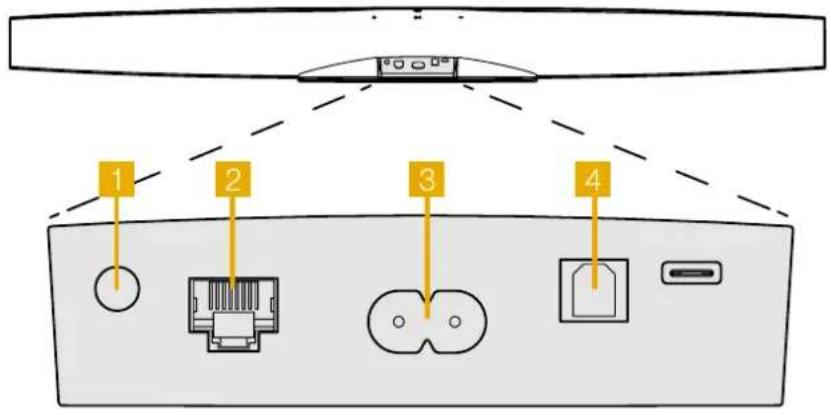
In addition to a mains power socket your Formation Bar carries an optical digital audio input socket for connection to a TV and an Ethernet socket for connection to a router should a wired network connection be preferred to wireless (WiFi).
Note: The USB socket located on the Formation Bar rear panel is intended for service and diagnostic use only. It cannot be used for any other purpose.
The Formation Bar optical digital audio input is intended specifically for the connection of an optical digital TV audio output. Use the supplied TOSLINK cable to connect your TV audio output to the Formation Bar audio input. The Formation Bar will automatically switch to its TV audio input when a signal is present.
Your Formation Bar will automatically identify and decode Dolby Surround encoded material and create a surround sound experience. If a Formation Bass subwoofer is connected in the same Formation space as your Formation Bar it will switch automatically to a low frequency effects (LFE) role when Dolby Surround encoded material is identified.
Once your Formation Bar is set up, you should switch off your TV internal speakers from the TV audio settings menu. You may also have to enable the digital audio output from the TV settings menu.
Switch On and Off
With all connections made, and the Bowers & Wilkins Home app installed on your mobile device, your Formation Bar is ready to be set up. Your Formation Bar has no mains power switch and, following a short start-up routine, will be operational as soon as it is connected to mains power. It will play an audio prompt when its startup routine is complete.
When a Formation Bar, that has not been previously used, is first switched on it will automatically enter setup mode to enable its connection to your home network and to any other available Formation devices. Setup mode is indicated by a slow amber pulse illumination of the Form touch button The Formation Bar will also appear in the Bowers & Wilkins Home app as available for setup, either on the initial app page, or after selecting 'Add Formation product' from the app Settings page.
Your Formation Bar manages its operational state and power consumption entirely automatically and will switch to a power saving mode after twenty minutes of inactivity. There is no need ever to switch off your Formation Bar, however should you wish to do so, simply disconnected it from mains power. Your Formation Bar will retain its settings without mains power.
You can restart a Formation Bar by a short press and release of the reset button located on its rear panel. Pressing the button will switch the Formation Bar off and on again. All settings will be retained when your Formation Bar restarts. You can also restart your Formation Bar via the Bowers & Wilkins Home app Settings page.
If you wish to reset your Formation Bar to its default settings, press and hold the reset button for five seconds. On restart, your Formation Bar will enter setup mode. All settings will be deleted when your Formation Bar resets. You can also reset your Formation Bar via the Bowers & Wilkins Homo app Settings menu.
Network Setup
- With your Formation Bar in setup mode, with its Form button illumination pulsing slowly amber, launch the Bowers & Wilkins Home app on your iOS or Android device. The app will guide you with prompts though the setup process.
Note: Formation Bar employs a Bluetooth connection to the device running the Bowers & Wilkins Home app during the setup process. Bluetooth signals have a relatively short range and can be interrupted by room boundaries, so we recommend that your Formation Bar and Bowers & Wilkins Home app device remain in close proximity during the setup process.
- The Bowers & Wilkins Home app will first search for Formation products in setup mode and display a screen inviting the selection of one. Tap to select your Formation Bar. If you have already set up a Formation product and are adding an additional one, select 'Add Formation product' from the app Settings menu.
The Bowers & Wilkins Home app will next invite you to name the "space" in which your Formation Bar is to be used. A list of default space names is provided but you can also create your own. When you have selected, or created, a space name, the app will ask you to touch the Form button on the top of your Formation Bar to confirm the selection.
If a wireless network connection for your Formation Bar is to be used, the next setup stage will connect your Formation Bar to your home WiFi network. The app will ask you to confirm the correct WiFi network and ask you to input its password. Alternatively, if your Formation Bar is connected to your network router using an Ethernet cable, this stage of the setup process will be bypassed.
Note: If you already have other Formation products connected to your WiFi network, Formation Bar setup will not require you to input the WiFi password.
- With WiFi network configuration, and space selection complete, your Formation Bar is ready for use. Your Formation Bar will play an audio prompt to confirm successful setup.
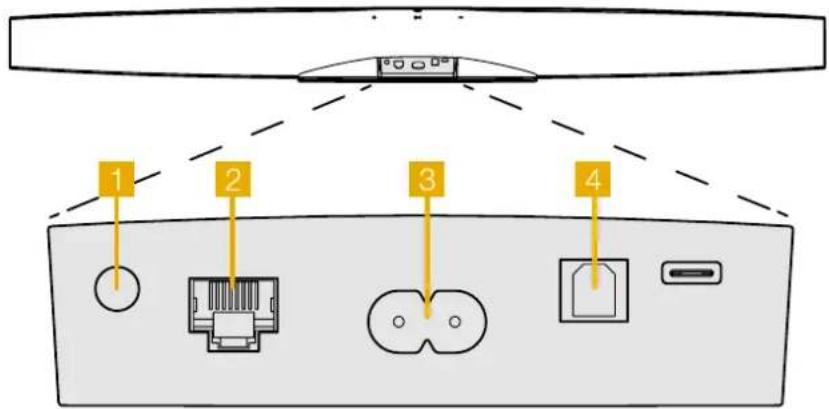
Diagram 1 Formation Bar rear panel
Bluetooth Setup
You can connect your Formation Bar to a Bluetooth enabled audio source device, such as a smartphone, to play audio over Bluetooth. Your Formation Bar must first be "paired" with the Bluetooth audio source device.
Once you have completed the Formation Bar network setup, open the Bowers & Wilkins Home app Settings page, and select the Formation Space that you wish to pair a Bluetooth device with. Next select + Pair a new device from the Bluetooth menu and follow the app instructions to complete pairing. Your Formation Bar will play an audio prompt when pairing is complete and its Space will become available to the paired Bluetooth device for audio playback.
Note: Up to eight Bluetooth devices can be simultaneously paired with each Formation space, however devices will not connect and play to paired spaces automatically.
3. Using Your Formation Bar
The Basics
You can use your Formation Bar to play audio from your TV, from streaming services such as Spotify, Apple Music, and Tidal, from the Roon music library service and from internet radio via an appropriate Radio app. If you have further Formation devices connected to your network, a Formation Audio for example, conventional audio sources connected to it will also be available through your Formation Bar.
Spaces
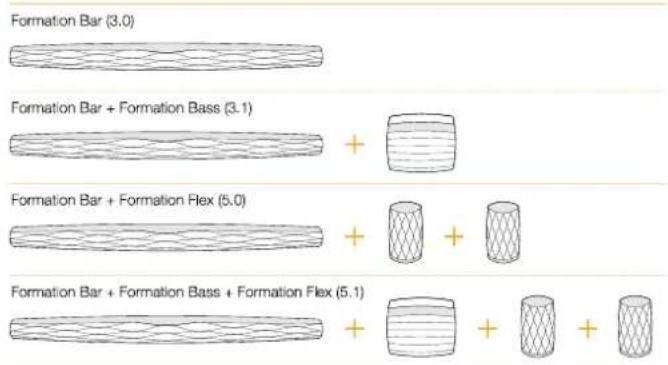
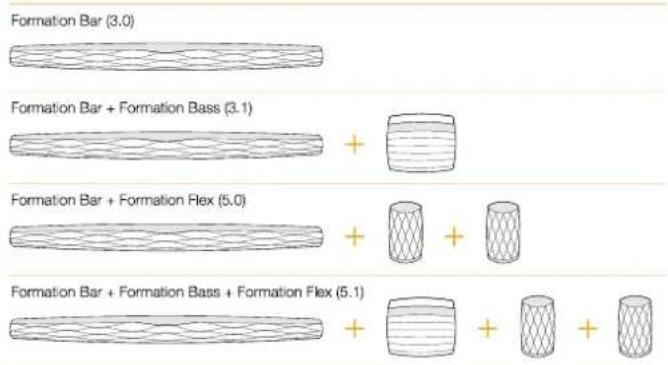
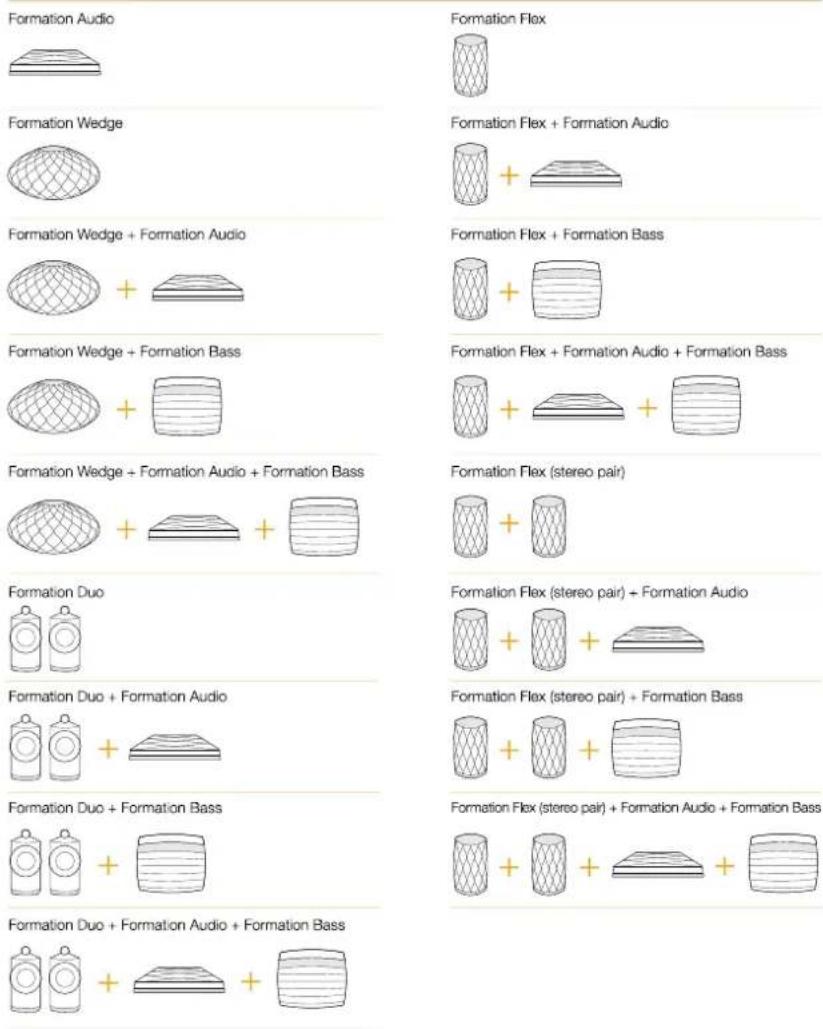
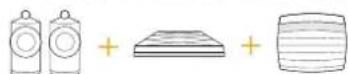
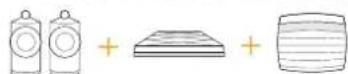
Spaces are a core concept of the Formation product family. A Formation "space" is a room or a specific area in your home in which you listen to music. Each space can include different combinations of Formation products. The possible configurations are displayed in Diagram 2.
Playing Audio
The Bowers & Wilkins Home app enables you to select and play any available audio source or stream. However, in much the same way that conventional audio source playback requires initiation through a play command, Formation streams must be first initiated through their own gateway app: the Spotify app for example, or a music library app such as Roon. Each gateway or library app will list your Formation Bar space as an available playback device using Airplay, Bluetooth or in the case of Spotify, Spotify Connect.
Once audio streams are playing on the Formation network they can be selected via the Bowers & Wilkins Home app or via the Formation Bar top panel Form touch button. Touching the Form button will cycle though the available streams and sources.
Formation Bar Top Panel Controls and Illumination
Your Formation Bar has touch buttons on its top panel that provide play/pause control, volume adjustment and source/Stream selection.
- Touching the Play/Pause will alternately stop and restart audio playback.
Note: Play/pause will only operate if the stream source has play and pause functions that can be accessed through Bluetooth or network connections.
-
Touching volume up + or down will adjust the local volume of any network stream or local source. Pressing and holding the + and - buttons will continuously increase or decrease volume.
-
Touching the Form button will cycle through and play the active streams and sources available to the Formation Bar.
Form Button illumination
The Formation Bar Form button illumination changes to indicate a variety of operational states. The illuminations are displayed in Diagram 3.
TV Space configurations
Music Space configurations
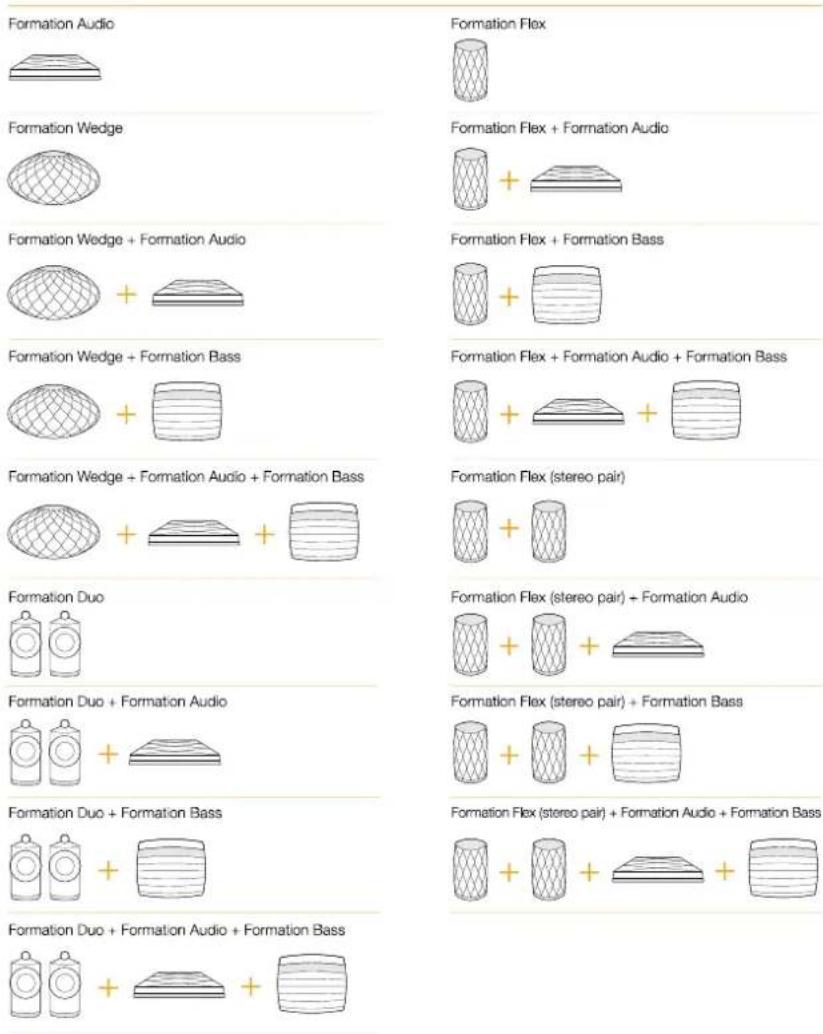
Diagram 2
Space configurations
4. The Bowers & Wilkins Home App
With your Formation Bar configured and connected to your network, the Bowers & Wilkins Home app will open to its Home screen where the Formation Bar space and any other available Formation spaces will be listed.
Tap on a Formation space to select from any available streams or inputs. If there are no streams available, open a streaming app, Spotify for example and select an item to play, then select the Formation Space from the list of available playback devices. Now, when you return to the Bowers & Wilkins Home app, the Spotify stream will be listed on the Formation Bar space page.
The Bowers & Wilkins Home app Home page has a Settings icon in the top right corner. Tap the icon to open the app Settings menu. The Settings menu provides options to configure and reset your Formation devices and re-name your Formation spaces. App and Formation device firmware updates are also initiated from the Settings menu.
Finding Your Way Around the Bowers & Wilkins Home App
The Bowers & Wilkins Home app will search for available Formation spaces when opened then display its Home page with the spaces listed.
Beneath each space the app will display its current activity. Tapping on an active space will open a "now playing" screen that enables volume and play/pause control.
The 'now playing' screen also provides an 'Available Spaces' option that enables the stream playing in the selected space to be transferred to another space or played in multiple spaces. The 'Available Spaces' screen also provides the opportunity to control volume, both globally across all spaces, or in individual spaces.
The Bowers & Wilkins Home app Settings page is opened by tapping on the settings icon. The initial Settings menu lists each space and the number of Formation devices present in each one.
Tapping on a space listed in the Settings menu provides access to its Space and Formation device settings. Tap the Space name to access the space settings and tap the device name to access the device settings. The device settings available will depend on the device in question.
Note: If the Settings icon on the Bowers & Wilkins Home app displays an amber dot this indicates that a Formation firmware update is available. The firmware update process is initiated from the Settings menu. You should always aim to keep the Bowers & Wilkins Home app and your Formation devices up to date with the latest version and firmware. Not only will this help ensure the most reliable performance, it will ensure that you benefit from new Formation features.
TV Remote Setup
Your Formation Bar is able to learn your TV remote control volume and mute commands. This enables control of Formation Bar volume from the TV remote control.
Select the Bowers & Wilkins Home app Settings page and tap on Formation Bar. Now in the following Formation Bar settings page tap on, Learn Remote Control'. The app will guide you through the process of remote control command learning.
5. Formation Music Streams and Sources
Using Spotify
Use your phone, tablet or computer as a remote control for Spotify. Go to Spotify.com/connect to learn how.
The Spotify Software is subject to third party licenses found here: https://www.spotify.com/connect/third-party-licenses.
Using Airplay
Airplay enables audio apps on Apple mobile, laptop or desktop devices to stream material over a network to Airplay compatible speakers such as Formation Bar. Airplay enabled apps will display the Airplay icon.
To use Airplay, open the audio app you wish to use and select the music you wish to play. Tap on the Airplay icon to display a list of available devices followed by the Formation Space you wish to use.
Note: It is possible to stream audio via Airplay on multiple devices simultaneously, however the playback quality and synchronisation may then depend on the capabilities of your home network. If you wish to play material simultaneously in more than one Formation space this will be more satisfactorily achieved through selecting multiple spaces in the Bowers & Wilkins Home app.
Using Roon
Roon is a feature rich music library and playback app that compiles all the music files available to your network and makes them easily available to play across all your Formation Spaces and any other Roon enabled audio devices. Roon is available for mobile, laptop or desktop devices.
When you open Roon it will display your complete audio library together with its metadata and artwork along with all the Formation Spaces and any other available network audio devices. Simply select the music you wish to play and Formation space in which you want to hear it.
Note: It is possible to stream audio from Roon on multiple devices simultaneously, however the playback quality and synchronisation may then depend on the capabilities of your home network. If you wish to play material simultaneously in more than one Formation space, synchronization can be greatly improved by selecting multiple spaces through the Bowers & Wilkins Home app.
Using Bluetooth
Bluetooth enables audio apps on mobile, laptop or desktop devices to stream material over a wireless connection to compatible hardware such as the Formation Bar.
To use Bluetooth, ensure that the required Formation Space is selected in your device Bluetooth settings menu, open the audio app you wish to use and select the music you wish to play. Tap on the playback devices icon to display a list of those available followed by Formation Space you wish to use.
6. Cleaning
Should your Formation Bar need cleaning you can wipe its top surface with a clean, lint-free cloth and brush its grille with a soft brush. If you wish to use any cleaning fluid, apply it onto the cleaning cloth and not directly onto the Formation Bar. Test a small area first, as some cleaning products may damage some of the surfaces. Avoid products that are abrasive, or contain acid, alkali or antibacterial agents.
7. Support
Should you require further help or advice regarding your Formation Bar please visit the Formation support site here www.bowerswilkins.com/support.
Environmental Information
This product complies with international directives, including but not limited to the Restriction of Hazardous Substances (RoHS) in electrical and electronic equipment, the Registration, Evaluation, Authorisation and restriction of Chemicals (REACH) and the disposal of Waste Electrical and Electronic Equipment (WEEE). Consult your local waste disposal authority for guidance on how properly to recycle or dispose of this product.
Indicator Operational state
| Flashing white Start-up in progress |
| Pulsing amber Ready for setup |
| Flashing amber Firmware update in progress |
| Pulsing white Audio pull in progress |
| Pulsing red Error - contact support |
| Solid red Error - contact support |
| Flashing red Factory reset in progress |
Diagram 3
Form button illuminations
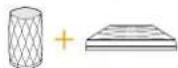
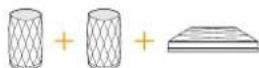
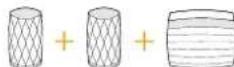
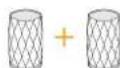
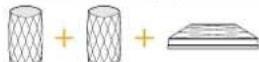
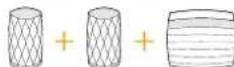
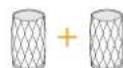
Formation Bar + Formation Bass (3.1)

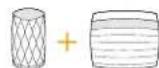
Formation Bar + Formation Flex (5.0)

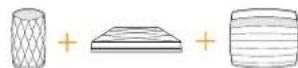
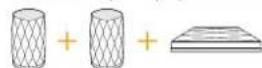
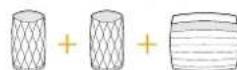
Formation Bar + Formation Bass + Formation Flex (5.1)

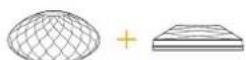
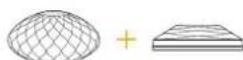
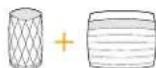
Formation Wedge ^+ Formation Audio
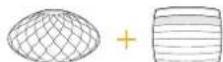
Formation Wedge + Formation Bass
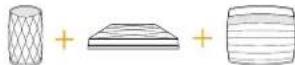
Formation Wedge + Formation Audio + Formation Bass

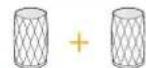
Formation Duo

Formation Duo + Formation Audio
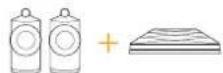
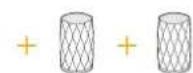
Formation Duo + Formation Bass
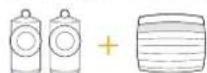
Formation Duo + Formation Audio + Formation Bass
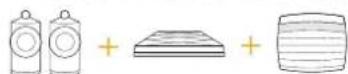
Abbildung 2
Raumkonfigurationen
Formation Flex

Formation Flex + Formation Audio
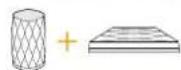
Formation Flex + Formation Bass
Formation Flex + Formation Audio + Formation Bass
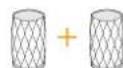
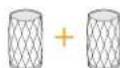
Formation Flex (stereo pair)
Formation Flex (stereo pair) + Formation Audio
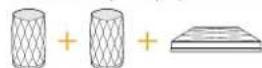
Formation Flex (stereo pair) + Formation Bass
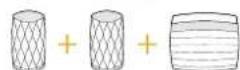
Formation Flex (stereo pair) + Formation Audio + Formation Bass

Bowers & Wilkins Home App
La Formation Bar le permitted:
A Formation Bar permite-Ihe
https://www.spotify.com/connect/third-party-licenses.
Utilizar o Airplay
Formation Bar + Formation Bass (3.1)

Formation Bar + Formation Flex (5.0)

Formation Bar + Formation Bass + Formation Flex (5.1)


Formation Wedge ^+ Formation Audio
Formation Wedge ^+ Formation Bass
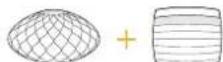
Formation Wedge + Formation Audio + Formation Bass

Formation Duo

Formation Duo + Formation Audio
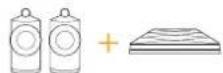
Formation Duo + Formation Bass
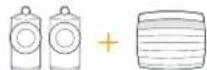
Formation Duo + Formation Audio + Formation Bass
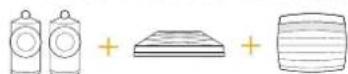
Formation Flex

Formation Flex + Formation Audio
Formation Flex + Formation Bass
Formation Flex + Formation Audio + Formation Bass
Formation Flex (coppia sterei)
Formation Flex (coppi stereo) - Formation Audio
Formation Flex (coppi stereo) - Formation Bass
Formation Flx (copla stereo) - Formation Audio + Formation Bass

Figura 2
Iobpo noxkaNoBaTb B Bowers & Wilkins n Formation Bar!
BlaorapnBac 3a npno6peTHe Formation.Haw ochobateIb, Jxoh Bayepc, BepnB TO, UTO TBOpueckn NOxOdB IN PpoekTnpoBaHn, HOBaTOPCKa KOHCTpyKUy I nepeIOBbie TexHOJOrn CMOnTy OTKpbItb NIOdAm Nytb K NIOJIHHOMy 3ByuHIO B Dome. Mbl npdoJIkaem pa3deJIb erO Bepy, n OHa BDOXHOBJIeT HAc npn PpoekTnpoBaHn BCex HObIX pOdoYKTOB, n B cepnn Formation oHa HaJLa CBoe camoe COBpeMeHHOE BOJIoUeHne.
Formation Bar -это подклочень к сети бспровды akтньсayнбap, KOTOPь obecneчиBaET OЧь BblcOKOE KaueCTBO BOCpOu3BeDEHnA 3ByKOBORO copoBoxdHnA TelenBn3Opa, aТахke ayduNo notokob cunTeM Formation. Cayndbapom Formation Bar moxho ynpabTb, npexde BCero, c nomoubI npinloxeHnBowers & Wilkins Home. PpinloxeHne doctynHo kak dIa iOS, taK nДЯ Android yctpoiCtB. HeKOTOpbie yacto nCnoJb3yeMbIe cyHKUIn ynpabLeHn ADOCTynHbI TAKKe C NOMOsbIO ceHCOPhIX KHOJOK Ha BepxHe nAnEIn Formation Bar N, KpOME TOFO, 3TOT Cayndbap MOxHo o6yHTb OTKlnKaTbcra Ha KOMaHdbI pNlbTa OT TelenBn3Opa prn perylnipOBke rPOMKOCTN. UcTaHOBNTb nHaCtpoNTb Formation Bar moxho TOnbko C NOMOsbIO pInloxeHnBowers & Wilkins Home.
Formation Bar no3BolnaT deNaT b cneDyUouee:
CnywaTb aydno coPoboxdHne nepepaBaWero TeJeBn3opa
Cnyuatab aydno n3 noTOKOBbIX cepBcO8, taKx kaK Spotify, Apple Music u Roon.
CnywaTb xpaHnuecesB cetn ayDno faiJIbl.
Cnyuatab ayno uepe3 Bluetooth c cooTBeTcTByUIM o6pa3OM BKJIIOueHHbIX nctouHnKOB-yCTpOJCTB c Bluetooth.
Cnyuatab aydno c lokaibHO noDKIoueHHbIX yctpoiCTB, taKx KaK npoirpblBaTeHn BUNHna (yepe3 fohokopkekTOp-npeducnnte) n CD-nneepbl, KOtOpbI neocoeHHeB K Bowers & Wilkins Formation Audio.
Cnyuatab nctouhkn aydno, takne kak nHTepHet-paNo, n3-noi Airplay nnBluetooth coBmectumbix cepBucOB npunoxeHn.
Cnyuatab ayno, Bocnpn3BOJMOE B IIO6om MeCTe BaIero Doma, Ha IIO6om yctpoiCTBe Formation, noKJIoueHHOM K BaIeu DomaunHe cETn.
Tpe6yeTc npiloxeHne Bowers & Wilkins Home nla noikluoyehnBaWero Formation Bar K domaHne cetn, a taKxe Iya yctaHOBJeHn CBA3n C pyrMM npodykTaMn Formation Baawem dome. PpiloxeHne Bowers & Wilkins Home npedocTabraet TaKxe HeKOToPbIe fynKuIN ynpabLeHn n HacTpoNk BO BpeM nCnoJb3ObaHn. NpeE naHaoYcTAHOBKn Formatioar Bar 3aRpy3nte u yCTaHOBNTe npiloxeHne Bowers & Wilkins Home Ha ycTpoNCTbe iOS nn Android. PpiloxeHne Bowers & Wilkins Home Tpe6yeT iOS bercnn 11.4 nn 6oJee no3dNe nn Android n V8.1 nn 6oJee no3dNe bercnn. Cnyx6bl Bluetooth n WiFi doJXhbl 6bITb BKIOUeHbHa Baawem ycTpoNCTbe iOS nn Android. Bam TaKxe HuxHo 6ydet 3HaTb cBoi ceTeBOI napOB nIg Wi-Fi.
PpimueaHne: cepBnC onpeJeHnMa MeCTOnoLoXeHnIdoJxHe 6bItb BkIoUeH Na yctpoiCTbax Android b npouecce yctahOBKn Formation. 3To cBraHo C TeM, 7TO npOyKtbl Formation nCnoNb3yIOT mAlomooHyIO fOpMy Bluetooth (BT-LE) dnn CnyKe6HOB CNB3N, KOTOPaHa y cTpoiCTbax Android BkIoUaTeC TOnko PnB BkIoUeHNn CnyXb OpeJeHnMa MeCTOnoLoXeHnA. Bowers & Wilkins He NcNoB3yIOT daHHble CnyXb OpeJeHnMa MeCTOnoLoXeHnBA MapKeTuHROBbIX ueJAX.
1. Codepkmoe ynakobn Formation Bar
Cayu6ap Formaion Bar KaBbTOSLINKn onTneckoro uΦpoboro coJIeHINs KaBb nIaTHnIaRn Formaion Bar, noXoDriuIu IBaWIX po3eTOK KpoHITeHnIra HacteHHOrO KpeHInH N PAKET JOKyMEnTAUIN
2.YctaHObKa Bawero Formation Bar
Pazmeuene
BaB Formation Bar Tpe6yET HanuH NCTOHNKa
aekpnntanHn Dn pa60Tb, nOToTMy OH dnokhen
b8b Ta paoNOneH B npdenax DOcRAeMocTN po3eTK
OAnHKo, eCN Formation Bar Dpokhen HcnpAoBacBT
PBOAOHoe NOKNoHe N DOMauHne CTeH, OH
DOKhenBpaonoxenB npdenax DOcRAeMocTN
Heo6Bmix (Ethernet) Kaben.
BaW Formation Bar npednHaen nna pMaMeHEnr CpaaNpOeKoHbAaero TB mOKeBbT yCaTHOBHe Ha noKE, cToNE nnnpTe MeBeHN, Ho eRoMOKHO TAKKe NoDBeCtBu HcTeHe CnOMoBbNo npnaraemoro KPOHHTeHa.
EcnBbpeunnnpa3MeontbcbOn Formation Bar HnJIOJIe, yOeIITeB, YTO JIOKA IIEKO BbDpexMBAET eroc.Kpome toro, Kaectoa sbyKa Formation Bar MOKcNtnoTepadab, cOIN McBcN bNOKc OINKOM XmIKKe, nN peshOpuyuue.
PnmeHHe: Enn Formaion Bar Heo6xOIMO
NoBECHTb HA HACTEHOM KPOHWTNE
yBeNTcB,TO OH CMOTNPOBAB B COOTBCTBNN
CnnpnaeMaMMI AHCPYKUNM. ECNn Bu He
yBEpHb N pOHOCTn CTENH, NnHE MOKETe
CAMN CMOHTPOBaT KPOHWTEn, BA CnDEyET
OBAPTNCB 3a NMOUBo N CNEAAMOTy.
fncokapToHHmC TCHb Nn NnNTb Bpaq n
cnocobh ObecTeHT Heo6xOIMy O npOHTb
XckctKocTb nnNDpcKKn Formation Bar n
kPOHUTHa.
PoiKJIIOUeHn
BdoHHeK cetabop0aTe K Formation Bar
MeET BXoHDn pa3eM OTNcKO rUphOBO ayDIO
CnHana, nDIOKKnHeH K TeteBnOpy npa3eM
Etherm. dnoNIOKHeHn K poyTepy - a cnYae
Bbopa npoBoHOro coeHNHeHn Bmcto Wi-Fi.
PpmeHnpeBem USB,paonnoeHHn H 3aepnnnnae nnne Fornar Bar, npednnae HnToNko npeCepBnCHOrO n darnocHeckoro nncnbo30aAHn. OH ne MoKet BbI NcNBo3oAHn pKaKnx-1m6 Opynx uei
Ontnueckn ufofoaayno Bxod Formation Bar npedhaen HcneLbHdo nnoKIOuHnn OtnnecOoory ayndo bBxaD taCnBnOpa, Ncnonbayte npinaacmb kaoBb TOSLINK da noKnIOHcy aayno Bxoda TeneBnOpa K ayduo Bxoy Formaion Bar. Formation Bar atomatueckn cnpckioactoHa cb0y TceBnHOHH aydo Bxoadn noNBoCHm CnHana.
Formation Bar abTomatneckn ndeHTnHmnpyet
n deoknpyer aannc B Dolby Surround n coaJaert
okpykaoum 38yk. Ecm cabypeFomation Bass
noKnOHeN K TOMY X npocpTaHCTBy Formation
space, rto n bau Formation Bar, on ABtomatneckn
nepeKIOUHTc H apoB kAHAn HsKONAcTbTHbx
eΦkeTos (LFE) npu OhApxeyHM MaTePunana,
3akOpnoBaHoro B Dolby Surround.
Iocne HactpoKn Formation Bar Heo6xOHNOM
OTKINCHHTBHTyHPEHHNEJINHAMNK TENEBB3OPAYepe3
MEHO HACTPOEK 3ByKa.B0MoxHO,BAM TAKKe IpiDTeCH
BKIOHTB NIOPOBOAYIOOBXOD B MEHO HACTOE K
TENEBB3Opa.
BkIIOUeHne n BbIKIOUeHne
NocBbHIOHNHEBCEX NpOKnIOHn H3aYcKa npNOeKHe BOWERS &Wilkins Home, yCTaHOeINHO HA BAeMEOMbHOB HcyPOrOBe, BAu FoIarion Bar rTOB K HAcPoeK uCNoNtBOAAnHO. FoAIeBar He MEeT CEBHO BHKIOHATEH NITAHn HIOToMy NOcE KOPOTKn PnpOeDpyb 3aYcKa, NaHTe pAOStaB. KaONsKO BYET NpOKHOUeH K CTn NITAHy. OH BbDAct 3aYkoBpePi nIIaHHeMe, KOrDa erO npOeDpya 3aYcKa 3aepWeHa.
Korda Formation Bar, kotopb pahee He
ncnol3oBcA, BkHIOCToR nepBb paa3, OH
ABOMTAAckCN nepeXOaHTB PekmH HAcTOPKn, TtO6bl
3a4ab er oIOKNIOeHne K BAeW dOMBaHHe cetu N
KIOBbym DpyHM DoCtynHbM yCtoPcTBAM CemEChTBa
Formation. Pekm HAcTOPKn INHIMNPOyETCR
MeDIIeHHBM MMIRAHmE OApHKeBOI IMNylbCHOI
NOCBETKN CEcapHOH KHONK FORMATION 1pna stOM
Formation Bar NoBHTBcTaKacBe B nPnIOxEHm Bowers
&WilkinsHome,IOCTYTHOM dIN HAcTOPkn, NIO6 Ho
HaJIbHO CTpaHnue IpnIOXeHN, NIO6 NOCE Bb6opa
onuN Add Formotion product"-"OdoabntpnpdyKT
Formation Ha crpHnue HAcTopeK npiuOxEHn
BaW Formation Bar ynpabnct cbmmpaohm
coCTHnEM nIeepnoTpeBnEoNIOHOCTbO
ABOMATUeCKn INpeKOpHTCB PekHM
3hpcO6bcpcknH NOcNE DaDauTN MHyT
Be3dEChTB.BooCHe HET OkoDMocN KOrJaNBO
BbIKNQHTBefor formation Bar, oHbKa eCn BxOTnIE
Cenatb 3to, npOTo OTkKnOHc rOeOT cTeN NtAHNA.
BaW Formation Bar coXpaHnCBn HAcTpoKn N Bes
ceteBoro nTAnHs.
Moxho nepe3anyctntb Formation Bar kpatkmm HaxaHm INOTyCKAHnEM KHOKN reset, paonKHOHN Ha 3aHne NaHnI Ipn Haxatnn 3toN KOHN Formation Bar BHKNOHTCH INKNOHTCBAHOBB. Bce HAcTPOKn npTakOM nepe3anycke coXPAHnTC.KPome TOrO, nepe3anyCTNTb Formation Bar Moxho HA cTpaHnue HAcTpock pnpnoKeHHBowers & Wilkins Home app- Settings.
EeK BxOHTe c6pocnB BCE HAcTPOKn Forma tion Bar KX 3HAnHm NO yMOHaHnHO, HAcKMnue yepckTe KhoNkY reset B TeChHe 5 CekyH. Nocne c6poca, BaI Formation Bar ChOBa BOJET B pexkm HAcTPOKn. Pnp Takom c6pocce B AaHn HAcTPOKn FormaT Bar 6dyT cTeptbl. KpOte TOr, c6pcocbte HAcTPOKn FormaR Bar MoXHO HAcTPOKn HAcTpeK npINOKeHm Bowers & Wilkins Home app- Settings.
Cetbe hactpoKn
Korda Formation Bar HaxoHITcB pexMMe
HaTpoKn, n OoDBETKa Ero KHOKN Form
MeDIIHIOI NpILCIPYET opAnXeBBIM UEBOM,
3aNyCTnTe npInOxKeHne Bowers & Wilkins Home Ha
BaIeM cTPOINTE IOS INN Android. PpINOxKeHne
6yEt HnpanbHb Bac IIOCKa3kAMn B XoJe
PpOeCoA HAcTPOKn.
PnmeHae:Formation Bar nonb3yet Bluetooth coeHHe C yctpOCTOB, H KOTOPa5oT aET npnoKeHHe Bowers & Wilkins Home, BO BPMn npocceca yctahOB. CmHabbli Bluetooth IMeOT OTHOCHTBHO MAny 30NY OxATA N MOYt 6bIbI bIKPOHABH IpaHmAMCOMHbI, HOITOMy Me pekOMeHyEM, TObb BAue cYPTPOCTBO Formation Bar nycptOCTBO C npnoKeHemB Bowers & Wilkins Home app octanamcb a HenocepTeBHeHHo BlNIOCTBO BpMe npocceCa HAcTPOKNI.
Pnpnoxne Bowers & Wilkins Home B peknme Hactpoikn Chana Byet nckat npockyt Formatio n o1obpaaxb kpan, npnaaauouin cdenatb bboop odoro n3 HIX. KlnknHnte HkykoKHYo Tb6bi BbopaT BFormatio Bar.EcnnBbye Hacipomn Formatio Bar ndoabnre ToonHNrEhBoOy TpOCTBO.BbepHTe Add Formation product- "Dcbabnt npoyKT Formation" B mEHIO HACTpoe npnoxneH
Ppnooxnc Bowers & Wilkins Homic 3atm npnoiKNTBnHnBaBH'npocTpaHCTo (Space), B KOTOPOM dyET mCNOJbOaBcTaB BAu Foation Bar CnOCK TINOB npocTpaHCTe (Spacc) no ymonHaHIO npocTbaHnTc, Ho BB TaKx MeKeTe coaBtcb OCBN CO6CTBHeHH TAN. KOrDa BB BApAan Nn CO3dAn HauMCHOBAHn npocTpaHCTa, npnooxncn npocnBAC HnKahtb KOnIKy Form HaBepxHn NaHenn BaWero Formation Bar, qTo6bI nOttBepntb Bu6op.
EeHNO6xOIMO KONOL30aTb 6ecpnoaoHoe ceTeoae NOKIOCHENI DaBawrFoAriation Bar,To HA cneJyUOM EAne HAcptPkn OH bSyet NOKIOHcHkX DOMaHn CETn WIFIPnpNoXeHek nonpocNt BAC NOITBepDnTp ABnBHyO cTeB WiN n pOncnT BAC BBeTc CBn npAbN. KpOme TOR, eCnFOrMaT Bar NOKIOHcN K cTeBOmy MapuTyN3AtOpY c NMOUbK KaBefi Ethernet, stOT aTn npouccaa yctahOBKn bSyet npOnyuChen.
Pnme Hne: Eyn y BACyke eCTb pyrne npkTb Formation, nKmouhBHe K Baeien Cetn WiFi, npoeypa HacptpOKeH He notpeoyet Bboda npoAon dN WiFi.
Pocne konfumrypaun Cen Wi Fi nonHoro bblbopa Oykaaouero npocrtpanctba Bau Formation Bar 108KnOJbOBAHIO.Bau Formation Bar bdaCT 3Bkyoae nprrBaAeHene nIOnTBePxDHeN yCNeuHOH NaTpoKn.
HactpoKa Bluetooth
ДлвьбпрьнбденгьукуpeэbluTooth moxHo noDkHouHTB Formation Bar KcTpoIeCTBy c noDpEKKoBluTooth,HaPmEpK cMapTfoHy.BaW Formation BardoJHKb6bIChchAna "coPpKeH"CBluetooth yCTPOCTBOM-NTOHTHnKOM AByKa.
Dnarpamma1
3aHnaHb Formation Bar
Iocne 3aBepenHcTeBbX HAcTpoek Formatior BAtkpoJe CtpaHuy Settings (HactpouK) npnoxhen Bowers & Wilkins Horne nblbepnte Formation Space, c KOTOpBM BxOHTe BnONHtB conpaHxHcYCTPOACTBA Bluteoth. 3aTEM bblbepnte +coPnHexHe HOBOr yCPToCtBA B MeHO Bluteoth n cpeyte MCHCTpyxumn pnpnoxhen DnaabepHcnpKEna. Bau Formation Bar 6yETBocnpoAnBoJb ABykoBoe nprrnaHme, KoTa coPnHexHe aBepuHc. nero Space ctaHet DOctTyHbIM dNn COPAxHrO yCTPOUCTBA Bluteoth dNBOCPoHNBeDEHm AByKa.
Ipymuehnc:doBOcBmYyCTpOaT8BluTooth MOyI BbI OJHOBPemEHHIO COJIAPKeHbIC KAKXbIM Formation Space, OJHako YCTpOaT8Ba He 0dyT NOKHOHATCBn BOONPOIN3BODnTBoB n NapbIX IpoCTPAHCTBAx ATOMATUeCKN.
3. McnoB3ObaHne Formation Bar
OCHOBBI
BbMOXETe NcNIOB3OaTb CBOI Formation Bar nia
BOcPOm3BBeDnHn 3ByKa nBaAero TeneB3o4pa,
n3NotOKoBxCBepBCOB, TaKnx Ka Sopfity, Apple
Music n Tidal, n3CnyXbMysKaBnHO6nBnOTekn
RoOn n3n HIEPHT-PAJNO Hepe3 COOTBECTyOooie
pnHXoNEiRlEO. Eocn K aBaWte cTeN oKnKHeH
doONHnENTbHMe yctPoCTBaFormation, HanpIMep
Formation Audio, to 06bHHe yauDn OCTouHKn,
noKnHOeHHHe k Hemy, TaKx BdyT DoCTynHbpe3
Formation Bar.
NpoctpaHCTBa-Spaces
IpoctpaHCTBa (Spaccs) -30 KIOOeBaa KOHOpua
cemeebipolyoTob Formation. HJ formation "space" -30 KOHMATA INOT DEhBaTH 3OHa B BAUEM DOME, B
KOTOPOB Hb CnhyaTe Myhky. B KaJDM IpoctpaHCTBe (Space) MOY1 BYtB YcAHTHOHNHE PAASIMHHIE
KOMHINAPNPODyTOB Formation.CnCOOK BO3MOHXbIX
KOHHPrypaunnpedTaNHe HaDnarpamme2.
Bocpon3BeHneaynO
PpnoKHe Bowers & Wilkins Hmoe no3BnAeT
Bb6paTb NBOcPONBeCTnIOoD oocTyHnB
NCTOCHN 38yKa nnnotok.TEm He MeHHe, BO MHORo
TOHO TAK Xc, KaK O6bHoo BOCPONBaDCnHcN
NCTOCHNk BAryKa TpeByeHnnHuaHuaaYpe3
KOMAHQ BCPOUNsEHN,NOTKnFormatio ndoXh
6bTu CHaHa HnHnnpOBaHbHu Cepc3x co6ctBChHo
U030ae npIPOKHeHn: HAPIMep, pnpIoKeHne
Spotify,nnPiPOKHeHn MyBaKaJIbHb6BnOTekn,
Taoke KAnRoon. KaKdN bn103 nnPiNOKeHne
6bnIOTeKn 6yJeT cHnTaB IpoCpTaHCTBa (Spaces)
BaWero Formatio Bar DoocTyHbM yCtpoiCTBaAMn
BOcPONBaDEHe n cNoMoCbIO Airplay,Bluetooth nnn B
Cityae Spotify, Spotify Connect.
Korda aydo notoKn Bocnpo3B0d8TcB cTn
Formation, mXMOH Bb6pTa C NOMOu npnoxchna
Bowers & Wilkins Hmoe MnC nOoukO ceHcoPnH
KhoNk Form Ha nepcDn naHcn Formation Bar.
Pi np noCIOBOATCBHM HAKATIN HeCKONko paHa
KHONO Form MoNO Hne6pTa BCE DoCTyIhBe NOtOKn
N IKTQHNKn.
OprahbIy npabReHn m noCbeTka BepxHe n aHEn Formation Bar
HaBepxHnnaHnFormaTion Bar cctb ceHCOPHbE KHONK, KOtOpBe oBeCneuBAOT ynpAbeHHe BocPOn3BedeHMe / Nay3o, peryIpuPoBky rpoMKoCTN N bBuOp MCTOHHa/NOTOKA.
Kacahne Play/Pause 60dyet ocTaHaanBaTbnnn BO306HnHtB BOCPonabeHne ayuio.
Ppmmchn:BOCpON3BcHn/na3a6ydt p80TbT ToBkB TOM CNYae,ecnNOTOKOBN bTOCHNNK NMeET dyHKmB OBCpON3BcEDHn n na3y, kOTOpB MOYr BbTODcTNb HcpOe Bluetooth mncetbeNoKIOUeHN.
PnKoCHOBHnE KpeYnPOBKe rPoMKoCTn (BBepx +NIN BnHn Eeyet perynpoBAt NOKaIbHyIO rPoMKoCTb NIOBO cTeBOrO nToKa IIN NOKABHO RTOCHUHKA. Haxatne uynepkAne KhoNOK dyET HENpePBIBNO yenuHbATNBYNMeHBuATb rPoMKoCTb
PnnooepoBATEbHOM HaxaTHN HA KHONKy Form Byet cJaanuKmueckn nepe6p n BocippongeHHe AKTINHBHX ITOKOB INCTOHNKOB, doctynbHx Dn Formation Bar.
PocBcTeKa KhONKn Form
IIOcBETKa KHONKuForn MmHOHcTc, dNy yk3aHaHn PAaNNbHbX paoHX coCTeHH. PekMn HmDnKaunn PnpctdtaeHNb Ha NnarpMaMe 3.
4. Пиюхене Bowers & Wilkins Home App
Korda Bau Formation Bar Nactpoen H nocknouch Kbaaew Cetna,Ha rnaHOM kpane otkpbBaETc npinoxene Bowers & Wilkins Home, Tne dyet ykaahno npoctpanctBO (Space) Formation Bar n Iobble npyrncnocnpoctpanctBa cemcntBA Formation.
KoHpyaun TV Space
KoHpyauu Music Space
DuaqpaMa2
KoHnIpyaun npocTpaHCTB (Space)
Haxmte Ha npocpahtBO (Space) FormaTion, TTo6bl Bb6pTaB OAn HA DcTOyTHBx NTOKOB MM XBOJ0B. EcnH HnDcOTyTHBx NTOKOB, OTKpOe ITOKOBpe npINOxHe, HApMep Spoty, H b6epTe 1nEMENT HbOcPOnBaBeEHNA, a 3aTeM Bb6epTe npocpAHTBO Formation Spac Na cnnkca JocTyTHBx yCTpoNTB BoOpONBaBeEHNA, Tenebp, KOraB bbl Bepetec B npINOxHe Bowers & Wilkins Home, notok Spolity Byet ykaaHa Ha cTpaHne npocpAHTBA (Space) FormaTion Bar.
DomauHnra cTpaHnua npnloXeHHBOWers &Wilkins
Home nme3 hAoc Hacpck Settings B npabOM
BeHXcHpy. HAXmCn Ha 3oT hAoc, YTObO bTKpUb
MeHO Hacpck Settings npnloXeHHa, MeHO Settings
CoepxNt npaMeTpbl dHaHctpoKu n c6poca
ycptoeB Formation npeHemHOBaHH pOcTaPcTB
Formatio. OOhnneHnpuWKn npnloXeHHn
ycptoeB Formation TaKe HHuHpyKoTcN MeHo
Hacpck Settings.
Ponck aawero nyta in pnpnoKeHn Bowers & Wilkins Home
PnpnoxhenBowers & Wilkins Home 6ydt Nckatb DoctynHhpe npocTcbTa (Space) Formation npn OTkpBHy a3TeM OTo6pKaTb CBOO domauHIO CTpaHly co cncKom npocTpaHCTb (Space).
NONKAKJIMNPoCTPAHCTOM(Space)npnOxEHNE 6yETOTbPaxKaTbCBOIeKUYIOKtINBHOCTb. HAKATHe HA KNTBHNOPOpTAPCHAO TOKPOET 0kpan "now playing" (CEHAc uRpaTe),KOtOpBN NOBOJER peryNipPoBaTbpromKcToBn3aNyCKTaB BOCnpoN3BeHENe/Nay3y.
3Kpaan "now playing" TAKKe IpeOIOCTaIeH OIOIO Available Spaces"(DOctynHbne npocTpaHCTBa). KOTOPA IOIOBONBT IOTOKy, BOCPOINIOZIMOMY B BYpapHOMnpocTpaHCTBe,IENEHOCHB BIPyTOE npocTpaHCTBO mOB CBOPONIOBHTCB NHECKoBkX npocTpaHCTBX.3KpaH Available Spaces"(DOctynHbne npocTpaHCTBa) IpeOIOCTaIeH TAKKe BOIOKHOCTb YpOABnITb POMKOCTbK, KaT NO6bAIBHO BCEX npocTpaHCTBX,TAK B OTDeBbHX npocTpaHCTBX.
CTpaHnua Hactpoek Settings npinoKehn Bowers &Wilkins Homa OteKpBaBcTaN HaxAtmE Ha 3HaHok Hactpoek.B MeHIO nepBOHauHbHix Hactpoek nepueCneHb KAKdoe I3 npocTpaHbI KOnJIHeCTBo yctpoiCTB Formation, npcyTcTByOuHx B KaXDoM n3 HIX.
HaxaTne Ha npocTaPahCTo, yka3aHHoe B MeHo Hactpoek Settings, o6eCnnaeT doctyn K erO HactpoKam HactpoKam yctpoCTBa FORMA. KOCHNTecb IMEHNI npocTaPahCTBa, YTObbl NOyUHTb DOcTyN K ERO HACTPOKAM, INI KOCHNTecb IMEHNI yctpoCTBa, YTObbl NOyUHTb DOcTyN K ERO HACTPOKAM. DcToYnBHe HAcTePOkN 6dyT 3abNCbT bOT KOHKpeTHOrO yctpoCTBa.
IpIMHeHne:ecnHa3AKe Settings
BpIMKHeHN BOWrs & Wilkins Home
OtoPaxaTeC XeTnA ToCA-3To OsHaaeT,TO
IMeTeTc O6HOBLeHMe npoWbIKn DnFormation.
PiOpoecc O6HOBLeHMe npoWbIKn ITO 3AnyckaeTc
IA MEBN HAcTPOeek Settings.Bu cERJa IOnJXhN
CTPeMItboc NoDpeXnBaTb npIOKHe WOBers
&WilkinsHome nBaum yToPoTcTaB Fo formation
AkyIbHom CactoHnn-C noCnEbeHn EApceRn n
npoWbIKn.30 He ToTko NOMoxet ObecTeWnt
HanSoone HAdExHyNo Pa8Oy, Ho nObecneHT
BAM POnyHeHne npOmyueCTa OT Nobix fynKuWn
Formation.
HactpoKa nylbTa ot TeJeBu3Opa
Baai CayHbep Formation Bar MoKet Hayntboc
NcONHtB KOMAHbI PybTa NcTaHcHNOHOrO
yipabJIeHHa TeneBbOpom IpyrIpOBKa pOMKocTb
OTKINCHENH BAYKa.3To IOsBNiHT yipABJIb
rpOMKocTbO Formation Bar c NoMoUbIO pybTa oT
TeneBbOpaa.
Bb6pntcctpaHmU HcTPOck pnpnoKcnBOWers &WilkinsHomeuHakMTeHaFoMaTion Bar.Tenepb na cIeMyoue cTpaHnue HacPoek Foaration Bar hakMMTe cTPOxy Lcarn Remote Control"(Oby-NTe npbl TnCTaHIOHOHOyipabEINH).PnploKeHne PpoBeJt Baepe3pOpaeecc OByeHNKOMAnd pynBa.
5.Ctpmnnrobbie notokn nHcTouHKM my3bIKn dFormation
McnonbsobahneSpotify
VcnoIb3yTe Caoi CmptfOH, HnHHTN KOMBIeTp B KaeeCTe NByTa DnCTAHIOHHORO ynpABCNHn4o SpOty. IepCnTe HaCaT spOty. com/connctTO6bl HayHTCB 30tomy
Pprrpammmoe oeceneHneSpotify aenrertc
PpejmetOMIJIeHNaTpeBxCTopOH,INpOPMALIO O
KOTOBIXMOHXHOHaTN3decb:https://www.spotfly.com/
connct/thirdparty-licenses.
Mcnonb3oBaHne Airplay
Airplay no3aonrA yAn npnOKeHMa MouIbHex
ycptoctBx Apple, HOy6kAxnn HactoJIbHex
ycptoctBax nepeBaTb MaepnIiNo ceTn Ha
coMeCTMbc I C Airplay ycptoCTBa, Taekn KaK
Formlation Bar. PpnoKeHc n oJeepKoi Airplay
otobpas 3hak Airplay.
TTOBnNCnonb0aBtAirlay,CTKpoTe ayINO npnoXeHne, KOTOpoe Bbl XOTNE NCNONb0BaT, IN BbOcPm MybIKy, KOTOpyo Bbl XOTNE BOCpNOB3CtN. HaxMNTHe N hShaOk Airlay, TTOBn OToSpaATn CnCOk DOctTyNHbX yCTpoCTB, a 3aTe N pocTpaHCTBO Formation Spaco, KOtOpoe Bbl XOTNE MCNONb0BaT.
PnmeHneMxHOpepaBbAynOpe3 AirpHa HcckKoKy cTPOBCTb ONDOBPEMeHNO, ONGHkoKAYEeBOCNPONBSEBENHn CnHXPOHN3aUMMOXET3ABNCbTe bOT B03MOXHOCTe Bauen domaunu cTa. Ecn bn KOTNE BOCNPOBNIOBTANJCN ONDOBPEMEHO B 6one yem ODMONPocTpaHCTBe Formation Space, CnHXPOHN3aUMMOXETb3AHNTeNoB ynyHepnaYtRE BbBopaHECKKNX PNOCTPACTB CEpe3 pnoXKeHneBOWers &Wilkins Home.
McnoIb3OBAHne Roon
Roan-30MHOOROyHKUoHbHaNHaMy3sKaIbHaN 6bIIOTEKaI npINOxHeJe DnBocPON3eBeHnA, KOtPOe Co6Baep BcE My3sKaIbHaN (fain) DOCTYbHe B BaueB cTeN, N daaET XN erKo DOCTYbHMn DnBocPON3eBeHnBO CxB BauXn IpocTPhCBx Formation Space nMo6Bx Jpynx ayDNOcTOpOBCTBaC oNdEpxkOi Roan. Roan.docTyne HnnMObHLbHbN, NOPTaTNbHbIX MIn HAcToNbHbx yctpoNTb
KordaBbOTkoTe Roon, OHOTobpaNT Bauy nonHybIIOEY AIOO MceCTe C eee MetaHIIbIMn IxyoXeCTeHHbIMN OIOKAMn, IINOTOM Bmecte Co BCEMNPocTpAHCTBAIM Formation Spaces nIObBuM NpyHMN DCOTyIHBMn CETeBAMn BydyNO yCPOtCTBaAM. NPcTOcBbEpTE MybIKy, KOTopyBb XOTITNE BOCPON3BeOTN, INpocTpaHOteBO Formation Space, B KOTOPOM Bx OTNTe ee cblmbu.
PnMmehn:MOHNOpepaabTaaynoN3Roon
HaNECKoBkoYcTPOpOBCTOHOpeMeHHo,OnHAKO
KauCtEOBOcTPOpOBaEDHnMnCNHXPOHMAU
MOxETaBACetbOTBOsMOxHocTeBaWei
DOMAHINeCBnEcmhXoNTBEOCNPONBHOHTB
MATEPNAnOHOpeMeHHaBOfJeemOHom
IPOCPaHCTBeFoMaRrCeSpace,CnHxPOH3Aua
MOxETbTHbAchTuBHeYyHueHnPyTeM BbOpaa
HECKoJIkXnpocpAChTepeepnIOxoKHe
Bowers&WilkinsHome.
NcnoB30aHne Bluetooth
Bluetooth no30BnIeT ayIO npNOxKHeHMa H
MOIBHux, NOPTaTNbHUX NIN HACTObHUXyCTPOINCTBAX
IpeJaeBaT ayIO IO BcEpoBDOHmCy cOeMHmIO C
CBMeCTMlbM bOOPDobAHmC,TAKHM KAK Formation
Bar.B ayIO npNOxKHeXo CBMeCTMbx c Bluetooth,
otbPekaTeCHnAOK AirPlay.
Tc06bHIOJIb3oBtBluOothy6eITeB,HTOBMeHO
HaCTpoek BluToothBaIeroYcTOpOCTBABbIpaHO
HeOxDIOIMoeNooCTPAHCTBOFormatioSoc,OTKPOte
ayIOIOPIIOJOKHNC,KOTOpOE BAtXOTNTIECNOJIb3O8BTb,N
BbEpeNTe MybIKy,KOTOpOYb bIXOTNTIECNOPIONBECTN.
HAXMite HA ZHAWCKYcTOpOCTBABOCCPOM3BENHn,
Tc06bOtO6pAAITCbCNOCXDOCTYNbIXYcTOPTB,a
a3aTeMIOoPcTAPCHTOFormatioSpace,KOTOpOE aI
XOTNTIECNIO30BtB.
6. OuncTka
Ecnn Baaero Formation Bar hotpebyerca ouctka, npotptte er noobepxocb tcyoT KKHbO Be3 BOPCA, a 3aunhyo peooye oohyote mKor KO. Eonn XcBbl 3axOTnTo HcnoNtB308atb YCHrTuXo XnKOCTb, to Hauocce BB na pntopnouyo kain, a He Ha Kopnyo Formation Bar. Ncnpobyte er cnaHana Ha nebohbiom yuactke noobepxocht, T.K. HeKOTOpbe MOUne beueectBa MOY IT NoBPexdA bT dEnky. U3beraTe npimHeHH XnKDcoTe C a5pa3NBHMn HActnAmnn, Ooepxaaux KNOToT NnIeNoHs, a TaKke AnhbaekreepnaHbHe BeueectBa.
7.Подержka
EcnBamTrepebyoNMOOuBmNcoBETnBnajeIbueB Formation Bar noxanyicta, nocetnte caTnnoepkKn Formation www.bowerswilkins.com/support.
3KoIornuecka HOpMaun
3OT npdykCooBCTOByMEXHyHApDhBM
mpeKtBEM, BIOOHAR, HO He or pAHHHABCB
or paAHnHemm OAnbChix BeueCTB (Restriction of
Hazardous Substances -ROHS) aAIEKTPOHNOM 6OpbyHAM, peHCTPAU, OCLHEKE, ABIOPTMAUNI OOr paAHnEHMM HA NCHLSSOBAHNE
XMMHecKINBeWeeOET (REACH) uYdANHEK OTOxDOB
3EIKTPeCKoR IN EIKTPONHO OcOpyOBHAM
(WEEE). IpokOHyblnpTyTeC BAAIMM MeTHHM
opAHNO yTNlMaAOn ITOxOoDB JnOJyHeHNA
peKOMHaJauO oTom, KAP ppabHbHo peuKnipobatb
Ny TynHxPpOBATbT OT npOyDK.
HnkaaPa6oee coctorHne
HdkaumpekmOBnocbetKKnHONKnForm
KaIomegaopioaTe Otnv Bowers & Wilkins ka to Formation Bar.
Euxapiotoune nou eiaeate to Formation. O John Bowers iDpuoe tnv Bowers & Wilkins TnV nIooiOon oTn EucavtaoTn oxdeltaan, n kaivotouia otnv avantuEg kai n texvoia tha nTav ta KkEidiA nou avoiyav vouc Koouoc anolauong tou nXou oTo aniti. Autn npiOn ouveixie va eumvexi KaTe npoiov nou oxediaoue ka To Formation aontealei nTv nio eElambdaueyn Tnc ekayon mexolwq.
To Formation Bar evai eva ouv6e6evo 6delta, aoupuato evpyo soundbar tnaopaan c nou npexi avanapaywyn eiaepetiku uynlnc anodooanc yia nxo tnlaopaaonc kai poec nyou Formation. To Formation Bar ppoopi zetai npwtotwc yia va diaopphiwveiakai v a eeyxetai ue xpon tnc efapauoync Bowers & Wilkins Home. H eapauoyn evai diaeoiun yia ouakeuec me aeitoupyko ootma iOS kal Android. Opiaevec leitoupyiec eayxou nou xpnoiotoiouvta iio ouxva eivai diathetaic meow koupiaw apnc sto etavw mepoc tou Formation Bar kai, eniIaeov, exei tn duvatotnta va aalvki kai va ataokpivetai 6evtolec evtaonc hou ano to nlaeeipiotnpio tnc tnlaopaaonc. H ykataotaon kai n diauppwoen evoc Formation Bar evai duvatn movo ne xpon tnc efapauoync Bowers & Wilkins Home.
To Formation Bar a oac euntpenv va kavet ta Ehns
NaakouTe hxo ano tnTv nlaopaon oac.
- Na akou'te ngx o anto untnpoeioie pong nxou, otwoc ol Spotify, Apple Music kal Roon.
Naakoute nxo ano apxela nxou nou evai anothekeuvea oTo diktuo.
- Na akou'te ηxo μεω Bluetooth aπο katáλληλa διαμορφωμενες συσκευες πηγής Bluetooth.
- Na akoute hxo aio oovkeuEc 6TWC PIkAn (eow PPOEVIOXUTn phono) kai ouokuec avanapaywynC CD Tou evai ouv8dEmuevc 6e eva Formation Audio Tnc Bowers & Wilkins.
- Na akoute nxo, onwc diaktuakopadlophiwo, ano untnpoeick kal eapoyec Toun evai oumuatc es Airplay n Bluetooth.
NaakouTe hxo Toun avanapayetal onouhntote oTo ontiOaC, 0e onoiadhntoe oukeuH Formation Toun eival ouvdeeeevn 0to oikakocac diktuo.
Tia va ouvdeoet To Formation Bar oto oikakocacdeltau kai yla va npaymuotoietae
ouvdoen e alaa npoiovta Formation oto otnti oac, aataiteita n eoapmoyn Bowers & Wilkins Home. H epapmoyn Bowers & Wilkins Home napexei tianc opioevc
Aettoupyiec elyoxou kai diaupopwoanc katantxon. Ipotoaopiae tnv
eykataotaon tou Formation Bar, kavte hnoh kai eykataotaon tnc eoapmoyn C Bowers & Wilkins Home otn ouokun oac me iOS nd Android. H epapmoyn Bowers & Wilkins Home xpeiaetai iOS V11.4 n votepn ekdoon, n Android V8.1 n votepn ekdoon. O unnpoeic
Bluetooth kal WiFi npentva evai evpyoioanevec otn oukeun oc a ie iOS nd Android.
Oa npentie nnc va yywipzete tov kwdsko poobaonc tou dktou WiFi.
3. XpnoTou Formation Bar
Ta Baoikα στοχεία
Mtopeite va xmaoanoe To Formation Bar yia
va avatapayete xto anytnaepaoacn aoc
unpatee poic nouotocspotify,Apple Music
kai Tidal,anto nvyumpeala biaolbrncnouak
Roon kai antduabukao padofoewmuac
kaalnae epapoyoi rAirdoexte ouvdeoei
oto dikuo daenlauov ooukeuec Formata, yia
tapaesya eva Formation Audio, ooubetake
meyxuou tov eivauovsebeveece auttyb eivai
ertionduaeiee muou Tou Formation Bar.
Xwpol
Oxipolivalmu kevpiEvvoia Tc eipac
poiovtwv Formation. Oxipoc Formation elav
eva dbatio h eva ukykeuie upeoc oto anit
aac, ato otto akoute ouakn. Kaee xupoc mopoel
va nepiaAbetavi diafopetikovic auudauoouc
poiovtwv Formation. OiuDaeic diuopopwaeic
eufapovctovai cto dyaqpaqua 2.
Avanapayynjxou
H epapoy Bowers & Wilkins Home oac emtpert va
eAeEeke Ka v avapayate onoiadnntde diahequn
Tny n por hxou. Otoo, me tvio 10no TPOu n
avapayayn oubaatikov nyuv npox xpeiaZea
va ekwntheu maac evtoh avapayaywhc, oie
poec Formation ptei ve kkvovvta npwa taew
tnk dcnc efapoyu wnc ynpaepuyna,
tvy epapoyn Spotify n eauu mae efapayohc
Buaonmc uouknc otwC T Roan. Kae
epapoyn nuc n BuXooNk C na paoTei toy
xpo To Formation Bar wue diaheaum oukeun
avapayayocn Tou npnauoort to Airplay, to
Bluetooth n, stny nepirtwn Tou Spotify, to Spotify
Connect.
Apoi o poe hou apxocuv va aattapadyovtai
to dktio Formation, mupovva emayouv meau
tnedepaoync Bowers & Wilkins Hnmeu koukuiou anf CForm 0to enav wepoc Tou
Formation Bar. Me to nua tou koumiou Form,
yivetai kukian evaalanyTow diaeauw poukai
nyu.
XiepiotniaeavwepockaiΦwioucTou Formation Bar
To Formation Bar 6iaTei Kaunia aoc oTo
eavu mepoc Tou, ta otioia npexouv Eeyxo
avanapaywnc/nao,puon evtao nXou kau
emoyi nyn/cpnc
Me to natau Tou koumuou avanapaywyn/ naoancI biaokntetai kalavapxiz evaaaktiak n avanapaywn hou.
Enueiwn: To kouni avanapayync/naboc
aLeioupyei ovo av nny porc diaotei
Leioupyie avanapayynjc kai naonncnov
mupovv naoponeaotovuew Bluetooth n auveoic suktuoy.
Me to natna Tou kauunou auEnon+ n peiwong -Tnc evtae nou,puqulatau tonkivnEvtaa nou oioaodntote pone biKtuou n tonkng nnyo. Me to napatetaevo natna Tou kauunw+ ka -auavetai n peivetai ouvexuc n Evtaan Tou nou.
Me To nTaTnau Tou Koumou Form yIyEaia KukAevAAayk avatapaywTow evpyaw poWv kuyuov Nou eivai diaBoeuec oTo Formation Bar.
Xpnoonoiote to mAevo, to tablet n tow
unoxoyoith ooc wO AExepioiopio yia to Spolity.
Metapeite otien bueovom spotity.com/connect va ya
mutheta niucmuopeite va to kavete,
To loyiajiko Spotify utokekai otic desei xphnc ptiwou avapovtai 8w:https://www-spotfly. com/connect/third-party-licenses.
Xphon tou Airplay
To Airplay emtpentie ae epapuyoc houou evat ykatedtnuevec de opqnctc uokuec, opntoic unoayatnc n emptataucu ouaoyotc Tn Apple va avanapayouvoe meow sktroau neiaou eiva oubaiae Airplay, ot to Formation Bar. Oe apuyoc tou unootnpicov Airplay 8a dtaetou To ekovio Airplay.
Ia va xipnmaonpoote to Airlay, aovleTe tvv
epapuyoh nou tou oeaTe va xopnmaonpoete kal
eTAEte Tnuovkniou eAeTe va anatpadyete.
Pntate To ekovllo Airlay ia va eupavaleTe ma
laiaTaw diaoedauw ouakeuw kakaoowtov
xupo Formation Tou eAeTe va xnpnmaonpoete.
Enueiwan: Eiva duvati n poj nyou maw Airplay
oe noanlnc oovkeue tauoxoova, ouw n
noiota avatapayw kai ouyxovniouc
evosetia va eapotwvrai ano tic duvatoontc tou
okakou oac bikou. Av belete va avanapayete
kanaiau taunoxova ae nepiaoatepouc
anto evav xwpoc Formation, 8eeste n
kaivonounk aonotelequata enyevoyvtac
noaannvcxwpoc anh yepapoyri Bowers &
Wikins Home.
Xpion tou Roon
To Roon elwiaepapoyn Biliaoenkncpuokk kai avanapayowvne me nolae duvatotntec, no tola oukyevtpawde ta apxelaoukaicnou eivai diaeoua oto dkiuao aac kai kahtora eukola diaeouma yia avanapayow ne oauoc touc xwpoc Formation kai ae otoaohntote aee cuaokeucnxou unootnpiciov to Roon. To Roon elwiaideou yia poinctocuokuec, popntou utoyoiatc n emtpanoeuuc utoyoiotec.
OtavaoEteTo Roan,taeauafavoeTnVtnAipn BiauOthnxouacmuIte TaetaeBouevaKa ta EuaUAA TNC,KaueKai OAO TouxCupoc Formation kaonoofofnotae aAeeooukecixou evaal SiaBaeuoc oTo sikTu. AAnA eInAETe Tn ouaknTuovBteAe vaavapayetekov Toxwpo Formation tovtoio BteAeTa vtnkawoe.
Enpeiwan: Elvai duvatni por hxou afo Roon
e noaAae c oovkeue tauroxpova, dwo n
noiota na atavapayuyc kai ouxywopuaoc
evdeyai va eapvtai ono tic duvatotntec tou
oikakou saq diktou. Av deiae va avatapayete
kantoia poar tautova o ne pioaooteoup an
evav xupoc Formation, o ovyyovnpuc mnpoei
va bEAtwiBki kat oAo emuoyovtac noaartauoc
xupoc meow troc epapayn Bowers & Wilkins
Home.
Xpion tou Bluetooth
To Bluetooth entpertei e efapouoyc nou tou evai
eykatedontnevee de opontec uokcevc, opontouc
uOnoayote hntpatnioue uOnoayotec va
avantapayouv poec meow aoupatnc ouvdean
oe oumuato eonAoiou, otwoc to Formation Bar. Oi
epaoyoc nou nou utopnpov Bluetooth 8a
dabetou v EKovidio Airplay.
Tia va xpnouonoiote to Bluetooth, Béαiowite on o aataitoupeuacxwoc Formation elva eniAevoc oto evov puoiueuv Bluetooth tnc oukeuoc oac, avoile tvn efapayoy houou TbeAe vao pniouonoe kai enaIeTe n mouokn Tou BcAe vavatapayete. Nahtote to eukovio oukewuy avanapaywyic yia va epaaviote ma iia laota TuV 8aBaeuow oukeuw kai akaoovc Tov xpo Formation nou bEAE vxaonouone
6. Kaθaipσμος
Ee nepiwnn to Formation Bar npentv kaepiotel, npolte va oakouttoe tv eravw enpafve taou eva kaapo nau nou dev aphiye xyoai kai va kaopiaet e T yplia tou ne jua paak biuptaa. Av bexete va xnpaonoiote otio8hntote uyopaiaou, anawate to oto nau kaiapiaou kai oxkatebiv atovn to Formation Bar. Dakipiae pnuata de jmu kprh npioxy, kaoc opiaeva npoiyota kaapiaou ev6exetai va baiaouv opiauec etipdavieic.Anoepeyete Ta aeivikpa npoiota h ta npoiyota nau npieyou oekwukuc, alkaikouc h avtibaktipdaikoc npayoyoc
7.YnoaHpEi
Av xpeiaotetene piaootepn Bontheia noubouaec oxetukae To Formation Bar, enokoeitee Tny tototheia unootnpteng To Formation edw: www. bowerswilkins.com/support.
πλnpoΦopiec oxetikαe to npiaov
AutoTo npoiov npoiop tce bveic obnyiec, ote
ontoe ouykataeoyvat, uxplic pepiopouoc,
n oyniia Restriction of Hazardous Substances
(RoHS- Pepiopiooc ot npion enkiivvuvw
ouuvi) ia nAekpiko kai nAekpovko EotAnuO,
n oyniia Registration, Evaluation, Authorisation
and restriction of Chemicals (REACH-Kataxupon,
aEioAynon, aedeioBdtanm kai npiopipoiol tvv
xynukwpooiovTuKai n oyniya oxetikae 1Tnv
aToppwn Waste Electrical and Electronic Equipment
(WEEE-AntaBtana nAekpikou Kai nAekpovkoB
eotauou).ZmuouLeuteite Tnv tonik apxN
antoppuoc antoBAtow yia onyiec oxetika ue touc
tpoouc awotnc avakkuwanoc n anoppuicn autouo
tou npoiovtoc.
EvsekukhuxviaKaataoanLeitoupyiac
2. Instalace Formation Bar
Obrazek 1
Zadni panel Formation Bar
3. Ovladani Formation Bar
Základy
Formation Bar muzete pouzvat pro poslech zvuku 2 TV, pfehravani ze streamovacich sluzeb typo Spoty, Apple Music a Tidal, z hudebni knihovy Roon a z internetovych radil iRadio, pomoci vhdne aplkace. Mate-li k vasif siti pipojeno vice zaifeni Formation, jak napriklad Formation Audio, budou i do nej zapojene klasicke audio zdroje dostupné k poslechu také plos Formation Bar.
Prostory (Spaces)
Formation Bar hatlap
Bluetooth beallitas
Formation Bar + Formation Bass (3.1)

Formation Bar + Formation Flex (5.0)

Formation Bar + Formation Bass + Formation Flex (5.1)

Zene Helység konfiguraciónk
Formation Audio
Formation Wedge
Formation Wedge ^+ Formation Audio
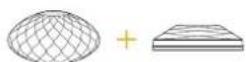
Formation Wedge + Formation Bass
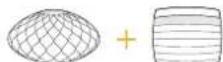
Formation Wedge + Formation Audio + Formation Bass

Formation Duo

Formation Duo + Formation Audio
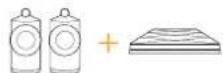
Formation Duo + Formation Bass
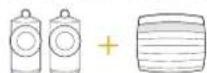
Formation Duo + Formation Audio + Formation Bass
2. Abra
Helység konfiguración
Formation Flex

Formation Flex + Formation Audio
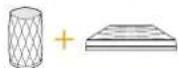
Formation Flex + Formation Bass
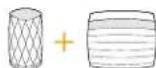
Formation Flex + Formation Audio + Formation Bass
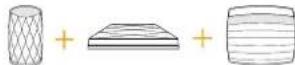
Formation Flex (stereo pair)
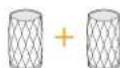
Formation Flex (stereo pair) + Formation Audio
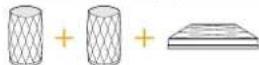
Formation Flex (stereo pair) + Formation Bass
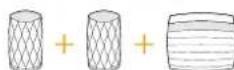
Formation Flex (stereo pair) + Formation Audio + Formation Bass

4. A Bowers & Wilkins Home App
Formation Bar + Formation Bass (3.1)

Formation Bar + Formation Flex (5.0)

Formation Bar + Formation Bass + Formation Flex (5.1)

Formation Wedge ^+ Formation Audio
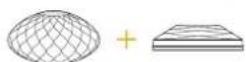
Formation Wedge ^+ Formation Bass
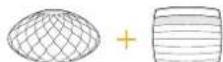
Formation Wedge + Formation Audio + Formation Bass

Formation Duo

Formation Duo + Formation Audio
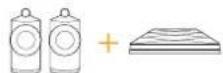
Formation Duo + Formation Bass
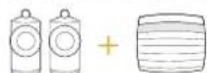
Formation Duo + Formation Audio + Formation Bass
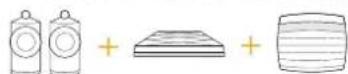
Rysunek 2
Konfiguracao pokoi
Formation Flex

Formation Flex + Formation Audio
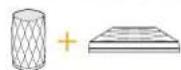
Formation Flex + Formation Bass
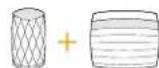
Formation Flex + Formation Audio + Formation Bass
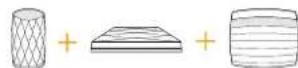
Formation Flex (stereo pair)
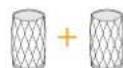
Formation Flex (stereo pair) + Formation Audio
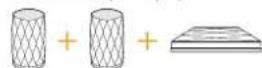
Formation Flex (stereo pair) + Formation Bass
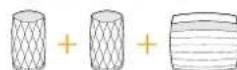
Formation Flex (stereo pair) + Formation Audio + Formation Bass

2. Formation Bar kurulum
Spotify Yazilimi, burada bulunan Üçınçü taraf ilisansianna tabidir: https://www.spotify.com/connect/third-party-licenses.
Airplay'i Kullanma
Formation Bar + Formation Bass (3.1)

Formation Bar + Formation Flex (5.0)

Formation Bar + Formation Bass + Formation Flex (5.1)

音乐空间配置
Formation Audio

Formation Wedge

Formation Wedge + Formation Audio
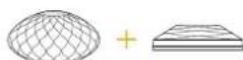
Formation Wedge ^+ Formation Bass
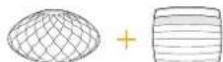
Formation Wedge + Formation Audio + Formation Bass

Formation Duo

Formation Duo + Formation Audio
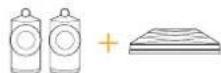
Formation Duo + Formation Bass
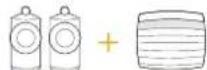
Formation Duo + Formation Audio + Formation Bass
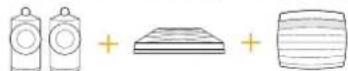
图2
空间配置
Formation Flex

Formation Flex + Formation Audio
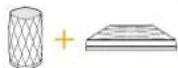
Formation Flex + Formation Bass
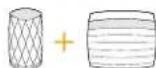
Formation Flex + Formation Audio + Formation Bass
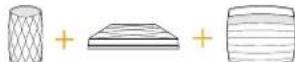
Formation Flex (stereo pair)
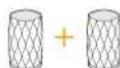
Formation Flex (stereo pair) + Formation Audio
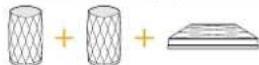
Formation Flex (stereo pair) + Formation Bass
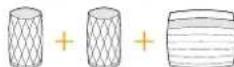
Formation Flex (stereo pair) + Formation Audio + Formation Bass

4. Bowers & Wilkins Home应用程序
Formation Bar + Formation Bass (3.1)

Formation Bar + Formation Flex (5.0)

Formation Bar + Formation Bass + Formation Flex (5.1)

音樂空間配置
Formation Audio

Formation Wedge

Formation Wedge + Formation Audio
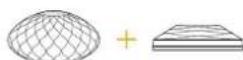
Formation Wedge + Formation Bass
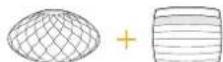
Formation Wedge + Formation Audio + Formation Bass

Formation Duo

Formation Duo + Formation Audio
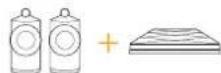
Formation Duo + Formation Bass
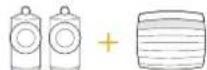
Formation Duo + Formation Audio + Formation Bass
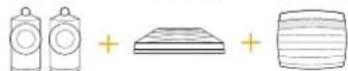
图2
空間配置
Formation Flex

Formation Flex + Formation Audio

Formation Flex + Formation Bass
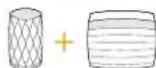
Formation Flex + Formation Audio + Formation Bass
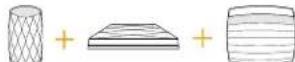
Formation Flex (stereo pair)
Formation Flex (stereo pair) + Formation Audio
Formation Flex (stereo pair) + Formation Bass
Formation Flex (stereo pair) + Formation Audio + Formation Bass

4. Bowers & Wilkins Home應用程序
4.Bowers & Wilkins Home
Welcome to Bowers & Wilkins and Formation Bar.
Formation BarTV HAIHAIHOAIOI 1000000000000000000000000000000000000000000000000
Fomation Bar 1000000000000000000000000000000000000000000000000000
图
中 电
H:FormationBar中电电电电USB 电电电电电电电电电电电电电电电电电电电电电电电电电电电电电电电电电电电电电电电电电电电电电电电电电电电电电电电电电电电电电电电电电电电电电电电电电电电电电电电电电电电电
Formation Bar OeTeIe DciTe oOoiO IiReo TV
theoTOSLINK 0oiTo Formation Bar OoiO
llkFTV OoiO chre to enchfHsiO. TV iioh a
chreTo Formation Bar is jandro TV ooiO
leto ron Tcienllo
Formation Bar Dolby Surroundro Inkogdoln
FonrgohtaeHaeLgOJyRcHsHcDkoDHa
Sorouo HaeLHaeLHaeLHaeLHaeLHaeLHaeLHaeLHaeLHaeLHaeLHaeLHaeLHaeLHaeLHaeLHaeLHaeLHaeLHaeLHaeLHaeLHaeLHaeLHaeLHaeLHaeLHaeLHaeLHaeLHaeLHaeLHaeLHaeLHAE
Formation Bar 电电电电电电电电电电电电电电电电电电电电电电电电电电电电电电电电电电电电电电电电电电电电电电电电电电电电电电电电电电电电电电电电电电电电电电电电电电电电电电电电电电电电电电电电电电电电电电电电电电电电
第1章 On/Off
Formation Bar 是常运或取值生成态之,故
T
T
T
T
T
T
T
T
T
T
T
T
T
T
T
T
T
T
T
T
T
T
T
T
T
T
T
T
T
T
T
T
T
T
T
T
T
T
T
T
T
T
T
T
T
T
T
T
T
T
T
T
T
T
T
T
T
T
T
T
T
T
T
T
T
T
T
T
T
T
T
T
T
T
T
T
T
T
T
Fomation Bar 10000000000000000000000000000000000000000000000000000000000000000000000000000
Bowers & Wilkins Home Bluetooth 5000 Buseshing nnde Bluetooth 5000Dtof FgRiHa Btof Btof HnEoHnEoHnEoHnEoHnEoHnEoHnEoHnEoHnEoHnEoHnEoHnEoHnEoHnEoHnEoHnEoHnEoHnEoHnEoHnEoHnEoHnEoHnEoHnEoHnEoHnEoHo
- Bowers & Wilkins Home是一款用于定制的无上品质的定制产品,它适用于所有家庭用户。定制产品可以满足任何家庭用户的需要,包括但不限于:
·Bowers&WilkinsHome藥記之國云理
FormationBarLs#h"space"的i
首定上,,。
期藏自,,,,,,,,,,,,,,,,,,,,,,,,,,,,,,,,,,,,,,,
成建忘而,,,,,,,,,,,,,,,,,
,
Form 电则在电电电电电电电电电电电电电电电电电电电电电电电电电电电电电电电电电电电电电电电电电电电电电电电电电电电电电电电电电电电电电电电电电电电电电电电电电电电电电电电电电电电
Formation Barの卍선内部は効広締り、実格を 状態依據雑地の構成構態に設施而成。Formation Bar は図書のWiFi内トデモリクエフは効性状態。 WiFi内トデモリクは効性状態は効性状態。 BIOMINIMATIONCO.LTD.100% 上部は効性状態。 上部は効性状態。 上部は効性状態。 上部は効性状態。 上部は効性状態。 上部は効性状態。 上部は効性状態。 上部は効性状態。 上部は効性状態。 上部は効性状態。 上部は効性状態。 上部は効性状態。
:WifI巨贝O0D1G Formation 责
- WiFi网卡的安装及调试步骤
- Formation Bar的安装
-
Formation Bar的设置
早早
1 Formation Bar Hnnn
3. Formation Bar
K
Formation Bar Form 贝是云韵在同
TV△KJ
Formation Bar (3.0)

Formation Bar + Formation Bass (3.1)

Formation Bar + Formation Flex (5.0)

Formation Bar + Formation Bass + Formation Flex (5.1)

Formation Wedge ^+ Formation Audio
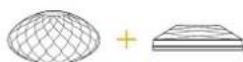
Formation Wedge + Formation Bass
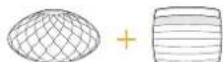
Formation Wedge + Formation Audio + Formation Bass

Formation Duo

Formation Duo + Formation Audio
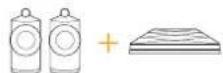
Formation Duo + Formation Bass
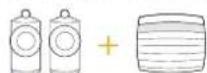
Formation Duo + Formation Audio + Formation Bass
S301
Formation Flex

Formation Flex + Formation Audio
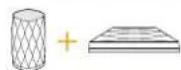
Formation Flex + Formation Bass
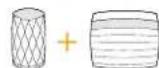
Formation Flex + Formation Audio + Formation Bass
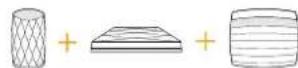
Formation Flex (stereo pair)
Formation Flex (stereo pair) + Formation Audio
Formation Flex (stereo pair) + Formation Bass
Formation Flex (stereo pair) + Formation Audio + Formation Bass

4. The Bowers & Wilkins Home
Bowers & Wilkins Home 宜云
Spotify Shttformation Bar SsTn
Eeitjot Bowers & Wilkins Home
Bowls, EaeiJt of the.
Bowers & Wilkins Home
SsOoAeHnHnHnHnHnHnHnHnHnHnHnHnHnHnHnHnHnHnHnHnHnHnHnHnHnHnHnHnHnHnHnHnHnHnHnHnHnHnHnHnHnHnHnHnHnHnHnHnHnHnH
now playing' 10000000000000000000000000000000000000000000000000000000000000000000000000000000000000000000000000
Formation Bar 400000000000000000000000000000000000000000000000000000000000000000000000000
图
IiJH 100000000000000000000000000000000000000000000000000000000000000000
贝贝
aalal alal alal alal alal alal alal alal alal alal alal alal alal alal alal alal alal alal alal alal alal alal alal alal alal alal alal alal alal alal alal alal alal alal alal alal alal alal alal alal alal alal alal alal alal alal alal alal alal alal
a a a a a a a a a a a a a a a a a a a a a a a a a a a a a a a a a a a a a a a a a a a a a a a a a a a a a a a a a a a a a a a a a a a a a a a a a a a a a a a a
pcll.7
jguuuygauagallglxuaalwgo ujoallcui jiu yuogao pccgao yu cai kai jiu yuugao www.bowerswilkins.com/support liu
aTuJlogLao
L aagalgill gaiiall li pii (ROHS) abll algall jnssjil jll jll jll jll jll jll jll jll jll jll jll jll jll jll jll jll jll jll jll jll jll jll jll jll jll jll jll jll jll jll jll jll jll jll jll jll jll jll jll jll jll jll jll jll jll jll jll jll jll jll jell
jglgssgallldasdssalldas.5
n
sgljg jw
psill jias igula gl glll jigag gl lalaaasol spotify.com/connect llg aga aeg
jollls oalb cbll jolil glagw golij 100000000000000000000000000000000000000000000000000000000000000000000000
sul
gagaaagaaagaaagaaagaaagaaagaaagaaagaaagaaagaaagaaagaaagaaagaaagaaagaaagaaagaaagaaagaaagaaagaaagaaagaaagaaagaaagaaagaaagaaagaaagaaagaaagaaagaaagaaagaaagaaagaaagaaagaaagaaagaaagaaagaaagaaagaaagaaagaaagaaagaaa
g jll g jll g jll g jll g jll g jll g jll g jll g jll g jll g jll g jll g jll g jll g jll g jll g jll g jll g jll g jll g jll g jll g jll g jll g jll g jll g jll g jll g jll g jll g jll g jll g jll g jll g
yjg jyjg c yjgco lco ysaal yagalo
jauill oie gog a lil ails caggl g axc ojg fle
auiuall ciw w jyge sll icu uolig
jno jyag aolo jayu g auei ciislig
hgs yaga iis cagll g uugga tio
j jgh gubj gubjc u jia xu jiu jiu jiu jiu
gj gubiplssw
aag aagaaagag jaiill gai g 100
gai li aall aagaaal caliag aag aag
aagaa jai gao ag aagaai gai iiao lae g
gai gai gai aie jao ai jia gai gai g
jgl jgsaal jigssll gl sall alg
aagaaagaaagaaagaaagaaagaaagaaagaaagaaagaaagaaagaaagaaagaaagaaagaaagaaagaaagaaagaaagaaagaaagaaagaaagaaagaaagaaagaaagaaagaaagaaagaaagaaagaaagaaagaaagaaagaaagaaagaaagaaagaaagaaagaaagaaagaaagaaagaaagaaagaaagaaa
jlll jslg dl jglb.4
auiuuiuie jiaoiai jisig i jgdu gbiua u yjyagjia jia juyugjuyagjuyagjuyagjuyagjuyagjuyagjuyagjuyagjuyagjuyagjuyagjuyagjuyagjuyagjuyagjuyagjuyagjuyagjuyagjuyagjuyagjuyagjuyagjuyagjuyagjuyagjuyagjuyagjuyagjuyagjuyagjuyagjuyagjuyag
J 10000000000000000000000000000000000000000000000000000000000000000000000000
agllgaiiagai jjiall jgljgubu 10
guibill ciaalea pial igaiill jail agell, jall
juogao jajwosclg buscjlusclscl aolto
cuuslosnunogjtaaowosclgcuatall
aaloo gulalng uogojgdojgsolqol
jll jlsg sif jgl gbi jc aill
jia 2016 2017 2018 2019
jaiagaiagaiabai jia jaiagaihailgai gai jaiil"ill"aii"aii"aii"aii"ai
sill "aiaial jilll" 111111111111111111111111111111111111111111