USER MANUAL Alloy Elite RGB HYPERX
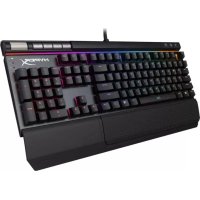
HyperX Alloy Elite RGB Keyboard
Find the language and latest documentation for your HyperX Alloy Elite RGB Keyboard here.
HyperX Alloy Elite RGB Keyboard Installation Guide
For instructions in English
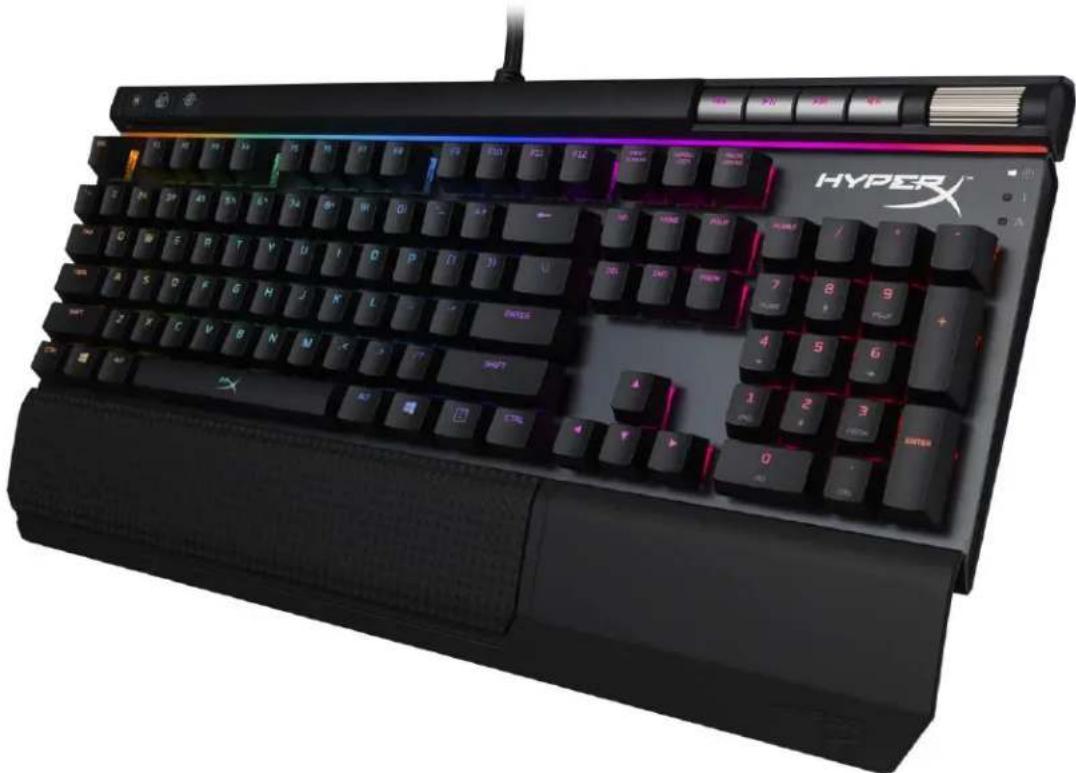
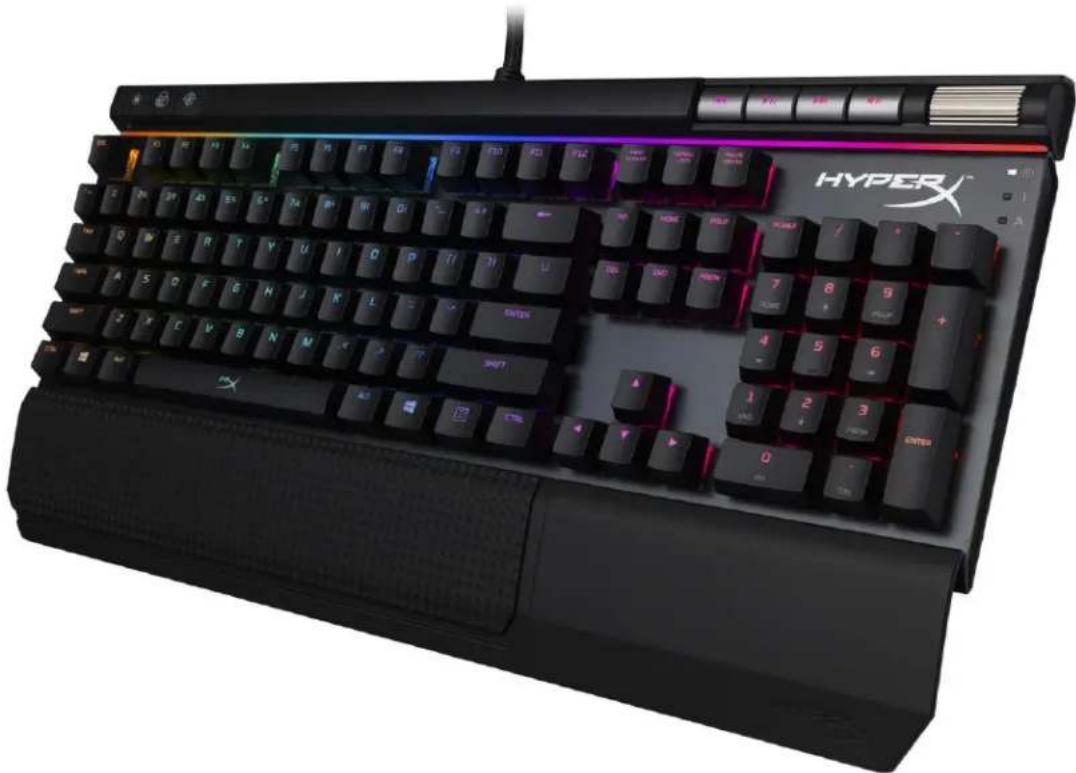
HyperX Alloy Elite RGB Mechanical Gaming Keyboard
| Part Numbers |
| Cherry® MX Blue | Cherry® MX Brown | Cherry® MX Red |
| HX-KB2BL2-UK/R1 | HX-KB2BR2-UK/R1 | HX-KB2RD2-UK/R1 |
| HX-KB2BL2-FR/R1 | HX-KB2BR2-FR/R1 | HX-KB2RD2-FR/R1 |
| HX-KB2BL2-DE/R1 | HX-KB2BR2-DE/R1 | HX-KB2RD2-DE/R1 |
| HX-KB2BL2-NO/R1 | HX-KB2BR2-NO/R1 | HX-KB2RD2-NO/R1 |
| HX-KB2BL2-RU/R1 | HX-KB2BR2-RU/R1 | HX-KB2RD2-RU/R1 |
| HX-KB2BL2-LA/R2 | HX-KB2BR2-LA/R2 | HX-KB2RD2-LA/R2 |
| HX-KB2BL2-US/R1 | HX-KB2BR2-US/R1 | HX-KB2RD2-US/R1 |
| HX-KB2BL2-US/R2 | HX-KB2BR2-US/R2 | HX-KB2RD2-US/R2 |
What's included:
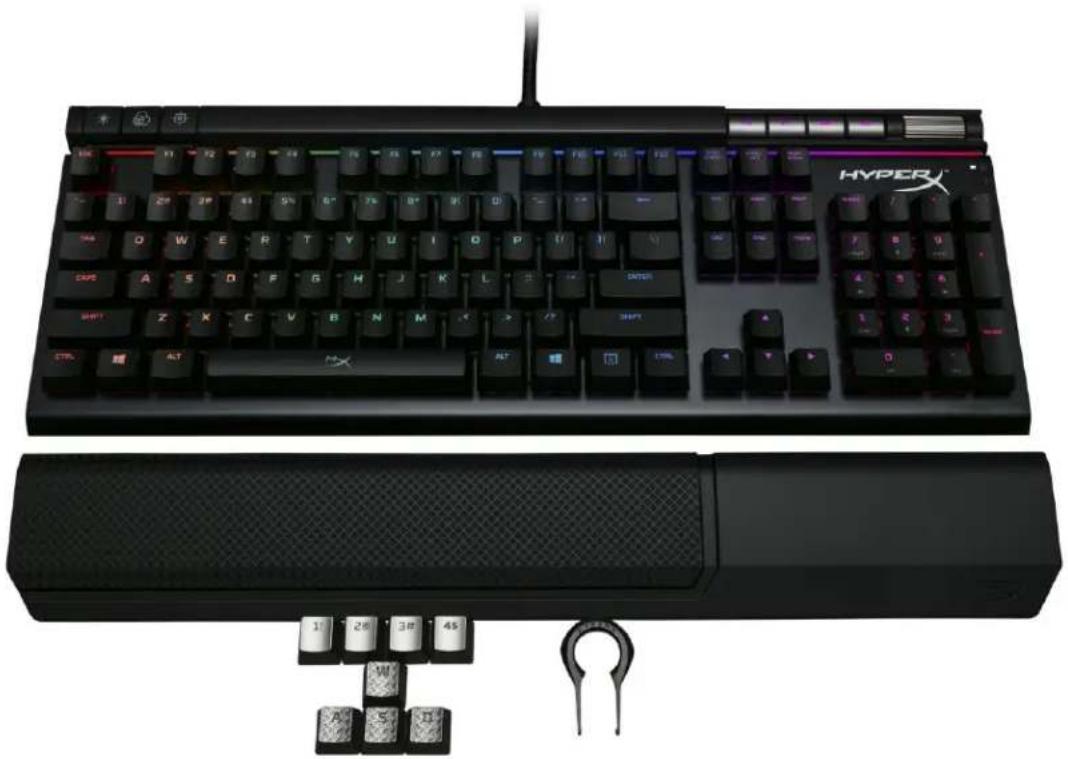
HyperX Alloy Elite RGB Mechanical Gaming Keyboard - 8x gaming keycaps, keycaps puller, wrist rest
Keyboard Overview:
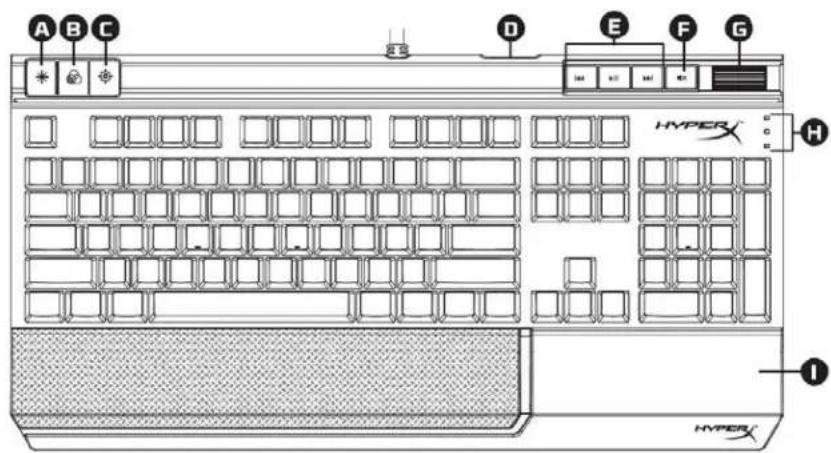
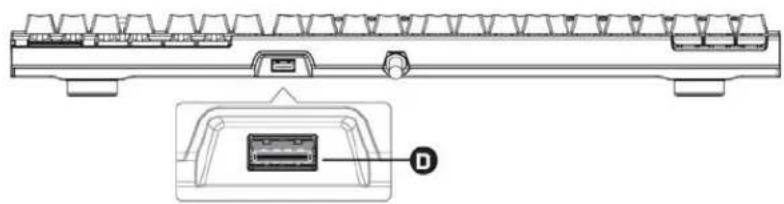
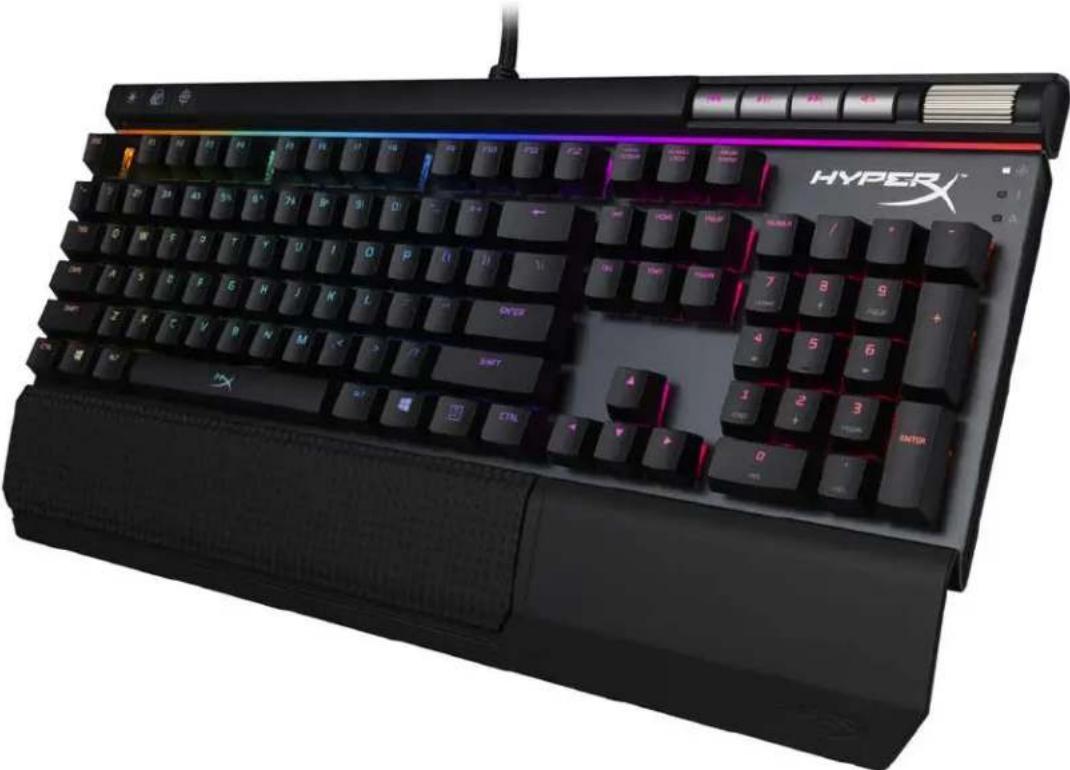
A- Brightness control button. B- On-board memory profiles control button. C- Game Mode button. D- Back USB port (USB 2.0 pass-through). E- Media control buttons. F- Volume mute button. G- Volume control wheel. H- Game Mode / Num Lock / Caps Lock indicators. I- Detachable wrist rest

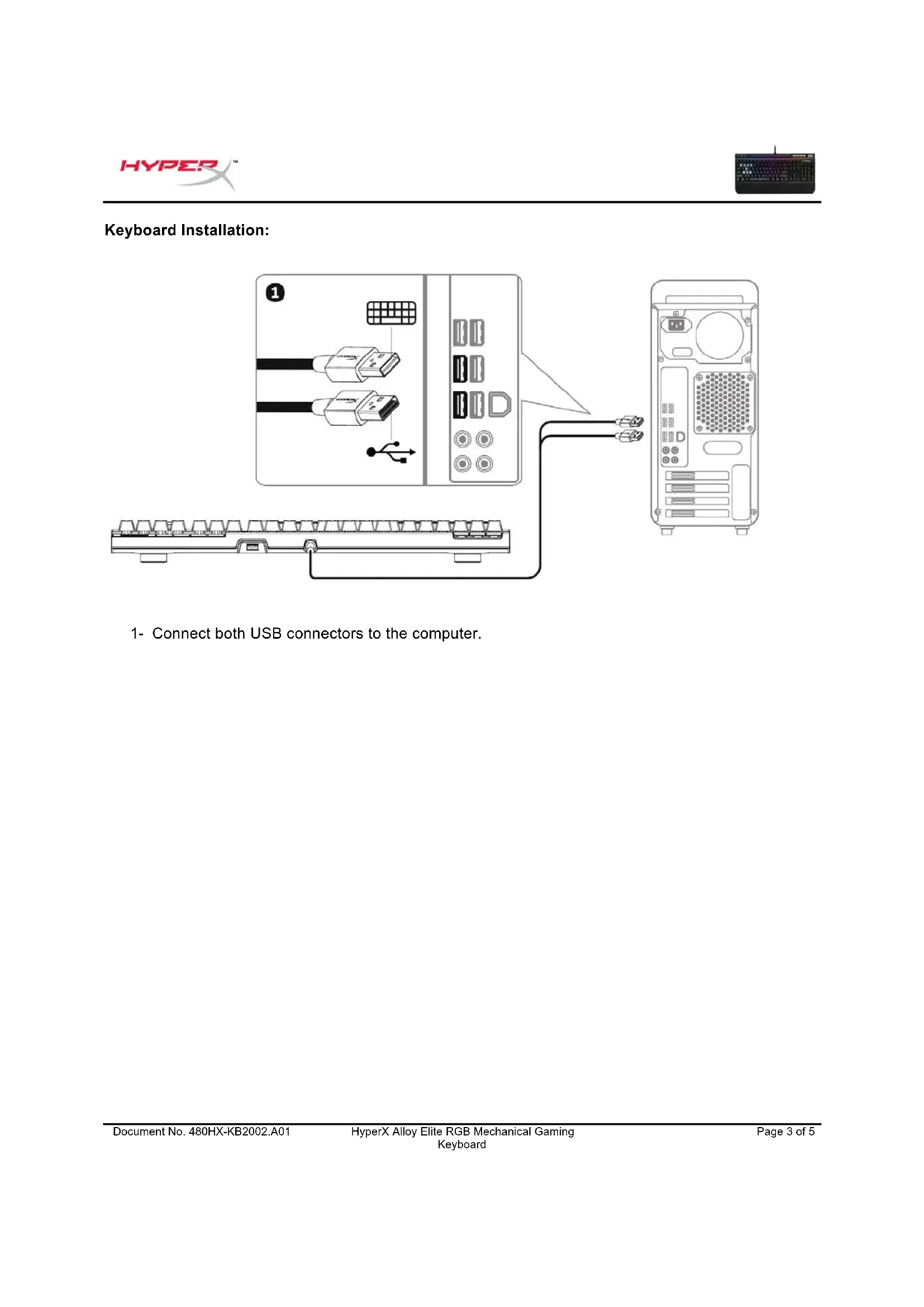
Keyboard Installation:
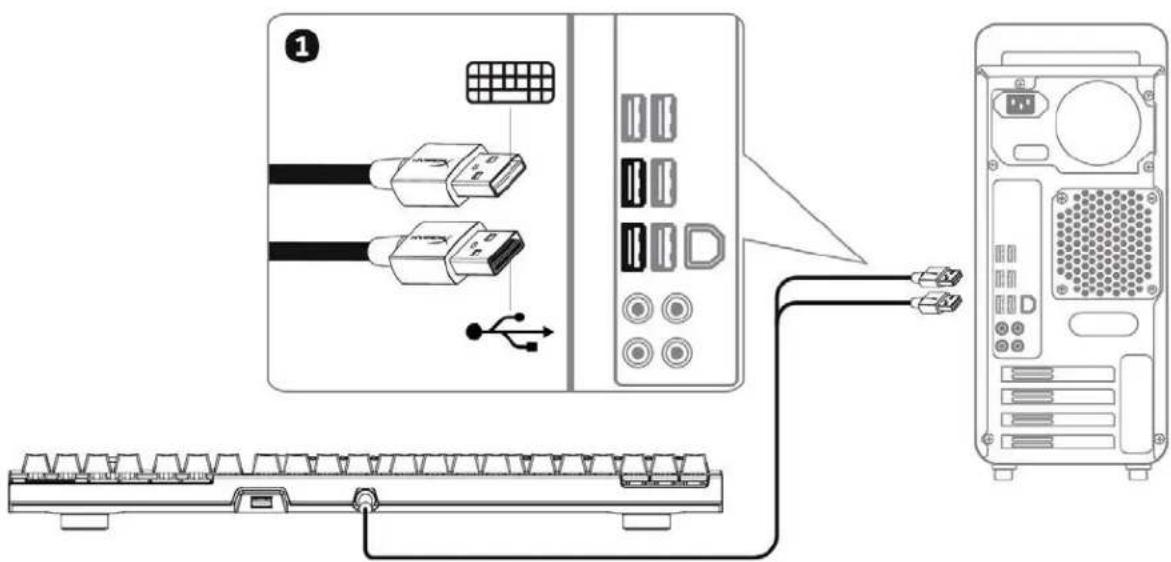
1- Connect both USB connectors to the computer.
Function Keys:
| Function Keys | Secondary Feature |
| Change the LED Backlight brightness. There are 4 levels of brightness: OFF, low, medium and high. |
| Switch between the profiles in the on-board memory. |
| Enable Game Mode to disable the Windows key and prevent accidental interruption during gaming. When Game Mode is enabled, the indicator will illuminate. |
| Play/pause skip backwards or skip forward while listening to music or watching videos. |
| Mute computer audio. |
| Increase or decrease computer audio volume. |
HyperX NGenuity Software:
To customize the lighting, Game Mode and macro settings, download the HyperX NGenuity software here: hyperxgaming.com/ngenuity.
Refer to the HyperX NGenuity Gaming Software manual for more information on the functions.
Keyboard factory reset:
If you are experiencing any issues with the keyboard, you can perform a factory reset. You will lose your custom LED profile by doing this.
| Function Keys | Secondary Feature |
| + + + | Press all three keys simultaneously until the keyboard LED backlight blinks twice. |
HyperX NGenuity software:
HyperX NGenuity software
HyperX NGenuity software:
HyperX NGenuity software:
Keyboard setup:
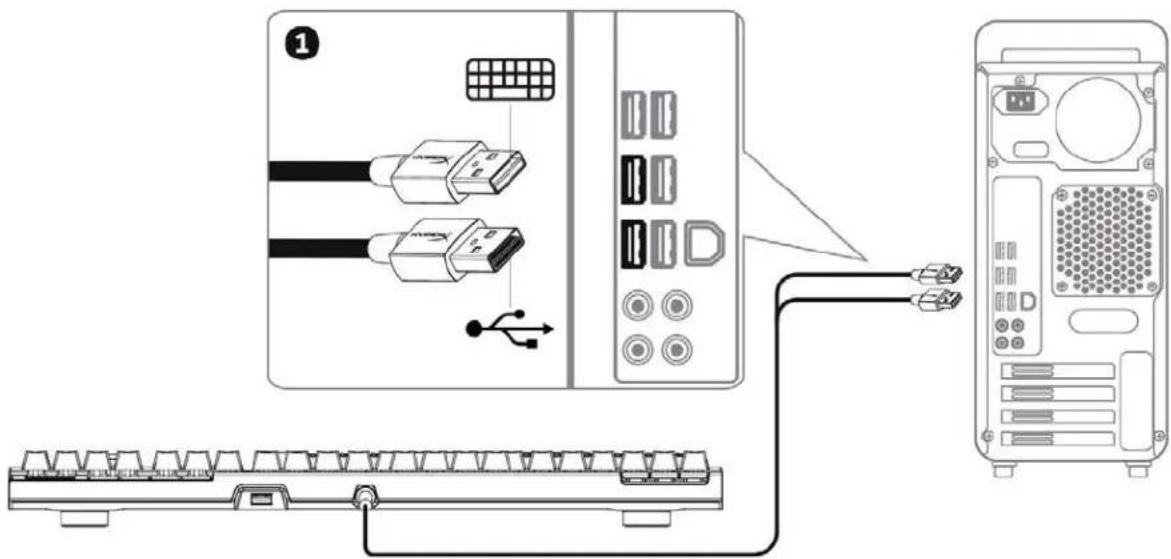
1- Connect both USB connectors to the computer.
HyperX NGenuity:
To customize lighting, game mode, and macros, download HyperX NGenuity here: hyperxgaming.com/ngenuity.
HyperX NGenuity software:
To customize lighting, game mode, and macros, download HyperX NGenuity software from the following address: hyperxgaming.com/ngenuity.
D- USB (USB 2.0 pass-through)

E-
F-
H- WannueNum / Num Lock / Caps Lock
1
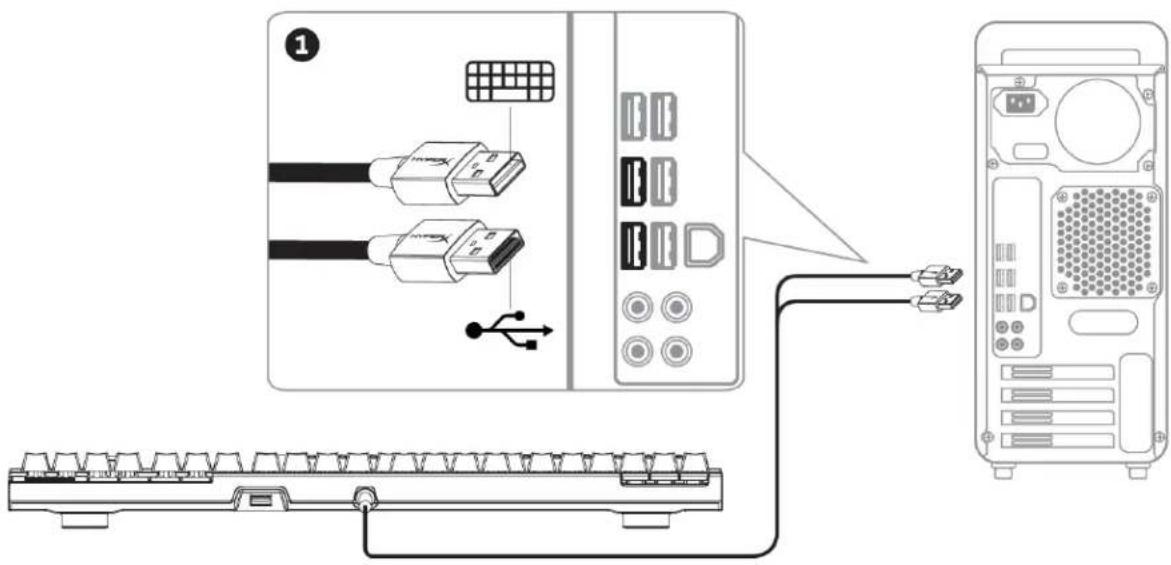
1- USB
W
| jaywani | jaywani |
| jaywani LED LED LED LED LED 4 OFF, low, medium use high |
| jaywani waliwanwanwanwanwanwanwan |
| Game Mode Windows Game Mode Game Mode Game Mode Game Mode Game Mode Game Mode Game Mode Game Mode Game Mode Game Mode Game Mode Game Mode Game Mode Game Mode Game Mode Game Mode Game Mode Game Mode Game Mode Game Mode Game Mode Game Mode Game Mode Game Mode Game Mode Game Mode Game Mode Game Mode Game Mode Game Mode Game Mode Game Mode Game Mode Game Mode Game Mode Game Mode Game Mode Game Mode Game Mode Game Mode Game Mode Game Mode Game Mode Game Mode Game Mode Game Mode Game Mode Game Mode Game Mode Game Mode Game mode Game mode Game mode Game mode Game mode Game mode Game mode Game mode Game mode Game mode Game mode Game mode Game mode Game mode Game mode Game mode Game mode Game mode Game mode Game mode Game mode Game mode Game mode Game mode Game mode Game mode Game mode Game mode Game mode Game mode Game mode Game mode Game mode Game mode Game mode Game mode Game mode Game mode Game mode Game mode Game mode Game mode Game mode Game mode Game mode Game mode Game mode Game mode Game mode Game mode Game modes |
| |
| |
HyperX NGenuity:
hyperXgaming.com/ngenuity.
HyperX NGenuity Gaming
HyperX Alloy Elite RGB Gaming Keyboard
| Mã sân phám |
| Cherry® MX Blue | Cherry® MX Brown | Cherry® MX Red |
| HX-KB2BL2-UK/R1 | HX-KB2BR2-UK/R1 | HX-KB2RD2-UK/R1 |
| HX-KB2BL2-FR/R1 | HX-KB2BR2-FR/R1 | HX-KB2RD2-FR/R1 |
| HX-KB2BL2-DE/R1 | HX-KB2BR2-DE/R1 | HX-KB2RD2-DE/R1 |
| HX-KB2BL2-NO/R1 | HX-KB2BR2-NO/R1 | HX-KB2RD2-NO/R1 |
| HX-KB2BL2-RU/R1 | HX-KB2BR2-RU/R1 | HX-KB2RD2-RU/R1 |
| HX-KB2BL2-LA/R2 | HX-KB2BR2-LA/R2 | HX-KB2RD2-LA/R2 |
| HX-KB2BL2-US/R1 | HX-KB2BR2-US/R1 | HX-KB2RD2-US/R1 |
| HX-KB2BL2-US/R2 | HX-KB2BR2-US/R2 | HX-KB2RD2-US/R2 |
Package contents:
HyperX Alloy Elite RGB mechanical gaming keyboard, 8 extra keycaps, keycap puller, detachable wrist rest
Overview of the keyboard:
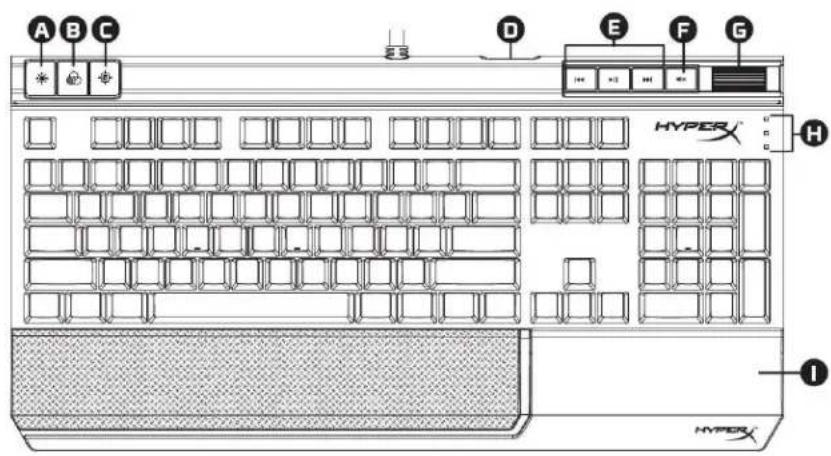
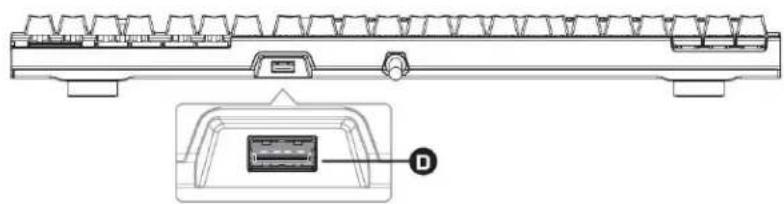
A- Backlight brightness adjustment button. B- Onboard memory configuration control button. C- Game mode button. D- Rear USB port (for transferring via USB 2.0). E- Media control button. F- Mute button. G- Volume control wheel. H- Game mode / Num Lock / Caps Lock indicator lights. I- Detachable wrist rest.
Keyboard setup:
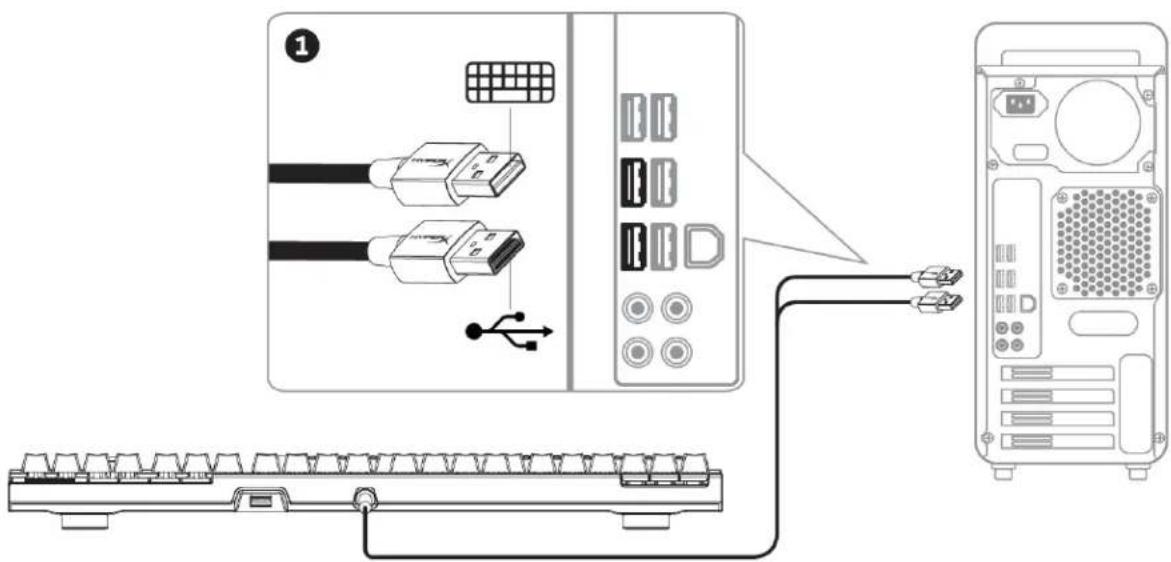
1- Plug both USB connectors into your computer.
Function keys:
HyperX NGenuity software:
To customize lighting settings, game mode, and macros, download the HyperX NGenuity software at: hyperxgaming.com/ngenuity.
Refer to the HyperX NGenuity software user guide for more information about its features.
Reset keyboard to factory settings:
If you encounter any issues with the keyboard, you can reset it to factory settings. You will lose custom LED configurations when doing so.
| Cộng chung chung chung chung chung chung chung chung chung chung chung chung chung chung chung chung chung chung chung chung chung chung chung chung chung chung chung chung chung chung chung chung chung chung chung chung chung chung chung chung chung chung chung chung chung chung chung chung chung chung ch Chung chung chung chung chung chung chung chung chung chung chung chung chung chung chung chung chung chung chung chung chung chung chung chung chung chung chung chung chung chung chung chung chung chung chung chung chung chung chung chung chung chung chung chung chung chung chung chung chung chung chUNG chung chung chung chung chung chung chung chung chung chung chung chung chung chung chung chung chung chung chung chung chung chung chung chung chung chung chung chung chung chung chung chung chung chung chung chung chung chung chung chung chung chung chung chung chung chung chung chung chung chlung chung chung chung chung chung chung chung chung chung chung chung chung chung chung chung chung chung chung chung chung chung chung chung chung chung chung chung chung chung chung chung chung chung chung chung chung chung chung chung chung chung chung chung chung chung chung chung chung chung ch lung chung chung chung chung chung chung chung chung chung chung chung chung chung chung chung chung chung chung chung chung chung chung chung chung chung chung chung chung chung chung chung chung chung chung chung chung chung chung chung chung chung chung chung chung chung chung chung chung chung ch Lung chung chung chung chung chung chung chung chung chung chung chung chung chung chung chung chung chung chung chung chung chung chung chung chung chung chung chung chung chung chung chung chung chung chung chung chung chung chung chung chung chung chung chung chung chung chung chung chung chung ching chung chung chung chung chung chung chung chung chung chung chung chung chung chung chung chung chung chung chung chung chung chung chung chung chung chung chung chung chung chung chung chung chung chung chung chung chung chung chung chung chung chung chung chung chung chung chung chung chung chimg chung chung chung chung chung chung chung chung chung chung chung chung chung chung chung chung chung chung chung chung chung chung chung chung chung chung chung chung chung chung chung chung chung chung chung chung chung chung chung chung chung chung chung chung chung chung chung chung chung chug chung chung chung chung chung chung chung chung chung chung chung chung chung chung chung chung chung chung chung chung chung chung chung chung chung chung chung chung chung chung chung chung chung chung chung chung chung chung chung chung chung chung chung chung chung chung chung chung chung chmg chung chung chung chung chung chung chung chung chung chung chung chung chung chung chung chung chung chung chung chung chung chung chung chung chung chung chung chung chung chung chung chung chung chung chung chung chung chung chung chung chung chung chung chung chung chung chung chung chung chng chung chung chung chung chung chung chung chung chung chung chung chung chung chung chung chung chung chung chung chung chung chung chung chung chung chung chung chung chung chung chung chung chung chung chung chung chung chung chung chung chung chung chung chung chung chung chung chung chung chubch ng chng chng chng chng chng chng chng chng chng chng chng chng chng chng chng chng chng chng chng chng chng chng chng chng chng chng chng chng chng chng chng chng chng chng chng chng chng chng chng chng chng chng chng chng chng chng chng chng chng chng chgchng chng chng chng chng chng chng chng chng chng chng chng chng chng chng chng chng chng chng chng chng chng chng chng chng chng chng chng chng chng chng chng chng chng chng chng chng chng chng chng chng chng chng chng chng chng chng chng chng chngchngchngchngchngchngchngchngchngchngchngchngchngchngchngchngchngchngchngchngchngchngchngchngchngchngchngchngchngchngchngchngchngchngchngchngchngchngchngchngchngchngchngchngchngchngchngchngchngchngchngCHNG CHNG CHNG CHNG CHNG CHNG CHNG CHNG CHNG CHNG CHNG CHNG CHNG CHNG CHNG CHNG CHNG CHNG CHNG CHNG CHNG CHNG CHNG CHNG CHNG CHNG CHNG CHNG CHNG CHNG CHNG CHNG CHNG CHNG CHNG CHNG CHNG CHNG CHNG CHNG CHNG CHNG CHNG CHNG CHNG CHNG CHNG CHNG CHNG CHNG CHNGCHNG CHNG CHNG CHNG CHNG CHNG CHNG CHNG CHNG CHNG CHNG CHNG CHNG CHNG CHNG CHNG CHNG CHNG CHNG CHNG CHNG CHNG CHNG CHNG CHNG CHNG CHNG CHNG CHNG CHNG CHNG CHNG CHNG CHNG CHNG CHNG CHNG CHNG CHNG CHNG CHNG CHNG CHNG CHNG CHNG CHNG CHNG CHNG CHNG CHING CHNG CHNG CHNG CHNG CHNG CHNG CHNG CHNG CHNG CHNG CHNG CHNG CHNG CHNG CHNG CHNG CHNG CHNG CHNG CHNG CHNG CHNG CHNG CHNG CHNG CHNG CHNG CHNG CHNG CHNG CHNG CHNG CHNG CHNG CHNG CHNG CHNG CHNG CHNG CHNG CHNG CHNG CHNG CHNG CHNG CHNG CHNG CHNG CHNG CHRG CHRG CHRG CHRG CHRG CHRG CHRG CHRG CHRG CHRG CHRG CHRG CHRG CHRG CHRG CHRG CHRG CHRG CHRG CHRG CHRG CHRG CHRG CHRG CHRG CHRG CHRG CHRG CHRG CHRG CHRG CHRG CHRG CHRG CHRG CHRG CHRG CHRG CHRG CHRG CHRG CHRG CHRG CHRG CHRG CHRG CHRG CHRG CHRG CHRG CHLG CHRG CHRG CHRG CHRG CHRG CHRG CHRG CHRG CHRG CHRG CHRG CHRG CHRG CHRG CHRG CHRG CHRG CHRG CHRG CHRG CHRG CHRG CHRG CHRG CHRG CHRG CHRG CHRG CHRG CHRG CHRG CHRG CHRG CHRG CHRG CHRG CHRG CHRG CHRG CHRG CHRG CHRG CHRG CHRG CHRG CHRG CHRG CHRG CHRG CHBG CHRG CHRG CHRG CHRG CHRG CHRG CHRG CHRG CHRG CHRG CHRG CHRG CHRG CHRG CHRG CHRG CHRG CHRG CHRG CHRG CHRG CHRG CHRG CHRG CHRG CHRG CHRG CHRG CHRG CHRG CHRG CHRG CHRG CHRG CHRG CHRG CHRG CHRG CHRG CHRG CHRG CHRG CHRG CHRG CHRG CHRG CHRG CHRG CHRG CHGCHRG CHRG CHRG CHRG CHRG CHRG CHRG CHRG CHRG CHRG CHRG CHRG CHRG CHRG CHRG CHRG CHRG CHRG CHRG CHRG CHRG CHRG CHRG CHRG CHRG CHRG CHRG CHRG CHRG CHRG CHRG CHRG CHRG CHRG CHRG CHRG CHRG CHRG CHRG CHRG CHRG CHRG CHRG CHRG CHRG CHRG CHRG CHRG CHRG CHRGCHRGCHRGCHRGCHRGCHRGCHRGCHRGCHRGCHRGCHRGCHRGCHRGCHRGCHRGCHRGCHRGCHRGCHRGCHRGCHRGCHRGCHRGCHRGCHRGCHRGCHRGCHRGCHRGCHRGCHRGCHRGCHRGCHRGCHRGCHRGCHRGCHRGCHRGCHRGCHRGCHRGCHRGCHRGCHRGCHRGCHRGCHRGCHRGCHRGCHRG CHRGCHRGCHRGCHRGCHRGCHRGCHRGCHRGCHRGCHRGCHRGCHRGCHRGCHRGCHRGCHRGCHRGCHRGCHRGCHRGCHRGCHRGCHRGCHRGCHRGCHRGCHRGCHRGCHRGCHRGCHRGCHRGCHRGCHRGCHRGCHRGCHRGCHRGCHRGCHRGCHRGCHRGCHRGCHRGCHRGCHRGCHRGCHRGCHRG CHRG CHRG CHRG CHRG CHRG CHRG CHRG CHRG CHRG CHRG CHRG CHRG CHRG CHRG CHRG CHRG CHRG CHRG CHRG CHRG CHRG CHRG CHRG CHRG CHRG CHRG CHRG CHRG CHRG CHRG CHRG CHRG CHRG CHRG CHRG CHRG CHRG CHRG CHRG CHRG CHRG CHRG CHRG CHRG CHRG CHRG CHRG CHRG CHLGCHRGCHRGCHRGCHRGCHRGCHRGCHRGCHRGCHRGCHRGCHRGCHRGCHRGCHRGCHRGCHRGCHRGCHRGCHRGCHRGCHRGCHRGCHRGCHRGCHRGCHRGCHRGCHRGCHRGCHRGCHRGCHRGCHRGCHRGCHRGCHRGCHRGCHRGCHRGCHRGCHRGCHRGCHRGCHRGCHRGCHRGCHRGCHRGCHRGCHLGCHRGCHRGCHRGCHRGCHRGCHRGCHRGCHRGCHRGCHRGCHRGCHRGCHRGCHRGCHRGCHRGCHRGCHRGCHRGCHRGCHRGCHRGCHRGCHRGCHRGCHRGCHRGCHRGCHRGCHRGCHRGCHRGCHRGCHRGCHRGCHRGCHRGCHRGCHRGCHRGCHRGCHRGCHRGCHRGCHRGCHRGCHRGCHRGCHRG CHLGCHRGCHRGCHRGCHRGCHRGCHRGCHRGCHRGCHRGCHRGCHRGCHRGCHRGCHRGCHRGCHRGCHRGCHRGCHRGCHRGCHRGCHRGCHRGCHRGCHRGCHRGCHRGCHRGCHRGCHRGCHRGCHRGCHRGCHRGCHRGCHRGCHRGCHRGCHRGCHRGCHRGCHRGCHRGCHRGCHRGCHRGCHRGCHRG CHRGCHLGCHRGCHRGCHRGCHRGCHRGCHRGCHRGCHRGCHRGCHRGCHRGCHRGCHRGCHRGCHRGCHRGCHRGCHRGCHRGCHRGCHRGCHRGCHRGCHRGCHRGCHRGCHRGCHRGCHRGCHRGCHRGCHRGCHRGCHRGCHRGCHRGCHRGCHRGCHRGCHRGCHRGCHRGCHRGCHRGCHRGCHRGCHRGCHRG CHRG CHLGCHRGCHRGCHRGCHRGCHRGCHRGCHRGCHRGCHRGCHRGCHRGCHRGCHRGCHRGCHRGCHRGCHRGCHRGCHRGCHRGCHRGCHRGCHRGCHRGCHRGCHRGCHRGCHRGCHRGCHRGCHRGCHRGCHRGCHRGCHRGCHRGCHRGCHRGCHRGCHRGCHRGCHRGCHRGCHRGCHRGCHRGCHRG CHRG CHLGCHLGCHLGCHLGCHLGCHLGCHLGCHLGCHLGCHLGCHLGCHLGCHLGCHLGCHLGCHLGCHLGCHLGCHLGCHLGCHLGCHLGCHLGCHLGCHLGCHLGCHLGCHLGCHLGCHLGCHLGCHLGCHLGCHLGCHLGCHLGCHLGCHLGCHLGCHLGCHLGCHLGCHLGCHLGCHLGCHLGCHLGCHLGCHLGCHLGCHLG |
HyperX Alloy Elite RGB
Mechanical gaming keyboard
| 产品型号 |
| Cherry® MX Blue | Cherry® MX Brown | Cherry® MX Red |
| HX-KB2BL2-UK/R1 | HX-KB2BR2-UK/R1 | HX-KB2RD2-UK/R1 |
| HX-KB2BL2-FR/R1 | HX-KB2BR2-FR/R1 | HX-KB2RD2-FR/R1 |
| HX-KB2BL2-DE/R1 | HX-KB2BR2-DE/R1 | HX-KB2RD2-DE/R1 |
| HX-KB2BL2-NO/R1 | HX-KB2BR2-NO/R1 | HX-KB2RD2-NO/R1 |
| HX-KB2BL2-RU/R1 | HX-KB2BR2-RU/R1 | HX-KB2RD2-RU/R1 |
| HX-KB2BL2-LA/R2 | HX-KB2BR2-LA/R2 | HX-KB2RD2-LA/R2 |
| HX-KB2BL2-US/R1 | HX-KB2BR2-US/R1 | HX-KB2RD2-US/R1 |
| HX-KB2BL2-US/R2 | HX-KB2BR2-US/R2 | HX-KB2RD2-US/R2 |
Package contents: