
Alloy Origins 65 - Keyboard HYPERX - Free user manual and instructions
Find the device manual for free Alloy Origins 65 HYPERX in PDF.
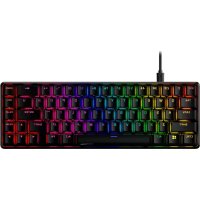



| Product type | Mechanical gaming keyboard |
| Brand | HyperX |
| Model | Alloy Origins 65 |
| Dimensions (L x W x H) | 315.06 x 105.5 x 36.94 mm |
| Weight (with cable) | 827.7 g |
| Switch type | HyperX mechanical (Red linear or Aqua tactile) |
| Actuation force | 45 g |
| Actuation point | 1.8 mm |
| Total travel distance | 3.8 mm |
| Switch lifespan | 80 million keystrokes |
| Backlighting | Per-key RGB (16,777,216 colors), 5 brightness levels |
| Keycap material | PBT (standard), ABS (included accessories) |
| Onboard memory | 3 profiles |
| Media keys | Yes (play/pause, back, forward, volume, mute) |
| Game Mode | Yes (disables Windows key) |
| Connectivity | Detachable USB-C (braided cable) |
| System compatibility | Windows 7/8/8.1/10, PS4, PS5, Xbox One, Xbox Series X|S |
| Customization software | HyperX NGENUITY |
| Adjustable feet | 3 angles |
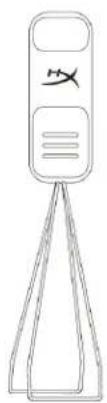
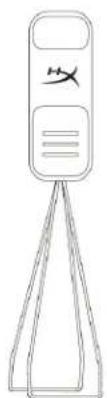
| Maintenance and cleaning | Use a soft, dry cloth; keycap puller included for cleaning keys |
| Safety | Avoid contact with water or moisture; do not open the case |
| Spare parts and repairability | Keycap puller included; replacement keycaps available (ABS provided) |
| Factory reset | Hold LEFT ALT + SPACE + FN for 5 seconds |
Frequently Asked Questions - Alloy Origins 65 HYPERX
User questions about Alloy Origins 65 HYPERX
0 question about this device. Answer the ones you know or ask your own.
Ask a new question about this device
Download the instructions for your Keyboard in PDF format for free! Find your manual Alloy Origins 65 - HYPERX and take your electronic device back in hand. On this page are published all the documents necessary for the use of your device. Alloy Origins 65 by HYPERX.
USER MANUAL Alloy Origins 65 HYPERX
HyperX Alloy Origins 65 Mechanical Gaming Keyboard
Find the language and latest documentation for your HyperX Alloy Origins 65 Mechanical Gaming Keyboard here.
HyperX Alloy Origins 65 Mechanical Gaming Keyboard User Manual
For instructions in English
Simplified Chinese .... 简体中文说明书
Traditional Chinese....繁體中文說明
56R64AA#ABA - US Aqua
CONTENTS
Overview....3
Specifications 6
Installation....7
Function Keys....8
HyperX NGENUITY Software 9
Factory Reset....9
Overview
![ESC 1! 2@ 3# 4$ 5% 6^ 7& 8* 9( 0) - = + ← HOME Q W E R T Y U I O P [ ] \ | DEL A S D F G H J K L ; : " ← PG UP Z X C V B N M , < . > / ? ▲ PG DN CTRL ALT ALT FN ◀ ▼ ►](/content/2026/04/593216/images/cc7503ea3f370b087afe6887227712b73584ee4afe3029368b657d6f95ac97e9.jpg)
![graph LR A[" "] --> B["TYPE-C"] B --> C["/"] C --> D["TYPE-A"] D --> E[" "] D --> F[" "]](/content/2026/04/593216/images/ecff4b7010fc8720e8dc0fb90cd219eaa8e649ada38dfecb79dba405ac4b4c85.jpg)
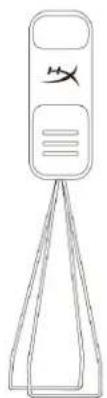

What's Included
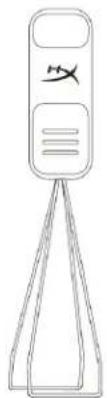
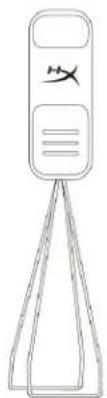
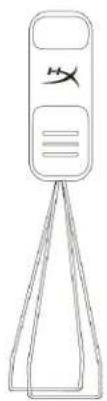
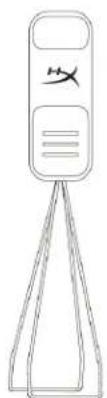
• HyperX Alloy Origins 65 Mechanical Gaming Keyboard - Braided USB-C Cable - Keycap Puller - Accessory Keycaps (ABS)
![ESC 1! 2@ 3# 4$ 5% 6^ 7& 8* 9( 0) ~ - = + ← HOME Q W E R T Y U I O P [ ] \ | DEL A S D F G H J K L : ; " ← PG UP Z X C V B N M , < . > / ? ↑ PG DN CTRL ALT ALT FN C B F G](/content/2026/04/593216/images/c5098a506177f594befe501d2c80f6481845ae1bbc449026acdfb18307f57ded.jpg)
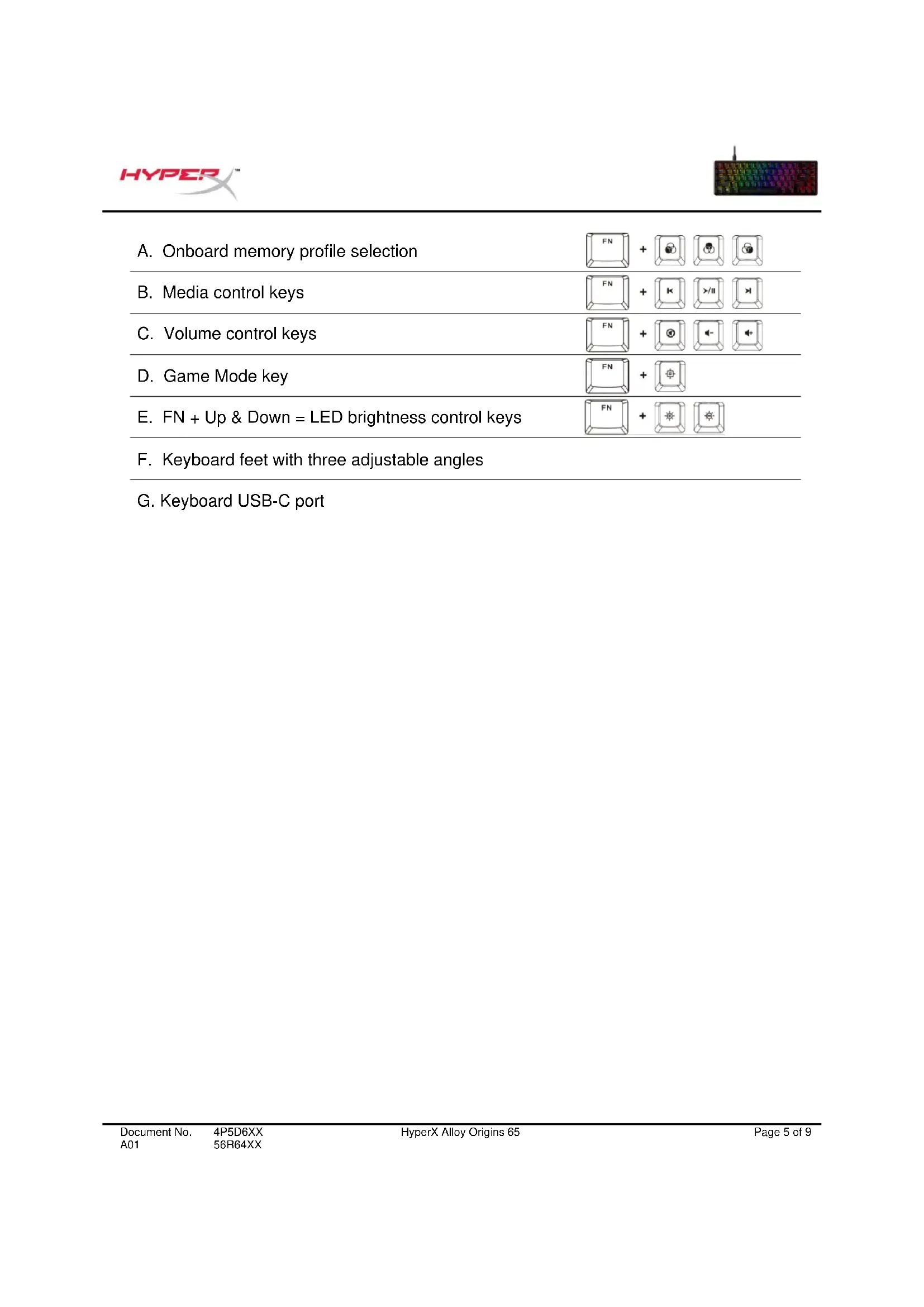
A. Onboard memory profile selection

B. Media control keys

C. Volume control keys
D. Game Mode key
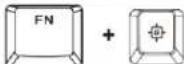
E. FN + Up & Down = LED brightness control keys
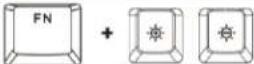
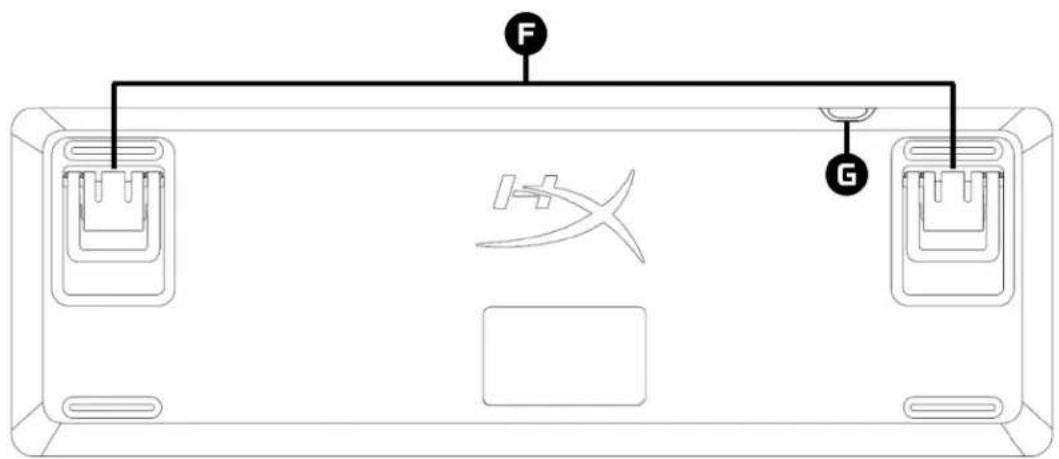
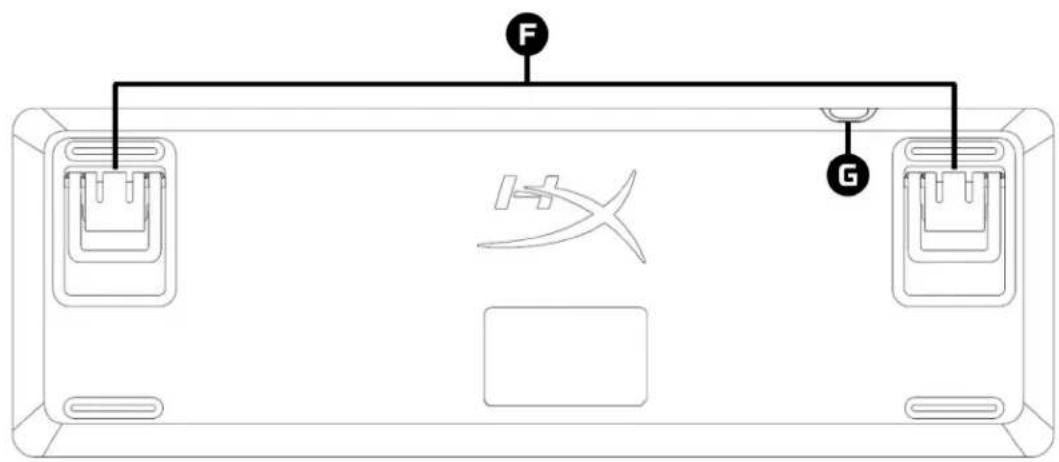
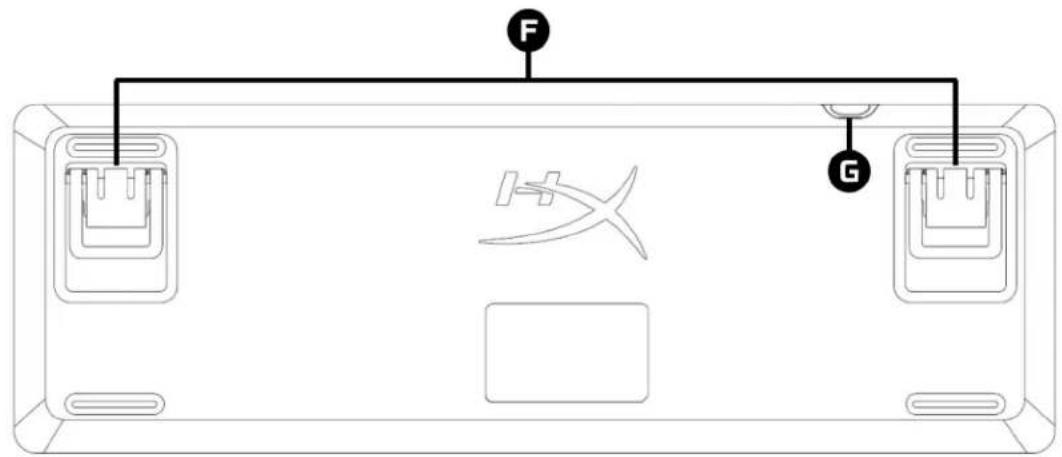
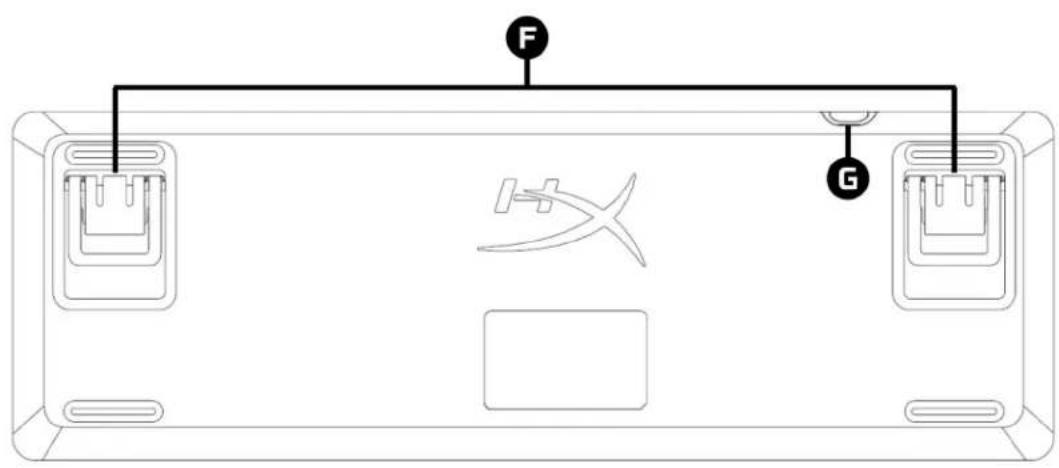
F. Keyboard feet with three adjustable angles
G. Keyboard USB-C port
Specifications
Keyboard Specifications
Switch HyperX Switch
Type Mechanical
Backlight RGB (16,777,216 colors)
Light Effects Per key RGB lighting* and 5 brightness levels
Onboard Memory 3 profiles
Anti-ghosting 100% anti-ghosting
Rollover N-key
Media Control Yes
Game Mode Yes
OS Compatibility Windows® 10, 8.1, 8, 7
Console Compatibility PS4, PS5, Xbox One, Xbox Series X|S
Switch Specifications
Switch HyperX Red, HyperX Aqua
Operation Style Linear, Tactile
Operating Force 45g
Actuation Point 1.8mm
Total Travel Distance 3.8 mm
Life Span (Keystrokes) 80 million
Keycap Specifications
Material PBT**
Physical Specifications
Width 315.06mm
Depth 105.5mm
Height 36.94mm
Weight (with cable) 827.7g
Cable Type Detachable USB-C, Braided
Cable Length 1.8m
*Per key RGB lighting customizable with HyperX NGENUITY Software
**Accessory keycaps are ABS material
Installation
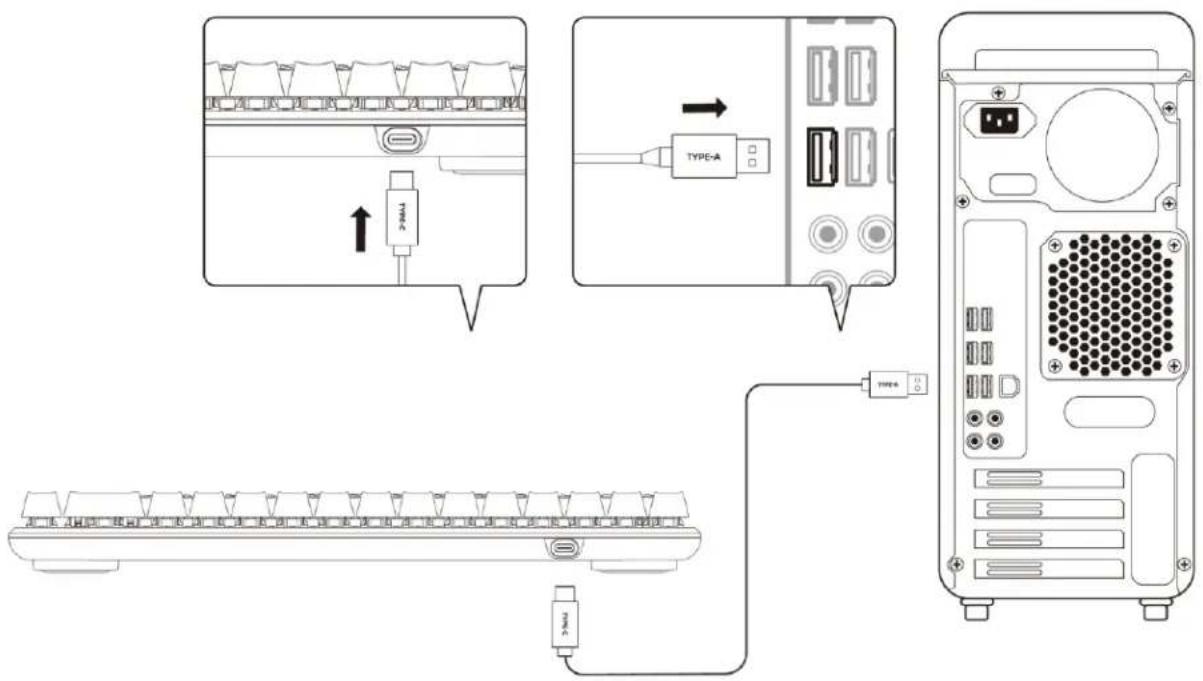
These instructions apply to both Computers and Game Consoles (PS4, PS5, Xbox One, Xbox Series X|S)
- Connect the USB-C connector to the keyboard.
- Connect the USB-A connector to the computer / game console.
Function Keys
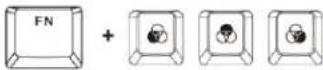
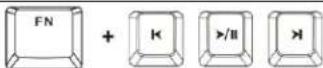
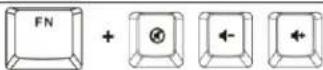
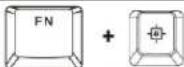
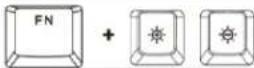
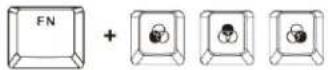
Press and a function key at the same time to activate its secondary feature as indicated on the keycap side-print.
| Function Keys Secondary Feature | |||||
 | + | 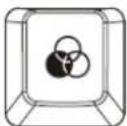 | 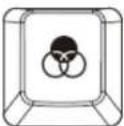 | 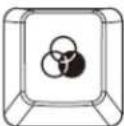 | Switch between the profiles saved on the onboard memory. |
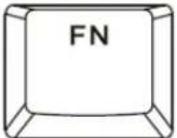 | + | 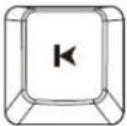 | 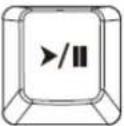 | 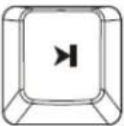 | Skip Back, Play/Pause, or Skip Forward through your media. |
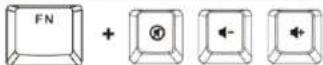
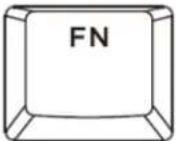 | + | 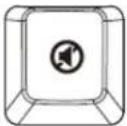 | 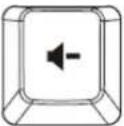 | 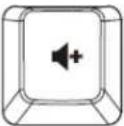 | Mute, Decrease, or Increase computer audio. |
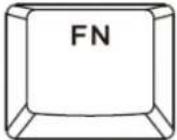 | + | 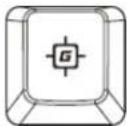 | Enable Game Mode to disable the Windows key and prevent accidental interruption during gaming. The Windows key will illuminate when Game Mode is enabled. | ||
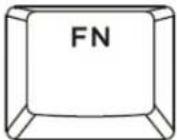 | + | 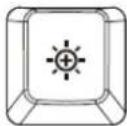 | 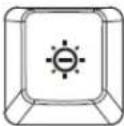 | Increase or decrease the LED backlight brightness. There are 5 levels of brightness. | |
HyperX NGENUITY Software
To customize Lighting, Game Mode, and Macro Settings, download the HyperX NGENUITY Software at: hyperxgaming.com/ngenuity.
Factory Reset
If you are experiencing any issue with the keyboard, you can perform a factory reset. Onboard memory will be cleared, and all settings will revert back to default.
Press and hold LEFT ALT + SPACE + FN for 5 seconds to perform a factory reset of the keyboard.
![ESC 1! 2@ 3# 4$ 5% 6^ 7& 8* 9( 0) - = + ← HOME ← → Q W E R T Y U I O P [ ] \ | DEL ◇ A S D F G H J K L : ; " ← PG UP ◇ Z X C V B N M , < . > / ? ▲ PG DN CTRL ALT — ALT FN ◀ ▼ ►](/content/2026/04/593216/images/48d2db24b5b3365328530345af6515a89bb1b46744d10c679bee0dd28e835dcf.jpg)
Questions or Setup Issues?
Contact the HyperX support team at: hyperxgaming.com/support/
HyperX Alloy Origins 65
![END 1! 2@ 3# 4$ 5% 6^ 7& 8* 9( 0) - = + ← HOME TAB Q W E R T Y U I O P [ ] \ | DEL CAPS A S D F G H J K L INS ENTER PG UP SHIFT Z X C V B N M , < . > / ? SHIFT PG DN CTRL ALT ALT FN HYPER](/content/2026/04/593216/images/00d9813620f6667e3704cb4e134f0025f7428e8fdacdb109b0555ece4e901f12.jpg)
56R64AA#ABA - US Aqua
INDEX
Overview 3
Specifications 6
Installation....7
Function keys 8
HyperX NGENUITY Software

Included items
100% anti-ghosting
N-key rollover
Function keys
![HOME ENTER SHIFT PG UP PG DN HYPER ALT FN ALT K L J G H F Q S D E R T Y U I O P [ ] [ ] [ ] TAB Q W E R T Y U I O P [ ] [ ] TAB Q W E R T Y U I O P [ ] [ ] CAPS A S D F G H J K L ENTER ENTER ENTER ENTER ENTER TAB Q W E R T Y U I O P [ ] [ ] CAPS A S D E T G H J K L ENTER ENTER ENTER TAB Q W E R T Y…](/content/2026/04/593216/images/42113c2db8d57e1c55c7f56f4e57514f8ae6a9884d2967cc9a24c092c2060b83.jpg)
Part numbers
4P5D6AA#ABA - USA Red
4P5D6AN#UUW - NO Red
4P5D6AX#ACB - RU Red
56R64AA#ABA - USA Aqua
CONTENTS
Overview....3
100% anti-ghosting
N-key rollover
Media control Yes
Gaming Mode
Function Keys
TABLE OF CONTENTS
Introduction.... 3
Specifications 6
Installation....7
![graph LR A["TYPE-C"] --> B["/"] B --> C["TYPE-A"] C --> D["□"] C --> E["□"]](/content/2026/04/593216/images/4e651f0b070e13ccc176f6b9373560af6b7fd5e1e63c9d625801808aef5e61e0.jpg)

Contents
Anti-ghosting 100% anti-ghosting
Function key
CONTENTS

Anti-ghosting 100% anti-ghosting
N-key rollover
Function keys
![ESC 1! 2@ 3# 4s 5% 6^ 7& 8* 9( 0) “- =+ ← HOME Q W E R T Y U I O P [ ( ]) \I DEL A S D F G H J K L :: "" ← PG UP Z X C V B N M ,< .> /? ⬆ ▲ PG DN CTRL ALT ALT FN](/content/2026/04/593216/images/02d6de3570e51dd0c4afca1eb858531dc79b62402625328d21a6df6124b9d7dd.jpg)
What's included
Anti-ghosting 100% anti-ghosting
Rollover N-key
Function keys
Part numbers
4P5D6AA#ABA - Red, English (US)
4P5D6AN#UUW - Red, Scandinavian

Package contents
Anti-ghosting Full anti-ghosting
Rollover N-key
Function keys
56R64AA#ABA - US Aqua
Contents
Overview 3
Package contents

Box Contents
Function Keys

Table of Contents
Overview 3
Specifications 6
Installation....7
Function Keys 8

![ESC 1! 2@ 3# 4$ 5% 6^ 7& 8* 9( 0) ← =+ ← HOME Q W E R T Y U I O P [ ] \ | DEL A S D F G H J K L : " ← PG UP Z X C V B N M < > /? ↑ PG ON CTRL ALT ALT FN < ▼ ► A DEL D B C F G](/content/2026/04/593216/images/1fa0671a0380d03727bcbe2fd384b75e805bc2b35a49fc35391426ff4a4f54e6.jpg)

Function Keys


Table of Contents
Overview 3
Specifications 6
Installation 7
Function Keys 8
HyperX NGENUITY Software....9
Factory Reset 9

Overview
![15C 1' 2B 3# 4S 5X 6" 7A B* 8I OI - X+ ← HOME O Q W E R T Y U I O P [1] \ DL O A S D F G H J K L = " → PULP O Z X C V B N M ,C > /? O ▲ PULM CTRL ALT — ALT FN ▼ ► TYPE-C TYPE-A](/content/2026/04/593216/images/a34895f3b72523d9cd33f5ab4c789634aa892f2522e3aa7e9affb18a417ddd36.jpg)


![ESC 12 29 3# 4s 5z 6* 7s 8* 9l DI = O W E R T Y U I O P [I] \J O A S D F G H J K L O Z X C V B N M < > /? O ▲ CTRL ALT ALT F& B C F G A D](/content/2026/04/593216/images/0efdde7e35aa980600a3e2ddefc63f68bbd99620cf046719a1c687a049bd17a4.jpg)

Function keys

What's in the box
Anti-ghosting 100% anti-ghosting
Rollover N-key
Media controls Yes
Game mode Yes
Function keys
56R64AA#ABA - US Aqua
TABLE OF CONTENTS
Overview 3
What's in the box
Anti-ghosting 100% anti-ghosting
Rollover N-key
Multimedia keys
Vehicle: Yes
Game Mode: Yes
Function Keys
56R64AA#ABA - US Aqua
Table of Contents
Overview 3
Specifications 6
Installation 7
Function Keys....8
HyperX NGENUITY Software 9
Factory Reset....9
Overview
![ESC 1! 2@ 3# 4s 5% 6^ 7& 8* 9( 0) "— =+ ← HOME ← Q W E R T Y U I O P [( ] \ | DEL ◇ A S D F G H J K L :: "" ← PG UP ◇ Z X C V B N M ,< .> /? ◊ ▲ PG ON CTRL ALT ALT FN ◀ ▼ ►](/content/2026/04/593216/images/8d9a4dd32c13078e61a5f2a2825e2b6af081d67dc7cfd29f940d8e47405cce87.jpg)
![graph LR A["TYPE-C"] --> B["/"] B --> C["TYPE-A"] C --> D["□"] C --> E["□"]](/content/2026/04/593216/images/56d14ea00581d59286a293827699d54dff7ac7c9ad489314f5f4b063f581e989.jpg)

Package Contents
A. Onboard Memory Profile Selection
B. Media Control Keys
C. Volume control keys
D. Game mode key
E. FN + Up & Down = LED brightness control keys
F. Keyboard feet with three adjustable angles
G. Keyboard USB-C port
Specifications
Keyboard specifications
Key switch HyperX key switch
Type Mechanical
Function keys
Have questions or setup issues?

Contents:
Function keys
56R64AA#ABA - US Aqua
Contents
Included items
Documentation keys
hyperxgaming.com/ngenuity.
- HYPERX ALLOY ORIGINS 65 MECHANICAL GAMING KEYBOARD
- HYPERX ALLOY ORIGINS 65 MECHANICAL GAMING KEYBOARD USER MANUAL
- CONTENTS
- OVERVIEW
- WHAT'S INCLUDED
- SPECIFICATIONS
- KEYBOARD SPECIFICATIONS
- SWITCH SPECIFICATIONS
- KEYCAP SPECIFICATIONS
- PHYSICAL SPECIFICATIONS
- INSTALLATION
- FUNCTION KEYS
- HYPERX NGENUITY SOFTWARE
- FACTORY RESET
- QUESTIONS OR SETUP ISSUES
- HYPERX ALLOY ORIGINS
- INDEX
- INCLUDED ITEMS
- PART NUMBERS
- TABLE OF CONTENTS
- FUNCTION KEY
- PACKAGE CONTENTS
- BOX CONTENTS
- WHAT'S IN THE BOX
- HAVE QUESTIONS OR SETUP ISSUES
Brand : HYPERX
Model : Alloy Origins 65
Category : Keyboard