
Alloy MKW100 - Keyboard HYPERX - Free user manual and instructions
Find the device manual for free Alloy MKW100 HYPERX in PDF.
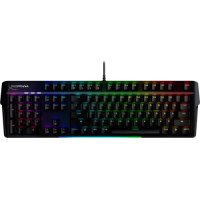



| Product Type | Mechanical Keyboard |
| Brand | HyperX |
| Model | Alloy MKW100 |
| Dimensions (L × W × H) | 471.74 mm × 194.62 mm × 34.66 mm |
| Weight (with cable) | 995 g |
| Switch Type | TTC Red, Linear |
| Actuation Force | 45 g |
| Actuation Point | 2.0 mm |
| Total Key Travel | 4.0 mm |
| Switch Lifespan | 50 million keystrokes |
| Keycap Material | PC + ABS |
| Backlighting | Per-key RGB, 16.7 million colors |
| Built-in Lighting Effects | Wave, Stacking, Static, Breathing, Color Cycle, Painting |
| Onboard Memory | 1 profile |
| Polling Rate | 1000 Hz |
| Rollover | N-key rollover |
| Connectivity | Wired USB-A, 1.8m braided cable |
| Power | Via USB port |
| Multimedia Functions | Yes (play/pause control, volume) |
| Game Mode | Yes (disables Windows key) |
| Customization Software | HyperX NGENUITY (free) |
| OS Compatibility | Windows 10, 8.1, 8, 7 |
| Console Compatibility | PS4, PS5, Xbox One, Xbox Series X|S |
| Box Contents | Keyboard, fixed braided USB-A cable, detachable wrist rest |
| Factory Reset | Hold FN + ESC for 5 seconds |
| Maintenance and Cleaning | Clean with a soft dry cloth; avoid liquids |
Frequently Asked Questions - Alloy MKW100 HYPERX
User questions about Alloy MKW100 HYPERX
0 question about this device. Answer the ones you know or ask your own.
Ask a new question about this device
Download the instructions for your Keyboard in PDF format for free! Find your manual Alloy MKW100 - HYPERX and take your electronic device back in hand. On this page are published all the documents necessary for the use of your device. Alloy MKW100 by HYPERX.
USER MANUAL Alloy MKW100 HYPERX
Find the language and latest documentation for your HyperX Alloy MKW100 here.
HyperX Alloy MKW100 User Manual
For instructions in English
Simplified Chinese .... 简体中文说明书
Traditional Chinese....繁體中文說明
Part Numbers
4P5E1AA#ABA - English (US)
4P5E1AX#ACB - Russian
TABLE OF CONTENTS
Overview.... 3
Specifications 5
Installation....6
Function Keys....7
HyperX NGENUITY Software 8
Factory Reset....9
Overview
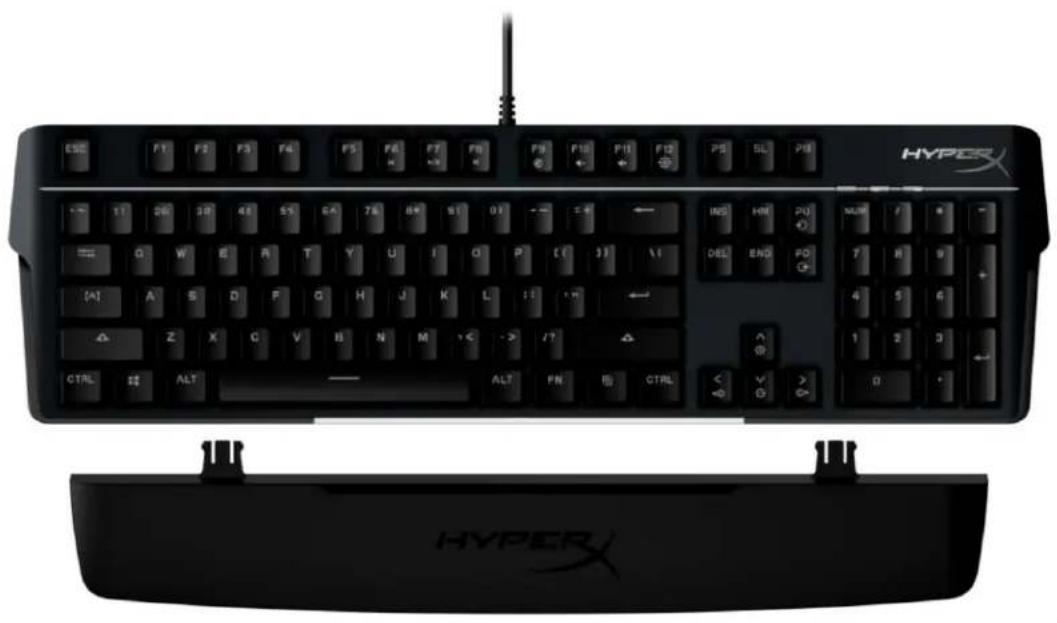
What's Included
• HyperX Alloy MKW100 Keyboard • Non-Detachable Braided USB-A cable • Detachable Wrist Rest
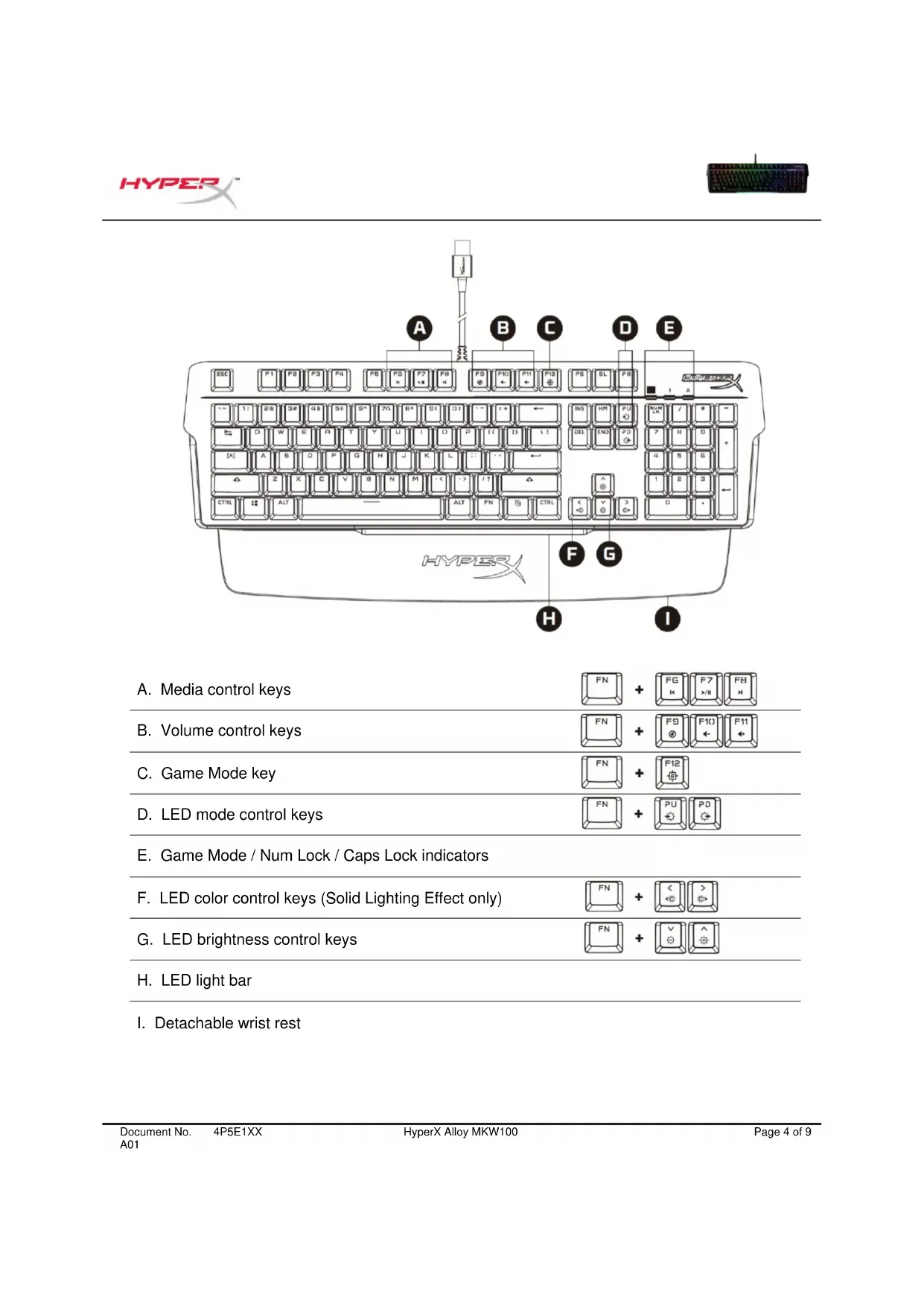
![ESC F1 F2 F3 F4 F5 PG P7 F8 F9 F10 F11 F12 PS SL PB I A A B C D E INS HM PU HUM / * D W E R T Y U I O P I ( J ) \ : DEL END PD [A] A B D F G H J K L : : : : : : Z X C V B N M - < - > / ? CTRL ALT ALT FN CTRL F G H I HYPER I< + - + - + - 0 -](/content/2026/03/567971/images/ef38db97508abd7f1d156b898b5ce2888a3f2dde55f4ab85b668c39af23e2dd2.jpg)
A. Media control keys
B. Volume control keys
C. Game Mode key
D. LED mode control keys
E. Game Mode / Num Lock / Caps Lock indicators
F. LED color control keys (Solid Lighting Effect only)
G. LED brightness control keys
H. LED light bar
I. Detachable wrist rest
Specifications
Keyboard Specifications
Switch TTC
Type Mechanical
Backlight RGB (16,777,216 colors)
Light Effects Per-key RGB lighting * and 5 brightness levels
Onboard Memory 1 profile
Polling Rate 1000Hz
Anti-ghosting 100% anti-ghosting
Rollover N-key
Media Control Yes
Game Mode Yes
OS compatibility Windows® 10, 8.1, 8, 7
Console compatibility PS4, PS5, Xbox One, Xbox Series X|S
Switch Specifications
Switch TTC Red
Operation Style Linear
Operating Force 45g
Actuation Point 2.0 mm
Total Travel Distance 4.0 mm
Life Span (Keystrokes) 50 million
Keycap Specifications
Material PC + ABS
Physical Specifications
Width 471.74mm
Depth 194.62mm
Height 34.66mm
Weight (with cable) 995g
Cable Type Attached, Braided USB-A
Cable Length 1.8m
* Per-key RGB lighting customizable with HyperX NGENUITY software
Installation
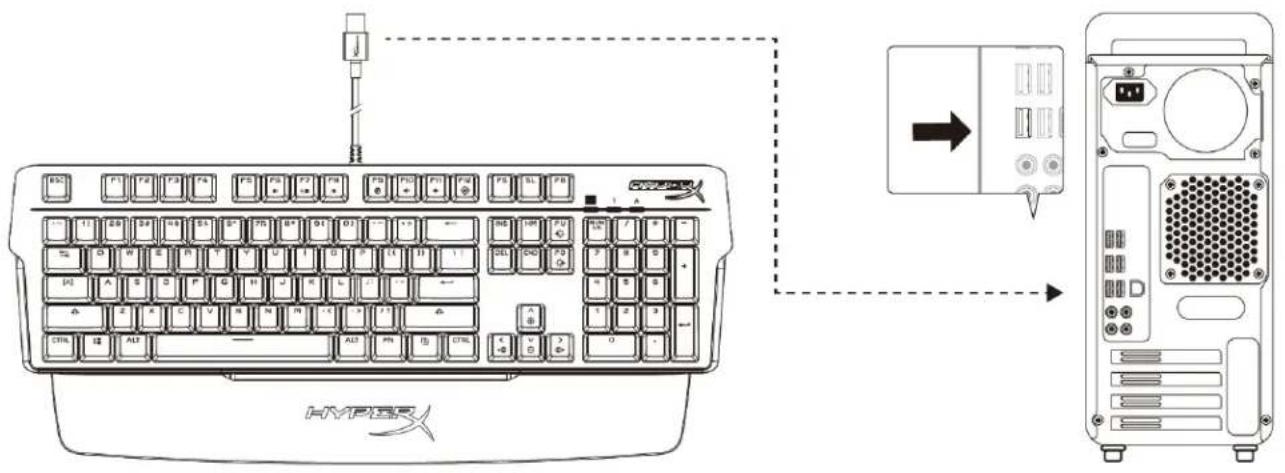
Connect the USB-A connector to the computer or game console
Function Keys
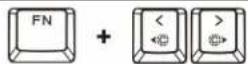
Press and a function key at the same time to activate its secondary feature as indicated on the keycap side-print.
| Function Keys | Secondary Feature | ||||
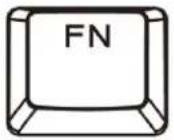 | + | 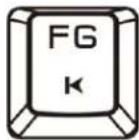 | 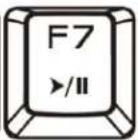 | 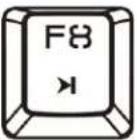 | Skip back, Play/Pause, or Skip forward through your media. |
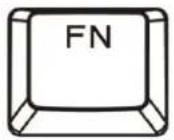 | + | 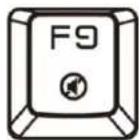 | 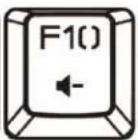 | 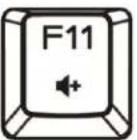 | Mute, Decrease, or Increase computer audio. |
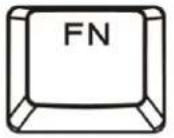 | + | 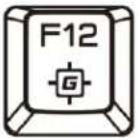 | Enable Game Mode to disable the Windows key and prevent accidental interruption during gaming. The Game Mode indicator will illuminate when Game Mode is enabled. | ||
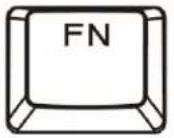 | + | 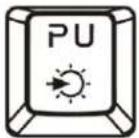 |  | Cycle between the 6 built-in Lighting EffectsRGB Wave <-> Stacking <-> Solid <-> Breathing <-> Color Cycle <-> Paint | |
 | + |  |  | Increase or decrease the LED backlight brightness. There are 5 levels of brightness. | |
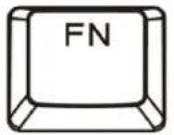 | + | 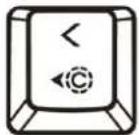 | 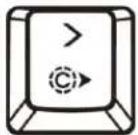 | Cycle between the 5 built-in LED colors. Only applies for Solid Lighting EffectRed <-> Purple <-> Green <-> Yellow <-> Blue | |
HyperX NGENUITY Software
To customize Lighting, Game Mode and Macro Settings, download the HyperX NGENUITY Software at: hyperxgaming.com/ngenuity.
There are 6 Lighting Effects that are customizable within NGENUITY RGB Wave, Stacking, Solid, Breathing, Color Cycle, Paint
All customization changes made within NGENUITY are automatically saved onto the keyboard's onboard memory. Settings are retained when moving the keyboard from one system to another. However, if another system has NGENUITY running with the keyboard attached, NGENUITY will overwrite the settings stored on the keyboard's onboard memory.
When NGENUITY is running, NGENUITY will take priority for keyboard customization control and function keys for Lighting Effects will not function.
When NGENUITY is not running, the keyboard's onboard memory will be used and function keys for Lighting Effects will function.
Factory Reset
If you are experiencing any issues with the keyboard, you can perform a factory reset. Onboard memory will be cleared, and all settings will revert to factory default settings.
Press and hold FN + ESC for 5 seconds to perform a factory reset of the keyboard. The Game Mode / Num Lock / Caps Lock indicators will flash rapidly and return to normal once reset is complete.
![ESC F1 F2 F3 F4 F5 F6 F7 F8 F9 F10 F11 F12 PS SL PS HYPX INSE HM PU NLRD / + G W E R T Y U I O P [ ( ) ] \ I DEL EN2 PD [^] A S D F G H J K L : : " " Z X C V B N M < > / ? CTRL ALT ALT FN CTRL < > D](/content/2026/03/567971/images/2a502b913ec8b779335d437281c9b9a9655b9a78002410de2075ae0d74c4d2a5.jpg)
Questions or Setup Issues?
Contact the HyperX support team at: hyperxgaming.com/support/
HyperX Alloy MKW100

Anti-ghosting 100% anti-ghosting
Interactive image N-key
Anti-ghosting 100% anti-ghosting
Rollover N-key
Media control Yes
Gaming mode Yes
I. Removable wrist rest
Specifications
Anti-ghosting 100% anti-ghosting
There are 6 lighting effects that are customizable within NGENUITY: Wave, Stack, Fixed, Breathing, Color Cycle, RGB Paint
Anti-ghosting 100% anti-ghosting
Rollover N-key
What's included
Anti-ghosting 100% anti-ghosting
Rollover N-key
Anti-ghosting Full anti-ghosting
Rollover N-key
Part Numbers
Product Number
HYPER
Table of Contents
Overview 3
Specifications 5
Installation 6
Function Keys....7
4P5E1AA#ABA – English (US)
4P5E1AX#ACB - Russian
Table of Contents
Overview 3
Anti-ghosting 100% anti-ghosting
Rollover N-key
Media control
Game mode
Anti-ghosting 100% anti-ghosting
Rollover N-key
Caps Lock / Num Lock / .E
.hyperxgaming.com/ngenuity
- HYPERX ALLOY MKW100 USER MANUAL
- PART NUMBERS
- TABLE OF CONTENTS
- OVERVIEW
- WHAT'S INCLUDED
- SPECIFICATIONS
- KEYBOARD SPECIFICATIONS
- SWITCH SPECIFICATIONS
- KEYCAP SPECIFICATIONS
- PHYSICAL SPECIFICATIONS
- INSTALLATION
- FUNCTION KEYS
- HYPERX NGENUITY SOFTWARE
- FACTORY RESET
- QUESTIONS OR SETUP ISSUES
- HYPERX ALLOY MKW
- PRODUCT NUMBER
Brand : HYPERX
Model : Alloy MKW100
Category : Keyboard