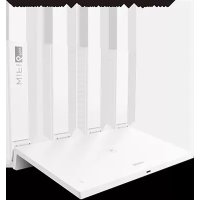
WiFi AX3 Quadcore - Smart Home HUAWEI - Free user manual and instructions
Find the device manual for free WiFi AX3 Quadcore HUAWEI in PDF.


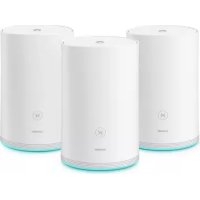
| Product type | Mesh Wi-Fi router |
| Brand | Huawei |
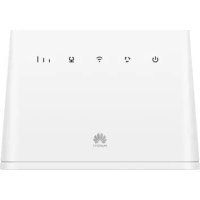
| Model | WiFi AX3 Quadcore (WS7100 V2) |
| Category | Smart home |
| Wi-Fi technology | Wi-Fi 6 (802.11ax) quad-core |
| Frequency bands | 2.4 GHz and 5 GHz |
| Maximum theoretical speed | Up to 3000 Mbps (574 + 2402) |
| Network ports | 1 auto-adaptive WAN/LAN port, 3 LAN ports (all Gigabit) |
| H button (WPS/HarmonyOS Connect) | Yes, for quick connection and pairing |
| Reset button | Yes, press for more than 2 seconds |
| LED indicator | Green (connected), red (not connected), blinking (pairing) |
| Power supply | Power adapter 12 V, 2 A (included) |
| Dimensions (approx.) | 225 x 150 x 45 mm |
| Weight (approx.) | 400 g |
| Number of antennas | 4 adjustable external antennas |
| Advanced features | MU-MIMO, OFDMA, 5 GHz priority, HarmonyOS mesh, HUAWEI AI Life app |
| Security | WPA3, WPS, built-in firewall, AES encryption |
| Maintenance and cleaning | Clean with a soft dry cloth. Do not use chemical products. |
| Spare parts and repairability | Power adapter and Ethernet cable included. No spare parts provided. Factory reset possible. |
| Operating temperature | 0 °C to 40 °C |
| Storage temperature | -40 °C to 70 °C |
| General information | Brand: Huawei, model: WiFi AX3 Quadcore, category: Smart home. Warranty and support on Huawei website. |
Frequently Asked Questions - WiFi AX3 Quadcore HUAWEI
Wired connection: connect the WAN port of the additional router to the LAN port of the Huawei WiFi AX3 with an Ethernet cable.
Wireless connection: place the additional router within one meter, turn it on, press the H button on the main router when its LED blinks, and wait for the connection.
User questions about WiFi AX3 Quadcore HUAWEI
0 question about this device. Answer the ones you know or ask your own.
Ask a new question about this device
Download the instructions for your Smart Home in PDF format for free! Find your manual WiFi AX3 Quadcore - HUAWEI and take your electronic device back in hand. On this page are published all the documents necessary for the use of your device. WiFi AX3 Quadcore by HUAWEI.
USER MANUAL WiFi AX3 Quadcore HUAWEI
KpaTkoe pyKOBOCTBO NOb3OBaTeJIa
YnataCTBO 3a 6p3 noyeTOK
PbkoBOIDCTBO3a6bp3cTapT
KpaTkoe pyKOBoDCTBO noIb3OBATeN 267
YnataCTBO 3a 6p3 noyeToK 284
PbkoBoCTBO3a6bp3 cTapT 297
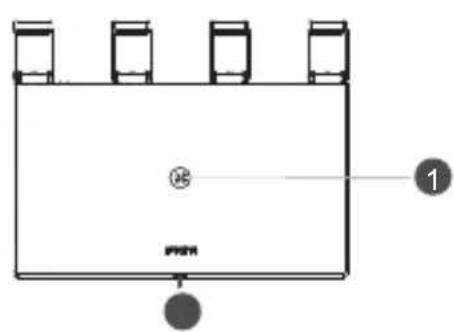
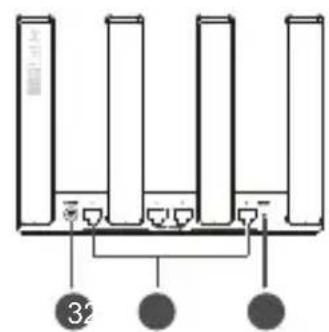
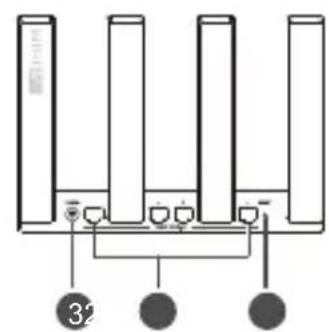
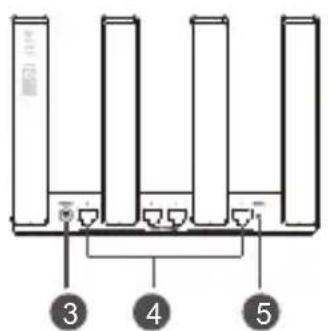
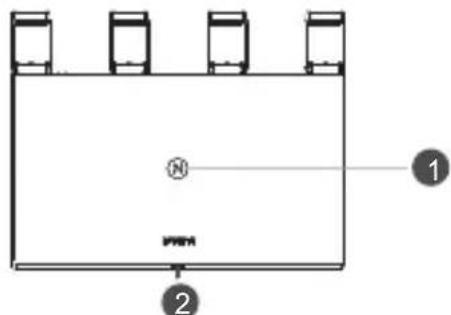
WAN/LAN auto-adaptation port: Connects to the Internet (such as optical modem, broadband modems, etc.) and wired network device such as a computer.
5
RESET button
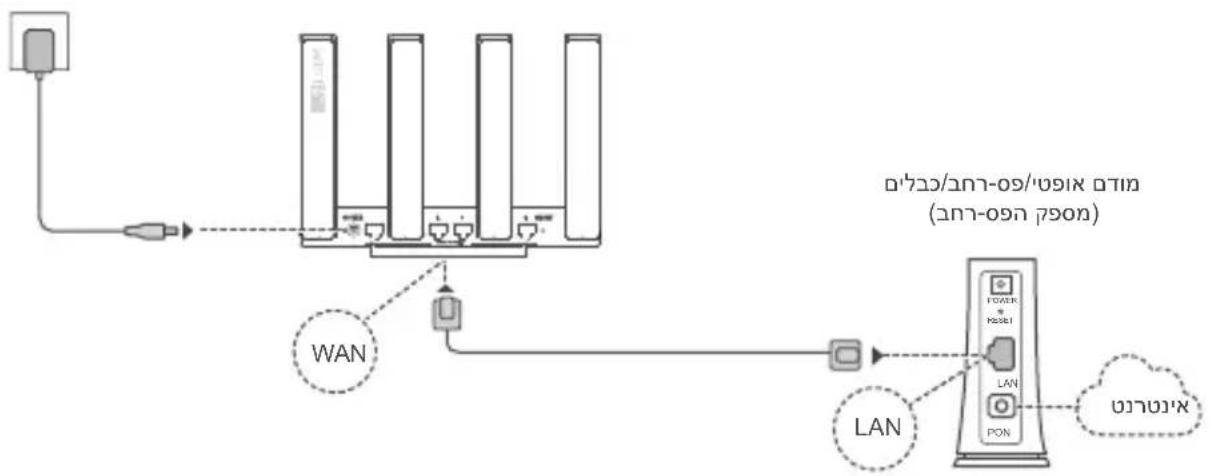
Step 1: Connecting the cables
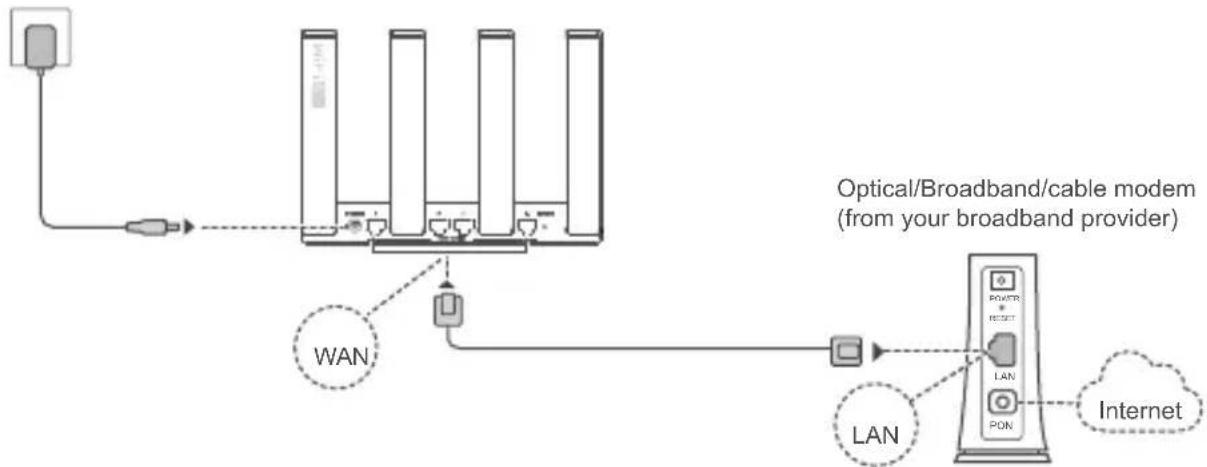
Erect the all antennas upright to ensure optimized Wi-Fi signal.
- If the indicator stays red, this indicates that the router is not connected to the Internet. Please refer to "Step 2: Configuring the network settings".
- For routers that support WAN/LAN auto-adaptation, the network ports are WAN/LAN combo ports. You can also specify a fixed WAN port on the router's web-based management page.
Step 2: Configuring the network settings

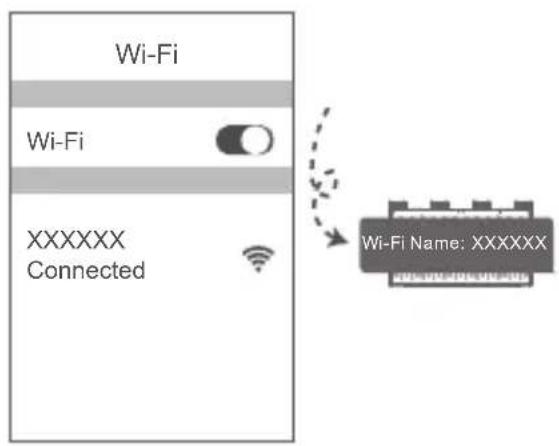
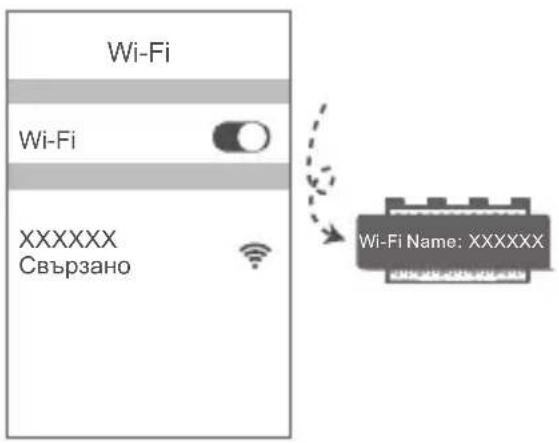
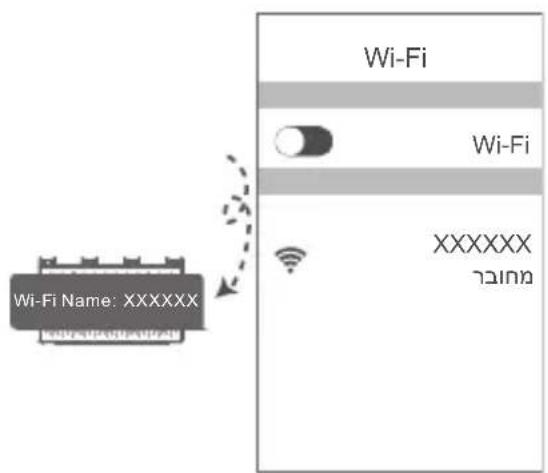
Connect your mobile phone or computer to the router's Wi-Fi network (no password required).
Check for the Wi-Fi name on the bottom of the new router.

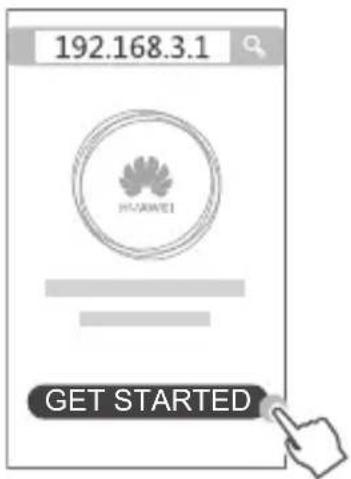
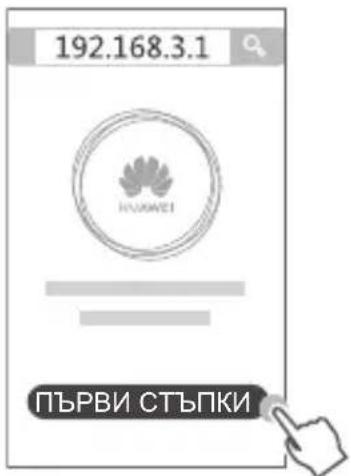
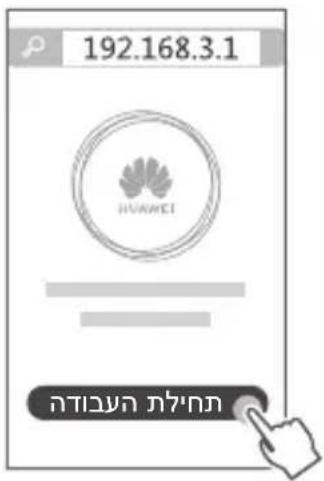
Open the browser, you will be automatically redirected.
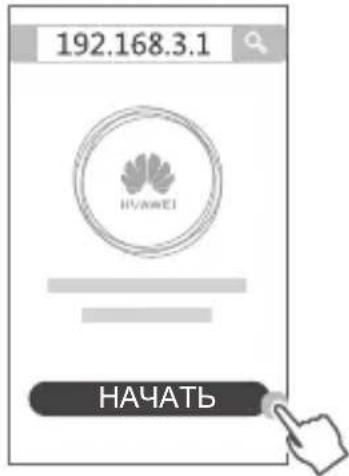
(If the page is not displayed automatically, enter 192.168.3.1). Touch GET STARTED and chose Create a Wi-Fi network.

Enter your broadband account and password.
If your Internet connection does not require an account and password, please skip to the next step.
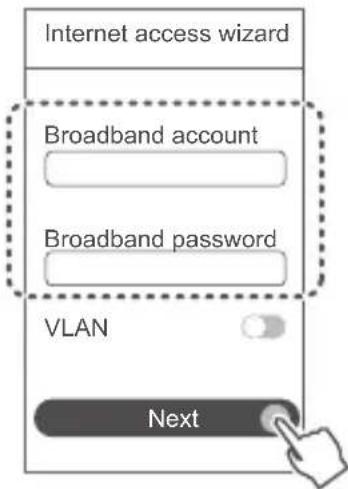

- If you have forgotten your broadband account and password, contact your broadband carrier to obtain a broadband account and password.
- If you need to configure VLAN on your network, contact your broadband carrier to confirm the VLAN parameters, and enable the VLAN switch on the screen.

Set a new Wi-Fi name, Wi-Fi password, and admin password for the new router.
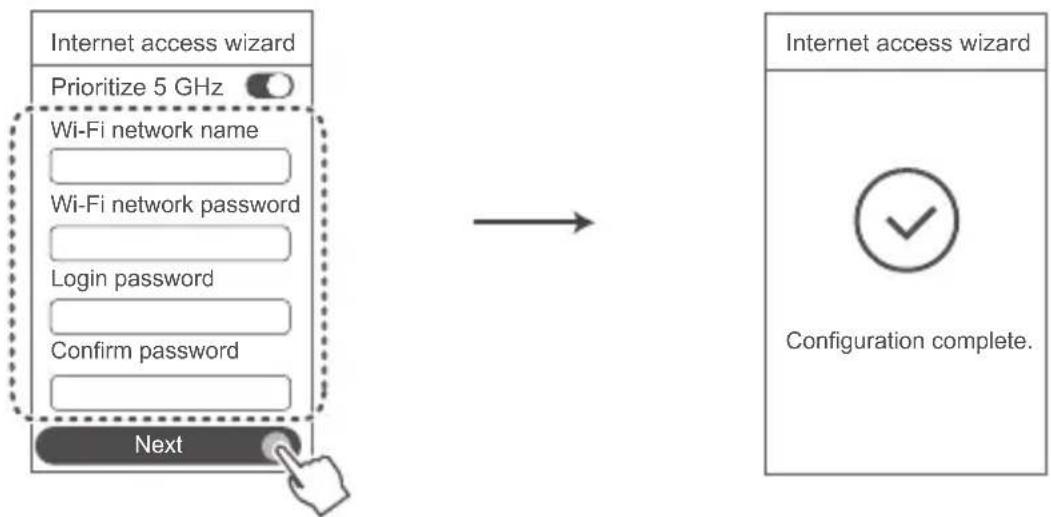
Enable Prioritize 5 GHz: Priority usage of 5 GHz Wi-Fi band over 2.4 GHz band when signal strength is equal to increase connection speeds.
Manage the router with our mobile app
Scan the QR code to download and install the HUAWEI AI Life App on your mobile phone or tablet. You can use the app to manage your router.

Indicator
| Steady green | Connected to the network |
| Steady red | Not connected to the network • Loose cable or connect error. Check the cable. • Broadband network error. Contact your broadband carrier. |
| Flashing | The router has detected a pairable device. When other HUAWEI devices (support HarmonyOS Connect), the indicator on the HUAWEI WiFi AX3 will flash. When this happens, press the HUAWEI WiFi AX3's H button. The indicator should flash quickly, indicating that the pairable device is connecting to the HUAWEI WiFi AX3. The connection process is complete when the indicator stops flashing. If you touched the H button by accident, wait for 2 minutes till the indicator returns to normal. The H button also features WPS functionality. |
Frequently Asked Questions (FAQ)
Q1: What can I do if I encounter any of the following issues when configuring the router?
- If your device did not detect the router's Wi-Fi: Ensure that the router is powered on. Wait for a moment (till the router is started) and try to search again on your device.
- If you cannot visit the router's configuration page on your device: Ensure that your device is connected to the router's Wi-Fi network, and then enter 192.168.3.1 in the browser to visit this page on your device.
- If the page displays "Cable disconnected": Ensure that the router's WAN port is connected to the modem's LAN port, and the modem has Internet access. Check that all joints are securely connected and in good contact, and the network cables are in good condition.
If the issue persists, restore the router to the factory settings, and follow the guide to reconnect the cables and configure the router.
Q2: How do I restore the router to its factory settings?
Connect the router to the power supply and wait until the router completes the startup process. Use a needle or pin to press the RESET button on the router for more than two seconds until the indicator light goes out. Wait for the router to complete the restart process. When the indicator turns red, this indicates that the router has been restored to its factory settings.
If the router has been factory reset, you need to configure it again.
Q3: How do I connect an add-on HUAWEI router to my HUAWEI WiFi AX3's network?
You can connect the router in either of the following ways:
- Wired connection. Connect the WAN port of the add-on router (new or restored to factory settings) to the LAN port of the configured HUAWEI WiFi AX3 using an Ethernet cable.
- Wireless connection. Step 1: Place the add-on router (new or restored to factory settings) within one meter of the configured HUAWEI WiFi AX3 and connect it to the power supply. Step 2: When the indicator on the HUAWEI WiFi AX3 starts to flash, press the H button on it. Wait until the indicator on the add-on router shows it is connected to the network.
"Huawei router" refers to routers that support HarmonyOS Mesh+. Please check if your device supports such feature.
Q4: How do I connect a Wi-Fi device to my router using WPS?
When your router is powered on, press its H button, and then press the WPS button on the Wi-Fi device (such as a phone) within two minutes, to initiate standard WPS negotiation and connect the Wi-Fi device to the router's Wi-Fi network.
Q5: What should I do if I forget my login password for the app or the router's web-based management page?
Try using the router's Wi-Fi password to login. If the issue persists, restore the router to the factory settings.
Q6: How do I connect my router to the HUAWEI CPE to expand the Wi-Fi network?
You can connect your router in either of the following ways:
Wired connection
Place your router in a room with weak or no signal strength, then connect the WAN port of your router to the LAN port of the HUAWEI CPE using an Ethernet cable.
- Wireless connection (using the H button)
Step 1: Place the router within one meter of the HUAWEI CPE and connect the power supply.
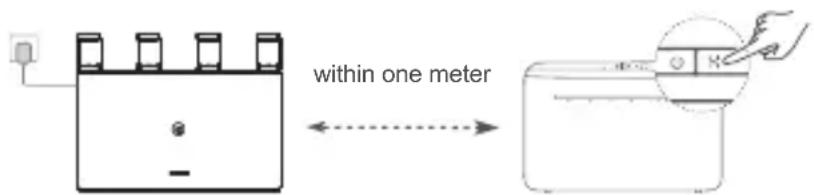
Step 2: When the indicator on the HUAWEI CPE starts to flash, press the H button on it. Wait until the indicator on the router shows that the router is connected to the network.
Step 3: Place the router in a room with weak signal strength and connect the power supply.
The figure is for reference only.
- Ensure that the HUAWEI CPE is connected to the Internet, and the router is new or restored to factory settings.
- Ensure that the HUAWEI CPE supports the HUAWEI HiLink function and CoAP protocol. Please consult the distributor for details.
- Ensure that the distance between your router and the HUAWEI CPE is less than 10 meters and there are no more than two walls in between.
Safety information
Operation and safety
- Do not use your device if using the device is prohibited. Do not use the device if doing so causes danger or interference with other electronic devices.
- Pacemaker manufacturers recommend that a minimum distance of 15cm be maintained between a device and a pacemaker to prevent potential interference with the pacemaker. If using a pacemaker, hold the device on the side opposite the pacemaker and do not carry the device in your front pocket.
- Avoid dusty, damp, or dirty environments. Avoid magnetic fields. Using the device in these environments may result in circuit malfunctions.
- Ideal operating temperatures are 0^ to 40^ . Ideal storage temperatures are -40^ to +70^ . Extreme heat or cold may damage your device or accessories.
- Keep the device and accessories in a well-ventilated and cool area away from direct sunlight. Do not enclose or cover your device with towels or other objects. Do not place the device in a container with poor heat dissipation, such as a box or bag.
- The device should be installed and operated with a minimum distance of 20~cm between the radiator and your body.
- Using an unapproved or incompatible power adapter, charger, or battery may damage your device, shorten its lifespan, or cause a fire, explosion, or other hazards.
- For pluggable devices, the socket-outlet shall be installed near the devices and shall be easily accessible.
- Unplug the power adapter from electrical outlets and the device when not in use.
- Do not touch the device or the power adapter with wet hands. Doing so may lead to short circuits, malfunctions, or electric shocks.
Disposal and recycling information

The symbol on the product, battery, literature, or packaging means that the products and batteries should be taken to separate waste collection points designated by local authorities at the end of the lifespan. This will ensure that EEE waste is recycled and treated in a manner that conserves valuable materials and protects human health and the environment.
For more information, please contact your local authorities, retailer, or household waste disposal service or visit the website https://consumer.huawei.com/en/.
Reduction of hazardous substances
This device and its electrical accessories comply with local applicable rules on the restriction of the use of certain hazardous substances in electrical and electronic equipment, such as EU REACH regulation, RoHS and Batteries (where included) directive. For declarations of conformity about REACH and RoHS, please visit the website https://consumer.huawei.com/certification.
EU regulatory conformance
Hereby, Huawei Device Co., Ltd. declares that this device WS7100 V2 is in compliance with the following Directive: RED 2014/53/EU, RoHS 2011/65/EU, ErP 2009/125/EC.
The full text of the EU declaration of conformity, the detailed ErP information and most recent information about accessories & software are available at the following internet address: https://consumer.huawei.com/certification.
Restrictions in the 5 GHz band:
The 5150 to 5350MHz frequency range is restricted to indoor use in: AT, BE, BG, CH, CY, CZ, DE, DK, EE, EL, ES, FI, FR, HR, HU, IE, IS, IT, LI, LT, LU, LV, MT, NL, NO, PL, PT, RO, SE, SI, SK, TR, UK(NI). In accordance with the relevant statutory requirements in the UK, the 5150 to 5350MHz frequency range is restricted to indoor use in the United Kingdom.
Frequency Bands and Power
The frequency bands and transmitting power (radiated and/or conducted) nominal limits applicable to this
radio equipment are as follows: Wi-Fi 2.4GHz: 20 dBm, Wi-Fi 5GHz: 5150-5350 MHz: 23 dBm, 5470-5725 MHz: 30 dBm.
Legal Notice
Copyright © Huawei 2022. All rights reserved.
THIS DOCUMENT IS FOR INFORMATION PURPOSE ONLY, AND DOES NOT CONSTITUTE ANY KIND OF WARRANTY.
Trademarks and Permissions
Wi-Fi®, the Wi-Fi CERTIFIED logo, and the Wi-Fi logo are trademarks of Wi-Fi Alliance.
Other trademarks, product, service and company names mentioned may be the property of their respective owners.
Version Update
In order to improve the security of the product and provide you with a better user experience, we will push version update information to you on a regular basis when an important update is released.
Privacy Policy
To better understand how we use and protect your personal information, please see the privacy policy at https://consumer.huawei.com/privacy-policy.
End User License Agreement
Please read and agree to the End User License Agreement (HUAWEI EULA) on the product's management page before using the product.
For More Help
Please visit https://consumer.huawei.com/en/support/hotline for recently updated hotline and email address in your country or region.
Quick Start Guide
Getting Started
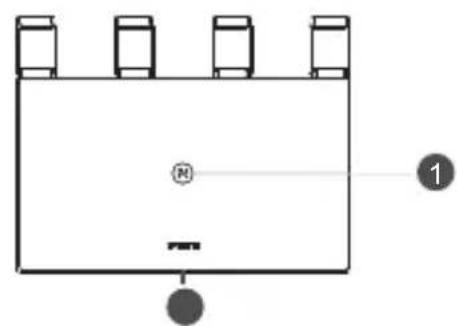
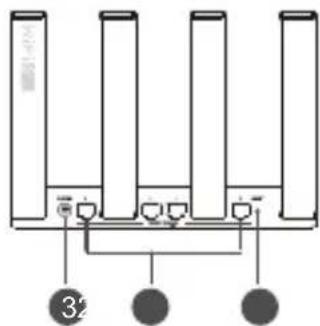
1
23
Power portH button Indicator
4
WAN/LAN auto-adaptation port: Connects to the Internet (such as optical modem, broadband modems, etc.) and wired network device such as a computer.
5
RESET button
Step 1: Connecting the cables
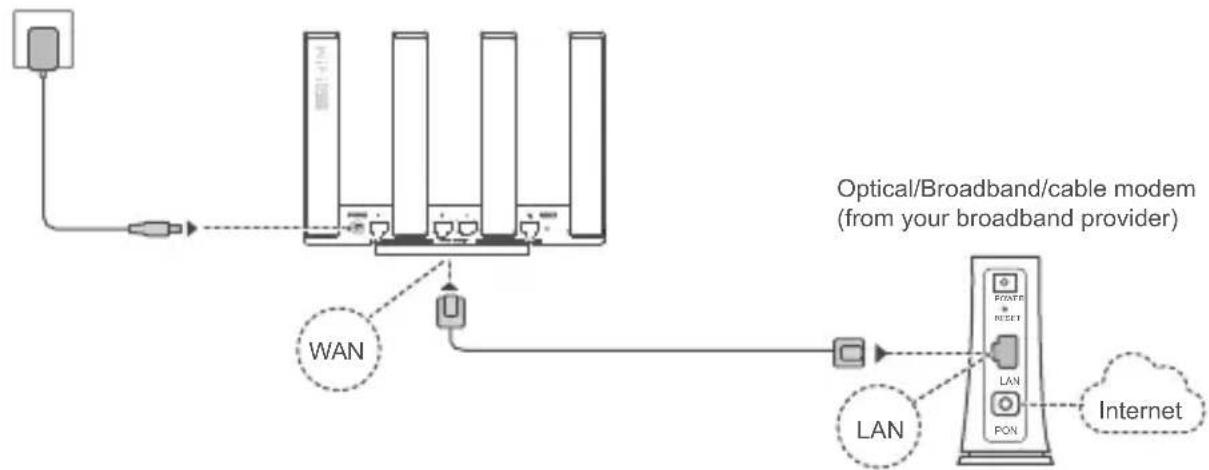
Erect the all antennae upright to ensure optimised Wi-Fi signal.
- If the indicator stays red, this indicates that the router is not connected to the Internet. Please refer to "Step 2: Configuring the network settings".
- For routers that support WAN/LAN auto-adaptation, the network ports are WAN/LAN combo ports. You can also specify a fixed WAN port on the router's web-based management page.
Step 2: Configuring the network settings

Connect your mobile phone or computer to the router's Wi-Fi network (no password required).
Check for the Wi-Fi name on the bottom of the new router.
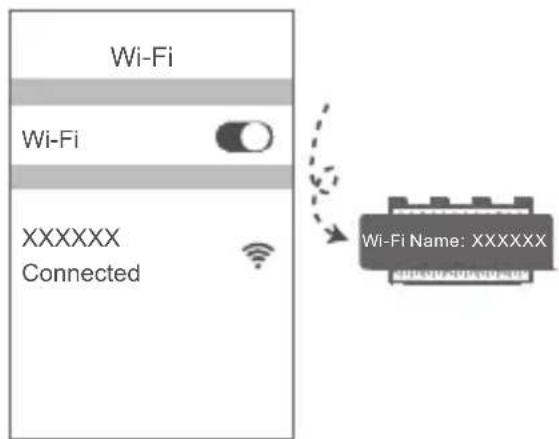

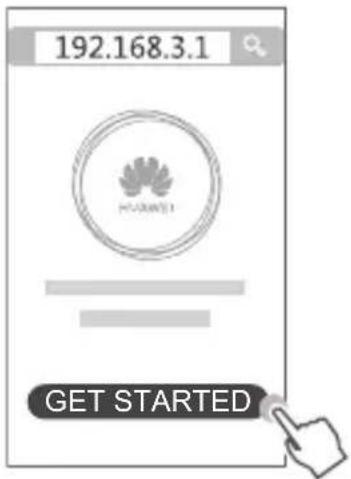
Open the browser, you will be automatically redirected.
(If the page is not displayed automatically, enter 192.168.3.1). Touch GET STARTED and chose Create a Wi-Fi network.

Enter your broadband account and password.
If your Internet connection does not require an account and password, please skip to the next step.
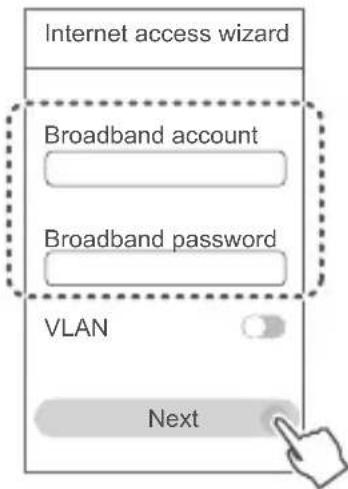

- If you have forgotten your broadband account and password, contact your broadband network provider to obtain a broadband account and password.
- If you need to configure VLAN on your network, contact your broadband network provider to confirm the VLAN parameters, and enable the VLAN switch on the screen.

Set a new Wi-Fi name, Wi-Fi password, and admin password for the new router.
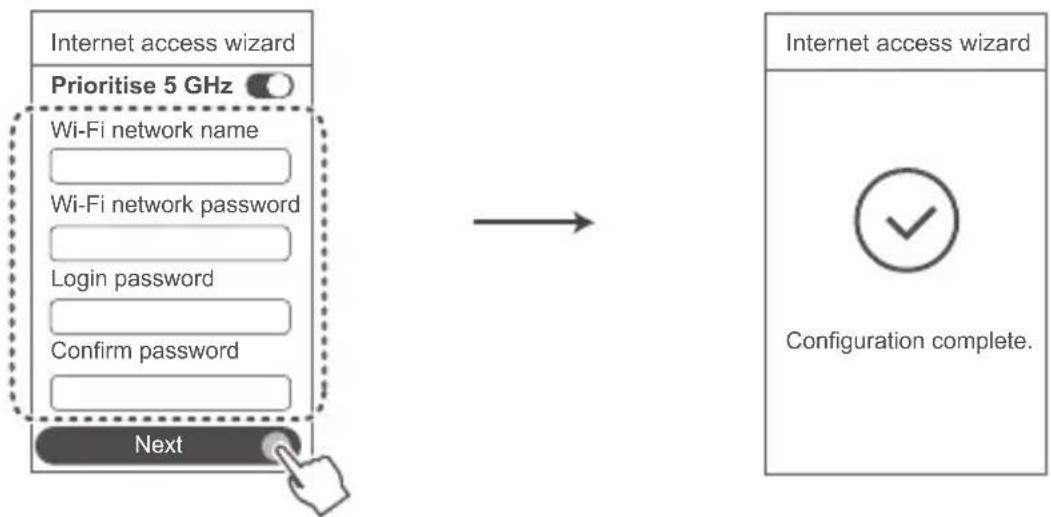
Enable Prioritise 5 GHz: Priority usage of 5 GHz Wi-Fi band over 2.4 GHz band when signal strength is equal to increase connection speeds.
Manage the router with our mobile app
Scan the QR code to download and install the HUAWEI AI Life App on your mobile phone or tablet. You can use the app to manage your router.
Indicator

| Steady green | Connected to the network |
| Steady red | Not connected to the network • Loose cable or connect error. Check the cable. • Broadband network error. Contact your broadband network provider. |
| Flashing | The router has detected a pairable device. When other HUAWEI devices (support HarmonyOS Connect), the indicator on the HUAWEI WiFi AX3 will flash. When this happens, press the HUAWEI WiFi AX3's H button. The indicator should flash quickly, indicating that the pairable device is connecting to the HUAWEI WiFi AX3. The connection process is complete when the indicator stops flashing. If you touched the H button by accident, wait for 2 minutes till the indicator returns to normal. • The H button also features WPS functionality. |
Frequently Asked Questions (FAQ)
Q1: What can I do if I encounter any of the following issues when configuring the router?
- If your device did not detect the router's Wi-Fi: Ensure that the router is powered on. Wait for a moment (till the router is started) and try to search again on your device.
- If you cannot visit the router's configuration page on your device: Ensure that your device is connected to the router's Wi-Fi network, and then enter 192.168.3.1 in the browser to visit this page on your device.
- If the page displays "Cable disconnected": Ensure that the router's WAN port is connected to the modem's LAN port, and the modem has Internet access. Check that all joints are securely connected and in good contact, and the network cables are in good condition.
If the issue persists, restore the router to the factory settings, and follow the guide to reconnect the cables and configure the router.
Q2: How do I restore the router to its factory settings?
Connect the router to the power supply and wait until the router completes the startup process. Use a needle or pin to press the RESET button on the router for more than two seconds until the indicator light goes out. Wait for the router to complete the restart process. When the indicator turns red, this indicates that the router has been restored to its factory settings.
If the router has been factory reset, you need to configure it again.
Q3: How do I connect an add-on HUAWEI router to my HUAWEI WiFi AX3's network?
You can connect the router in either of the following ways:
- Wired connection. Connect the WAN port of the add-on router (new or restored to factory settings) to the LAN port of the configured HUAWEI WiFi AX3 using an Ethernet cable.
- Wireless connection. Step 1: Place the add-on router (new or restored to factory settings) within one metre of the configured HUAWEI WiFi AX3 and connect it to the power supply. Step 2: When the indicator on the HUAWEI WiFi AX3 starts to flash, press the H button on it. Wait until the indicator on the add-on router shows it is connected to the network.
"Huawei router" refers to routers that support HarmonyOS Mesh+. Please check if your device supports such feature.
Q4: How do I connect a Wi-Fi device to my router using WPS?
- When your router is powered on, press its H button, and then press the WPS button on the Wi-Fi device (such as a phone) within two minutes, to initiate standard WPS negotiation and connect the Wi-Fi device to the router's Wi-Fi network.
Q5: What should I do if I forget my login password for the app or the router's web-based management page?
Try using the router's Wi-Fi password to login. If the issue persists, restore the router to the factory settings.
Q6: How do I connect my router to the HUAWEI CPE to expand the Wi-Fi network?
You can connect your router in either of the following ways:
Wired connection
Place your router in a room with weak or no signal strength, then connect the WAN port of your router to the LAN port of the HUAWEI CPE using an Ethernet cable.
· Wireless connection (using the H button)
Step 1: Place the router within one metre of the HUAWEI CPE and connect the power supply.
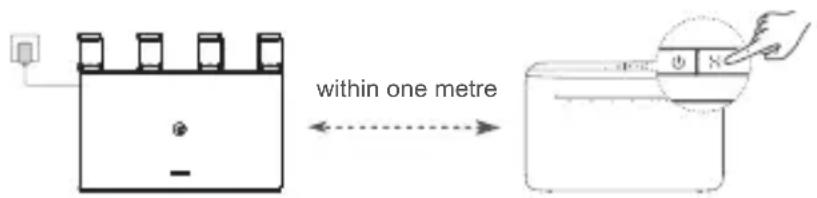
Step 2: When the indicator on the HUAWEI CPE starts to flash, press the H button on it. Wait until the indicator on the router shows that the router is connected to the network.
Step 3: Place the router in a room with weak signal strength and connect the power supply.
The figure is for reference only.
- Ensure that the HUAWEI CPE is connected to the Internet, and the router is new or restored to factory settings.
- Ensure that the HUAWEI CPE supports the HUAWEI HiLink function and CoAP protocol. Please consult the distributor for details.
- Ensure that the distance between your router and the HUAWEI CPE is less than 10 metres and there are no more than two walls in between.
Safety information
Operation and safety
- Do not use your device if using the device is prohibited. Do not use the device if doing so causes danger or interference with other electronic devices.
- Pacemaker manufacturers recommend that a minimum distance of 15cm be maintained between a device and a pacemaker to prevent potential interference with the pacemaker. If using a pacemaker, hold the device on the side opposite the pacemaker and do not carry the device in your front pocket.
- Avoid dusty, damp, or dirty environments. Avoid magnetic fields. Using the device in these environments may result in circuit malfunctions.
- Ideal operating temperatures are 0^ to 40^ . Ideal storage temperatures are -40^ to +70^ . Extreme heat or cold may damage your device or accessories.
- Keep the device and accessories in a well-ventilated and cool area away from direct sunlight. Do not enclose or cover your device with towels or other objects. Do not place the device in a container with poor heat dissipation, such as a box or bag.
- The device should be installed and operated with a minimum distance of 20cm between the radiator and your body.
- Using an unapproved or incompatible power adapter, charger, or battery may damage your device, shorten its lifespan, or cause a fire, explosion, or other hazards.
- For pluggable devices, the socket-outlet shall be installed near the devices and shall be easily accessible.
- Unplug the power adapter from electrical outlets and the device when not in use.
- Do not touch the device or the power adapter with wet hands. Doing so may lead to short circuits, malfunctions, or electric shocks.
Disposal and recycling information

The symbol on the product, battery, literature, or packaging means that the products and batteries should be taken to separate waste collection points designated by local authorities at the end of the lifespan. This will ensure that EEE waste is recycled and treated in a manner that conserves valuable materials and protects human health and the environment.
For more information, please contact your local authorities, retailer, or household waste disposal
service or visit the website https://consumer.huawei.com/en/.
Reduction of hazardous substances
This device and its electrical accessories comply with local applicable rules on the restriction of the use of certain hazardous substances in electrical and electronic equipment, such as EU REACH regulation, RoHS and Batteries (where included) directive. For declarations of conformity about REACH and RoHS, please visit the website https://consumer.huawei.com/certification.
EU regulatory conformance
Hereby, Huawei Device Co., Ltd. declares that this device WS7100 V2 is in compliance with the following Directive: RED 2014/53/EU, RoHS 2011/65/EU, ErP 2009/125/EC.
The full text of the EU declaration of conformity, the detailed ErP information and most recent information about accessories & software are available at the following internet address:
https://consumer.huawei.com/certification.
UK Regulatory Conformance
Hereby, Huawei Device Co., Ltd. declares that this device WS7100 V2 is in compliance with the relevant statutory instruments in the UK. The full text of the declaration of conformity is available at the following internet address: https://consumer.huawei.com/certification.
Restrictions in the 5 GHz band:
The 5150 to 5350MHz frequency range is restricted to indoor use in: AT, BE, BG, CH, CY, CZ, DE, DK, EE, EL, ES, FI, FR, HR, HU, IE, IS, IT, LI, LT, LU, LV, MT, NL, NO, PL, PT, RO, SE, SI, SK, TR, UK(NI). In accordance with the relevant statutory requirements in the UK, the 5150 to 5350MHz frequency range
is restricted to indoor use in the United Kingdom.
Frequency Bands and Power
The frequency bands and transmitting power (radiated and/or conducted) nominal limits applicable to this radio equipment are as follows: Wi-Fi 2.4GHz: 20 dBm, Wi-Fi 5GHz: 5150-5350 MHz: 23 dBm, 5470-5725 MHz: 30 dBm.
Legal Notice
Copyright © Huawei 2022. All rights reserved.
THIS DOCUMENT IS FOR INFORMATION PURPOSE ONLY, AND DOES NOT CONSTITUTE ANY KIND OF WARRANTY.
Trademarks and Permissions
Wi-Fi® , the Wi-Fi CERTIFIED logo, and the Wi-Fi logo are trademarks of Wi-Fi Alliance.
Other trademarks, product, service and company names mentioned may be the property of their respective owners.
Version Update
In order to improve the security of the product and provide you with a better user experience, we will push version update information to you on a regular basis when an important update is released.
Privacy Policy
To better understand how we use and protect your personal information, please see the privacy policy at https://consumer.huawei.com/privacy-policy.
End User Licence Agreement
Please read and agree to the End User Licence Agreement (HUAWEI EULA) on the product's management page before using the product.
For More Help
Please visit https://consumer.huawei.com/en/support/hotline for recently updated hotline and email address in your country or region.
https://consumer.huawei.com/privacy-policy.
https://consumer.huawei.com/certification.
https://consumer.huawei.com/certification.
https://consumer.huawei.com/certification.
Hantera routern med.Var mobilapp
Skanna QR-koden for att hamta och installera HUAWEI AI Life App pa din mobiltelefon aller surfplatta. Du kan anvanda appen for att hantera din router.
Indikator

You can connect your router in either of the following ways:
Kablet tlikobling
Plasser ruteren i et rom med svakt ell er ingen signalstyrke, koble deretter WAN-porten pa ruteren til LAN-porten pa HUAWEI CPE med en Ethernet-kabel.
- Trädløs tilkobling (med H-knappen)
Trinn 1: Plasser ruteren innen en meter fra HUAWEI CPE, og koble til strormforsyningen.
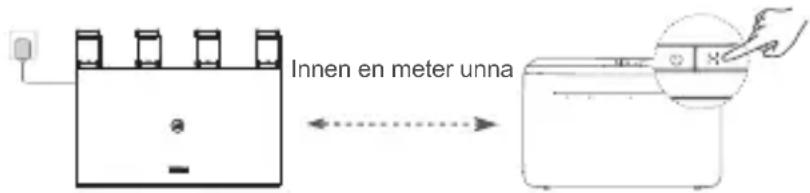
Trinn 2: Trykk på H-knappen nr indikatoren på HUAWEI CPE begynner Å blinke. Vent til indikatoren på ruteren viser at den er koblet til nettverket.
Trinn 3: Plasser ruteren i et rom med svak signalstyrke og koble til stromforsyningen.
Figuren er kun ment som referanse.
https://consumer.huawei.com/certification.
https://consumer.huawei.com/certification.
DETTE DOKUMENT ER KUN TIL INFORMATION OG UDGØR INGEN FORM FOR GARANTI.
https://consumer.huawei.com/certification.
PoptKINBHeHHaKHOJaH INdkaTOp

MepexeBn npT WAN / LAN i3 cyHKciEIO aBTOMaTHHOro hanaTuBaHHa.
PiKluueHHa Do lntepHeTy (HaPnKnaI dype3 OITnHm MoDEM, WnpOKcMyroBm MoDEM ToO) Ta do npncToPO, k-OT KOMN'OTep, yepe3 npOBDoBy Mepexy.

KhoNka cKnDaHHa (RESET)
https://consumer.huawei.com/certification.

https://consumer.huawei.com/certification.
Restricti in banda de 5 GHz:
Intervalul de freventa de la 5150 la 5350 MHz este limitat lautilizarea interioarain:AT,BE,BG,CH,CY, CZ, DE, DK, EE, EL, ES, FI, FR, HR, HU, IE, IS, IT, LI, LT, LU, LV, MT, NL, NO, PL, PT, RO, SE, SI, SK, TR, UK(NI).
Benzi de freventa si putere
Benzile de freventa s ilimitele nominale ale puterii de transmisie (radiate si/sau conduse) aplicabile
acestor echipamente radio sunt dupa cum urmează: Wi-Fi 2.4GHz: 20 dBm, Wi-Fi 5GHz: 5150-5350 MHz: 23 dBm, 5470-5725 MHz: 30 dBm.
Aviz juridic
Copyright © Huawei 2022. Toate drepturile rezervate.
ACEST DOCUMENT Este Destinat A FI UTILIZAT NUMAI IN SCOP INFORMATIV S1 NU REPREZINTA NICIUN FEL DE GARANTIE.
Márci commerciale Şi permisiuni
Wi-Fi®, emblema Wi-Fi CERTIFIED.si emblema Wi-Fi sunt mârci commerciale ale Wi-Fi Alliance.
Alte märci commerciale, produse, servicii Şi nume de companiimentionate pot apartine proprietarilor respectivi.
Actualizarea versiunii
https://consumer.huawei.com/certification.
Omezeni v pásmu 5 GHz:
Yönlendiriciyi güç kayınagna®,®,®,®,®,®,®,®,®,®,®,®,®,®,®,®,®,®,®,®,®,®,®,®,®,®,®,®,®,®,®,®,®,®,®,®,®,®,®,®,®,®,®,®,®,®,®,®,®,®,®,®,®,®,®,®,®,®,®,®,®,®,®,®,®,®,®,®,®,®,®,®,®,®,®,®,®,®,®,®,®,®,®,®,®,®,®,®,®,®,®,®,®,®,®,®,®,®,®,®,®. Gösterge 15691 sonunceye kadar yönlendiricinin üzerindeki RESET Düğmesini igne veya pim kullanarak yaklaşık ilki saniye basili tutun. Yönlendiricinin yeniden baslatma ilelemini tamamlaması bekleyin. Gösterge tekrar kırkı renkte yanmaya basladığnda yönlendiricinin fabrika ayarlıarı geri yuklenmiş demektir.
No.2 of Xincheng Road, Songshan Lake Zone, Dongguan Guangdong 523808, P.R. China
Tel:0086-755-28780808
Web: www.huawei.com
E-mail: mobile.tr@huawei.com
Cin'de uretilmistir (Manufactured in China)
Web: www.huawei.com/tr/
E-posta: mobile.tr@huawei.com
KVK TEKNIK SERVIS:
Telefon: 02164528054
Adres: YENI MAH. SOGANLIK C.KANAT SAN. SIT. NO:32-2/1
KARTAL/ISTANBUL
Enerji Tasarrufu
https://consumer.huawei.com/tr/support/warranty-policy/
https://consumer.huawei.com/tr/legal/privacy-policy/
Teknik Özellikler
https://consumer.huawei.com/certification.
KpaTKoe pyKOBoIDCTBO NOIb3OBaTeJIa
1
23
IopT nITaHnKa H INdNkaTop
4
CamaohacpanBaHouuicnnapWAN/LAN:noKnIooHeNcKHTepHeTy (Hanpimep, K oTnueckomy Moemy nnnMoemy shpoKoNoJocHoro Doctyna n T.D.) n npOBODHomy ceTeBOMy yCTpoiCTBy, Hapnimek KomnbIoTepy.
5
(Ecnn CTpaHnua He OTo6paXaETcABTOMaTHueCKN, BBeDInTe 192.168.3.1).
HaxmTe HAYATb N Bbl6epnte Co3daTb ceTb Wi-Fi.

BBeUNTe NmNnapoJb Baawero akKayHTa IIN.
EcnI IJIa NOkIIOUeHnK INTEpHETy He Tpe6yeTcB BODNTb aKKayHT n napoIb, nepeiTe K cJeDyUOeMy wary.
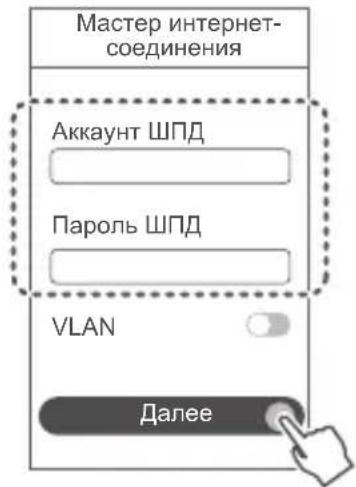

- Ecnn Bbl He nomHnTe Baaw akaynt npoJb IIN, o6paTnTecb K Baawemy npoBaaidepy ycnyr IIN.
- Ecnn Bam Heo6xOdmo B BaWei CeTn HAcTpOnTb ceTb VLAN, nonyUte napaMeTpbl VLAN y BaWero npobaidepa ycnyr UINB IN BkInuHTe nepeKInuOaTeNb VLAN Ha ekpaHe.
4 Hactpoite HOBbIe mR n napOB cetn Wi-Fi, a taKxe napOJIb aAMHHcTpaTopa dJa HOBOro poyTepa.
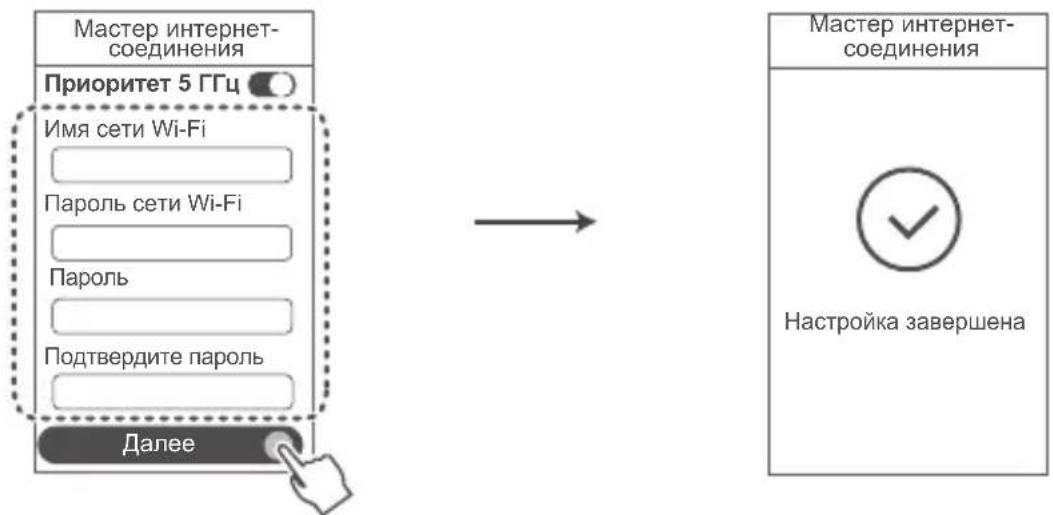
BknHueHne yHKnI IpnOpTe 5 TT. IpnOpTeTHoe nCnoJIb3OBAHne dHaana30Ha cETN Wi-Fi 5 TTc BmecTo dHaana30Ha 2,4 TT. npn OdnHaKOBom ypOBHe cnHaJa nOBblaet ckopocTb coeDInHeHna.
YnpaBJIeHne poyTePOM c NOMOu MObIbHO npINOxEHHa
OTcKaHpyIe QR-koI, qTO6bl 3aIpy3nIb n yCTaHOBnTb npInIOxHe HUAWEI AI Life Ha TeIePOn IIN nn PAnHWe. BBI MoKeTe NcNoIb3OBaTb npInIOxHe dIyypAblEHn poyTePOM.

ИнданаТор
K pecypcam n 3aunTbI 3dOpOBbY qeIOBeka n OKpykaHouen cpebl.
Дя полученя 6олee noрбнй Ифорmaци NBpaаNTecb MecTHyO rOpOdCKyO aDMHNCTpaCNUO, cnJx6y yHnTuKxeHЯ 6bITOBbIX OTXODOB nIN MaRa3NH PO3HnUHOr TOPROBIn, B KOTOPOM 6blno npNo6peTeHO yctpoIcTBO, nIb6NoceTnte Be6-caNt https://consumer.huawei.com/en/.
CokpaueHne BbI6pocOB BpeHbIX BeueCTB
Данhoe устюи ergо олкгческne akcesccayapbl OTbeuaHT PerlaMeHTy EC no pernctpaun, OueHke, noIpyeHHIO pa3peSeHHN I ORpaHHueHHIO npIMeHHN XIMnuecknx BeueCTB (EU REACH), DInpeKTbE EC o6 orpaHHueHH coepkaHH BpeHbIX BeueCTB (RoHS) u DInpeKTbE o6 nCnoJIb3OBAHH u TynIIN3aUN aKKymJYIaTOPbIX 6aTapei (ecn ecTb).ДЯ noIpyeHH bOJIee noIpo6Hoi nHΦopMaUN u COOTBeTcTBu ySTpOJIcTBa Tpe6OBaHHm perlaMeHTa REACH u DInpeKTbBi RoHS nocTeTte Be6-caIT https://consumer.huawei.com/certification.
ДeКларачи coOTBETCTBЯ EC
Декларачия
Kompana Huawei Device Co., Ltd. HacToaM 3aBnAeT, YTO daHoe yctpoCTBO WS7100 V2 OTBeaet OCHOBhIM Tpe6oBaHnM I COOTBeTcTByUOuM NIOXKeHnM CneDyUOuX DInpeKtNB: RED 2014/53/EU, RoHS 2011/65/EU, ErP 2009/125/EC.
ПолныйTekстд ekларачи COOTBETCTBNA, NOДрбны CBeDEHIN DnpeKTHBbI ErP nakyaIbHyIO INФорmaцио ob akceccyapax ИnporpaMMHom obecneueHIN MOxHO NOCMOTpeTb Ha Be6-caTe: https://consumer.huawei.com/certification.
OrpaHnueHnB dnaana3OHe 5 T
ДианазончсOT 5150-5350 Mцnpeducmpten ncknouhteJIbHOДЯ nCNoIb3OBAHnB NOMEueHnB cneDyUoHx cTpaHax: AT, BE, BG, CH, CY, CZ, DE, DK, EE, EL, ES, FI, FR, HR, HU, IE, IS, IT, LI, LT, LU, LV, MT, NL, NO, PL, PT, RO, SE, SI, SK, TR, UK(NI).
Dnana3OhbI YaCTOT MOnHOCtB
Hominahlbhpie nporobbie 3naehnI dana30OB uactOT N BbIXoHoi MOUHOCTN (n3nyaemoi (nii) nepedaebom), npimeheblek 3TOMy paiooo6opyoobanu: Wi-Fi 2.4GHz: 20 dBm, Wi-Fi 5GHz: 5150-5350 MHz: 23 dBm, 5470-5725 MHz: 30 dBm.
yBeDomJIeHHa
Copyright © Huawei 2022. Bce npaba 3aunuenebl.
DAHHBIOKUMEHT HOCNT CNPABOCHBI XAPAKTEP I HE NOIDPA3YMEBAET HIKAKNX TAPAHTNI.
TobapHbIe 3HaKu
Wi-Fi, norotun Wi-Fi CERTIFIED n norotun Wi-Fi ABJIAOTc TOBapHbIMn 3HaKaAMn aJIbAHCa Wi-Fi Alliance.
Ipyrme TOBapHbIe 3HaKn, HAnMeHOBaHnue 3dJeNn, ycnyr N KOMpaHn, ynomHyTbe B HactoJcEM pykoBOcCTBe, npHaadneKat INx BnaDeJIbUaM.
06HOBnHeBepn
C cIbIO NOBbiEHHaHHO yCTBa N KauEcTBA 6cnyKbAHN KOMnHaN 6yTeYBeOMJIbBAC O HOBbIX Bepcnx np IN NoRBlEHNI.
PoiHTnKa KOHΦnDeHnuaJIbHOCTN
Mepbl, npHnMaemble KOMnHaNeI dna 3aunTbBaWeI NnHou HOpMaun, OnncAhl B noJNTKe KOHdEHNaBbHOCTN, ony6JIkoBauHHo Ha Be6-caTe https://consumer.huawei.com/privacy-policy.
JIueH3NOHHoe corlaeHne c KOHeYhbIM NOJb3OBaTeJIeM
Ipeepnolb3OBaHneM 3Toro yctpoiCTBa BHIMateJIbHO npOHTte n npIMnte noJoxHn IuueH3noHHoro corlaaehn c KOHeuHbIM noIb3OBaTeJeM (HUAWEIEULA) Ha Be6-ctpaHnce KOHpUrgpaunyctpoiCTBa.
DOnOpHnTeJIbHaN HnΦopMaIaIa
BknaIbIsh K kpaTkomy pykoBODCTBy noIb3ObaTeJIa
1.ИЗROTOВТЕЛь,адрес
Xyabən DeBaic Ko., JIa, KHP, 523808, r. IyHryaHb, IyaHny, AdmHnCTpaTnBHOe 3daHne No2. (Huawei Device Company Limited, Administration Building No.2, Xincheng Road, Songshan Lake Zone, Dongguan, Guangdong, KITai)
Tei.: +86-755-28780808
- HanmeHOBaHne n MeCTOHAXOxJdeHne yNOJIHOMOueHHoro u3rOToBnteJeM Nua (HMnOpTepa -ecnn napTna) B COOTBeTcBnC Tpe6oBaHnMaNm TexHnueeCKnx perJaMeHTOB TaMOxHeHHoro coU03a
OOO «TexkomnHaXyab》,PocnckaФeepau,121614,r.MockBa,yn.KpbInatcka,d.17,kopnyc2,OPPH 1027739023212.
3.ИнфорmaцьдяCBЯ3N
CISSupport@huawei.com
+7 (495) 234-0686
4.ToproBaryMapka
HUAWEI
- HanmehoBAHne n 6o3HaueHne
PoyTeP HUAWEI moJeB WS7100 V2
- Ha3HaYeHne
PoyTep HUAWEI MoJeB WS7100 V2 - 3TO 6ecnpoBODH ooyTepeKnBaOuHIO nOdkluOeHne HeCKoJIbKx yCTpoiCTB-KJHeHTOB. PoyTepeMOXHO IcNoJIb3OBaTB B DOMAX N MaJIbIX OΦncax dI pypeIOCTabNeHnI NOJb3OBaTeIaM DoCTyNa B INTEpHET.
- XapaKTepeNCTnKn n npaMeTpbl
Wi-Fi 2,4 (2x2 Wi-Fi 2.4 11n)
Wi-Fi 5 ΓΓu: (2x2 Wi-Fi 5 ΓΓu, 11ax)
8.Питуне
OT aanTepa nHTAHn oT cETn nepemehHoro TOkA C npametpamu nTaHn:
HaBxoJe:100-240B,50/60T
Ha BbIXoJe: 12 B, 1 A
9. CtpaHa npOn3BODCTBa
Knta
10. COOTBETCTBNE
YCTPOINCTBO COOTBETCByeT:
—TP TC 020/2011 «Злесуюгшоня COBМecTUMOCTь TextHnueeCKNx CpeДСТВ»;
- TP TC 037/2016 «Об орарниемприимени onachbix BeueCTB Издених щл ektpotexнки Адалтет рпатни соотbetсует:
—TP TC 004/2011 «O 6e3oNaChocTn Hn3KOBJbTHOrO o6OpydoBaHnra»;
—TC 020/2011 «ЗлесТромагинтуя COBMeCTUMOCTb TEXHnueCKNX CpeДСТВ»;
—TP TC 037/2016 «O6 orpaHnueHn npImeHnry ONaChbIX BeIeCTB B n3JeNIAx 3JIeKtpoTeHNIKu PaIINO3JIeKTpOHHKU».
Ako 3a NOBp3yBaHbETo Ha INHTepHET He ce NOTpe6HN CMeTKa INo3nHKa, OTe Ha CneDHNOT YekOp.
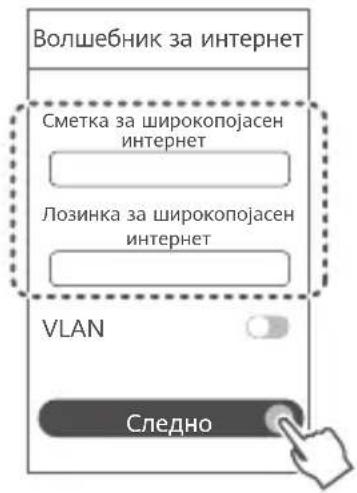

- AKO cTe rN 3a6opabnne CMeTKaTa N lo3NHKaTa 3a
- shIpOKoJocEH nHTepHET, KOHTaKTnpajTe co OpepaTopot
- Ha shIpOKoJocEH nHTepHET 3a da rN do6nete
- CMeTKaTa N lo3NHKaTa 3a shIpOKoJaceH nHTepHET.
Ako Tpe6a da KOHcHpynpate VLAN ha BaWata Mpeka, KOHTaKtnpajte co onepatopot Ha WnpoKoNojaceH INTepHeT 3a da rN nOTBpDnte npaMeTpne 3a VLAN n OBO3MOxKeTe ro npeKNHyBauyot 3a VLAN ha ekpaHot.

IocTaBete HOBO nme Ha Wi-Fi, lo3nHka 3a Wi-Fi n admHnCTpaTopcka lo3nHka 3a HOBnot HacouyBauch.
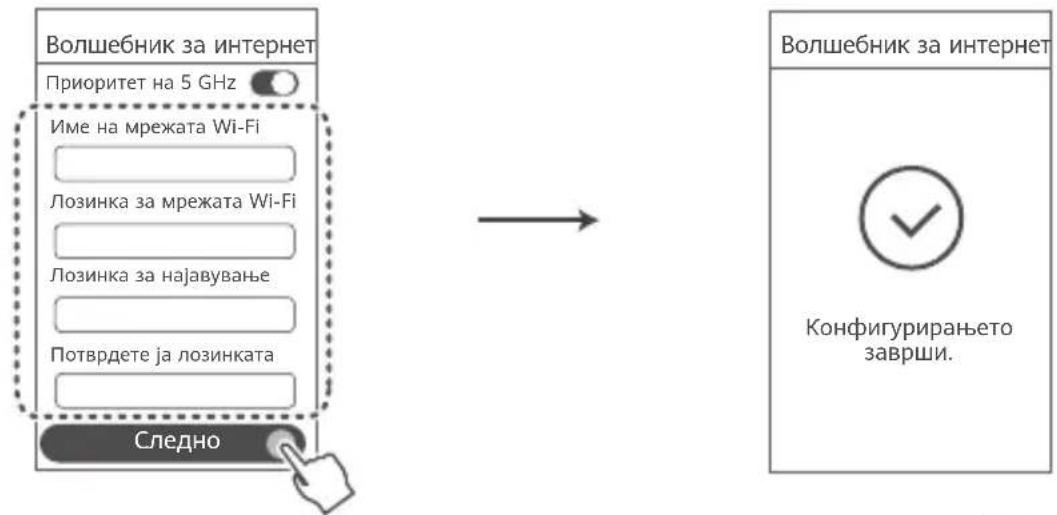
OBO3MOKTe PnOpHTe Ha 5 GHz: npOpTeTHo KOpCTHe Ha oncerOT Ha Wi-Fi Ha 5 GHz HAmecTo Oncerot Ha 2,4 GHz Kora jaUnHaTa Ha cnHAnot e eHaKaBa 3a da ce 3roJeMn 6p3HaTa Ha nobp3yBaHBeTo.
YnpaByBajTe co hacouyBaoyt co haata Mo6nHa annkaunja
CkeHnpajTe ro QR-koDTo3a da ja npe3emTe n da ja HnctanpaTe anNkaujata HUAWEI Al Life Ha Mo6nHnO TeneoHnn Ta6neTOT. MoKe da ja Kopncntte anNkaujata 3a da ynpabyBate co hacouyBaoyt.

Noka3aTeJ
| Свети зелени | Поврзан на мөхаты |
| Свети црени | He e поvpзан на мөхаты Разлабaven Кавел лим рөшka BO nobрзүваъeto. Правере т go кавелot. Тгөшka наширокон joасна т мөха. Контактирajte co операторот на ширokон joасен Иntернет. |
| Трени | Hacouybaчot otкрnil уред shto може дa ce с nanopin. Kora ке се открийдруги урedi HUWEI (што падржуваат HarmonyOS Connect), рoka State IT O H U W A E I W F I AX3 ке трени. Kora ке се случ toa, причснete ro konчeto H Na H U W A E I W F I AX3. Пока State IT reba дa Трени 6р�о, shto укжува дeka уредт shto може дa ce с nanopin се порзүва co HUWEI Wifl AX3. Пюцecot Na nobрзүваъe e 3abprшен кORA рOKа State IT Ке пессанда Трени. |
| Ako слүйно Г доррete көшeto H, рочекалу okoly 2 minhyт доideka нока State IT ce Bpattи BO HopmaJHa t coctojba. КогутTo H Има и Функциоhalnocт на WPS. |
YecTo noctaBybHn npaHaBa (UPII)
https://consumer.huawei.com/certification.
OrpaHcyBaBa Bo oncerot o4 5 GHz:
ΦpeKBentnoT oncer od 5150 do 5350 MHz e orpaHueH na ynoTpe6a BO 3aTbOpen npocToP BO cTeHNBe 3emju: AT, BE, BG, CH, CY, CZ, DE, DK, EE, EL, ES, FI, FR, HR, HU, IE, IS, IT, LI, LT, LU, LV, MT, NL, NO, PL, PT, RO, SE, SI, SK, TR, UK(NI).
ΦeKBHeHcNcKOnCe3n MOKHOCT
HominHaHnHe OpranuYBaHa Ha pkeBcHccknte once3n n emTuBaKata eheprna (3paeha n/nnn emTuBaHa) npimeHnBn 3a oaaa paDno onpema ce kako wTo cJei: Wi-Fi 2.4GHz: 20 dBm, Wi-Fi 5GHz: 5150-5350 MHz: 23 dBm, 5470-5725 MHz: 30 dBm.
PpaBHa HanomeHa
AByTopcKn npaba © Huawei 2022. Cnte npaba ce 3aDpxaHn.
OBOJ DOKYMEHT E CAMO 3A INHΦOPMATUBH N CEJI N HE IIPETCTABYBA HNKAKBA TAPAHUJA.
TproBcN MapKn Ido3BoJN
Wi-Fi, noroto Wi-Fi CERTIFIED and noroto Wi-Fi Ce TPROBcN Mapn Ha Wi-Fi Alliance.
Dpyrnte CnomeHaTn TPROBcN MapKn, Ha3NBn Ha npOn3BOdN, ycnyr n TPROBcN dpyuTba MoKe da ce BO CONCTBEHOCT Ha HNBHIne OJHOCHN CONCTBeHNU.
AkypnpaHe Ha Bep3njaTa
3a da ce noo6pn 6e36eHocTa Ha npou3BOoT n da Bn o6e36eHme noo6po KOpncHnKo NCKyCTBO, peoBHO Ke Be u3BeCTyBaMe 3a axypnpaHa Ha Bep3nJaTc Kora Ke ce objabn BaXho axypnpaHe.
Ponntka 3a npNbBaTHoCT
3a da pa36epete noo6po kako rKopncTme n rN 3aHTyBame BaHTe NCHn HOpMaun, npouhtajte ja noNTkata 3a npBaTHoc Ha https://consumer.huawei.com/privacy-policy.
IinuehendoROBOp3aKpajnKOpncn
IpouHTajTe ro n cornaceTe ce co IuueHcHnoT dorOBop 3a KpaJHi KopncHci (HUAWEI EULA) Ha cTaPAnCaTa 3a ynpaByBaHe co npOn3BODoT nped da ro KopnCTnte npOn3BODoT.
3a noBeke nomoi
Iocete ja https://consumer.huawei.com/en/support/hotline 3a HajHOBnOT 6poj Ha LcHTapoT 3a rpuka 3a Kopncnui n aDpecaTa ha e-noTa BO BaWata 3emja nn peRnoH.
PbkoBoCTBO 3a 6bp3 cTapT
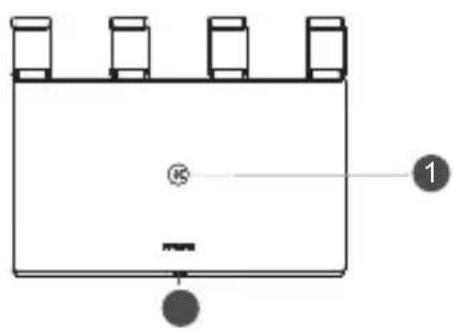


IopT 3a 3axpaHbAe6yToH ,H" INdkaTop

IopT 3a aBOMATnUHO aAnTnIpaHe 3a WAN/LAN: 3a CBbp3BaHe c INTEpHET (kaTo Hnnp. ONTnueH MOeM, MoeMn 3a IInpOKoJIeHTOB IOCTbN n dp.) N KbM MpeXKOBO yCTPOINCTBO C Ka6en, KaTO HApnIpMeP KOMnOtTp.

ByToH 3a Hynipane (RESET)
CTbPkca 1: Cbbp3BaHe Ha ka6eInte
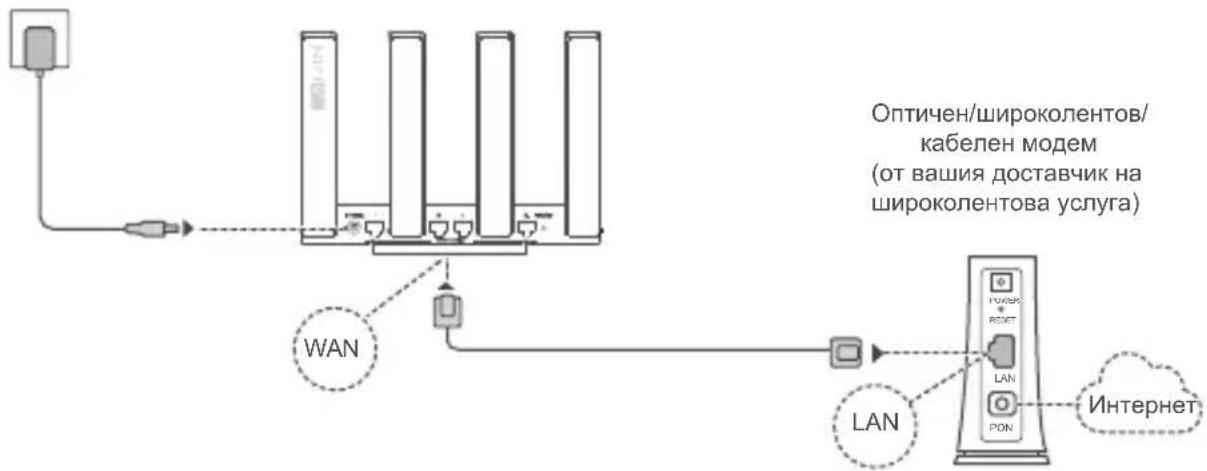
Pa3nBHeTe BCnUKN aHTeHN B n3npaBeHO noJIOXKeHne, 3a da ocNrypInTe ONTNMn3napa Wi-Fi CnHaJI.
- Ako INHДИКaTOpbT OCTaHe YepBHe, TOBa O3HaUaBa, Ye pyTpEbT He e Cbbp3aH KbM INHTepHET. KoHcyIITnupaTe ce cbc ,CTbnka 2: KOHpNHyprupaHe Ha MpeXKOBtHe HAcTpOuKn".
3a pyTeRn, KOITIO NOIDbpxaT ATOMaTHUHO aIANTHpaHe Ha WAN/LAN, MPeKOBITE NOpTOBe ca KOM6HHpAHn 3a WAN/LAN. MoXeTe cBtO da 3aIadTe fNcHpaH WAN npT ha ye6 6aHpaHaTa CTpaHua 3a ynpAbeHne Ha pyTePa.
Стбпka 2: Конфуриpane на мрековке насторки

CbpxTe Mo6nHnA cn TeNeoHnn KOMNtbpa cn KbM Wi-Fi Mpekata Ha pyTepa (He ce n3nckBa napona).
PpOBepTe mMeTo Ha Wi-Fi mpekata OToIy Ha HOBn pyTep.

OTbopeTe 6pay3bpa n 7e 6bdeTe
aBTOMATNUHO ppeHacooyen
(ako cTpaHncaTa He ce nokaxe
aBTOMATNUHO, BbBeJeTe
192.168.3.1 B neHTata 3a aDpeCn).
dOKoCHeTe IbpBn CTbKn n N36epTe
Cb3daBaHe Ha Wi-Fi mpeXa.
3
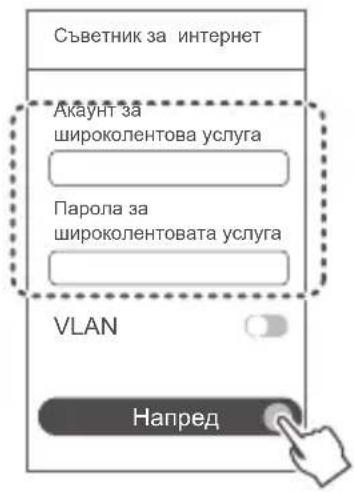
BbBeTe aKayHTa n naponaTc 3a wnpokoiHToBa ycnyra.
Ako Baata Bpb3ka KbM INHTepHET He N3NCKBa BBBeXdaHTo Ha akayHT n npOJa, OTndeHa CneBbUaTa CTbnKa.
0
- Ako cTe 3a6paBUNn CBOB aKayHT n napona 3a
UnpOKoNEHToBA ycnyra, ce CBpKeTe C BaUNn
IocTabuNK Ha UnpOKoNEHToBA ycnyra, 3a Da NoJyHtE
akayHTa n naponaTata.
Ako Tp86Ba Da KOHfumypupaTE VLAN DocTb nHa Mpekata cn, CbpxKeTe ce C Mo6nHn r OepaTop, 3a da noIyUte npametprte 3a VLAN, cJeD Koeto AKTNBnpaTe npeBknOuBaTeTn 3a VLAN Ha ekpaHa.
3aJaTe HOBn Ime n npoNa 3a Wi-Fi mpeXkata, KaKTo n npoNa 3a aDMHHCTpaTOP Ha HOBna pyTep.
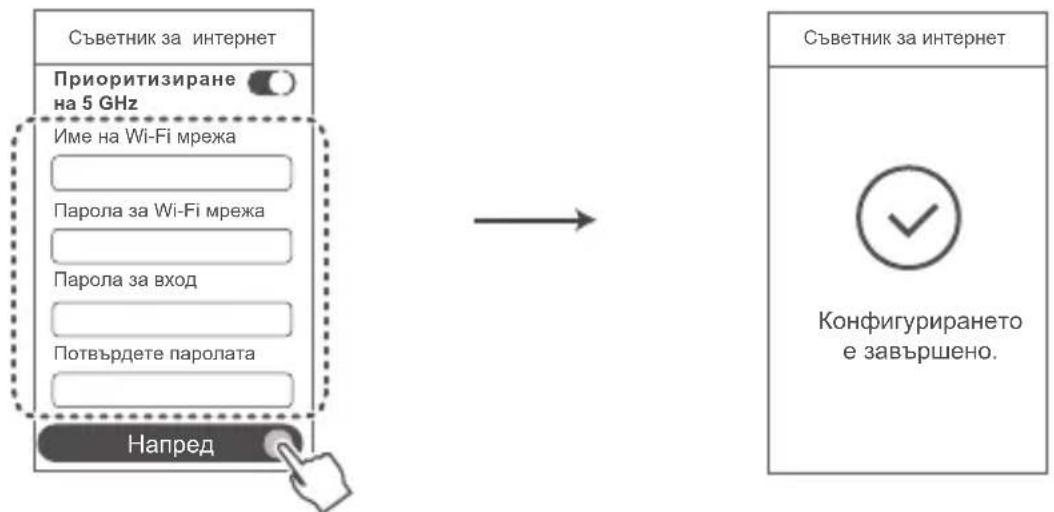
AknBpaTe PnpOpTu3npaHe Ha 5 GHz: PnpOpTu3npaHe Ha 5 GHz Wi-Fi dnana30n nped 2,4 GHz dnaana30H, koraTo cnata Ha cnHa e paBa, 3a da ce yBeIuH cKopocTtHa Bpb3kata.
YnpaBnaBaHe Ha pyTepa c MObHnHTo Hn npNoXeHne
CkaHpaIe QR kOda, 3a da n3TeIInTe n HnCTaInpaTe npINOxKeHneTo HUAWEI AI Life Ha cB0r MO6uHeN TeJeFOH uIN Ta6Net. MoXe Da n3No13BaTe npINOxKeHneTo 3a ynpabHeHne Ha pyTepa cn.
ИнданkaTOp

HACTOUII T OOKMENT E CAMO 3A INHOPMALU I HE IPECTABJIBA KAKBATO I DA E IAPAHLI.
TbproBckn Mapkn pa3peWeHna
Wi-Fi, noroto Ha Wi-Fi CERTIFIED and noroto Ha Wi-Fi ca TBproBckn Mapkn Ha Wi-Fi Alliance.
BcnyKn npynn cnntpanH TbproBckn Mapkn, npodyktn, ycnyn n ImeHa Ha KOMnaHm MoKe da ca co6ctBeHOCT Ha CbotBEHTHne IM npntexKaTeN.
Akyan3aun Ha BepcnraTa
3a da mojem da noo6pahe cnryphocTHa npoyka Tn da BN rapaHTnpame no-do6po yceuahe, 1e BN n3npaampepeOBHO HOpMaunr 3a akTuayn3npahe npu n3n3aHTo Ha Baxha akTuayn3aun.
NoHTka 3a noBepnteHocT
3a da pa36epete no-do6pe kak n3noJ3BaMe n 3aunTabame nnuHaTa BNnHOpMaun, npouTeTe
Политika за постеност на http://consumer.huawei.com/privacy-policy.
JIueH3nOHNOcnopa3ymEnHe C KpaHHn noTp6nteI
MOnI, npOyeTe n daTc bIraIeTo cN c IInueH3IOHHOTo cnpa3yMeHne c KpaHnI noTpe6nte (HUAWEI EULA) Ha cTpaHnUcaTa 3a ynpabNeHne Ha npOdyKa, npEi Da ro H3NoI3BaTe.
https://consumer.huawei.com/certification.
Ograničenja za pojas od 5 GHz:
Raspon frekvencije od 5150 do 5350 MHz ogranicen je na uporabu u zatvorenim prostorima u: AT, BE, BG, CH, CY, CZ, DE, DK, EE, EL, ES, FI, FR, HR, HU, IE, IS, IT, LI, LT, LU, LV, MT, NL, NO, PL, PT, RO, SE, SI, SK, TR, UK(NI).
Frekvenciji pojasevi snaga
Nominalne granice frekvencijskih pojasa i snage prijenosa (emitirane i/ili provedene) koji se primjenjuju na ovu radijsku opremu su sljedeci: Wi-Fi 2.4GHz: 20 dBm, Wi-Fi 5GHz: 5150-5350 MHz: 23 dBm, 5470-5725 MHz: 30 dBm.
Pravna napomena
Autorska prava © Huawei 2022. Sva prava pridrzana.
OVAJ DOKUMENT SLUZI ISKLJUCIVO U INFORMATIVNE SVRHE INE PREDSTAVLJA JAMSTVO BILO KOJE VRSTE.
https://consumer.huawei.com/certification.
Omejitve v 5-GHz pasu:
Frekvencni razpon med 5150 in 5350 MHz je omejen na notranjo uporabo v naslednjih državah: AT, BE, BG, CH, CY, CZ, DE, DK, EE, EL, ES, FI, FR, HR, HU, IE, IS, IT, LI, LT, LU, LV, MT, NL, NO, PL, PT, RO, SE, SI, SK, TR, UK(NI).
Evpeyia Tpoovta kai otio pospatec nnpopopiec oxetikac ta aegouapk ai to loiyoiok diatihvnta Tny npakatw dieuuvan oTo 1vTepvET: https://consumer.huawei.com/certification.
on nnnn . (n nn nnnn RoHS ,EU REACH , RoHS- REACH
(EU) nnnn nn nn nn nn nn nn nn nn nn nn nn nn nn nn nn nn nn nn nn nn nn nn nn nn nn nn nn nn nn nn nn nn nn nn nn nn nn nn nn nn nn nn nn nn nn nn nn nn nn nn nn nn nn nn nn nn nn nn nn nn nn nn nn nn nn nn nn nn nn nn nn nn nn nn nn nn
WS7100 V2 nHuawei Device Co., Ltd.
ErP 2009/125/EC,RoHS 2011/65/EU,RED 2014/53/EU
. ninnn nn nn . Copyright © Huawei 2022
iynnnn nn nnnnnnnnnnnnnnnnnnnnnnnnnnnnnnnnnnnnnnnnnnnnnnnnnnnnnnnnnnnnnnnnnnnnnnnnnnnnnnnnnnnnnnnnnnnnnnn
non
Wi-Fi Alliance non non on Wi-Fi,Wi-Fi CERTIFIED,Wi-FF
.000000000000000000000000000000000000000000
nony
y 7 7 7 7 7 7 7 7 7 7 7 7 7 7 7 7 7 7
NIN'U2yTn
ninn
TNNNNTNNNNNNNNNNNNNNNNNNNNNNNNNNNNNNNNNNNNNNNNNNNNNNNNNNNNNNNNNNNNNNNNNNNNNNNNNNNNNNNNNNNNNNNNNNNNNNNNNNNNNNNNNNNNNNNNNNNNNNNNNNNN
ninn
HarmonyOS Mesh+on"HUWEI
?WPS nynn nn by Wi-Fi 1nn nn 4
WPS WPS n nn nnnn H nn nn nn nn nn nn nn nn nn nn nn nn nn nn nn nn nn nn nn nn nn nn nn nn nn nn nn nn nn nn nn nn nn nn nn nn nn nn nn nn nn nn nn nn nn nn nn nn nn nn nn nn nn nn nn nn nn nn nn nn nn nn nn nn nn nn nn nn nn nn nn nn nn nn nn nn nn nn nn nn nn nn nn nn nn nn nn nn nn nn nn nn nn nn nn nn nn nn nn nn
y nnnn nn nnnn nn noon nn noo nn noo nn nniyn 5 nnn ?nn
n nn nnnn nn nnnn nn nn nn nn nn nn nn nn nn nn nn nn nn nn nn nn nn nn nn nn nn nn nn nn nn nn nn nn nn nn nn nn nn nn nn nn nn nn nn nn nn nn nn nn nn nn nn nn nn nn nn nn nn nn nn nn nn nn nn nn nn nn nn nn nn nn nn nn nn nn nn nn nn nn nn nn nn nn nn nn nn nn nn
NIXINI7NX
?annn nn nnnn nn nnnnnnnnnnnnnnnnnnnnnnnnnnnnnnnnnnnnnnnnnnnnnnnnnnnnnnnnnnnnnnnnnnnnnnnnnnnnnnnnnnnnnnnnnnnnnnnnnnnnnnn
wnn nn nnnn nn nn nn nn nn nn nn nn nn nn nn nn nn nn nn nn nn nn nn nn nn nn nn nn nn nn nn nn nn nn nn nn nn nn nn nn nn nn nn nn nn nn nn nn nn nn nn nn nn nn nn nn nn nn nn nn nn nn nn nn nn nn nn nn nn nn nn nn nn nn nn nn nn nn nn nn nn nn nn nn nn nn nn nn nn nn
1
wi-1n nn nnnn nn nnnn nn nnnn nn nnnn
- 17711111111111111111111111111111111
WAN- n nn nn nn nn nn nn nn nn nn nn nn nn nn nn nn nn nn nn nn nn nn nn nn nn nn nn nn nn nn nn nn nn nn nn nn nn nn nn nn nn nn nn nn nn nn nn nn nn nn nn nn nn nn nn nn nn nn nn nn nn nn nn nn nn nn nn nn nn nn nn nn nn nn nn nn nn nn nn nn nn nn nn nn nn nn nn nn nn nn nn nn nn nn nn nn nn nn nn nn nn
n nn nnnnnnnnnnnnnnnnnnnnnnnnnnnnnnnnnnnnnnnnnnnnnnnnnnnnnnnnnnnnnnnnnnnnnnnnnnnnnnnnnnnnnnnnnnnnnnn
nynnnn nnnnnn nn nnnnnn nnnnnn nnnnnn nnnnnn
.
?n n nn nn nn nn nn nn nn nn nn nn nn nn nn nn nn nn nn nn nn nn nn nn nn nn nn nn nn nn nn nn nn nn nn nn nn nn nn nn nn nn nn nn nn nn nn nn nn nn nn nn nn nn nn nn nn nn nn nn nn nn nn nn nn nn nn nn nn nn nn nn nn nn nn nn nn nn nn
y yin7 10000000000000000000000000000000000000000000000000000000000
17ynnn nn yniyn ninn nnnnnnnnnnnnnnn

T 17 Dn n nn nn nn
HUAWEI AI Life QR-n n no
.7
1
nann
y
nwnnn
Y137 DITN
.72nNNTT 1
-09n7nn790
nnnnn nn nnn
HARONYOS Connecti HUWEI HUAWEI WiFi AX3 HuaWEI WiFi AX3-HUAWEI-
.
H
WPSnH
wnnnn nn nnnnnnnn nooWi-Fi nnoo,Wi-Fi

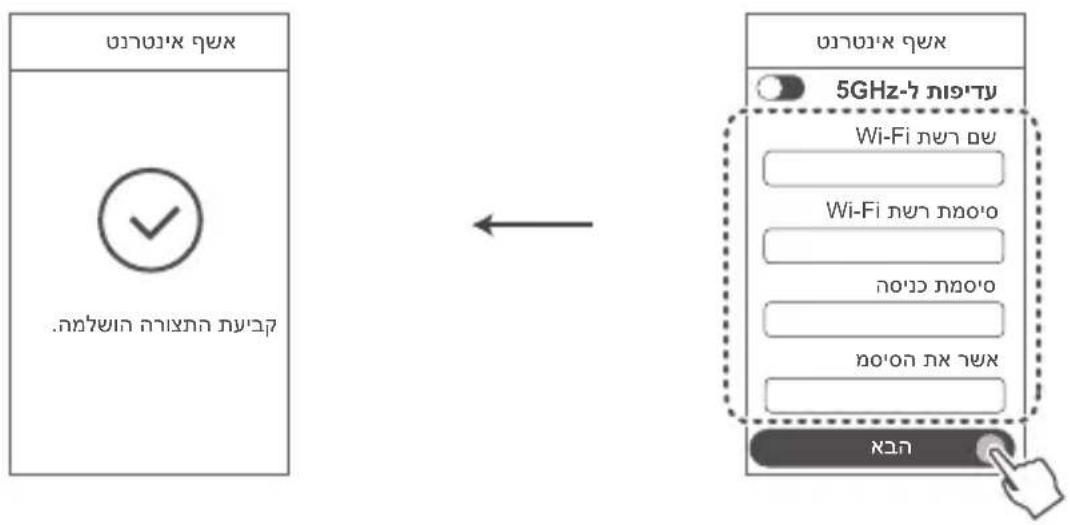
2.4 GHz 5 GHz dinn Wi-Fi win nqyn 5 GHz- nny

ninnnnnnnnnnn nnnn nnnn nn
.09n nnoo1 1un nn
n nn nnnnnnnnnnnnnnnnnnnnnnnnnnnnnnnnnnnnnnnnnnnnnnnnnnnnnnnnnnnnnnnnnnnnnnnnnnnnnnnnnnnnnnnnnnnnnnnnnnnnnnnnn
3
nnoo1iun 777 77-09n nniy 790 ay .n7-09
VLAN-n nnnn nn nnnn VAN-n nn nnnn nnnn nnnn nnnn nnnn nnnn nnnn nnnn nnnn nnnn nnnn nnnn nnnn nnnn nnnn nnnn nnnn nnnn nnnn nnnn nnnn nnnn nnnn nnnn nnnn nnnn nnnn nnnn nnnn nnnn nnnn nnnn nnnn nnnn nn

17 11, n-0nIOI IUN NX NNOX
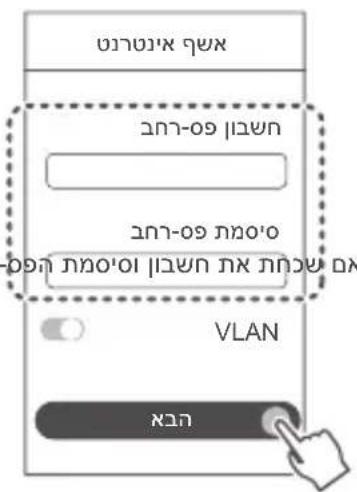
nnnnn nn nnnn 2
ynnn - 190n nn n (192.168.3.1 n, uinn
nni, nnn nn nn. Wi-Fi nn

nunnnnnnnnnnnnnnnnn
.(nnoo nnnn)wnn Wi-Fi
wnnnnnnnnWi-Fi-n nnxwn
y
- n nn nn 7n nn nnnnnnnnnnnnnnnnnnnnnnnnnnnnnnnnnnnnnnnnnnnnnnnnnnnnnnnnnnnnnnnnnnnnnnnnnnnnnnnnnnnnnnnnnnnnnnnnnnnnnnnnnnnnnnnnnnnnnnnnnnnnnnnnn
"wnnnn nn nnnn nnnn 2 2 WAN/LAN nnnn nnnn nnnn nnnn nnnn nnnn nnnn nnnn nnnn nnnn nnnn nnnn nnnn nnnn nnnn nnnn nnnn nnnn nnnn nnnn nnnn nnnn nnnn nnnn nnnn nnnn nnnn nnnn nnnn nnnn nnnn nnnn nnnn nnnn
n nn nnn
nnn H


(10) 09, 09, 09, 09, 09, 09, 09, 09, 09, 09, 09, 09, 09, 09, 09, 09, 09, 09, 09, 09, 09, 09, 09, 09, 09, 09

RESET|n7

HUWEI WiFi AX3
n nn nnn
- Step 1: Connecting the cables
- Step 2: Configuring the network settings
- Manage the router with our mobile app
- Frequently Asked Questions (FAQ)
- Q6: How do I connect my router to the HUAWEI CPE to expand the Wi-Fi network?
- Safety information
- Operation and safety
- Disposal and recycling information
- Reduction of hazardous substances
- EU regulatory conformance
- Restrictions in the 5 GHz band:
- Frequency Bands and Power
- Legal Notice
- Trademarks and Permissions
- Version Update
- Privacy Policy
- End User License Agreement
- For More Help
- Quick Start Guide
- Getting Started
- Indicator
- UK Regulatory Conformance
- End User Licence Agreement
- Hantera routern med.Var mobilapp
- Indikator
- Restricti in banda de 5 GHz:
- Benzi de freventa si putere
- Aviz juridic
- Actualizarea versiunii
- Omezeni v pásmu 5 GHz:
- KpaTKoe pyKOBoIDCTBO NOIb3OBaTeJIa
- YnpaBJIeHne poyTePOM c NOMOu MObIbHO npINOxEHHa
- ИнданаТор
- CokpaueHne BbI6pocOB BpeHbIX BeueCTB
- ДeКларачи coOTBETCTBЯ EC
- Декларачия
- OrpaHnueHnB dnaana3OHe 5 T
- Dnana3OhbI YaCTOT MOnHOCtB
- yBeDomJIeHHa
- TobapHbIe 3HaKu
- 06HOBnHeBepn
- PoiHTnKa KOHΦnDeHnuaJIbHOCTN
- JIueH3NOHHoe corlaeHne c KOHeYhbIM NOJb3OBaTeJIeM
- DOnOpHnTeJIbHaN HnΦopMaIaIa
- BknaIbIsh K kpaTkomy pykoBODCTBy noIb3ObaTeJIa
- 1.ИЗROTOВТЕЛь,адрес
- 8.Питуне
- CtpaHa npOn3BODCTBa
- COOTBETCTBNE
- YnpaByBajTe co hacouyBaoyt co haata Mo6nHa annkaunja
- YecTo noctaBybHn npaHaBa (UPII)
- OrpaHcyBaBa Bo oncerot o4 5 GHz:
- ΦeKBHeHcNcKOnCe3n MOKHOCT
- PpaBHa HanomeHa
- AkypnpaHe Ha Bep3njaTa
- IinuehendoROBOp3aKpajnKOpncn
- 3a noBeke nomoi
- PbkoBoCTBO 3a 6bp3 cTapT
- CTbPkca 1: Cbbp3BaHe Ha ka6eInte
- Стбпka 2: Конфуриpane на мрековке насторки
- 3
- 0
- YnpaBnaBaHe Ha pyTepa c MObHnHTo Hn npNoXeHne
- ИнданkaTOp
- Ograničenja za pojas od 5 GHz:
- Frekvenciji pojasevi snaga
- Pravna napomena
- Omejitve v 5-GHz pasu:
- NIN'U2yTn
- ninn
- NIXINI7NX
- T 17 Dn n nn nn nn
- 1
- wnnnn nn nnnnnnnn nooWi-Fi nnoo,Wi-Fi
- nnnnn nn nnnn 2
- n nn nnn
Brand : HUAWEI
Model : WiFi AX3 Quadcore
Category : Smart Home