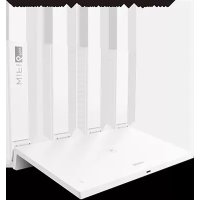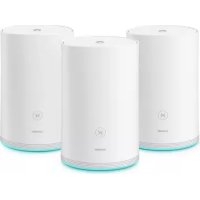
WiFi Q2 Pro - Smart Home HUAWEI - Free user manual and instructions
Find the device manual for free WiFi Q2 Pro HUAWEI in PDF.



User questions about WiFi Q2 Pro HUAWEI
0 question about this device. Answer the ones you know or ask your own.
Ask a new question about this device
Download the instructions for your Smart Home in PDF format for free! Find your manual WiFi Q2 Pro - HUAWEI and take your electronic device back in hand. On this page are published all the documents necessary for the use of your device. WiFi Q2 Pro by HUAWEI.
USER MANUAL WiFi Q2 Pro HUAWEI
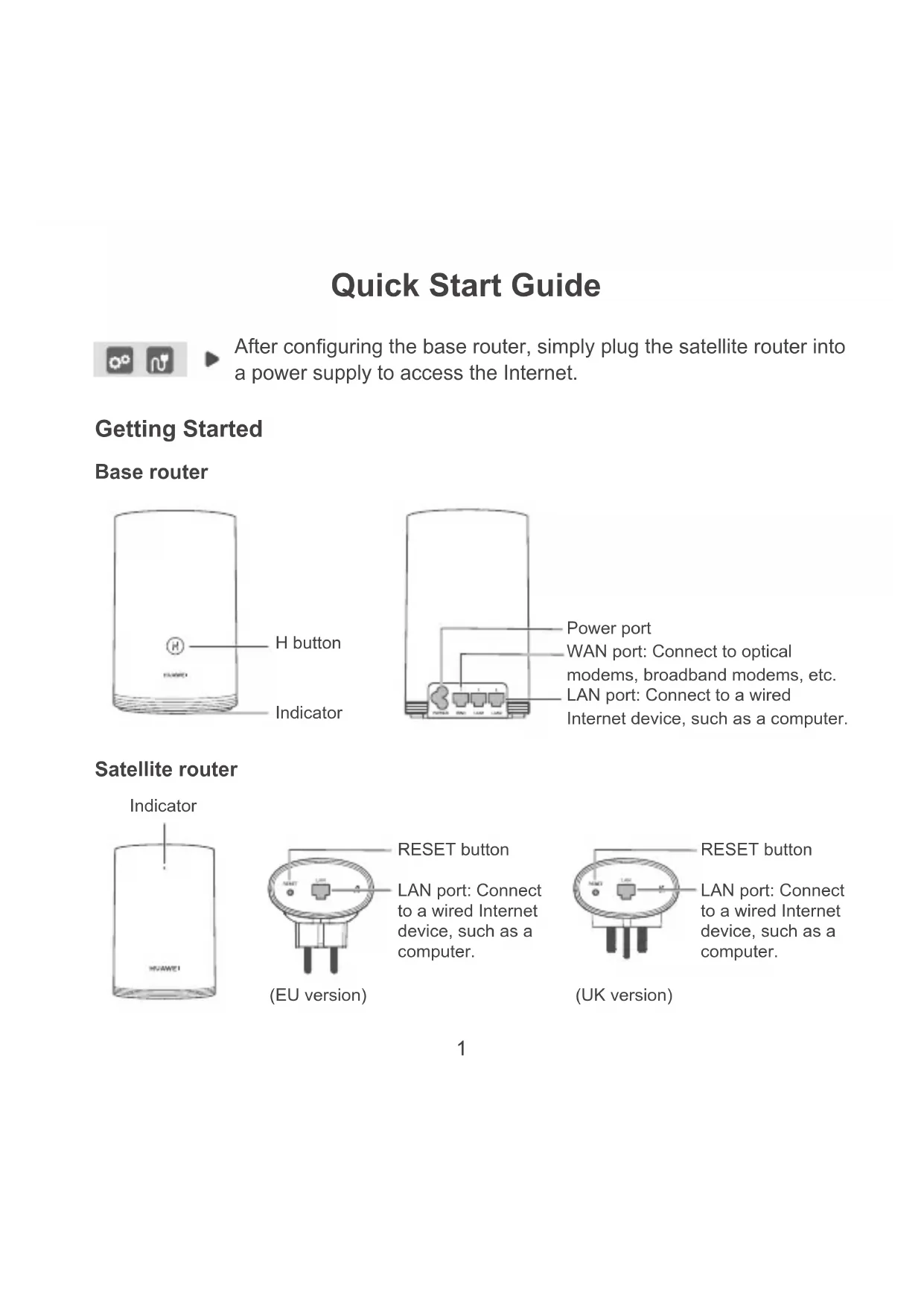
After configuring the base router, simply plug the satellite router into a power supply to access the Internet.
Getting Started
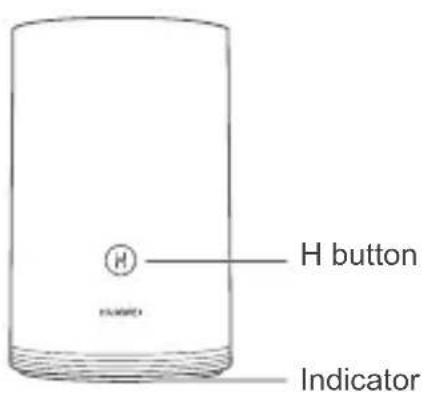
Base router
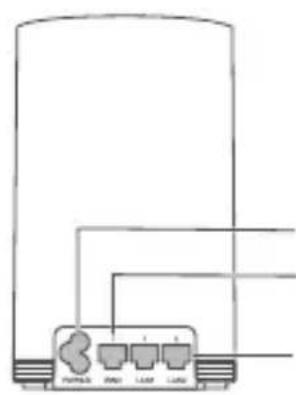
Power port
WAN port: Connect to optical modems, broadband modems, etc.
LAN port: Connect to a wired Internet device, such as a computer.
Satellite router

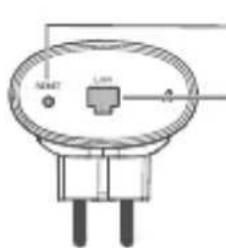
RESET button
LAN port: Connect to a wired Internet device, such as a computer.
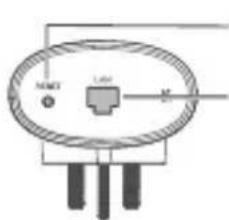
(EU version)
(UK version)
RESET button
LAN port: Connect to a wired Internet device, such as a computer.
Step 1: Install the HUAWEI SmartHome app
Search for "HUAWEI SmartHome" in an app store, or scan the QR code below with your phone to download and install the HUAWEI SmartHome app.

If the HUAWEI SmartHome app is already installed on your phone, make sure you have the latest version of the app.
Step 2: Connect the cables
Take out the base router, then connect the Ethernet cable and power supply.
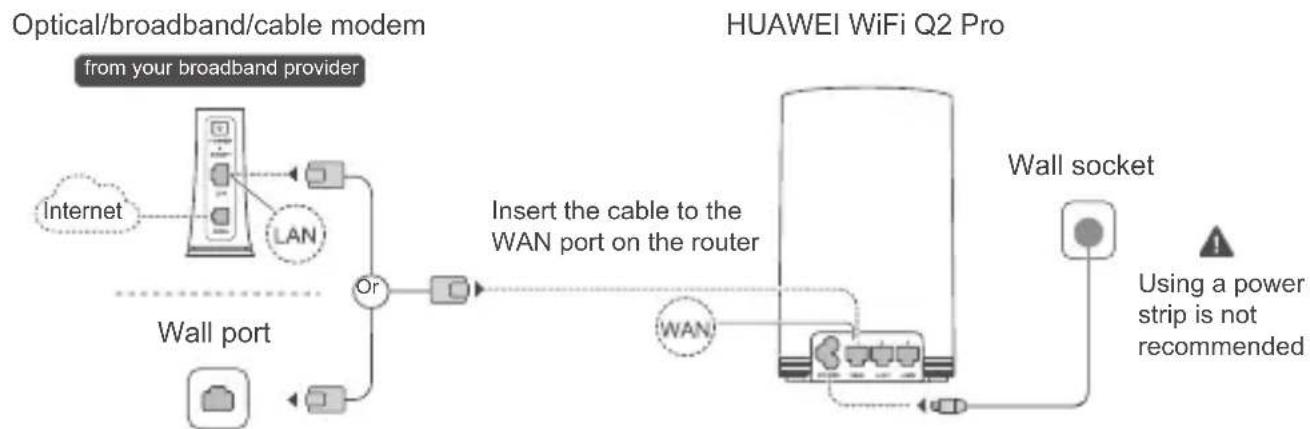
Do not bundle the Ethernet cable and the power cable together. Otherwise, the router's signal may be affected.
Step 3: Set up the base router
Method 1: Configure the router on the SmartHome app
1 Connect your mobile phone to the router's Wi-Fi® (no password). Check for the Wi-Fi name on the bottom of the router.
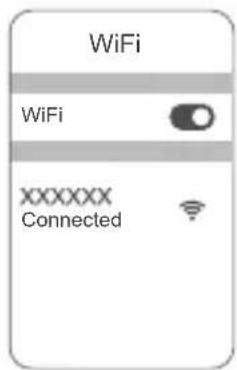
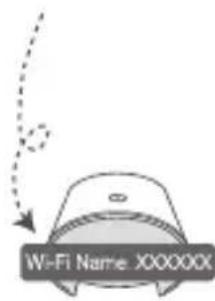
2 Open the HUAWEI SmartHome app. After the app has detected the router, touch CONFIGURE.

3 Touch SET UP.
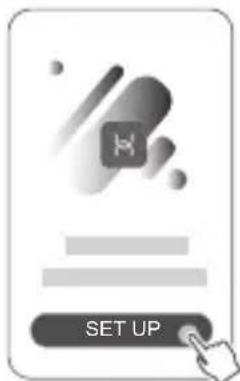
If the prompt box does not appear, touch ^+

- If your Internet connection does not require an account and password: Please skip to the next step.
- If you remember your broadband account and password: Enter your broadband account and password.
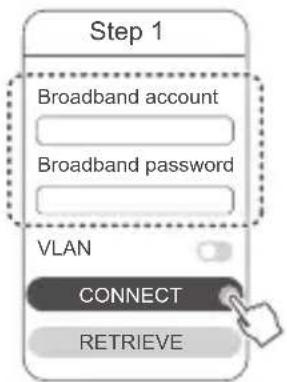
If you need to configure VLAN on your network, contact your broadband carrier to confirm the VLAN parameters, and enable the VLAN switch on the screen.
- If you have forgotten your broadband account and password: Obtain the broadband account and password from the old router. Take another Ethernet cable and connect the WAN port of the old router to the LAN port of the new router.
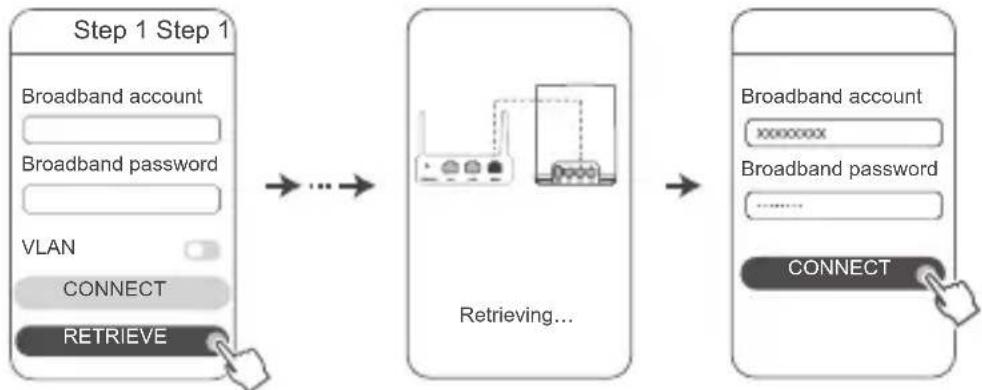
Or contact your carrier and obtain a broadband account and password.
If you need to configure VLAN on your network, contact your broadband carrier to confirm the VLAN parameters, and enable the VLAN switch on the screen.
Set a new Wi-Fi name, Wi-Fi password, and management password for the new router. You can use the Wi-Fi password as the router's management password.
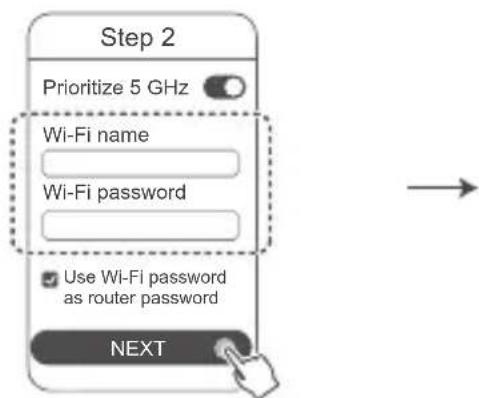
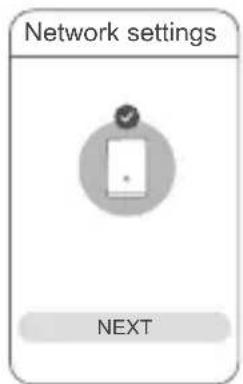
EnablePrioritize 5 GHz: The 2.4 GHz and 5 GHz Wi-Fi names are the same. You will automatically connect to the faster Wi-Fi network.
Reconnect to the router's Wi-Fi to access the Internet.
- If the router cannot be configured on the app, configure the router on the web-based management page by following the instructions in Method 2.
Method 2: Configure the router on the web-based management page
1 Connect your mobile phone to the router's Wi-Fi (no password). Check for the Wi-Fi name on the bottom of the router.
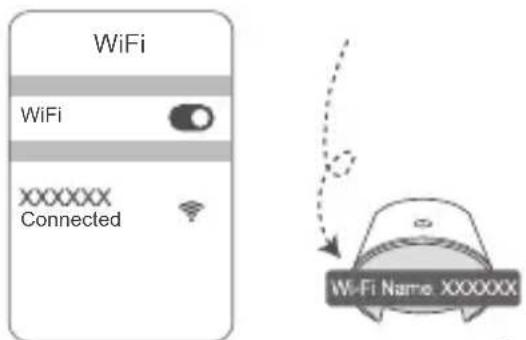

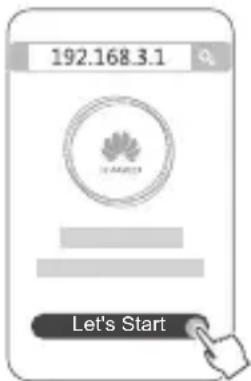
Open the browser and you will be automatically redirected to the web-based management page (if the page is not displayed automatically, enter "192.168.3.1" in the browser address bar). Follow the onscreen instructions to configure the router.
Step 4: Connect the satellite router to the power supply
After configuring the base router, plug the satellite router into the room where WiFi coverage is needed. Wait for approximately two minutes until the indicator turns steady blue to access the Internet.
Wall socket
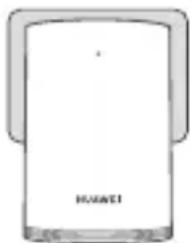

Using a power strip is not recommended
Some power strips have EMI filters that may prevent the satellite router from accessing the Internet.

- The Wi-Fi name and password of the satellite router are the same as those of the base router. As you move around your home, you will automatically connect to the router with the best signal.
- If the indicator is steady red, it indicates that the satellite router is unable to access the Internet. In this case, please refer to the "Indicator - Satellite router - Steady red" section below for more information.
- If you are still not getting Wi-Fi signals in certain parts of your home, you can purchase satellite routers separately to expand your Wi-Fi coverage.
- Satellite routers expand the Wi-Fi coverage of the base router to other rooms through wired connections. Chargers, hair dryers, vacuum cleaners, electric drills, and LED or any other lights with induction switches may all interfere with the signals of your satellite routers.
Indicator
Base router
Steady blue: connected to the Internet.
Steady red: not connected to the Internet.
- Ensure that the Ethernet cable is not loose and connected correctly.
- Contact your carrier to check for any network failure.
**Flashing:** The router has detected a pairable device.
When other HUAWEI routers (with H or Hi button) are detected, the indicator will flash. When this happens, press the router's H button. The indicator should flash quickly, indicating that the pairable device is connecting to the router's Wi-Fi. The connection process is complete when the indicator stops flashing.
If you touch the H button accidentally, wait for approximately two minutes and the indicator will be reset automatically.
- The H button also features WPS functionality.
Satellite router
Steady blue: connected to the Internet.
Steady red: not connected to the Internet.
- Ensure that the power cable and Ethernet cable of the base router are not bundled together.
- Ensure that the base and satellite routers are plugged into wall sockets.
- Plug the satellite router into a different wall socket and try again.
- Ensure that the satellite router is connected to the base router's network.
- Restore the satellite router to its factory settings and try again.
Frequently Asked Questions (FAQs)
- Why does my router emit a beeping noise?
Your router will emit a beeping noise when detecting the power line environment in your home. This is normal and does not indicate an issue with your device.
- What should I do if after configuring my HUAWEI WiFi Q2 Pro, my mobile phone automatically connects to the Wi-Fi network of the previously connected optical/broadband/cable modem instead of the Wi-Fi network of my HUAWEI WiFi Q2 Pro?
It is recommended that you disable the Wi-Fi network of your previous optical/broadband/cable modem to reduce potential signal interference with your HUAWEI WiFi Q2 Pro.
-
What should I do if HUAWEI WiFi Q2 Pro is not recognized on the HUAWEI SmartHome app?
-
Ensure that your HUAWEI SmartHome app is up to date.
- Connect your phone to the base router's network.
- Ensure that the base and satellite routers are new or have been restored to factory settings.
- Connect the base and satellite routers to power supplies, then wait for a few moments until the startup processes are complete and try again.
-
It is recommended that there are no more than two walls in between your phone and base router.
-
Can the HUAWEI WiFi Q2 Pro be used with a HUAWEI WiFi Q2?
Please do not use your HUAWEI WiFi Q2 Pro with a HUAWEI WiFi Q2 as this will decrease the performance of your router.
-
What should I do if I encounter any of the following issues during the configuration of the router?
-
If your phone cannot find the router's Wi-Fi, ensure that the router is connected to a power source. Wait until the router completes the startup process. Then try searching the router's Wi-Fi again on your phone.
- If the page prompts "Internet cable not detected", ensure that the Ethernet cables are well connected and in good condition.
-
If the page prompts "Incorrect username or password", please re-enter your broadband account and password. If the problem persists, your carrier may have bound the MAC address of the old router, resulting in the connection issue with the new router. In this case, select RETRIEVE, and follow the onscreen instructions. You can also contact your carrier for assistance.
-
If the page prompts "Unable to retrieve configuration from old router", ensure that the power supply of the old router, and the Ethernet cable connecting the WAN port of the old router to the LAN port of the new router are all well connected, then restart the old router and touch TRY AGAIN.
If the problem persists, restore the router to its factory settings and follow the instructions in this guide to reconnect the cables and re-configure the router.
- How to restore the base and satellite routers to factory settings?
Plug the router to a power supply and wait for a few moments until the startup is complete, then use a PIN to press and hold the RESET button on the router for approximately two seconds until the indicator goes out. If the indicator turns steady red after the router restarts, the router is restored to its factory settings.
If the base router is restored to its factory settings, you would need to reconfigure it, and then restore all satellite routers to their factory settings as well.
-
Do satellite routers require reconfiguration after a factory reset?
-
The satellite router that comes in the pack is plug-and-play and does not need to be reconfigured after a factory reset.
-
However, satellite routers that are purchased separately must be reconfigured through the HUAWEI SmartHome app.
-
How do I connect an add-on Huawei router (with H/Hi button) to my HUAWEI WiFi Q2 Pro's network?
-
Wired connection. Connect the WAN port of the add-on router (new or factory reset) to the LAN port of the base router using an Ethernet cable.
-
Pairing through the H button. Step 1) Place the add-on router (new or factory reset) within one meter of the base router and connect it to the power supply. 2) When the indicator on the base router starts to flash, press the H button on it. Wait until the indicator on the add-on router shows it is connected to the network.
-
How do I pair a Wi-Fi device with my HUAWEI WiFi Q2 Pro using WPS?
When your HUAWEI WiFi Q2 Pro is powered on, press its H button, and then press the WPS button on the Wi-Fi device (such as a phone) within two minutes to initiate standard WPS negotiation and incorporate the Wi-Fi devices into the router's Wi-Fi network.
Safety Information
Copyright © Huawei Technologies Co., Ltd. 2019. All rights reserved.
THIS DOCUMENT IS FOR INFORMATION PURPOSE ONLY, AND DOES NOT CONSTITUTE ANY KIND OF WARRANTY.
Trademarks and Permissions

and are trademarks or registered trademarks of Huawei Technologies Co., Ltd.
Wi-Fi® , the Wi-Fi CERTIFIED logo, and the Wi-Fi logo are trademarks of Wi-Fi Alliance.
Other trademarks, product, service and company names mentioned may be the property of their respective owners.
Version Update
In order to improve the security of the product and provide you with a better user experience, we will push version update information to you on a regular basis when an important update is released.
Privacy Policy
To better understand how we use and protect your personal information, please read the privacy policy at http://consumer.huawei.com/privacy-policy.
End User License Agreement
Please read and agree to the End User License Agreement (HUAWEI EULA) on the product's management page before using the product.
Safety Information
- Do not use your device if using the device is prohibited. Do not use the device if doing so causes danger or interference with other electronic devices.
- Pacemaker manufacturers recommend that a minimum distance of 15cm be maintained between a device and a pacemaker to prevent potential interference with the pacemaker. If using a pacemaker, hold the device on the side opposite the pacemaker and do not carry the device in your front pocket.
- Avoid dusty, damp, or dirty environments. Avoid magnetic fields. Using the device in these environments may result in circuit malfunctions.
- Ideal operating temperatures are 0^ to 40^ . Ideal storage temperatures are -40^ to +70^ . Extreme heat or cold may damage your device or accessories.
- Keep the device and accessories in a well-ventilated and cool area away from direct sunlight. Do not enclose or cover your device with towels or other objects. Do not place the device in a container with poor heat dissipation, such as a box or bag.
- The device should be installed and operated with a minimum distance of 20~cm between the radiator and your body.
- Using an unapproved or incompatible power adapter, charger or battery may cause fire, explosion or other hazards.
- For pluggable devices, the socket-outlet shall be installed near the devices and shall be easily accessible.
- Unplug the power adapter from electrical outlets and the device when not in use.
- Do not touch the device or the power adapter with wet hands. Doing so may lead to short circuits, malfunctions, or electric shocks.
Disposal and recycling information

The crossed-out wheeled-bin symbol on your product, battery, literature or packaging. It reminds you that all electronic products and batteries must be taken to separate waste collection points at the end of their working lives; they must not be disposed of in the normal waste stream with household garbage. It is the responsibility of the user to dispose of equipment using a designated collection point or service for separate recycling of waste, local and electronic equipment (WEEE) and batteries according to local laws. Your collection and recycling of your equipment helps ensure electrical and electronic content (EEE) waste is recycled in a manner that conserves valuable materials and protects
human health and the environment, improper handling, accidental breakage, damage, and/ or improper recycling at the end of its life may be harmful for health and environment. For more information about where and how to drop off your EEE waste, please contact your local authorities, retailer or household waste disposal service or visit the website http://consumer.huawei.com/en/.
Reduction of hazardous substances
This device and any electrical accessories are compliant with local applicable rules on the restriction of the use of certain hazardous substances in electrical and electronic equipment, such as EU REACH, RoHS and Batteries (where included) regulations, etc. For declarations of conformity about REACH and RoHS, please visit our web site http://consumer.huawei.com/certification.
EU regulatory conformance
Statement
Hereby, Huawei Technologies Co., Ltd. declares that the devices WS5280 V2 and PT8020 V2 are in compliance with the essential requirements and other relevant provisions of Directive 2014/53/EU.
The most recent and valid version of the DoC (Declaration of Conformity) can be viewed at http://consumer.huawei.com/certification.
This device may be operated in all member states of the EU.
Observe national and local regulations where the device is used.
This device may be restricted for use, depending on the local network.
Restrictions in the 2.4 GHz band:
Norway: This subsection does not apply for the geographical area within a radius of 20km from the centre of Ny-Alesund.
Restrictions in the 5 GHz band:
According to Article 10 (10) of Directive 2014/53/EU, the packaging shows that this radio equipment will be subject to some restrictions when placed
on the market in Belgium (BE), Bulgaria (BG), the Czech Republic (CZ), Denmark (DK), Germany (DE), Estonia (EE), Ireland (IE), Greece (EL),
Spain (ES), France (FR), Croatia (HR), Italy (IT), Cyprus (CY), Latvia (LV), Lithuania (LT), Luxembourg (LU), Hungary (HU), Malta (MT), Netherlands
(NL), Austria (AT), Poland (PL), Portugal (PT), Romania (RO), Slovenia (SI), Slovakia (SK), Finland (FI), Sweden (SE), the United Kingdom (UK),
Turkey (TR), Norway (NO), Switzerland (CH), Iceland (IS), and Liechtenstein (LI).
The WLAN function for this device is restricted to indoor use only when operating in the 5150 to
5350 MHz frequency range.
Frequency bands and power
(a) Frequency bands in which the radio equipment operates: Some bands may not be available in all countries or all areas. Please contact the local carrier for more details.
(b) Maximum radio-frequency power transmitted in the frequency bands in which the radio equipment operates: The maximum power for all bands is less than the highest limit value specified in the related Harmonized Standard.
The frequency bands and transmitting power (radiated and/or conducted) nominal limits applicable to this radio equipment are as follows:
Wi-Fi 2.4G: 20 dBm, Wi-Fi 5G: 5150-5350 MHz: 23 dBm, 5470-5725 MHz: 30dBm.
Software Information
The product software versions are 9.0.3.8 (WS5280 V2) and 9.0.3.8 (PT8020 V2). Software updates will be released by the manufacturer to fix bugs or enhance functions after the product has been released. All software versions released by the manufacturer have been verified and are still compliant with the related rules.
All RF parameters (for example, frequency range and output power) are not accessible to the user, and cannot be changed by the user.
For the most recent information about accessories and software, please see the DoC (Declaration of Confirmation) at http://consumer.huawei.com/certification.
ErP Product Information
Huawei Technologies Co., Ltd. hereby declares that its products conform to the Energy-related Products Directive (ErP) 2009/125/EC.
For detailed ErP information and the user manuals required by Commission Regulation, please visit: http://consumer.huawei.com/en/certification.
Please visit http://consumer.huawei.com/en/support/hotline for recently updated hotline and email address in your country or region.