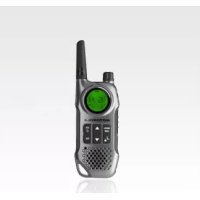
T8 - Radio ZEBRA - Free user manual and instructions
Find the device manual for free T8 ZEBRA in PDF.



| Product Type | PMR Radio (Walkie-talkie) |
| Brand | Zebra |
| Model | T8 |
| Number of channels | 8 PMR channels |
| Sub-codes | 121 (38 CTCSS codes + 83 DCS codes) |
| Maximum range | Up to 10 km (depending on conditions) |
| Power supply | Rechargeable NiMH AAA battery pack or 4 AAA alkaline batteries (not included) |
| Battery life (NiMH battery) | Approximately 16 hours in normal use |
| Battery life (alkaline batteries) | Approximately 14 hours in normal use |
| VOX function | Voice activation hands-free (5 sensitivity levels) |
| Dual watch | Alternate scanning of two channels |
| Channel scanning | Automatic scanning of 8 channels |
| Baby monitor | Remote audio monitoring (5 sensitivity levels) |
| Silent mode | Visual alert by LED flashing |
| Vibration mode | Vibration alert when receiving a call |
| Display | Backlit LCD display |
| Keypad lock | Yes |
| Auto power off | Programmable (1h/2h/3h) |
| Transceiver | PMR446 bands (446 MHz) |
| Included accessories | 2 radios, 2 belt clips, charger cradle, AC adapter, 2 battery holders, 2 NiMH battery packs, user guide |
| RF safety | Follow safety and radio frequency exposure guidelines (see manual) |
| Warranty | Warranty according to supplier conditions (see manual) |
Frequently Asked Questions - T8 ZEBRA
User questions about T8 ZEBRA
0 question about this device. Answer the ones you know or ask your own.
Ask a new question about this device
Download the instructions for your Radio in PDF format for free! Find your manual T8 - ZEBRA and take your electronic device back in hand. On this page are published all the documents necessary for the use of your device. T8 by ZEBRA.
USER MANUAL T8 ZEBRA
Product Safety and RF Exposure 2
Features. 2
Control and Functions 3
Display.... 4
Package Contents 5
Install the Battery.... 5
Battery Level and Low Battery Alert. 5
Charging the Radio 5
Direct Charge.... 5
Using the Charging Cradle. 5
Charging the Battery 6
Using the Radio 6
Turning On the Radio and Volume Adjust 6
Talking on your Radio 6
Navigating through the Menu 6
Select Menu 7
Choosing a Channel 7
Choosing a Sub-code 7
Dual Watch Mode 8
Stopwatch Activation 8
Mode Menu 9
Clock Feature....9
Channel Scan Feature.... 10
Monitor Mode Feature 10
Voice Operated Transmission 10
Transmitting a Ring Tone 10
Vibe (Vibration) Mode 11
SInt (Silent) Mode 11
Key Tone 11
PTT (Roger Tone)....12
Automatic Power Save Feature .....12
Auto Power Off 12
Room Monitor Feature....12
Group Menu....13
Clock Feature in Group Mode .....13
Set ID Name 14
Set ID Number....14
Set Monitor in Group Mode .....14
Set Ring Tone in Group Mode....15
Set Key Tone in Group Mode 15
Set PTT in Group Mode....15
Set Auto Power Off in Group Mode.....15
Group Mode.....15
Auto Channel Change Setting....16
Manual Channel Change Setting....16
Set All/Direct Call....16
Set All Call....16
Set Direct Call 17
Key Lock Activation....17
Battery Low Alert 17
LCD Backlight 17
Specifications. 17
Frequency Chart....18
CTCSS Chart (Hz)....19
DCS Code 19
Warranty Information.....20
What Is Not Covered by the Warranty....20
Copyright Information 20
Product Safety and RF Exposure for Portable Two-Way Radios

Before using this product, read the operating instructions for safe usage contained in the Product Safety and RF Exposure booklet enclosed with your radio.
ATTENTION!
Before using this product, read the RF energy awareness information and operating instructions in the Product Safety and RF Exposure booklet to ensure compliance with RF energy exposure limits.
Features
8 PMR Channels
121 Sub-Codes (38 CTCSS Codes & 83 DCS)
Up to 10 km Range*
LED Torch
Internal VOX Circuitry
10 Selectable Ring Tone Alert
Backlight LCD Display
Headset Jack for Optional Headset
PTT Roger Beep
Clock timer
Room Monitor
Channel Scan
Dual Watch
Keypad Lock
Battery Save Power
Silent Mode
Battery Low Alert
Group Call
Direct Call (Caller ID Call)
All Call
Auto Channel Change
* Range may vary depending on environmental and/or topographical conditions.
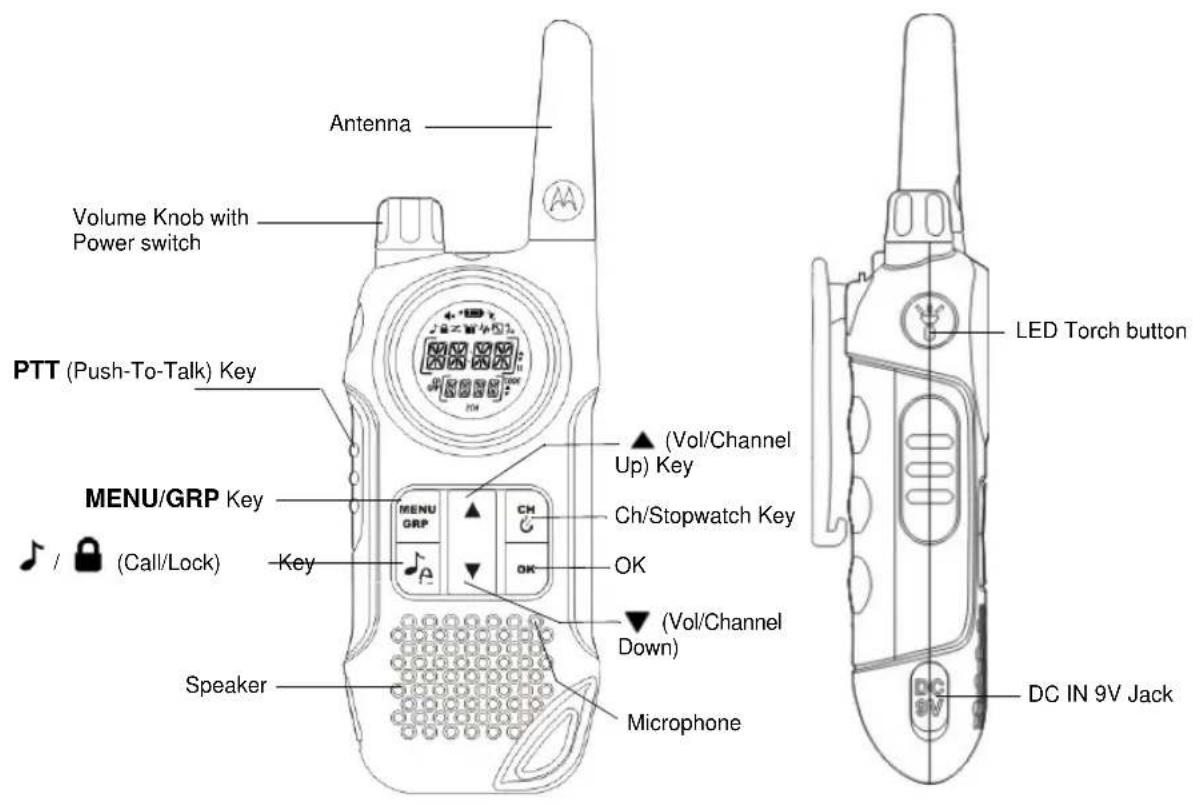
Control and Functions
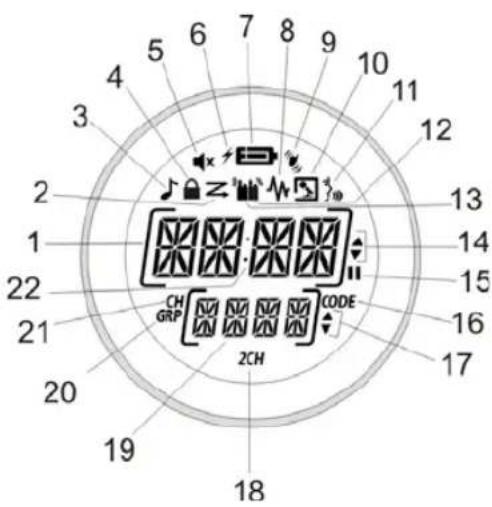
Display
- Time/Menu/Group selection indicator
- Scan indicator
- Key tone indicator
- Keypad lock indicator
- Silent (Ringer Off) indicator
- Battery charge indicator
- Battery level meter
- Monitor indicator
- Vibrator indicator
- Room monitor indicator
- VOX indicator
- Transmit indicator
- Receive indicator
- Up/Down (Channel/Menu mode selection) indicator
- Pause (Stopwatch) indicator
- Code (Sub-code number) indicator
- Up/Down (sub-code/group selection number) indicator
- 2CH (Dual channel) indicator
- Sub-code number/Group selection indicator
- GRP (Group mode) indicator
- CH (Main Channel indicator)
- Colon (display in Clock/Stopwatch) indicator
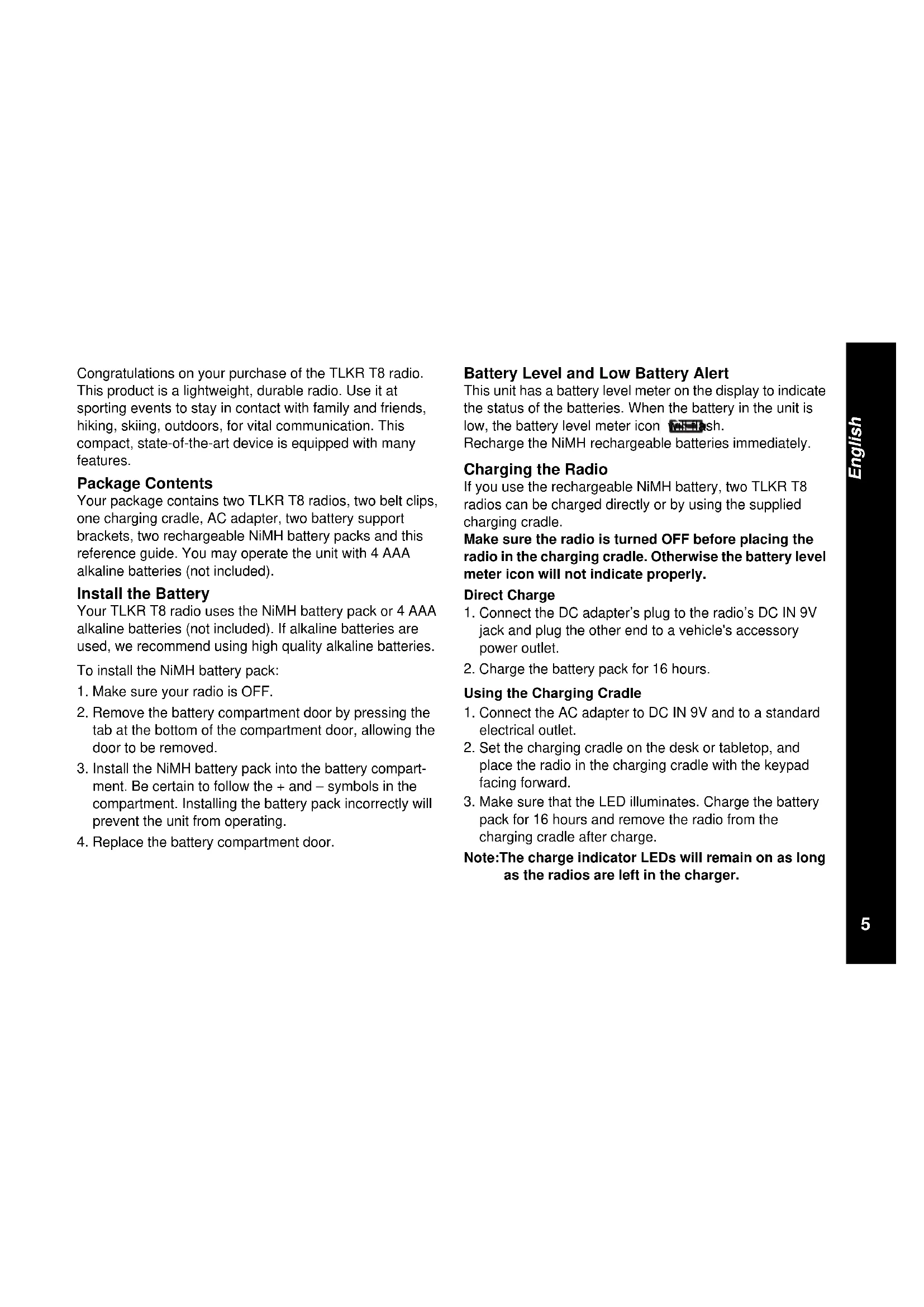
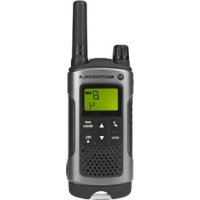
Congratulations on your purchase of the TLKR T8 radio. This product is a lightweight, durable radio. Use it at sporting events to stay in contact with family and friends, hiking, skiing, outdoors, for vital communication. This compact, state-of-the-art device is equipped with many features.
Package Contents
Your package contains two TLKR T8 radios, two belt clips, one charging cradle, AC adapter, two battery support brackets, two rechargeable NiMH battery packs and this reference guide. You may operate the unit with 4 AAA alkaline batteries (not included).
Install the Battery
Your TLKR T8 radio uses the NiMH battery pack or 4 AAA alkaline batteries (not included). If alkaline batteries are used, we recommend using high quality alkaline batteries.
To install the NiMH battery pack:
- Make sure your radio is OFF.
- Remove the battery compartment door by pressing the tab at the bottom of the compartment door, allowing the door to be removed.
- Install the NiMH battery pack into the battery compartment. Be certain to follow the + and - symbols in the compartment. Installing the battery pack incorrectly will prevent the unit from operating.
- Replace the battery compartment door.
Battery Level and Low Battery Alert
This unit has a battery level meter on the display to indicate the status of the batteries. When the battery in the unit is low, the battery level meter icon will sh.
Recharge the NiMH rechargeable batteries immediately.
Charging the Radio
If you use the rechargeable NiMH battery, two TLKR T8 radios can be charged directly or by using the supplied charging cradle.
Make sure the radio is turned OFF before placing the radio in the charging cradle. Otherwise the battery level meter icon will not indicate properly.
Direct Charge
- Connect the DC adapter's plug to the radio's DC IN 9V jack and plug the other end to a vehicle's accessory power outlet.
- Charge the battery pack for 16 hours.
Using the Charging Cradle
- Connect the AC adapter to DC IN 9V and to a standard electrical outlet.
- Set the charging cradle on the desk or tabletop, and place the radio in the charging cradle with the keypad facing forward.
- Make sure that the LED illuminates. Charge the battery pack for 16 hours and remove the radio from the charging cradle after charge.
Note: The charge indicator LEDs will remain on as long as the radios are left in the charger.
Charging the battery
You can charge the NiMH battery pack itself using the included battery support bracket.
- Place the battery support bracket into the charging cradle.
- Install the NiMH battery pack applying its charging contacts to those of the charging cradle. Installing the batteries incorrectly will prevent the unit from charging.
- Make sure that the LED illuminates. Charge the battery pack for 16 hours.
Note: The charge indicator LEDs will remain on as long as the battery is left in the charger.
Using the Radio
In order to get the most out of your new radio, read this reference guide completely before attempting to operate the unit.
Turning the Radio On and Adjusting the Volume
- Turn the rotary knob clockwise to turn the radio ON, and increase the volume by turning the rotary knob. To decrease the volume, turn the rotary knob counter clockwise.
- Turn the rotary knob fully counterclockwise to turn the radio OFF.
Talking on Your Radio
To talk to others using the radio:
- Press and hold the PTT key and speak in a clear, normal voice about 5-8 cm away from the microphone. While you are transmitting, the 📷con will appear on the display. To avoid cutting off the first part of your transmission, pause slightly after pressing the PTT
button before you start talking.
- When you have finished speaking, release the PTT key. You can now receive incoming calls. While receiving, the icon will appear on the display.
Note: When you continue to transmit for 60 seconds, the radio emits TX Time Out tone and the ☐ on flashes. The radio will stop transmitting.
Navigating through the Menu
To access the advanced features of the TLKR T8, your radio has two Menu functions.
- To enter the Menu, press the MENU/GRP key.
- Additional presses of the MENU/GRP key will advance you through the Menu until exiting to "Normal" operating mode.
Select Menu
Your radio navigates through Select Menu as follows:

flowchart
graph LR
    A["CH/ Channel Stopwatch"] --> B["CH (Channel number)"]
    B --> C["CODE (Code number)"]
    C --> D["2 CH (Dual watch)"]
    D --> E["dual watch on"]
    E --> F["Channel number (1-8)"]
    F --> G["Sub-code number (0-121)"]
    B --> H["1 - 8"]
    C --> I["0 - 121"]
    D --> J["On/Off"]
Choosing a Channel
Your radio has 8 channels and 121 Sub-codes you can use to talk to others. In order to speak to someone, each of you must set to the same channel and Sub-code.
To choose a channel:
- Enter the CH/ Channel "CH" display.
- Press OK to go to channel settings.
- Press the ▲ or key to increase or decrease the channel number displayed. If you press and hold the ▲ or ▼ key, the channel number increase or decrease continuously.
- Press OK to confirm the setting.
Choosing a Sub-code
Allocating a Sub-code to your radio will help to reduce interference but remember that the radios that have different Sub-codes set will not be able to communicate with each other. Each of the channels 1-8 may have any one of the codes from 0 to 121.
- Enter the CH/ Advance through the Select Menu until the "CODE" display.
- Press OK to go to sub-code settings.
- Press the ▲ or key to increase or decrease the Sub-code number displayed. If you press and hold the ▲ or ▼ key the channel number increase or decrease continuously.
- Press OK to confirm the setting.
Dual Watch Mode
Your radio can scan the current channel and another channel alternately. You need to set a channel number and its Sub-code for another channel.
To set another channel and start Dual Watch:
- Enter the CH/ ⏻ . Advance through the select menu until "2CH" display.
- Press OK then press the ▲ or key to set the dual channel to ON monitoring. Press OK again to set the dual watch channel number.
- Press the ▲key to set the second channel number, press OK then press the ▲or key to select second channel. Press OK again to confirm.
- Press the ▲key to set the second sub-code, Press OK then press the ▲or key to select second sub-code number. Press OK again to confirm.
Note: If you set the same channel number and Sub-code as the current channel, Dual Watch doesn't work.
To turn the Dual Watch mode OFF:
Enter the CH/ Advance through the select Menu until "2CH" display. Press OK then press the ▲ or ▼ key to set to OFF mode.
Press OK to confirm the setting.
Stopwatch Activation
You can use this radio as a Stopwatch timer. It can time up to 60 minutes and 59 seconds.
Note: You can receive incoming signals during this mode.
To use the Stopwatch Timer
- Press and hold the CH/ key until Stopwatch timer displays.
- Press the ▲key to start Stopwatch timer. Pressing the ▲key again will Pause the timer.
- Press the ▼key to reset the Stopwatch timer.
- Press and hold the CH/ key to exit the Stopwatch timer function.
Mode Menu
Your radio navigates through Select Menu as follows:
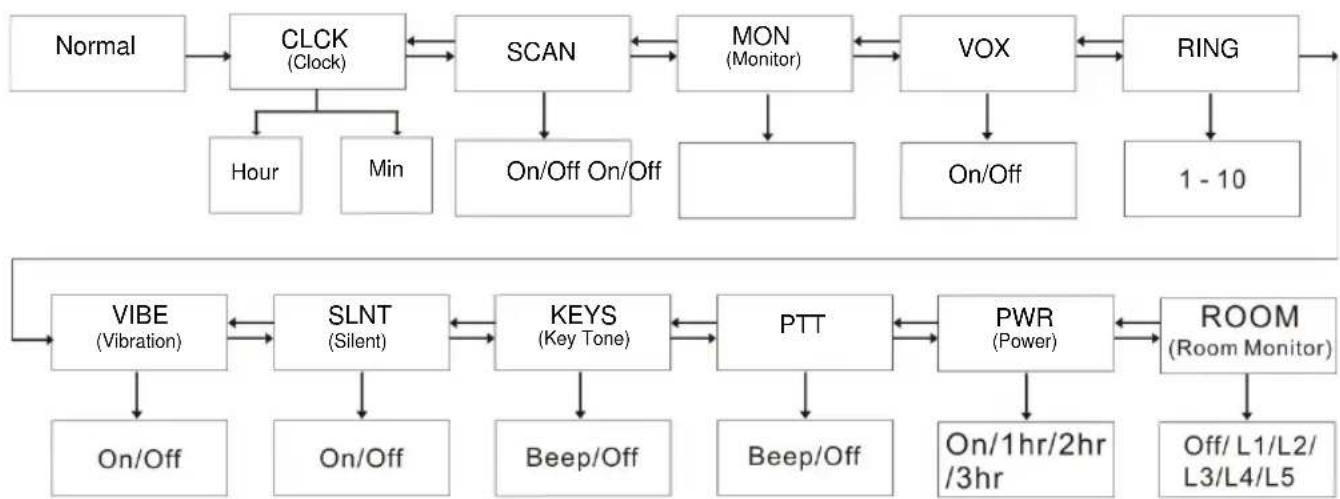
flowchart
graph TD
    A["Normal"] --> B["CLCK (Clock)"]
    B --> C["SCAN"]
    C --> D["MON (Monitor)"]
    D --> E["VOX"]
    E --> F["RING"]
    F --> G["1 - 10"]
    H["VIBE (Vibration)"] --> I["SLNT (Silent)"]
    I --> J["KEYS (Key Tone)"]
    J --> K["PTT"]
    K --> L["PWR (Power)"]
    L --> M["ROOM (Room Monitor)"]

    B --> N["Hour"]
    B --> O["Min"]

    I --> P["On/Off"]
    J --> Q["Beep/Off"]

    L --> R["On/1hr/2hr /3hr"]

    M --> S["Off/L1/L2/L3/L4/L5"]
Clock Feature
You can use your TLKR T8 radio's clock function as a time display on your radio. When you set the time feature, the time clock in 24 hour format will display on standby mode.
To set the Time clock ON or OFF:
- Enter the MENU/GRP. Advance through the Menu until the "CLOCK" display. Press OK to set the time clock feature.
- Press the ▲ or key to set the hour time.
- Press OK and move on to minutes setting.
- Press the or key to set the minute time.
- Press OK to confirm the time setting.
Channel Scan Feature
Your TLKR T8 radio has a channel scan feature that allows you to easily scan all 8 channels. When an active channel is detected, the radio will pause on that channel until the channel is clear. Then after a 2 second pause, the radio will continue scanning. Pressing the PTT key while the scan is paused on a channel will allow you to transmit on that channel and after releasing the PTT in 5 seconds it will continue scanning.
To set the channel scan ON:
-
Enter the MENU/GRP. Advance through the Menu until "SCAN" display. Press OK then press the ▲ or ▼ key to set the Scan On.
-
Press OK to start channel scanning.
To set the channel Scan OFF:
- Enter the MENU/GRP. Advance through the Menu until "SCAN" display. Press OK then press the ▲ or ▼ key to set the Scan to OFF.
- Press OK to confirm the setting.
Monitor Mode Feature
Your TLKR T8 radio allows you to listen for weak signals on the current channel at the press of a key.
To set the Monitor to ON:
- Enter the MENU/GRP. Advance through the Menu until the "MON" display. Press OK then press the ▲ or ▼ key to set the Monitor ON.
- Channel monitoring will start immediately.
To set the Monitor to OFF:
- Enter the MENU/GRP. Advance through the Menu until
"MON" display. Press OK then press the ▲ or ▶ key to set the monitoring to OFF mode.
- Press OK to confirm the setting.
Voice Operated Transmission
Your TLKR T8 radio is equipped with a user selectable Voice Operated Transmitter (VOX) that can be used for automatic voice transmission. The VOX feature is designed for hands-free purpose. Transmission is initiated by speaking into the microphone of the radio or headset (headset is not included) instead of pushing the PTT key.
To select the VOX level:
- Enter the MENU/GRP. Advance through the Menu until the "VOX" display. Press OK to select VOX level settings to (L1..L5/Off). Setting Off disables VOX, while level 1-5 set the sensitivity of the VOX circuit.
- Press the ▲ or ▲ key to select the desired VOX sensitivity level. Use Level 1 in quiet environments, and use level 5 in very noisy environments. You can find the appropriate sensitivity level by speaking into the microphone. If the ☐con flashes, your voice is accepted.
- Press OK to confirm the setting.
Note: When you continue to transmit using VOX function for 60 seconds, the radio emits TX Time Out tone and the icon flashes for 5 seconds.
Transmitting a Ring Tone
Your TLKR T8 radio is equipped with 10 selectable call tones that will be transmitted, when the /key is pressed.
To select a Call tone:
- Enter the MENU/GRP. Advance through the Menu until the "RING" display. Press OK to select the ring tone from (1-10).
- Press the ▲ or ▶ key to select the desired ring tones. Each tone will be heard every time you press the selected ring tone number.
- Press OK to confirm the setting.
To transmit the selected ring tone, press the /key. The selected tone will automatically be transmitted for a fixed length of time. Ring tone will be cancelled when the PTT key is pressed.
Vibe (Vibration) mode
Your TLKR T8 is equipped with a Vibration selection that will alert the user when there is incoming transmission or call tone.
Vibrator mode is disabled for 30 seconds when you transmit, receive or press any other button.
To turn the Vibrator mode ON:
- Enter the MENU/GRP. Advance through the Menu until the "VIBE" display. Press OK then press the ▲ or ▼ key to set the Vibration to ON mode.
- Press OK to confirm the setting.
To turn the Vibrator mode OFF:
- Enter the MENU/GRP. Advance through the Menu until "VIBE" display. Press OK then press the ▲ or ▼ key to set the Vibration OFF.
- Press OK to confirm the setting.
SInt (Silent) Mode
When you turn On the silent mode, all incoming calls are muted; the radio blinks the backlight to alert you to an incoming call. If you do not respond to the call, the backlight turns Off, and the CALL icon will blink until there is no signal.
Silent mode is disabled for 30 seconds when you transmit, receive, or press any other button.
To turn the Silent ON:
- Enter the MENU/GRP. Advance through the Menu until the "SLNT" display. Press OK then press the ▲ or ▼ key to set the Silent to ON mode.
- Press OK to confirm the setting.
To turn the Silent OFF:
- Enter the MENU/GRP. Advance through the Menu until "SLNT" display. Press OK then press the ▲ or ▼ key to set the Silent to OFF.
- Press OK to confirm the setting.
Key Tone
Your radio emits a tone each time one of the keys (except for the PTT key) is pressed.
To turn the Key tone ON:
- Enter the MENU/GRP. Advance through the Menu until the "KEYS" display. Press OK then press the ▲ or ▼ key to set the Key Beep tone ON mode.
- Press OK to confirm the setting.
To turn the Key tone OFF:
- Enter the MENU/GRP. Advance through the Menu until "KEYS" display. Press OK then press the ▲ or ▼ key to
set the Key tone to OFF.
- Press OK to confirm the setting.
PTT (Roger tone)
Roger Beep is a BEEP that is sent to notify the end of transmission (PTT and VOX transmission). Roger can be heard through the speaker when Key Beep is On. It is transmitted even if Key beep is turned Off. However, Roger Beep will not be heard from the speaker.
To turn the PTT beep ON:
- Enter the MENU/GRP. Advance through the Menu until the "PTT" display. Press OK then press the ▲ or ▼ key to set the PTT Beep tone to ON mode.
- Press OK to confirm the setting.
To turn the PTT beep OFF:
- Enter the MENU/GRP. Advance through the Menu until "PTT" display. Press OK then press the ▲ or ▼ key to set the PTT tone to OFF.
- Press OK to confirm the setting.
Automatic Power Save Feature
Your radio has a unique circuit designed to dramatically extended the life of the batteries. If there is no transmission or an incoming call within 3 seconds, your radio switches to the Power Save Mode. The radio is still able to receive transmissions in this mode.
Auto Power Off
Auto Power Off feature allows you to set the time that the radio turns off automatically.
- Enter the MENU/GRP. Advance through the Menu until the"PWR" display. Press OK then press the ▲ or key
to select the Auto power off mode. Selection mode can be set to On, 1hr, 2hr or 3 hr.
- Press OK to confirm the setting.
Room Monitor Feature
You can use one of your TLKR T8 radios as a room monitor and use the other radio to listen to and keep a check on the voice in another room. When you set the room monitor feature, the monitoring radio will detect voice/noises (according to the sensitivity level you set) and transmit back to the listening radio without pushing the PTT key. The monitoring radio is not able to receive any transmissions in this mode.
To turn the Room Monitor ON:
- Enter the MENU/GRP. Advance through the Menu until the "ROOM" display. Press OK then press the ▲ or ▼ key to select the Room monitor to Off or level L1, L2, L3, L4, L5.
- Channel monitoring will start immediately.
To set the Room Monitor OFF:
- Enter the MENU/GRP. Advance through the Menu until the "ROOM" display. Press OK then press the ▲ or ▼ key to set the Room monitor to Off.
- Press OK to confirm the setting.
Note:
- Pressing the PTT key in Room Monitor mode is invalid and the radio emits PTT Error tone.
- When the voice/noise in another room continues more than 60 seconds, the monitoring radio stops monitoring for 5 seconds, and then resumes.
Group Menu
Press and hold the MENU/GRP key to get into Group Menu.
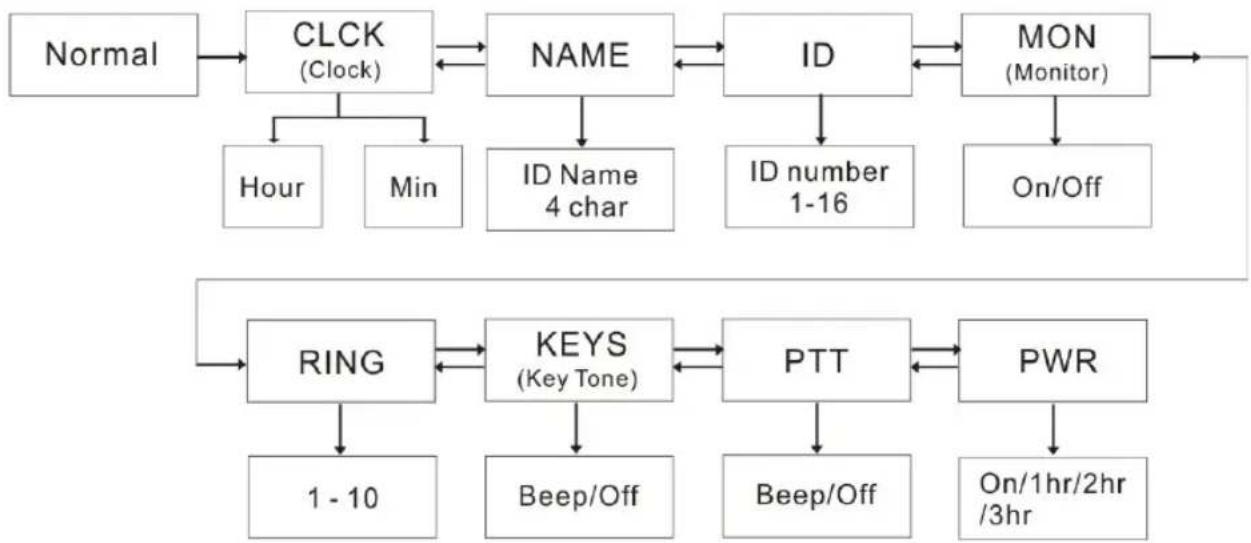
flowchart
graph TD
    A["Normal"] --> B["CLCK (Clock)"]
    B --> C["NAME"]
    C --> D["ID"]
    D --> E["MON (Monitor)"]
    E --> F["RING"]
    F --> G["KEYS (Key Tone)"]
    G --> H["PTT"]
    H --> I["PWR"]
    I --> J["On/1hr/2hr /3hr"]
    B --> K["Hour Min"]
    C --> L["ID Name 4 char"]
    D --> M["ID number 1-16"]
    E --> N["On/Off"]
    G --> O["Beep/Off"]
    H --> P["Beep/Off"]
    I --> Q["1-10"]
Clock Feature in Group Mode
You can use your TLKR T8 radio's clock function as a time display on your radio. When you set the time feature, the time clock in 24 hour format will display on standby mode.
To set the Time clock ON:
- Enter the MENU/GRP. Advance through the Menu until the "CLCK" display. Press OK to set the Time clock feature.
- Press the or key to set the hour time.
- Press OK to move on to minute setting.
- Press the ▲ or key to set the minute time.
- Press OK to confirm the time setting.
Set ID Name
ID name appears on other units' displays when you make an All Call or Direct Call. This is also the name that appears on other radio displays when someone wants to make a Direct Call to you. When no ID name is set, the unit number appears.
To set the ID Name:
- Enter the MENU/GRP. Advance through the Menu until "NAME" is displayed. Press OK to enter the Name on the blinking sub-code segments.
- Press the ▲ or k̅y to input the character on the blinking sub code segments. Press OK to move to the next character until completed the desired characters. The name characters can be selected up to 4 characters.
- Press OK to confirm the setting.
Note: Whenever the user presses MENU/GRP key, the unit cancels input ID number and entered ID name then it exits from Group menu.
Set ID number
Each radio in your group needs to be set to an ID number from 1 to 16.
The ID number is required to distinguish units of the same Group.
To set the ID number:
- Enter the MENU/GRP. Advance through the Menu until "ID" is displayed. Press OK then press the ▲ or ▼ key to set the ID number.
- Press OK to confirm the setting.
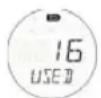
Note: The user selects ID number that is displayed on channel segments by pressing the ▲ or key. When the registered ID of All Call is selected by pressing ▲ or the LCD indicates "USED" at sub-code segments, and if non registered ID is selected it indicates nothing at sub-code segments.

Set Monitor in Group mode
To set the Monitor mode ON:
- Enter the MENU/GRP. Advance through the Menu until the "MON" display. Press OK then press the ▲ or ▼ key to set the Monitor to ON mode.
- Channel monitoring will start immediately.
To set the Monitor to OFF:
- Enter the MENU/GRP. Advance through the Menu until "MON" display. Press OK then press the ▲ or ▼ key to set the Monitor to OFF.
- Press OK to confirm the setting.
Set Ring Tone in Group mode
To select a Ring tone:
- Enter the MENU/GRP. Advance through the Menu until "RING" displays. Press OK to select the ring tone from (1-10).
- Press the ▲ or key to select the desired ring tone. Each tone will be heard every time you press the selected ring tone number.
To transmit the selected ring tone, press the corresponding key. The selected tone will automatically be transmitted for a fixed length of time. Ring tone will be cancelled when the PTT key is pressed.
Set Key Tone in Group mode
To set the Key tone ON:
- Enter the MENU/GRP. Advance through the Menu until the "KEYS" display. Press OK then press the ▲ or ▼ key to set the Key Beep tone to ON.
- Press OK to confirm the setting.
To set the Key tone OFF:
- Enter the MENU/GRP. Advance through the Menu until "KEYS" display. Press OK then press the ▲ or ▼ key to set the Key tone to OFF.
- Press OK to confirm the setting.
Set PTT in Group mode
To set the PTT beep ON:
- Enter the MENU/GRP. Advance through the Menu until the "PTT" display. Press OK then press the ▲ or ▼ key to select the PTT Beep tone to ON mode.
- Press OK to confirm the setting.
To set the PTT beep OFF:
- Enter the MENU/GRP. Advance through the Menu until "PTT" display. Press OK then press the ▲ or ▼ key to set the PTT tone to OFF.
- Press OK to confirm the setting.
Set Auto power off in Group mode
Auto Power Off feature allows you to set the time that the radio turns off automatically.
- Enter the MENU/GRP. Advance through the Menu until the "PWR" display. Press OK then press the ▲ or ▼ key to select the Auto power off mode. Selection mode can be set to On, 1hr, 2hr or 3 hr.
- Press OK to confirm the setting.
Group Mode
Press the CH/ key to get into Group Mode.
Press the ▲ or key to proceed to each menu.
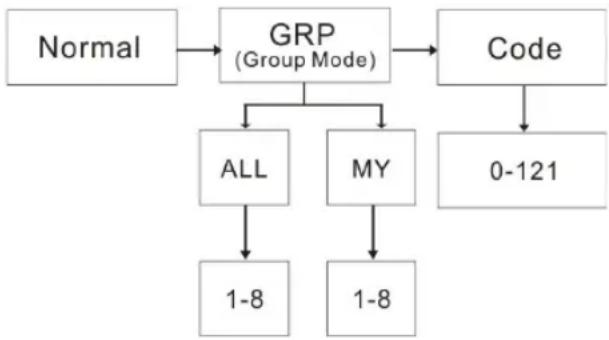
flowchart
graph TD
    A["Normal"] --> B["GRP (Group Mode)"]
    B --> C["ALL"]
    B --> D["MY"]
    C --> E["1-8"]
    D --> F["1-8"]
    G["Code"] --> H["0-121"]
Press the CH/ key to enter the channel setting. Press OK then press the or▲key to select the Auto Channel Change settings or Manual Channel Change settings. The Display shows the following:
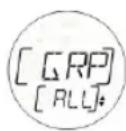
Auto Channel Change
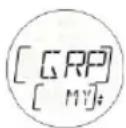
Manual Channel Change
Press the CH/ key to enter each setting.
Note: Pressing the CH/ key will go back to idle status.
Auto Channel Change setting
Press the CH/ key to enter Group Mode.
Press OK to set the Auto Channel change and the display will show the current group number. Press OK then press the or key to select the group channel number press again the or key to select the group mode in "ALL".
Press OK to confirm and transmit Auto Channel change command.
Note: Pressing CH/ key will go back to idle status.
Manual Channel setting
Press the CH/ 🔊key to enter Group Mode. Press OK to set the Manual Channel setting and the display will show "MY".
Press OK then press the or ▲key to select the channel.
Then, Manual channel setting is available.
Note: Pressing the CH/ key will go back to idle status.
Set All/Direct Call
Press the / key in Group mode to enter All/Direct call setting. At first the user selects a type of call from All Call transmission or Direct Call setting.
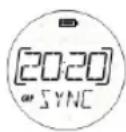
All Call
Transmission
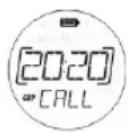
Direct Call
Transmission
To select the setting, press the or key to select the type of a call.
Set All Call
When All Call Transmission " ZYNC" is selected press the ♪/♦key to transmit All Call immediately. Then it sounds All Call tone to the receiver unit. The display shows TX icon and Call icon while transmitting.
Note: Pressing the CH/ 🔍 key will go back to idle status.
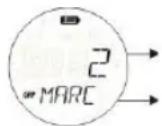
Set Direct Call
The display shows ID number on Channel segments and ID name blinks on sub-code segments.
ID number for Direct Call
ID name
Press the ▲ or key to select the ID number. Press OK to transmit Direct Call command. The Direct Call command will only transmit to the selected ID number.
The display shows the TX icon and Call icon while transmitting.
The unit sounds will transmit the selected Call tone when transmitting Direct Call command.
Note: Pressing the CH/ key will go back to All/Direct Call setting.
Key Lock Activation
To Lock the keypad:
Press and hold the /key. The icon appears.
In sub-code segments shows "LOCK" for 2 seconds then it returns to previous screen.
To Unlock the keypad:
Press and hold the /key again. The icon
disappears. In sub-code segments shows "UNLK" for 2 seconds then it returns to previous screen.
Note: If any key (except PTT) is pressed while LOCK icon still displayed every press of keys will sound with error tone.
Battery Low Alert
Battery Low alerts when the battery level becomes empty. The alert starts 30 seconds after the Battery Low icon starts blinking. The sub-code segment indicates "BATT" and the Battery Low icon blinks. The alert tone sounds every 5 seconds for 30 seconds then the radio will automatically power off.
LCD Backlight
The LCD backlight will automatically turn ON when any key (except for PTT) is pressed. The LCD display will illuminate for 10 seconds after the last key pressed.
Specifications Frequency Chart (MHz)
Channels 8 PMR
Sub-Codes 121 (38 CTCSS and
83 DCS Codes)
Operating
Frequency
446.00625 - 446.09375 MHz
Power Source AAA Ni-MH battery Pack
4 AAA Alkaline Batteries
(not included)
Range Up to 10 km
Battery Life 16 Hours typical
Alkaline Batteries
14 Hours typical
NiMH Battery pack
Ch. Freq.
1 446.00625
2 446.01875
3 446.03125
4 446.04375
5 446.05625
6 446.06875
7 446.08125
8 446.09375
Approved Accessories List
Please contact your dealer or retailer to purchase these accessories.
CTCSS Chart (Hz)
| Code No. | Tone Frequency (Hz) | Code No. | Tone | Frequency (Hz) | Code No. | Tone Frequency (Hz) |
| 0 Off 13 | 103.5 26 | 162.2 | ||||
| 1 67.0 | 14 107.2 | 27 167.9 | ||||
| 2 71.9 | 15 110.9 | 28 173.8 | ||||
| 3 74.4 | 16 114.8 | 29 179.9 | ||||
| 4 77.0 | 17 118.8 | 30 186.2 | ||||
| 5 79.7 | 18 123.0 | 31 192.8 | ||||
| 6 82.5 | 19 127.3 | 32 203.5 | ||||
| 7 85.4 | 20 131.8 | 33 210.7 | ||||
| 8 88.5 | 21 136.5 | 34 218.1 | ||||
| 9 91.5 | 22 141.3 | 35 225.7 | ||||
| 10 94.8 | 23 146.2 | 36 233.6 | ||||
| 11 97.4 | 24 151.4 | 37 241.8 | ||||
| 12 100.0 | 25 156.7 | 38 250.3 |
DCS Code
| Code No. | Code | Code No. | Code | Code No. | Code | Code No. | Code | Code No. | Code | Code No. | Code |
| 39 023 | 53 114 | 67 174 81 | 315 95 445 | 109 631 | |||||||
| 40 025 | 54 115 | 68 205 82 | 331 96 464 | 110 632 | |||||||
| 41 026 | 55 116 | 69 223 83 | 343 97 465 | 111 654 | |||||||
| 42 031 | 56 125 | 70 226 84 | 346 98 466 | 112 662 | |||||||
| 43 032 | 57 131 | 71 243 85 | 351 99 503 | 113 664 | |||||||
| 44 043 | 58 132 | 72 244 86 | 364 100 506 | 114 703 | |||||||
| 45 047 | 59 134 | 73 245 87 | 365 101 516 | 115 712 | |||||||
| 46 051 | 60 143 | 74 251 88 | 371 102 532 | 116 723 | |||||||
| 47 054 | 61 152 | 75 261 89 | 411 103 546 | 117 731 | |||||||
| 48 065 | 62 155 | 76 263 90 | 412 104 565 | 118 732 | |||||||
| 49 071 | 63 156 | 77 265 91 | 413 105 606 | 119 734 | |||||||
| 50 072 | 64 162 | 78 271 92 | 423 106 612 | 120 743 | |||||||
| 51 073 | 65 165 | 79 306 93 | 431 107 624 | 121 754 | |||||||
| 52 074 | 66 172 | 80 311 94 | 432 108 627 | ||||||||
Warranty Information
The authorized Motorola dealer or retailer where you purchased your Motorola two-way radio and/or original accessories will honour a warranty claim and/or provide warranty service. Please return your radio to your dealer or retailer to claim your warranty service. Do not return your radio to Motorola.
In order to be eligible to receive warranty service, you must present your receipt of purchase or a comparable substitute proof of purchase bearing the date of purchase. The two-way radio should also clearly display the serial number. The warranty will not apply if the type or serial numbers on the product have been altered, deleted, removed, or made illegible.
What Is Not Covered By The Warranty
Defects or damage resulting from use of the Product in other than its normal and customary manner or by not following the instructions in this user manual.
Defects or damage from misuse, accident or neglect. Defects of damage from improper testing, operation, maintenance, adjustment, or any alteration or modification of any kind.
Breakage or damage to aerials unless caused directly by defects in material or workmanship. Products disassembled or repaired in such a manner as to adversely affect performance or prevent adequate inspection and testing to verify any warranty claim.
Defects or damage due to range.
Defects or damage due to moisture, liquid or spills.
All plastic surfaces and all other externally exposed parts that are scratched or damaged due to normal use.
Products rented on a temporary basis. Periodic
maintenance and repair or replacement of parts due to normal usage, wear and tear.
Copyright Information
The Motorola products described in this manual may include copyrighted Motorola programs, stored semiconductor memories or other media. Laws in the United States and other countries preserve for Motorola, certain exclusive rights for copyrighted computer programs, including the exclusive right to copy or reproduce in any form, the copyrighted Motorola programs.
Accordingly, any copyrighted Motorola computer programs contained in the Motorola products described in this manual may not be copied or reproduced in any manner without express written permission of Motorola. Furthermore, the purchase of Motorola products shall not be deemed to grant either directly or by implication, estoppel, or otherwise, any license under the copyrights, patents or patent applications of Motorola, except for the normal non-exclusive royalty free license to use that arises by operation of law in the sale of a product.
MOTOROLA, the Stylized M Logo and all other trademarks indicated as such herein are trademarks of Motorola, Inc. ® Reg. U.S. Pat. & Tm. Off.
© Motorola, Inc. 2010
SOMMAIRE
Mode SInt (Silence) 11
Mode Vibe (Vibration)
446.00625 - 446.09375 MHz
© Motorola, Inc. 2010
INHALT
© Motorola, Inc. 2010
CONTENDIDOS
© Motorola, Inc. 2010
INDICE
© Motorola, Inc. 2010
ÍNDICE
446.00625 - 446.09375 MHz
Funcionamento
Fonte de Energia Conjunto de pilhas Ni-MH AAA
4 pilhas alcalinas AAA
(não incluídas)
Alcance Até 10 km
Duração das
Pilhas
© Motorola, Inc. 2010
INHOUDSOPGAVE
PTT ('roger'-toon) 12
Specifications....18
Frequentieschema (MHz) 18
CTCSS-schema (Hz)....19
DCS-code 19
flowchart
graph TD
    A["Normaal"] --> B["CLCK (Klok)"]
    B --> C["SCAN"]
    C --> D["MON (Uitluisteren)"]
    D --> E["VOX"]
    E --> F["RING"]
    F --> G["1 - 10"]
    H["VIBE"] --> I["SLNT (Stil)"]
    I --> J["KEYS (Toetstoon)"]
    J --> K["PTT"]
    K --> L["PWR (Aan/Uit)"]
    L --> M["ROOM"]
    N["Aan/Uit"] --> I
    O["Aan/Uit"] --> I
    P["Aan/Uit"] --> J
    Q["Aan/Uit"] --> J
    R["Aan/Uit"] --> J
    S["Aan/Uit"] --> J
    T["Aan/Uit"] --> J
    U["Aan/Uit"] --> J
    V["Aan/Uit"] --> I
    W["Aan/Uit"] --> J
    X["Aan/Uit"] --> J
    Y["Aan/Uit"] --> J
    Z["Aan/Uit"] --> J
    AA["Aan/Uit"] --> J
    AB["Aan/Uit"] --> J
    AC["Aan/Uit"] --> J
    AD["Aan/Uit"] --> J
    AE["Aan/Uit"] --> J
    AF["Aan/Uit"] --> J
    AG["Aan/Uit"] --> J
    AH["Aan/Uit"] --> J
    AI["Aan/Uit"] --> J
    AJ["Aan/Uit"] --> J
    AK["Aan/Uit"] --> J
    AL["Aan/Uit"] --> J
    AM["Aan/Uit"] --> J
    AN["Aan/Uit"] --> J
    AO["Aan/Uit"] --> J
    AP["Aan/Uit"] --> J
    AQ["Aan/Uit"] --> J
    AR["Aan/Uit"] --> J
    AS["Aan/Uit"] --> J
    AT["Aan/Uit"] --> J
    AU["Aan/Uit"] --> J
    AV["Aan/Uit"] --> J
    AW["Aan/Uit"] --> J
    AX["Aan/Uit"] --> J
    AY["Aan/Uit"] --> J
    AZ["Aan/Uit"] --> J
    BA["Aan/Uit"] --> J
    BB["Aan/Uit"] --> J
    BC["Aan/Uit"] --> J
    BD["Aan/Uit"] --> J
    BE["B Ring"]
Klokfunctie
© Motorola, Inc. 2010
SPIS TREŚCI
© Motorola, Inc. 2010
iÇİNDEKİLER
| Kanal Frekans |
| 1 446.00625 |
| 2 446.01875 |
| 3 446.03125 |
| 4 446.04375 |
| 5 446.05625 |
| 6 446.06875 |
| 7 446.08125 |
| 8 446.09375 |
Onayli Aksesuarlar Listesi
© Motorola, Inc. 2010
СОДЕРЖАНИЕ
© Motorola, Inc. 2010
INDHOLD
For at låse tastaturet:
For at låse tastaturet op:
| 1 446.00625 |
| 2 446.01875 |
| 3 446.03125 |
| 4 446.04375 |
| 5 446.05625 |
| 6 446.06875 |
| 7 446.08125 |
| 8 446.09375 |
© Motorola, Inc. 2010
INNEHÅLL
| 1 446.00625 |
| 2 446.01875 |
| 3 446.03125 |
| 4 446.04375 |
| 5 446.05625 |
| 6 446.06875 |
| 7 446.08125 |
| 8 446.09375 |
© Motorola, Inc. 2010
INNHOLD
Produktsikkerhet og RF-eksponering 2
Egenskaper 2
© Motorola, Inc. 2010
SISÄLTÖ
and Motorola are registered trademarks of Motorola, Inc.
© 2010 by Motorola, Inc.

Released in 09/2010. All Rights Reserved.

- Product Safety and RF Exposure for Portable Two-Way Radios
- ATTENTION!
- Features
- Display
- Package Contents
- Install the Battery
- Battery Level and Low Battery Alert
- Charging the Radio
- Direct Charge
- Using the Charging Cradle
- Charging the battery
- Using the Radio
- Turning the Radio On and Adjusting the Volume
- Talking on Your Radio
- Navigating through the Menu
- Select Menu
- Choosing a Channel
- Choosing a Sub-code
- Dual Watch Mode
- Stopwatch Activation
- Mode Menu
- Clock Feature
- Channel Scan Feature
- Monitor Mode Feature
- Voice Operated Transmission
- To select the VOX level:
- Transmitting a Ring Tone
- To select a Call tone:
- Vibe (Vibration) mode
- SInt (Silent) Mode
- Key Tone
- PTT (Roger tone)
- Automatic Power Save Feature
- Auto Power Off
- Room Monitor Feature
- Note:
- Group Menu
- Clock Feature in Group Mode
- Set ID Name
- Note: Whenever the user presses MENU/GRP key, the unit cancels input ID number and entered ID name then it exits from Group menu.
- Set ID number
- Set Monitor in Group mode
- Set Ring Tone in Group mode
- Set Key Tone in Group mode
- Set PTT in Group mode
- Set Auto power off in Group mode
- Group Mode
- Auto Channel Change setting
- Manual Channel setting
- Set All/Direct Call
- Set All Call
- Set Direct Call
- Note: Pressing the CH/ key will go back to All/Direct Call setting.
- Key Lock Activation
- Battery Low Alert
- LCD Backlight
- Approved Accessories List
- Warranty Information
- What Is Not Covered By The Warranty
- Copyright Information
- SOMMAIRE
- Mode Vibe (Vibration)
- INHALT
- CONTENDIDOS
- INDICE
- ÍNDICE
- INHOUDSOPGAVE
- Klokfunctie
- SPIS TREŚCI
- iÇİNDEKİLER
- Onayli Aksesuarlar Listesi
- СОДЕРЖАНИЕ
- INDHOLD
- INNEHÅLL
- INNHOLD
- SISÄLTÖ
Brand : ZEBRA
Model : T8
Category : Radio