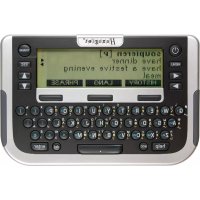
Traveller SC East - Electronic dictionary Hexaglot - Free user manual and instructions
Find the device manual for free Traveller SC East Hexaglot in PDF.



| Product type | Multilingual electronic dictionary |
| Brand | Hexaglot |
| Model | Traveller SC East |
| Power supply | 2 AAA batteries; rechargeable batteries compatible |
| Estimated battery life | Several weeks with moderate use (depending on battery type) |
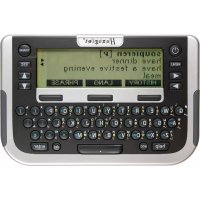
| Screen | LCD, 5 lines of 25 characters with status bar |
| Keyboard | Full QWERTY with dedicated function keys |
| Internal memory | 512 kB for user dictionary and notes |
| Cards | Removable Hexaglot SmartCard (specific) |
| Main functions | Bilingual dictionary, thematic phrases, spell checker, wildcard search, unit converter (currency, time, sizes), calculator, 3 built-in games |
| Supported languages | Depends on card: various European and Asian combinations (French, German, English, etc.) |
| User dictionary / Notes | Create, edit, and delete personal entries |
| Magnifier function | Font enlargement in dictionary mode |
| Standby | Auto power-off after inactivity |
| Maintenance and cleaning | Dry or slightly damp cloth; no chemicals |
| Safety | Do not expose to water, drops, extreme temperatures; reset possible with a paperclip |
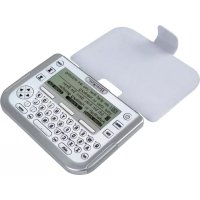
| Spare parts and repairability | SmartCards and covers available; paid repair after warranty; no user-serviceable parts |
| General information | 2-year warranty; CE certification; manufacturer: Hexaglot Holding GmbH, Hamburg |
Frequently Asked Questions - Traveller SC East Hexaglot
User questions about Traveller SC East Hexaglot
0 question about this device. Answer the ones you know or ask your own.
Ask a new question about this device
Download the instructions for your Electronic dictionary in PDF format for free! Find your manual Traveller SC East - Hexaglot and take your electronic device back in hand. On this page are published all the documents necessary for the use of your device. Traveller SC East by Hexaglot.
USER MANUAL Traveller SC East Hexaglot
Hexaglot Traveller SC
| Deutsch | 2 |
| Česky | 22 |
| Eesti | 40 |
| English | 59 |
| Español | 78 |
| Ελληνικά | 98 |
| Français | 118 |
| Italiano | 137 |
| Magyar | 156 |
| Nederlands | 175 |
| Norsk | 195 |
| Polski | 213 |
| Português | 232 |
| Русский | 251 |
| Suomi | 271 |
| Svenska | 289 |
| Türkçe | 307 |
| العربية | 325 |
Willkommen! 4
adv: Adverb, Umstandswort.
- Common code: A blocked, a code-like matrix block in matrix A (which is a block with an array of elements and elements
Global digital electromechs are published quarterly research database ASCOTV module. Stream-based databases include global distribution

del

ESC


- Pelle is not able to find the right, but the left of the right will be called the right.
EESTI
Hexaglot Traveller SC
Sportallee 41, D-22335 Hamburg, Germany
Storing data in the device 61
Using the operating instructions 61
-
Scope of delivery and product description 61
-
Inserting and changing the batteries 62
Inserting/changing main batteries. 62
Important information on batteries 62
-
Inserting and changing the card 62
-
Changing the device cover 63
-
Overview of device 63
Powering on and off 63
Keyboard 63
Display symbols 65
-
Quick guide to the dictionary 65
-
Program selection menu 66
-
Settings 66
-
Help function 67
-
Zoom function 67
-
Dictionary 67
Selecting language 68
Reading entries correctly 68
Searching for a word 68
Working with the hit list 69
Incremental suggestion list 69
Special entries in the hit and suggestion lists 69
Correcting spelling and searching for spelling variants 69
Searching with wildcards 70
Scrolling within dictionary 70
Following cross-reference 70
Re-select entries in history. 70
- Phrases 71
Search for phrases using topic selection 71
Find phrase with search term 71
- User dictionary/memo 71
Creating entries in the user dictionary/memo 72
Searching for and changing entries in the user dictionary/memo 72
Deleting entries in the user dictionary/memo 73
- Unit converter 73
Standard unit conversion 73
Calculating time differences 73
Converting sizes 74
- Calculator 74
Calculating with the Hexaglot Traveller SC 74
Using the calculator memory. 74
- Games 75
Game 1: snake slalom 75
Game 2: Code cracker 75
Game 3: Number sliding puzzle 75
- Taking care of your product 75
- Fault rectification 75
- Guarantee 76
- Contact Information 76
- List of Abbreviations
Welcome
Thank you for choosing the Hexaglot Traveller SC. Please take a few minutes to read through these operating instructions carefully before using it so as to be able to take full advantage of the functionality and to have years of enjoyment. Please keep these operating instructions in a safe place so as to be easily accessible next time you need to look something up. Hexaglot wishes you all the best in using your Hexaglot Traveller SC!
1. Precautions
To ensure years of trouble-free enjoyment, and to maintain your guarantee, please note the following:
- Never carry out repairs yourself. There are no serviceable parts in the device.
- Do not expose device to water, sand or dust.
- Never use coloured paint thinners or other chemical cleaning agents. Read "Taking care of your product".
- Do not expose device to high temperatures, high humidity or direct sunlight.
- Do not drop or expose to heavy impact.
– The Hexaglot SmartCard has been specially designed for this device. - Do not use any other card in this device as this may result in irreparable damage.
- Never use the Hexaglot SmartCard in a device other than the Traveller SC as this may result in irreparable damage to the card or device.
Storing data in the device
The device has a 515 kB memory area which is freely usable for the user to store his own dictionary entries or memos. This memory retains its content even after batteries have been exchanged or when the batteries are flat. We recommend making a written note of any important information. Essentially any system with an electronic memory can lose information under certain conditions. We therefore assume no liability for loss of data, irrespective of whether this is as a result of incorrect use, a repair, a technical fault, exchanging of batteries, using batteries passed their shelf life or any other circumstances. We accept no direct or indirect liability for financial loss or grievance of third parties resulting from the use of this product and its functions, such as theft of credit card numbers, loss or change of information.
Using the operating instructions
The keys of the Hexaglot Traveller SC are depicted as white framed boxes in these operating instructions: The
TRANS symbol stands
for the TRANS key on your Hexaglot Traveller SC. The functions of the display keys are depicted as black boxes with white lettering: The PHRASE symbol stands for the display key above which "PHRASE" is displayed in inverse colouring. The screen diagrams described in the operating instructions are provided purely as examples. Actual diagrams in the device may vary.
2. Scope of delivery and product description
Included in the delivery are:
- Hexaglot Traveller SC
- Operating instructions
- 2 demonstration batteries, model Micro / AAA
- Hexaglot SmartCard
3. Inserting and changing the batteries
Power to the device is provided by two standard batteries of type AAA (Micro, Lr03, AM4).
Inserting/changing main batteries.
First insert the batteries provided:
- The battery compartment is on the underside of the device (diag I).
- Remove the cover of the battery compartment.
- Insert the two batteries, paying careful attention to correct polarity (+/-)
- Close the battery compartment cover.
- Press the reset key at the back of the device using a straighten paper clip or something similar.
Important information on batteries
Note: Incorrect use of batteries can result in leakage or cracks and ultimately in damage to your product.
Please be aware of the following precautions:
- Make sure you always switch the device off before changing the batteries.
- Pay careful attention to correct polarity (+/-).
- Never mix batteries of different types, or mix old with new.
– Never leave used batteries in the battery compartment as this may result in faulty operation. - Remove the batteries if the device is not to be used for a long period.
– The batteries supplied are not rechargeable.
- Do not expose batteries to direct heat. Do not short-circuit batteries and do not attempt to take them apart.
- If a battery leaks, clean the battery compartment immediately, ensuring that battery fluid does not come into contact with skin.
- You may continue to use the device with rechargeable batteries - reducing energy costs for the device significantly.
- Please note, however, that the operational life of the device is generally shorter when using rechargeable batteries.
- Suitable rechargeable batteries and battery chargers are available from specialist outlets.
Note on disposal: Please only throw discharged batteries away at collection points provided by the dealer or the local authorities. Batteries are generally discharged when the device is switched off and indicates "battery flat" or, after prolonged periods of use, "no longer work efficiently". To be on the safe side, place sticky tape over the poles of the battery or put them into individual plastic bags.
4. Inserting and changing the card
Ensure that the device is switched off before inserting, removing or changing a card. Then open the cover of the card compartment on the back of the device on the bottom left -hand side (diag II). To remove, press gently on the card, releasing the locking mechanism. Now pull the card out of the device. To insert, push the card, with contacts pointing forward and downward, into the empty card slot (diag II), until the locking mechanism grips the card and fixes it into position. Close the cover of the card compartment. The new card is now ready to use.
Note: Hexaglot SmartCards only work with the Traveller SC. Never insert a commercially available SD or MMC card into the Hexaglot Traveller SC. You may damage card, card contents and device beyond repair. Never use Hexaglot SmartCards in other card devices such as digital cameras, MP3 players etc., or in PC card readers. You may damage these devices and the Hexaglot SmartCard beyond repair. A "No card!" message is displayed on calling the dictionary function if there is no card in the device or if the card is not inserted correctly. You can use the calculator and the games without a card. Additional SmartCard accessories with other language combinations are available from Hexaglot (see contact information).
Note: You can continue using the memo function, the user dictionary, the calculator and the games without installing a card. These functions are, however, only available in the English language. You are prompted to set the user language after changing the card.
5. Changing the device cover
Please switch the device off before removing or exchanging the device cover. Open the cover of the battery compartment on the back of the device (diag. I). To remove, simply lift the cover from the retaining pins: The device may also be operated without the cover. To insert a new cover, locate the retaining holes of the cover lug at the retaining pins of the battery compartment lid (diag III). Close the battery compartment carefully. Ensure that the lug is fed cleanly through the gap between the housing and the battery compartment lid. Device covers are available as accessories from Hexaglot (see contact information).
6. Overview of device
Powering on and off
To power the Hexaglot Traveller SC on, press ⏻ until the device turns on. The Hexaglot Traveller SC switches itself off automatically if no keys are pressed within a period of a few minutes. Press again to switch off the device manually.
Keyboard
The following functions are provided with the Hexaglot Traveller SC keys:
Mode keys
Use these keys to enable basic functions of the Hexaglot Traveller SC.

Keep pressed to switch the device on and off.

Displays help text for the mode currently active.

Opens a menu with further functions:
- user dictionary
- memo
- calculator
- unit converter
-games - settings

Switch to dictionary mode.
Display keys
Three large display keys are positioned below the Hexaglot Traveller SC screen. The functions currently active for these keys are displayed as text in the bottom line of the display on the black fields. Below is an overview of all possible display key functions in alphabetical order:

starts the unit converter.

unit converter: enables the input field of the source unit and scrolls to the next unit.
ENGLISH
Hexaglot Traveller SC
Jd120
JOT
OLRF
SHIFT
引足
在
dun
图
THRASE
EALC
PAGE A
PAGE7
LANGUAGE
SEARCH
HISTORY
图8-2
ROOM
DOM
BACK
[Unreadable]
6
i
unit converter: enables the input field of the target unit and scrolls to the next unit.
unit converter: scroll to the preceding unit of the active input field - source or target unit.
unit converter: starts the currency calculator.
user dictionary memo function: enables capital letters for character keys.
unit converter starts the sizes category.
user dictionary, memo function: creates a new entry in the user dictionary or memo list.
user dictionary, memo function: enables digits and symbols of the character keys (dark grey imprint above the
keys). Note: digits are automatically used instead of letters in calculator mode
dictionary: confirms selection (language) of the dictionary.
dictionary: changes to phrase mode and its functions, such as search for keyword in the phrases.
starts the calculator.
scrolls up one whole page.
scrolls down one whole page.
dictionary, phrases: allows selection of the dictionary; or languages to be translated, e.g. German->English
phrases, user dictionary, memo function: starts search function within the particular area.
dictionary: shows a list of terms in the dictionary history and allows a new search for these terms.
unit converter starts the world time calculator.
dictionary: enables large font size.
dictionary: enables normal font size.
jumps back to the last level displayed – same effect as pressing the ESC key.
dictionary: allows quickly changing the direction of the current language pair when selecting dictionary.
dictionary: is used as a wildcard for any character when searching.
dictionary: is used as a wildcard for any string of characters when searching.
Input and navigation keys
The international QWERTY keyboard arrangement is used for inputting text. All inputs in dictionary mode are in lower case. Upper case, digits and special characters may only be used when inputting your own entries in the user dictionary or memo list. The most important controls for processing the dictionary are located on the left and right-hand sides next to the screen.
a cc
If you want to define one of the letters: a, e, i, c or n with an accent, enter the required letter and then press acc. Keep pressing the key until you find the accent symbol to be added or removed (e.g., a, b, d).
F
max max method: 1x min range
Hexaglot Traveller SC
ENGLISH
amber
ESC
◀ ▶
▼ ▲
- If the cursor is at the end of the text, the character last entered is deleted (left of the cursor).
- Is used to delete your own entries in the user dictionary and in the menu list.
this key is used to confirm an entry or selection.
is used to cancel an action or to jump back to the level last displayed. (the exact function of the key is defined by the mode currently active).
use these keys to scroll backwards and forwards between dictionary entries or phrases, depending on mode selected. Use these keys to move the position of the cursor when entering words. These keys can also be used in Setup to switch particular options on/off.
Use these keys to select entries from lists and scroll through the display if the display content is longer than four lines.
Display symbols
The LCD has five lines for up to 25 characters. As previously mentioned, the lowest line in the display is usually used for labelling the display key. A status bar, used to flash up various symbols, is located to the right of the normal display. Diagram IV shows the various display areas and elements:
A: normal text display area
B: labeling of the display keys
C. status bar with symbols The meaning of the individual status bar symbols is explained below:
▼ ▲ Indicate that you can select and scroll up and down through the display window using these arrow keys.
indicate that you can select and sorof through dictionary entries with these arrow keys. Showsthat the displayed/selected entry originates from the user dictionary.
7. Quick guide to the dictionary
To look up a word in the English-German dictionary:
- Press TRANS to enable dictionary mode.
- The current language and the input prompt are displayed in the top line of the screen.
- Type in the search word - this is not case sensitive.
- The device provides matching suggestions for your input.
- Select the required entry from the list of suggestions with ▼ and ▲ and press enter to open the dictionary entry
- Use ▼ ▲ to scroll through longer entries.
- Use ▶ and ▶ to change between the previous and subsequent entries in the dictionary.
- Press TRANS to return to the input screen
ENGLISH
Hexaglot Traveller SC
8. Program selection menu
Start the dictionary function with the TRANS key. Use the program selection menu for additional device functions and settings. Start selection by pressing MENU. A list of additional device functions is displayed. To start a function, first select it using the ▲ and ▼ keys (inverse colouring is used for function selected) and then press the enter key. The following functions are available:
-
user dictionary
-
Mexico
-
calculator
-
unit converter
-
game 1
-
game 2
-
Course 3
-
setting
Tip: You can also access the additional functions in the selection menu directly by entering the relevant function number. For example, entering (= key) starts the calculator, entering (= key) takes you directly to the menu with the settings.
9. Settings
Select settings from the program selection menu to customise the basic device settings. To change an option, first select it using the ▲ and ▼ keys. You can change the following settings:
Battery displays the current battery status. If the batteries are getting low, have a new set ready so as to be able to work uninterrupted.
Contrast controls the brightness of the display. Use ▶ to make the display brighter and ▶ to make it darker.
Def1-Def3 define the exchange rate which can be used in currency conversion mode in addition to those already stored. A maximum of seven digits can be specified, including the decimal point. Example: One US dollar corresponds to 0.90231 EURO. To change the value of an exchange rate, you must press Enter for changes to take effect. Enter 0.90231 and confirm with the enter key. Use the ESC key to leave the input without changing the original value. Any changes are brought into immediate effect.
Spellcheck Specify here whether the search should continue looking for spelling variants if the search in the dictionary returns no results, i.e. no matching entries are found. For example, if the "Spellcheck" function is enabled, the entry "subway" is also returned when searching for "subway" in the English dictionary.
The ▶ key selects ☐ = look for variant The ▶ key selects □ = do not look for variant
Previous 1 certify here whether an incremental hit list should be disclosed when entering the search term. The incremental hit
Hexaglot Traveller SC
ENGLISH
| The ▶ key selects □ = do not show suggestions. | |
| Form | specify here whether word forms should also be taken into account when searching. When enabled, the device traces back, e.g. in English, trace from the past form "went" to the infinitive "go". |
| The ◀ key selects 00 = include word forms when searching. | |
| The ▶ key selects □ = ignore word forms when searching. | |
| Language | specifies in which language messages are displayed. Use ◀ ▶ to select the required user language (country code). |
| Key tone | turns the key press tone on or off. |
| The ◀ selects 00 = key press tone on. | |
| The ▶ selects □ = key press tone off. |
Once you have made all required changes, leave settings by selecting another mode. The settings made become effective immediately.
10. Help function
The Hexaglot Traveller SC has a context-dependent help function. Meaning that the help text displayed always relates to the device mode currently active. If you are ever at a loss anywhere, press help. Help text appears which relates to the current mode. Scroll through the help text using the ▲ and ▼ keys. Press ESC or select another mode to hide the help text. Note: help is not available for the games.
11. Zoom function
In dictionary mode, the Hexaglot Traveller SC has a zoom function which increases readability by increasing the text size of the display. Press the ROOM displayed key to enable increased text sizing and ROOM to disable it.
Note:
- With very long words, enforced line wrap may occur.
- separation occurs at the end of the line and is marked with the "-" separator character.
- separation is automatic and does not necessarily conform to syllable separation rules for any particular language.
- individual characters may appear slightly distorted when enlarged
- this is due to technical limitations and is not a fault.
12. Dictionary
Press TRANS to start the dictionary. The current language is displayed in the first line of the screen.
ENGLISH
Hexaglot Traveller SC
Selecting language
To change language, press TRANS and then LANGUAGE. The dictionary selection menu is then displayed. The currently active dictionary is shown in the first line. To change the language, select the required source language in line 2 using the ▼ and ▶ keys. You can also select the language by typing the initial letters of the language, e.g. key for Italian. Change to the third line with ▼ and select the target language. To directly reverse the languages of the current language pair, press the middle display key set. To confirm your selection and exit language selection, press DH or enter. To exit without changing the current language, press BACK or ESC. Country codes are used to selected the language.
Note: the language selected applies to the dictionary and phrases functions. This setting has no bearing on the user language. Please note that the source target selected determines the active character set. So, for example, when selecting Greek as the source language (provided the language card is present) the Greek character set is automatically enabled and Greek characters are used for input. The coloured lettering next to the keys applies.
Reading entries correctly
Besides just providing basic translations, the dictionary can also provide information on grammar and word usage. An example is shown in diagram Y:
A: keyword in bold
B: translation in normal font
C. gender of nouns in bold italics.
D: gender of the translation in italics and square brackets
E: semantic information or explanation of term in italics and angled brackets
Searching for a word
When searching in the dictionary, all entries in the standard dictionary of the language selected and, if available, the user dictionary are included. You may also limit the search to the user dictionary if required. Type in the whole word or the beginning of a word and then press (enter)
There are three possible search results:
– exactly one entry is found. The entry is displayed.
- more than one entry is found. A list of hits is then displayed from where you can select the required entry to display.
- No matching entries were found. The next alphabetical entry to the search item is displaced or the device searches for spelling
variants of the search string entered - this depends on the setting of the Spellcheck option in device settings.
Note: It may be the case that a keyword occurs more than once in a list of hits or that a translation is not available for a keyword in a particular language. This is unavoidable due to the complex data structures and in no way indicates a fault with the device.
Please note the following when entering a search string:
- Diacritical characters (such as e.g. ü, ü, ä, ä etc.) are normalised when searching: ä = a, ü = u etc.
- Spaces in search strings should be specified (e.g. in "parking light").
Special characters (e.g. the hyphen in "know-how") need not be specified ("know-how" is sufficient).
- If you make a spelling mistake, move the cursor to the error using the ◀ and ▶ keys and then use the def key to delete individual characters and/or enter new characters.
Working with the hit list
If more than one hit is found in a search, the Hexaglot Traveller SC generates a list of matching hits. Use the ▲ and ▼ keys to select an entry from the hit list and press enter to display this entry. The complete dictionary entry is then displayed. Use the ESC key to return to the hit list to select and display another entry.
Note: The hit list is automatically deleted as soon as you select another mode or search string, or when the device is switched off.
Incremental suggestion list
This electronic dictionary has an incremental suggestion list to simplify the search and make it more convenient. Whilst entering the search string, the device looks up entries in the dictionary simultaneously and displays those which match the input string in a list of suggestions. Whilst entering the search string, you can change to the suggestion list at any time using the ▼ key and select an entry. Use enter to jump immediately to the required entry. Use ESC to exit the suggestion list to, for example, change the search string. You can enable disable the incremental suggestion list in the settings menu.
Note:
- The suggestion list contains a maximum of the first 20 hits.
- If the entry required is not in the list, refine the search string first
- To speed up entry of search strings, disable the incremental suggestion list.
- The incremental suggestion list does not work when using wildcards in a search.
Special entries in the hit and suggestion lists
The embedded dictionary in the Hexaglot Traveller SC has a general linguistic vocabulary. Also included is special vocabulary from the world of gastronomy, like foodstuffs, ingredients, preparation methods and the like as well as special automotive related vocabulary such as technical terms used for car parts. Entries from specialist vocabulary are easily recognisable in that they are prefixed with (for restaurant) and (for automobile) in the hit and suggestion lists. These entries may be accessed just like any other dictionary entries. Many word forms are recognised during the search and lead you back to the basic entry. A word form is easily recognisable in that it is prefixed with an (for form). Example: the "saw" entry indicates that "saw" is a word form. When calling up this entry, the entry for the keyword "see" is automatically displayed. You can enable/disable the display of special entries. The German language comprises of many composites (compounded words). When searching with German as the source language, many composites are recognised and separated into their individual word components for the translation. Composite entries are easily recognisable in the list of hits or suggestions in that they are preceded with
Example: The "Polizei che" list entry indicates a compounded word for which translations are available for the individual components. When selecting this list entry, a list of the individual components "Polizei" and "Chei" are displayed. Select the required word and press enter. You then see the translation of that individual word. Use ESC to return to the selection list to translate the other components.
Correcting spelling and searching for spelling variants
If no hits are found during a search and no alphabetically following entry matches, the device tries to find spelling variants, or tries to correct a spelling mistake in the search string entered. So, for example, the incorrect entry of "subway" for the English word "subway" results in a suggestion list which contains, amongst others, the entry "subway". You may enable/disable this function in the settings menu.
Searching with wild cards
Wildcards allow extended searches. Add wildcard symbols in the search string in place of as many individual characters or character strings. This function is ideally suited to when you are not sure of the exact spelling of a word. This function is also very useful in solving cross-word or other word puzzles. As soon as you have entered at least one character of the search string, the and wildcard symbols appear on the middle and right display keys:
* represents a sequence of any number of characters. This sequence can also be empty. For example, in English, gr'y finds gravy, greasy, gray, grey, amongst others. ? represents any single character. This character occurs once and only once. Example: gr'y finds only gray and grey
Note:
- Wildcards can not be placed at the beginning of a search string.
- The two wildcard symbols can not be combined with each other.
— The * wildcard may be used just once within a search string, the ? wildcard several times. - Searching with wildcards may be time-consuming.
- This is normal since complex search and compare operations need to be performed.
- Frequent searching with wildcards may therefore lead to a reduction in battery life.
- When using a wildcard symbol, the incremental search for the search string is automatically disabled.
- The search results list when using wildcards is a maximum of 20 hits; refine the search if need be.
Scrolling within dictionary
You can scroll both within an entry, if it is longer than a display page, and to the next or previous entry in the dictionary.
Scroll within entry: If an entry is longer than the multi-line display, press on ▼ once to scroll down one line or keep it pressed to continually scroll the display contents. Use ▲ to scroll backwards. Pressing aood and then ▲ or ▼ scroll the entire screen contents up or down by a whole page. The ▲ and ▼ arrow symbols in the status bar indicate whether's crolling up or down is possible. Scroll within dictionary: Use ◀ and ▶ to scroll to the alphabetically previous or next dictionary entry.
Following cross-reference
The Hexaglot Traveller SC allows words within a dictionary entry to be used as cross-references. Press enter within the entry view. The colours of the first element within the entry are inverted (apart from bold and italic lettering). Use the keys to move the marker within the entry. Pressing enter again results in the word inversed being searched for in the dictionary and, if available, displayed. If more than one matching entry is found, a selection list is displayed from which the required entry can be selected. Note: If no matching entries are found, the alphabetically next word in the keyword list is suggested – a question mark (?) is displayed in front of this entry to denote a suggestion. Note: The cross-reference function does not work with entries from the user dictionary.
Re-select entries in history.
Keywords for the last 50 opened dictionary entries are stored in a list by the Hexaglot Traveller SC and may be accessed from here directly, even if the device has been powered off in the interim period. The order of the keywords in the list corresponds to the order in
without opening an entry, press the left display key BACK ESC or one of the mode keys (e.g. TRANS for the dictionary), to enable another function.
Note: entries in the process list are automatically deleted if the dictionary language is changed.
13. Phrases
The Hexaglot Traveller SC contains a multitude of phrases from a total of 30 different topics typical when communicating abroad, such as when in a hotel, airport or restaurant. Press the right display key PHRASE to change the phrase set. If you are not yet in the start screen of dictionary mode, press TRANS first and then the right display key PHRASE. There are two different ways to search for matching phrases:
- You can select a topic and scroll through the available phrases.
- You can enter a search term.
Search for phrases using topic selection
The initial screen in phrases mode presents you with an overview of the available topic areas. Use ▲ and ▼ to scroll thought the whole list. Entering the initial letters is also sufficient to define a topic. After selecting the required topic, press enter to display the first phrase of that topic. Use the ▶ and ◀ keys to scroll to the next and previous entries. Use ESC to exit the entry and select a new topic.
Find phrase with search term
Keyword search is a very effective way of locating a phrase. To start the keyword search, press the right display key SEARCH in the initial screen of the phrases made. Now enter the keyword to be located. An incremental list of keywords matching your input is displayed. Select the required keyword using ▲ and ▼ and press enter. The phrase is displayed along with the corresponding translation. If more than one matching phrase is available for the keyword selected, scroll through the entries with ▶ and ◀ if no further phrases are available to display, a large down arrow appears. This signifies you have reached the end of the selection list. Use ESC to exit the entry and enter a new search term. If there is no phrase which contains the search term, the message Not found appears and you can enter a different search term. Note the following when searching using a keyword:
- Search terms unrelated to any topic – e.g. personal pronouns like "I", "you" etc. or prepositions like "in", "at" etc. – are ignored and no search results are returned.
- Searches are not case sensitive so there is no need to use upper case letters.
- The incremental hit list is not displayed on entering the keyword if the Preview option in Settings is disabled.
14. User dictionary/memo
The user dictionary/memo function is used to record and to call up your own information such as telephone numbers and dictionary entries. In contrast to the standard dictionary in the Hexaglot Traveller SC, differentiation is not made based on language in the user dictionary. The user dictionary/memo and its functions are in the program selection menu. To create new entries in the user diction-
ENGLISH
Hexaglot Traveller SC
versa. Please note: - within the dictionary function, entries from the user dictionary are recognisable by the & symbol which appears in the status bar.
- entries from the user dictionary do not appear in the incremental suggestion list.
- entries from the user dictionary are not tied to any language combination or direction.
- entries apply to all language combinations.
Creating entries in the user dictionary/memo
- To create a new entry, proceed as follows:
- Press MENU and select user dictionary or memo from the menu. Press enter
- You are prompted to enter the name of the new entry. Note: You can then search for this name later in the user dictionary/imemo.
- Enter the keyword or memo name (maximum one line). Then press enter
- Refer to the keyboard section for entering upper case letters, digits and special characters.
- You are then prompted to enter the text relating to the entry (e.g. translation, comment, telephone number etc.). This text may be longer than one line. The name of the entry appears in the first line. Type the text on the second line.
- Once you have typed the entry, press enter to save it. To cancel the action without saving the entry, press ESC
- After saving the entry, you may continue entering another entry. To cancel the entry and return to the Program selection menu, press ESC.
Searching for and changing entries in the user dictionary/memo
There are two ways to find entries in the user dictionary/memo: You can either select the entry from an alphabetically sorted list or search for the entry. To search for an entry, proceed as follows:
- Press MENU and select user dictionary or memo from the menu. Press enter
- Press the right display key SEARCH to enter search mode.
- You are prompted to enter a search word. Enter the complete keyword correctly and press enter to start the search.
- If the term searched for is available as an entry in the user dictionary/memo, a list of the matching entries is displayed. Select the required entry with ▲ ▼ and press enter to display the entry.
- The entry selected is displayed. Press C to return to the list view. To change the keyword or input text, press enter in the entry view. Then make your changes. Press enter again to save the changes.
To select an entry from a list, proceed as follows:
- Press MENU and select user dictionary or memo from the menu. Press enter
- Press the right display key SEARCH to enter search mode.
- You are prompted to enter a search word.
- Do not enter a search word - simply press enter instead. An alphabetically sorted list of all entries in the user dictionary/memo is then displayed.
- Use ▲ ▼ to select the required entry. Press anchor to display the entry.
- The selected entry is displayed. Press E C to return to the list view. To change the keyword or entry text, press on enter in the entry view. Then make your changes. Press enter again to save the changes.
Deleting entries in the user dictionary/memo
If you want to delete an entry, select if first from the list view, as described above under "Search entries", and then press del Note: You can not delete the entry from the entry view; always select the entry in the selection list and then press del You are then prompted as to whether you really want to delete the entry.
- Press the key indicated to delete the selected entry.
- Press the key indicated to cancel the delete process and leave the entry in the user dictionary/memo.
- Press the key indicated to delete all entries in the user dictionary/memo.
Note: The action of deleting one or all entries can not be undone. Once the delete operation has been confirmed, the current entry, or all the entries, are irrevocably removed from the user dictionary/memo.
15. Unitconverter
The Hexaglot Traveler SC has an easy-to-use unit converter to help you convert between many different physical units. You can also convert currencies and sizes as well as calculate time differences. Note: calculations in the currency converter depend on certain conversion factors which can be changed in the Settings menu. Check that the parameters are set correctly before converting. Press MENU and select unit converter from the menu. Press enter. After starting the unit converter, a list of the available unit categories is displayed. First select the category using ▲ ▼ and then press enter. Note: Use the left display key to start the currency converter, the middle display key to start the time difference calculator and the right display key to show the sizes table. After selecting the unit category, select the next category with ▲ ▼ and press enter. Use the middle display key to scroll the screen up one page, and the right display key to scroll down one page.
Standard unit conversion
Most units are converted based on the following method:
- After selecting the unit category, the input screen of the unit converter appears. The cursor is in the input field. Use to move the cursor between the from and so fields at any time.
- Enter the source value in the input field. The result field shows the actual conversion value based on the amount entered and units shown in the from and to fields.
- Use ▶ ▶ to select a source value from the various units in the frame field, coloured inversely. The result field is refreshed on every input.
Move to the field with ▼ The unit in this field is now shown in inverse colouring. Use ◀ to select between different units for the conversion value - The result field is refreshed on very input.
To speed up and simplify switching between units, you can also use the display keys to switch between them:
- the middle display key UNIT1 enables the from field and scrolls to the next source unit.
- the right display key UNIT2 enables the field and scrolls to the next conversion unit.
- the left display key UNIT: this key scrolls back to the previous unit from the currently active unit field from or to.
ENGLISH
Hexaglot Traveller SC
- On starting it, the input screen of the world time calculator is displayed. The cursor is located in the state f field. Use the ▲ keys to move the cursor between the state f, time (of state 1) and state 2 fields at any time. First select the required source location by scrolling through the state list, sorted according to state code, with the URTT+ and URTt display keys. Enter the initial letter to jump straight to states - example: entering □ jumps straight to (D) Germany; Berlin. If the name is longer than the input field, scroll through the field content with ▶
- Press ▼ to bring the cursor into the time field. - Enter the time at the source location in the time field. - Press ▼ to enable the state 2 field. Select the required destination location by scrolling through the state list with the display keys UNIT2 and UNIT. You can also jump straight to states by entering the initial letter. - The time at the destination location changes according to your input
To speed up and simplify switching between states, you can also use the display keys to switch between them:
- middle display key LINE1 - enables the state field and scrolls to the next state or city. - right display key LINE2 - enables the state 2 field and scrolls to the next state or city. - left display key LINE3 - This key scrolls back to the previous state or city from the currently selected state field (state 1 or state 2). Note: when calculating time differences, please observe summer time settings. If a time difference crosses over into another day, a + (= next day) or - (= previous day) is specified after the time calculated. The calculation is based on the 24-hour clock. Times specified in a m/p.m format in Anglo-Saxon regions must therefore be converted before hand: example 1:45 p.m. = 1:345.
Converting sizes
When abroad it is often practical to have an international size comparison table to hand. The most important sizes are available in the Hexaglot Traveller SC. Select the travel category in the unit converter and then the required sub-category. To display further sizes in the selected size category, press ▶◀ to scroll the display horizontally. Note: The size tables are intended purely as a guide. When buying clothes, always check the actual size and exact fit by trying them on.
16. Calculator
The Hexaglet Traveller SC can also be used as a calculator. Press MENU and select calculator from the program selection list. Press enter to enter calculator mode. "M" appears in the upper left hand corner of the display and "G." in the lower right hand corner. In calculator mode, the secondary lettering of the keys is automatically used. The content of the calculator memory (M) is displayed in the second line. Inputs as well as the results of the calculation are displayed in the fourth line.
Calculating with the Hexaglot Traveller SC
The operation is just as with any standard calculator. Addition (+), subtraction (-), multiplication (*) and division (+) are available as calculator functions.
Using the calculator memory.
Individual calculation operations in the input line have no bearing on the calculator memory. Add or subtract the value currently in the
17. Games
The Hexaglot Traveler SC has three games included. The games are accessed from the program selection menu. To access the games, press on MENU to select the required game with the ▲▼ keys and press enter to start the game. Press ESC or a mode key to end the current game.
Game 1: snake sialom
The objective of the game is to guide an increasingly longer snake through the game field avoiding collisions. Set the speed and difficulty level at the beginning of the game with the ▶ ▶ ▲ ▼ keys. Use the ▶ ▶ ▲ ▼ keys during the game to steer the snake round a course. You must feed the snake by guiding it over the grey squares. The snake increases in length by one limb every time it is tied - making it more difficult to steer. When guiding the snake on its way through the game field, you are not allowed to touch the walls or the black obstacles and the snake's head is not allowed to touch any part of the snake's body. Press □ to pause the game. Press □ again to continue the game.
Game 2: Code cracker
The object of the game is to crack a four-digit code with a maximum of eight guesses. Enter four different digits in the four input fields on the right-hand side of the screen. To correct an entry, use ▶ to move to that field and correct your input. Press enter to confirm your guess. After entering a guess, the number entered by you, along with your rating, appears on the left-hand side: The number preceding the letter A specifies how many digits are correct and are already in the correct position in the code. The number preceding the letter B specifies how many digits are present in the code but are not in the correct position. Enter your next guess. Use the combination of the results from previous guesses to work out the correct code. If you can not crack the code with eight attempts, the code is displayed and the game ended. Note: the code is always made up of four different digits. Entering the same digit more than once results in an error message.
Game 3: Number sliding puzzle
The objective of the game is to sort the number matrix back to the original 1-9 order with as fewer goes as possible. Move the selected square with the ▶▶▲▼ keys. Use the integer key to move the numbers clockwise and space to move them anticlockwise.
18. Taking care of your product
Only use a dry cloth to wipe the Hexaglot Traveller SC. If the device is excessively dirty, use a damp, but not wet, cloth. Never dip the device in water or any other liquid. Chemical cleaning agents or any with mechanical cleaning heads are not to be used under any circumstances as they may corrode the material.
If some Uncoated Transistor G^ is not functioning corneal, we can be switched on a threshold for activation was sufficient channel
time. Check whether the card is correctly seated in the device. Note: information stored in the user dictionary and the memo list is not lost on resetting the device. To delete this information, use the appropriate functions in the user dictionary or memo list.
20. Guarantee
Our Hexaglot products are subject to stringent final quality inspections. Hexaglot guarantees that your device is free of material and production defects. If your hand-held device demonstrates any of the defects mentioned above within a period of two years after purchase, Hexaglot offers, at its discretion, either a free-of-charge repair or exchange. The guarantee applies only for you as original end customer. It does not apply for damage to fragile components such as the housing or the display, damage caused by improper use, culpable damage, damage caused by breakage, heat, water or acts of God, damage caused by unauthorised tampering with the device or exposure to chemicals caused by e.g. leaking batteries. You also have statutory guarantee rights vis-à-vis the dealer from whom you purchased the device; these are no limited by this guarantee. Please return the defect device to your dealer, together with a short description of the fault and the receipt, so he can pass it on to us. Alternatively, stamp it sufficiently and post to
HEXAGLOT Holding GmbH, Kundenservice,
Sportallee 41, D-22335 Hamburg, Germany
The return is free-of-charge. We accept no responsibility for deliveries to or from ourselves. After the guarantee period has elapsed, you may still return the defect product to the above address for repair. Costs are payable for out-of-guarantee repairs.
21. Contact Information
For more information on our products and Hexaglot Traveller SC accessories such as replacement covers or SmartCards with additional language combinations, please contact us directly: Hexaglot Holding GmbH, Sportallee 41, 22335 Hamburg, telephone: +49-(0)40-51456-200, fax: +49-(0)40-51456-993, e-mail info@hexaglot.de. Or visit our web site www.hexaglot.com
22. List of Abbreviations
a: Adjective
adv: Adverb
Am: American Spanish
coll: Colloquial
m: Masculine
n: Noun
p: Plural
prp: Preposition
v: Verb
adj: Adjective
AE: American English
BE: British English
f: Feminine
n: Neutral
o: Other word type
pl: Pluraletantum, only occurs in the plural
sg: Singularetantum, only occurs in the singular
Disposal of Old Electrical & Electronic Equipment (Applicable in the European Union and other European countries with separate collection systems). This symbol on the product or on ist packaging indicates that this product shall not be treated as household waste. Instead it shall be handed over to the applicable collection point for the recycling of electrical and electronic equipment. By ensuring this product is disposed of correctly, you will help prevent potential negative consequences for the environment and human health, which could otherwise be caused by inappropriate waste handling of this product. The recycling of materials will help to conserve natural resources. For more detailed information about recycling of this product, please contact your local city office, your household waste disposal service or the shop where you purchased the product.

CE
www.hexaglot.com
© 2006, Hexaglot Holding GmbH, Hamburg, Germany
Standard dictionary: © 2005, Hexaglot Holding GmbH, Hamburg, Germany
Gastronomic dictionary: © 2005, Hexaglot Holding GmbH, Hamburg, Germany
Parts of the gastronomic dictionary: © 2000, Joachim W. Glaeser, Hamburg, Germany
Word form recognition using technology from IntraFind Software AG, Munich, Germany
device design: gahlow, Hamburg, Germany
St and 10/05
¡Bienvenido! 80
Emission by the American Indian (1987) a new procedure of mode for biocardi
Hexaglot Traveller SC
ESPANOL
4.6 Information for work as follows: one of the 2018 data and 2019 data are available (that are considered at least 16).
AE: Avylated Aucanilc
B: Display gombok fell natai
a: 5amile gas in arm.
e: Más suñita
unit calculator: start de vereidijed calculator.
start de unit converter.
an and earth on its active art but no make in history
BE: British English, Brits Engels.
The image contains no text or characters.
d ol
m: (maskulinum), hankjønn
n: (nomen), substantiv
p: (plural), flertall
prp: preposisjon
v: verb
adj: adjektiv
f: (femininum), hunkjønn
n: (neutrum), intetkjønn
o: (other), annen ordtype
pl: (pluraletantum), forekommer kun i flertall
sg: (singularetantum), forekommer kun i entall
Sportelles 41, D-22335 Hamburg, Germany
BE British English, or its angiebli
- Ferminium, rodraj zetaiki
Sportallee 41, D-22335 Hamburg, Germany
adv: Adverb, Umstandswort, advérbio.
t: Ferminium, hexagonal pad
Note that the following table of the company has been modified by the other, but not included in order to see Figure 4.1. (10.2)
Sportallee 41, D-22335 Hamburg, Germany
adv: Adverb, adverbialt.
Am: American, amerikansk spanska.
coll: colloquial, slang.
Sportallee 41, D-22305 Hamburg, Germany
adv: Adverb, deltaç.
Am: American, American Japanese.
prep: Prápsonian, d'artely.
v: Vard, BL
adj. Acquittie, sxtat.
AE: American English, American/English
BE: British English, Bhantya higizansi
t: Raminum, digi
n: Neufum, n. etna!
Stock traded at 10/06/2015 to 31 March 2008, trading in the Chinese Exchange.
Hexaglot Traveller SC
العربية
مرحباك
.1
مط logistic Thousands
The image is too blurry to recognize any text content.
+1
+2
[Unreadable]
图
العربية
[Unreadable]
[Unreadable]
NUM
[Unreadable]
无法识别
图 2
A
1
四
[Unreadable]
[Unreadable]
图

Sportalee 41.D-22335 Hamburg, Germany