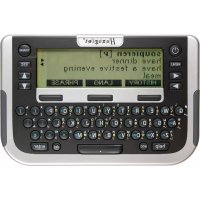
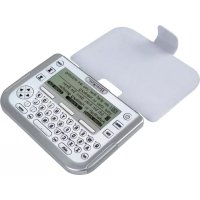
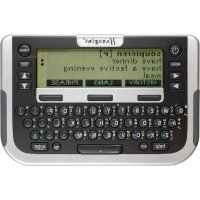
Attaché - Uncategorized Hexaglot - Free user manual and instructions
Find the device manual for free Attaché Hexaglot in PDF.


User questions about Attaché Hexaglot
0 question about this device. Answer the ones you know or ask your own.
Ask a new question about this device
Download the instructions for your Uncategorized in PDF format for free! Find your manual Attaché - Hexaglot and take your electronic device back in hand. On this page are published all the documents necessary for the use of your device. Attaché by Hexaglot.
USER MANUAL Attaché Hexaglot
text_image
Hexagon Attache FC ATT-638034-01-0701Abb. II Diag. II
text_image
Hexagout ATTACHE ATT.619024.01.0704Abb. III Diag. III

natural_image
Close-up of a black rectangular electronic device with a white arrow pointing to its side (no text or symbols visible)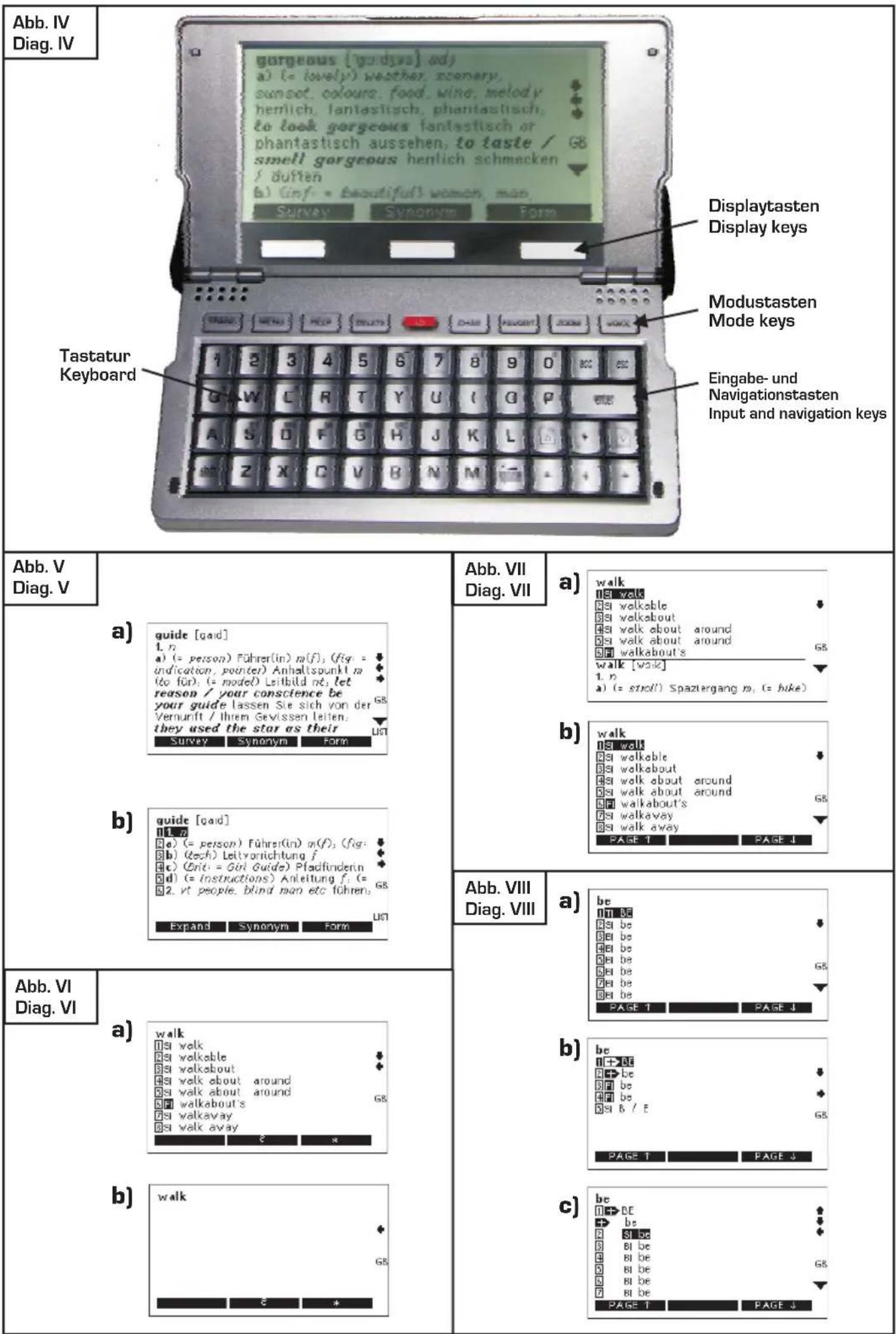
| Abb. IX Diag. IX | a) went 1 SI went 2 FI went 3 FI went G8 E * | Abb. XI Diag. XI | b) SI welk [vɔ:k] 1. n a) (= stroll) Spaziergang m; (= hike) Wanderung f; (sport) Gehen nt; (= competition) Geher-weltkampf m; (= charity walk) Marsch m (für wohitätigkeitszvecke), α 20-mile walk along the roads ein 20-Mellen-Marsch die Straße entlang: Survey Synchron Form |
| b) went 1 SI went 2 FI went G8 E * | Abb. XII Diag. XII | a) SI basting¹ ['beistin] n (sew: = act) Heften nt; (= stitches) Heftnaht f; to take out the basting die Heftfäden herausziehen GB | |
| Abb. X Diag. X | a) accoutr 1 IS accoutre (activity [v]) 2 IS accoutre (dress [v]) 3 IS accoutre (equip [v]) 4 IS accoutre (equip [v]) 5 IS accoutre (quip [v]) 6 IS accoutre (garb [v]) 7 SI accoutrements E * | b) baster 1 IS buster 2 FI buster 3 SI -buster 4 IT bus terminator GB | |
| b) accoutr 1 SI accoutrements G8 E * | c) pakit not found! Did you mean... 1 IS packet 2 FI packet 3 IT packet 4 IT packet 5 FI packets 6 FI packets' 7 FI packets' PAGE 1 PAGE 1 | ||
| Abb. XI Diag. XI | a) walk [work] 1. n a) (= stroll) Spaziergang m; (= hike) Wanderung f; (sport) Gehen nt; (= competition) Geher-weltkampf m; (= charity walk) Marsch m (für wohitätigkeitszvecke); α 20-mile walk along the roads ein 20-Mellen-Marsch die Straße entlang: Survey Synchron Form | Abb. XIII Diag. XIII | Zu Favonten hinzufügen? J/F N |
Using the operating instructions 46
- Precautions 46
Storing data in the device 46
-
Scope of delivery and product description 47
-
Inserting and changing the batteries 47
Inserting/changing main batteries. 47
Important information on batteries 47
-
Inserting and changing the card 48
-
Opening the device 48
-
Overview of device 49
Powering on and off 49
Keyboard 49
Mode keys 49
Display keys 49
Input and navigation keys 52
Display symbols 52
-
Quick guide to the dictionary 53
-
Program selection menu 53
-
Settings 54
-
Help function 54
-
Zoom function 56
-
Dictionary 56
Selecting language 56
Reading entries correctly 56
Display option for long dictionary entries 57
Voice output 57
Using the voice output 57
Volume adjustment 58
Listening to word groups 58
Searching for a word 58
- Comfort functions dictionary 59
Dictionary configuration 59
Setting priorities for dictionaries 61
Working with the hit list 61
Incremental suggestion list 61
Special entries in the hit and suggestion lists 62
Correcting spelling and searching for spelling variants 63
Searching with wildcards 63
Scrolling within dictionary 63
Following cross-reference 64
Highlighting word groups 64
Displaying inflected word forms 64
Displaying synonyms 65
Repeat selection of the last entry you looked up 65
Adding dictionary entries to a personal vocabulary list 65
- Learn Mode 65
View list for a topic to learn 66
Sorting "Favorites" in the topic to learn 67
Test mode 67
Learn mode configuration 67
- Installing supplementary dictionaries later 68
Using later installed dictionaries 69
- Phrases and notes on style 69
Examples of phrases 69
Search for phrases using topic selection 70
Find phrase with search term 70
Voice output of phrases 70
Adding phrases to a list of favorites 70
- User dictionary/memo 71
Adding entries to the user dictionary/memo 71
Searching for and changing entries in the user dictionary/memo 72
Deleting entries in the user dictionary/memo 73
Backing up, editing and restoring the user dictionary 73
Backing up the user dictionary 73
Working with the user dictionary 74
Restoring the user dictionary 74
Technical notes 74
- Phone book
Adding entries to the phone book 75
Searching or changing entries in the phone book 75
Searching for an entry 75
Deleting entries in the phone book 75
- Conversion
Unit conversion 76
Converting sizes 76
- Calculator
Calculating with the Hexaglot Attaché 77
Using the calculator memory 77
- Time of day
Local time 77
GMT 78
Calendar 78
- Games
Game 1: Code cracker 78
Game 2: snake slalom 79
Game 3: Tower 79
Game 4: Number sliding puzzle 79
Game 5: The dice 79
Game 6: Word quiz 79
-
Taking care of your product 80
-
Fault rectification 80
-
Guarantee 80
-
Contact Information 81
-
List of abbreviations 81
-
Disposal of Old Electrical & Electronic Equipment 81
Welcome
Thank you for choosing the Hexaglot Attaché. Please take a few minutes to read through these operating instructions carefully before using it so as to be able to take full advantage of its functions and have years of enjoyment. Please keep these operating instructions in a safe place so as to be easily accessible next time you need to look something up. Hexaglot wishes you all the best in using your Hexaglot Attaché!
Using the operating instructions
The keys of the Hexaglot Attaché are depicted as white framed boxes in these operating instructions: The TRANS symbol stands for the TRANS key on your Hexaglot Attaché.
The functions of the display keys are depicted as black boxes with white lettering: The PHRASE symbol stands for the display key above which "PHRASE" is displayed in inverse colouring. The screen diagrams described in the operating instructions are provided purely as examples. Actual diagrams in the device may vary.
① NOTE:
Describe unusual features in using the device and warn of operating error.
ATTENTION:
Indicates possible endangerings for the user, for the device, other material assets or the environment.
TIP:
Accentuate tips and notices for you.
1. Precautions
To ensure years of trouble-free enjoyment, and to maintain your guarantee, please note the following:
ATTENTION:
- Never carry out repairs yourself. There are no serviceable parts in the device.
- Do not expose device to water, sand or dust.
- Never use coloured paint thinners or other chemical cleaning agents. Read "Taking care of your product".
- Do not expose device to high temperatures, high humidity or direct sunlight.
- Do not drop or expose to heavy impact.
- Do not expose the device to heavy pressure or bending (i.e. transportation in trouser pockets): The LCD may break.
Storing data in the device
The device has a 1 MB memory area which is freely usable for the user to store his own dictionary entries or memos. This memory retains its content even after batteries have been exchanged or when the batteries are flat.
ATTENTION:
We recommend making a written note of any important information. Essentially any system with an electronic memory can lose information under certain conditions.
We are thus unable to accept liability for data loss, irrespective of whether this is due to incorrect usage, repair, a technical error, a battery change, the use of batteries past their date of expiry or other unforeseen circumstances. We accept no direct or indirect liability for financial loss or grievance of third parties resulting from the use of this product and its functions, such as theft of credit card numbers, loss or change of information.
2. Scope of delivery and product description
Included in the delivery are:
- Hexaglot Attaché
- Operating instructions
- 2 demonstration batteries, model Micro / AAA
3. Inserting and changing the batteries
Power to the device is provided by two standard batteries of type AAA (Micro, LR03, AM4).
Inserting/changing main batteries.
First insert the batteries provided:
- The battery compartment is on the underside of the device (diag. I).
- Remove the cover of the battery compartment.
- Insert the two batteries, paying careful attention to correct polarity (+/-)
- Close the battery compartment cover.
- Press the reset key at the back of the device using a straighten paper clip or something similar.
Important information on batteries
ATTENTION:
Incorrect use of batteries can result in leakage or cracks and ultimately in damage to your product. Please be aware of the following precautions:
- Make sure you always switch the device off before changing the batteries.
- Pay careful attention to correct polarity (+/-).
- Never mix batteries of different types, or mix old with new.
- Never leave used batteries in the battery compartment as this may result in faulty operation.
- Remove the batteries if the device is not to be used for a long period.
- The batteries supplied are not rechargeable.
- Do not expose batteries to direct heat. Do not short-circuit batteries and do not attempt to take them apart.
- If a battery leaks, clean the battery compartment immediately, ensuring that battery fluid does not come into contact with skin.
- You may continue to use the device with rechargeable batteries - reducing energy costs for the device significantly.
- Please note, however, that the operational life of the device is generally shorter when using rechargeable batteries.
- Suitable rechargeable batteries and battery chargers are available from specialist outlets.
Note on disposal
Please only throw discharged batteries away at collection points provided by the dealer or the local authorities. Batteries are generally discharged when the device is switched off and indicates "battery flat" or, after prolonged periods of use, "no longer work efficiently". To be on the safe side, place sticky tape over the poles of the battery or put them into individual plastic bags.
4. Inserting and changing the card
Ensure that the device is switched off before inserting, removing or changing a card.

ATTENTION:
Close the device, otherwise the card slot is not accessible.
Open the cover of the battery section at the back of the device (diag. I). Remove the batteries first before inserting or taking out a card. To remove, press gently on the card, releasing the locking mechanism. Now pull the card out of the device.
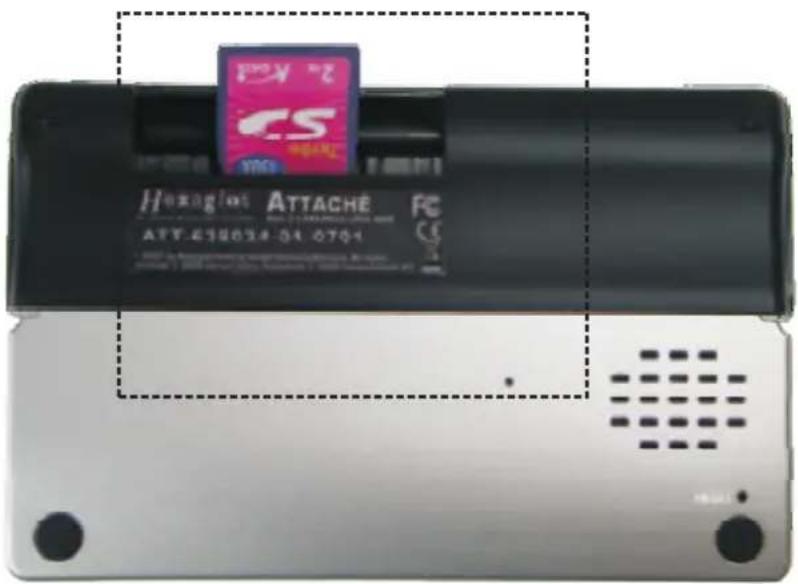
To insert push the card, with contacts pointing forward and downward, into the empty card slot (diag. II), until the locking mechanism grips the card and fixes it into position. Now put back the batteries according to the instructions on inserting batteries. Close the cover of the battery section again. The new card is now ready to use.
In the Hexaglot Attaché you can use the customary SD memory card up to a size of 1 GB. Please pay attention to the correct formatting of the memory card (in FAT16 format). Instructions for the formatting of your card can be found in the user's manual of your PC.
Additional dictionaries for your Hexaglot Attaché (e.g. supplementary vocabulary) can be obtained as an accessory from Hexaglot (see Contact Information).
5. Opening the device
The device has a special slide-open mechanism which ensures a small size for transport when closed and the largest possible user or screen surface when open.
To open, put both thumbs into the front grip recess and fold out the device by carefully pulling the halves of the case apart (diag. III). On opening, pay attention to clean guiding by the sliding mechanism in the rear guideway. If the mechanism blocks on opening, please do not use force, you could damage the opening mechanism irreparably. Instead, close the device again and open it once more. When fully open the device locks at the widest, most open position.
To close, fold the two halves of the case together again, paying attention to the smooth function of the mechanism.
6. Overview of device
Powering on and off
To power the Hexaglot Attaché on, press the red key until the device turns on. The Hexaglot Attaché switches itself off automatically if no keys are pressed within a period of a few minutes. Press the red key again to switch off the device manually.
Keyboard
The following functions are provided with the Hexaglot Attaché keys:
Mode keys
Use these keys to enable basic functions of the Hexaglot Attaché (diag. IV).
| Keep pressed the black key with the white symbol to switch the device on and off. | |
| HELP | Displays help text for the mode currently active. |
| MENU | Opens a menu with further functions |
| 1. SD-card | |
| 2. Learning | |
| 3. User dictionary | |
| 4. Phone book | |
| 5. Memo | |
| 6. Calculator | |
| 7. Clock | |
| 8. Games | |
| 9. Conversion | |
| 10. Setup | |
| TRANS | Switch to dictionary mode. |
| FAVORIT | Copies the current dictionary entry into your personal list of favourites (only in dictionary mode). |
| VOICE | Activates the English voice output for the current entry or highlighted text (only in dictionary mode). |
| ZOOM | Enlarges/reduces the size of text on the screen (not available in all operating modes). |
Display keys
Three large display keys are positioned below the Hexaglot Attaché screen. The functions currently active for these keys are displayed as text in the bottom line of the display on the black fields. Below is an overview of all possible display key functions in alphabetical order:
| Back | Jumps back to the last level displayed – same effect as pressing theesckey. |
| Calc | Starts the calculator. |
Cancel User dictionary/Memo: discards the last entry and returns to Select Menu of the User dictionary/Memo.
Config. Dictionary: Shows the dictionary/learning setup options.
Correct The vocabulary tested was known and correspondingly highlighted.
Curr Unit converter: starts the currency calculator.
English Changes the language response for phrases.
Exit User dictionary/Memo: Saves the last entry and returns to the Select Menu of the User dictionary/Memo.
Exit Learn mode: Ends the vocabulary questions and returns to the Select Menu of Learn Mode.
Expand Dictionary: Shows a complete representation of the entry. See also Survey
Favorite Copies the current idiom into your personal list of favorites.
Form Dictionary/Learn Mode: Shows the inflections (e.g. declension or conjugation) of the current headword.
German Dictionary: Changes the language response for phrases.
Hide Learn Mode: In the display of the word list of a learning topic the words already highlighted as "learned" are cut out.
Highlight Dictionary: Switches the highlight mode on and off during the dictionary display. In highlight mode more than one word can be selected. The highlighted word group can then be pronounced as a whole or used as a cross-search term.
History Dictionary: shows a list of terms in the dictionary history and allows a new search for these terms.
Learn Learn Mode: Starts the learning test on the selected topic.
List Learn Mode: Shows the word list for the selected learning topic.
New User dictionary, memo function: creates a new entry in the user dictionary or memo list.
Next User dictionary/Memo: Saves the last entry and opens the input mask for a new entry.
Off Dictionary: Turns off a setting in the dictionary options.
OK Confirms selection.
On Dictionary: Turns on a setting in the dictionary options.
Phrase Dictionary: changes to phrase mode and its functions, such as search for keyword in the phrases.
Reset | Turns back the learning statistics for the current learning topic.
| Search | Phrases, user dictionary, memo function: starts search function within the particular area. |
| Set- | Resp.: Settin options: Alters device settings/options. |
| Show all | Learn Mode: In the display of the word list of a learning topic the words already highlighted as "learned" are shown again. |
| Size | Unit converter: starts the sizes category. |
| Skip | Learn Mode: Marks the vocabulary currently being tested as "learnt", i.e. you will not be questioned on this vocabulary again. |
| Solve | Learn Mode: Shows the translation of the vocabulary tested (as a rule the matching dictionary entry will be displayed here). |
| Sort | Dictionary/Learn mode: Turns on the sorting function to establish, e.g., in which order the different dictionary/favorite entries should appear. |
| Survey | Dictionary: Switches the display into Survey Mode, i.e. the entry is shown "in short form", which means that on every line only the beginning of the semantically different translations are shown. See also Expand |
| Synonym | Dictionary: Shows synonyms (words similar in meaning) matching the current entry. |
| Time | Unit converter: starts the GMT calculator. |
| Timer | Learn Mode: Starts the learning test in timer mode, i.e. after a set time it scrolls down the vocabulary tested automatically. |
| Topics | Learn Mode: returns to overview of learning topic. |
| Unit | Starts the unit converter. |
| Unit- | Unit converter: scroll to the preceding unit of the active input field – source or target unit. |
| Unit1+ | Unit converter: enables the input field of the source unit and scrolls to the next unit. |
| Unit2+ | Unit converter: enables the input field of the target unit and scrolls to the next unit. |
| View | Learn mode: Shows the complete dictionary entry for a chosen word from the word list of a learning topic. |
| Wrong | Learn Mode: The vocabulary tested was not known and highlighted accordingly and will be tested again at a later point. |
| ? | Dictionary: is used as a wildcard for any character when searching. |
| * | Dictionary: is used as a wildcard for any string of characters when searching. |
Input and navigation keys
The international QWERTY keyboard arrangement is used for inputting text. All inputs in dictionary mode are in lower case. Upper case, digits and special characters may only be used when inputting your own entries in the user dictionary or memo list.
| acc | If you want to define one of the letters a, e, i, c or n with an accent, enter the required letter and then press acc Keep pressing the key until you find the accent symbol to be added or removed (e.g. é, è, ë). |
| shift | When you want to enter a capital letter, first type shift and then the required letter key. |
| CHAR | If you wish to enter a special character or punctuation mark, first type CHAR and then select the required special character with the arrow key. Confirm your choice with enter and the required character will appear in the relevant position for text. |
| space | Generates a space. The volume function can be accessed using this key during the voice response process. |
| DELETE | Used to delete characters and user entries |
| If the cursor is within a string of characters, pressing this key deletes the next character (right of the cursor). | |
| If the cursor is at the end of the text, the character last entered is deleted (left of the cursor). | |
| Is used to delete your own entries in the user dictionary and in the menu list. | |
| enter | This key is used to confirm an entry or selection. |
| esc | Is used to cancel an action or to jump back to the level last displayed. (the exact function of the key is defined by the mode currently active). |
| Use these keys to scroll backwards and forwards between dictionary entries or phrases, depending on mode selected. Use these keys to move the position of the cursor when entering words. These keys can also be used in Setup to switch particular options on/off. | |
| Use these keys to select entries from lists and scroll through the display if the entry is larger than the display. | |
| Use these keys to scroll up or down a whole page. | |
Display symbols
As previously mentioned, the lowest line in the display is usually used for labelling the display key.
A status bar, used to flash up various symbols, is located to the right of the normal display.
The meaning of the individual status bar symbols is explained below:
▼ ▲: Indicate that you can select and scroll up and down through the display window using these arrow keys.
◀▶: Indicate that you can select and scroll through dictionary entries with these arrow keys.
▲ ▼ : Indicates that you can scroll through the pages using these arrow keys.
7. Quick guide to the dictionary
To look up a word in the English-German dictionary:
- Switch the device on. Press TRANS to enable dictionary mode.
- The current language and the input prompt are displayed in the top line of the screen. Press TRANS again to toggle the language direction if desired.
- Type in the search word - this is not case sensitive.
- The device provides matching suggestions for your input.
- Select the required entry from the list of suggestions with ▼ and ▲ and press enter to open the dictionary entry.
- Use ▼ ▲ to scroll through longer entries.
- Use ▶ and ▶ to change between the previous and subsequent entries in the dictionary.
- Press TRANS to return to the input screen.
- The following pages contain information on configuring the user language of the device, changing the language and using the look-up functions.
8. Program selection menu
Start the dictionary function with the TRANS key. Use the program selection menu for additional device functions and settings. Start selection by pressing MENU. A list of additional device functions is displayed. To start a function, first select it using the ▲ and ▼ keys (inverse colouring is used for function selected) and then press the enter key. The following functions are available:
- SD card
- Learning
- User dictionary
- Phone book
- Memo
- Calculator
- Clock
- Games
- Conversion
- Setup
TIP:
When the selection menu is open, you can also directly select the additional functions by entering the corresponding function number. For instance, entering the numeric key 6 starts the calculator.
9. Settings
Select Setup from the program selection menu to customise the basic device settings. To change an option, first select it using the ▲ and ▼ keys. You can change the following settings:
| Battery Displays the current battery status. If the batteries are getting low, have a new set ready so as to be able to work uninterrupted. | |
| Memory Shows the current allocation of memory capacity for your own data. It includes entries in the user dictionary, Memo etc. | |
| Contrast | Controls the brightness of the display. Use ▶ resp. Set- to make the display brighter and ▶ resp. Set+ to make it darker. |
| Password Here you can set up a password to protect your personal data in the Memo or Phone function. You can change or delete the password later but take care because you need to know the old password to do this. To first set up a password highlight the option Password and then press enter. You will then be asked to enter a password. Enter the new password again in order to confirm it. After confirmation the new password is activated. To change or delete a password, first enter the old password. | |
| Shut off Here you can determine the time after which the device will, on not being used, switch off automatically. Using the keys ▶▶you can choose a shut off time of one, three or five minutes. | |
| Key tone | Turns the key press tone on or off. Pressing key ▶ or off switches off the key tone. Pressing key ▶ or on switches on the key tone. |
| Language | Specifies in which language messages are displayed. With ▶ or ▶ or with the display keys you can choose German or English. |
| Device ID The individual device number of your Hexaglot Attaché appears here. This is needed when you wish to buy supplementary dictionaries for your Hexaglot Attaché. Have this number ready when you wish to order. | |
Once you have made all required changes, leave Setup by selecting another mode.
The settings made become effective immediately.
10. Help function
The Hexaglot Attaché has an extensive help function. In Help you can find not only notes on using the device but also information on the general usage of the dictionary, the abbreviations given, phonetic script, grammar, important proper names and literary or musical works and much more. Press HELP to start the help function. You receive an overview of the Help topics.
1 Short instruction manual
1.1 Features/options
1.1.1 Keyboard German
1.1.2 Keyboard English
1.1.3 Display keys German
1.1.4 Display keys English
1.1.5 Setup options German
1.1.6 Setup options English
1.2 Search the dictionary
1.2.1 German description
1.2.2 English description
1.3 Trouble shooting
1.3.1 German description
1.3.2 English description
- Dictionary use
2.1 Dictionary use (D)
2.2 Dictionary use (GB)
- Abbreviations
3.1 Unabridged Dictionary
3.2 Specialist dictionary business
3.3 Specialist dictionary technology
3.4 Gastronomic dictionary
- Pronunciation
4.1 English pronunciation (D)
4.2 Phonetic symbols (D)
4.3 German pronunciation (GB)
4.4 Phonetic symbols (GB)
5 Grammar
5.1 English adjectives & adverbs (D)
5.2 English verbs (D)
5.3 Irregular English verbs (D)
5.4 German adjectives & adverbs (GB)
5.5 German verbs (GB)
5.6 Irregular German verbs (GB)
5.7 German Genitive (GB)
- Proper names and works
6.1 Historic names (D)
6.2 Literary works (D)
6.3 Musical work (D)
6.4 Geographic names
6.4.1 Federal states D/A, cantons CH (D)
6.4.2 Federal states D/A, cantons CH (GB)
6.4.3 Federal states USA, counties UK (D)
6.4.4 Federal states USA, counties UK (GB)
6.5 Historic names (GB)
6.6 Literary works (GB)
6.7 Musical work (GB)
- Useful information
7.1 Dates
7.2 Time
7.3 Numerals
7.4 Measures and weights
7.4.1 Measures and weights (D)
7.4.2 Measures and weights (GB)
7.5 Job titles
7.5.1 German job titles
7.5.2 English job titles
7.6 Chemical elements
7.7 Postal terms
7.7.1 German postal terms
7.7.2 English postal terms
7.8 Spelling alphabet
7.8.1 German
7.8.2 UK
7.8.3 USA
7.8.4 International
7.8.5 Civil aviation
8. Copyright information
Scroll with the keys ▼sideways and with the keys ▲and ▼line by line through the Help text. To choose a topic press enter, to return to the former text level press esc. To leave the Help function, press a different Mode key, e.g.TRANS.
11. Zoom function
The Hexaglot Attaché has a zoom function which increases readability by increasing the text size of the display. Press the key ZOOM to enable increased text sizing and ZOOM again to disable it.
NOTE:
With very long words, enforced line wrap may occur. Separation occurs at the end of the line and is marked with the "-" separator character. Separation is automatic and does not necessarily conform to syllable separation rules for any particular language. Individual characters may appear slightly distorted when enlarged. This is due to technical limitations and is not a fault. In the games mode there is no zoom function available.
12. Dictionary
Press TRANS to start the dictionary. According to the language set, the device requires you to enter an English or German search term.
Selecting language
For changing the language set pleas press TRANS once again. This setting has no bearing on the user language.
Reading entries correctly
As well as the translation the dictionary contains information on pronunciation, grammar and the usage of the words. The design and structure of the display matches that of high quality printed dictionaries. Examples:
A. Head word in bold print.
B: Translation in normal print
C. Phonetic script in angular brackets.
D. Details on grammar in italics.
E. Semantic details or explanations of the term in italics.
F. Idiomatic use in bold or italics.
Display option for long dictionary entries
Dictionary entries are usually displayed in normal fluent tex. For long entries or words with many different translations a compressed display may appear in which a different translation (in semantic or grammatical terms) is listed on each new line. You can thus access the required translation quickly and without a great deal of scrolling. For example: below is displayed the entry for the headword "guide" in normal fluent text (diag. Va).
Within the normal entry display press the left display key Survey to switch on the compressed display. Now you can see a summarised view of the entry for "guide" in which every new line offers a semantically or grammatically different translation of the word (see below, diag. Vb). Select the required translation with ▲ or ▼ and then press enter. You then jump to exactly these lines in the entry for "guide" and can read the full entry from this point on. Alternatively, you can use the relevant number keys 1 to 0 to select directly one translation in the compressed display.
TIP: You can end the compressed display at any time by pressing again the left display key Expand.
NOTE:
You cannot follow cross-references or highlight word groups for voice output in the compressed entry display. For those purposes please return to the normal entry display in fluent text.
Voice output
The Hexaglot Attaché has an English voice output consisting of real voice recordings. It offers you the opportunity to hear the pronunciation of most English words and examples of phrases by a native speaker.
NOTE:
The pronunciation in specific regions or countries may deviate from the device's pronunciation.
The system has a built-in speaker to relay the voice output. The device also has a plug for earphones on the right hand side of the case. Plug in the earphones with a 3.5 mm phone jack (available as accessory) to hear the voice output. The built-in speaker will then be switched off automatically.
Using the voice output
The voice output function can be activated when viewing single entries but not list entries.
- Press the VOICE key during the display of an English headword (language direction English-German) to hear the pronunciation of that word.
- It is necessary to mark the desired word in English in order to display a German keyword (German-English language combination): press enter before marking the desired word using the ▲, ▼, ◀, ▶ keys.
- Press the VOICE key to hear the pronunciation of the highlighted word.
Volume adjustment
To adjust the volume, press the space key during the voice response process. You can then adjust the volume using the keys. Press enter or esc to exit the volume adjustment display.
ATTENTION:
When using earphones take care with the current setting of the volume and never use them at high volume. You could do lasting damage to your hearing.
Listening to word groups
You can also highlight word groups to hear them spoken:
- To highlight several words, press enter during the entry display. Move the highlighter within the entry with the keys ▲, ▼, ◀, ▶ to the first word of the required group.
- As soon as the first word is highlighted press the left display key Highlight.
- Use the ▶ key to select more words in addition to the first highlighted word. Use the ◀ key to reduce the area highlighted.
- To hear the highlighted words spoken, press the VOICE key.
- Press again the left display key Highlight to stop the highlighting of the word group.
NOTE:
Certain isolated English words may not be provided with a voice response option. If a marked text passage contains a non-dubbed word, the text passage will not be read out.
Searching for a word
There are numerous settings to define a search in the dictionary. The settings essentially influence the result and display of the dictionary search. Therefore, please read the chapter Dictionary configuration. The basic procedure for searching in the dictionary is as follows – assuming that the incremental suggestions list is not active:
Type in the whole word or the beginning of a word and then press enter. There are three possible search results:
- Exactly one entry is found. The entry is displayed.
- More than one entry is found. A list of matches is shown from which you can select the required entry for display.
- No matching entries were found. The entry next to the search word alphabetically appears on display or the device searches for spelling variants of the given search word—this depends on the setting in Dictionary configuration.
NOTE:
For highest comfort the incremental suggestions list is active by default.
It may be the case that a keyword occurs more than once in a list of hits or that a translation is not available for a keyword in a particular language. This is unavoidable due to the complex data structures and in no way indicates a fault with the device.
Please note the following when entering a search string:
- Diacritical characters (such as e.g. ü, ö, ä, é etc.) are normalised when searching: ä = a, ü = u etc.
- Spaces in search strings should not be specified (e.g. in "parking light").
- Special characters (e.g. the hyphen in "know-how") need not be specified ("knowhow" is sufficient).
- If you make a spelling mistake, move the cursor to the error using the ◀ and ▶ keys and then use the DELETE key to delete individual characters and/or enter new characters.
- Press esc to discard the whole of the input and type in a new word.
- The search string can contain one line maximum.
13. Comfort functions dictionary
Dictionary configuration
You can make numerous settings in the dictionary configuration to influence the results and display of searches. You can switch off or deactivate individual settings with the left display key Off and switch on or activate functions with the right display key On. An activated function is symbolised by a little crossed box. A deactivated function is symbolised by an empty little box. You can also determine the priority of the built-in dictionaries in your search by pressing the middle display key Sort. The following settings are possible:
- General dictionary: You can decide here whether or not the general dictionary (main dictionary) should be consulted in your search. You can also decide at which place in lists the search results from this dictionary are shown with its position in the dictionary configuration.
- Business dictionary: You can decide here whether or not the business dictionary should be consulted in your search. With its position in the dictionary configuration you can also decide in which place in lists the search results from this dictionary are shown.
- Technology dictionary: You can decide here whether or not the technology dictionary should be consulted in your search. You can also decide at which place in lists the search results from this dictionary are shown with its position in the dictionary configuration.
- Gastronomic dictionary: You can decide here whether or not the supplementary dictionary of gastronomic terms should be consulted in your search. You can also decide at which place in lists the search results from this dictionary are shown with its position in the dictionary configuration.
- Phrase dictionary: You can decide here whether or not entries of examples of phrases should be consulted in your search. You can also decide at which place in lists the search results from this dictionary are shown with its position in the dictionary configuration.
- User dictionary: You can decide here whether or not entries from the user dictionary should be consulted in your search. You can also decide at which place in lists the search results from this dictionary are shown with its position in the dictionary configuration.
NOTE:
At least one dictionary must be activated.
- Incremental suggestion list: switches on or off the incremental suggestions list. On each entry of a letter the incremental suggestions list shows you matching suggestions from the dictionary. Diag. VI:
a) Search with activated incremental suggestions list
b) Search with deactivated incremental suggestions list.
- Preview: Activates the preview, i.e. the first three lines of the dictionary entry will be shown for a selected item on a list. Diag. VII:
a) List display with activated preview
b) List display with deactivated preview.
NOTE:
The preview can only be activated when the incremental suggestion list is switched on and the "condensed list mode" option is switched off.
- Condensed list mode: Switches on or off a shortened list display, i.e. results with the same spelling are combined in one entry in the condensed list mode. The entry can be expanded if necessary. You will recognise combined list entries by the preceding symbol +. To expand the list entry please highlight it and press enter. You will then see all entries with the same spelling listed singly.
Diag. VIII:
a) Normal list display
b) Condensed list display
c) Full list display.
NOTE:
The condensed list mode can only be activated when the incremental suggestion list is switched on and the "preview" option is switched off.
- Forms/synonyms: You can decide here whether or not forms or synonyms should generally be consulted. If the function is switched off the device will only find pure headwords, similar to a printed dictionary.
- Show forms: You can decide here whether or not forms should also be shown in the incremental suggestions list. When the function is switched on the device will, for example, trace the English past tense "went" back to the infinitive "go".
Diag. IX:
a) List display with forms
b) List display without forms.
- Show synonyms: Here you can decide whether or not synonyms should be shown in the incremental suggestions list and hit list.
Diag. X:
a) List display with synonyms
b) List display without synonyms.
- Show copyright: Here you can decide whether or not the source of a dictionary entry, i.e. from which of the dictionaries the entry comes, should be inserted in the entry display.
Diag. XI:
a) Entry display without show copyright
b) Entry display with show copyright.
- Spell check: This activates the spell check or search for variants in case your search word is not found in the dictionary. When spell check is on and the search word is unknown, the device will try to find words with a similar spelling. This is unless there are no other words with identical beginnings. In this case the word which begins with the same letters will be shown. E.g. The search for "baster" in the English dictionary will also find the entry for "buster" when the spell check function is turned on. When the
spell check is switched off the search will bring up the next entry in the alphabet in the dictionary.
Diag. XII:
a) Spell check deactivated
b/c) Spell check activated.
- Auto mode favorites: When the Auto mode favorites is activated, pressing the FAVORIT key will automatically accept the requested entry, i.e. without reference back to the personal favorite list. When Auto mode favorites is deactivated, every new entry into the favorites list must be confirmed individually by pressing the key.
Diag. XIII:
Confirmation request on deactivated Auto favorites mode.
Setting priorities for dictionaries
Dictionary configuration can alter the order of the first six entries (from different dictionaries) to follow your priorities for the display of search results. You can thus decide that, e.g. matches from the business dictionary will appear before all other similar matches from other dictionaries.
To alter the current order, first select the dictionary to move. Then press the left display key Sort and the dictionary will begin to blink. Use the ▲ and ▼ keys to move the dictionary up (higher priority) or down (lower priority). Press the left display key again Sort or enter to confirm the new position. To end the re-ordering process with no changes press esc.
NOTE:
The settings in the Dictionary configuration have far-reaching consequences for the search results so take care with all settings. If your search results are unsatisfactory (e.g. none, too few, too many or mismatches) always check the settings in the Dictionary configuration.
Working with the hit list
If more than one hit is found in a search, the Hexaglot Attaché generates a list of matching hits. Use the ▲ and ▼ keys to select an entry from the hit list and press enter to display this entry. Alternatively, you can also use the numbers (1) to (0) to select an entry. The corresponding numbers are given before the entry in the list of matches. The complete dictionary entry is then displayed. Use the esc key to return to the list of matches to select and display another entry.
NOTE:
The hit list is automatically deleted as soon as you select another mode or search string, or when the device is switched off.
Incremental suggestion list
This electronic dictionary has an incremental suggestion list to simplify the search and make it more convenient. Whilst entering the search string, the device looks up entries in the dictionary simultaneously and displays those which match the input string in a incremental list of suggestions. Whilst entering the search string, you can change to the suggestion list at any time using the ▼ key and select an entry. Use enter to jump immediately to the required entry. Alternatively, you can also use the numbers (1) to (0) to select an entry. The relevant numbers appear before the entries in the list. Use esc to exit the incremental
suggestion list to, for example, change the search string. You can turn on or off the incremental suggestions in the Dictionary configuration.
NOTE:
- The incremental suggestion list contains a maximum of the first 20 hits.
- If the entry required is not in the list, refine the search string first.
- To speed up entry of search strings, disable the incremental suggestion list.
- The incremental suggestion list does not work when using wildcards in a search.
Special entries in the hit and incremental suggestion lists
The Hexaglot Attaché offers several built-in dictionaries which appear in lists in the following order:
- Collins German-English, English-German Dictionary by HarperCollins is symbolised with S| (for Standard).
- Compact German-English, English-German Business Dictionary by Langenscheid Fachverlag is marked with BI for Business.
- Compact German-English, English-German Technology Dictionary by Langenscheid Fachverlag is marked with T| for Technology.
- German/English/French/Spanish/Italian-German or English Specialist Gastronomic Dictionary by Hexaglot is marked with G| for Gastronomy. Entries also appear which stem from the built-in examples of phrases and the user dictionary:
- Matches in the examples of phrases are marked P| for Phrase.
- Entries from the user dictionary are marked M| for My entries or Memory.
You will recognise entries from the individual vocabularies in the incremental list of matches or suggestions by the preceding shorthand symbols.
The device also offers special convenience functions that considerably increase the number of matches when searching:
Most of the word forms are recognised during the search and lead you back to the basic entry. A word form is easily recognisable in that it is prefixed with an or form). Example: the "F saw" entry indicates that "saw" is a word form. When calling up this entry, the entry for the keyword "see" is automatically displayed.
The search will also consider synonyms (words similar in meaning) even if they do not exist as your own entry in the list of headwords. You can recognise the reference to a synonym by the preceding S (for synonym). For example, the listed entry "S galamäßig (feierlich a/o) indicates that "galamäßig" in the sense of "feierlich" does not exist itself in the dictionary entry but as a word related in meaning for an existing headword - in this case under "fest- lich", amongst others. Calling up this list entry will automatically bring up the entry for the headword "festlich". This function is especially useful in understanding foreign language texts because you can deduce a meaningful translation even for seldom used words. In Dictionary configuration you can switch on an off the display for the special entries.
The German language comprises of many composites (compounded words). When searching with German as the source language, many composites are recognised and separated into their individual word components for the translation. Composite entries are easily recognisable in the list of hits or suggestions in that they are preceded with . Example: The "Abfallbranche" list entry indicates a compounded word for which translations are available for the individual components. When selecting this list entry, a list of the individual components "Abfall" and "Branche" are displayed. Select the required word and press enter. You then see the translation of that individual word. Use esc to return to the selection list to translate the other components.
Correcting spelling and searching for spelling variants
If no hits are found during a search and no alphabetically following entry matches, the device tries to find spelling variants, or tries to correct a spelling mistake in the search string entered. So, for example, the incorrect entry of "daks" for the German word "Dachs" results in a suggestion list which contains, amongst others, the entry "Dachs".
NOTE:
The search for spelling variants may be time-consuming. This is normal since complex search and compare operations need to be performed. Frequent searching for spelling variants may therefore lead to a reduction in battery life. Use the esc key to cancel a running search.
Searching with wildcards
Wildcards allow extended searches. Add wildcard symbols in the search string in place of as many individual characters or character strings. This function is ideally suited to when you are not sure of the exact spelling of a word. This function is also very useful in solving crossword or other word puzzles. As soon as you have entered at least one character of the search string, the and ? wildcard symbols appear on the middle and right display keys:
*: represents a sequence of any number of characters. This sequence can also be empty. For example, in English, gr*y finds grabby, gracefully, gradually, graduation day, amongst others.
?: represents any single character. This character occurs once and only once. Example: gr?y finds only gray and grey
NOTE:
- Wildcards can not be placed at the beginning of a search string.
- The two wildcard symbols can not be combined with each other.
- The * wildcard may be used just once within a search string, the ? wildcard several times.
- Searching with wildcards may be time-consuming.
- This is normal since complex search and compare operations need to be performed.
- Frequent searching with wildcards may therefore lead to a reduction in battery life.
- When using a wildcard symbol, the incremental search for the search string is automatically disabled.
- A maximum of 20 hits is possible for placeholder searches; if necessary, please refine the search term or limit the number of dictionaries to be searched.
Scrolling within dictionary
You can scroll both within an entry, if it is longer than a display page, and to the next or previous entry in the dictionary.
Scroll within entry: If an entry is longer than the multi-line display, press on ▼ once to scroll down one line or keep it pressed to continually scroll the display contents. With the key ▼ you can scroll the screen content down a whole page. Use ▲ resp. △ to scroll backwards. The ▲ and ▼ arrow symbols in the status bar indicate whether scrolling up or down is possible.
Scroll within dictionary: Use ▶ and ▶ to scroll to the alphabetically previous or next dictionary entry. Please note: When scrolling, regular dictionary entries will be shown but not references to word forms or synonyms. Please note: When scrolling, the individual dictionaries are scrolled through separately. I.e. If you begin scrolling with an entry from the
Technology dictionary, the forward scroll will bring up the next entry alphabetically in the same dictionary.
Following cross-reference
The Hexaglot Attaché allows words within a dictionary entry to be used as cross-references. Press enter within the entry view. The colours of the first element within the entry are inverted (apart from phonetic lettering). Use the ▲▼◀▶ keys to move the marker within the entry. Pressing enter again results in the word inversed being searched for in the dictionary and, if available, displayed. If more than one matching entry is found, a selection list is displayed from which the required entry can be selected.
NOTE:
If no matching entries are found, the alphabetically next word in the keyword list is suggested – a question mark (?) is displayed in front of this entry to denote a suggestion. Note: The cross-reference function does not work with entries from the user dictionary.
Highlighting word groups
You can also highlight word groups to use them in the cross-reference search. This is especially useful in English because unlike German there are many multi-word terms like "practical nurse" and "tenant farmer".
To highlight several words, press enter during the display.
- Move the highlighter within the entry to the first word of the required word group with the keys ▲ ▼ ◀ ▶.
- When the first word is highlighted press the left display key Highlight.
- By pressing ▶ you can select more words to highlight.
- By pressing ◀ you can reduce the area of text to be highlighted.
- To use the highlighted words as a cross-reference simply press the key enter.
- Press the Highlight display key again to end the highlighting of the word group.
- To end the cross-reference function completely press esc again.
TIP:
Highlighted word groups can also be pronounced for you. This only functions for English words.
Displaying inflected word forms
You can display the most important inflections for a large number of dictionary entries with verbs.
- To do this, press the right hand soft-key, Form, when an appropriate entry is open. This display key only appears when actual word forms are available for the entry.
- Under some circumstances, the word forms can cover several pages; browse through the display with ▲ ▼ ▶ or ▶ in order to display all the forms. The arrow keys that are possible at any time will be shown to you on the status bar.
- Press esc to return to the dictionary entry.
NOTE:
The list of inflections must always be considered in the light of the corresponding key word entry, where more precise information on their usage is given. Under some circumstances not all the forms are displayed, which prevents the list of word forms from becoming unwieldy.
Displaying synonyms
For many dictionary entries you can see words with related meanings, permitting you to extend your vocabulary or to express yourself with greater linguistic variety.
- If synonyms are stored for an entry, the function Synonym appears in the display of the entry above the central soft-key.
- Press the central soft-key, Synonym, to display the synonyms.
- Press esc to return to the dictionary entry.
① NOTE:
The list of synonyms includes more detail in italics to help delimit the meaning. This information must always be seen in the light of the corresponding key word entry, in order to find a translation that matches the appropriate meaning.
Repeat selection of the last entry you looked up
The Hexaglot Attaché stores a list of the key words for the last 50 dictionary entries, from where they can be recalled straight away, even if the device has been switched off in the meantime. The key words in this list are sorted according to the order in which they were consulted, so that the most recently opened entry in in the first position.
Press the left display key History, to re-display one of the last entries. If you are not yet in the start screen of dictionary mode, press TRANS first and then the History display key. Select the required keyword with the ▼ and ▲ keys.
Press enter to open the entry. Using the middle display key Favorite you can put an entry from the list into your list of favorites to use the term in Learn mode.
If you do not wish anyone else to see the last words you looked up, you can delete the entire list at the press of a button. Simply press DELETE whilst the list is open. To confirm the deletion press Y. The list is then permanently deleted. If you wish to exit the list without opening an entry, press the left display key Back, esc or one of the mode keys (e.g. TRANS for the dictionary), to enable another function.
Adding dictionary entries to a personal vocabulary list
You can add a headword from the dictionary to a personal list of vocabulary. To do so, press the key FAVORIT whilst the display shows the headword. The headword of the current entry will then be put into your personal list of vocabulary.
TIP:
Acceptance of the word is either automatic or must be confirmed according to the Dictionary configuration. You can view the entries in your personal list of vocabulary in Learn mode, re-order and delete them and use them to learn vocabulary. More detailed information is available in the Learn mode section.
14. Learn Mode
The Hexaglot Attaché offers an extensive Learn and test mode which you can use to practise words you have looked up in the dictionary, pre-prepared and self-prepared lists of vocabulary.
Press MENU and select Learning from the menu.
Press enter. You then receive an overview of the topics available to learn.
These are in particular:
Favorites: Here you can find all the entries you have put into this list from the dictionary or examples of phrases with the help of the FAVORIT key.
History: Contains the words last looked up in the dictionary (max. 50 entries).
D common words: Contains about 500 frequently used German words.
GB basic words: Contains about 850 basic English words.
GB common words: Contains about 1000 frequently used English words.
GB common verbs: Contains a good 90 frequently used English verbs.
GB academic words: Contains about 770 English words of a sophisticated style of language.
GB business core verbs: Contains 350 English verbs used in commercial language.
GB mispronounced words: Contains 110 English words whose pronunciation often causes problems.
GB misspelled words: Contains over 125 English words whose spelling frequently causes mistakes.
GB test 1: Contains over 4500 English words which are normally required to be in the vocabulary of American High School leavers.
GB test 2: Contains over 1300 English words which are required for business-related studies.
GB test 3: Contains around 1100 English words which are required of academics.
GB test 4: Contains about 1500 English words which are required of non-native speaker students.
First select a topic with ▼, ▲ or the number keys. Press the left display key List to view the list for the chosen topic. I.e., you can see all the entries on this topic in the form of a list.
Pressing the right display key learn starts the test mode for the chosen topic. I.e., you can then practise the vocabulary for the topic. Press the middle display key config. to open the menu with settings for the test mode.
View list for a topic to learn
In the view list you can look at all the entries for a topic. Use the ▼ ▲ or ▼ △ to scroll through the list.
- Use the middle display key Hide to remove all the entries highlighted as already learnt.
- You will then see only the entries which will be used in test mode.
- Press the middle display key Show all again to see all the entries for the topic to learn.
- Press the right display key View for the complete relevant dictionary entry for the topic to learn (provided it is available).
- The keys ◀ or ▶ take you to the previous or next entry in the list and the corresponding dictionary entry.
- With the keys ▼ ▲ or ▼ △ scroll up and down the dictionary entry.
- The right display key form shows the word forms for the dictionary entry (provided they are available).
- The middle display key Timer on activates the automatic scroll mode, i.e. learn list entries are automatically looked up in the dictionary after a certain time. You do not need to scroll yourself with the arrow keys ▶ and ◀.
- You can set the time interval in the configuration menu of the Learn mode.
- The middle display key Stop or esc ends the timer mode.
- The left display key Topics takes you back to the main menu of the Learn mode.
Sorting Favorites in the topic to learn
The left display key Sort also helps you select Favorites in the topic to learn. Use it to order entries in the Favorites list, i.e. in any new order you wish. This is a practical function when, e.g., you wish to bring together several examples of phrases from different topics to prepare a model for a conversation.
- First select your topic Favorites from the topic list.
- The Favorites entries for the topic will appear in a list.
- Now select the required entry with ▼ ▲ or ▼ △ or the number keys.
- Then press the left display key Sort and the entry will begin to blink.
- Use the ▼ or ▲ key to place the entry above or below.
- Press the left key Sort again or enter to confirm the new position. To end the sorting process with no changes press esc.
Test mode
The test mode of the Hexaglot Attaché works on the principle of learning from record cards. Imagine a box of record cards with several sections (you can determine the number of "sections" in the Learn mode configuration of the Attaché. When you start all vocabulary will come before the first divider. After every test the vocabulary wanders between the sections, i.e. known vocabulary goes into the higher section, unknown vocabulary goes into a lower section or back to the first section.
When an item of vocabulary has landed in the last section (i.e. it has always been known) it can be assumed that this item is now learnt. Vocabulary highlighted as "learnt" will then no longer be tested. Vocabulary in the lower sections will be tested more often since it is likely that they are not yet known. To begin the tests, start the Learn mode, select the required topic and press the right display key _learn. If you wish you can reset all the learning statistics for the topic.
In this case all the vocabulary will be sorted into the first section and count as "new". To delete the learning statistics press the left display key Reset. After request for confirmation all the numbers are rest to 0, which means that all the vocabulary is back in the first section. Above right in the display appears the number of vocabulary items not yet learnt and the total number of items for the current topic to learn. In test mode you will see the word to be tested on the second line of the display and a separation line beneath it. Think about the answer for the test word.
- The middle display key Skip passes over the test of this vocabulary item and marks it as "learnt". Press the right display key Solve to see the solution, the matching dictionary entry. The dictionary entry now appears under the separation line. Now decide yourself whether your solution was correct or not. If you knew the correct answer, press the right display key Correct. The item of vocabulary "walks" into the next section and will be tested again later until the item has reached the highest section and counts as "learnt". If your answer was not correct, press the left display key long the item of vocabulary "walks" into the next lower or first section and will be tested again later. The middle display key Exit or esc ends the test mode after a request for confirmation and returns to the main menu of the Learn mode.
Learn mode configuration
In the Learn mode configuration you can decide how the test mode works according to your needs. Press the middle display key Config. in the main menu of the Learn mode.
The configuration menu will appear and offers the following settings:
- Random query: When the Random query is activated the vocabulary of one topic to learn is tested in a random order; when the Random query is switched off, the vocabulary will be tested in the order they are listed in the topic to learn.
NOTE:
If the Random query and the Step-by-step mode are both activated, the vocabulary with the lowest numbers will be tested in random order.
- Repeat rate: Here you can determine the number of "card box sections", i.e. how many sections an item of vocabulary must travel through before it counts as "learnt". The higher the number of repeats, the greater is your practice and therefore your chances of success in learning.
- Step-by-step mode: This means that unknown or not learnt vocabulary (with the lowest numbers) will always be tested before known vocabulary (with higher numbers) are tested again.
- Auto-delete favorites: This setting relates to the topic to learn Favorites. Auto-delete favorites: When this setting is switched on, an entry or item of vocabulary will be automatically deleted from the topic to learn when it is "learned", i.e. the item has successfully passed through all sections and is now in the last section. Entries in the individual entry display of the topic to learn will be automatically scrolled through in to the period of time set here.
- Timer: Here you can determine the time period within the timer mode. Entries in the individual entry display of the topic to learn will be automatically scrolled through in to the period of time set here.
You can move through the setting options using ▼ or ▲ or the number keys. You can change the settings with ▶ and ◀ or the display keys Set-Set+.
15. Installing supplementary dictionaries later
The Hexaglot Attaché allows the later installment of supplementary dictionaries in the device. You can obtain the appropriate supplementary dictionaries for your device on the Internet website www.hexaglotpocket.com. Because the website also offers dictionaries for other devices, take care with your order so that your required dictionary is in fact compatible with your Hexaglot Attaché. The selection, purchase and download of supplementary dictionaries can be done exclusively on the Internet. If you need further help, please use our Hotline. On purchasing a supplementary dictionary please have the Device-ID of your Hexaglot Attaché ready to hand as you will have to enter it for the purchase.
The supplementary dictionary will be coded before download onto your PC with the Device-ID and your e-mail address and thus personalised for your device. If your e-mail address and the Device-ID are correct, a data entry with the ending .epc will be generated. SD card (with sufficient free memory space). Side the SD card into your Hexaglot Attaché. Then you can access the new supplementary dictionary via the programme selection men (press MENU).
NOTE:
You can store several supplementary dictionaries on one SD card. Your personalised supplementary dictionary only works on the Hexaglot Attaché with the matching Device-ID.
ATTENTION:
All supplementary dictionaries are protected by copyright, i.e. passing them on to a third party is not permitted and may result in prosecution.
We recommend that you reserve an SD card solely for use with the Hexaglot Attaché. To avoid possible malfunctions, do not use this card with other devices, e.g. digital cameras or MP3 players.
Using later installed dictionaries
To call up a later installed dictionary, please use the programme menu. Press the key MENU and select SD card from the menu. You then receive an overview of the dictionaries installed on the card. Select the required dictionary and press enter.
The use of the dictionary basically corresponds to the normal use of the built-in dictionary. However, certain functions, such as voice response may not be available.
① NOTE:
If your supplementary dictionary should fail to appear when you start, first check the following:
- Is the SD card correctly inserted?
- Is the SD card correctly formatted (FAT 16)?
- Does the SD card actually contain the required dictionary?
- Does the data name of the dictionary correspond to the usual naming requirements?
- Check if the Device-ID of the device matches the download data. To do this, log onto the website www.hexaglotpocket.com. Where you purchased the dictionary. On the website download page you will see the device ID with which you purchased the dictionary. Compare this with the device ID of your Attaché.
16. Phrases and notes on style
The Hexaglot Attaché offers you around 900 examples of phrases and numerous notes on style for German and English to improve your knowledge of language.
- Press the right display key Phrase to change the phrase set.
- If you are not yet in the start screen of dictionary mode, press TRANS first and then the right display key Phrase.
- Using ▼ or ▲, select the required topic from "General phrase list", "Language in use" (contains notes on style in the usage of English) and "Sprache aktiv" (contains notes on style for the usage of German).
- Confirm your selection with enter
Examples of phrases
The Hexaglot Attaché contains a multitude of phrases from a total of 30 different topics typical when communicating abroad, such as when in a hotel, airport or restaurant. There are two different ways to search for matching phrases:
- You can select a topic and scroll through the available phrases.
- You can enter a search term.
Search for phrases using topic selection
The initial screen in phrases mode presents you with an overview of the available topic areas.
- Use ▲ and ▼ to scroll thought the whole list. Entering the initial letters is also sufficient to define a topic.
- After selecting the required topic, press enter to display the first phrase of that topic.
- Use the ▶ and ◀ keys to scroll to the next and previous entries.
- Use esc to exit the entry and select a new topic.
Find phrase with search term
Keyword search is a very effective way of locating a phrase.
- To start the keyword search, press the right display key Search in the initial screen of the phrases mode. Now enter the keyword to be located.
- An incremental list of keywords matching your input is displayed.
- Select the required keyword using ▲ and ▼ and press enter.
- The phrase is displayed along with the corresponding translation.
- If more than one matching phrase is available for the keyword selected, scroll through the entries with ▶ and ◀.
- If no further phrases are available to display, a large down arrow appears. This signifies you have reached the end of the selection list.
- Use esc to exit the entry and enter a new search term.
- If there is no phrase which contains the search term, the message Not found appears and you can enter a different search term.
NOTE:
Note the following when searching using a keyword:
- . Search terms unrelated to any topic – e.g. personal pronouns like "I", "you" etc. or prepositions like "in", "at" etc. – are ignored and no search results are returned.
- Searches are not case sensitive so there is no need to use upper case letters.
- The incremental hit list is not displayed on entering the keyword if the Preview option in Settings is disabled.
Voice output of phrases
- You can hear the pronunciation of English phrases or the English translation. Simply press the key VOICE when the phrase is shown on the screen.
NOTE:
To obtain an audio version of the English text, this must be above, with its German translation below. If necessary, alter this order in advance by pressing the left-hand display key marked English before pressing the VOICE key.
Adding phrases to a list of favorites
You can add a phrase to a list of personal favorites. This function is especially helpful when you wish to collate several phrase from different topics to prepare a model conversation, e.g. greetings from the category "Greetings and wishes", orders from "Hotel", additional questions from "Questions" and finally saying goodbye from "Greetings and wishes". When
the required phrase is shown on the screen, press FAVORIT. The phrase will be put into your personal list of favorites.
TIP:
Acceptance of the phrase either happens automatically or on request for confirmation, according to the setting in Dictionary configuration. In Learn mode you can view, sort and delete entries in your personal favorite list or learn items as vocabulary. Read more information on this in the Learn mode section.
Notes on style: Calling up notes on style is a similar procedure to that for phrases.
NOTE:
Search, voice output and favorites functions are not available for notes on style.
17. User dictionary/memo
The user dictionary/memo function is there to store your data, e.g. your phone number or dictionary entries. Unlike the standard dictionary of the Hexaglot Attaché, the standard dictionary does not differentiate between languages. You can find the user dictionary/memo and functions in the programm selection menu. To add new entries to the user dictionary/memo or search or delete existing entries, always press MENU first.
① NOTE:
The Hexaglot Attaché has storage space for 1 MB, this corresponds to around a million characters. Assuing that your own dictionary entries include on average 100 characters, you can save around 10,000 of your own entries. The memory is used for both entries in the user dictionary and for memos. This implies that a high number of memos reduces the available memory area for entries in the user dictionary and vice versa.
It is possible to copy the contents of the user dictionary onto SD card. Thus, you will have a backup of your entries and you can also make your user dictionary available to others. There is a PC program as an accessory with which you can work comfortably on your user dictionary entries on your PC. The user dictionary modified on the PC can then be copied back onto the Attaché.
ATTENTION:
Copying a user dictionary from SD card back onto the device will overwrite the previous content of the user dictionary on the device.
NOTE:
- Within the dictionary function, entries from the user dictionary are recognisable by the symbol M|.
- Entries from the user dictionary appear in the incremental suggestion list already after enter the complete word.
- Entries from the user dictionary are not tied to any language combination or direction.
- Entries apply to all language combinations.
Adding entries to the user dictionary/memo
To create a new entry, proceed as follows:
- Press MENU and select User dictionary or Memo from the menu.
- Press enter.
- You now have three ways of editing the 'User dictionary:
Add: Use this to add entries.
View: Use this to view and scroll through the user dictionary.
Search: Use this to search particular terms.
Backup: (Only available for the User dictionary function) Press here to save a copy of the user dictionary on an SD memory card or re-record a user dictionary from the SD card on the device.
Select Add to add a new entry.
- You are prompted to enter the name of the new entry.
TIP: You can then search for this name later in the user dictionary.
- Enter the keyword (maximum one line).
- Then press enter.
TIP: Refer to the keyboard section for entering upper case letters, digits and special characters.
- You are then prompted to enter the text relating to the entry (e.g. translation, comment, telephone number etc.), This text may be longer than one line.
- To finish, press the left-hand display key marked Exit.
- The new entry will be saved and you can return to the menu of the user dictionary/memo.
- Or press the right display key Next to save the new entry and the entry mask will appear for another new entry in the user dictionary or in the memo.
- To cancel the action without saving the entry, press the middle display key Cancel.
- Press enter to return to the entry mode.
- To cancel the entry and return to the user dictionary/memo menu, press esc Press enter to return to the entry mode.
Searching for and changing entries in the user dictionary/memo
There are two ways to find entries in the user dictionary: You can either select the entry from an alphabetically sorted list or search for the entry. To search for an entry, proceed as follows:
- Press MENU and select User dictionary resp. Memo from the menu.
- Press enter. Select Search to look for an entry.
- You are prompted to enter a search word.
- Enter the complete keyword correctly and press enter to start the search.
- If the term searched for is available as an entry in the user dictionary/memo, a list of the matching entries is displayed.
- Select the required entry with ▲ ▼ and press enter to display the entry.
- The entry selected is displayed.
- Press esc to return to the list view.
To select an entry from a list, proceed as follows:
- Press MENU and select user dictionary memo from the menu.
- Press enter. Select View to look at all entries.
- An alphabetically sorted list of all entries in the user dictionary/memo is then displayed.
- Use ▲▼ to select the required entry.
- Press enter to display the entry.
- The selected entry is displayed.
- Press esc to return to the list view.
- To change the keyword or entry text, press on enter in the entry view.
- Then make your changes.
- Press enter again to save the changes.
Deleting entries in the user dictionary/memo
- If you want to delete an entry, select if first from the list view, as described above under "Search entries", and then press DELETE.
NOTE:
You can not delete the entry from the entry view; always select the entry in the selection list and then press DELETE.
You are then prompted as to whether you really want to delete the entry:
- Press the key indicated to delete the selected entry.
- Press the key indicated to cancel the delete process and leave the entry in the user dictionary.
- Press the key indicated to delete all entries in the user dictionary.
ATTENTION:
The action of deleting one or all entries can not be undone. Once the delete operation has been confirmed, the current entry, or all the entries, are irrevocably removed from the user dictionary.
Backing up, editing and restoring the user dictionary
Back ups of the user dictionary are done on a SD card.
TIP: We recommend also backing up the copy on your SD card on your PC for extra security. For this you need a SD card reader for your PC, which, if not already on your PC, can be obtained from any computer shop.
ATTENTION:
Copying back the user dictionary from the SD card onto your device will overwrite all the contents of the user dictionary already on your device. Therefore, if necessary, add a back up copy of your existing user dictionary.
Backing up the user dictionary
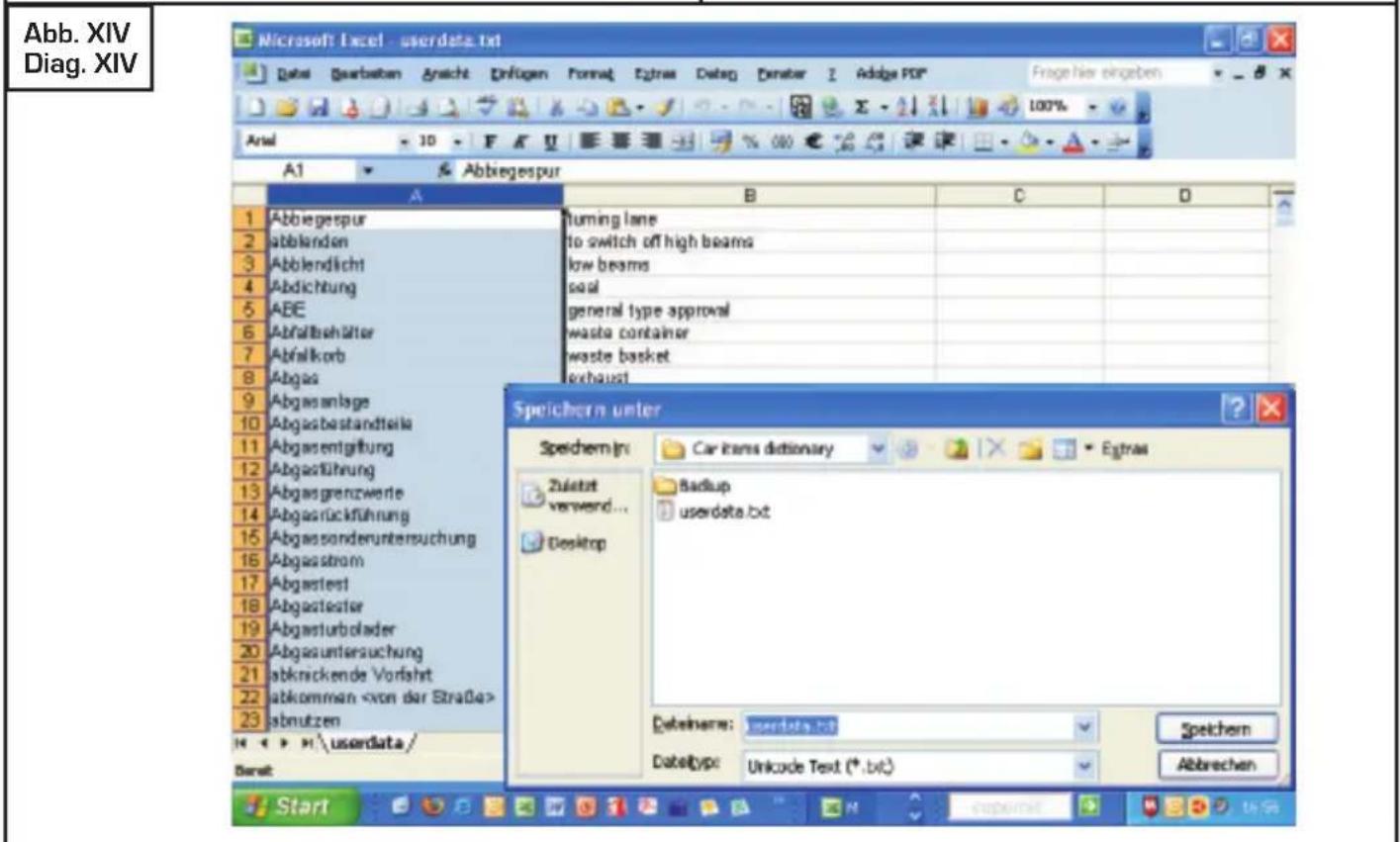
Insert a formatted SD card with at least 2 MB free storage space into your Hexaglot Attaché. Press the red key and MENU to access the main menu. Go to the user dictionary, select Download/Upload and then Download. When you press enter the device will load the user dictionary currently in the device onto the SD card with the data name userdata.txt.
On the SD card is now a copy of your user dictionary in the device. Data mistakenly deleted on the device. You can also use the copy on the SD card to share your user dictionary with other owners of the Hexaglot Attaché. Take care, however, to respect the copyright.
ATTENTION:
The data on the SD card is only a copy of the user dictionary in the Attaché at the time of backing it up. If you later add new entries to the user dictionary on the Attaché, they will be saved on the device but not on the SD card. We therefore recommend you add a new copy of the user dictionary to the SD card every time you make great changes.
Working with the user dictionary
To work with the user dictionary on your PC, first remove the SD card from the Attaché. With a card reader you can transfer the user dictionary from the card to your PC. The user-dict.txt data can be opened with the Microsoft Excel program. You can now work on or extend the data.
The data user.dict.txt has two columns: In the left column you can enter the headword and in the right the translation (see diag. XIV). Please enter only normal text into the cells, not Excel forms. Text qualities such as bold print will be ignored. Save your changes and take care that the data type of the dictionary must always be unicode text.
Restoring the user dictionary
To copy the data of userdict.txt back onto your Hexaglot Attaché, please insert the SD card into the Attaché because this contains the required user dictionary. MENU
Download/Upload Upload. Press enter to access the main menu and in the user dictionary select Download/Upload and then Upload.

ATTENTION:
This procedure will overwrite the entire contents of the current user dictionary in the Hexaglot Attaché irretrievably.
Technical notes
The Hexaglot Attaché supports the following two data types on the SD card: firstly, epc to download supplementary dictionaries and secondly, userdict.txt for back ups of the user dictionary. To help you, a data item named userdict.txt is already listed in the main index of the SD card for the back up of the user dictionary. In the event of the data item missing due to data security, a new txt data item can be set up automatically by the Attaché.

NOTE:
Before working on the user dictionary on the PC you should always create a current back up copy on the SD card so that you are really working on the most up-to-date- version of your user dictionary in the Attaché.

ATTENTION:
We recommend that you reserve an SD card solely for use with the Hexaglot Attaché. To avoid possible malfunctions, do not use this card with other devices, e.g. digital cameras or MP3 players.
18. Phone book
With the phone book you can store, administer and delete phone numbers and addresses.
This is how you add a new entry:
- Press MENU and choose Phone book from the menu.
- Press enter.
You can now work with Phone book in three ways:
Add: This key adds new entries.
View: Here you can view all entries and scroll through the phone book.
Search: Here you can search for specific entries.
Adding entries to the phone book
Press Add for entering a new entry:
- Enter the required data, e.g. name, phone number and e -mail address.
- The new entry will be saved and you return to the phone book menu.
- Or press the right display key ext and the new entry will be saved and the entry mask for another new entry in the phone book will appear.
- Using the middle display key cancel you can end the process without saving the new entry.
- To cancel the entry, press esc and you will return to the phone book selection menu.
Searching or changing entries in the phone book
Press View to see all entries. You will now receive an alphabetically ordered list of all entries in the phone book.
You will now receive an alphabetically ordered list of all entries in the phone book.
- Use ▲ ▼ to select the required entry.
- Press enter to display the entry.
- Press esc to return to view the list.
Searching for an entry
You have two ways of searching for an entry:
- You can select the entry from an alphabetically sorted list or search for an entry.
- Press Search to search for an phone book entry. Enter the required name, in full and spelt correctly and press enter to start the search. If the name exists as an entry in the phone book, you will receive a list of matching entries.
- Select the required entry with ▲ ▼ and press enter to display the entry. Press esc to return to view the list.
- To change the text of the entry, press the middle display key Edit.
- Make the changes you require.
- To save the change, press Save
Deleting entries in the phone book
- If you wish to delete a phone book entry, search for the relevant entry in the list following the instructions given above, then press DELETE. You cannot delete an entry in the entry display; always highlight the entry in the list display and then press DELETE. You will then be asked to confirm the deletion.
- Press the key given to delete the highlighted entry.
- Press the key given to end the deletion procedure and keep the entry in the phone book.
- Press the key given to delete all entries in the phone book.
ATTENTION:
The deletion of one or all entries is irrevocable. On confirmation of deletion the required entry or all entries will be irrevocably removed from the phone book.
19. Conversion
The Hexaglot Attaché has an easy-to-use unit converter to help you convert between many different physical units. You can also convert currencies and clothes sizes and calculate time differences.
- Press MENU and select Conversion from the menu.
- Press enter. After starting the unit converter, a list of the available unit categories is displayed: Unit converter, Currency, Size.
- First select the category using ▶◀ and then press enter.
- After selecting the unit category, select the next category with ▲ ▼ or ▶ ▶ and press enter
Unit conversion
Currencies and units are generally converted according to the following method:
- After selecting the unit category, the input screen of the unit converter appears.
- The cursor is in the input field. Use ▲ ▼ to move the cursor between the from and to fields at any time.
- Enter the source value in the input field.
- The result field shows the actual conversion value based on the amount entered and units shown in the from and to fields.
- Use ◀▶ to select a source value from the various units in the from field, coloured inversely.
- The result field is refreshed on every input.
- Move to the to field with ▼.
- The unit in this field is now shown in inverse colouring.
- Use ◀▶ to select between different units for the conversion value.
- The result field is refreshed on very input.
- To speed up and simplify switching between units, you can also use the display keys to switch between them:
- The middle display key Unit1+: enables the from field and scrolls to the next source unit.
- The right display key Unit2+: enables the to field and scrolls to the next conversion unit.
- The left display key Unit: this key scrolls back to the previous unit from the currently active unit field (from or to).
NOTE:
Calculations of the currency converter are based on the rate of exchange which can be altered under Conversion / Currency / Currency edit. If necessary, check the correctness of the parameters set before calculations.
Converting sizes
When abroad it is often practical to have an international size comparison table to hand. The most important sizes are available in the Hexaglot Attaché. Select the Size category in the unit converter and then the required sub-category. To display further sizes in the selected size category, press ▶◀◀ to scroll the display horizontally.
ATTENTION:
The size tables are intended purely as a guide. When buying clothes, always check the actual size and exact fit by trying them on.
20. Calculator
The Hexaglot Attaché can also be used as a calculator. Press MENU and select Calculator from the program selection list. Press enter to enter calculator mode. "M" appears in the upper left hand corner of the display and "0." in the lower right hand corner. In calculator mode, the secondary lettering of the keys is automatically used. The content of the calculator memory (M) is displayed in the second line. Below right the entry or sum calculated is shown.
Calculating with the Hexaglot Attaché
The operation is just as with any standard calculator. Addition (+), subtraction (−), multiplication (×) and division (÷) are available as calculator functions. The percent (%) and square root functions are also available for more complex calculations. There are also the following functions available:
Degree = degree (old)
New degree = gon
Radian = circular measure
You can select the function required with D/G/R. The calculator also offers other mathematical functions which can be accessed with the middle display key function. To call up the individual functions press ▲ or ▼ to select the function and press ◀▶, followed by enter.
Using the calculator memory
Individual calculation operations in the input line have no bearing on the calculator memory. Add or subtract the value currently in the calculator input line to/from the memory using add (M+) or subtract (M−). Use the value stored in memory in the current calculation using (MR). The symbol "M" appears in the top line, next to the current memory contents. Press (MC) to delete the memory contents.
21. Time of day
You can call up local time, GMT or an overview of the month via "Clock" on the menu. Based on the local time which you set, the device will automatically calculate GMT for 200 cities throughout the world.
Local time
The Hexaglot Attaché can show you the current time in any country you choose, as well as the date and day of the week.
TIP:
If you enter the first letter of the country you are looking for, you will immediately find the first country in the list which begins with this letter.
Press the left display key Mode to decide the type of display: the time of day can be shown in 12 hour or 24 hour mode.
TIP:
The abbreviation AM stands for time before 12 midday and PM stands for time after 12 midday.
The representation of the date can be shown in a similar way. Press DD/MM to show the day before the month, e.g. 24.07.2007. Press MM/DD to show the month before the day, e.g. 07.24.2007.
Edit: This middle display key allows you to change local time. You can save the settings with Save. With the right display key Alarm you can switch on or off the alarm function. It is possible to set the alarm to ring daily or once only. With Edit you can change the alarm function via the middle display key. With Set the settings will be saved.
GMT
The Hexaglot Attaché can show you the current time as well as the date and day of the week in all other time zones in the world. With the keys ▲▼ scroll through an alphabetical list of countries.
TIP:
If you enter the first letter of the country you are looking for, you will land on the right letter in the list immediately.
NOTE:
The wide range of regulations governing daylight saving time result in various deviations from the actual time.
Calendar
The calendar function gives an overview of any month in the year. Select any day with the keys ◀ ▶; select any month with the keys ▲ ▼. By pressing ▼ △ you can select the year.
22. Games
The Hexaglot Attaché has six games included. The games are accessed from the program selection menu. To access the games, press on MENU, select the required game with the ▲▼ keys and press enter to start the game. Press esc or a mode key to end the current game.
Game 1: Decoder
The object of the game is to crack a four-digit code with a maximum of eight guesses. Enter four different digits in the four input fields on the right-hand side of the screen. To correct an entry, use ◀ ▶ to move to that field and correct your input. Press enter to confirm your guess. After entering a guess, the number entered by you, along with your rating, appears on the left-hand side:
The number preceding the letter A specifies how many digits are correct and are already in the correct position in the code. The number preceding the letter B specifies how many digits are present in the code but are not in the correct position. For example, 1A2B means that one of the numbers is in the correct position and two more numbers are correct, though not in the correct position. Enter your next guess. Use the combination of the results from previous guesses to work out the correct code. If you cannot crack the code with eight attempts, the code is displayed and the game ended. By pressing esc once you will receive the answer and the round is over; by pressing esc twice you exit the game.
TIP: The code is always made up of four different digits. Entering the same digit more than once results in an error message.
Game 2: Snake
The objective of the game is to guide an increasingly longer snake through the game field avoiding collisions. At the beginning of the game you can set the speed using the ▲ ▼ keys. You can alter the level of difficulty by pressing keys ◀ ▶ and then keys ▲ ▼. In the course of the game you are guiding a snake through a game field with obstacles using the keys ◀ ▶ ▲ ▼. In doing so you must feed the snake by leading it over the grey squares. The snake increases in length by one limb every time it is fed - making it more difficult to steer. When guiding the snake on its way through the game field, you are not allowed to touch the walls or the black obstacles and the snake's head is not allowed to touch any part of the snake's body. Press P to pause the game. Press P again to continue the game.
Game 3: Tower
The aim of the game is to slide the tower from left to right in as few moves as possible. In doing so, you are only allowed to put a smaller stone on a bigger one. Using the keys ◀ ▶ you can slide the stones from left to right. By pressing the key enter you can put down the stone.
TIP: As long as the third space is empty the stone can be moved from the first space straight to the third space.
Game 4: Puzzle
The aim of the game is to order the numbers in the large square from 1 to 9 with as few moves as possible, i.e. in the uppermost row the numbers "123" should appear, in the middle "456" and at the bottom "789". Using the keys ▶▶▲▼ you can slide the small square. The key enter moves the numbers in the small square clockwise, the space key moves them anti-clockwise.
Game 5: Number cube
The aim of the game is to order the numbers 1 to 8 in the big square in as few moves as possible. I.e. in the uppermost row the numbers "123" should appear, "456" in the middle and "78space" on the bottom. You can move the numbers individually with ▶ ▶ ▲ ▼.
Game 6: Guessword
Two word games (per language direction) are available to help learn vocabulary: the dictionary quiz and word mix. The aim of the Word quiz is to find the correct term for a given entry from the dictionary. The broken line counts as space holders for characters in the word to be found. The dictionary entry for the term sought appears underneath. Press the keys of the letters you believe are in the word. If the character is in the word sought, the space holder will be replaced by the character. After eight misspellings the task counts as unsolved and the correct answer will appear.
TIP: Pressing the key enter will show you the answer in advance.
The aim of the game word mix is to find the right headword for a scrambled word. Put the letters in the correct order again. After eight misspellings the task counts as unsolved and the correct answer will appear.
TIP:
Pressing the key Result will show you the answer in advance.
23. Taking care of your product
Only use a dry cloth to wipe the Hexaglot Attaché. If the device is excessively dirty, use a damp, but not wet, cloth. Never dip the device in water or any other liquid. Chemical cleaning agents or any with mechanical cleaning heads are not to be used under any circumstances as they may corrode the material.
If your Hexaglot Attaché is not functioning correctly or can not be switched on, although the batteries are sufficiently charged, perform a reset of the device. The reset button is on the back of the device.
Press the button down carefully with a thin - but not sharp - implement such as a paper clip. If pressing the reset button has no effect, remove the batteries and insert new batteries after a short time. Check whether the card is correctly seated in the device.
NOTE:
Personal information i.e. stored in the user dictionary and the memo list is not lost on resetting the device. To delete this information, use the appropriate functions.
25. Guarantee
ATTENTION:
The manufacturer's guarantee is only valid after written registration of the device with us eight weeks at the latest after purchase. Please return the enclosed registration card, fully completed, to this address: Hexaglot Holding GmbH, Garantie-Service, Sportallee 41, D-22335 Hamburg, Germany. Your statutory consumer rights from the dealer from which you bought the device remain unaffected.
Our Hexaglot products are subject to stringent final quality inspections. Hexaglot guarantees that your device is free of material and production defects. If your hand-held device demonstrates any of the defects mentioned above within a period of two years after purchase, Hexaglot offers, at its discretion, either a free-of-charge repair or exchange. The guarantee applies only for you as original end customer.
It does not apply for damage to fragile components such as the housing or the display, damage caused by improper use, culpable damage, damage caused by breakage, heat, water or acts of God, damage caused by unauthorised tampering with the device or exposure to chemicals caused by e.g. leaking batteries.
You also have statutory guarantee rights vis-à-vis the dealer from whom you purchased the device; these are no limited by this guarantee. Please return the defect device to your
dealer, together with a short description of the fault and the receipt, so he can pass it on to us. Alternatively, stamp it sufficiently and post to:
HEXAGLOT Holding GmbH, Kundenservice,
Sportallee 41, D-22335 Hamburg, Germany
The return is free-of-charge. We accept no responsibility for deliveries to or from ourselves. After the guarantee period has elapsed, you may still return the defect product to the above address for repair. Costs are payable for out-of-guarantee repairs.
26. Contact Information
Information about our products and accessories for your Hexaglot Attaché like replacement covers or SmartCards with more language combinations can be found at Hexaglot Holding GmbH, Sportallee 41, 22335 Hamburg, Tel.: +49-(0)40-51456-200, Fax: +49-(0)40-51456-993, E-mail info@hexaglot.de. Or visit our website www.hexaglot.com and www.hexaglotpocket.com.
27. List of abbreviations
A detailed list of abbreviations you'll find in your Hexaglot Attaché. Please press HELP for open the help function. In Chapter 3 the abbreviations are displayed.
28. Disposal of Old Electrical & Electronic Equipment
(Applicable in the European Union and other European countries with separate collection systems)
This symbol on the product or on ist packaging indicates that this product shall not be treated as household waste. Instead it shall be handed over to the applicable collection point for the recycling of electrical and electronic equipment. By ensuring this product is disposed of correctly, you will help prevent potential negative consequences for the environment and human health, which could otherwise be caused by inappropriate waste handling of this product. The recycling of materials will help to conserve natural resources. For more detailed information about recycling of this product, please contact your local city office, your household waste disposal service or the shop where you purchased the product.


www.hexaglot.com
© 2007, Hexaglot Holding GmbH, Hamburg, Germany
Standard dictionary: © 2006, HarperCollins, United Kingdom
Specialized dictionary technology: © 2006, Langenscheidt Fachverlag, Munich, Germany
Specialized dictionary business: © 2006, Langenscheidt Fachverlag, Munich, Germany
Gastronomic dictionary: © 2005, Hexaglot Holding GmbH, Hamburg, Germany
Parts of the gastronomic dictionary: © 2000, Joachim W. Glaeser, Hamburg, Germany
Word form recognition using technology from IntraFind Software AG, Munich, Germany
Stand 12/06