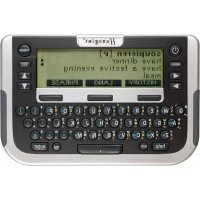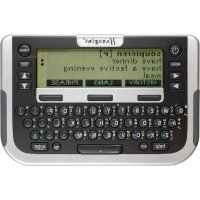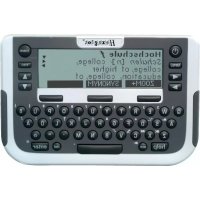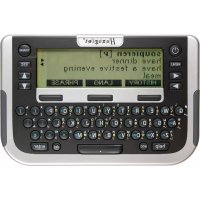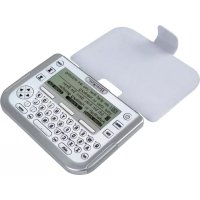
Dialogue - Electronic translator Hexaglot - Free user manual and instructions
Find the device manual for free Dialogue Hexaglot in PDF.



| Product Type | Electronic Translator |
| Brand | Hexaglot |
| Model | Dialogue |
| Power Supply | 2 AAA batteries (LR03/micro) or rechargeable batteries |
| User Memory | 32 KB for saving translations, contacts, memos |
| Display | 6-line LCD screen with status bar |
| Keyboard | QWERTY with mode, screen, and navigation keys |
| Main Functions | Phrase translation, dictionary, example phrases (30+ themes), electronic organizer, memo pad, calculator, unit converter (currencies, time zones, sizes) |
| Available Languages | Depends on inserted card; possibility to purchase other language combinations |
| Dimensions (approx.) | Approx. 12 x 7 x 1.5 cm |
| Weight (approx.) | Approx. 120 g (with batteries) |
| Care and Cleaning | Dry cloth; for stubborn dirt, slightly damp cloth. Do not use chemical products. |
| Safety | Do not expose to water, shocks, extreme temperatures. Repair by manufacturer only. |
| Spare Parts and Repairability | Protective cover, batteries, language cards (DialogueCards). Repair by after-sales service after warranty. |
| Warranty | 2 years (excluding damage caused by misuse) |
| Included Accessories | User manual, 2 demo batteries, Hexaglot DialogueCard |
Frequently Asked Questions - Dialogue Hexaglot
User questions about Dialogue Hexaglot
0 question about this device. Answer the ones you know or ask your own.
Ask a new question about this device
Download the instructions for your Electronic translator in PDF format for free! Find your manual Dialogue - Hexaglot and take your electronic device back in hand. On this page are published all the documents necessary for the use of your device. Dialogue by Hexaglot.
USER MANUAL Dialogue Hexaglot
Sportallee 41, D-22335 Hamburg, Germany
Getting started with your new equipment!
- The Hexaglot Dialogue is supplied with an inserted linguistic map.
- First of all, please remove the battery protection tape on the back of the equipment.
- Open the equipment cap (flip protector) and press shortly the key top-left next to the screen.
① NOTE: While travelling to prevent the switching on of the device by accident, this key has less height than the others.
4. The user language of the equipment has been set to English ex factory. To change the user language press MENU. Using the key, proceed to "5. Setup" and press "enter".
5. Using the key, go to "Language GB".
6. Press the key until the required user language is displayed (D= German, GB=English, F=French, E=Spanish).
7. The equipment is now set to the required user language and is ready for translating.
Quick guide to translator function
How to translate one or more sentences:
- Press TRAN$ to enable dictionary mode.
- Press the right display key translate to translate.
- After translating, the source text is displayed in the upper half of the screen and the translated text in the lower half.
- Use or to scroll through longer text.
Quick guide to the dictionary
To look up a word in the dictionary:
- Press TRANs to enable translation mode. Bullet point!!!
- Press the left display key Diction to enter dictionary mode.
- You are then prompted to enter the word to be searched.
- Please ensure that the source language is correct.
- The source language is shown as a bordered mnemonic (country code).
- Type in the search word - this is not case sensitive.
- Press enter to start the search.
- If the search term is in the dictionary, the corresponding translation is displayed. Otherwise an error message is displayed.
- Use and to change between the previous and subsequent entries in the dictionary.
Welcome 26
- Precautions 26
Storing data in the device 26
Using the operating instructions 26
-
Scope of delivery and product description 27
-
Inserting and changing the batteries 27
Inserting/changing main batteries. 27
Important information on batteries 27
-
Inserting and changing the card 28
-
Changing the device cover 28
-
Overview of device 28
Powering on and off 28
Keyboard 28
Mode keys 28
Display keys 29
Input and navigation keys 29
Display symbols 30
- Quick guide to translator and dictionary function 30
Quick guide to translator function 30
Quick guide to the dictionary 30
-
Program selection menu 31
-
Setup 31
-
Translation mode 32
Start translation mode 33
Selecting language 33
33
Display options 34
Save texts 34
- Dictionary 34
Selecting language 34
Reading entries correctly 34
Searching for a word 34
Scrolling within dictionary 35
- Phrases 35
Search for phrases using topic selection 35
Find phrase with search term 35
- Organizer 36
Creating entries in the organizer 36
Search for or change entries in the organizer 36
36
- Memo 37
Creating entries in the memo 37
Searching for and changing entries in the memo 37
38
- Calculator 38
Calculating with the Hexaglot Dialogue 38
Using the calculator memory 38
- Converter 38
Standard unit conversion 39
Calculating time differences 39
Converting sizes 40
- Taking care of your product 40
- Fault rectification 40
19.Guarantee 40 - Contact Information 41
- List of Abbreviations 41
- Disposal of Old Electrical & Electronic Equipment 41
- FCC Notice (U.S. only) 41
Welcome
Thank you for choosing the Hexaglot Dialogue. Please take a few minutes to read through these operating instructions carefully before using it so as to be able to take full advantage of the functionality and to have years of enjoyment. Please keep these operating instructions in a safe place so as to be easily accessible next time you need to look something up. Hexaglot wishes you all the best in using your Hexaglot Dialogue!
1. Precautions
To ensure years of trouble-free enjoyment, and to maintain your guarantee, please note the following:
- Never carry out repairs yourself. There are no serviceable parts in the device.
- Do not expose device to water, sand or dust.
- Never use coloured paint thinners or other chemical cleaning agents. Read "Taking care of your product".
- Do not expose device to high temperatures, high humidity or direct sunlight.
- Do not drop or expose to heavy impact.
- The Hexaglot DialogueCard has been specially designed for this device.
- Do not use any other card in this device as this may result in irreparable damage.
- Never use the Hexaglot DialogueCard in a device other than the Dialogue as this may result in irreparable damage to the card or device.
Storing data in the device
The device has a 32kB memory area which is freely usable for the user to store translations, personal memos or phonebook data. This memory retains its content even after batteries have been exchanged or when the batteries are flat. We recommend making a written note of any important information (i.e. phonebook). Essentially any system with an electronic memory can lose information under certain conditions. As a result, we can not assume liability for data loss, irrespective of whether this is attributable to incorrect operation, repair, technical fault, exchange of batteries, use of batteries whose use-by date has expired, or any other circumstances. We accept no direct or indirect liability for financial loss or grievance of third parties resulting from the use of this product and its functions, such as theft of credit card numbers, loss or change of information.
Using the operating instructions
The keys of the Hexaglot Dialogue are depicted as white framed boxes in these operating instructions: The TRANs symbol stands for the TRANS key on your Hexaglot Dialogue. The functions of the display keys are depicted as black boxes with white lettering: The Language symbol stands for the display key above which "Language" is displayed in inverse colouring. The screen diagrams described in the operating instructions are provided purely as examples. Actual diagrams in the device may vary.
① NOTE:
Describe unusual features in using the device and warn of operating error.
ATTENTION:
Indicates possible endangerings for the user, for the device, other material assets or the environment.
TIP:
Accentuate tips and notices for you.
2. Scope of delivery and product description
Included in the delivery are:
- Hexaglot Dialogue
- Operating instructions
- 2 demonstration batteries, model LR03 / Micro / AAA
- Hexaglot DialogueCard
3. Inserting and changing the batteries
Power to the device is provided by two standard batteries of type AAA (Micro, LR03, AM4).
TIP:
- You may continue to use the device with rechargeable batteries - reducing energy costs for the device significantly.
- Please note, however, that the operational life of the device is generally shorter when using rechargeable batteries.
- Suitable rechargeable batteries and battery chargers are available from specialist outlets.
Inserting/changing main batteries.
First insert the batteries provided:
- The battery compartment is on the underside of the device (diag I).
- Remove the cover of the battery compartment.
- Insert the two batteries, paying careful attention to correct polarity (+/-)
- Close the battery compartment cover.
- Press the reset key at the back of the device using a straighten paper clip or something similar.
Important information on batteries
ATTENTION:
Incorrect use of batteries can result in leakage or cracks and ultimately in damage to your product.
Please be aware of the following precautions:
- Make sure you always switch the device off before changing the batteries.
- Pay careful attention to correct polarity (+/-) .
- Never mix batteries of different types, or mix old with new.
- Never leave used batteries in the battery compartment as this may result in faulty operation.
- Remove the batteries if the device is not to be used for a long period.
- The batteries supplied are not rechargeable.
- Do not expose batteries to direct heat. Do not short-circuit batteries and do not attempt to take them apart.
- If a battery leaks, clean the battery compartment immediately, ensuring that battery fluid does not come into contact with skin.
Note on disposal: Please only throw discharged batteries away at collection points provided by the dealer or the local authorities. Batteries are generally discharged when the device is switched off and indicates "battery flat" or, after prolonged periods of use, "no longer work efficiently". To be on the safe side, place sticky tape over the poles of the battery or put them into individual plastic bags.
4. Inserting and changing the card
Ensure that the device is switched off before inserting, removing or changing a card. Open the battery cover on the back of the device (Diag. II). To remove, apply gentle pressure to push the card out of the left of the card holder. Now take the card out of the device. To insert, push the card, with contacts pointing to the right and downward, into the empty card holder (diag. II) until the card is fixed into position. Close the cover of the battery compartment. The new card is now ready to use.
① NOTE:
Hexaglot DialogueCards only work with the Dialogue. Never insert a commercially available SD or MMC card into the Hexaglot Dialogue. Card, card content or device may be damaged beyond repair. Never use Hexaglot DialogueCards in other card devices such as digital cameras, MP3 players, etc. or in PC card readers. The device or Hexaglot Dialogue may be damaged beyond repair.
A "No card!" message is displayed on calling the translator function if there is no card in the device or if the card is not inserted correctly. You can use the memo function, phonebook, calculator and unit converter without a card. DialogueCard accessories with other language combinations are available from Hexaglot (see contact information).
5. Changing the device cover
Please switch the device off before removing or exchanging the device cover. Open the cover of the battery compartment on the back of the device (diag. 1). To remove, simply lift the cover from the retaining pins: The device may also be operated without the cover. To insert a new cover, locate the retaining holes of the cover lug at the retaining pins of the battery compartment lid (diag III). Close the battery compartment carefully. Ensure that the lug is fed cleanly through the gap between the housing and the battery compartment lid. Device covers are available as accessories from Hexaglot (see contact information).
① NOTE:
The device cover protects the upper side of the device from scratches and dust. The cover does not provide protection against mechanical loads (e.g. pressure in a suitcase). Therefore take great care when transporting the device and always ensure cover is mounted.
6. Overview of device
Powering on and off
To power the Hexaglot Dialogue on, press until the device turns on. The Hexaglot Dialogue switches itself off automatically if no keys are pressed within a period of a few minutes. Press again to switch off the device manually.
Keyboard
The following functions are provided with the Hexaglot Dialogue keys:
Mode keys
Use these keys to enable basic functions of the Hexaglot Dialogue.
Press to switch the device on and off.
MENU
Opens a menu with further functions
- Memo
- Phone book
- Calculator
- Converter
5. Setup
TRANS
Switch to dictionary mode.
Display keys
Three large display keys are positioned below the Hexaglot Dialogue screen. The functions currently active for these keys are displayed as text in the bottom line of the display on the black fields. Below is an overview of all possible display key functions in alphabetical order:
Cancel Cancel an action without saving changes
Edit Memo, phone book: allows editing of the current entry
Unit1+ Converter: enables the input field of the source unit and scrolls to the next unit.
Unit2+ Converter: enables the input field of the target unit and scrolls to the next unit.
Unit Converter: scroll to the preceding unit of the active input field - source or target unit.
Continue Translator: Continues the translation process although the source text still contains unknown words.
Size Converter: starts the sizes category.
Clear Memo, phone book: deletes the current entry
OK Translator: confirms selection (language direction) of the translator function/dictionary
Phrase Dictionary: changes to phrase mode and its functions, such as search for keyword in the phrases.
Page 4 Scrols up one whole page.
Page 1 Scroll down one whole page.
Save Memo, phone book: saves the current entry.
Language Translator, dictionary, phrases: allows selection of the dictionary or languages to be translated, e.g. German- >English.
Search Phrases, memo, organizer: starts search function within particular area.
Split Translator: changes the LCD such that the source text is displayed in the upper half of the screen and the translated text in the lower half.
Translate Memo mode: uses the memo text currently displayed as input for the translator
Diction. Starts the dictionary for looking up individual words
Time Converter: starts the world time calculator.
Zoom Src. Translator: changes the LCD such that the source text fills the screen.
Zoom Tar. Translator: changes the LCD such that the translated text fills the screen.
Return Jumps back to the last level displayed - same effect as pressing the esc key.
Translator, dictionary, phrases: allows quickly changing the language direction of the current language pair.
Input and navigation keys
The international QWERTY keyboard arrangement is used for inputting text. When entering sentences or text for translation, please note upper and lower case, correct punctuation marks such as full stops, commas, question marks, etc. Lower case can be used for all entries in dictionary mode. The most important controls for flow control are described below.
acc


If you want to define one of the letters a, e, i, c or n with an accent, enter the required letter and then press acc. Keep pressing the key until you find the accent symbol to be added or removed (e.g. é, è, ð). This also applies to umlauts, i.e. to write "ü", press u followed by acc.
Generates a space.
Used to delete characters. If the cursor is within a string of characters, pressing this key deletes the next character (right of the cursor). If the cursor is at the end of the text, the character last entered is deleted (left of the cursor). Is used to delete entries in the memo list and organizer.
Enables capital letters for character keys.
Enables digits and symbols of character keys (second imprint on keys). Note: digits are automatically used instead of letters in calculator mode
This key is used to confirm an entry or selection.
Is used to cancel an action or to jump back to the level last displayed. (the exact function of the key is defined by the mode currently active).
Use these keys to scroll backwards and forwards between dictionary entries or phrases, depending on mode selected. Use these keys to move the position of the cursor when entering words. These keys can also be used in Setup to switch particular options on/off.
Use these keys to select entries from lists and to scroll through the display line-by-line if the display content is longer.
Use these keys to scroll through the display page-by-page if the display content is longer.
Display symbols
The LCD has six lines. As previously mentioned, the lowest line in the display is usually used for labelling the display key. A status bar, used to flash up various symbols, is located to the right of the normal display. Diagram IV shows the various display areas and elements:
A: normal text display area
B: labelling of the display keys
C: status bar with symbols
The meaning of the individual status bar symbols is explained below:
Indicate that you can select and scroll up and down through the display window using these arrow keys.
Indicate that you can select and scroll through dictionary entries with these arrow keys.
7. Quick guide to translator and dictionary function
Quick guide to translator function
How to translate one or more sentences:
- Press TRANs to enable dictionary mode.
- Press the right display key translate to translate.
- After translating, the source text is displayed in the upper half of the screen and the translated text in the lower half.
- Use or to scroll through longer text.
Quick guide to the dictionary
To look up a word in the dictionary:
- Press TRANs to enable translation mode. Bullet point!!!
- Press the left display key Diction to enter dictionary mode.
- You are then prompted to enter the word to be searched.
- Please ensure that the source language is correct.
- The source language is shown as a bordered mnemonic (country code).
- Type in the search word - this is not case sensitive.
Press enter to start the search.
- If the search term is in the dictionary, the corresponding translation is displayed. Otherwise an error message is displayed.
- Use and to change between the previous and subsequent entries in the dictionary.
The following pages contain information on configuring the user language of the device, changing the language and using the functions.
8. Program selection menu
Start the translator and dictionary function with the TRANs key. Use the program selection menu for additional device functions and settings. Start selection by pressing MENU. A list of additional device functions is displayed. To start a function, first select it using the and keys (inverse colouring is used for function selected) and then press the enter key.
The following functions are available:
- Memo
- Phone book
- Calculator
- Unit converter
- Settings
TIP:
From the selection menu, call the additional functions directly by entering the appropriate function number. For example, entering number key 3 (=keyE) starts the calculator, key 5 (=keyT) moves you to the settings menu.
9. Setup
Select Setup from the program selection menu to customise the basic device settings. To change an option, first select it using the and keys. You can change the following settings:
Battery
Displays the current battery status. If the batteries are getting low, have a new set ready so as to be able to work uninterrupted.
Contrast
Controls the brightness of the display. Use to make the display brighter and to make it darker.
Def1-Def3
Define the exchange rate which can be used in currency conversion mode in addition to those already stored. A maximum of seven digits can be specified, including the decimal point.
Example: One US dollar corresponds to 0.90231 EURO. To change the value of an exchange rate, you must press enter for changes to take effect. Enter 0.90231 and confirm with the enter key. Use the ESC key to leave the input without changing the original value. Any changes are brought into immediate effect.
Stopp
Before translating, the device first checks whether words unknown to the translator are contained within the text. This is where you specify whether or not the device stops the translation process on detecting unknown words and issues an error message.
Key selects = device stops translation on detecting unknown words.
safety
Key selects = device translates immediately, even if unknown words are contained within the source text.
This is where you can specify whether the device issues a prompt before you delete your own typed text (e.g. by pressing ESC).
Key selects = prompt enabled.
Key selects = prompt disabled.
Language
Specifies in which language messages are displayed. Use l to select the required user language (country code).
Key tone Tur
is the key press tone on or off.
The selects = key press tone on.
The selects = key press tone off.
Once you have made all required changes, leave settings by selecting another mode. The settings made become effective immediately.
10. Translation mode
The Hexaglot Dialogue offers you the unique opportunity of being able to translate complete sentences from one language to another using a compact, mobile device. You are able to freely define a sentence and translate it - in contrast to other phrase books on the market that use predefined phrases.
The translation is performed by machine. Please note the following when assessing the quality: It is not uncommon for users to be shocked by the quality of machine-generated translations. This is due in part to the expectation level in regard to the capabilities of translation software and also to the varying requirements of the text material. Because of the complex structure of human language and the content/complexity of text, the quality of translations varies depending on the source text and source/target languages. No computer program can take the place of a human translator. Languages are, by their very nature, "alive" and are processed by machines that are only capable of thinking logically. A computer program does not possess "worldly knowledge" of the translation subject matter or the linguistic finesse to sufficiently address each different requirement. This is why machine-generated translations should be regarded as basic translations which provide an inexpensive and simple way of communicating in a foreign language on a day-to-day basis. Instead of expecting perfect translations, expect basic translations of varying quality than can be reworked to form translations suitable for publication if so required.
Some general recommendations that apply for state-of-the-art full text translators:
- Does the text contain many homonyms, i.e. words with more than one meaning? Because a program is not familiar with the context, it is often not capable of deciding which meaning is intended and therefore frequently selects at random the one located at the highest position within the program dictionary.
- Does the text contain omissions? In colloquial language, word repetition is often not necessary, particularly in subordinate clauses. This can often confuse the translation program. Example: Use "I asked but I did not receive a reply" instead of "I asked but received no reply".
- Does the text contain many composite words? These are very common in the German language but highly unusual in others. They should be replaced by a group of individual words wherever possible.
-
Does the text contain fill word such as "since", "so", "etc.?" Most can be omitted since they just lead to unnecessary confusion. Is sentence construction correct and unambiguous? The use of several short sentences is more preferable to the use of a long sentence (preferably active not passive) - (active: the mother is ironing a shirt. Passive: the shirt is being ironed). Main clauses are preferable to subordinate clauses.
-
Try and keep to the "subject, predicate, object" ordering wherever possible. Parentheses and verbal brackets with many sentence parts between auxiliary verb and main verb can usually be avoided.
ATTENTION:
Because of the fundamental and technical limitations of machine translations, we accept no liability for translations generated by the device, i.e. for its use.
Start translation mode
The Hexaglot Dialogue can translate in both directions between different languages/ language pairs. The language combinations supported are defined by the Hexaglot DialogueCard inserted. This is usually supplied with the purchased product. Other language combinations on Hexaglot DialogueCards are available to order as accessories (see contact information).
Press TRANs to enable translation mode. The initial screen of translation mode is displayed and the current language direction is shown on the display, e.g.: GB English > D Deutsch. This means you can now enter an English text for translation into German.
Selecting language
To change language, press TRANs and then Language. The language selection menu is displayed on the screen. The current language direction for the translation is shown in the second line. To change the language, select the required source language in line 3 using the 4 and keys. You can also select the language by typing the initial letters of the language, e.g. key D for German. Use to move to the forth line and select the target language from there. To directly reverse the languages of the current language pair, press the middle display key To confirm your selection and exit language selection, press OK or enter. To exit without changing the current language, press Cancel or ESC. Country codes are used to selected the language.
① NOTE:
You can only select a language if it is included on the DialogueCard inserted. The language direction selected applies to the translator, dictionary and phrase functions. This setting has no bearing on the user language.
Entering sentence/text
Once the initial screen of translation mode has been displayed, start by simply entering the required sentence or text. When entering, please note upper and lower case, correct punctuation marks such as full stops, commas, question marks, etc. These can have a considerable impact on the translation. If you want to define one of the letters a, e, i, c or n with an accent, enter the required letter and then press acc. Keep pressing the key until you find the accent symbol to be added or removed (e.g. é, ð, ù). This also applies to umlauts, i.e. to write "ü", press U followed by acc. Use the arrow keys to move to the right location when correcting text. Use the del key to delete individual letters, words, etc. Press the left display key Clear to discard the text input so far. Following a prompt, the text entered so far is deleted and an empty input window is displayed for re-entry of text.
Use the middle display key Memo to save the current text as memo text. This can be retrieved and translated later using the Memo function.
Use the right display key Translate to start the translation process. Because unknown words lead to incorrect translations under certain conditions, the program checks the text before translating. If the program finds unknown words in the text, the program stops the translation and the user is notified. By pressing the left display key Back, the user has the option of revising the text, replacing unknown words with alternatives. Sometimes it is just a spelling or typing mistake that needs to be corrected before translation. Whilst proper nouns need not be corrected as a rule, try to find other words with similar meanings for unknown words. Sometimes it helps to just formulate the sentence differently. You can also ignore unknown words and, by pressing the right display key Continue, force the translation process despite unknown words. The unknown words are then highlighted in bold in the translated text.
① NOTE:
Use the Stop option in settings to disable the stopping of the program. In this case the device translates without asking, continuing to highlight unknown words in the translated text in bold.
Display options
After translating, the source text is displayed in the upper half of the screen and the translated text in the lower half.
- Use the and keys to scroll through the text line-by-line or paragraph-by-paragraph.
- Source and translated texts are automatically scrolled synchronously.
- Use the left display key Zoom Src. to change the display such that the source text fills the screen.
- Use the right display key Zoom Tar to change the display such that the translated text fills the screen.
- Use the left display key Spl to return to split screen mode.
- Use the middle display key Back to return to input mode of the source text in order to revise the text or to save.
Save texts
It is possible to save the texts you enter as a memo for later retrieval and translation. To do this, press the middle display key Memo in the input mode of the source text. The text is saved after prompting. Use the Memo function to retrieve the text.
11. Dictionary
To start the dictionary, press TRANs and then start the dictionary function with the left display key Diction. You are now prompted to enter a word. Enter the word behind the mnemonic for the source language (bordered box) and press enter.
Selecting language
To change the language direction, press the middle display key Language. The language selection menu is displayed on the screen. The current language direction for the translation is shown in the second line. To change the language, select the required source language in line 3 using the 和 keys. You can also select the language by typing the initial letters of the language, e.g. key D for German. Use 和 to move to the forth line and select the target language from there. To directly reverse the languages of the current language pair, press the middle display key 和 . To confirm your selection and exit language selection, press OK or enter. To exit without changing the current language, press Cancel or ESC. Country codes are used to selected the language.
① NOTE:
You can only select a language if it is included on the DialogueCard inserted. The language direction selected applies to the translator, dictionary and phrase functions. This setting has no bearing on the user language.
Reading entries correctly
Besides just providing basic translations, the dictionary can also provide information on grammar and word usage. Grammatical information, such as gender or speech, appears in italics. Semantic information and definitions are enclosed in angle brackets.
Searching for a word
When searching in the dictionary, entries are searched for in a separate dictionary, i.e. the system dictionary of the translation program is not used by the search. Type in the whole word or the beginning of a word and then press enter. Possible search results:
- Exactly one entry is found.
- The entry is displayed
- No matching entries were found. The entry that follows the search term alphabetically is displayed. If several translations are available for one keyword, scroll through them to display.
Please note the following when entering a search string:
- Diacritical characters (such as e.g. , , , etc.) are normalised when searching: = a , = u etc.
- Spaces in search strings should be specified (e.g. in "parking light").
- Special characters (e.g. the hyphen in "know-how") need not be specified ("knowhow" is sufficient).
- If you make a spelling mistake, move the cursor to the error using the and keys and then use the del key to delete individual characters and/or enter new characters.
- Press ESC to discard the whole of the input and type in a new word.
- The search string can contain up to 20 characters.
Scrolling within dictionary
You can scroll both within an entry, if it is longer than a display page, and to the next or previous entry in the dictionary.
Scroll within entry: If an entry is longer than the multi-line display, press on once to scroll down one line or keep it pressed to continually scroll the display contents. Use to scroll backwards. The and arrow symbols in the status bar indicate whether scrolling up or down is possible.
Scroll within dictionary: Use l and l to scroll to the alphabetically previous or next dictionary entry.
12. Phrases
The Hexaglot Dialogue contains a multitude of phrases from a total of 30 different topics typical when communicating abroad, such as when in a hotel, airport or restaurant. Press the right display key Phrase to change the phrase set. If you are not yet in the start screen of dictionary mode, press [TRANS] first and then the right display key Phrase.
There are two different ways to search for matching phrases:
- You can select a topic and scroll through the available phrases.
- You can enter a search term.
Search for phrases using topic selection
The initial screen in phrases mode presents you with an overview of the available topic areas.
- Use and to scroll thought the whole list.
- Entering the initial letters is also sufficient to define a topic.
- After selecting the required topic, press enter to display the first phrase of that topic.
- Use the and keys to scroll to the next and previous entries.
- Use ESC to exit the entry and select a new topic.
Find phrase with search term
Keyword search is a very effective way of locating a phrase.
- To start the keyword search, press the right display key Search in the initial screen of the phrases mode.
- Now enter the keyword to be located.
- An incremental list of keywords matching your input is displayed.
- Select the required keyword using and and press enter.
- The phrase is displayed along with the corresponding translation.
- If more than one matching phrase is available for the keyword selected, scroll through the entries with and
- If no further phrases are available to display, a large down arrow appears.
- This signifies you have reached the end of the selection list.
- Use ESC to exit the entry and enter a new search term.
- If there is no phrase which contains the search term, the message Not found appears and you can enter a different search term.
① NOTE:
Note the following when searching using a keyword:
Search terms unrelated to any topic - e.g. personal pronouns like "I", "you" etc. or prepositions like "in", "at" etc. - are ignored and no search results are returned.
- Searches are not case sensitive so there is no need to use upper case letters.
13. Organizer
The organizer is used to record and retrieve personal details such as telephone numbers and addresses. The organizer and its functions are available from the program selection menu. Press [MEN] to create new entries in the organizer or to search for/delete existing entries.
① NOTE:
The Hexaglot Dialogue has a freely usable memory area of 32~kB .
Creating entries in the organizer
Proceed as follows to create a new entry in the organizer:
- Press MENU and select Organizer from the menu
- Press enter. First enter the name of your contact and press Next. You then have the option of entering the telephone number, e-mail address and postal address of your contact. Then press Save to save the new contact.
① NOTE:
A search for the contact entered in the organizer can be performed later. Please refer to "Keyboard" in section 6 for hints on entering capital letters, digits and special characters.
Search for or change entries in the organizer
Proceed as follows to search for entries in the organizer:
- Press MENU and select Organizer from the menu.
- Press enter.
- Select the left display key Search to enter search mode. A list of all available entries is displayed.
- Use to select the required entry and press enter to display it. Alternatively, you can select the entry by typing the initial letter, e.g. the S key for Smith.
- The selected entry is displayed.
- Press ESC to return to the list view.
- Press enter in the entry view to make changes or the display key Change
- Then make your changes
- To save changes, press Save
- The selected entry is displayed.
- Press ESC to return to the list view.
Deleting entries in the organizer
If you want to delete an entry, select it first from the list view (described above under "Search entries") and then press Delete. You are then prompted as to whether you really want to delete the entry:
- Press the key indicated to delete the selected entry.
- Press the key indicated to cancel the delete process and leave the entry in the organizer.
- Press the key indicated to delete all entries in the organizer.
ATTENTION:
The action of deleting one or all entries can not be undone. Once the delete operation has been confirmed, the current entry, or all the entries, are irrevocably removed from the organizer.
14. Memo
The memo function is used to record and retrieve personal information. The memo and its functions are in the program selection menu. To create new entries in the memo and to search for or delete existing entries, always press menu first.
① NOTE:
The Hexaglot Dialogue has a freely usable memory area of 32kB
Creating entries in the memo
Proceed as follows to create a new entry in the memo:
- Press MENU and select memo from the menu.
- Press enter.
- Enter the required text.
① NOTE:
You can then search for this text later in the memo. Save your memos by pressing the Save key. Please refer to "Keyboard" in section 6 for hints on entering capital letters, digits and special characters.
Searching for and changing entries in the memo
Proceed as follows to search for entries in the memo:
- Press MENU and select memo from the menu.
- Press enter.
- Press the right display key Search to enter search mode.
- Enter the complete keyword correctly and press enter to start the search.
- If the term searched for is available as an entry in the memo, a list of the matching entries is displayed.
- Select the required entry with and press enter to display the entry.
- The entry selected is displayed.
- Press ESC to return to the list view.
- To change the keyword or input text, press enter in the entry view.
- Then make your changes.
- Press enter again to save the changes.
To select an entry from a list, proceed as follows:
- Press MENU and select memo from the menu.
- Press enter.
- Press the right display key Search to enter search mode.
- You are prompted to enter a search word.
- Do not enter a search word - simply press enter instead.
- An alphabetically sorted list of all entries in the memo is now displayed.
- Use to select the required entry.
- Press enter to display the entry.
-
The selected entry is displayed.
-
Press ESC to return to the list view.
- To change the keyword or entry text, press on enter in the entry view.
- Then make your changes.
- Press Sav to save the changes.
Deleting entries in the memo
If you want to delete an entry, select it first from the list view, as described above under "Search entries", and then press Delete. Note: You can not delete the entry from the entry view; always select the entry in the selection list and then press Delete. You are then prompted as to whether you really want to delete the entry:
- Press the key indicated to delete the selected entry.
- Press the key indicated to cancel the delete process and leave the entry in the memo.
- Press the key indicated to delete all entries in the memo.
ATTENTION:
The action of deleting one or all entries can not be undone. Once the delete operation has been confirmed, the current entry, or all the entries, are irrevocably removed from the memo.
15. Calculator
The Hexaglot Dialogue can also be used as a calculator. Press MENU and select calculator from the program selection list. Press enter to enter calculator mode. "M" appears in the upper left hand corner of the display and "0" in the lower right hand corner. In calculator mode, the secondary lettering of the keys is automatically used. The content of the calculator memory (M) is displayed in the second line. Inputs as well as the results of the calculation are displayed in the fourth line.
Calculating with the Hexaglot Dialogue
The operation is just as with any standard calculator. Addition (+), subtraction (-), multiplication (×) and division (÷) are available as calculator functions. The percent and square root functions are also available for more complex calculations.
Using the calculator memory
Individual calculation operations in the input line have no bearing on the calculator memory. Add or subtract the value currently in the calculator input line to/from the memory using add (M^+) or subtract (M^-) . Use the value stored in memory in the current calculation using (MR). The symbol "M" appears in the top line, next to the current memory contents. Press (MC) to delete the memory contents.
16. Converter
The Hexaglot Dialogue has an easy-to-use unit converter to help you convert between many different physical units. You can also convert currencies and sizes as well as calculate time differences.
① NOTE:
Calculations in the currency converter depend on certain conversion factors which can be changed in the Settings menu.
Check that the parameters are set correctly before converting. Press MENU and select Converter from the menu. Press enter. After starting the unit converter, a list of the available unit categories is displayed. First select the category using and then press enter
① NOTE:
Use the left display key to start the currency converter, the middle display key to start the time difference calculator and the right display key to show the sizes table.
After selecting the unit category, select the next category with and press enter.
Standard unit conversion
Most units are converted based on the following method:
- After selecting the unit category, the input screen of the unit converter appears.
- The cursor is in the input field. Use to move the cursor between the from and to fields at any time.
- Enter the source value in the input field.
- The result field shows the actual conversion value based on the amount entered and units shown in the from and to fields.
- Use to select a source value from the various units in the from field, coloured inversely.
- The result field is refreshed on every input.
- Move to the to field with .
- The unit in this field is now shown in inverse colouring.
- Use to select between different units for the conversion value.
- The result field is refreshed on very input.
To speed up and simplify switching between units, you can also use the display keys to switch between them:
- The middle display key Unit1: enables the from field and scrolls to the next source unit.
- The right display key Unit2+ enables the to field and scrolls to the next conversion unit.
- The left display key Unit- this key scrolls back to the previous unit from the currently active unit field (from or to).
Calculating time differences
The world time calculator on the Hexaglot Dialogue does not just provide you with the time differences between two cities or states - you are also given the state codes of most states in the world:
- On starting it, the input screen of the world time calculator is displayed.
- The cursor is located in the state 1 field.
- Use the keys to move the cursor between the state 1, time (of state 1) and state 2 fields at any time.
- First select the required source location by scrolling through the state list, sorted according to state code, with the Unit1+ and Unit- display keys.
- Enter the initial letter to jump straight to states - example: entering jumps straight to Cairo, Egypt.
- If the name is longer than the input field, scroll through the field content with
- Press to bring the cursor into the time field.
- Enter the time at the source location in the time field.
- Press to enable the state 2 field.
- Select the required destination location by scrolling through the state list with the display keys Unit2+ and Unit
- You can also jump straight to states by entering the initial letter.
- The time at the destination location changes according to your input.
To speed up and simplify switching between states, you can also use the display keys to switch between them:
- middle display key Unit1+: enables the state 1 field and scrolls to the next state or city.
- right display key Unit2: enables the state 2 field and scrolls to the next state or city.
- left display key Unit: This key scrolls back to the previous state or city from the currently selected state field (state1 or state 2).
① NOTE:
When calculating time differences, please observe summer time settings. If a time difference crosses over into another day, a + (= next day) or - (= previous day) is specified after the time calculated. The calculation is based on the 24-hour clock. Times specified in a.m/p.m format in Anglo-Saxon regions must therefore be converted beforehand: example 1:45 p. m. = 13:45.
Converting sizes
When abroad it is often practical to have an international size comparison table to hand. The most important sizes are available in the Hexaglot Dialogue. Select the travel category in the unit converter and then the required sub-category. To display further sizes in the selected size category, press to scroll the display horizontally.
① NOTE:
The size tables are intended purely as a guide. When buying clothes, always check the actual size and exact fit by trying them on.
17. Taking care of your product
Only use a dry cloth to wipe the Hexaglot Dialogue. If the device is excessively dirty, use a damp, but not wet, cloth. Never dip the device in water or any other liquid. Chemical cleaning agents or any with mechanical cleaning heads are not to be used under any circumstances as they may corrode the material.
18. Fault rectification
If your Hexaglot Dialogue is not functioning correctly or can not be switched on, although the batteries are sufficiently charged, perform a reset of the device. The reset button is on the back of the device. Press the button down carefully with a thin - but not sharp - implement such as a paper clip. If pressing the reset button has no effect, remove the batteries and insert new batteries after a short time. Check whether the card is correctly seated in the device.
① NOTE:
Information stored in the memo list is not lost on resetting the device. To delete this information, use the appropriate functions in the user dictionary or memo list.
19. Guarantee
Our Hexaglot products are subject to stringent final quality inspections. Hexaglot guarantees that your device is free of material and production defects. If your hand-held device demonstrates any of the defects mentioned above within a period of two years after purchase, Hexaglot offers, at its discretion, either a free-of-charge repair or exchange. The guarantee applies only for you as original end customer. It does not apply for batteries and damage to fragile components such as the housing or the display, damage caused by improper use, culpable damage, damage caused by breakage, heat, water or acts of God, damage caused by unauthorized tampering with the device or exposure to chemicals caused by e.g. leaking batteries. You also have statutory guarantee rights vis-à-vis the dealer from whom you purchased the device; these are no limited by this guarantee. Please return the defect device to your dealer, together with a short description of the fault and the receipt, so he can pass it on to us. Alternatively, stamp it sufficiently and post to
HEXAGLOT Holding GmbH, Kundenservice,
Sportallee 41, D-22335 Hamburg, Germany
The return is free-of-charge. We accept no responsibility for deliveries to or from ourselves. After the guarantee period has elapsed, you may still return the defect product to the above address for repair. Costs are payable for out-of-guarantee repairs.
20. Contact Information
For more information on our products and Hexaglot Dialogue accessories such as replacement covers or DialogueCards with additional language combinations, please contact us directly: Hexaglot Holding GmbH, Sportallee 41, 22335 Hamburg, telephone: +49-(0)40-51456-200, fax: +49-(0)40-51456-993, e-mail: info@hexaglot.de. Or visit our web site www.hexaglot.com
21. List of Abbreviations
a:Adjective
adv:Adverb
Am: American Spanish
coll: Colloquial
m:Masculine
n: Noun
p: Plural
prp: Preposition
v:Verb
adj:Adjective
AE: American English
BE: British English
f:Feminine
n: Neutral
o: Other word type
pl: Pluraletotantum, only occurs in the plural
sg: Singularetantum, only occurs in the singular
22. Disposal of Old Electrical & Electronic Equipment
(Applicable in the European Union and other European countries with separate collection systems)
This symbol on the product or on 1st packaging indicates that this product shall not be treated as household waste. Instead it shall be handed over to the applicable collection point for the recycling of electrical and electronic equipment. By ensuring this product is disposed of correctly, you will help prevent potential negative consequences for the environment and human health, which could otherwise be caused by inappropriate waste handling of this product. The recycling of materials will help to conserve natural resources. For more detailed information about recycling of this product, please contact your local city office, your household waste disposal service or the shop where you purchased the product.
23. FCC Notice [U.S. only]
This device complies with Part 15 of the FCC Rules. Operation is subject to the following two conditions: (1) This device may not cause harmful interference, and (2) This device must accept any interference received, including interference that may cause undesired operation.
Warning: Changes or modifications to this unit not expressly approved by the party responsible for compliance could void the user's authority to operate the equipment.
Note: This equipment has been tested and found to comply with the limits for a Class B digital device, pursuant to Part 15 of the FCC Rules. These limits are designed to provide reasonable protection against harmful interference in a residential installation. This equipment generates uses and can radiate radio frequency energy and, of not installed and used in accordance with the instructions, may cause harmful interference to radio communications. However, there is no guarantee that interference will not occur in a particular installation. If this equipment does cause harmful interference to radio or television reception, which can be determined by turning the equipment off and on, the user is encouraged to try to correct the interference by one or more of the following measures:
- Reorient or relocate the receiving antenna.
- Increase the separation between the equipment and receiver.
- Connect the equipment into an outlet on a circuit different from that to which the receiver is connected.
- Consult the dealer or an experienced radio/TV technician for help.
Note: This unit was tested with shielded cables on the peripheral devices. Shielded cables must be used with the unit to insure compliance.
Note: The manufacturer is not responsible for any radio or TV interference caused by unauthorized modifications to this equipment. Such modifications could void the user's authority to operate the equipment.
C E
![Hexaglot Dialogue - FCC Notice [U.S. only] - 1](/content/2026/03/427898/images/14f8cfcf775fc981a108790a5f2a61b297b56dcbca2697e0ce25afbdc1d6a3b8.jpg)
![Hexaglot Dialogue - FCC Notice [U.S. only] - 2](/content/2026/03/427898/images/39695afc5c9f3f3f7f7d5436430e00a6f987d46c9fbfee99d8689ec40673a1d0.jpg)
www.hexaglot.com
© 2007, Hexaglot Holding GmbH, Hamburg, Germany
Standard dictionary: © 2007, Hexaglot Holding GmbH, Hamburg, Germany
Gastronomic dictionary: © 2007, Hexaglot Holding GmbH, Hamburg, Germany
Parts of the gastronomic dictionary: © 2000, Joachim W. Glaeser, Hamburg, Germany
Stand 04/07
Paraocularly, you can see the picture in the center of the screen.