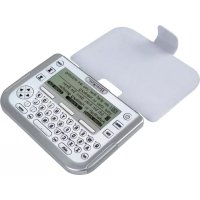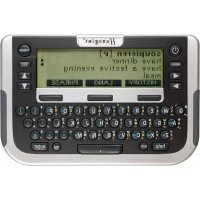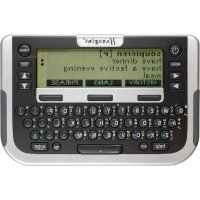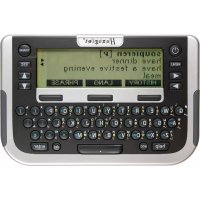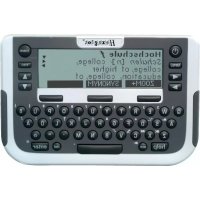
TopTranslator multi - Electronic translator Hexaglot - Free user manual and instructions
Find the device manual for free TopTranslator multi Hexaglot in PDF.



| Product type | Electronic translator |
| Brand | Hexaglot |
| Model | TopTranslator multi |
| Dimensions (estimated) | Approximately 12 × 7 × 1.5 cm |
| Weight (estimated) | Approximately 150 g |
| Power supply | 2 AAA batteries (LR03, AM4) non-rechargeable or rechargeable |
| Estimated battery life | Approximately 120 hours of use |
| Screen | LCD, 5 lines of 25 characters, backlight not specified |
| Available languages (dictionary) | German, English, Spanish, French, Italian |
| Main functions | Bilingual dictionary, thematic expressions, unit converter (currencies, sizes, time zone difference), calculator, games (snake, code breaker, puzzle), user dictionary / memos (12 KB) |
| Internal memory | 12 KB (approximately 300 user entries) |
| Keyboard | QWERTY, mode and screen keys, navigation keys |
| Warranty | 2 years (excluding damage due to misuse) |
| Maintenance and cleaning | Dry cloth, do not use chemicals or solvents |
| Safety | Do not expose to water, sand, dust, high temperatures or humidity; avoid shocks |
| Spare parts and repairability | Standard AAA batteries commercially available; repair by manufacturer after warranty |
| Package contents | Device, 2 AAA demonstration batteries, user manual |
| General information | Manufactured by Hexaglot Holding GmbH, Hamburg, Germany; website: www.hexaglot.com |
Frequently Asked Questions - TopTranslator multi Hexaglot
User questions about TopTranslator multi Hexaglot
0 question about this device. Answer the ones you know or ask your own.
Ask a new question about this device
Download the instructions for your Electronic translator in PDF format for free! Find your manual TopTranslator multi - Hexaglot and take your electronic device back in hand. On this page are published all the documents necessary for the use of your device. TopTranslator multi by Hexaglot.
USER MANUAL TopTranslator multi Hexaglot
Hexaglot TopTranslator multi
Deutsch 3
English 42
Espanol 79
Français 118
Italiano 162
Hexaglot TopTranslator multi
Inhalt
Willkommen! 5
HEXAGLOT Holding GmbH, Kundenservice, Sportallee 41, D-22335 Hamburg, Germany
- Precautions 45
Notes on storing data in the device 45
How to use the operating instructions 46 - Scope of supply 46
- Inserting and Changing the Batteries 47
Inserting/changing the main batteries 47
Important notes on batteries 47 - Summary of the Device 48 Switching on and off 48 Keyboard Display symbols 53
- Quick Guide to the Dictionary 53
- Program Selection Menu 54
- Setup 55
- Help function 56
- Zoom function 57
- Dictionary 57
Select the language direction 57
Reading entries correctly 59
Searching for a word 59
Working with the results list 60
Incremental suggestion list 60
Special entries in the results and suggestion list 61
Spelling correction and searching for spelling variations 62
Searching using place holders 62
Browsing through the dictionary 63
Following cross-references 64
Displaying inflected word forms 64
Displaying synonyms 65
Reselect the most recently consulted entries 65
- Phrases 66
Searching for phrases by choosing the topic 66
Finding phrases with a search word 67
- User dictionary/memo 68
Creating entries in the user dictionary/memo 68
Searching for or changing entries in the user dictionary/memo 69
Deleting entries in the user dictionary/memo 70
- Unit converter 70
Standard unit conversion 71
Calculating time differences 72
Converting clothes sizes 73
- Calculator 73
Calculating with the Hexaglot TopTranslator multi 74
Using the calculator memory 74 - Games 74
Game 1: Snake slalom 74
Game 2: Code Cracker 75
Game 3: Number shifting puzzle 76 - Care instructions 76
- Fault Correction 76
- Guarantee 76
- List of Abbreviations 77
- Contact Information 77
- Disposal 78
Welcome!
Thank you for choosing the Hexaglot TopTranslator multi. You now own a modern and very powerful electronic dictionary that is sure to give you a great deal of enjoyment.
The Hexaglot TopTranslator multi is so convenient that you can take it anywhere, giving you access, quickly and easily, to an enormous number of key words, phrases, translations and word forms, selected and arranged with experience and expertise.
The Hexaglot TopTranslator multi also offers you many more useful functions. The dictionary includes an extensive additional culinary vocabulary; synonyms can be displayed for the great majority of key words and, if you wish, can be taken into account when searching; incremental searching offers very quick access to the desired word; a user dictionary allows additional, personal dictionary entries to be made; you can store individual memos or addresses; a powerful universal converter lets you convert conveniently between a large number of units; arithmetic can be done with the integrated calculator; and, for good measure, integrated games provide fun and entertainment wherever you are.
Please take a few minutes to read these operating instructions carefully and thoroughly before first using the dictionary. Then you will understand how to use all the functions offered by the device, and will be able to get many years of pleasure from it. Please keep these operating instructions safely somewhere so that you can refer to them later.
Hexaglot wishes you every success using your Hexaglot TopTranslator multi!
1. Precautions
Please note the following instructions, which will enable you to enjoy our product for a long time and will maintain the validity of our warranty:
- Never carry out repairs yourself! There are no parts inside the device that need to be serviced by you.
- Avoid water, sand and dust!
- Never use paint thinner or other chemical cleaning agents! Follow the care instructions on page 76.
- Avoid high temperatures, high atmospheric humidity and direct sunshine!
- Avoid sharp impacts - do not drop the device!
Hexaglot reserves the right to modify the design and specifications without prior notice as a result of continuing technical improvements. The performance figures quoted represent the nominal values for a unit in series production. It is possible for individual devices to vary slightly.
The system software and the databases in the Hexaglot TopTranslator multi have been developed with the greatest care; nevertheless we cannot entirely exclude the possibility that some small errors have crept into individual entries or functions. Since we would like to continuously improve the quality of our products, we would like you to tell us about any errors that you do find. Anybody who does so will be entered in a draw we hold regularly for products from the Hexaglot range. Please write to Hexaglot Holding GmbH - Content Management, Sportallee 41, D-22335 Hamburg, Germany, or send us an e-mail to content@hexaglot.de.
Notes on storing data in the device
The device includes a total of 12 KB of memory available to the user where personal dictionary entries or memos can be saved. Please, therefore, follow these instructions:
- Always leave the main batteries inside the device, even if you do not use it for a relatively long period of time.
- Never leave empty batteries in the device, as they can leak.
- Check the voltage of the main batteries from time to time, even if the device is not used for long periods, and change them if they are getting flat.
We recommend that you keep a written record of important data. Under certain circumstances it is always possible for any system with electronic memory to lose data. We cannot therefore be liable for any loss of data, regardless of whether this is due to incorrect usage, a repair, a technical fault, changing the batteries, the use of batteries beyond their recommended usage date or to any other circumstances.
We are neither directly nor indirectly liable for any financial losses or for any complaints related to third parties based on the use of this product and its functions, such as the theft of credit card numbers or the loss or modification of data.
How to use the operating instructions
The keys of your Hexaglot TopTranslator multi are represented by a box with a white border: The symbol TRANS stands for the TRANS key on your Hexaglot TopTranslator multi.
The functions of the soft keys are represented by a black box with white labelling: The symbol FORM stands for the soft-key over which the label FORM is shown in inverse video.
Screen displays described in these operating instructions are intended as examples, and the actual display on a device may vary.
2. Scope of supply
The scope of supply includes:
- a Hexaglot TopTranslator multi
-
the operating instructions
-
2 demonstration batteries of type Micro / AAA
3. Inserting and Changing the Batteries
The device gets its power from two standard batteries of type AAA (Micro, Lr03, AM4).
Inserting/changing the main batteries
First insert the batteries included with the device:
- The battery compartment is located on the underside of the device. Take off the lid of the battery compartment.
- Insert two batteries with the correct polarity (+ / - )
- Close the lid of the battery compartment again.
- Use a paper clip that has been bent open (or a similar tool) to press the reset button on the rear of the device.
Important notes on batteries
Warning: Using batteries wrongly can cause them to leak or burst, and this can damage your device. Please take the following precautions:
- It is crucial to switch the device off any time the batteries are changed.
- Always ensure correct polarity (+/-) .
- Never mix batteries of different types.
- Never use old and new batteries together.
- Never leave used batteries in the battery compartment, as this can cause incorrect operation.
- Remove the batteries if the device will not be used for relatively long period.
- The supplied batteries cannot be recharged.
-
Do not expose the batteries to any direct source of heat, do not short circuit them and do not attempt to dismantle them.
-
If the battery does leak, immediately clean the device's battery compartment, but make sure that the liquid from the battery does not come in contact with your skin.
- You can also operate the device with rechargeable batteries, and this will significantly reduce the unit's energy costs. You should, however, remember that the operating period of the device when rechargeable batteries are used is usually somewhat shorter than is the case with non-rechargeable alkaline batteries. You can obtain suitable rechargeable batteries and charging units from your dealer.
Note on disposal: please only put discharged batteries in the collection boxes at your dealer or local authority site. Generally speaking, batteries are discharged if the device switches itself off and gives a "Battery empty" indication, or if, after a relatively long period of battery use, it no longer functions correctly.
To be safe, cover the battery poles with, for instance, an adhesive strip, or place the batteries individually in a plastic bag.
4. Summary of the Device
Switching on and off
To switch the Hexaglot TopTranslator multi on, hold down the ON key until the device switches itself on. The device always starts up in whatever mode was active when it was last switched off. So if, for instance, you were in dictionary mode when you last used the device, you will be in dictionary mode again when you switch on.
The Hexaglot TopTranslator multi switches itself off automatically if about two minutes to go by without a key being pressed. If you want to switch the device off manually, press ON again.
Keyboard
The Hexaglot TopTranslator multi has keys with the following functions:
Mode keys
With these keys you activate the basic functions of the Hexaglot TopTranslator multi.
ON
Pressing for a relatively long time switches the device on or off.
HELP
Displays the help text for the active mode (see page 56).
MENU
Opens a menu with additional functions:
- User dictionary (see page 67)
Memo (see page 68) - Calculator (see page 73)
- Unit converter (see page 70)
- Games (see page 74)
- Setup (see page 55)
TRANS
Switches into dictionary mode.
Softkeys
The Hexaglot TopTranslator multi uses the operating concept of soft keys, with which you will doubtless be familiar from other, modern electronic equipment such as mobile telephones. This reduces the number of keys and improves clarity. It also means that only those functions that are in fact relevant to the active mode appear, which simplifies operation of the device.
You will find three, large soft keys under the screen of the Hexaglot TopTranslator multi. The current functions of these keys are shown as text on the black fields on the lowest line of the display.
You will find below a summary, in alphabetical order, of all the soft keys' possible functions
BACK
Returns to the most recently displayed level - the same function as pressing the ESC key.
| CALC |
| CURR |
| FORM |
| HISTORY |
| LANG |
| NEW |
| NUM. |
| OK |
| PAGE▲ |
| PAGE▼ |
| PHRASE |
| SEARCH |
| SIZE |
Starts the calculator. (see page 74)
Unit converter: starts the currency converter (see page 71).
Dictionary: displays the word forms - if they exist - of the current dictionary entry.
Dictionary: displays a list of the terms most recently consulted in the dictionary, and allows a new search for these terms (see page 65).
Dictionary, phrases: permits selection of the dictionary or of the languages to be translated, e.g. German > English (see page 65).
User dictionary, memo function: creates a new entry in the user dictionary or in the memo list (see page 68).
User dictionary, memo function: activates the digits and symbols associated with the letter keys (dark grey printing above the keys).
Note: digits are automatically used instead of letters in calculator mode.
Dictionary: confirms the dictionary's language (direction) selection.
Scrolls a full screen upwards.
Scrolls a full screen downwards.
Dictionary: changes into phrase mode and its functions, e.g. key word search within phrases (see page 65).
Phrases, user dictionary, memo function: starts the search function in the appropriate area (see pages 67, 69).
Unit converter: starts categorie clothes sizes (see page 72).
| SHIFT | User dictionary, memo function: activates upper case letters for the letter keys. (see page 67). |
| SYNONYM | Dictionary: displays synonyms (words with related meaning) - if they exist - for the current dictionary entry (see page 65). |
| TIME | Unit converter: starts the Worldtime Calculator (see page 72). |
| UNIT | Starts the unit converter (see page 70). |
| UNIT- | Unit converter: turns over to the previous unit of the active input field for the input or output unit (see page 70). |
| UNIT1+ | Unit converter: activates the input field for the input unit, and turns over to the next unit (see page 70). |
| UNIT2+ | Unit converter: activates the input field for the output unit, and turns over to the next unit (see page 70). |
| ZOOM- | Dictionary: activates normal font size (see page 56). |
| ZOOM+ | Dictionary: activates large font size (see page 56). |
| <---> | Dictionary: makes it possible to change the language direction of the current language pair quickly (see page 57). |
| ? | Dictionary: is used in searches as a place holder for any character (see page 62). |
| * | Dictionary: is used in searches as a place holder for any string of characters (see page 62). |
Input and navigation keys
The keys for the input of text are arranged according to the international QWERTY pattern. All entries are normally made in lower case letters; it is only when making certain entries in the user dictionary or in the memo list that upper case letters, digits and special characters can be entered.
You will find the important operating elements for controlling the dictionary processes at the left and right, next to the screen.
ACC
If you want to add an accent to one of the letters a, e, i, c or n, begin by entering the letter itself, and then press ACC Press the key repeatedly in order to insert a different accent (e.g. é, è, é) or to remove the accent again.
SPACE
Creates a space character.
DEL
- Is used to delete characters. If the insertion mark is located within a string of characters, pressing this key will delete the following character (to the right of the insertion mark). If the insertion mark is at the end of the text, the most recently entered character (to the left of the insertion mark) is deleted.
- Is used to delete your own entries in the user dictionary and in the memo list (see page 70).
ENTER
This key is used to confirm an entry or selection.
ESC
Used to cancel a procedure or to return to the most recently displayed level. (The exact function of the key depends on which mode is active.)


Depending on the current mode, you browse backwards and forwards between dictionary entries, phrases or word forms with these keys. When entering words, you can move the position of the writing cursor with these keys. You switch certain options on or off in set-up mode with these keys.


You select entries from lists with these keys, and can scroll through the display if its contents extend over more than four lines.
Display symbols
The liquid crystal display has five lines, each of which can hold up to 25 characters. To the right, next to the normal display, there is a status bar in which various symbols can light up.

The meaning of the individual symbols is explained below:
Indicate that you can use these arrow keys to make selections or to scroll vertically through the display window.
Indicate that you can use these arrow keys to make selections or to browse through the dictionary entries.
5. Quick Guide to the Dictionary
This is how you look up a word in the English-German dictionary:
- Press TRANS to activate dictionary mode.
- The upper screen line indicates the dictionary's current language direction English > German and the request to Enter word:
- Type in the word you want, without worrying about upper or lower case.
- The device offers you appropriate suggestions for your current input. Select the desired entry with and from the suggestion list, and press ENTER to open the dictionary entry. Use and to browse through long entries. Use or to jump to the previous or following entry in the dictionary.
-
Press TRANS to return to the input screen.
-
You will find notes on setting up the user language for the device on page 55. You can read about how to change the dictionary's language direction on page 57.
More comprehensive information for reference begins on page 57.
6. Program Selection Menu
You start the dictionary function with the TRANS key. The program selection menu gives you access to other device functions and settings. Press MENU to open the selection menu. A list with further device functions appears. To execute a function, first select it using the or keys (there will be an arrow in front of the selected function). Because only five lines can be shown on the display at any one time, press the or keys until the desired function is marked with an arrow, then press the ENTER key.
The following functions are available:
- User dictionary (see page 67)
- Memo (see page 68)
- Calculator (see page 73)
- Unit converter (see page 70)
- Game 1 (see page 74)
- Game 2 (see page 75)
- Game 3 (see page 75)
- Setup (explained below)
The corresponding chapters in this manual explain how to use these functions.
Tip: when the selection menu is open, you can also directly select the additional functions by entering the corresponding function number. For instance, entering the numeric key 3 (= key) starts the calculator, while the 8 key ( =1 key) goes straight to the menu with the settings.
7. Setup
Select Setup from the Program Selection Menu (see page 54) to adapt the basic settings of the device.
The setup presents you a variety of options. To change an option, first select it with the or keys (there will be an arrow in front of the selected option). Because only five lines can be shown on the display at any one time, press the or keys until the desired option is marked with an arrow.
You can make the following settings:
Battery Shows the current condition of the battery. When the batteries run low, keep a spare set to hand so that you can continue to work without interruption.
Contrast Controls the brightness of the display. The display is brightened with l and darkened with .
Def1-Def3 Here you enter the conversion rates that can be used in currency converter mode in addition to those that are already permanently stored. You can enter a maximum of seven digits, including the decimal point.
Suppose, for example, that one US dollar corresponds to 0.90231 EURO. To change the setting for a conversion rate, you must first press ENTER before the changes can be made. So enter 0.90231 and confirm your entry with the ENTER key. By pressing the ESC key you cancel the input without changing the old value. Changes are effective immediately.
Spellcheck You specify here whether a search for spelling variations should be started automatically after an unsuccessful search in the dictionary in which no appropriate entry has been found. For instance, if "sabwai" is searched for in the English dictionary, the entry "subway" will also be found when the Spellcheck function is switched on.
Preview You specify here whether an incremental results list is displayed during the entry of a
The key selects = look for variations.
The key selects = do not look for variations. (see page 60).
You specify here whether an incremental results list is displayed during the entry of a
| Synonyms | search term. Each time a letter is entered, the incremental results list shows appropriate suggestions from the dictionary. The ▲ key selects □ = show suggestions. The ▷ key selects □ = do not show suggestions. (see page 60). You specify here whether synonyms and word forms should be considered during the search. The ▲ key selects □ = display synonyms and word forms for the search. The ▷ key selects □ = do not display synonyms and word forms for the search. (see page 61). |
| Language | Specifies the language in which screen messages are to be displayed. You select the desired user language with ▲ and ▲: • D = German user language • E = Spanish user language • F = French user language • GB = English user language • I = Italian user language |
| Key tone | Switches the audible signal given when pressing a key on or off. The ▲ key selects □ = key tone switched on. The ▷ key selects □ = key tone switched off. |
When you have made all the changes you want, leave Setup by selecting a different mode. The changes you have made become effective immediately.
8. Help function
The Hexaglot TopTranslator multi offers context-sensitive help function. This means that you are always shown a help text that is appropriate for the mode to which the device is currently set. If some time you don't know what to do next, press HELP. A help text relevant to whichever mode is currently active then
appears. Browse through the help text using the and keys. To hide the help text again, press ESC or another mode key.
9. Zoom function
In the "Dictionary" operating mode, the Hexaglot TopTranslator multi offers a zoom function which can make the display more easily readable by enlarging the text. Press the ZOOM+ soft-key to switch this function on, or ZOOM - to switch the enlarged display off. Note:
- This can result in a forced line break with particularly long words. In that case, the word will be cut at the end of the line, and the cut will be indicated by a "-". The cut is made quite automatically, and does not necessarily correspond to the syllable separation rules of the language concerned.
- Some characters can appear slightly distorted in the enlarged display. There are technical reasons for this, and it is not a fault.
10. Dictionary
In addition to simple translations, the dictionaries in the Hexaglot TopTranslator multi offer you information on grammar and word usage. Press TRANs to activate the dictionary. The current language direction is displayed on the first line of the screen: e.g. English > German.
Select the language direction
To change the language direction, press TRANs followed by LANGUAGE. The dictionary selection menu will now appear on the screen. The first line will show the currently active dictionary, e.g. English > German. To change the language direction, choose the starting language in line 2 using and . Alternatively, you can select the language by typing the corresponding initial letter, e.g. the "i" key for Italian. Use the key to change to the third line, and choose the target language there. To simply reverse the language direction of the current pair of languages, press the central soft-key, < - - > , which will change the dictionary from, for example, English > German to German > English.
To confirm your choice and to leave the language selection menu, press OK or ENTER. To leave without changing the current language direction press BACK or ESC. These country codes are used for language selection:
D = German
- E = Spanish
F = French
- GB = English
- I = Italian
Note: The chosen language direction affects the dictionary and phrase functions. This setting does not change the user language.
The following sections tell you about how you
- read entries correctly (page 58),
- look for a word (page 59),
- work with the results list (page 60),
- use the incremental suggestion list (page 60),
- use special entries in the results and suggestion list (page 61),
- find spelling variations (page 62),
- search using place holders (page 62),
- browse through the dictionary (page 63),
- follow cross references (page 64),
- display inflected word forms (page 64),
- display synonyms (page 65),
- search for and display phrases (page 65).
You will find an explanation of the abbreviations used in the dictionary starting on page 77.
Reading entries correctly
In addition to simple translations, the dictionary contains information about grammar and word usage. Example:
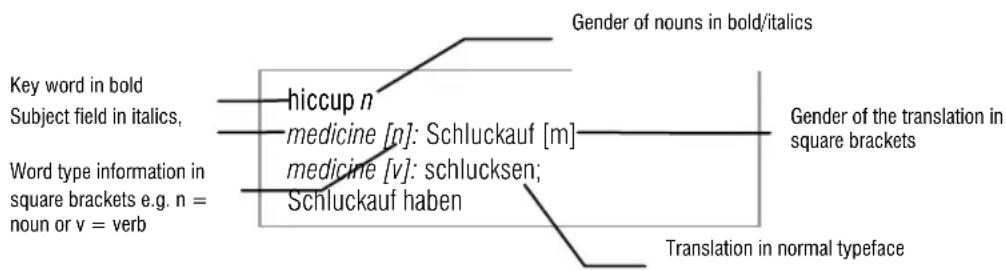
Searching for a word
Searching in the dictionary finds words in the standard dictionary for the chosen language direction, and, if any exist, the user dictionary. If you need to, you can restrict the search to the user dictionary (see page 67).
Type in the whole word, or the beginning of the word, and then press ENTER A search can have three possible results:
- Precisely one entry is found. The entry appears on the display.
- More than one entry is found. In this case, a results list is displayed, from which you can choose the desired entry for full display.
- No matching entry is found. Either the entry that alphabetically follows the search term appears on the display, or the device searches for spelling variations for the search term that has been entered - this depends on the setting of the Spellcheck option made in the device set-up (see page 55).
Note: It can happen that a key word appears more than once in the results list, or alternatively that no translation is available for a key word in one particular language. This is an unavoidable consequence of the complex data structure, and does not mean the that the device is operating wrongly.
Please observe the following notes when entering the search term:
- Characters with diacritical marks (such as , , , etc.) are standardised during the search: = a , = u etc.
- Spaces (e.g. in "parking light") should be entered.
- Special characters (e.g. a hyphen in "know-how") do not have to be included (you can, for instance, type "knowhow").
- If you have mistyped, you can move the insertion mark to the mistake with the and keys. You can then delete single characters with the DEL key, and/or insert new characters. Press ESC to reject the entire entry and start typing a new word.
The search term can contain 20 characters.
Working with the results list
If a search finds more than one hit, the Hexaglot TopTranslator multi generates a results list with the matching results. Then use the and keys to choose an entry from the results list, and press ENTER to display this entry. The full dictionary entry now appears on the display.
The ESC key takes you back to the results list, from where you can choose a different entry and have it displayed.
Note: The results list is automatically cleared as soon as you select a different mode or switch the device off.
Incremental suggestion list
This electronic dictionary has an incremental suggestion list to make searching easier and more convenient. While a search term is being entered the dictionary is consulted, and entries matching the input are displayed in a suggestion list. While the search term is being entered, you can press the key at any time in order to change to the suggestion list, from where you can select an entry. You then
jump straight to the entry you want with ENTER. You leave the suggestion list by pressing ESC, so that you can, for instance, change the search term.
You can switch the incremental suggestion list on or off in the set-up menu (see page 55).
Notes:
- The suggestion list contains at most the first 20 hits. If the entry you want is not found, first define the search term more accurately.
- Switch the incremental suggestion list off if you want to increase the speed of with which search terms are entered.
- The incremental suggestion list does not work when place holders are used for searching.
Special entries in the results and suggestion list
The dictionaries that are integrated into the Hexaglot TopTranslator multi include a remarkably extensive general vocabulary. A special vocabulary including culinary terms such as foods, ingredients, preparation methods and the like is also included. You can recognise entries from the special vocabulary even in the results list or the suggestion list, from the prefixed R (as in Restaurant). You find these entries in exactly the same way as ordinary dictionary entries.
The device also offers a special convenience function that can considerably increase the hit rate when searching:
- A large number of word forms are recognised when searching, and guide you back to the base entry. You can recognise a word form from the prefixed F (as in Form). Example: The list entry "F mice" tells you that "mice" is a word form. When this list entry is chosen, the entry for the key word "mouse" is automatically displayed.
- Stored synonyms (words of related meaning) are also taken into account as references during the search, even if they do not exist with entries of their own in the list of key words. You can recognise a synonym reference from the prefixed S (as in Synonym). Example: The list entry "S
titillate (excite [v]) tells you that although "titillate" does not exist as a dictionary entry in its own right, it is nevertheless included as a word with a meaning related to an existing key word – in this case including the entry "arouse". When this list entry is chosen, the entry for the key word "arouse" is automatically displayed. This function is particularly helpful when trying to understand texts in foreign languages, since it is possible to derive a faithful translation even for words that are rarely used.
You can switch the display of special entries on and off in the set-up menu (see page 56). Note: The special entries to not appear when browsing in the dictionary.
Spelling correction and searching for spelling variations
If a search does not find any results, and if there is also no suitable entry that follows alphabetically, the device will attempt to find spelling variations or to correct the spelling of a search term that has been entered. If, for instance, "sabwai" is entered by mistake for the word "subway", the result will be a suggestion list which, amongst other terms, will also contain the entry "subway". You can switch this function on or off in the set-up menu (see page 55).
Note: Under some circumstances the search for spelling variations can take quite a long time. This is normal, because the process requires extensive search and comparison operations to be carried out. Frequent searching for spelling variations can therefore also reduce battery life. You can cancel a current search procedure by pressing ESC
Searching using place holders
Searching with place holders (also called searching with wild cards or jokers) permits more extensive research. What this means is that you can insert place holder symbols into the search term, and these symbols stand for any individual letters/character or letter strings. The function is ideal when you are not entirely sure of the exact spelling of a word. This function is also very useful for solving crosswords or other text puzzles. As soon as you have entered at least one character from the search term, the centre and right hand soft-keys show the place holder symbols * and ?:
- Represents a sequence of any characters of any length. This string of characters can also be empty.
An example, from English:
gr*y finds, amongst other entries, gradually, granary, granddaddy, granny
? Represents any one character. The character occurs once and once only.
Example:
gr?y finds only gray and grey
Notes:
- Place holders cannot be used in the first location of a search term.
- The two different place holder symbols cannot be combined with one another.
- The place holder may be used once a within a search term, while? may be used a number of times.
- Under some circumstances the search with place holders can take quite a long time. This is normal, because the process requires extensive search and comparison operations to be carried out. Frequent searching with place holders can therefore also reduce battery life.
- Using a place holder automatically deactivates the incremental search for the current search term.
- The results list from a search with place holders comprises at most 20 results; if necessary, define the search term more accurately.
Browsing through the dictionary
You can not only browse within one entry if it is longer than one display page, but can also move onto the next or previous entries in the dictionary.
Browsing within the entry: If an entry is longer than the multi-line display, press once to move down one line, or hold it down in order to move the display contents onwards continuously. is used for browsing backwards. Pressing ACC and then pressing or scrolls the entire screen content
one whole page upwards or downwards. Note the arrow symbols to the right of the status bar: and indicate respectively that it is possible to browse upwards or downwards.
Browsing through the dictionary: Use or to jump to the alphabetically previous or following dictionary entry.
Following cross-references
The Hexaglot TopTranslator multi also allows you to use words within a dictionary entry as cross references. To do this, the press ENTER while the entry is displayed. The first element (with the exception of any that are displayed bold) within the entry is marked in inverse video. You can move the marking through the entry with the 1 keys. Pressing ENTER again will search in the dictionary for the word shown in inverse video and - if it is found - will display it. If several suitable entries are found, a selection list first appears from which you can select the desired entry. If no suitable entry was found, the alphabetically following word in the keyword list is suggested - the question mark (?) symbol appears before this entry as a note.
Note: Please remember when using this function, that the word lists for the language directions are not symmetrical. In other words, it does not follow that every key word in the source language corresponds to a key word in the target language. The frequency of word usage and other special features of the particular language area are taken into account in constructing the word lists for the individual language directions. For this reason, searches of cross-references can fail to find an appropriate key word for individual translations in the other language.
Displaying inflected word forms
You can display the most important inflections for a large number of dictionary entries with verbs. To do this, press the right hand soft-key, FORM, when an appropriate entry is open and when the FORM symbol appears on the status bar. Under some circumstances, the word forms can cover several pages; browse through the display with , , or in order to display all the forms.
The arrow keys that are possible at any time will be shown to you on the status bar. PrESC to return to the dictionary entry.
Note: The list of inflections must always be considered in the light of the corresponding key word entry, where more precise information on their usage is given. Under some circumstances not all the forms are displayed, which prevents the list of word forms from becoming unwieldy.
Displaying synonyms
For many dictionary entries you can see words with related meanings, permitting you to extend your vocabulary or to express yourself with greater linguistic variety. If synonyms are stored for an entry, the function SYNONYM appears in the display of the entry above the central soft-key. Press the central soft-key, SYNONYM, to display the synonyms.
Press ESC to return to the dictionary entry.
Note: The list of synonyms includes more detail in italics to help delimit the meaning. This information must always be seen in the light of the corresponding key word entry, in order to find a translation that matches the appropriate meaning.
Reselect the most recently consulted entries
The Hexaglot TopTranslator multi stores a list of the key words for the last 50 dictionary entries, from where they can be recalled straight away, even if the device has been switched off in the meantime. The key words in this list are sorted according to the order in which they were consulted, so that the most recently opened entry is in the first position. To display a recently consulted entry again, press the left-hand soft-key HISTORY If you are not yet at the startup screen of the dictionary mode, first press TRANS and then the HISTORY soft-key. Mark the key word you want using the and keys.Open the corresponding entry with ENTER
If you want to leave the list with out opening one of the entries, press the left-hand soft-key, BACK, ESC or one of the mode keys (e.g. TRANS for the dictionary) to activate a different function.
Note: The entries in the history list are automatically cleared if the language direction of the dictionary is changed.
11. Phrases
The Hexaglot TopTranslator multi contains a large number of phrases associated with a total of 30 different topics, typical of the communication you need when travelling abroad, such as in a hotel, at an airport or in a restaurant.
Press the right hand soft-key, PHRASE, to change to the collection of phrases. If you are not yet in dictionary mode, first press TRANS and then the right hand soft-key, PHRASE.
There are two ways of looking for appropriate phrases:
- You can select a topic (e.g. MEDICAL SUPPLY), where you can browse through the associated phrases.
- You can enter a search word (e.g. surgery for When are his/her surgery hours?).
Searching for phrases by choosing the topic
The startup screen of the phrases mode provides you with an overview of the available topics. The following topics are available:
| ACCOMODATION | ENTERTAINMENT | PROFESSION/WORK |
| AIRPORT/AEROPLANE | FRONTIER/CUSTOMS/HOLIDAY TRAFFIC | QUESTIONS |
| BREAKDOWN/ACCIDENT GREETINGS AND WISHES | RESTAURANT I | |
| BUSINESS MATTERS | HOTEL | RESTAURANT |
| CAR | JEWELLERY/SOUVENIRS/GIFTS | SHIPPING |
| CLOTHES/LEISURE ARTICLE | LOCAL TRAFFIC | SIGHTSEEING/EXCURSION |
| COMMUNICATION/FIRST CONTACT | MEDIA/ELECTRONIC ITEMS | SPORTS |
| DATE/MEETING | MEDICAL SUPPLY | TELEPHONE |
| DENTIST/HOSPITAL | MONEY/POST | TIME/WEATHER |
| DISCUSSION | POLICE/CRIME | UNIVERSITY |
Use and to browse through the entire list. You can also get to a topic by entering the first letter. Example: Entering the letter "Q" while the startup screen for the phrases mode is showing jumps straight to the QUESTIONS topic. After you have marked the topic you want, press ENTER to display the first phrase of the chosen topic. Browse to the following or preceding entry using the and keys. Use ESC to leave the entry. You can then choose a new topic.
Finding phrases with a search word
Searching by key words is a very effective method of finding a phrase. To start the key word search from the startup screen of the phrases mode, press the right hand soft-key, SEARCH. You can now enter the key word you are looking for. The display shows an incremental list of the key words that match your entry. Use and to choose the key word you want, and press ENTER. The corresponding phrase and its translation appear in the display. If more than one phrase is stored containing the chosen key word, you can browse through these entries with and . When no more phrases are present, a large, downward-pointing arrow appears on the display. You have then reached the end of the selection list.
Use ESC to leave the entry. You can then enter a new search word. If there are no phrases containing the search word, an appropriate message (Not found) is displayed briefly, and you can enter a different search word.
Please note the following when searching for a key word:
- Search words that are not specific to any topic, such as personal pronouns like "I", "you", and so forth, or prepositions like "in", "at" etc, are ignored, and do not yield a search result.
- Upper and lower cases in the entered search word are ignored; you therefore do not have to use capital letters.
- The incremental results list displayed when entering the key word is not displayed if you have switched off the Preview option in the setup menu (see page 56).
12. User dictionary/memo
The user dictionary and memo functions are used to record and interrogate personal data such as telephone numbers or dictionary entries. In contrast to the standard dictionary of the Hexaglot TopTranslator multi, no distinction is made between language directions in the user dictionary. You will find the user dictionary/memo and its functions in the program selection menu. Always first press MENU in order to create new entries in the user dictionary/memo, or to search for or delete existing entries.
Note: The Hexaglot TopTranslator multi makes 12kB of memory, corresponding to about 300 entries, available for this purpose. This memory is used both for entries in the user dictionary and for memos, which means that a large number of memos reduces the space available for entries in the user dictionary, and vice versa.
Please note:
- When using the dictionary function, you can recognise entries from the user dictionary through the symbol , which will appear on the status line of the display.
- Entries from the user dictionary do not appear in the incremental suggestion list.
- Entries in the user dictionary are not linked to a language combination or direction. The entries apply to all language combinations.
Creating entries in the user dictionary/memo
Proceed as follows to create a new entry:
- Press MENU and select User dictionary or Memo from the menu. Press ENTER
- You will be asked to enter the name for the new entry. Note: You will be able to search in the user dictionary/memo for this name later.
-
Enter the key word or the memo name (maximum one line). Complete your entry by pressing ENTER. You will find notes on entering uppercase letters, digits or special characters in the section describing the keyboard starting on page 48.
-
You will be asked to enter the text associated with the new entry (e.g. a translation, explanation, telephone number etc.). This text can have a number of lines. The name of the entry appears on the first line. Enter the text on the second line.
- When you have completed your input, press ENTER to save the entry. You can abort the procedure with ESC without saving the new entry.
- Once the entry has been saved you can input another entry. To stop the input, press ESC. You will then return to the program selection menu.
Searching for or changing entries in the user dictionary/memo
There are two ways of searching for entries in the user dictionary/memo: you can select the entry from an alphabetically sorted list, or you can search for the entry.
Proceed as follows to search for an entry:
- Press MENU and select User dictionary or Memo from the menu. Press ENTER.
- Press the right hand display button, SEARCH, to enter search mode.
- You are asked to enter a search word. Enter the full key word, correctly spelt, and start the search by pressing ENTER.
- If the term you are looking for exists as an entry in the user dictionary/memo, you will obtain a list of matching entries. Select the entry you want with or , and press ENTER to display the entry.
- The selected entry will be displayed. Press ESC to return to the list view again. To change the key word or the entry text, press ENTER while the entry is displayed. Then make your changes. Press ENTER again to save your changes.
Proceed as follows to select an entry from a list:
- Press MENU and select User dictionary or Memo from the menu. Press ENTER.
-
Press the right hand display button, SEARCH, to enter search mode.
-
You are asked to enter a search word. Do not, however, enter a search word, but instead simply press ENTER
- You will now be shown an alphabetically sorted list of all the entries in the user dictionary/memo. Use and to select the entry you want. Press ENTER for the entry to be displayed.
- The selected entry will be displayed. Press ESC to return to the list view again. To change the key word or the entry text, press ENTER while the entry is displayed. Then make your changes. Press ENTER again to save your changes.
Deleting entries in the user dictionary/memo
If you want to delete an entry, first select it from the list view, as described above under "Searching for entries", and then press DEL.
Note: You cannot delete an entry in the entry view; always mark the entry in the selection list, and then press DEL
A safety question appears, asking whether you really want to delete the entry:
- Press the key to delete the marked entry.
- Press the key to abandon the deletion and to leave the entry after all in the user dictionary/memo.
- Press the A key to delete all the entries from the user dictionary/memo.
Warning: Deleting one or all the entries cannot be undone. As soon as the deletion has been confirmed, the current entry (or all the entries) are irretrievably removed from the user dictionary/memo.
13. Unit converter
The Hexaglot TopTranslator multi includes a convenient unit converter, with which you can convert between a large number of physical units. In addition to this, you can convert between currencies, clothing sizes and time differences.
Note: The calculations in the currency converter are based on the specific conversion factors that can be changed to in the setup menu (see page 54). Check, if necessary, the correctness of the set parameter before converting.
Press MENU and select "Unit converter" from the menu. Press ENTER.
After starting the unit converter you are shown a list of the available units categories. First use and to select the category, and then press ENTER. Pressing the left hand soft-key immediately starts the currency converter, while the central soft-key activates time difference calculation.
After selecting the units category, now select the next category with and , and then press ENTER. The central soft-key scrolls the screen display one page upwards, while the right hand soft-key scrolls one page downwards.
Standard unit conversion
The majority of units are converted following the method described below:
- After opening the units category, the unit converter input screen appears. The writing cursor is located in the Input field. You can use and at any time to move the writing cursor between the From and the To field.
- First enter a starting value into the Input field. Each time a digit is entered, you can read the current converted value in the Result field for the units displayed in the From and To fields.
- In the From field, displayed in inverse video, you may use and to choose different units for the starting value. The Result field is updated with every input.
- Use to move the marking down to the From field. The unit in this field is now displayed an inverse video. With and you can now choose between the various units for the converted value. The Result field is updated with every input.
To make it even faster and more convenient to switch between the units, you can also change the units with the soft keys:
- central soft-key UNIT1+: Activates the From field and moves on to the next starting unit.
- right hand soft-key UNIT2+: Activates the To and moves onto the next conversion unit.
- left hand soft-key UNIT: This key moves whichever units field is currently active (From or To) back to the previous unit.
Calculating time differences
The Worldtime Calculator in the Hexaglot TopTranslator multi not only allows you to calculate time differences between two cities or countries, but at the same time also gives you the international prefixes for the majority of the world's countries:
- After being selected, the Worldtime Calculator's input screen appears. The writing cursor is located in the State 1 field. With the and keys you can move the writing cursor at any time between the State 1 and Time fields (of city 1) and State 2.
- First select the starting city you want, by using the UNIT1+ and UNIT - soft keys to browse through the country list, which is sorted according to country codes. You can also jump straight to countries by entering the initial letter - for example: if you enter "D" you jump straight to (D) Germany; Berlin. If the name is longer than the input field, you can scroll through the field contents with and .
- Press to place the writing cursor in the Time field.
- Enter the time at the starting city in the Time field.
- Press to activate the State 2 field. Now select the target city you want by browsing through the country list with the UNIT2+ and UNIT - keys. You can also jump straight to countries by entering the initial letter.
- The time displayed for the target city adjusts itself in accordance with your inputs.
To make it even faster and more convenient to switch between countries, you can also change the countries with the soft-keys:
- central soft-key UNIT1+: Activates the State 1 field and brows through to the next country or to the next city.
- right hand soft-key UNIT2+: Activates the State 2 field and browses through to the next country or to the next city.
- left hand soft-key UNIT- : This key brows in whichever country field is currently active (State 1 or State 2) to the previous country or previous city.
Note: Please remember, when calculating time differences, that there may also be differences resulting from summertime settings. If a time change crosses over the boundary between two days, this is indicated by displaying a + (= next day) or - (= previous day) immediately after the calculated time. The calculation is done on a 24 hour basis, and times expressed in the English language style using a.m. or p.m. must therefore first be appropriately converted: for example, 1:45 p. m. = 13:45.
Converting clothes sizes
It is often very convenient when travelling to have comparative tables with international clothes sizes within easy reach. You will find the most important international clothes sizes in the Hexaglot TopTranslator multi. Select the category Travel from the unit converter, followed by the necessary subcategory.
Press or to scroll the display horizontally so that you can see other sizes in the chosen category of clothing.
Note: The figures in the tables of clothing sizes are only useful for initial orientation. Always check the actual size and fit of clothing by trying it on prior to purchase.
14. Calculator
The Hexaglot TopTranslator multi can also be used as a calculator. Press MENU and select Calculator from the program selection menu. Press ENTER to start calculator mode. An "M" appears to the top left of the display, and a "0." on the lower right. The dark grey labels above the letter keys are automatically active in calculator mode.
The content of the calculator's memory (M) appears on the second line. The input and the result of the calculation are displayed on the fourth line.
Calculating with the Hexaglot TopTranslator multi
It is used in the way with which you will be familiar from conventional pocket calculators. The calculation functions available to you include addition (+), subtraction (-), multiplication (×) and division (÷) . Percentage (%) and square root () are also available as more advanced functions.
Using the calculator memory
The value in the calculator's memory is not affected by individual calculation operations on the input line. You can add the current value on the input line of the calculator to the value in the memory (M + ) or subtract it (M-) , or you can bring the content of the memory into the current calculation (MR). The symbol "M" appears on the upper line, to the right of which the current memory contents are shown.
Press (MC) to clear the memory contents. Note: The content of the calculator memory is retained even when the Hexaglot TopTranslator multi is switched off, provided the batteries have sufficient voltage.
15. Games
Three games are included in the Hexaglot TopTranslator multi. You can use them, for example, for entertainment when you are waiting somewhere. You will find the games in the program selection menu. To start the games, therefore, first press MENU, then use the and keys to choose the game you want, and press ENTER to start the game. Pressing ESC or one of the mode keys will end the current game.
Game 1: Snake slalom
The aim of the game is to steer a snake which is getting longer and longer across the game area without collisions.
At the beginning of the game you can set the speed and level of difficulty with the , , and keys.
In the course of the game you steer a snake with the , , and keys through a course. You must, meanwhile, feed the snake by guiding it over the grey squares. Each time it is fed, the snake becomes one section longer, and therefore more difficult to steer. As you make your way across the game area, the head of the snake must not touch the walls, the black obstacles, or any other part of the snake.
Press the "P"(ause) key to temporarily stop the game. Pressing the "P" button again will continue the game.
Game 2: Code Cracker
The aim of the game is to crack a four-figure number code in a maximum of eight attempts.
Enter four different digits in the four input fields on the right hand side of the screen. To correct one of your inputs, use and to move to the input field concerned, and correct the number you have entered. Press ENTER to confirm your guess. When your guess has been entered, the number you have entered appears on the left-hand side, along with the assessment:
The number in front of the letter A tells you how many numbers are correct and are already in the correct position in the number code. The number in front of the letter B tells you how many numbers are in the number code, but are not in the correct position.
Now enter your next guess. Find the correct number code through analysing and combining the assessments of you guesses. If the number code has not been found correctly by the eighth attempt, the correct code appears and the game is over.
Note: The number code always consists of four different digits. Entering the same digit more than once produces an error message.
Game 3: Number shifting puzzle
The aim of the game is to sort the number matrix again from 1 to 9 with the minimum number of attempts. You can shift the selection square with the , , and keys. Pressing the ENTER key moves the numbers in the selection square clockwise, while SPACE moves then anticlockwise.
16. Care instructions
To clean the Hexaglot TopTranslator multi please only use a dry cloth to wipe the device down. If the device is extremely dirty, use a cloth that has been lightly dampened with water, but not one that is wet. Never immerse the device in water or any other liquid. Never use chemical cleaning agents or cleaners containing scouring agents, as these can attack the material.
17. Fault Correction
If sometime your Hexaglot TopTranslator multi does not work correctly or cannot be switched on even though the batteries have sufficient voltage, then perform a reset operation on the device. The reset button is located at the rear of the device. Press the button down carefully with something sharp (such as a paperclip). If pressing the reset button is not successful, then please take out the batteries and, after waiting for a short time, insert new batteries into the device.
Note: Resetting the device will not delete data from the user dictionary or the memo list. If you wish to delete this data as well, please use the appropriate functions in the user dictionary or the memo list.
18. Guarantee
Our Hexaglot products are subjected to strict final quality control. Hexaglot guarantees that your device is free from material or production faults. Hexaglot offers to repair or exchange the device, at the company's option, free of charge if the above mentioned defects should be found on your hand-held device within two years of purchase. The guarantee is only offered to you as the original purchaser. It does not cover
damage to fragile parts such as the housing caused by incorrect handling, culpable damage, damage resulting from breakage, heat, water or natural phenomena, unauthorised interference with the device or chemical attack resulting, for instance, from leaking batteries.
You have, furthermore, statutory guarantee rights in respect of the dealer where you bought the device; these are not limited by this guarantee.
Please take the faulty device, together with a brief description of the fault and proof of purchase, back to your dealer for return to us, or send it, with sufficient postage, to
HEXAGLOT Holding GmbH, Kundenservice (customer service), Sportallee 41, D-22335 Hamburg, Germany
The return is free of charge. We accept no responsibility for the transport in either direction.
You may also return a faulty device to the above address for repair after the guarantee period has elapsed.
Repairs made after the guarantee period has elapsed will be charged for.
19. List of Abbreviations
| a | adjective. | adj | adjective. |
| adv | adverb. | AE | American English. |
| Am | American, American Spanish. | BE | British English. |
| coll | colloquial. | f | feminine. |
| m | masculine. | n | neuter. |
| n | Noun. | o | other. |
| p | plural. | pl | plural only word. |
| prp | preposition. | sg | singular only word. |
v verb.
20. Contact Information
For more information on our products and Hexaglot TopTranslator multi accessories such as replacement covers, please contact us directly: Hexaglot Holding GmbH, Sportallee 41, 22335 Hamburg, telephone:
+49-(0)40-589 64 99 50, Fax: +49-(0)40-589 64 99 90, e-mail info@hexaglot.de. Or visit our web site www.hexaglot.com
21. Disposal
Disposal of old electrical & electronic equipment (applicable in the European Union and other European countries with separate collection systems). This symbol on the product or on ist packaging indicates that this product shall not be treated as household waste. Instead it shall be handed over to the applicable collection point for the recycling of electrical and electronic equipment. By ensuring this product is disposed of correctly, you will help prevent potential negative consequences for the environment and human health, which could otherwise be caused by inappropriate waste handling of this product. The recycling of materials will help to conserve natural resources. For more detailed information about recycling of this product, please contact your local city office, your household waste disposal service or the shop where you purchased the product.


N136
www.hexaglot.com
2007, Hexaglot Holding GmbH, Hamburg, Germany
Standard dictionary: © 2007, Hexaglot Holding GmbH, Hamburg, Germany
Culinary dictionary: © 2007, Hexaglot Holding GmbH, Hamburg, Germany
Parts of the culinary dictionary: © 2000, Joachim W. Glaeser, Hamburg, Germany
Word form recognition using technology from IntraFind Software AG, Munich, Germany
Contidente
iBienvenidos! 81
HEXAGLOT Holding GmbH, Kundenservice, Sportallee 41, D-22335 Hamburg, Germany
gr?y trova solo gray ow. grey
Note:
Gioco 2: April codice
Sportallee 41, D-22335 Hamburg, Germany