USER MANUAL GXT 155 20411 TRUST
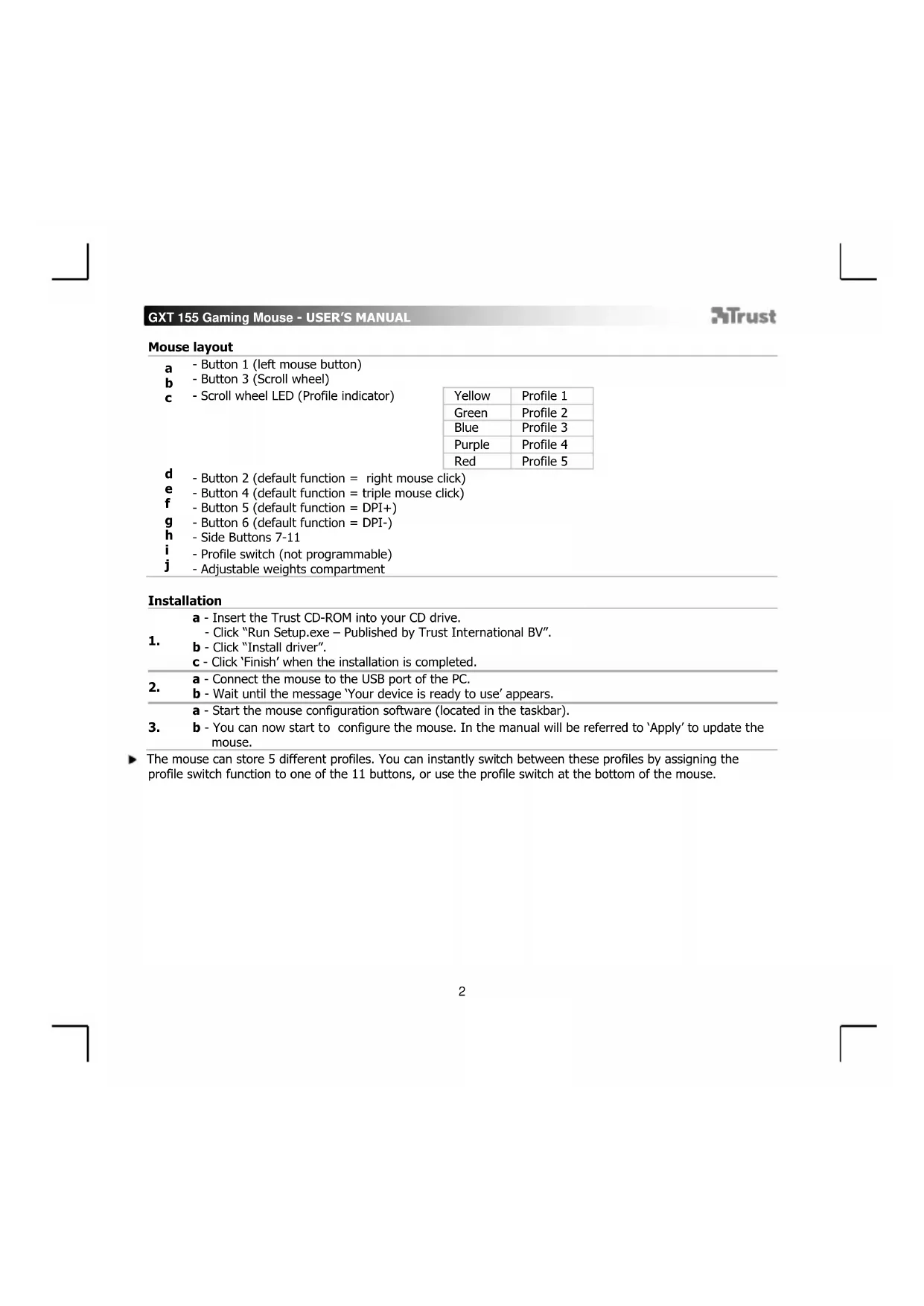
a -Button 1 (left mouse button)
b -Button 3 (Scroll wheel)
c - Scroll wheel LED (Profile indicator)
| Yellow | Profile 1 |
| Green | Profile 2 |
| Blue | Profile 3 |
| Purple | Profile 4 |
| Red | Profile 5 |
d -Button 2(default function = right mouse click)
- Button 4 (default function = triple mouse click)
-Button5(defaultfunction D
g -Button 6(default function = DPI-)
h -Side Buttons 7-11
i - Profile switch (not programmable)
- Adjustable weights compartment
Installation
a - Insert the Trust CD-ROM into your CD drive.
- Click "Run Setup.exe - Published by Trust International BV".
b - Click "Install driver".
c - Click 'Finish' when the installation is completed.
a - Connect the mouse to the USB port of the PC.
2. b - Wait until the message 'Your device is ready to use' appears.
a - Start the mouse configuration software (located in the taskbar).
- b - You can now start to configure the mouse. In the manual will be referred to 'Apply' to update the mouse.
The mouse can store 5 different profiles. You can instantly switch between these profiles by assigning the profile switch function to one of the 11 buttons, or use the profile switch at the bottom of the mouse.
GXT 155 Gaming Mouse - USER'S MANUAL
ATrust
- Assign a function.
a - Click on the 'General' tab.
b - Click on the button which you want to re-assign.
c - Click on the function that you want to assign. - Click on 'Apply' → The mouse is beeing updated.
- Assign a function to the side buttons.
a - In the 'General' tab click on 'side' to view the side buttons.
b - Click on the button which you want to re-assign.
c - Click on the function that you want to assign.
- Click on 'Apply' → The mouse is beeing updated.
DPI Settings
- Change the DPI settings (profiles and DPI settings are linked)
a - Click on 'DPI'.
b - Change the DPI settings by moving the sliders.
c Click the DPI number to enable or disable this setting.
- Click on 'Apply' → The mouse is beeing updated.
To set the X and Y axis separately, Untick the 'LINK XY' box.
Light Manager Settings
- Change the LED light
a -Click on Light
b - Select the desired LED color Or pick a custom color.
c - Change the brightness level and breathing speed.
- Click on 'Apply' → The mouse is beeing updated.
GXT 155 Gaming Mouse - USER'S MANUAL
ATrust
Macro Settings
-
Create a macro. (Store a sequence of keys in the software)
-
Go to the 'General' tab.
a - Click on the button witch you want to re-assign.
b - Hover over 'Macro'.
- Click on 'Macro Manager'.
c - Create an new macro by clicking on 'New'.
a - Select a created macro.
c - Mouse actions can be added, by using the menu on the right. (after recording)
Close the 'macro manager' when your done creating macros.
Assign a macro.
Profile Settings
- Select a profile
a - Select one of the 5 profiles bij clicking on the preferred profile.
- Save or Load a custom setup
a - Click on 'Save as' to save a setup or 'Load File' to load a setup.
b - Enter a name for the mouse setup, or choose the preferred profile to load.
- Click on 'Save/Open'
- Your mouse setup is now saved/loaded.
a - Click on 'Reset All' to reset all profiles.
- Click on 'Restore' to restore 1 profile. (currently selected profile)
b - Click on 'OK' to reset all settings.
- Click on 'Apply' → The mouse is beeing updated.
Download game specific profiles from the Trust website http://www.trust.com/20411
GXT 155 Gaming Mouse - USER'S MANUAL
ATrust
a - Insira o CD-ROM Trust na unidade de CD.
- Clique em "Run Setup.exe - Published by Trust International BV" ["Executor Setup.exe - Published by Trust International BV"].
Stille inn lys (Light Manager Settings)
- Endre LED-lys
- Kliknite na „Run Setup.exe - Published by Trust International BV", Spustit Setup.exe - Published
by Trust International BV".
b - Kliknite na „Install driver" [„Instalovat' ovláDAC".]
c-Po dokoneninstalacia klikneta "Finish" ["Dokoncit".
- Kattintson erre: „Run Setup.exe - Published by Trust International BV" [,Setup.exe - Published by
Trust International BV" futtatasa].
- LpakheHa "Macro Manager" [MaKpo MeHnKbp".
C -Cb3daIte HOB MaKpOc KATO upaKaHTe Ha "New" [,HOB".
-BbBeTe HMeTo Ha HOBnMaKpOc.
-
LJaPaKHeTe "OK".
-
3annweTe MaKpoc.
a -I36epete c3daaen MaKpoc.
b -LpaKHeTe Bbpy6yToHa 3a 3aNNc, 3a Da CTapTnPaTe 3aNNCBAHTo Ha npednoHTaHaTa KlaBNIHa NOCEIOBATEJIHOCT.
-Korato npnkuiuHTe CbCcb3daBaHTo Ha Baunm MaKpoc. 1paKaHHe 6yToHa 3a cTOn.
c - Morat da 6bdat do6abeHn DeiCTBna Ha Mmikata KaTO ce n3non3Ba MeHIO TO OT JAreHO (CneI 3aInncBaHe).
- KoraTo npNKJIIOUHTe CbC Cb3dAbaHTo Ha MaKPOcN, 3aTbOpTe „Macro manager"" [„MaKpo MeHnIXkbpa"].
Ha3haabaHe Ha Makpoc.
-3a da Ha3NaHTe MaKPOC, cIeBaiTe CTbIKN 8 a/b n H36epeTe npednoHTAHnT MaKPOC OT cINCbKa C ΦyHKUH.
- LpaKHeHa „Apply" [",Пилoxи"] → МшkaTа ceaktyaJIIn3upa.
HactpoKnHa npoФn
- N36op Ha npoФи
a -Изберете сднOT 5-Te npoФикato КатрakHete BbpxynpednoHTAHn.
- 3anaMeTBAHe IINI 3apeXdaHe Ha nepcoHaJHa HAcToPoiKa
a - lpaKHeTe Ha "Save as" [3ana3n KaTo", 3a da 3anaMeTne HactpoiKaTa nn "Load File" [3apei φ山π ], 3a da 3apeiTe HactpoiKa.
b -BbBeTe Ime 3a HacTpoKaTa Ha MmKata nn N36epTe 3a 3apeXdahe npednoHTan npoHn.
-
LpakHeTbBpxy ,Save/Open" ["3anaa3n/OTbOpn".
-
Cera BawaTahactponkaHa MmKatae 3anaMeTeHa/3apeDeHa.
-
Bb3ctaHOBBAHe Ha HacTPOKn Nn no npda36npahe
a -LpaKHeHa,ResetAll[HynpaBcNKn],3a Da HynpaTe BCnKn npoHnn.
- LpakheHa „Restore" ["Bb3ctaHOBn", 3a da Bb3ctaHOBnTe 1 npoФи (TekyuO n36paH npoФи).
b -IpaKHeHa OK,3a Da HyInpate BCuKN HaCTpoKn.
- UpaKHeHa "Apply" ["PnIOxN"] → MnIkaTa ce aKtyaIIm3npa.
V3terIeTe CneuΦuHn 3a npr npoФnI O T ye6caTHa Trust http://www.trust.com/20411.
GXT 155 Gaming Mouse - USER'S MANUAL
Trust
Ha3HaueHHe KHOIOK MbIiN
a - Khonka 1 (neba Khonka mbiun)
b -Khonka 3 (koneco npokpyTK)
c -CBeToIDIOKJoneCa npokpyTKN (HnDnKaTOp npoDnIa)
aagaaal Jn Jn Trust bgaaoall Jda
"Run Setup.exe - Published by Trust International BV" -
).Jssll "Install driver" (sIc Jb - 1.
..JlaxIie "Finish" Jc
jua USB jiaowogolJgpa
),JU J> "Your device is ready to use" (JUJ, jUj
)olgallbawg>gall)wglal aepj golu jauw0a
.oglll CzjI Apply' sJ LdLd g w .yI ogll aip s y LiSb -