U3 cruzer micro - USB Drive SANDISK - Free user manual and instructions
Find the device manual for free U3 cruzer micro SANDISK in PDF.



| Product Type | USB Flash Drive |
| Brand | SanDisk |
| Model | U3 Cruzer Micro |
| Storage Capacity | Variable (256 MB to 4 GB depending on version) |
| Dimensions (L x W x H) | 2.5 x 1.5 x 0.5 cm |
| Weight | 10 g |
| Power Supply | USB (bus-powered) |
| Interface | USB 2.0 |
| Supported Operating Systems | Windows XP, Vista, 7; Mac OS X v10.5+ |
| Included Software | SanDisk Backup (backup, AES 128-bit encryption) |
| Main Functions | Data storage, automatic backup, AES 128-bit encryption, password protection, version management, incremental backup |
| Maintenance and Cleaning | Clean with a dry, lint-free cloth; avoid moisture and liquids |
| Safety | Safely remove via the operating system; do not expose to shocks, extreme temperatures, or magnetic fields |
| Spare Parts and Repairability | Not applicable (sealed product) |
| Warranty | 2 years |
Frequently Asked Questions - U3 cruzer micro SANDISK
User questions about U3 cruzer micro SANDISK
0 question about this device. Answer the ones you know or ask your own.
Ask a new question about this device
Download the instructions for your USB Drive in PDF format for free! Find your manual U3 cruzer micro - SANDISK and take your electronic device back in hand. On this page are published all the documents necessary for the use of your device. U3 cruzer micro by SANDISK.
USER MANUAL U3 cruzer micro SANDISK
Set-up Your Backup Profile 7
Custom Backup 8
Launch Your Backup 10
Main Screen 11
Manage Your Files 11
Versioning 12
Restoring Files & Folders 13
Introduction
With the strong growth in digital content generation, preventing data loss has become crucial. The SanDisk® Backup software is an easy way to backup valuable personal and professional files from any computer onto your SanDisk® Ultra® Backup USB flash drive.
The SanDisk Backup software is designed for users who care about their data and take the important step to prevent data loss due to computer crashes, theft, viruses or any other unpredictable mishap. The SanDisk Backup application's easy-to-use interface makes saving, protecting and restoring valuable data (documents, presentations, photos, music, video files, etc.) a simple task.
SanDisk® Backup Software Key Features
One-touch backup button
Backup your critical files anytime with a simple and convenient touch of a button from your SanDisk Ultra Backup USB flash drive. (Note: Works only with computers running Windows XP, Windows Vista®, and Windows® 7).
Incremental Backup
Unlike traditional backup software, the SanDisk Backup software provides you with an option to store only new and modified files, thus reducing system overhead.
Versioning
Define the number of versions you want to keep, preserving multiple iterations of a file for later use. At any moment, you can travel back in time to access a file's previous version. You'll never lose any data, even if a file was inadvertently modified or erased.
Automatic Backup, Live Backup
Leverage the SanDisk Backup application's continuous data protection (CDP) technology to automatically detect changes to files and back them up onto the storage device without user intervention. You never need to worry about manually backing up data or scheduling it; the SanDisk Backup software will take care of it for you 24/7.
Custom Configuration
Filter by file extension, date or size. With numerous configuration options, the SanDisk Backup software provides a flexible tool that allows you to easily choose the data you wish to backup.
Cross-Platform Support
Your data is seamlessly available whether you are using a Mac or a PC. The SanDisk Backup delivers the same powerful backup features and ease-of-use on both platforms for a consistent experience.
Supported Operating Systems:
- Windows XP (Service Pack 2 is recommended)
Windows Vista
Windows 7
Mac OS X v10.5+
Supported Internet Browsers:
- Windows® Internet Explorer (v5.0 and higher)
- Mozilla Firefox (v1.0 and higher)
Required Hardware:
Available USB port
- SanDisk Ultra Backup USB flash drive
Set-up
After connecting your SanDisk® Ultra® Backup USB flash drive, you may be prompted to "Open file or folder". (Some computers may require you to open the computer directory to locate connected drive.)
In the opened drive folder (Fig. 1), double-click the SanDiskBackup.exe (executable) file to run the SanDisk® Backup software.
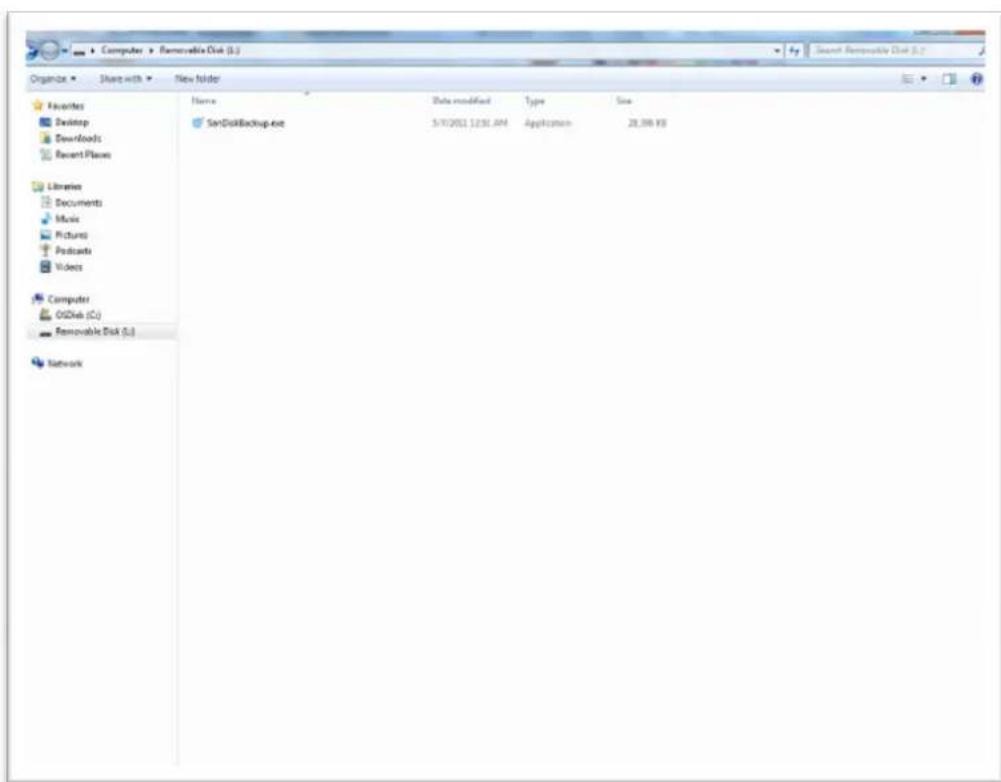
Fig. 1
Getting Started
To get started, select your preferred language from the drop-down menu (Fig. 2). The SanDisk® Backup software is available in 19 languages: English, French, German, Italian, Spanish, Portuguese, Swedish, Danish, Norwegian, Dutch, Russian, Czech, Polish, Turkish, Korean, Japanese, Traditional Chinese, Simplified Chinese and Arabic.
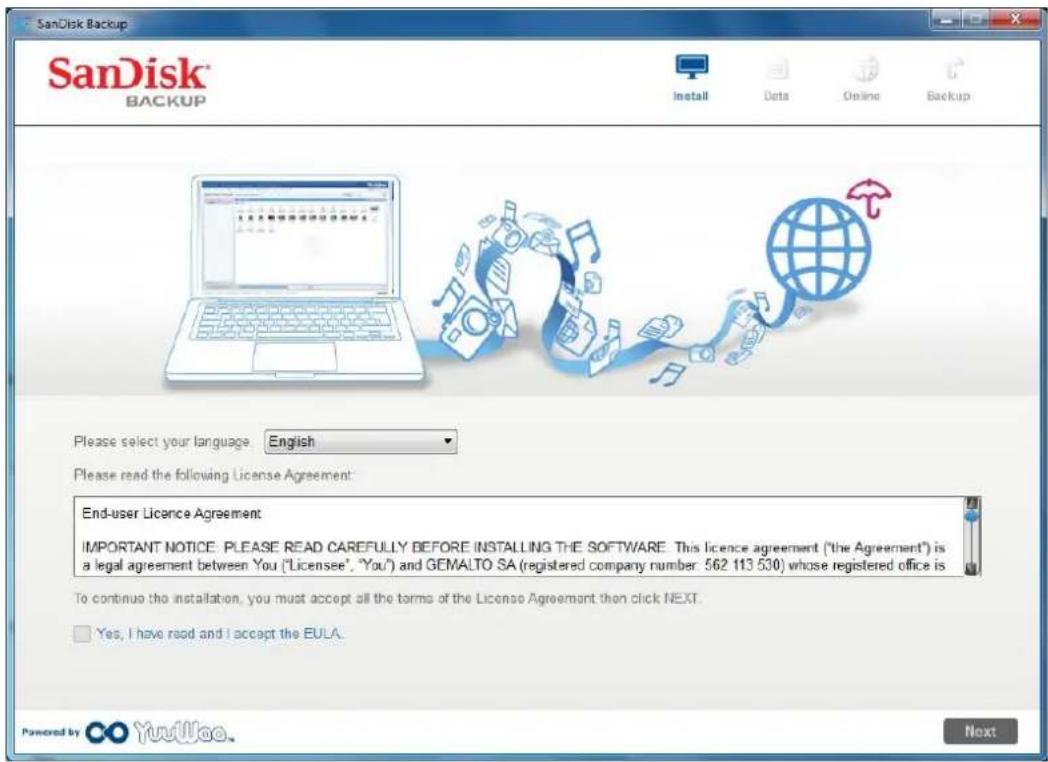
Fig. 2
Read the End-User License Agreement (EULA) and accept the terms by checking the box at the bottom of the screen.
Click on Next to continue.
Set-up Your Backup Profile
To begin, give your backup a profile name.
For added protection of your valuable data, the SanDisk® Backup software offers password protection and encryption security as an option. Your files and folders will automatically be encrypted with 128-bit AES encryption as they are backed-up onto your SanDisk® Ultra® Backup USB flash drive.
Create a password, along with a hint to help remind you of your password.
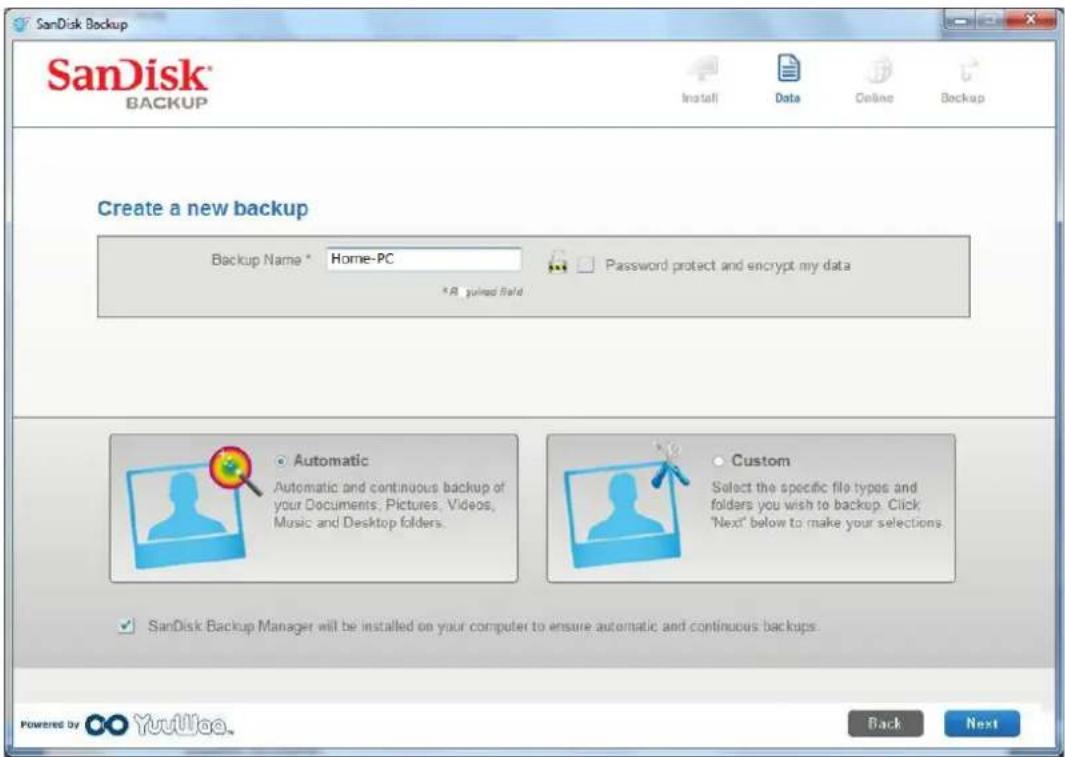
Fig. 3
Determine if you want to set up an "Automatic" or a "Custom" backup (Fig. 3).
Automatic profile will backup all files according to the pre-selected default settings for photos, videos, documents, music and Desktop folders.
Custom profile allows you to select the desired files and folders to backup.
The SanDisk Backup Manager will run in the background to ensure automatic and continuous backups from your computer.
Note: The SanDisk Backup Manager will be installed onto your computer. It is independent from the SanDisk Backup application.
Custom Backup
To customize your backup, select which types of files and documents to backup.
File Selection
This screen displays the folder tree of your computer, allowing you to select the files and folders you want to backup onto your SanDisk Ultra Backup USB flash drive (Fig. 4).
By default, the SanDisk® Backup software will backup all text documents, presentations, spreadsheets, photos, music and videos from your "My Documents" or "Documents" folder and from your computer Desktop.
The memory indicator will help you determine whether enough space is available to complete your selected backup.
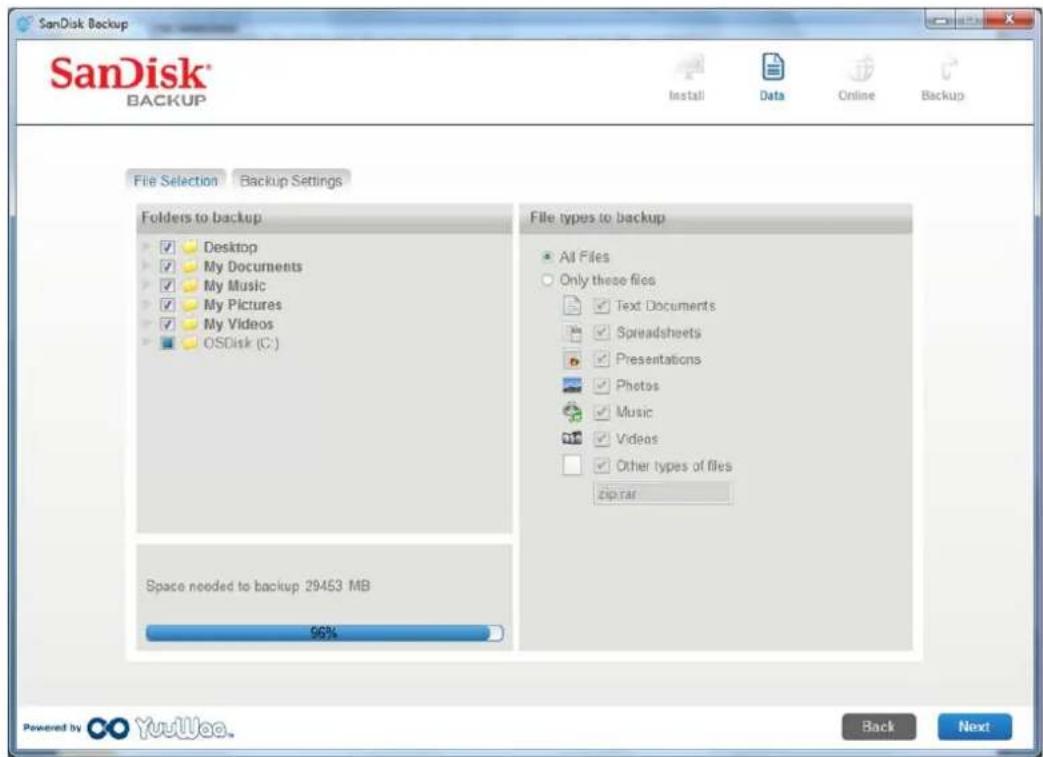
Fig. 4
Backup Settings
This screen provides the control settings for your backups (Fig. 5).
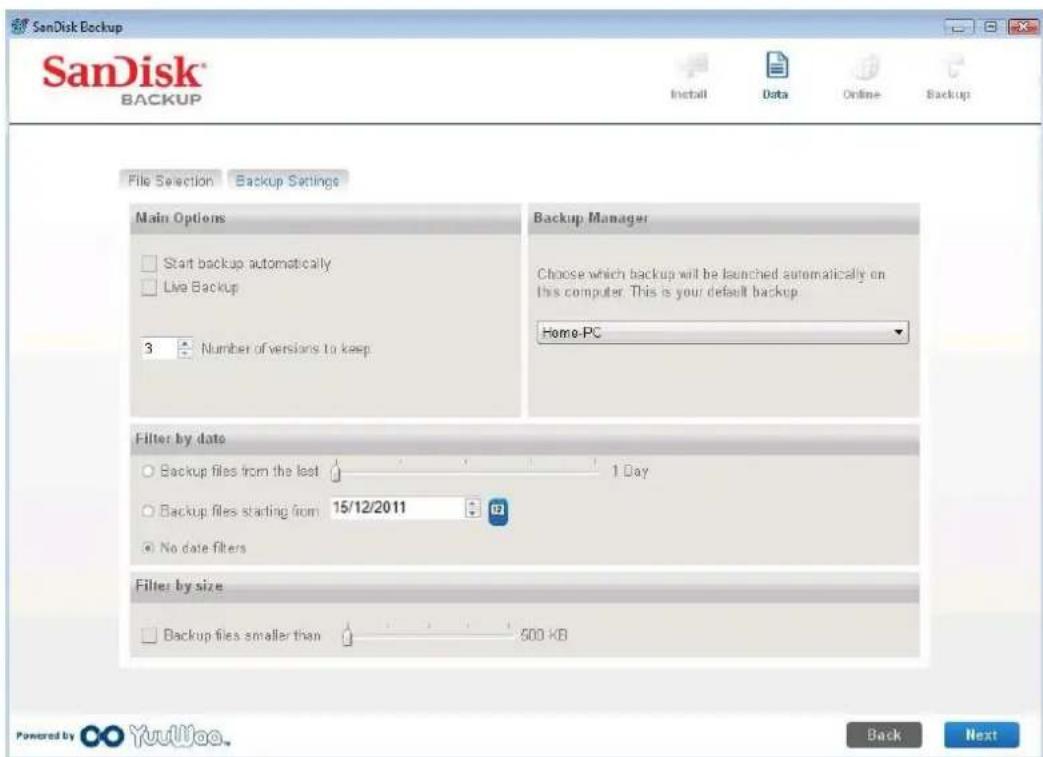
Fig. 5
Main Options
Start backup automatically launches the SanDisk Backup Manager software every time you connect the SanDisk Ultra Backup USB flash drive to your computer and performs a back-up.
Live Backup enables the SanDisk Backup application to continuously detect changes made to files and automatically backs them up onto your SanDisk Ultra Backup USB flash drive without any user intervention.
Number of versions to keep allows you to keep multiple versions of the same file, which can be easily restored to the computer.
Backup Manager
Backup Manager allows you to set your main or default backup profile, and it will launch each time you connect your SanDisk Ultra Backup USB flash drive to a computer.
Filter by date
Backup files from the last instructs the SanDisk Backup software to backup files created or modified within a period of time (i.e., 1 day, 3 months).
Backup files starting instructs the SanDisk Backup application to backup files created or modified from a specific date.
No date filters will allow the SanDisk Backup software to backup everything.
Filter by size
Filter by size allow you to determine the size limit on the files you wish to backup.
Note: The SanDisk® Backup application includes a bonus offer to open a 2GB online account so you can store and access your secure files and folders online.
Launch Your Backup
Once you have configured your backup preferences and control settings, the SanDis® Backup application is ready for your first backup.
The following screen will appear showing your backup progress (Fig. 6).
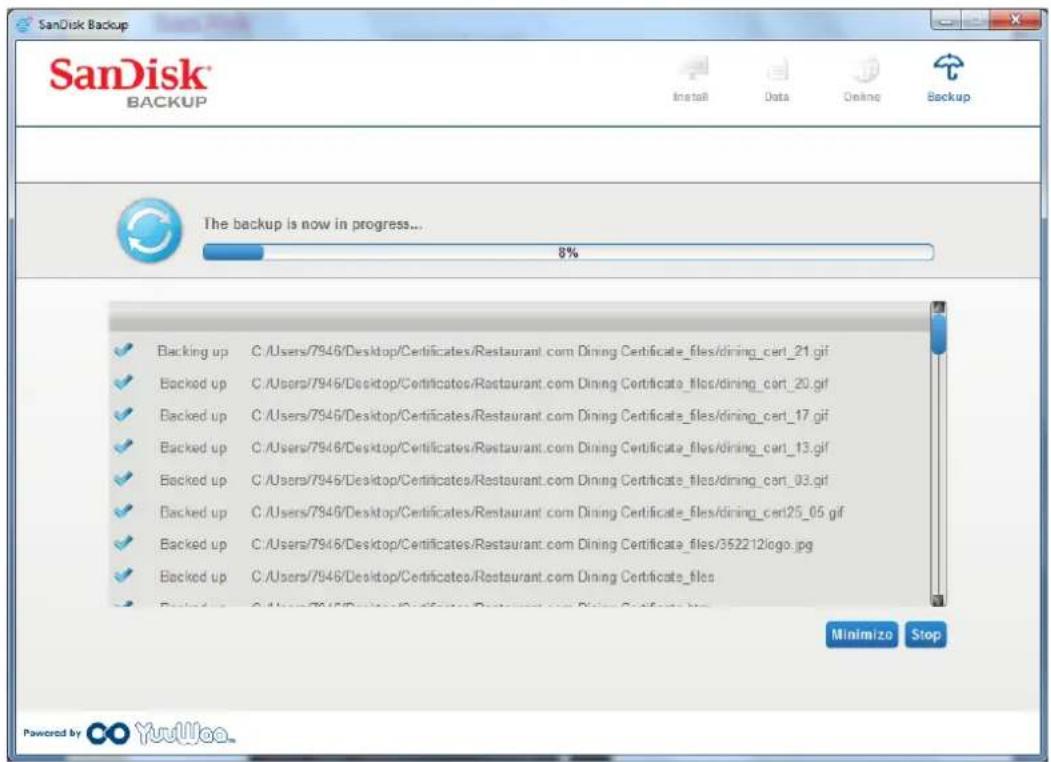
Fig. 6
Main Screen
Manage Your Files
The main interface of the SanDisk® Backup software allows you to view, open, edit and restore your backed up files at any time.
Start with the commands found at the top menu bar:
- Files allow you to switch to another backup profile or exit the application.
- Settings allow you to change your application settings for local and online backup.
Help provides you online access to support, FAQ and demos.
On-screen action icons (Fig. 7):
- Backup will manually launch a backup session.
- Restore will restore your backed up files to any desired location.
Fig. 7
Summary tab
The Event Log helps you manage your backup, by listing each event that took place during your backup (Fig. 8). The event log will also warn you when an error has occurred, when the device is full, etc. You can clear all logged events, or export them into a .txt file.
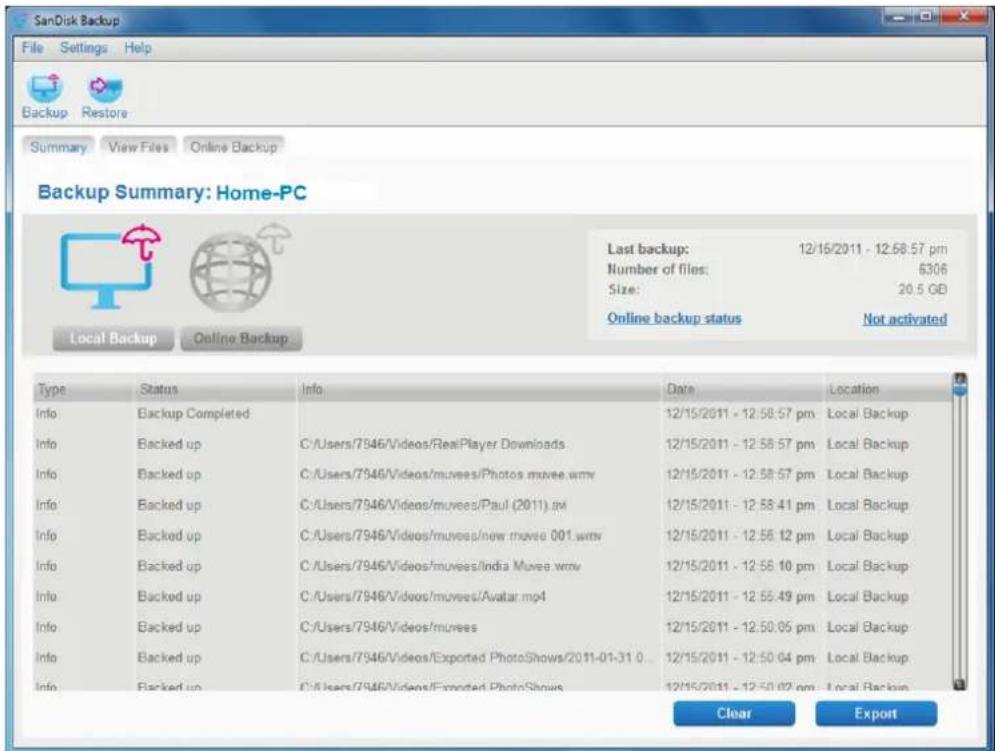
Fig. 8
View tab
View specific files and folders backed up on your SanDisk® Ultra® Backup USB flash drive in this tab (Fig. 9).
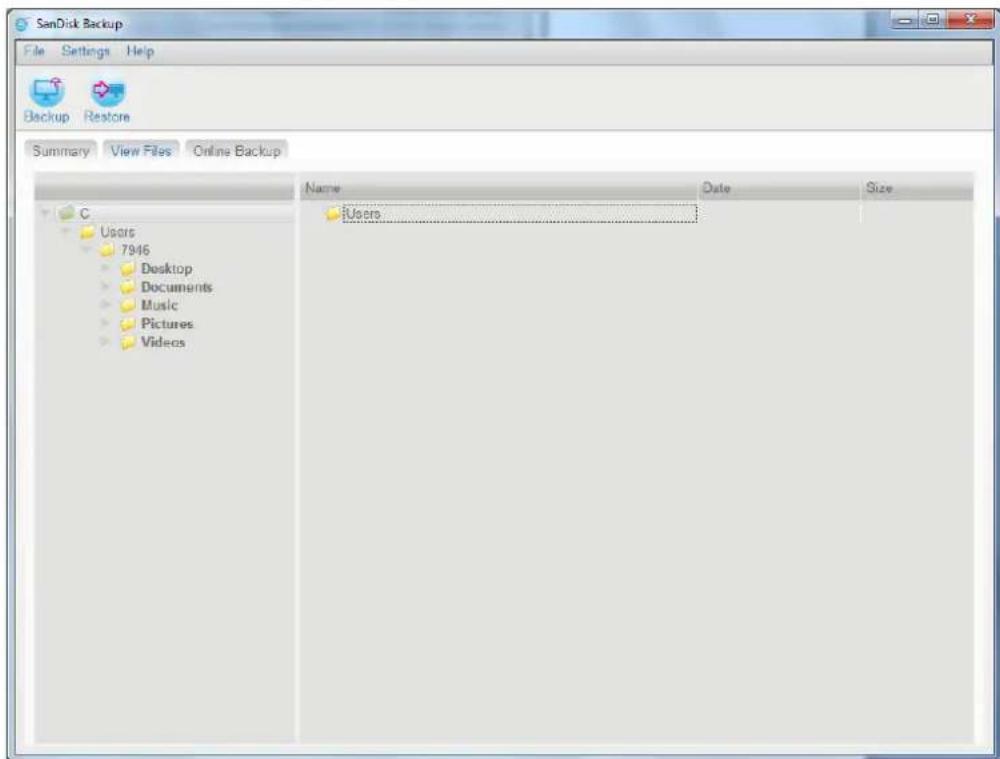
Fig. 9
Note: You can always access your backed up data manually from your SanDisk Ultra Backup USB flash drive by going to the "My Backup" folder, if the profile is not encrypted.
Versioning
Backed-up files with more than one version will appear with a sign. Click the sign to access the different versions of the file (Fig. 10).

Fig. 10
Note: Older versions of a file are only accessible by restoring them first within the respective application (i.e., Microsoft Word, Microsoft Excel, Microsoft PowerPoint, etc.).
Restoring Files & Folders
The SanDisk® Backup software simplifies the restoration of your files or folders to any computer. To restore, follow these easy steps:
- Click the Restore button (Fig. 11)
Fig. 11
- Select the files or folders you want to restore (Fig. 12)
- Choose where you want to restore the selected files or folders
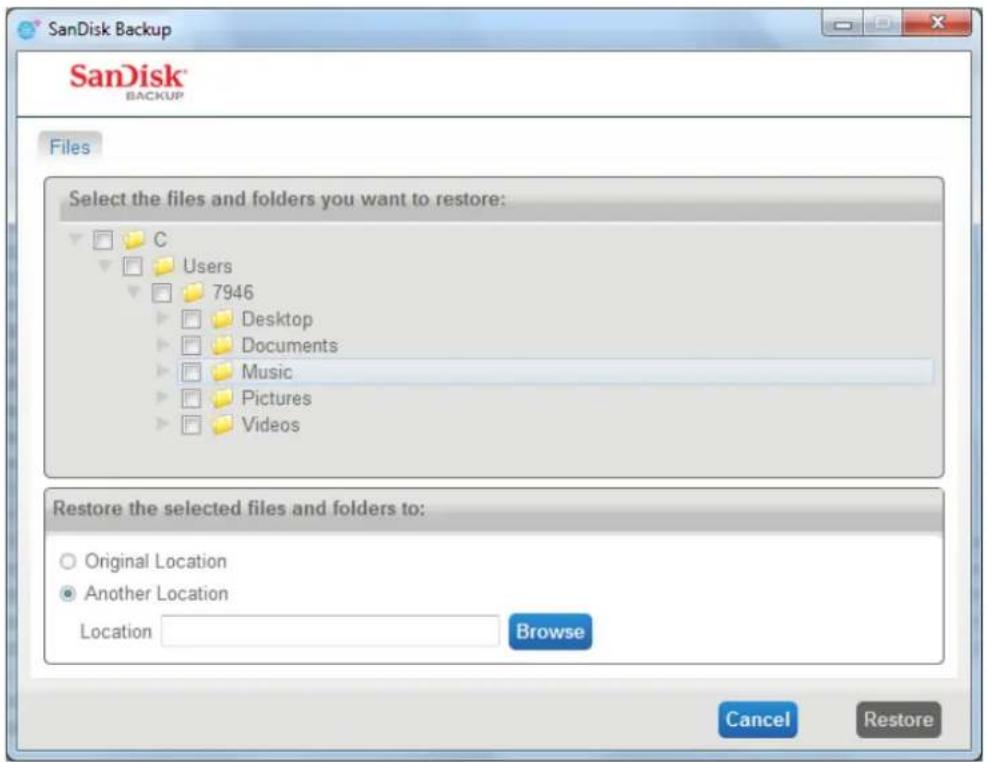
Fig. 12
Note: If you restore files or folders to its original location, they will replace the existing copy on your computer.
SanDisk
BACKUP

SanDisk Corporation
601 McCarthy Boulevard
Milpitas, CA 95035 USA
URL: www.sandisk.com
Support: www.sandisk.com/support
SanDisk
Powered by YoWoo.
GUIDE DE MISE EN ROUTE RAPIDE
Table des matieres
Introduction 17
Mise en oeuvre 18
Assistance: www.sandisk.com/support
80-36-03490_FR
© 2010 SanDisk Corporation
SanDisk
BACKUP



KURZANLEITUNG
Inhaltsverzeichnis
Einführung 31
Einrichtung 32
Erste Schritte 33
© 2010 SanDisk Corporation
SanDisk
BACKUP



Powered by O O YuulJea.
SanDisk Corporation
601 McCarthy Boulevard
Milpitas, CA 95035 USA
URL: www.sandisk.com
Assistenza: www.sandisk.com/support
SanDisk
BACKUP



Milpitas, CA 95035, VS
URL: www.sandisk.com
Ondersteuning: www.sandisk.com/support
SanDisk
BACKUP



SNABBSTARTSHANDBOK
Innehäll
Introduktion 102
Inställingar 103
Komma igang 104
Stall in din profil for sakerhetskopiering 105
Anpassad sakerhetskopiering 106
Starta sakerhetskopieringen 108
Huvudskärmbild 109
Hantera dina filer 109
Versioner 111
© 2010 SanDisk Corporation
SanDisk
BACKUP



HURTIG STARTVEJLEDNING
Indholdsfortegnelse
116
Opsætning 117
Komigang 118
© 2010 SanDisk Corporation
SanDisk
BACKUP



KPATKOE PYKOBOIDCTBO NOJIb3OBATEJIa
Copepkanhe
BVeIeHne 130
YctaHOBKa 131
Пистусяк рабote 132
Hactpoika npoФиЯ pe3epBHorO konnpobAHnA 133
Bb6opouHoe pe3epBHeo KonnpoBaHne 134
3anyck pe3epBHOro KOHnpOBaHHa 137
TnabHbI 3KpaH 138
UnpaBJIeHne paJIamn 138
KoHTpoJIb BepCn 140
BocstahOBJIeHne paIIOB n nanok 141
BVeDHeNne
IcnoB3OBAHne cpeCTB npeoTbpaueHnnoTeepaHHbx ctaHOBNTCBce 60onee akTyabHbIM npn cerOAnHEm pocrte o6beMOB uΦpoBbIX daHHBX. IporpamMHOe oecneueHne SanDisk dner pe3epBHO KOInPOBaHnra -3TO npocTo cnocob n36exKaTB noTePNBaXbIX naHbIX pa6OuHX faNOB Ha KOMNbIOTepe nyTem nepeHoca nx Ha φnəw-dnck USB SanDisk Ultra.
IporpaMHoe o6ecneueHne SanDisk dny pe3epBHO KO npnpoBaHn npedHa3HaueHo dny noJIb3ObaTeJe, JenaIOxN npdnpnHt b AKTNBHe IeNCTBn dny npdeOTBpaSeHn notepn daHHbx IV-3a KOMNbTOpehBix c6oEB, Kpax, BUPycOB INpyrnx npoucseTbn. PpnoJoxHne SanDisk dny pe3epBHO KO npnpoBaHn IMeET yO6HbN INHTepFeic, C nOmoIbKOtoPoTo onepauncoXpaHHeHn, 3aunTbN BOCCTaHOBHeHn BaKhbIX daHHbx (DKyMeHTOB, np3eHTaun, foTOrpaFm, My3bIKN, BIneo N T. n.) CTahOBNTc npocTo 3aDaueH.
PporpamMHOe oecneueHne SanDisk dny pe3epBHoro konnpobAHn - OCHOBhie yHKuN
Pe3epBHOe KOINPOBaHHe HaxKaTne ODHOnKn
Ydo6ha KhoKa Ha 13u-DCke USB SanDisk Ultra Backup no3B0nAET B JIO6oe BpeM BAIOHHTb pe3epBHOe KOINPOBaHne daHHbIX. (PpIMeuaHHe: 3a yHKUra IODepKXBaeTc RA TOIbKO HA KOMNIOTePax c OC Windows XP,Windows Vista u Windows 7).
Dó6aBOuHoe pe3epBHOe KOnnpoBaHne
B OTNIUHNE OTE TpaIauuONHHbIX CpeIcTB pe3epBHoro KOINpOBAHn nporpAMMHOe 06ecneueHHe SanDisk no3BOJraET COXPAHrTb TOJIbKO HOBbE N I3MeHHeHbIe φ aJIbI, YTO CHNJaET HArpy3Ky Ha cnCTemy.
KoHTpOJB BepCh
OnpedenTe KOJIueCTBO BepCn IJx XpaHEny, YTO NO3BOJRAET B daJIbHeIWeM NcNoJIb3OBaTb HeckoJIbKO KOnN FaiJa. B IIO60 MOpENT MOXHO BepHyTbcr K pa6ote C npdeIduJeBepCneF aHa. Bbl HIKOrDa He noTepeRte DaHHbIX, DaXe ecIn foal 6bl HnpeDHaMepeHNO n3MeHeH nn ydaJIeH.
AbTomatnueckoe n dHamnueckoe pe3epBHOe konnpobahne
TexHONORn HENpepbIBHO 3aunTb daHHbIX (continuous data protection - CDP) npniloxeHn SanDisk aBtomatueckn obnapyKINBaET n3MeHnna KOnnpyeN Ha yCTpoiCTBO xpaHEnn, He Tpe6yB MWeataJIbCTBa Nolb3OBaTeIe. Bam He npindetc KOnnpoBaTb daHHbIe BpyHyIO IIN no pacnicaHIO. IporpamMHe oecneueHne SanDisk dIra pe3epBHorO KOnnpobAHn MOxket DeJatb 3TO 3a Bac kpyrIocyToUHO.
PONb3OBaTeJbCKne HAcTPOKN
Ionb3oBateIb MoKet fIuIbTpOBaTb faIbI IIO pacuHpeHIO, daTe IIN pa3Mepy. Pa3NHyIe BapnaHTb IHaCTpoek nporpaMMHO o6ecneueHnra SanDisk n03BOJrOT 6bICTpo BbIbpaTb daHHIe dIpe3epBHO KOIInpOBaHnI.
COBmectHMOCTb pa3nHbIMn INaTΦopMaMn
Baun daHbIe DocTynHbI KaHa KOMnbIOTePax Mac, TaK n Ha NK. NporpaMa SanDisk o6ecneuBaET OINHaKObB HApOp yO6HbIX FyHKcNn pe3epBHOr KOInpOBaHn IJra 06nx nnatopm Ha HenpepbIBHOI OCHOBe.
NopdepxnBaemble onepaunHbIe cnCTembl:
- Windows XP (pekomehnyetca naKeT 06HOBJIeHn2)
Windows Vista
Windows 7
Mac OS X v10.5+
PooepKnBaemble INHTepHET-06o3peBaTeN:
- Windows® Internet Explorer (Верси 5.0 и Виши)
- Mozilla Firefox (Bepcnn 1.0 n BvIwe)
Heo6xOaHmoe o6OpydoBaHne:
Ykaxnte Tnppe3epBHOKoHOpOBaHn: ABToMaTueeCKoe nn Bb6OpouHoe (pnc. 3).
IpoΦnIb ABToMaTnueckoe no3BOJraeT BbINOJIHraTb pe3epBHOe KOIpOBAHne BCEx paIIOB B COOTBeTCTBm C pEduCTaHOBHeHHbIMn HAcTpoKamn Dnla FOToRpaΦn, BuDeo, DOkymeHTOB, My3bIKn n Nanok pa6oeryo cToJa.
IpoΦnIb HActpaBaemoe N03BOLJeT Bbl6paTb HxKHbIe φaJIbI n IanKn dJa pe3epBHOKO npOpBaHn.
Incnetepe3epBHOKoNipOBaHnSanDisk 3anyckaeTcBΦOHOBm pexime n ocuyectbnaet HnpepbIBHOe KOnpOBaHne daHHbIX C KOMnbIOTepa.
PpmeHne. DncnTuepepeBHO KOnpOBaHna SanDisk yctaHbNAeTcHa KOMnbTepe. OH 3aBNCNT OT npIIOKeHHpeepBHO KOnpOBaHna SanDisk.
- BbI6epnte faaII nn panKy, KOtOpBie HxKHO BOCCTaHOBnTB (pnc. 12).
- BbIbepuTe MeCTO, B KOToOpoe HxKHO BOCCTaHOBtB Bbl6paHHbIe faJIbI nn nAnKn.
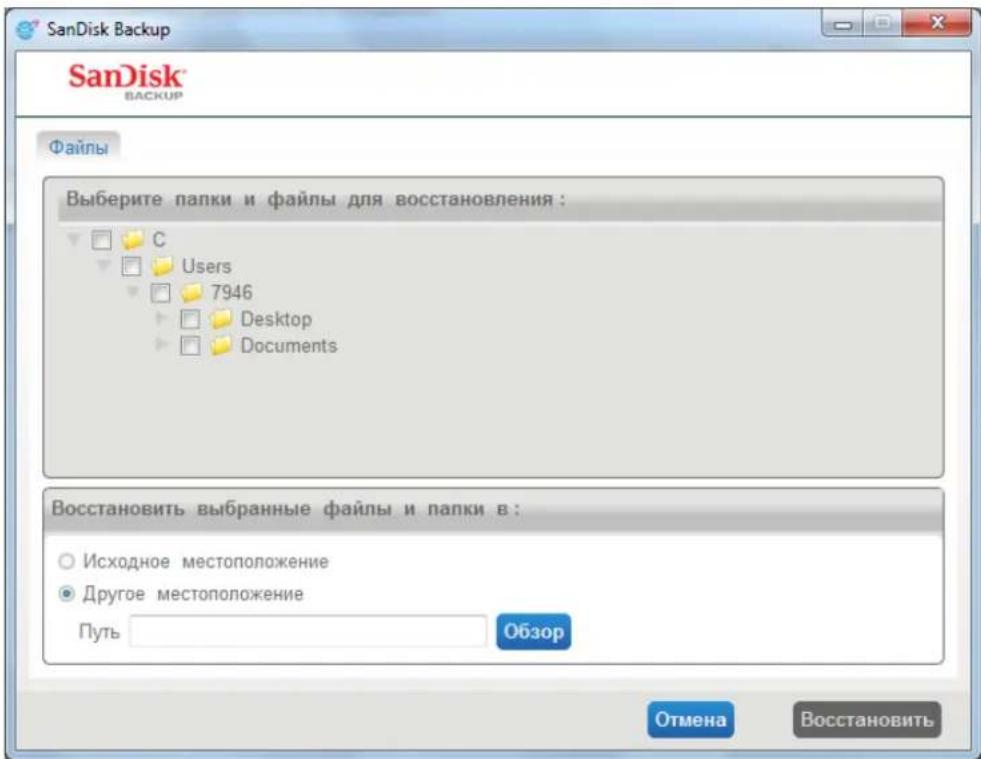
Pnc. 12
PpimueaHne. PaIbI nn nankn, BocCTaHaBnBaEMble B IxCoOHOe MeCTO, 3aMeHJOT cyuectByIOUne KOHN Ha KOMNbIoTepe.
SanDisk
BACKUP

Kopnpaun SanDisk
601 McCarthy Boulevard
Milpitas, CA 95035 USA
URL-apec: www.sandisk.com
Cnyk6a nopepkn: www.sandisk.com/support
SanDisk
BACKUP



SKROCONA INSTRUKCJA OBSŁUGI
Spis tresci
Wstep 145
Konfiguracja 146
Pierwsze kroki 147
Obstugwane systemy operacyine:
- Windows® XP (zalecany dodatek Service Pack 2)
Windows Vista
Windows 7
Mac OS X w wersji 10.5+
© 2010 SanDisk Corporation
SanDisk
BACKUP



STRUČNÁ PRÍRUČKA
Obsah
Uvod 174
Nastaveni 175
Začináme 176
Nastavte si zalohovac profil 177
Vlastnizalohovani 178
Spusteni zalohovani 180
Hlavn'obrazovka 181
Powered by OO YuulJea.
SanDisk Corporation
601 McCarthy Boulevard
Milpitas, CA 95035 USA
URL: www.sandisk.com
支援:www.sandisk.com/support
80-36-03490_CHT
© 2010 SanDisk Corporation
SanDisk
BACKUP



ケイック スたーツ イイド
目次
製品のご紹介 216
設定 218
はしだに 219
Bucke Aapp Pfo Ff 220
力斯ム バックアフ 221
224
MxInskskrlen 225
225
227
741尔0多6715的復元 228
製品のご紹介
今日、 ニジタル
Powered by YoYuullua.
SanDisk Corporation
601 McCarthy Boulevard
Milpitas, CA 95035 USA
URL: www.sandisk.com
http://www.sandisk.com/support
80-36-03490_KO
© 2010 SanDisk Corporation



- Main Screen 11
- Introduction
- SanDisk® Backup Software Key Features
- One-touch backup button
- Incremental Backup
- Versioning
- Automatic Backup, Live Backup
- Custom Configuration
- Cross-Platform Support
- Supported Operating Systems:
- Supported Internet Browsers:
- Required Hardware:
- Set-up
- Getting Started
- Set-up Your Backup Profile
- Custom Backup
- File Selection
- Backup Settings
- Main Options
- Backup Manager
- Filter by date
- Filter by size
- Launch Your Backup
- Main Screen
- Manage Your Files
- Summary tab
- View tab
- Restoring Files & Folders
- SanDisk
- BACKUP
- GUIDE DE MISE EN ROUTE RAPIDE
- Table des matieres
- Introduction 17
- Mise en oeuvre 18
- KURZANLEITUNG
- Inhaltsverzeichnis
- Einführung 31
- Einrichtung 32
- SNABBSTARTSHANDBOK
- Innehäll
- HURTIG STARTVEJLEDNING
- Indholdsfortegnelse
- 116
- Opsætning 117
- KPATKOE PYKOBOIDCTBO NOJIb3OBATEJIa
- Copepkanhe
- BVeIeHne 130
- YctaHOBKa 131
- TnabHbI 3KpaH 138
- BVeDHeNne
- PporpamMHOe oecneueHne SanDisk dny pe3epBHoro konnpobAHn - OCHOBhie yHKuN
- Pe3epBHOe KOINPOBaHHe HaxKaTne ODHOnKn
- Dó6aBOuHoe pe3epBHOe KOnnpoBaHne
- KoHTpOJB BepCh
- AbTomatnueckoe n dHamnueckoe pe3epBHOe konnpobahne
- PONb3OBaTeJbCKne HAcTPOKN
- COBmectHMOCTb pa3nHbIMn INaTΦopMaMn
- NopdepxnBaemble onepaunHbIe cnCTembl:
- PooepKnBaemble INHTepHET-06o3peBaTeN:
- Heo6xOaHmoe o6OpydoBaHne:
- SKROCONA INSTRUKCJA OBSŁUGI
- Spis tresci
- Wstep 145
- Konfiguracja 146
- Obstugwane systemy operacyine:
- STRUČNÁ PRÍRUČKA
- Obsah
- 目次
- 製品のご紹介
Brand : SANDISK
Model : U3 cruzer micro
Category : USB Drive