
iXpand USB 3.0 Slim - USB Drive SANDISK - Free user manual and instructions
Find the device manual for free iXpand USB 3.0 Slim SANDISK in PDF.


| Product Type | USB Flash Drive |
| Brand | SanDisk |
| Model | iXpand USB 3.0 Slim |
| Interface | Lightning and USB 3.0 |
| Connector Type | Flexible Lightning connector |
| Dimensions | 13 x 17 x 59 mm (0.51 x 0.67 x 2.32 inches) |
| Weight | Approx. 20 g (0.7 oz) |
| Read Speed | Up to 70 MB/s (USB 3.0) |
| Operating Temperature | 0°C to 35°C (32°F to 95°F) |
| File System | exFAT (for 128GB) |
| Password Protection | Yes, 128-bit AES encryption via SanDisk SecureAccess |
| Software | SanDisk SecureAccess, iXpand Drive app (iOS) |
| Supported Video Formats | .WMV, .AVI, .MKV, .MP4, .MOV, .FLV, .MPG, .RMVB, .M4V, .TS |
| Supported Photo Formats | .BMP, .TIF, .TIFF, .JPG, .PNG, .GIF, .XBM, .ICO, .TGA |
| Supported Audio Formats | .MP3, .AIF, .WAV, .AIFF, .M4A, .WMA, .AAC, .OGG, .FLAC |
| Compatibility (iOS) | iPhone 5/5c/5s, iPhone 6/6 Plus, iPhone 6s/6s Plus, iPad Air, iPad mini, iPad Pro, iPod touch 5th gen and newer with Lightning connector; iOS 8.2+ |
| Compatibility (Computer) | Windows Vista/7/8/10, Mac OS X v10.8+, Chrome OS |
| Backup Feature | Automatic photo backup when connected |
| Video Playback | Direct from drive via iXpand Drive app |
| Case Compatibility | Works with most cases due to flexible connector |
| Capacity Options | Available in various capacities (e.g., 32GB, 64GB, 128GB, 256GB) |
| Material | Plastic and metal |
Frequently Asked Questions - iXpand USB 3.0 Slim SANDISK
User questions about iXpand USB 3.0 Slim SANDISK
0 question about this device. Answer the ones you know or ask your own.
Ask a new question about this device
Download the instructions for your USB Drive in PDF format for free! Find your manual iXpand USB 3.0 Slim - SANDISK and take your electronic device back in hand. On this page are published all the documents necessary for the use of your device. iXpand USB 3.0 Slim by SANDISK.
USER MANUAL iXpand USB 3.0 Slim SANDISK

SanDisk®
Western Digital Technologies, Inc.
951 SanDisk Drive, Milpitas, CA 95035
Western Digital Technologies, Inc. is the seller of record and
licensee in the Americas of SanDisk® products.
©2016 Western Digital Corporaon. All rights reserved
Introducon
Geng Started
- Overview
• Connecng to iPhone or iPad
Applicaons
- App Overview
• Taking Photos and Videos
• Backup and Restore Files
• Backup Social Media Accounts
• Back Up and Restore Contacts - File Management
- Photo
- Video
- Music
- Password Protecon
- Sharing
Device Sengs
- Drive Name
- Formang
- Firmware update
Troubleshoong & Support
Instruconal Icons

Warning

Informaon

Quick Tip
Introducon
iXpand™ Flash Drive Overview

Figure: iXpand Flash Drive
The perfect companion for your iPhone or iPad, the iXpand Flash Drive lets you free up space on your iPhone or iPad, back up your camera roll, and even watch videos straight from the drive 1 . The exible Lightning connector works with most cases and the USB 3.0 connector plugs into your Mac computer or PC, making le transfers quick and easy. The drive also includes password-protecon soware to keep your sensitive les secure across your devices 2 . Take all the photos and videos you want—with the iXpand Flash Drive you’re always ready to take more.
Free up Space Fast!
- Free up space on your iPhone or iPad quickly and easily with the iXpand Flash Drive 1 . Simply plug in the Lightning connector and you can easily move photos, videos and
other les o your device and onto the drive. From there, you can transfer the les onto a Mac computer or PC or store them on the drive.
Automac Photo Backup
- Set the iXpand mobile app to automacally back up your iPhone or iPad camera roll anytime the drive is connected. No need to manually select which photos to back up. Every me you plug it in, it does the work for you.
Watch your Videos on the Move
- The iXpand Flash Drive supports popular video formats (.WMV, .AVI, .MKV, .MP4, .MOV) so you can store and watch videos straight from the drive via your device 3 , making it a terric travel companion.
Works with Most Cases
- The iXpand Flash Drive is designed with a exible connector to plug directly into your iPhone or iPad without having to remove your case.
USB 3.0 High-Speed Transfers
- Plug the drive into your computer's USB 3.0 port and you can transfer les in a ash with read speeds up to 70MB / s4 .
iXpand Mobile App
- Available from the App Store, the iXpand Drive app makes it easy to manage your photos and videos and also enables you to watch popular video formats 3 directly from the drive.
Works with
iPhone 5, iPhone 5c, iPhone 5s, iPhone 6, iPhone 6 Plus, iPhone 6s, iPhone 6s Plus, iPad Air™, iPad mini™, iPad mini 4, iPad Pro 12.9", iPad Pro 9.7" iPad with Rena display, iPod® 5th Generaon and newer, with Lightning connector and iOS
8.2+Windows Vista ® , Windows ® 7, Windows 8, Windows 10, Chrome OS, Mac OS X v10.8 and higher
Online updated compatibility list URL:
www.sandisk.com/support/ixpandv2compatibility
Specicaons
- Interface: Lightning and USB 3.0 connectors (one connector used at a me)
- Operational Temperature: 0-35° C funconal
- Dimensions: 13 X 17 X 59mm
- Microso® exFAT Support: For 128GB 5
Geng Started
Connecng to iPhone or iPad
Physical conneccon

Gently li the Lightning connector slightly and each to an iPhone or iPad by pinching the iXpand Drive with your thumb and forenger as shown in the gure below.

Connect the iXpand Flash Drive into your iPhone or iPad as shown in the gure below. Keep holding the USB side of the iXpand Flash drive away from the back of the device while you are inserng the Lightning connector into the iPhone or iPad.

Installing the app
When you've connected the iXpand Flash Drive to your iPhone or iPad, you'll be prompted to install the companion iXpand Drive app.
- On the screen, select "App Store".
App Not Installed
The accessory "iXpand Flash Drive-V2" uses an app you do not have installed. Would you like to get it from the App Store?
App Store
Ignore
- Install the "iXpand Drive" app from the App Store.
Applicaons
App overview
iXpand Drive app is the companion to your iXpand Flash Drive. It has a very simple Home screen, yet allows you to quickly access main tasks from always present acon items or delve deeper into more features through a set of quick acon cards. These cards allow you to do dierent tasks from the home screen.
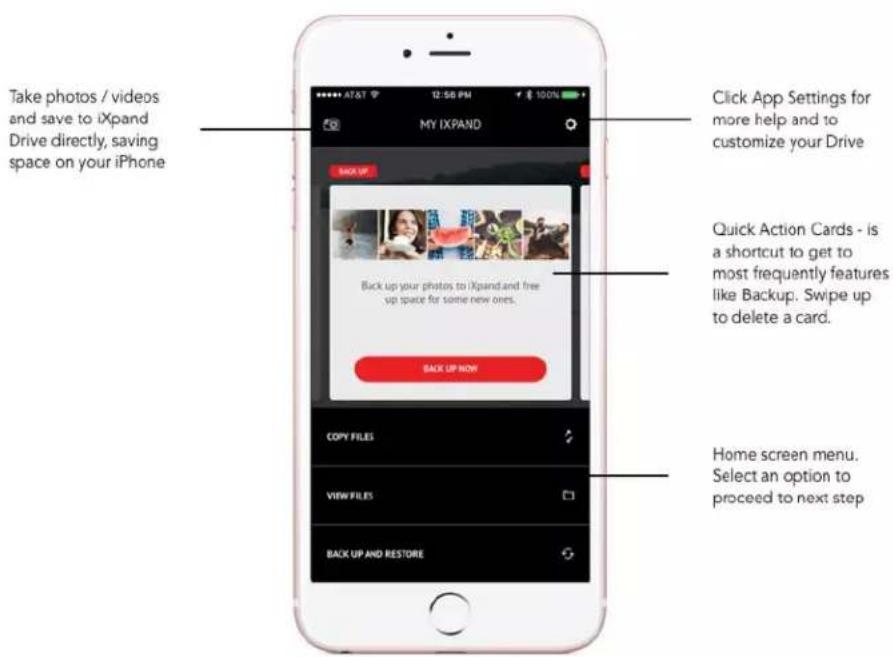
The Home screen also contains a menu of common acons. Copy les, View Files, and Back up and Restore.

To access the quick acon cards, press on the current one, or swipe through (le to right). There are three possible acons you can take on the quick acon cards.
- To dismiss a card, swipe up on the card.
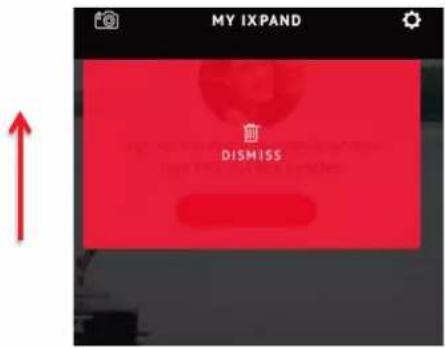
- To reset all the cards swipe down and choose that opon.

- To get the last card deleted, swipe down and choose that opon.

These cards provide quick access to tasks such as connecng your social media accounts, updang your iXpand Flash Drive, and viewing the remaining space on your iPhone or iPad internal memory and iXpand Flash Drive.
Taking Photos and Videos

Using the iXpand Drive App to take Photos and Videos will save the Photos or Videos directly on to your Drive to save space on your iPhone or iPad.
- From the Home screen, select the Photos icon

- Snap your Photo. Your Photos will be stored directly onto the iXpand Flash Drive.
- Take a Video. Your Videos will be stored directly onto the iXpand Flash Drive.

Backup and Restore Files
The Back Up and Restore selecon from the Home screen will allow you to do several tasks. Click on the “Back Up and Restore” opon from the Home Screen. You will be presented with a screen with the following opons:
- Back up & Restore Photo Library to the iXpand Flash Drive
- Backup your photos from Social Media accounts to the iXpand Flash Drive
- Back up & Restore Contacts

Backing Up or Restore your Camera Library
You can back up your camera library to the iXpand Flash Drive by seng up auto-back up or manually back up as needed. Turn on Automac Backup by sliding the switch. This opon will also appear during the initial set up screens shown when you rst connect your Drive.
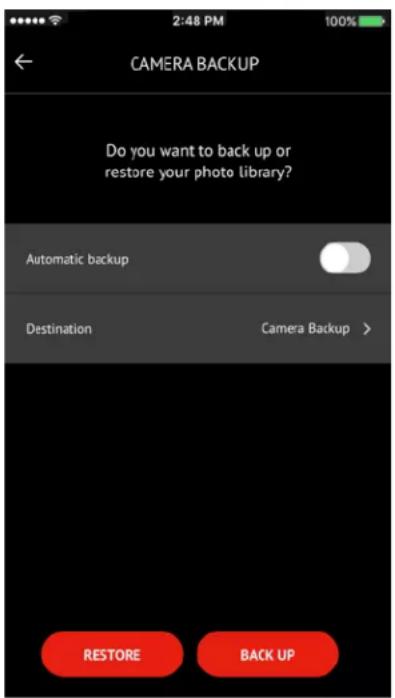
You can choose the Restore from opon to restore photos to your camera roll. For the Backup to opon, the default folder is the Camera Backup folder on the iXpand Flash Drive). Note that the iXpand Flash Drive will ask you for access to your photos the rst me. Choose OK to connue.
Aer the back up is completed, an opon will pop up to delete the copied photos from the camera roll of the iPhone or iPad.

You can also pause the back up at any me by tapping on the pause buon.
Backing Up may take longer than normal the 1st me. Once set up, only newly added les will be copied to the iXpand Flash Drive.
Note: A pop-up will appear if the initial camera Back up was denied. You can change this by going into the iPhone sengs screen and enabling the iXpand Flash Drive to access the iPhone photos.
Restoring Photos to your Camera Library
The iXpand Flash Drive can be used to copy photos to a new iPhone. To Restore Photos from the iXpand Flash Drive to the iPhone or iPad, choose the Restore opon. This will copy the photos from the Desnaon/Source Folder selected to the camera roll on the iPhone or iPad. The default folder is Camera Backup.

Warning: Photos with the same name will be duplicated to your Camera Roll when Restored.
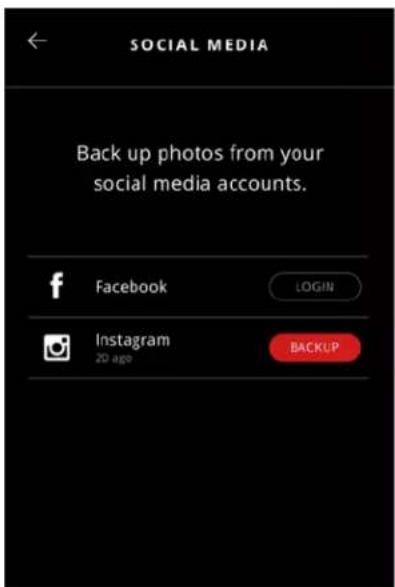
Back Up Social Media
The iXpand Flash Drive can be used to backup your photos uploaded to popular social media sites such as Facebook and Instagram. To backup these photos:
- Connect the iXpand Flash Drive to your iPhone or iPad, and open the iXpand Drive App.
- Choose the Backup and Restore selecon from the home screen.
- Choose the Back Up Social Media opon

- You will be prompted to sign in to the social media account using your username and password specic to those accounts.

You must authorize the iXpand App to access your social media account. The app will backup all the photos that you have uploaded to your social media account.
- The iXpand Drive App will nd all the photos stored on the social media account and ask to back them up.
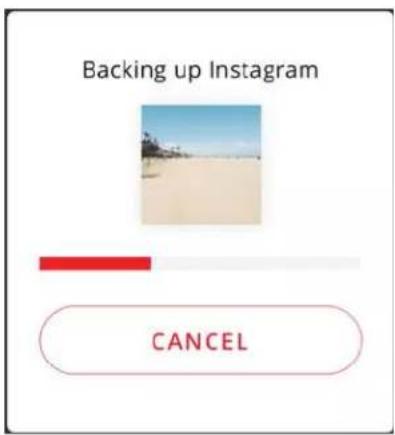
- Once you have connected a social media account, you can easily back it by clicking the backup icon as shown in the gure below.
Back Up and Restore Contacts
Create a backup contact le and restore it when needed. This is particularly valuable when moving to a new iPhone or iPad.
Backup
1 Select Backup and restore > Backup and restore contacts > Back up
2 Select the contacts to back up by clicking the dot next to it
3 Select Archive contacts at the boom of the screen
Restore
1 Select Backup and restore > Backup and restore contacts > Restore
2 Select the contacts to restore
3 Select Restore at the boom of the screen

Contacts with the same name will be duplicated when the restore opon is selected
File Management
Use your iXpand Flash Drive and iXpand Drive app to transfer and manage les between your iPhone, iPad, PC and Mac computer.
Copy les from your iPhone or iPad
- Connect the iXpand Flash Drive to your iPhone or iPad.
- Select the Copy Files opon from the Home screen

- Choose to copy photos from your iPhone to the iXpand Flash Drive or to Get Files from your iXpand Flash Drive and copy them to your iPhone

- Select the photos to choose from the iPhone or iPad.
- Press Copy to iXpand Flash Drive
- Select your Desnaon Folder from the list of folders on the iXpand Flash Drive
- The selected les will be saved to your iXpand Flash Drive.

Files copied to the Drive when it is not connected are accessible using the iXpand Drive app under iPhone or iPad Storage. These led are stored in the app's local memory.
Copy les from the iXpand Drive to iPhone or iPad
- Choose Copy Files from the Home screen of the Drive App.
- Choose Copy Files from iXpand Flash drive.
- Select the les from the Drive.
- The selected les will be saved to your iPhone or iPad.

Only Photos and Videos will be copied to your Camera roll on the iPhone or iPad.
Other les copied to App Storage are only accessible using the iXpand Drive app.
Copy les between PC and drive
To Copy les between your iXpand Flash Drive and computer simply plug the iXpand Flash Drive into your computer's USB port.

- In the AutoPlay window, click Open folder to view les:
- Drag and drop music, videos, photos, and documents between your computer and the iXpand Flash Drive window.

Copy les between Mac computer and drive
To Copy content between your iXpand Flash Drive and Mac computer:
- Plug your iXpand Flash Drive into your Mac computer's USB port.
- Drag and drop music, videos, photos, and documents between your Mac computer and the iXpand Flash Drive window.

Delete les
-
Connect the iXpand Flash Drive to your iPhone or iPad.
-
Choose "View Files" from the Home screen

- Press select and choose the les you'd like to delete from Drive. You can choose one or many les.

-
Press at the boom of the screen.
-
A progress bar will appear to show the deleon progress.

You can swipe le on a le icon in list view and choose "delete" to easily remove individual les.

Swiping le will also show more opons. Select then choose: Open in, Copy/Move to Folder, rename le, or more.

Search
- In the le view, pull down the screen.
- You will see a search box appear at the top. Enter the le name you would like to nd.
- You will see search results appear for any matching les.
Viewing les on the iXpand Drive or iPhone or iPad
- Choose View Files from the Home screen of the App.

- Choose to view les that exist on the iXpand Flash Drive or on the iPhone or iPad from the slider bar at the top of the screen

When “iXpand” is selected, only those les contained on the drive will be shown. When “iPhone or iPad Storage” is selected, all les on the phone and the iXpand Flash Drive are shown. Files also copied from other apps when the drive is not aached will appear here.

Only Photos and Videos will be copied to your Camera roll on the iPhone or iPad. Other les will be copied to App Storage are accessible using the iXpand Drive app.

You can select the les stored in the App by moving the slider at the top of the screen between iXpand and iPhone or iPad.
Photos
Supported le formats for photos
BMP, TIF, TIFF, JPG, PNG, GIF, XBM, ICO, TGA
View Photos
- Plug the iXpand Flash Drive to your iPhone or iPad.
- Choose the "View Files" opon from the Home Screen.
- Choose the Photo icon
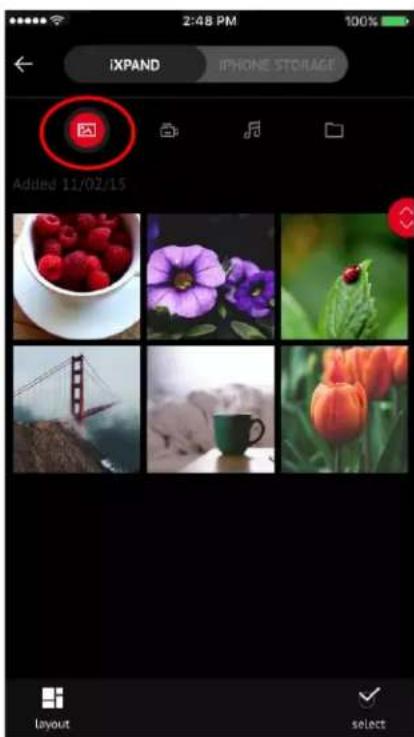
- Tap the photo you'd like to view. The app will also give you the ability to pinch and zoom on photos.
-
You can view other photos in the same folder by swiping le or right.
-
You can change the default layout to Grid or List view by selecng the Layout opon

- You can also change the Sort Order and Sort By methods through the layout menu.
Slideshow
- Browse to the folder containing your photos.
- Choose the photo you want to start with.
- Select the slideshow buon at the boom of the screen and the slideshow will begin.

- Slideshow sengs can be changed through the sengs onon on the same screen.
- You also have other opons to secure the photo, share it, and delete it through this menu
Videos
Supported le formats
WMV, AVI, MKV, MP4, MOV, FLV, MPG, RMVB, M4V, TS
Unsupported le formats
AC3, DTS(Dolby)
Playback
- Connect the iXpand Flash Drive to your iPhone or iPad.
- Choose the "View Files" opon from the Home Screen.
- Choose the Video icon

-
Tap the video you want to play.
-
You can play other videos by swiping up or down to scroll through the list

DRM-protected content cannot be streamed. Check with the content provider for playback restricons.
Music
Supported le formats
MP3, AIF, WAV, AIFF, M4A, WMA, AAC, OGG, FLAC

The Music secon will combine Music that resides on the Drive and within your iTunes Library. Enjoy all your Music on one central locaon.

You can tell where the Music le resides by the iTunes icon next to the le. If the music le has this denotaon, then it is located in your iTunes library on the iPhone or iPad.
Playback
- Connect the iXpand Flash Drive to your iPhone or iPad.
- Choose the "View Files" opon from the Home Screen.
- Choose the Music icon
- Selecng the currently displayed Song track will play that song only.
- You can choose dierent sorng opons – By Song, By Arst, By Album, By Playlist, or By Genre.
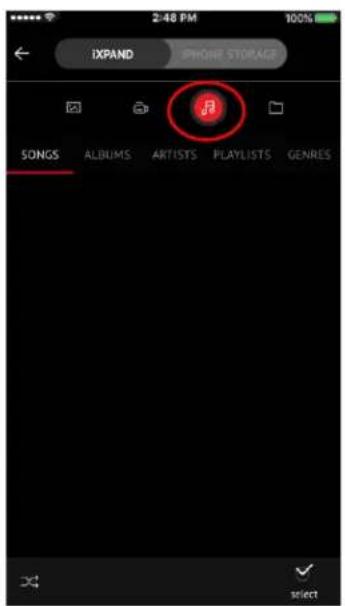
- Tap the song you want to play.
- You can play the other songs in the same folder by swiping le or right.

Playback supports music purchased from iTunes. Please remember that iTunes is for legal or rightholder-authorized copying only. DRM-protected content is not supported. Check with the content provider for playback.
Creang a playlist
- Select the Playlist item from the Music Menu.
- The list of playlists will appear.
- To Create a playlist, Select the New Playlist “+” icon

- Name your Playlist.
- Add songs to the playlist by touching the name of the song.
- Once you have selected your songs, touch the "create playlist" bar.

- You can now play your favorite playlists anymore by accessing them from the Music screen. Select the playlist, then select play.
Securing Files/ SanDisk SecureAccess Soware
SanDisk SecureAccess™ Soware
The SanDisk SecureAccess soware is designed to protect sensitive data on your drive 2 . When security is enabled in the app, a special “SanDiskSecureAccess Vault” folder is created in your drive. Any locked les are moved into the SanDiskSecureAccess Vault and can be accessed only with a password.
Enable Security on iPhone or iPad
1 Connect the iXpand Flash Drive to your iPhone or iPad.
2 Go to Menu → Sengs → Security.
3 Enable the security by swiping the dot to the right.
4 Enter a password when prompted to set password. Then select OK.
5 Here there is another opon of TOUCH ID authencaon.
6 Enter a hint for your password. Then select OK. IMPORTANT: If this password is forgoen, locked les will not be recoverable.
7 Once the security is enabled, a folder called "SanDiskSecureAccess Vault" (along with a SanDisk SecureAccess Vault Sengs folder) would be created in the drive.

Do not delete SanDiskSecureAccess Vault Sengs folder, if you want to use security feature.
Secure Files on iPhone or iPad
1 To secure les, enable security rst as explained above.

2 Select the les you'd like to secure.
3 Press thelock icon at the boom of the screen.
All secured les are moved to SanDiskSecureAccess Vault folder.
Access secured les (through iXpand Drive) on Mac computer
1 On your mac, download SanDisk SecureAccess soware from downloads.sandisk.com/downloads/SanDiskSecureAccessV3_mac.zip
2 Copy the le SanDiskSecureAccessV3_mac to the iXpand Flash Drive.
3 Launch the app SanDiskSecureAccessV3se_mac. Click "Next" in the screen below.
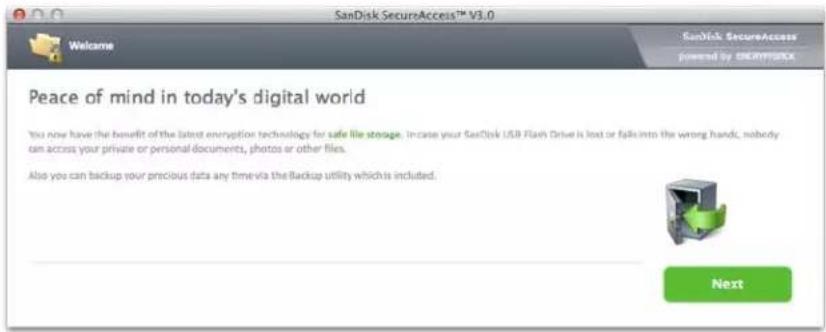
4 Read and Accept the license terms by selecng "I accept the license terms" and click "Next".

5 Enter the password you used to protect les on iXpand Flash Drive using iXpand Drive app and select OK

6 Read the guidelines and click "Next".

7 Access locked les or lock additional les using the below interface.


To access the secured les on Windows based systems, download SanDisk SecureAccess soware
from:downloads.sandisk.com/downloads/SanDiskSecureAccessV3_win.exe and
follow the instrucons at
hp://downloads.sandisk.com/downloads/qsg/secureaccessv2-qsg.pdf
Sharing
You can share les from your iXpand Flash Drive in many ways including Facebook and Instagram from within the app.
How to share
- Connect the iXpand Flash Drive to your iPhone or iPad.
- Select the "View Files" upon from the Home Screen.
- Select the le you want to share from the drive.
- Select the boom of the screen.
- Choose the desired upload/share opon.
Transfer les from other Apps
Easily transfer items from another App (For e.g.: WhatsApp)
- Go to WhatsApp Gallery, choose les & select Upload Buon
- Select Upload Buon

- Select "SanDisk iXpand Drive"
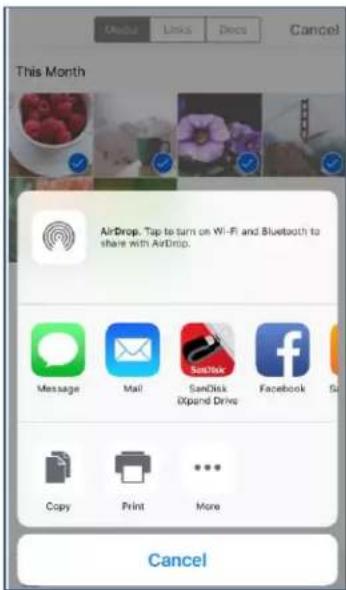
- Oponal: Open a new Folder

- Selected contents will be copied to the folder

Device Sengs
Drive Name
You can choose a name for your drive to make it easier to identify the drive in your le browser when it's plugged into a PC or Mac computer.
- Go to Menu Drive Name
- In the text box, name the drive and hit OK.
Note: Only alphabec characters are supported when naming the les, no numbers or special characters accepted.
Formang the drive
- Connect the drive to a PC or Mac computer using the USB connector.
- Format the drive as a regular USB ash drive.
About the device
- Go to Menu → About
- Under the About secon, you can see
a. Current app version
b. Drive rmware version
c. Device ID of the drive
d. SanDisk Privacy Statement
e. Legal terms and conditions
Device Firmware Update
SanDisk rolls out regular app updates to constantly improve the user experience.
When a rmware update is available and the drive is connected to an iPhone or iPad, you will see a prompt in the app. Hit OK to update the app.

DO NOT disconnect the drive while app update is in progress.
Troubleshoong & Support
In-app Support
Go to Go to Menu 📄 Help. To access the Opening walkthrough, Geng started guide and Online support.
Online Support
The support page for iXpand Flash Drive is available at:
www.sandisk.com/support/ixpandashdrive
SanDisk is a trademark of Western Digital Corporaon or its aliases, registered in the United States and other countries. iXpand and SanDisk SecureAccess are trademarks Western Digital Corporaon or its aliases. iPad, iPad mini, iPod and iPhone are trademarks of Apple Inc. All other trademarks are the property of their respective owners.
1 iPhone 5, iPhone 5c, iPhone 5s, iPhone 6, iPhone 6 Plus, iPhone 6s, iPhone 6s Plus, iPad Air ™ , iPad mini ™ , iPad mini 4, iPad Pro, iPad with Rena display, iPod ® 5th Generaon and newer; iXpand Drive app and iOS 8.2 required.
2 Password protecon uses 128-bit AES encrypon and is supported by iOS 8.2, Mac OS X v10.8, Windows Vista ® , Windows ® 7, Windows 8 and Windows 10.
3 Support for .WMV, .AVI, .MKV, .MP4, .MOV video formats. DRM-protected content cannot be streamed. Check with the content provider for playback restricons.
4 Up to 70MB/s read. Write speeds lower and vary by capacity. USB 3.0 support required. Based on internal tesng; performance may be lower depending upon host device. 1MB=1,000,000 bytes.
5 1GB=1,000,000,000 bytes. Actual user storage less.
This device complies with Part 15 of the FCC Rules. Operaon is subject to the following two conditions: (1) This device may not cause harmful interference, and (2) this device must accept any interference received, including interference that may cause undesired operaon.
Internaonal Registraon Numbers:
IC: ICES-3 (B)/NMB-3(B)
KCC: MSIP-REM-TAD-SDIX30
BSM: D32197
Western Digital Technologies, Inc.
951 SanDisk Drive, Milpitas, CA 95035
Western Digital Technologies, Inc. is the seller of record and licensee in the Americas of SanDisk® products.
©2016 Western Digital Corporaon. All rights reserved.




- INTRODUCON
- GENG STARTED
- APPLICAONS
- DEVICE SENGS
- TROUBLESHOONG & SUPPORT
- INSTRUCONAL ICONS
- IXPAND™ FLASH DRIVE OVERVIEW
- FREE UP SPACE FAST
- AUTOMAC PHOTO BACKUP
- WATCH YOUR VIDEOS ON THE MOVE
- WORKS WITH MOST CASES
- USB 3.0 HIGH-SPEED TRANSFERS
- IXPAND MOBILE APP
- WORKS WITH
- SPECICAONS
- CONNECNG TO IPHONE OR IPAD
- PHYSICAL CONNECCON
- INSTALLING THE APP
- APP NOT INSTALLED
- APP OVERVIEW
- TAKING PHOTOS AND VIDEOS
- BACKUP AND RESTORE FILES
- BACKING UP OR RESTORE YOUR CAMERA LIBRARY
- RESTORING PHOTOS TO YOUR CAMERA LIBRARY
- BACK UP SOCIAL MEDIA
- BACK UP AND RESTORE CONTACTS
- BACKUP
- RESTORE
- FILE MANAGEMENT
- COPY LES FROM YOUR IPHONE OR IPAD
- COPY LES FROM THE IXPAND DRIVE TO IPHONE OR IPAD
- COPY LES BETWEEN PC AND DRIVE
- COPY LES BETWEEN MAC COMPUTER AND DRIVE
- DELETE LES
- SEARCH
- VIEWING LES ON THE IXPAND DRIVE OR IPHONE OR IPAD
- PHOTOS
- SUPPORTED LE FORMATS FOR PHOTOS
- VIEW PHOTOS
- SLIDESHOW
- VIDEOS
- SUPPORTED LE FORMATS
- UNSUPPORTED LE FORMATS
- PLAYBACK
- MUSIC
- CREANG A PLAYLIST
- SECURING FILES/ SANDISK SECUREACCESS SOWARE
- SANDISK SECUREACCESS™ SOWARE
- ENABLE SECURITY ON IPHONE OR IPAD
- SECURE FILES ON IPHONE OR IPAD
- SHARING
- HOW TO SHARE
- TRANSFER LES FROM OTHER APPS
- EASILY TRANSFER ITEMS FROM ANOTHER APP (FOR E.G.: WHATSAPP)
- DRIVE NAME
- FORMANG THE DRIVE
- ABOUT THE DEVICE
- DEVICE FIRMWARE UPDATE
- IN-APP SUPPORT
- ONLINE SUPPORT
Brand : SANDISK
Model : iXpand USB 3.0 Slim
Category : USB Drive