
MX800 - Gaming Keyboard LOGITECH - Free user manual and instructions
Find the device manual for free MX800 LOGITECH in PDF.
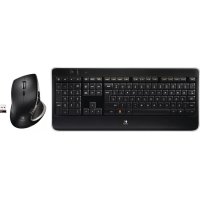



| Product Type | Wireless Gaming Keyboard |
| Brand | Logitech |
| Model | MX800 |
| Connection Technology | Logitech Unifying wireless |
| Power | Rechargeable NiMH batteries (1800 mAh minimum) |
| Charging | Via USB cable (5 hours full, 3 hours when off) |
| Battery Life | Approximately 10 days (backlight 100%: 15 hours) |
| Backlight | Adjustable (FN+F5/F6), automatic brightness sensor |
| Function Keys | Applications (FN+F1-F4), multimedia (FN+F9-F12), volume |
| Software | SetPoint (Windows) |
| Charge Indicator | Red when low |
| Number of Connectable Devices | Up to 6 with the same Unifying receiver |
| Material | Plastic |
| Maintenance and Cleaning | Clean with a soft dry cloth |
| Safety | Use only NiMH batteries with a minimum of 1800 mAh |
| Spare Parts and Repairability | Unifying receiver, USB cable, rechargeable batteries |
| General Information | Logitech Unifying technology: connect up to 6 compatible devices |
Frequently Asked Questions - MX800 LOGITECH
User questions about MX800 LOGITECH
0 question about this device. Answer the ones you know or ask your own.
Ask a new question about this device
Download the instructions for your Gaming Keyboard in PDF format for free! Find your manual MX800 - LOGITECH and take your electronic device back in hand. On this page are published all the documents necessary for the use of your device. MX800 by LOGITECH.
USER MANUAL MX800 LOGITECH
English. . . . . . . . . Setup 4 . . . . . . . . . . . . . Product information 5 Français . . . . . . . . Installation 4 . . . . . . Informations relatives au produit 10 Nederlands . . . . . . Installatie 4 . . . . . . . . . . . . . . . . . Productinformatie 15 Ελληνικά. . . . . . . . . . Ρύθμιση 4 . . . . . . . . . . . . . . . . . Πληροφορίες για το προϊόν 20 По-русски. . . . . . . . . Настройка 4. . . . . . . . . . . . . . . . Сведения о продукте 25 Magyar .....Üzembe helyezés 4.....Termékinformáció 30 Česká verze. . . . . . Instalace 4. . . . . . . . . . . Informace o produktech 35 Po polsku . . . . . . . . Konfiguracja 4 . . . . . . . . . Informacje o produkcie 40 Eesti . . . . . . . . . . . . . . . . . . . . . . . . . . . . . . . . . . . . . . . . . . . . Tooteteave 45 Latviski . . . . . . . . . . Uzstādīšana 4 . . . . . . . . . . . . . Informācija par ierīci 50 Lietuvių . . . . . . . . . Nustatymas 4 . . . . . . . . . . . . . Produkto informacija 55 Hrvatski . . . . . . . . . Postavljanje 4 . . . . . . . . . . Informacije o proizvodu 60 Srpski . . . . . . . . . Podešavanje 4 . . . . . . . . . Informacije o proizvodu 65 Slovenščina . . . . . .Nastavitev 4 . . . . . . . . . . . .Informacije o izdelku 70 Slovenčina. . . . . . . Nastavenie 4 . . . . . . . . . . Informácie o výrobku 75 Română . . . . . . . Instalare 4 . . . . . . . . . Informatii despre produs 80 Български. . . . . . . . . Настройка 4. . . . . . . . . . . . . . . Информация за продукта 85 Українська . . . . . . . . Настроювання 4. . . . . . . . . . . . . . . . . . . . . . . . . . . . . . . . . . . . . . . . . . . . . . . . . . . . . . . . . . . . . . . . . . . . . . . . Türkçe . . . . . . . . Kurulum 4 . . . . . . . . . . . . . . . . . . Ürün bilgisi 95 101 معلومات حول المنتج 4 الإعداد العربية www.logitech.com/support 107
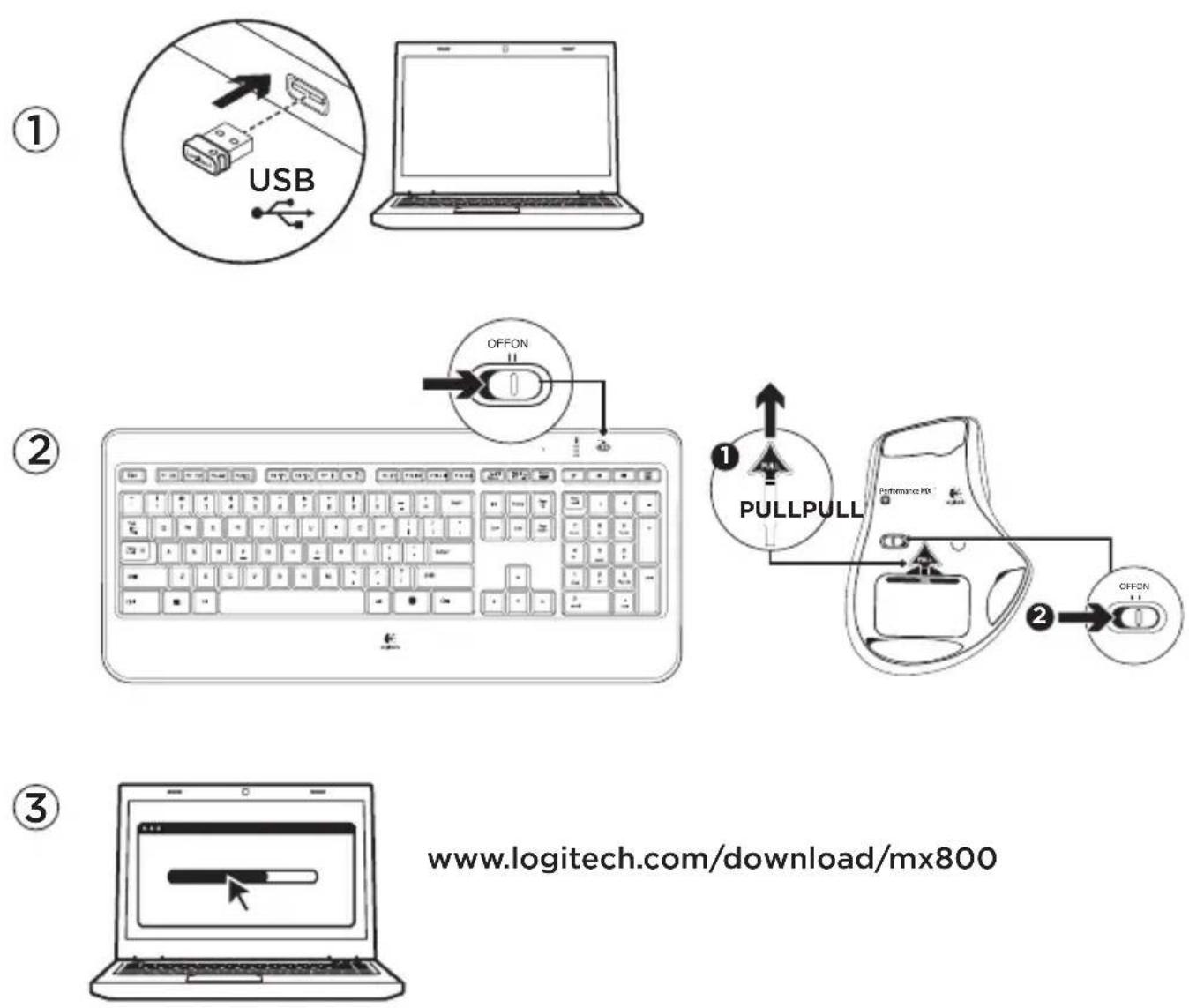
www.logitech.com/download/mx800
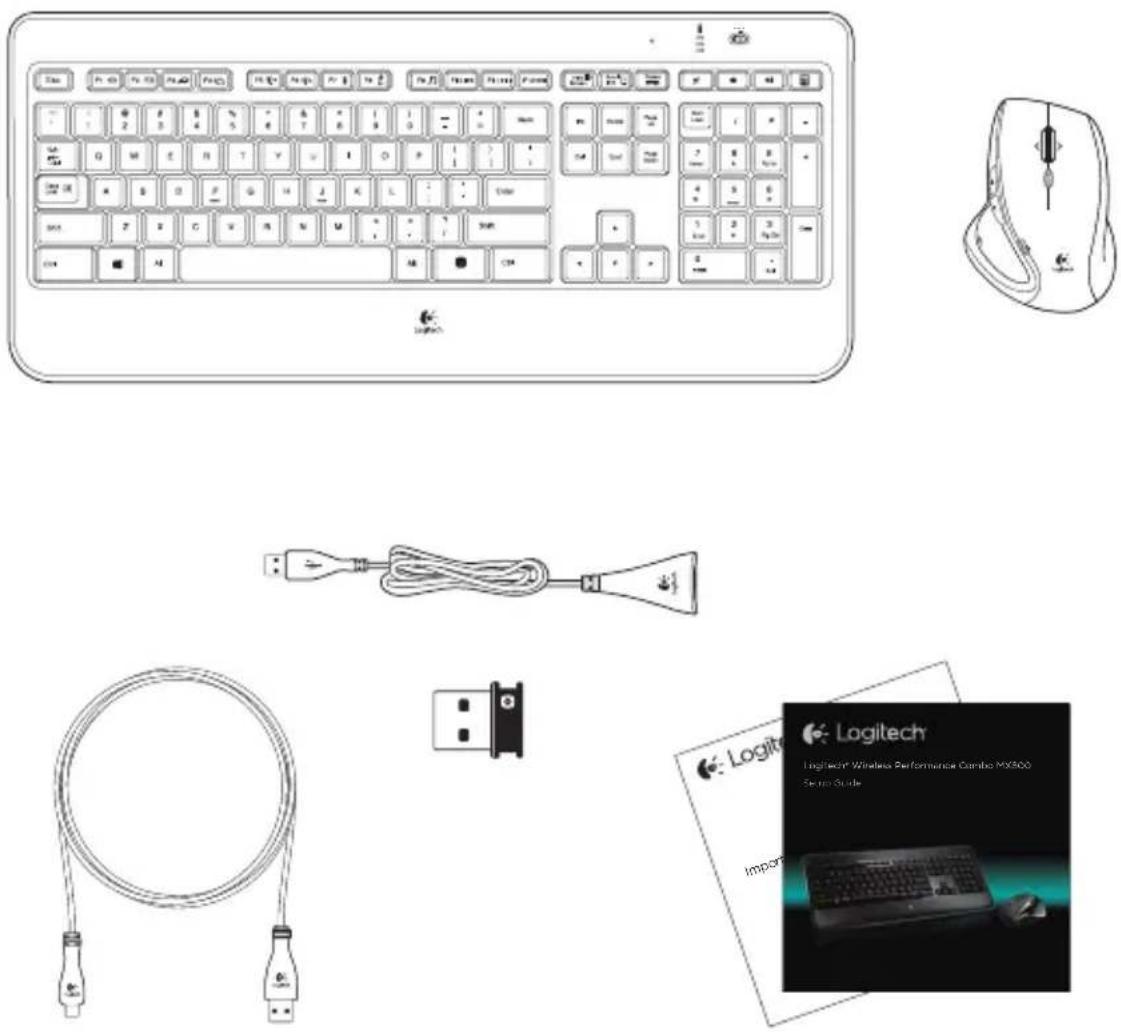
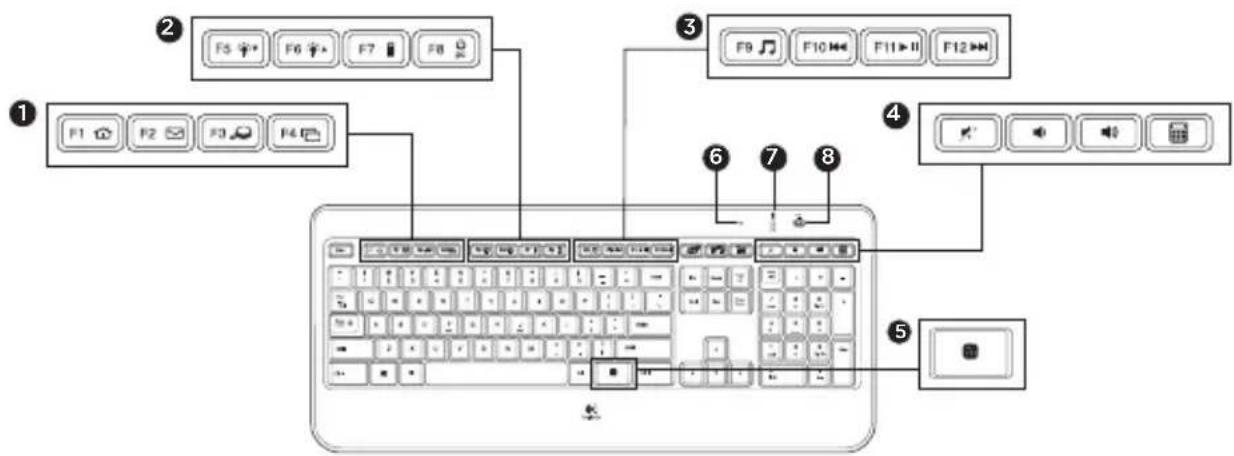
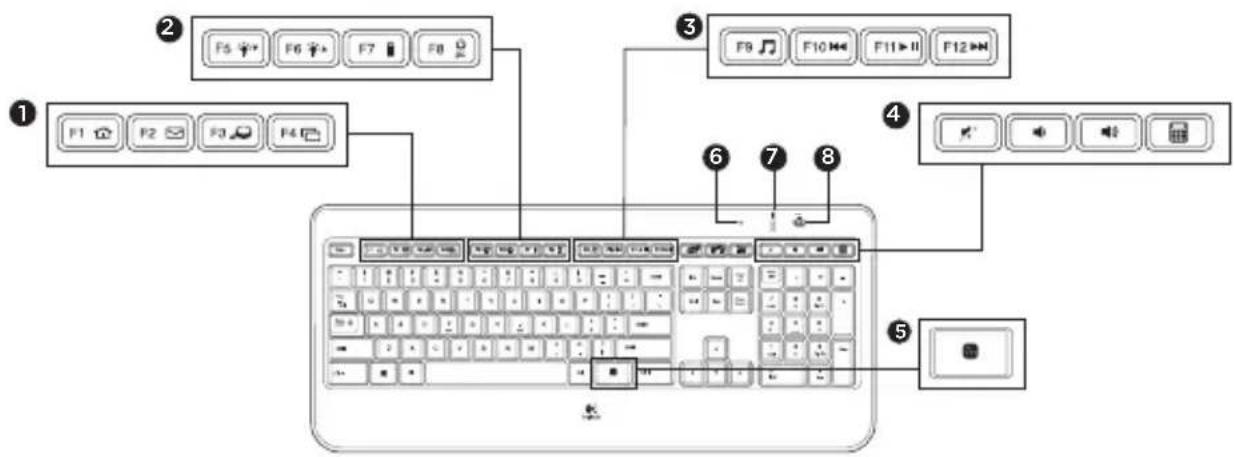
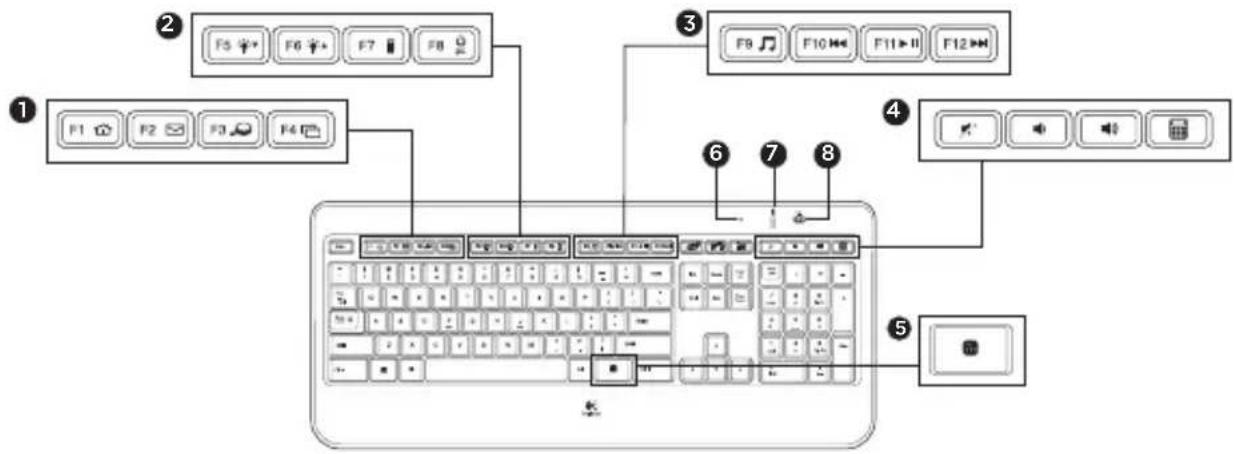
Keyboard features
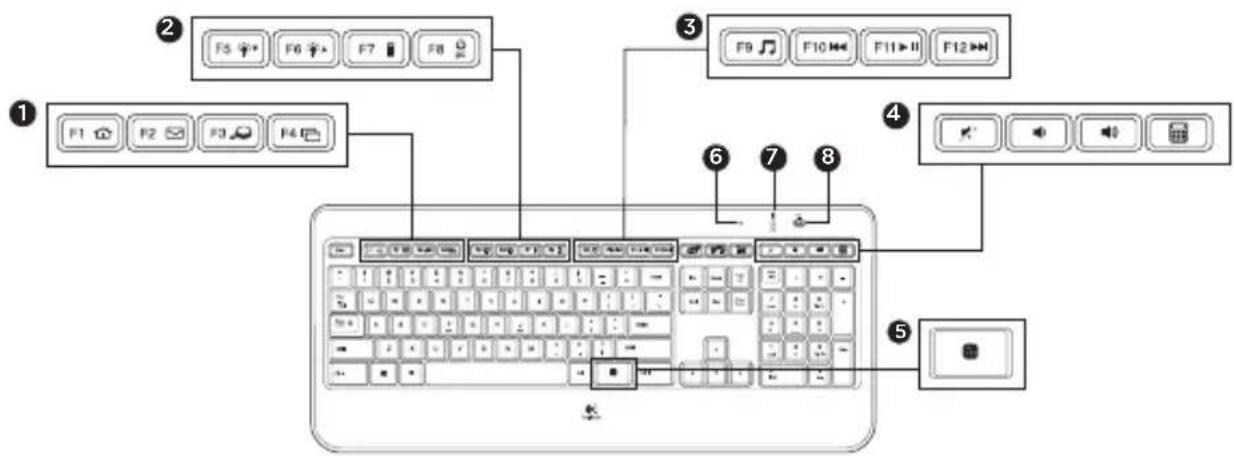
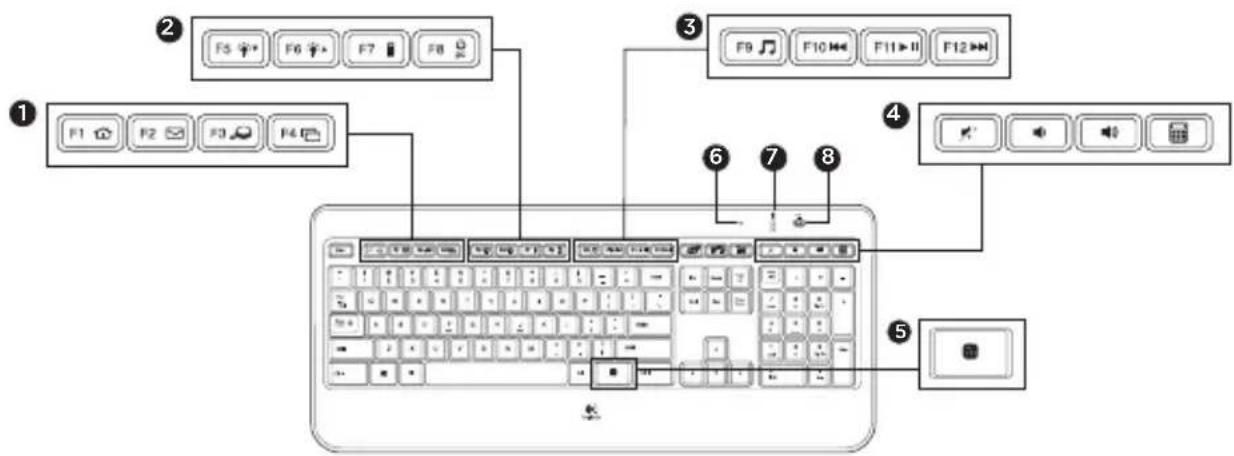
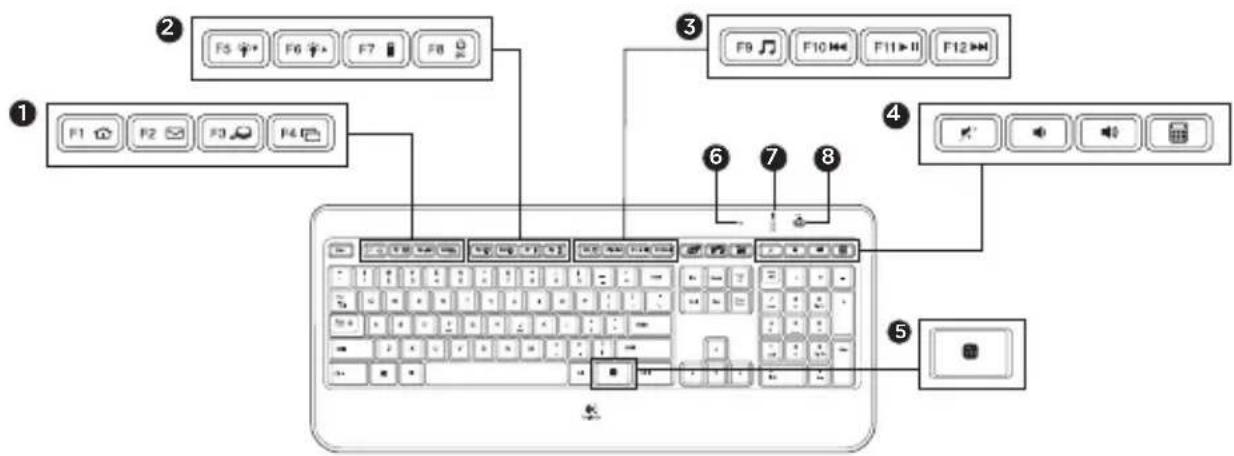
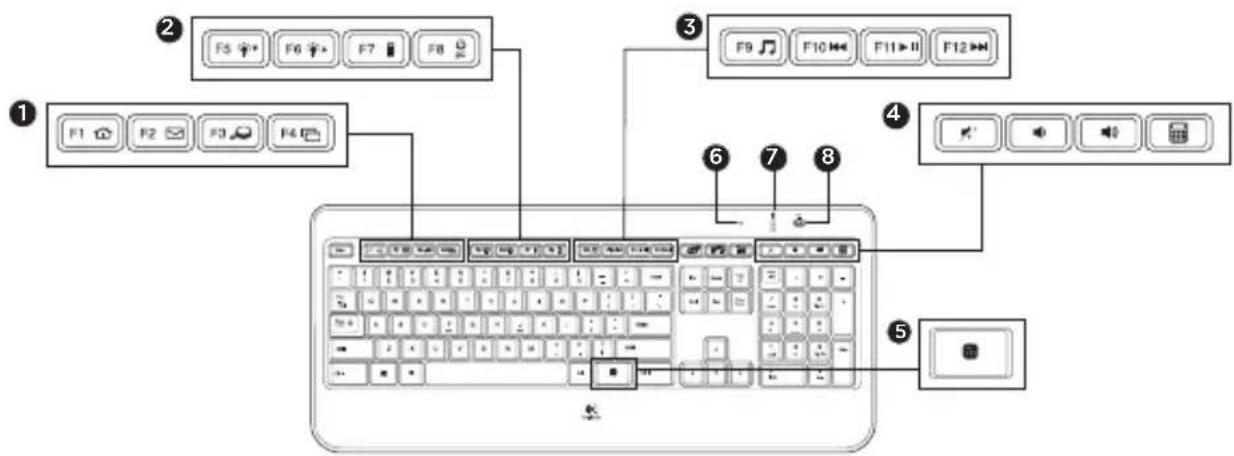
1. Application zone
FN + F1 Launch Internet browser FN + F2 Launch e-mail application FN + F3 Launch Windows Search* FN + F4 Flip +
2. Convenience zone
FN + F5 Backlight down by 25% FN + F6 Backlight up by 25% FN + F7 Battery check FN + F8 Sleep mode
3. Multimedia navigation zone
FN + F9 Launch media FN + F10 Previous track FN + F11 Play/Pause FN + F12 Next track
4. Multimedia volume zone
Mute Volume down Volume up Calculator
5. FN key
- Automatic light sensor (ALS)
- Battery status indicator
- Keyboard power switch
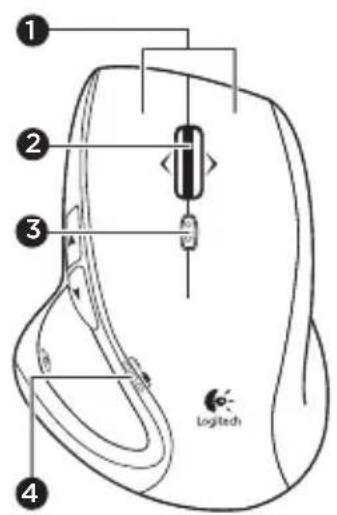
Mouse features
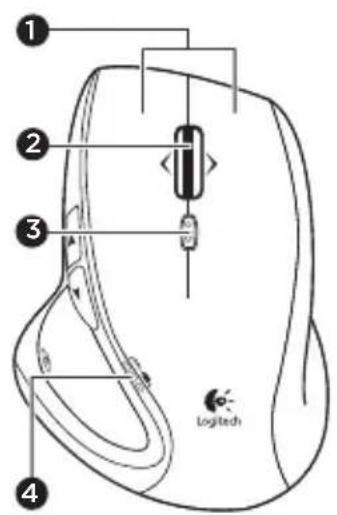
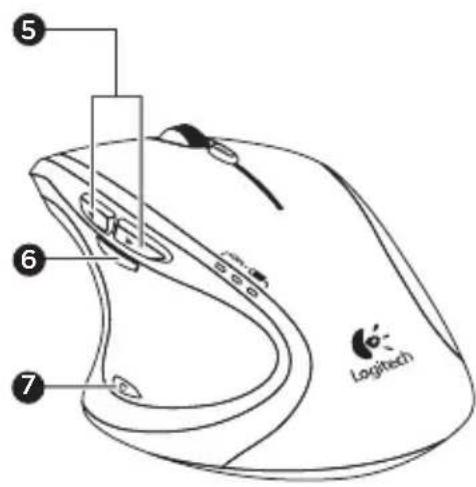
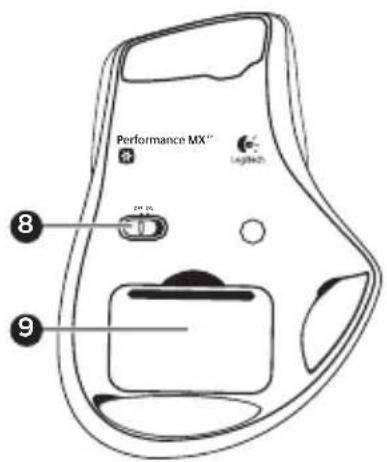
- Left and right buttons
- Scroll wheel
- Press wheel down for middle click
- Press wheel left to scroll left
- Press wheel right to scroll right
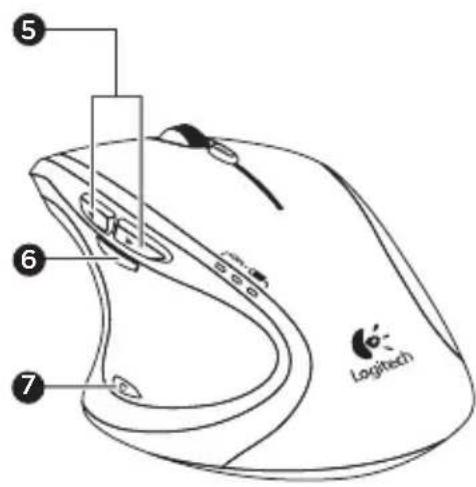
- Scroll wheel mode shift button
- Press to shift between hyper-fast (free spinning) and precision (click-to-click) scrolling
- Battery indicator
- Back and forward button
- Zoom button
- Application button
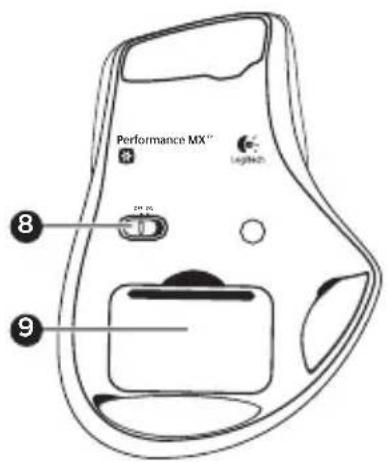
- On/off switch
- Battery door release
6 English
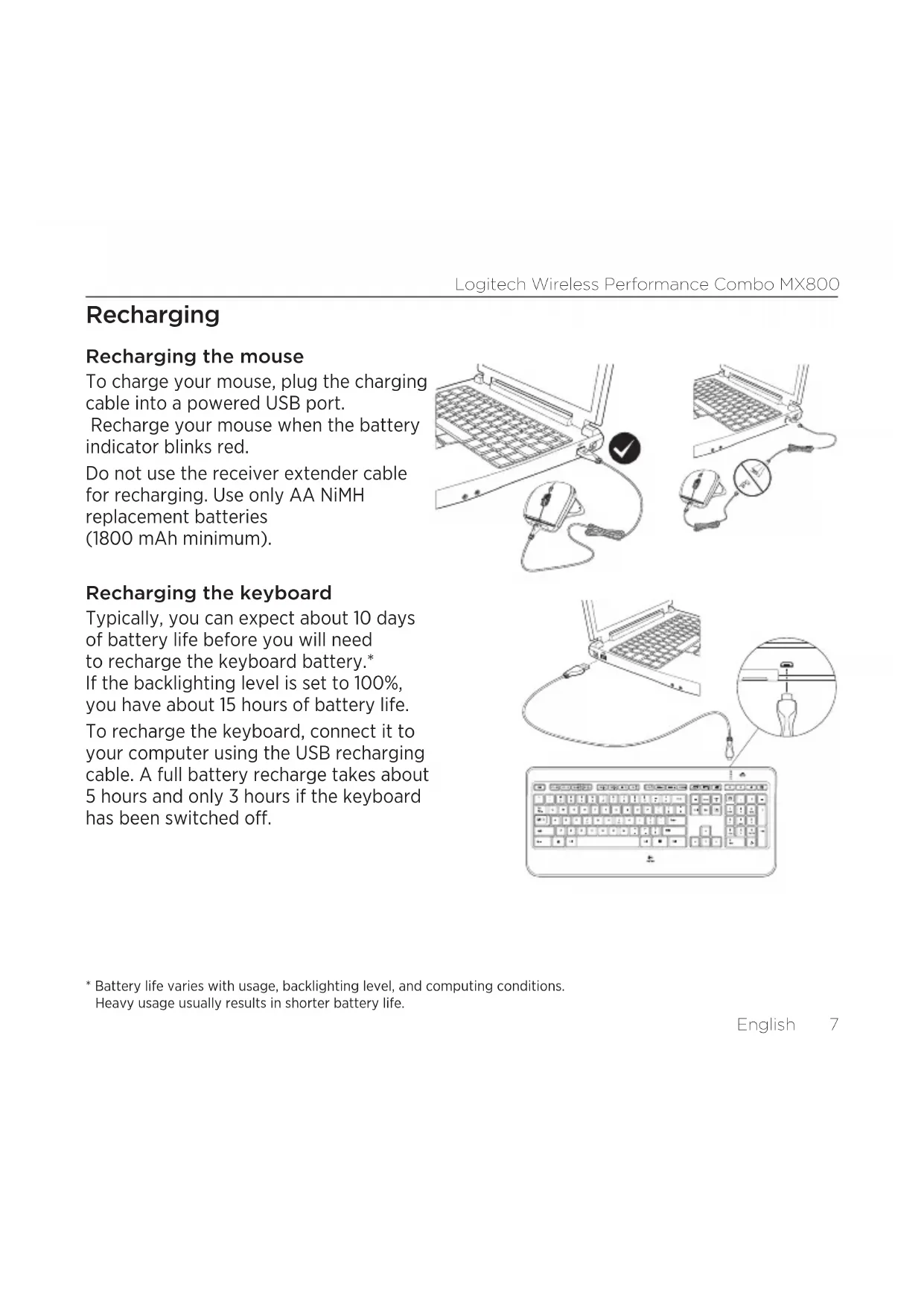
Recharging
Recharging the mouse
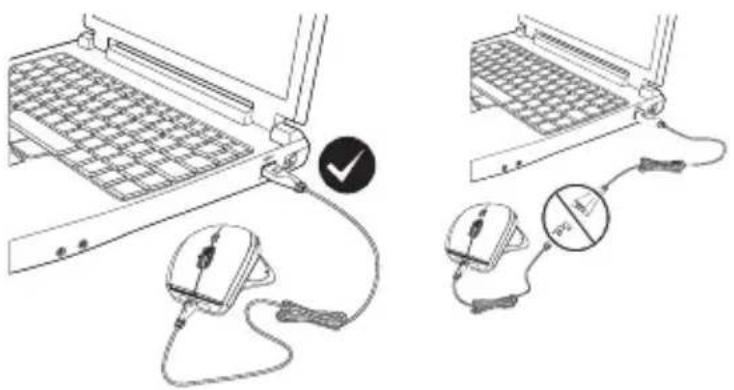
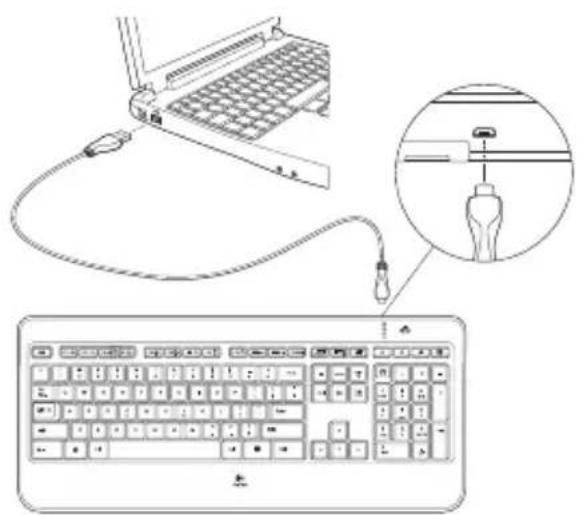
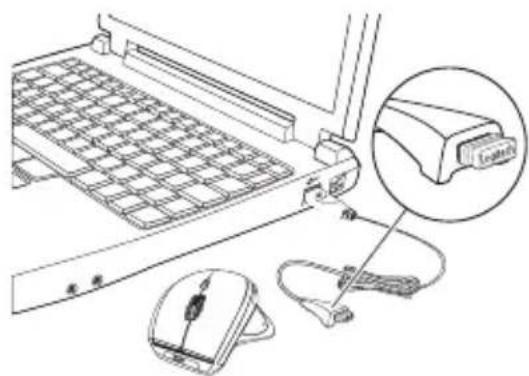
To charge your mouse, plug the charging cable into a powered USB port.
Recharge your mouse when the battery indicator blinks red.
Do not use the receiver extender cable for recharging. Use only AA NiMH replacement batteries (1800 mAh minimum).
Recharging the keyboard
Typically, you can expect about 10 days of battery life before you will need to recharge the keyboard battery.* If the backlighting level is set to 100%, you have about 15 hours of battery life.
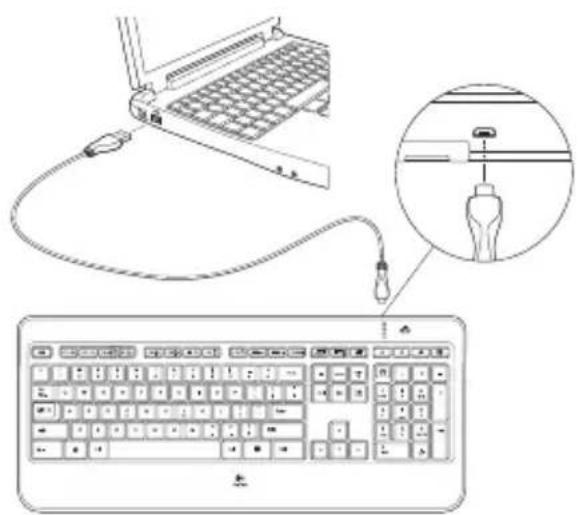
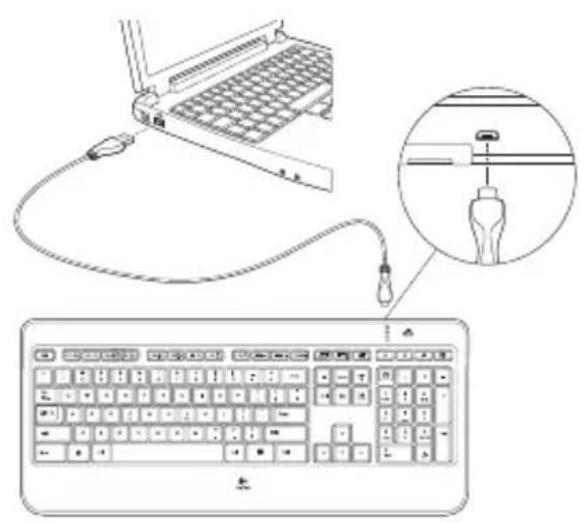
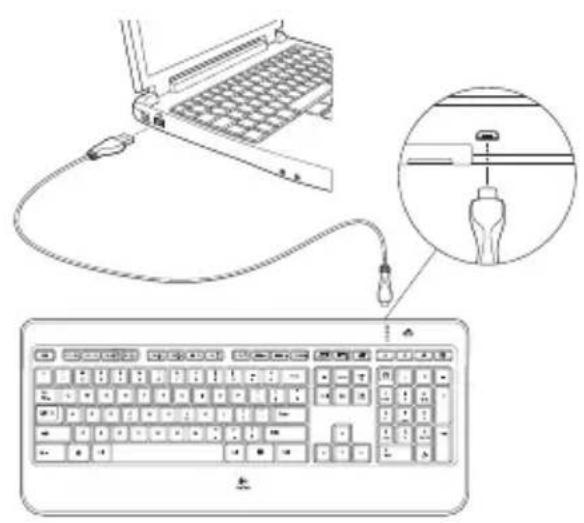
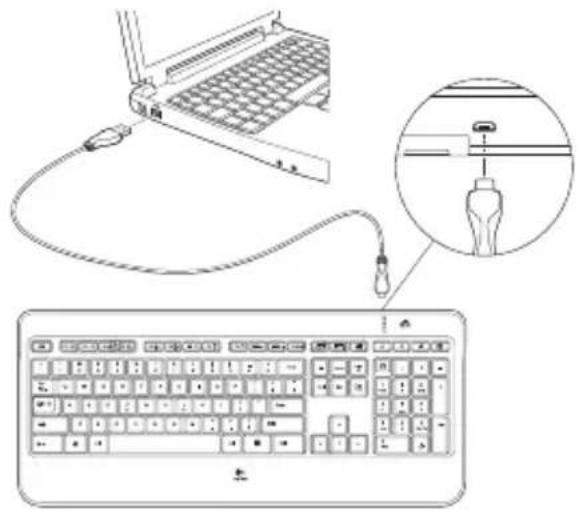
To recharge the keyboard, connect it to your computer using the USB recharging cable. A full battery recharge takes about 5 hours and only 3 hours if the keyboard has been switched off.
Unifying
Logitech® Unifying technology connects up to six compatible Logitech mice and keyboards to the same receiver, using only one USB port for multiple devices.
To learn more, visit:
www.logitech.com/support/unifying
What do you think?
Please take a minute to tell us.
Thank you for purchasing our product.
www.logitech.com/ithink
Troubleshooting
Mouse
No pointer movement?
- Slide the mouse's Off/On switch to Off and then On. The mouse's battery status indicator LEDs should light up.
- Confirm that the mouse is charged and battery polarity is correct. The battery status indicator is red when the battery is low.
- Try plugging the Unifying receiver into another USB port.
- Try reconnecting the mouse and Unifying receiver using the Logitech Unifying software (see the Unifying section).
Erratic pointer movement or missed button clicks?
- Remove metallic objects between the mouse and Unifying receiver.
- If the Unifying receiver is plugged into a USB hub, try plugging it directly into your computer.
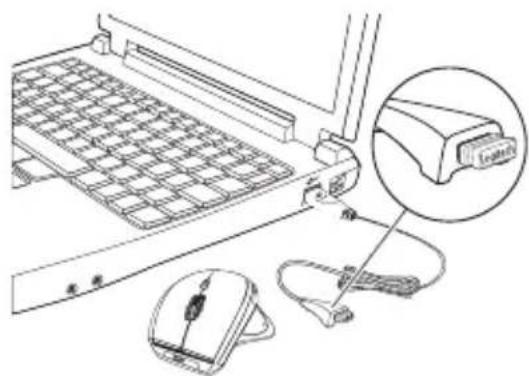
- Move the Unifying receiver closer to the mouse by using the included receiver extender cable.
Keyboard
Keyboard not working?
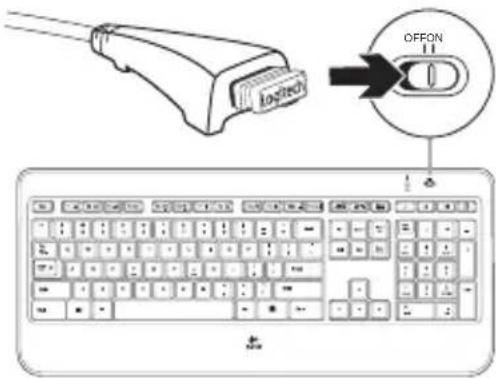
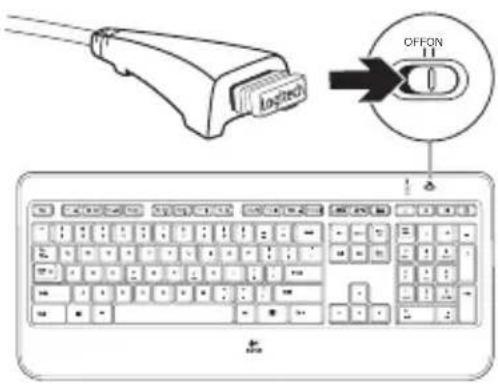
- Slide the keyboard's Off/On switch to Off and then On. The keyboard's battery status indicator LEDs should light up.
- Confirm that the keyboard is charged. The battery status indicator is red when the battery is low.
- Try plugging the Unifying receiver into another USB port.
- Move the Unifying receiver closer to the keyboard by using the included receiver extender cable.
- Try reconnecting the keyboard and Unifying receiver using the Logitech Unifying software (see the Unifying section).
- Restart the computer.
FN + F11 Play/Pause
Keyboard charging
www.logitech.com/support/unifying
What do you think?
www.logitech.com/ithink
Troubleshooting
Mouse
Pointer not moving?
Keyboard functions
1. Application zone
FN + F1 Start internet browser FN + F2 Start email application FN + F3 Start Windows Search* FN + F4 Switch +
www.logitech.com/support/unifying
What do you think?
www.logitech.com/ithink
Troubleshooting
Mouse
1. Application zone
www.logitech.com/support/unifying
www.logitech.com/ithink
Charging the keyboard
www.logitech.com/support/unifying
www.logitech.com/ithink
www.logitech.com/support/unifying
What do you think?
www.logitech.com/ithink
Troubleshooting
Mouse
1. Application area
Unifying
www.logitech.com/support/unifying
What is your opinion?
www.logitech.com/ithink
Troubleshooting
Mouse
Is the pointer not moving?
Keyboard
1. Application zone
www.logitech.com/support/unifying
What do you think?
www.logitech.com/ithink
1. Application zone
FN + F1 Launch Internet browser
Unifying
www.logitech.com/support/unifying
www.logitech.com/ithink
Troubleshooting
Mouse
Cursor not moving?
Keyboard description
Charging the keyboard
www.logitech.com/support/unifying.
www.logitech.com/ithink
Troubleshooting
Mouse
Cursor not moving
1. Application zone
www.logitech.com/support/unifying
What do you think?
www.logitech.com/ithink
Troubleshooting
Mouse
Cursor not moving?
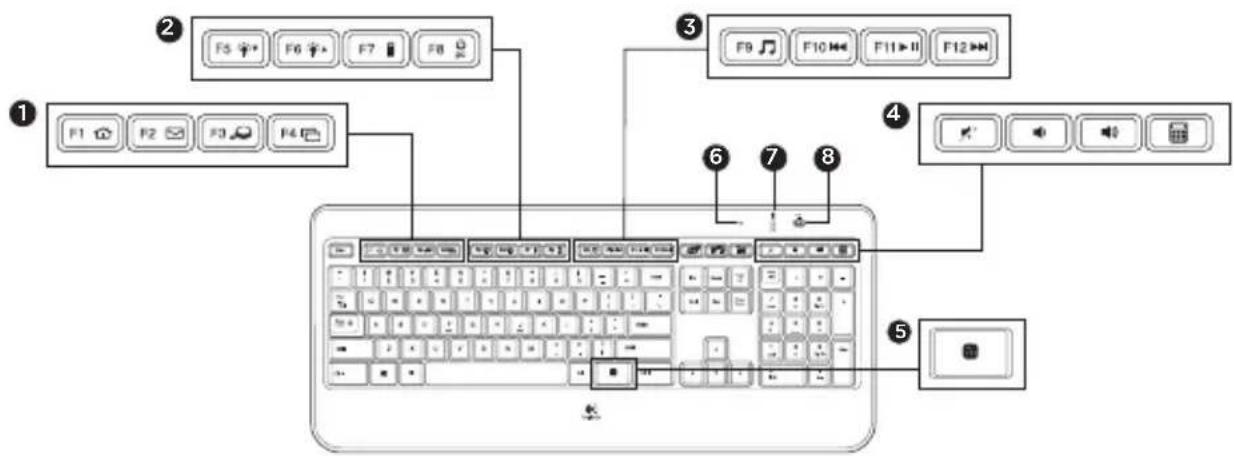
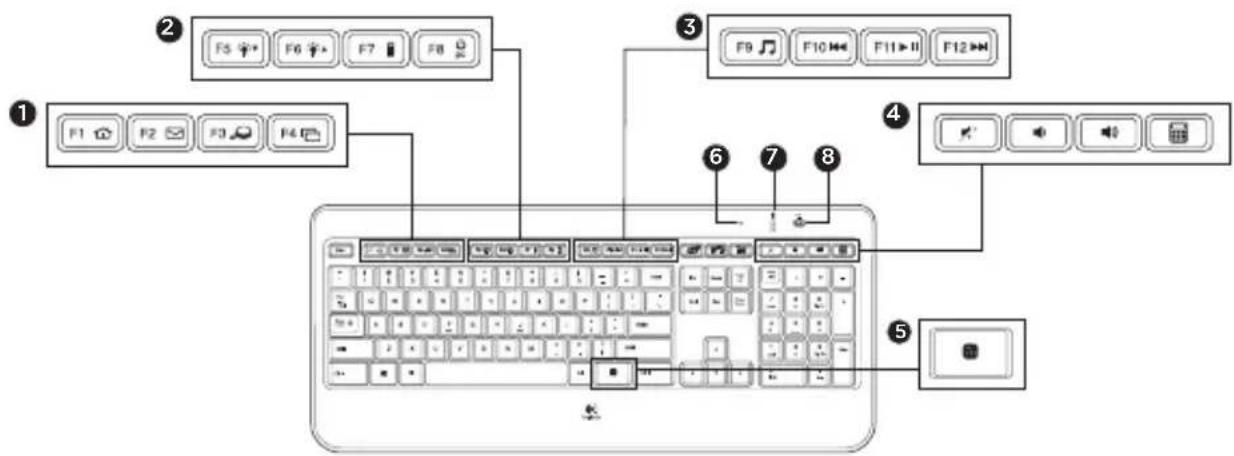
Keyboard features
1. Application zone
FN + F1 Launch internet browser
FN + F2 Launch email application
FN + F3 Launch Windows Search option*
FN + F4 Rotate +
2. Convenience zone
FN + F5 Reduce backlight by 25%
* Battery life varies with usage, backlight level, and computer conditions. Heavy usage usually results in shorter battery life.
Unifying
Logitech® Unifying technology connects up to six compatible Logitech mice or keyboards to the same receiver using just one USB port for multiple devices.
www.logitech.com/support/unifying
What do you think?
Take a minute and tell us.
www.logitech.com/ithink
Keyboard
Keyboard not working?
- Move the keyboard off/on switch to Off, then to On. The keyboard battery status LED indicators light up.
- Confirm that the keyboard is charging. The battery status indicator is red when the battery is low.
- Try plugging the Unifying receiver into a different USB port.
- Move the Unifying receiver closer to the keyboard using the included receiver extension cable.
- Try reconnecting the keyboard and Unifying receiver using Logitech Unifying software (see the Unifying section).
- Restart your computer.
Keyboard functions
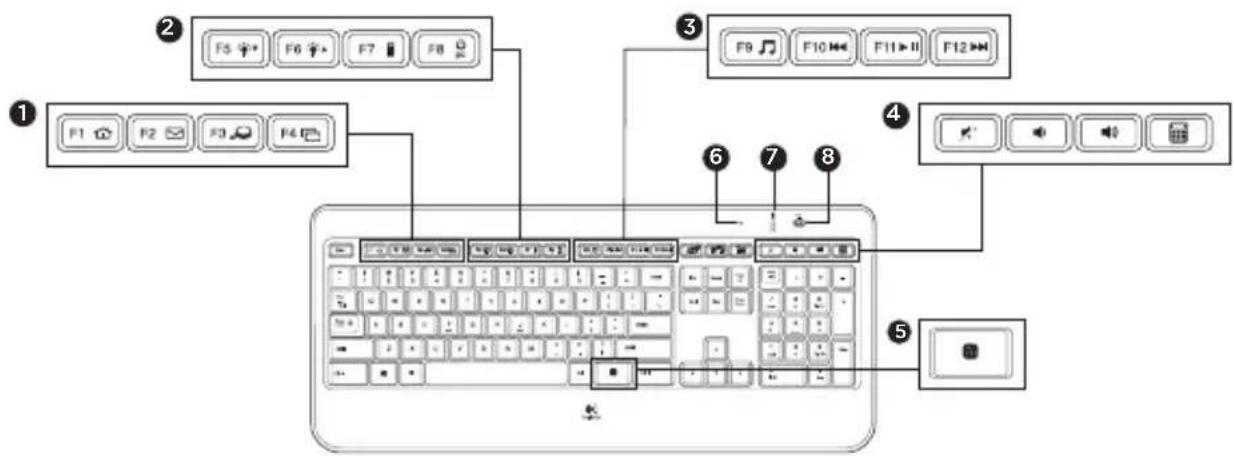
1. Application zone
FN + F1 Launch Internet browser FN + F2 Launch email application FN + F3 Launch Windows search* FN + F4 Replace †
2. Comfort zone
FN + F5 Decrease backlighting by 25% FN + F6 Increase backlighting by 25%
FN + F7 Check battery FN + F8 Passive mode
3. Multimedia navigation zone
FN + F9 Launch media FN + F10 Previous track FN + F11 Play/pause FN + F12 Next track
- Multimedia volume zone Mute sound Mute sound Increase sound Calculator
5. FN key
- Automatic light sensor (ALS)
- Battery status indicator
- Keyboard power switch
Mouse functions
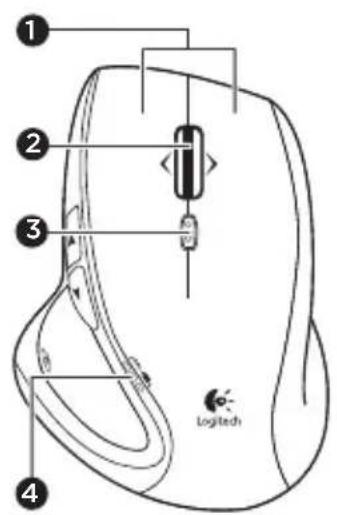
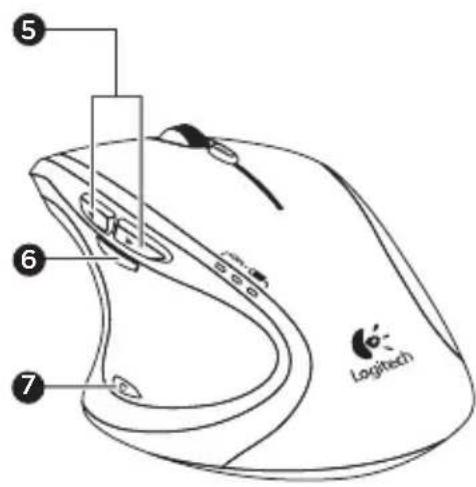
1. Left and right buttons
2. Scroll wheel
• Press the wheel for middle click • Tilt the wheel left to scroll left • Tilt the wheel right to scroll right
Unifying
Logitech® Unifying technology connects up to six compatible Logitech mice and keyboards to the same receiver, using only one USB port for multiple devices.
www.logitech.com/support/unifying
What are your impressions?
www.logitech.com/ithink
Troubleshooting
Mouse
Pointer not moving?
- Set the mouse power switch first to "Off" and then to "On". The battery status LED indicators on the mouse should turn on.
- Check that the mouse is charged and that the batteries are correctly installed. The battery status indicator is red if the battery is low.
- Try plugging the Unifying receiver into a different USB port.
- Try to re-establish the connection between the mouse and the Unifying receiver using the Logitech Unifying software (see the "Unifying" section).
Keyboard functions
1. Left and right buttons
2. Scroll wheel
• To click the middle button, press the wheel down • To scroll left, press the wheel to the left • To scroll right, press the wheel to the right
Charging the keyboard
Unifying technology
www.logitech.com/support/unifying
www.logitech.com/ithink
Troubleshooting
Mouse
Is the cursor not moving?
Is the cursor moving incorrectly or not responding to clicks?
Keyboard functions
1. Application zone
Unifying
www.logitech.com/support/unifying
What do you think?
www.logitech.com/ithink
Troubleshooting
Mouse
Is the pointer moving erratically or is button clicking unreliable?
Keyboard features
1. Application zone
FN + F1 Launch Internet browser FN + F2 Launch email application FN + F3 Launch Windows Search* FN + F4 Browse †
2. Function zone
www.logitech.com/support/unifying
What do you think?
www.logitech.com/ithink
Troubleshooting
The mouse
www.logitech.com/ithink
Keyboard features
Unifying technology
www.logitech.com/support/unifying
Your thoughts
www.logitech.com/ithink
Keyboard features
1. Application area
www.logitech.com/support/unifying
What do you think?
www.logitech.com/ithink
Troubleshooting
Mouse
Mouse features
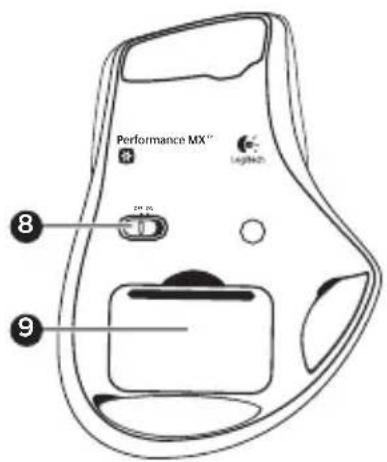
www.logitech.com/support/unifying
What do you think?
www.logitech.com/ithink
Recharging
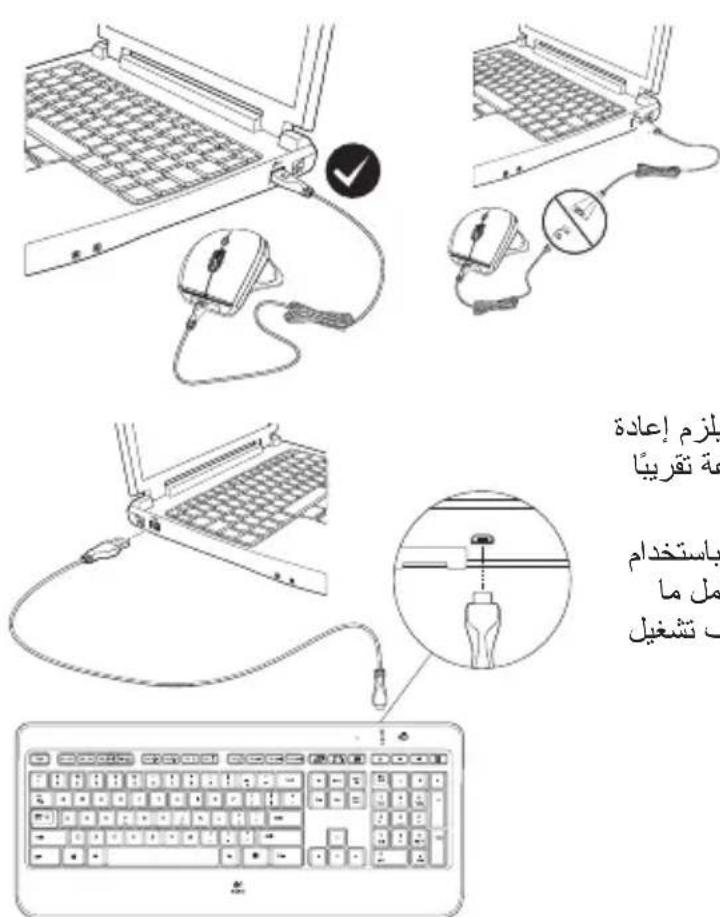
Recharging the mouse
Logitech Unifying (Unifying)
Logitech Unifying (Unifying)
- Computer



Z855
N231

M/N:C-U0007
Rating: 5V = 100mA
FCC ID: JNZCU0007
IC: 4418A-CU0007
MADE IN CHINA
www.logitech.com/support/mx800

Belgium/Belgium Dutch: +32-(0)2 200 64 44; French: +32-(0)2 200 64 40
Czech Republic +420 239 000 335
European, English: +41-(0)22 761 40 25
Middle East, & Fax: +41-(0)21 863 54 02
African Hq.
Lausanne,
Switzerland
Eastern Europe English: 41-(0)22 761 40 25
Argentina +0800 555 3284
Brazil +0800 891 4173
Canada +1-866-934-5644
Chile +1230 020 5484
Colombia 01-800-913-6668
Mexico 01.800.800.4500
United States +1 646-454-3200

Logitech®
www.logitech.com
© 2014 Logitech. All rights reserved. Logitech, the Logitech logo, and other Logitech marks are owned by Logitech and may be registered. All other trademarks are the property of their respective owners. Logitech assumes no responsibility for any errors that may appear in this manual. Information contained herein is subject to change without notice.
620-005840.002
- KEYBOARD FEATURES
- APPLICATION ZONE
- CONVENIENCE ZONE
- MULTIMEDIA NAVIGATION ZONE
- MULTIMEDIA VOLUME ZONE
- FN KEY
- MOUSE FEATURES
- RECHARGING
- RECHARGING THE MOUSE
- RECHARGING THE KEYBOARD
- UNIFYING
- WHAT DO YOU THINK
- TROUBLESHOOTING
- MOUSE
- NO POINTER MOVEMENT
- ERRATIC POINTER MOVEMENT OR MISSED BUTTON CLICKS
- KEYBOARD
- KEYBOARD NOT WORKING
- KEYBOARD CHARGING
- POINTER NOT MOVING
- KEYBOARD FUNCTIONS
- CHARGING THE KEYBOARD
- APPLICATION AREA
- WHAT IS YOUR OPINION
- IS THE POINTER NOT MOVING
- CURSOR NOT MOVING
- KEYBOARD DESCRIPTION
- COMFORT ZONE
- MOUSE FUNCTIONS
- LEFT AND RIGHT BUTTONS
- SCROLL WHEEL
- WHAT ARE YOUR IMPRESSIONS
- UNIFYING TECHNOLOGY
- IS THE CURSOR NOT MOVING
- IS THE CURSOR MOVING INCORRECTLY OR NOT RESPONDING TO CLICKS
- IS THE POINTER MOVING ERRATICALLY OR IS BUTTON CLICKING UNRELIABLE
- FUNCTION ZONE
- THE MOUSE
- YOUR THOUGHTS
- WWW.LOGITECH.COM/SUPPORT/MX
- LOGITECH®
Brand : LOGITECH
Model : MX800
Category : Gaming Keyboard