
BLUETOOTH COMFORT LASER MOUSE - Bluetooth Mouse TARGUS - Free user manual and instructions
Find the device manual for free BLUETOOTH COMFORT LASER MOUSE TARGUS in PDF.



| Brand | TARGUS |
| Model | BLUETOOTH COMFORT LASER MOUSE |
| Product Type | Bluetooth Laser Mouse |
| Technology | Bluetooth |
| Maximum Range | 10 meters |
| Power Supply | 2 AA batteries (included) |
| Charge Indicator | 3 LEDs (full, half, low) |
| Main Functions | Plug & Play, programmable scroll wheel, power saving mode |
| Compatible Operating Systems | Windows 2000/XP/Vista/7, Mac OS X 10.4 or higher |
| Dimensions (estimated) | Approximately 10 x 6 x 3 cm |
| Weight (estimated with batteries) | Approximately 100 g |
| Box Contents | Mouse, 2 AA batteries, user manual |
| Care and Cleaning | Clean with a soft dry cloth; do not use liquids |
| Safety | Keep batteries out of reach of children; do not expose to heat or moisture |
| Repairability | Spare parts: AA batteries; repair not intended by manufacturer |
| General Information | Comfortable Bluetooth laser mouse, requires a Bluetooth-compatible computer |
Frequently Asked Questions - BLUETOOTH COMFORT LASER MOUSE TARGUS
User questions about BLUETOOTH COMFORT LASER MOUSE TARGUS
0 question about this device. Answer the ones you know or ask your own.
Ask a new question about this device
Download the instructions for your Bluetooth Mouse in PDF format for free! Find your manual BLUETOOTH COMFORT LASER MOUSE - TARGUS and take your electronic device back in hand. On this page are published all the documents necessary for the use of your device. BLUETOOTH COMFORT LASER MOUSE by TARGUS.
USER MANUAL BLUETOOTH COMFORT LASER MOUSE TARGUS
©2009 Manufactured or imported by Targus Europe Ltd., Hounslow, Middlesex, TW4 5DZ, UK. All rights reserved. Targus is either a registered trademark or trademark of Targus Group International, Inc. in the United States and/or other countries. Features and specifications are subject to change without notice. All trademarks and registered trademarks are the property of their respective owners.

N2953


tooth
QD ID:B012764
User Guide
Table of Contents
GB - English
Targus Bluetooth Comfort Laser Mouse 6
BG-BbIrpckn (e3nk)
Be3xuHa bluetooth Mua Ka Comfort Ha Targus 16
CZ - Ceştna
Komfortni laserová mys s Bluetooth Targus 26
DE-Deutsch
Targus Bluetooth Komfort-Lasermaus 36
DK - Dansk
Targus TradlOs Komfort Lasermus 46
EE-Eesti
Targus Bluetooth mugav laserhiir 56
ES - Espanol
Raton Laser Confort Bluetooth de Targus 66
FI - Suomi
Targus Bluetooth Comfort laserhiiri 76
FR - Français
Souris Laser Bluetooth comport de Targus 86
GR-EλnviKaIλnpoφopεs
BoIko Tovtiki Ieizep Bluetooth ng Targus 96
HR - Hrvatski
Targus Bluetooth komforni laserski miš 106
HU - Magyar
Thank you for your purchase of the Targus Bluetooth Comfort Laser Mouse. This mouse uses Bluetooth technology which provides a seamless connection up to 33 feet (10 m) away. This is a plug and play device so no additional software is required. The advance scroll wheel feature program can be downloaded from the Targus website.
Contents
Targus Bluetooth Comfort Laser Mouse
- 2 x AA Batteries
- User Guide
System Requirements
Hardware
- Bluetooth-enabled computer
Operating System
Microsoft Windows® 2000
- Microsoft Windows® XP
- Microsoft Windows Vista®
- Microsoft Windows® 7
Mac OS X 10.4 or later
Installing the Batteries
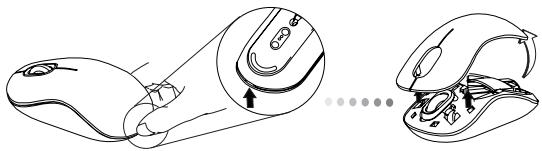
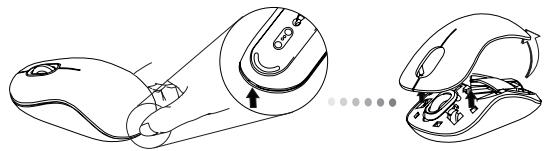
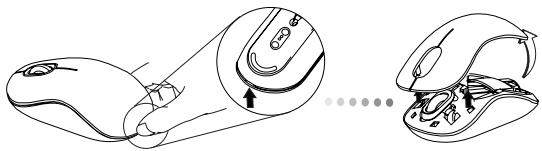
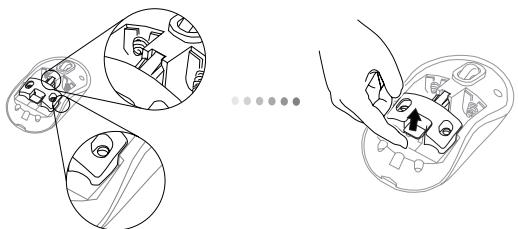
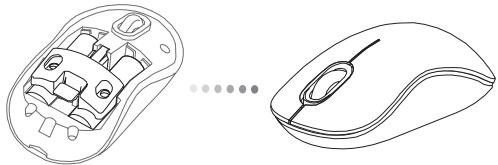
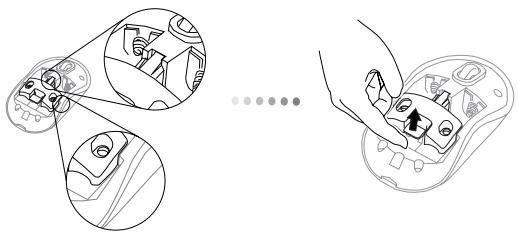
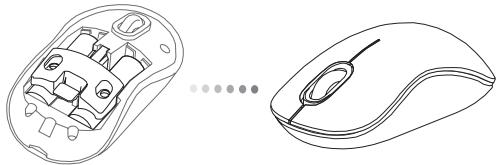
- Remove the battery cover from the top of the mouse by using the notch on the back. Carefully lift the cover up as shown in the diagram.
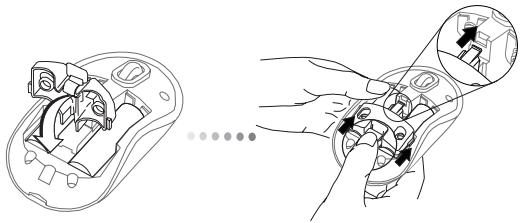
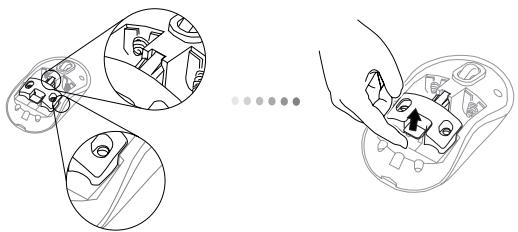
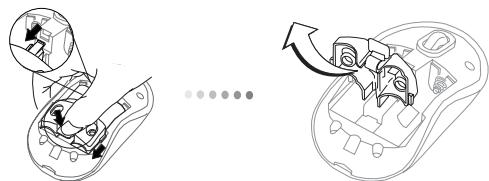
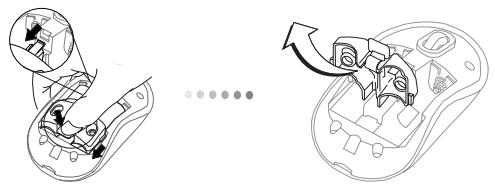
- Remove the battery safety clip by squeezing the center of the clip and sliding it back, towards the rear of the mouse. Lift up and rotate the clip out of the way.
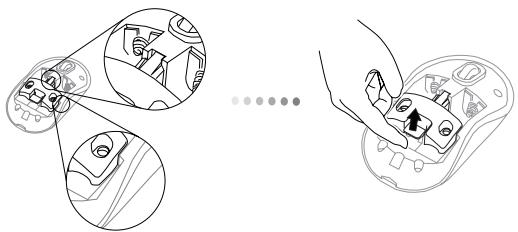

NOTE: THE BATTERY SAFETY CLIP WILL NEED TO BE IN THE SECURE, LOCKED POSITION BEFORE THE BATTERY COVER CAN BE PUT BACK IN PLACE.
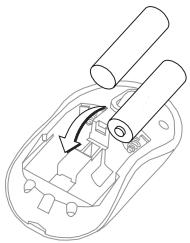
- Slide and lift to remove the battery holder as shown.
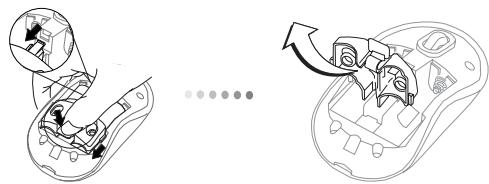
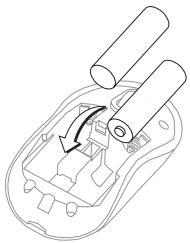
- Insert the two AA batteries, making sure that the positive (+) and negative (-) ends of each battery match the polarity indicators inside the battery compartment.
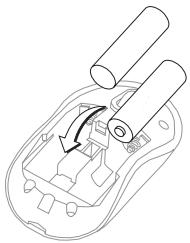
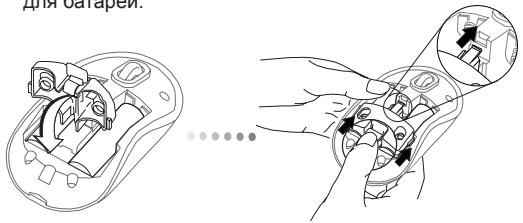
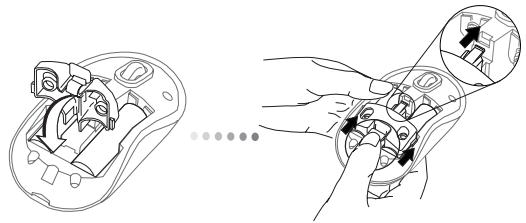
- Replace the battery safety clip and by sliding it forward until it clicks into place and then replace the battery cover.
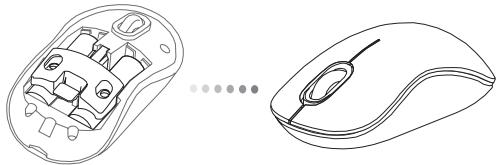
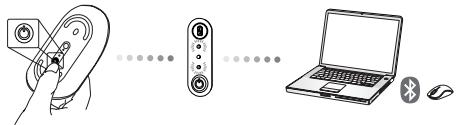
- Turn on the mouse by pressing the power On/Off button on the bottom of the mouse. Hold for 3 seconds and then release.
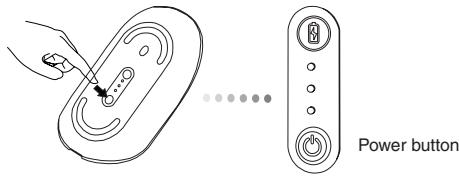
Power On:
Press and hold the power button for 3 seconds and then release.
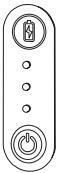
The battery life indicator will briefly light up showing the current power level of the batteries.
Power Off:
Press and hold the power button for 3 seconds and then release.
The battery life indicator will briefly light up and then fade out.
Battery Check:
After the mouse is turned on, quickly press and release the power button. The battery life indicator will light up showing the current power level of the batteries.
Initial Mouse Setup
Enable Discovery mode:
The mouse will go into pairing mode automatically after it is powered on. The 1st and 3rd LEDs will flash alternately for 60 seconds; this indicates that the pairing sequence is in operation. Once the connection is established, the 1st and 3rd LED lights will light up steadily for 3 seconds.
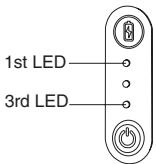
If the connection is not established by the end of 60 seconds, the mouse will go into sleep mode. Click on any mouse button to exit from sleep mode. The pairing sequence will re-start automatically.
Power Saving mode:
After an extended period of time, if the mouse is not used, it will automatically enter power saving mode to conserve power and increase battery life. Click on any mouse button to resume the normal operation. The mouse may take a few seconds to reconnect with your computer.
Battery Life Indicator
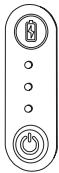
| 3 LEDs lit | Full power |
| 2 LEDs lit | Half power |
| 1 LED lit | Low power |

NOTE: WHEN THE FIRST LIGHT IS BLINKING, PLEASE REPLACE THE BATTERIES
Power Management
- To extend the life of your battery, turn off the mouse while travelling or when you're not using it.
Initial Configuration
Before you can begin using your Bluetooth® mouse, you will first need to perform some initial setup steps.

NOTE: PLEASE USE THE LATEST BLUETOOTH DEVICE DRIVER. INSTRUCTION SCREENS MIGHT VARY DEPENDING ON THE VERSION OF YOUR BLUETOOTH DEVICE DRIVER.
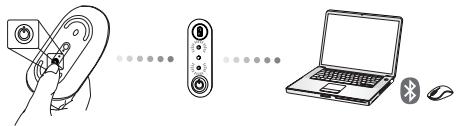
Connecting with Bluetooth Software: WIDCOMM or Microsoft (Windows XP & Windows Vista)
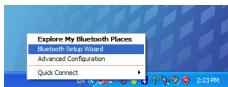
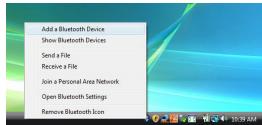
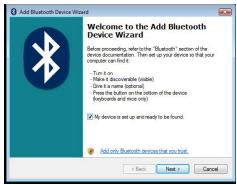
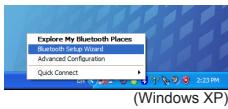
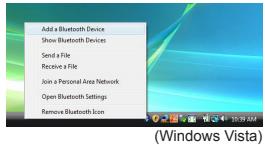
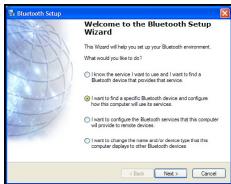
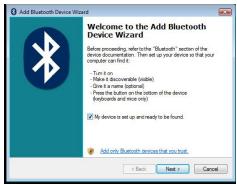
- Go to the Bluetooth Places icon located on your desktop or in the system tray and double click, then click Add a Bluetooth Device.
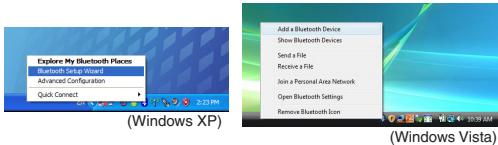
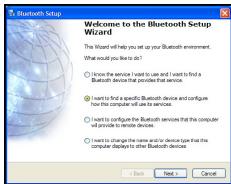
- The Bluetooth Wizard screen will prompt. Please follow the onscreen instructions.
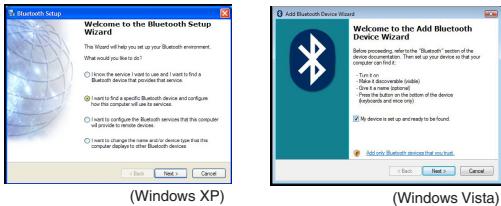
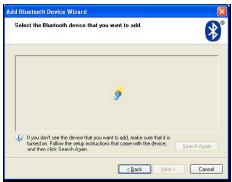
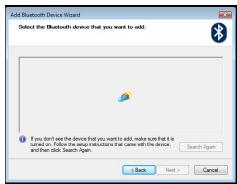
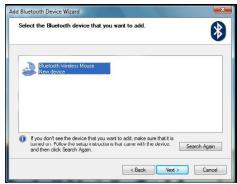
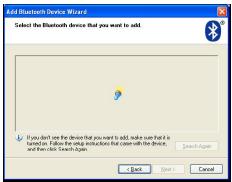
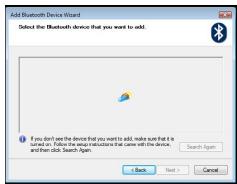
- Power on the mouse and it will automatically go into discovery mode. Click Next to continue pairing and the computer will search for the mouse.
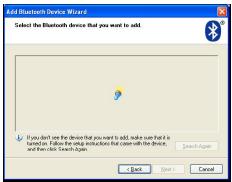
(Windows XP)
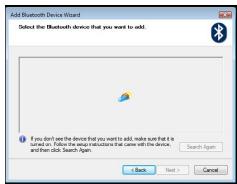
(Windows Vista)
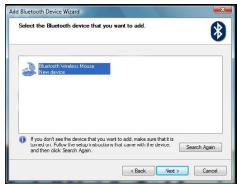
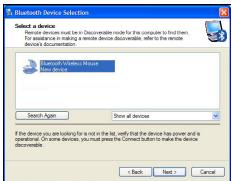
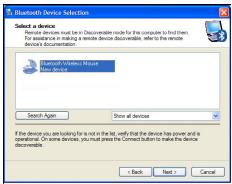
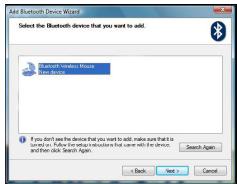
- The confirmation window will appear after the computer finishes detecting the Bluetooth devices. Select the Bluetooth Wireless Mouse and click Next to continue. (There may be one or more different Bluetooth devices detected.) If the mouse is not detected, please make sure the power is on and in discovery mode. Press Search Again to re-pair the device.
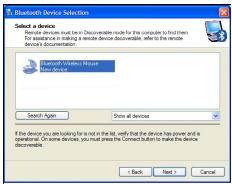
(Windows XP)
(Windows Vista)
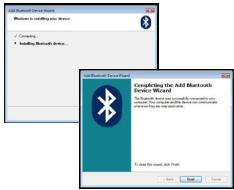
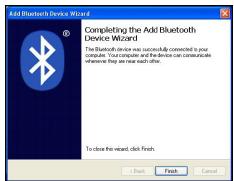
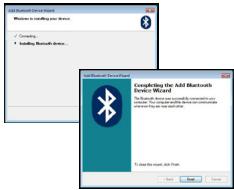
- After selecting the correct device, the computer will finish establishing the connection. Please wait until the setup is completed.

(Windows XP)
(Windows Vista)
Connecting with Bluetooth Software: TOSHIBA (Windows Vista)
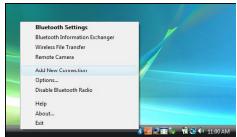
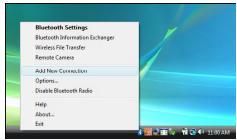
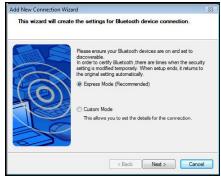
- Double click on the Bluetooth Manager icon in the system tray, and then click Add New Connection.
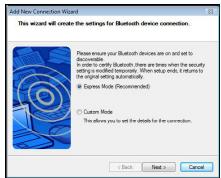
- Power on the mouse and it will automatically go into discovery mode. Click Next to continue pairing and the computer will search for the mouse.
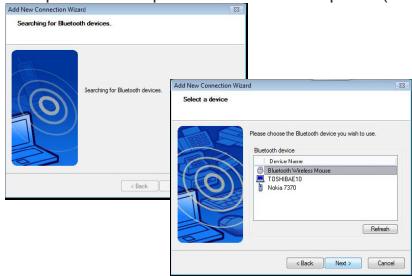
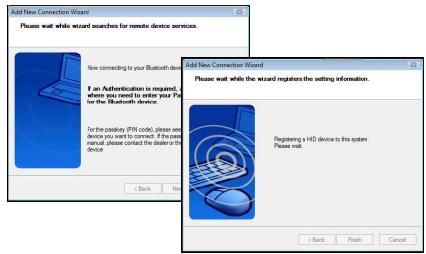
- The computer will now search for the Bluetooth mouse and other Bluetooth devices. Please wait until the search is completed. Choose the device you wish to connect. There may be more than one Bluetooth device detected. Select Bluetooth Wireless Mouse and click Next to continue. If the mouse is not detected, please make sure the mouse is in discovery mode and click Refresh.
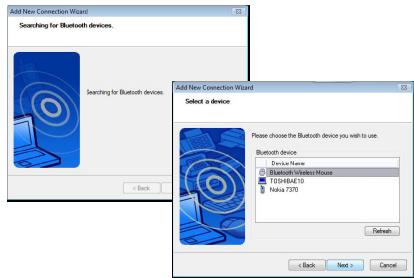
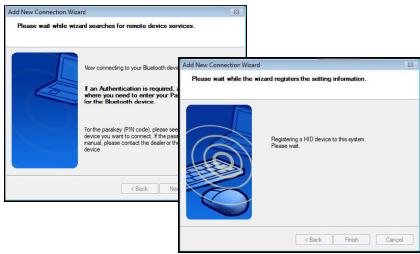
- The computer will begin connecting with the device.
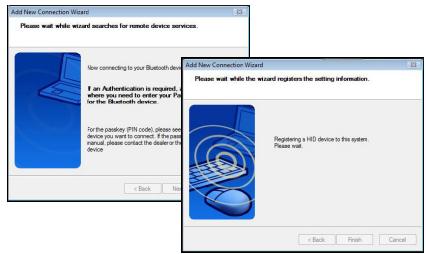
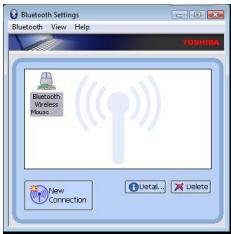
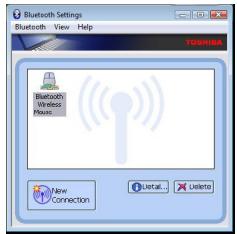
- The connection is established and setup is complete. The device is ready to use. If the connection is not successful, please click Back and search the device again. You can continue to add other Bluetooth devices or close the window.
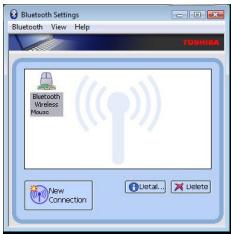
Bluetooth Software: Mac
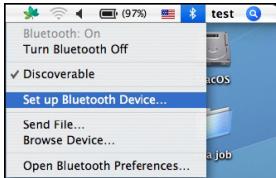
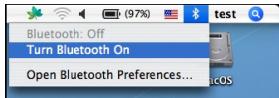
- Go to the Bluetooth icon located on your desktop or in the system bar and click the icon to begin setup. Select "Turn Bluetooth On" to activate the Bluetooth function on your Mac.
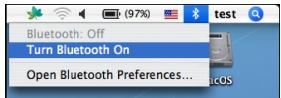
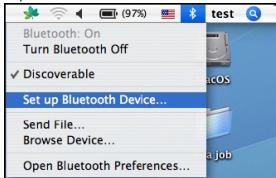
- Scroll down the list and select "Set up Bluetooth Device..."
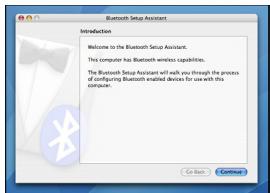
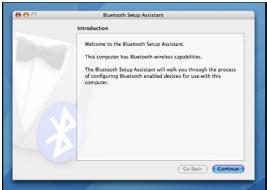
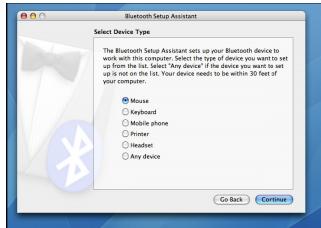
- The Bluetooth Setup Assistant will begin. Please follow the on-screen instructions.
- Select "mouse" and click continue to proceed with setup. Your mouse will need to be in "discovery" mode to connect. Power on the mouse and it will automatically go into discovery mode.
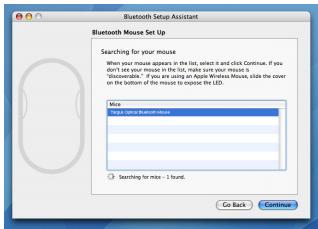
- Your computer will begin to search for the mouse. Once the mouse is found, it will show up in the list. Highlight your mouse and press continue.
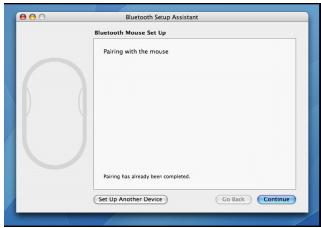
- The Bluetooth mouse will now begin pairing. Click continue to proceed.
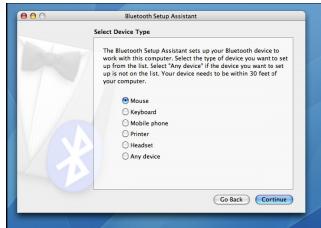
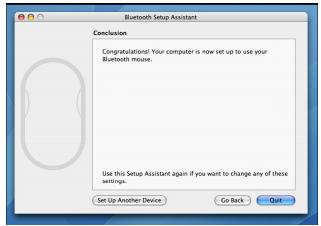
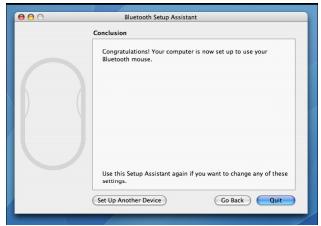
- Congratulations. Your Bluetooth mouse is setup and ready to use. You can choose to setup another device or click Quit to exit setup.
Programming Your Mouse (Windows Only)
To access the advanced scroll wheel features you will need to download and install the software driver. This can be downloaded from the following location:
Visit www.targus.com to download and install the driver.
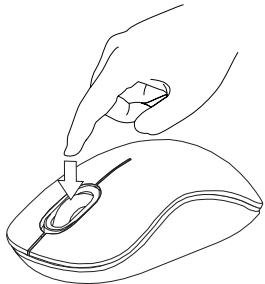
Once installation is complete, open the driver software and select the desired setting for the scroll-wheel button. Close the driver software application and you're ready to go. Activate your selected feature by pressing down on the scroll wheel.
Troubleshooting
The mouse is not working.
- Make sure that the polarity of the batteries is correct. The positive (+) and negative (-) ends of each battery must match the positive (+) and negative (-) connections in the battery housing.
- Make sure the batteries are charged. Recharge or replace if necessary.
- Verify that the computer is Bluetooth enabled.
-
Verify that the device drivers are installed:
-
Click Start/ Settings/ Control Panel/ System/ Hardware/ Device Manager
- Check under "Bluetooth Devices" that a "Soft-Touch Bluetooth" is installed
- Paired devices are always displayed in My Bluetooth Places, even if the mouse is out of range or not powered up.
CAUTION
LASER RADIATION. DO NOT STARE INTO THE BEAM OR VIEW DIRECTLY WITH OPTICAL INSTRUMENTS. CLASS I LASER PRODUCT.
NEVER POINT A LASER BEAM INTO A PERSON'S EYES OR VIEW A LASER BEAM DIRECTLY, AS PROLONGED EXPOSURE CAN BE HAZARDOUS TO THE EYES. MOMENTARY EXPOSURE FROM A LASER POINTER, SUCH AS AN INADVERTENT SWEEP OF THE LIGHT ACROSS A PERSON'S EYES, MAY CAUSE TEMPORARY FLASH BLINDNESS SIMILAR TO THE EFFECT OF A CAMERA FLASH BULB. ALTHOUGH THIS CONDITION IS TEMPORARY, IT CAN BECOME MORE DANGEROUS IF THE EXPOSED PERSON IS ENGAGED IN A VISION-CRITICAL ACTIVITY SUCH AS DRIVING.
BG-BbBedeHne
Bnaoradapim 3a nokynkata ha 6e3xuHATA bluetooth Mnuka Comfort Ha Targus. Mnukata n3npol3Ba TexhONoRn' 'bluetooth', KoETO ocNpyBa cnYrpha Bp3ka Do 33 cyta(10m). Mnukata e ycTPOCTBO OT BnDa 'plug-n-play' n He ce hyxdae ot coΦTyepn dpaBepn. Pporpama 3a Yc8bBpseHCTBAHN ΦyHKUIM Ha KOJIeNtO MOKe Da ce 3apeiOn ot caIeta Ha Targus.
CbDbPkaHne
- Bežkúna bluetooth мишka Comfort ha Targus
Batepni 2 x AAA
PbkoBOCTBOHa notpe6nte1a
CnCTeMHN n3nCKBaHna
Xapdyebp
KomnIObpc'bluetooth'fynHkun
OnepaunonHa cnTeMa
- Microsoft Windows® 2000
- Microsoft Windows® XP
- Microsoft Windows Vista®
Microsoft Windows® 7
Mac OS X 10.4 uinn no-HOBA
YnpaBHeHnHa MoUHOCTTa
- 3a Ду удьлжкente ХьВOTA на БаTeРиТe, ИЗКЛЮчВайтЕ МИШКATA, KORATo ПБТУВATE ИПО.KORATO HeЯ ИЗПОЛЗВATE.
Haçañna KoHΦnIpyaζη
IpeDn da 3anoHHe Ta n3no13BaTe MUskata, Tp6Ba Da n3bInHte HAKOJIKO HaayanHn CTbKn.

3AEBEJIKKA:MOJI INIOIN3BAIIE TIOCEINHIM BLUETOOTH JPAIBEP. EKPAHITNE C HCTPYKLIM MOKE DA CE PA3NIHABAT, B 3ABNCIMOCT OT BEPCNRTA HA BLUETOOTH JPAIBEA.
СвьрзванecBluetoothcodФтуер: WIDCOMMиMiN Microsoft (Windows XP & Windows Vista)
- Otudete do IOKHATA Bluetooth Mecta (Bluetooth Places), KOIO to c HAMIPA ha pa60TmHa Bn IIOt NIN CytcEMHATA KOHN3Oa n KInkHete dByKpTaHO, cTe ToBa KInkHete Do6abn Bluetooth yctpoIcTBo (Add a Bluetooth Device).
(Windows XP)
(Windows Vista)
- Ilce se nokajke ekpana Bluetooth nomouhnik (Bluetooth Wizard). Monja, ciejbaite INHCTpykunite Ha ekpana.
(Windows XP)
(Windows Vista)
- MiiKata une BneB e PexkHMa OTKpUbaHe Na DpyrO yCTPOIcTBO ABOTMAtuHNo cneB BKJIOUBAHToC n.KnIKHeTe CneBaUa (Next), 3a da npOdbNknte CbP3BaHETO, a KOMNHTbPaCe TbcPcN MIIKATA.
(Windows XP)
(Windows Vista)
- Ipo30eepzt 3a konhfrpyaunie ze pe Knoke cneI kato kOmHIObpa npKIOHc uOtkpmbaheto Ha Bluetooth yctpoCTBa. H36pebe E3KmUHa Bluetooth Mmka (Bluetooth Wireless Mouse) and KnkHete CndeBaun (Next), 3a da npOdbnkite. (Moke da 5bdat otKpnITn eNo nIn noboepe, p3nnuHn Bluetooth yctpoCTBa.) Ako Mmikata He oTOKPHTA, MOJN, yBepete ce, ye TRe BKNIOHeNA iE bPekIM HA otKpmbahe. Hatnche Tbpcn OTHOBO (Search Again), 3a da cbbpjKeTe OTHOBO yctpoCTBOTO.
(Windows XP)
(Windows Vista)
5.CnEi36OpHa npabunHTo yCTpoIcTBO,KOMNHTbPbT 电 npKIOUc UCTAHOBraHETO Ha Bp3kata.MoJr,IMyakaiTe HAcTPOKaTa Da npKJIOnu.
(Windows XP)
(Windows Vista)
Cbbp3BaHe c Bluetooth coΦTyep: TOSHIBA (Windows Vista)
- KIKNHETE DBykpatHO Bbpxy IKoHATA BluTooth ynpabneHme (BluTooth Manager) B cNCTeMHata KOH3Ola n Cnep ToBA KIKNHETe Do6aBn HOBA Bp3ka (Add New Connection).
- MiiKata une Bnese B pexkim h a OTKpmbaHe n A npyro yctpoiCTBO ABOTMATHcne BKNIOBAHeto c KNIKHETe CnEbau (Next), 3a da npoIbJNKeTc CbP3BaHTo, a KOMHOTpaNe tbc PcN MIIKata.
- Cera KOMNHTBpTt ue TbpCn 3a Bluetooth MNkua n npyrn Bluetooth yctpoiCTBa. MoJa, m3aKaIte TbpcHeTo Da pInKJIOH. N3epeTe yctpoiCTBO, KOEt oNcKeTa da CbPkTee. MoJa da B6dAt ot OkrTpN noBeHe OT eNo Bluetooth yctpoiCTBa. N3epeTe Be3zMnHa Bluetooth MNkua (Bluetooth Wireless Mouse) n kInKhete CneDaBauch (Next), 3a da npOdbLkHHe. Ako MmKata He e OTKpTa, moJa, ybepeCe, ye Ta e B pexKMn H a OKPkBaHe n kInKhHete OnpeChn (Refresh).
- KomnoTbPbT 3aONUHe CbP3BaHc yCTPOIcTBOTO.
- Bpb3kata e yctahOBeHa n hAcTpoiKaTa e npKJIIOHnla. YcTpoICTBOTo e roTOBO 3a ynoTpe6A. AkoBp3kata He e ycneuHa, MOnJ, KmIKHete Back m TspCete yctpoICTBOTo OTHOBo. MoKTe da npOdbIknite KaTo do6abare dpyRn Bluetooth yctpoIcTBa HnN 3aTbOpBe npO3opea.
Bluetooth coΦTyep: Mac
- OTuIeTe Do IIKoHata Bluetooth, KOToCe Ce HAmIPA haP6OTHMn Bn NlOT INN CnCTEMHATA KOH3OHa n KInKHeT EKOHaTa 3a da 3aONUHe NaCTPOHkATA. N3bEpTe "BknOuH iBluetooth", 3a da 3aKeHCTBe TcPOCTBO.To
- Повьтrete наюу сиькову К do "Hac troйа Ka Na Bluetooth yctrojCTBO..." Иниберето осяя.
- Ilie ce startupa Bluetooth acnctent 3a hactroika (Bluetooth Setup Assistant). Monla, cndbaiae ekpanhui INCTypkunu.
- Monja, n36bepete "Mnka" u KlnkheTe PpOdbJnx (Continue), 3a da npOdbJnxIte h cactPOnkata. Ybepece ce, ye BaWATA MInka e B pKIMAMOTKPBAHe". 3a da 3aedcTBate pekmMa OTkpBaHe", BKIOHcTe MInkaTaN HATChEe ByToHa 3a IeHTNfPKAua HA Bp3KaTaN (Connection ID), KOto TEHAMIPA Ha DhHoto Ha yCTPOINCTBOTO, DOKato CBeTODnOda Ha MInkaTaN He 3anoHne Da Mmra B 3eNEHO.
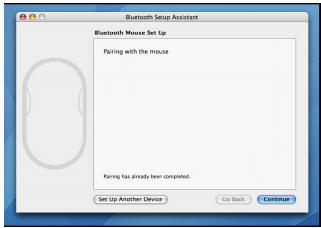
- BaUMIAT KOMNHTbP Ⅲe 3aONOHE TaBpCN MNUKATA CneI KATO MNUKATA e HAMEpeHa, TJIe CE NOKAke B CnCbKa. MapKnpaIte MNUKATA, KOrTo IcKate da CbPKTeE u HATNCHETE npDbJxN (continue), 3a Da npDbJxNtE C hAcTPOkata.

- Bluetooth Mmukata une 3anouehe cBp3baHeTo. KInKHeTe npOdbJn (continue), 3a da npOdbJnxnte.
CLASS 1 LASER PRODUCT
UPOZORNÉNÍ
LASEROVÉ ZÁRENÍ. NEDÍVEJTE SE DO PAPRSKU ANI SE NEDÍVEJTE PRÍMO POMOCÍ OPTICKYCH PRISTROJÜ. PRODUKT
LASEROVÉ TRÍDY 1.
LASEROVYM PAPRSKEM NIKDY NEMIRTE DO OČI JINÉ OSOBY ANI SE NEDIVEJTE PRÍMO DO PAPRSKU. DELŠI KONTAKT MÜZE BYT OČÍM NEBEZPEÇNY.
CHVILKOVY KONTAKT S LASEROVYM UKAZOVÁTKEM, JAKO JE NAPR. NAHODNÉ PREJETI OČI LASEREM, MÜZE ZPUSOBIT DOÇASné ZÁBLESKY PODOBNÉ BLESKA FOTOAPARÁTU. MÜZE BYT NEBEZPEÇNEJŠI, POKUD SE TATO OSOBA VENEUJE CINNOSTI NÁROCNÉ NA SLEDOVÁNÍ, NAPR. RIZENİ
DE - Einführung
CLASS 1 LASER PRODUCT
VORSICHT
LASERSTRAHLUNG. NICTIT MIT BLOSSEM AUGE ODER MIT OPTISCHEN INSTRUMENTEN DIREKT IN DEN STRAHL BLICKEN. KLASSE 1 LASERGERÄT.
RICHTEN SIE DEN LASERSTRAHL NIE AUF DIE AUGENEINER PERSON UND BLICKEN SIE NIE DIREKT INDEN LASERSTRAHL, DA DIES ZU FÜR DIE AUGENGEFÄHRLICH SEIN KANN.
CLASS 1 LASER PRODUCT
ATTENTION
RAYONNEMENT LASER. NE FIXEZ PAS LE FAISCEAU ET NE L'EXAMINEZ PAS DIRECTEMENT AU MOYEN D'INSTRUMENTS OPTIQUES. PRODUIT LASER DE CLASSE I.
NE DIRIGEZ JAMAIS UN FAISCEAU LASER VERS LES YEUX D'UNE PERSONNE ET NE REGARDEZ JAMAIS DIRECTEMENT UN FAISCEAU LASER, Toute EXPOSITION PROLONGÉE À UN FAISCEAU LASER POUVANT ÉTRE DANGEREUX POUR LES YEUX.
UNE EXPOSITION MOMENTANÉE À UN POINTEUR LASER RÉSULTANT PAR EXAMPLE DU PASSAGE ACCIDENTEL DU FAISCEAU DANS LES YEUX D'UNE PERSONNE PEUT AVOIR POUR CONSEQUENCE UN AVEUGLEMENT PAR L'éCLAIR TEMPORAIRE SIMILAIRE AUX EFFETS PROVOQUÉS PAR L'AMPOULE DE FLASH D'UN APPAREIL PHOTO. BIEN QUE CET ÉTAT SOIT TEMPORAIRE, IL POT SE RÉVÉLER DANGEREUX SI LA PERSONNE EXPOSEE EST ENGAGÉE DANS UNE ACTIVité DANS LE CADRE DE LAQUÉLLE SA VUE LUI EST INDIVISPENSABLE (CONDUIRE, PAR EXAMPLE).
GR - Eioaywyn
Zaç euxapiotoué Tnou ayopáoate to Boλiko Tovriki λείεp Bluetooth tnc Targus. To Tovriki auto xŋραιοτоié Tny texvoloiayia Bluetooth tou Tpaexei atpóokotttn Ouvδeσn oatótaon EwC kai 10 μetpa (33 triódia). Eivai mia ouakeun yia tottoθetnən kai aμeon λεitoupyiac, apa δev attaiei TpoσθeTo Loyaiμko. H ληψn Tou TPOγpáμatoc yia to Tponyμévo Xapakntpiotikó Kluionc μe TPOx oTPOe i va yivei ato Tov IOTOTTO nT Cargus.
περιεχόμενα
Boikó Tovtiki λείερ Bluetooth tç Targus
2 a p i A A
- Oδnyóς xρηστη
AattnoεiσouotμatoC
YAIKO
Ytlooyiotns Tou uTooTpiEi TnTvExvoLyia Bluetooth
AeIoupyiko ouotnua
- Microsoft Windows® 2000
- Microsoft Windows® XP
- Microsoft Windows Vista®
- Microsoft Windows® 7
Mac OSX 10.4 n eTAYeVToepn ekdoon
ToTtOeTnOn Twv μTatapiWv
1.ApaipoeTo kALUmuTuvuTatapWvAtTO TAVW MEPOcTO IVOTIKIOU XpaiotoiWvTACTNV EYKOTN OTO TIOW MEPOc. ZNKwOTIPOeKTiKaTo KALUmuA TE TOVPoTIO TUO UTOEIKVUETAO OTO DIypaMu.
- Aqaipéote To ouvdetnpa aopaleiac twu mtatapiw tiéovtac oTo Kévtpo Tou kai oupovtac tov tpoTto Tio wépos tou Tovtikou. Σnkwote To kalumka kai πeipotpeyte to yia va to byalete.

CLASS 1 LASER PRODUCT
IPOZOxH
AKTINOBOIAAIEZEP.ANOOFYETENAKOITAETE STH E MH THS AKTINA NATHEITE ANEYOEIAZ ME ONTIKA OPIANA.IPOION AEIZEP KATHROPIAZ I. NOTE MH STPEΦETETHN AKTINAAEIZEP TAT MATIA KANOIOY KAI MHN TH BAEIENTE ME YMNO MATI, IATI H IAPATETAMENHEKGEZH IΩΩ ANOBEI ENIKINADYNH IIA THN OPAZH SAZ.
CLASS 1 LASER PRODUCT
FIGYELEM
LEZER SUGÁRZÁS KÖZVETLENÜL, VAGY OPTIKAI ESZKÖZZEL NE NÉZZEN BELE A SUGÁRNYALÁBBA. 1. OSZTÁLYÜ LEZER TERMÉK.
SOSE MUTASSON A LÉZERNYALÁBBAL VALAMELY SZEMÉLY SZEMÉBE, VALAMINT NE NÉZZEN KÖZVETLENÜL A SUGÁRNYALÁBBA, MIVEL A HOSSZANTARTÓ SUGÁRZÁSNAK VALO KITETTSEG KÁROSİTJAA SZEMET.
A LÉZER MUTATONAK VALO PILLANATNYI KITETTSEG, MINT PL. A SUGÁR VALAKI SZÉME ELÖTT TÖRTENÖ ELHÜZÁSAKOR TÖRTENÖ NEM SZANDÉKOS BELEVILAGITÁS ATMENETI LATASKIESÉST OKOZHAT, HASONLOAN A FÉNYKÉPEZÖGÉP VAKU ALTAL ELOIDEZETT HATASHOZ. ANNAK ELLENÈRE, HOGY EZ AZ ALLAPOT ATMENETI, VESZÉLYES LEHET, HA KITETT SZÉMÉLY ÉPPEN OLYAN TEVÉKENYSÉGET VÉGEZ, PL. AUTÔT VEZET AMINÉL A LATASKIESÉS VESZÉLYES HELYEZET TEREMT
IT - Introduzione
CLASS 1 LASER PRODUCT
CAUTELA
EMISSIONI LASER. NON FISSARE I Raggio NE' GUARDARLO DIRITTAMENTE CONSTRUMENTI OTTICI. PRODOTTO LASER CLASSE I. NON PUNTARE MAI UN Raggio LASER NEGLI OCCHI NE' GUARDARLO DIRITTAMENTE, L'ESPOZIONE PROLUNGATA POTREBBE DANNEGGIARE LA VISTA. L'ESPOZIONE TEMPORANEAAUNPUNTATORE LASER, AD ESEMPIO COLPENDO INAVVERTAMENTE GLI OCCHI MUOVENDO IL Raggio LASER, PUO CAUSARE L'OFFUSCAMento DELLA VISTA TEMPORANEO, COME ACCADE GUARDANDO IL FLASH DI UNA FOTOCAMERA. SEBBENE SI TRATTID UNACONDIZIONE TEMPORANEA, PUO PORTARE A CONSEGUENZE PIU GRAVI SE LA PERSONA ESPOSTA STA SVOLGENDO UN'ATTIVITA IN CUI LA VISTA E' FONDAMENTALE, AD ESEMPIO SI TROVA ALLA GUIDA DI UN VEICOLO.
LT - lvadas
Dékojame, kad jsigijote „Targus“ Bluetooth komfortabile lazerine pele. Ši pele naudoja „Bluetooth“ technologija, suteikianciá vientisa ryşí 10 metru (33 pédu) atstumu. Tai tiesig ijungiamas prietaisas, todél nereikalinga jokia papidoma programéj rjanga. Pazängia ratuko slinkimo funkciños programa galima parsisiusti és „Targus“ tinklavietés.
Turinys
Targus"Bluetooth komfortabili lazerine pelé
- 2 x AA baterijos
- Vartotojo gidas
Reikalavimai systemdai
Aparatine iranga
- Kompiuteris su igalinta „Bluetooth“ Funktion
Operaciné système
Microsoft Windows 2000
Microsoft Windows XP
Microsoft Windows Vista
"Microsoft Windows® 7"
Mac OS X 10.4 "ar nauesne
Baterijujdiegimas
CLASS 1 LASER PRODUCT
UZMANIBU
LAZERA RADIACija. NESKATIETIES TIEŠI STARVA VAI ZMANTOJOT OPTISKOS INSTRUMENTUS. 1.KLASES LAZERA PRODUKTS.
NEKAD NESPIDINET LAZERI CITA CILVEKA ACIS UN NESKATIETIES TIESI UZ STARU, JO ILGSTOSAS KATISANAS VAR BUT KAITIGAACIM.
GAISMAS SPIDINASANA CITU CILVEKU ACIS VAR IZRAISIT PAGAIDU AKLUMU, LIDZIGU FOTOKAMERAS ZIBSPULDZES RADITAJAM. LAI GAN TAS IR PAGAIDU, TAS VAR BUT VEL BISTAMAKS, JA IESPIDINATS ACIS CILVEKAM, KAS TAJA BRIDI, PIEMERAM, VADA MASINU.
NL - Introductie
CLASS 1 LASER PRODUCT
LET OP
LASERSTRALING. KIJK NOOIT RECHTSTREEKS IN DE LASERSTRAAL EN BEKIJK DEZE NOOIT MET OPTISCHE APPARATUUR.
KLASSE 1 LASERPRODUCT. RICHT EEN LASERSTRAAL NOOIT OP OGEN EN KIKK NOOIT DIRECT IN EEN LASERSTRAAL.
LANGDURIGE BLOOTSTELLING AAN LASERlicht
KAN SCHADELIJK ZIJN VOOR DE OGEN. TIJDELIJKE
BLOOTSTELLING AAN EEN LASERAANWJZER, EEN
ONBEDOELDE LICHSTRAAL IN HET OOG, KAN
EEN TIJDELIJKE VERBLINDING VEROORZAKEN,
TE VERGELIKKEN MET HET FLITSlicht VAN EEN
FOTOESTEL. ALHOEWEL DEZE VERBLINDING VAN
TIJDELIJKE AARD IS, KAN DEZE SITUATIE GEVAARLIJK
WORDEN INDIEN DE PERSOON DIE VERBLIND IS
BEZIG IS MET EEN ACTIVITEIT WAARBIJ GOED ZICT
ONONTBEERLIJK IS, ZOALS HET BESTUREN VAN EEN
AUTO.
NO - Introduksjon
CLASS 1 LASER PRODUCT
ADVARSEL
LASERSTRÄLING. IKKE STIRR INN I STRÄLEN ELLER SE PÄ DEN DIREKTE MED OPTISKE INSTRUMENTER. LASERPRODUKT KLASSE I PEKALDRIEN LASERSTRÄLE INN I ØYNENE PÄ NOEN ELLER SE DIREKTE PÄ EN LASERSTRÄLE, DA VEDVARENDDE EKSPONERING KAN VÄERE FARLIG FOR ØYNENE.
MIDLERTIDIG EKSPONERING FRA EN LASERPEKER, SLIK SOM UAKTSOM STREIFING AV LYS OVER EN PERSONS ØYNE, KAN FORÁRSAKE MIDLERTIDIG BLINDHET LIK EFFEKTEN AV EN KAMERABLITZ.
SELV OM DENNE TILSTANDEN ER MIDLERTIDIG, KAN DEN VÆRE FARLIG DERSOM DEN EKSPONERTE PERSONEN UTFØRER EN AKTIVITET DER SYNET ER AVGJØRENDE, SLIK SOM Å KJØRE BIL.
PL-Wstep
CLASS 1 LASER PRODUCT
OSTRZEŽENIE
PROMIENIOWANIE LASEROWE. NIE PATRZEC BEZPOŚREDNIO LUB PRZY POMOCY INSTRUMENTÓW OPTYCZNYCH W PROMIEN LASERA. URZADZENIE LASEROWE KLASY 1.
NIGDY NIE KIEROWAÇ PROMIENIA LASERA W Oczy INNEJ OSOBY ANI NIE PATRZEC BEZPOSREDNIO W PROMIEN LASERA, GDYZ DŁUGOTRWAJE NARAZENIE NA JEGO DZIAŁANIE MOZE BYC SZKODLIWE DLA WZROKU.
CHWILOWE SPOJRZENIE WE WSKAZNIK LASEROWY, NA PRZYKLAD W WYNIKU PRZYPADKOWEGO RUCHU WSKAZNIAW CZASIE PREZENTACJIMOJE WYWOLA CHWILOWA SLEPOTE, PODOBNA DO REAKCJI NA BLYSK FLESZA. CHOCIAZ JEST TO STAN CHWILOWY, TO MOZE BYC GROZNY, JESLI DANA OSOBA WYKONUJE DZIAŁANIA WYMAGAJACE UZYWANIA WZROKU, NP. PROWADZI SAMOCHOD.
PT - Introdução
CLASS 1 LASER PRODUCT
ATENÇAO
CLASS 1 LASER PRODUCT
ATENTIE!
RADIATII LASER. NU PRIVITO DIRECT IN LUMINA LASER CU OCHIUL LIBER SAU CU INSTRUMENTE OPTICE. PRODUS LASER CLASA I.
NU INDEPTATI NICIODATA LUMINA LASER DIRECT INSPRE OCHII DUMNEAVOASTRA SAU AI ALTOR PEROANE, DEOARECE EXPUNEREA INDELUNGATA POATE FI PERICULOASAPENTRU OCHI.
EXPUNEREA TEMPORARÁ LA LUMINA LASER, DE EXEMPLU IN CAZUL INDREPTÁRII DIN NEGLIJENTÁ A RAZEI SPRE OCHII UNEI PERSOANE, POATE CAUZA UN DISCONFORT AL VEDERII ASEMANÁTOR EFFECTULUI PRODUS DE BLITUL UNUI APARAT FOTO. CHIAR DACA ACEST EFFECT Este TEMPORAR, POATE DEVENI PERICULOS DACA PERSOANA EXPUSA Este ANGAJATA INTR-O ACTIVATE IN CARE VEDEREA ESTE ESENTIALÁ, CUM AR FI ΣOFATUL.
RU - Вторец.
Bnaoradapim 3a npnoobpehenye yDobHOB beCnpboDHOJ na3epHoM mbiHn Targus cTexHONorme Bluetooth. DaHHa Mblb pa6oTaet no TexHONOrn Bluetooth,TO o6ecneuBaet yCTOINBOE coeHNHeHn Ha paacToHnn Do 33 cyTob (10 M).DaHHoe ycTpoCTBO pa6oTaet no pinnucny plug-nplay ("BKIOCh n irpa") n He Tpe6yEt donONHtEnbHoro nporpaMMHoro o6cneHENr.
Copepkanhe
- Yóobhá yèçcpnboDhá nαzepHáMbIbTargus cTexHoJIornei Bluetooth
- 2батери тира AA
PykoBoIcTBO nOJIb3ObaTeNa
CnCTeMHbIe Tpe6oBaHnIa
AnnapaTHbIe cpeIDCTBa
- Komblotep, noDepexnBaIoUu n Bluetooth
OnepaunHna cnctema
Microsoft Windows® 2000
- Microsoft Windows® XP
- Microsoft Windows Vista®
Microsoft Windows® 7
Mac OS® X 10.4 uπi 6oJIe no3dHne Bercn
YCTaHOBka 6aTapeek
- CHIMMTE KpbIshky OTeKa Dnla 6batape C BepxHei Yactn KopnyCaMbIIN C NOMOJIbNo n3a c3aDi. AkkypaTHo NODHMITE KpbIshKy, KaNOKa3aHO Ha pUCyHke.
- Haxmnte Ha cpeHIOU qactb npeOxpaHnteIbHOrO 3axmna In86baTapei NcDINbTe erO B CTOpOHy 3aHneq actN MbIuN. POnHMnTe IN NOBepHnTe 3axmM B CTOpOHy.

ПИМЕЧАНЕ: ПЕPEDУCTAHOBKОH HA MECTO KPBILIKN OTCEKAДЛЯБATAPEH HEOBXODIMO YCTAHOBINTB N 3AФИКСИРВАТВIPAPABINJBHOM ПОLOXECHIN ПЕДОХPAHITENHBI 3AXKIM.
3.CdBnHbTe N IOdHMnTe 3aJIM dJa 6aTapei, KaK noka3aHo Ha pncyHke.
4 BCTaBbTe DBe 6atapen TnA, y6eInTeCb, YTO KOHTaKtBi PIIIOc (+) IN MmHyc(-) KaJDoI 6atapen COOTBeTCTByIOT 3HaKaM PONJIpHOCTn B OTEKe dJa 6atapei.
- UctaHOBITE Ha MeCTO IpeDOxpaHITeNBHy 3axIM dIa 6batape, 3aDbHnYB ero BnepeD IO uENyKa, 3aTeM yctaHOBITE KpbIuKy OTceKa dIra 6batapei.
6.YtobblBkIIOHTbMbIb,HaxMITEHaKHOINy ON/off(BKJI/BbIKI),pacnoIOJKeHHUHO HnIXHeYacTHn yCTpoiCTBa. YdePKNBaIte KHOINy B TeueHne 3 cekyHd,3aTEM OTNcyTNe.
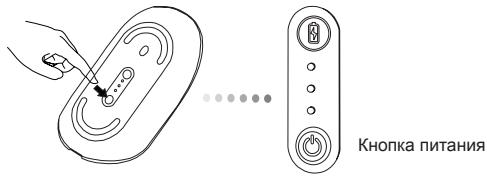
BkIoueHne:
Haxmnte u ydepkBaBte KhONky nITaHnB TeYeHne 3 cek.
Ha KopoTKe Bpem 3aOpITcH INdikatop pecypca bTaapei, noka3bBaJ ypoBeHb IX 3apJa.
BbIKIOueHHe:
Haxmnte u yedePkBaBte KhoNky nHTaHn B TeHeHne 3 cek.
Hndkatop pecypca 6atape 3aropntc Ha KOPOTKoe Bpem n norachet.
Поберкабатарe:
Iocne BkHouenmMbIuNb6bCTpo haxMnte NOTNUCTNE KHOKNy PNTaHn. 3aorupTcN Hndnkatop pecypca batapei, noka3bBaB aYPOBeh nx 3apya.
HauaJIbHa nAcTpoIkaMbIShn
BkHouHepeXnMa o6hApxKeHHa:
Pocne BkIOHENH Mblb ABOTOMATUeCKN nepeJed T B pekIM yCTAHOBNEHn COeHNHn. POnepemehNO 6yDyt 3aRopTa5c81-1N3-3CbeTDoHNoBHe INdIKAtOpBt B TEHnE MmHyTb; 3TO O3NaHaeT, cTO IPOCNxOHT UCTAHOBNEHn COeHNHn. Pocne yCTAHOBHn COeHNHn 1-1N3-3CBeTDoHNoBHe INdIKAtOpBt 6dyT HnpepeBbHO ropTe B TEHnE 3 CekyND.
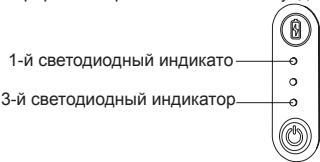
EcnB TeueHMe 60 cekyHd ne ydaonocb yctahOBnT bcoeHNHeHne, MbIb nepexoDMt B peKIM OxuDAnHH. TcOb6 BeByHTb YcTOPOCTBO B HOpMaNbHb peKIM paOToB, HakMNTe Ha IIObY KOHNky MblSi. Nocne 3TOrABOTaMTHueckn bdyet BbIOnHeHa NOTOPAH nonlTkA yctAHOBnEHne coeHNHeHne.
3Heproc6eperaoIu npexnM:
Pocne npdoJnxntbHoro nepnoa pa6oTbI, ecn MbIb He nCOnB3yeTc8O hA botomatnuceKnpeIeT B 3heproc6eperaohu p6eKm, TTO p03BONIT npdoNtB cpoK cnYkb6 batapae. YTo6b I BPyHyt yCTpOCTBO HOpMaNbHbI p6eKm pa6oTbI, hAnMcyHa NaIbOHy KKNKByMbIu. Mblu moKET nOTpe6oBaTc8 CeKOnBko CekyHd DnA BOCCTaHOBJIeHncoEINHeHn C KOMNbIoTePOM.
CLASS 1 LASER PRODUCT
BHIMAHNE
JI3EPHOE I3JUeyHne. HE CMOTPNTE IPRMO BJI3EPbI JyU HEBOOPYJXEHbIM TIA3OM NJINUPE3 ONTUNeCKNE INHCTPYMEHTbl. JIA3EPHOE YCTPOICTBO KJACCA I.
HE HAPRAPJIYITE JIA3EPHBI JIyB IJIa3A YEJIOBEKA IN HE CMOTPNTE IPRMO HA JIyU, TAK KAK ETO PNOJOLKINTEJBHOE BO3JEYCTBNE MOKET BbITb BPENDHOДЛЯ JIa3.
KPATKOBPEMEHHA BcIbIiKA CBETA OT JIA3EPHOYUKA3KN, HANPIMEP, IPN EE CJUYAHOMHANPABJIeHNIVIa3AueJIOBEKA,MOXETIPINBECTIK BPEMEHHOMY OCLENJIeHNO, CXODHOMCYBO3DEJCTBNIEM BCbIiHKI FOTOKAMEPbl.
HECMOTPRA HA TO, YTO DAHHbI ΘΦΦEKT YBJIETCBAPEMEHHbIM, OH MOXET BbITb ONACHbIM, ECJINIODBEPRJWEECRA BO3JEICTBNIO JINILO BbINOJIHAREBVDI DEYTEJBHOCTN, B KOTOPOM 3PEHINEKPITNUeCKIN BAXHO, HANPMEP, YNPABJIARETABTOMOBUNIEM.
SE - Introdukton
Aktivera Discovery mode:
CLASS 1 LASER PRODUCT
WARNING
LASERSTRALNING. STIRRA INTE IN I STRÄLEN ELLERTITTA INTE DIREKT PÅ STRÄLEN MED OPTISKAINSTRUMENT. KCLASS 1 LASERPRODUKT.
PEKA ALDRIG MED EN LASERSTRÄLE IN I NAGONS ÖGON ELLER TITTA ALDRIG PÄ EN LASERSTRÄLE DIREKT, EFTERSOM FÖRLÄNGD EXPONERING KAN VARA SKADLIG FÖGONEN.
TILLFÄLLIG EXPONERING MOT LASERPUNKTEN, SÄSOM I EN SVEPANDE HANDLING MED LJUS ÖVER EN PERSONS ÖGON, KAN FÖRORSAKA TILLFÄLLIG BLIXTBLINDHET LIKANDE DEN EFFEKT EN KAMERABLIXT HAR. ÄVEN OM DET Här TILLSTÄNDET AR TILLFÄLLIGT, KAN DET BLI FARLIGARE OM EXPONERADE PERSONER AR INBLANDADE I ENVISIONSKRITISK AKTIVITET SÄSOM BILKÖRNING.
SI - Uvod
CLASS 1 LASER PRODUCT
OPOZORILO
LASERSKO SEVANJE. NE GLEJTE V LASERSKI ZAREK DIREKTNO ALI Z OPTICNIMI INSTRUMENTI . IZDELEK VSEBUJE LASER RAZREDA I..
LASERSKEGA ZARKA NIKOLI NE USMERJAJTE V OCI LJUDI IN SAMI NE GLEJTE NARAVNOST V LASERSKI ZAREK, KER LAHKO DALJSA IZPOSTAVLJENOST POSKODUJE VASE OCI.
KRATKOTRAKJNI STIK Z LASERSKIM KASZALNIKOM IN NENAMORNO USMERJANJE V OCI LJUDI LAHKO - TAKO KOT PRI BLISKOVKI FOTOAPARATA - PREHODNO VZDRAZI OCI. CEPRAV JE TO DRAZENJE PREHODNO LAHKO POSTANE NEVARNO, CE OSEBA OPRAVLJA DEJAVNOST, KJER POTREBUJE VID - KOT NA PRIMER VOZNJA Z AVTOMOBILOM.
SK- Uvod
CLASS 1 LASER PRODUCT
UPOZORNENIE
LASEROVÉ ZIARENIE. NEPOZERAJTE SA NA LUC A NEVYSTAVUJTE PRIAMEMU ZIARENIU OPTICKÉ ZARIADENIA. LASEROVÉ ZARIADENIE 1.
TRIEDY NIKDY NESMERUJTE LASEROVY LUC NA OCI A NEPOZERAJTE SA NA LUC, PRETOZE DLHOTRVAJUCE VYSTAVOVANIE SA LUCU MOZE SPOSOBIT POSKODENIE OCI.
KRÁTKODOBÉ VYSTAVENIE SA ZIARENI UZ LASEROVÉHO UKAZOVATELA, NAPRIKLAD NEUMYSELNÉ OSVETLENIE OCI OSOB MÖZE SPÓSOBIT DOÇASNÉ OSLEPENIE PODOBÉ AKO PRI BLESKU FOTOAPARÁTU. AJ KED JE TENTO STAV DOÇASNÉ, MOZE BYT VE’MI NEBEZPECNY V PRIPADE, ZE ZASIAHNUTÁ OSOBA VYKONÁVA AKTIVITU, KTORÁSI VYZADUJE POZORNÉ SLEDOVANIE, NAPRIKLAD SOFEROVANIE.
TR - Giris
CLASS 1 LASER PRODUCT
UYARI
LAZER RADYASONU. ISINA DOGRU VEYA OPTIK ALETLERLE DOGRUDAN BAKMAYIN. 1. SINIF LAZER ÜRÜNÜ.
ASLABIR LAZER ISARETCIGINI INSANLARIN GOZLERINE TUTMAYIN VEYA BIR LAZER ISININA DOGRUDAN BAKMAYIN, CUNKU ISIGA SUREKLIMARUZ KALMAK GOZLER ICIN TEHLIKELI OLABILIR.
DIKKATSIZILIKTEN DOLAYI KISININ GOZLERININ ISIKLA TARANAMSI GIBI BIR LAZER ISARETICI GINDEN ANLIK YANSIMA, BIR FOTOGRAF MAKINESININ FLAS PATLAMASINDA OLUŞAN KÖRLÜK GIBI GEÇİCİ BIR KÖRLÜK MEYDANA GELEBILIR. HER NEKADAR BU DURUM GEÇİCİ OLSA BILE, EGER ISINLANAN KİSİ GÖRMEYE BAGLI ARAÇ SÜRME GIBI BIR ETKINLIKLE MEŞKUL ile DURUM DAHA DA TEHLIKE L OLABILIR.
AR-
USB 2.0
USB 2.0
USB 2.0
USB 2.0
USB 2.0
USB 2.0
USB 2.0
USB 2.0
USB 2.0
USB 2.0
USB 2.0
USB 2.0
USB 2.0
USB 2.0
USB 2.0
USB 2.0
USB 2.0
USB 2,0
USB 2,0
USB 2,0
USB 2,0
USB 2,0
USB 2,0
USB 2,0
USB 2,0
USB 2,0
USB 2,0
USB 2,0
USB 2,0
USB 2,0
USB 2,0
USB 2,0
USB 2,0
USB 2,0
USB
山
a 1
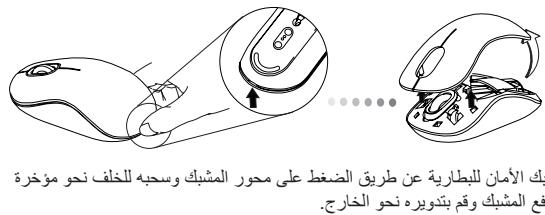
LgSs (y) 1 y

- jzcluLuluso 1yloJluLoo
(-) all + (+) all jall all AA 4
aJbll aJgaa Jld Jbll cal gad
Jy cui jai gai yai jia jia jia jia jia jia jia jia jia jia jia jia jia jia jia jia jia jia jia jia jia jia jia jia jia jia jia jia jia jia jia jia jia jia jia jia jia jia jia jia jia jia jia jia jia
AilSgl AylBll Cua Cai Ails
aalall lalall g y aag aay aay aay aay aay aay aay aay aay aay aay aay aay aay aay aay aay aay aay aay aay aay aay aay aay aay aay aay aay aay aay aay aay aay aay aay aay aay aay aay aay aay
.
iJbll Jaa
J 1 J 1 J 1 J 1 J 1 J 1 J 1 J 1 J 1 J 1 J 1 J 1 J 1 J 1 J 1 J 1 J 1 J 1 J 1 J 1 J 1 J 1 J 1 J 1 J 1 J 1 J 1 J 1 J 1 J 1 J 1 J 1 J 1 J 1 J
(1) Add a Bluetooth Device.
2
a a a a a a a a a a a a a a a a a a a a a a a a a a a a a a a a a a a a a a a a a a a a a a
(Windows XP)
(Windows Vista)
(1) Next jai, 1545 1545 1545 1545 1545 1545 1545 1545 1545 1545 1545 1545 1545 1545 1545 1545 1545 1545
(Windows XP)
(Windows Vista)
Bluetooth Wireless 4
(Windows XP)
(Windows Vista)
jajl jaiyil yu wail 4
(1) Back jai yu Jau N ay pui Jau Jau Jau Jau Jau Jau Jau Jau Jau Jau Jau Jau Jau Jau Jau Jau Jau Jau Jau Jau Jau
Mac:
J 1 J 1 J 1 J 1 J 1 J 1 J 1 J 1 J 1 J 1 J 1 J 1 J 1 J 1 J 1 J 1 J 1 J 1 J 1 J 1 J 1 J 1 J 1 J 1 J 1 J 1 J 1 J 1 J 1 J 1 J 1 J 1 J 1 J 1 J
(Windows Only)
( Device Manager /( Hardware
Targus Bluetooth Comfort" 一 _ 一 ^ 一 (Jz "Bluetooth Devices" 2
(Targus no) "Laser Mouse
JLg Jg. (juaaalal) My Bluetooth Places aaiiaaa
aillbally sioy jilbillgjiswail
CLASS 1 LASER PRODUCT

J 1 J 1 J 1 J 1 J 1 J 1 J 1 J 1 J 1 J 1 J 1 J 1 J 1 J 1 J 1 J 1 J 1 J 1 J 1 J 1 J 1 J 1 J 1 J 1 J 1 J 1 J 1 J 1 J 1 J 1 J 1 J 1 J 1 J 1 J
- Table of Contents
- Contents
- System Requirements
- Hardware
- Operating System
- Installing the Batteries
- Power On:
- Power Off:
- Battery Check:
- Initial Mouse Setup
- Enable Discovery mode:
- Power Saving mode:
- Battery Life Indicator
- Power Management
- Initial Configuration
- Connecting with Bluetooth Software: WIDCOMM or Microsoft (Windows XP & Windows Vista)
- Connecting with Bluetooth Software: TOSHIBA (Windows Vista)
- Bluetooth Software: Mac
- Programming Your Mouse (Windows Only)
- Troubleshooting
- The mouse is not working.
- CAUTION
- BG-BbBedeHne
- CbDbPkaHne
- CnCTeMHN n3nCKBaHna
- Xapdyebp
- OnepaunonHa cnTeMa
- YnpaBHeHnHa MoUHOCTTa
- Haçañna KoHΦnIpyaζη
- СвьрзванecBluetoothcodФтуер: WIDCOMMиMiN Microsoft (Windows XP & Windows Vista)
- Cbbp3BaHe c Bluetooth coΦTyep: TOSHIBA (Windows Vista)
- Bluetooth coΦTyep: Mac
- CLASS 1 LASER PRODUCT
- UPOZORNÉNÍ
- DE - Einführung
- VORSICHT
- ATTENTION
- GR - Eioaywyn
- περιεχόμενα
- AattnoεiσouotμatoC
- ToTtOeTnOn Twv μTatapiWv
- IPOZOxH
- FIGYELEM
- IT - Introduzione
- CAUTELA
- LT - lvadas
- Turinys
- Reikalavimai systemdai
- Aparatine iranga
- Operaciné système
- Baterijujdiegimas
- UZMANIBU
- NL - Introductie
- LET OP
- NO - Introduksjon
- ADVARSEL
- PL-Wstep
- OSTRZEŽENIE
- PT - Introdução
- ATENÇAO
- ATENTIE!
- RU - Вторец.
- Copepkanhe
- CnCTeMHbIe Tpe6oBaHnIa
- AnnapaTHbIe cpeIDCTBa
- OnepaunHna cnctema
- YCTaHOBka 6aTapeek
- BkIoueHne:
- BbIKIOueHHe:
- Поберкабатарe:
- HauaJIbHa nAcTpoIkaMbIShn
- BkHouHepeXnMa o6hApxKeHHa:
- 3Heproc6eperaoIu npexnM:
- BHIMAHNE
- SE - Introdukton
- Aktivera Discovery mode:
- WARNING
- SI - Uvod
- OPOZORILO
- SK- Uvod
- UPOZORNENIE
- TR - Giris
- UYARI
- AR-
- 山
- iJbll Jaa
- (Windows Only)
Brand : TARGUS
Model : BLUETOOTH COMFORT LASER MOUSE
Category : Bluetooth Mouse