
V10 - Projector AIPTEK - Free user manual and instructions
Find the device manual for free V10 AIPTEK in PDF.



| Product type | Portable projector |
| Brand | AIPTEK |
| Model | V10 |
| Optical technology | LCoS |
| Light source | White LED |
| Screen format | 4:3 |
| Luminous flux | 10 lumens (max) |
| Native resolution | 640 × 480 (VGA) |
| Projected image size (diagonal) | 15 cm to 127 cm (6 to 50 inches) |
| Projection distance | 25 cm to 180 cm |
| Focus | Manual |
| Projection sources | Internal memory (1.9 GB), SD/SDHC/MMC/MS Pro memory card, external AV input |
| Supported playback formats | Image: JPEG; Audio: MP3; Video: MPEG-4 (AVI, ASF, MP4), H.264 (MP4), M-JPEG (AVI) via ArcSoft converter |
| Built-in speaker | Stereo (2 × 0.5 W) |
| Supported memory card type | SD / SDHC / MMC / MS Pro |
| Power supply | AC power adapter or rechargeable Li-Ion NP120 battery |
| Dimensions (L × W × H) | 125 × 55 × 23 mm |
| Weight (without battery) | 100 g |
| Operating temperature | 0 °C to 35 °C |
| Main functions | Video, image and music playback, slideshow, zoom, connection to PC or external player, remote control |
| Included accessories | AC adapter, USB cable, remote control, Li-Ion battery |
| Safety and maintenance | Avoid drops, water, high temperatures; use only supplied accessories; remove battery if not used for a long time |
Frequently Asked Questions - V10 AIPTEK
User questions about V10 AIPTEK
0 question about this device. Answer the ones you know or ask your own.
Ask a new question about this device
Download the instructions for your Projector in PDF format for free! Find your manual V10 - AIPTEK and take your electronic device back in hand. On this page are published all the documents necessary for the use of your device. V10 by AIPTEK.
USER MANUAL V10 AIPTEK
Thank you kindly for purchasing this fine product.
Much investment in time and effort has gone into its development, and it is our hope that it will give you many years of trouble-free service.
Safety Notice:
- Do not drop, puncture or disassemble the device; otherwise the warranty will be voided.
- Avoid all contact with water, and dry hands before using.
- Do not expose the device to high temperature or leave it in direct sunlight. Doing so may damage the device.
- Use the device with care. Avoid pressing hard on the device body.
- For your own safety, avoid using the device when there is a storm or lightning.
- Do not use batteries of different specifications. Doing so may lead to the potential for serious damage.
- Remove the battery during long periods between usage, as a deteriorated battery may affect the functionality of the device.
- Remove the battery if it shows signs of leaking or distortion.
- Use only the accessories supplied by the manufacturer.
- Keep the device out of the reach of infants.
- Risk of explosion if battery is replaced by an incorrect type.
- Dispose of used batteries according to the instructions.
FCC Compliance Statement:
This device complies with Part 15 of the FCC Rules. Operation is subject to the following two conditions: (1) this device may not cause harmful interference, and (2) this device must accept any interference received, including interference that may cause undesired operation.

This equipment has been tested and found to comply with the limits for a Class B digital device, pursuant to Part 15 of the FCC rules. These limits
are designed to provide reasonable protection against harmful interference in residential installations. This equipment generates, uses, and can radiate radio frequency energy, and if not installed and used in accordance with the instructions, may cause harmful interference to radio communications.
However, there is no guarantee that interference will not occur in a particular installation. If this equipment does cause harmful interference to radio or television reception, which can be determined by turning the equipment off and on, the user is encouraged to try to correct the interference by one or more of the following measures:
- Reorient or relocate the receiving antenna.
- Move the equipment away from the receiver.
- Plug the equipment into an outlet on a circuit different from that to which the receiver is connected.
- Consult the dealer or an experienced radio/TV technician for additional suggestions.
You are cautioned that any changes or modifications to the equipment not expressly approved by the party responsible for compliance could void your authority to operate such equipment.




If the time arises to throw away your product, please recycle all the components possible.
Batteries and rechargeable batteries are not to be disposed of in your domestic waste! Please recycle them at your local recycling point.
Together we can help to protect the environment.
Table of Contents
Getting Started....1
Projector parts .... 1
Reading LED indicators....2
Installing the battery....2
Charging the battery 2
Inserting a memory card (optional)....3
Turning on/off your projector....3
Adjusting the Focus .... 3
Functions and Operations....4
Introduction to main menu 4
Setting language....4
Checking Memory....5
Playing Video....6
Playing back still pictures....7
Playing back Powerpoint/PDF files....7
Inserting MP3 music into photo playing 8
Zoom function 8
Playing back Music....9
Repeat playing video, still picture or music 9
Playing back files in other devices....10
Menu operation....12
Menu items in Settings mode 12
Managing the files in built-in memory or memory card from PC...... 13
Remote Controller....14
Battery Life Indicator....14
Specifications.... 15
Getting Started
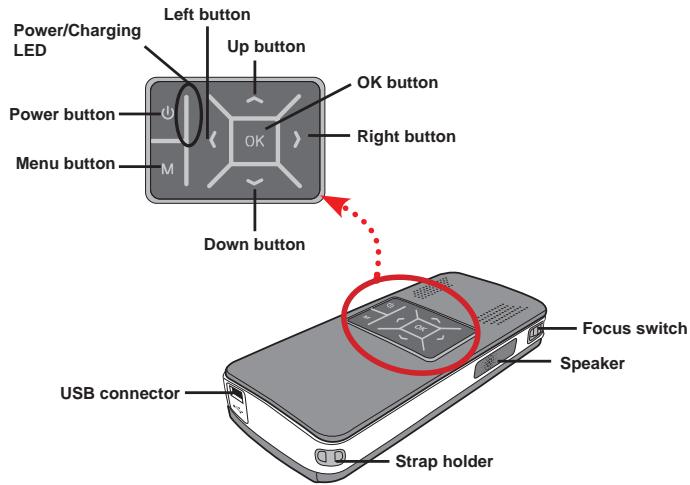
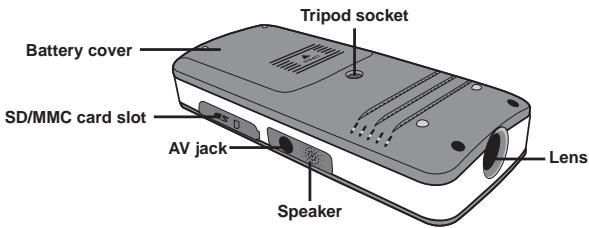
- Projector parts
- Reading LED indicators
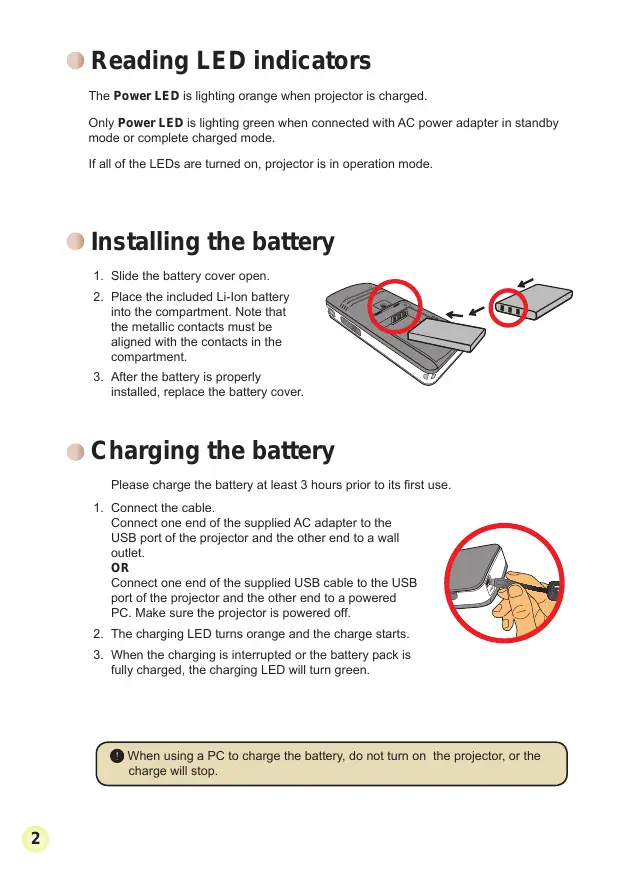
The Power LED is lighting orange when projector is charged.
Only Power LED is lighting green when connected with AC power adapter in standby mode or complete charged mode.
If all of the LEDs are turned on, the projector is in operation mode.
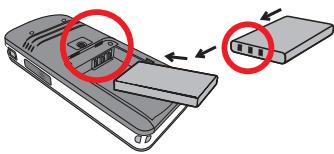
- Installing the battery
- Slide the battery cover open.
- Place the included Li-Ion battery into the compartment. Note that the metallic contacts must be aligned with the contacts in the compartment.
- After the battery is properly installed, replace the battery cover.
- Charging the battery
Please charge the battery for at least 3 hours prior to its first use.
- Connect the cable. Connect one end of the supplied AC adapter to the USB port of the projector and the other end to a wall outlet. Connect one end of the supplied USB cable to the USB port of the projector and the other end to a powered PC. Make sure the projector is powered off.
OR
- The charging LED turns orange and the charge starts.
- When the charging is interrupted or the battery pack is fully charged, the charging LED will turn green.
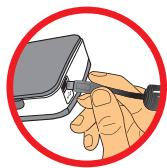
When using a PC to charge the battery, do not turn on the projector, or the charge will stop.
- Inserting a memory card (optional)
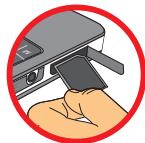
To insert a memory card, do the following:
(1) Open the SD card cover. (2) Gently push the card as indicated until the card reaches the bottom of the slot.
To remove the memory card, gently push it down and it will pop up. Then pull the card out of the slot.
Turning on/off your projector
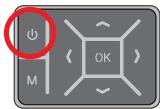
Press and hold down the Power button for 4 seconds to turn on the projector.
To turn off the projector, press and hold down the Power button for 2 seconds.
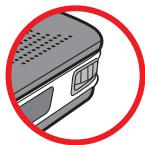
Adjusting the Focus
Please adjust the Focus switch to have a better view during usage.
Functions and Operations
Introduction to main menu
After turning on the projector, you will see a "Welcome" screen first, then the main menu as below.
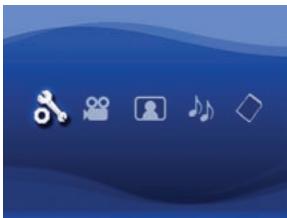
- Settings: This function allows users to set some preference settings such as Language, Brightness, Contrast, Saturation, Slideshow Speed, Auto power off, and Beep sound.
- Video: This function allows users to select a video file to project from the screen. ● Photo: This function allows users to select a JPEG image file to project from the screen. ● Music: This function allows users to select MP3 files to play from the projector. ● Memory: This function allows users to check the available memory type and capacity and select it as the target source for projection.
Setting language
- Turn on the projector. The main menu will appear.
- Use the Left/Right button to select the Settings mode and press OK to enter the menu screen.
- Use the Up/Down button to select the Language item, and then press the Right button.
- Move the Up/Down button to select a language.
- When done, press OK to confirm the setting.

Checking Memory
This function is to select which memory type to playback from and its capacity and available size. The default is built-in memory.
- Use the Left/Right button to select "Memory" and then press OK button.
- The Memory Check box will display as below. Use the Up/Down button to select the memory type.
| Selection | Memory | Available/Capacity |
| √ | [HBBZ] | 669MB / 979MB |
 | 1.9GB / 1.9GB |
- Press OK button after selection to return to the main menu.
If there is no memory card inserted, the screen will only show internal built-in memory status.
Playing Video
- Use the Left/Right button to select "Video" and then press OK button.
- Use the Up/Down button to select target folder or video files to see the first screen of each video. Press the OK button to confirm the selection. (Some larger files may require more time to switch.)
- When selecting one Video file, press OK to play it back. (play once only)
- Use the Left/Right button to backward or forward to another video.
- You can use Up/Down button to control volume.
- Press OK can pause video, and press OK again can resume playing.
It's normal that the projector will feel warm with continuous use due to its high performance. Sometimes your video files with MP4, ASF or AVI file formats may not be able to play back by this projector. Please try using bundled ArcSoft Media Converter (AMC) program to convert video files into formats optimized for use on this projector. But it is not guaranteed that all of the input video files can be accepted by AMC for file conversion.
Supported file types for conversion (Input file formats)
- Windows AVI files (*.AVI)
- Advanced Systems Format (*.ASF)
- Video CD (*.DAT)
- Quick Time files (*.MOV)
- MP4 files (*.MP4; *.M4V)
- MPEG (*.MPG; *.MPEG; *.MPE)
- RealMedia Video (*.RMVB)
- Windows Media Video (*.WMV)
Supported file types for export
- MJPEG AVI (recommended)
- MPEG-4 ASF
For detailed information, please check the "Help" under Extra from the AMC program or visit the ArcSoft website at www.arcsoft.com to understand the key features and how to use them.
- Playing back still pictures
- Use the Left/Right button to select "Photo" and then press the OK button.
- Use the Up/Down button to select the target folder or photo to see the preview image. Press the OK button to confirm the selection.
- After a photo is selected, press OK to display the full size of this photo.
- Use the Left/Right button to display the last or next photo.
- Playing back PowerPoint/PDF files
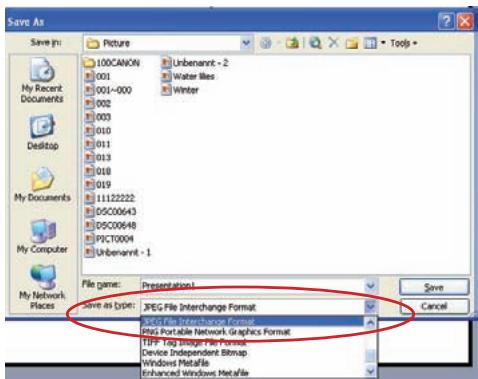
When giving a presentation using PowerPoint/PDF documents, please save the PPT/PDF file into .jpeg format.
- Execute the PowerPoint/Acrobat program first.
- Open the PPT/PDF file.
- Launch the "File" > "Save as" dialogue, then select "JPEG File Exchange Format" from the "Save as type" drop-down list.
- Rename the file if necessary:
The playback sequence is in the order of the first digit Arabic numerals, such as 1, 10, 100, 101, 11, then 2, 20, 21, and so on. To avoid playback order confusion, please rename the files 1 \~ 9 as 01 \~ 09, 100 as A100, etc.
- Inserting MP3 music into photo playing
- Press the Menu button for 2 seconds to show the function bar at the bottom of the screen.
- Use the Up/Down button to select 🎨 (default setting) or 🎨 .
Select 📂 to play MP3 files in the same folder of displayed picture(s) and


to disable this function.
! If you cannot hear music, please check if there are MP3 files in the same folder of the displayed picture(s).
Zoom function
- Press Menu button for 2 seconds to show the function bar on the screen bottom.
- Use the Left/Right button to select "Zoom-in" mode and use Down button to enter Zoom mode. A small Zoom screen will appear on the right down corner.
- Press Up button to go for Zoom x2, x3, x4, x1 or Down button for x4, x3, x2, x1 step by step.
- When you are in magnification of x2, x3 or x4, the Zoom screen will indicate the area of the original photo being displayed.
- Press and hold Right, Left, Up or Down button to move the view screen around the photo.
- Press Menu button to return to x1 stage and press Menu button again to exit the Zoom-in mode.
- Playing back Music
- Use the Left/Right button to select "Music" and then press OK button.
- Use the Up/Down button to select target folder or MP3 files. Press the OK button to confirm the selection.
- After one MP3 file is selected, press OK to play it back. (play once only)
- Use the Left/Right button to play the previous or next MP3 file.
- While MP3 is playing, use the Up/Down button to adjust the volume up and down.
- Press OK to pause music, and press OK again to resume playing.
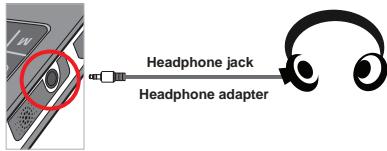
- Use headphones to listen to music (also suitable for playing video).
1) Connect headphones to the AV jack of the projector.
2) Press OK to select "Audio Out".
If the projector remains inactive for 20 seconds, the screen will automatically turn off.
- Repeat playing video, still picture, or music
The default setting is to play the selected video, still picture, or music once. If you want to repeat the video, still picture, or music, please do the following:
- During playback of video, photo, or music, press the Menu button for 2 seconds to show the function bar at the bottom of the screen.
- Use the Up/Down button to select 📄, 📋, or


(default setting): No repeat play

: Play the video, still picture, or music in the same folder

: Play the video, still picture, or music in the memory card or internal built-in memory.
- Playing back files in other devices

Connecting the projector to your media players
Steps for connecting the projector to an external player:
Before connecting your media player to the projector, you need to have the media player's dedicated composite AV-out cable and the projector's AV cable ready.
![graph LR A["AV OUT"] --> B["<AV cable>"] B --> C["Projector AV cable (red)"] B --> D["Composite AV-out cable (white)"] C --> E["Video/Music Player"] D --> F["Mobile Phone"] C --> G["Digital camcorder/camera"] D --> H["Portable Media Player"]](/content/2020/04/169879/images/3a424f3e3af643834e038ec667b16d1dc8a0122624e883a156bf8d096a835932.jpg)
- Connect the composite AV-out cable to the media player.
- Connect both AV cables (yellow to yellow, white to white, and red to red).
- Select "AV in" when you are asked to select "AV in" or "Audio out".
- Now you can project image and audio from the projector. You can also control the volume from the control panel (Up/Down button).

Connecting the projector to your laptop PC
Before connecting your laptop PC to the projector, you need to have a Composite/S-video adapter, RCA (dual male) connector, and the projector's AV cable ready.
! Please make sure that your laptop PC is equipped with an S-video port.
![graph LR A["AV OUT"] --> B["(red)"] A --> C["(white)"] A --> D["Yellow"] A --> E["<AV cable>"] B --> F["RCA (dual male) connector"] C --> F D --> F E --> F F --> G["S-video cable"] G --> H["S-video port"]](/content/2020/04/169879/images/16f50553bbd66551d379891e875b19dc62ea4e62c82d718cf4069972898d4a90.jpg)
- Turn on the laptop PC and projector first.
- Connect one end of the Composite/S-video adapter to the S-video port of the laptop PC and the other end to the RCA (dual male) connector.
- Connect the other end of the RCA (dual male) connector to the projector's AV cable (yellow).
- Connect the AV cable to the AV jack of the projector.
- Select "AV in" when you are asked to select "AV in" or "Audio out".
- Switch the laptop display mode from LCD mode to TV mode.
- Menu operation
The menu items provide several options for you to fine-tune your projector functions. The following table gives details on menu operations.
| How to... | Action |
| Bring up the menu | Press the MENU button. |
| Move the highlight bar | Use the Up/Down button or Left/Right button. |
| Enter sub-menu/Confirm an item | Press the OK button. |
| Exit menu/Go back to upper menu | Press the MENU button (when in sub-menu). |
- Menu items in Settings mode
Power-on → Select the Settings mode → Press the OK button.
| Item | Option | Description |
| Language | - | Lets you select the language used for OSD. |
| Brightness | -4 ~ +4 | Set projection screen brightness. |
| Contrast | -4 ~ +4 | Set projection screen contrast. |
| Saturation | -4 ~ +4 | Set projection screen color saturation. |
| Slideshow Speed | 3 sec, 5 sec, 8 sec, 15 sec | Set the interval time between each slide |
| Auto Power Off | Off | Disable Auto-off function. |
| 3 min | The projector automatically shuts down when staying inactive for over 3 minutes. | |
| 5 min | The projector automatically shuts down when staying inactive for over 5 minutes. | |
| Beep | On | Enable beep sound. |
| Off | Disable beep sound. | |
| Default | Yes | Restore factory defaults. Note that your current settings will be overridden. |
| No | Cancel action. |
- Managing the files in built-in memory or memory card from PC
Please follow the procedures below to manage files in either built-in memory or memory card.
- Make sure the projector is powered off if the battery is installed.
- Connect one end of the bundled USB cable to the USB port of the projector and the other end to a powered PC.
- Turn on the projector: Press and hold down the Power button for 4 seconds till you hear music.
- A removable disk will appear in your computer.
! PC can only recognize one storage medium each time (check memory card first, then built-in memory if no memory cards is inserted). Do not switch the storage medium during operation. When connecting the projector to PC USB port without turning on the projector, the PC starts charging the battery inside the projector. To read the files in the memory, press the Power button or remove the battery first.
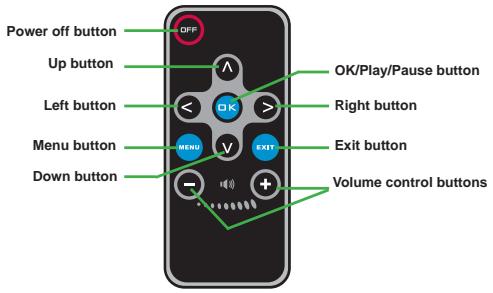
Remote Controller
Battery Life Indicator
| Icon | Description |
| [580C] | Full battery life |
 | Moderate battery life |
 | Low battery life |
| [T0DY] | Empty battery life |
Note 1: To avoid sudden outage of power supply, you are recommended to plug AC power adapter first then take off the battery when the icon indicates low battery life. Note 2: When "Battery Low" message appeared on the screen, the projector will be powered off automatically.
| Item | Description |
| Optical Technology | LCoS |
| Light Source | White LED |
| Aspect Ratio | 4:3 |
| Luminous Flux | 10 Lumens (Max.) |
| Resolution | 640 x 480 (VGA) |
| Projection Image Size | 6" ~ 50" (15cm ~ 127cm) (Diagonal) |
| Projection Distance | 25cm ~ 180cm |
| Zoom & Focus | Manual |
| Projection Source | External from 3-in-1 AV jack, built-in memory or memory card |
| Play back format | Photo: .JPEGAudio: .MP3Video: .MPEG-4 (.AVI, .ASF, .MP4), H.264 (.MP4), M-JPEG (.AVI) through ArcSoft Media Converter. |
| Audio speaker | Stereo (0.5W x 2) |
| Memory Slot | SD/SDHC/MMC/MS Pro |
| Power Supply | AC power adapter or NP120 Li-Lon rechargeable battery |
| Operation temperature | 0°C ~ 35°C |
| Dimension | 125mm x 55mm x 23mm |
| Weight | 100g (without battery) |
Note: Specifications are subject to change without notification.
Charging the battery
Charging the battery
Charging the battery
Turning the projector on/off
Functions and operations
Charging the battery
Functions and operations
Charging the battery
Functions and operations
Charging the battery
Charging the battery
Charging the battery
Charging the battery
● Turning the projector on/off
Functions and Operation
● Main Menu Description
Battery Charging
● Turning the Projector On/Off
Press and hold the power button for 4 seconds to turn on the projector.
Functions and Operation
Main Menu Overview
Battery Charging
Turning the Projector On/Off
Press and hold the power button for 4 seconds to turn on the projector.
Functions and Operation
Main Menu Overview
Charging the Battery
Turning the Projector On/Off
Functions and Operation
Introduction to the basic menu
Remote control....14
Battery charge indicator....14
- How to charge the battery
Functions and operations


- SAFETY NOTICE
- FCC COMPLIANCE STATEMENT
- TABLE OF CONTENTS
- GETTING STARTED
- FUNCTIONS AND OPERATIONS
- PROJECTOR PARTS
- READING LED INDICATORS
- INSTALLING THE BATTERY
- CHARGING THE BATTERY
- OR
- INSERTING A MEMORY CARD (OPTIONAL)
- TURNING ON/OFF YOUR PROJECTOR
- ADJUSTING THE FOCUS
- INTRODUCTION TO MAIN MENU
- SETTING LANGUAGE
- CHECKING MEMORY
- PLAYING VIDEO
- SUPPORTED FILE TYPES FOR CONVERSION (INPUT FILE FORMATS)
- SUPPORTED FILE TYPES FOR EXPORT
- PLAYING BACK STILL PICTURES
- PLAYING BACK POWERPOINT/PDF FILES
- INSERTING MP3 MUSIC INTO PHOTO PLAYING
- ZOOM FUNCTION
- PLAYING BACK MUSIC
- REPEAT PLAYING VIDEO, STILL PICTURE, OR MUSIC
- PLAYING BACK FILES IN OTHER DEVICES
- CONNECTING THE PROJECTOR TO YOUR MEDIA PLAYERS
- STEPS FOR CONNECTING THE PROJECTOR TO AN EXTERNAL PLAYER
- CONNECTING THE PROJECTOR TO YOUR LAPTOP PC
- MENU OPERATION
- MENU ITEMS IN SETTINGS MODE
- MANAGING THE FILES IN BUILT-IN MEMORY OR MEMORY CARD FROM PC
- REMOTE CONTROLLER
- BATTERY LIFE INDICATOR
- TURNING THE PROJECTOR ON/OFF
- ● TURNING THE PROJECTOR ON/OFF
- FUNCTIONS AND OPERATION
- ● MAIN MENU DESCRIPTION
- BATTERY CHARGING
- MAIN MENU OVERVIEW
- INTRODUCTION TO THE BASIC MENU
- HOW TO CHARGE THE BATTERY
Brand : AIPTEK
Model : V10
Category : Projector