
MobileCinema i60 - Projector AIPTEK - Free user manual and instructions
Find the device manual for free MobileCinema i60 AIPTEK in PDF.


| Product type | DLP pico projector |
| Brand | AIPTEK |
| Model | MobileCinema i60 |
| Optical technology | DLP |
| Light source | RGB LED |
| Native resolution | 640 x 480 pixels (VGA) |
| Brightness | Up to 70 lumens |
| Projected image size | 152 mm to 1524 mm (6 to 60 inches) diagonal |
| Compatible sources | iPhone 6 with Lightning Digital AV adapter, HDMI devices (computer, tablet, DVD player, game console) |
| Input power | 5 V / 2 A |
| Power output (iPhone charging) | 5 V / 1 A |
| Battery type | Rechargeable Li-polymer 3000 mAh built-in |
| Projection battery life | Up to 120 minutes |
| Projection power consumption | 7.5 W |
| Dimensions (L x W x H) | 154 x 73 x 30 mm |
| Weight | 155 g |
| Operating temperature | 5°C to 35°C |
| Operating humidity | 80% RH max (5-35°C, non-condensing) |
| Maintenance and cleaning | Avoid any contact with water. Clean with a soft, dry cloth. Do not disassemble the device. |
| Safety | Do not look directly at the lens. Use in a well-ventilated area. Do not expose to extreme temperatures. |
| Spare parts and repairability | No spare parts available. In case of failure, contact customer service. |
| Package contents | Pico projector, USB cable, pouch, user manual |
Frequently Asked Questions - MobileCinema i60 AIPTEK
User questions about MobileCinema i60 AIPTEK
0 question about this device. Answer the ones you know or ask your own.
Ask a new question about this device
Download the instructions for your Projector in PDF format for free! Find your manual MobileCinema i60 - AIPTEK and take your electronic device back in hand. On this page are published all the documents necessary for the use of your device. MobileCinema i60 by AIPTEK.
USER MANUAL MobileCinema i60 AIPTEK
Care and Safety Information
- Keep the device and packaging materials out of the reach of infants and children.
- Avoid subjecting the power adapter and other contacts to dripping or splashing water and dry your hands before you use it. Do not place objects filled with liquids on or close to the device (such as vases, etc.).
- Make sure that the used power outlet is always readily available and never hidden. In case of emergency, use the power adapter to separate the device from the power network.
- Keep your device away from all flames such as candles and do not set them up in the vicinity of the device.
- Keep the unit at least 10 cm away from other objects. Make sure the ventilation is not covered by newspapers, tablecloths, curtains, etc.
- For your own safety, do not use the projector during thunderstorms or lightning.
- Relative Humidity is 5\~35°C, 80% (Max.), non-condensing.
- The battery is integrated with the device. Do not dissemble and modify. The battery should be replaced by qualified service staff only.
- Ensure that the ambient room temperature is within -10\~55°C
- During the operation, this product may heat lightly, which is normal.
- Wait before using if the device has been moved from a cold location into a warm one. Any condensation that has formed may in certain circumstances destroy the device. As soon as the device has reached room temperature it can be used without danger.
- Handle the product with care. Avoid contact with sharp objects. Keep device away from metallic objects.
- Place the projector on a flat surface. Any collision or falling to the ground is likely to damage the product.
- Do not drop or disassemble the product otherwise the warranty voids. Opening or removing covers may expose you to dangerous voltage or other hazards. Refer all servicing to qualified service personnel.
- Use only the accessories supplied by the manufacturer.
- Both product and user's manual are subject to further improvement or supplement without further notification.
- Avoid looking directly into the projector's lens.


FCC Compliance Statement:
This device complies with Part 15 of the FCC Rules.
Operation is subjected to the following two conditions: (1) this device may not cause harmful interference, and (2) this device must accept any interference received, including interference that may cause undesired operation.

This equipment has been tested and found to comply with the limits for a Class B digital device, pursuant to Part 15 of the FCC rules. These limits are designed to provide reasonable protection against harmful interference in residential installations. This equipment generates, uses, and can radiate radio frequency energy, and if not installed and used in accordance with the instructions, may cause harmful interference to radio communications.
However, there is no guarantee that interference will not occur in a particular installation. If this equipment does cause interference to radio or television equipment reception, which can be determined by turning the equipment off and on, the user is encouraged to try to correct the interference by one or more of the following measures:
- Reorient or relocate the receiving antenna.
- Move the equipment away from the receiver.
- Plug the equipment into an outlet on a circuit different from that to which the receiver is connected.
- Consult the dealer or an experienced radio/television technician for additional suggestions.
You are cautioned that any change or modifications to the equipment not expressly approved by the party responsible for compliance could void your authority to operate such equipment.

(EN)
If the time arises to throw away your product, please recycle all the components possibly.
Batteries and rechargeable batteries are not to be disposed in your domestic waste! Please recycle them at your local recycling point.
Together we can help to protect the environment.

(DE)
| 1 Projector Lens | 7 Charging Mode Button |
| 2 Projection On/Off Button | 8 LED Indicator |
| 3 Focus Wheel | 9 HDMI Male Plug |
| 4 Volume/Up & Down Button | 10 Micro USB Charging Port |
| 5 Menu Button | 11 HDMI port |
| 6 Top holder* | 12 Type A USB Port |

natural_image
Diagram showing two views of a device with a black arrow indicating direction (no text or symbols present)* You can switch the top holder to hold iPhone 6 or be a stand while placing the projector on the table.
Charging the product
Connect one end of the bundled USB cable to the Micro USB port of the product and the other end to iPhone power adapter for charging.
* After 3 hours the projector is fully charged, the LED light will be turned off.
* iPhone power adapter is not included.

Connecting iPhone 6 or HDMI-out Devices
Connecting iPhone 6
- Take out the HDMI compartment cover from the projector.
- Insert the HDMI port end of Apple Lightning Digital AV Adapter into the HDMI connector of the projector.
3 Slide the iPhone 6 into the top side of the projector.
4 Insert the lightning end of Apple Lightning Digital AV Adapter into the iPhone through the hole tightly as below illustrations indicates.
* Apple Lightning Digital AV Adapter is not included.

flowchart
graph TD
    A["Device Insert"] --> B["Internal Processing"]
    B --> C["Device Output"]
    C --> D["Assembly"]
Connecting HDMI devices
Use the optional HDMI cable to connect your HDMI-out device to the HDMI port of the projector.
* HDMI cables are not included in the package.

natural_image
Technical line drawings of electronic devices including a device with cable, connected to USB connectors and a laptop (no text or symbols)Turning on/off the projector
Press the Projection On/Off button for 3 seconds to turn ON or turn OFF the projector.
* It's normal that the device will get warm due to its high performance.
* Projector time different as source differences.
Adjusting the focus
Adjust the focus by using the focus wheel to get a sharp and clear picture.
Volume control
Please use Up/Down button to adjust the volume.
ECO Mode

natural_image
Technical line drawing of a device with a red circular arrow indicating a directional change (no text or symbols present)
natural_image
Technical line drawing of a device with a red warning symbol and a magnified inset showing internal components (no text or labels)
natural_image
Technical diagram of a device with a magnified inset showing internal components (no text or symbols)To save power for extending the projection time, please press Menu Button (M) for one second till menu is displayed on the screen. And press Up button to enter Eco Mode, then use Up/Down button to turn on/off the Eco Mode.
Adjust Aspect Ratio
If the picture is stretched or not display in correct format the output format of your playback device is different from the input settings of the projector. Please press Menu Button (M) for one second till menu is displayed on the screen. And press down button to enter Aspect Ratio, then use Up/Down button to switch between following Aspect ratios:

natural_image
Technical line drawing of a device with a magnified inset showing a detail of a component (no text or symbols)(1) 4:3 Pan and Scan: Image ratio is 4:3, it will cut the both side edge to enlarge central image.
(2) 4:3 Theme: Image ratio is 4:3, it will keep central ratio and compress the image ratio for both side edges.
(3) 16:9 Letterbox: Image ration is 16:9, it will be scaled down, to display completed 16:9 original image.
Illustration for the three kinds of Projection mode:
Smartphone (Source) Screen Projection Screen
16:9 Aspect Ratio

natural_image
Close-up of three yellow sunflowers with dark centers against a red background (no text or symbols)Pan & Scan (4:3)

natural_image
Close-up of yellow sunflowers with dark centers against a red background (no text or symbols)Letterbox (16:9)

natural_image
Close-up of yellow sunflowers with dark centers against a red background (no text or symbols)Theme mode (4:3)

natural_image
Close-up of two yellow sunflowers with dark centers against a red background (no text or symbols)Charging your iPhone 6/iOS Device
The internal battery of the projector can not only be used for projection, but also charge your iPhone 6 / iOS devices.
- Please turn off the projector before charging the iPhone 6/iOS device.
- Plug the iPhone 6 lightning USB cable into the lightning port of your iPhone 6 and USB port (Type A) of the projector.
- Press the charging mode button to start charging. * Apple lightning USB cable is not in the package.

LED indicators
| LED Status Indication | |
| 3 white LEDs stay on Power capacity is between 80% to 100% | |
| 2 white LEDs stay on Power capacity is between 45% to 80% | |
| 1 white LED stays on Power capacity is between 10% to 45% | |
| 1 white LED blinks Power capacity is below 10% | |
| LED Marquee | Projector is being charged |
| 3 white LEDs blink Charging iPhone 6/iOS device | |
Product specifications
| Item Description | |
| Optical Technology DLP | |
| Light Source RGB LED | |
| Resolution 640 x 480 Pixels (VGA) | |
| Luminous Flux Up to 70 lumens | |
| Projection Image Size 152 mm ~ 1524 mm (6" ~ 60" Diagonal) | |
| Projection Source | iPhone 6 with Apple lightning digital AV adapter and home entertainment devices support HDMI out, ex Notebook/Tablet/DVD Player/Game Player Device |
| Power Input 5V / 2A | |
| Power Output 5V / 1A | |
| Battery Type | Embedded 3000 mAh, Li-polymer rechargeable battery |
| Battery Life Projection mode: | up to 120 minCharging mode: 80% recharge of the iPhone 6 battery |
| Power Consumption Projection mode: 7.5WCharging mode: 3.3W | |
| Operation Temperature 5 °C ~ 35 °C | |
| Dimension (L x W x H) 154 mm x 73 mm x 30 mm | |
| Weight | 155 g |
| Package Content | Pico Projector, USB cable, Pouch, User's Manual |
* We reserve the right for technical changes and mistakes.
Troubleshooting
| Symptom Check Point | |
| The projector can not be turned on. | Ensure the battery is fully charged. |
| The projecting image is too dark. | * Use the Projector in a darker environment.* Decrease the size of projecting image. |
| The projecting image is too blurry. | Adjust the focus by using focus wheel. |
| The temperature of the projector's surface is warm. | It is normal that this projector to generate moderate heat during operation. |
| The projector is turned on, but the video can not be projected via iPhone 6. | Please check your Apple Lightning Digital AV Adapter is fixed well between iPhone 6 and projector. |
| The projector is no audio via iPhone 6. | Please check your iPhone 6's voice is turn on. |
| When plug earphone into iPhone 6, and no audio output. | Please plug Apple Lightning Digital AV adapter first and plug the earphone after then the audio will be outputted. |
| The projector is turned on, but the video can not be projected via HDMI interface. | Please check your device if it supports HDMI interface. If yes, please check the source resolution of your device output. Please refer the supporting resolution as below and modify your device output resolution.· 640x480p 60fps · 720x576p 50fps· 720x480p 60fps · 1280x720p 50fps· 1280x720p 60fps · 1920x1080i 50fps· 1920x1080i 60fps · 1920x1080p 50fps· 1920x1080p 60fps |
Produktübersicht

natural_image
Two views of a device casing with a black arrow indicating direction (no text or symbols)natural_image
Three line drawings of a smartphone with internal components, showing step-by-step assembly (no text or symbols)natural_image
Technical line drawings of electronic devices including a device with cable, connected to a smartphone and laptop (no text or symbols)natural_image
Diagram of a device with a red circular arrow pointing to a component (no text or symbols present)
natural_image
Technical line drawing of a device component with a magnified inset showing internal structure (no text or symbols)
natural_image
Technical line drawing of a device with a magnified inset showing internal components (no text or symbols)natural_image
Diagram of a device with a magnified inset showing internal components (no text or symbols)natural_image
Close-up of three yellow sunflowers with dark centers against a red background (no text or symbols)Pan & Scan (4:3)

natural_image
Close-up of three yellow sunflowers with dark centers against a red background (no text or symbols)Letterbox (16:9)
natural_image
Close-up of yellow sunflowers with dark centers against a red background (no text or symbols)Themenmodus (4:3)

natural_image
Close-up of two yellow sunflowers with dark centers against a red background (no text or symbols)LED Anzeigen
natural_image
Two views of a device casing with a black arrow indicating a transformation or change (no text or symbols present)natural_image
Diagram showing two connected devices with a cable and connector, labeled 1 and 2 (no text or symbols present)natural_image
Three-step diagram showing a device being inserted into a device, with arrows indicating the process (no text or symbols present)natural_image
Technical line drawings of electronic components including a device, connectors, and a laptop (no text or symbols present)natural_image
Diagram of a device with a red circular arrow pointing to a component (no text or symbols present)
natural_image
Technical line drawing of a device with a magnified inset showing internal components (no text or symbols)
natural_image
Technical diagram of a device with a magnified inset showing internal components (no text or symbols)natural_image
Diagram of a device with a magnified inset showing internal components (no text or symbols)natural_image
Close-up of three yellow sunflowers with dark centers against a red background (no text or symbols)natural_image
Close-up of yellow sunflowers with dark centers against a red background (no text or symbols)natural_image
Close-up of yellow sunflowers with dark centers against a red background (no text or symbols)Mode Thème (4:3)

natural_image
Close-up of yellow sunflowers with dark centers against a red background (no text or symbols)Indicateurs DEL
natural_image
Two views of a device with a black arrow indicating direction (no text or symbols)Collegare iPhone 6 o dispositivi HDMI
Collegare iPhone 6
natural_image
Three-step diagram showing a device being inserted into a device, with arrows indicating the process (no text or symbols present)Collegare dispositivi HDMI
natural_image
Technical line drawings of electronic components including a device, connectors, and a laptop (no text or symbols)natural_image
Technical line drawing of a device with a magnified inset showing a detail of a component (no text or symbols)natural_image
Close-up of three yellow sunflowers with dark centers against a red background (no text or symbols)Pan & Scan (4:3)

natural_image
Close-up of three yellow sunflowers with dark centers against a red background (no text or symbols)Letterbox (16:9)

natural_image
Close-up of yellow sunflowers with dark centers against a red background (no text or symbols)Modalità tema (4:3)
natural_image
Close-up of two yellow sunflowers with dark centers against a red background (no text or symbols)Caricare dispositivo iPhone 6/iOS
Indicatori LED
natural_image
Technical line drawing of two electronic device components with a black arrow indicating a transformation or assembly (no text or symbols present)natural_image
Diagram showing three labeled components: a battery pack, a plug-in socket, and a connector (no text or symbols present)natural_image
Three-step diagram showing a device being inserted into a mobile phone, with arrows indicating the process (no text or symbols present)natural_image
Technical line drawings of electronic devices including a device with cable, connectors, and a laptop (no text or symbols)natural_image
Technical illustration of a device with a magnified inset showing internal components (no text or symbols)СД-индикаторы
natural_image
Two technical line drawings of electronic devices with a black arrow indicating a transformation or change (no text or symbols present)natural_image
Three-step diagram showing a smartphone being inserted into a device, with arrows indicating the process (no text or symbols present)natural_image
Technical line drawings of electronic devices including a device with cable, connected to a smartphone and laptop (no text or symbols)natural_image
Diagram of a device with a red circular arrow pointing to a component (no text or symbols present)
natural_image
Technical line drawing of a device component with a magnified inset showing internal structure (no text or symbols)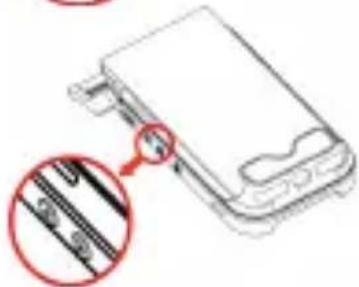
natural_image
Technical line drawing of a device with a magnified inset showing internal components (no text or symbols)natural_image
Technical line drawing of a device with a magnified inset showing a detail of a component (no text or symbols)natural_image
Close-up of three yellow sunflowers with dark centers against a red background (no text or symbols)Yatay Kaymalı (4:3)

natural_image
Close-up of three yellow sunflowers with dark centers against a red background (no text or symbols)Sinemaskop (16:9)

natural_image
Close-up of yellow sunflowers with dark centers against a red background (no text or symbols)İçerik modu (4:3)

natural_image
Close-up of two yellow sunflowers with dark centers against a red background (no text or symbols)LED göstergeleri
natural_image
Diagram showing two views of a device with a black arrow indicating direction (no text or symbols present)natural_image
Three-step diagram showing a device being inserted into a mobile phone, with arrows indicating the process (no text or symbols present)连接 HDMI 设备
natural_image
Line drawing of a mechanical device with a red arrow pointing to a component (no text or symbols)
natural_image
Pure electrical circuit lines without any symbols打开/关闭投影机
natural_image
Diagram of a device with a red circular arrow pointing to a component (no text or symbols present)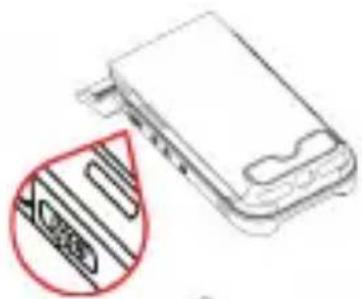
natural_image
Technical line drawing of a device with a magnified inset showing internal components (no text or symbols)
natural_image
Technical line drawing of a device with a magnified inset showing internal components (no text or symbols)natural_image
Technical line drawing of a device with a magnified inset showing a detail (no text or symbols)natural_image
Close-up of three yellow sunflowers with dark centers against a red background (no text or symbols)电影格式(4:3)

natural_image
Close-up of three yellow sunflowers with dark centers against a red background (no text or symbols)信箱格式(16:9)
natural_image
Close-up of yellow sunflowers with dark centers against a red background (no text or symbols)主题模式(4:3)

natural_image
Close-up of two yellow sunflowers with dark centers against a red background (no text or symbols)iPhone 6/iOS 设备充电
LED 指示灯
natural_image
Two views of a device with a black arrow indicating direction (no text or symbols)natural_image
Technical line drawing of a device with connectors and a cable, no text or symbols present2
natural_image
Three-step diagram showing a device being inserted into a device, with arrows indicating the process (no text or symbols present)連接 HDMI 裝置
natural_image
Line drawing of a mechanical device with a red arrow pointing to a component (no text or symbols)
natural_image
Pure electrical circuit lines without any symbols開啟/關閉您的投影機電源
natural_image
Diagram of a device with a red arrow pointing to a component, no text or symbols present調整焦距
natural_image
Technical line drawing of a device with a magnified inset showing internal components (no text or symbols)
natural_image
Technical line drawing of a device with a magnified inset showing internal components (no text or symbols)natural_image
Technical line drawing of a device with a magnified inset showing a detail of a component (no text or symbols)natural_image
Close-up of three yellow sunflowers with dark centers against a red background (no text or symbols)横移且填满(4:3)

natural_image
Close-up of yellow sunflowers with dark centers against a red background (no text or symbols)字幕盒(16:9)

natural_image
Close-up of yellow flowers with dark centers against a red background (no text or symbols)主題模式(4:3)

natural_image
Close-up of yellow sunflowers with dark centers against a red background (no text or symbols)LED 指示燈號
natural_image
Technical line drawing of two electronic device components with a black arrow indicating a transformation or assembly (no text or symbols present)natural_image
Technical line drawing of a device with connectors and a central component (no text or symbols)2
natural_image
Three-step diagram showing a device being inserted into a device, with arrows indicating the process (no text or symbols present)HDMI 装置の接続
natural_image
Technical line drawings of electronic devices including a device with cable, connectors, and a laptop (no text or symbols)プロジェクターのオン/オフ
natural_image
Technical line drawing of a mobile phone casing with a red circular arrow indicating a location or feature (no text or symbols present)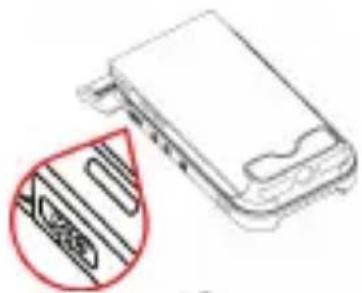
natural_image
Technical line drawing of a device component with a magnified inset showing internal structure (no text or symbols)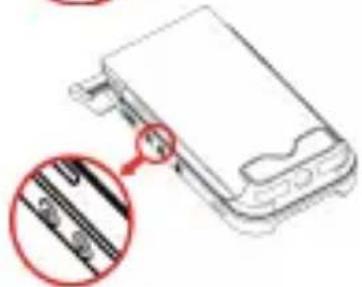
natural_image
Technical diagram of a device with a magnified inset showing internal components (no text or symbols)natural_image
Technical line drawing of a device with a magnified inset showing a detail (no text or symbols)natural_image
Close-up of three yellow sunflowers with dark centers against a red background (no text or symbols)パンとスキャン(4:3)

natural_image
Close-up of three yellow sunflowers with dark centers against a red background (no text or symbols)レターボックス(16:9)

natural_image
Close-up of yellow sunflowers with dark centers against a red background (no text or symbols)テーマモード(4:3)

natural_image
Close-up of two yellow sunflowers with dark centers against a red background (no text or symbols)LED インジケータ
natural_image
Diagram showing two views of a device with a black arrow indicating direction (no text or symbols present)natural_image
Three-step diagram showing a device being inserted into a package, with arrows indicating the process (no text or symbols present)HDMI 장치 연결하기
natural_image
Line drawing of a mechanical device with a red arrow pointing to a component (no text or symbols)
natural_image
Pure electrical circuit lines without any symbols프로젝터 켜기/끄기
natural_image
Diagram of a device with a red circular arrow pointing to a component (no text or symbols present)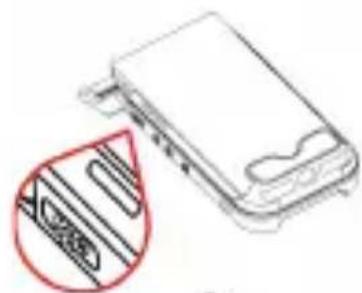
natural_image
Technical line drawing of a device with a magnified inset showing internal components (no text or symbols)
natural_image
Technical line drawing of a device with a magnified inset showing internal components (no text or symbols)natural_image
Technical diagram of a device with a magnified inset showing internal structure (no text or symbols)natural_image
Close-up of three yellow sunflowers with dark centers against a red background (no text or symbols)16:9 화면비율

natural_image
Close-up of three yellow sunflowers with dark centers against a red background (no text or symbols)레터박스 (16:9)

natural_image
Close-up of yellow sunflowers with dark centers against a red background (no text or symbols)테마 모드 (4:3)

natural_image
Close-up of two yellow sunflowers with dark centers against a red background (no text or symbols)LED 표시등
natural_image
Two views of a device with a black arrow indicating direction (no text or symbols)natural_image
Three technical line drawings of a smartphone device with internal components, showing assembly and disassembly (no text or symbols)HDMIït وصيل أجهزة
natural_image
Technical line drawing of a mechanical component with a red arrow indicating direction (no text or symbols)
natural_image
Pure electrical circuit lines without any symbols

natural_image
Diagram of a device with a red arrow pointing to a component, no text or symbols present
natural_image
Technical line drawing of a device with a red circle highlighting a component detail (no text or symbols)
natural_image
Technical line drawing of a device with a magnified inset showing internal components (no text or symbols)natural_image
Technical line drawing of a device with a magnified inset showing a detail of a component (no text or symbols)مؤشرات ضوئية


- Care and Safety Information
- FCC Compliance Statement:
- (EN)
- (DE)
- Charging the product
- Connecting iPhone 6 or HDMI-out Devices
- Connecting iPhone 6
- Connecting HDMI devices
- Turning on/off the projector
- Adjusting the focus
- Volume control
- ECO Mode
- Adjust Aspect Ratio
- Charging your iPhone 6/iOS Device
- Collegare iPhone 6 o dispositivi HDMI
- Collegare iPhone 6
- Collegare dispositivi HDMI
- Caricare dispositivo iPhone 6/iOS
- 连接 HDMI 设备
- 打开/关闭投影机
- iPhone 6/iOS 设备充电
- 連接 HDMI 裝置
- 開啟/關閉您的投影機電源
- 調整焦距
- HDMI 装置の接続
- プロジェクターのオン/オフ
- HDMI 장치 연결하기
- 프로젝터 켜기/끄기
- HDMIït وصيل أجهزة
Brand : AIPTEK
Model : MobileCinema i60
Category : Projector