
MobileCinema A50P - Projector AIPTEK - Free user manual and instructions
Find the device manual for free MobileCinema A50P AIPTEK in PDF.


| Product type | Pico projector |
| Brand | AIPTEK |
| Model | MobileCinema A50P |
| Optical technology | DLP |
| Light source | RGB LED |
| Native resolution | 640 x 480 pixels (VGA) |
| Brightness | Up to 35 ANSI lumens |
| Projection size | 152 mm to 1524 mm (diagonal 6" to 60") |
| Input interface | MHL or HDMI |
| Input power | 5V/2A (USB) |
| Output power | 5V/500mA (MHL phone charging) |
| Battery type | Rechargeable Li-Polymer 1850 mAh |
| Projection battery life | Up to 100 minutes |
| Power consumption (projection) | 7 W |
| Power consumption (charging) | 2.5 W |
| Operating temperature | 5 °C to 35 °C |
| Dimensions (L x W x H) | 132 x 71 x 14 mm |
| Weight | 165 g |
| Built-in speaker | Yes |
| Focus | Manual (wheel) |
| Display modes | 4:3 Pan & Scan, 4:3 Theme, 16:9 Letterbox |
| Box contents | Projector, USB cable, HDMI adapter, carrying case, manual |
| Maintenance | Clean with a soft dry cloth; avoid contact with water |
| Safety | Do not stare directly into the lens; use in a dry and ventilated environment |
| Repairability | Not user-repairable; contact after-sales service |
Frequently Asked Questions - MobileCinema A50P AIPTEK
User questions about MobileCinema A50P AIPTEK
0 question about this device. Answer the ones you know or ask your own.
Ask a new question about this device
Download the instructions for your Projector in PDF format for free! Find your manual MobileCinema A50P - AIPTEK and take your electronic device back in hand. On this page are published all the documents necessary for the use of your device. MobileCinema A50P by AIPTEK.
USER MANUAL MobileCinema A50P AIPTEK
Care and Safety Information
- Keep the device and packaging materials out of the reach of infants and children.
- Avoid subjecting the power adapter and other contacts to dripping or splashing water and dry your hands before you use it. Do not place objects filled with liquids such as vases, etc. on or near the device.
- Make sure that the used power outlet is always readily available and never hidden. In case of emergency, use the power adapter to separate the device from the power network.
- Keep your device away from all flames such as candles and do not set them up in the vicinity of the device.
- Keep the unit at least 10 cm away from other objects. Make sure the ventilation is not covered by newspapers, tablecloths, curtains, etc.
- For your own safety, do not use the projector during thunderstorms or lightning.
- Relative Humidity is 5\~35°C, 80% (Max.), non-condensing.
- The battery is integrated with the device. Do not dissemble and modify. The battery should be replaced by qualified service staff only.
- Ensure that the ambient room temperature is within -10\~55°C
- During the operation, this product may heat lightly, which is normal.
- Wait before using if the device has been moved from a cold location into a warm one. Any condensation that has formed may in certain circumstances destroy the device. As soon as the device has reached room temperature it can be used without risk.
- Handle the product with care. Avoid contact with sharp objects. Keep device away from metallic objects.
- Place the projector on a flat surface. Any collision or falling to the ground is likely to damage the product.
- Do not drop or disassemble the product otherwise the warranty voids. Opening or removing covers may expose you to dangerous voltage or other hazards. Refer all servicing to qualified service personnel.
- Use only the accessories supplied by the manufacturer.
- Both product and user's manual are subject to further improvement or supplement without further notice.
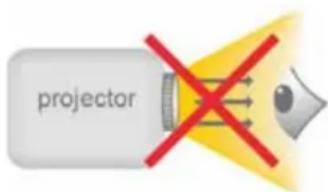
- Avoid facing directly into the projector's lens.
User's Manual
User's Manual
FCC Compliance Statement:
This device complies with Part 15 of the FCC Rules. Operation is subjected to the following two conditions: (1) this device may not cause harmful interference, and (2) this device must accept any interference received, including interference that may cause undesired operation.

This equipment has been tested and found to comply with limits for a Class B digital device, pursuant to Part 15 of the FCC rules. These limits are designed to provide reasonable protection against harmful interference in residential installations. This equipment generates, uses, and can radiate radio frequency energy, and if not installed and used in accordance with the instructions, may cause harmful interference to radio communications.
However, there is no guarantee that interference will not occur in a particular installation. If this equipment does cause interference to radio or television equipment reception, which can be determined by turning the equipment off and on, the user is encouraged to try to correct the interference by one or more of the following measures:
- Reorient or relocate the receiving antenna.
- Move the equipment away from the receiver.
- Plug the equipment into an outlet on a circuit different from that to which the receiver is connected.
- Consult the dealer or an experienced radio/television technician for additional suggestions.
You are cautioned that any change or modifications to the equipment not expressly approved by the party responsible for compliance could void your authority to operate such equipment.

(EN)
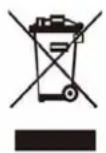
If the time arises to throw away your product, please recycle all the components possible.
Batteries and rechargeable batteries are not to be disposed in your domestic waste! Please recycle them at your local recycling point.
Together we can help to protect the environment.
User's Manual

(DE)
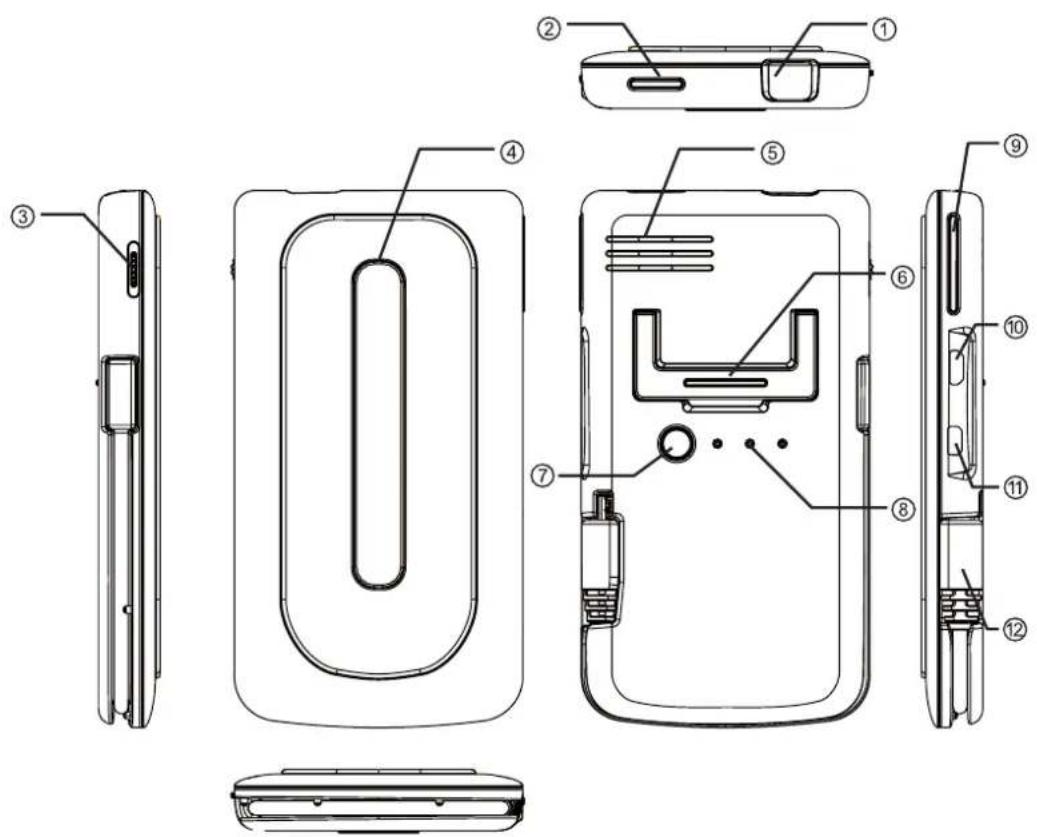
① Projector Lens
② Projection On/Off Button
③ Focus Wheel
②③ Anti-Slip Pad
natural_image
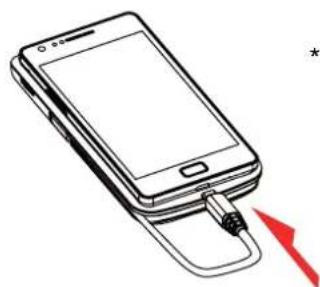
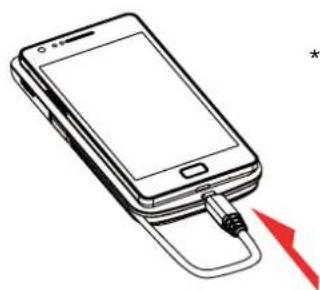
Line drawing of a smartphone with a USB cable inserted, showing a red arrow indicating compression or disassembly (no text or symbols present)* You can put your cell phone on top of the projector for convenience usage.
⑤ Speaker
②⑤ Stand
⑦ Charging Mode
⑧ LED Indicator
⑨ Projection Mode/Up & Down
⑩ Micro USB Charging Port
⑪ Micro HDMI port
⑫ MHL Cable (5 pin)
User's Manual
Charging the product
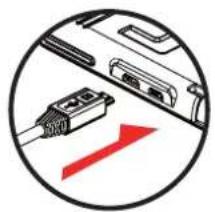
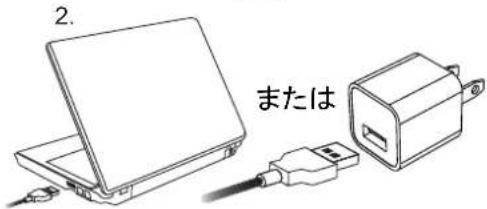
Connect one end of the bundled USB cable to the Micro USB port of the product and the other end to PC / Notebook or Smart phone USB power adapter for charging.
* After 5 hours the projector is fully charged, the LED light will be turned off.
natural_image
Diagram showing a device with a red arrow pointing to a cable connector (no text or symbols present)Z

Charging your MHL enabled phone
The internal battery of the projector can not only be used for projection, but also charge your MHL enabled mobile device.
- Please turn off projector before charging MHL enabled phone.
- Plug MHL cable into MHL port of your mobile phone.
-
Press the charging mode button to start charging.
-
Only MHL enabled devices can be charged via the embedded battery of the projector.
- Please press charging button after finishing MHL phone charge.

LED indicators
| LED Status Indication | |
| 3 white LEDs stay on Power capacity is between 80% to 100% | |
| 2 white LEDs stay on Power capacity is between 45% to 80% | |
| 1 white LED stays on Power capacity is between 10% to 45% | |
| 1 white LED blinks Power capacity is below 10% | |
| LED Marquee | Projector is being charged |
| 3 white LEDs blink Charging MHL | enabled mobile phone |
User's Manual
四艺
Turning on/off the projector
Press the Projection On/Off button for 3 seconds to turn ON or turn OFF the projector.
* It's normal that the device will get warm due to it's high performance.
* Projector time different as source differences.

natural_image
Close-up of a computer mouse with a red button, enclosed in a circular frame (no text or symbols visible)Connecting projector with your Devices
- MHL enabled mobile phones
Simply plug the embedded MHL cable into the MHL port of your mobile phone. The phone will automatically detect the projector and project the image after a few seconds.
* Please don't pull the MHL cable hardly.
* You can use MHL extension cable (optional accessory) to extend the built-in MHL cable for operation friendly.

natural_image
Illustration of a smartphone with a lit cable and light beam, no text or symbols present- HDMI device
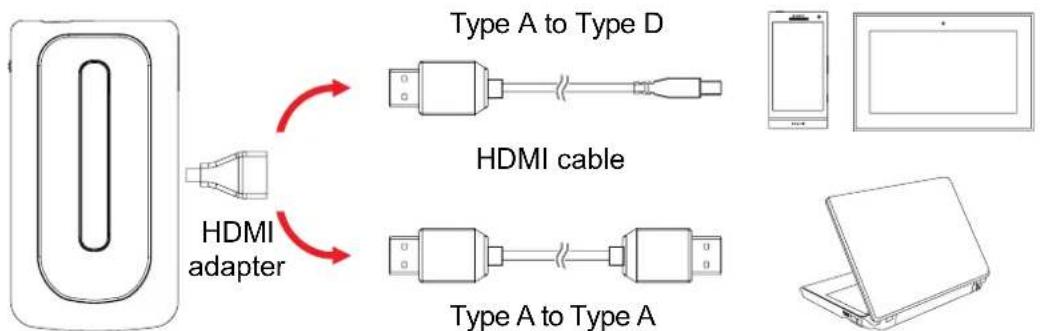
Use the HDMI adapter and optional HDMI cable to connect your HDMI-out device with the MicroHDMI port of the projector. The projection will start after a few seconds automatically.
* HDMI cables are not included in the package.
flowchart
graph TD
    A["Device with USB cable"] -->|Type A to Type D| B["HDMI cable"]
    A -->|Type A to Type D| C["HDMI adapter"]
    C -->|Type A to Type D| D["Device with LCD screen"]
User's Manual
Adjusting the focus
Adjust the focus by using the focus wheel to get a sharp and clear picture.

natural_image
Diagram of a device with a red curved arrow indicating rotation or movement, enclosed in a circle (no text or symbols)ZE
Volume control
Please use your source device to adjust the volume. In case the volume of source device is not adjustable, press Charging Mode for one second till volume bar is displayed on the screen. Use Up/Down button to adjust the volume.
Adjust Aspect Ratio
If the picture is stretched or not display in correct format the output format of your playback device is different from the input settings of the projector. Use the Projection Mode button to switch between following Aspect ratios:
(1) 4:3 Pan and Scan: Image ratio is 4:3, it will cut the both side edge to enlarge central image.
(2) 4:3 Theme: Image ratio is 4:3, it will keep central ratio and compress the image ratio for both side edge.
(3) 16:9 Letterbox: Image ration is 16:9, it will be scaled down, to display completed 16:9 original image.

natural_image
Line drawing of a rectangular electronic device with a red arrow pointing to its side (no text or symbols)User's Manual
四艺
Illustration for the three kinds of Projection mode:
| Smartphone (Source) Screen | Projection Screen |
| 16:9 Aspect Ratio | Pan & Scan (4:3) |
Letterbox (16:9)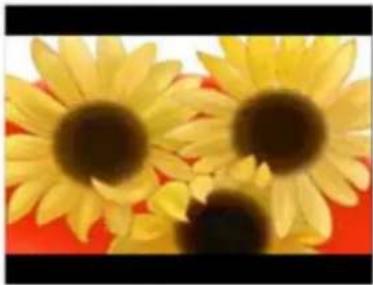 | |
Theme mode (4:3) |
User's Manual
Product specifications
| Item Description | |
| Optical Technology DLP | |
| Light Source RGB LED | |
| Resolution 640 x 480 Pixels (VGA) | |
| Luminous Flux Up to ANSI | 35 lumens |
| Projection Image Size 152 | mm ~ 1524 mm (6" ~ 60" Diagonal) |
| Projection Source MHL or HDMI interface | |
| Power Input 5V / 2A | |
| Power Output 5V / 500mA | |
| Battery Type Embedded 1850 mAh, Li-polymer rechargeable battery | |
| Battery Life | Projection mode: up to 100 minCharging mode: 70% (Samsung Galaxy S2) |
| Power Consumption | Projection mode: 7WCharging mode: 2.5W |
| Operation Temperature | 5 °C ~ 35 °C |
| Dimension (L x W x H) | 132 mm x 71 mm x 14 mm |
| Weight | 165 g |
| Package Content | Pico Projector, USB cable,HDMI-adapter, Pouch, User's Manual |
* We reserve the right for technical changes and mistakes.
User's Manual
艺
Troubleshooting
| Symptom Check Point | |
| The projector can not be turned on. | Ensure the battery is fully charged. |
| The projecting image is too dark. | * Use the Projector in a darker environment.* Decrease the size of projecting image. |
| The projecting image is too blurry. | Adjust the focus by using focus wheel. |
| The temperature of the projector's surface is warm. | It is normal that this projector to generate moderate heat during operation. |
| The projector can't project from or charge MHL devices | MHL supported product list can be found: http://www.mhlconsortium.org/productlist/It's not a guarantee to 100% compatible as the MHL interface design may vary by each mobile device vendor. It's recommended to check the compatibility. |
| The projector cannot be charged. | Please check if the projector's 3 LED indicators are in Marquee. If not and they are blinking, please press charging mode button again to exit the charging mode for MHL device. |
| The projector is turned on, but the video can not be projected. | Please check your device if it supports MHL or HDMI interface. If yes, please check the source resolution of your device output. Please refer the supporting resolution to Appendix 1 and modify your device output resolution. |
User's Manual
Appendix 1:
| Resolution For MHL input For HDMI input | ||
| 640x480p 60fps v v | ||
| 720x480p 60fps v v | ||
| 1280x720p 60fps v v | ||
| 1920x1080i 60fps v v | ||
| 1920x1080p 60fps - v | ||
| 720x576p 50fps v v | ||
| 1280x720p 50fps v v | ||
| 1920x1080i 50fps v v | ||
| 1920x1080p 50fps - v | ||
Z
Benutzerhandbuch
Produktübersicht

natural_image
Line drawing of a smartphone with a USB cable inserted, showing a red arrow pointing to the cable (no text or symbols present)natural_image
Diagram showing a device with two cables connected to a red arrow, enclosed in a circle (no text or symbols)
出
natural_image
Close-up of a computer mouse with a red accent, enclosed in a circular frame (no text or symbols)natural_image
Illustration of a smartphone with a lit cable emitting a light beam, no text or symbols present2. HDMI-Geräte
natural_image
Diagram of a device with a red curved arrow indicating rotation or movement, enclosed in a circle (no text or symbols)DE
Lautstärkesteuerung
natural_image
Diagram of a rectangular electronic device with a red arrow pointing to its side (no text or symbols present)Benutzerhandbuch
natural_image
Line drawing of a smartphone with a USB cable inserted, showing a red arrow pointing to the cable (no text or symbols present)natural_image
Diagram showing a device with a red arrow pointing to a connector (no text or symbols present)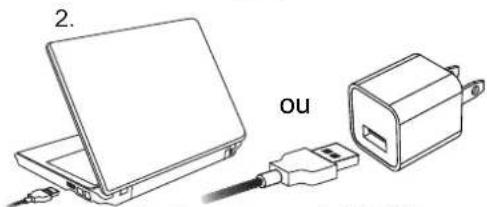
E
natural_image
Diagram showing two smartphone components with red arrows indicating internal connections (no text or symbols present)Indicateurs LED
natural_image
Close-up of a device's internal component with a red highlight, enclosed in a circular border (no text or symbols)可刀
natural_image
Illustration of a smartphone with a lit device emitting light, no text or symbols present- Appareils HDMI
natural_image
Diagram of a device with a red curved arrow indicating rotation or movement, enclosed in a circle (no text or symbols)natural_image
Diagram of a rectangular electronic device with a red arrow pointing to its side panel (no text or symbols present)natural_image
Line drawing of a smartphone with a USB cable inserted, showing a red arrow pointing to the cable (no text or symbols present)natural_image
Diagram showing a device with a red arrow pointing to its connector (no text or symbols present)
natural_image
Diagram showing a laptop connected to an attached power connector and a small plug (no text or symbols present)Caricare un telefono MHL
natural_image
Close-up of a computer mouse with a red accent, enclosed in a circular frame (no text or symbols visible)natural_image
Illustration of a smartphone with a lit probe emitting light, no text or symbols present2. Dispositivo HDMI
natural_image
Diagram of a device with a red curved arrow indicating rotation or movement, enclosed in a circle (no text or symbols)Controllo volume
natural_image
Diagram of a rectangular electronic device with a red arrow pointing to its side (no text or symbols present)Manuale utente
natural_image
Line drawing of a smartphone with a USB cable inserted, showing a red arrow indicating compression (no text or symbols present)natural_image
Diagram showing a device with two connectors and a red arrow indicating direction (no text or symbols)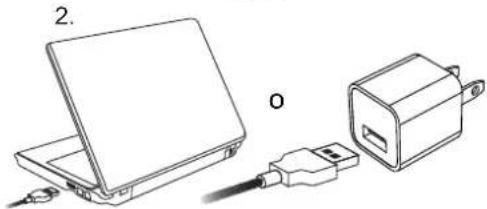
natural_image
Diagram showing a laptop connected to a plug and a small electrical outlet (no text or symbols present)natural_image
Close-up of a device's front panel with a red indicator light, enclosed in a circular frame (no text or symbols)natural_image
Illustration of a smartphone with a lit cable and a light beam, no text or symbols present- Dispositivo HDMI
natural_image
Diagram of a device with a red curved arrow indicating rotation or movement, enclosed in a circle (no text or symbols)Control del volumen
natural_image
Diagram of a rectangular electronic device with a red arrow pointing to its side panel (no text or symbols present)Manual del usuario
natural_image
Line drawing of a smartphone with a USB cable inserted, showing a red arrow pointing to its cable (no text or symbols present)natural_image
Diagram showing a device with an attached cable and a red arrow indicating direction (no text or symbols)
شحن المntlج
* بعد PXI 5 saoats, Siyab jhaiz alwajikotur
natural_image
Diagram showing two smartphones with attached cables and connectors, one with red arrows indicating connection (no text or symbols present)natural_image
Close-up of a computer mouse with a red accent, enclosed in a circular frame (no text or symbols visible)جهاز العرض/تشغيل
natural_image
Illustration of a smartphone with a lit cable emitting light, no text or symbols presentnatural_image
Diagram of a device with a red curved arrow indicating rotation or movement (no text or symbols present)ضبط التركيز
natural_image
Diagram of a rectangular electronic device with a red arrow pointing to its side (no text or symbols present)ضبط النسبة الباعية
natural_image
Line drawing of a smartphone with a red arrow pointing to its cable (no text or symbols)natural_image
Diagram showing a device with an attached cable and a red arrow indicating direction (no text or symbols present)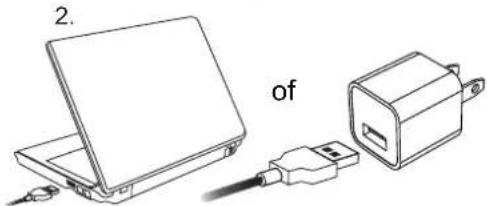
natural_image
Diagram showing two smartphones with attached cables and connectors, one with a red arrow indicating cable insertion (no text or symbols present)z
LED indicaties
natural_image
Close-up of a computer mouse with a red accent, enclosed in a circular frame (no text or symbols visible)natural_image
Illustration of a smartphone with a lit cable emitting light, no text or symbols present- HDMI apparaat
natural_image
Diagram of a device with a red curved arrow indicating rotation or movement, enclosed in a circle (no text or symbols)natural_image
Diagram of a rectangular electronic device with internal components and a red arrow pointing to it, labeled 'NL' (no text or symbols on the device itself)Handleiding
B
natural_image
Line drawing of a smartphone with a USB cable inserted, showing a red arrow pointing to the cable (no text or symbols present)natural_image
Diagram showing a device with a red arrow pointing to its cable, enclosed in a circle (no text or symbols)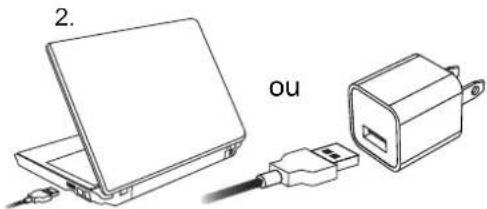
Carregando seu telefone ativado por MHL
natural_image
Diagram showing two smartphones with attached cables and connectors, one with red arrows indicating connection (no text or symbols present)Indicadores LED
natural_image
Close-up of a computer mouse with a red accent, enclosed in a circular frame (no text or symbols)natural_image
Illustration of a smartphone with a probe emitting a light beam, no text or symbols present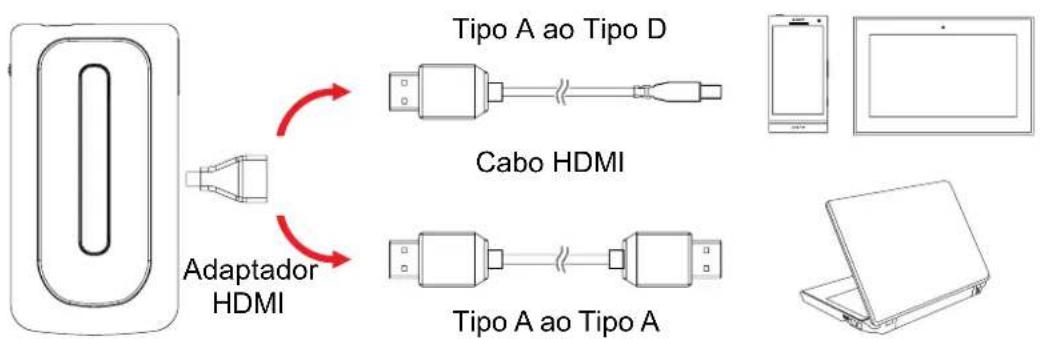
flowchart
graph LR
    A["Adaptador HDMI"] -->|Red Arrow| B["Cabo HDMI"]
    A -->|Red Arrow| C["Tipo A ao Tipo A"]
Manual do Usuário
Ajustando o foco
natural_image
Diagram of a device with a red curved arrow indicating rotation or movement, enclosed in a circle (no text or symbols)Controle de Volume
natural_image
Diagram of a rectangular electronic device with a red arrow pointing to its side panel (no text or symbols present)Manual do Usuário
| Resolução Para | entrada MHL Para entrada HDMI |
| 640x480p 60fps v v | |
| 720x480p 60fps v v | |
| 1280x720p 60fps v v | |
| 1920x1080i 60fps v v | |
| 1920x1080p 60fps - v | |
| 720x576p 50fps v v | |
| 1280x720p 50fps v v | |
| 1920x1080i 50fps v v | |
| 1920x1080p 50fps - v |
使用手册
產品概要
natural_image
Line drawing of a smartphone with a USB cable inserted, showing a red arrow indicating the cable attachment (no text or symbols present)natural_image
Diagram showing a device with connectors and a red arrow indicating direction (no text or symbols)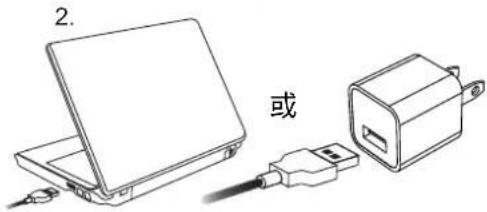
為已啟用 MHL 的行動電話充電
natural_image
Diagram showing two smartphones with internal components and red arrows indicating cable or connector (no text or symbols)LED 指示燈
natural_image
Close-up of a device's rear panel with a red indicator light, enclosed in a circular frame (no text or symbols)連接投影機和您的裝置
1. 已啟用 MHL 的行動電話
natural_image
Illustration of a smartphone with a probe emitting a light beam, no text or symbols present2. HDMI 裝置
natural_image
Diagram of a device with a red curved arrow indicating rotation or movement, enclosed in a circle (no text or symbols)音量控制
natural_image
Diagram of a rectangular electronic device with a red arrow pointing to its side panel (no text or symbols present)使用手册
① 投影仪镜头
② 投影开关键
③ 调焦轮
②③ 防滑垫
natural_image
Line drawing of a smartphone with a USB cable inserted, showing a red arrow indicating insertion or release (no text or symbols present)natural_image
Diagram showing a device with a red arrow pointing to its cable (no text or symbols present)
为有 MHL 功能的手机充电
natural_image
Diagram showing two smartphones with attached electronic components, one with red arrows indicating connection (no text or symbols present)LED 指示灯
natural_image
Close-up of a device's front panel with a red indicator light, enclosed in a circular frame (no text or symbols)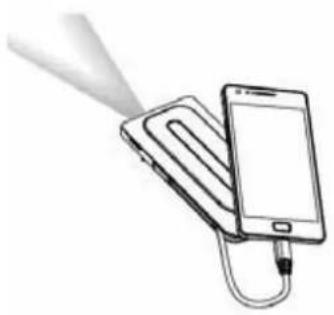
natural_image
Illustration of a smartphone with a lit probe emitting light from its screen (no text or symbols)
flowchart
graph LR
    A["显示器"] -->|HDMI 适配器| B["USB接口"]
    B --> C["USB接口"]
    C --> D["USB接口"]
    D --> E["手机屏幕"]
    style A fill:#f9f,stroke:#333
    style B fill:#ccf,stroke:#333
    style C fill:#cfc,stroke:#333
    style D fill:#fcc,stroke:#333
    style E fill:#ffc,stroke:#333
用说明使
调节焦点
natural_image
Diagram of a device with a red curved arrow indicating rotation or movement (no text or symbols)音量控制
natural_image
Line drawing of a rectangular electronic device with a red arrow pointing to its side (no text or symbols)用说明
7.2.3
如下三种投影模式图解:
natural_image
Line drawing of a smartphone with a USB cable inserted, showing a red arrow indicating compression or disassembly (no text or symbols present)natural_image
Diagram showing a device with a red arrow pointing to its cable (no text or symbols present)号
MHL 対応フォンの充電
natural_image
Diagram showing two smartphones with attached cables and connectors, one with red arrows indicating connection (no text or symbols present)LED インジケータ
natural_image
Close-up of a device's rear panel with a red indicator light, enclosed in a circle (no text or symbols visible)お手持ちの装置との接続
1. MHL 電話
natural_image
Illustration of a smartphone with a lit cable emitting light from its screen (no text or symbols)2. HDMI 装置
natural_image
Diagram of a device with a red curved arrow indicating rotation or movement (no text or symbols)号
音量調節
natural_image
Diagram of a rectangular electronic device with a red arrow pointing to its side panel (no text or symbols present)ユーザーマニュアル
导
3 種類の投影モード:
natural_image
Line drawing of a smartphone with a USB cable inserted, showing a red arrow pointing to the cable (no text or symbols present)natural_image
Diagram showing a device with a red arrow pointing to its connector (no text or symbols present)
natural_image
Close-up of a computer mouse with a red accent, enclosed in a circular frame (no text or symbols visible)프로젝터에 사용자 장비 연결하기
- MHL 이 활성화된 휴대폰
간단히 임베디드 MHL 케이블을
natural_image
Illustration of a smartphone with a lit flash emitting light, connected to a USB cable (no text or symbols)- HDMI 장치
natural_image
Diagram of a device with red arrows indicating rotation or movement (no text or symbols)
볼륨 제어
natural_image
Diagram of a rectangular electronic device with internal slots and a red arrow pointing to its side (no text or symbols)사용자 설명서
| 해상도 | MHL 입력 용 | HDMI 입력 용 |
| 640x480p 60fps v v | ||
| 720x480p 60fps v v | ||
| 1280x720p 60fps v v | ||
| 1920x1080i 60fps v v | ||
| 1920x1080p 60fps - v | ||
| 720x576p 50fps v v | ||
| 1280x720p 50fps v v | ||
| 1920x1080i 50fps v v | ||
| 1920x1080p 50fps - v |
KO


- Care and Safety Information
- User's Manual
- FCC Compliance Statement:
- (EN)
- (DE)
- Charging the product
- Charging your MHL enabled phone
- Turning on/off the projector
- Connecting projector with your Devices
- Adjusting the focus
- Volume control
- Adjust Aspect Ratio
- Benutzerhandbuch
- Produktübersicht
- HDMI-Geräte
- Lautstärkesteuerung
- 可刀
- Caricare un telefono MHL
- Dispositivo HDMI
- Controllo volume
- Manuale utente
- Control del volumen
- Manual del usuario
- شحن المntlج
- Handleiding
- Carregando seu telefone ativado por MHL
- Manual do Usuário
- Ajustando o foco
- Controle de Volume
- 使用手册
- 產品概要
- 為已啟用 MHL 的行動電話充電
- 連接投影機和您的裝置
- 已啟用 MHL 的行動電話
- HDMI 裝置
- 音量控制
- 为有 MHL 功能的手机充电
- 用说明使
- 调节焦点
- 用说明
- 7.2.3
- MHL 対応フォンの充電
- LED インジケータ
- お手持ちの装置との接続
- MHL 電話
- HDMI 装置
- 音量調節
- ユーザーマニュアル
- 種類の投影モード:
- 프로젝터에 사용자 장비 연결하기
- 볼륨 제어
- 사용자 설명서
Brand : AIPTEK
Model : MobileCinema A50P
Category : Projector