
HALO BT650S - Bluetooth Headset JABRA - Free user manual and instructions
Find the device manual for free HALO BT650S JABRA in PDF.



User questions about HALO BT650S JABRA
0 question about this device. Answer the ones you know or ask your own.
Ask a new question about this device
Download the instructions for your Bluetooth Headset in PDF format for free! Find your manual HALO BT650S - JABRA and take your electronic device back in hand. On this page are published all the documents necessary for the use of your device. HALO BT650S by JABRA.
USER MANUAL HALO BT650S JABRA
Quick Start Manual for Apple® Products
www.jabra.com
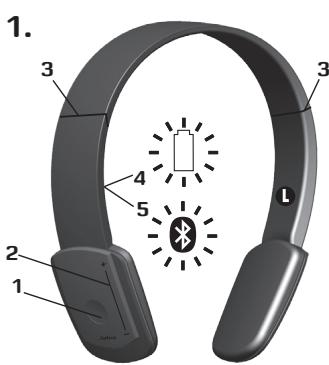
1.
2.
3.
4.
5.
6.
QUICK START MANUAL - LANGUAGE
ENGLISH - EUROPE (click here for manual) 6
ENGLISH-NORTH AMERICA (Click here for manual) 19
ENGLISH - ASIA PACIFIC (Click here for manual). 32
DANSK/SVENSKA (Klik her for at seveledningen/Klicka hare for bruksanvising).. 45
FRANÇAIS (Cliquez ici pour le manuel) 58
FRANÇAIS-NORTHAMERICA (Cliquez ici pour le manuel). 71
DEUTsCH (Klichen Sie hier fur Handbuch) 84
PYCCKM (IeJkHume 30ecb,
umo6by ckaayam pykoobodm80). 97
YKPAIHA (KnaHimbymdЯ 3aabaHmaxeHnnoC6Huka).111
NEDERLANDS (Klik hier voor de handleiding) 125
SUOMI (Avaa kajttoohje napsauttamalla tassä) 138
ITALIANO (Fare cli per il manuale) 151
PORTUGUES-NORTH AMERICA (Clique aqui para acessar omanual). 164
ESPANOL (Haga Clinic), obtener el manual). 177
ESPANOL-NORTH AMERICA (Haga tic
aqu para acceder al manual) 190
CESKY (Zde kliknete pro manuál) 203
POLSKI (Kliknij tutaj, zeby
przejść do instrukcjji). 216
EAMNIKA (KavTE KIAK E8w yia To EYxepiio) 229
TURKCE (Kullanim kilavuzu
icin buraya tiklayin) 242
MAGYAR (Kattintson ide a kezikonyvert) 255
ROMÄNÄ (Faceti cli cici aici pentru manual) 268
41. (pl2) 150 Jdo Jdo Jdo Jdo Jdo Jdo
+ = 2( - ) + = 2( - ) ( x - y)
简体中文(单击此处查看手册) 307
繁體中文(按下此處檢視手冊) 320
日本語(取扱説明書を覈にるはは、こをクリツくてく) 333
韩国云().. 347
BAHASA MELAYU (Kullanim kilavuzu
icin buraya tiklayin) 360
mnnn (nnnnne) 373
IMPORTANT NOTE: Apple iPhone® and iPod touch® supporting Bluetooth® stereo streaming.
Apple® Inc. has released a Software Update that enables Apple iPhone® 3G & 3GS and iPod touch® (2nd generation) devices to wirelessly via Bluetooth® stream stereo music content from the device to a Bluetooth® wireless technology enabled headset that supports the Advanced Audio Distribution Profile (A2DP). Please note, that iPhone® Software Update version 3.0 and or later is required to make the headset work. This software needs to be purchased, as it is sold separately (visit www.apple.com for more information and purchasing).
Your Jabra HALO Bluetooth® wireless technology stereo headset supports this A2DP profile which enables you to listen to music streamed wirelessly from the iPhone® or iPod touch® to the headset.
However, the iPhone® and iPod touch® devices do not support the profile named Audio/Video Remote Control Profile (AVRCP) to a full extent. This profile enables remote control functions from the headset like Play, Pause, Stop, Track Forward, Track Backwards, Fast Forward and Fast Backwards.
This means that you have limited or no AVRCP functionality from your Jabra HALO headset towards either the Apple iPhone® or iPod touch - depending on which software update you have installed:
- With Apple® software update version 3.0 you have no AVRCP functionality from your Jabra HALO headset towards either the Apple iPhone® or iPod touch®.
- With Apple® software update version 3.1 you have support for Play, Pause and Stop. There is no support for Track Forward, Track Backwards, Fast Forward, Fast Backwards.
Please note, that you can always answer and end calls (and adjust the volume) directly from the Jabra Headset if you have iPhone® Software Update version 3.0 and or later installed on your Apple iPhone® 3G & 3GS and iPod touch® (2nd generation).
EN_EMEA
1 About your Jabra HALO
Before using your new Jabra HALO headset, you must fully charge it and set it up by 'pairing' it with your Apple iPhone® or iPod touch®.
1 Answer/End or Play/Pause button
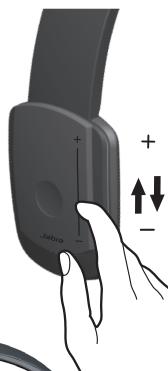
2 Volume Control or Track Change touch sensor
3 Hinges for folding of headset
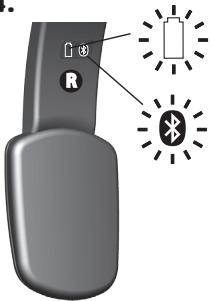
4 Battery indicator
5 Bluetooth® connectivity indicator
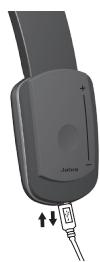
2 Charging your Jabra HALO
Make sure that your Jabra HALO is fully charged before using it for the first time. While charging, the battery indicator light is red and when fully charged the battery indicator light is solid green. Charging time is approximately 2h. You can use the Jabra HALO while charging it.
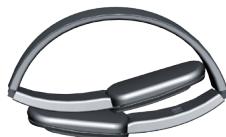
3 Turning your Jabra HALO on and off Unfolding the headset will turn it on; Folding the headset will turn it off.
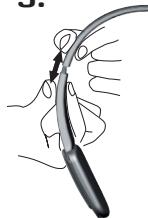
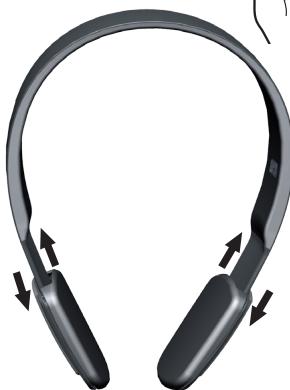
- To fold: Carefully extend the headset at the hinges (3) and fold. The headset will now conveniently fold into a compact size.
- To unfold: Carefully unfold the headset and lock the hinges into place.
4 Pairing your Jabra HALO to the iPhone® or iPod touch®
1.a. First time pairing
Unfold the headset and lock the hinges into place so that the headset is turned on. The Jabra HALO will automatically enter pairing mode and search for a device.
1.b. Later pairing
Press and hold the Answer/End button (1) until the indicator light (5) is solid blue (approximately 4 seconds).
2. Activate Bluetooth® on your iPhone® or iPod touch® device.
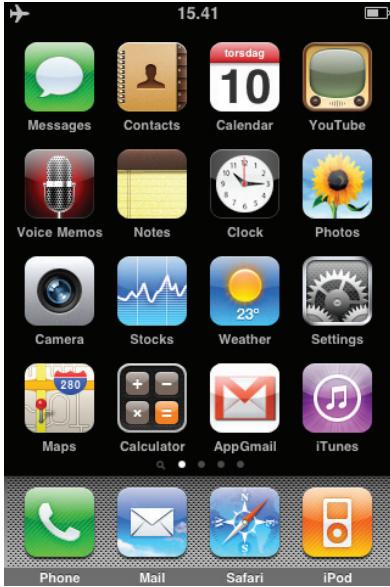
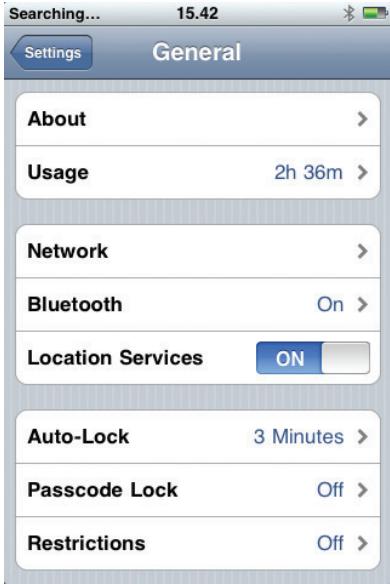
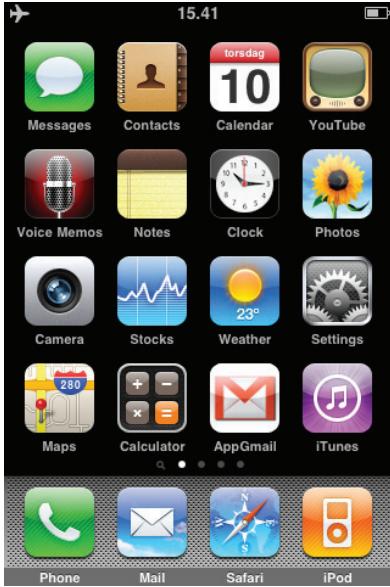
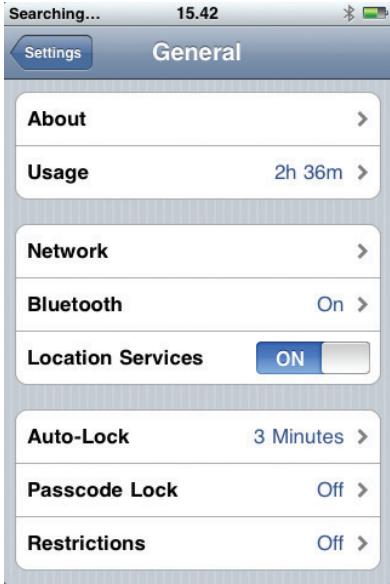
- From the Home screen, choose Settings > General > Bluetooth and turn Bluetooth on, as illustrated on the next few pages.
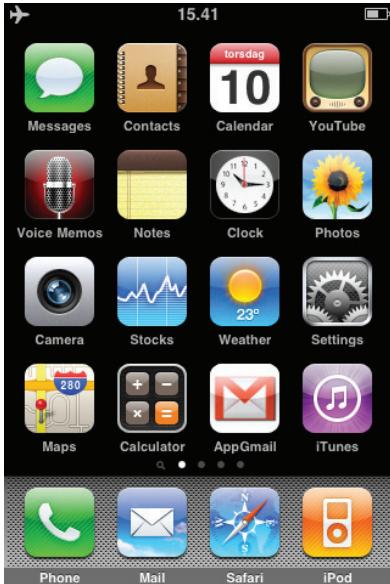
2.a.
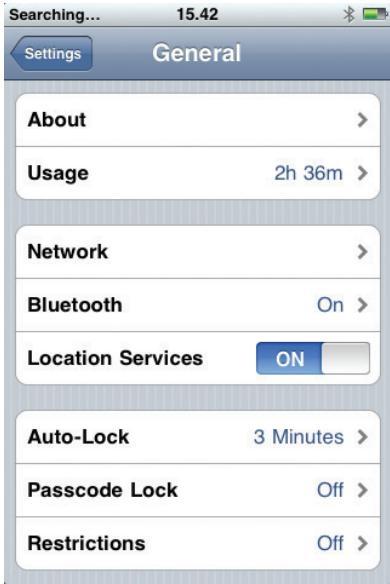
From the Home screen, choose Settings and then select General.
2.b.
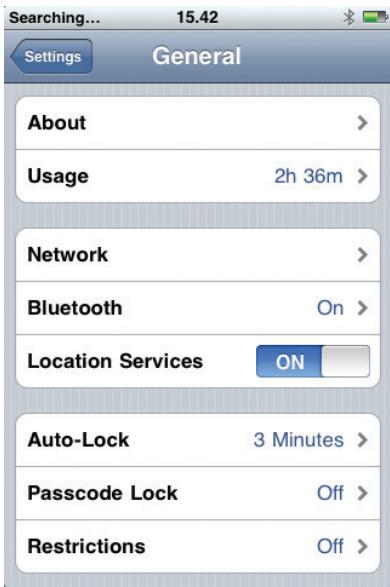
From the General screen select Bluetooth.
2.c.
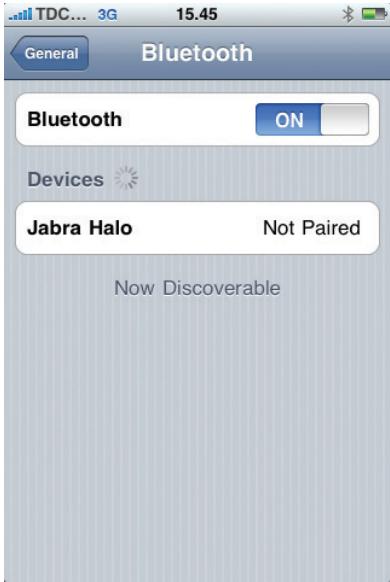
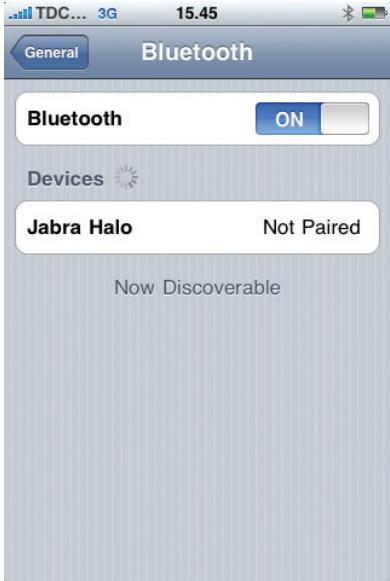
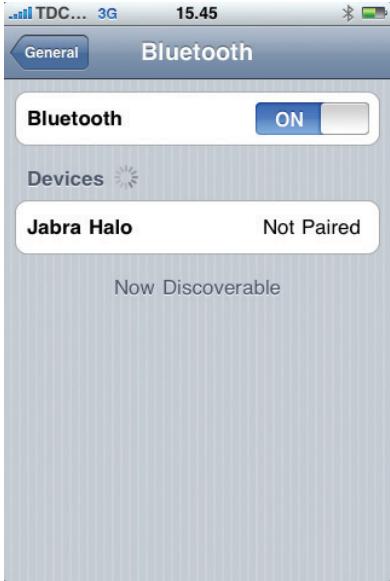
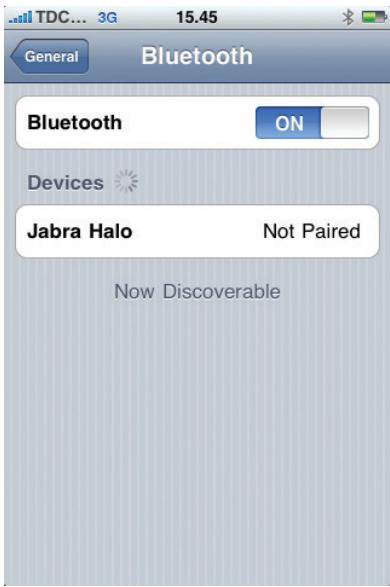
The device now searches for nearby Bluetooth® wireless technology enabled devices.
EN_EMEA
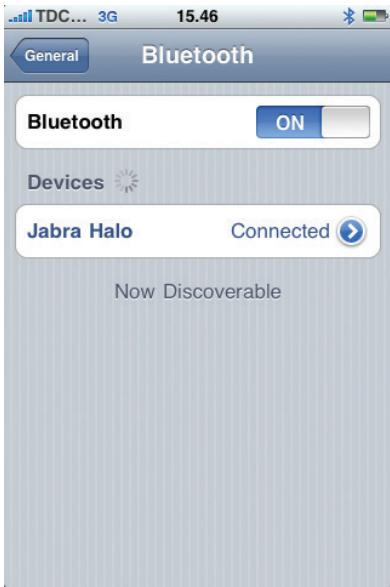
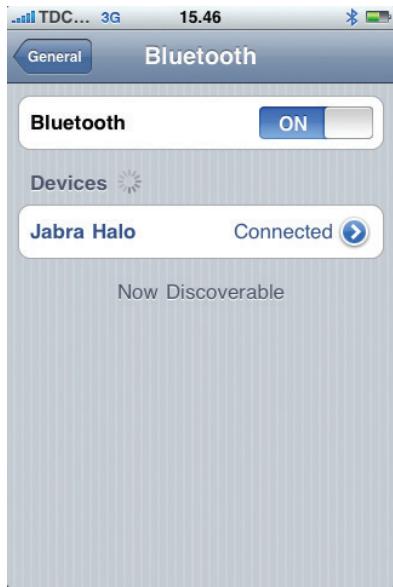
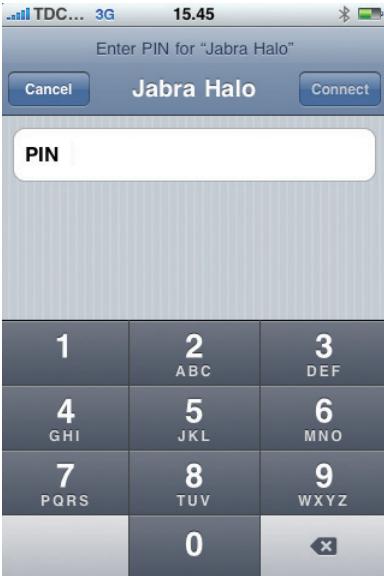
3. Choose Jabra HALO on your iPhone®/ iPod touch® and confirm with PIN code 0000 (4 zeros).
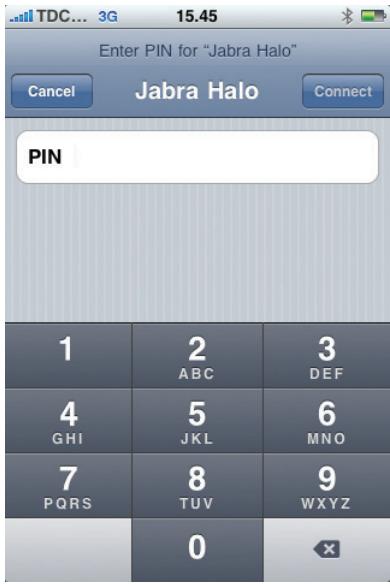
EN_EMEA
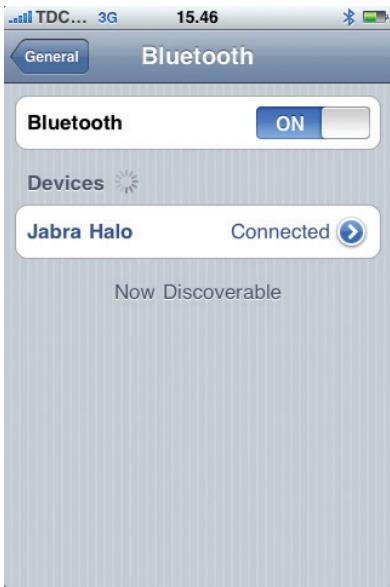
Your iPhone® or iPod touch® is now connected to your Jabra HALO.
5 Using your Jabra HALO
When the iPhone® is connected to a Bluetooth® wireless technology enabled device, all outgoing calls are routed through the device by default. Incoming calls are routed through the Jabra HALO if you answer using the headset and through your iPhone® if you answer using the iPhone®.
Your iPhone® can be connected with only one Bluetooth® wireless technology enabled device at a time.
Bluetooth® Status
You can see whether Bluetooth® is on or off, and whether a Bluetooth® device is connected to your iPhone®, by looking at the Bluetooth® icon in the iPhone® status bar at the top of the screen:
- or (white): Bluetooth® is on and a device is connected to the iPhone®.
- (gray): Bluetooth® is on but no device is connected. If you've paired a device with the iPhone®, it may be out of range or turned off.
- No Bluetooth® icon in status bar: Bluetooth® is turned off.
Answer or end a call
- Tap the Answer/End button (1) to receive / end calls.
Adjust sound and volume
- Use the touch control (2) for turning volume up or down.
Play or pause music
- With Apple® software update version 3.0 you have no AVRCP functionality from your Jabra HALO headset towards either the Apple iPhone® or iPod touch*.
- With Apple® software update version 3.1 you have support for Play & Pause - simply tap the MFB button on the headset to Play/Pause.
Change between music tracks
There is no support for Track Forward, Track Backwards, Fast Forward, Fast Backwards. Please perform this operation from the iPhone or iPod touch device directly.
Routing Calls Back through iPhone
- There are a few ways to stop using a headset or car kit and go back to hearing calls through iPhone®.
Route calls through iPhone
- Answer a call by tapping the iPhone® touch screen.
- During a call, tap Audio on iPhone®. Choose iPhone® to hear calls through iPhone®, choose Speaker Phone to hear calls through the speakerphone, or choose a connected Bluetooth® wireless technology enabled device.
EN_EMEA
- Turn off Bluetooth® From the Home screen choose Settings > General > Bluetooth and drag the switch to Off.
Turn off the headset, or move out of range. You must be within about 30 feet of a Bluetooth® wireless technology enabled device for it to be connected to iPhone®.
Unpairing a Device from iPhone® or iPod touch®
If you've paired your iPhone® with a device and want to use another device instead, you must unpair the first device.
Unpair a device from iPhone® or iPod touch®
1 From the Home screen choose Settings > General > Bluetooth. If Bluetooth* isn't on, turn it on.
2 Choose a device and tap Unpair.
Until you pair the device with iPhone® again, iPhone® doesn't route calls through it.
Turning Bluetooth® on iPhone® or iPod touch® On or Off
From the Home screen choose Settings > General > Bluetooth, then turn Bluetooth on or off.
EN_EMEA
Using your Jabra HALO with the 3.5mm music cable (not Bluetooth®)
- Insert the 3.5mm music cable to the microUSB socket and connect the 3.5mm jack into the device. Please note that the Bluetooth® features (including receiving calls and touch control) are disabled when using the Jabra HALO with the cable. Using your Jabra HALO with the 3.5mm music cable is not possible if the battery is completely discharged, so make sure that it is at least partly charged.
6 Wearing style
Please note the left/right wearing indicators inside the headband.
Adapt the size of your Jabra HALO by extending the length of the headband at the speakers.
Visit www.jabra.com/HALO for full user manual
IMPORTANT NOTE: Apple iPhone® and iPod touch® supporting Bluetooth® stereo streaming.
Apple® Inc. has released a Software Update that enables Apple iPhone® 3G & 3GS and iPod touch® (2nd generation) devices to wirelessly via Bluetooth® stream stereo music content from the device to a Bluetooth® wireless technology enabled headset that supports the Advanced Audio Distribution Profile (A2DP). Please note, that iPhone® Software Update version 3.0 and or later is required to make the headset work. This software needs to be purchased, as it is sold separately (visit www.apple.com for more information and purchasing).
Your Jabra HALO Bluetooth® wireless technology stereo headset supports this A2DP profile which enables you to listen to music streamed wirelessly from the iPhone® or iPod touch® to the headset.
However, the iPhone® and iPod touch® devices do not support the profile named Audio/Video Remote Control Profile (AVRCP) to a full extent. This profile enables remote control functions from the headset like Play, Pause, Stop, Track Forward, Track Backwards, Fast Forward and Fast Backwards.
EN_NA
This means that you have limited or no AVRCP functionality from your Jabra HALO headset towards either the Apple iPhone® or iPod touch - depending on which software update you have installed:
- With Apple® software update version 3.0 you have no AVRCP functionality from your Jabra HALO headset towards either the Apple iPhone® or iPod touch®.
- With Apple® software update version 3.1 you have support for Play, Pause and Stop. There is no support for Track Forward, Track Backwards, Fast Forward, Fast Backwards.
Please note, that you can always answer and end calls (and adjust the volume) directly from the Jabra Headset if you have iPhone® Software Update version 3.0 and or later installed on your Apple iPhone® 3G & 3GS and iPod touch® (2nd generation).
EN_NA
1 About your Jabra HALO
Before using your new Jabra HALO headset, you must fully charge it and set it by 'pairing' it with your Apple iPhone® or iPod touch®.
1 Answer/End or Play/Pause button
2 Volume Control or Track Change touch sensor
3 Hinges for folding of headset
4 Battery indicator
5 Bluetooth® connectivity indicator
2 Charging your Jabra HALO
Make sure that your Jabra HALO is fully charged before using it for the first time. While charging, the battery indicator light is red and when fully charged the battery indicator light is solid green. Charging time is approximately 2h. You can use the Jabra HALO while charging it.
3 Turning your Jabra HALO on and off Unfolding the headset will turn it on; Folding the headset will turn it off.
- To fold: Carefully extend the headset at the hinges (3) and fold. The headset will now conveniently fold into a compact size.
- To unfold: Carefully unfold the headset and lock the hinges into place.
EN_NA
4 Pairing your Jabra HALO to the iPhone® or iPod touch®
1.a. First time pairing
Unfold the headset and lock the hinges into place so that the headset is turned on. The Jabra HALO will automatically enter pairing mode and search for a device.
1.b. Later pairing
Press and hold the Answer/End button (1) until the indicator light (5) is solid blue (approximately 4 seconds).
2. Activate Bluetooth® on your iPhone® or iPod touch® device.
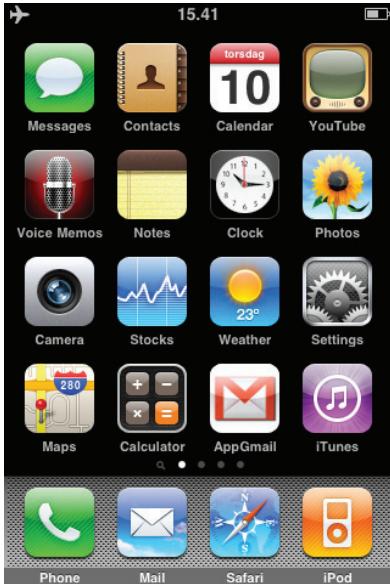
- From the Home screen, choose Settings > General > Bluetooth and turn Bluetooth on, as illustrated on the next few pages.
2.a.
From the Home screen, choose Settings and then select General.
2.b.
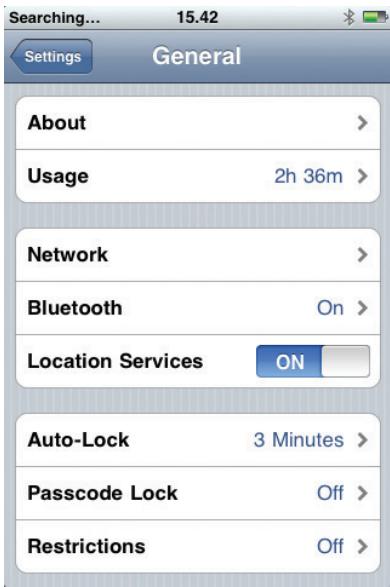
From the General screen select Bluetooth.
2.c.
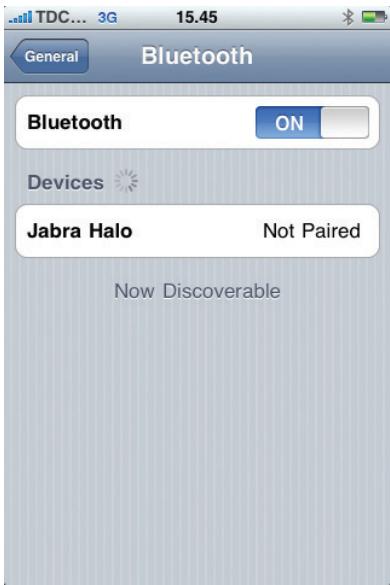
The device now searches for nearby Bluetooth® wireless technology enabled devices.
EN_NA
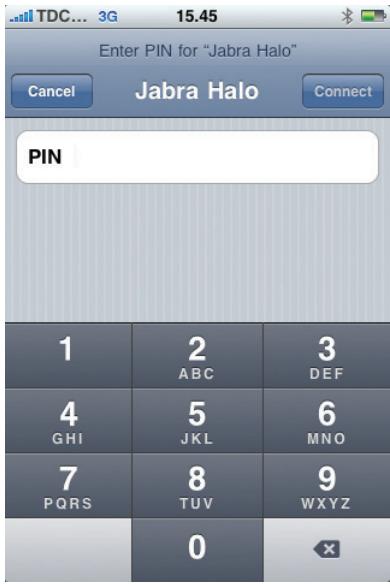
3. Choose Jabra HALO on your iPhone®/ iPod touch® and confirm with PIN code 0000 (4 zeros).
EN_NA
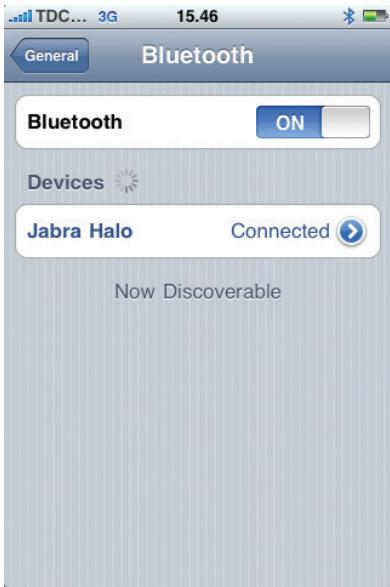
Your iPhone® or iPod touch® is now connected to your Jabra HALO.
5 Using your Jabra HALO
When the iPhone® is connected to a Bluetooth® wireless technology enabled device, all outgoing calls are routed through the device by default. Incoming calls are routed through the Jabra HALO if you answer using the headset and through your iPhone® if you answer using the iPhone®.
Your iPhone® can be connected with only one Bluetooth® wireless technology enabled device at a time.
Bluetooth® Status
You can see whether Bluetooth® is on or off, and whether a Bluetooth® device is connected to your iPhone®, by looking at the Bluetooth® icon in the iPhone® status bar at the top of the screen:
- or (white): Bluetooth® is on and a device is connected to the iPhone®.
- (gray): Bluetooth® is on but no device is connected. If you've paired a device with the iPhone®, it may be out of range or turned off.
- No Bluetooth® icon in status bar: Bluetooth® is turned off.
Answer or end a call
- Tap the Answer/End button (1) to receive / end calls.
Adjust sound and volume
- Use the touch control (2) for turning volume up or down.
Play or pause music
- With Apple® software update version 3.0 you have no AVRCP functionality from your Jabra HALO headset towards either the Apple iPhone® or iPod touch*.
- With Apple® software update version 3.1 you have support for Play & Pause - simply tap the MFB button on the headset to Play/Pause.
Change between music tracks
There is no support for Track Forward, Track Backwards, Fast Forward, Fast Backwards. Please perform this operation from the iPhone or iPod touch device directly.
Routing Calls Back through iPhone
- There are a few ways to stop using a headset or car kit and go back to hearing calls through iPhone®.
Route calls through iPhone
- Answer a call by tapping the iPhone® touch screen.
- During a call, tap Audio on iPhone. Choose iPhone to hear calls through iPhone, choose Speaker Phone to hear calls through the speakerphone, or choose a connected Bluetooth wireless technology enabled device.
EN_NA
- Turn off Bluetooth® From the Home screen choose Settings > General > Bluetooth and drag the switch to Off.
Turn off the headset, or move out of range. You must be within about 30 feet of a Bluetooth® wireless technology enabled device for it to be connected to iPhone®.
Unpairing a Device from iPhone® or iPod touch®
If you've paired your iPhone® with a device and want to use another device instead, you must unpair the first device.
Unpair a device from iPhone® or iPod touch®
1 From the Home screen choose Settings > General > Bluetooth. If Bluetooth* isn't on, turn it on.
2 Choose a device and tap Unpair.
Until you pair the device with iPhone® again, iPhone® doesn't route calls through it.
Turning Bluetooth® on iPhone® or iPod touch® On or Off
From the Home screen choose Settings > General > Bluetooth, then turn Bluetooth on or off.
EN_NA
Using your Jabra HALO with the 3.5mm music cable (not Bluetooth®)
- Insert the 3.5mm music cable to the microUSB socket and connect the 3.5mm jack into the device. Please note that the Bluetooth® features (including receiving calls and touch control) are disabled when using the Jabra HALO with the cable. Using your Jabra HALO with the 3.5mm music cable is not possible if the battery is completely discharged, so make sure that it is at least partly charged.
6 Wearing style
Please note the left/right wearing indicators inside the headband.
Adapt the size of your Jabra HALO by extending the length of the headband at the speakers.
Visit www.jabra.com/HALO for full user manual
IMPORTANT NOTE: Apple iPhone® and iPod touch® supporting Bluetooth® stereo streaming.
Apple® Inc. has released a Software Update that enables Apple iPhone® 3G & 3GS and iPod touch® (2nd generation) devices to wirelessly via Bluetooth® stream stereo music content from the device to a Bluetooth® wireless technology enabled headset that supports the Advanced Audio Distribution Profile (A2DP). Please note, that iPhone® Software Update version 3.0 and or later is required to make the headset work. This software needs to be purchased, as it is sold separately (visit www.apple.com for more information and purchasing).
Your Jabra HALO Bluetooth® wireless technology stereo headset supports this A2DP profile which enables you to listen to music streamed wirelessly from the iPhone® or iPod touch® to the headset.
However, the iPhone® and iPod touch® devices do not support the profile named Audio/Video Remote Control Profile (AVRCP) to a full extent. This profile enables remote control functions from the headset like Play, Pause, Stop, Track Forward, Track Backwards, Fast Forward and Fast Backwards.
This means that you have limited or no AVRCP functionality from your Jabra HALO headset towards either the Apple iPhone® or iPod touch - depending on which software update you have installed:
- With Apple® software update version 3.0 you have no AVRCP functionality from your Jabra HALO headset towards either the Apple iPhone® or iPod touch®.
- With Apple® software update version 3.1 you have support for Play, Pause and Stop. There is no support for Track Forward, Track Backwards, Fast Forward, Fast Backwards.
Please note, that you can always answer and end calls (and adjust the volume) directly from the Jabra Headset if you have iPhone® Software Update version 3.0 and or later installed on your Apple iPhone® 3G & 3GS and iPod touch® (2nd generation).
1 About your Jabra HALO
Before using your new Jabra HALO headset, you must fully charge it and set it by 'pairing' it with your Apple iPhone® or iPod touch®.
1 Answer/End or Play/Pause button
2 Volume Control or Track Change touch sensor
3 Hinges for folding of headset
4 Battery indicator
5 Bluetooth® connectivity indicator
2 Charging your Jabra HALO
Make sure that your Jabra HALO is fully charged before using it for the first time. While charging, the battery indicator light is red and when fully charged the battery indicator light is solid green. Charging time is approximately 2h. You can use the Jabra HALO while charging it.
3 Turning your Jabra HALO on and off Unfolding the headset will turn it on; Folding the headset will turn it off.
- To fold: Carefully extend the headset at the hinges (3) and fold. The headset will now conveniently fold into a compact size.
- To unfold: Carefully unfold the headset and lock the hinges into place.
4 Pairing your Jabra HALO to the iPhone® or iPod touch®
1.a. First time pairing
Unfold the headset and lock the hinges into place so that the headset is turned on. The Jabra HALO will automatically enter pairing mode and search for a device.
1.b. Later pairing
Press and hold the Answer/End button (1) until the indicator light (5) is solid blue (approximately 4 seconds).
2. Activate Bluetooth® on your iPhone® or iPod touch® device.
- From the Home screen, choose Settings > General > Bluetooth and turn Bluetooth on, as illustrated on the next few pages.
2.a.
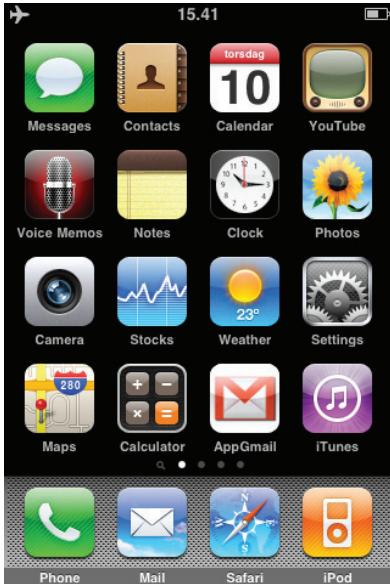
From the Home screen, choose Settings and then select General.
2.b.
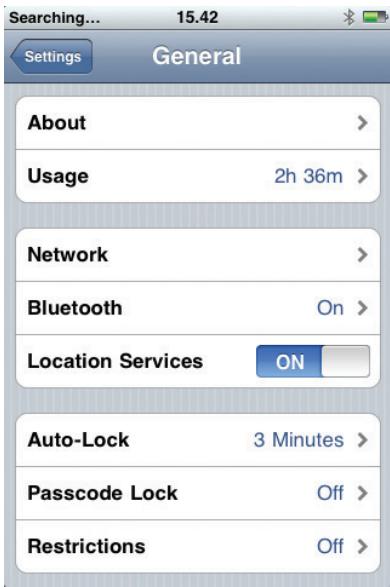
From the General screen select Bluetooth.
2.c.
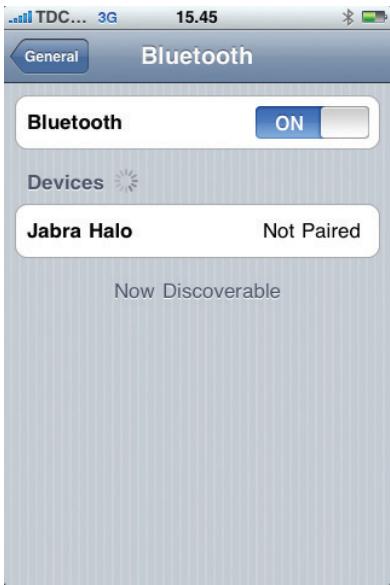
The device now searches for nearby Bluetooth® wireless technology enabled devices.
3. Choose Jabra HALO on your iPhone®/ iPod touch® and confirm with PIN code 0000 (4 zeros).
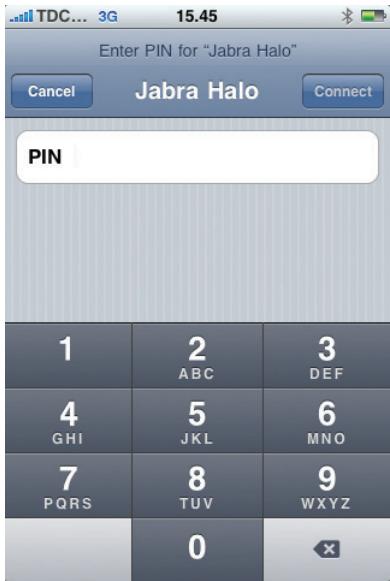
Your iPhone® or iPod touch® is now connected to your Jabra HALO.
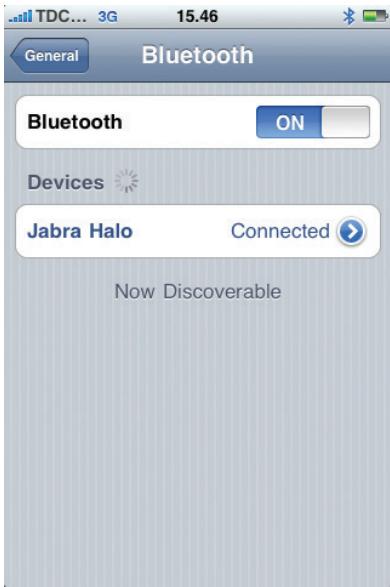
5 Using your Jabra HALO
When the iPhone® is connected to a Bluetooth® wireless technology enabled device, all outgoing calls are routed through the device by default. Incoming calls are routed through the Jabra HALO if you answer using the headset and through your iPhone® if you answer using the iPhone®.
Your iPhone® can be connected with only one Bluetooth® wireless technology enabled device at a time.
Bluetooth® Status
You can see whether Bluetooth® is on or off, and whether a Bluetooth® device is connected to your iPhone®, by looking at the Bluetooth® icon in the iPhone® status bar at the top of the screen:
- or (white): Bluetooth® is on and a device is connected to the iPhone®.
- (gray): Bluetooth® is on but no device is connected. If you've paired a device with the iPhone®, it may be out of range or turned off.
- No Bluetooth® icon in status bar: Bluetooth® is turned off.
Answer or end a call
- Tap the Answer/End button (1) to receive / end calls.
Adjust sound and volume
- Use the touch control (2) for turning volume up or down.
Play or pause music
- With Apple® software update version 3.0 you have no AVRCP functionality from your Jabra HALO headset towards either the Apple iPhone® or iPod touch*.
- With Apple® software update version 3.1 you have support for Play & Pause - simply tap the MFB button on the headset to Play/Pause.
Change between music tracks
There is no support for Track Forward, Track Backwards, Fast Forward, Fast Backwards. Please perform this operation from the iPhone or iPod touch device directly.
Routing Calls Back through iPhone
- There are a few ways to stop using a headset or car kit and go back to hearing calls through iPhone®.
Route calls through iPhone
- Answer a call by tapping the iPhone® touch screen.
-
During a call, tap Audio on iPhone. Choose iPhone to hear calls through iPhone, choose Speaker Phone to hear calls through the speakerphone, or choose a connected Bluetooth wireless technology enabled device.
-
Turn off Bluetooth® From the Home screen choose Settings > General > Bluetooth and drag the switch to Off.
Turn off the headset, or move out of range. You must be within about 30 feet of a Bluetooth® wireless technology enabled device for it to be connected to iPhone®.
Unpairing a Device from iPhone® or iPod touch®
If you've paired your iPhone® with a device and want to use another device instead, you must unpair the first device.
Unpair a device from iPhone® or iPod touch®
1 From the Home screen choose Settings > General > Bluetooth. If Bluetooth* isn't on, turn it on.
2 Choose a device and tap Unpair.
Until you pair the device with iPhone® again, iPhone® doesn't route calls through it.
Turning Bluetooth® on iPhone® or iPod touch® On or Off
From the Home screen choose Settings > General > Bluetooth, then turn Bluetooth on or off.
Using your Jabra HALO with the 3.5mm music cable (not Bluetooth®)
- Insert the 3.5mm music cable to the microUSB socket and connect the 3.5mm jack into the device. Please note that the Bluetooth® features (including receiving calls and touch control) are disabled when using the Jabra HALO with the cable. Using your Jabra HALO with the 3.5mm music cable is not possible if the battery is completely discharged, so make sure that it is at least partly charged.
6 Wearing style
Please note the left/right wearing indicators inside the headband.
Adapt the size of your Jabra HALO by extending the length of the headband at the speakers.
Visit www.jabra.com/HALO for full user manual
VIGTIGT: Apple iPhone® og iPod touch° understotter/stöder Bluetooth®-stereostreaming.
PonHoe pyKoBOCTBO nIb3ObaTeMa MoXHO
HauTn no aDpecy www.jabra.com/HALO.
UA
YBATA! Apple iPhone® i iPod touch®, kāniīṭpμmyöt bTexhònóri noToKoBoro creopeəbyk Bluetooth®.
KoHnAHiAppleBnuNyctnla OHOBHeHH npOrpamHOrO 3a6e3neueHH, kae Da 3MOy npIcTpoRm Apple iPhone 3G i 3GS Ta iPod touch (2-e nokonIHnH) nepeDaBAtn 3a DoNOMorIO 6e3dpoTOBOrO 3b'3kCy Bluetooth My3uHi KOMOniUzii B pexMI NTOKOBOrO CTpeOE3BykU 3 npIcTpoHO rAcapHtpy, kya iNtPrIMye npOphiB bDcOKeHAnEO rpo3oNObICIOKeHH aUYIO (A2DP). 3BepHtby yBary, zo dny toro, o6 rapHtitypa npauOBAJNA, notP10HO BVKnOPnCTOBvBATn OHOBENH npOrpAMoHOrO 3a6e3neueHH oPiMe BPeci3.0 a6o BVNe. LepnpamHe 3a6e3neueHH npTioHo npnd6aTN, OCKInbKN BOHO npOdaetcba OKPemO (dYn OTPMHaHH NDaTkoBVX BIDOMocTei npIpdabHH npOrpAMn 3aBITaHTe Ha Be6-caIT www.apple.com).
Ctepeoraphtyapa Jabra HALO 6e3dpoToBA texhONlOria BluetoothnpiTmpyme npoPhiIn A2DP, kAnJaDe3Mory npocNxyOBvBAtm My3nky, IIO nepeAaTebcaHa rapHiTypu BnotOKOBOMy pexIMi uepe 36e3dpoTobOn 38'30ak3 iiPhone" a6o iPod touch
Ondak npnctoi iPhone" ta iPod touch" He O nobHcIto nipTmmyoTb npofoiB dNCTAHUHnHO KepyBaHHa ayio/Bideo (AVCRP). Lje npofoi Dae 3MORY a3doNOMOIO raphITpy dNCTAHUHIO KepyBaTHa TAKIMM fynHKiIMM, Jk «BIDTBOpeHNH, "I'Pa73a, «3yInnKa,» HAcTyHNA KOMNo3uJIA, "I'PonepeHNa KOMNo3uJIA, "I'PokpYcbAHn H BnepeI i «I'POKpYcbAHnHa ha3ad.
UA
Ie 03naua, oio nidtpmka yhknui npoifino AVRCP niz cac bukopnctanhra raphitypn Jabra HALO 3 npicrtpoarni Apple iPhone a6o iPod touch6yde 06mexeho a6o b3arani bIDcyTbHO, 3aJenHO bID bepcii hctalboahoro OHOBlenHn nporpaMHO 3a6e3neuHn:
-Як sooВИКОPGИСТОВЕТСАОВБЕннэnpогамнога3бeЗпechениApple®Bepci 3.0,to niДчacвИКОPGИСТANHЯ rapHITyPs JabraHALO 3 npictpoamn Apple iPhone®a6o iPod touchΦункii npoФiIv ARVCР 6dtyHeNoCTUПНМИ.
- RaKIO BVKOPNCTOBYETCbO HOBNEHNNporpamHoro 3a6e3neuehenHaPpeBepcii3.1,piTPrMHyIbTCBydyHKIIiBvIDTbOpEHnA,《PaY3a》i《3ynHHKa》.DyHKIIi《HAcTyNHKAOMNo3uIi》,《PiOpEpeHnKOMNo3uIi,《PiOkpyUyBaHnBnBePeIiA《PiOkpyUyBaHnHa3a》HePiTPrMHyIbTCb
3BepHItb yBaIy, 00 Bn MaTe 3Mory B 6yDb-8Kn MOMENT BIDNoBAtn Hb BNKNIKn Ta 3aBepSyBuTaix (i perynobatu rynictb) 6e3nocepRedbo 3 rapHITpyn Jabra, kkoHa Na pnpctpox Apple iPhone ^ 念 3G i 3GS ta iPod touch ^ 念 (2-e nokoiinna) IHCTaBBoHOO OHOBENH nporpaMnHO 3a6e3neuenHn iPhone" Bepci 3.0 a6o Bnue.
UA
Anto tv oov General (Evic) e iiaEi e Bluetooth.
2.y.
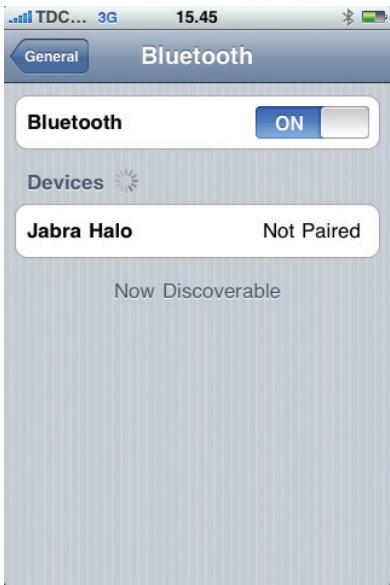
H oukeun avaqntaTwpa Kovtivec oukeueC Bluetooth 品 auupatnc TeXvoLoyiac.
Enavapopouloyon klnoewv meiPhone
gAVRCP 1000000000000000000000000000000000000000
Jabra HALO wJ aLw no Lg. gJ 11
I Laoi - iPod touch ^奶 Apple iPhone
:aii i 100
55 55 55 55 Apple
J! Jabra HALO wJ Lwav AVRCP Lb
. iPod touch® 9 | Apple iPhone® 700 5 |
aapppe
a 2. aLg aI I aLg J
JLJI JI OJJI g POLOU JLOU
JgJgJgJgJgJ
1g)UULsUgUgUgUgUgUgUgUgUgUgUgUgUgUgUgUgUgUgUgUgUgUgUgUgUgUgUgUgUgUgUgUgUgUgUgUgUgUgUgUgUgUgUgUgUgUgUgUgUgUgU
aaii jia Jabra aLw no (gss
10 10
(iLiJI i) iPod touch ^念 3GS g 3G Apple iPhone
cui 1 a i 10000000000000000000000000000000000000
Aaill jg Jgnnn JolSJIgnnn Looicg
15c. 15cLgJgJgJgJgJgJgJgJg
LgJiLi Jabra HALO
LgJ Jaba HALO
aJgJgJgJgJgJgJgJgJg
lg.1 = 12
aie: (1) 154 all sic wJll acawLg a: gbl .1
JgJgJgJgJgJgJgJgJgJgJgJgJgJgJgJgJgJgJgJgJgJgJgJgJgJgJgJgJgJgJgJgJgJgJgJgJgJgJgJgJgJgJgJgJgJgJgJgJgJgJ
logii 11 p
yai:agaiie yjll aclaw sya:siU
LgILsofo
AR
iPod touch ^念 iPhone Jabra HALO
00Jg4g11.1
aiei Lgilso g aLalll yolw wylacLswy
Jubra HALO Jus jw wJt Jau
aJgJU Jc JgJgJgJgJgJgJgJgJg
a=11 a-gj1.
gai jgi 1 (1) sglj/2j jj jlc jao
()
iPod touch 念 iPhone 念 iPhoneBluetooth
General<()Settings.
Lo5,(Jusu)Bluetooth on Bluttooth
aaiiiaaiiaaiai
dd (c)alal) Settings jai aai L
.(pL)General
Bluetooth (pLc) General
a:aa aee aee 1 1
Bluetooth
AR
iPhone / iPod touch Jabra HALO
JL 15
()…
| 1 | 2 ABC | 3 DEF |
| 4 GHI | 5 JKL | 6 MNO |
| 7 PQRS | 8 TUV | 9 WXYZ |
| 0 | × |
AR
iPod touch ^念 iPhone JL
Jabra HALO
Jabra HALO
a 15000000000000000000000000000000000000000000000000000000000000000000
JLJoo 80,1gll ULLSLAeggi qai LsJgdl JLDi
Jabra HALO
. iPhone ^ 念 JPhone
J 10000000000000000000000000000000000000000000000000000
Bluetho 5
Bluetooth
11 Log 2 p1 Jueuui jluo Bluetooth 15 11 Lo aee
XpIbIPhone 品 1uBleuBtooth 日 J>JS
iPhone®BluetoothBluetooth
aLJI 2g-
jg 289 jzillbl Bluetooth: (j)
. iPhone®
j>28<3J 150
jgS, iPhone 2019 a gIc cai
aai aai j gglj
a:alldalbocBluetooth
Bluetooth
gjglgjglalc
53.1111X. J. J. J. J. J. J. J. J. J. J. J. J. J. J. J. J. J. J. J. J. J. J. J. J. J. J. J. J. J. J. J. J. J. J. J. J. J. J. J. J. J. J. J. J. J. J. J. J. J. J. 100000000000000000000000000000000000000000000000000000000000000000000000000000000000000
jlll lal glll jlll lal glll jlll glll jlll glll jlll glll jlll glll jlll glll jlll glll
iPhone JSL 4
al 1000000000000000000000000000000000000000000000000000000000000
iPhone® JLJ 1000000000000000000000000000000000000000000
jlliPhone 一 一 一 一 一
gll (wll) Audio gie aee yea lae alcill eel
o oLLsLL gleeu u IPhone jsliphone J
eLauu wu u s c aeLauw slyg IPhone JUs
gl, uus sseclauw u 100000000000000000000000000000000000000000000000000000000000000000000000000000
AR
Jl Jl jll 100
Bluetooth < (pLc) General < (uA) Settings
.(j) Off
-
LwJgJgJgJgJgJgJgJg
. iPhone® lglJuaJI sG bIe Bluetooth aiaa aS
iPod touch g iPhone j jjgl sLi
pduu u jyj g i o iPhone a jg c a b
JgJgJgJgJgJgJgJgJg
iPod touch® gi iPhone® yjg aegjg sI
<()SettingsJ
juiu psc JL. Bluetooth < (pIc) General
.
(aagjllsI)UnpauiLc wu1g jz
iPhone 品 _ 1 ^ 一 j. iPhone 品 _ 1 ^ 一 a>glj
A
g iPod touch g iPhone Bluetooth
A
General<() Settings
jipod touch'gApple iPhone:
Bluetooth
03 23 1 3 4 5 6 7 8 9 10 11 12 13 14 15 16 17 18 19 20 21 22 23 24 25 26 27 28 29 30 31 32 33 34 35 36 37 38 39 40 41 42 43 44 45 46 47 48 49 50 51 52 53 54 55 56 57 58 59 60 61 62 63 64 65 66 67 68 69 70 71 72 73 74 75 76 77 78 79 80
LjLjLjLjLjLjLjLjLjLjLjLjLjLjLjLjLjLjLjLjLjLjLjLjLjLjLjLjLjLjLjLjLjLjLjLjLjLjLjLjLjLjLjLjLjLjLjLjLjLjL
Lw
Jabra HALO
Jabra HALO 1
[{2g} - 3 \rightarrow 0]
(j)j≤g:s≤a+0
.5s 1gjgolj j
1
gcaa cllj j 1 g
1 1
gds gds jyj css s yj
L>1
FA
Jabra HALO (pairing) JI iPod touch L iPhone
(1) (pairing)
LJ 1a g Jg Jg jg 0g 0g 0j
Jabra HALO.
(4)
(pairing)
1 L 10 10 g 10 10 10 10 10 10 10 10 10 10 10 10
()
iPhone 品 1s s gj, Bluetooth 品 5oc
iPod touch
j1. w0o o0 jL uu Jua aua a 4a aig sila
Settings>General>BluetoothHome
(0n)JgBleoth 1
General Settings Home
Ljblnblnblnblnblnblnblnblnblnblnblnblnblnblnblnblnblnblnblnblnblnblnblnblnblnblnblnblnblnblnblnblnblnblnblnblnblnblnblnblnblnblnblnblnblnblnblnblnblnblnbl
a#y sglie a jgno gloLc:ws Laoolc:ws JLD
_i = 1^n_j = 1^mx_ij = _i = 1^n_j = 1^mx_ij
ipod touch L iPhone 1, Jabra HALO
1
FA
FA
Jabra HALO L iPod touchiPhone JL
Jabra HALO jolai
Apple iPhone 0d oJ J J J J J J J J J J J J J J J J J
Jabra HALO 1ipod touch L
.
gLssySLac.Apple r,1 awwu yI LwJgjA jI JgjL
Lg 10g
a# 4000000000000000000000000000000000000000000
g
gsl.4:5j.5j.5j.5j.5j.5oc
Lac Jl LbJ. g w guiu uac ucs
I Pod touch L iPhone oLgws J Laoa
iPhone 品 LwLj
pLg uJ Ls Lj wu J oLaW aegj yol j
iPhone 1 L Lg
iPhone 1 LwL
iPhone Gd a 10 j 1 wLc
C
iPhone s, Audio aS s. wL
jLwLdJnDySg>1iPhone
Speaker Phone L. iPhone
LgosyS gaii jLwLd
Bluetooth
L
FA
a:15 5omegaHome a2-;11,Bluetooth
g 品 _ 2 ^ 一 Settings>General>Bluetooth gL
Oo (Off) 100g oolcog 1
25.15 00g00j jLj jL g00s
sglie 4 jgoool s Jn oio y
≤1dALpLb iPhone®Bluetooth
L 1
L iPhone® (pairing) Jwaiji iPod touch®
g 2025 (pair) juaia gaii iu 1j 2j iPhone85
1Jgolw(pairing)Jl
L iPhone® (pairing)
Jewel Gold
I Pod touch®
Settings > General > Bluetooth gLa 1
1j jBluetooth
Unpar 59g02sL Wai J oL (pair) iO iPhone aJ bJb00000000000000000000000
.1s2algsj pLg1 j gJyJb;1, LwLc, s iPhone
iPod touch® L iPhone® g y Bluetooth ® s
Settings > General > Bluetooth Home
LgolL 1 jn jn, J Bluetooth 8 nnnn nn nnnn nn nnnn nn nnnn nn nnnn nn nnnn nn nnnn nn nnnn nn nnnn nn nnnn nn nnnn nn nnnn nn nnnn nn nnnn nn nnnn nn nnnn nn nnnn nn nnnn nn nnnn nn nnnn nn nnnn nn nnnn nn nnnn nn nnnn nn nnnn nn nnnn
FA
gacagr.0 gagagagagagagagagagagagagagagagagagagagagagagagagagagagagagagagagagagagagagagagagagagagagagagagagagagagagagagagagagagagagagagagagagagagagagag
(Bluetooth®)
USB-go 5g,0 gio
Lgolg0e1wdsjgsa0r.o 0
Bluetooth 5e g 45
pLio (gul glo jui sLo wUcduo Jolu)
Jg JLejL JLa Jabra HALO jdo
1.0 g a y 1y L Jaba HALO j0Lai
JcI 100000000000000000000000000000000000000
jLwos Jbduo 45 uus Loo juabjj.
j
A
jolaoi JgJab Jaba HALO oJai
Lis aii. Log sii, lis slo
www.jabra.com/HALO 1oLs gLaioi, a
10
CS
wnnnn nn Settings gnne General
2.b.
General Bluetooth
2.c.
nuc iPhone® (2008) uunuunuunuunuunuunu unu uuuuauu uuuuuuuuuuuuuuuuuuuuuuuuuuuuuuuuuuuuuuuuuuuuuuuuuuuuuuuuuuuuuuuuuuuuuuuuuuuuuuuuuuuuuuuuuuuuuuuuuuuuuuuuuuuuuuuuuuuuuuuuuuuuuuuuuuuuuuuuuuuuuuuuuuuuuuuuuuuuuuuuuuuuuuuuuuuuuuuuuuuuuuuuuuuuuuuuuuuuuuuuuUU
iPhone® anuansanuaianuunauonnauanuauauauauauauauauauauauuuuauuuuuuuuuuuuuuuuuuuuuuuuuuuuuuuuuuuuuuuuuuuuuuuuuuuuuuuuuuuuuuuuuuuuuuuuuuuuuuuuuuuuuuuuuuuuuuuuuuuuuuuuuuuuuuuuuuuuuuuuuuuuuuuuuuuuuuuuuuuuuuuuuuuuuuuuuuuuuuuuuuuuuuuuuuuuuuuuuuuuuuuuuuuuuuuuuuuuuuuuuUU
Bluetooth
nannnnnnnnnnnnn nbluetooth 日 nnnnnnnnnnnn n
nennnnnnnnnnn nbluetooth 日 nnnnnnnnnnnn nn iPhone
nennnnnnnnnnn nbluetooth 日 nnnnnnnnnnnn nn
iPhone
书:Blteoht 10n
():Bluetooth®uWuWuWuWuWuWuWuWuWuWuWuWuWuWuWuWuWuWuWuWuWuWuWuWuWuWuWuWuWuWuWuWuWuWuWuWuWuWuWuWuWuWuWu
Bluetho:bluetho
- 1
- 1
TH
nnaaannnnnnaanennnnnnnnnnnn
© 2009 GN Netcom A/S. All rights reserved. Jabra® is a registered trademark of GN Netcom A/S. All other trademarks included herein are the property of their respective owners. The Bluetooth® word mark and logos are owned by the Bluetooth SIG, Inc. and any use of such marks by GN Netcom A/S is under license. (Design and specifications subject to change without notice).
© 2009 GN Netcom US, Inc. all rights reserved. Jabra® is a registered trademark of GN Netcom A/S. All other trademarks included herein are the property of their respective owners. The Bluetooth® word mark and logos are owned by the Bluetooth SIG, Inc. and any use of such marks by GN Netcom A/S is under license. (Design and specifications subject to change without notice).
Design Reg: pending international
MADE IN CHINA
TYPE: OTES

Bluetooth


外箱 外装部


AE44
