
GO 6470 - Bluetooth Headset JABRA - Free user manual and instructions
Find the device manual for free GO 6470 JABRA in PDF.



User questions about GO 6470 JABRA
0 question about this device. Answer the ones you know or ask your own.
Ask a new question about this device
Download the instructions for your Bluetooth Headset in PDF format for free! Find your manual GO 6470 - JABRA and take your electronic device back in hand. On this page are published all the documents necessary for the use of your device. GO 6470 by JABRA.
USER MANUAL GO 6470 JABRA
Philippines +63-2-2424806
Singapore 800-860-0019 (Toll free)
Taiwan 0080-186-3013 (Toll free)
For further languages please refer to the manuals on the enclosed CD.
Europe:
EN/FR/DE/IT/NL/ES/DA/SE/NO/FI/PT/RU/TR/CZ/HU
USA&Canada: US/FR/ES/PT
Asia:
EN/CHt

USA & CANADA
Canada 1-800-489-4199
USA 1-800-826-4656
GN Netcom A/S·Lautrupbjerg 7·2750 Ballerup · Denmark
PATENTS AND DESIGN REGISTRATION PENDING INTERNATIONAL REGISTER YOUR JABRA AT JABRA.COM/REGISTER - FOR NEWS, SUPPORT AND COMPETITIONS
ABRAND BY
GNNetcom
© 2009 GN Netcom A/S. All rights reserved. Jabra® is a registered trademark of GN Netcom A/S. All other trademarks included herein are the property of their respective owners. The Bluetooth® word mark and logos are owned by the Bluetooth SIG, Inc. and any use of such marks by GN Netcom A/S is under license. (Design and specifications subject to change without notice).
MADE IN CHINA TYPE:GO 60400BS/HS


www.jabra.com
Jabra®
Jabra® GO™ 6470
810286E
Quick start guide
www.jabra.com
JABRA GO 6470 HEADSET DIAGRAM
Figure 1:

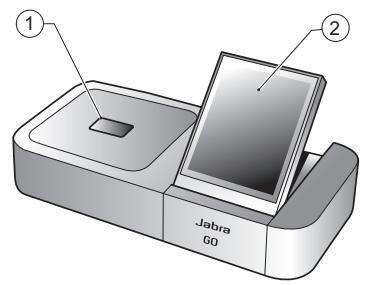
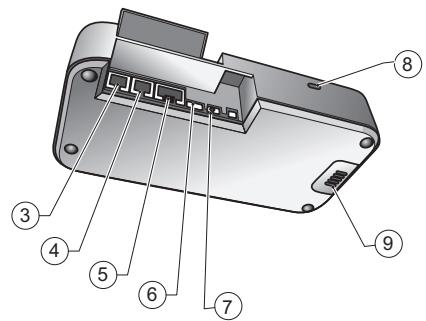
JABRA GO 6470 BASE DIAGRAM
Figure 2:
DIAL-IN NUMBER FOR AUTOMATIC DESKPHONE SETUP
(Jabra Setup Server)
Australia (+61) 390015714 Italy (+39) 199241498
Austria (+43) 720881373 Japan (+81) 345209655
Belgium (+32) 28081988 Netherlands (+31) 858880322
Canada (+1) 5146670459 New Zealand (+64) 99853540
China (+86) 2131001806 Norway (+47) 85449926
Czech Republic (+42) 0246019050 Poland (+48) 223988168
Denmark (+45) 69121700 Russia (+7) 812-3092605
Finland (+35) 8942415766 Singapore (+65) 31031365
France (+33) 975180988 South Africa (+27) 114613389
Germany (+49) 8922061142 Spain (+34) 901667428
Hong Kong (+852) 317-09541 Sweden (+46) 101992532
India 000-800-100-7140 Switzerland (+41) 435002588
Ireland (+353) 766060801 United Kingdom (+44) 8708200018
Israel (+972) 37219694 United States of America (+1) 202 446 0321

3 Telephone port

4 Handset port

5 AUX port

6 USB port

7 Power adapter port

IMPORTANT

Figure 2: Jabra GO 6470 base, seen from the front and back, respectively
This guide will help you connect and configure your headset solution. It is important that you follow the instructions in each section in the order in which they are given.
Please note that the touchscreen base has a built-in setup wizard, which guides you through all of the required connections and settings, automating many of the tasks. It launches the first time you apply power to the base.
Basic headset operation is also introduced here. See the full user manual on the supplied CD-ROM for complete details about how to use your Jabra® GO™ headset.
This product contains font software programs which generate human readable typeface designs ("Font Software") on base display. The Font Software family is Frutiger® Next licensed to GN Netcom by Linotype®.
JABRA GO 6470
HEADSET DIAGRAM
1 Multifunction button (answer/end call, among other functions)
2 Touch panel for volume and mute control
3 Dual noise-blackout microphone
4 Activity and status indicator (multicolor LED)
5 Earbud (with speaker)
6 Mount for ear-hook wearing-style attachment
7 Recharge contact
Figure 1: Jabra GO 6470 headset as seen from the outer and inner sides, respectively
JABRA GO 6470 BASE DIAGRAM
1 Headset cradle
2 Touchscreen
3 Telephone port
4 Handset port
5 AUX port AUX
6 USB port
7 Power adapter port
8 Security slot and (recessed) cradle-release button
9 Speaker for ring tones and touchscreen audio feedback
INSTALLATION AND SETUP
Step 1: Attach/adjust a headset wearing-style
Included in the standard package are the headband and ear hook wearing styles. The headset is delivered already attached to the ear hook, shown below. Slide the attachment up or down until the headset fits most comfortably to your ear.
You can instead attach the headset to the supplied headband, shown below. To do this, first detach the ear hook and then press the headset into the headband's attachment socket. Once assembled, you can rotate the headset for use on either ear.

For further details on attaching/detaching wearing styles, refer to the procedures in the full user manual on the CD-ROM supplied with your headset.
Step 2: Apply power to the base
Connect the mains power adapter to the base's power port (marked with ), then plug it into a mains power socket.

A setup wizard automatically launches on the touchscreen.

Step 3: Connect the base to your desk phone
Let the wizard guide you through the task of connecting your desk phone to the base.
The way in which you connect the two devices will vary according to whether the phone has a headset port and whether it has an electronic hook-switch or remote handset lifter (such as the GN1000).
You need to determine this yourself. For example, you might already have an electronic hook-switch (EHS) installed or you might have ordered a remote handset lifter (such as the GN1000) together with your headset package. You can use the wizard to configure your EHS connection (if any).
Note: Connection to a phone which includes an electronic hook-switch requires a model-specific adapter from Jabra. See the user manual for more.
Step 4: Configure the base for your desk phone
Once the base has established a connection to the desk phone, the optimal clear dial-tone switch and microphone level settings need to be determined.
The wizard will prompt you to call your local Jabra setup server — see the cover of this quick start guide for a list of numbers. This enables the Jabra GO base to test its clear dial-tone switch and mic.-level settings by exchanging signals with the setup server.
Note: If the base is unable to contact the server, you can choose to configure the desk phone manually. See the user manual for more.
To set the clear dial-tone switch position and mic.-level:
- The touchscreen wizard prompts you to call the Jabra setup server. Follow the on-screen instructions.
There is no clear dial-tone switch accessible to the user on the base — stepping through positions A – G to find the best one occurs automatically.
Equally, the base will determine the optimal microphone level automatically.
Step 5: Connect the base to your softphone (PC)
To use Jabra GO with a softphone, you must first connect the Jabra GO base to your PC via a USB cable. The softphone part of the setup wizard will prompt you to do this.
- Connect the small connector (mini USB) of the supplied USB cable to the port marked on the Jabra GO base.
- Connect the other end of the USB cable to any free USB port on your computer.
Step 6: Enable your softphone interface
- Insert the CD-ROM included with your headset into your PC and install the Jabra PC Suite software. The softphone part of the setup wizard will prompt you to do this.
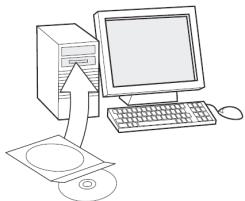
The installation includes the supported softphone drivers necessary to enable the softphone interface. If you have any questions as you work through the setup wizard, or if you would like to learn more on how to use the many advanced features of your headset solution, please refer to the full user manual. This is included on the CD-ROM in PDF format.
- Right-click on the Jabra icon in the Windows Notification Area and select Open Device Service. The Jabra Device Service window opens. This shows the list of softphone drivers installed on your PC. Use the online help available in this window to learn more.
-
Select the softphone you want to use (target softphone) from those available in the Select softphone for outgoing calls drop-down list.
-
Run the Jabra Control Center - click on the Windows Start button and select All Programs > Jabra > Jabra PC Suite > Jabra Control Center.
- Select the Softphone tab for your Jabra GO device.
- In Target softphone for outgoing calls, select either Microsoft Office Communicator or Softphones supported by Jabra PC Suite. Configure other parameters, as required. This establishes the default softphone target type. Use the online help available in this window to learn more.
Step 7: Connect to your mobile phone
The setup wizard asks whether you want to connect to a mobile phone and guides you through the procedure:
- You must ensure that Bluetooth is active on your phone and then put it in pairing mode.
Your phone looks to see if any nearby Bluetooth devices are advertising themselves for pairing. - Use your phone's controls to identify and select the "Jabra GO 6400" device. Your phone might also ask for the headset's pass code. The pass code for all Jabra devices is 0000 (four zeros).
Your phone tries to pair with and connect to the base.
During normal operation, the touchscreen displays information about your headset, shows the current target phone for outgoing calls and indicates its status. From here, you can answer an incoming call, end the current call, access your base settings, choose a target phone and open an audio link to the current target phone.

Touchscreen controls for standard, everyday operation
1 Settings icon: touch here to go to the settings menu for your base and headset.
2 Battery indicator: indicates the current charge level of your headset.
3 Current target phone: shows the current target phone and indicates its status (ringing, online, etc.). This is the phone to which you will connect if you tap the headset multifunction button or touch the activate-audio-link icon.
4 Other phones: touch the appropriate icon here to change the current target phone—or press the headset multifunction button when no call is active to cycle through available phones (press and hold for about two seconds).
5 Activate audio link: touch here to answer an incoming call or activate the audio link to the current target phone—or tap the headset multifunction button when no call is active.
Please see the user manual for complete details.
DAILYUSE
Storing and charging the headset:
Whenever you are not using your headset, keep it in its recharge cradle as shown below. It is held firmly in place by a magnet.
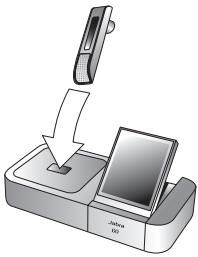
Note:
- charging occurs automatically, as soon as you dock the headset in the cradle
- the headset is still in operation even while it is charging
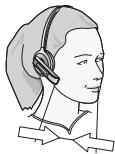
Wearing the headset:
Always wear the headset with the microphone positioned as close to your mouth as possible.
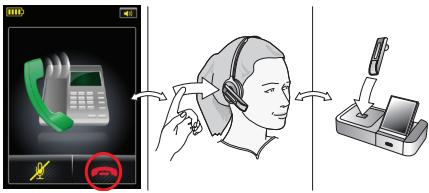
To place or answer a call over your desk phone:
- Touch the desk-phone icon on the touchscreen to make the desk phone the current target. (If necessary—the largest of the phone icons on the screen indicates the current target.)
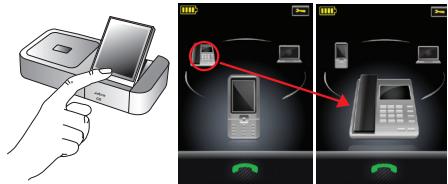
- Open the audio channel from your headset to your desk phone by doing one of the following:
- Touch the open-connection icon on the touchscreen.
- Tap the multifunction button at the back of your headset.

-
Open the connection from your desk phone to the phone network by doing one of the following:
-
If your desk phone has a headset button, then press the headset button.
- If you do not have an electronic hook-switch, handset lifter or headset button, then lift the handset of your desk phone and place it next to the phone.
Note: If your desk phone has an electronic hook-switch or GN1000 Remote Handset Lifter, then the connection opens automatically.
If you are answering a call, then begin talking. If you are making a call, then dial the number on your desk phone.
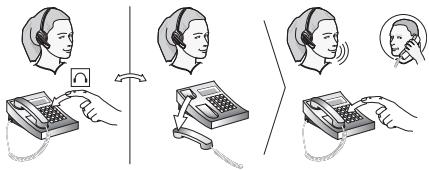
- When you are done talking, close the connection from your desk phone to the phone network by doing one of the following:
- If your desk phone has a headset button, then press the headset button.
- If you do not have an electronic hook-switch, handset lifter or headset button, then hang up the handset on your desk phone.
Note: If your desk phone has an electronic hookswitch or GN1000 Remote Handset Lifter, then the connection closes automatically.

- Close the audio channel from your headset to your desk phone by doing one of the following:
- Touch the end-call icon on the touchscreen.
- Tap the multifunction button at the back of your headset.
- Remove the headset and place it in its cradle on the base.
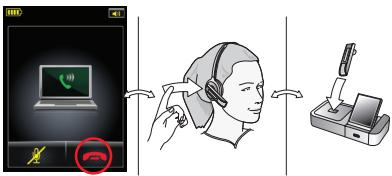
To place a call over a mobile phone or softphone:
- Put on your headset.

- Dial your mobile / softphone and press the call button as usual. The base detects that you have placed a call and opens the connection to your headset automatically.

-
When you are done talking, do one of the following to hang up:
-
Press the end-call button on your mobile / softphone.
- Touch the end-call icon on the touchscreen.
- Tap the multifunction button at the back of your headset.
- Remove the headset and place it in its cradle on the base.
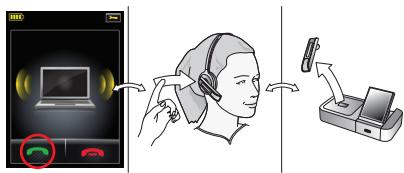
To answer a call over a mobile phone or softphone:
-
The base automatically detects that a mobile / softphone is ringing. It makes that phone the current target and shows the incoming-call animation. Answer the call by doing one of the following:
-
Touch the open-connection icon on the touchscreen.
- Tap the multifunction button at the back of your headset.
- Lift the headset from its cradle on the base and put it on.
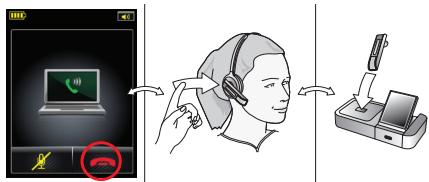
-
When you are done talking, do one of the following to hang up:
-
Press the end-call button on your mobile / smartphone.
- Touch the end-call icon on the touchscreen.
- Tap the multifunction button at the back of your headset.
- Remove the headset and place it in its cradle on the base.
During a call:
- To adjust the volume you hear, slide your finger up or down the touch-sensitive panel.
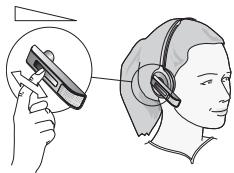
- To mute or un-mute the microphone, double-tap on the touch-sensitive panel. A soft tone sounds every now and then to remind you when the microphone is muted.
