
EXTREME FOR PC - Bluetooth Headset JABRA - Free user manual and instructions
Find the device manual for free EXTREME FOR PC JABRA in PDF.



User questions about EXTREME FOR PC JABRA
0 question about this device. Answer the ones you know or ask your own.
Ask a new question about this device
Download the instructions for your Bluetooth Headset in PDF format for free! Find your manual EXTREME FOR PC - JABRA and take your electronic device back in hand. On this page are published all the documents necessary for the use of your device. EXTREME FOR PC by JABRA.
USER MANUAL EXTREME FOR PC JABRA
TURING YOUR HEADSET ON AND OFF 5
PRE PAIRED 5
PAIRING YOUR HEADSET WITH YOUR PHONE 6
WEARING STYLE 6
HOW TO 7
WHAT THE LIGHTS IN THE HEADSET MEAN 8
Thank you for purchasing the Jabra EXTREME - FOR PC Bluetooth® wireless technology headset and LINK 320 USB adapter. We hope you enjoy it! This instruction manual will get you started and ready to make the most of your headset.
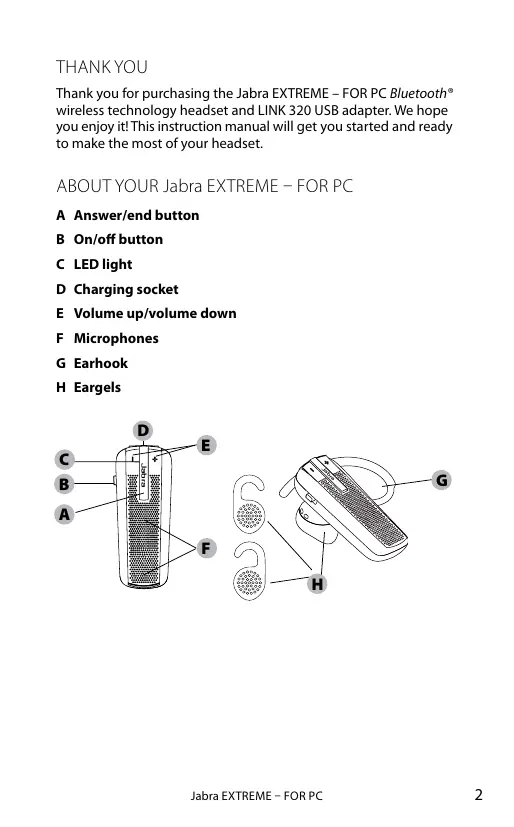
ABOUT YOUR Jabra EXTREME - FOR PC
A Answer/end button
B On/off button
C LED light
D Charging socket
E Volume up/volume down
F Microphones
G Earhook
H Eargels

ABOUT YOUR Jabra LINK 320 USB ADAPTER
A USB Plug
B LED Light
C Button

WHAT YOUR HEADSET DOES
Your Jabra EXTREME lets you do all this:
- Answer calls²
- End calls²
Reject calls12
Voice dialing with your phone - Last number redialing12
- Call waiting12
Put call on hold - Mute
- Multiuse™ - being connected to two Bluetooth® devices at the same time
- Play music from you phone
Headset specifications
- Talk time up to 5 12 hours/standby time up to 10 12 days
- Rechargeable battery with charging option from AC power supply, PC via USB charger or car charger
- Multi-colored light for status and battery indicator
- Quiet mode - turns light off after one minute
Size:L 47× W18.5× H27.5mm (L 1.9× W0.7× H1.1 in)
Weight: 10 grams (0.35 oz)
- Noise Blackout™ EXTREME with dual microphones
Digital sound enhancement via DSP technology
- Noise reduction on transmitted and received audio
- Noise dependent volume control
Automatic volume adjustment on receive audio
- Acoustic shock protection
- Qualified for Bluetooth® Specification version 2.1 + EDR (enhanced data rate), supporting Headset and Hands-free Profiles for phone conversations and Advanced Audio Distribution Profile (A2DP) for streaming music
- e-SCO for enhanced audio quality
- 128 bit encryption
- Operating range up to 10 meters (approx. 33 feet)
GETTING STARTED
You should follow three steps before using your headset
1. Charge your headset
2. Insert the USB adapter into your PC
3. Pair your headset to your mobile phone
The Jabra EXTREME is easy to operate. The answer/end button on the headset performs different functions depending on how long you press it.
| Instruction | Duration of press |
| Tap | Press briefly |
| Double Tap | 2 quickly repeated taps |
| Press | Approx: 1 second |
| Press and hold | Approx: 5 seconds |
CHARGE YOUR HEADSET
Make sure that your headset is fully charged before you start using it (duration app. 2 hours). Use the AC power supply to charge from a power socket. When the light indicator (LED) has a solid LED light, your headset is charging. When the LED light is solid green and goes into quiet mode, your headset is fully charged.
Use only the charger provided in the box - do not use chargers from any other devices as this may damage your headset.
| What you see | Charge Level |
| Solid Red | Less than 70% charged |
| Solid Yellow | Between 70% and fully charged |
| Solid Green - quiet mode | Fully charged |
Please note: The lifetime of the battery will be significantly reduced if your device is left uncharged for a long period. We therefore recommend that you recharge your device at least once a month.
TURNING YOUR HEADSET ON AND OFF
- Slide the on/off button forward on the side of the headset to turn on the headset. The LED will flash green for a second when the headset is on.
- Slide the on/off button backward to turn off the headset.
PRE PAIRED
Your headset is already pre paired to the USB Adapter out of the box. If pairing is deleted and later pairing is needed this is done in a few easy steps.
- Put the USB Adapter into pairing mode by pressing the button on the USB Adapter until the LED light is solid blue.
- Put Your headset into pairing mode by pressing the MFB until the light in the headset is solid blue and wait a few moments.
- When the blue light on both headset and USB adapter is blinking, pairing is complete and the headset and USB adapter will connect automatically and the LED on the USB Adapter turns solid green and the green LED on the headset is blinking.
PAIRING YOUR HEADSET WITH YOUR PHONE
Headsets are connected to phones using a procedure called 'pairing'. By following a few simple steps, a phone can be paired with a headset in a matter of minutes.
1. Put the headset in pairing mode
- When you turn on your Jabra EXTREME for the first time, the headset will automatically start up in pairing mode - i.e. it is discoverable for your phone. When the headset is in pairing mode the LED is constantly lit blue.
2. Set your Bluetooth® phone to 'discover' the Jabra EXTREME
- Follow your phone's instruction guide. First make sure that Bluetooth® is activated on your mobile phone. Then set your phone to discover the headset. This usually involves going to a 'setup' connect' or 'Bluetooth® menu on your phone and selecting the option to 'discover' or 'add' a Bluetooth® device.*
3. Your phone will find the Jabra EXTREME
- Your phone will find the headset under name "Jabra EXTREME". Your phone then asks if you want to pair with the headset. Accept by pressing 'Yes' or 'OK' on the phone and confirm with the passkey or PIN = 0000 (4 zeros). Your phone will confirm when pairing is complete.


In case of unsuccessful pairing, put the Jabra EXTREME into pairing mode manually. Make sure the headset is on. Press and hold the answer/end button for approximately 5 seconds until the LED has a constant light. Keep holding down the button until light is constant.
WEARING STYLE
The Jabra EXTREME is ready to be worn with or without the ear hook. The ear hook can be removed and the headset can be used with the Ultimate-fit Eargels™.
The Ultimate-fit Eargels™ can be used for both left and right wearing.
The Ultimate-fit Eargels™ come in two different styles to fit any ear. You can also twist the eargel slightly to optimize the fit and comfort. For optimal performance, wear the Jabra EXTREME and your mobile phone on the same side of your body or within line of sight. You will get better performance when there are no obstructions between your headset and your mobile phone.
HOW TO
Answer a call
- Tap the answer/end button on your headset to answer a call.
End a call
- Tap the answer/end button to end an active call.
Reject a call*
- Press the answer/end button when the phone rings to reject an incoming call. Depending on your phone settings, the person who called you will either be forwarded to your voice mail or will hear a busy signal.
Make a call
- When you make a call from your mobile phone, the call will (subject to phone settings) automatically transfer to your headset. If your phone does not allow this feature, tap on the Jabra EXTREME's answer/end button to transfer the call to the headset.
Activate voice dialing*
- Press the answer/end button. For best results, record the voice dialing tag through your headset. Please consult user manual of your phone for more information about using this feature.
Redial last number\*
- Double tap the answer/end button when the headset is on and not used.
Adjust sound and volume*
- Tap the volume up or down to adjust the volume.
Mute/un-mute
- To mute, press both volume up and down at the same time. A low beep alert plays during a muted call.
- To un-mute, tap either of the volume buttons.
Call waiting and placing a call on hold*
- This lets you put a call on hold during a conversation and answer a waiting call.
- Press the answer/end button once to put the active call on hold and answer the waiting call.
- Press the answer/end button to switch between the two calls.
- Tap the answer/end button to end the active conversation.
Battery indicator
- Tap one of the volume buttons to see the battery level.
| What you see | Battery level/Talk time |
| 2 Green flashes | 1-5½ hours talk time |
| 2 Yellow flashes | 10 min.-1 hour |
| 2 Red flashes | 10 min. |
WHAT THE LIGHTS IN THE HEADSET MEAN
| What you see | Battery level/Talk time |
| Flashing blue and green light | Incoming call |
| Flashing blue light | Flashing every three seconds: In Standby mode and connected to mobile phone (only for 1 minute then off) |
| Flashing green light | Flashing every three seconds: In standby mode – not connected (only for 1 minute then off) |
| Flashing blue light | Flashing every second: active call (only for 30 seconds then off) |
| Flashing red light | Running low on battery |
| Flashing purple light | Flashing every seconds: Connected in A2DP streaming music (only for 30 seconds then off) |
| Solid blue light | In pairing mode |
| Solid purple light | Special music pairing mode See chapter Troubleshooting & FAQ - Frequently Asked Questions |
| Solid green light | Fully charged |
| Solid yellow light | Charging level between 70% and fully charged |
| Solid red light | Charging level less than 70% |
Jabra EXTREME is capable of streaming music over Bluetooth® - either from a mobile phone or any other Bluetooth® device supporting A2DP. Once you have paired your Jabra EXTREME with your mobile phone or to the Bluetooth® music player, use your phone or music player to play, pause, stop, skip forward and backward. When you recieve a call, the music will automatically be suspended and you will be able to answer or reject a call through the headset. Once you end a call, the music should recommence. On some phones and music devices you may have to press 'play' to start the music again.
MULTIUSE
Jabra EXTREME is capable of having two mobile phones (or Bluetooth® devices) connected to the headset at the same time. We call this MultiUse™. MultiUse™ will give you the freedom of having only one headset to operate both your mobile phones. Please note that Last Number Redial will dial the number from the last outgoing call, independent of the mobile phone, and the Voice Dialing function will only work on the last paired mobile phone.
TROUBLESHOOTING & FAQ
I hear crackling noises
- Bluetooth® is a radio technology, which means it is sensitive to objects between the headset and the connected device. It is designed for the headset and the connected device to be used within 10 meters (33 feet) of each other, with no major objects in the way (walls, etc.).
I cannot hear anything in my headset
- Increase the volume in the headset.
- Ensure that the headset is paired to a device that is playing.
- Make sure your phone is connected to the headset by tapping the Answer/End button.
I am having pairing problems
- You may have deleted your headset pairing connection in your mobile phone. Follow the pairing instructions.
I want to reset the headset
It is possible to reset and test the headset by 'pressing and holding' all three buttons at the same time. The red, blue and green light will light up in a white light. In this mode, the pairing list is reset, and you can test if the headset works as you will be able to hear audio in the speaker from the microphone.
- The headset will automatically turn off after approx. 10 seconds. The next time you power on, the headset will go into pairing mode as the first time you powered your new EXTREME on.
Will the Jabra EXTREME work with other Bluetooth® equipment?
- The Jabra EXTREME is designed to work with Bluetooth® mobile phones. It can also work with other Bluetooth® devices that are compliant with Bluetooth® version 1.1 or higher and support a headset, hands-free and/or advance audio distribution profile.
I cannot use Reject call, call on hold, Redial or voice dialling
These features are dependent on the ability of your phone to support a hands-free profile. Even if the handsfree profile is implemented reject call, call hold and voice dialing are optional features which are not supported by all devices. Please consult your device manual for details.
Please note that some features can only be operated from the primary device e.g. voice dial using Jabra EXTREME with 2 mobile phones.
For use with your PC you need to have Jabra PC Suite installed and running on your PC to use these functions. Please download Jabra PC Suite at www.jabra.com/jabrapsuite.
The music player starts playing when connecting to the headset, you experience connect/disconnect issues or the headset has short battery life.
Pair your headset again to the device in order to avoid this behavior.
- Ensure that the headset is on. If the music streaming has started, turn the music player on the phone off.
- Press and hold the answer/end button for approx. 10 sec. until the light turns purple.
Go through the regular steps in pairing the headset to a Bluetooth® device.
NEED MORE HELP?
- Web: www.jabra.com/nasupport (for the latest support info and online User Manuals)
2. Phone:
1 (800) 327-2230 (U.S)
1 (800) 489-4199 (Canada)
TAKING CARE OF YOUR HEADSET
Always store the Jabra EXTREME with the power off and safely protected
- Avoid storage at extreme temperatures (above 45^ / 113^ - including direct sunlight - or below -10^ / 14^ ). This can shorten battery life and may affect operation. High temperatures may also degrade performance.
- Do not expose the Jabra EXTREME to rain or other liquids.
GLOSSARY
- Bluetooth® is a radio technology that connects devices, such as mobile phones and headsets, without wires or cords over a short distance approx. 33 feet (10 meters). Get more information at www/bluetooth.com
-
Bluetooth® profiles are the different ways that Bluetooth® devices communicate with other devices. Bluetooth® phones support either the headset profile, the hands-free profile or both. In order to support a certain profile, a phone manufacturer must implement certain mandatory features within the phone's software.
-
Pairing creates a unique and encrypted link between two Bluetooth® devices and lets them communicate with each other. Bluetooth® devices will not work if the devices have not been paired.
- Passkey or PIN is a code that you enter on your mobile phone to pair it with your Jabra EXTREME. This makes your phone and the Jabra EXTREME recognize each other and automatically work together. The passkey for all Jabra products is 0000.
- Standby mode is when the Jabra EXTREME is passively waiting for a call. When you 'end' a call on your mobile phone, the headset goes into standby mode.
TABLE DES MATIÈRES
MERCI 2
À PROPOS DE VOTRE OREILLETTE Jabra EXTREME - FOR PC ....2
À PROPOS DE VOTRE ADAPTATEUR USB Jabra LINK 320.......3
FONCTIONS POSSIBLE DE VOTRE ORELLETTE 3
MISE EN ROUTE 4
CHARGER VOTRE OREILLETTE 5
© 2010 GN Netcom US, Inc. All rights reserved. Jabra® is a registered trademark of GN Netcom A/S. All other trademarks included herein are the property of their respective owners. The Bluetooth® word mark and logos are owned by the Bluetooth SIG, Inc. and any use of such marks by GN Netcom A/S is under license. (Design and specifications subject to change without notice).
© 2010 GN Netcom A/S. All rights reserved. Jabra® is a registered trademark of GN Netcom A/S. All other trademarks included herein are the property of their respective owners. The Bluetooth® word mark and logos are owned by the Bluetooth SIG, Inc. and any use of such marks by GN Netcom A/S is under license. (Design and specifications subject to change without notice).
MADE IN CHINA
TYPE:BT530
C E


Bluetooth