
MR750 SMART - Caméra auto Navitel - Free user manual and instructions
Find the device manual for free MR750 SMART Navitel in PDF.


| Product type | Multifunctional high-definition DVR (dash cam) |
| Main camera sensor | Sony IMX335 |
| Main camera video resolution | 2560×1440 (2K) |
| Main camera view angle | 150° |
| Main camera lens | 6 layers |
| Rear camera sensor | FH8536H |
| Rear camera video resolution | 1920×1080 (FullHD) |
| Processor | NTK96580-2K |
| Display | 11.9" capacitive touchscreen |
| Recording format | MOV |
| microSD card support | Up to 256 GB, Class U3 or above |
| Charging port | USB-C |
| Rear camera port | 2.5 mm micro-jack (CAM-IN) |
| Battery | 750 mAh |
| Power input | 5 V, 3 A |
| Power source | Car charger 12/24 V (included) |
| Wi-Fi | Yes (for app control) |
| GPS | Built-in GPS with antenna (for speed and camera alerts) |
| ADAS (Advanced Driver Assistance Systems) | Distance control, lane departure warning, movement start alert, pedestrian detection |
| Parking monitor | Impact control and time-lapse recording (requires NAVITEL SMART BOX MAX) |
| Loop recording | Yes, with selectable duration |
| G-sensor | Yes (for emergency file protection) |
| App support | Navitel DVR Center (iOS/Android) for file management and settings |
| Operating temperature | 0 to +35 °C |
| Storage temperature | +5 to +45 °C |
| Package contents | DVR, car charger, rear camera, USB-C cable, video cable, microfiber cloth, user manual, warranty card, gift voucher, electrostatic film, elastic retainers (4 pcs.) |
| Languages supported | Czech, English, French, German, Hungarian, Italian, Polish, Russian, Slovak, Spanish |
Frequently Asked Questions - MR750 SMART Navitel
User questions about MR750 SMART Navitel
0 question about this device. Answer the ones you know or ask your own.
Ask a new question about this device
Download the instructions for your Caméra auto in PDF format for free! Find your manual MR750 SMART - Navitel and take your electronic device back in hand. On this page are published all the documents necessary for the use of your device. MR750 SMART by Navitel.
USER MANUAL MR750 SMART Navitel
Google Play

App Store AppGallery

natural_image
Pixelated illustration of a car on a road with red and green color blocks (no text or symbols)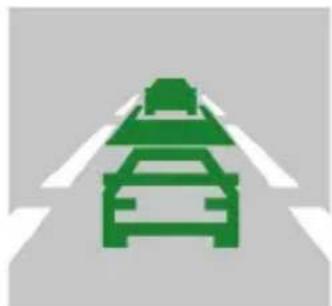
natural_image
Green traffic sign on a road with lane markings (no text or symbols)natural_image
Traffic sign showing a pedestrian crossing a car with a red pedestrian figure above it (no text or symbols)- Port pro video kabel
Einführung
DE
Google Play

App Store AppGallery

Digitaler Tachometer & Kameras Info
natural_image
Pixelated illustration of a car on a road with red and green color blocks (no text or symbols)- Spurhalteassistent
natural_image
Green traffic sign on a road with lane markings (no text or symbols)natural_image
Traffic sign showing a pedestrian crossing a car with a red pedestrian figure above it (no text or symbols)natural_image
Line drawing of a camera lens assembly with no text or symbols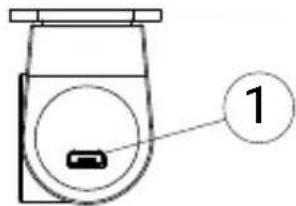
- Videokabelanschluss
Sissejuhatus
Lugupeetud klient!
Täname, et ostsite NAVITEL® toote.
Google Play

App Store AppGallery

natural_image
Pixelated illustration of a car on a road with red and green color blocks (no text or symbols)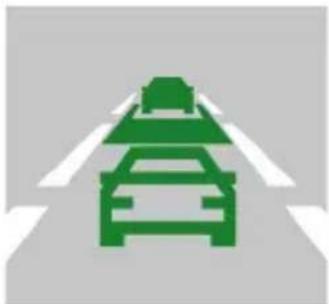
natural_image
Green traffic sign on a road with lane markings (no text or symbols)natural_image
Traffic sign indicating pedestrian crossing with a car silhouette (no text or symbols)natural_image
Line drawing of a Navitel real full HD video camera with no text or symbols on the device itself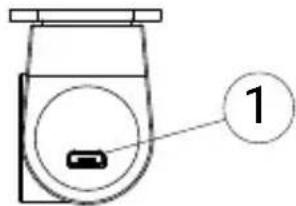
- Videokaabli port
Introduction
Dear Customer!
Thank you for purchasing this NAVITEL® product.
NAVITEL MR750 SMART is a multifunctional high-definition DVR with many functions and features that are described in this User Manual. Please read the manual carefully before using the device and keep it for future reference.
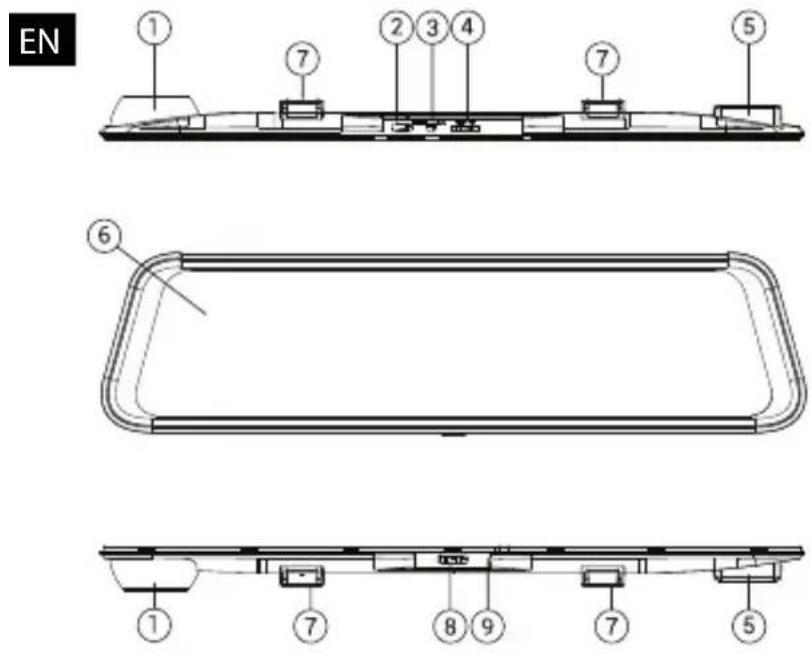
Device layout
- Lens
- USB-C port
- Rear camera port (CAM-IN)
- MicroSD slot
- GPS-antenna
- Display
- Clamps
- Button Power
- Microphone
Package contents
• DVR NAVITEL MR750 SMART
• Car charger 12/24 V
- Rear camera
- USB-C - USB-A cable
• Video cable for the rear camera
- Microfiber cloth
- User manual
- Warranty card
- Gift voucher
- Electrostatic film
- Elastic retainer - 4 pcs.
Specifications
| Main camera | Camera sensor SONY | MX335 |
| Video resolution 2560 x 1440 (2K) | ||
| View angle 150° | ||
| Lens 6 layers | ||
| Rear camera | Camera sensor FH8536H | |
| Video resolution | 1920×1080 (FullHD) | |
| Processor NTK96580-2K | ||
| Display 11.9", capacitive touchscreen | ||
| Recording format MOV | ||
| MicroSD card capacity Max. 256 GB | ||
| Charging port USB-C | ||
| CAM-IN micro-jack (2.5 mm) | ||
| Battery 750 mAh | ||
| Power | 5 V, 3 A | |
| Wi-Fi | Yes | |
| GPS-alert | cameras / warnings / speed | |
| Driver assistants | distance control/marking intersection control/movement start control |
| Language | Czech, English, French, German, Hungarian, Italian, Polish, Russian, Slovak, Spanish, |
Note: contents, appearance, and technical specifications that do not change the overall functionality of the device may be changed by the manufacturer without prior notice.
NAVITEL s.r.o. hereby declares that the device NAVITEL MR750 SMART is compatible with the European directive RED 2014/53/EU.
The full text of Declaration of conformity is available at the following internet address: https://www.navitel.com/declaration_of_conformity/mr750-smart
Installation
- Put the microSD card into the DVR. Use a high-speed SD card (Class U3 or above); capacity should be up to 256 Gb.

- To avoid malfunctions of the DVR and / or SD-card, don't insert and remove SD-card during DVR operation.
-
Before using a microSD card, please format it inside the DVR to avoid data errors. For formatting the SD-card in Menu mode select Format SD-card and confirm it.
-
Install DVR on your car mirror with the clamps. Do not use excessive force to avoid any damages.
- Connect the car charger to the cigarette lighter socket.
- Connect the car charger to the DVR input (USB-C).
- Turn the power on; the DVR will start up and begin recording automatically.
- Adjust the DVR position.
Precautions
- The built-in battery is designed only for recording an emergency event in parking mode and turning off the device correctly when the power is turned off; for the full operation of the device in any mode, a constant power connection is required.
• Use only the original charger adapter. Using another adapter may negatively affect the device's battery. Use accessories only approved by manufacturer. - Permissible ambient temperature in operating mode: 0 to +35 °C. Storage temperature: +5 to +45 °C. Relative humidity: 5% to 90% without condensation (25 °C).
- Put the device away from fire sources to avoid explosion or fire.
- Do not expose the device to physical impacts.
- Avoid contacting the device with sources of electromagnetic radiation.
- Keep the lens clean. Do not use chemicals or detergents to clean the product; always turn off the device before cleaning.
- Strictly follow the laws and regulatory acts of the region where the device is used. This device can not be used for illegal purposes.
- Do not disassemble or repair device by yourself. In case of device failure, contact the service center.
Buttons
| Button Functions | |
| Power | Press the button shortly to turn the device on.Press and hold the button for 2 seconds to turn the device off.When the device is on press the button shortly to switch the screen on / off. |
| Microphone Press the | button to turn the microphone on / off. |
| Record | Press the screen to start recording.Press the screen again to stop recording. |
| Capture Press the | screen to take a picture. |
| Protect file | In Record mode (REC), press the screen to protect / unprotect the current recording (protected file cannot be deleted or overwritten). |
| Menu Press the | screen to enter Menu mode. |
| Display Touch the | screen to switch between the main and rear camera views |
| Reset If the device | is not responding, press the button to reset. |
Note: the built-in battery is designed only for recording an emergency event in parking mode and turning off the device correctly when the power is turned off; for the full operation of the device in any mode, a constant power connection is required.
For the convenience of working with the DVR's video files and embedded data, use Navitel DVR Player. Download available at: https://www.navitel.com/downloads/navitel-dvr-player
Device functions
| Format SD-card | Formatting a microSD card in the DVR is necessary for the correct operation of the device. Before using a microSD card or in case of data error, please format the microSD card. For formatting the SD-card in Menu mode select Format SD-card and confirm it. |
| Record | Connect the device to an external power supply and it will start recording automatically. Press the Record button to stop recording. Press the Record button again to record another video. Each video will be saved automatically. |
| Capture Press the Capture button to take a photo (it will be saved automatically). | |
| Video | Press Menu -> Playback -> Video File. Select a file to play. In Video mode, press || / ► to pause / unpause; press ◀ / ► I to select the previous / next file. Click <- Back to return to the gallery. |
| Photo | Press Menu -> Playback -> Image File Select a file to view. In Photo mode, press ◀ / ► I to select the previous / next file. Click <- Back to return to the gallery. |
| Protect file | In Record mode (REC), press Protect file to protect / unprotect the current recording. In Playback mode select Protect, then Protect / Unprotect All. In Video / Photo mode select a file, then select Protect / Unprotect Current. Protected files cannot be deleted or overwritten. |
| Loop recording | This feature allows you to save a video as a set of files given in the duration menu. If the memory card runs out of space, the unprotected files will be overwritten in the order in which they were created. |
| Movie Off Time | The device turn off automatically after power cutoff. Time interval can be set in the Menu. |
| Record audio Record video with or without sound. | |
| Power Off Choose the period of inactivity after which the device will turn off automatically. | |
| Stamp This function adds date stamp to the record. | |
| LCD OFF | The device can automatically shut off the screen to reduce power consumption. Time interval can be set in the LCD Power Save menu. |
| Protect Level If the vehicle is hit by something, the DVR will automatically lock the current video. | |
| GPS location | Device supports built-in GPS chipset and GPS antenna, it can show longitude, latitude and other information on your current location. Press GPS Status to check GPS dates. Press On in the GPS Stamp menu to add GPS information to your files. |
| Parking monitor* | In parking mode, the user has access to the following modes: impact control and continuous time-lapse recording.Parking mode - impact control is based on the operation of the G-sensor: when it is triggered, an emergency file is written. Parking mode - continuous time-lapse recording. Records video continuously at a user-defined frame rate. |
| Select a view mode | Pressing the top-right quarter of the screen switches the camera view modes: front only; only back; back over front (picture-in-picture). |
| Rear camera display mode | Choose the display mode of the rear camera-original, 180-degree rotation, horizontal reflection or vertical reflection. |
| USB-connection | When connecting the device to a PC using a USB cable, two connection options will appear:1) Mass Storage: play, copy and delete files.2) Record: standard mode. |
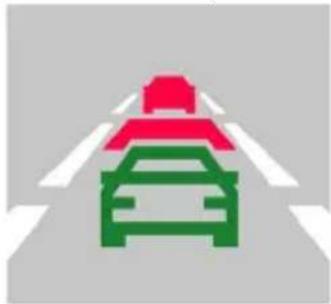
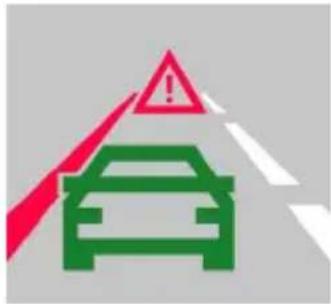
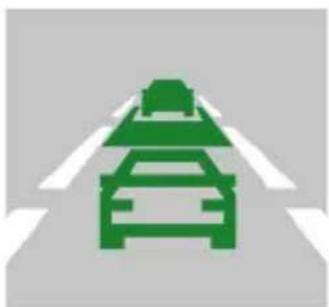
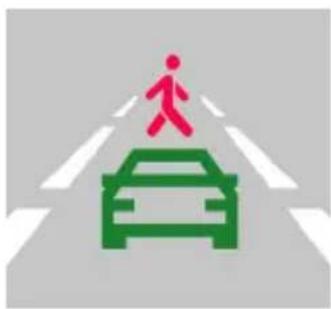
| Advanced driver-assistance systems (ADAS) | The system monitors dangerous approach to an object, controls lane departure, warns about the beginning of movement of an object ahead and detects the appearance of pedestrians in front of the car. |

Note: *the mode is available only when the DVR is connected to a permanent power supply through a device that prevents excessive battery discharge - NAVITEL SMART BOX MAX.
Navitel DVR Center app installation
- Download and install Navitel DVR Center to your cell phone or tablet, follow your mobile device instructions. You can download application by scan QR code in DVR's Menu (App QR Code) with your cell phone.Choose Wifi in Settings menu, press On.
- Turn on a Wi-Fi in DVR's Menu (Wi-Fi) and in your mobile device settings.
- Run the app. Choose your DVR in the list. The DVR's information is in DVR's Menu (Wi-Fi Navitel).
- Connect your mobile device to the DVR through Wi-Fi. If necessary use the password. You can change it in DVR's Menu (Wi-Fi password).
-
Using the Navitel DVR Center you can:
-
update DVR's firmware;
• control DVR functions in Settings menu: configure parking mode, impact sensor, video mode and format your SD card; - save, view, delete and send videos and photos as well as watch DVR's video in real time on the mobile device screen.

Google Play

App Store AppGallery

Digital Speed & Camera Info
The Digital speed feature is used to display time and vehicle speed calculated with the help of GPS signal and time. In this mode, the current speed [2] and time [3] are constantly displayed.
The Camera info feature notifies the driver about cameras and warnings
(hereinafter – Cameras) along the way. When you turn on the Camera info, the current speed and time are displayed. With the approach to the nearest camera the following information is displayed:
- current speed [2],
- camera icon [4],
• dynamic progress bar indicating approach to the nearest camera [5],
• distance to the camera [6].
All information is displayed on a black screen.
In Record mode (REC), ●REC is displayed [1].
If the vehicle is still, 0 is displayed.
If there is no GPS-signal, -- - is displayed.
Note. A weak GPS signal may be caused by bad weather conditions and other external factors. Please consult your vehicle speedometer.
![11/03/2024 12:19 [M40] REC 80 150m 28 km/h](/content/2026/05/855007/images/634402ed4fdb36f22bc2698cfea43a04b3c74f1c69c9a29cd986fb169694d537.jpg)
Advanced driver-assistance systems (ADAS)
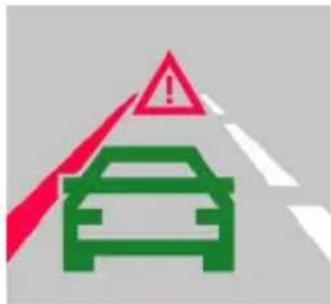
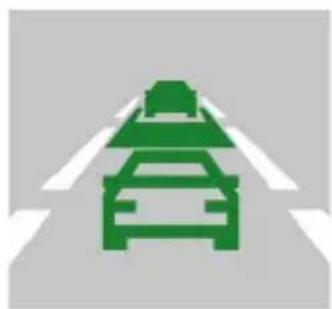
When the advanced driver assistance system is activated, the following functions are available:

natural_image
Pixelated graphic of a car on a road with red and green color blocks (no text or symbols)- tracking dangerous proximity to an object
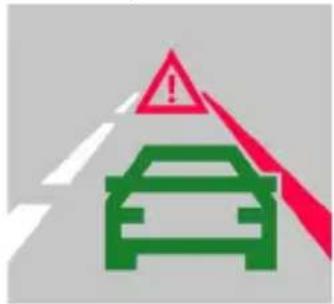
- lane departure control
natural_image
Green traffic sign icon on a road (no text or symbols)- warning about the beginning of movement of an object ahead
natural_image
Traffic sign showing a pedestrian crossing a car with a green car silhouette (no text or symbols)- message about pedestrians appearing in front of a car

NAVITEL
NAVITEL MR750 SMART
Rear camera
With the help of rear camera you can get a high-resolution image behind your car for safe parking or recording while driving. Modern double recording technology allows saving recordings both in front and behind the car for fixing any unforeseen situation.
Rear camera installation
There are two options of using rear camera.
Option 1. DVR camera for getting view behind the car. Install the camera on the rear window with a sticker, put the wire through the cabin, connect the wire to the rear camera port.
Option 2. Combination of DVR camera and rear camera for back view when parking. Install the camera on the rear window inside the car. In this case, it is required to apply +12 V when driving backwards. This will allow the device to automatically switch the image from the front to the rear camera in the parking mode.
Note: It is strongly recommended that works on installing the camera and connecting +12 V should be done by qualified personnel with the necessary skills. Cable routing may require special tools or attachments. Make sure these works are safe.

The camera is not waterproof.
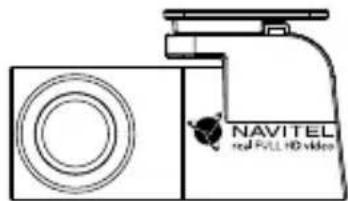
natural_image
Line drawing of a Navitel camera module with no visible text or symbols
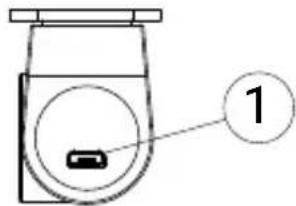
- Video cable port
Bevezető
Tisztelt Vásárlónk!
Google Play

App Store AppGallery

natural_image
Pixelated illustration of a car on a road with red and green lane markings (no text or symbols)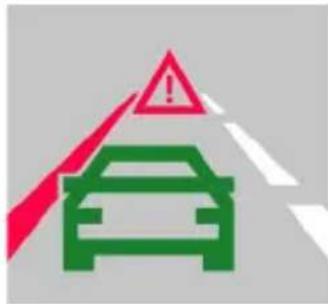
natural_image
Green traffic sign on a road with lane markings (no text or symbols)natural_image
Traffic sign indicating pedestrian crossing with a car silhouette (no text or symbols)natural_image
Line drawing of a NAVITEL camera with lens and screen (no text or symbols)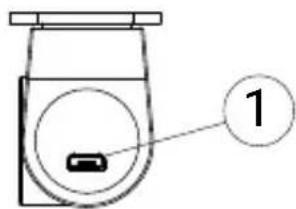
- Videó kábel port

Ivadas
Gerbiamas kliente!
Dékojame, kad jsigijote šj NAVITEL® gamini.
Google Play
App Store AppGallery

natural_image
Pixelated illustration of a car on a road with red and green lane markings (no text or symbols)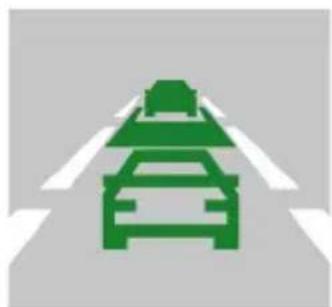
natural_image
Green traffic sign on a road with lane markings (no text or symbols)natural_image
Traffic sign indicating pedestrian crossing with a car (no text or symbols)natural_image
Line drawing of a Navitel camera module with no visible text or symbols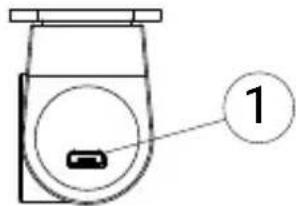
Google Play

App Store AppGallery

natural_image
Pixelated graphic of a car on a road with red and green markings (no text or symbols)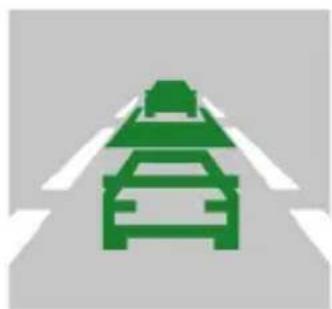
natural_image
Green traffic sign on a road with lane markings (no text or symbols)natural_image
Traffic sign with pedestrian crossing over a car, no text or symbols presentnatural_image
Line drawing of a Navitel camera lens and screen (no text or symbols)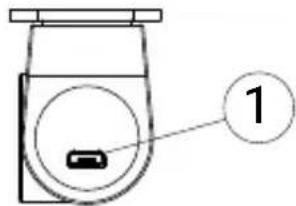
- Video kabeli ports

Aizmugures kamera nav üdenszturīga.
Wstęp
Drogi Kliencie!
Google Play

App Store AppGallery

natural_image
Pixelated icon of a car on a road with red and green colors (no text or symbols)
natural_image
Green icon of a car on a road with lane markings (no text or symbols)natural_image
Traffic sign indicating pedestrian crossing with a car (no text or symbols)Google Play

App Store AppGallery

natural_image
Pixelated graphic of a car on a road with red and green markings (no text or symbols)
natural_image
Green traffic sign on a road with lane markings (no text or symbols)natural_image
Traffic sign indicating pedestrian crossing with a car silhouette (no text or symbols)Google Play

App Store AppGallery

natural_image
Pixelated illustration of a car on a road with red and green color blocks (no text or symbols)
natural_image
Green traffic sign on a road with lane markings (no text or symbols)natural_image
Traffic sign indicating pedestrian crossing with a car (no text or symbols)natural_image
Line drawing of a Navitel camera module with no visible text or symbols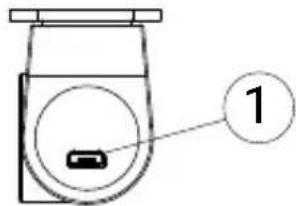
Google Play

App Store AppGallery

natural_image
Pixelated graphic of a car on a road with lane markings (no text or symbols)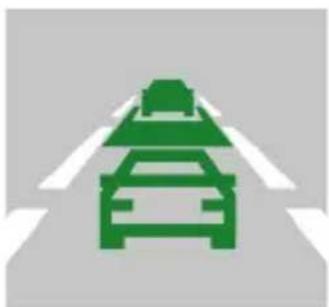
natural_image
Green traffic sign icon on a road (no text or symbols)natural_image
Traffic sign indicating pedestrian crossing with a red pedestrian figure and green car (no text or symbols)Зовнішній вигляд
Google Play

App Store AppGallery

natural_image
Pixelated graphic of a car on a road with red and green markings (no text or symbols)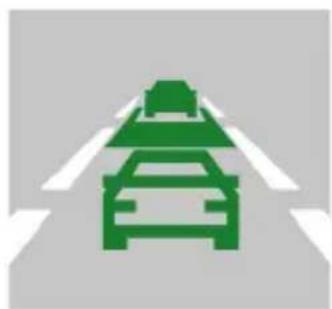
natural_image
Green road sign with two cars ahead, no text or symbols presentnatural_image
Traffic sign indicating pedestrian crossing with a car silhouette (no text or symbols)natural_image
Line drawing of a Navitel camera module with no visible text or symbols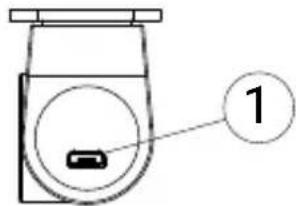


- Einführung
- DE
- Digitaler Tachometer & Kameras Info
- Sissejuhatus
- Introduction
- Device layout
- Package contents
- Installation
- Precautions
- Navitel DVR Center app installation
- Digital Speed & Camera Info
- Advanced driver-assistance systems (ADAS)
- Rear camera
- Rear camera installation
- Bevezető
- Ivadas
- Wstęp
- Зовнішній вигляд
Brand : Navitel
Model : MR750 SMART
Category : Caméra auto