
T631 - Mouse LOGITECH - Free user manual and instructions
Find the device manual for free T631 LOGITECH in PDF.
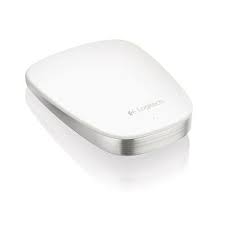



| Brand | Logitech |
| Model | T631 |
| Product Type | Bluetooth Wireless Mouse |
| Recommended Use | Mac |
| Connection Technology | Bluetooth 3.0 |
| Touch Area | Multi-touch surface |
| Gestures | Click, right-click, vertical and horizontal scrolling |
| Buttons | 2 click zones (left/right) |
| Power | Rechargeable Lithium-ion battery |
| Battery life | Approximately 1 month (standard use) |
| Charging time | Approximately 1 hour for a full charge |
| Fast charging | 1 minute of charge = 1 hour of use |
| Dimensions | 102 × 60 × 15 mm |
| Weight | 99 g |
| Color | Silver gray |
| Easy-Switch button | 2 Bluetooth channels |
| Software | Logitech Options (downloadable) |
| Supported operating systems | Mac OS X 10.6.8 and later |
| Range | Up to 10 m |
| Maintenance and cleaning | Clean with a soft, slightly damp cloth |
| Safety | Avoid exposure to water and extreme temperatures |
| Spare parts and repairability | Non-user-replaceable battery, parts not available |
| Warranty | 2 years (depending on country) |
Frequently Asked Questions - T631 LOGITECH
User questions about T631 LOGITECH
0 question about this device. Answer the ones you know or ask your own.
Ask a new question about this device
Download the instructions for your Mouse in PDF format for free! Find your manual T631 - LOGITECH and take your electronic device back in hand. On this page are published all the documents necessary for the use of your device. T631 by LOGITECH.
USER MANUAL T631 LOGITECH
Ultrathin Touch Mouse T631 for Mac®
Setup Guide
English. 3 Deutsch .10 Francais. 17 Italiano. 24 Espanol 31 Portugues. 38 Nederlands 45 Svenska 52 Dansk 59 Norsk 66 Suomi 73 Eaynikda. 80 Türkce 87 95 www.logitech.com/support .102
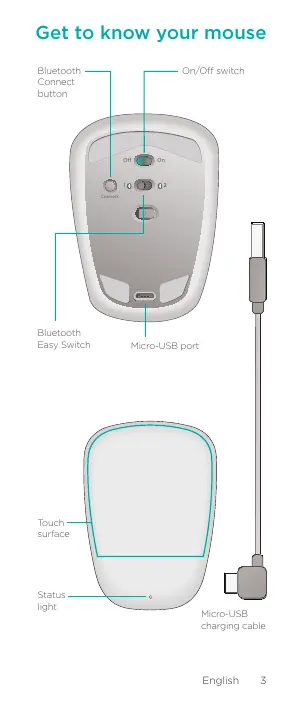
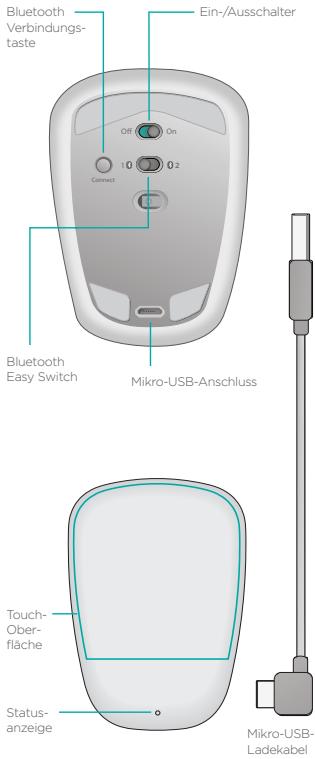
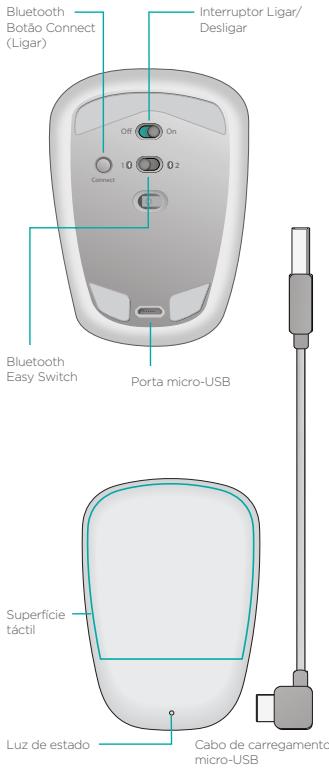
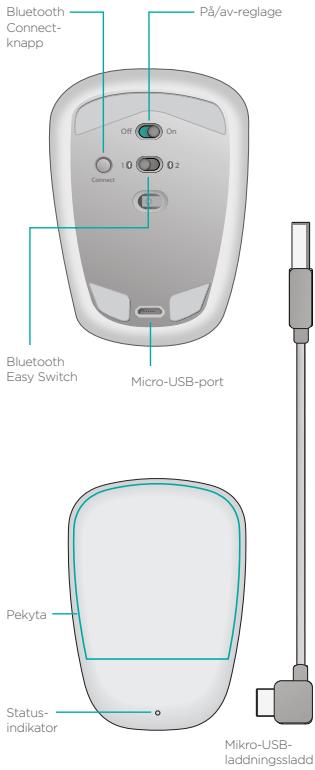
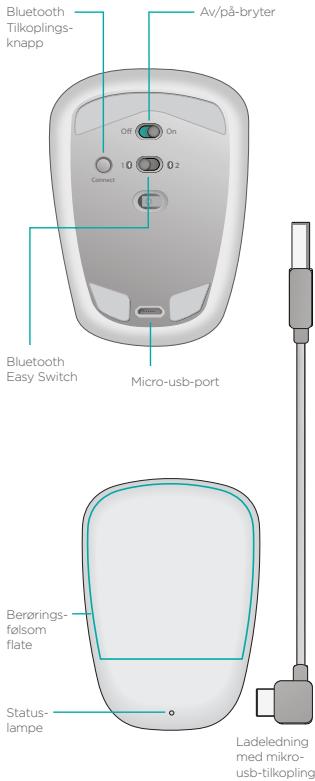
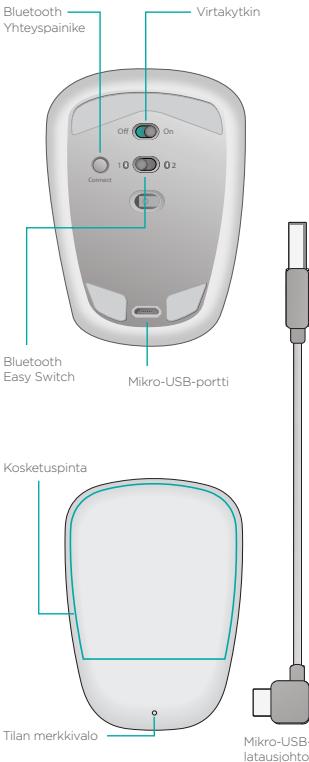
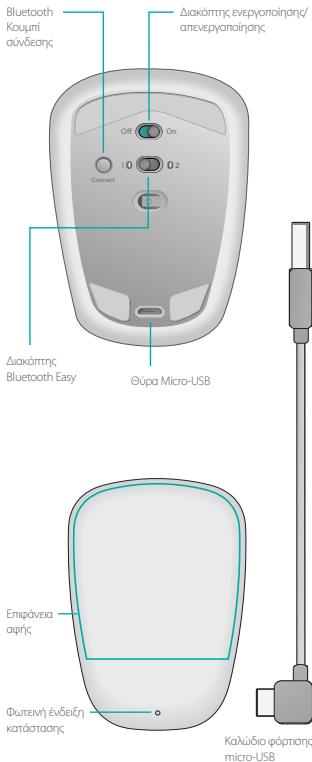
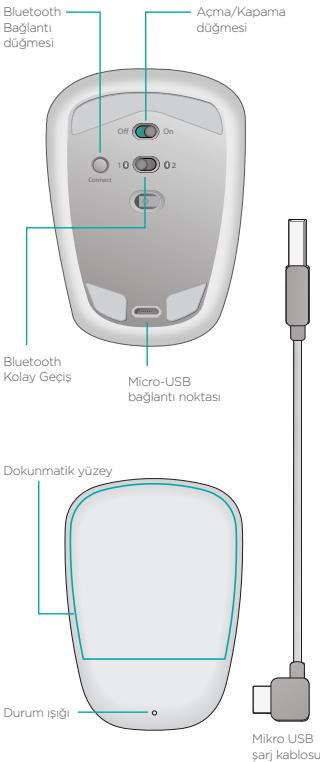
Get to know your mouse
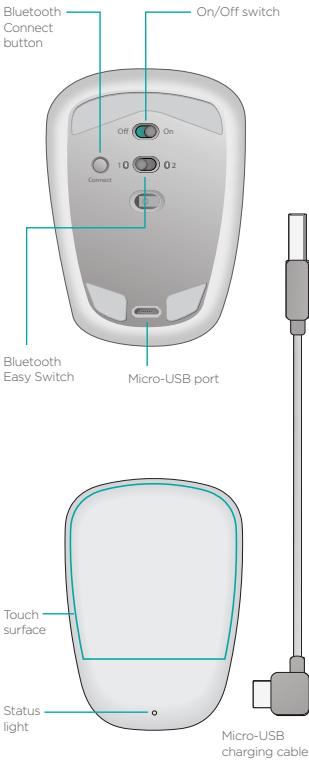
Set up Bluetooth
On your mouse
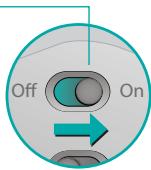
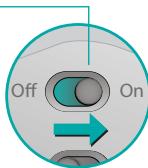
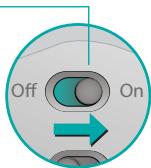
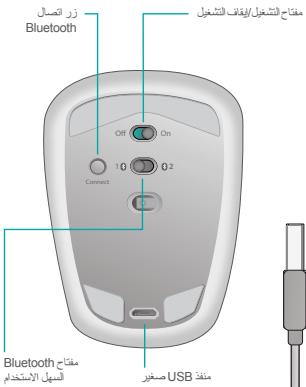
1. Power on
Slide the switch to the On position.
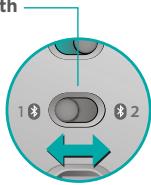
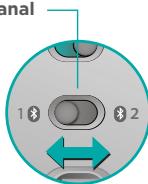
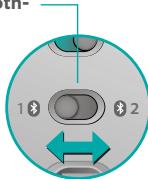
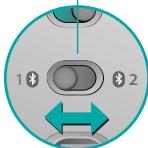
2. Select Bluetooth channel
Slide the Bluetooth Easy Switch to position 1 or 2.
3. Press Connect
The status light blinks blue rapidly to indicate the mouse is ready for pairing with a Mac.
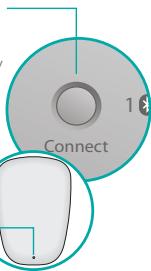
The status light blinks blue rapidly while the mouse is discoverable—about three minutes.
Set up Bluetooth
On your Mac
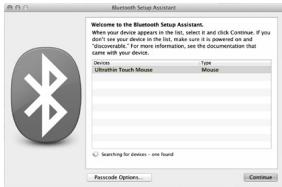
After confirming that Bluetooth is on, go to System Preferences > Bluetooth and click + to open the Bluetooth Setup Assistant.
When Ultrathin Touch Mouse appears in the device list, select it and click Continue. Follow the on-screen instructions.
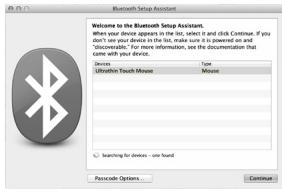
When pairing is complete, the status light on the mouse lights steadily blue for 30 seconds.
Software required
Install Logitech software for smoother performance, customizable settings and optimal gestures.
Download the software from: www.logitech.com/support/t631
Pair with another Mac
To use your mouse with another Mac, pair with it using the remaining channel.
Slide the Bluetooth Easy Switch to the other, unused channel and press Connect.
Repeat the instructions in "Set up Bluetooth."
Now you can switch between Macs by selecting the Bluetooth channel you used to pair it with the mouse.
Support
Visit the product page
While online, check out product page, your destination for world-class support.
Here you'll find tutorials, guidelines and troubleshooting tips for your Ultrathin Touch Mouse for Mac.
The product page is also home to lively forums that connect you to a community of active users.
www.logitech.com/support/t631
Gestures
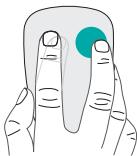
Clicking (one finger)
Click. Press the left side of the touch surface.
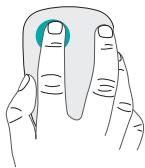
Right-click. Press the right side of the touch surface.
Lift the non-clicking finger completely off the surface.
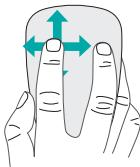
Scroll. Swipe up, down, or sideways.
Charge the battery
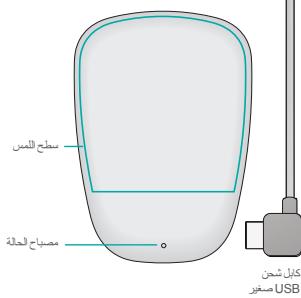
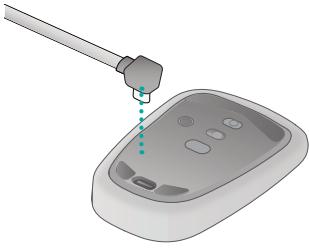
Use the charging cable to connect the Ultrathin Touch Mouse to your computer or a USB power adapter. The status light blinks green while the mouse is charging.
Charge your mouse until the status light stops blinking. (A blinking red light means it's time to recharge.)
Each minute of charging gives you about an hour of use.*
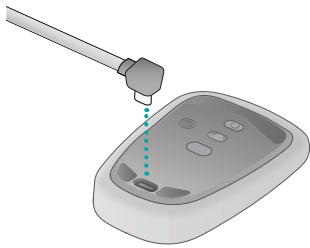
- This ratio is approximate and based on standard user experience. Your results may vary.
Troubleshooting
Mouse not working?
- On your Mac, confirm Bluetooth is turned on.
- Slide the On/Off switch to Off, then back to On.
- If the status light flashes red, recharge the battery. (See "Charge the battery.")
- Confirm that the selected Bluetooth channel (1 or 2) is the same channel you used to initially pair the mouse with your Mac.
- Restart your Mac.
- Check the Bluetooth settings on your Mac to see if "Ultrathin Touch Mouse" is listed. If so, remove it from the list and repeat the steps for pairing in "Set up Bluetooth."
www.logitech.com/support/t631
What do you think?
Please take a minute to tell us. Thank you for purchasing our product.
www.logitech.com/iThink
Introduction to the mouse
www.logitech.com/iThink
www.logitech.com/iThink
Mouse overview
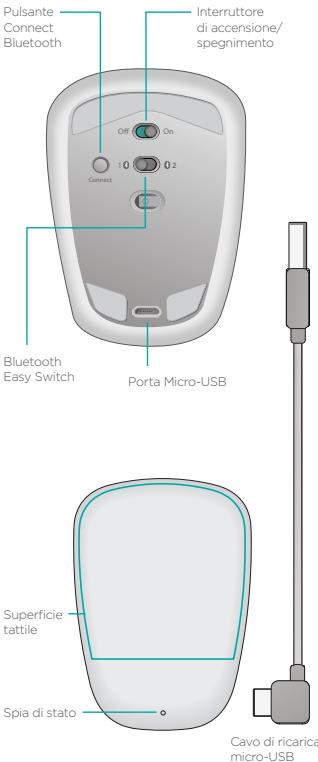
Know your mouse
Set up Bluetooth
On your mouse
1. Turn on
Slide the switch to the On position
2. Select Bluetooth channel
Slide the Bluetooth EasySwitch to position 1 or 2.
3. Press Connect
Mouse overview
Configure Bluetooth
On the mouse
1. Turn on
Move the switch to the On position.
2. Select the Bluetooth channel
Move the Bluetooth Easy Switch to position 1 or 2.
3. Press Connect
www.logitech.com/iThink
Getting to know your mouse
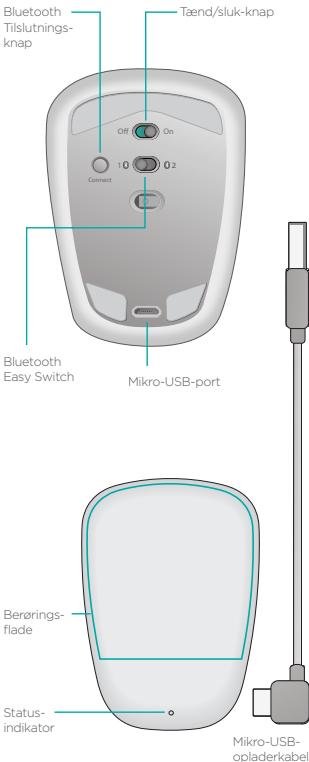
Bluetooth setup
On the mouse
1. Turn on
www.logitech.com/iThink
Getting to know your mouse
Configuring Bluetooth
On the mouse
1. Turn on
www.logitech.com/iThink
Introducing the mouse
www.logitech.com/iThink
Welcome to your new mouse
Bluetooth mouse
On the mouse
1. Turn on the mouse
www.logitech.com/iThink
Getting to know your mouse
Set up Bluetooth:
On your mouse
1. Turn on
www.logitech.com/iThink
Bluetooth
all

aBb1
1
Bluetooth 2.2
Bluetooth
all
.21

JuaJIJJ 3
jlll llll
a
jol jol jol jol
.Mac
yall all yll
05y1ie 24
sul -
1
Mac
Ultrathin Touch
Mac Mouse
www.logitech.com/support/t631
Bluetooth
Mac
www.logitech.com/support/t631
ULTRATHIN TOUCH MOUSE
(2) | x - 1| = | x + 2| .
"Ultrathin Touch" 15
"Mouse
".Bluetooth
www.logitech.com/support/t631
1
www.logitech.com/iThink
Support
www.logitech.com/support/t631

Belgium/Belgique Dutch: +32 (0)2 200 64 44; French: +32 (0)2 200 64 40
Czech Republic +420 239 000 335
United Arab Emirates
8000441-4294
United Kingdom
+44-(0)203-024-8159
European, Mid. East., & African Hq.
Lausanne, Switzerland
English: +41-(0)22 761 40 25
English: +41-(0)22 761 40 25
Logitech
www.logitech.com
©2013 Logitech. Logitech, the Logitech logo, and other Logitech marks are owned by Logitech and may be registered. All other trademarks are the property of their respective owners. Logitech assumes no responsibility for any errors that may appear in this manual. Information contained herein is subject to change without notice.
620-005156.005


- GET TO KNOW YOUR MOUSE
- SET UP BLUETOOTH
- ON YOUR MOUSE
- POWER ON
- SELECT BLUETOOTH CHANNEL
- PRESS CONNECT
- ON YOUR MAC
- SOFTWARE REQUIRED
- PAIR WITH ANOTHER MAC
- SUPPORT
- VISIT THE PRODUCT PAGE
- GESTURES
- CLICKING (ONE FINGER)
- CHARGE THE BATTERY
- TROUBLESHOOTING
- MOUSE NOT WORKING
- WHAT DO YOU THINK
- INTRODUCTION TO THE MOUSE
- MOUSE OVERVIEW
- KNOW YOUR MOUSE
- TURN ON
- CONFIGURE BLUETOOTH
- ON THE MOUSE
- SELECT THE BLUETOOTH CHANNEL
- GETTING TO KNOW YOUR MOUSE
- BLUETOOTH SETUP
- CONFIGURING BLUETOOTH
- INTRODUCING THE MOUSE
- WELCOME TO YOUR NEW MOUSE
- BLUETOOTH MOUSE
- TURN ON THE MOUSE
- BLUETOOTH
- MAC
- LOGITECH
Brand : LOGITECH
Model : T631
Category : Mouse