
MX Master 4 - Mouse LOGITECH - Free user manual and instructions
Find the device manual for free MX Master 4 LOGITECH in PDF.


| Product Type | Wireless Mouse |
| Brand | Logitech |
| Model | MX Master 4 |
| Dimensions (L x W x H) | 124.4 x 84.3 x 51 mm |
| Weight | 141 g |
| Power Source | Rechargeable lithium-ion battery (500 mAh) |
| Charging Port | USB-C |
| Battery Life | Up to 70 days on a full charge |
| Charging Time | Full charge in 3 hours; 3 minutes of charging gives 3 hours of use |
| Connectivity | Bluetooth Low Energy and Logitech USB Unifying receiver (2.4 GHz) |
| Wireless Range | 10 m |
| Sensor | Darkfield High Precision, DPI 200–4000 |
| Scroll Wheel | MagSpeed electromagnetic scroll wheel with SmartShift |
| Buttons | 7 programmable buttons (back, forward, gesture, mode switch, middle click) |
| Number of Devices | Pair with up to 3 devices, switch with Easy-Switch button |
| Compatibility | Windows, macOS, Linux, Chrome OS, iPadOS |
| Software | Logitech Options+ for customization |
| Cleaning and Maintenance | Clean with a soft, lint-free cloth; avoid moisture |
| Safety | Laser-free Darkfield sensor; complies with FCC and other certifications |
| Spare Parts and Repairability | Spare parts available via Logitech support; designed for repairability |
| General Information | Includes user manual and USB-C charging cable |
Frequently Asked Questions - MX Master 4 LOGITECH
User questions about MX Master 4 LOGITECH
0 question about this device. Answer the ones you know or ask your own.
Ask a new question about this device
Download the instructions for your Mouse in PDF format for free! Find your manual MX Master 4 - LOGITECH and take your electronic device back in hand. On this page are published all the documents necessary for the use of your device. MX Master 4 by LOGITECH.
USER MANUAL MX Master 4 LOGITECH
Find the switch on the bottom of your mouse and switch it to the ON position.
If there is no power, try charging the mouse.

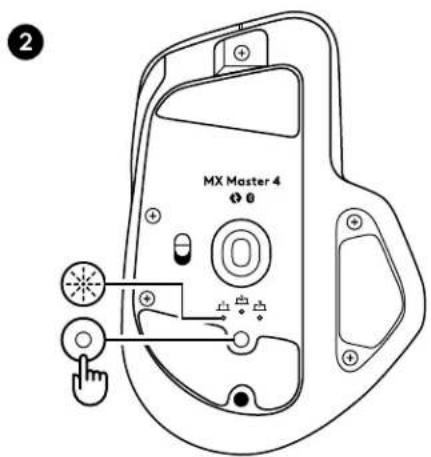
STEP 2: THE LED SHOULD BLINK FAST
If not, press and hold the Easy-Switchbutton (on the back of the mouse) for 3 seconds. When the light begins blinking, the mouse is ready to pair with your computer.

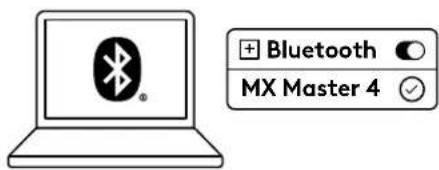
STEP 3: COMPLETE THE PAIRING TO YOUR COMPUTER
On your computer find the Bluetooth® settings menu and connect your MX Master 4 from there.
STEP 4: INSTALL LOGI OPTIONS+
Logi Options+ is a powerful and easy-to-use application that enhances your experience using Logitech devices by enabling you to customize them to work how you want.
Logi App
app.logi.com
CONNECT YOUR MX MASTER 4 WITH THE USB-C RECEIVER
STEP 1: TURN ON YOUR MX MASTER 4 TO CONNECT IT
Find the switch on the bottom of your mouse and switch it to the ON position.
If there is no power, try charging the mouse.

STEP 2: PLUG THE WIRELESS RECEIVER INTO YOUR COMPUTER USB PORT
Your device should now be connected.
If not, press and hold the Easy-Switchbutton (on the back of the mouse) for 3 seconds. When the light begins blinking, the mouse is ready to pair with your computer.
![graph LR A["Input"] --> B["Processing Step"] B --> C["Laptop"]](/content/2026/08/1621082/images/a44d028ad83c043b628bf22929631b85eb2e9eac8eaa853b380bab1007accb0d.jpg)
STEP 3: INSTALL LOGI OPTIONS+
Logi Options+ is a powerful and easy-to-use application that enhances your experience using Logitech devices by enabling you to customize them to work how you want.
Logi App
app.logi.com
DIMENSIONS
Width: 88.35 mm
Height: 128.15 mm
Depth: 50.8 mm
www.logitech.com/support/mxmaster4



- STEP 2: THE LED SHOULD BLINK FAST
- STEP 3: COMPLETE THE PAIRING TO YOUR COMPUTER
- STEP 4: INSTALL LOGI OPTIONS
- CONNECT YOUR MX MASTER 4 WITH THE USB-C RECEIVER
- STEP 1: TURN ON YOUR MX MASTER 4 TO CONNECT IT
- STEP 2: PLUG THE WIRELESS RECEIVER INTO YOUR COMPUTER USB PORT
- STEP 3: INSTALL LOGI OPTIONS
- DIMENSIONS
Brand : LOGITECH
Model : MX Master 4
Category : Mouse