USER MANUAL BCC950 LOGITECH
Getting started with BCC950 ConferenceCam
Logitech for Business

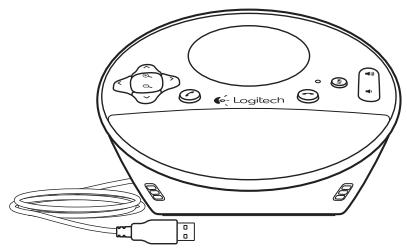
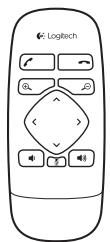


Contents
English. 4 Netherlands 34
Deutsch .9 Svenska 39
Francais 14 Dansk 44
Italiano. 19 Norsk 49
Espanol 24 Suomi . 54
Portugués. 29 Eληνικα. 59
www.logitech.com/support 67
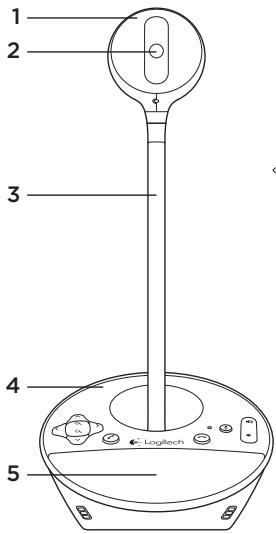
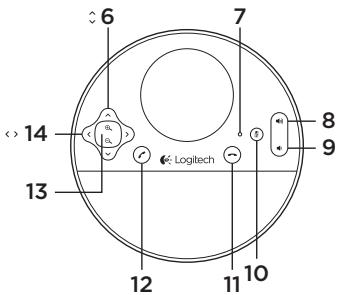
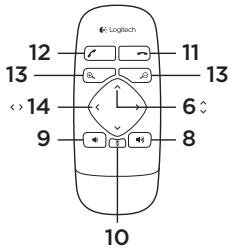
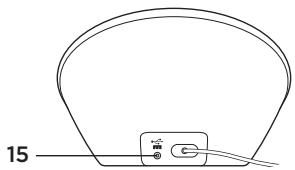
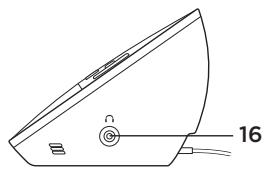
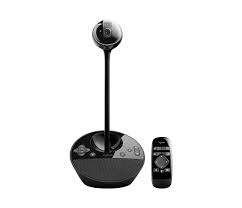
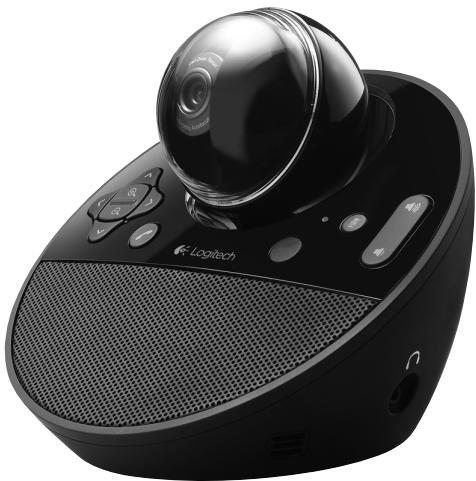
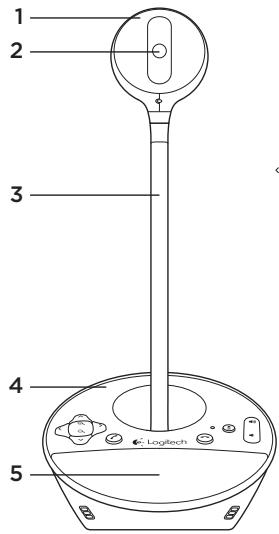
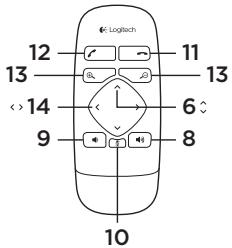
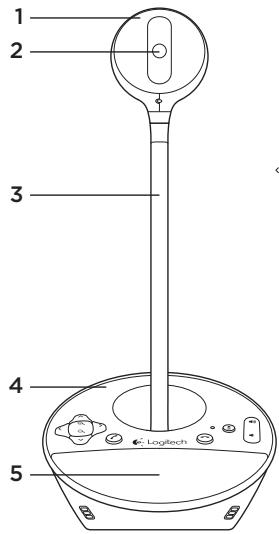
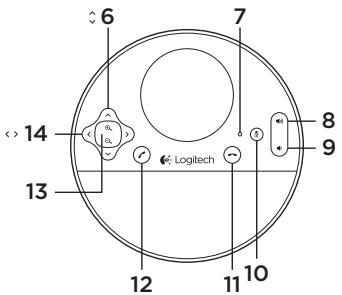
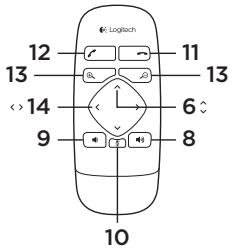
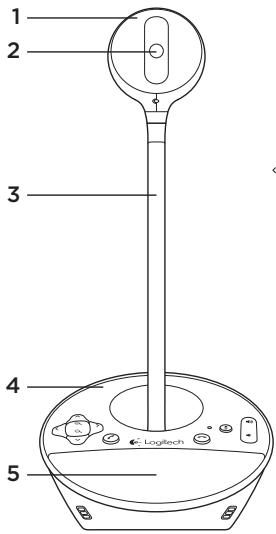
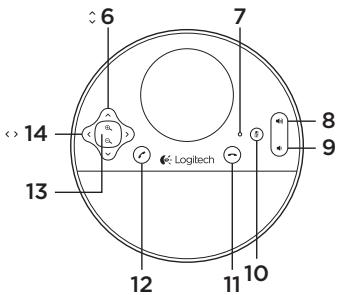
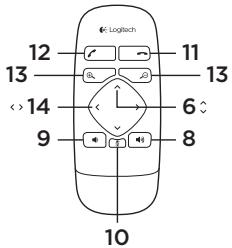
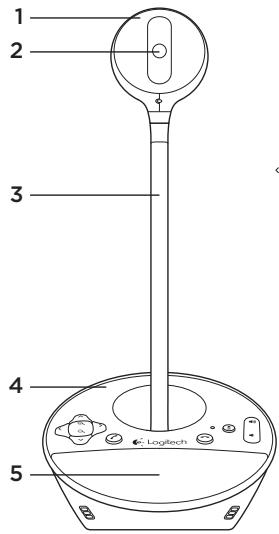
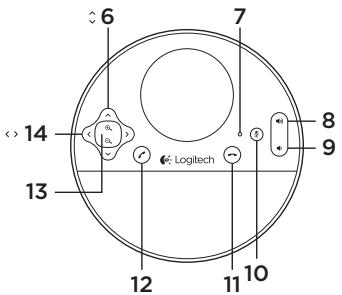
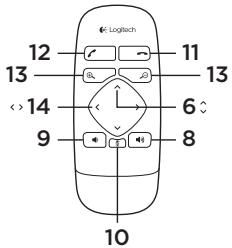
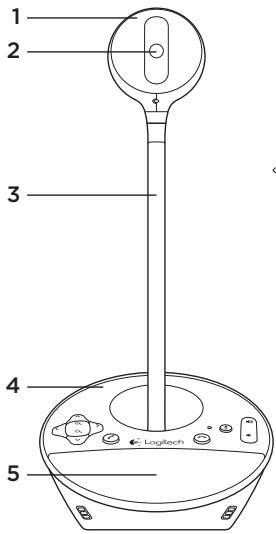
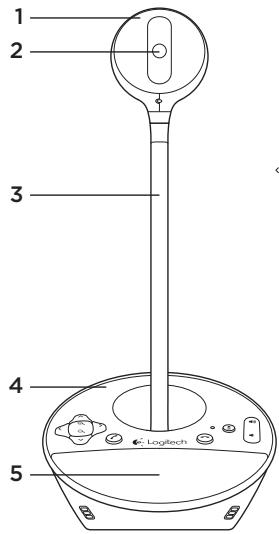
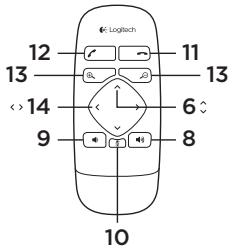
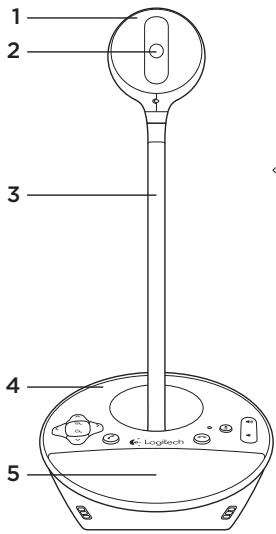
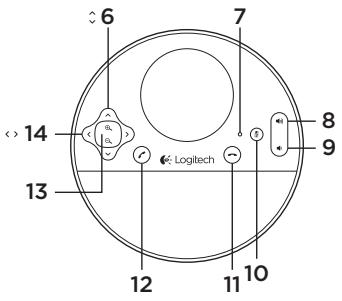
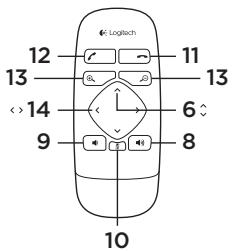
Know your product
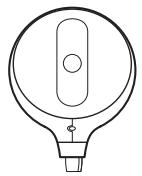
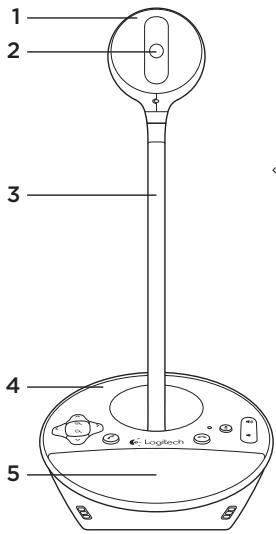
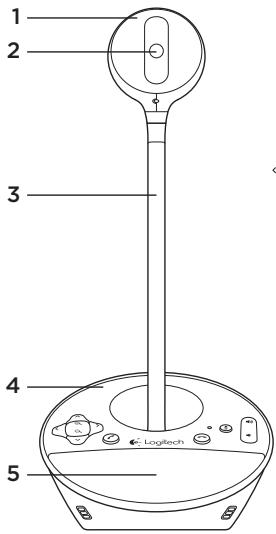
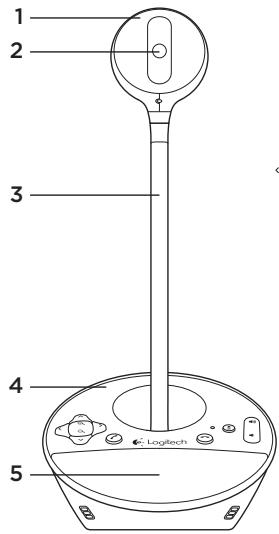
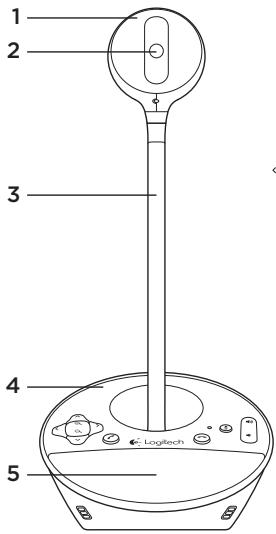
- Webcam
- Autofocus lens
- Eye-level stand
- Speakerphone base
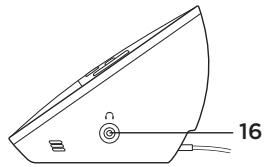
- Speaker
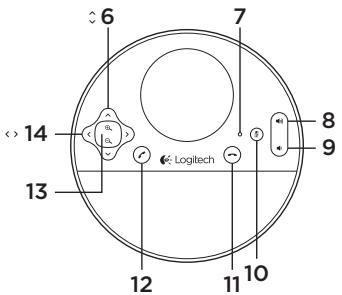
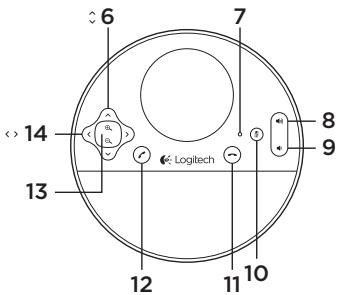
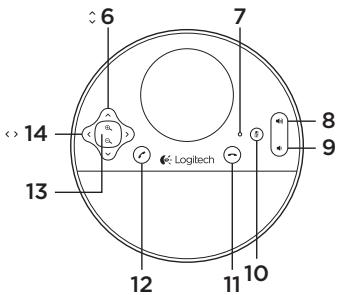
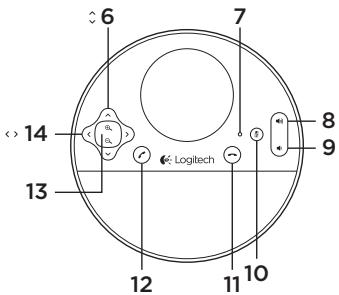
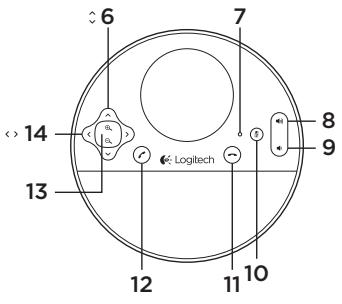
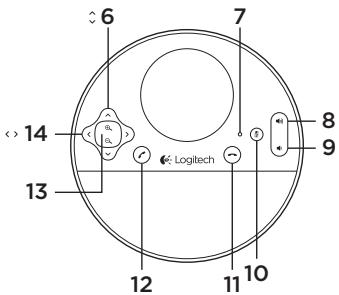
-
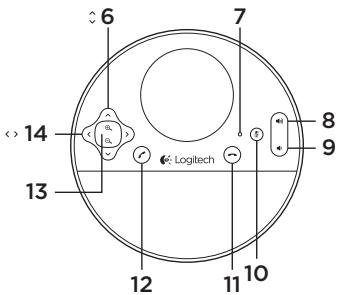
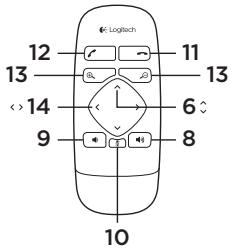
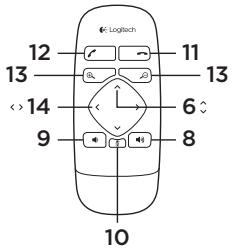
Tilt
-
Activity light
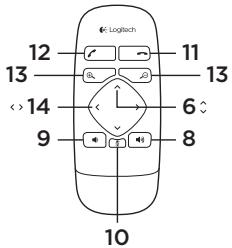
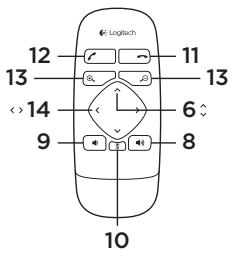
- Volume up
- Volume down
- Mute
- Hang up
-
Answer
-
Zoom
- Pan
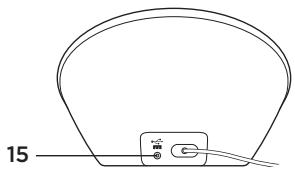
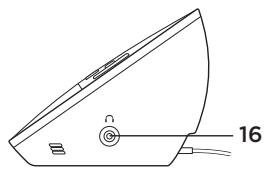
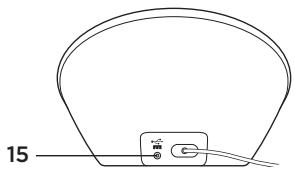
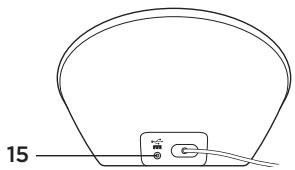
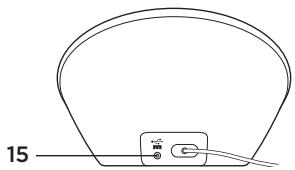
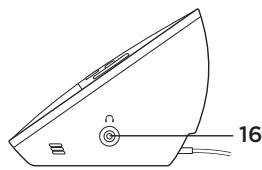
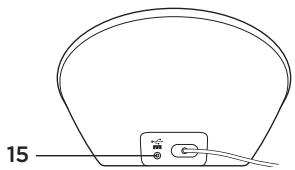
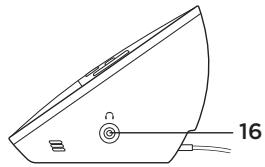
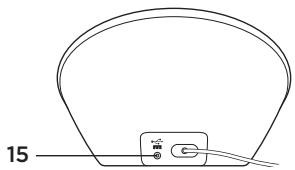
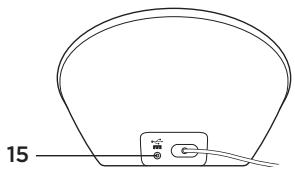
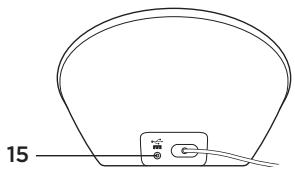
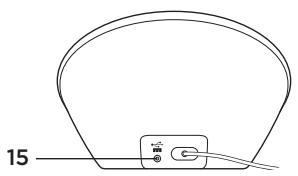
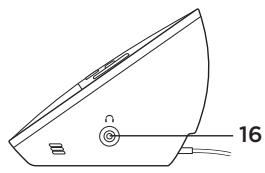
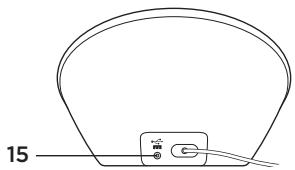
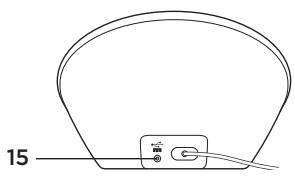
- Power port
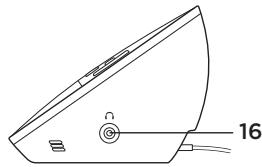
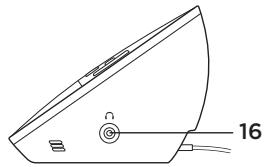
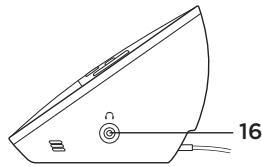
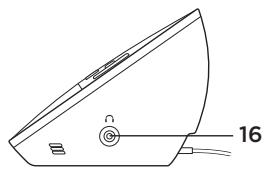
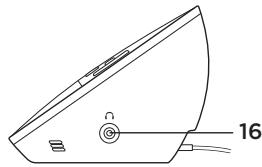
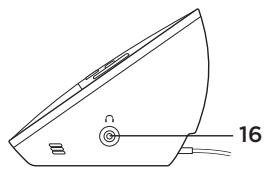
- 3.5mm earphone jack
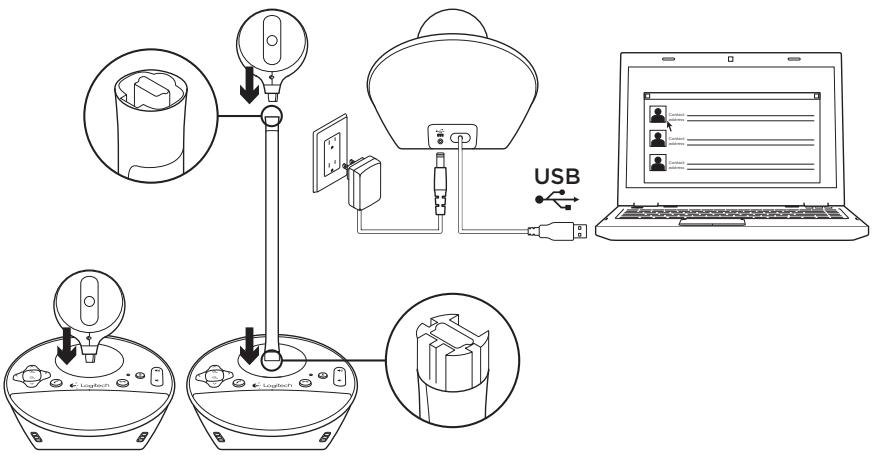
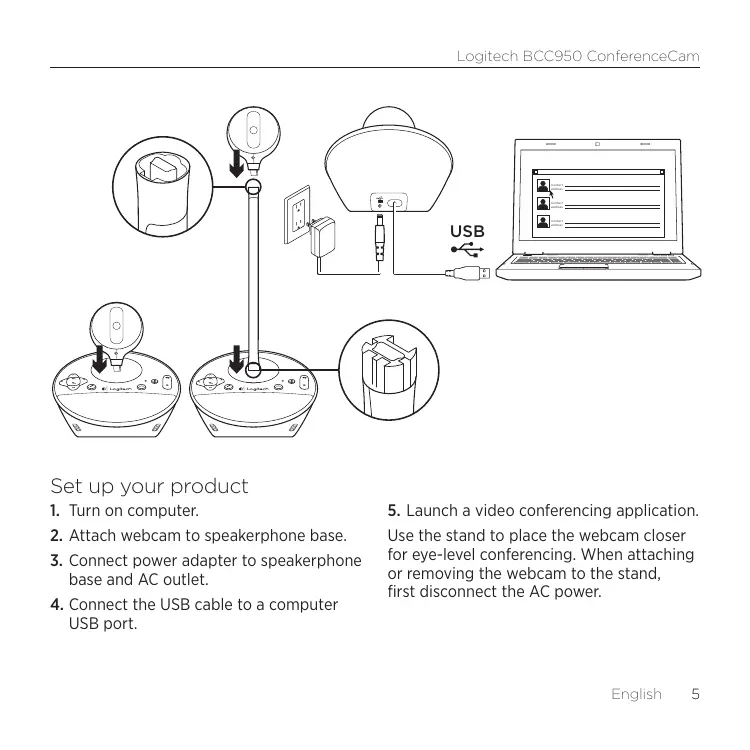
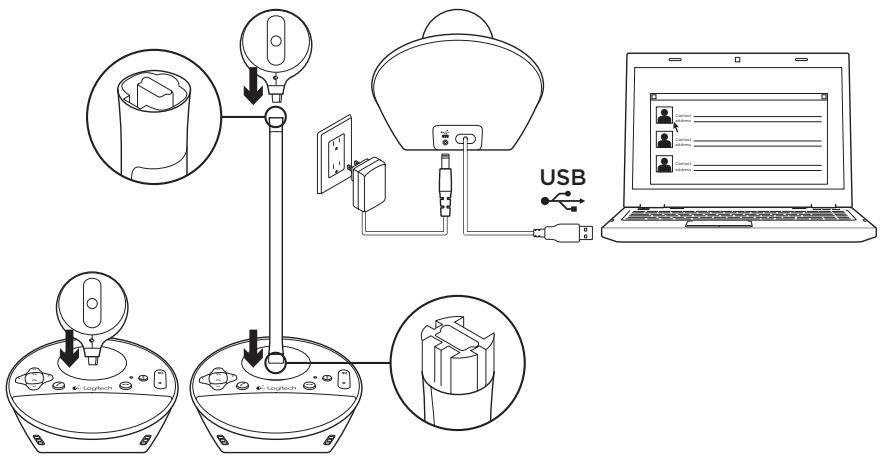
Set up your product
- Turn on computer.
- Attach webcam to speakerphone base.
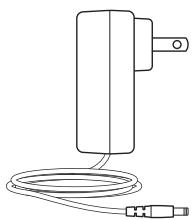
- Connect power adapter to speakerphone base and AC outlet.
-
Connect the USB cable to a computer USB port.
-
Launch a video conferencing application. Use the stand to place the webcam closer for eye-level conferencing. When attaching or removing the webcam to the stand, first disconnect the AC power.
Use your product
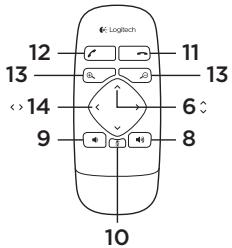
- Video Use Pan, Tilt, and Zoom to adjust the image in the preview window of your video conferencing software. Press and release these controls for incremental adjustment. Press and hold for continuous adjustment. When live video is streaming, the webcam's blue activity light is on.
- Caution Do not manually rotate the webcam (camera head). Doing so may damage the unit.
Volume Use Volume Up and Down to adjust the volume.
- Calling Launch your video conferencing software. Use Answer to pick up a call and Hang up to end a call. Press the Mute button to mute audio.
Usage notes:
- The Answer and Hang Up buttons may not work in some video conferencing software. Use your software to answer and end a call.
-
To enable the answer and hang up features in Skype™, download and install the Skype software plug-in available from www.logitech.com/support/bcc950.
-
When using the ConferenceCam with Skype on Windows XP or Windows Vista, you must download and install the ConferenceCam driver from www.logitech.com/support/bcc950.
-
Optional earphones Plug optional earphones (not included with the BCC950 ConferenceCam) into the microphone jack for private calls.
- Speakerphone base activity light
- Blue: ConferenceCam is in an active call.
- Blinking blue: A call is being received.
- (The blue activity light on the speakerphone base may not work in some applications.)
- Red: Audio is muted.
- Blinking red: A USB connection is being made between the ConferenceCam and a computer.
Troubleshooting
ConferenceCam does not work
- Check the AC power connection.
- Check the USB cable connection. Use another USB port on your computer. Connect directly to your computer. Do not use a USB hub.
- If you are using the eye-level stand, remove the stand from the webcam and speakerphone base, and then attach the webcam directly to the speakerphone base.
Sound or video issues
- Adjust the volume with Volume Up and Volume Down. Also check the volume setting on the Windows® taskbar. Press Mute to unmute the sound. Plugging earphones into ConferenceCam mutes sound through the speaker on the speakerphone base.
-
Adjust the recording (voice) level using the Windows Control Panel. For Windows® 7 and Windows® Vista, go to Start > Control Panel > Sound > Recording tab. For Windows XP, go to Start > Control Panel > Sounds and Audio devices > Voice tab.
-
Restart your video conferencing software.
- Check your router function and internet connection. (For more information, refer to your router or networking documentation.) Test your Internet connection speed. To learn how, go to www.logitech.com/support/bcc950.
- Specify the ConferenceCam as the default input/output device in video conferencing software. (For more information, refer to your video conferencing software documentation.
Note: In many applications, the ConferenceCam's webcam, speaker, and mic are listed separately. Each are identified by the ConferenceCam's product name.)
- Specify the ConferenceCam as the default input/output audio device for your operating system:
WindowsXP
- Go to Start > Control Panel > Sounds and Audio devices > Voice tab.
- Choose "BCC950 ConferenceCam Audio" in both the Voice playback and Voice recording areas. Click OK.
- Go to the Audio tab. Choose "BCC950 ConferenceCam Audio" in both the Sound playback and Sound recording areas. Click OK.
Windows Vista and Windows 7
- Go to Start > Control Panel > Sounds > Playback tab.
- Choose "BCC950 ConferenceCam Audio."
- Click "Set Default," and then click OK.
- Select the Recording Tab.
- Choose "BCC950 ConferenceCam Audio."
- Click "Set Default," and then click OK.
What do you think? Please take a minute to tell us.
ank you for purchasing our product.
www.logitech.com/ithink
www.logitech.com/ithink
www.logitech.com/ithink
www.logitech.com/ithink
www.logitech.com/ithink
www.logitech.com/ithink
Ken uw product
www.logitech.com/ithink
Produktöversikt
www.logitech.com/ithink
Kend dit Produk
www.logitech.com/ithink
www.logitech.com/ithink
Tunne tuotteesi
www.logitech.com/ithink
Ivwpiote Tpoiov oac
- Kaερa Web
2.Фakoc autoupatnc eotiao
- Baoj yia tn otnpieng tnc ouakeuncto uoc tou maiou
-
Bao nxiou
-
Hxεio
- Kian
- Auxvia δpaσtnpiδτητac
- AúEnon Evtaonc nyou
- Meiwen Evtaoong xyou
- Ziyaon
-
Kλείομι ηραμμής
-
Antavton
- Zouμ
- Metatónion
- Θύρα τροφοδοσίας
- YIIOOxH akouoTikwv 3.5 mm
PuθμioTe to προiov oac
www.logitech.com/ithink
www.logitech.com/support/BCC950

Belgié/Belgique Dutch: +32-(0)2 200 64 44; French: +32-(0)2 200 64 40
| Česká Republika | +420 239 000 335 |
| Danmark | +45-38 32 31 20 |
| Deutschland | +49-(0)69-51 709 427 |
| España | +34-91-275 45 88 |
| France | +33-(0)1-57 32 32 71 |
| Ireland | +353-(0)1 524 50 80 |
| Italia | +39-02-91 48 30 31 |
| Magyarország | +36 (1) 777-4853 |
| Nederland | +31-(0)-20-200 84 33 |
| Norge | +47-(0)24 159 579 |
| Österreich | +43-(0)1 206 091 026 |
| Polska | 00800 441 17 19 |
| Portugal | +351-21-415 90 16 |
| Rocsnja | +7(495) 641 34 60 |
| Schweiz/Suisse | D +41-(0)22 761 40 12 |
| Svizzera | F +41-(0)22 761 40 16 |
| I +41-(0)22 761 40 20 |
| E +41-(0)22 761 40 25 |
| South Africa | 0800 981 089 |
| Suomi | +358-(0)9 725 191 08 |
| Sverige | +46-(0)8-501 632 83 |
| Türkiye | 00800 44 882 5862 |
| United Arab Emirates | 8000 441-4294 |
| United Kingdom | +44-(0)203-024-81 59 |
| European,
Mid. East., &
African Hq.
Morges,
Switzerland | English: +41-(0)22 761 40 25
Fax: +41-(0)21 863 54 02 |
| Eastern Europe | English: 41-(0)22 761 40 25 |
| United States | +1 646-454-3200 |
| Argentina | +0800 555 3284 |
| Brasil | +0800 891 4173 |
| Canada | +1-866-934-5644 |
| Chile | +1230 020 5484 |
| Latin America | +1 800-578-9619 |
| Mexico | +001 800 578 9619 |
www.logitech.com