
TV Cam HD - Webcam LOGITECH - Free user manual and instructions
Find the device manual for free TV Cam HD LOGITECH in PDF.


| Product Type | TV Webcam |
| Brand | Logitech |
| Model | TV Cam HD |
| Video Resolution | HD (1080p) |
| Field of View | Wide (approx. 90°) |
| Microphone | 4 built-in microphones |
| Sensor | Infrared sensor (IR) |
| Connectivity | Wi-Fi 802.11 g/n, Ethernet (RJ45) |
| Video Output | HDMI |
| Power Supply | Power adapter (micro-USB) or built-in battery |
| Remote Control | Yes, with zoom, navigation, and dedicated buttons |
| Mounting | TV mount or tripod |
| Built-in Software | Skype for TV |
| Dimensions (approx.) | Approximately 150 x 80 x 60 mm |
| Weight (approx.) | Approximately 300 g |
| Maintenance | Clean the lens with a soft, dry cloth |
| Reset | Reset hole on the back (hold for 3 seconds) |
| Data Deletion | Settings > General > Delete user data |
| Warranty | See Logitech website for details |
Frequently Asked Questions - TV Cam HD LOGITECH
User questions about TV Cam HD LOGITECH
0 question about this device. Answer the ones you know or ask your own.
Ask a new question about this device
Download the instructions for your Webcam in PDF format for free! Find your manual TV Cam HD - LOGITECH and take your electronic device back in hand. On this page are published all the documents necessary for the use of your device. TV Cam HD by LOGITECH.
USER MANUAL TV Cam HD LOGITECH
natural_image
Close-up of a black Logitech camera lens with visible lens and screen (no text or symbols on body)English. 4 Suomi 84
Deutsch 12 EMLNVKA 92
Français 20 По-русски 100
Italiano 28 Magyar 108
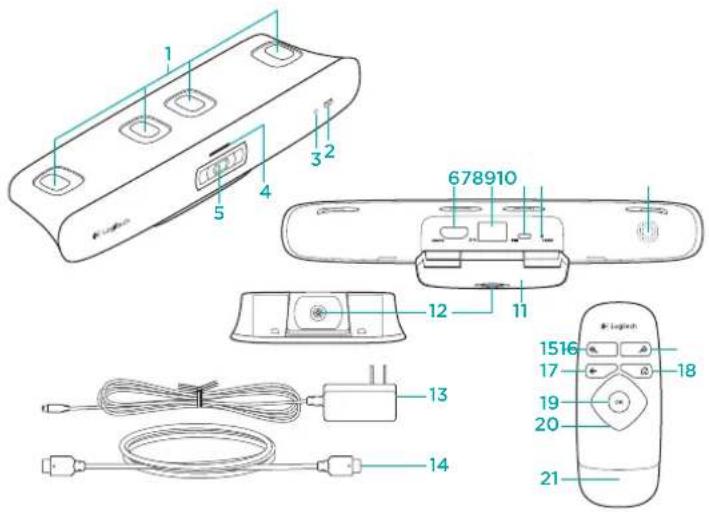
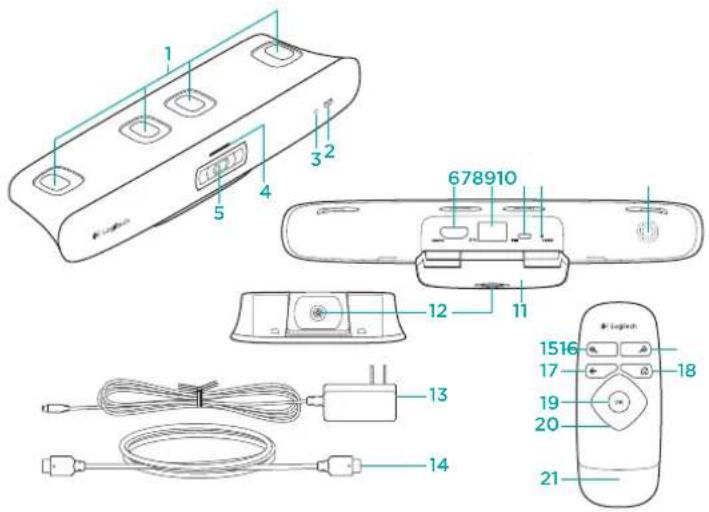
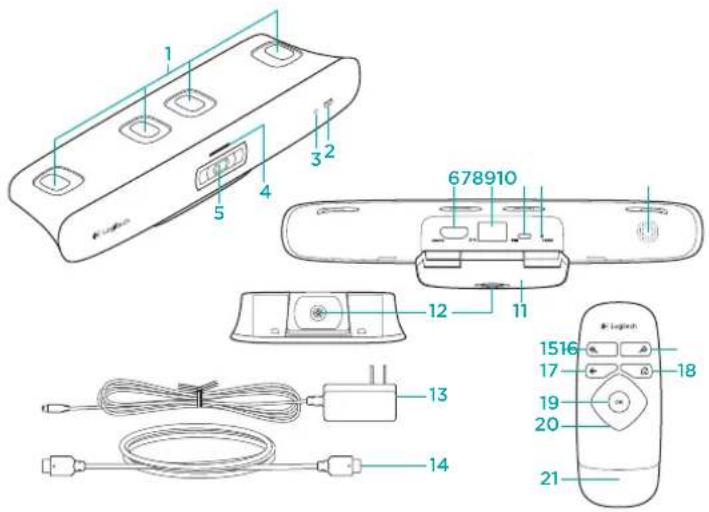
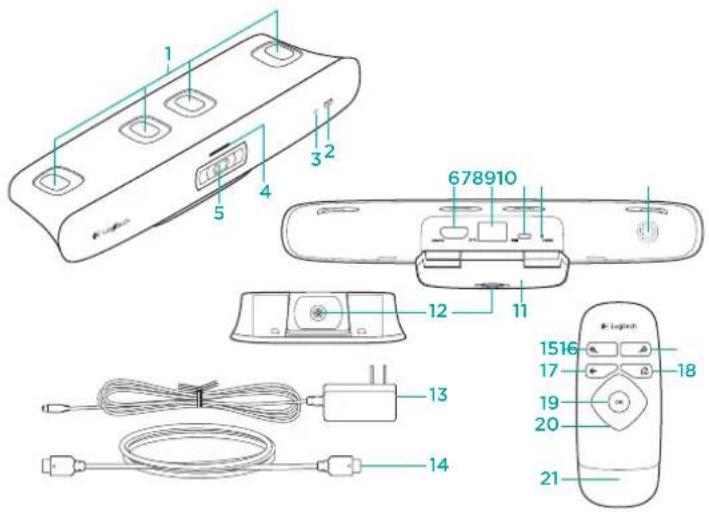
The TV Cam and accessories
- Microphones (4)
- Message indicator
- IR sensor
- Activity light
- Camera lens
- HDMI port
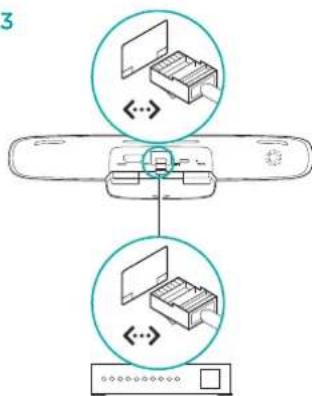
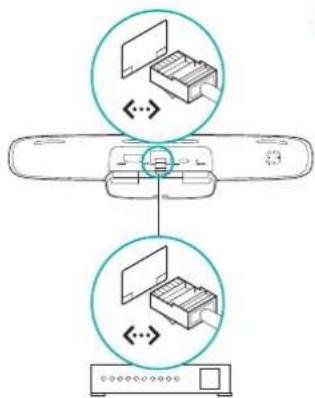
- Ethernet port
- Micro-USB power port
- Reset
- Call ringer
- TV clip/stand
- Tripod mount
- AC power adapter
- HDMI cable
Remote control
- Zoom in
- Zoom out
- Back Return to the previous screen.
- Home Go to the Contacts page.
- OK Select highlighted option.
- Directional pad Navigate up, down, left, or right.
- Battery compartment Battery is preinstalled.
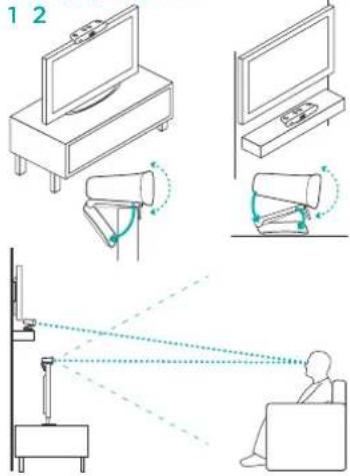
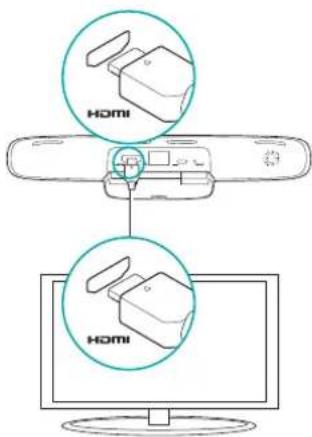
Set up your product 1 2

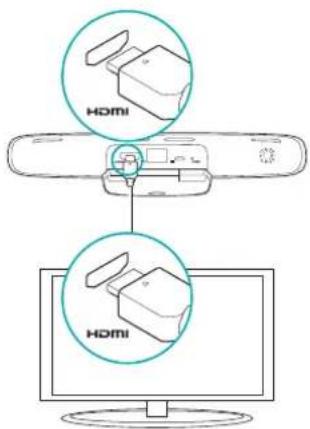
3

flowchart
graph TD
    A["Step 1: Display with Bin and Box"] --> B["Step 2: Display with Box and Box"]
    B --> C["End"]
4

Connect the TV cam to your network using an Ethernet cable. (Cable not included.) Skip this step if using Wi-Fi*.
5


6 Turn on your TV.
7 Using your TV remote, select the HDMI input that TV Cam is connected to.
8 Follow the on-screen instructions to finish setup using the TV Cam remote control.
You may need the following information to complete setup:
• Wi-Fi network name (if using Wi-Fi)
• Wi-Fi password (if using Wi-Fi)
- Your Skype login information
Visit Product Central
There's more information and support online for your product. Take a moment to visit Product Central to learn more about your new TV Cam.
Browse online articles for setup help, usage tips, or information about additional features. If your TV Cam has optional software, learn about its benefits and how it can help you customize your product.
Connect with other users in our Community Forums to get advice, ask questions, and share solutions.
At Product Central, you'll find a wide selection of content:
- Tutorials
- Troubleshooting
• Support community - Software downloads
• Online documentation - Warranty information
- Spare parts (when available)
Go to www.logitech.com/support/tvcamhd
Use your product
When using the TV Cam, your TV must be on and set to the correct HDMI input.
When you receive a call, the ringer on the TV Cam sounds and the Activity light flashes. During a video call, the Activity light glows solid white to let you know you're on camera. If you miss a call or you don't pick up, the Message indicator light turns on, reminding you to check Call History.
The Home page
My Skype profile
Skype contacts
Call history
Dial pad
Settings
Use on-screen controls
Mute audio
Answer/Hang up
Freeze video
For more information on using your TV Cam and making calls, go to www.logitech.com/support/tvcamhd
Troubleshooting
The software download fails or the TV Cam freezes during setup
- Disconnect and then reconnect the AC power adapter to restart the TV Cam.
- If the restart fails, reset the camera by inserting a pin into the Reset opening on the back of the camera. Hold down the button for 3 seconds or until the activity LED starts to blink.
There is no video or audio
- Your TV must be turned on and its volume set to an audible level.
• Use your TV remote to select the HDMI input used by the TV Cam. - Check all of the TV Cam cable connections, including HDMI, power, and Ethernet.
• Is your modem or router working properly? Is there a disruption in your Internet service? - Your caller could be experiencing Internet or equipment issues that contributes to the problem.
I can't get Wi-Fi to work with my TV Cam
- Check your Wi-Fi signal strength using a computer or mobile device. If the signal is weak, move your router or modem closer to your TV, or you may need to use an Ethernet connection.
- Your Wi-Fi router or modem must be 802.11 g/n compatible.
I forgot my Wi-Fi user name and password
• Refer to your modem or router documentation or contact the manufacturer for assistance.
For more detailed network troubleshooting, go to www.logitech.com/support/tvcamhd
There is poor audio/video quality
• Is the sound on mute? Try turning up the volume on your TV.
- Reduce excessive background noise.
- If there's an echo on either side of the call, make sure there is at least 20 cm between microphones and speakers.
- Increase or decrease room lighting. Avoid sitting or standing with your back to a sun-lit window or bright lamp.
- Your TV cam's video image is optimized for a 1m to 4m range (or 3-12 feet). Images appear at their best within this range.
- Bandwidth, packet loss and other connection elements can contribute to video quality and image resolution. For more detailed network troubleshooting, go to www.logitech.com/support/tvcamhd
I've forgotten my Skype user name
and password
• For help, go to support.skype.com.
Clear Personal Data
- Before transferring ownership of the TV Cam, be sure to clear your personal information from the device. Go to Settings > General > Clear user data.
What do you think?
Please take a minute to tell us. Thank you for purchasing our product.
www.logitech.com/ithink
www.logitech.com/ithink

www.logitech.com/ithink

www.logitech.com/ithink
www.logitech.com/ithink
www.logitech.com/ithink

Ken uw product
De TV-cam en accessoires
Stel uw product in 1 2
3

flowchart
graph TD
    A["Step 1: File Handling"] --> B["Step 2: Storage"]
    B --> C["Output: 🐃"]
4

www.logitech.com/ithink

Produktöversikt
www.logitech.com/ithink

Kend dit produkt
TV Cam og tilbehør
www.logitech.com/ithink

www.logitech.com/ithink

Tunne tuotteesi
www.logitech.com/ithink

www.logitech.com/ithink
Еллгичка 9998

www.logitech.com/ithink
По русски 107106

www.logitech.com/ithink
Popis produktu
www.logitech.com/ithink

Poznaj swój produkt
www.logitech.com/ithink

Popis produktu
Zariadenie TV Cam a príslušenstvo
- Mikrofony (4)
- Indikátor sprév
- Infračervený snímač
- Indikátor aktivity
- Objektív kamery
- Port HDMI
- Port Ethernet
- Napájaný port micro-USB
- Reset
- Reproduktor vyzváňania
- Klipsa/stojanček na prichytenie k TV
- Držiak na stativ
- Napájací adaptér AC
- Kábel HDMI
Dialkový ovládač
www.logitech.com/ithink

Ürününüzü tanıyın
3
flowchart
graph TD
    A["Start"] --> B{File Folder}
    B --> C["Device"]
    C --> D["End"]
4

www.logitech.com/ithink
وحدة التحكم عن بُعد
تَكِير
[Unreadable]
4
flowchart
graph TD
    A["Device"] -->|Data Transfer| B["Monitor"]
2

Eastern Europe English: 41-0372/81-43-75
United States +1646-454-3700
ároçalina +0600 555 7384
Brasil +0600 89' 4173
Canada +1-806-934-5641
Cite +1730 070 5454
Cocombia 07-800-915-6668
Latin America +1800 578 9619
Mexico 01.500.500.4500

Logitech®
www.logitech.com
© 2012 Logitech. All rights reserved. Logitech, the Logitech logo, and other Logitech marks are owned by Logitech and may be registered. HDMI, the HDMI logo, and High Definition Multimedia Interface are trademarks or registered trademarks of HDMI Licensing, LLC in the United States and other countries. Skype is a trademark of Skype or other related companies. Skype is registered in the United States Patent and Trademark Office, and with the Trademark Offices of the countries of Australia, Finland, Benelux, Hong Kong, Israel, Japan, Liechtenstein, New Zealand, South Korea, Switzerland, and Taiwan. Wi-Fi is a registered trademark of the Wi-Fi Alliance. All other trademarks are the property of their respective owners. Logitech assumes no responsibility for any errors that may appear in this manual. Information contained herein is subject to change without notice.
620-004216.004
- The TV Cam and accessories
- Remote control
- Visit Product Central
- Use your product
- The Home page
- Use on-screen controls
- Troubleshooting
- The software download fails or the TV Cam freezes during setup
- There is no video or audio
- I can't get Wi-Fi to work with my TV Cam
- I forgot my Wi-Fi user name and password
- There is poor audio/video quality
- I've forgotten my Skype user name
- and password
- Clear Personal Data
- What do you think?
- Ken uw product
- De TV-cam en accessoires
- Produktöversikt
- Kend dit produkt
- TV Cam og tilbehør
- Tunne tuotteesi
- Popis produktu
- Poznaj swój produkt
- Zariadenie TV Cam a príslušenstvo
- Dialkový ovládač
- Ürününüzü tanıyın
- Logitech®
Brand : LOGITECH
Model : TV Cam HD
Category : Webcam