
HD C615 - Webcam LOGITECH - Free user manual and instructions
Find the device manual for free HD C615 LOGITECH in PDF.


| Product Type | Webcam |
| Brand | Logitech |
| Model | HD C615 |
| Video Resolution | 720p (1280 x 720) at 30 fps |
| Lens Type | Autofocus |
| Field of View | 78° |
| Built-in Microphone | Yes, mono |
| Connection Interface | USB 2.0 |
| Cable Length | 1.8 m (6 ft) |
| Mounting Type | Adjustable clip for laptops and monitors, also sits flat |
| Dimensions (W x H x D) | 114 x 64 x 38 mm (4.5 x 2.5 x 1.5 in) |
| Weight | 120 g (4.2 oz) |
| Color | Black |
| Compatible Operating Systems | Windows 7 or later, macOS 10.10 or later, Chrome OS |
| Main Functions | Video calling, recording, live streaming, snapshots |
| Cleaning and Maintenance | Clean lens with a soft, dry cloth. Do not use liquids or abrasives. |
| Safety Precautions | Avoid exposure to extreme temperatures and humidity. Do not disassemble. |
| Spare Parts and Reparability | Not user-serviceable. Contact Logitech support for repair or replacement. |
| General Information | Plug-and-play setup. Compatible with Skype, Zoom, and other video apps. |
Frequently Asked Questions - HD C615 LOGITECH
User questions about HD C615 LOGITECH
0 question about this device. Answer the ones you know or ask your own.
Ask a new question about this device
Download the instructions for your Webcam in PDF format for free! Find your manual HD C615 - LOGITECH and take your electronic device back in hand. On this page are published all the documents necessary for the use of your device. HD C615 by LOGITECH.
USER MANUAL HD C615 LOGITECH
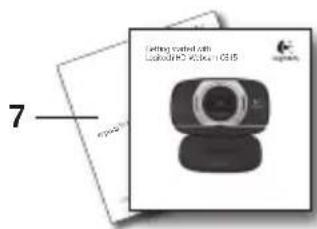
Getting started with Logitech® HD Webcam C615


natural_image
Black Logitech HD 1080p webcam with silver bezel and black frame (no text or symbols on device body)Contents
English 3
Deutsch 12
Français 21
Italiano 30
Español 39
Nederlands . . . . . . . . . . . . . . . . . . . . . . . . . . . . . . . . . . . . . . . . . . . . . . . . 48
Svenska 57
Dansk 66
Norsk 75
Suomi 84
Português 93
Ελληνικά 102
Türkçe . . . . . . . . . . . . . . . . . . . . . . . . . . . . . . . . . . . . . . . . . . . . . . . . . . . . . . . . . . . . . . 111
- . . . . . . . . . . . . . . . . . . . . . . . . . . . . . . . . . . . . . . . . . . . . . . . . . . . . . . . . . . . . . . . . . . . . ..العربية
www.logitech.com/support. 131

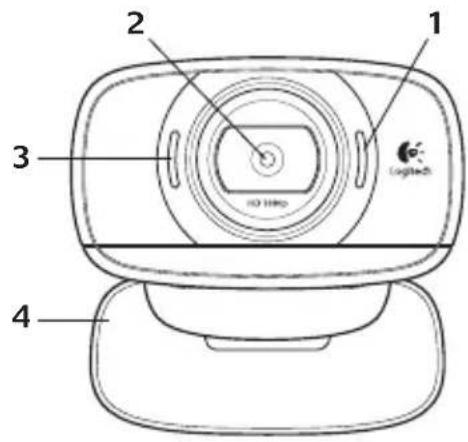

- Microphone
- Autofocus lens
- Activity light
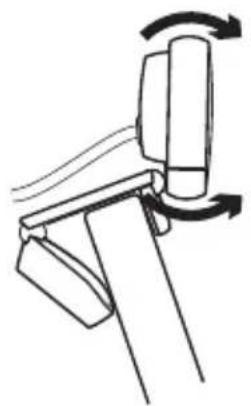
- Flexible clip/base
- Tripod attachment
- USB extension cable
- Product documentation

Thank you for buying a Logitech webcam!

natural_image
Person using a video call center on a desk, with a monitor displaying a person's face (no visible text or symbols)Use this guide to set up and begin using your Logitech webcam.
If you have questions before you start, or if you just want to learn more about your Logitech webcam, please visit logitech.com/support.
Setting up your webcam
1
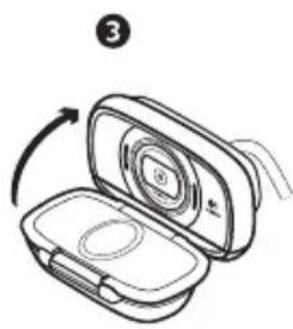
Unfold your webcam

natural_image
Line drawing of a closed electronic device with a cable and a logo, showing internal components (no text or symbols)3
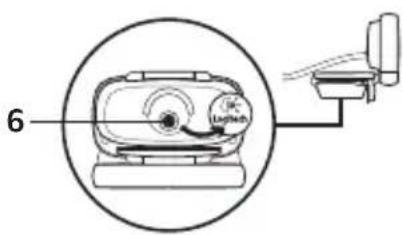
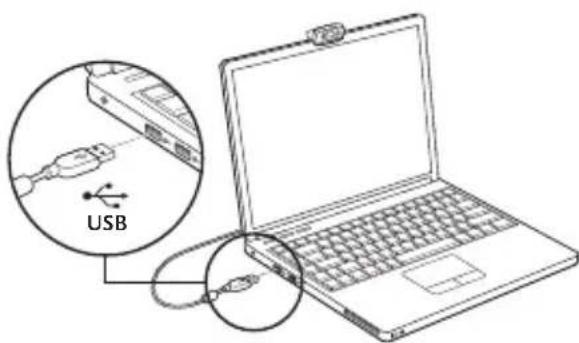
Connect your webcam

2
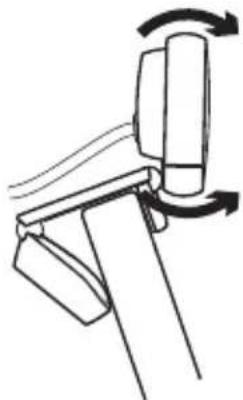
Place your webcam
natural_image
Mechanical diagram showing a lever mechanism with rotational arrows indicating motion (no text or symbols)
natural_image
Diagram of a device with directional arrows indicating rotation or movement (no text or symbols)4
Install software
If you're using your webcam with Windows® 8, the software required is downloaded automatically when you connect your webcam for the first time, and installed silently in the background.
Important: Make sure you're connected to the Internet, so the software can be downloaded.
If you're using your webcam with Windows ^ 7 or Windows Vista ^ , you must install the Logitech ^ Webcam Software, available from:
logitech.com/downloads
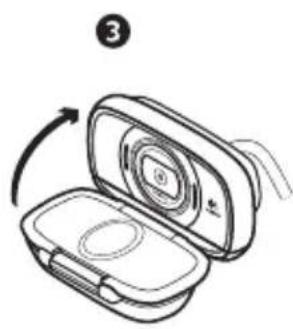
Folding up the camera for travel or storage

Getting started with video calling

Your Logitech HD Webcam c615 provides Fluid HD 720p video calling.
To take advantage of video calling both you and the person you call must install Skype™, or use a different video-calling application such as Yahoo!® Messenger, Windows Live® Messenger or Gmail.
Learn more: skype.com
As well as a webcam and video calling application, both callers need:
- A computer with speakers (or a headset) and a microphone; your Logitech HD Webcam c615 has a built-in microphone.
- A broadband Internet connection (e.g., DSL, T1, or cable).
Using your webcam with Windows 8
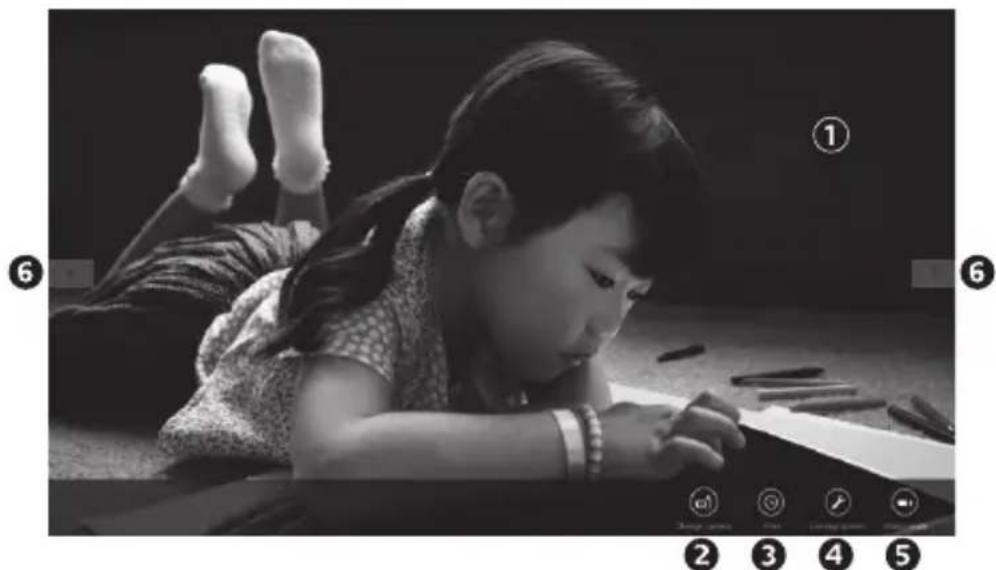
Use the Camera app, available from the Windows 8 Start screen, to operate and control your webcam.
Understanding the Camera app
natural_image
Black-and-white photo of a young girl lying on the floor, looking at a tablet with pens and writing (no visible text or symbols)-
Preview window. Click or tap to capture photos or videos (depending on whether Video Mode is selected).
-
Change webcams (when you have more than one). The face of your Logitech webcam illuminates when selected.
-
Adjust your camera settings.
-
Activate or deactivate the Timer feature. When activated, there is a three second countdown to capturing a photo or video.
-
Turn Video Mode on (to record videos) or off (to take photos).
-
Click or tap on the arrows to scroll through the photos and videos you have captured.
Videos are denoted by a timer and play button in the bottom right-hand corner:

6 English
Tip: The Camera app lets you use your webcam's most popular features quickly and easily. If you want to take advantage of the enhanced features your webcam offers, such as motion detection, use the Logitech Webcam Software available from logitech.com/downloads.
Adjusting your Camera settings
The Logitech software optimizes the settings for your environment automatically. To adjust any of your settings choose Camera options. This is available from the Camera app (see the previous page) and from within Metro apps that support webcams.

-
Choose your required resolution for photo capture, or video capture when in Video Mode.
-
Choose the microphone you want to use to record sound in your videos, if you have more than one available.
-
Access More Options, to benefit from enhanced features such as digital Zoom and Move.
If the More Options pane doesn't show the Logitech logo and offer enhanced options, it is likely that the Logitech software didn't install correctly when you first connected your camera. To reinstall it, go to the Windows Store and look for Logitech Camera Controller.
- Zoom in or out to include/exclude your surroundings.
- Having zoomed in, drag the white box to pan (adjust the focus area of your webcam).
- Use Follow my face so you're always in the picture.
- Enjoy clear conversations without annoying background noise.
Depending on the features available with your camera, you can access further advanced settings by scrolling.
Sharing your photos and videos
You can share your photos and videos via e-mail, Twitter, Facebook ^® , YouTube ^® , or Microsoft SkyDrive ^® . Follow these steps:
-
In the Camera app, scroll to the photo or video you want to share.
-
Select Share in the Charms bar (or press -H):

- Choose the media through which you want to share the photo or video.
Using your webcam with Windows 7 and Windows Vista
The Logitech Webcam Software provides everything you need to use and control your webcam. Launch the software from the Windows Start ^® menu, or by right-clicking on the camera icon in the Windows taskbar.
Understanding the Logitech Webcam Software

- Capture pictures and videos.
- View captured images and share via e-mail, Facebook, or YouTube.
- Capture videos triggered by detected motion.
-
Control your webcam while on a video call.
-
Change webcams (when you have more than one).
- Open Logitech Webcam Software settings.
- Open help dashboard.
Capturing video and snapping pictures

The gallery: viewing and sharing

Quick Capture allows you to take photos and record videos easily.
You have quick access to webcam controls and settings:
-
Preview window
-
Photo thumbnails
-
Capture mode: photo/video
-
Video thumbnails
-
Capture button
-
Click a thumbnail to enter the gallery
-
Webcam controls
Clicking on an image thumbnail in the webcam gallery (1) opens the video or photo in the review window (2). You can then:
- Attach the video or picture file to an e-mail (3)
• Edit the photo or splice together video (4)
- Upload the picture or video to Facebook (5)
- Upload the video to Twitter or YouTube (6)
You can also drag and drop a gallery image onto one of the function tiles (items 3-6) to launch an editing application or to attach or upload.
Using motion detection

- Set up your webcam to record video when it detects movement.
- Adjust captured video duration and detection sensitivity.
• Captured video is automatically saved to your computer.
• View content in the Gallery or upload it using the One-touch Upload window.
Fine tuning your webcam during a video call


- Launch the webcam controller when on a video call.
- Use pan and tilt to find the best angle.
- Zoom in or out to include/exclude your surroundings.
- Use Follow my face so you're always in the picture.
- Enjoy clear conversations without annoying background noise.
- Correct for poor lighting environments using RightLight.
- Choose between auto- or manual focus.
- Access advanced webcam settings.

natural_image
Person using a tablet device with video call on screen (no visible text or symbols)natural_image
Line drawing of a Uptech charging device with an open case and cable, showing internal components and a rotation arrow (no text or symbols)natural_image
Mechanical diagram showing a lever mechanism with rotational arrows indicating motion (no text or symbols)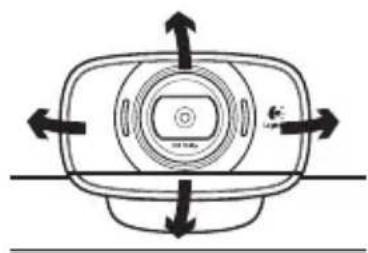
natural_image
Diagram of a device with directional arrows indicating rotation or movement (no text or symbols)natural_image
Line drawing of a device with a circular component and a curved arrow indicating rotation (no text or symbols)
natural_image
Diagram of a device with open lid and internal compartments, showing a rotation arrow (no text or symbols)
natural_image
Line drawing of a portable device with a label and numbered marker (no text or symbols on the device itself)natural_image
Black-and-white photo of a young girl lying on the floor, looking at a device with visible writing tools (no text or symbols in the image)natural_image
Person using a tablet device for video call, with a camera visible on the screen (no text or symbols)natural_image
Line drawing of a laptop case with an open lid and cable, showing internal components and a curved arrow indicating rotation (no text or symbols)natural_image
Mechanical diagram showing a lever mechanism with rotational arrows indicating motion (no text or symbols)
natural_image
Diagram of a device with directional arrows indicating movement or force (no text or symbols)natural_image
Black-and-white photo of a young girl lying on the floor, focused on writing or drawing (no visible text or symbols)natural_image
Person using a tablet device with video call interface (no visible text or symbols)natural_image
Line drawing of a Logitech device with an open case and cable, showing internal components (no text or symbols)natural_image
Mechanical diagram showing a lever mechanism with rotational arrows indicating motion (no text or symbols)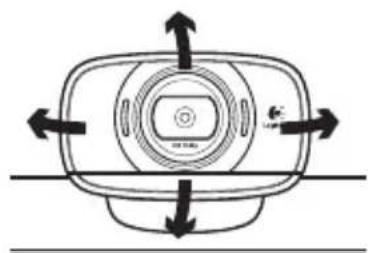
natural_image
Diagram of a device with directional arrows indicating movement or force (no text or symbols)3 Collegare la webcam

logitech.com/downloads
natural_image
Black-and-white photo of a young girl lying on the floor, looking at a device with visible tool and icons (no text or symbols on main subject)
natural_image
Person using a tablet device with video call interface (no visible text or symbols)natural_image
Line drawing of a laptop case with an open case and cable, showing internal components and a curved arrow indicating rotation (no text or symbols)natural_image
Mechanical diagram showing a lever mechanism with rotational arrows indicating motion (no text or symbols)
natural_image
Diagram of a device with directional arrows indicating rotation or movement (no text or symbols)natural_image
Black-and-white photo of a young girl lying on the floor, focused on writing or drawing (no visible text or symbols)
natural_image
Person using a tablet device with a video call on screen (no visible text or symbols)natural_image
Line drawing of a wireless earbuds with a cable, showing internal components and a rotation arrow (no text or symbols)2
Plaats uw webcam

natural_image
Mechanical diagram showing a lever mechanism with rotational arrows indicating motion (no text or symbols)
natural_image
Diagram of a device with directional arrows indicating rotation or movement (no text or symbols)3
Sluit uw webcam aan
4
Installeer software
logitech.com/downloads
natural_image
Black-and-white photo of a young girl lying on the floor, focused on writing or drawing (no visible text or symbols)natural_image
Person using a tablet device with a video call on screen (no visible text or symbols)natural_image
Line drawing of a Logitech device with an open case and cable, showing a curved arrow indicating rotation (no text or symbols)3
Anslut webbkameran

2
Placera webbkameran

natural_image
Diagram of a mechanical device with rotating arrows indicating motion (no text or symbols)
natural_image
Diagram of a device with directional arrows indicating rotation or movement (no text or symbols)4
Installera programvaran
logitech.com/downloads
natural_image
Black-and-white photo of a young girl lying on the floor, looking at a device with visible app icons (no text or symbols on main subject)natural_image
Person using a tablet device with a video call on screen (no visible text or symbols)natural_image
Line drawing of a Logitech device with an open case and cable, showing internal components and a curved arrow indicating rotation (no text or symbols)natural_image
Mechanical diagram showing a lever mechanism with rotational arrows indicating motion (no text or symbols)
natural_image
Diagram of a device with directional arrows indicating rotation or movement (no text or symbols)3 Tilslut webkameraet

4 Installer software
logitech.com/downloads
natural_image
Black-and-white photo of a young girl lying on the floor, looking at a device with numbered callouts (no readable text or symbols)
- Mikrofon
- Objektiv med autofokus
- Statuslampe
- Bøyelig feste/fot
- Stativfeste
- Usb-forlenger
- Produktdokumentasjon

natural_image
Person using a tablet device with video call interface (no visible text or symbols)Bruk denne veiledningen til å konfigurere Logitech-produktet.
natural_image
Line drawing of a portable earless device with a logo and cable, showing internal components and an arrow indicating rotation (no text or symbols)3
natural_image
Mechanical diagram showing a lever mechanism with rotational arrows indicating motion (no text or symbols)
natural_image
Diagram of a device with directional arrows indicating rotation or movement (no text or symbols)4
Installere programvaren
Hvis du bruker webkameraet med Windows ^® 8, blir den nødvendige programvaren automatisk lastet ned og installert stille i bakgrunnen når du kopler til webkameraet for første gang.
logitech.com/downloads
natural_image
Black-and-white photo of a young girl lying on the floor, looking at a device with app icons (no readable text or symbols)Med Smil! kan du enkelt ta bilder og ta opp video.
- Velg at webkameraet skal starte videoopptak när det registrerer bevegelse.
- Juster lengden på videoopptak og hvor følsom bevegelsesregistreringen skal være.
- Videopptak lagres automatisk på datamaskinen.
- Vis innhold i galleriet, eller last det opp ved hjelp av hurtigopplastingsvinduet.
Finjustere webkamerainnstillingene mens du prater

natural_image
Person using a tablet device with video call interface (no visible text or symbols)natural_image
Line drawing of a portable electronic device with a logo and cable, showing internal components and an arrow indicating rotation (no text or symbols)natural_image
Mechanical diagram showing a lever mechanism with rotational arrows indicating motion (no text or symbols)
natural_image
Diagram of a device with directional arrows indicating rotation or movement (no text or symbols)3 Liitä web-kamera.

4 Asenna ohjelmisto
natural_image
Black-and-white photo of a young girl lying on the floor, looking at a device with visible tool icons (no text or symbols on main subject)
natural_image
Person using a tablet device with a video call on screen (no visible text or symbols)natural_image
Line drawing of a closed earbell device with a cable and a logo, showing internal components (no text or symbols)2
natural_image
Mechanical diagram showing a lever mechanism with rotating arrows indicating motion (no text or symbols)
natural_image
Diagram of a device with directional arrows indicating rotation or movement (no text or symbols)3
logitech.com/downloads
natural_image
Line drawing of a pair of earbuds with a belt, showing mechanical components and rotation arrows (no text or symbols)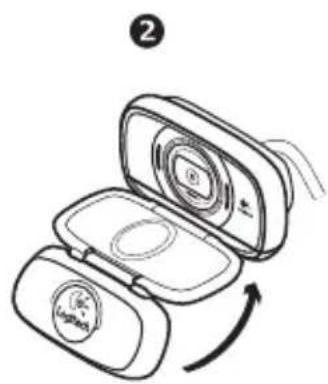
natural_image
Diagram of a device with open lid and internal compartments, showing a rotation arrow (no text or symbols)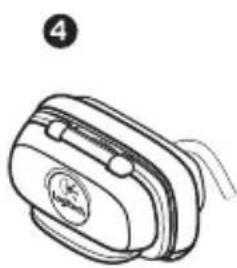
natural_image
Line drawing of a bag with a label and number 4 (no text or symbols on the bag itself)natural_image
Black-and-white photo of a young girl lying on the floor, looking at a device with no visible text or symbols.natural_image
Person using a tablet device for video call, with a camera on screen (no visible text or symbols)natural_image
Line drawing of a portable electronic device with a logo and cable, showing internal components and an arrow indicating rotation (no text or symbols)natural_image
Mechanical diagram showing a lever mechanism with rotational arrows indicating motion (no text or symbols)
natural_image
Diagram of a device with directional arrows indicating rotation or movement (no text or symbols)natural_image
Black-and-white photo of a young girl lying on the floor, focused on writing or drawing (no visible text or symbols)
natural_image
Person using a laptop for video call, with a camera on screen (no visible text or symbols)natural_image
Line drawing of a closed electronic device with a cable and a logo, showing internal components (no text or symbols)2
natural_image
Mechanical diagram showing a lever mechanism with rotational arrows indicating motion (no text or symbols)
natural_image
Diagram of a device with directional arrows indicating rotation or movement (no text or symbols)3
logitech.com/downloads
natural_image
Line drawing of a pair of earbuds with a belt, showing mechanical components and rotation arrows (no text or symbols)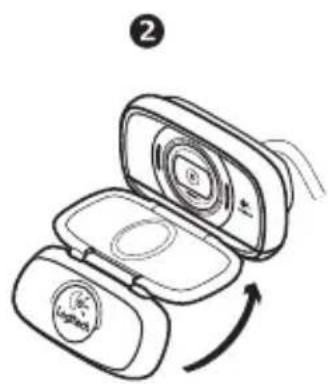


natural_image
Line drawing of a bag with a label and number 4 (no text or symbols on the bag itself)natural_image
Black-and-white photo of a young girl lying on the floor, looking at a device with visible toolbars and app icons (no text or symbols on main subject)natural_image
Line drawing of a Logitech charging case with cable and connector (no text or symbols)توصيل كاميرا الويب
natural_image
Mechanical diagram showing a lever mechanism with rotational arrows indicating motion (no text or symbols)3

natural_image
Diagram of a device with directional arrows indicating movement or force (no text or symbols)تشバイت البرنامج
4



natural_image
Person using a tablet device with video call on screen (no visible text or symbols)natural_image
Black-and-white photo of a young girl lying on the floor, looking at a tablet with app icons (no readable text or symbols in the scene)natural_image
Line drawing of a device with a circular component and curved arrows indicating rotation (no text or symbols)2

natural_image
Line drawing of two open digital camera modules with a hand holding the top module (no text or symbols)3

natural_image
Line drawing of a hand holding a compact food container with a circular lid, showing an open lid and a curved arrow indicating rotation (no text or symbols)4

natural_image
Line drawing of a two-port bag with a circular logo on the side (no text or symbols).5 (Preview window) .1
www.logitech.com/support
België/Belgique Dutch: +32-(0)2 200 64 44; French: +32-(0)2 200 64 40
Česká Republika +420 239 000 335
© 2012 Logitech. All rights reserved. Logitech, the Logitech logo, and other Logitech marks are owned by Logitech and may be registered. All other trademarks are the property of their respective owners. Logitech assumes no responsibility for any errors that may appear in this manual. Information contained herein is subject to change without notice.
620-003225.005
- Getting started with Logitech® HD Webcam C615
- Contents
- Thank you for buying a Logitech webcam!
- Setting up your webcam
- Folding up the camera for travel or storage
- Getting started with video calling
- Using your webcam with Windows 8
- Understanding the Camera app
- Adjusting your Camera settings
- Sharing your photos and videos
- Using your webcam with Windows 7 and Windows Vista
- Understanding the Logitech Webcam Software
- Capturing video and snapping pictures
- The gallery: viewing and sharing
- Using motion detection
- Fine tuning your webcam during a video call
- Collegare la webcam
- Tilslut webkameraet
- Installer software
- Finjustere webkamerainnstillingene mens du prater
- Liitä web-kamera.
- Asenna ohjelmisto
- www.logitech.com/support
Brand : LOGITECH
Model : HD C615
Category : Webcam