ULTIMEA Poseidon E100 - Projector

Poseidon E100 - Projector ULTIMEA - Free user manual and instructions

Find the device manual for free Poseidon E100 ULTIMEA in PDF.

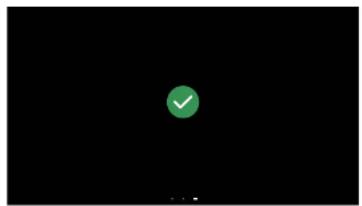
📄 285 pages English EN Download 💬 AI Question
Notice ULTIMEA Poseidon E100 - page 5
Pick your language and provide your email: we'll send you a specifically translated version.

User questions about Poseidon E100 ULTIMEA

0 question about this device. Answer the ones you know or ask your own.

Ask a new question about this device

The email remains private: it is only used to notify you if someone responds to your question.

No questions yet. Be the first to ask one.

Download the instructions for your Projector in PDF format for free! Find your manual Poseidon E100 - ULTIMEA and take your electronic device back in hand. On this page are published all the documents necessary for the use of your device. Poseidon E100 by ULTIMEA.

USER MANUAL Poseidon E100 ULTIMEA

natural_image Black rectangular projector with a circular lens and visible brand logo (no text or symbols on body)

ULTIMEA Poseidon E100 - 1

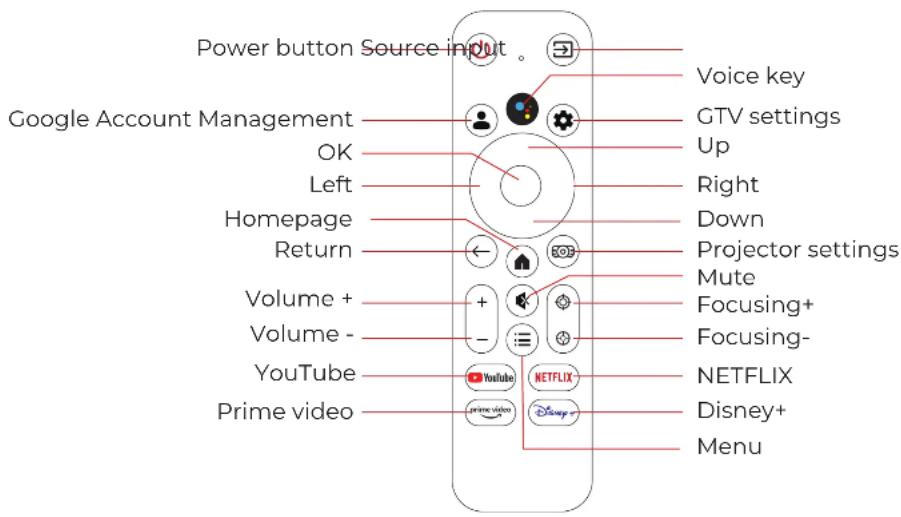
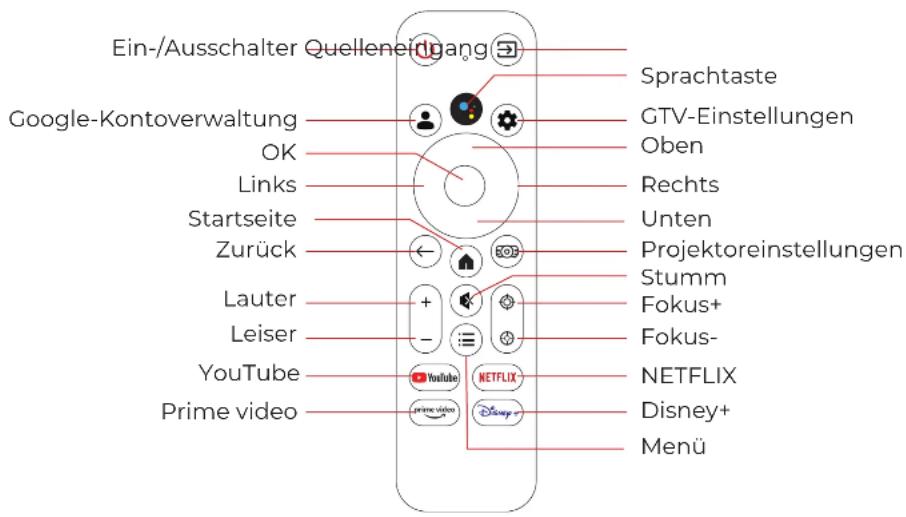
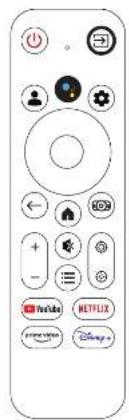
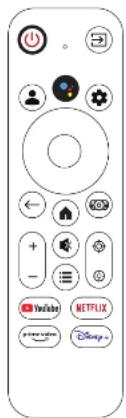
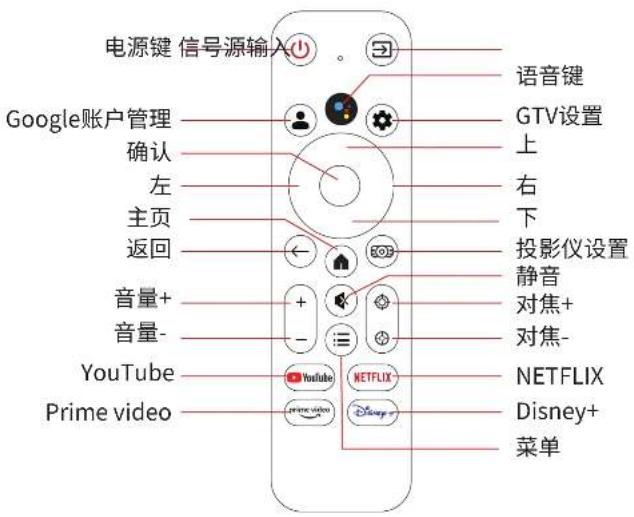
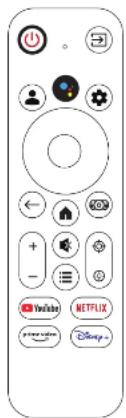
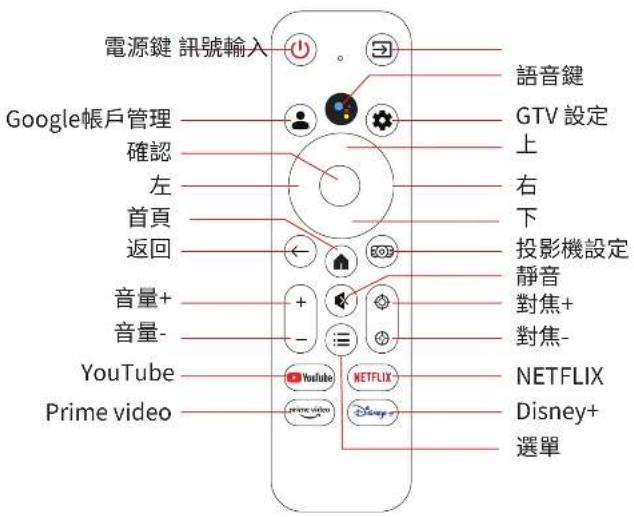
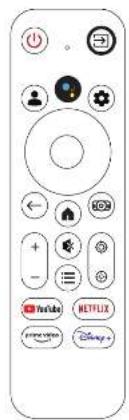
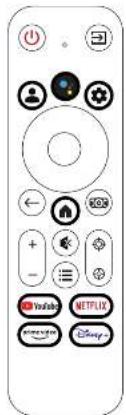
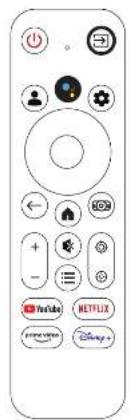
Remote Control

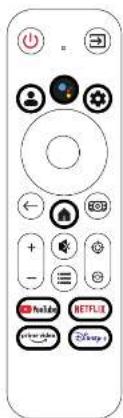
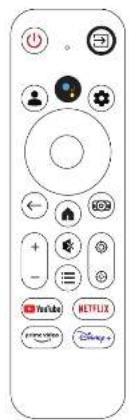
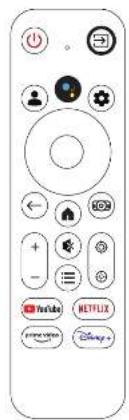
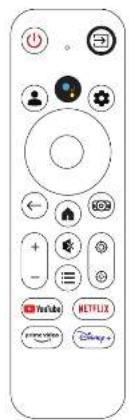
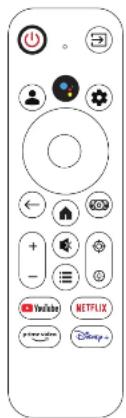
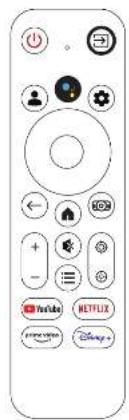
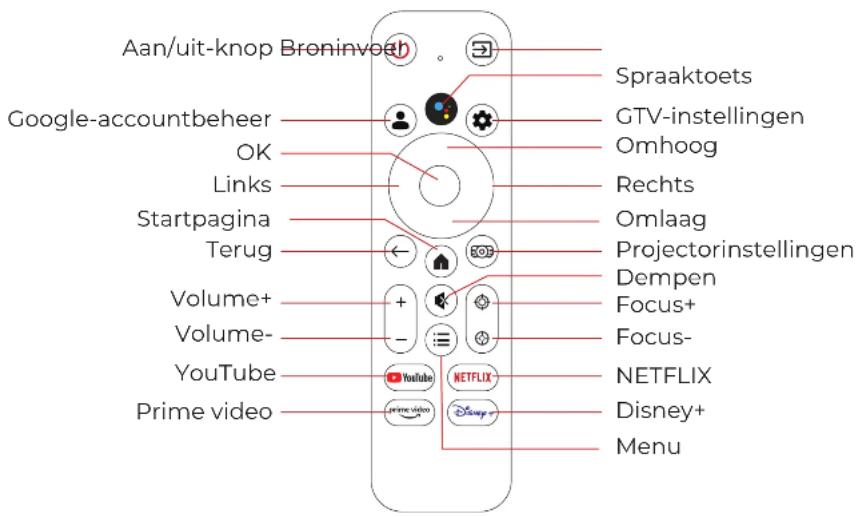
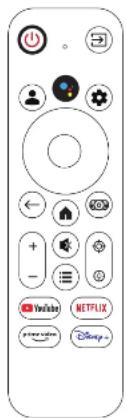
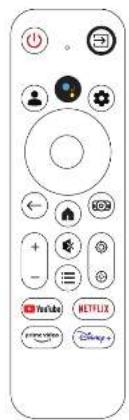
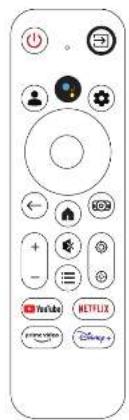
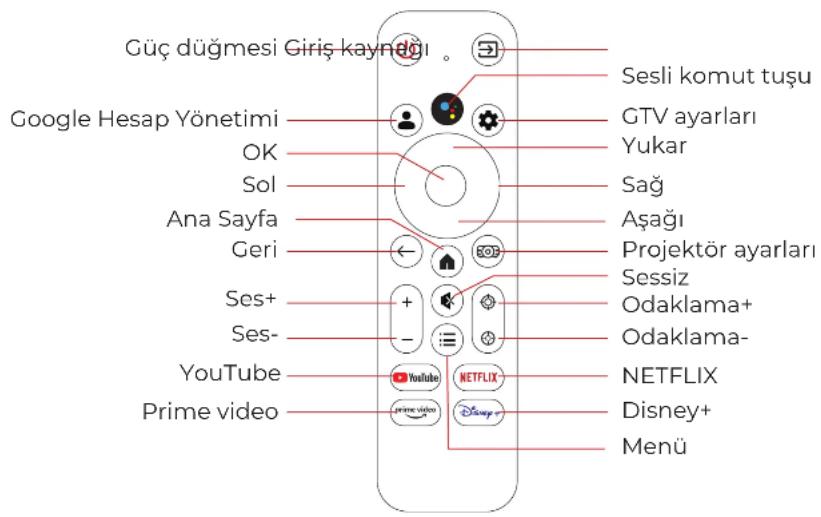
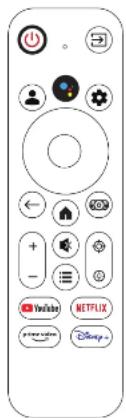
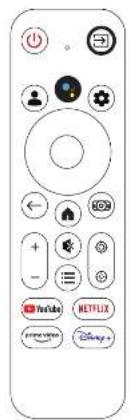
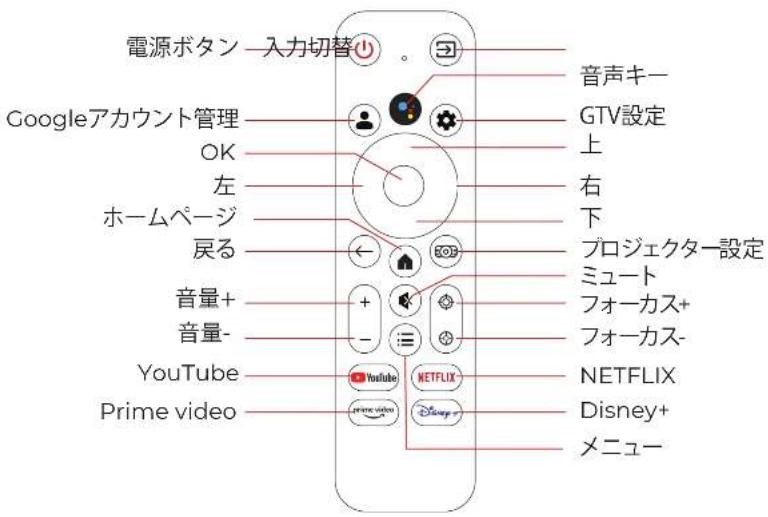
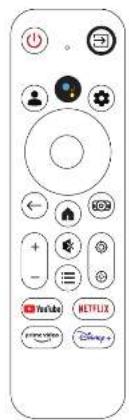
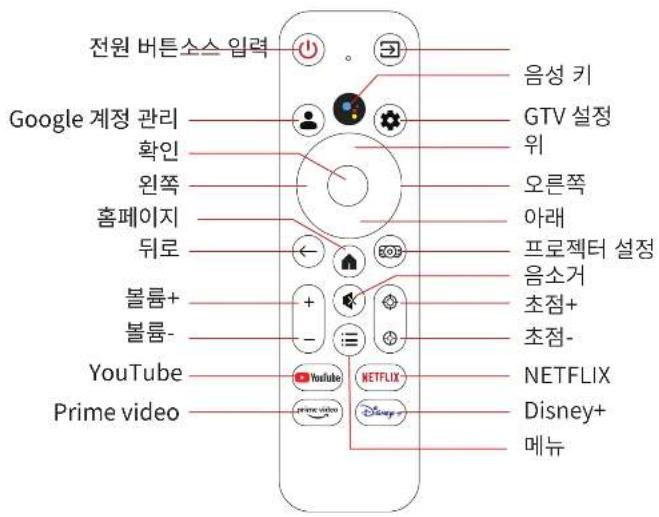
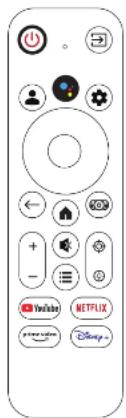
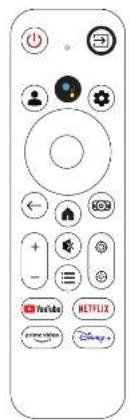
Instruction of Buttons

ULTIMEA Poseidon E100 - Remote Control - 1

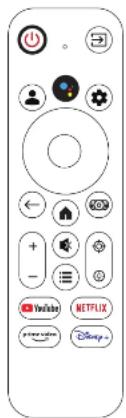
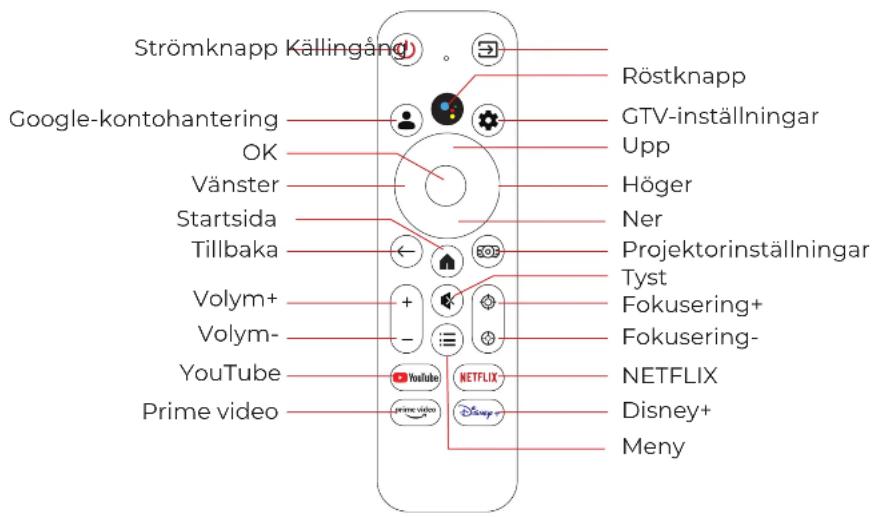
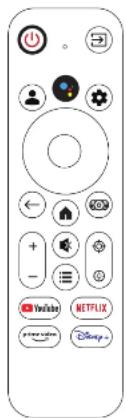
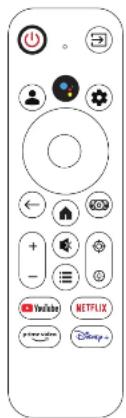
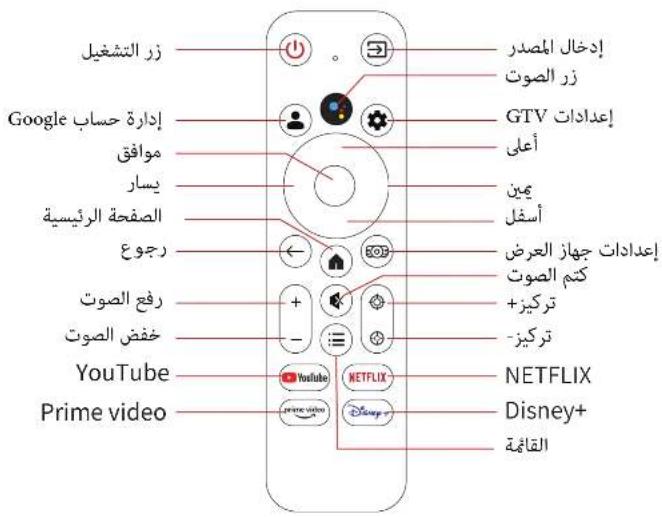
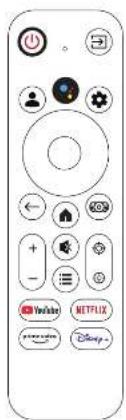
text_image Power button Source input Google Account Management OK Left Homepage Return Volume + Volume - YouTube Prime video Voice key GTV settings Up Right Down Projector settings Mute Focusing+ Focusing- NETFLIX Disney+ Menu

Note:1. Please keep the remote control aiming at the projector screen.

  1. Please take out the battery if the remote control is not used for a long time.

Connection & Key

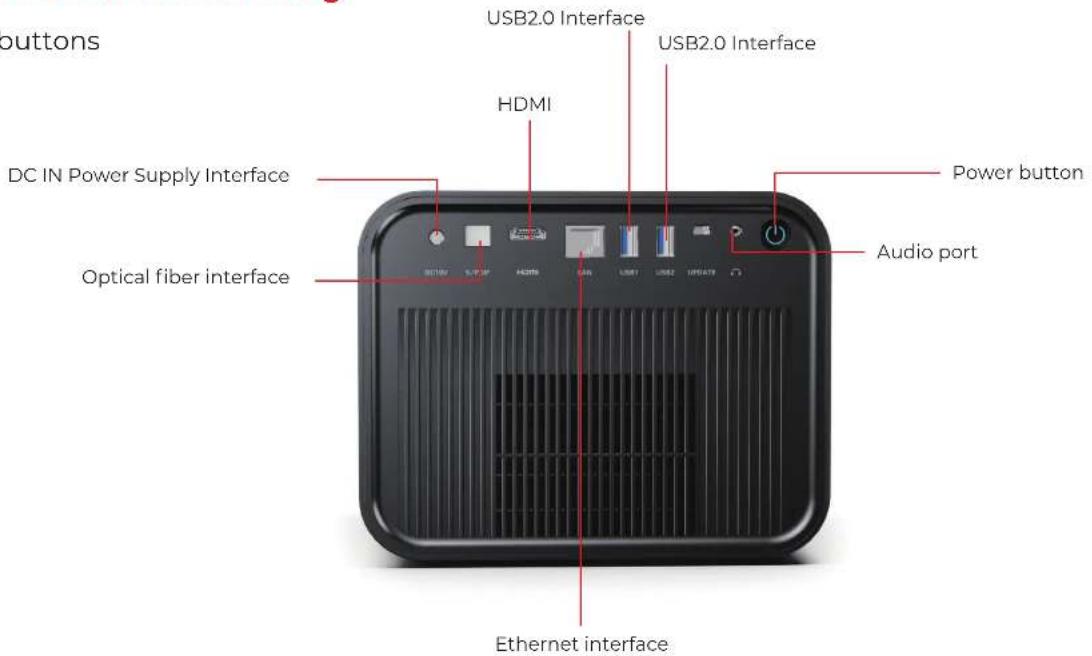
Touch buttons
ULTIMEA Poseidon E100 - Connection & Key - 1

text_image buttons USB2.0 Interface USB2.0 Interface HDMI DC IN Power Supply Interface Power button Optical fiber interface Audio port Ethernet interface

EN

ULTIMEA Poseidon E100 - Connection & Key - 2

Basic User Guide for the Projector System

1. Powering On & System Interface

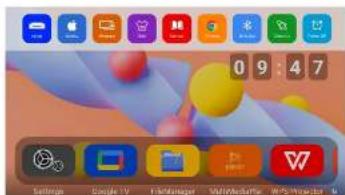
When the projector is powered on, it will enter a basic Android system interface.

ULTIMEA Poseidon E100 - Powering On & System Interface - 1

ULTIMEA Poseidon E100 - Powering On & System Interface - 2

text_image ULTIMEA

ULTIMEA Poseidon E100 - Powering On & System Interface - 3

text_image Smart projector

ULTIMEA Poseidon E100 - Powering On & System Interface - 4

text_image YouTube Netflix Disney~

2. Remote Control Pairing

ULTIMEA Poseidon E100 - Remote Control Pairing - 1

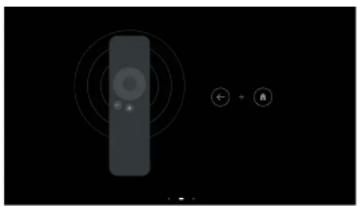
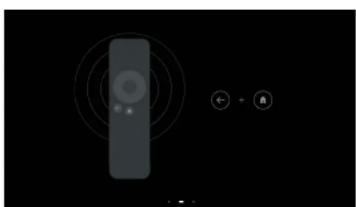
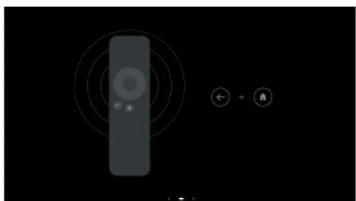
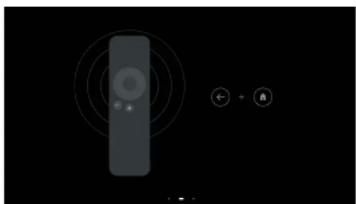
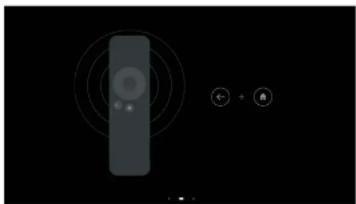
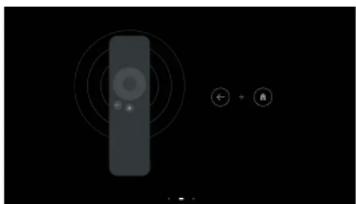
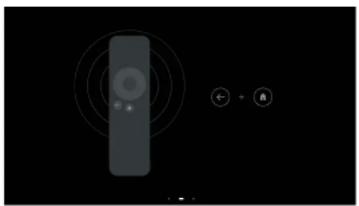
Important: You must pair your remote control before proceeding. Otherwise, the system setup cannot continue.

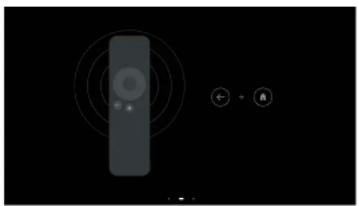
The remote control supports both infrared (IR) and Bluetooth:

· In the default Android system, control is via infrared.
· In Google TV, Bluetooth pairing is required for remote operation.

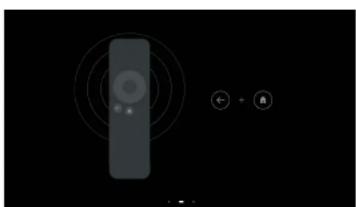
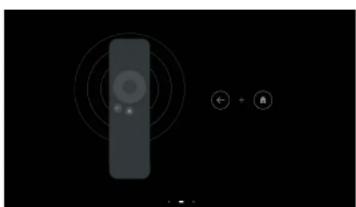
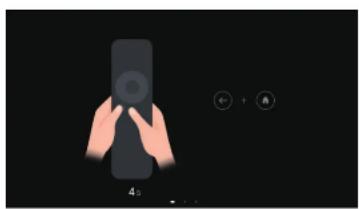
Remote Pairing Steps:

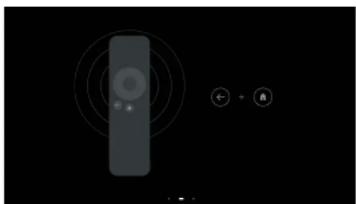
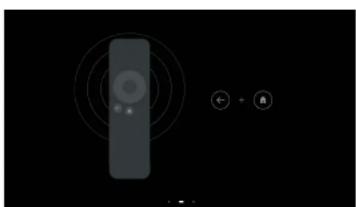
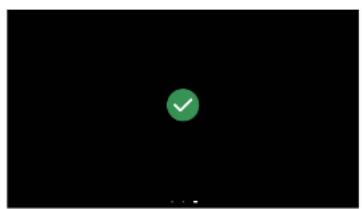
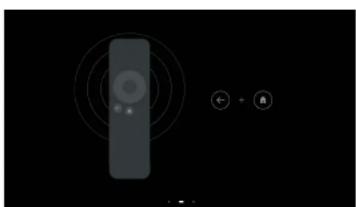
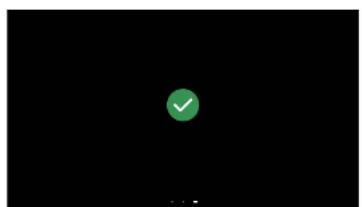
  1. Follow the on-screen instructions to initiate pairing.
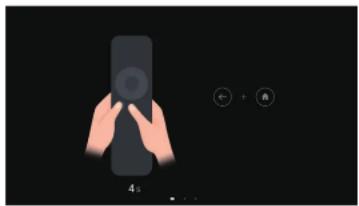
  2. Press and hold the required buttons on the remote to start the Bluetooth pairing process.
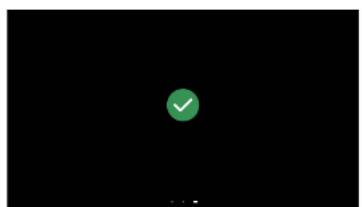
  3. Once pairing is successful, the remote can control the device from any direction within range.
ULTIMEA Poseidon E100 - Remote Pairing Steps: - 1

natural_image Hand holding a smartphone with a circular icon on the screen, next to a control panel (no text or symbols visible)
ULTIMEA Poseidon E100 - Remote Pairing Steps: - 2

natural_image Simple grayscale illustration of a remote control with circular arrows and icons, no text or symbols present.
ULTIMEA Poseidon E100 - Remote Pairing Steps: - 3

natural_image Green checkmark inside a circle on black background (no text or symbols)

3. Google TV Setup

ULTIMEA Poseidon E100 - Google TV Setup - 1

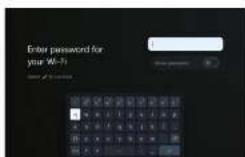
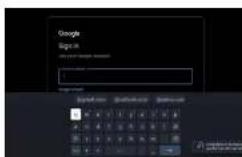
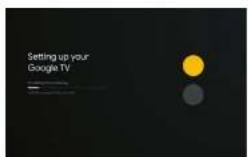
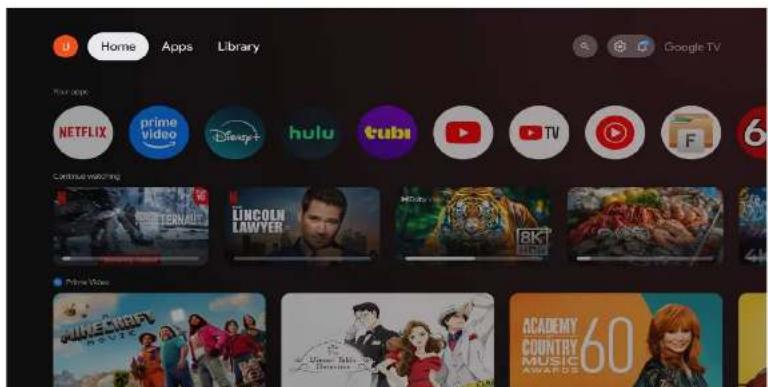
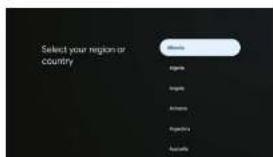
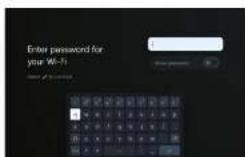
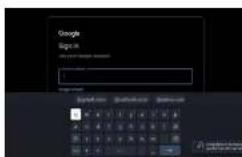
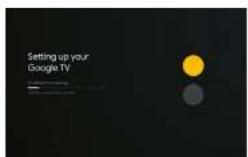
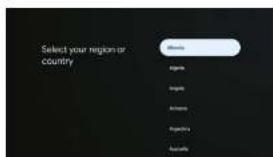
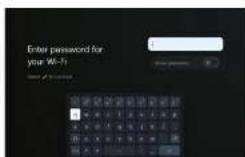
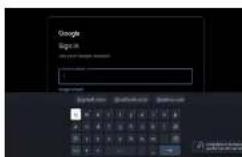
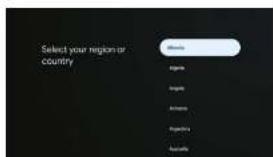
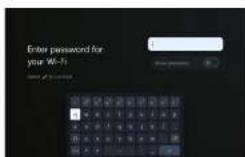
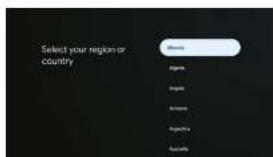
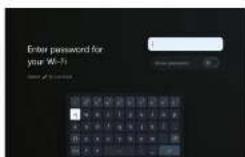
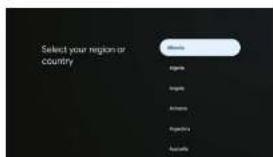
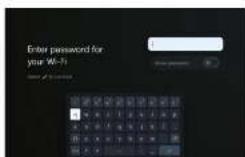
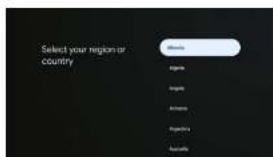
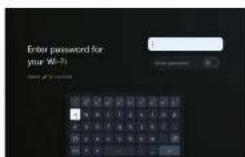
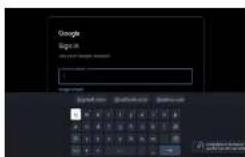
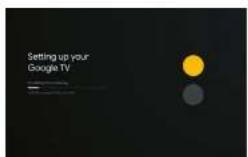
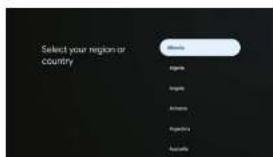
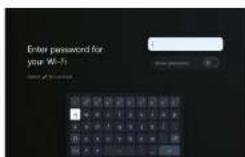
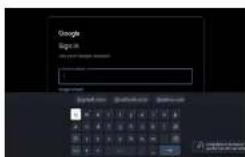
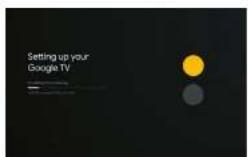
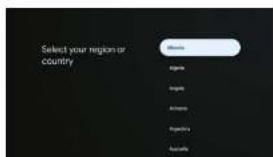
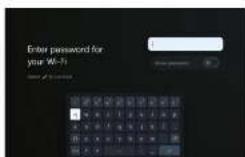
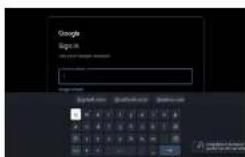
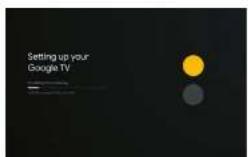
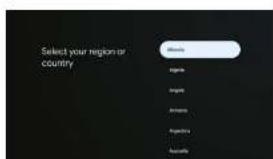
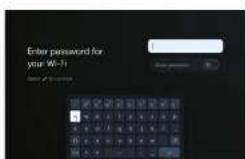
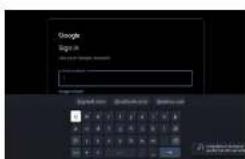
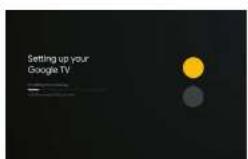
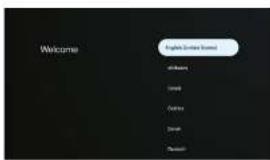
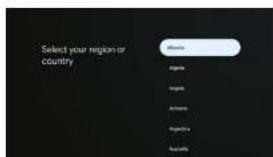
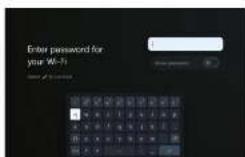
After pairing the remote, follow the on-screen prompts to complete Google TV setup:

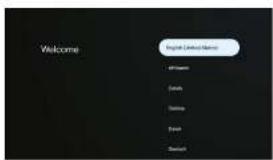
  1. Select your language.
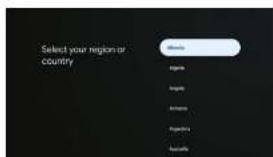
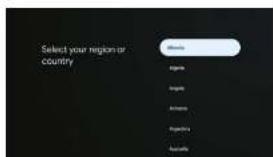
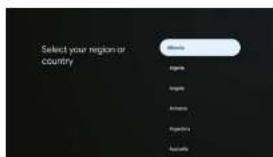
  2. Choose your country or region.
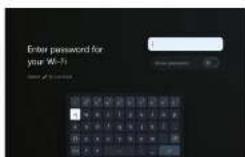
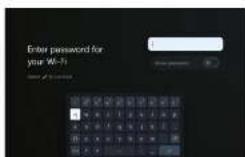
  3. Connect to a Wi-Fi network.
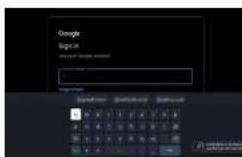
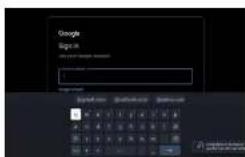
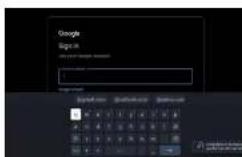
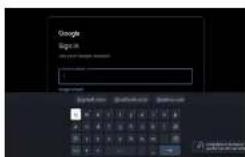
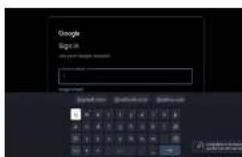
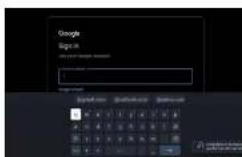
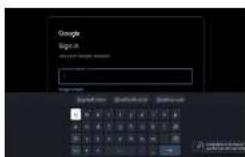
  4. Sign in with your Google account.

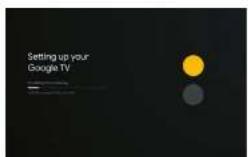
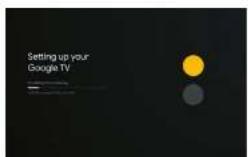
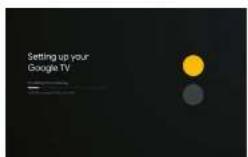
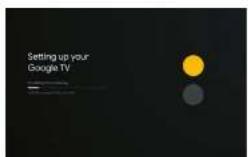
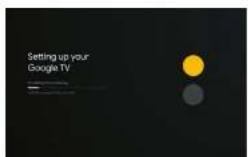
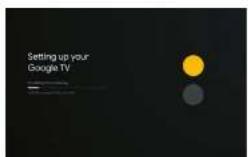
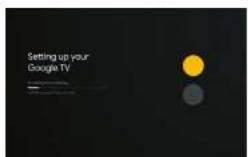
  5. Wait a few minutes for the system to configure your Google TV environment.
ULTIMEA Poseidon E100 - Google TV Setup - 2

text_image Welcome Refresh Screen Options Add News Remove Delete Save Finish Refresh

ULTIMEA Poseidon E100 - Google TV Setup - 3

text_image Select your region or country

ULTIMEA Poseidon E100 - Google TV Setup - 4

ULTIMEA Poseidon E100 - Google TV Setup - 5

ULTIMEA Poseidon E100 - Google TV Setup - 6

3. Google TV Setup

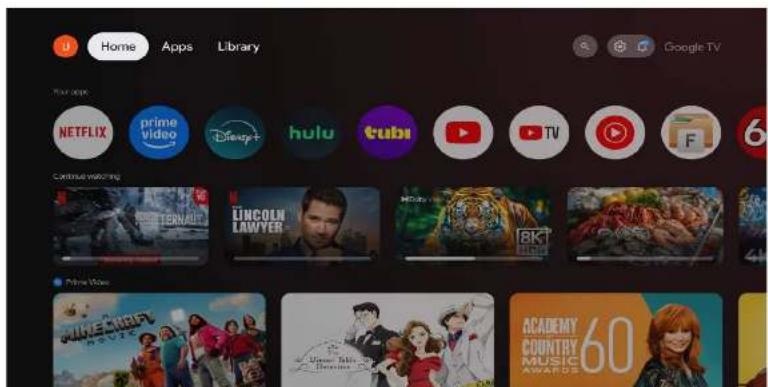
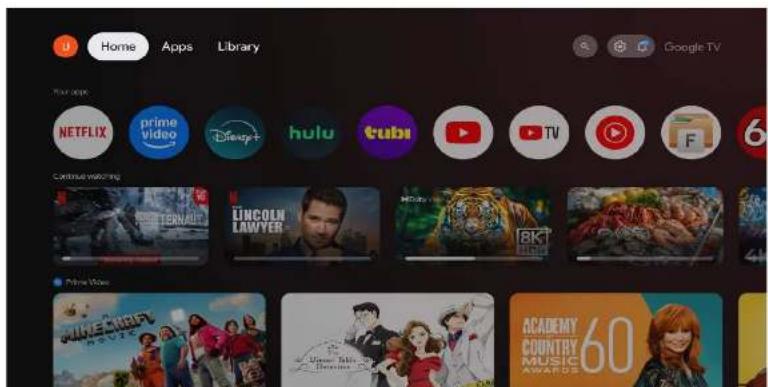
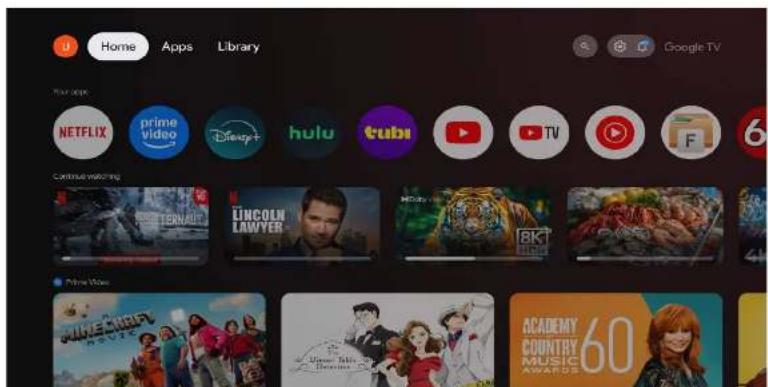
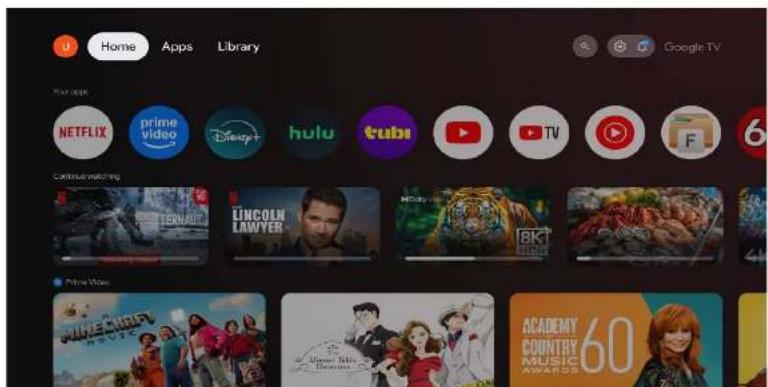
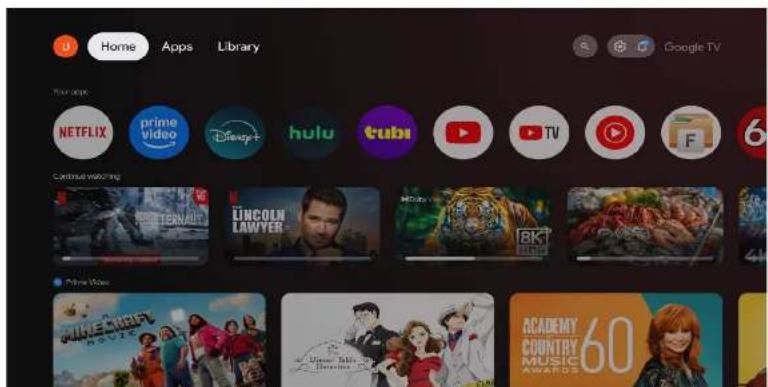
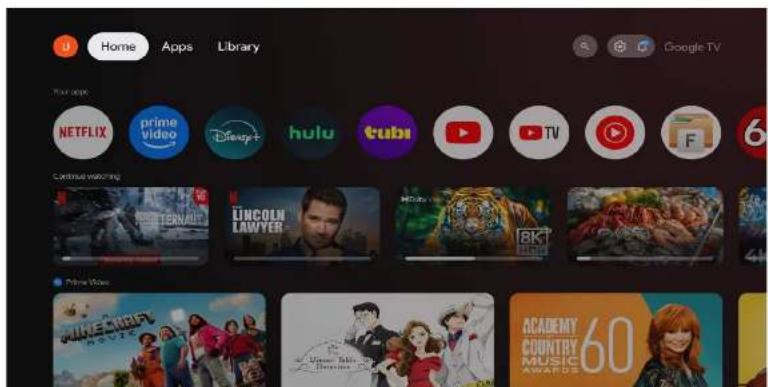
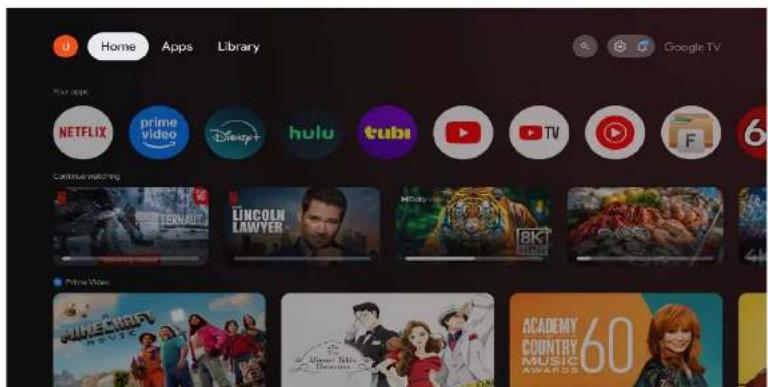
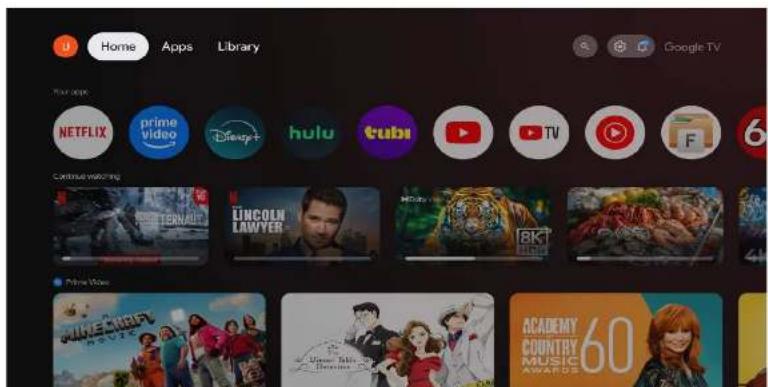
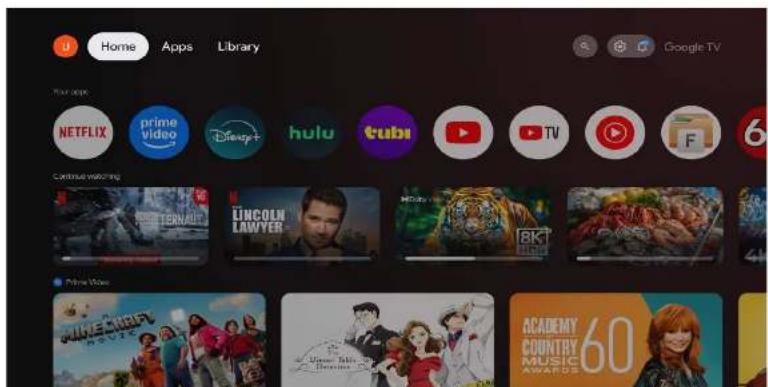
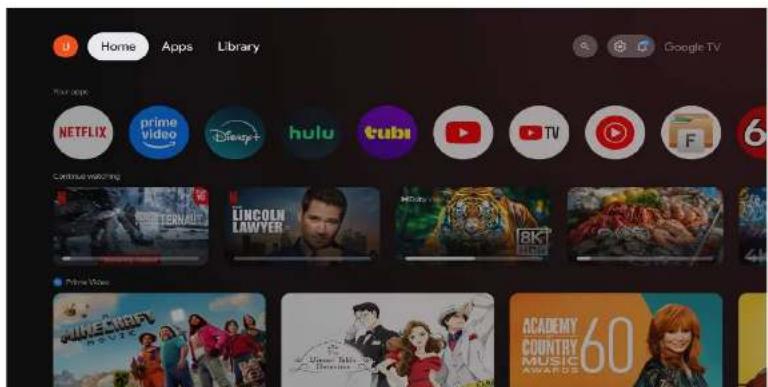
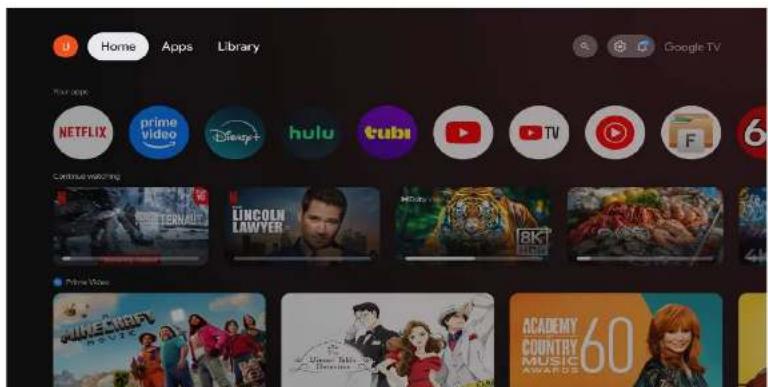
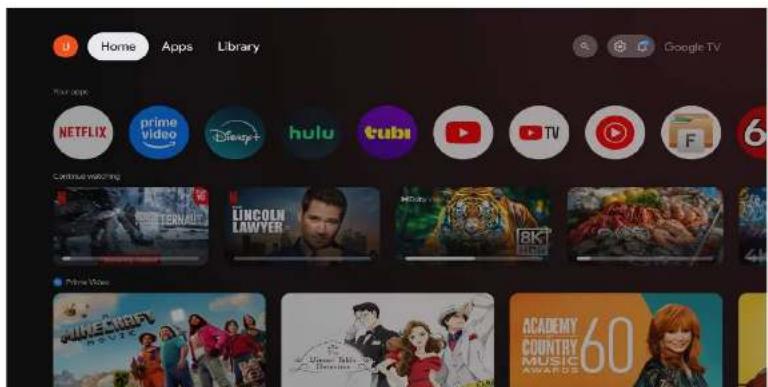
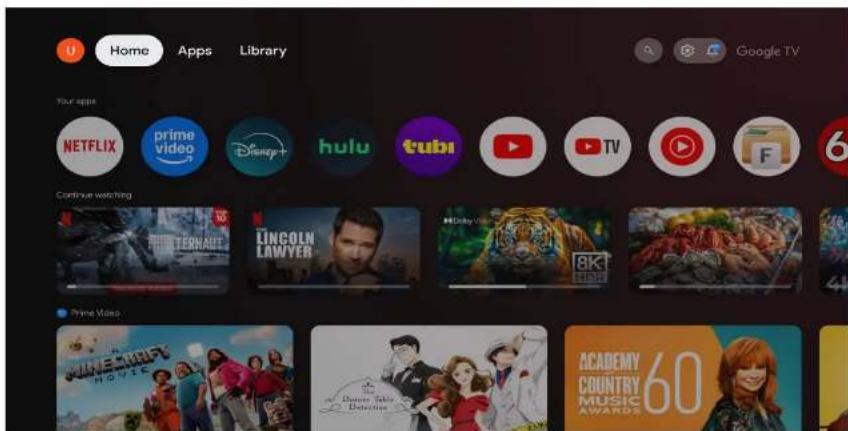
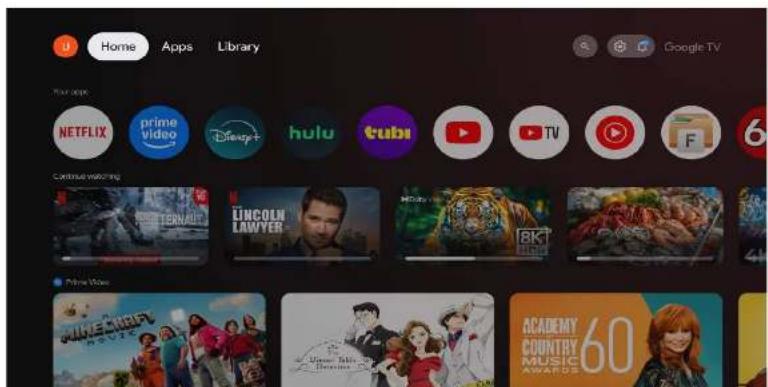
Once setup is complete, you can use popular streaming apps like YouTube, Netflix, Prime Video, and more.

ULTIMEA Poseidon E100 - Google TV Setup - 1

text_image Home Apps Library Google TV Your apps NETFLIX prime video Disney+ hulu tubi YouTube TV F 6 Continue watching TERNAULT LINCOLN LAWYER 8K Prime Video ACADEMY COUNTRY MUSIC AWARDS 60

ULTIMEA Poseidon E100 - Google TV Setup - 2

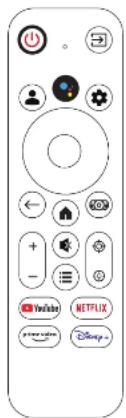
4. Remote Control Key Functions (for Google TV Only)

ULTIMEA Poseidon E100 - Remote Control Key Functions (for Google TV Only) - 1

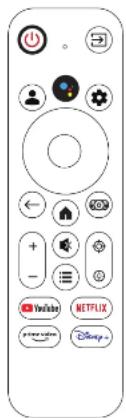
Some buttons on the remote control are only functional within Google TV, including:

  • Google Account
    · Google Assistant
  • Setup
  • Homepage
  • YouTube
  • Netflix
  • Prime Video
    · Disney+

ULTIMEA Poseidon E100 - Remote Control Key Functions (for Google TV Only) - 2

text_image Remote control interface with icons for settings, navigation, and media control buttons

ULTIMEA Poseidon E100 - Remote Control Key Functions (for Google TV Only) - 3

text_image Home Apps Library Google TV Your app NETFLIX prime video Disney+ hulu cube YouTube TV F 6 Continue watching Terna! LINCOLN LAWYER HDU 8K Prime Video GARLE SAUTS Academy COUNTRY MUSIC AWARDS 60

5. Android System Home Interface

ULTIMEA Poseidon E100 - Android System Home Interface - 1

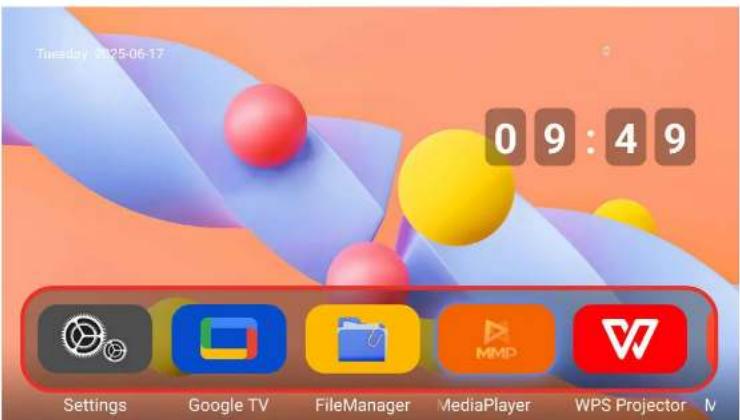
The default Android system home screen displays several large icons for quick access to key functions:

  • Settings
    · Google TV
  • File Manager
    · Media Player
    · WPS Projector
  • Microsoft Point
    ·OfficeSuite

ULTIMEA Poseidon E100 - Android System Home Interface - 2

text_image Tuesday 025-06-17 09:49 Settings Google TV FileManager MediaPlayer WPS Projector

6. Enter to Google TV

ULTIMEA Poseidon E100 - Enter to Google TV - 1

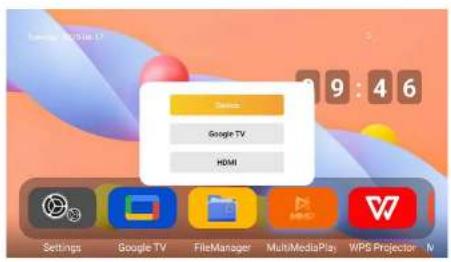
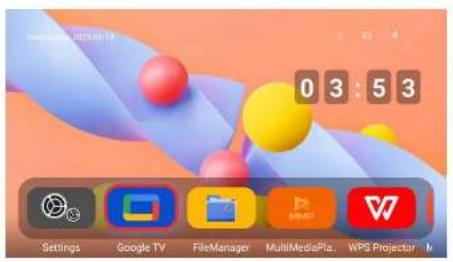
The Android system does not include any pre-installed content source. However, Google TV is prominently displayed on the home screen. You may access it either:

· As an application by selecting the Google TV icon.
· As a Source, by pressing the Input Source button on the remote and selecting GTV.
ULTIMEA Poseidon E100 - Enter to Google TV - 2

text_image minutes 20:15:17 0 3 : 5 3 Settings Google TV FileManager MultiMediaPla. WPS Projector

or

ULTIMEA Poseidon E100 - Enter to Google TV - 3

text_image Delete Google TV HDMI Settings Google TV FileManager MultiMediaPlay WPS Projector N

ULTIMEA Poseidon E100 - Enter to Google TV - 4

text_image Front view of a remote control with app icons and brand logos including YouTube, Netflix, Disney+, and others.

7. Top Shortcut Menu

ULTIMEA Poseidon E100 - Top Shortcut Menu - 1

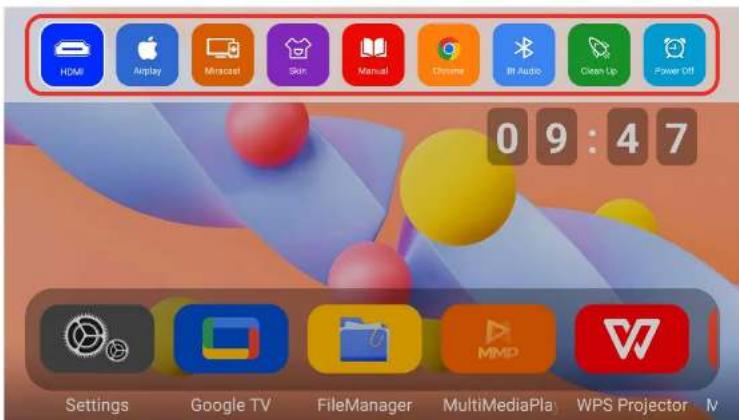
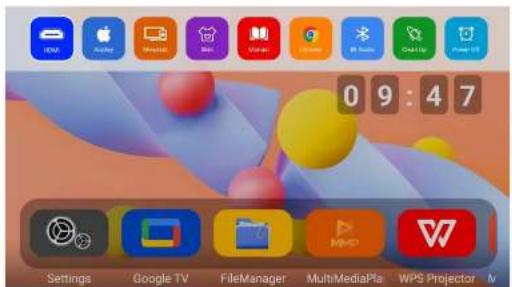
By pressing the Up navigation key on the remote from the home screen, a top shortcut menu will appear with the following options:

· HDMI Source
· Screen Mirroring
- Skin (UI theme)
· eManual
- Chrome Browser
- Bluetooth Audio
· Clean Up (system cleaner)
- Power Off
ULTIMEA Poseidon E100 - Top Shortcut Menu - 2

text_image HDMI Airplay Miracost Skin Manual Chrome BI Audio Clean Up Power Off 0 9 : 4 7 Settings Google TV FileManager MultiMediaPlay WPS Projector

8. Phone Screen Mirroring

ULTIMEA Poseidon E100 - Phone Screen Mirroring - 1

Wireless Screen Mirroring (iPhone)

iPhone AirPlay Mirroring Guide:

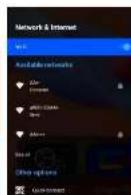
  1. Turn on the projector's Wi-Fi function and connect it to a Wi-Fi network.
  2. Connect your iPhone to the same Wi-Fi network as the projector.
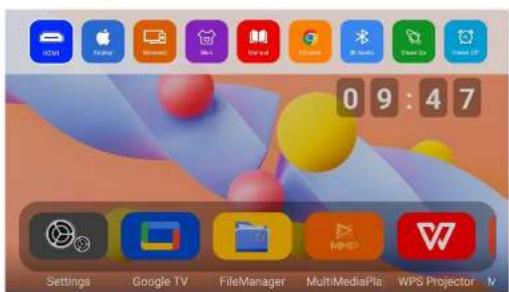
  3. Press the up button on the remote control to bring up the hidden menu. Select and turn on AirPlay, then switch the AirPlay option in the bottom-right corner of the screen to ON.
  4. Swipe down on your iPhone to open the Control Center and tap Screen Mirroring (AirPlay). Your phone will automatically search for available projector devices on the same network.
  5. Select the projector device name from the list to start mirroring successfully.

ULTIMEA Poseidon E100 - Wireless Screen Mirroring (iPhone) - 1

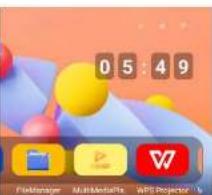
text_image Network & Internet 0 5 4 9 FileManager MultiMediaPlus WPS Projector V Settings Tongge TV FileManager MultiMediaPlus WPS Projector L 0 9 4 7 Where: App Meeting Get Started Now ① Open your iPhone app ② Save the iPhone Wi-Fi 确定 if any options are available.

Wireless Screen Mirroring (Android Phone)

ULTIMEA Poseidon E100 - Wireless Screen Mirroring (Android Phone) - 1

Method 1:

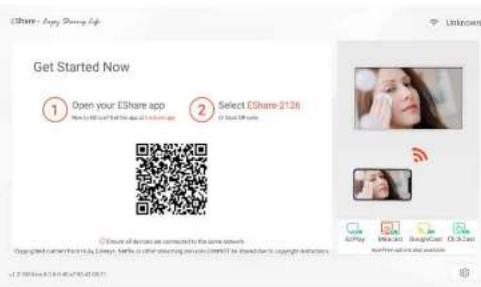
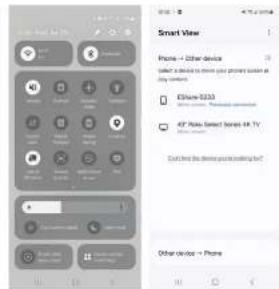
  1. Turn on the projector's Wi-Fi function and connect it to a Wi-Fi network.
  2. Connect your Android phone to the same Wi-Fi network as the projector.
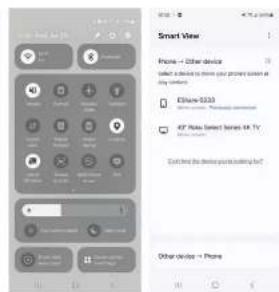
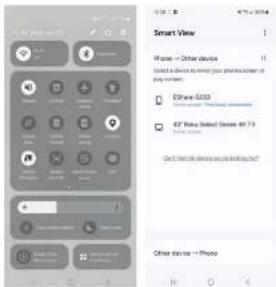
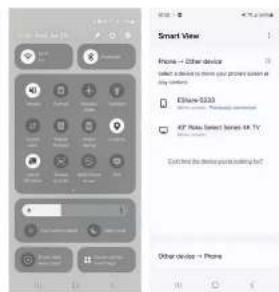
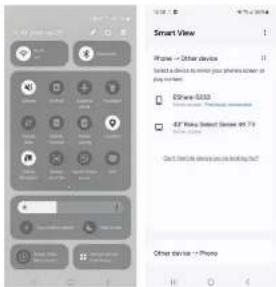
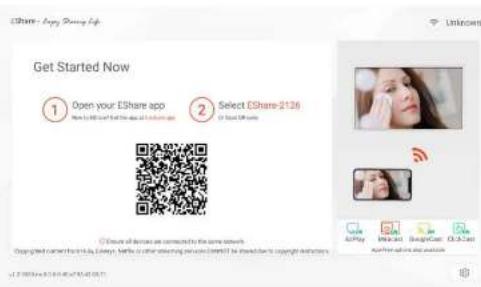
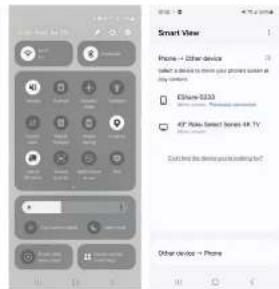
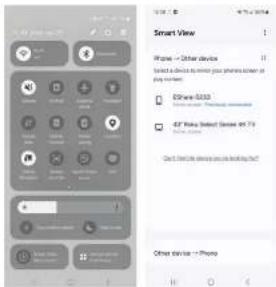
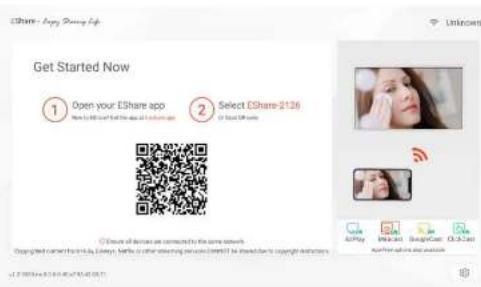
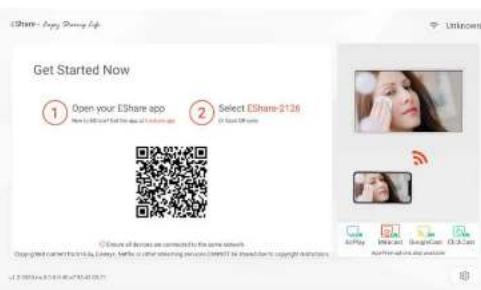
  3. On the projector, open AirPlay, then select Miracast in the bottom-right corner of the screen and ensure it is switched ON.
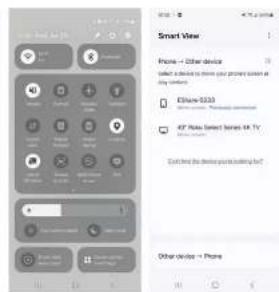
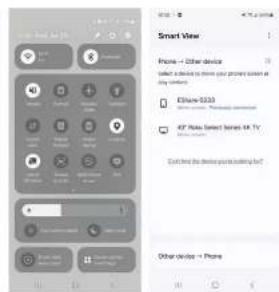
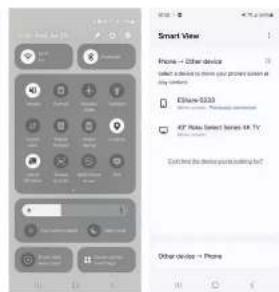
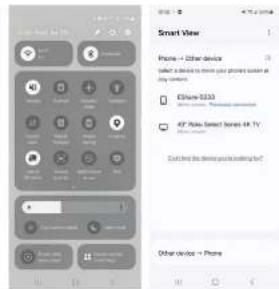
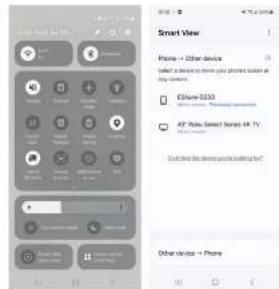
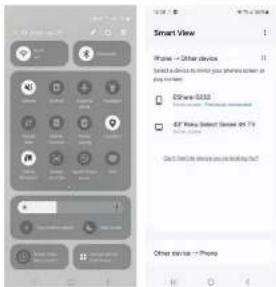
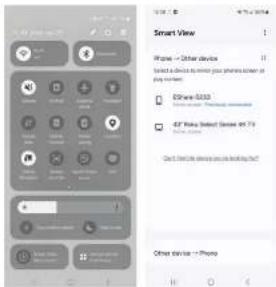
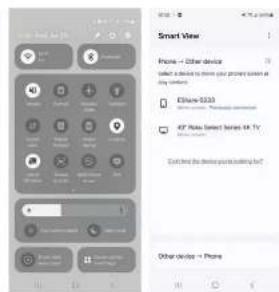
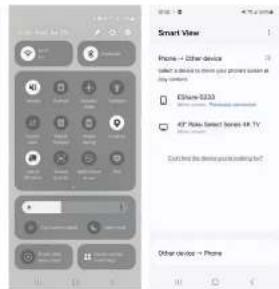
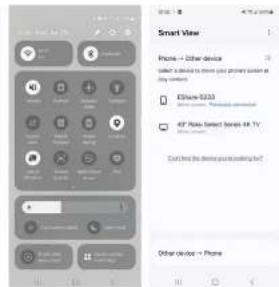
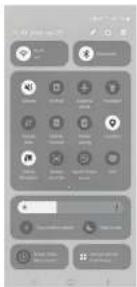
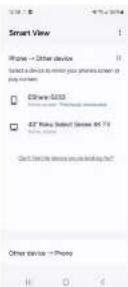
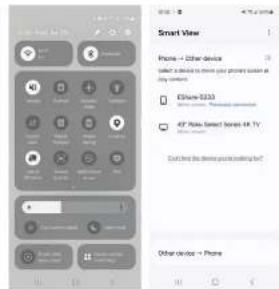
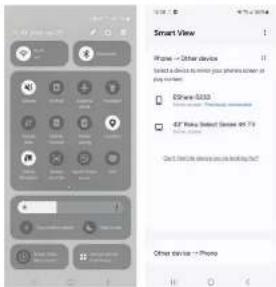
  4. Open the screen mirroring (cast) function from your phone's control center. Select the projector device name from the list—look for the name displayed as "Share EShare-XXXX"—to start mirroring successfully.
ULTIMEA Poseidon E100 - Method 1: - 1

text_image 09:47 Settings Google TV FileManager MultiMediaPlus WPS Projector

ULTIMEA Poseidon E100 - Method 1: - 2

text_image Get Started Now 1 Open your EShare app 2 Select EShare-2126 EShare devices are connected to the same network. Copyright carrier: http://eames, baffie or other steering services (ORFS) is impacted by copyright applications.

ULTIMEA Poseidon E100 - Method 1: - 3

text_image Smart View Phone → Other devices Select a device to choose your project screen at any location. EStream S233 47" Rate Select Series 6K TV Get find the device you're looking up? Other devices → Phone

Method 2:

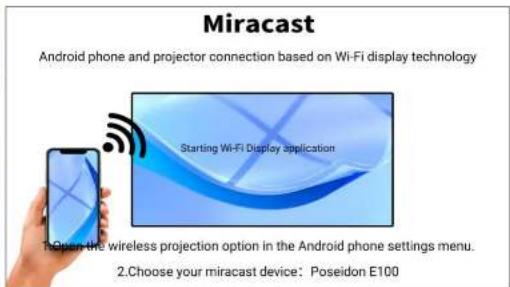
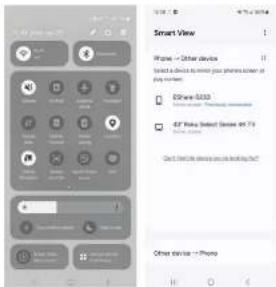
Phones with multi-screen interaction capability can connect via built-in Miracast.

  1. Ensure both the projector and the Android phone have Wi-Fi turned on.
  2. Press the up button on the remote control to bring up the hidden menu. Select and open Miracast to enter the Miracast interface.
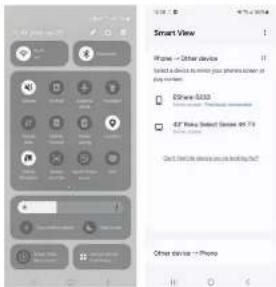
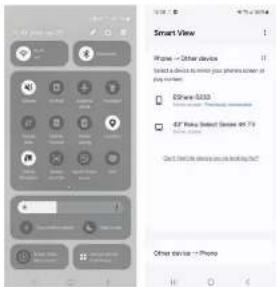
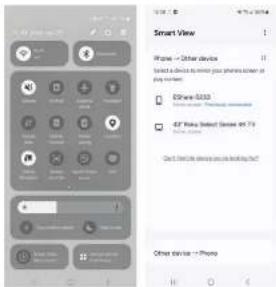
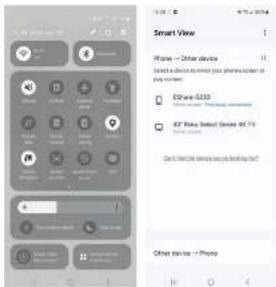
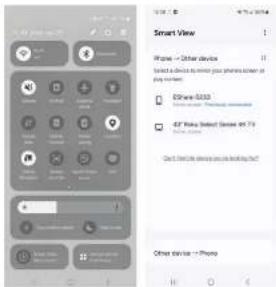
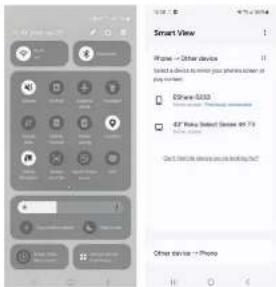
  3. On your Android phone, go to Settings > Screen Mirroring / Cast. The phone will automatically search for available devices and display the projector's name.
  4. Tap the detected device name and wait a few seconds to complete the screen mirroring connection.
ULTIMEA Poseidon E100 - Method 2: - 1

text_image 0 9 : 4 7 Settings Google TV FileManager MultiMediaPlay WPS Projector

ULTIMEA Poseidon E100 - Method 2: - 2

text_image Miracast Android phone and projector connection based on Wi-Fi display technology Starting Wi-Fi Display application 1. Open the wireless projection option in the Android phone settings menu. 2. Choose your miracast device: Poseidon E100

ULTIMEA Poseidon E100 - Method 2: - 3

text_image Smart View IFuse → Other devices Select a device to enter your phones screen or play them. EFSView-SSS3 EFS View Select Server 47.1 Can't find the device you're looking at? Other devices → Phoco

ULTIMEA Poseidon E100 - Method 2: - 4

9. Wired Screen Mirroring via Data Cable

ULTIMEA Poseidon E100 - Wired Screen Mirroring via Data Cable - 1

Android:

  1. When prompted on your Android device, install the required app and open it.
  2. Connect your Android device to the projector using a USB cable to activate screen mirroring.

iOS:

  1. Use the original iPhone charging cable to connect your iOS device to the projector (one end with a USB connector, the other with a Lightning connector).
  2. When a pop-up appears on the iPhone, tap "Trust", then enter your device passcode.

10. Projection Settings

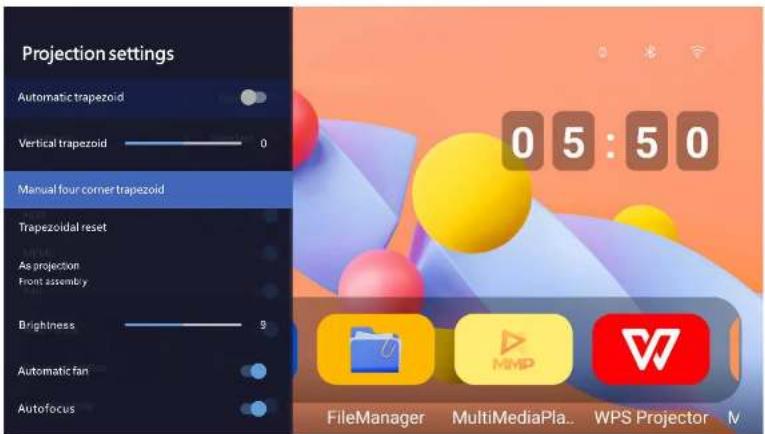
You can customize various projection parameters based on your usage scenario and installation environment. Access these settings from:

Home Screen > Settings > Projection Settting

Available projection options: Projection Mode, Keystone Correction, Focus Adjustment, Digital Zoom, Aspect Ratio

Tip: For best results, place the projector directly in front of the screen at the correct height, and use keystone only for minor corrections.

ULTIMEA Poseidon E100 - Projection Settings - 1

ULTIMEA Poseidon E100 - Projection Settings - 2

text_image Projection settings Automatic trapezoid Vertical trapezoid 0 Manual four corner trapezoid Trapezoidal reset As projection Front assembly Brightness 9 Automatic fan Autofocus 0 5 : 5 0 FileManager MultiMediaPla.. WPS Projector N

11. Troubleshooting

If you encounter issues while using the projector, refer to the following common problems and solutions:

Issue Possible Cause Suggested Solution

No image displayedIncorrect input source Check HDMI/Input Source settings
No soundVolume muted or lowIncrease volume or unmute via remote
Cannot pair remoteNot in pairing mode or battery lowFollow pairing instructions and replace batteries if needed
Google TV not respondingNetwork or system errorRestart the device and reconnect to Wi-Fi
Screen mirroring failsDevice not compatible or not on same networkConfirm device support and Wi-Fi connection
Blurry imageFocus not adjustedUse focus adjustment dial or settings

EN

12. Frequently Asked Questions (FAQ)

Q1: How do I update the system software?

A: Go to Settings > About > System Update. Ensure your device is connected to the internet.

Q2: Why are some remote buttons not working?

A: Some buttons only function in Google TV mode, such as YouTube, Prime Video, and Google Assistant.

Q3: Can I use Bluetooth speakers or headphones?

A: Yes. Navigate to Settings > Bluetooth, search and pair with your Bluetooth audio device.

Q4: How do I reset the projector to factory settings?

A: Go to Settings > Device Preferences > Reset and follow the on-screen instructions.

natural_image Black rectangular projector with a camera lens and visible brand logo (no text or symbols on body)

ULTIMEA Poseidon E100 - Frequently Asked Questions (FAQ) - 1

Fernbedienung

ULTIMEA Poseidon E100 - Fernbedienung - 1

Tastenanleitung
ULTIMEA Poseidon E100 - Fernbedienung - 2

natural_image Hand holding a smartphone with a circular screen, against a black background (no text or symbols visible)
ULTIMEA Poseidon E100 - Fernbedienung - 3

natural_image Simple grayscale illustration of a remote device with circular control circles and two connected buttons (no text or symbols)
ULTIMEA Poseidon E100 - Fernbedienung - 4

natural_image Green checkmark inside a circle on black background (no text or symbols)
text_image Welcome Refresh Service Status Add News Remove Edit Save Finish Exit

ULTIMEA Poseidon E100 - Fernbedienung - 5

text_image Select your region or country

ULTIMEA Poseidon E100 - Fernbedienung - 6

ULTIMEA Poseidon E100 - Fernbedienung - 7

ULTIMEA Poseidon E100 - Fernbedienung - 8

text_image Home Apps Library Google TV Your apps NETFLIX prime video Disney+ hulu tubi YouTube TV F 6 Continue watching TERNAULT LINCOLN LAWYER 8K Prime Video ACADEMY COUNTRY MUSIC AWARDS 60
text_image Remote control interface with icons for settings, navigation, and media control buttons

ULTIMEA Poseidon E100 - Fernbedienung - 9

text_image Home Apps Library Google TV Your app NETFLIX prime video Disney+ hulu cube YouTube TV F 6 Continue watching Terna! LINCOLN LAWYER HDU Prime Video Academy COUNTRY MUSIC AWARDS 60
text_image Tuesday 025-06-17 09:49 Settings Google TV FileManager MediaPlayer WPS Projector
text_image Delete Google TV HDMI Settings Google TV FileManager MultiMediaPlay WPS Projector N

ULTIMEA Poseidon E100 - Fernbedienung - 10

text_image Front view of a remote control with app icons and brand logos including YouTube, Netflix, Disney+, and others.

7. Oben Shortcut-Menü

ULTIMEA Poseidon E100 - Oben Shortcut-Menü - 1

text_image Network & Internet 0 5 4 9 FileManager MultiMediaPlus WPS Projector V Settings Tongge TV FileManager MultiMediaPlus WPS Projector L 0 9 4 7 Where: App Meeting Get Started Now ① Open your iPhone app ② Save the iPhone Wi-Fi 确定 if any options are available.

ULTIMEA Poseidon E100 - Oben Shortcut-Menü - 2

text_image 09:47 Settings Google TV FileManager MultiMediaPlus WPS Projector

ULTIMEA Poseidon E100 - Oben Shortcut-Menü - 3

text_image EShare - Happy Growing Life Get Started Now ① Open your EShare app ② Select EShare-2126 © Eshare of devices are connected to the same network. Copyright carrier: http://eamesy.berle.com/other/eastern services (OR) is impacted by copyright applications.

ULTIMEA Poseidon E100 - Oben Shortcut-Menü - 4

text_image Smart View Phone → Other devices Select a device to store your project screen at any content. EStream-5233 47 Rate Select Series 48 TV Get tired the device you're looking up? Other devices → Phone

Methode 2:

text_image Miracast Android phone and projector connection based on Wi-Fi display technology Starting Wi-Fi Display application 1. Open the wireless projection option in the Android phone settings menu. 2. Choose your miracast device: Poseidon E100

ULTIMEA Poseidon E100 - Methode 2: - 1

text_image Smart View IFuse → Other devices Select a device to enter your phones screen or play them. EFSView-SSS3 EFS View Select Server 47.1 Can't find the device you're looking at? Other devices → Phoco

ULTIMEA Poseidon E100 - Methode 2: - 2

text_image Projection settings Automatic trapezoid Vertical trapezoid 0 Manual four corner trapezoid Trapezoidal reset As projection Front assembly Brightness 9 Automatic fan Autofocus 0 5 : 5 0 FileManager MultiMediaPla.. WPS Projector N

ULTIMEA Poseidon E100 - Methode 2: - 3

11. Fehlerbehebung

ULTIMEA Poseidon E100 - Fehlerbehebung - 1

natural_image Black rectangular projector with a camera lens and visible brand logo (no text or symbols on body)

ULTIMEA Poseidon E100 - Fehlerbehebung - 2

Télécommande

FR

natural_image Hand holding a smartphone with a circular screen, displayed against a black background (no text or symbols visible)

ULTIMEA Poseidon E100 - Télécommande - 1

natural_image Simple grayscale icon of a remote control with circular arrows and a lock, set against a black background (no text or symbols)
ULTIMEA Poseidon E100 - Télécommande - 2

natural_image Green checkmark inside a circle on black background (no text or symbols)
3. Configuration de Google TV

ULTIMEA Poseidon E100 - Configuration de Google TV - 1

text_image Welcome Refresh Screen Options Add News Remove Delete Save Finish Refresh

ULTIMEA Poseidon E100 - Configuration de Google TV - 2

text_image Select your region or country

ULTIMEA Poseidon E100 - Configuration de Google TV - 3

ULTIMEA Poseidon E100 - Configuration de Google TV - 4

ULTIMEA Poseidon E100 - Configuration de Google TV - 5

3. Configuration de Google TV

text_image Home Apps Library Google TV Your apps NETFLIX prime video Disney+ hulu tubi YouTube TV F 6 Continue watching TERNAULT LINCOLN LAWYER 8K Prime Video ACADEMY COUNTRY MUSIC AWARDS 60

ULTIMEA Poseidon E100 - Configuration de Google TV - 1

text_image Remote control interface with icons for settings, navigation, and media control buttons

ULTIMEA Poseidon E100 - Configuration de Google TV - 2

text_image Home Apps Library Google TV Your app NETFLIX prime video Disney+ hulu cube YouTube TV F 6 Continue watching Terna! LINCOLN LAWYER HDU 8K Prime Video GARLE SAUTS Academy COUNTRY MUSIC AWARDS 60
text_image Tuesday 025-06-17 09:49 Settings Google TV FileManager MediaPlayer WPS Projector
text_image Delete Google TV HDMI Settings Google TV FileManager MultiMediaPlay WPS Projector N

ULTIMEA Poseidon E100 - Configuration de Google TV - 3

text_image Front view of a remote control with app icons and brand logos including YouTube, Netflix, Disney+, and others.
text_image Network & Internet 0 5 4 9 FileManager MultiMediaPlus WPS Projector V Settings Tongge TV FileManager MultiMediaPlus WPS Projector L 0 9 4 7 Where: App Meeting Get Started Now ① Open your iPhone app ② Save it from this PC 确定 if any options are selected to show.

ULTIMEA Poseidon E100 - Configuration de Google TV - 4

text_image Get Started Now 1 Open your EShare app 2 Select EShare-2126 EShare devices are connected to the same network. Copyright carrier: http://eames, baffie or other steering services (ORFS) is impacted by copyright applications.

ULTIMEA Poseidon E100 - Configuration de Google TV - 5

text_image Smart View Phone → Other devices Select a device to choose your project screen at any location. EStream S233 47" Rate Select Series 6K TV Get find the device you're looking up? Other devices → Phone

Methode 2:

text_image Miracast Android phone and projector connection based on Wi-Fi display technology Starting Wi-Fi Display application 1. Open the wireless projection option in the Android phone settings menu. 2. Choose your miracast device: Poseidon E100

ULTIMEA Poseidon E100 - Methode 2: - 1

text_image Smart View IFuse → Other devices Select a device to enter your phones screen or play them. EFSView-SSS3 EFS View Select Server 47.1 Can't find the device you're looking at? Other devices → Phoco

ULTIMEA Poseidon E100 - Methode 2: - 2

text_image Projection settings Automatic trapezoid Vertical trapezoid 0 Manual four corner trapezoid Trapezoidal reset As projection Front assembly Brightness 9 Automatic fan Autofocus 0 5 : 5 0 FileManager MultiMediaPla... WPS Projector M

ULTIMEA Poseidon E100 - Methode 2: - 3

11. Dépannage

ULTIMEA Poseidon E100 - Dépannage - 1

natural_image Black rectangular projector with a camera lens and visible brand logo (no text or symbols on body)

ULTIMEA Poseidon E100 - Dépannage - 2

Control remoto

text_image Smart projector

ULTIMEA Poseidon E100 - Control remoto - 1

text_image Remote control interface with icons for user profile, navigation, and streaming services including YouTube, Netflix, Disney, and others.
natural_image Hand holding a remote control device against a black background (no text or symbols visible)

ULTIMEA Poseidon E100 - Control remoto - 2

natural_image Simple grayscale icon of a remote control with circular arrows and a lock, set against a black background (no text or symbols)
ULTIMEA Poseidon E100 - Control remoto - 3

natural_image Green checkmark inside a circle on black background (no text or symbols)
text_image Welcome Refresh Screen Options Add News Remove Delete Save Finish Refresh

ULTIMEA Poseidon E100 - Control remoto - 4

text_image Select your region or country

ULTIMEA Poseidon E100 - Control remoto - 5

ULTIMEA Poseidon E100 - Control remoto - 6

ULTIMEA Poseidon E100 - Control remoto - 7

text_image Home Apps Library Google TV Your apps NETFLIX prime video Disney Hulu cube YouTube TV F 6 Continue watching TERNAULT LINCOLN LAWYER 8K Prime Video ACADEMY COUNTRY MUSIC AWARDS 60

ULTIMEA Poseidon E100 - Control remoto - 8

4. Funciones Principales del Control Remoto (solo para Google TV)

ULTIMEA Poseidon E100 - Funciones Principales del Control Remoto (solo para Google TV) - 1

text_image Remote control interface with icons for settings, navigation, and media control buttons

ULTIMEA Poseidon E100 - Funciones Principales del Control Remoto (solo para Google TV) - 2

text_image Home Apps Library Google TV Your app NETFLIX prime video Disney+ hulu cube YouTube TV F 6 Continue watching Terna! LINCOLN LAWYER HDU Prime Video Academy COUNTRY MUSIC AWARDS 60
text_image Tuesday 025-06-17 09:49 Settings Google TV FileManager MediaPlayer WPS Projector

6. Acceder a Google TV

ULTIMEA Poseidon E100 - Acceder a Google TV - 1

text_image Delete Google TV HDMI Settings Google TV FileManager MultiMediaPlay WPS Projector N

ULTIMEA Poseidon E100 - Acceder a Google TV - 2

text_image Front view of a remote control with app icons and brand logos including YouTube, Netflix, Disney+, and others.
text_image Network & Internet 05:49 FileManager MultiMediaPlus WPS Projector V Settings Tongge TV FileManager MultiMediaPlus WPS Projector L 09:47 Get Started Now ① Open your iPhone app ② Save the iPhone 12 确定 if any options are available.

ULTIMEA Poseidon E100 - Acceder a Google TV - 3

text_image Get Started Now 1 Open your EShare app 2 Select EShare-2126 EShare devices are connected to the same network. Copyright carrier: http://eames, baffie or other steering services (ORFS) is impacted by copyright applications.

ULTIMEA Poseidon E100 - Acceder a Google TV - 4

text_image Smart View Phone → Other devices Select a device to choose your project screen at any location. EStream S233 47" Rate Select Series 6K TV Get find the device you're looking up? Other devices → Phone

Método 2:

text_image Miracast Android phone and projector connection based on Wi-Fi display technology Starting Wi-Fi Display application 1.Open the wireless projection option in the Android phone settings menu. 2.Choose your miracast device: Poseidon E100

ULTIMEA Poseidon E100 - Método 2: - 1

text_image Smart View iPhone → Other devices Select devices to insert your phones screen at play numbers IDEView 5333 ICE Phone Select Server 679 Can't Find it before you're looking up? Other devices → Provo

ULTIMEA Poseidon E100 - Método 2: - 2

text_image Projection settings Automatic trapezoid Vertical trapezoid 0 Manual four corner trapezoid Trapezoidal reset As projection Front assembly Brightness 9 Automatic fan Autofocus 0 5 : 5 0 FileManager MultiMediaPla... WPS Projector M

ULTIMEA Poseidon E100 - Método 2: - 3

natural_image Black rectangular projector with a camera lens and visible brand logo (no text or symbols on body)

IT

Telecomando

text_image Smart projector

ULTIMEA Poseidon E100 - Telecomando - 1

text_image Remote control interface with icons for user profile, navigation, and streaming services including YouTube, Netflix, Disney, and others.
natural_image Hand holding a smartphone with a circular screen, displayed against a black background (no text or symbols visible)
ULTIMEA Poseidon E100 - Telecomando - 2

natural_image Simple grayscale icon of a remote control with circular arrows and a lock, set against a black background (no text or symbols)
ULTIMEA Poseidon E100 - Telecomando - 3

natural_image Green checkmark inside a circle on black background (no text or symbols)
text_image Welcome Refresh Screen Options Add News Remove Delete Save Finish Refresh

ULTIMEA Poseidon E100 - Telecomando - 4

text_image Select your region or country

ULTIMEA Poseidon E100 - Telecomando - 5

ULTIMEA Poseidon E100 - Telecomando - 6

ULTIMEA Poseidon E100 - Telecomando - 7

text_image Home Apps Library Google TV Your apps NETFLIX prime video Disney+ hulu tubi YouTube TV F 6 Continue watching TERNAULT LINCOLN LAWYER 8K Prime Video ACADEMY COUNTRY MUSIC AWARDS 60

ULTIMEA Poseidon E100 - Telecomando - 8

text_image Remote control interface with icons for settings, navigation, and media control buttons

ULTIMEA Poseidon E100 - Telecomando - 9

text_image Home Apps Library Google TV Your app NETFLIX prime video Disney+ hulu cube YouTube TV F 6 Continue watching Terna! LINCOLN LAWYER HDU Prime Video Academy COUNTRY MUSIC AWARDS 60

5. Interfaccia Home del Sistema Android

ULTIMEA Poseidon E100 - Interfaccia Home del Sistema Android - 1

text_image Tuesday 025-06-17 09:49 Settings Google TV FileManager MediaPlayer WPS Projector

6. Accedere a Google TV

ULTIMEA Poseidon E100 - Accedere a Google TV - 1

text_image Delete Google TV HDMI Settings Google TV FileManager MultiMediaPlay WPS Projector N

ULTIMEA Poseidon E100 - Accedere a Google TV - 2

text_image Front view of a remote control with app icons and brand logos including YouTube, Netflix, Disney+, and others.

7. Menu Scorciatoie Superiore

ULTIMEA Poseidon E100 - Menu Scorciatoie Superiore - 1

Mirroring schermo wireless (iPhone)

text_image Network & Internet 0 5 4 9 FileManager MultiMediaPlus WPS Projector V Settings Tongge TV FileManager MultiMediaPlus WPS Projector L 0 9 4 7 Where: App Meeting Get Started Now ① Open your iPhone app ② Save the iPhone Wi-Fi 确定 if any options are available.

ULTIMEA Poseidon E100 - Mirroring schermo wireless (iPhone) - 1

text_image Get Started Now 1 Open your EShare app 2 Select EShare-2126 EShare devices are connected to the same network. Copyright carrier: http://eames, baffie or other steering services (ORFS) is impacted by copyright applications.

ULTIMEA Poseidon E100 - Mirroring schermo wireless (iPhone) - 2

text_image Smart View Phone → Other devices Select a device to choose your project screen at any location. EStream S233 47" Rate Select Series 6K TV Get find the device you're looking up? Other devices → Phone

Metodo 2:

text_image Miracast Android phone and projector connection based on Wi-Fi display technology Starting Wi-Fi Display application 1.Open the wireless projection option in the Android phone settings menu. 2.Choose your miracast device: Poseidon E100

ULTIMEA Poseidon E100 - Metodo 2: - 1

text_image Smart View IFuse → Other devices Select a device to enter your phones screen or play them. EFSView-SSS3 EFS View Select Server 47.1 Can't find the device you're looking at? Other devices → Phoco

IT

text_image Projection settings Automatic trapezoid Vertical trapezoid 0 Manual four corner trapezoid Trapezoidal reset As projection Front assembly Brightness 9 Automatic fan Autofocus 0 5 : 5 0 FileManager MultiMediaPla... WPS Projector M

IT

natural_image Black rectangular projector with a camera lens and visible brand logo (no text or symbols on body)

PT

Controle remoto

text_image Smart projector

ULTIMEA Poseidon E100 - Controle remoto - 1

text_image Remote control interface with icons for user profile, navigation, and streaming services including YouTube, Netflix, Disney, and others.

2. Emparelhamento do Controle Remoto

PT

natural_image Hand holding a smartphone with a circular screen, displayed against a black background (no text or symbols visible)
ULTIMEA Poseidon E100 - Emparelhamento do Controle Remoto - 1

natural_image Simple grayscale icon of a remote control with circular arrows and a lock, set against a black background (no text or symbols)
ULTIMEA Poseidon E100 - Emparelhamento do Controle Remoto - 2

natural_image Green checkmark inside a circle on black background (no text or symbols)
text_image Welcome Refresh Screen Options Add News Remove Delete Save Finish Refresh

ULTIMEA Poseidon E100 - Emparelhamento do Controle Remoto - 3

text_image Select your region or country

ULTIMEA Poseidon E100 - Emparelhamento do Controle Remoto - 4

ULTIMEA Poseidon E100 - Emparelhamento do Controle Remoto - 5

ULTIMEA Poseidon E100 - Emparelhamento do Controle Remoto - 6

text_image Home Apps Library Google TV Your apps NETFLIX prime video Disney+ hulu tubi YouTube TV F 6 Continue watching TERNAULT LINCOLN LAWYER 8K Prime Video ACADEMY COUNTRY MUSIC AWARDS 60

ULTIMEA Poseidon E100 - Emparelhamento do Controle Remoto - 7

text_image Remote control interface with icons for settings, navigation, and media control buttons

ULTIMEA Poseidon E100 - Emparelhamento do Controle Remoto - 8

text_image Home Apps Library Google TV Your app NETFLIX prime video Disney+ hulu cube YouTube TV F 6 Continue watching Terna! LINCOLN LAWYER HDU Prime Video Academy COUNTRY MUSIC AWARDS 60

5. Interface Principal do Sistema Android

ULTIMEA Poseidon E100 - Interface Principal do Sistema Android - 1

text_image Tuesday 025-06-17 09:49 Settings Google TV FileManager MediaPlayer WPS Projector

6. Acessar o Google TV

ULTIMEA Poseidon E100 - Acessar o Google TV - 1

text_image Delete Google TV HDMI Settings Google TV FileManager MultiMediaPlay WPS Projector N

ULTIMEA Poseidon E100 - Acessar o Google TV - 2

text_image Front view of a remote control with app icons and brand logos including YouTube, Netflix, Disney+, and others.
text_image Network & Internet 0 5 4 9 FileManager MultiMediaPlus WPS Projector V Settings Tongge TV FileManager MultiMediaPlus WPS Projector L 0 9 4 7 Where: App Meeting Get Started Now ① Open your iPhone app ② Save the iPhone Wi-Fi 确定 if any options are available.

Espelhamento de tela sem fio (telefone Android)

Método 1:

text_image Miracast Android phone and projector connection based on Wi-Fi display technology Starting Wi-Fi Display application 1. Open the wireless projection option in the Android phone settings menu. 2. Choose your miracast device: Poseidon E100

ULTIMEA Poseidon E100 - Método 1: - 1

text_image Smart View IFuse → Other devices Select a device to enter your phones screen or play them. EFSView-SSS3 EFS View Select Server 47.1 Can't find the device you're looking at? Other devices → Phoco

ULTIMEA Poseidon E100 - Método 1: - 2

9. Espelhamento de Tela com Cabo de Dados

ULTIMEA Poseidon E100 - Espelhamento de Tela com Cabo de Dados - 1

Android:

text_image Projection settings Automatic trapezoid Vertical trapezoid 0 Manual four corner trapezoid Trapezoidal reset As projection Front assembly Brightness 9 Automatic fan Autofocus 0 5 : 5 0 FileManager MultiMediaPla... WPS Projector M

ULTIMEA Poseidon E100 - Android: - 1

natural_image Black rectangular projector with a camera lens and visible brand logo (no text or symbols on body)

NL

Afstandsbediening

Knopinstructies

ULTIMEA Poseidon E100 - Afstandsbediening - 1

text_image Aan/uit-knop Broninveah Google-accountbeheer OK Links Startpagina Terug Volume+ Volume- YouTube Prime video Spraktoets GTV-instellingen Omhoog Rechts Omlaag Projectorinstellingen Dempen Focus+ Focus- NETFLIX Disney+ Menu
text_image Smart projector

ULTIMEA Poseidon E100 - Afstandsbediening - 2

text_image Remote control interface with icons for user profile, navigation, and streaming services including YouTube, Netflix, Disney, and others.

2. Koppelen van de Afstandsbediening

NL

natural_image Hand holding a smartphone with a circular screen, against a black background (no text or symbols visible)

ULTIMEA Poseidon E100 - Koppelen van de Afstandsbediening - 1

natural_image Simple grayscale illustration of a remote device with circular control circles and two connected buttons (no text or symbols)

ULTIMEA Poseidon E100 - Koppelen van de Afstandsbediening - 2

natural_image Green checkmark inside a circle on black background (no text or symbols)
3. Google TV Instellingen

ULTIMEA Poseidon E100 - Google TV Instellingen - 1

text_image Welcome Refresh Screen Options Add News Remove Delete Save Finish Refresh

ULTIMEA Poseidon E100 - Google TV Instellingen - 2

text_image Select your region or country

ULTIMEA Poseidon E100 - Google TV Instellingen - 3

ULTIMEA Poseidon E100 - Google TV Instellingen - 4

ULTIMEA Poseidon E100 - Google TV Instellingen - 5

3. Google TV Instellingen

text_image Home Apps Library Google TV Your apps NETFLIX prime video Disney+ hulu tubi YouTube TV F 6 Continue watching TERNAULT LINCOLN LAWYER 8K Prime Video ACADEMY COUNTRY MUSIC AWARDS 60

ULTIMEA Poseidon E100 - Google TV Instellingen - 1

text_image Remote control interface with icons for settings, navigation, and media control buttons

ULTIMEA Poseidon E100 - Google TV Instellingen - 2

text_image Home Apps Library Google TV Your app NETFLIX prime video Disney+ hulu cube YouTube TV F 6 Continue watching Terna! LINCOLN LAWYER HDU Prime Video Academy COUNTRY MUSIC AWARDS 60

5. Android Systemstartscherm

ULTIMEA Poseidon E100 - Android Systemstartscherm - 1

text_image Tuesday 025-06-17 09:49 Settings Google TV FileManager MediaPlayer WPS Projector

6. Google TV openen

ULTIMEA Poseidon E100 - Google TV openen - 1

text_image Front view of a remote control with app icons and brand logos including YouTube, Netflix, Disney+, and others.

7. Bovenste Snelmenu

ULTIMEA Poseidon E100 - Bovenste Snelmenu - 1

text_image Network & Internet 0 5 4 9 FileManager MultiMediaPlus WPS Projector V Settings Tongge TV FileManager MultiMediaPlus WPS Projector L 0 9 4 7 Where: App Meeting Get Started Now ① Open your iPhone app ② Save the iPhone Wi-Fi 确定 if any options are available.

ULTIMEA Poseidon E100 - Bovenste Snelmenu - 2

Draadloos scherm spiegelen (Android-telefoon)

ULTIMEA Poseidon E100 - Draadloos scherm spiegelen (Android-telefoon) - 1

Methode 1:

text_image Get Started Now 1 Open your EShare app 2 Select EShare-2126 EShare devices are connected to the same network. Copyright carrier: http://eames, baffie or other steering services (ORFS) is impacted by copyright applications.

ULTIMEA Poseidon E100 - Methode 1: - 1

text_image Smart View Phone → Other devices Select a device to choose your project screen at any location. EStream S233 47" Rate Select Series 6K TV Get find the device you're looking up? Other devices → Phone

Methode 2:

text_image Miracast Android phone and projector connection based on Wi-Fi display technology Starting Wi-Fi Display application 1.Open the wireless projection option in the Android phone settings menu. 2.Choose your miracast device: Poseidon E100

ULTIMEA Poseidon E100 - Methode 2: - 1

text_image Smart View IFuse → Other devices Select a device to enter your phones screen or play them. EFSView-SSS3 EFS View Select Server 47.1 Can't find the device you're looking at? Other devices → Phoco

NL

9. Bekabelde schermspiegeling via USB-kabel

ULTIMEA Poseidon E100 - Bekabelde schermspiegeling via USB-kabel - 1

Android:

text_image Projection settings Automatic trapezoid Vertical trapezoid 0 Manual four corner trapezoid Trapezoidal reset As projection Front assembly Brightness 9 Automatic fan Autofocus 0 5 : 5 0 FileManager MultiMediaPla.. WPS Projector N

NL

11. Problemen Oplossen

ULTIMEA Poseidon E100 - Problemen Oplossen - 1

natural_image Black rectangular projector with a camera lens and visible brand logo (no text or symbols on body)

PL

Pilot

text_image Smart projector

ULTIMEA Poseidon E100 - Pilot - 1

text_image YouTube Netflix Disney~

2. Parowanie pilota

PL

natural_image Hand holding a smartphone with a circular screen, against a black background (no text or symbols visible)

ULTIMEA Poseidon E100 - Parowanie pilota - 1

natural_image Simple grayscale illustration of a remote device with circular control arcs and a play button (no text or symbols)

ULTIMEA Poseidon E100 - Parowanie pilota - 2

natural_image Green checkmark inside a circle on black background (no text or symbols)
text_image Welcome Refresh Screen Options Add News Remove Delete Save Finish Refresh

ULTIMEA Poseidon E100 - Parowanie pilota - 3

text_image Select your region or country

ULTIMEA Poseidon E100 - Parowanie pilota - 4

ULTIMEA Poseidon E100 - Parowanie pilota - 5

ULTIMEA Poseidon E100 - Parowanie pilota - 6

text_image Home Apps Library Google TV Your apps NETFLIX prime video Disney+ hulu tubi YouTube TV F 6 Continue watching TERNAULT LINCOLN LAWYER 8K Prime Video ACADEMY COUNTRY MUSIC AWARDS 60

ULTIMEA Poseidon E100 - Parowanie pilota - 7

text_image Remote control interface with icons for settings, navigation, and media control buttons

ULTIMEA Poseidon E100 - Parowanie pilota - 8

text_image Home Apps Library Google TV Your app NETFLIX prime video Disney+ hulu cube YouTube TV F 6 Continue watching Terna! LINCOLN LAWYER HDU Prime Video Academy COUNTRY MUSIC AWARDS 60
text_image Tuesday 025-06-17 09:49 Settings Google TV FileManager MediaPlayer WPS Projector
text_image Delete Google TV HDMI Settings Google TV FileManager MultiMediaPlay WPS Projector N

ULTIMEA Poseidon E100 - Parowanie pilota - 9

text_image Front view of a remote control with app icons and brand logos including YouTube, Netflix, Disney+, and others.
text_image Network & Internet 0 5 4 9 FileManager MultiMediaPlus WPS Projector V Settings Tongge TV FileManager MultiMediaPlus WPS Projector L 0 9 4 7 Where: App Meeting Get Started Now ① Open your iPhone app ② Save the iPhone Wi-Fi 确定 if any options are available.
text_image 09:47 Settings Google TV FileManager MultiMediaPlus WPS Projector

ULTIMEA Poseidon E100 - Parowanie pilota - 10

text_image EShare - Happy Growing Life Get Started Now ① Open your EShare app ② Select EShare-2126 © Eshare of devices are connected to the same network. Copyright carrier: http://eamesy.berle.com/other/eastern services (ORIS) is impacted by copyright applications.

ULTIMEA Poseidon E100 - Parowanie pilota - 11

text_image Smart View Phone → Other devices Select a device to store your project screen at any content. EStream-5233 47 Rate Select Series 48 TV Get tired the device you're looking up? Other devices → Phone

Metoda 2:

text_image Miracast Android phone and projector connection based on Wi-Fi display technology Starting Wi-Fi Display application 1. Open the wireless projection option in the Android phone settings menu. 2. Choose your miracast device: Poseidon E100

ULTIMEA Poseidon E100 - Metoda 2: - 1

text_image Smart View IFuse → Other devices Select a device to enter your phones screen or play them. EFSView-SSS3 EFS View Select Server 47.1 Can't find the device you're looking at? Other devices → Phoco

ULTIMEA Poseidon E100 - Metoda 2: - 2

text_image Projection settings Automatic trapezoid Vertical trapezoid 0 Manual four corner trapezoid Trapezoidal reset As projection Front assembly Brightness 9 Automatic fan Autofocus 0 5 : 5 0 FileManager MultiMediaPla... WPS Projector M

PL

natural_image Black rectangular projector with a camera lens and visible brand logo (no text or symbols on body)

SV

Fjärrkontroll

Knappinstruktioner

ULTIMEA Poseidon E100 - Fjärrkontroll - 1

text_image Smart projector

ULTIMEA Poseidon E100 - Fjärrkontroll - 2

text_image Remote control interface with icons for user profile, navigation, and streaming services including YouTube, Netflix, Disney, and others.
natural_image Hand holding a smartphone with a circular button, against a black background (no text or symbols visible)

ULTIMEA Poseidon E100 - Fjärrkontroll - 3

natural_image Simple grayscale illustration of a remote control with circular arrows and a play button (no text or symbols)

ULTIMEA Poseidon E100 - Fjärrkontroll - 4

natural_image A green circular checkmark symbol on a black background, no text or labels present.

3. Google TV-installation

ULTIMEA Poseidon E100 - Google TV-installation - 1

text_image Welcome English News News Add News Send Finish Send Finish

ULTIMEA Poseidon E100 - Google TV-installation - 2

text_image Select your region or country

ULTIMEA Poseidon E100 - Google TV-installation - 3

ULTIMEA Poseidon E100 - Google TV-installation - 4

ULTIMEA Poseidon E100 - Google TV-installation - 5

3. Google TV-installation

text_image Home Apps Library Google TV Your apps NETFLIX prime video Disney Hulu cube YouTube TV F 6 Continue watching TERNAULT LINCOLN LAWYER 8K Prime Video ACADEMY COUNTRY MUSIC AWARDS 60

ULTIMEA Poseidon E100 - Google TV-installation - 1

text_image Remote control interface with icons for settings, navigation, and media control buttons

ULTIMEA Poseidon E100 - Google TV-installation - 2

text_image Home Apps Library Google TV Your app NETFLIX prime video Disney+ hulu cube YouTube TV F 6 Continue watching Terna! LINCOLN LAWYER HDU Prime Video Academy COUNTRY MUSIC AWARDS 60

5. Android-systemets hemskärm

ULTIMEA Poseidon E100 - Android-systemets hemskärm - 1

text_image Tuesday 025-06-17 09:49 Settings Google TV FileManager MediaPlayer WPS Projector
text_image Delete Google TV HDMI Settings Google TV FileManager MultiMediaPlay WPS Projector N

ULTIMEA Poseidon E100 - Android-systemets hemskärm - 2

text_image Front view of a remote control with app icons and brand logos including YouTube, Netflix, Disney+, and others.

7. Snabbmeny

ULTIMEA Poseidon E100 - Snabbmeny - 1

text_image EShare - Happy Growing Life Get Started Now ① Open your EShare app ② Select EShare-2126 © Eshare of devices are connected to the same network. Copyright carrier: http://eamesy.berle.com/other/eastern services (ORIS) is impacted by copyright applications.

ULTIMEA Poseidon E100 - Snabbmeny - 2

text_image Smart View Phone → Other devices Select a device to store your project screen at any content. EStream-5233 47 Rate Select Series 48 TV Get tired the device you're looking up? Other devices → Phone

Metod 2:

text_image Miracast Android phone and projector connection based on Wi-Fi display technology Starting Wi-Fi Display application 1. Open the wireless projection option in the Android phone settings menu. 2. Choose your miracast device: Poseidon E100

ULTIMEA Poseidon E100 - Metod 2: - 1

text_image Smart View IFuse → Other devices Select a device to enter your phones screen or play them. EFSView-SSS3 EFS View Select Server 47.1 Can't find the device you're looking at? Other devices → Phoco

ULTIMEA Poseidon E100 - Metod 2: - 2

9. Trådbunden skärmspegling via datakabel

ULTIMEA Poseidon E100 - Trådbunden skärmspegling via datakabel - 1

Android:

text_image Projection settings Automatic trapezoid Vertical trapezoid 0 Manual four corner trapezoid Trapezoidal reset As projection Front assembly Brightness 9 Automatic fan Autofocus 0 5 : 5 0 FileManager MultiMediaPla... WPS Projector M

11. Felsökning

SV

natural_image Black rectangular projector with a camera lens and visible brand logo (no text or symbols on body)

TR

Uzaktan Kumanda

Tuş Talimatları

ULTIMEA Poseidon E100 - Uzaktan Kumanda - 1

text_image Smart projector

ULTIMEA Poseidon E100 - Uzaktan Kumanda - 2

text_image Remote control interface with icons for user profile, navigation, and streaming services including YouTube, Netflix, Disney, and others.
natural_image Hand holding a smartphone with a circular screen, displayed against a black background (no text or symbols visible)

ULTIMEA Poseidon E100 - Uzaktan Kumanda - 3

natural_image Simple grayscale illustration of a remote device with circular control circles and two connected buttons (no text or symbols)

ULTIMEA Poseidon E100 - Uzaktan Kumanda - 4

natural_image Green checkmark inside a circle on black background (no text or symbols)

3. Google TV Kurulumu

ULTIMEA Poseidon E100 - Google TV Kurulumu - 1

text_image Welcome Refresh Screen Options Add News Remove Delete Save Finish Refresh

ULTIMEA Poseidon E100 - Google TV Kurulumu - 2

text_image Select your region or country

ULTIMEA Poseidon E100 - Google TV Kurulumu - 3

ULTIMEA Poseidon E100 - Google TV Kurulumu - 4

ULTIMEA Poseidon E100 - Google TV Kurulumu - 5

3. Google TV Kurulumu

text_image Home Apps Library Google TV Your apps NETFLIX prime video Disney+ hulu tubi YouTube TV F 6 Continue watching TERNAULT LINCOLN LAWYER 8K Prime Video ACADEMY COUNTRY MUSIC AWARDS 60

ULTIMEA Poseidon E100 - Google TV Kurulumu - 1

text_image Remote control interface with icons for settings, navigation, and media control buttons

ULTIMEA Poseidon E100 - Google TV Kurulumu - 2

text_image Home Apps Library Google TV Your app NETFLIX prime video Disney+ hulu cube YouTube TV F 6 Continue watching Terna! LINCOLN LAWYER HDU Prime Video Academy COUNTRY MUSIC AWARDS 60

5. Android Sistem Ana Arayüzü

ULTIMEA Poseidon E100 - Android Sistem Ana Arayüzü - 1

text_image Tuesday 025-06-17 09:49 Settings Google TV FileManager MediaPlayer WPS Projector

6. Google TV'ye Girin

ULTIMEA Poseidon E100 - Google TV'ye Girin - 1

text_image Delete Google TV HDMI Settings Google TV FileManager MultiMediaPlay WPS Projector N

ULTIMEA Poseidon E100 - Google TV'ye Girin - 2

text_image Front view of a remote control with app icons and brand logos including YouTube, Netflix, Disney+, and others.
text_image Network & Internet 05:49 FileManager MultiMediaPlus WPS Projector V Settings Tongge TV FileManager MultiMediaPlus WPS Projector L 09:47 Get Started Now ① Open your iPhone app ② Save the iPhone 12 确定 if any options are available.
text_image Get Started Now ① Open your EShare app ② Select EShare-2126 © Eshare of devices are connected to the same network. Copyright carrier: http://eamesy.berle.com/other/eating-services/All#t is impacted by copyright applications.

ULTIMEA Poseidon E100 - Google TV'ye Girin - 3

text_image Smart View Phone → Other devices Select a device to store your project screen at any content. EStream-5233 47 Rate Select Series 48 TV Get tired the device you're looking up? Other devices → Phone

Yöntem 2:

text_image Miracast Android phone and projector connection based on Wi-Fi display technology Starting Wi-Fi Display application 1. Open the wireless projection option in the Android phone settings menu. 2. Choose your miracast device: Poseidon E100

ULTIMEA Poseidon E100 - Yöntem 2: - 1

text_image Smart View IFuse → Other devices Select a device to enter your phones screen or play them. EFSView-SSS3 EFS View Select Server 47.1 Can't find the device you're looking at? Other devices → Phoco

ULTIMEA Poseidon E100 - Yöntem 2: - 2

text_image Projection settings Automatic trapezoid Vertical trapezoid 0 Manual four corner trapezoid Trapezoidal reset As projection Front assembly Brightness 9 Automatic fan Autofocus 0 5 : 5 0 FileManager MultiMediaPla... WPS Projector M

TR

11. Sorun Giderme

TR

natural_image Black rectangular projector with a camera lens and visible brand logo (no text or symbols on body)

リモコン

ボタンの説明

ULTIMEA Poseidon E100 - リモコン - 1

text_image Smart projector

ULTIMEA Poseidon E100 - リモコン - 2

text_image Remote control interface with icons for user profile, navigation, and streaming services including YouTube, Netflix, Disney, and others.

2. リモコンのペアリング

JA

ULTIMEA Poseidon E100 - リモコンのペアリング - 1

natural_image Hand holding a smartphone with a circular screen, against a black background (no text or symbols visible)

ULTIMEA Poseidon E100 - リモコンのペアリング - 2

natural_image Simple grayscale illustration of a remote device with circular control arcs and a play button (no text or symbols)

ULTIMEA Poseidon E100 - リモコンのペアリング - 3

natural_image Green checkmark inside a circle on black background (no text or symbols)

3. Google TVの設定

ULTIMEA Poseidon E100 - Google TVの設定 - 1

text_image Welcome Refresh Screen Options Add News Remove Delete Save Finish Refresh

ULTIMEA Poseidon E100 - Google TVの設定 - 2

text_image Select your region or country

ULTIMEA Poseidon E100 - Google TVの設定 - 3

ULTIMEA Poseidon E100 - Google TVの設定 - 4

ULTIMEA Poseidon E100 - Google TVの設定 - 5

3. Google TVの設定

text_image Home Apps Library Google TV Your apps NETFLIX prime video Disney+ hulu tubi YouTube TV F 6 Continue watching TERNAULT LINCOLN LAWYER HDaily video 8K+ COUNTRY MUSIC AWARDS Prime Video ACADEMY COUNTRY MUSIC AWARDS 60

JA

text_image Remote control interface with icons for settings, navigation, and media control buttons

ULTIMEA Poseidon E100 - Google TVの設定 - 1

text_image Home Apps Library Google TV Your app NETFLIX prime video Disney+ hulu cube YouTube TV F 6 Continue watching Terna! LINCOLN LAWYER HDU 8K Prime Video GARLE SAUTS Academy COUNTRY MUSIC AWARDS 60
text_image Tuesday 025-06-17 09:49 Settings Google TV FileManager MediaPlayer WPS Projector

6. Google TV に入る

JA

text_image Delete Google TV HDMI Settings Google TV FileManager MultiMediaPlay WPS Projector N

ULTIMEA Poseidon E100 - Google TV に入る - 1

text_image Front view of a remote control with app icons and brand logos including YouTube, Netflix, Disney+, and others.

7. トップショートカットメニュー

ULTIMEA Poseidon E100 - トップショートカットメニュー - 1

text_image Network & Internet 05:49 FileManager MultiMediaPlus WPS Projector V Settings Tongge TV FileManager MultiMediaPlus WPS Projector L 09:47 Get Started Now ① Open your iPhone app ② Save the iPhone 12 确定 if any options are available.
text_image Get Started Now ① Open your EShare app ② Select EShare-2126 How to be done by the app or the app ③ Select EShare devices are connected to the same network. Copyrighted content includes: Email, beta, or other steering services (OR/IE) is intended to copyright applications.

ULTIMEA Poseidon E100 - トップショートカットメニュー - 2

text_image Smart View Phone → Other devices Select a device to choose your project screen at any location. EStream S233 47 Rate Select Series 6K TV Get find the device you're looking up? Other devices → Phone

方法 2:

text_image Miracast Android phone and projector connection based on Wi-Fi display technology Starting Wi-Fi Display application 1.Open the wireless projection option in the Android phone settings menu. 2.Choose your miracast device: Poseidon E100

ULTIMEA Poseidon E100 - 方法 2: - 1

text_image Smart View IFuse → Other devices Select a device to enter your phones screen or play them. EFSView-SSS3 EFS View Select Server 47.1 Can't find the device you're looking at? Other devices → Phoco

JA

text_image Projection settings Automatic trapezoid Vertical trapezoid 0 Manual four corner trapezoid Trapezoidal reset As projection Front assembly Brightness 9 Automatic fan Autofocus 0 5 : 5 0 FileManager MultiMediaPla... WPS Projector M

11. トラブル シュー ティング

JA

natural_image Black rectangular projector with a circular lens and visible brand logo (no text or symbols on body)

ULTIMEA Poseidon E100 - トラブル シュー ティング - 1

遥控器

按键说明

ULTIMEA Poseidon E100 - 遥控器 - 1

text_image Smart projector

ULTIMEA Poseidon E100 - 遥控器 - 2

text_image Remote control interface with icons for user profile, navigation, and streaming services including YouTube, Netflix, Disney, and others.

2. 遥控器配对

ULTIMEA Poseidon E100 - 遥控器配对 - 1

ULTIMEA Poseidon E100 - 遥控器配对 - 2

natural_image Hand holding a smartphone with a circular screen, against a black background (no text or symbols visible)

ULTIMEA Poseidon E100 - 遥控器配对 - 3

natural_image Simple grayscale illustration of a remote device with circular control arcs and a play button (no text or symbols)

ULTIMEA Poseidon E100 - 遥控器配对 - 4

natural_image Green checkmark inside a circle on black background (no text or symbols)

3. 谷歌电视设置

ULTIMEA Poseidon E100 - 谷歌电视设置 - 1

text_image Welcome Refresh Screen Options Add News Remove Delete Save Finish Refresh

ULTIMEA Poseidon E100 - 谷歌电视设置 - 2

text_image Select your region or country

ULTIMEA Poseidon E100 - 谷歌电视设置 - 3

ULTIMEA Poseidon E100 - 谷歌电视设置 - 4

ULTIMEA Poseidon E100 - 谷歌电视设置 - 5

3. 谷歌电视设置

text_image Home Apps Library Google TV Your apps NETFLIX prime video Disney+ hulu tubi YouTube TV F 6 Continue watching TERNAULT LINCOLN LAWYER 8K Prime Video ACADEMY COUNTRY MUSIC AWARDS 60

ULTIMEA Poseidon E100 - 谷歌电视设置 - 1

text_image Remote control interface with icons for settings, navigation, and media control buttons

ULTIMEA Poseidon E100 - 谷歌电视设置 - 2

text_image Home Apps Library Google TV Your app NETFLIX prime video Disney+ hulu cube YouTube TV F 6 Continue watching Terna! LINCOLN LAWYER HDU 8K Prime Video GARLE SAUTS Academy COUNTRY MUSIC AWARDS 60

5. Android系统主界面

ULTIMEA Poseidon E100 - Android系统主界面 - 1

text_image Tuesday 025-06-17 09:49 Settings Google TV FileManager MediaPlayer WPS Projector

6. 进入 Google TV

ULTIMEA Poseidon E100 - 进入 Google TV - 1

text_image Delete Google TV HDMI Settings Google TV FileManager MultiMediaPlay WPS Projector V

ULTIMEA Poseidon E100 - 进入 Google TV - 2

text_image Front view of a remote control with app icons and brand logos including YouTube, Netflix, Disney+, and others.

7. 顶部快捷菜单

ULTIMEA Poseidon E100 - 顶部快捷菜单 - 1

text_image Network & Internet 0 5 4 9 FileManager MultiMediaPlus WPS Projector V Settings Tongge TV FileManager MultiMediaPlus WPS Projector L 0 9 4 7 Where: App Meeting Get Started Now ① Open your iPhone app ② Save the iPhone Wi-Fi 确定 if any options are available.

无线屏幕镜像(安卓手机)

ULTIMEA Poseidon E100 - 无线屏幕镜像(安卓手机) - 1

方法一:

text_image 09:47 Settings Google TV FileManager MultiMediaPlus WPS Projector

ULTIMEA Poseidon E100 - 方法一: - 1

text_image EShare - Happy Growing Life Get Started Now ① Open your EShare app ② Select EShare-2126 © Eshare of devices are connected to the same network. Copyright carrier: http://eamesy.berle.com/other/eastern services (ORIS) is impacted by copyright applications.

ULTIMEA Poseidon E100 - 方法一: - 2

text_image Smart View Phone → Other devices Select a device to store your project screen at any content. EStream-5233 47 Rate Select Series 48 TV Get tired the device you're looking up? Other devices → Phone

方法二:

text_image Miracast Android phone and projector connection based on Wi-Fi display technology Starting Wi-Fi Display application 1.Open the wireless projection option in the Android phone settings menu. 2.Choose your miracast device: Poseidon E100

ULTIMEA Poseidon E100 - 方法二: - 1

text_image Smart View IFuse → Other devices Select a device to enter your phones screen or play them. EFSView-SSS3 EFS View Select Server 47.1 Can't find the device you're looking at? Other devices → Phoco

ULTIMEA Poseidon E100 - 方法二: - 2

9. 通过数据线有线投屏

ULTIMEA Poseidon E100 - 通过数据线有线投屏 - 1

Android:

text_image Projection settings Automatic trapezoid Vertical trapezoid 0 Manual four corner trapezoid Trapezoidal reset As projection Front assembly Brightness 9 Automatic fan Autofocus 05:50 FileManager MultiMediaPla... WPS Projector M

ULTIMEA Poseidon E100 - Android: - 1

11. 故障排除

natural_image Black rectangular projector with a circular lens and visible brand logo (no text or symbols on body)

ULTIMEA Poseidon E100 - 故障排除 - 1

遥控器

按鍵說明

ULTIMEA Poseidon E100 - 遥控器 - 1

text_image Smart projector

ULTIMEA Poseidon E100 - 遥控器 - 2

text_image Remote control interface with icons for user profile, navigation, and streaming services including YouTube, Netflix, Disney, and others.

2. 遙控器配對

TW

ULTIMEA Poseidon E100 - 遙控器配對 - 1

natural_image Hand holding a smartphone with a circular screen, displayed against a black background (no text or symbols visible)

ULTIMEA Poseidon E100 - 遙控器配對 - 2

natural_image Simple grayscale illustration of a remote device with circular control arcs and a play button (no text or symbols)

ULTIMEA Poseidon E100 - 遙控器配對 - 3

natural_image Green checkmark inside a circle on black background (no text or symbols)
3. Google TV設置

ULTIMEA Poseidon E100 - Google TV設置 - 1

text_image Welcome Refresh Screen Options Add News Remove Delete Save Finish Refresh

ULTIMEA Poseidon E100 - Google TV設置 - 2

text_image Select your region or country

ULTIMEA Poseidon E100 - Google TV設置 - 3

ULTIMEA Poseidon E100 - Google TV設置 - 4

ULTIMEA Poseidon E100 - Google TV設置 - 5

3. Google TV設置

text_image Home Apps Library Google TV Your apps NETFLIX prime video Disney+ hulu tubi YouTube TV F 6 Continue watching TERNAULT LINCOLN LAWYER 8K Prime Video ACADEMY COUNTRY MUSIC AWARDS 60

ULTIMEA Poseidon E100 - Google TV設置 - 1

text_image Remote control interface with icons for settings, navigation, and media control buttons

ULTIMEA Poseidon E100 - Google TV設置 - 2

text_image Home Apps Library Google TV Your app NETFLIX prime video Disney+ hulu cube YouTube TV F 6 Continue watching Terna! LINCOLN LAWYER HDU 8K Prime Video GARLE SAUTS Academy COUNTRY MUSIC AWARDS 60

5. Android系統主介面

ULTIMEA Poseidon E100 - Android系統主介面 - 1

text_image Tuesday 025-06-17 09:49 Settings Google TV FileManager MediaPlayer WPS Projector

6. 進入 Google TV

ULTIMEA Poseidon E100 - 進入 Google TV - 1

text_image Delete Google TV HDMI Settings Google TV FileManager MultiMediaPlay WPS Projector V

ULTIMEA Poseidon E100 - 進入 Google TV - 2

text_image Front view of a remote control with app icons and brand logos including YouTube, Netflix, Disney+, and others.

7. 頂部快捷菜單

ULTIMEA Poseidon E100 - 頂部快捷菜單 - 1

text_image Network & Internet 0 5 4 9 FileManager MultiMediaPlus WPS Projector V Settings Tongge TV FileManager MultiMediaPlus WPS Projector L 0 9 4 7 Where: App Meeting Get Started Now ① Open your iPhone app ② Save the iPhone Wi-Fi 确定 if any options are available.

無線螢幕鏡像(安卓手機)

ULTIMEA Poseidon E100 - 無線螢幕鏡像(安卓手機) - 1

方法一:

text_image EShare - Happy Growing Life Get Started Now ① Open your EShare app ② Select EShare-2126 © Eshare of devices are connected to the same network. Copyright carrier: http://eamesy.berle.com/other/eastern services (ORIS) is impacted by copyright applications.

ULTIMEA Poseidon E100 - 方法一: - 1

text_image Smart View Phone → Other devices Select a device to store your phone screen at any location. EStream $220 47 Rate Select Series 6K TV Get tired by device you're looking up? Other devices → Phone

方法二:

text_image Miracast Android phone and projector connection based on Wi-Fi display technology Starting Wi-Fi Display application 1.Open the wireless projection option in the Android phone settings menu. 2.Choose your miracast device: Poseidon E100

ULTIMEA Poseidon E100 - 方法二: - 1

text_image Screenshot of a mobile app interface with icons and status bar, showing various settings for user access or configuration.

ULTIMEA Poseidon E100 - 方法二: - 2

9. 透過資料線進行有線螢幕鏡像

Android:

text_image Projection settings Automatic trapezoid Vertical trapezoid 0 Manual four corner trapezoid Trapezoidal reset As projection Front assembly Brightness 9 Automatic fan Autofocus 0 5 : 5 0 FileManager MultiMediaPla... WPS Projector M

TW

11. 故障排除

natural_image Black rectangular projector with a circular lens and visible brand logo (no text or symbols on body)

ULTIMEA Poseidon E100 - 故障排除 - 1

리모컨

버튼 설명

ULTIMEA Poseidon E100 - 리모컨 - 1

text_image Smart projector

ULTIMEA Poseidon E100 - 리모컨 - 2

text_image Remote control interface with icons for user profile, navigation, and streaming services including YouTube, Netflix, Disney, and others.

2.리모컨 페어링

ULTIMEA Poseidon E100 - 2.리모컨 페어링 - 1

natural_image Hand holding a smartphone with a circular screen, displayed against a black background (no text or symbols visible)

ULTIMEA Poseidon E100 - 2.리모컨 페어링 - 2

natural_image Simple grayscale illustration of a remote device with circular control arcs and a play button (no text or symbols)

ULTIMEA Poseidon E100 - 2.리모컨 페어링 - 3

natural_image Green checkmark inside a circle on black background (no text or symbols)
3. Google TV 설정

ULTIMEA Poseidon E100 - Google TV 설정 - 1

text_image Welcome English menu menu @minutes minutes minutes minutes minutes

ULTIMEA Poseidon E100 - Google TV 설정 - 2

text_image Select your region or country Options

ULTIMEA Poseidon E100 - Google TV 설정 - 3

ULTIMEA Poseidon E100 - Google TV 설정 - 4

ULTIMEA Poseidon E100 - Google TV 설정 - 5

3. Google TV 설정

text_image Home Apps Library Google TV Your apps NETFLIX prime video Disney+ hulu tubi YouTube TV F 6 Continue watching TERNAULT LINCOLN LAWYER 8K Prime Video ACADEMY COUNTRY MUSIC AWARDS 60

ULTIMEA Poseidon E100 - Google TV 설정 - 1

text_image Remote control interface with icons for social media, home screen, and Netflix

ULTIMEA Poseidon E100 - Google TV 설정 - 2

text_image Home Apps Library Google TV Your app NETFLIX prime video Disney+ hulu cube YouTube TV F 6 Continue watching Terna! LINCOLN LAWYER HDU Prime Video Academy COUNTRY MUSIC AWARDS 60

ULTIMEA Poseidon E100 - Google TV 설정 - 3

text_image Tuesday 025-06-17 09:49 Settings Google TV FileManager MediaPlayer WPS Projector

6.Google TV 진입

ULTIMEA Poseidon E100 - 6.Google TV 진입 - 1

text_image Delete Google TV HDMI Settings Google TV FileManager MultiMediaPlay WPS Projector N

ULTIMEA Poseidon E100 - 6.Google TV 진입 - 2

text_image Front view of a remote control with app icons and brand logos including YouTube, Netflix, Disney+, and others.

7. 상단 단축 메뉴

ULTIMEA Poseidon E100 - 상단 단축 메뉴 - 1

text_image Network & Internet 05:49 FileManager MultiMediaPlus WPS Projector V Settings Tongge TV FileManager MultiMediaPlus WPS Projector L 09:47 Get Started Now ① Open your iPhone app ② Save the iPhone 12 确定 if any options are available.

무선 화면 미러링 (안드로이드폰)

ULTIMEA Poseidon E100 - 무선 화면 미러링 (안드로이드폰) - 1

방법 1:

text_image Get Started Now ① Open your EShare app ② Select EShare-2126 © Eshare of devices are connected to the same network. Copyright carrier: http://eamesy.berle.com/other/eating-services/All#t is impacted by copyright applications.

ULTIMEA Poseidon E100 - 방법 1: - 1

text_image Smart View Phone → Other devices Select a device to store your project screen at any content. EStream-5233 47 Rate Select Series 48 TV Get tired the device you're looking up? Other devices → Phone

방법 2:

text_image Miracast Android phone and projector connection based on Wi-Fi display technology Starting Wi-Fi Display application 1. Open the wireless projection option in the Android phone settings menu. 2. Choose your miracast device: Poseidon E100

ULTIMEA Poseidon E100 - 방법 1: - 2

text_image Smart View IFuse → Other devices Select a device to enter your phones screen or play them. EFSView-SSS3 EFS View Select Server 47.1 Can't find the device you're looking at? Other devices → Phoco

ULTIMEA Poseidon E100 - 방법 1: - 3

text_image Projection settings Automatic trapezoid Vertical trapezoid 0 Manual four corner trapezoid Trapezoidal reset As projection Front assembly Brightness 9 Automatic fan Autofocus 0 5 : 5 0 FileManager MultiMediaPla.. WPS Projector N

ULTIMEA Poseidon E100 - 방법 1: - 4

11.문제 해결

natural_image Black rectangular projector with a camera lens and visible sound waves (no text or symbols)

AR

جهاز التحكم عن بعد

تعليمات الأزرار

ULTIMEA Poseidon E100 - جهاز التحكم عن بعد - 1

text_image Smart projector

ULTIMEA Poseidon E100 - جهاز التحكم عن بعد - 2

text_image Remote control interface with icons for settings, navigation, and streaming services including YouTube and Netflix

AR

natural_image Simple grayscale diagram of a remote control with circular indicators and directional arrows (no text or symbols)
ULTIMEA Poseidon E100 - AR - 1

natural_image Illustration of a hand holding a smartphone with a circular button, next to a control panel (no text or symbols)

AR

Google TV إعداد 3

text_image Select your region or country Figure Image Sigma Argentina Australia

ULTIMEA Poseidon E100 - Google TV إعداد 3 - 1

text_image Welcome Regularly Limited Name all known Edit View Search

AR

Google TV إعداد

3

text_image Home Apps Library Google TV Your apps NETFLIX prime video Disney+ hulu tubi YouTube TV F 6 Continue watching LINCOLN LAWYER HDdy.com 8K Prime Video ACADEMY COUNTRY MUSIC AWARDS 60

AR

text_image Home Apps Library Google TV You apps NETFLIX prime video Disney+ hulu trubi YouTube TV Play F 6 Continue watching LINGTON LINCOLN LAWYER 44 Video Video ACADEMY COUNTRY MUSIC AWARDS 60

ULTIMEA Poseidon E100 - AR - 1

text_image Remote control interface with icons for settings, navigation, and streaming services
text_image Tuesday 09:49 Settings Google TV FileManager MediaPlayer WPS Projector

AR

text_image Remote control interface with icons for settings, navigation, and streaming services

AR

text_image Get Started Now ① Cover your Image space ② Select Channels 2.0% 100%

ULTIMEA Poseidon E100 - AR - 1

text_image 0 9 : 4 7 Settings Google TV FintNeager SouthWabdaftie WPS Prodsat

ULTIMEA Poseidon E100 - AR - 2

ULTIMEA Poseidon E100 - AR - 3

text_image 0 5 4 9 FileManager MultiMediaPlus OPS Projector

ULTIMEA Poseidon E100 - AR - 4

AR

text_image Miracast Android phone and projector connection based on Wi-Fi display technology Starting Wi-Fi Display application Open the wireless projection option in the Android phone settings menu. 2.Choose your miracast device: Poseidon E100

AR

text_image Projection settings Automatic trapezoid Vertical trapezoid 0 Manual four corner trapezoid Trapezoidal reset As projection Front assembly Brightness 9 Automatic fan Autofocus 0 5 : 5 0 FileManager MultiMediaPla.. WPS Projector N
Table of contents Click a title to access it
Manual assistant
Powered by Anthropic
Waiting for your message
Product information

Brand : ULTIMEA

Model : Poseidon E100

Category : Projector