Nova C40 - Projector ULTIMEA - Free user manual and instructions
Find the device manual for free Nova C40 ULTIMEA in PDF.


| Product type | Projector |
| Brand | Ultimea |
| Model | Nova C40 |
| Operating system | Android TV 11.0 |
| Native resolution | 1920 x 1080 pixels (Full HD) |
| Projection ratio | 1.25:1 |
| Recommended image size | 80 to 120 inches |
| Keystone correction | Automatic and manual (vertical/horizontal, 4-point) |
| Focus | Automatic and manual |
| Built-in speakers | 2 x 5W |
| Wireless connectivity | Wi-Fi, Bluetooth |
| Wired connectivity | HDMI (1 input), USB (1 port), AUX 3.5mm |
| Wireless features | Built-in Chromecast, screen mirroring (Android/iOS via AirScreen) |
| Power supply | 100-240V AC, 50/60 Hz |
| Power consumption | 75 W |
| Projection modes | Front/rear, desk/ceiling |
| Remote control | Yes, with AAA batteries |
| Box contents | Projector, remote control, HDMI cable, power cord, manual, service card |
| Maintenance and cleaning | Soft lint-free cloth; do not use liquids; clean the lens with a special cloth |
| Safety | Do not expose to moisture, do not block vents, use provided adapter, do not repair yourself |
| Repairability | Have repairs done by an authorized center only |
Frequently Asked Questions - Nova C40 ULTIMEA
User questions about Nova C40 ULTIMEA
0 question about this device. Answer the ones you know or ask your own.
Ask a new question about this device
Download the instructions for your Projector in PDF format for free! Find your manual Nova C40 - ULTIMEA and take your electronic device back in hand. On this page are published all the documents necessary for the use of your device. Nova C40 by ULTIMEA.
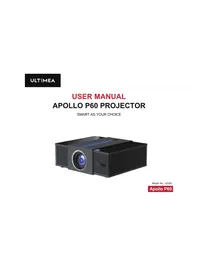
USER MANUAL Nova C40 ULTIMEA
natural_image
Exterior view of a black modular projector with ventilation grille and front-mounted base (no visible text or symbols)Model No.: U0322
Nova C40
Contents
03 Smart Projector User Manual
English
Setup guidance video and User Manuals on ULTIMEA website.


support.ultimea.com
@ultimea_official
+1 888-598-8875 (US) Mon-Fri 9am-5pm (PST) +49 89-628-25828 (EU) Mon-Fri 9am-5pm (CET)
1 Safety Instructions
Read all instructions before you use this device. Do not make any changes or create settings that are not described in this manual. If physical injury, loss of data, or damage is caused by failure to follow instructions, the warranty does not apply.
Setup
• To avoid personal injury or property damage, please comply with the instructions in this manual carefully and do not use the product in any other way.
- To reduce the risk of fire and/or electric shock, do not expose the device to rain or moisture. Objects filled with liquids, such as vases, should not be placed on this device.
- Do not place this device on soft surfaces such as tablecloths or carpets, otherwise the device could be a fire hazard.
- Do not place this device in areas susceptible to excessive dust and dirt or near any appliance generating a strong magnetic field.
- To prevent overheating, do not block or clog the ventilation openings.
- Never place this device in a confined space. Always leave enough space around this device for ventilation.
- Avoid overexposing this device to direct sunlight, heat, large temperature fluctuations, and moisture. Avoid extreme temperatures.
- When this device is running for a long period of time, the surface may become hot. If this occurs, shut it down immediately and unplug the charger. Resume operation after the device has cooled down.
- Always handle this device with care. Avoid touching the lens.
- Do not allow children to handle the device without supervision.
- No not place heavy or sharp objects on this device.
- To avoid electric shock, do not disassemble the evice.
- Avoid extreme vibration. It may damage the internal components.
-
Only use attachments or accessories specified by the manufacturer.
-
Please comply with the laws and regulations of the country and region where the equipment is located (used), observe professional ethics, pay attention to safety obligations, and strictly prohibit the use of our products or equipment for any illegal purpose.
- When using a projector in a dark environment, be mindful of the safety of your audience. Ensure that equipment such as projectors and power cords are placed in locations where they cannot be easily tripped over or touched, and avoid crossing cords to minimize safety risks.
Power Supply
- Use only the provided power adapter.
- Power off the device before removing the power supply from the socket.
- Protect the power cord from being walked on or pinched, particularly at plugs.
- Unplug this device if there are lightning storms or when unused for a long period of time.
- Before you make or change any connections, ensure that all devices are disconnected from the power outlet.
EN
- Never touch the power cable or the power connector with wet hands.
Hearing Safety
- To prevent hearing damage, do not listen for extended periods at high volume. Set the volume to a safe level.
Caution
- Do not stare directly at the operating beam. The bright light may damage your eyes.
Cleaning
- Use a soft, lint-free cloth. Never use liquid, gaseous, or easily flammable cleansers to clean.
- Do not use any liquid cleaning agents to clean the lens to avoid damaging the coating film on the lens.
- Wipe the surfaces gently. Be careful that you do not scratch the surface.
- Use lens cleaning paper to clean the lens.
Repairs
- Do not make any repairs to this device yourself. Only have your device repaired by an authorized service center.
- Improper maintenance can result in injuries to persons or damage to this device.
• Refer all servicing to qualified service personnel.
System
- Since the Android TV system interface will be updated regularly, and the user interface will be updated through software upgrades, there may be some differences between the interface and the manual. If there is a difference between the manual and the user interface of the final product, please refer to the actual display prevails.
2 What's Included
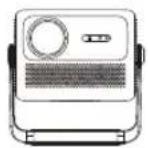
Nova C40
Smart Projector
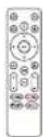
Remote Control (Batteries not included)
User Guide
Warranty Card HDMI Cable Power Cable


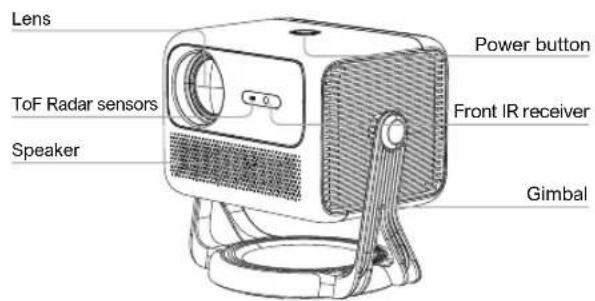
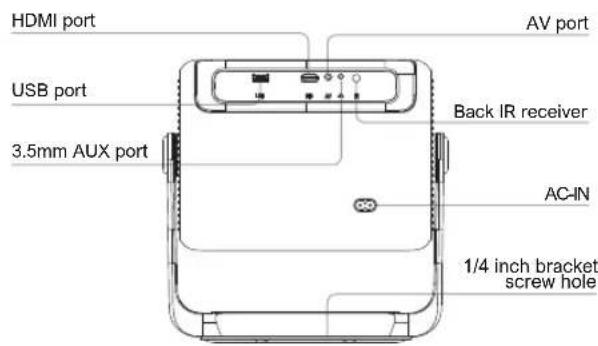
3 Overview

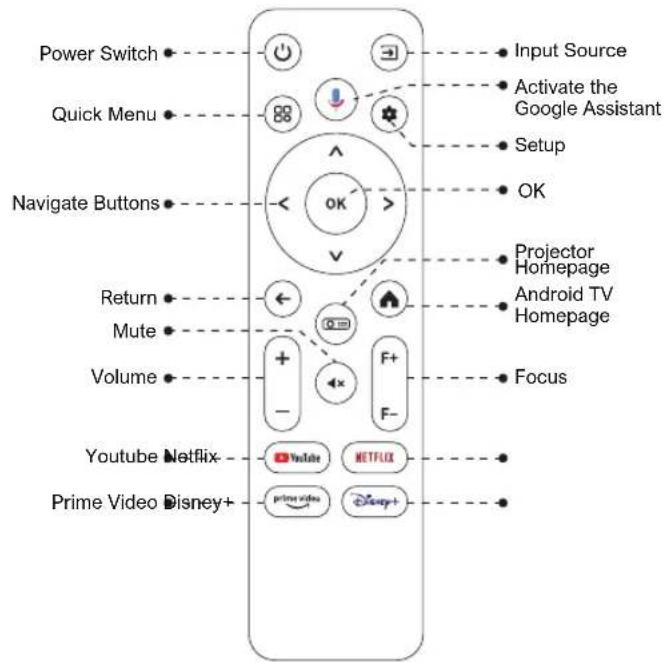
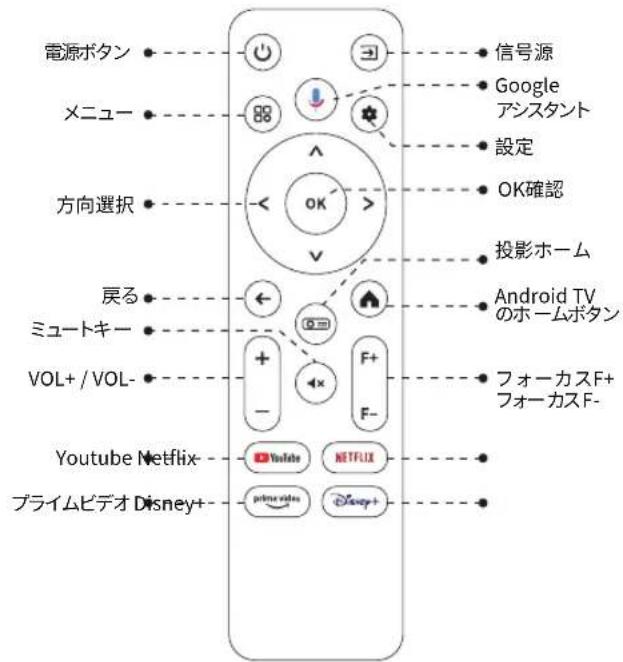
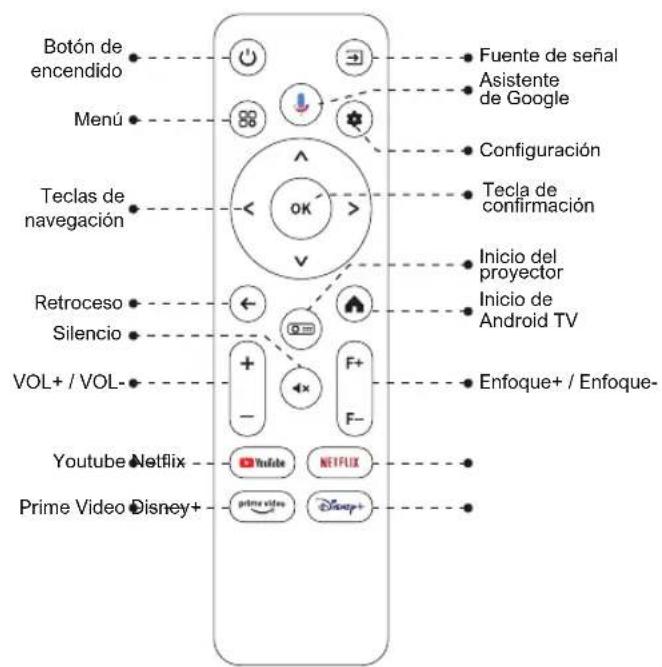
4 Remote Control
LED Indication
| LED Status Description | |
| Steady Blue | Powered On |
| Steady Red | Standby Mode |
| Light Off | Powered Off |
5 Get Started
Prepare the Remote Control
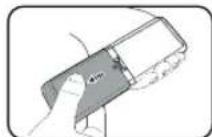
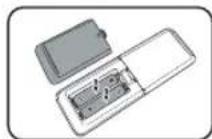
- Open the battery holder cover of the remote control.
• Install two AAA batteries. Make sure to match the polarity (+/-) indicated and put back the cover. - Please refer to the on-screen instructions to pair the remote control with the Nova C40.
• The distance between the remote and the projector should not exceed 10 m/33 ft.
Power On/Off
- Inserting the power plug using the provided power cord.
- Press the power button or remote control power button once to power on.
- Press the power button or remote control power button twice to power off.
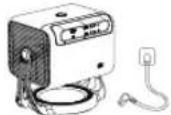
Plug the power cord into an outlet.
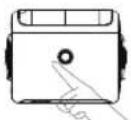
Press the power button to turn on the projector.
Placement
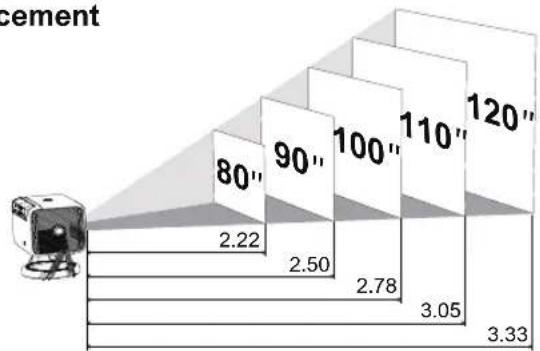
bar
| Stage | Value | |---|---| | 80" | 2.22 | | 90" | 2.50 | | 100" | 2.78 | | 110" | 3.05 | | 120" | 3.33 |- Place Nova C40 on a stable, flat surface in front of the projection surface.
- Please adjust the distance between Nova C40 and the projection surface to get the desired projection image.
Projection Distance and Projection Image Size
| Projection Image Size (inch) | Distance (m) | Distance (ft) |
| 80 | 2.22 | 7.28 |
| 90 | 2.50 | 8.20 |
| 100 | 2.78 | 9.12 |
| 110 | 3.05 | 10.01 |
| 120 | 3.33 | 10.93 |

EN
Notice: The projection image size refers to the distance of the diagonal of the image size instead of the length of the image size.
Auto Focus
- Turn the device towards a suitable projection surface or wall, the Nova C40 will enter autofocus until get a clear image.
Focus Manual
- Press "F+" / "F-" on the remote control to manually adjust the focus. Please carefully observe the focus icon until get a clear image.
Keystone Correction
- The Nova C40 supports Auto keystone, Vertical correction, Horizontal correction and remote Corner Correction.
Auto Keystone
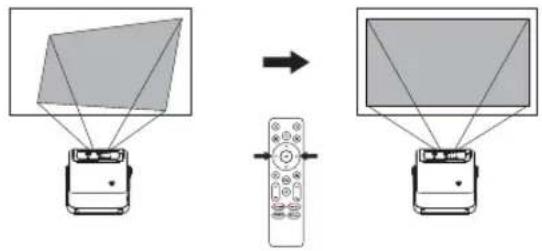
- When the projector image is distorted, it will perform auto keystone correction to restore the image to a rectangle. If you find the auto keystone correction does not work as well as before, follow the instructions below to optimize it.
- Press the button to go to projector home menu, [Settings]->[Projection Settings]. - Select [Keystone Benchmark Correction] and adjust the projector for the correct image.
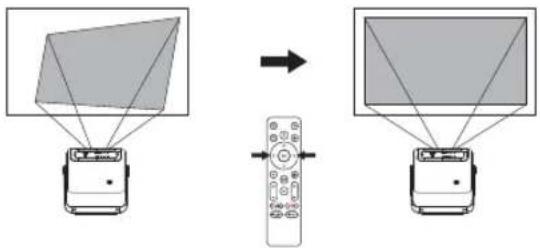
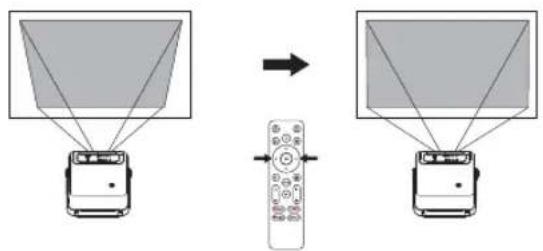
Vertical / Horizontal correction
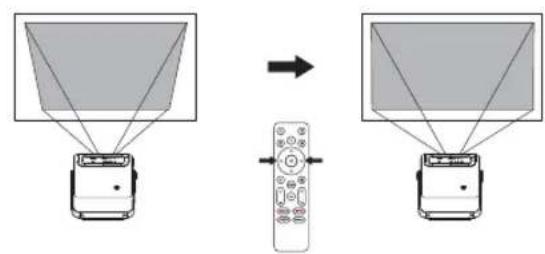
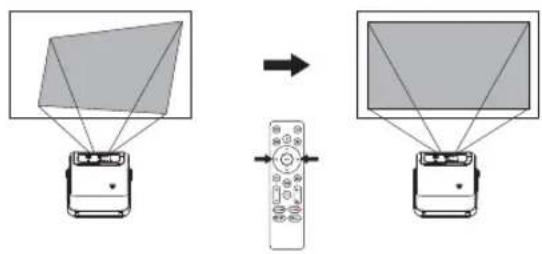
When fixing your projector in a place and use Vertical / Horizontal correction. Press the button to go to projector home menu, select [Settings]->[Projection Settings]->[Keystone Settings]. Please turn off Auto keystone correction and go back to the previous menu. Select [Vertical Correction] / [Horizontal Correction], press left or right button on the remote control to adjust.
Vertical Correction
Horizontal Correction
flowchart
graph TD
    A["Rectangle with diagonal lines"] --> B["Window with remote control"]
    C["Window with diagonal lines"] --> D["Remote Control"]
    style A fill:#f9f,stroke:#333
    style B fill:#ccf,stroke:#333
    style C fill:#cfc,stroke:#333
    style D fill:#fcc,stroke:#333
Corner Correction
If the projected image is stretched or distorted along both axes due to the angle of the projection, press the button 🔒 to go to projector home menu, and select [Settings]->[Projection Settings]->[Corner Correction], choose the corner you want and press left or right button on the remote control to adjust.
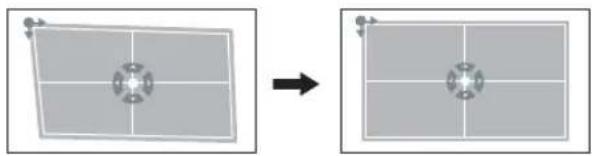
natural_image
Two identical gray rectangular panels with a central circular pattern, connected by an arrow indicating transformation (no text or symbols)
Keystone Correction Reset
To restore the default settings, press the button to go to projection settings. Select [Settings]->[Projection Settings]->[Keystone Correction Reset] and press OK.
Zoom In / Out
Press the button to go to projection settings. Select [Settings] -> [Projection Settings] -> [Zoom In/Out]. Use the remote control to resize the picture size.
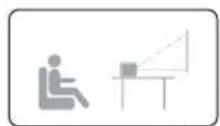
Desktop Front Projection Ceiling Front Projection
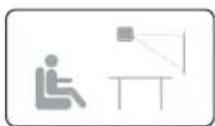
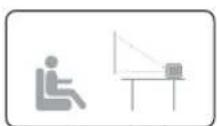
Desktop Rear Projection Ceiling Rear Projection
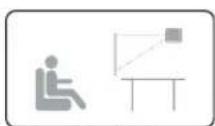
Press the button, [Settings]->[Projection Settings]->[Projection Mode], select Desktop Front Projection/Desktop Rear Projection/Ceiling Front Projection/Ceiling Rear Projection.
7 Pair Remote Control6 Pro
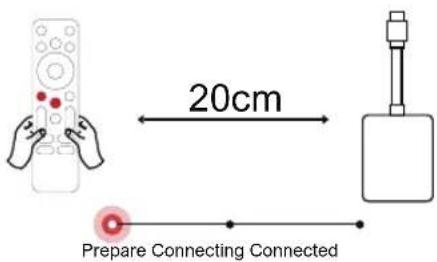
Power on the projector and you will enter Bluetooth remote pairing page. Follow the on-screen instructions to complete the pairing.
① Please hold the remote near the projector
② Long press ← and Ⓞ together for about 10 seconds.
③ When the screen shows "Connected Successfully", your remote LED indicator turns off, and the remote control is paired.
8 Select Your Language
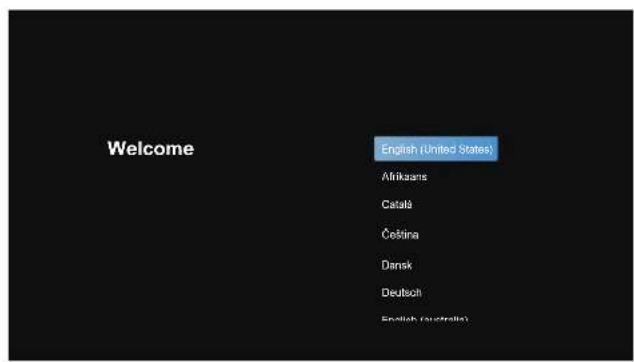
After pairing the remote control, you will be guided to a page to select language, use remote control or to select your language. Then press OK button to enter the next page.

Android TV Setting
Follow the setup wizard on Android TV, set up a Wi-Fi connection, select the available Wi-Fi and enter the password, sign in to a Google account, and carry out other related procedures. When you complete the Android TV setup wizard, the Android TV home screen will appear. Now you can start watching your favorite shows by downloading streaming apps.
Notice: Due to the requirements of Android TV, using the Android TV requires you to sign in to your Google account. If you have not registered your Google account, please complete the registration before proceeding with use.
Play Through External Sound Devices via Bluetooth
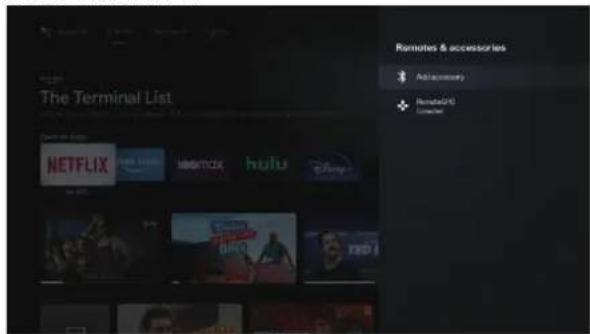
If you want to connect to Bluetooth speakers/headphones on the Android TV interface, select [Settings]->[Remotes & Accessories]->[Add accessory], search for Bluetooth device and click pair. Note: The Bluetooth connection must be established inside Android TV.
Add New Google Account User
Register a new Google account using Android TV for easier login and payment security. [Settings]->[Accounts & sign-in], add an account or switch accounts.
9 Wireless Connection
Notice: The Chromecast feature only works while you are in the Android TV system.
Cast from Chromecast-enabled Sites/Apps (for Android/iOS devices)
① Make sure your device and the Android TV are connected to the same Wi-Fi network, and that you are running the latest version of the Chromecast-enabled app.
② Launch the Chromecast-enabled site/app.
③ Tap the cast button and choose the "D1221".
Cast from Chrome Browser tab (for Computers)
① Make sure your computer and projector are connected to the same Wi-Fi network
② Click "Cast" at the upper right ⚠ of the Chrome browser tab, and then choose from the sources whether you want to cast the tab or the screen.
③ Choose "D1221-XXX" to cast.
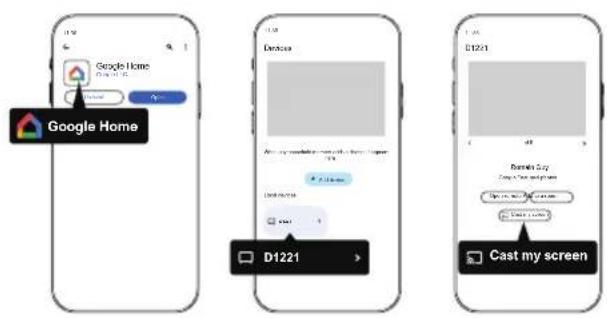
Mirror from Android Devices
① Make sure your Android devices and projector are connected to the same Wi-Fi network.
② Download the "Google Home" app on your Android device.
③ Open the "Google Home" app, choose "D1221" and tap "Cast my screen".
Mirror from iOS Devices
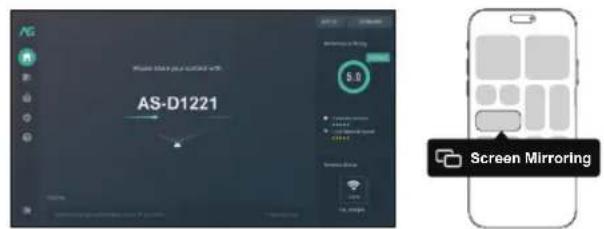
① Make sure your iOS devices and projector are connected to the same Wi-Fi network.
② Go to "Google Play Store", search and download "AirScreen" app.
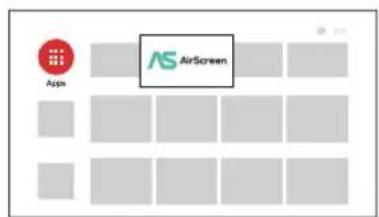
③ Open the "AirScreen" app and follow the on-screen instructions on AirScreen.

10 Wired Connections
Play from an HDMI Playback Device
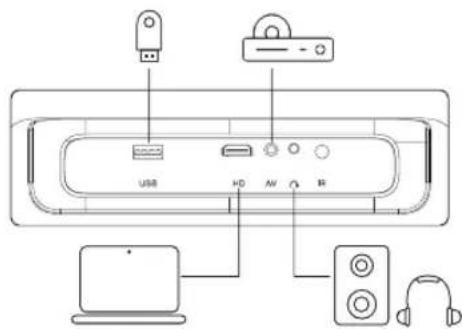
This Nova C40 supports connections with various HDMI playback devices, such as PC, DVD player, set-top box (STB), game console or other devices.
① Connect this projector to an HDMI playback device with an HDMI cable.
② Press the ➕ button on remote control to select [HDMI] and press OK.
Play from a USB Storage Device
With Nova C40, you can enjoy music, video, and pictures, or install apps that are stored on a USB storage device.
Play from the Android TV
① Plug in the USB storage device.
② Go to "Google Play Store", search and download "File Manager" app.
③ Open "File Manager" app and find the USB storage device. Select a file.
④ Press OK to start playback.
Play from the projector
① Plug in the USB storage device.
② Press the ➞ button on remote control to select [USB] and press OK
③ Select a file you plan to play from the file and folder menu.
④ Press OK to start playback.
Play Through External Sound Devices Via AUX Cable
① Connect one end of the 3.5mm AUX cable to the AUX port on this projector.
② Connect the other end of the 3.5mm AUX cable to the AUX port on headphones or external speakers.
③ Playback on the projector.
11 Shortcut Menu
Press the 88 button to pop up the shortcut menu.
- Press the navigation button to select the desired option.
- Press < or > button to adjust parameter.
- Press OK button to save.
| Image Mode | Standard | Keeps natural looking colors with a balance of warm and cool tones |
| Light | Provides more picture details and color sharpness | |
| Soft | Provides warm colors with lower light | |
| Personal | Manually set the Brightness, contrast, Saturation, Sharpness and Hue | |
| Color Temp | Cold | Provides cold color temp |
| Normal | Provides cold normal temp | |
| Warm | Provides cold warm temp | |
| Personal | Manually set the Red, Green and Blue | |
| Sound Mode | Standard | Provides standard tones |
| Music | Provides more detailed tone | |
| Movie | Provides home theater-style sound | |
| Personal | Manually set the sound of each frequency band | |
| Shutdown Timer | Off | Save energy and extend the lifespan of the projector |
| 10min | ||
| 20min | ||
| 30min | ||
| 60min | ||
| HDMI EDID Version | EDID 1.4 | Switch HDMI EDID version |
| EDID 2.0 | ||
| EDID 2.1 |

12 Companion Mode
Press the power ⏻ button to enter the power off option, select Companion Mode, and go to settings.
13 Specifications
OS: Android TV 11.0
Native Resolution: 1920*1080p
Speaker Drivers: 5W*2
Throw Ratio: 1.25:1
Aspect Ratio: 16:9 / 4:3
Recommended Screen Size: 80"-120"
Power Consumption: 75W
Power Input: 100-240V AC, 50-60Hz 1A
WIR SIND BEREIT ZU HELFEN
support@ultimea.com
natural_image
Two identical gray rectangular panels with a central crosshair, connected by an arrow to the right panel (no text or symbols)natural_image
Line drawing of a projector with front panel and side arm (no text or symbols)電源ボタン
前の IR 受信機
ジンパル
HDMI
USB
3.5mm AUX 端子
AV端子
裏面IR受信
AC 電源アダプター
1/4 ch ネジ
4リモコン
natural_image
Two-step diagram showing a hand holding a device and a device inside a container (no text or symbols)水平補正
flowchart
graph TD
    A["Vehicle with display unit"] --> B["Remote Control"]
    B --> C["View from Home"]
    style A fill:#f9f,stroke:#333
    style B fill:#ccf,stroke:#333
    style C fill:#cfc,stroke:#333
手動 4 点台形補正
natural_image
Two rectangular panels showing a central circular feature with crosshairs, one rotated to form a larger grid (no text or symbols)台形リセット
新しい Google ユーザーを追加
HDMI接続再生機器
natural_image
Line drawing of a projector with ventilation grilles and a circular base (no text or symbols)Cardan
Port HDMI
Port AV
Port USB
natural_image
Top-down schematic of a device casing with labeled components (no text or symbols)Auto Keystone Correction
Correction Verticale
flowchart
graph TD
    A["Rectangle with diagonal lines"] --> B["Remote Control"]
    B --> C["Rectangle with diagonal lines"]
Correction Horizontale
Quadrilateral Keystone Correction
natural_image
Two identical gray rectangular panels with a central crosshair, one rotated to show the change from left to right (no text or symbols)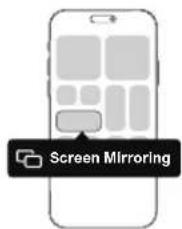

natural_image
Two identical diagrams showing a square grid with a central crosshair, before and after transformation (no text or symbols)natural_image
Technical line drawing of a device casing with control panel and buttons (no text or symbols)4 Mando a distancia
flowchart
graph TD
    A["Rectangle with diagonal lines"] --> B["Remote Control"]
    B --> C["Rectangle with diagonal lines"]
    style A fill:#f9f,stroke:#333
    style C fill:#bbf,stroke:#333
natural_image
Two identical gray rectangular panels with a central crosshair symbol, one showing an arrow pointing to the right panel (no text or symbols)This device contains licence-exempt transmitter(s)/receiver(s) that comply with Innovation, Science and Economic Development Canada's licence-exempt RSS(s).
Operation is subject to the following two conditions:
(1) This device may not cause interference.
(2) This device must accept any interference, including interference that may cause undesired operation of the device.
This device complies with Part 15 of the FCC Rules. Operation is subject to the following two conditions:
(1) This device may not cause harmful interference.
(2) This device must accept any interference received, including interference that may cause undesired operation.
FCC Radiation Exposure Statement:
This equipment complies with FCC radiation exposure limits set forth for an uncontrolled environment. This equipment should be installed and operated with minimum distance 20cm between the radiator&your body.
WARNING
Changes or modifications not expressly approved by the party responsible for compliance could void the user's authority to operate the equipment.
NOTE: This equipment has been tested and found to comply with the limits fora Class B digital device, pursuant to Part 15 of the FCC Rules. These limits are designed to provide reasonable protection against harmful interference in a residential installation. This equipment generates uses and can radiate radio frequency energy and, if not installed and use in accordance with the instructions, may cause harmful interference to radio communications.
However there is no guarantee that interference will not occur in a particular installation. If this equipment does cause harmful interference to radio or television reception, which can be determined by turning the equipment off and on, the user is encouraged to try to correct the interference by one or more of the following measures:
Reorient or relocate the receiving antenna.
Increase the separation between the equipment and receiver.
Connect the equipment into an outlet on a circuit different from that to which the receiver is connected.
Consult the dealer or an experienced radio/TV technician for help.
Declaration of Conformity
We (Manufacturer is responsible for this declaration) Ultimea Technology (Shenzhen) Limited
20th Floor, Building 4, Tianan Cloud Park, Bantian St., Longgang District, Shenzhen, China
Declare under our sole responsibility that the product
Trade name: ULTIMEA
Equipment: Projector
Model No.: U0322
To which this declaration relates is in conformity with the essential requirement set out in the Council Directive on the Approximation of the laws of the Member
States relating to LVD Directive (2014/53/EU)&Rohs (2011/65/EU) product is responsible to affix CE marking, the following standards were applied:
EN IEC 62311:2020
IEC 62321-3-1:2013
ETSI EN 301 489-1
IEC 62321-5:2013
V2.2.3(2019-11)ETSI EN 301 489-17
IEC 62321-4:2013+AMD1:2017
V3.2.4(2020-09)EN 55032:2015
IEC 62321-6:2015
EN 55035:2017
IEC 62321-7-2:2017
EN 61000-3-2:2019
IEC 62321-6:2015
EN 61000-3-3:2013+A1:2019
IEC 62321-8:2017
Signature:

Date: 2023.09.01
ULTIMEA
Nova C40 Smart Projector
Model No.: U0322
Ultimea GmbH
Buchenring 57, 22359 Hamburg, Germany
UK Crossborder limited
7 Bell Yard London WC2A 2JR, UK United Kingdom
Made in China
Manufacturer: Ultimea Technology (Shenzhen) Limited
Address: 20th Floor, Building 4, Tianan Cloud Park, Bantian St.,
Longgang District, Shenzhen, China 518000


RoHS

If you need our support, kindly reach out to our service team. We are always glad to help.
- Contents
- Safety Instructions
- Setup
- Power Supply
- EN
- Hearing Safety
- Caution
- Cleaning
- Repairs
- System
- What's Included
- Overview
- Remote Control
- Get Started
- Prepare the Remote Control
- Power On/Off
- Auto Focus
- Focus Manual
- Keystone Correction
- Auto Keystone
- Vertical / Horizontal correction
- Corner Correction
- Keystone Correction Reset
- Zoom In / Out
- Pair Remote Control6 Pro
- Select Your Language
- Android TV Setting
- Play Through External Sound Devices via Bluetooth
- Add New Google Account User
- Wireless Connection
- Cast from Chromecast-enabled Sites/Apps (for Android/iOS devices)
- Cast from Chrome Browser tab (for Computers)
- Mirror from Android Devices
- Mirror from iOS Devices
- Wired Connections
- Play from an HDMI Playback Device
- Play from a USB Storage Device
- Play from the Android TV
- Play from the projector
- Play Through External Sound Devices Via AUX Cable
- Shortcut Menu
- Companion Mode
- Specifications
- WIR SIND BEREIT ZU HELFEN
- 4リモコン
- 手動 4 点台形補正
- 台形リセット
- 新しい Google ユーザーを追加
- HDMI接続再生機器
- Auto Keystone Correction
- Quadrilateral Keystone Correction
- FCC Radiation Exposure Statement:
- WARNING
- Declaration of Conformity
- ULTIMEA
Brand : ULTIMEA
Model : Nova C40
Category : Projector