CADUA4KDOCKPDB - Docking station i-TEC - Free user manual and instructions
Find the device manual for free CADUA4KDOCKPDB i-TEC in PDF.


| Product Type | Docking Station |
| Brand | i-TEC |
| Model | CADUA4KDOCKPDB |
| Dimensions (product) | 223.8 x 83.4 x 27.1 mm |
| Weight | 340 g |
| Power Supply | USB-C Power Delivery 80 W |
| Video Ports | 2 x HDMI, 2 x DisplayPort (DP++) |
| Maximum Resolution | 1 monitor: 4K / 60 Hz (HDMI or DP); 5K / 60 Hz (2x DP, Windows only); 2 monitors: 2 x 4K / 60 Hz |
| USB Ports | 1 x USB-C 3.2 Gen.1 (BC 1.2), 2 x USB 3.2 Gen.1 (BC 1.2), 2 x USB 2.0 |
| Ethernet Port | 1 x RJ-45 GLAN (DisplayLink DL-6950) |
| Audio Jack | 3.5 mm combo (microphone / headphone) |
| Computer Connection | USB-C (USB-C to USB-C / USB-A cable included, 100 cm) |
| Compatible Operating Systems | Windows 10 / 11, macOS 11+, Android 5+, Chrome OS R51+, Linux Ubuntu |
| Main Features | PD 80 W power supply, BC 1.2 fast charging, multiple video output, DisplayLink, LED indicator, on/off switch |
| Safety | Do not expose to extreme temperatures or humidity. Use on a flat surface. Kensington lock supported. |
| Maintenance and Cleaning | Clean with a soft, dry cloth. Disconnect before cleaning. |
| Spare Parts and Repairability | No user-serviceable parts. Contact i-TEC support for any repairs. |
| General Information | Warranty: see manual. Support: support@itecproduct.com. Full manual available at www.i-tec.pro. |
Frequently Asked Questions - CADUA4KDOCKPDB i-TEC
User questions about CADUA4KDOCKPDB i-TEC
0 question about this device. Answer the ones you know or ask your own.
Ask a new question about this device
Download the instructions for your Docking station in PDF format for free! Find your manual CADUA4KDOCKPDB - i-TEC and take your electronic device back in hand. On this page are published all the documents necessary for the use of your device. CADUA4KDOCKPDB by i-TEC.
USER MANUAL CADUA4KDOCKPDB i-TEC
natural_image
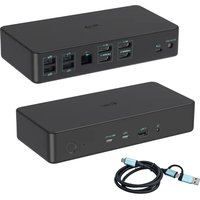
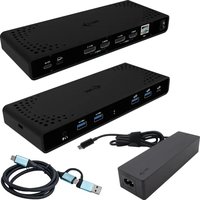
Two black wireless devices with ports and USB connectors, one connected to a blue USB cable (no visible text or symbols)User guide • Gebrauchsanweisung • Mode d'emploi Manual de instrucciones • Manuale • Uživatelská príručka Instrukcje obsługi • Užívatel'ská príručka
• Vartotojo vadovas Handleiding • Användarhandbok • Guia do utilizador
EN Please read the entire instruction manual carefully. Detailed manual is available on our website www.i-tec.pro/en/ in the tab „Manuals, drivers“. In case of any issues, please contact our technical support at: support@itecproduct.com
ENGLISH.... 06-09
DEUTSCH....10-13
FRANÇAIS....14-17
ESPAÑOL....18-21
ITALIANO....22-25
ČESKY.... 26–29
POLSKI.... 30-33
SLOVENSKY 34-37
LIETUVOS.... 38-41
NEDERLANDS....42-45
SVENSKA.... 46-49
PORTUGUÊS.... 50-53
WEEE....54-55
Declaration of Conformity.... 56–57
FCC....58
DESCRIPTION
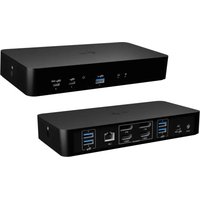
Front panel
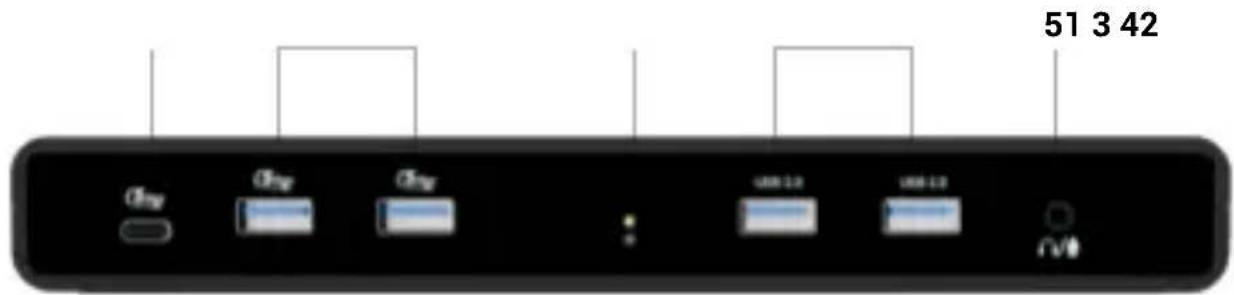
- 1x USB-C 3.2 Gen.1 port with fast charging support (BC 1.2)
- 2x USB 3.2 Gen.1 port with fast charging support (BC 1.2)**
- LED indication
- 2x USB 2.0 port
- 3.5mm Audio combo jack
Back panel
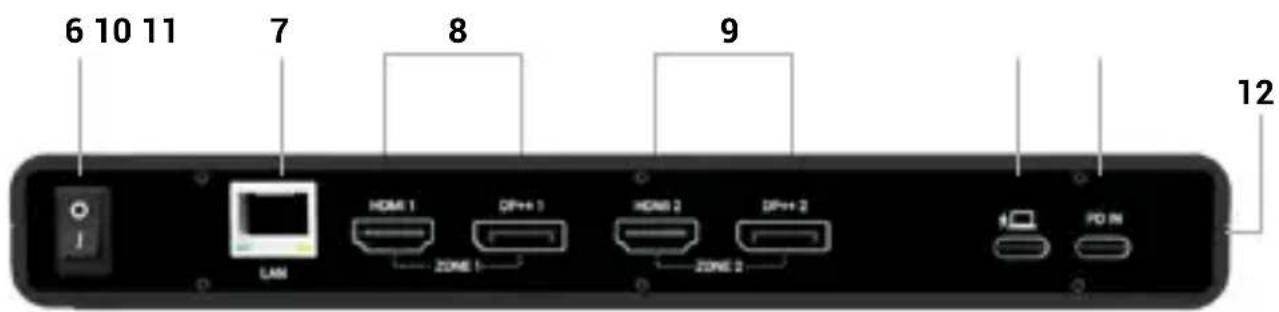
- On/Off switch to turn the docking station on and off
- Ethernet GLAN RJ-45 port (DisplayLink DL-6950)
- Zone 1 - HDMI/DP (HDMI or DP can be connected)
- Zone 2 - HDMI/DP (HDMI or DP can be connected)
- USB-C port for connecting the dock to a laptop
- USB-C Input for power
Side panel
- Kensington lock support
SPECIFICATIONS
- 1x USB-C port for connection to USB-C or USB-A devices (USB-C cable and USB-C to USB 3.0 adapter included)
- Docking station technology: DisplayLink + USB-C PD
• Power Delivery: 80W
•VideoPorts:
- 2x HDMI
- 2x Display Port (supports DP++)
- Resolution:
- 1 monitor - 1x DP/HDMI up to 4K/60Hz
- 1 monitor - 2x DP up to 5K/60Hz*
- 2 monitors - 1x DP/HDMI + 1x DP/HDMI → up to 2x 4K/60Hz
- 1x USB-C input for power adapter
• 1x USB-C 3.2 Gen.1 port with fast charging support (BC 1.2)**
- 2x USB 3.2 Gen.1 port with fast charging support (BC 1.2)**
- 2x USB 2.0 port
• 1x Ethernet GLAN RJ-45 port (DisplayLink DL-6950)
- 1x 3.5mm Audio combo jack
- ON/OFF switch to turn the docking station on and off
- LED indication
• Support for Kensington lock
• Support for VESA mounting
- USB-C to USB-C/USB-A cable (100 cm)
- OS: Windows 10/11, macOS 11 or later, Android 5 or later, Chrome OS R51 or later, Linux Ubuntu
- Easy driver installation (Windows, macOS, Ubuntu, Android (external link))
• Product dimensions: 223.8 x 83.4 x 27.1 mm
• Product weight: 340 g
- Package dimensions: 238 x 129 x 65 mm
* 5K resolution only supports Windows
** Fast charging support for only one connected device
SYSTEM REQUIREMENTS
Hardware requirements:
- Devices with a free USB-A, USB-C, USB4 or Thunderbolt™ 3/4 port.
Requirements for the Power Delivery function:
- Devices with a free USB-C, USB4 or Thunderbolt™ 3/4 port with Power Delivery support
Operating system:
- Windows 10 / 11, macOS 11 or later, Android 5 or later, Chrome OS R51 or later, Linux Ubuntu
If the docking station is connected via USB 3.0, charging of laptops and tablets is not supported.
Charging of external devices is only supported when the docking station is connected to a guest device.
INSTALLING DRIVERS
Windows:
1) Download and run DisplayLink Cleaner:
https://synaptics.com/products/displaylink-graphics/downloads/windowsinstallation-cleaner
2) Restart your laptop
3) Download and install the DisplayLink driver:
https://synaptics.com/products/displaylink-graphics/downloads/windows-10.3-m0-public?filetype=exe
4) Restart your laptop
5) Connect the docking station
macOS:
1) Download and install DisplayLink Manager:
https://www.synaptics.com/products/displaylink-graphics/downloads/macos
2) The installation will prompt you to enable Screen Recording
a. Go to the APPLE tab / System Preferences / Security & Privacy / Privacy
b. Find Screen Recording in the Privacy tab
c. Click on the lock in the bottom left corner
d. Enter your password
e. Check the box next to DisplayLink Manager
3) After installation, open DisplayLink Manager from Launchpad
4) Find the DisplayLink icon in the top menu bar and open it
5) Select "Run the application automatically after login"
6) Connect the docking station
SAFETY INSTRUCTIONS FOR USING THE DOCKING STATION
- Do not expose to extreme temperatures and humidity.
- Use the device on flat pads to avoid slipping and falling on the ground.
- Keep the drivers and manual for later use.
- Avoid straining the USB-C port or cable.
- Restart the product periodically using the ON/OFF button or by unplugging it from the mains.
- Do not plug USB-C PD adapters into USB-C ports that are not marked as ports to connect USB-C PD power adapter.
- It is recommended that you switch off the docking station at the end of the day.
In cooperation with the service department:
- Check functionality after falling into water or on the ground.
- Verify functionality when the cover is cracked.
- Complain about the device not working according to the manual.
FREQUENTLY ASKED QUESTIONS
Available on our website www-i-tec.pro under "FAQ" for this product
GLOSSARY OF TERMS
Interface / port / connector / input / slot - the place where two devices are physically connected.
Controller - a semiconductor component (so-called chipset) in a notebook / tablet, ensuring the operation of one of the ports.
Thunderbolt™ - is a fast hardware interface that allows you to connect devices (peripherals) to your computer via an expansion bus. Thunderbolt combines PCI-Express and DisplayPort into a serial data interface. It allows for up to 6 additional Thunderbolt™ devices, and the transfer rate for Thunderbolt™ 3/4 is up to 40Gbit/s.
USB-C / USB Type-C / USB4 / Thunderbolt™ 3/4 - is a symmetrical connector Allows faster charging, power, dual-role (not only host but also guest), support for Alt Mode (DisplayPort, MHL, Thunderbolt 3, Power Delivery) and error notification via Billboard device.
USB-C Power Delivery (USB-C PD) - an optional feature of the USB-C connector. A connector with this support can both charge and be charged, and supports loads from 10W to 240W
USB 3.2 / 3.1 / 3.0 / 2.0 - standard for USB interface / port for connecting various USB devices. Various USB devices can be connected to the docking station or adapter using the USB Type-A interface. The USB type B port is used to connect the docking station or adapter to a laptop/tablet.
HDMI/Display Port - A standard for a digital graphics interface/port used to connect monitors and other graphic display devices.
LAN (Local Area Network) - local area network, now the most common is the so-called Ethernet, which reaches theoretical transfer speeds of up to 2.5 Gbit/s at the docking station.
Audio - a term for an audio input (microphone) or output device (headphones/speakers).
BESCHREIBUNG
Frontplatte
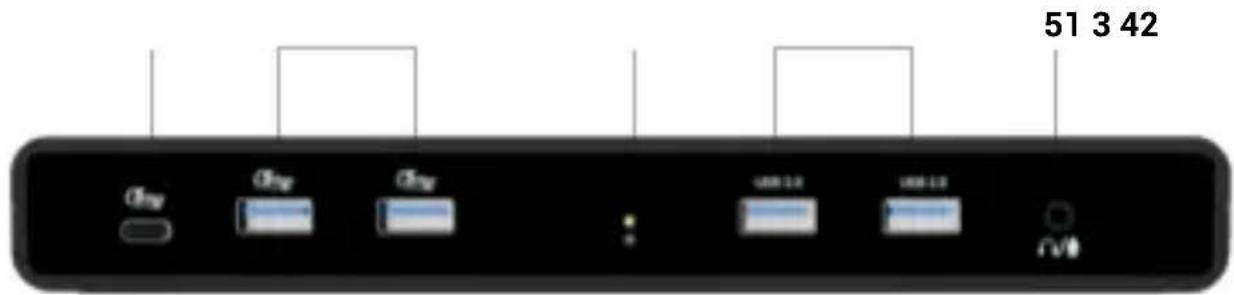
- 1x USB-C 3.2 Gen.1 port with fast charging support (BC 1.2)
- 2x USB 3.2 Gen.1 port with fast charging support (BC 1.2)**
- LED indication
- 2x USB 2.0 port
- 3.5mm Audio combo jack
Rückwand
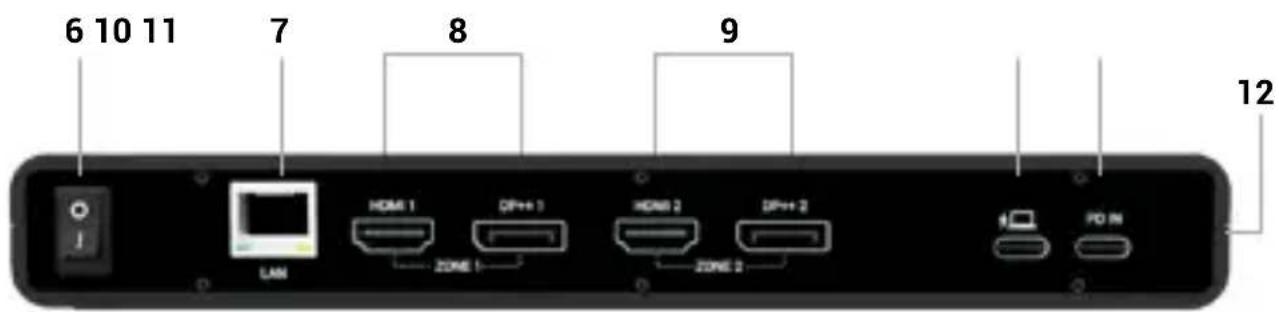
- On/Off switch to turn the docking station on and off
- Ethernet GLAN RJ-45 port (DisplayLink DL-6950)
- Zone 1 - HDMI/DP (HDMI or DP can be connected)
- Zone 2 - HDMI/DP (HDMI or DP can be connected)
- USB-C port for connecting the dock to a laptop
- USB-C Input for power
Seitenwand
- 1x port USB-C 3.2 Gen.1 s podporou rýchleho nabíjania (BC 1.2)
- 2x port USB 3.2 Gen.1 s podporou rýchleho nabíjania (BC 1.2)**
- Indikácia LED
- 2x port USB 2.0
- 3,5 mm kombinovaný audio konektor
Zadný panel
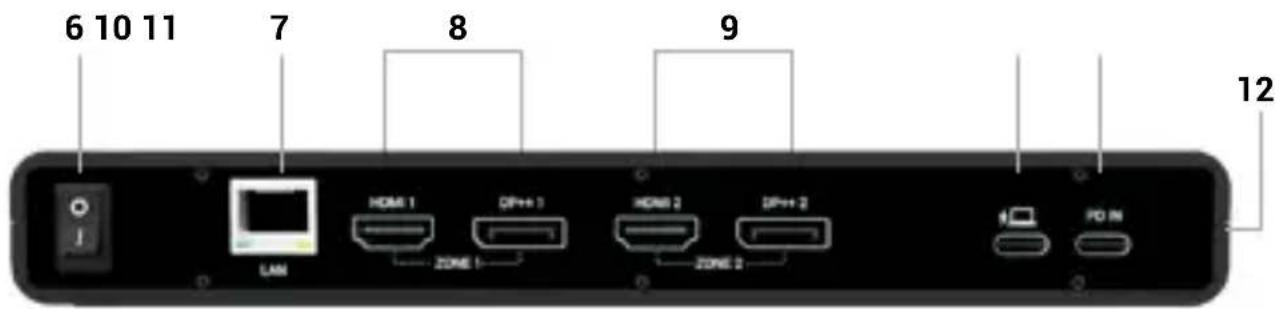
- Prepínač ON/OFF na zapnutie a vypnutie dokovacej stanice
- Ethernetový port GLAN RJ-45 (DisplayLink DL-6950)
- Zóna 1 - HDMI/DP (možno pripojit HDMI alebo DP)
- Zóna 2 - HDMI/DP (možno pripojit HDMI alebo DP)
- Port USB-C na pripojenie dokovacej stanice k prenosnému počítaču
- Vstup USB-C na napájanie
Bočný panel
- Podpora zámku Kensington
ŠPECIFIKÁCIE
- 1x USB-C 3.2 Gen.1 prievadas su greitojo jkrovimo palaikymu (BC 1.2)
- 2x USB 3.2 Gen.1 prievadas su greitojo jkrovimo palaikymu (BC 1.2)**
- LED indikacija
- 2x USB 2.0 prievadas
- 3,5 mm kombinuotoji garso jungtis
Galinis skydelis
https://www.synaptics.com/products/displaylink-graphics/downloads/macos
1) Descarregue e instale o DisplayLink Manager:
https://www.synaptics.com/products/displaylink-graphics/downloads/macos
This equipment is marked with the above recycling symbol. It means that at the end of the life of the equipment you must dispose of it separately at an appropriate collection point and not place it in the normal domestic unsorted waste stream. This will benefit the environment for all. (European Union only)
DEUTSCH
We declare under our sole responsibility that the above named product is in conformity with the following European Union directives:
Ing. Lumír Kraina
Executive Name and Signature, Geschäftsführer, Exécutif et signature, Nombre y firma del gerente, Amministratore, Jednatel, Konatel, Nazwisko osoby upowaznionej, Vadovas, Zaakvoerder, Chefens namn och underskrift, Nome e assinatura do executivo
FCC COMPLIANCE STATEMENT
This equipment has been tested and found to comply within the limits of a Class B digital device pursuant to Part 15 of the FCC Rules. These limits are designed to provide reasonable protection against harmful interference in a residential installation.