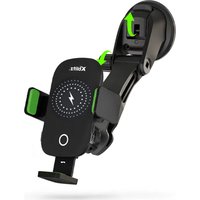
Smart - Connected car accessory Xblitz - Free user manual and instructions
Find the device manual for free Smart Xblitz in PDF.


| Product Type | Wireless CarPlay/Android Auto Adapter |
| Brand | Xblitz |
| Model | Smart |
| Dimensions | 59 x 59 x 9 mm |
| Weight | 40 g |
| Power Supply | USB-C, DC 5V = 1A |
| Chipset | ARM Cortex-A7S |
| Bluetooth Version | 5.3 |
| Wi-Fi Frequencies | 2.4 - 5.8 GHz |
| Phone Compatibility | Android 12+ ; iOS 10+ (iPhone 6+) |
| Vehicle Compatibility | Cars with factory Android Auto or CarPlay from 2015 onwards |
| LED Indicator | Turquoise (on, not connected); Green (iOS connected); Blue (Android connected) |
| Operating Temperature | -20°C to 40°C |
| Main Functions | Wired to wireless Apple CarPlay / Android Auto conversion; automatic connection after pairing |
| Care and Cleaning | Clean with a dry cloth |
| Safety Precautions | Keep out of reach of children; avoid shocks and drops; do not expose to water; do not disassemble; avoid extreme temperatures; unplug if overheating |
| Warranty | 24 months |
| Software Update | Via web interface (192.168.18.9), Wi-Fi password: 12345678 |
Frequently Asked Questions - Smart Xblitz
User questions about Smart Xblitz
0 question about this device. Answer the ones you know or ask your own.
Ask a new question about this device
Download the instructions for your Connected car accessory in PDF format for free! Find your manual Smart - Xblitz and take your electronic device back in hand. On this page are published all the documents necessary for the use of your device. Smart by Xblitz.
USER MANUAL Smart Xblitz
natural_image
Black XBlitz brand electronic device with a glowing blue circular indicator (no text or symbols on the device body)natural_image
Black USB cable with two connectors, no text or symbols visible4
natural_image
Coiled black cable with two connectors at top (no text or symbols visible)CarPlay/Android Auto
https://www.apple.com/ios/carplay/available-models/

03. JAK UŻYWAĆ
04. DODATKOWE INFORMACJE
Zasada działania:
Thank you for purchasing the Xblitz SmartCar wireless Car-Play/Android Auto adapter. By connecting it to your car's USB port and pairing it with your smartphone, the device will allow you to quickly and wirelessly upgrade your wired Apple CarPlay or Android Auto system to a wireless version, which will significantly increase the comfort, safety and functionality of your multimedia system.
Please read the enclosed instructions and safety precautions before use.
01. PRODUCT DESCRIPTION
SEE FIG. A
- USB-C power socket
- LED ring
- USB-A -> USB-C cable
- USB-C -> USB-C cable
LED indicator description:
Turquoise: when the device is on but not connected to any smartphone
Green: when the device is connected to an iOS smartphone
Blue: when the device is connected to an Android smartphone
02. COMPATIBILITY
Supported mobile phones:
• Android: version 12.0 and higher
• iOS System: iPhone 6 or later, iOS 10 or later
How do I check if my car has Apple CarPlay?
- Connect your iPhone to the car's main USB port. If your car is equipped with Apple CarPlay, the app will appear on the screen asking for permission to connect to your phone.
- If there is a CarPlay icon in the in-car media kit, it means that your car has Apple CarPlay built in.
- Contact your car dealer for assistance.
Check this website below to see the supported car models for iOS:
(Xblitz SmartCAR works in all cars that support Android Auto)
https://www.apple.com/ios/carplay/available-models/

03. HOW TO USE
- Start the car and wait for the car's multimedia system to load.
- Connect the CarPlay/Android Auto wireless adapter to a USB or USB-C port in your vehicle. Note: if your car has multiple ports, make sure you connect the adapter to the port that supports wired CarPlay/Android Auto.
- Turn on the Wi-Fi on your phone. The 'Xblitz SCAR-xxxx' adapter will appear in the list of networks. Do not connect to it or any other Wi-Fi network at this
stage - just make sure Wi-Fi is on and not in use.
-
Turn on Bluetooth, search for the adapter "Xblitz SCAR-xxxx" and then click to pair. After a few seconds, the message "Use CarPlay/Android Auto" will appear on your phone. Click the message and wait 5-15 seconds for a successful connection.
-
Once paired for the first time, the CarPlay/Android Auto wireless adapter will automatically connect to your phone the next time you use it (make sure Wi-Fi and Bluetooth on your phone are enabled). In some cars, you may need to select “Start automatically” in the CarPlay/Android Auto settings to activate this feature.
NOTES:
- The adapter can be paired with multiple smartphones, but cannot connect to them simultaneously. Disconnect Wi-Fi and Bluetooth on the currently connected device before pairing with a new phone.
- By default, the system will connect to the most recently used Android phone. If the phone to be used is not the one last used, you will need to manually set up the connection.
04. ADDITIONAL INFORMATION
Operating principle:
- The CarPlay/Android Auto wireless adapter uses Bluetooth to establish a connection between the phone and the vehicle, and then switches to Wi-Fi to maintain the wireless connection.
- After successful Bluetooth pairing, the phone will automatically connect to the adapter's Wi-Fi and the Bluetooth connection will be terminated by default.
Based on the principle of the adapter, the following points should be noted:
- When using the CarPlay/Android Auto wireless function, the phone's Wi-Fi will be occupied by the adapter. During this time, other Wi-Fi networks will not be available. If there is a conflict between other Wi-Fi networks and the adapter's Wi-Fi, you may
need to manually disconnect other networks to ensure wireless CarPlay/Android Auto works.
- The automatic connection function of the adapter requires the availability of Wi-Fi and Bluetooth on the phone. In addition, the adapter's Wi-Fi network must be set to "Automatically connect":
A. Settings > WLAN > "Ask to join the network": select "Notify".
B. Settings > WLAN > Click the "i" symbol to the right of "Xblitz SCAR-xxxx" > Enable the "Automatic connection" option.
- The adapter will disconnect the Bluetooth connection to the phone after pairing. If the phone's Bluetooth connects to other devices during this time, it may cause the microphone or audio in CarPlay/Android Auto to be unavailable. To fix this, you may need to manually disconnect your phone from other Bluetooth devices or disable Bluetooth altogether. (Bluetooth only performs the pairing function while the adapter is in operation. Once pairing is complete, Wi-Fi alone is sufficient for operation, so Bluetooth can be turned off. However, the next time you use it, you will need to re-enable Bluetooth on your phone so the adapter can automatically pair and connect).
05. ONLINE SOFTWARE UPDATE
Prerequisites:
- If the adapter works correctly, this means that the current software version is suitable for your car. In this case, it is not recommended to update the software to avoid potential problems.
- Use this option only if the problem you have encountered cannot be solved using the methods described in the "FAQ" section.
- If problems occur after the update, "Restore factory settings" is required.
Update steps / Enter the settings interface:
- Switch on the adapter, it is recommended to use the port only for charging.
- Connect to the Wi-Fi adapter, password is
"12345678".
- Open your browser and type "192.168.18.9", then click "Update".
- On the same page, you can also fill in the details of the car's make, model vintages and details of the problem, then click 'Submit' to report the problem.
- Once the update is complete, please restart your phone before using the adapter.
If the update fails, try the following steps:
A. Turn off Bluetooth on your phone;
B. Go to your phone's WLAN settings and forget the adapter's Wi-Fi network;
C. Search again and connect to "Xblitz SCAR-xxxx" in your phone's Wi-Fi list;
D. Try updating to „192.168.18.9“ again;
If the problem persists, please contact an authorised service centre.
06. FAQs AND PROBLEM SOLVING
• What is the password for connecting to Wi-Fi?
You need Bluetooth, not Wi-Fi, to connect.
Bluetooth connection does not require a password. Make sure Wi-Fi is turned on and not busy during pairing.
- The adapter LED lights up when the car is switched off.
As the car does not immediately disconnect all power when switched off, the adapter diode may not go off immediately, but it will take a while. His power consumption is minimal and will not drain the car battery.
• I cannot find a Bluetooth or Wi-Fi adapter.
If possible, test the adapter with another phone. If it's just a particular phone that can't find the Bluetooth or Wi-Fi adapter, try resetting the network and Bluetooth settings on that phone, then restart the phone. If the problem is also occurring on other phones, this may indicate a faulty device. If this is the case, please contact with producer for a return or replacement product.
• Sound problems: rejected calls, diverted to
voicemail, no sound, microphone not working, music interrupted or stopped, voice not working correctly.
Check if the Bluetooth on your phone is connected to another device. If so, ignore other automatically connected Bluetooth devices or turn off Bluetooth. End applications running in the background when using the adapter. Make sure the audio output option is set to CarPlay/Android Auto when on a call.
Note: Bluetooth performs the pairing function while the adapter is running. Once pairing is complete, Wi-Fi alone is sufficient for operation, so it does not matter if Bluetooth is turned on. However, the next time you use it, turn on Bluetooth so the adapter can automatically pair and connect.
- Problems maintaining the connection?
The adapter relies on the Wi-Fi connection to the phone to work. Interrupted connections are usually caused by Wi-Fi interference. Do you have other Wi-Fi devices in your car, such as a Wi-Fi enabled car camera? If so, it is a good idea to ignore other Wi-Fi networks when using the adapter.
Note: Bluetooth performs the pairing function while the adapter is running. Once pairing is complete, Wi-Fi is sufficient for operation, so it does not matter if Bluetooth is turned on. However, the next time you use it, Bluetooth needs to be turned on so that the adapter can automatically pair and connect. You can try to correct this problem by resetting your phone's WLAN settings. In addition, it is worth trying to update the adapter software. To reset your network settings: go to Settings > General > Transfer or Reset > Reset > Reset network settings. (This will cause you to re-enter the password for the networks you were previously connected to).
- Can the adapter be paired with multiple phones?
The adapter can be paired with multiple phones, but only one device can be connected at a time. To pair it with a new phone, you must first cancel the current connection. Note that by default, the adapter system will automatically connect to the
most recently used phone.
• No automatic connection?
In some cars, you have to select the “automatic connection” option in the CarPlay/Android Auto settings for the adapter’s automatic connection function to work. Settings > WLAN > Ask to join network: select “Notify”. Check your phone settings: Settings > WLAN > Click the “i” symbol to the right of “Xblitz SCAR-xxxx” > Enable “Automatic connection”. Clear the saved connections, restart the phone and pair the adapter again. Try to update the software. Other cases: Make sure Bluetooth and Wi-Fi on the phone are switched on and Bluetooth is not busy when you enter the car.
- When your phone plays videos, the sound is out of sync with the picture?
Even the original wireless CarPlay/Android Auto in the car can have a delay in the sound when watching a video. This problem is due to the fact that transcoding video is more complicated than transcoding regular audio files and requires longer processing. This is a normal problem with wireless CarPlay/Android Auto and not the fault of the adapter. When pairing for the first time, make sure Wi-Fi is turned on (you do not need to manually connect to the adapter's Wi-Fi at this point) and then perform Bluetooth pairing. Once the Bluetooth pairing is successful, the Wi-Fi will automatically connect to the adapter. Watch to see if the Wi-Fi automatically changes to the adapter's connection status. If not, disconnect the adapter, ignore "Xblitz SCAR-xxxx" in the Bluetooth list, re-start the phone, reconnect the adapter and pair it. If the problem persists, try updating the software.
• Car screen turns black after pairing?
If the car screen turns black after pairing, follow the steps below: Unplug the adapter, ignore “smart Box-xxxx” in the Bluetooth list, restart the phone, plug the adapter in again and pair. If the problem persists, try updating the software.
07. TECHNICAL SPECIFICATIONS:
System version: Android 12 and later; iOS 10+ (iPhone 6 and later) | Compatibility: Cars with factory Android Auto or CarPlay from 2015 onwards | Chipset: ARM Cortex-A7S | Bluetooth version: 5.3 | Data transfer support: OTG | Input: USB-C DC 5V= 1A | Wi-Fi frequency: 2.4-5.8 GHz | Bluetooth frequency: 2.4 GHz | Max. radio frequency power: 3.35 dBm | Operating temperature: -20°C to 40°C | Dimensions: 59x59x9mm | Weight: 40g
08. PRECAUTIONS:
- Keep the device out of the reach of children.
- Avoid mechanical damage and falls from heights.
- Do not expose the device to water or other liquids as they may damage or completely destroy the device.
- Do not dismantle the device yourself, you risk damaging or destroying the product.
- Do not expose the device to high or low temperatures or high sunlight, as these can shorten the life of the electronics in the device or melt plastic parts.
- Do not use the device in areas where its use is prohibited or where it may cause interference or danger.
- If you feel the device is getting too hot or smell burning, unplug it from the power source immediately.
- Clean with a dry cloth.
09. WARRANTY/COMPLAINTS CARD:
The product comes with a 24-month warranty. Warranty conditions can be found at: https://xblitz.pl/gwarancja/Claims should be made using the claim form found at:
Details, contact and service address can be found at:
www.xblitz.pl
Technical specifications and kit contents are subject to change without notice, we apologise for any inconvenience.
KGK TREND declares that the Xblitz SmartCardevice complies with the essential requirements of Directive
DE
BEDIENUNGSANLEITUNG
https://www.apple.com/ios/carplay/available-models/

03. ANWENDUNGSWEISE
https://www.apple.com/ios/carplay/available-models/

03. JAK POUŽÍVAT
https://www.apple.com/ios/carplay/available-models/

03. HOGYAN HASZNÁLJUK
https://www.apple.com/ios/carplay/available-models/

03. AKO POUŽÍVAŤ
https://www.apple.com/ios/carplay/available-models/

03. KAIP NAUDOTI
-
Užveskite automobilj ir palaukite, kol bus jkelta automobilio multimedijos sistema.
-
Prijunkite "CarPlay" / "Android Auto" belaidj adapterj prie automobilio USB arba USB-C prievado.
01. PRODUKTA APRAKSTS SKATIT A FIG.
- USB-C barošanas ligzda
- LED gredzens
- USB-A -> USB-C kabelis
- USB-C -> USB-C kabelis
LED indikatora apraksts:
https://www.apple.com/ios/carplay/available-models/

03. KĀ IZMANTOT
https://www.apple.com/ios/carplay/available-models/

03. KUIDAS KASUTADA
https://www.apple.com/ios/carplay/available-models/

03. MOD DE UTILIZARE
https://www.apple.com/ios/carplay/available-models/

https://www.apple.com/ios/carplay/available-models/

03. MODE D'EMPLOI
https://www.apple.com/ios/carplay/available-models/

03. COME SI USA
https://www.apple.com/ios/carplay/available-models/

03. CÓMO USARLO
The crossed out trash can symbol indicates that unusable electrical or electronic devices, its accessories (such as power supplies, cords) or components (for example batteries, if included) cannot be disposed of alongside with
household waste. In order to dispose of the devices or its components (for example, batteries) deliver the device to the collection point, where it will be accepted free of charge. Disposal is subject to the recast version of the WEEE Directive (2012/19/ EU) and the Directive on batteries and accumulators (2006/66 / EC). Proper disposal of the device prevents degradation of the natural environment. Information about the collection points of the facilities is issued by the competent local authorities. Incorrect disposal of waste is subject to penalties provided for by the law in force in the given area.
DE

KGK TREND Sp. z o.o.
ul. Ujastek 5b, 31-752 Kraków, Polska.
Wyprodukowano w PRC
Producer:
KGK TREND Sp. z o. o.
Ujastek 5b, 31-752 Cracow, Poland.
Made in PRC