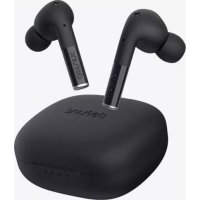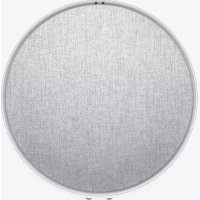
Home Small - Speaker Defunc - Free user manual and instructions
Find the device manual for free Home Small Defunc in PDF.


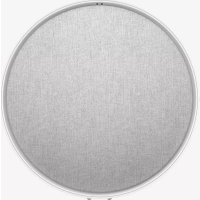
| Product type | Multiroom connected speaker |
| Brand | Defunc |
| Model | Home Small |
| Height | 200 mm |
| Width | 200 mm |
| Depth | 101 mm |
| Weight | ≈ 1.5 kg (speaker only) |
| Amplifier output power | 40 W |
| Tweeter | 0.75" |
| Woofer | 4" |
| Frequency range | 50 to 20,000 Hz |
| Power supply | 60 VA (W) via provided power adapter |
| Recommended area per speaker | 5 to 30 m² |
| Connectivity | Wi-Fi, Bluetooth 5.0, AUX 3.5 mm input, AirPlay 2 |
| Streaming services | Spotify Connect, Amazon Alexa, and others via app |
| Voice assistant | Built-in Alexa (activate/deactivate via button) |
| Control | Defunc HOME app (iOS/Android), touch buttons on speaker, voice commands |
| Multiroom functions | Speaker groups, stereo/left/right mode, positioning EQ |
| Box contents | Speaker, Y-shaped support, power adapter, manual, quick start guide |
| Maintenance and cleaning | Do not use oil-based or volatile liquid products. Do not wet the speaker. Wipe with a soft dry cloth. |
| Safety | Operating temperature: 0°C to 45°C. Do not repair yourself. Avoid thunderstorms. Keep LEDs away from eyes. Minimum distance of 20 cm for RF exposure. |
| Warranty | 1 year worldwide (see defunc.com) |
Frequently Asked Questions - Home Small Defunc
User questions about Home Small Defunc
0 question about this device. Answer the ones you know or ask your own.
Ask a new question about this device
Download the instructions for your Speaker in PDF format for free! Find your manual Home Small - Defunc and take your electronic device back in hand. On this page are published all the documents necessary for the use of your device. Home Small by Defunc.
USER MANUAL Home Small Defunc
Defunc HOME is an audio system made up of one or several speakers, with powerful sound, Alexa built-in, AirPlay 2 built-in, Spotify Connect and several other audio streaming services, Bluetooth 5.0, AUX IN and of course, Wi-Fi connectivity. The best way to enjoy your speaker set up is via a Wi-Fi network since this makes it possible for you to place your speakers in different rooms and control your audio with the Defunc HOME app. The Defunc HOME app lets you adjust volume, set EQ, use placement EQ, group/ungroup your speakers, set stereo/mono in an easy way, and more.
WHAT'S MULTIROOM?
Multiroom speakers are wireless speakers that you can connect to each other and control via for instance an app or voice AI. The speakers work best when connected to a Wi-Fi network, since this gives more stability and improved range. If you have two or more speakers in your home, you can create different speaker groups for different rooms. You can choose to play audio in a selected speaker, speaker group or all together, and you can play audio from many different audio streaming services via your device.
WHAT'S INCLUDED
- Defunc HOME speaker
Y stand - Power adapter
- Manual
Quick guide
TECHNICAL SPECIFICATIONS
Defunc HOME SMALL
Height: 200 mm
Width: 200 mm
Depth: 101 mm
Weight: ≈ 1.5kg (speaker only)
Amplifier output power: 40 W
Tweeter: 0.75"
Woofer: 4^
Frequency range: 50-20.000 Hz
Power supply: 60 VA (W)
Recommended room size: 5-30 m2
Defunc HOME LARGE
Height: 300 mm
Width: 300 mm
Depth: 150 mm
4/ENGLISH
Weight: ≈ 3.7kg (speaker only)
Amplifier output power: 100 W
Tweeter: 0.75^
Woofer: 6"
Frequency range: 30-20.000 Hz
Power supply: 144 VA (W)
Recommended room size: 10 - 80m^2
GET STARTED
- Place the speaker on your stand.
- To improve the bass, place your speaker close to a wall or in a corner.
- Use the included power adapter to turn the speaker on. First insert the DC connector into the back of the speaker and then connect the AC power plug to a power outlet. Allow the speaker 25-30 seconds to boot up.
- Make sure your Wi-Fi network is turned on and working properly. Be close to your Wi-Fi router when setting up the speaker.
- Connect your device, e.g. smartphone, to your Wi-Fi network.
- Download the Defunc HOME app, available on the App Store or on Google Play.
ON-SPEAKER BUTTONS AND FUNCTIONS (TOP)
Wake Word on/off
- Press once to turn the Wake Word ("Alexa") function on or off

Alexa Action button and Wi-Fi set up
Press once to activate Alexa
- Long press to activate Wi-Fi set up mode
Play/pause and stand-by/activate
- Press once to play or pause
- Long press to put speaker in stand-by mode. Press once to activate speaker again
Volume down and previous track
- Press once to lower volume
- Long press to go to the previous track
Volume up and next track
- Press once to raise volume
- Long press to go to the next track


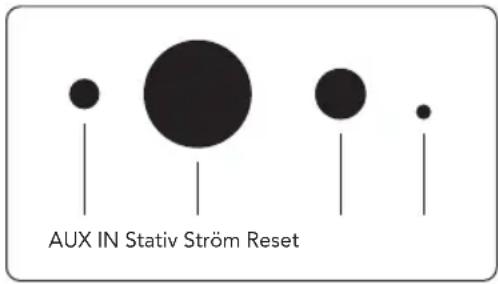
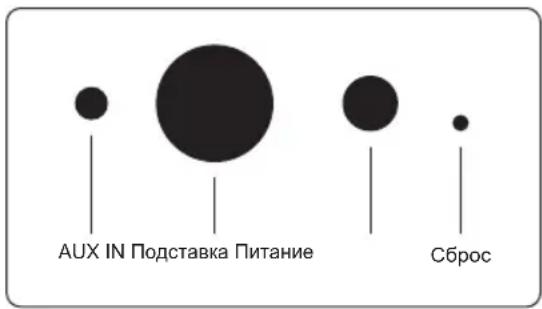
ON-SPEAKER PORTS AND BUTTONS (BACK)

AUX IN
Use a 3.5mm AUX cable to connect your device via the AUX input.
Stand
To place the speaker on a stand, push the top of the stand into the hole.
Power
To give your speaker power, use the included power adapter. First insert the DC connector into the back of the speaker and then connect the AC power plug to a power outlet.
Reset
Do a factory reset by pushing in a thin pin or paperclip into the hole.
Mode switch button
You can play audio via three different modes: Wi-Fi, Bluetooth and AUX IN. To select mode, press the button to switch between modes. Wi-Fi mode is the default mode.

SET UP YOUR SPEAKER VIA WI-FI
- Plug in your speaker. If this is the first time you're setting up, the speaker will go into Wi-Fi set up mode automatically after it has booted up. Allow the speaker 25-30 seconds to boot up. Wait until you hear "Now in set up mode. Follow the instructions in your device's companion app."
- Open the Defunc HOME app.
-
The first thing the app does is to search for speakers that's already been set up. As this is the first time you're setting up, no speaker will be found. Therefore, tap "Add speaker" to start. Bluetooth is used by the app to find your speaker, so make sure your device's Bluetooth is switched on.
-
Allow the app to access your device's location, then tap "Next."
- Make sure the speaker is plugged in, then tap "Next."
- Make sure that the left LED indicator on the front of the speaker is flashing with a yellow colour. Verify that it's flashing by tapping on "Indicator is flashing." If the indicator isn't flashing, tap "Indicator is not flashing" and follow the instructions on screen.
- The app lists all the available speakers as "Defunc HOME SMALL XXXX" and "Defunc HOME LARGE XXXX". Tap on the speaker that you want to set up, then tap "Next." Please note: The first speaker in the list is always pre-selected.
- In this next step, you will connect your speaker to your Wi-Fi network. The app has automatically chosen the Wi-Fi your device is connected to and has also auto-filled the password. Simply tap "Next" or change Wi-Fi network and password first.
- Your speaker is now connecting to your Wi-Fi network. The app will confirm a successful connection via voice and on screen. Tap "Next" to continue.
- The app is now looking for an app update. When done, the app will go to the next screen.
- It's now time to name your speaker. The speaker has a pre-entered product default name in the app. You can keep this name, change it to another preset name or create your own name. Tap the arrow in the top right corner on the screen when you're done.
- You can now choose to set up Alexa by following the instructions on screen. If you choose to skip setting up Alexa, tap the arrow in the top left corner on the screen to start using your speaker. To set up Alexa, refer to "Setting up Alexa" in this manual.
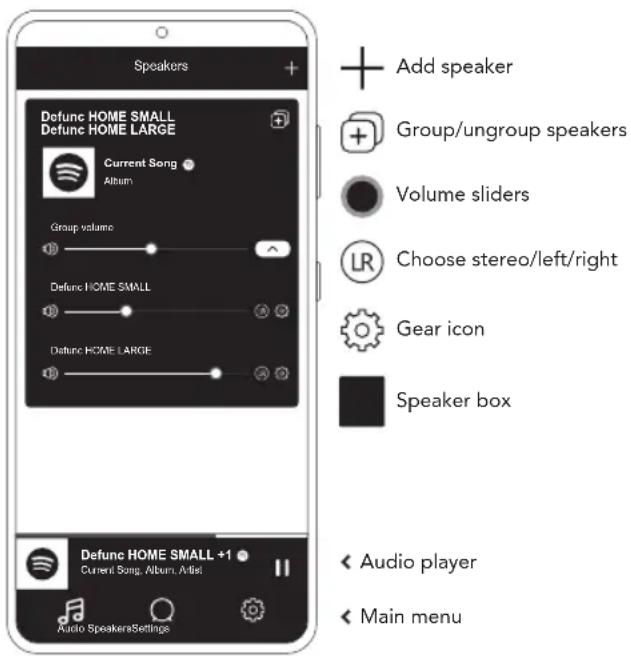
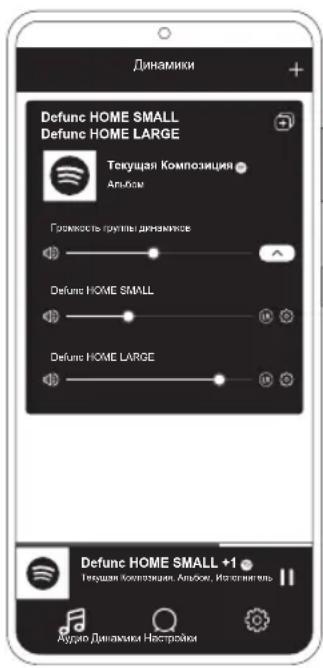
BASICVIEWOFTHEAPP
SETTING UP ALEXA
- In the Defunc HOME app, tap "Audio" in the main menu in the bottom left screen corner.
- Tap "Amazon Alexa" in the list.
- Tap "Get started."
- If you already have an Amazon account, sign into it. If you don't have an Amazon account, you need to create one.
- Choose your preferred language for Alexa.
- At the next screen, tap "Next" and read the information about the Wake Word button located on top of the speaker. When done, tap "Next" again.
- Alexa is now ready to assist you.
ABOUT ALEXA
One of Defunc HOME's smart features is Alexa built-in, Amazon's voice AI. Talk to Alexa to control the audio system and much more.
Use Alexa by saying things like "Alexa, play music on Spotify." and "Alexa, what's the weather in Stockholm?" You can also press the Action button on the speaker to talk to Alexa. To turn the microphones on or off, press the Wake Word on/off button.
Alexa uses the left LED indicator on the front of the speaker to communicate. The speaker status is communicated with different colors. For more information about these LED indicators and more on how you can use Alexa, visit defunc.com.
THE MODE BUTTON: WI-FI, BLUETOOTH AND AUX IN
To switch between Wi-Fi, Bluetooth and AUX IN, press the Mode button on the back of the speaker. When pressing the Mode button, the left LED indicator on the front of the speaker will flash three times in the following colors: white for Wi-Fi, blue for Bluetooth and yellow for AUX IN, to indi the mode change.

CHOOSE MODE VIA THE APP
If you've previously connected the Defunc HOME app with your speaker and used the speaker over Wi-Fi, you can change this setting in the Defunc HOME app as long as you've left the app open.
- In the Defunc HOME app, tap "Audio" in the main menu at the bottom left screen corner.
- Scroll down to "Select speaker source" at the bottom and tap "Wi-Fi", "Bluetooth" or "AUX IN."
Wi-Fi
Bluetooth
AUX IN
If you closed the app and turned off Wi-Fi, you need to make sure that you turn on Wi-Fi and open the app to get to the controls.
SET UP YOUR SPEAKER VIA BLUETOOTH
- Press the Mode button in the back of the speaker. When the left LED indicator on the front of the speaker flashes blue five times, you're in Bluetooth mode. If the LED indicator flashes yellow or white, press the Mode button again until blue appears.
- Go to the Bluetooth settings on your device.
- Tap on "Defunc HOME SMALL XXXX" or "Defunc HOME LARGE XXXX" and accept to pair.
Basic controls (play/pause/previous track/next track/volume) in the app are available when connected via Bluetooth, but you previously need to have connected the app to the speaker via Wi-Fi for this to work. Tip! If you switch from Wi-Fi to Bluetooth, stay connected to your Wi-Fi network and leave the app open to use the basic controls. You can also just use the controls in the audio streaming service of your choice.
CONNECT YOUR DEVICE VIA AUX IN
- To connect a device to your speaker via cable, plug one end of a 3.5mm AUX cable into the AUX input.
- Plug the other end into the device you're using as your audio source. An adapter may be necessary when using certain devices.
AIRPLAY 2
With AirPlay 2, you can stream music from your iOS device to more than one product. It's not restricted to Apple's own ecosystem so you can mix AirPlay 2 compatible speakers from other audio brands to create a more versatile multiroom system. As long as all the devices are on the same Wi-Fi network, you can access the music controls on your iPhone, Apple TV or MacBook's iTunes and select the speaker/s to send the music to. Go to apple.com/airplay for more information. AirPlay 2 is available in all Defunc HOME speakers.
CONNECT THE APP TO AN AUDIO STREAMING SERVICE
The way you connect the app to an audio streaming service depends on the streaming service. The login processes all look different so please refer to the user manual of the streaming service you're using if needed.
In the Defunc HOME app, tap "Audio" in the main menu at the bottom left screen corner. A list of the available audio streaming services is shown.
AUDIO PLAYER
The audio player in the Defunc HOME app is located right above the main menu.
- Tap the play/pause button to play and pause your audio.
- Tap anywhere else on the bar to expand the audio player.
- Collapse the audio player by tapping the arrow in the top left corner of the screen.
Tip! Before you can use the audio player, you need to connect the app to an audio streaming service.
ADD SPEAKER
- In the Defunc HOME app, tap "Speakers" in the main menu at the bottom of the screen.
- Tap the plus sign in the top right corner of the screen.
- Follow the instructions on screen.
GROUP AND UNGROUP SPEAKERS
- In the Defunc HOME app, tap "Speakers" in the main menu at the bottom of the screen.
- In the speaker box, tap the group/ungroup icon in the top right corner.
- Select which speakers you want to group/ungroup and tap "Done." The selected/unselected speakers are now grouped/ungrouped.
CHANGE VOLUME
- In the Defunc HOME app, tap "Speakers" in the main menu at the bottom of the screen.
- In the speaker box, use the volume slider/s to control the volume. You can also use the volume buttons on your device.
CHOOSE STEREO, LEFT OR RIGHT
- In the Defunc HOME app, tap "Speakers" in the main menu at the bottom of the screen.
- Tap the stereo/left/right icon to switch between the three modes.
CHANGE SPEAKER NAME
- In the Defunc HOME app, tap "Speakers" in the main menu at the bottom of the screen.
- In the speaker box, tap the gear icon.
- Tap "Change speaker name" in the list.
- Tap on the current name to update it.
- Tap "Done" in the top right corner to confirm.
EQ
- In the Defunc HOME app, tap "Speakers" in the main menu at the bottom of the screen.
- In the speaker box, tap the gear icon.
- Tap "EQ" in the list.
- Move the treble and bass sliders left and right until you get the sound you're after.
PLACEMENT EQ
Is your speaker standing on a table? Have you mounted it on your wall? Placement EQ quickly gets you the best sound possible based on where you've placed your speaker/s in your home.
- In the Defunc HOME app, tap "Speakers" in the main menu at the bottom of the screen.
- In the speaker box, tap the gear icon.
- Tap "Placement EQ" in the list.
- Choose the placement EQ that matches the place you've chosen for your speaker.
ADDING PRESETS
- In the Defunc HOME app, make sure you have audio playing.
- Tap the audio player located right above the main menu at the bottom of the screen to expand it.
- To the right of the song name, tap the three dots () .
- Tap "Preset."
- Tap a number to add preset.
- Tap the arrow in the top left corner when you're done.
ALARM CLOCK
- In the Defunc HOME app, tap "Speakers" in the main menu at the bottom of the screen.
- In the speaker box, tap the gear icon.
- Tap "Alarm clock" in the list.
- Tap the plus icon in the top right corner of the screen.
- Set time, if repeat, what audio to play and volume.
- Tap "Done" in the top right corner to confirm.
FACTORY RESET
- In the Defunc HOME app, tap "Speakers" in the main menu at the bottom of the screen.
- In the speaker box, tap the gear icon.
- Tap "Information about speaker" in the list.
- Scroll down to the bottom and tap "Restore factory settings" to reset your speaker. The speaker voice will say: "Factory data has been reset" when done.
SLEEP TIMER
- In the Defunc HOME app, tap "Speakers" in the main menu at the bottom of the screen.
- Tap the audio player located right above the main menu to expand it.
- To the right of the song name, tap the three dots () .
- Tap "Sleep timer."
- Set time and you're done.
For more detailed instructions, please visit defunc.com.
LEGAL
Bluetooth: The Bluetooth® word mark and logos are registered trademarks owned by the Bluetooth SIG, Inc. and any use of such marks by The Art of Utility AB is under license. Other trademarks and trade names are those of their respective owners.
Google: Google Play and the Google Play logo are trademarks of Google LLC.
8/ENGLISH

Spotify: The Spotify Software is subject to third party licenses found here: www.spotify.com/connect/third-party-licenses. Use your phone, tablet or computer as a remote control for Spotify. Go to Spotify. com/connect to learn how.
Wi-Fi Alliance: Wi-Fi® and the Wi-Fi logo are registered trademarks of Wi-Fi Alliance®.
WARNING!
Do not attempt to repair the speaker. A faulty repair may lead to fire, electronic breakdown or a damaged product. Do not use the speaker in an environment where the temperature is below 0^ or above 45^ . Avoid using a device indicator light near the eyes of children and animals. Do not use the speaker in thunderstorm weather to avoid abnormal speaker behaviour and the risk of shock. Do not wipe the speaker with oil or other volatile liquids. Do not wet the speaker. Do not touch the HOME badge in the back of the speaker as it can get quite warm when the speaker is in use.
IC WARNING (CANADA)
This device contains licence-exempt transmitter(s)/receiver(s) that comply with Innovation, Science and Economic Development Canada's licence-exempt RSS(s). Operation is subject to the following two conditions:
- This device may not cause interference.
- This device must accept any interference, including interference that may cause undesired operation of the device.
RF warning statement: This equipment complies with IC radiation exposure limits set forth for an uncontrolled environment. This equipment should be installed and operated with minimum distance 20cm between the radiator and your body.
FCC STATEMENT
This device complies with Part 15 of the FCC rules. Operation is subject to the following two conditions:
- This device may not cause harmful interference, and
- This device must accept any interference received, including interference that may cause undesired operation.
Any changes or modifications not expressly approved by the party responsible for compliance could void the user's authority to operate the equipment.
Note: This equipment has been tested and found to comply with the limits for a Class B digital device, pursuant to Part 15 of the FCC rules. These limits are designed to provide reasonable protection against harmful interference in a residential installation.
This equipment generates uses and can radiate radio frequency energy and, if not installed and used in accordance with the instructions, may cause harmful interference to radio communications. However, there is no guarantee that interference will not occur in a particular installation. If this equipment does cause harmful interference to radio or television reception, which can be determined by turning the equipment off and on, the user is encouraged to try to correct the interference by one or more of the following measures:
- Reorient or relocate the receiving antenna.
- Increase the separation between the equipment and receiver.
- Connect the equipment into an outlet on a circuit different from that to which the receiver is connected.
- Consult the dealer or an experienced radio/TV technician for help.
FCC RADIATION EXPOSURE STATEMENT
This equipment complies with FCC radiation exposure limits set forth for an uncontrolled environment. This equipment should be installed and operated with minimum distance 20cm between the radiator and your body.
WARRANTY
One year global warranty. See defunc.com for more information.
DEFUNC HOME MULTIROOM WIFI-HÖGTALARE
PORTAR OCH KNAPPAR PÅ HÖGTALAREN (PÅ BAKSIDAN)
AUX IN
KONFIGURERA HÖGTALAREN VIA WIFI
BYTA NAMN PÅ HÖGTALARE
Tweeter: 0.75^
Woofer: 4^
PULSANTE MODE: WI-FL, BLUETOOTH E AUX IN
DE MODUSKNOP: WIFI, BLUETOOTH AND AUX IN

SETTE OPP HÖYTTALEREN VIA WI-FI
FJtT#E#FFJFJFJFJFJFJFJFJFJFJFJFJFJFJFJFJFJFJFJFJFJFJFJFJFJFJFJFJFJFJFJFJFJFJFJFJFJFJFJ
BbICOKOaCToTHbI DnHaMnK:0,75"
Hn3KoOaTcToTHbI dNHaMVK:4
Duaana30n 50-20000
Питане:60BA(BT)
PekomeHdyembni pa3mep KOMHaTbI:5-30 m²
Bolbwoi dHnHaMK Defunc HOME LARGE
BbicoTa:300 MM
Umpuna:300 MM
Глубина: 150 MM
Macc: ≈ 3,7K (ToJbKO nnHaMK)
BbXoHnA MoUHocTb ycInnteIa:100BT
BbICOKOaCTOTHbI dHaMnK:0,75"
Hn3KoyactOTbI dHaMHK:6"
Dnana30H yactoT: 30-20 000 T
Питанne:144BA(BT)
PekomeHnyembI pa3Mep KOMHaTbI: 10-80 M²
NIOIROTOBKA KHCNOJIb3OBAHIO
1.YCTAHOBITEINHaMnKaHaNcTaBky.
2.Дя усиенябасOB nomecnte Днhamкблжke K cTeHe nIb yrgny.
3.C NOMOUBBO BXODAUEBO KOMNNEKT 6NOK NITAHN NOKIOHOTe DINHAMK CETN. CHaHaNA BCTABBe pa3bEM NOCTORHHORo TOKA B 3aDHHO YACTb DnHAMNKa, 3aTEM NOKNIHOHTe BNKY NITAHN NEpeMeHHORo TOKA B PO3eTKy.DOXDNTECb 3arpy3Kn DnHAMNKa (25-30 cekyHd).
4.Поверпг,ВКИЧЕHAи BAшабспpoвдэстБWi-Fiи коррктнОЛ ИОА pa6OТaET.ПоДиNTe KAK моЖнОБлпKE К BAшeMyMapшуТИЗATOPy NepeД Tem,ΚΑΚ HauYb HAcTpoIky ДИНAmИka.
5.Подклочп TeBaWeMo6nIbHoeycTpoIcTBo,HaNPmEp cMapTФOH,K BaWeBecnpoBOHOcTeNWi-Fi.
6. YcTaHOBiTe npIIOKeHne Defunc HOME n3 mara3Ha npIIOKeHn App Store nIg Google Play.
KHONKINHAMNKA (CBEPXY) INXФУHKLIMN
Bkn./bblk. KOMaHdblaakTNBaun
- Haxmnte oIN pa3, YTO6bI BKIOUHTb KOMaHny aKTHBaunn («AneKa»)

Ynpablaioa Khonka Alexa n HactpoKa 6ecnpobodno CETn (Wi-Fi)
- HaxMMTE OINH pa3, YTO6bl aKTbBnPoBaTb rOIOcoBOI nOMoUHk Alexa
HaxmTe u ydepKnBaTne, YTO6bI aKTHBnpoBaTbpeXIM HactpOkn BecnpoBODHO cTe Ni-Fi
Bocnpon3BeDenHe/nay3a n oxnHaHne/akTnBaun
Haxmnte OIN pa3, YTO6bI HauaTb INI npocTaHOBtB BOCPON3BeDeHne
Haxmte n ydepKmbaTe, TTo6bI nepeKIOHTb DnHaMnB peKIM OxndaHn. Haxmte OOnH pa3, TTo6bIBbIEcTu DnHaMn N3 pexkma OxndaHn.

YMeHbSeHne rpoMkoCTn npebdIyuaKOMNo3u
Haxmte OIN pa3, yO6bI yMeHbWHTr pOMKoCTb
Haxmnte u ydepknBaIte, Yo6bI BepHytbcK npdebldyuee KOMnO3uIN

YBeJIHmHeHnI rPOMKoCTn I CJIeMyIOUaJ KOMN03HUN
- Haxmnte Odn pa3, YTO6bI yBelenuHTb rPOMKocTb
Haxmnte u yedeXnBaIte, YTo6bI nepeiTu K cneDyoUeKOMIO3NcIN

NIOPTbI KHOHONK DNHAMNKA (C3ADN)
AUX IN
IcnoB3ynteKa6bIbAUXcoWTeKePOM3,5MM,YTO6blNoKIOuHTbBaueycTpoiCtBOyepe3pa3bEMAUXIN.
Noctabka
YTo6bI yCTaHOBnTb DnHaMnK Ha NOCTaKBY, BCTaBBTe BepXHIOEOe Yactb B OTBepCTne B HxKHe Nactn DnHaMnKa.
Питаннe
TTo6bI NoDKJIOUHTb DnHaMnK CTeN, NcNoJIb3yIe BXoJaunB KOMnNEKT 6LOK NITaHnA. Chayana BCTaBBte pa3bEm NOCToHHORTOKA B3aDHIOU qACTb DnHaMnKa, 3aTEM NOKJIIOUHTe BNIKy NITaHnA nepemEHORO TOKA B p03eTKy.
C6poc
BCTaBtE oCtpbI npEIMET (ToHKn WTHnFTnnnCKpeNkY) B OTBepCTne, YTO6bI BEpHYb 3aBOcKne HAcTPOKn DnHaMnKa.
Khonnka nepeknoueHnpeXMMOB
Диhamн можET BOCПОИЗБODINТы aydnoВ tpx pa3HbIX pexmMax NOKJIQUeHnA:Wi-Fi,Bluetooth n AUX IN. YTo6bl bIbpaTb HxKhBIIpeXIM,HaXMITE KONKY nepeKJIQUeHnpeXIMOB. IyoMOnuHaHHO yCTaHOBIneH peXIM Wi-Fi.

HACTPOIKA DHHAMKKA YEPE3 NODKJIIOUCHNE K BECNPOBOHOH CETN Wi-Fi
- PdKIOHTe DnHAMK K cTeN. EcN BbI BbIOHReTe 3Ty HAcTPOKY nepBbI pa3, DnHAMK ABTomATUeCKN peEKeIIOHTcB B pEKIM HAcTPOKN BeCpNOBoIDHO CTeN Wi-Fi nocne 3arpy3Kn. DoXnITecb 3arpy3Kn DnHAMK4 (25-30 cekynd). DoXnITecb rOncoboro noTBePckDeHn «Now in set up mode. Follow the instructions in your device's companion app’. (roLOCOBoe noTBePckDeHne Ha aHRNIckOM Ra3bike)
- OtkpoTe npuToxKeHne Defunc HOME.
- NepBoe DeInCTBHe, KOTOpoe BbINOnHReT npInOKeHne, -3To nONCKyke HAcTPOeHHbIX DnHAMNKOB. IocKoIbKy Bbl BbINOnHReTe HAcTpoKy BnepBbIe, DnHAMNK He 6yDeT o6hApYKeH. HaxMNTe «DobABtB DnHAMNK», YTObI HaHaTb. DnIaONcKa DnHAMNK npInOKeHne INcNoNb3yETexHONOrNIO Bluetooth, no3Tomy nepeD nonckOM BkIOuHTe Bluetooth Ha BaWem yCtPoIcTBe.
- PaaPeuHte npnIOxEHNO DocTyN K MeCToHaXOXJeHNIO BaUero yctpOJCTBa, 3aTeM HAKMTe «JaIee».
- Поберьт, подкючен пи ДИнамик, посе зтого нахмITE «Далee».
6.Поберп,МИгaelллельсБЕТОДныИнДИКATOP HaФpoHTaIbHoH YacTиДИHAMnka JKeNTbIM UBeTOM.NoITBepDnte, YTO OH MIRaET,Hakab KHOKNy «ИнДИKATOP MIRaET».EcINиИнДИKATOp He MIRaET,HakmITE«ИнДИKATOp He MIRaET»И cNeNyTe DaIbHeNShIM INHCTpyKUqMnHa 3kpaHe. - B npnIOKeHH 6yET BbIBeEH CnICOK BCex DocTyNHbIX DnHaMkoB B cneDyIoUeM fOpMaTe: «Defunc HOME SMALL XXXX» n «Defunc HOME LARGE XXXX». BbIbepNte DnHaMnK, KoTobH Heo6xOIMo HacTpOnTb, N HaKMITE «JaJIee». O6paTIne BnHMaHHe! IepBbI DnHaMnK B cNcKe 6yET BbIbpaH NO yMOJHaHNIO.
- Danee Heo6xOIMo NIOKNIOHTb DnHAMKn K BaaeB 6ecnpoBOHOI cetN Wi-Fi. PpInnoKeHne ABTomATueCeckn BbIbepeT 6ecnpoBOHOcTe bWi-Fi, K KOtopoN IOKnIOUeHO BAwe ycTPOINCTBO, n ABTomATueCeckn BBeDeT npoJIb. PpocTo HaxMITE «Danee» INN Bbl6epNTe DpyrHy oecnpoBOHOcTe bWi-Fi N BBeDInTe npoJIb dJa Hee.
- Nocne 3toro BaIu DNHAMK 6yET NpKnIOUeH K 6ecnpOBDoH
ceT Ni-Fi. PnpnoKeHne noDtBepnT noKnIOueHne K cetN roIocOBo KOMaHDo n coo6uHem Ha 3kpaHe. HaxMnte «Danee», YTO6bl npdoJKNItb.
- Nocne 3TOrO npInoXeHne BbINOJIHNT NOcK O6HOBJeHn. ITO 3aBepSeHHN 3TOrO WaRa npInoXeHne nepeJTeH Na CNeyUoHn 3KpaH.
- Ha 3tom ware Heo6xOJIMO npuDyMaTb Ha3BaHne dJa BaWero DnHaMnKa. B npuNoXeHHu DNHaMnky yke 6ydet npncBOeHO cTaHdapTHoe Ha3BaHne. Bbl MoXeTe OCTaBtB er0 6e3 n3MeHeHn, BblpaTb pyroe npedyCTaHOBNeHoe Ha3BaHne nIN BBecTN CO6CTBeHHoe Ha3BaHne. HaxmTe Ha cTpEKNy B BepxHem npabOM yrjly ekpaha no 3aBepseHHn 3Toro waara.
- Ha 3TOM WARE Bbl MOKTe HAcTPOINb rONOCOBo NOMOuHnK Alexa, BblIOJIHRA INHCTpyKUHN, NOBBAHOUsNEcH A 3KpaHe. EcNn Bbl XOTNTe IpnOyCTnTB HAcTPOINy rONOCOBO rNOMOuHnKa Alexa, HAKMnTE CTpeJky B JEBOM BepXhem yTny 3KpHaH, YTO6bI NaHAtb NoIb30BaTbCdNHAMNKoM. IHOpMaUHIO O hAcTPOINke rONOCOBO rNOMOuHnKa Alexa cM. B pa3deJe HAcTPOINka rONOCOBO rNOMOuHnKa Alexa B HAcTOrAeem pyKOBOvDCTBe.
CTAHAPTHBIN BND INPOJXEHNIA

ДобавитБ ДИHamNK

PpynnnpoBaTb/ pa3prpnnnpoBaTb DnHaMMK

PeyIaTOpbI rPOMKocTn

Bb6paTb cTepeo/JeBbI/ npabBi

3Nauchok WeceTeprn

Bn3yaJIbHaJnaHeJIb dHaMnka
AynonponrpbBaTeB
<JnabHoe MeHIO
HACTPOIKA TOLOCOBOI NOMOUHKA ALEXA
1.B npnloxehn Defunc HOME haxmTe pa3eIe «Ayno» B HxKHeM JEBOM yrIy 3kpaHaB rIaBHom MeHIO.
2. BbIepeHte n3 noBvBweroCcNcKa «Amazon Alexa»
3. Haxmnte «Haatab hactpoky»
4. Ecnn y Bac yxe ecTb yueTHa 3anncb Amazon, abTopn3yItecb Hnei. Ecnn y Bac HeT yueTHoN 3anncn Amazon, Bam HyxHNo 6yJeT co3daTb ee.
5. BbIbepnTe HxKbH IaBk rOncOBoro NOMoUHnKa Alexa.
6. Ha cneDyUoem 3KpaHe HaxMITE «Janaee» I npOuTHe INHΦopMaUHO KONKE «Komahda AKTNBaCmN», paCnOIOKeHHo HA BepXHeuactn DInHAMnka. No 3aBepSeHm eIe pa3 HaxMITE KONky «Janaee»
7. Tocne 3toro roonocobn noomunk Alexa 6yndetakTNBnpoBaH
ДОПОЛНТЕLBHAИ NHФОМАЦИ O ГЮСOBМ NOMOUSHIKE ALEXA
Ondno n3 nHTeNKeTayIbHbIX yHKnI dHAmika Defunc HOME ABJIaTeCra rOnOCoBn NOMOuNHk Alexa ot KOMNaHn Amazon. Bby MoKTe DaBaTb rOnOCoBle KOMaHdbI NOMOuNHky Alexa, YTObI ynpaBnTb BaWey aYdIOcNCTeMOi N BblONHrTa MHOrne dpyrne DeJeCTBnR.
BbMoKeTe NcNoIb3OBaTb rOIoCoBn NOMoUHk Alexa cJeDyIOUHm
obpa3om: ckAnTe: «AlefKca,IrpaN My3bIky co "CnotnPa"» nn
«AlefKca, KaKaJ NorOda B MockBe?» Bb TaKke MoKeTe HaxaTb
ynpaBnIyoUyKOHNky Ha DnHaMnke, YTObbl npOn3HeCTn KOMaHdy
dIra rOIoCoBOro NOMoUHka Alexa. YTObbl BKlOuHTb NIN BBkInOHTb
MNkoOhbl, HaxMnTE KONkY «BKn./BbKn. KOMaHdy AKTNBaUNH.
FCBPOC K 3ABODCKHM HACTPOIKAM
1.B npnnojKeHHN Defunc HOME naHmnte pa3dien «INHaMKN» B HxKHe Nactn 3kpaHa B rnaBHom MeHIO.
2.Bpa3dene《HnHAMMnKn》HakMNTe 3HaQOKIeCTepHn.
3. BbIepeTe n3 cnNcKa pa3denn «HΦopMaun o dHnAmKe»
4.Прогистайы Винд по радала «Воссановпь 3абдкнихсторки》,ТоблсбостгдИнhamИК 3abOДСКИМ Насторкam.Посл致电OrTo Bblу cIbIшптголocOBoe noTbepKdHne:«Factorydata has been reset»
BPEM OXnDAHNA
1.B npnnojKeHHN Defunc HOME naTe pa3dEn «HnHaMKNB HnKHe Nactn 3KaPaBa HrJbHOM MeHIO.
2. Haxmte Ha aydnonponrpbibateIb, paonoloxeHHbB B cepxhem npabOM yIy IraBHoro MeHIO B HIXHeN qactn 3KpaHa, YTO6bl pa3BepHyTb ero.
3. HaxmTe Ha MHOrToOHe («...») cnpaBa OT Ha3BaHnKOMNo3nU.
4. HaxmTe «TaimepoxkndaHnra>.
5.3aainTeBpeM
Bolee noDpo6HbIe IHCTpyKcIMn CM. Ha caiTe defunc.com.
IPABOBARHHΦOPMAUHA
Bluetooth: CnoBo Bluetooth®ил罗TINЯВЯOTc3apernCTpnpoBaHbIMN TOBapHbIMN 3HaKaAMN,прнадпжкшIMNKompanHb Bluetooth SIG,Inc.KompanHgThe Art of Utility AB nCnoJb3yetTaKHe TOBapHbIe 3HaKn Ha OCHOBaHN IInceH3Nn.ПочeTOBapHbIe 3HaKn IN HAmMeHOBaHnЯBJIYOTcCo6CTBeHHOCtBuOCOOTBeTCTByUOxN BlnJeBceB.
Google: Google Play and Google Play are to be available in 3Hakamn KomnaHnn Google LLC.

BOSAN PHAM BAO GWO BOSAN PHAM BAO GOM
Loa Defunc HOME
Gia d'chur Y
- Bô chuyén doi nguón dien
Hrong dan su dung
Huóng dān nanh
THONG SO KY THUAT THONG SO KY THUAT
Defunc HOME SMALL
Chieu cao: 200 mm
Chieu ngang: 200 mm
Chièu sāu: 101 mm
Trong luong: ≈1,5 kg (chi tinh loa)
Cóng suàt dàu rα bó khuech dai: 40 W
Loa tweeteter: 0,75"
Loa woofer: 4^
Dai tan so: 50-20,000 Hz