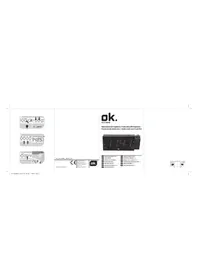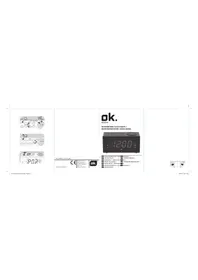
OCR 530B - Alarm clock radio OK - Free user manual and instructions
Find the device manual for free OCR 530B OK in PDF.



| Product type | Clock radio |
| Brand | OK |
| Model | OCR 530B |
| Dimensions (W x H x D) | 150 × 75 × 180 mm |
| Weight | Approx. 532 g |
| Power supply | 5 V / 2.4 A mains adapter (DC IN) |
| Operating power consumption | Max. 5 W |
| Standby power consumption | < 1 W |
| Radio reception | DAB/DAB+ (174.9 - 239.2 MHz) and FM (87.5 - 108 MHz) |
| Bluetooth | Version 4.2, range 8 m, A2DP and AVRCP profiles |
| Auxiliary input | 3.5 mm AUX IN socket |
| Wireless charging | Yes, via induction (Qi-compatible devices) |
| Alarm | Dual alarm (DAB, FM or buzzer) with snooze (SNOOZE) and auto-off after 60 min |
| Sleep function | Adjustable sleep timer from 15 to 120 minutes |
| Display | Backlit display with brightness settings (high, medium, low) and dimmer |
| Station memory | Up to 20 presets for DAB and 20 for FM |
| Interface languages | English by default, changeable via system settings |
| Safety | Important instructions: do not expose to moisture, use only authorized accessories, adequate ventilation (10 cm around) |
| Maintenance and cleaning | Unplug before cleaning, use a slightly damp cloth (no solvents) |
| Repairability | Repair by qualified professional only |
| Operating temperature | 0 °C to 40 °C |
| Box contents | Clock radio, mains adapter, instruction manual |
Frequently Asked Questions - OCR 530B OK
User questions about OCR 530B OK
0 question about this device. Answer the ones you know or ask your own.
Ask a new question about this device
Download the instructions for your Alarm clock radio in PDF format for free! Find your manual OCR 530B - OK and take your electronic device back in hand. On this page are published all the documents necessary for the use of your device. OCR 530B by OK.
USER MANUAL OCR 530B OK
A2DP (Advanced Audio Distribution Profile)
AUX IN (Auxiliary Input) - Modus
Thank you for your purchase of an ok. product. Please read this manual carefully and keep it for future reference.
IMPORTANT SAFETY INSTRUCTIONS. READ CAREFULLY AND KEEP FOR FUTURE REFERENCE.
- The lightning flash with arrow head within an

equilateral triangle is intended to alert the user
to the presence of uninsulated
"dangerousvoltage" within the product's
enclosure that may be of sufficient magnitude to constitute a risk of electric shock to persons and animals.
- The exclamation point within an equilateral

triangle is intended to alert the user to the
presence of important operating and
maintenance instructions in the literature
accompanying the device.
- For safety reasons, this class II product is

provided with double or reinforced insulation as
indicated by this symbol.
- Danger! Excessive sound pressure from
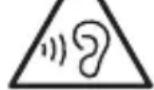
earphones and headphones can cause hearing
loss. If you listen to loud music for a long time,
your hearing may be impaired. Set to a
moderate volume.
- This product is only intended for audio entertainment.
Do not use the product for any other purpose than described in this manual in order to avoid any hazardous situation. Improper use is dangerous and will void any warranty claim.
- For household use only. Do not use outdoors.
- Danger of suffocation! Keep all packaging material away
from children.
EN
24
- Only use under normal room temperature and humidity conditions.
- The product is only suitable for use at moderate degrees of latitude. Do not use in the tropics or in particularly humid climates.
- Do not move the product from cold into warm places and vice versa. Condensation can cause damage to the product and electrical parts.
- Do not use attachments or accessories other than recommended by the manufacturer or sold with this product. Install in accordance with this user manual.
- When installing the product, leave sufficient space for ventilation (minimum 10 cm around the product). Do not install in bookcases, built-in cabinets or the like.
- Do not impede ventilation by covering the ventilation openings with items, such as newspapers, table-cloths, curtains, etc. Do not insert any objects.
- Do not install near any heat sources such as radiators, heat registers, stoves or other products (including amplifiers) that produce heat.
- Do not shift or move the product when connected to the mains.
- Do not touch, push or rub the surface of the product with any sharp or hard objects.
- Danger! To reduce the risk of fire or electric shock, do not expose this product to rain or moisture.
- The product shall not be exposed to dripping or splashing and no objects filled with liquids, such as vases, shall be placed on the product.
- Care should be taken so that no objects or liquids enter the enclosure through openings.
-
No naked flame sources, such as lit candles, should be placed on the product.
-
Refer all servicing to an authorised service agent. Do not attempt to repair the product yourself. Servicing is required when the product has been damaged in any way, such as if the supply cord or plug are damaged, liquid has been spilled, objects have fallen into the product, the enclosure is damaged, the product has been exposed to rain or moisture, does not operate normally, or has been dropped.
- Before connecting the product to a socket outlet, make sure the voltage indicated on the product corresponds to your local mains.
- Only use the provided adaptor.
- The adaptor power plug is used as the disconnect device; the disconnect device shall remain readily operable. To completely disconnect the power input, disconnect the adaptor power plug.
- The product may not function properly or not react to the operation of any control due to electrostatic discharge. Switch off and disconnect the appliance; reconnect after a few seconds.
- Protect the supply cord from being walked on or pinched particularly at the plug, convenience receptacles and the point where it exits from the product.
- Disconnect the adaptor power plug in case of faults during use, during lightening storms, before cleaning and when not using the product for a longer period of time.
- Danger! Before cleaning, switch the product off and disconnect the adaptor power plug from the socket.
- When the product has reached the end of its service life, make it defective by disconnecting the adaptor power plug from the socket and cutting the cord in two.
- Zero voltage only when unplugged.
- People with pacemakers should contact their doctor before using the (charging) device!
- Do not place objects other than the device to be charged on the charger. Do not place any objects between the charger and the device to be charged. This can lead to heating, fire or burns.

26
INTENDED USE
This product is intended for audio playback via DAB-Radio, FM-Radio, audio input (AUX IN) or Bluetooth® and for wireless charging of suitable devices. Any other use may result in damage to product or injuries. This product is designed for household use only and not intended for commercial use.
The Imtron GmbH assumes no liability for damage to the product, for property damage or for personal injury due to careless or improper usage of the product, or usage of the product which does not meet the manufacturer's specified purpose.
CONTROLS AND COMPONENTS
A. Telescope antenna
B. DC socket DC IN
C. Input AUX IN
D. Charging surface
E. Previous button
F. Next button
G. MENU / INFO button
H. Standby/Mode button
I. Preset 2
J. Preset 1
K. PRE button
L. Alarm button
M. SNOOZE button
N. SELECT / VOLUME button
O. Display
P. Power supply with cord and DC plug
DELIVERY CONTENTS
1 x Power supply
1xUsermanual
BEFORE FIRST USE
Remove the product and accessories carefully from the original packaging. Inspect the delivery contents for completeness and damages. Should the delivery contents be incomplete or damaged, contact your sales outlet immediately.
LANGUAGE
The default language of your radio is English. You change the language under SYSTEM SETTING.
POWER SUPPLY
Fig. 1 Insert the DC plug of the power supply into the DC input socket DC 5 V. Then plug the power supply into a mains socket.
OPERATION
Fig. 2 Adjusting the antenna
For optimal reception, extend the antenna, move to fully extend and adjust it.
Turning the unit on/off (standby)
Press and hold the Standby/Mode button to turn on/off the unit.
Adjusting the volume
The volume can be adjusted during playback with the volume control VOLUME.

28
DAB RADIO
Fig. 3 Press Standby/Mode button to select DAB mode.
When the radio is switched on for the first time, it will automatically do a full scan of DAB/DAB+ stations. The list of stations is then stored, eliminating the need for another full scan when the radio is turned on next time.
When the scan is complete, the stations are stored in alphabetical order. The first available station will be played back.
Note
If there is no DAB reception at any time, change the position of the unit or adjust the antenna.
CHANGING DAB/DAB+ STATIONS
- Press the next previous buttons in DAB mode to navigate available DAB/DAB+ stations.
- Press SELECT to confirm.
DAB MODE-AUTO SCAN
Long press the button MENU in DAB mode and then the next previous buttons until Full scan appears on the display. Press SELECT to confirm.
The unit scans all available DAB/DAB+ stations and plays the first available station.
Note
New stations and services are added to the stored DAB/DAB+ stations. In order to make new DAB/DAB+ stations and services available on your radio, run a full scan at regular intervals.
DISPLAYING STATION INFORMATION
- Select a DAB station.
-
During DAB/DAB+ radio playback, press MENU / INFO repeatedly to display the following information (if available):
-
Ensemble
Frequency - Signal frequency error
Audio state and bit rate
Time - Date
Radio text - Signal strength
Programme type - Power status (Mains or battery)
MANUAL STORING DAB STATIONS
You can store up to 20 preset DAB/DAB+ stations.
- Select the desired station.
- Press the PRE. button and then use the VOLUME knob to select program memory. Then press and hold SELECT for about 1 second until the display shows
. - Repeat steps 1 to 2 to store more DAB/DAB+ stations.
- Or you can fast preset the favorite top 3 stations by press and hold the 1-2-3 button for approximately 2 seconds until 'Save to Preset' and the numbered preset list is displayed.
Note: If there is already an existing DAB station stored under a preset, it will be over written when you store the new station.
EN
30
SELECTING PRESET DAB STATIONS
- Press Standby/Mode select the DAB/DAB+ mode.
- Press PRE. to access the Preset menu "Preset Recall" <#: stored station name>.
- Use the next previous buttons to select a preset number and confirm your selection by pressing SELECT.
USING THE DAB/DAB+ MENUS
In DAB mode press and hold MENU and menu opens and use the next previous buttons to browse the menu options. To confirm your selection press SELECT every time.
Station list
Full scan
Searches for all available DAB/DAB+ stations.
- Station order
Multiplex
Alphanumeric
DRC
Dynamic Range Control setting boosts the volume of quieter sounds in a noisy environments.
Off / low / high
- Main menu
FM RADIO
Selecting FM Stations
Fig. 4
- Press the Standby/Mode button to select FM radio.
- The radio plays the last station selected.
31
EN
Selecting FM station frequencies
- Select a FM station.
- Manual frequency selection
Press the next previous buttons to change the frequency at intervals of 0.05 MHz.
- Automatic frequency selection
Press the next previous buttons for 1-2 seconds and the radio will stop searching once an active station has been found.
Storing FM stations
You can store up to 20 preset FM stations.
- Select the desired FM station.
- Press the PRE. button and then use the VOLUME knob to select program memory. Then press and hold SELECT for about 1 second until the display shows Preset ... Saved.
- Repeat steps 1 to 2 to store more FM stations.
- Or you can fast preset the favorite top 2 stations by press and hold the Preset 1 or 2 buttons for approximately 2 seconds until Preset ... Saved is shown in display.
Note: If there is already an existing FM station stored under a preset, it will be overwritten when you store the new station.
Selecting a preset FM station
- Press PRE. to access the Preset menu.
- Use the next previous buttons to select a preset number and confirm your selection by pressing SELECT.
Using the FM menu
-
Press and hold MENU in FM mode and select a menu option with the next / previous buttons:
Scan setting
Audio setting (stereo or mono setting)
Main menu -
Confirm selection with SELECT.
EN
32
SCAN setting
- Press and hold MENU in FM mode and select with the next previous buttons Scan setting.
- Press SELECT to confirm the selection.
-
Select a menu option with the next previous buttons and confirm with SELECT.
-
Scans for stations with strong signals
Scans all available stations
AUDIO setting
- Press and hold MENU in FM mode and select with the next / previous buttons
- Press SELECT to confirm the selection.
-
Select a menu option with the next previous buttons and confirm with SELECT.
-
SYSTEM SETTING
Fig. 5 Long press Menu in any mode and select Main menu with the next previous buttons.
Confirm selection with SELECT.
Following menu options are available:
- Set Time/ Date
- Alarm
- Sleep
- Backlight
Language
Factory Reset - Software version
Sleep Setting
- Select menu option
with the next previous buttons and confirm with the button SELECT. - Press the next previous buttons repeatedly until you have set the desired time, between 15 to 120 minutes and OFF. Press the button SELECT to confirm. The selected sleep time minutes will be displayed in the radio display e. g. 15, and will countdown until the radio turns off.
Setting the time
- Select menu option Time setup with the next previous buttons and confirm with SELECT.
-
Use the next previous buttons to select the desired sub-menu:
-
Set time: manual time and date setting
- Clock format: 12/24 time format
- Auto update: Choice of DAB Update, FM Update, Any Update or No Update
Display lighting (backlight)
Select the menu option Backlight with the next previous buttons and confirm with SELECT.
Select the following options with the next previous buttons and press the SELECT to confirm the entry and return to the display illumination menu.
Timeout: 180-10s / On (permanently on)
On level: high / medium / low (brightness when display on)
Dim level: high / medium / low (brightness when display off)
Factory settings
Select menu option Factory Reset with the next previous buttons and confirm with SELECT.
Displaying the software version
Select menu option SW version with the next previous buttons and confirm with SELECT.
EN
34
Set Language
Select the menu item Language with the next previous buttons and confirm with SELECT. Select a language and confirm with SELECT.
ALARM
Note:
Make sure the time is set correctly.
- Press the Alarm button to access the following options:
Alarm 1
Alarm 2
- Enable alarm - press the next previous buttons and confirm with SELECT.
Choose how the alarm clock should be switched on:
- Select Off to disable the alarm.
- Select Daily, Once, Weekdays or Weekend to activate the alarm.
Note: Alternatively, you can access the alarm clock via the main menu.
- Set the alarm Time - press the next previous buttons and confirm with SELECT.
Set the time at which the alarm has to turn on.
- Set Mode - press the next previous buttons and confirm with SELECT.
Select the mode for the alarm clock:
DAB: wake up with DAB radio
FM: wake up with FM radio
- Buzzer: wake up with alarm sound
Note: The last station you listened to is automatically selected unless you select another station.
- Program memory (Preset) - press the next previous buttons and confirm with SELECT.
Select the preset station activated with radio alarm mode.
Note:
- This menu item is only available in Radio mode.
-
If you do not select a station, the last station you listened to is selected.
-
Volume - press the next previous buttons and confirm with SELECT.
You can set the volume at which the alarm is switched on.
- Saved - press the next previous buttons and confirm with SELECT.
- Turn off the alarm: Once the alarm sounds, you can turn off the alarm by pressing the SELECT button.
Note: The device will turn off automatically after 60 minutes.
Repeat alarm
When the alarm sounds, press SNOOZE to activate the 10-minute snooze feature.
Stop alarm
When the alarm sounds, press the button.
BLUETOOTH®
This mode allows you to use the radio as a speaker for an external device (e.g. mobile phone or MP3 player). The signal is transmitted wirelessly via Bluetooth®.
Note
Before playback, you must pair the radio (in this case the Bluetooth® receiver) and the device (transmitter).
Compatibility
This product is compatible with Bluetooth® enabled mobile phones and music devices. It features Bluetooth® version 4.2. It also works with devices featuring other Bluetooth® versions that support e.g.
Wireless stereo listening
A2DP (Advanced Audio Distribution Profile)
EN
36
Wireless music control
AVRCP (Audio/Video Remote Control Profile)
Note
- Keep the range of 8 meters when pairing.
- Before pairing a Bluetooth® AV source, refer to the AV source user guide regarding safety instructions and use with other devices.
Pairing
- Press the Standby/Mode button until Bluetooth appears on the display. The product is in Bluetooth mode.
- Activate the Bluetooth® function on the playback device. If necessary make a search for Bluetooth® devices. Pair your playback device with OCR 530-B. The devices are now connected, and will hear a voice prompts "Bluetooth® connected successfully".
-
To end the Bluetooth® connection:
-
Turn off the Bluetooth® function on the playback device or long press PRE. button, will hear a voice prompts "Bluetooth® disconnected".
- Change the Mode.
Bluetooth®-Playback
- Start the music playback on the audio device or press SELECT button on the product.
- Press the next / previous buttons shortly to skip title forward or backward.
- Adjust the volume by turning the VOLUME dial.
AUX IN (Auxiliary Input) mode
- Connect your playback device and the product with a suitable audio cable with 3.5 mm jack.
- Turn on the device and select the Auxiliary Input mode by pressing the Standby / Mode button.
-
If you have both devices connected start playback.
-
Operate the playback from your playback device. You can change the volume with the volume dial VOLUME.
GENERAL SETTING
Sender information
Briefly press the MENU/INFO button each time to display various information such as radio text, station name, time, etc.
WIRELESS CHARGING
Fig. 6
- Make sure that your device can be charged wireless (inductively chargeable).
- The radio must be connected to the mains. It can be switched on or off.
- Place the device to be charged on the charging surface with the back side. If a charging device is located on the charger, a corresponding symbol flashes in the upper right corner of the display.
Note:
- Place the device to be charged in the center of the charging surface as much as possible.
- Keep the charger at least 1 meter away from radio or TV while charging.
- Thick protective covers, e.g. at the mobile phone, can delay or completely disturb the charging process. If necessary, remove protective covers.
- Warning! Do not place any sensitive objects, such as bank or credit cards, memory cards, wrist watches, etc. on or near the charger as they may be damaged by the induction panel.
EN
38
CLEANING AND CARE
- Unplug the adaptor from the socket before cleaning the unit.
- Attention! Do not let water penetrate into the unit.
- Clean the housing with a lightly dampened cloth.
- Do not use sharp, scouring or aggressive cleaners.
- Do not use chemicals (such as gasoline or alcohol) to clean the housing.
TROUBLESHOOTING
If there are any problems during operation, please refer to the following table. If problems cannot be solved as indicated under Solution, please contact your manufacturer.
| Problem Possible | causes Solution | |
| Product does not function or does not charge | Interrupted power supply | Check the power supply |
| No Sound Volume | is very low | Adjust the volume |
| Poor radio reception quality | Poor radio reception | Place the product to another place and adjust the antenna again. |
TECHNICAL DATA
Adaptor
Manufacturer: DongGuan Obelieve
Electronic Co., Ltd
Model: OBL-0502400E
Input voltage : 100 - 240 V~
Input AC frequency: 50/60 Hz
Output voltage : 5.0 V
Output current : 2.4 A
Output power : 12.0 W
Average active efficiency : 83.4%
Efficiency at low load (10%) : 75.6%
No-load power consumption: 0.07 W
Radio
Operation power consumption : max. 5 W
Standby power consumption: < 1 W
Tuning range (Tuner DAB) : 174.9 - 239.2 MHz
Tuning range (Tuner FM) : 87.5 - 108 MHz
Tuning Grid (Tuner FM) : 0.05 MHz
Bluetooth® Frequency range : 2402 MHz - 2480 MHz
Bluetooth® Max. RF power: -4.535 dBm
Operation conditions : 0^ - 40^
Dimensions : Approx. 150× 75× 180mm
Weight : Approx. 532 g

40
DECLARATION OF CONFORMITY
Hereby, Imtron GmbH declares that the radio equipment type OCR 530-B is in compliance with Directive 2014/53/EU. The full text of the EU declaration of conformity is available at the following internet address: http://de.ok-online.com/nc/de/suche.html
DISPOSAL

The crossed-out wheeled bin logo requires the separate collection of waste electric and electronic equipment (WEEE). Electric and electronic equipment may contain dangerous and hazardous substances. Do
not dispose of this appliance as unsorted municipal waste. Return it to a designated collection point for the recycling of WEEE. By doing so, you will help to conserve resources and protect the environment. Contact your retailer or local authorities for more information.
ENHORABUENA
Station list
Full scan
Audio setting (stereo or mono setting)
Main menu
Fabricant: DongGuan Obelieve
Electronic Co., Ltd
Evpyoioan/aεvεpyoioinTnc movaac
PiéoTe napaTeaéva To πλκTpo Avapovnc/ToPonou
Aetoupyia c /yia eevpyoioin/ anevpyoioin Tnc movadac.
Puθμiαn tnc ενταοιc tou nxou
H évtaon tou nxou μπopεi va puθμioTei kata τη δiapkεia TnC avanapaywync με Tov ελεγxo TnC évtaoç VOLUME.
GR
84
PAIO DAB
Eik. 3
PiéoTo pAnktpo Avauovnc/TpOou Aetoupyia C yia va eIaEeTc Tn aeitoupyia DAB
OTav evpyoioiTe to paIoΦwvo yia npwtn foopa,
Ta Eekivnoa autouata n nnpnc oapwn twv otaMuW DAB/DAB+. H IotaTwv otaOuW aOnOKeUeTai uOtepa,
aTAAEIOVTAc TnV avaykn yia mia aAAn nIAPn OApwoN
OTav to paIoΦwvo EvpyoioIne iua aAAn foopa.
OTav n oapwn eivai nnpnc, oi OtaHoi eivai
aTOnkEvov iE aApaBntikn oipa. Oa yivei
avanapaywn Tou npwTou diaHeoou otaHou.
- Patnote SELECT yia epiepaiown.
AEITOYPTIA DAB-AYTOMATH APQ H
- Station list
Full scan
Bluetooth®-Avanapaywyn
Station list
Full scan
- Ensemble
Frequency - Signal frequency error
Audio state and bit rate
Time - Date
Radio text - Signal strength
Programme type - Power status (Mains or battery)
Station list
Full scan
Tensione in uscita : 5,0 V
Consumo in standby : < 1 W
radiofrequency massima
HANDMATIG DAB STATIONS OPSLAAN
U kurz tot 20 voorkeuze DAB/DAB+ zenders opslaan.
- Station list
Full scan
A2DP (Advanced Audio Distribution Profile)
Station list
Full scan
Producent: DongGuan Obelieve
Electronic Co., Ltd
Model: OBL-0502400E
Station list
Full scan
- Signal strength
Programme type - Power status (Mains or battery)
SPARA DAB-STATIONER MANUELLT
- Station list
Full scan
Söker after alla tillgangliga DAB/DAB+ -stationer.
195
SE
- Station order
Multiplex
Alphanumeric
DRC
Utgående spanning : 5,0 V
- Station list
Full scan
Scan setting Audio setting Main menu