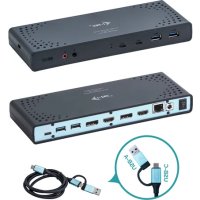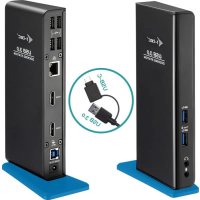
U3DUALHDMIDOCK - Other computer accessories i-TEC - Free user manual and instructions
Find the device manual for free U3DUALHDMIDOCK i-TEC in PDF.


| Product type | Docking station with dual HDMI output |
| Brand | i-TEC |
| Model | U3DUALHDMIDOCK |
| Dimensions (L x W x H) | 181 x 71 x 31 mm |
| Weight | 218 g |
| Power supply | DC 5V / 4A power adapter (included) |
| Video ports | 2x HDMI |
| Maximum resolution (1 monitor) | 2560 x 1440 at 50 Hz |
| Maximum resolution (2 monitors) | 1920 x 1080 at 60 Hz (each) |
| USB upstream ports | 1x USB 3.0 Type B |
| USB downstream ports | 1x USB 3.0 Type A (with fast charging BC 1.2), 1x USB 3.0 Type A, 4x USB 2.0 Type A |
| Network | 1x Ethernet GLAN RJ-45 (10/100/1000 Mbps) |
| Audio | 1x 3.5mm headphone output, 1x 3.5mm microphone input |
| Video technology | DisplayLink (DL-3900 controller) |
| Supported operating systems | Windows Vista/7/8/8.1/10, macOS X, Linux Ubuntu (14.04 to 19.04), Android 5+, Chrome OS R51+ |
| Included cable | USB 3.0 Type B to Type A / Type C (100 cm) |
| Required hardware | Free USB 3.0 or 2.0 port, Intel Pentium 1.2 GHz processor, 512 MB RAM |
| Maintenance and cleaning | Clean with a soft, dry cloth. Do not use abrasive products or solvents. |
| Safety | Do not expose to moisture, extreme temperatures, or shocks. Unplug before cleaning. Use on a flat, stable surface. |
| Spare parts and repairability | No user-replaceable parts. In case of malfunction, contact technical support. |
Frequently Asked Questions - U3DUALHDMIDOCK i-TEC
User questions about U3DUALHDMIDOCK i-TEC
0 question about this device. Answer the ones you know or ask your own.
Ask a new question about this device
Download the instructions for your Other computer accessories in PDF format for free! Find your manual U3DUALHDMIDOCK - i-TEC and take your electronic device back in hand. On this page are published all the documents necessary for the use of your device. U3DUALHDMIDOCK by i-TEC.
USER MANUAL U3DUALHDMIDOCK i-TEC
USB 3.0 Dual HDMI Docking Station
Please read the entire instruction manual carefully. Detailed manual is available on our website www.i-tec.cz/en/ in the tab „Manuals, drivers". In case of any issues, please contact our technical support at: support@itecproduct.com
DE
USB 3.0 Dual HDMI Docking Station
ENGLISH. .04-11
DEUTsCH. 12-19
FRANÇAIS. 20-28
ESPANOL 29-37
ITALIANO. 38-46
CESKY. 47-54
POLSKI 55-62
SLOVENSKY 63-70
LIETUVOS. 71-78
NEDERLANDS 79-86
WEEE. 87-88
FCC. 88
Declaration of Conformity 89-90
GLOSSARY
Interface / port / connector / input / slot - a place where two devices physically interconnect.
Controller - a semi-conductor component (so-called chipset) in a laptop, tablet, PC etc. ensuring the operation of a port.
USB 3.1 / 3.0 / 2.0 - USB interface / port standard for connecting various USB devices. Using the type A USB interface allows the connection of various USB devices to a docking station or adapter. The type B USB port is used for connecting a docking station or adapter to a laptop, tablet or PC.
HDMI - standard for digital graphics interface / port used for connecting monitors and other display devices.
Audio - designation for sound input (microphone) or output devices (headphones / speakers).
SPECIFICATIONS
- 1x USB 3.0 port for connecting to a device
- Docking station technology: DisplayLink
Video ports:
2x HDMI
Resolution:
1 monitor - 1x HDMI ☑ up to 2560×1440/50 Hz
2 monitors - 2x HDMI ☑ up to 2x 1920 x 1080/60 Hz
- 1x USB 3.0 port
- 1x USB 3.0 port with quick charging support (BC 1.2)
- 4x USB 2.0 port
- 1x Ethernet GLAN RJ-45 port (DisplayLink DL-3900)
- 1x3.5mm audio output, 1x3.5mm microphone input
- 1x port for power supply (DC 5 V/4 A)
- Cable, USB-B to USB-A/USB-C (100 cm)
- OS: Windows XP SP3 / Vista / 7 / 8 / 8.1 / 10, macOS X, Linux Ubuntu 14.04, 16.04, 17.04, 17.10, 18.04, 19.04, Android 5 or later, Chrome OS R51 or later
- Simple driver installation (Windows, MacOS, Ubuntu, Android (external link)
Product dimensions: 181 × 71 × 31 ~mm
Product weight: 218 g
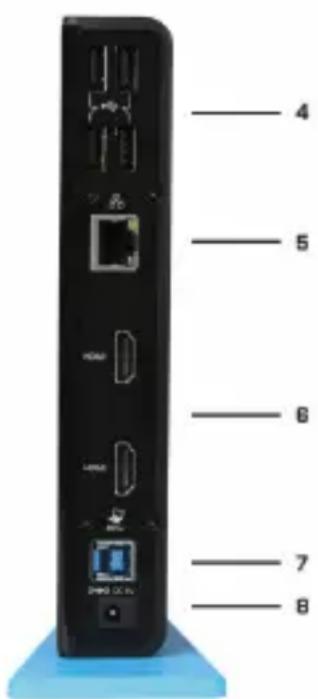
DESCRIPTION
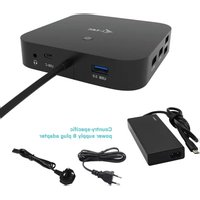
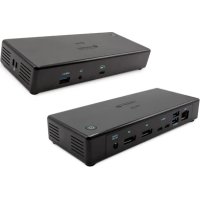
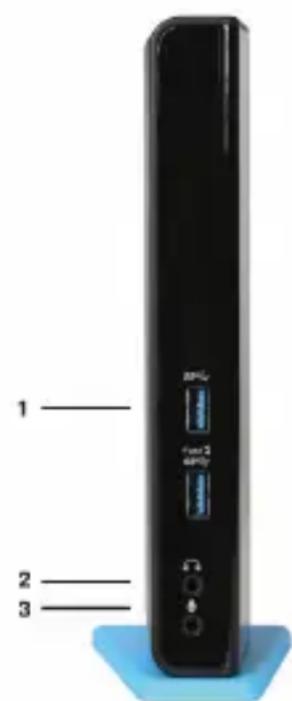
1.2x USB 3.0 type A ports - for connecting USB devices to the docking station; USB 3.0 Fast port also provides features in line with the BC 1.2 specification
2. 1x audio jack for headphones / speakers
3.1x audio jack for microphone
4. 4x USB 2.0 type A ports - for connecting USB devices to the docking station
5. 1x Ethernet 10 / 100 / 1000 Mb/s GLAN RJ-45 port - for connecting to an Ethernet network or internet modem
6.2x HDMI port - for connecting monitors
7. 1x USB 3.0 type B port - for connecting the docking station to the USB port of a laptop / tablet / PC
8. 1x power supply connector - for connecting a power adapter
SYSTEM REQUIREMENTS
- Hardware requirements: notebook / tablet / PC with a free port USB 3.0 / 2.0. If you have USB 2.0, the data transfer speed will be reduced. Processor Intel Pentium 1.2 GHz and higher, 512 MB RAM.
- Operating system: Windows XP SP3 / Vista / 7 / 8 / 8.1 / 10, macOS X, Linux Ubuntu 14.04, 16.04, 17.04, 17.10, 18.04, 19.04, Android 5 or later, Chrome OS R51 or later
- For playing a DVD on an additional monitor the processor shall be at least Intel Pentium 2.0 and higher, 1 GB RAM and a screen resolution shall be 800 × 600 and 16 colors.
CAUTION!
Charging: The docking station supports charging of the connected USB mobile equipment such as smartphones, ebook readers, multimedia players, GPS navigations and tablets (e.g. Asus, Toshiba, Dell, GoClever, Prestigio, Emgeton, Sencor). Simply connect the equipment you want to charge using the original cable to the USB port of the docking station with the connected power adaptor. The only exceptions are the Apple or Samsung tablets which are supported as well but only on the USB 3.0 Fast port with the BC 1.2 specification. At the same time the docking station must be disconnected from the computer/notebook and the inclosed power adaptor must be connected.
USB 3.0: Before the installation on the USB 3.0 port make sure that you have the most recent drivers installed for this port (for the USB 3.0 controller into notebook / tablet / PC). Products with the USB 3.0 SuperSpeed technology have been used since 2010; however, the drivers for the supported equipment are still undergoing some fine tuning.
Your notebook / tablet / PC needs to be equipped with the USB 3.0 interface so that you can utilize the advantages of the fast USB 3.0 equipment. Its problem free function is ensured by the chipset which needs to have the current drivers available.
Problems that you can encounter during the installation or use of our USB 3.0 equipment are very often caused by the installed outdated drivers for the USB 3.0 controller or chipset of your notebook / tablet / PC. Other problems can be caused by outdated firmware of the USB 3.0 port controller. Most frequently it is one of the following manufacturers: Intel, Renesas (former NEC), Via (VLI), AS Media, Fresco Logic, Etron.
You can find the most recent drivers for the i-tec products on our website www.i-tec.cz/en in the "Download" tab for the individual products.
INSTALLING DRIVERS ON WINDOWS 7 / 8 / 8.1 / 10 (32/64 BIT VERSION)
ATTENTION! Do not connect the docking station to your laptop / tablet until you install the corresponding drivers. Drivers only need to be installed before first use. Before installation, make sure your system uses the latest drivers for your device and its BIOS is up-to-date.
To download drivers for Windows 7/8/8.1, visit our website at www.i-tec.cz/en and go to
the Download tab for this product, or go to www.i-tec.cz/setup. Launch the installation from the downloaded file, select your language and follow the instructions on the screen.
For Windows 10, the docking station can be connected directly; drivers will be installed automatically if your device has access to the internet.
Note: For Windows 7 / 8 / 8.1 / 10, install drivers as an Administrator. The screen may flash while drivers are being installed; this is normal. Once installation is complete, restarting the laptop / tablet is recommended.
INSTALLING DRIVERS ON MACOS X - ATTENTION!
Do not connect the docking station to your Mac until you install the corresponding drivers. Drivers only need to be installed before first use. It is recommended to run the latest macOS. Download the drivers from our website at www.i-tec.cz/setup in the Download tab for this product.
HARDWARE INSTALLATION (CONNECTING THE DOCK TO A NOTEBOOK / TABLET / PC)
- Turn ON the notebook / tablet / PC and connect the power adapter to the docking station.
- Connect the power adapter to the AC 100.0 V / 240.0 V mains.
- Connect the USB 3.0 cable to the USB port type B on the back panel of the docking station.
- Connect the USB 3.0 cable to a free USB 3.0 / 2.0 port of your notebook / tablet / PC
- Subsequently, the automatic installation of the ports in the individual systems will start.
- After the completion of the installation restart notebook / tablet / PC.
USING IN WINDOWS OS
Advanced configuration for the graphics after connecting the monitor, right-click on the Desktop and select settings for "Display settings", you can select here the resolution and frequency for monitor you want to use.
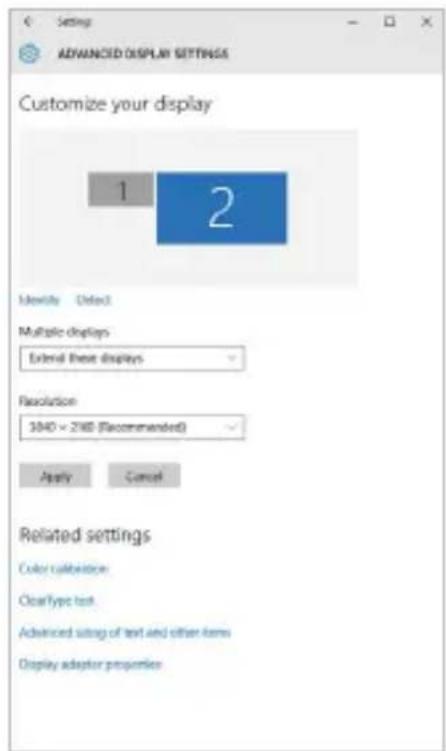
By clicking on the second monitor and moving it you can position this monitor as required relative to the original monitor of your laptop / tablet / PC.
Now you can set Extend and Mirror mode:
- Mirror mode: on the monitor select the 2^nd Monitor, select Several monitors Mirror this display OK.
- Extend mode: on the monitor select the 2^nd Monitor, select Several monitors Extend this display OK.
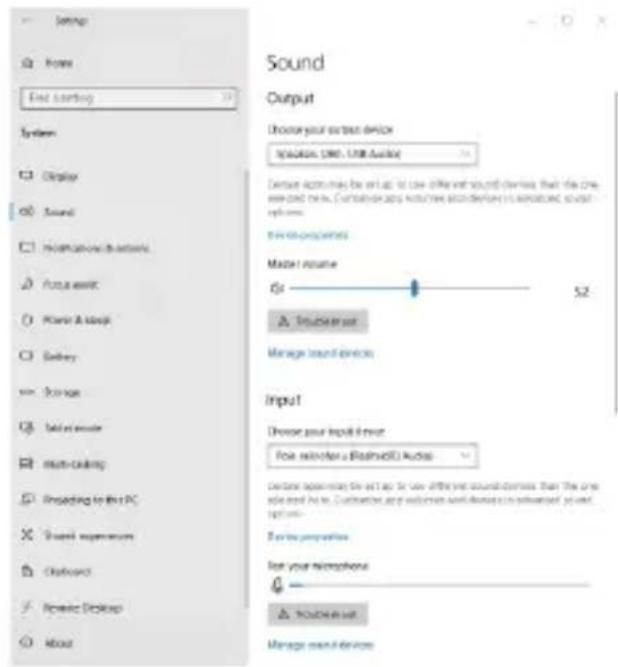
Audio settings - Windows System Audio
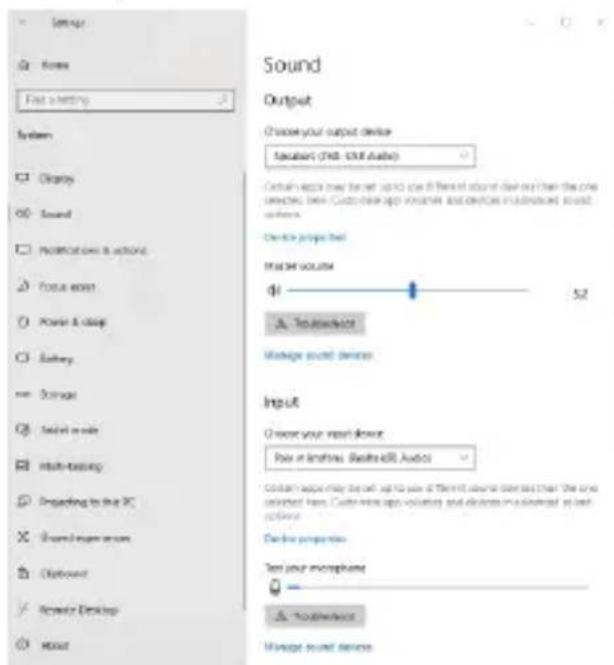
Sound settings
The Standby / Hibernate mode and the Video port - after the activation of the laptop / tablet from the Standby / Hibernate mode the primary (original) monitor is displayed, for this reason we recommend using the monitor that is integrated with the laptop / tablet as the primary monitor, so that you can log on to the system again.
The Mirror mode – the additional monitor takes on the parameters of the original monitor in the system, i.e., if you select the Mirror mode and the original monitor resolution is e.g. 1280x1024 then the screen will be displayed on the additional monitor with a resolution of max. 1280x1024 (even if you set a higher resolution).
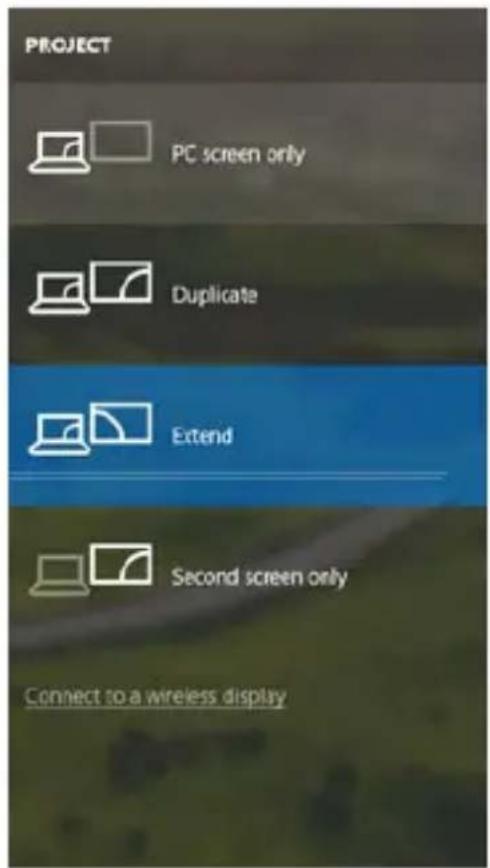
Pressing the keys "Windows" + P you can also easily control the monitors - for using a monitor in Win 10 you can select: Computer screen only, Mirror, Extend, Second screen only
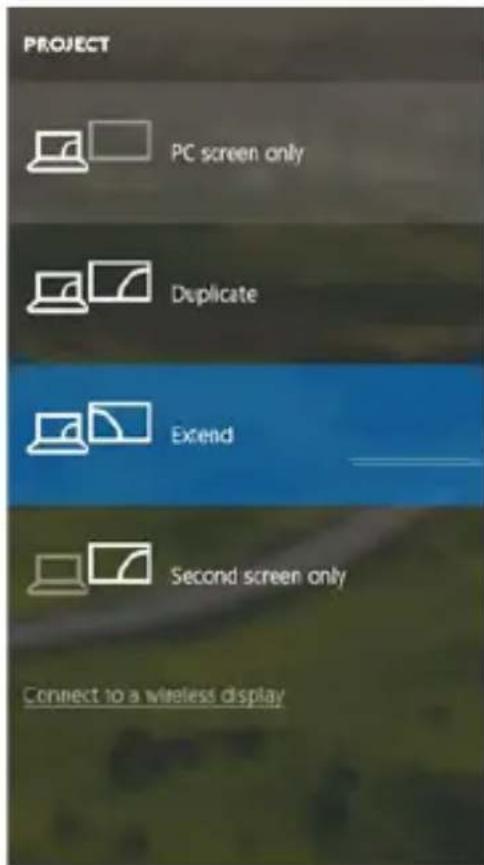
Windows 10
USING IN MACOS X
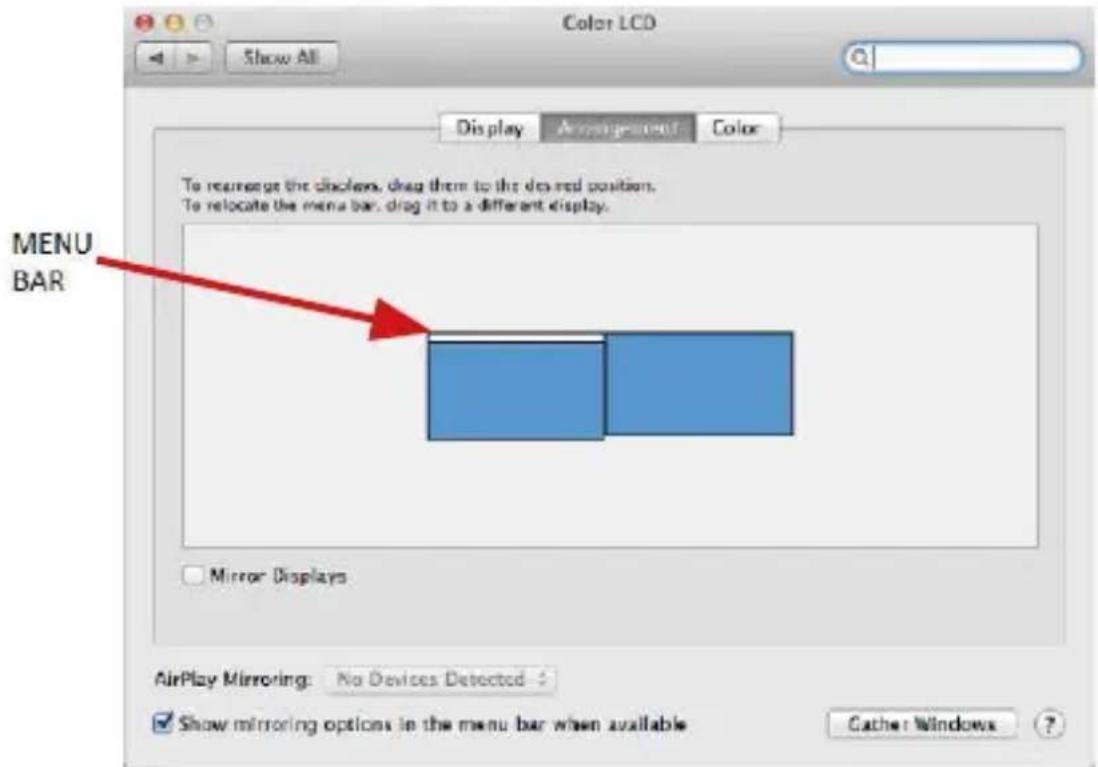
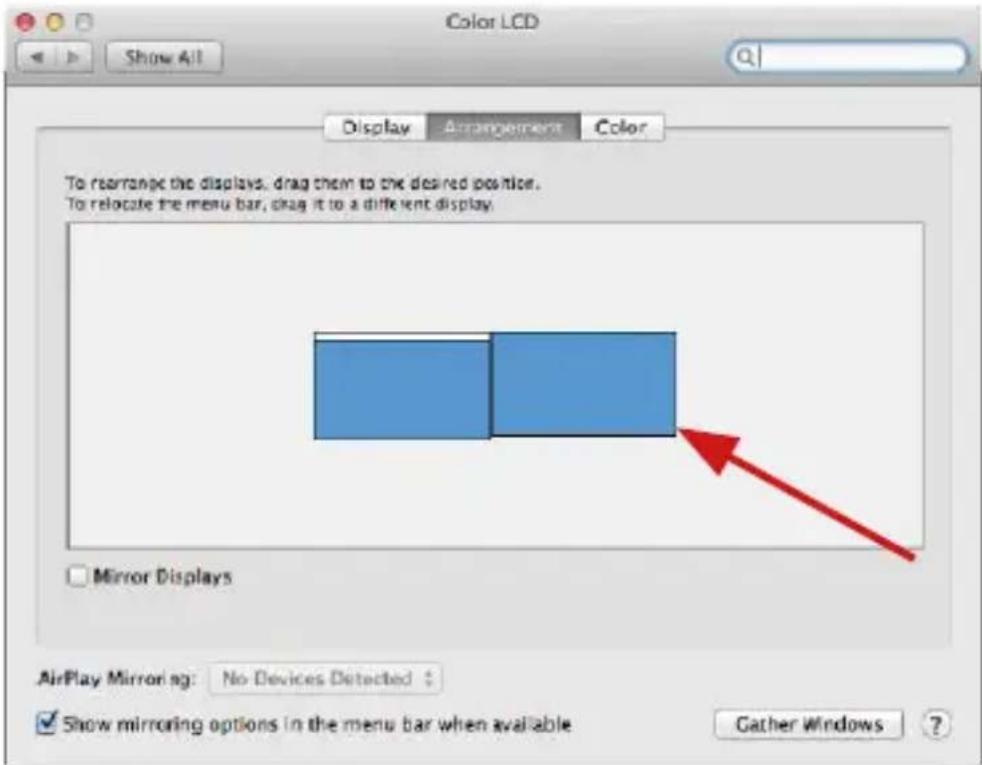
After connecting the monitor, the screen on your Mac will glimmer, which is a standard condition, after stabilization it is possible to perform standard setting of the monitor here: System Preferences-Displays:
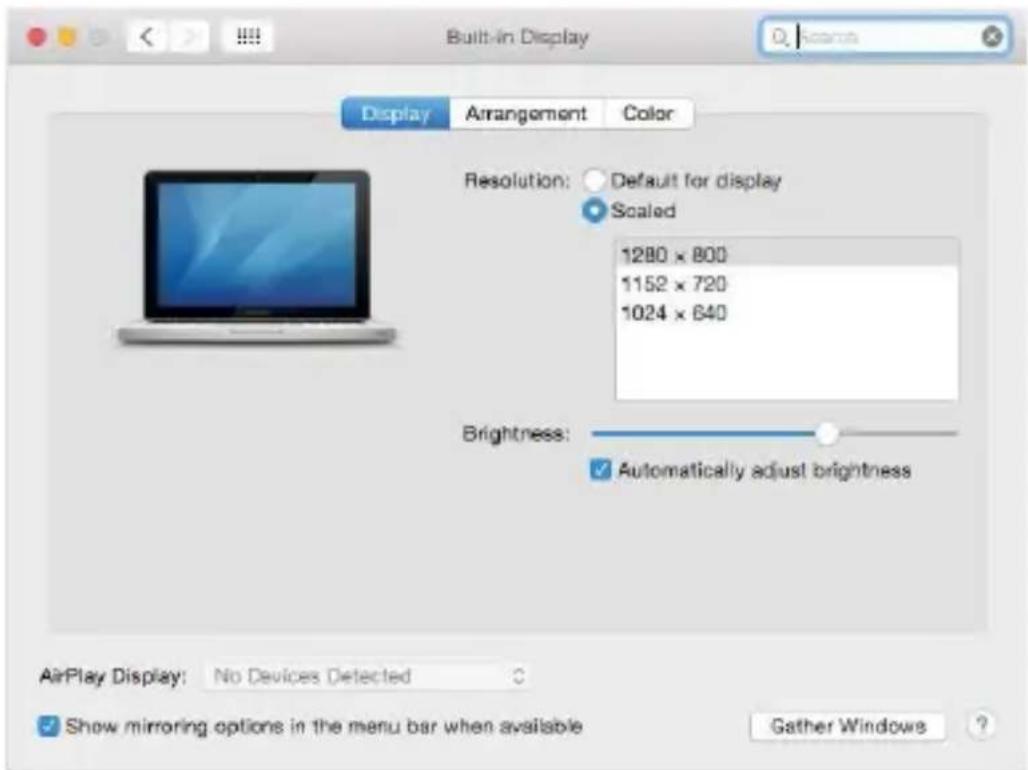
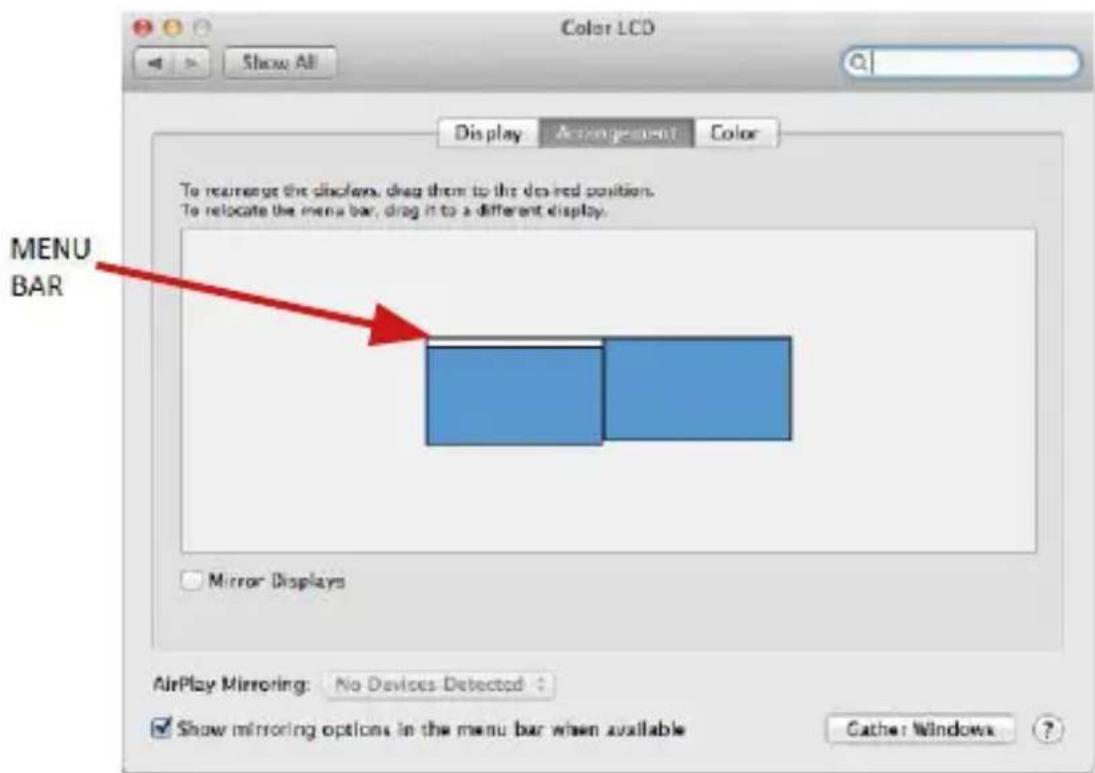
Click on Arrangement and in the default mode (Extended desktop) click on the new monitor and drag it as necessary vis-à-vis the Mac monitor. If you select Mirror displays the mode will change to Mirror (the resolution of the monitors will be aut adjusted according to their parameters and the highest possible resolution will be set on both monitors). By cancelling the Mirror displays option you will return Extended desktop mode.
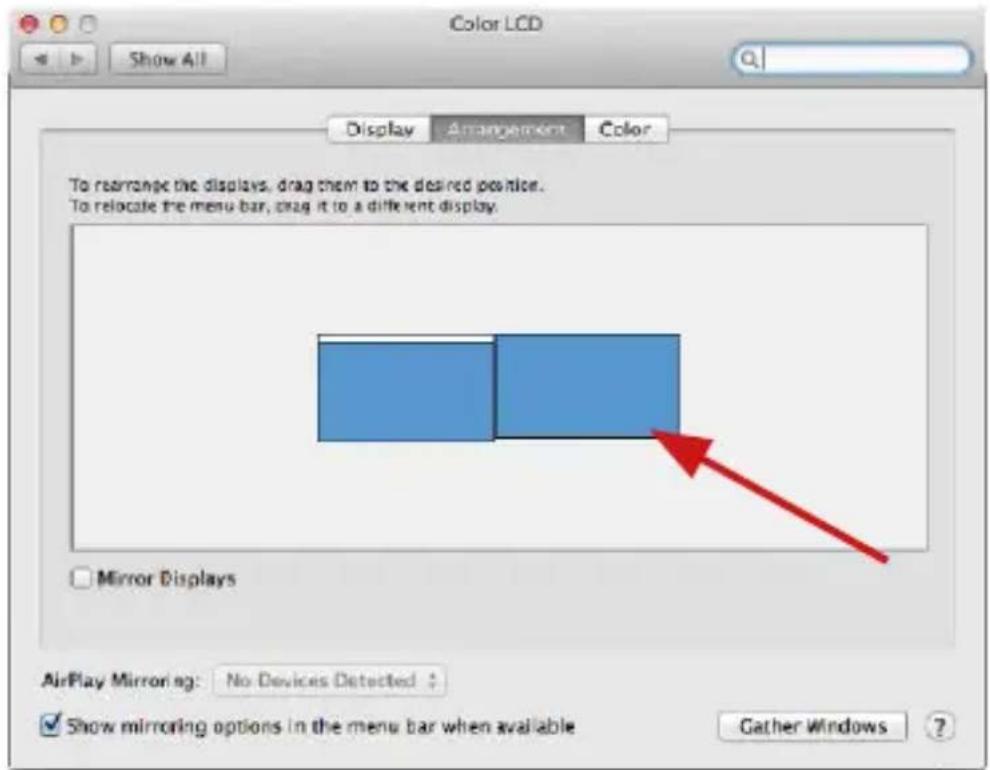
Extended mode: The arrow indicates the possible position of the connected monitor vis-à-vis the Mac monitor.
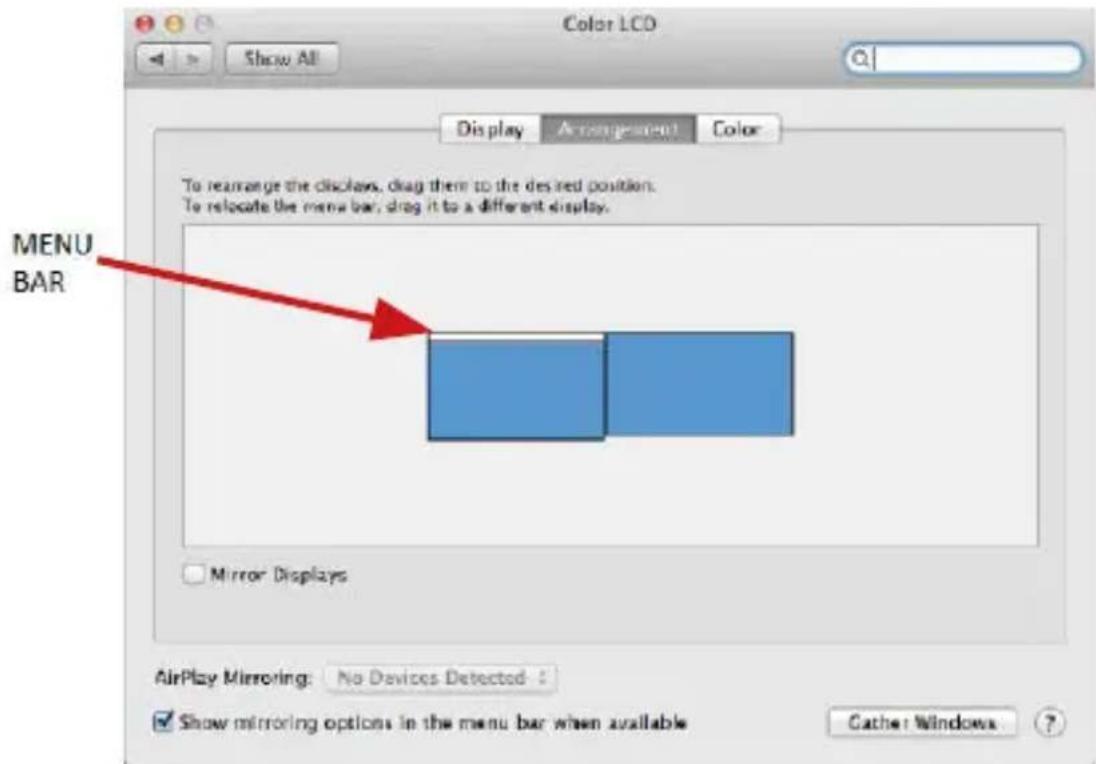
Extended mode: In this mode you can choose the Main monitor by dragging the Menu Bar.
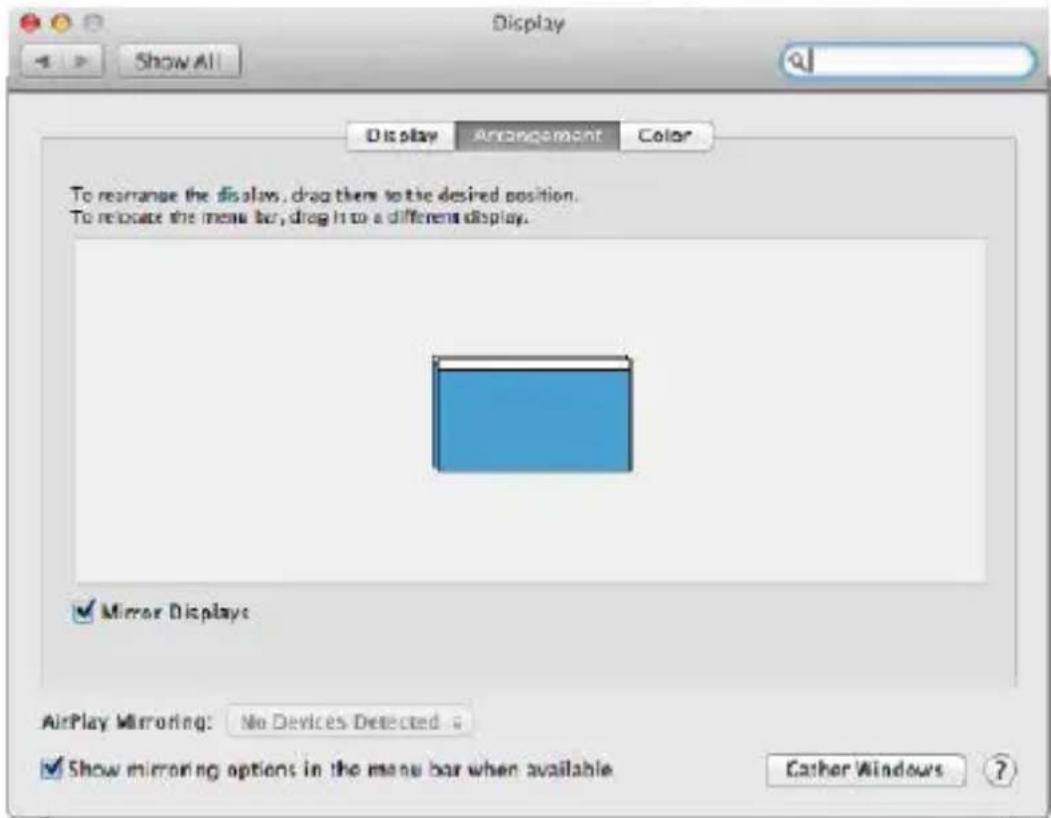
Mirror mode: This mode can only be used if supported by the Mac.
Click on Gather Windows: using this option you can choose the settings of the corresponding monitor - Scaled (offers available resolutions), Rotation (Standard, 90^ , 180^ and 270^ ) and Refresh rate (if offered). Below the following setting options are displayed. This may vary, depending on your monitor.
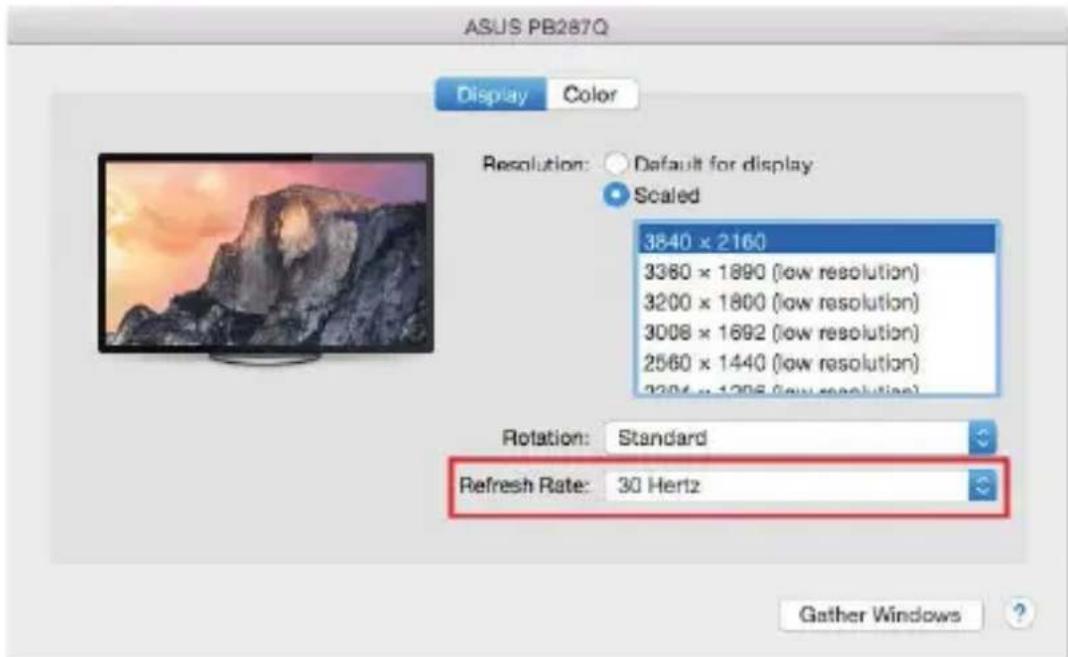
Display option 1
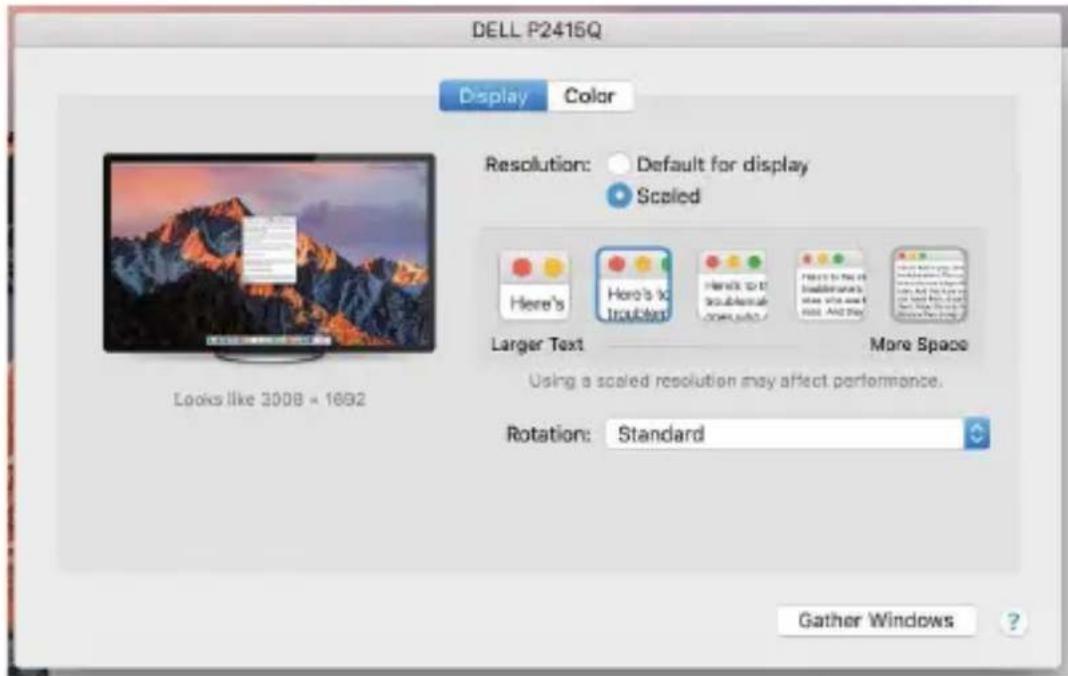
Display option 2
In Scaled mode click on the required icon, the resolution is displayed below (which looks like this, 3008 × 1692 = 4K / 30Hz )
Closed-display mode - 4 conditions have to be met to prevent the MacBook from turning off. The MacBook must be connected to power and an external keyboard, mouse and monitor must be connected. You can then close the MacBook lid and work only with the external monitor. https://support.apple.com/en-us/HT201834
NOTICE:
This docking station works on DisplayLink technology. Rotating the image in macOS will cause all content on the external monitor to be extremely slow. In the near future, perhaps the manufacturer of DisplayLink software and will eliminate this error.
SAFETY INSTRUCTIONS
- Do not expose to extreme temperatures and air humidity
- Do not cover, risk of fire.
- Use the device on flat surfaces - you will prevent it from slipping and falling to the ground.
- Save the user manual for a possible use later.
In cooperation with the service department:
- Check functionality after falling to water or to the ground.
- Check functionality when the cover is broken.
- Send the device back if it does not work in accordance with the user manual.
FREQUENTLY ASKED QUESTIONS
Available on our website www.i-tec.cz/en on the "FAQ" tab of this product.
BEGRIFFSWÖRTERBUCH
RéPONSES AUX QUESTIONS FREQUÉMMENT POSEES
USB 3.0 Dual HDMI Docking Station
USB 3.0 Dual HDMI Docking Station
Lze provadet nastaveni Rozsirit (Extend) a Zrcadlit / Duplikovat (Mirror):
USB 3.0 Dual HDMI Docking Station
Kliknete na Usporadani a v defaultnim rezimu (Rozsirit) kliknete na novy monitor a pretahnete jej dle potreby vzhledem k monitoru Macu. Pri volbe Zrcadlit monitory se zmeni rezim na Zrcadlit (rozlieneni monitoru se automatickny uprav podle jejich parametrua nastavi se nejvyssmi nozmé rozlseni na obou monitorech). Zruşenim volby Zrcadlit monitory obnovite rezim Rozsirit.
CASTO KLADENE OTÁZKY
USB 3.0 Dual HDMI Docking Station
USB 3.0 Dual HDMI Docking Station
https://support.apple.com/euro-en/HT201834
OGLOSZENIE:
USB 3.0 Dual HDMI Docking Station
Mózete vykonat' nastavenie Rozsírit (Extend) a Zrkadlit / Duplikovat' (Mirror):
- Režim Zrkadlit / Duplikovat (Mirror): na obrazovke zvol'te 2. Monitor, pre viac monitorov Duplikovat:toto zobrazenie OK.
Režim Rozsírit (Extend): na obrazovke zvol'te 2. Monitor
Nastavenie zvuku - Windows System Zvuk
Nastavenie zvuku
USB 3.0 Dual HDMI Docking Station
Kliknite na Usporiadanie a v defaultnom režime (Rozširit) kliknite na novy monitora presupunte ho podla potreby vzhladom k monitoru Mac-u. Pri vol'be Zrkadlit monitory sa zmeni režim na Zrkadlit (rozlišenie monitorov sa automatickty upraví podla ich parametrov a nastavi sa majvyssie mozné Rozlügenie na oboch monitoroch). Zrušením vol'by Zrkadlit monitory obnovite režim Rozširit.
Režim rozsírit: Šípka naznáčuje možnost'umiestnépi ripojeného monitora vzhl'adom k Mac monitoru.
CASTO KLADENE OTÁZKY
K dispozicii na našom webe www.i-tec.cz v založke „FAQ" pri toto produkte.
SAVOKOS
USB 3.0 Dual HDMI Docking Station
BESCHRIJVING
USB 3.0 Dual HDMI Docking Station
U kurz deinstallen Uitbreiden (Extend) en Spiegelen/Dupliceren (Mirror) toepassen:
Monitorbediening in Windows 10
GEBRUIK IN MACOS X
https://support.apple.com/en-us/HT201834
MERK OP:
This equipment is marked with the above recycling symbol. It means that at the end of the life of the equipment you must dispose of it separately at an appropriate collection point and not place it in the normal domestic unsorted waste stream. This will benefit the environment for all. (European Union only)
DEUTSCH
This equipment has been tested and found to comply within the limits of a Class B digital device pursuant to Part 15 of the FCC Rules. These limits are designed to provide reasonable protection against harmful interference in a residential installation.
EU DECLARATION OF CONFORMITY / EU KONFORMITÄTSERKLÄRUNG Déclaration EU DE CONFORMITE / DECLARATION UE DE CONFORMIDAD DICHIARAZIONE DI CONFORMITA UE / EU PROHLÁSENÍ O SHODE EU PREHLÁSENIE O ZHODE / EU DECLARACJA ZGODNOSCI ES ATITIKTIES DEKLARACIJA / EU-CONFORMITEITSVERKLARING
Manufacturer, Der Hersteller, Le fabricant, Fabricante, Produttore, Vyrobce, Vyrobca, Producent, Gamintojas, De fabrikant:
i-tec Technologies s.r.o., Kalvodova 2,
709 00 Ostrava - Mariánské Hory, Czech Republic
declares that this product / erklärt hiermit, dass das Produkt / déclare que ce produit / déclarare que este produito / dichiara che il seguente prodotto / tímtto prohlasuje, ze vyrobek / tymto prehlasuje, ze vyrobok / deklaruje, ze produit / siuo pareiskia, kad gaminys / verklaart hierbij dat het product
Product, Bezeichnung, Le prénom, Producto, Prodotto, Název, Názov, Nazwa,
Gaminys, Naam: i-tec USB 3.0/USB-C Dual HDMI Docking Station
Model, Modell, Modèle, Modelo, Modello, Modelis: U3DUALHDMIDOCK
Determination, Bestimmung, La détermination, Determinación, Determinazione, Určeni, Určenie, Opcje, Ustatymas, Doel:
EN Amendment to user manual providing all necessary information required by COMMISSION REGULATION (EU) 2019/1782. (This product meets all the requirements laid down by the above regulation).