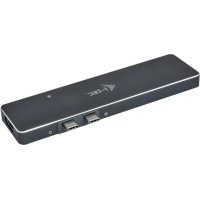
C31MBPADA - Other computer accessories i-TEC - Free user manual and instructions
Find the device manual for free C31MBPADA i-TEC in PDF.


| Product Type | USB-C Docking Station for MacBook Pro |
| Brand | i-TEC |
| Model | C31MBPADA |
| Dimensions (L × W × H) | 134 × 41 × 9 mm |
| Weight | 60 g |
| Power | Powered by the computer's USB-C port, no external power adapter required |
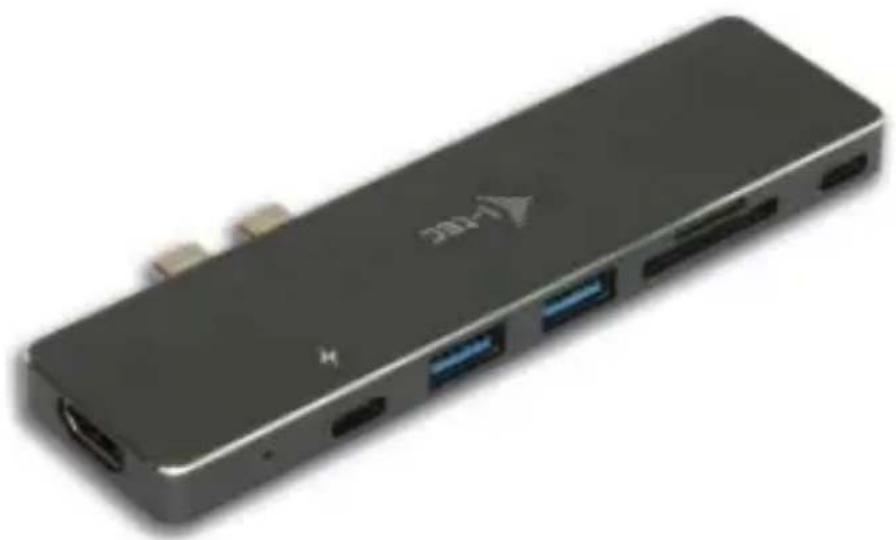
| Ports | 1× HDMI, 2× USB 3.0 Type-A, 1× USB-C (Power Delivery 100W, data, DisplayPort Alt Mode), 1× USB-C (data only), 1× SD slot, 1× MicroSD slot |
| Maximum HDMI Resolution | 3840 × 2160 @ 30 Hz |
| Display Modes | Extend, Mirror, Primary Monitor |
| System Compatibility | macOS, Windows 10 (via Bootcamp); Automatic drivers |
| Hardware Required | MacBook Pro 2016 or later |
| Main Functions | Connect external displays, charge MacBook (via PD), USB data transfer, read SD/MicroSD cards |
| Care and Cleaning | Wipe with a soft, dry cloth. Do not use abrasive chemicals. |
| Safety | Do not expose to extreme temperatures or humidity. Place on a flat surface to avoid falls. |
| Spare Parts and Repairability | No user-serviceable parts. In case of issues, contact i-TEC support. |
| General Information | Compact and lightweight station, ideal for travel. Use without power adapter. |
Frequently Asked Questions - C31MBPADA i-TEC
User questions about C31MBPADA i-TEC
0 question about this device. Answer the ones you know or ask your own.
Ask a new question about this device
Download the instructions for your Other computer accessories in PDF format for free! Find your manual C31MBPADA - i-TEC and take your electronic device back in hand. On this page are published all the documents necessary for the use of your device. C31MBPADA by i-TEC.
USER MANUAL C31MBPADA i-TEC
For MacBook Pro (late 2016 and up)
User guide · Gebrauchsanweisung · Mode d'emploi Manual de instrucciones · Manuale · Uživotelská príručka Instrukcje obsfugi · Uživotelská príručka · Vartotojo vadovas Handleiding
EN Please read the entire instruction manual carefully. Detailed manual is available on our website www.i-tec.cz/en/ in the tab „Manuals, drivers". In case of any issues, please contact our technical support at: support@itecproduct.com
Declaration of Conformity 47
FCC 48
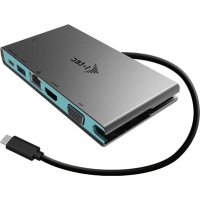
Thank you for your purchase of i-tec USB Type-C Adapter, which will enable easy and fast connection of your favorite devices, using two USB Type-C connectors, to your MacBook Pro 2016 and later. It offers 1x HDMI 4K port, 2x USB 3.0 ports, 2x USB Type-C ports (port marked by: DisplayPort Alt Mode / Data / Power Delivery and the other one is for Data only) 1x SD slot and 1x micro SD slot. Due to its small size, low weight and no need for charger, it is also suitable for use while you are traveling.
Please, read the entire user manual carefully before you start using the adapter.
PACKAGE CONTENTS
- i-tec Aluminium Mini Dock for MacBook Pro 2016
Quick Start
SPECIFICATION
- i-tec USB Type-C adapter will enable easy and fast connection of your favorite devices, using two USB Type-C connectors, to your MacBook Pro 2016 and later
- USB Type-C (3.1 Gen1) and USB 3.0 interface, backward compatible with USB 2.0
- 1x USB Type-C with Power Delivery with 4 profiles (max. 100W), supports also Data transfer and DisplayPort Alt Mode, marked by:
- 2x USB 3.0 ports, data transfer speed up to 5Gbps
- 1x SD slot and 1x microSD slot support formats SD/SDHC/SDXC a Micro SD/SDHC/SDXC
- Graphic interface: 1x HDMI, max. resolution 3840x2160 / 30 Hz
- Resolution: 640x480, 800x600, 1024x768, 1280x720, 1280x768, 1280x800, 1280x1024, 1360x768, 1366x768, 1368x768, 1400x1050, 1600x1200, 1680x1050, 1920x1080, 1920x1200, 2048x1152, 2048x1280, 2048x1536, 2560x1440, 2560x1600, 3840x2160
Mode: Extend, Mirror and Primary Display
Supported colors 16 / 32 bit - Powered through USB bus (no power adapter is needed)
OS: macOS
Product dimensions: 134 × 41 × 9 ~mm
Product weight: 60 g
ADAPTER DESCRIPTION
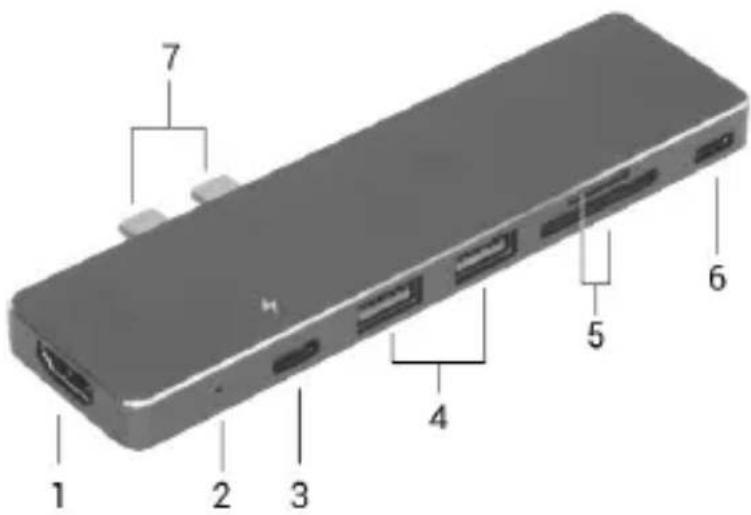
- HDMI port - connection for external monitor
- LED indication of connection to a MacBook
- USB Type-C DisplayPort Alt Mode / Data / Power Delivery port - for devices with USB Type-C, for data transfer and for monitor connection
- USB 3.0 port Type-A - for USB devices
-
SD and microSD slots for different types of SD and microSD cards - only one slot can be used at the same time
-
USB Type-C Data port - for Data transfer only
-
One pair of USB Type-C connectors - for connection to a MacBook
SYSTEM REQUIREMENTS
Hardware requirements: MacBook Pro 2016 and later
Operating system: macOS; Bootcamp with Windows 10 is possible
After connecting, the drivers for the adapter are installed automatically from the system.
ATTENTION!
Please make sure you have the latest macOS operating system installed, before start of installation.
CONNECTING AN HDMI MONITOR
The adapter is equipped with 1x HDMI UHD 4K port for connection of an external monitor or b HDMI interface. For displaying your images you can use modern plasma or LCD monitors and TVs. The graphic chip, which is the heart of the adapter, supports resolution up to 4K (UHD) 3840 x 2160 pixels. Connect the monitor to the adapter using a high-quality HDMI cable. During installation of an additional monitor the screen of the Mac can flicker which is a standard condition.
CHARGING AND ENERGIZING
Apple New MacBook
The adapter offers 1x USB Type-C Power Delivery port designed for energizing of the connected "parent" device using the original power adapter and for charging of devices connected through the USB 3.0 port.
CONNECTING USB DEVICES
You can use the USB 3.0 port for connecting your keyboard, mouse, external hard drive, printer and other devices or you can use it for connection of an USB HUB by which you will gain some more free USB ports. In this case we recommend using a HUB with an external power source. If the device is not charged or does not work, connect the original USB Type-C power adapter to the USB Type-C port of the adapter for support of charging.
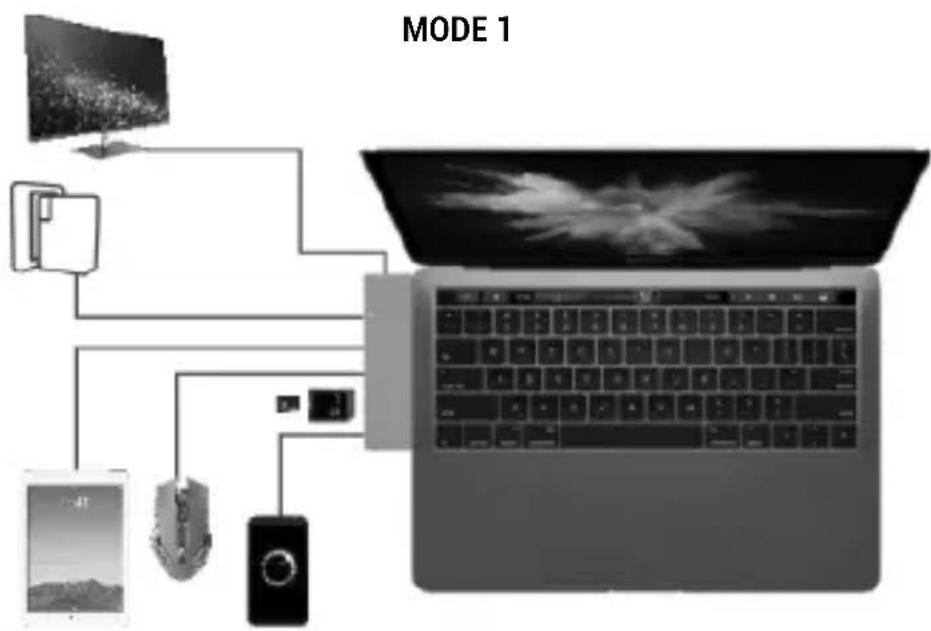
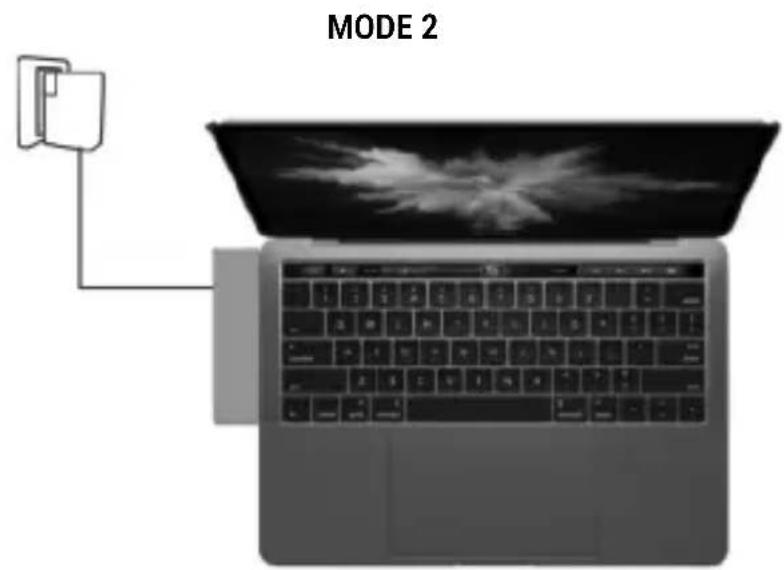
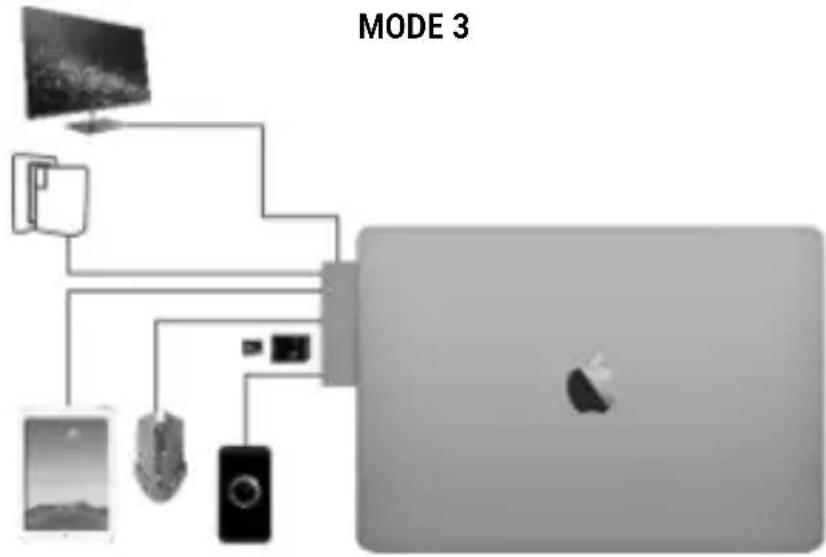
Possible modes of connected devices:
Mode 1 - another monitor or data
Mode 2 - charging of MacBook and USB 3.0 devices
Mode 3 - closed MacBook's lid
You can solve most problems by disconnecting Docking station from your MacBook and reconnecting it after 10s.
SAFETY INSTRUCTIONS
- Do not expose to extreme temperatures and air humidity
- Use the device on flat surfaces - you will prevent it from slipping and falling to the ground.
- Save the user manual for a possible use later.
In cooperation with the service department:
- Check functionality after falling to water or to the ground.
- Check functionality when the cover is broken.
- Send the device back if it does not work in accordance with the user manual.
FREQUENTLY ASKED QUESTIONS
Question: I am using MacBook's Bootcamp with Windows 10. Will my adapter work?
Answer: Yes, Docking station is fully compatible with Windows 10 on MacBook. Installation is also identical.
Question: Can I get more detailed information on the problems related to the USB Type-C adapter?
Answer: Of course, you can contact our technical help.
Question: The device does not charge an Apple / Samsung tablet.
Answer: If the device connected to the USB 3.0 port is not charged or does not work, connect the original USB Type-C power adapter to the USB Type-C port of the adapter for support of charging. Unfortunately despite the European standard on unification of the power supply devices some companies protect their products by allowing charging these products only with the original / licensed power adapter through the USB Type-C port.
EINLEITUNG
QUESTIONS FREQUEMENT POSÉES
:Funciwrarmi Mini Dock?
CASTO KLADENE OTÁZKY
CASTO KLADENE OTÁZKY
This equipment is marked with the above recycling symbol. It means that at the end of the life of the equipment you must dispose of it separately at an appropriate collection point and not place it in the normal domestic unsorted waste stream. This will benefit the environment for all. (European Union only)
DEUTSCH
This equipment has been tested and found to comply within the limits of a Class B digital device pursuant to Part 15 of the FCC Rules. These limits are designed to provide reasonable protection against harmful interference in a residential installation.

www.i-tec.cz/en